
- Revision History
- Overview
- Feature Summary
- Public Sector Licensing and Permitting
-
- Licensing and Permitting Common
-
- Edit Application After Expiration, Completion, or Closure
- Copy Application Option Includes Applicant from Source for Agency Staff
- Mask Applicant and Contact Information
- Expanded Grace Periods
- Conditions Inheritance in Contractor Management
- Contractor Contact Information Added by Agency Staff
- Legacy Data Migration for Permit and Planning Objects
- Search, Sort, and Filter Inspection Lists for Property
- Search, Sort, and Filter Work Lists with Address or Location
- Search, Sort, Filter, and Export Lists
- Email Notifications When Contact Added to a Transaction
- Advanced Property Search
- Financial Framework
- System Administration
-
- Permits and Inspections
- Code Enforcement
- Licensing and Permitting Common
- IMPORTANT Actions and Considerations
This document will continue to evolve as existing sections change and new information is added. All updates appear in the following table:
| Date | Product | Feature | Notes |
|---|---|---|---|
| 23 DEC 2021 | Created initial document. |
 HAVE AN IDEA?
We’re here and we’re listening. If you have a suggestion on how to make our cloud services even better then go ahead and tell us. There are several ways to submit your ideas, for example, through the Ideas Lab on Oracle Customer Connect. Wherever you see this icon after the feature name it means we delivered one of your ideas.
GIVE US FEEDBACK
We welcome your comments and suggestions to improve the content. Please send us your feedback at oracle_fusion_applications_help_ww_grp@oracle.com.
DISCLAIMER
The information contained in this document may include statements about Oracle’s product development plans. Many factors can materially affect Oracle’s product development plans and the nature and timing of future product releases. Accordingly, this Information is provided to you solely for information only, is not a commitment to deliver any material, code, or functionality, and should not be relied upon in making purchasing decisions. The development, release, and timing of any features or functionality described remains at the sole discretion of Oracle.
This information may not be incorporated into any contractual agreement with Oracle or its subsidiaries or affiliates. Oracle specifically disclaims any liability with respect to this information. Refer to the Legal Notices and Terms of Use for further information.
Column Definitions:
Report = New or modified, Oracle-delivered, ready to run reports.
UI or Process-Based: Small Scale = These UI or process-based features are typically comprised of minor field, validation, or program changes. Therefore, the potential impact to users is minimal.
UI or Process-Based: Larger Scale* = These UI or process-based features have more complex designs. Therefore, the potential impact to users is higher.
Features Delivered Disabled = Action is needed BEFORE these features can be used by END USERS. These features are delivered disabled and you choose if and when to enable them. For example, a) new or expanded BI subject areas need to first be incorporated into reports, b) Integration is required to utilize new web services, or c) features must be assigned to user roles before they can be accessed.
| Ready for Use by End Users Reports plus Small Scale UI or Process-Based new features will have minimal user impact after an update. Therefore, customer acceptance testing should focus on the Larger Scale UI or Process-Based* new features. |
Customer Must Take Action before Use by End Users Not disruptive as action is required to make these features ready to use. As you selectively choose to leverage, you set your test and roll out timing. |
|||||
|---|---|---|---|---|---|---|
| Feature |
Report |
UI or |
UI or |
|
||
Copy Application Option Includes Applicant from Source for Agency Staff |
||||||
Search, Sort, and Filter Work Lists with Address or Location |
||||||
Automatically Assess Late Fees for Code Enforcement Based on Payment Due Date |
||||||
Public Sector Licensing and Permitting
Licensing and Permitting Common
Edit Application After Expiration, Completion, or Closure
Agency staff can reopen permits and applications to add new inspections or plan reviews even after the expiration, completion, or closure of the permit or application.
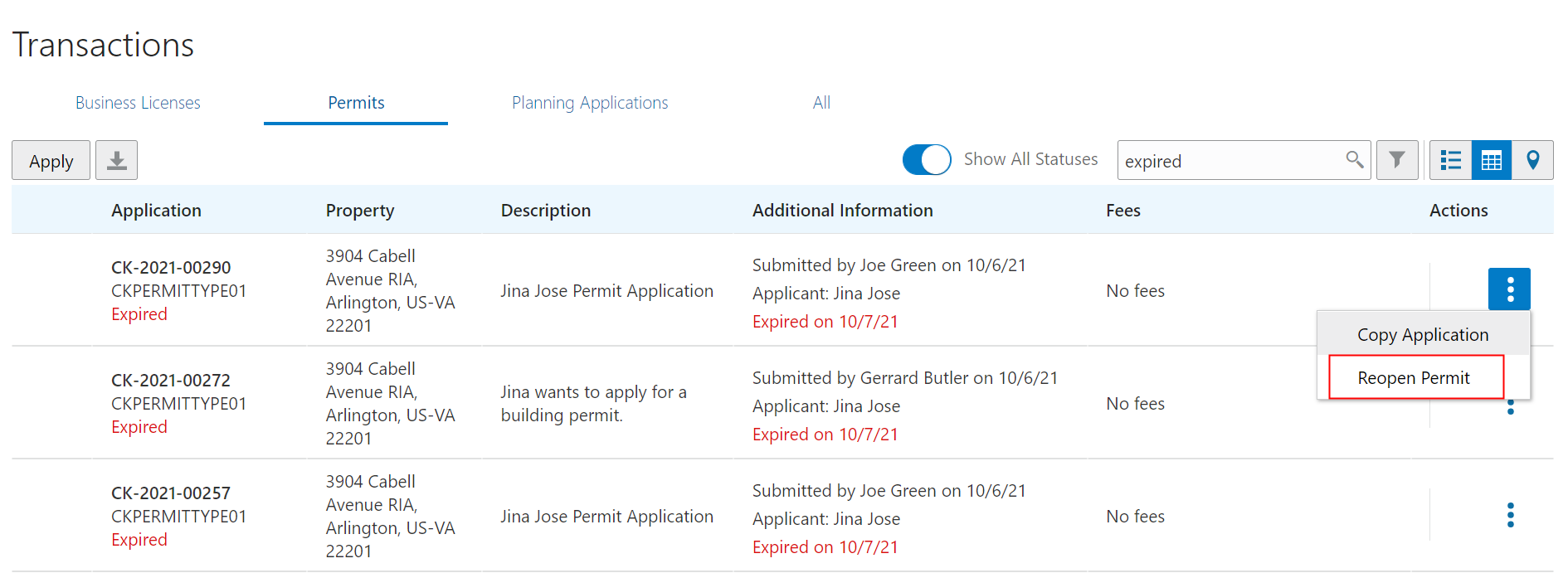
Transaction Page
Records in expired status are typically not eligible to be updated as the expiration status represents insufficient progress according to agency policy, indicating that the record has essentially been abandoned.
Records in completed or closed status are typically not eligible to be updated as the completed or closed status represents the record has gone through the lifecycle and no additional work is expected.
Even though expired, closed and completed records are typically not eligible to be updated there is an occasional need to update these records to address unexpected considerations.
Steps to Enable
You don't need to do anything to enable this feature.
Key Resources
- See Using Community Development Permits, "Managing Permits," Working with Permit Details on the Oracle Help Center.
Role Information
This functionality is available for agency administrators only.
Copy Application Option Includes Applicant from Source for Agency Staff
While copying a permit, planning application or business license, agency staff can select the applicant for whom the new application is being created.
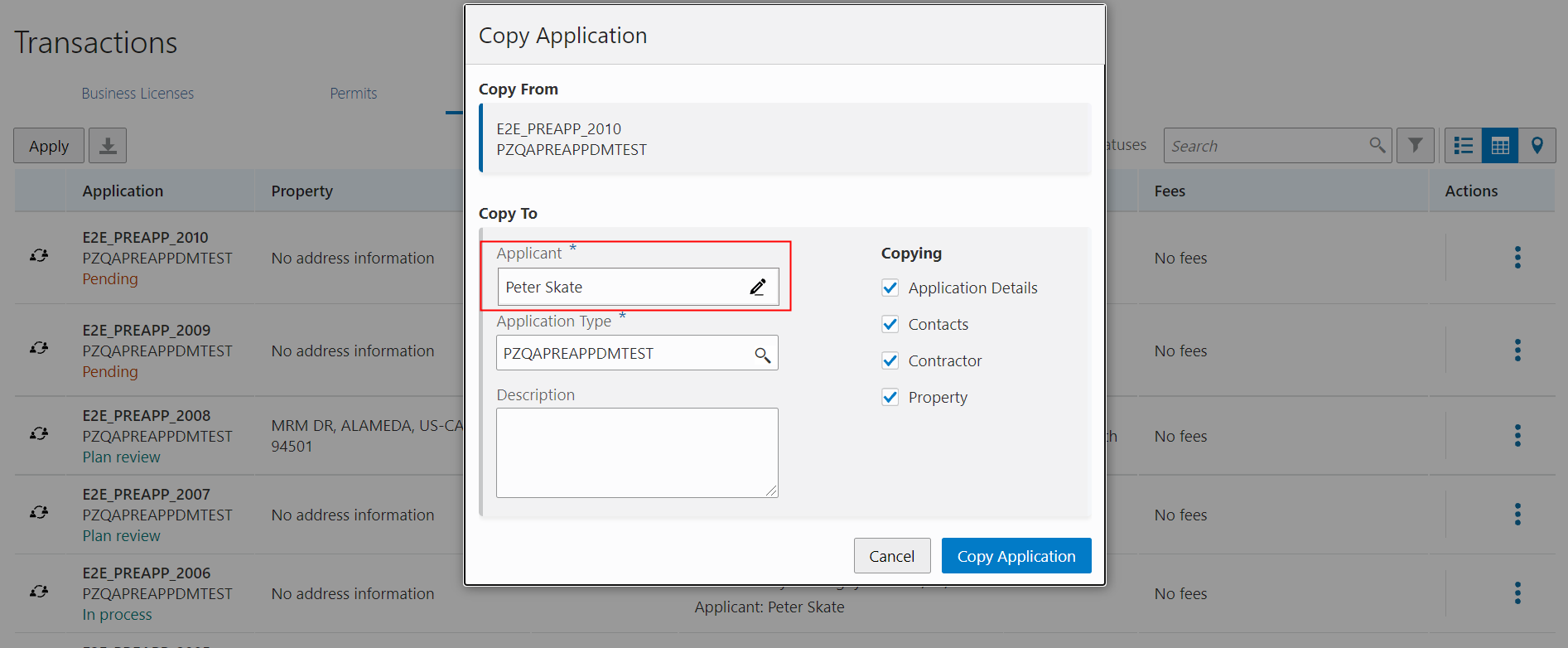
Copy Application
This feature provides a setting to allow auto population of applicant information when a copy is initiated by agency staff.
Steps to Enable
You don't need to do anything to enable this feature.
Tips And Considerations
When Copy Application action is initiated by agency staff, user has an option to copy applicant information.
As part of this feature, when clicking the Copy Application button in the copy application modal, the user will be navigated to the single-page view of the intake form. From this page, the user should be able to save or submit the application or navigate to other pages to edit the information before submitting the copied application.
Prior to 22A, clicking the Copy Application button in the copy application modal would navigate the user to page 1 of the intake form.
Key Resources
- See Using Community Development Permits, "Copying an Application" on the Oracle Help Center.
Mask Applicant and Contact Information
Agencies can hide the name and contact information of all applicants and contacts registered in the system from public view on applications. If this setup option is selected, only the applicant, their contacts with application access, and agency staff can view the contact information on an application. The registered user will not have the option to hide or show their contact information on the registration page or in account management.
Only one of the public user setup options under Privacy Consideration can be selected. Either the agency elects to hide all applicant and contact information or allows the registered user to decide whether to hide their information.
This example shows the option to hide contact information of all registrants from public view.
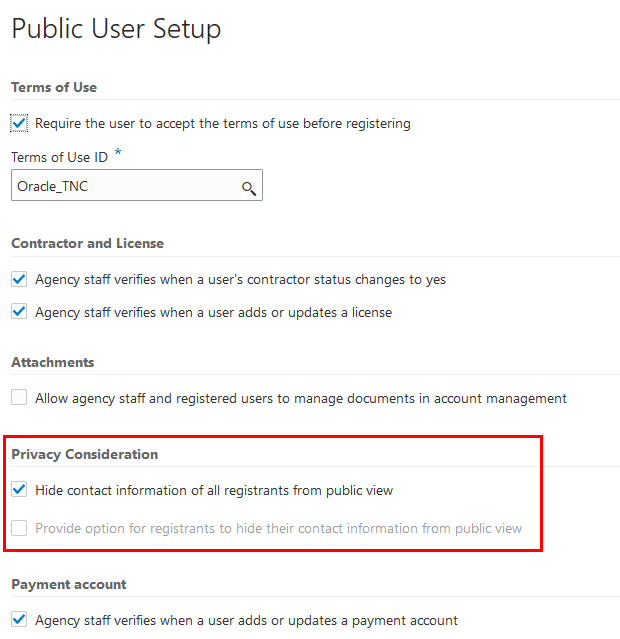
Public User Setup page
Agencies have the option to hide contact information for applicants and contacts allowing them to follow local or mandated privacy policies.
Steps to Enable
You will need to complete the following steps to mask applicant and contact information.
- Navigate to Public User Setup.
- Under Privacy Considerations, select Hide Contact information of all registrants from public view.
Tips And Considerations
If you select this option, the registered user will not have a choice in hiding their contact information in their account or during registration. The Provide option for registrants to hide their contact information from public view must be cleared before you can select this option.
Key Resources
- See Implementing Your Agency, "Setting Up Public Users," Setting Up Public Users on the Oracle Help Center.
In the Permit Expiration Group, the field for Grace Period is expanded to allow you to add a 3-digit value. For example, the highest value you can add for this field is 999.
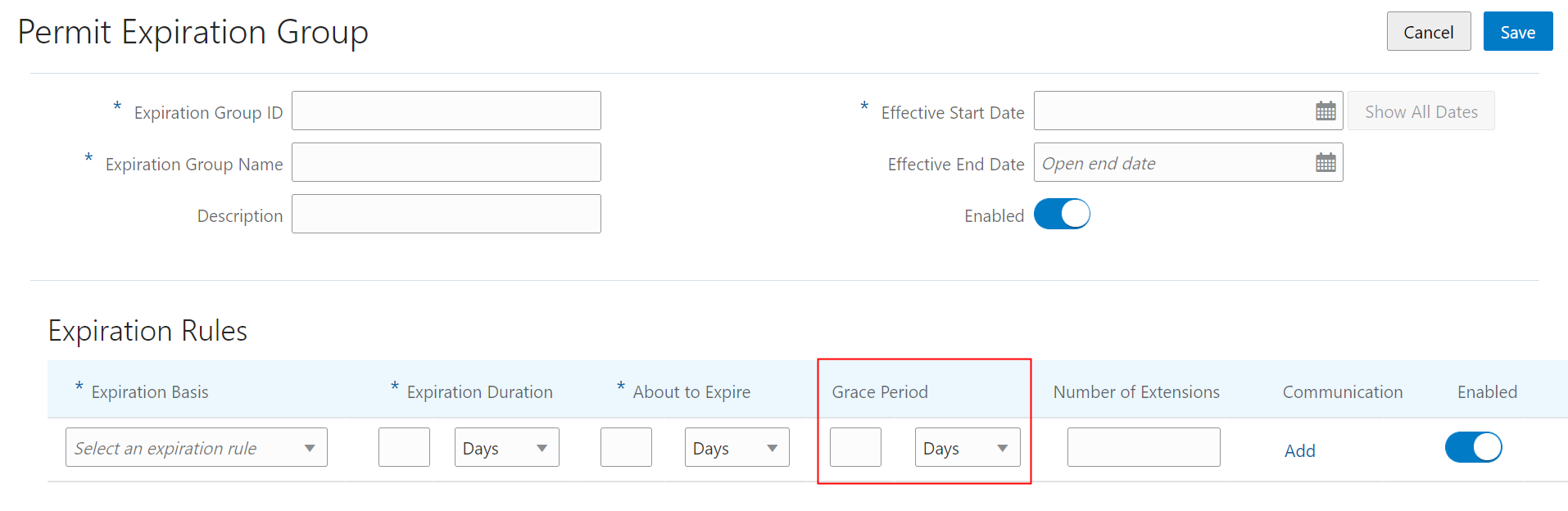
Permit Expiration Groups
This allows for more flexibility when configuring permit expiration rules to set a grace period consisting of a 3 digit value. For example, you can set a rule with a grace period of 120 days. This extends an expiration date by 120 days to allow for more time to complete required tasks.
Steps to Enable
To uptake this functionality you will need to modify the expiration group setup.
Specifically, on the expiration group setup page:
- The grace period field will now accept a 3 digit numerical value (previously it was accepting only a 2 digit number).
- The expiration duration and about to expire fields maximum limit to 3 digits (previously the max was 10 digits for these 2 fields).
Key Resources
- See Implementing Licensing and Permitting, "Setting Up Permit Expiration Rules", Defining Expiration Rules on the Oracle Help Center.
Conditions Inheritance in Contractor Management
You can apply conditions to contractor licenses to indicate an issue exists and to limit permit or planning application activity when the contractor license is used. For example, a condition applied to a contractor license may prevent the submittal of an application where the license is selected or an inspection can't be requested for a permit associated with the license.
You can apply, modify, and resolve contractor conditions on the contractor records in the agency-maintained list. The Conditions page in the contractor details lists all of the conditions applied to the selected contractor. Contractor conditions that are applied to transactions are also listed on the associated permit or planning application.
Example of condition details for a contractor hold condition:
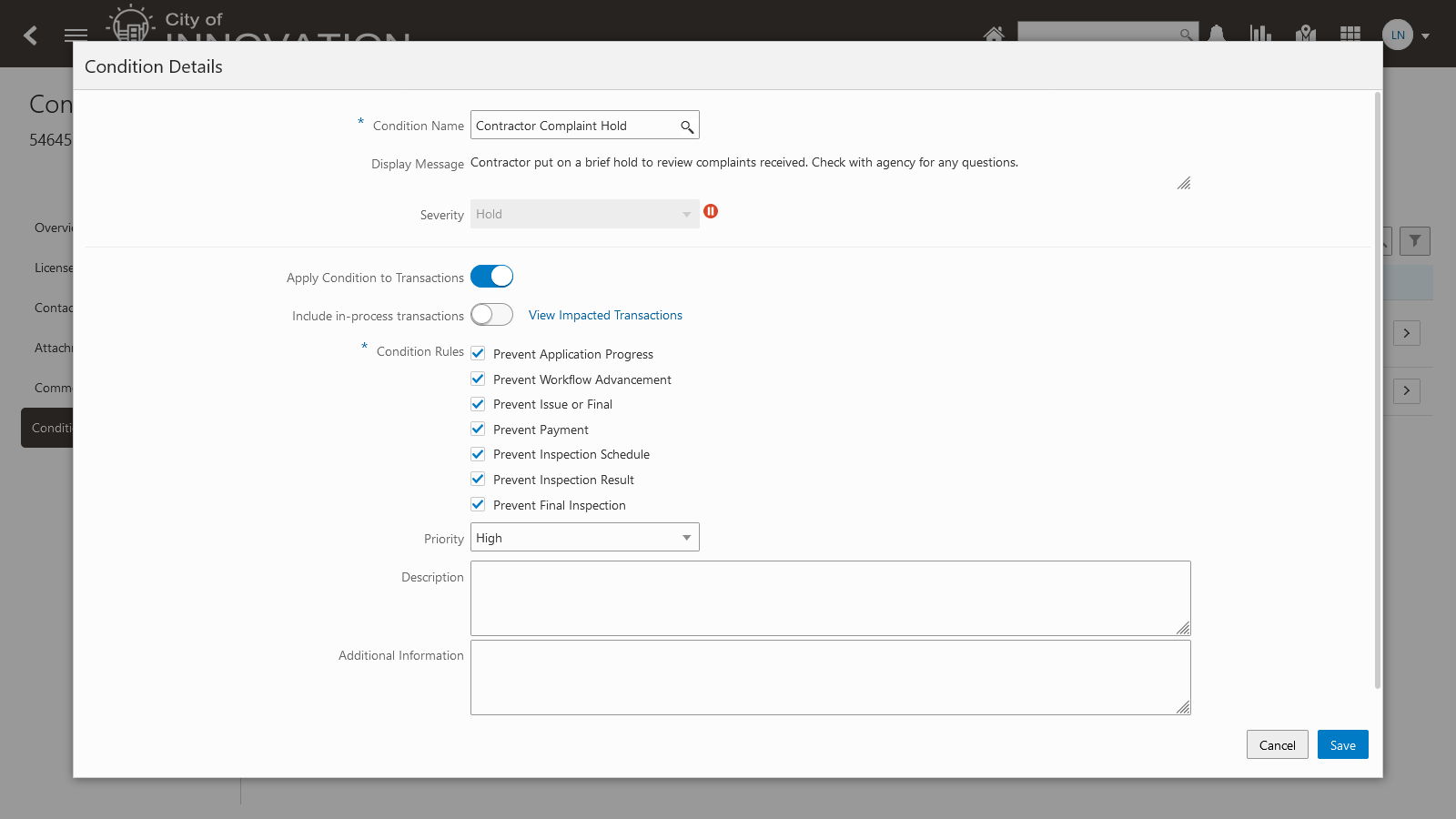
Contractor Condition Details
You have the option to apply a condition that will prevent the progression of applications (permits or planning applications) that are in process. This helps agencies manage the suspension of projects if the contractor has a condition on their license.
Steps to Enable
To set up the conditions inheritance in Contractor Management, follow the steps below.
Set up a contractor license condition:
- Navigate to Condition.
- Select or enter a Hold or Lock condition of type Contractor License.
- Enable Apply Condition to Transactions.
Set up a condition on a contractor license:
- Navigate to Contractor License.
- Apply a condition to the contractor license.
- Select Apply Condition to Transactions if you want the condition placed on transactions.
- Select Include In-Process Transactions to apply the condition to existing transactions.
Key Resources
-
See Using Community Development Permits, "Managing Contractor Information," Applying Conditions to Contractor Licenses on the Oracle Help Center.
Contractor Contact Information Added by Agency Staff
When applicants identify themselves as contractors or authorized agents for a contractor in a permit or planning application, their contact information appears in the Contacts page in the contractor license. You can now manually add contractors or authorized agents as contacts associated with the license by selecting from a list of registered users. If they don’t exist in the list, register them by using the Register New Contact link. Newly added contractors and authorized agents entered directly to the contractor license automatically have their verification status set to ‘Verified’.
Only system administrators can delete contractor contacts.
Example of searching for a registered contact to add to the contractor license on the Select from Registered Users page modal page. You can also click the Register New Contact link to register and add an unregistered contact.
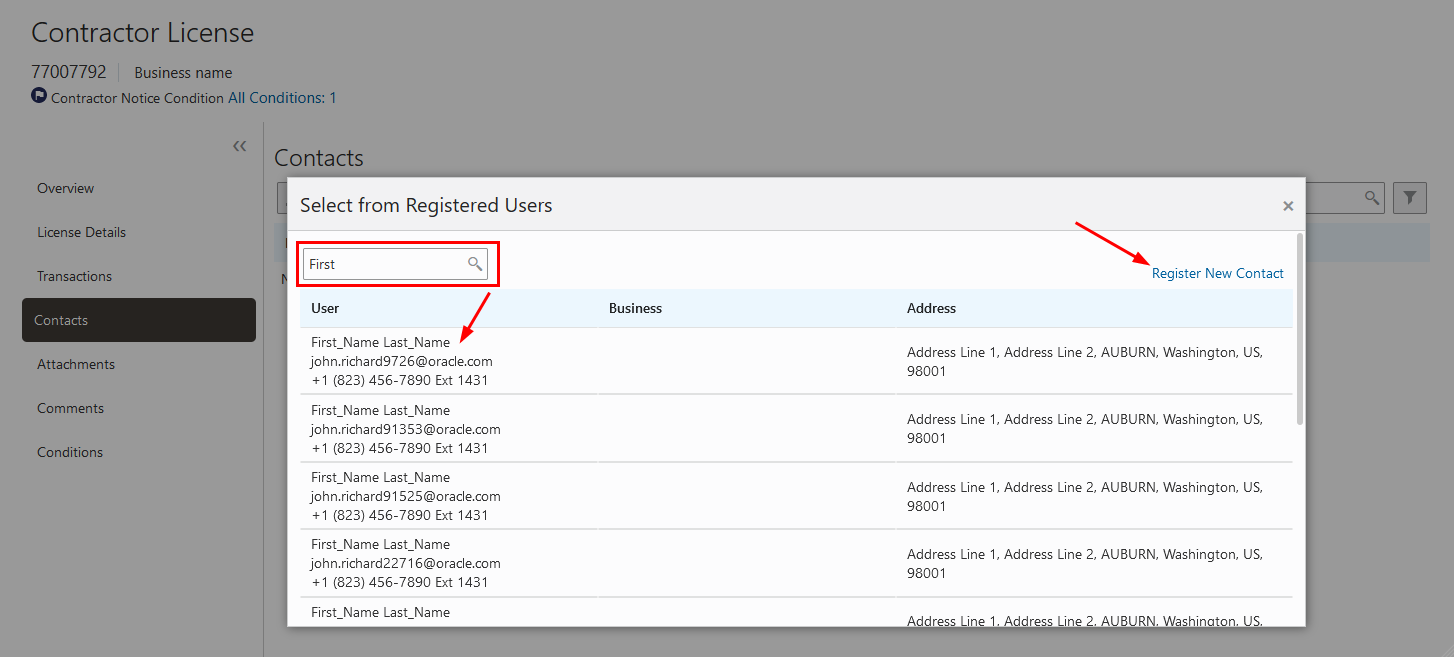
Add Contractor Contact Information
Agencies are able to add contractor contact information that wasn't provided as part of the license source. This provides a way to maintain accurate information for contractors operating within a jurisdiction.
Steps to Enable
To set up the contractor contact information complete the steps below.
- Navigate to Contractor License, Contact tab.
- Click the add button.
- Either search for an existing registered user, or click on the link Register New Contact to add a contractor or authorized agent to the contractor license.
Key Resources
- See Using Community Development Permits, "Managing Contractor Information," Managing Contractor License Details on the Oracle Help Center.
Legacy Data Migration for Permit and Planning Objects
You can migrate your legacy data for planning applications, permits, and code enforcement to Public Sector Licensing and Permitting using Import Management. Import Management improves definition, error handling, and performance for importing flat files (.CSV). For example, Import Management has drag and drop mapping capabilities and validates the first ten records in your data file before you import to ensure the data meets the import constraints of the various attributes. It also provides error files and diagnostic logs for analyzing unsuccessful imports.
These are the objects delivered in this release:
- Plan Review Comments
- Planning and Zoning Reusable Custom Fields
- Licensing and Permitting Reusable Custom Fields
- Permit Comments
- Authorized Agent
Migrating your legacy data planning applications, permits, and code enforcement puts all of your agency's data in Public Sector Licensing and Permitting.
Steps to Enable
You will need to complete the set up and configuration outlined in the technical brief, "Migrating Data Using Import Management" on My Oracle Support.
Key Resources
- See this article on My Oracle Support: https://support.oracle.com/epmos/faces/DocumentDisplay?id=2808116.1
Search, Sort, and Filter Inspection Lists for Property
Permit and planning applications in inspection and plan review list pages can be searched, sorted, and filtered by property attributes in addition to other attributes on the page. You can:
- Search for any elements of the first line of an address or city.
- Sort by the street name, the first line of an address, or city.
- Filter by values in the first line of an address or city.
Each column name in the inspection and plan review console grids has a sort arrow. When you click a column that contains multiple attributes, a drop-down list shows each attribute in the column available to sort by.
This example illustrates the property sorting attributes on the Inspections console for agency staff.

Partial View of the Inspections Console - Property Sorting
This example illustrates the filter on the Inspections console for agency staff.

Partial View of the Inspections Console - Filter Pane
This feature gives you options to view the information you need.
Steps to Enable
You don't need to do anything to enable this feature.
Tips And Considerations
In Oracle Inspector, an inspector can search and filter on the Inspection Tasks page. The applied search and filter will be persisted for the current session. Once they log out, the search and filter will be reset. This is applied only on Inspection Tasks page. Stacked sort and street sort are added for Inspection and Plan Review Consoles.
Key Resources
- See Using Community Development Permits, "Working with Permit Inspections," Managing Inspections for an Agency on the Oracle Help Center.
Search, Sort, and Filter Work Lists with Address or Location
The sort, search, and filter page elements have been standardized in worklists for a consistent user experience.
You can also sort based on the street name, the first line of an address starting with the street number, or the city for a property or location.
This example illustrates the sorting options on the Property column in the Planner Worklist: Street, Address, and City. Column sort is only available in the Grid View.

Partial View of the Planner Worklist
Here you can see the location or property sorting options when in the List View.
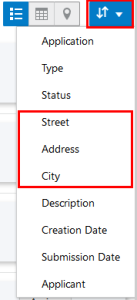
List View Sort in a Worklist
This provides consistency across Worklists with regard to the search, sort, and filter functionality. In addition, the location, or property information column uses sorting logic that accounts for the street name followed by the street number.
Steps to Enable
You don't need to do anything to enable this feature.
Tips And Considerations
This feature further displays property address information as part of the workflow tasks in the Worklist. Search, sorting, filter and export functionality is applied to property addresses.
Search, Sort, Filter, and Export Lists
Pages that display record lists in a grid format will use these common elements, enhanced for a consistent user experience: Sort, Search, Filter, and Export.

Search Field
All visible fields in the grid are searchable.

Filter Icon
All visible fields in the grid can be filtered. This button opens the advanced filter options.

Sort Icon
You can sort all fields in the grid view on columns that display multiple fields. The button appears on the right side of the column header.

Download Icon
Each visible field is included in the downloaded file as a separate column.
Pages with the enhanced grids include Cases, Contractors, Inspections, Parcels, Plan Reviews, and more.
This example illustrates the Transactions page for agency users and shows these standardized page elements from left to right: Download, Column Sort, Search, and Filter.
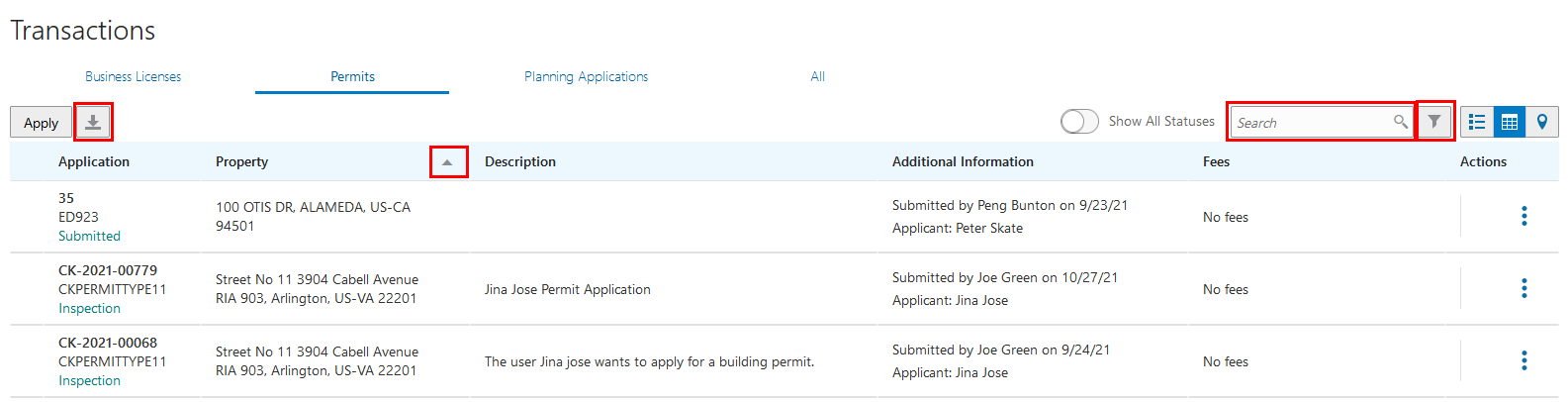
Transactions Page
This feature provides consistency across pages with regard to the search, sort, filter, and exporting functionality. Search functionality has been updated to ensure all fields can be used as searchable text. Sorting ensures that fields can be sorted by clicking on a column header. The advanced filters have been updated to include fields displayed on the underlying page. The export button will now include all fields displayed in the downloadable .CSV file.
Steps to Enable
You don't need to do anything to enable this feature.
Tips And Considerations
This enhancement is only applied to some pages. Only one field can be used to sort.
Email Notifications When Contact Added to a Transaction
Agencies can configure permit and planning application services to automatically send an email notification to contractor and application contacts on the intake form upon application submission or to new contacts when they are added to the application after submission.
When an application is submitted successfully, the system uses the Business Rules Framework (BRF) to send a communication addressed to contractor contacts and additional contacts that were added during the application intake. The same is true when a new contact is added to the Contacts page in the permit or planning application details.
An agency is able to inform contacts that they have been added to an application and make them aware of any pertinent information or processes.
Steps to Enable
Set up communication templates for the delivered Communication Events to define who will receive the email, and configure the Send Communication action for the corresponding Business Rules Framework events. See Key Resources for links to the Oracle Online Help for more details.
If you want to send email notifications on these Permits and Planning and Zoning transactions, set up Communication Events and Business Rules Framework Events as shown in the table:
| Permits |
Planning Applications | |||
|---|---|---|---|---|
| To send email notifications to contacts... | 1. Set Up Communication Event | 2. Set Up Business Rules Framework Event | 1. Set Up Communication Event |
2. Set Up Business Rules Framework Event |
| Use these events when an application is submitted: | Permit Contacts Added to Application | Permit Contacts Added to Application | Planning and Zoning Contacts Added to Application | Planning and Zoning Contacts Added to Application |
| Use these events when contacts are added after submittal: | Permit Additional Contact is Added | Permit Additional Contact is Added | Planning and Zoning Additional Contact is Added | Planning and Zoning Additional Contact is Added |
Tips And Considerations
Setup includes the Send Communication action for delivered Business Rules Framework events and the email template for delivered Communication Events. Use the Contact and Contact Type attributes to address the email.
Key Resources
- See Implementing Licensing and Permitting, "Implementing the Business Rules Framework," Setting Up Send Communication Actions on the Oracle Help Center.
- See Using Community Development Permits, "Managing Permits," Adding Contacts to Applications on the Oracle Help Center.
Agency staff can set a default search type and search filter for users on the property search pages in the intake forms and Permit Property Information page. The available search types are "Starts with" and "Contains," and the available search filters are Address, Parcel, and Owner.


Search Results
This provides agency staff flexibility when searching for property information. Users can quickly refine search by selecting a search type or filter.
Steps to Enable
The default search filter and search type should be set up on the Agency Information, Details page. You need to select the default options to be shown on these using the Default Search Filter and Default Search Type.
Tips And Considerations
This feature enhances the search for property information on the permit and planning and zoning transaction. A user can set the search type such that the search function will find all properties where the search string is included in the parcel, address, and/or parcel owner (Search Type Contains). Alternatively, the user can set the search type such that the search function will find all properties where the parcel, address, and/or parcel owner begins with the entered search string (Search Type Starts With).
In addition, the user can limit the search to be conducted on any combination of the parcel, address, and/or parcel owner objects.
Fee Estimates for Registered Public Users and Agency Staff
Registered Public Users now have an Estimate Fees tile on their landing page. Through this tile they can access an Estimate Fees page to choose an application for which they can estimate the fees. The fee is calculated based on a simplified intake form with only the relevant questions needed for a fee estimation. This gives the users a quicker way of estimating fees instead of having to complete an entire application. Agency staff can use the I Want To drop-down on the Agency Spring Board to access the Estimate Fees page and calculate the fees.

Fee Estimates
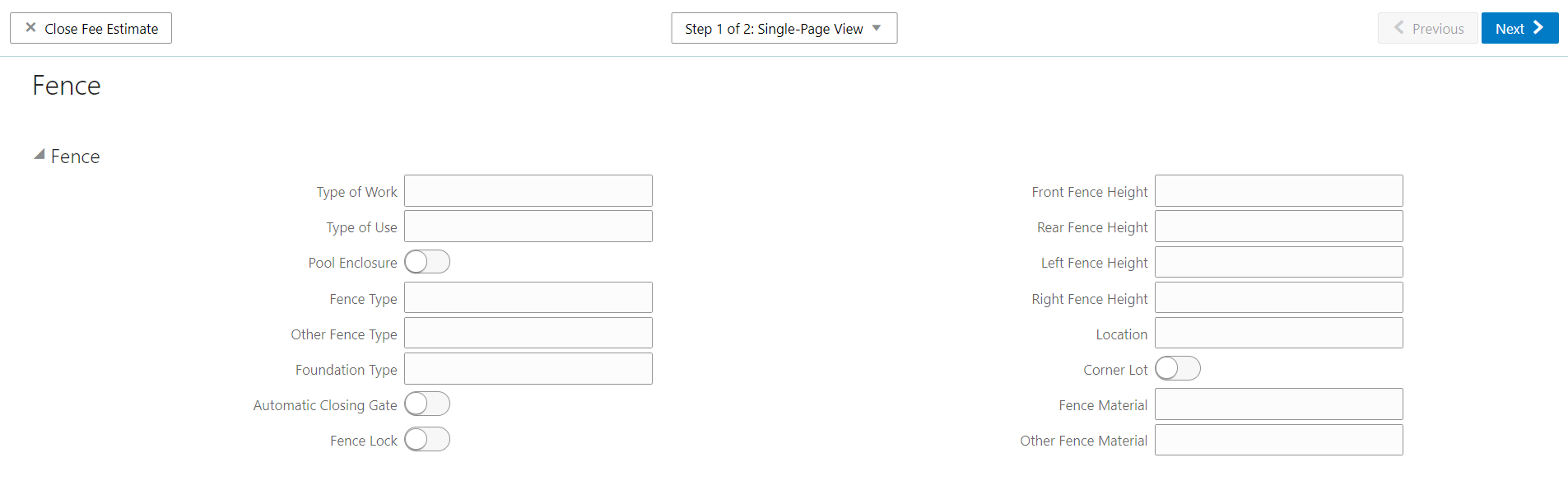
Fee Estimates Tile
Applicants and agency staff are able to assess the fees for an application by providing nominal information, thus saving them the time of completing an entire application.
Steps to Enable
In the Designer Layout, mark the field groups and group boxes for Fee Estimate. You will need to republish the layout.
Key Resources
- See Using Community Development Permits, "Estimating Fees" on the Oracle Help Center.
Role Information
Available to registered public users and agency staff.
Multiple Partial Refunds to Single Credit Card
Agency staff can submit multiple partial refunds to credit or debit cards.
Note the following for reconciliation purposes:
- The first refund (partial or full refund of the settlement amount) is posted as follow-on credit to the original settlement transaction in CyberSource.
- Subsequent partial refunds are posted as stand-alone credits in CyberSource.
It is common for an agency to have use cases where they want to issue refunds to a credit card more than once. This feature allows agencies to process multiple partial refunds to the same credit card.
Steps to Enable
You don't need to do anything to enable this feature.
Tips And Considerations
This applies to refunds for credit and debit cards.
Key Resources
-
See Using Community Development Permits, “Managing Permits,” Refunding Fees Using Community Development Permits, “Working with Payments,” Viewing and Processing Refunds on the Oracle Help Center.
Business Rules Framework Logging
Use the Business Rules Framework logging feature to gain insight into when business rules ran, what the status is, and where errors have occurred to help with troubleshooting. Click View Logs on the Business Rules Framework landing page to access the log information. The Log Detail page displays a variety of information related to the business rule, such as resource and event information, whether the business rule was successful, and a detailed log message to review.

Business Rules Framework Log Details
These logs provide meaningful data such as object type, object ID, event, date, status of each rule execution. By reviewing and inspecting the log entries, an agency staff would be able to identify when an error occurred and on what data.
Steps to Enable
You don't need to do anything to enable this feature.
Role Information
This functionality is available for agency administrators only.
Individual public user accounts replace multiple user profiles in an account. Public users can create separate personal and business accounts to manage their transactions instead of creating additional profiles in account management.
Moving to individual public user accounts simplifies the organization of transaction information for registered public users.
Steps to Enable
You don't need to do anything to enable this feature.
Tips And Considerations
If an agency’s users have previously created additional profiles before this feature, they will still be able to access these profiles. Functionality to copy or clone profiles in account management has been removed and registered public users can no longer create multiple profiles.
Key Resources
- See Using Community Development Permits, "Managing Public Users," on the Oracle Help Center.
This feature extends the current GIS integration to support OAuth 2.0 authentication, which allows Public Sector Licensing and Permitting to access secured ArcGIS Online or Enterprise portal web maps.
With additional GIS enhancements you can:
- Indicate in the map profile that the map is only accessible to the public, agency, or both.
- Link the Property field group to two separate map profiles in the intake form design, one for the agency and the other for public users. Agency staff and public users will see different maps in the application. This is unique functionality for a field group.
Example of setting up authorization to access a secure web map.
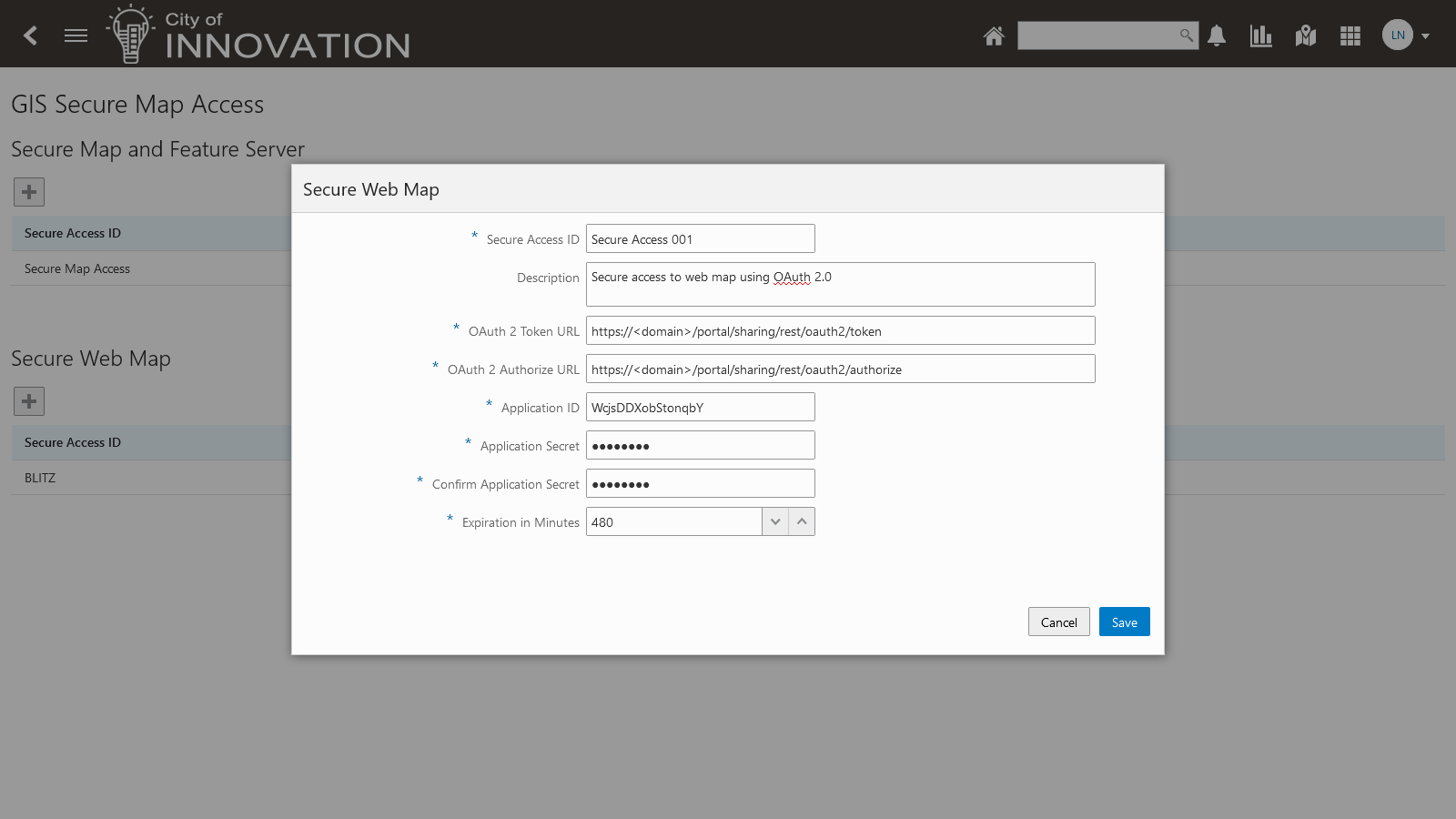
Secure Web Maps
Oauth2 security is enabled for web map services. Additionally, agencies can set up separate map profiles for agency staff and public users.
Steps to Enable
Review the following steps to enable the secured web maps.
- Navigate to GIS Setup, Secure Map Access. Map Access is enhanced to allow OAuth2.0 authorization to access secure ArcGIS Online or Enterprise portal web maps.
- Navigate to GIS Setup, Map Profiles. Map Profiles are enhanced to specify who can use the given map profile – Agency User, Public User, or all users.
- The Property predefined field group, is enhanced so that during design time administrators can associate different Map Profiles for a Public user and an Agency user.
Tips And Considerations
For OAuth 2.0 authorization to work, you must register the Public Sector Licensing and Permitting application on ArcGIS Online or ArcGIS Enterprise Portal.
- Secure Map Access: For OAuth 2.0 authorization to work, you must register the Public Sector Licensing and Permitting application on ArcGIS Online or ArcGIS Enterprise Portal. When registering, an Application ID and Application Secret is generated that is used in Secure Map Access Setup.
- Map Profile: It is recommended to define a Map Profile to be associated to Secure Web Map and enable it for Agency User. This allows the map profile to be used on an application intake only when it is executed by an Agency User.
- Property: By specifying different Map Profiles for an application intake for Agency and Public User, you can ensure that during runtime, when the application intake is being executed by an Agency User, the user can access the Secure Web Map. When it is executed by a Public User, a standard (non-secured) map is accessed .
Key Resources
- See Implementing Your Cloud Integrations, "Setting Up GIS," Setting Up Authorization to Access Secure Web Maps on the Oracle Help Center.
- See Implementing Your Cloud Integrations, "Setting Up GIS," Setting Up Map Profiles on the Oracle Help Center.
Display Inspection Source Details
The Inspection Detail page now shows the source, creator, and date of creation of the inspection.
Oracle Inspector

Inspections Desktop
Permit description and other details are currently accessed by an inspector using Oracle Inspector by drilling down to the permit from Inspection Details. Permit overview on a mobile device includes the permit description. Since the permit description is often very long the number of characters, what is displayed for the permit description will be limited.
In addition to inspection source, the permit description is now also displayed in the Oracle Inspector mobile application.
Steps to Enable
You don't need to do anything to enable this feature.
Tips And Considerations
This applies to Inspection Details on both Oracle Inspector (mobile) and the desktop. On other pages such as Inspection Request, the information is already available and implemented in prior release.
With this feature, Inspectors are now able to view the Permit Description in Oracle Inspector, Inspection Details page without having to drill down to the Permit Overview.
Key Resources
- See Using Community Development Permits, "Using Oracle Inspector" Viewing Inspection Tasks on the Oracle Help Center.
- See Using Community Development Permits, "Working With Permit Inspections" Reviewing Inspection Details on the Oracle Help Center.
Notify Inspection Contact Via Text Message
Agencies can now provide the option for contacts at the inspection location to be notified by SMS text, in addition to the currently supported contact methods, email and phone. When requesting an inspection, agencies or public users can select the new Text Message contact method and provide a mobile phone number. With this option, the location contact is notified via text message when an inspection is scheduled, rescheduled, or completed.
In this example, the Text Message contact method is selected for the location contact, and a mobile phone number is provided on the inspection request page.

Inspection Request
Notification of updates to inspections is often time sensitive so stakeholders, such as the inspection location contacts, need immediate access to information of interest.
Text messages often convey more of a sense of immediacy than emails, and are often acknowledged by a sound upon receipt. Text messages are often preferable to phone calls, especially at job sites where noise or other conditions affect phone call quality.
Steps to Enable
You must have a SMS text server configured to send outbound texts.
Tips And Considerations
- The Inspection Resource that is used in the existing Communication Events will be updated to include an attribute, Location Contact Mobile Phone, for use in the text communication template. You can set up automatically generated notifications for contacts with the Email or Text Message contact methods using the Inspection Complete, Inspection Scheduled, and Inspection Rescheduled communication events.
- The text message field is not defaulted like other contact information. More than one contact type can be stored by providing the data after changing the contact type
Key Resources
- See Using Community Development Permits, "Working with Permit Inspections," Requesting Inspections on the Oracle Help Center.
Additional Enhancements to Plan Review Console
The Plan Review Console for managing your agency's plan reviews has been expanded to include multiple tabs with different views where staff can monitor and manage plan reviews. The tabs include:
- All Reviews - Displays a row for each department with an assignment to the plan review cycle and provides date filtering to view the data. The list includes all cycles and all statuses except for plan reviews for permits in terminal statuses.
- Open Reviews - Displays a list of permits with an open plan review cycle, which can be expanded to see the departments and reviewers assigned to the cycle.
- Unassigned Reviews - Displays a list of open plan reviews that have required departments with no plan reviewer assigned. You can assign a plan reviewer from this tab.
The Add Reviewer modal page is also enhanced to allow agency staff to filter on department and build a list of reviewers to assign to the cycle. It now includes a separate tab to view the plan reviewers that are associated with a plan review district that is tied to the property.
This example illustrates the Open Reviews tab on the Plan Review Console, with the department assignment information expanded for one of the listed cycles.

Plan Review Console
The Plan Review Console allows agency staff to manage plan review assignment and reassignments from a single set of views.
Addition of three separate tabs to view and access all reviews, open reviews and unassigned reviews promotes efficiency by allowing agency staff to view a set of plan reviews by the status of the review, which affects the actions to be performed.
Steps to Enable
You don't need to do anything to enable this feature.
Key Resources
- See Using Community Development Permits, "Managing Plan Reviews," Using the Plan Review Management Console on the Oracle Help Center.
Perform Plan Reviews Subsequent to Permit Issuance
This feature provides the flexibility to manually create and complete plan review cycles in permit and planning application statuses other than Plan Review. For example, a plan review can be started while the permit inspection is in progress. The supported application statuses are now About to Expire, Accepted, Delinquent, Expired, In Process, Inspection, Permit Issued, Plan Review, and Submitted.
It is common for inspectors to find that a building is not completed according to the approved plan and thus the plan needs to be revised and reviewed again. While that revision is going on, inspections need to continue (for example, on a large project, the electrical is being revised, but plumbing work continues and inspections are proceeding). Allowing additional plan reviews to be performed while remaining work is being done and inspections are being performed avoids the need for an agency to change the permit status back and forth
Steps to Enable
You don't need to do anything to enable this feature.
Key Resources
- See Using Community Development Permits, "Managing Plan Reviews," Managing Plan Review Cycles on the Oracle Help Center.
Align Electronic Document Review with Manual Plan Review
This release aligns the electronic document review (EDR) functionality with that of manual plan reviews for a streamlined review process, whether an agency is using electronic reviews or not. When your agency integrates with Bluebeam Studio, you can create an electronic Studio Session during any review cycle, anytime before the cycle is complete. A plan review can contain both electronic and manual review cycles.
The first plan review cycle is always automatically created for every permit or planning application that requires a plan review. You can also automatically assign departments and plan reviewers, as well as reassign reviewers to balance workload. Review documents can now be added to both manual and electronic review cycles.
This example illustrates the Plan Reviews page for a permit showing a review cycle in progress. This is a manual review cycle until the plan review coordinator selects the Create Studio Session button.
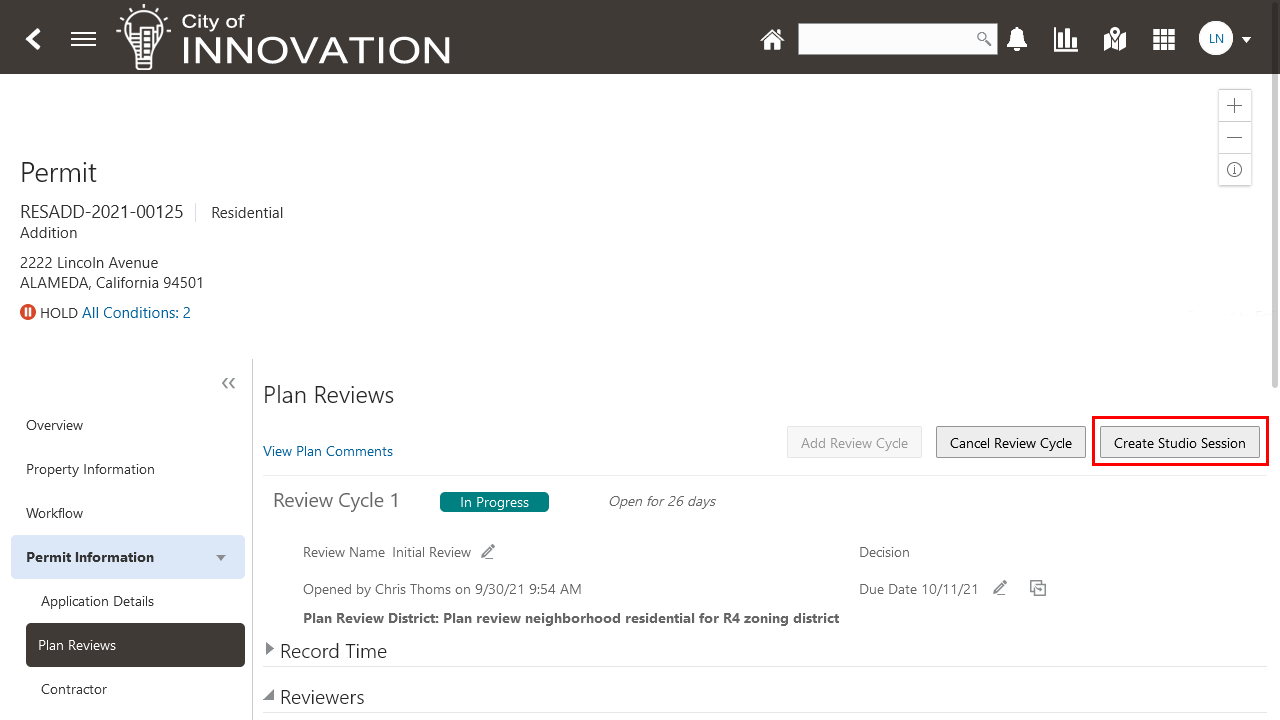
Plan Reviews (1 of 2)
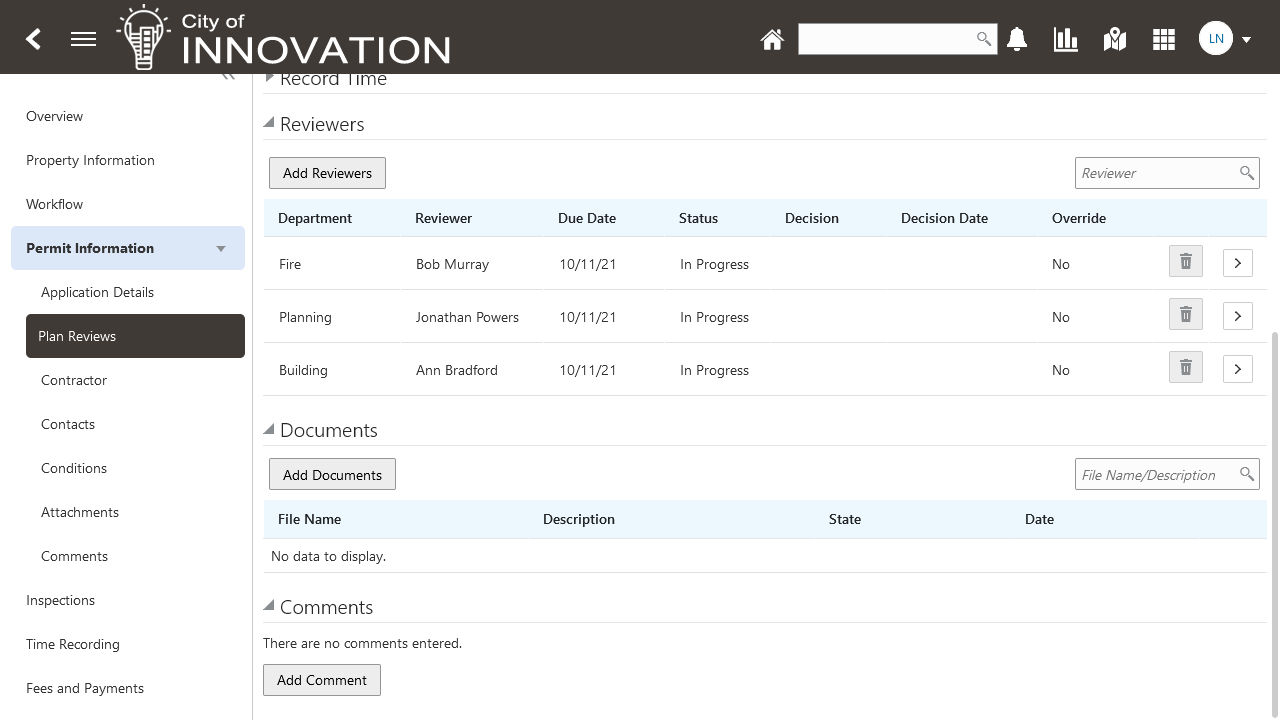
Plan Reviews (2 of 2)
Plan review can be performed by plan reviewers by manually reviewing design documents and recording their comments or by using a tool such as Bluebeam Studio for review, comment and markup of electronically submitted design documents.
Requiring manual plan review or EDR plan review type configuration at the application type level does not account for variability in plan review needs for different applications of the same type and prevents agency staff from using discretion to determine the most appropriate plan review type for the specific application.
It is common for plan reviewers to comment and approve at the plan review cycle level even though individual documents are marked up in EDR. This provides consistency between manual and electronic document review.
Steps to Enable
The option to have electronic plan review is removed from the permit type and replaced with a generic Enable Plan Review checkbox. An Agency Option is added Enable Electronic Plan Review. This covers all permit types.
Additionally, you must have Bluebeam configured to enable Electronic Document Review (EDR).
Tips And Considerations
Plan Review is completely redesigned. Reviewers are moved out from under documents and now are siblings.
Key Resources
- See Using Community Development Permits, "Managing Plan Reviews" on the Oracle Help Center.
Enable Payment Prior to Hearing
Registered public users and agency staff can now make payments for a particular case or citation.
Registered public users can use the CE Payments tile on their landing page and the agency staff can make payments on behalf of responsible parties by using:
- The I want To – Make CE Payments option on the Agency Springboard or
- The Pay button on the Fee and Payments page for the case
You can search and select the case or citation for which you want to pay:
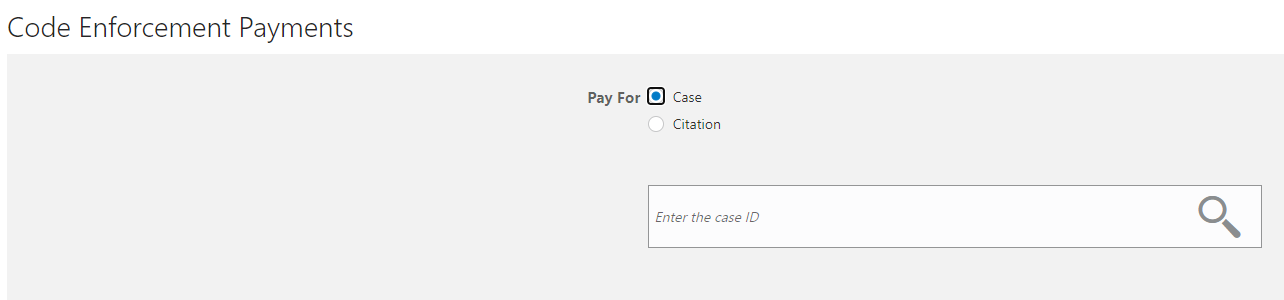
Code Enforcement Payments
Provides ability for responsible parties to pay when a balance is due on a code case. For example, for agencies that require full payment prior to hearing, responsible parties can submit a payment directly online.
Steps to Enable
You don't need to do anything to enable this feature.
Key Resources
- See Using Community Development Code Enforcement, "Managing Cases," Paying Code Enforcement Fees and Payments on the Oracle Help Center.
Agency Defined Custom Code Case Status
This feature provides the flexibility to create customized case statuses and map them to a delivered system status. Case details will show the custom statuses at various stages of the case lifecycle.
The new Case Status page allows agency staff to define case statuses:
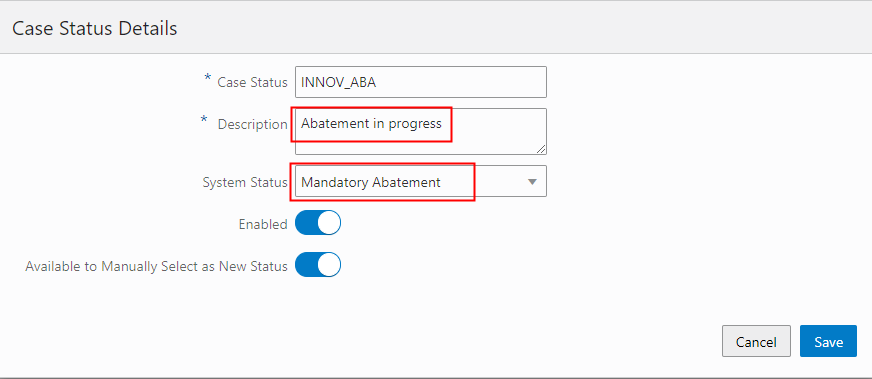
Case Status Details
You can set up the status in a way that allows your staff to manually enable it from the Case list page, Overview page, or Inspection page. Therefore, when updating the status of your transaction, the custom statuses are available to select.

Update Status
This provides flexibility to track a code case using custom statuses that are specific to an agency. Agencies can opt to use the delivered system statuses or provide their own using it's own agency-defined terminology. The custom status will be displayed on any page that a system status is currently shown.
Steps to Enable
Setup includes mapping custom statuses to delivered system statuses.
Use the 'Available to Manually Select a New Status' to enable agency staff to manually update case status from the Overview page.
- Navigate to Transaction Status Page, Case Status.
- Add Custom Statuses and map to System Status.
Tips And Considerations
Code Enforcement administrators can now map their agency-defined case and incident statuses to delivered system statuses. These custom statuses will be displayed in all pages using case status including the case list, the Municipal Code Officer and worklists.
Key Resources
- See Implementing Licensing and Permitting, "Setting Up Transaction Statuses" on the Oracle Help Center.
Role Information
This functionality is available for agency administrators only.
Agencies can now change the status of responsible parties by making them active or inactive. Only an active responsible party can:
- Access their case
- Request appeal
- Receive notices

Responsible Parties
This allows agencies to inactivate responsible parties when needed. This provides a history of the responsible party while removing access to the code case online and preventing further notifications.
Notices of violation can be designed so that responsible parties filter out those with an inactive status.
Steps to Enable
You don't need to do anything to enable this feature.
Tips And Considerations
This features provides Code Enforcement staff additional control when managing responsible parties. In particular, responsible parties now have a closed status feature so that individual responsible parties can be inactivated from the code case so that they no longer, for example, receive further correspondence.
Key Resources
- See Using Community Development Code Enforcement, "Managing Cases" Adding Responsible Parties on the Oracle Help Center.
Fee Assessment Based on Case Status
Agencies can configure their system to automatically initiate the assessment of fees whenever there is a change in the status of the case.
Additional fees calculated due to case status changes are listed separately, and fee items can be paid individually:

Fees and Payments Page

Pay Fees Page
This functionality further automates fee assessment by enabling additional case statuses as triggers. Currently, fees can be setup to automatically assess when a case is in violation or citation status. With this feature, fees can be assessed automatically when a case goes to, for example, mandatory abatement status.
Steps to Enable
The following steps must be completed for fee assessments based on case status:
- Create a DMN model to calculate Case fees.
- Using the Case fee model, add a Fee schedule line using the Mapping Source of Code Enforcement Case Fees.
Tips And Considerations
This feature extends the existing ability to automate fees based on notice and citation status to other case statuses.
Key Resources
- See Using Community Development Code Enforcement, "Managing Cases" Paying Code Enforcement Fees and Payments on the Oracle Help Center.
Automatically Assess Late Fees for Code Enforcement Based on Payment Due Date
Use a scheduled rule to apply fees for Code Enforcement cases that are past due according to your business rule criteria. The business rule action automatically accesses the fee model defined in the Oracle Integration Cloud and applies the late fees.

Schedule Rule Details
This provides agencies with more flexibility and automation for assessing late fees.
Agency staff can configure a scheduled rule to automatically assess a late fee based on number of late days multiple by the fee rate. Other inputs such as number of open violations can also be used for calculations.
Steps to Enable
You'll need to complete these steps to enable the fees:
- Create a DMN model to calculate late fees.
- Using the late fee model, add a Fee schedule line using the Mapping Source of Code Enforcement Overdue Fees.
- Set Time Rules to populate Citation / Violation Due Date when a fee item becomes Due.
- To enable batch processing of overdue fees, configure a Business Rules Framework Scheduled Rule for Code Enforcement Overdue Case Fees.
Role Information
This functionality is available for agency administrators only.
Accounting Event and Model Changes for Code Enforcement
Code enforcement transactions now use accounting events to manage their accounting. Accounting events specify information that the Generate Accounting process uses to determine which accounting rules to apply to the code enforcement accounting entries. Use the Accounting Events page to view, enable, and disable delivered accounting events.

Accounting Event Details Page
Accounting events are now available for Code Enforcement transactions.
Steps to Enable
You don't need to do anything to enable this feature.
IMPORTANT Actions and Considerations
UPGRADE ACTIONS
With every upgrade, make sure to complete the following steps in the Initial Set Up functional area in Functional Setup Manager. This process ensures all new security definitions, such as job roles, duty roles, privileges, and so on, are included in your implementation.
- Run Public Sector Security Setup Process
- Manage Custom Roles
REST BACKWARD COMPATIBILITY 21D to 22A
Public Sector Compliance and Regulation updates REST APIs from release to release. Our goal is to not create APIS that are incompatible from one release to the next. However, due to circumstances and security impacts this may not be feasible. In the 22A update, there are some APIs that were altered and may impact the performance of the API. This documentation lists the changes so you can plan and alter your usage prior to upgrading to 22A.
Documentation for all REST APIs included in Public Sector Compliance and Regulation can be found on the Oracle Help Center.
My Licenses (publicSectorLicenses)
The following attributes changed from field type “Timestamp” to field type “Date”:
- ReferenceStartDate
- ReferenceExpireDate
User Requests (publicSectorUserRequests)
The following attributes changed from field type “Timestamp” to field type “Date”:
- ReferenceStartDate
- ReferenceExpireDate
RESOURCE DEPRECATION ANNOUNCEMENTS
Plan Review File Reviewers (publicSectorPlanReviewFileReviewers)
The Plan Review File Reviewers resource is currently planned to become deprecated beginning with update 22A. It is no longer intended for public use. It will become obsolete in future releases. You should begin planning to no longer use this resource and find alternatives.
Holiday Calendar Date Validations (publicSectorHolidayCalendarDateValidations)
The Holiday Calendar Date Validations resource is currently planned to become deprecated beginning with update 22B. It is no longer intended for public use. It will become obsolete in future releases. You should begin planning to no longer use this resource and find alternatives.
Inspections with Related Inspections (publicSectorRelatedInspections)
The Inspections with Related Inspections resource is currently planned to become deprecated beginning with update 22B. It is no longer intended for public use. It will become obsolete in future releases. You should begin planning to no longer use this resource and find alternatives.
Payment Accounts (publicSectorPaymentAccounts)
The Payment Accounts resource is currently planned to become deprecated beginning with update 22C. Trust account information is being moved to new trust account structures. You should begin planning to no longer use this resource and find alternatives.
Trust Account Notifications (publicSectorTrustAccountNotifications)
The Trust Account Notifications resource is currently planned to become deprecated beginning with update 22C. Trust account information is being moved to new trust account structures. You should begin planning to no longer use this resource and find alternatives.
Profile Notifications (publicSectorProfileNotifications)
The Profile Notifications resource is currently planned to become deprecated beginning with update 22C. Trust account information is being moved to new trust account structures. You should begin planning to no longer use this resource and find alternatives.