
- Revision History
- Overview
- Feature Summary
- Licensing and Permitting
-
- Licensing and Permitting Common
-
- Inspection Sequences and Dependencies
- Preview Attachments
- Credit Card and Offline Payment Methods for Cashier Session Payments
- Document Upload Indicator
- Increased Attachment File Size Limit
- Display Records in Notifications
- Fee Estimates for Anonymous Users
- Auto Populate GIS Data
- Flattening and Personalizing Grids
- Search, Sort, and Filter Worklists with Address or Location
- Financials Cloud Subledger Accounting for Code Enforcement Accounting Events
-
- Permits and Inspections
- Code Enforcement
- Licensing and Permitting Common
- IMPORTANT Actions and Considerations
This document will continue to evolve as existing sections change and new information is added. All updates appear in the following table:
| Date | Product | Feature | Notes |
|---|---|---|---|
| 18 MAR 2022 | Created initial document. |
IMPORTANT NOTE: If you are being updated directly from 21D to 22B you should review the content of both 22A and 22B sections to ensure you see all the changes included in the update.
 HAVE AN IDEA?
We’re here and we’re listening. If you have a suggestion on how to make our cloud services even better then go ahead and tell us. There are several ways to submit your ideas, for example, through the Ideas Lab on Oracle Customer Connect. Wherever you see this icon after the feature name it means we delivered one of your ideas.
GIVE US FEEDBACK
We welcome your comments and suggestions to improve the content. Please send us your feedback at oracle_fusion_applications_help_ww_grp@oracle.com.
DISCLAIMER
The information contained in this document may include statements about Oracle’s product development plans. Many factors can materially affect Oracle’s product development plans and the nature and timing of future product releases. Accordingly, this Information is provided to you solely for information only, is not a commitment to deliver any material, code, or functionality, and should not be relied upon in making purchasing decisions. The development, release, and timing of any features or functionality described remains at the sole discretion of Oracle.
This information may not be incorporated into any contractual agreement with Oracle or its subsidiaries or affiliates. Oracle specifically disclaims any liability with respect to this information. Refer to the Legal Notices and Terms of Use for further information.
Column Definitions:
Report = New or modified, Oracle-delivered, ready to run reports.
UI or Process-Based: Small Scale = These UI or process-based features are typically comprised of minor field, validation, or program changes. Therefore, the potential impact to users is minimal.
UI or Process-Based: Larger Scale* = These UI or process-based features have more complex designs. Therefore, the potential impact to users is higher.
Features Delivered Disabled = Action is needed BEFORE these features can be used by END USERS. These features are delivered disabled and you choose if and when to enable them. For example, a) new or expanded BI subject areas need to first be incorporated into reports, b) Integration is required to utilize new web services, or c) features must be assigned to user roles before they can be accessed.
| Ready for Use by End Users Reports plus Small Scale UI or Process-Based new features will have minimal user impact after an update. Therefore, customer acceptance testing should focus on the Larger Scale UI or Process-Based* new features. |
Customer Must Take Action before Use by End Users Not disruptive as action is required to make these features ready to use. As you selectively choose to leverage, you set your test and roll out timing. |
|||||
|---|---|---|---|---|---|---|
| Feature |
Report |
UI or |
UI or |
|
||
Credit Card and Offline Payment Methods for Cashier Session Payments |
||||||
Financials Cloud Subledger Accounting for Code Enforcement Accounting Events |
||||||
Manually Schedule Inspections During Hearing, Appeal, or Legal Status |
||||||
Search, Sort, Filter, and Export Single Row and Multilevel Row Lists for Code Enforcement |
||||||
Licensing and Permitting Common
Inspection Sequences and Dependencies
Agencies often require inspections to be completed in a specific order. In addition to identifying the final and required inspections for a permit or planning application, agencies can now define the inspection sequence by setting up inspection dependencies. The agency identifies which inspection types have dependencies in the inspection group. The system ensures that prerequisite inspections are completed with a Pass or Corrected result before the next inspections can be scheduled or assigned. Applicants can't schedule an inspection with a dependency requirement, but agency staff with appropriate permissions can override the rules.
Example of the Dependencies setup page for an inspection type:
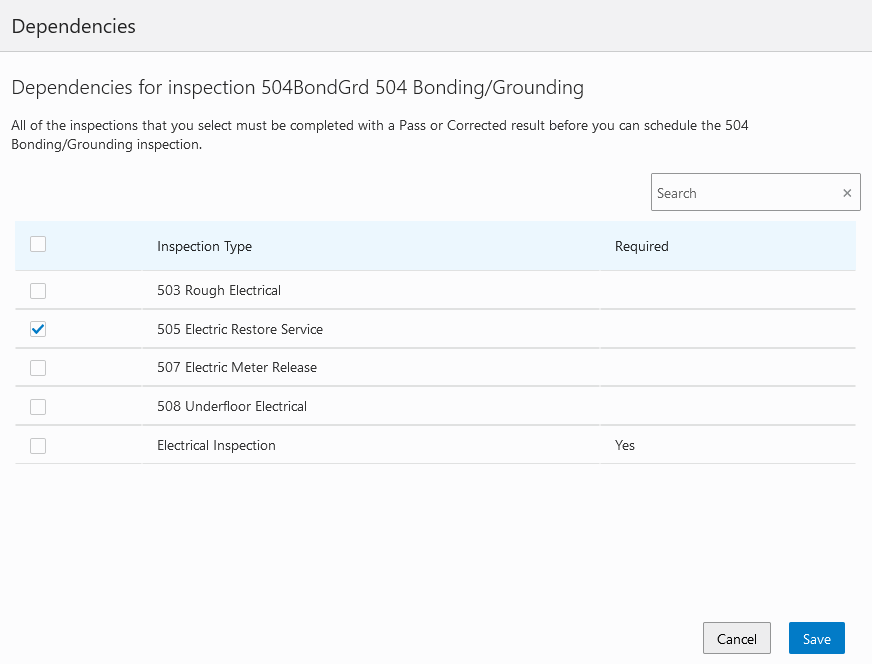
Dependencies Modal Page
Example of the inspection dependencies defined for inspection types in the inspection group:
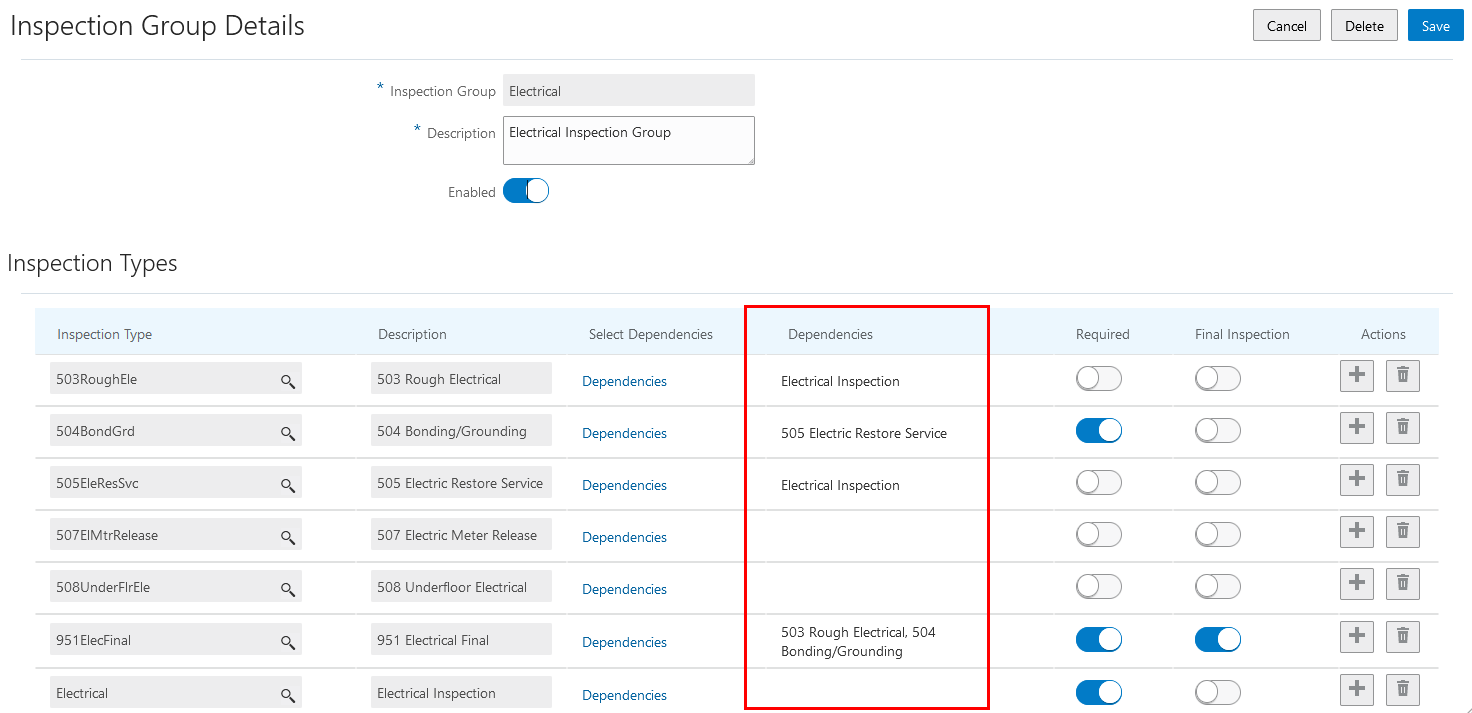
Inspection Group Details Page
Ensures prerequisite inspections are completed with a Pass or Corrected result before the next inspection can be scheduled or assigned.
Steps to Enable
You don't need to do anything to enable this feature.
Tips And Considerations
You need to add dependent inspections to inspection types configured for an inspection group.
Agency staff and applicants who need to ensure they are downloading the correct file can now click to preview the document or image. Click the Select to Preview Attachment icon for PDF files or a thumbnail for most types of image files (such as BMP, GIF, JPEG, and PNG) to open the Attachment Preview page. On the preview page, you can see the first page of a PDF document or a larger version of an image file. Attachment preview is available for permits, planning applications, business licenses, code cases, account management, and contractors.
Example of a thumbnail image and PDF preview icon on the Attachments page in the permit details:

Application Details - Attachments Page
Agency staff and applicants can now click to preview the document or image to ensure they are downloading the correct file.
Steps to Enable
You don't need to do anything to enable this feature.
Tips And Considerations
Only images and PDF's that are added from the front end will have a preview generated. For example, documents that come back from Bluebeam will not have a preview generated automatically. A preview will be generated after the first person attempts to access the preview.
Key Resources
- See Using Community Development Permits, "Managing Permits," Working with Attachments on the Oracle Help Center (available April 1, 2022).
Credit Card and Offline Payment Methods for Cashier Session Payments
Now cashiers can record payments as part of a cashier session that were made separately, such as offline and credit card payments. They can also close a cashier session with a zero closing balance:
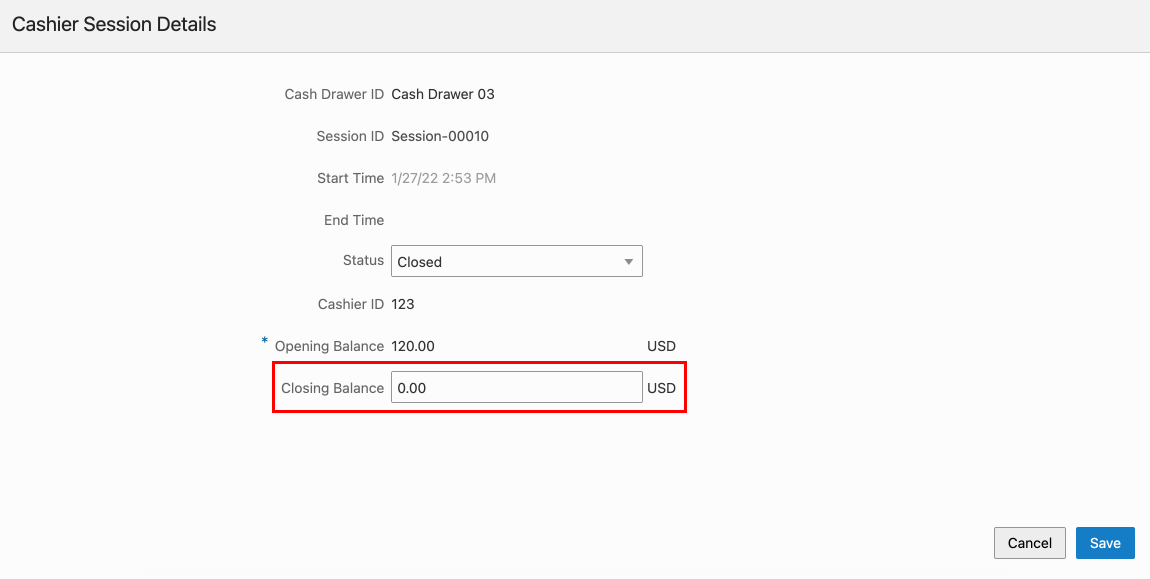
Cashier Session Details
They can also close a cashier session from the Reconcile Cashier Session page. Click Edit to access the Cashier Session Details modal window. Enter the closing balance with the amount in the cash drawer, update the status to Closed and save the Cashier Session.
They can also see the closing balance on the Cashier Session Details page:
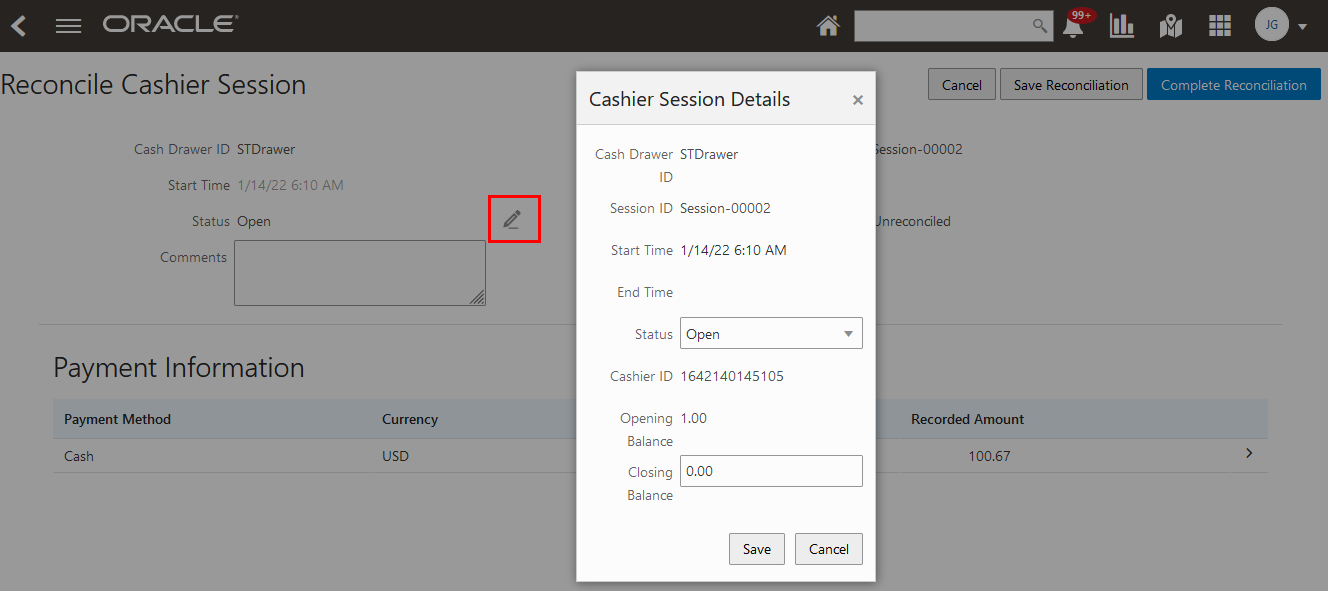
Reconcile Cashier Session Page
Agencies can record payments in a cashier session that were made separate from the cashier session, such as offline or by credit card, allowing consolidation of payment records.
Steps to Enable
You don't need to do anything to enable this feature.
Key Resources
-
See Using Community Development Permits, "Working with Payments," Working with Cashier Sessions and Reconciling Cashier Sessions on the Oracle Help Center (available April 1, 2022).
Plan coordinators can see at a glance when an applicant has uploaded a document for a plan review cycle. When an applicant uploads a PDF document, the Uploaded Documents icon appears in the Plan Review Console next to the permit or planning application row where the document was attached. Clicking the icon opens the Uploaded Documents page, where you can preview the file and review file information.
The new Pending Reviews page in the Plan Review Console helps agency staff to manage plan reviews with revised documents or awaiting revised documents. It displays a list of permits in a plan review status where the applicant has uploaded a new document or the last cycle was completed with a decision of Rejected or Revision Required.
Example of the Pending Reviews page in the Plan Review Console showing the Uploaded Documents icon:

Plan Review Console: Pending Reviews Page
Example of the Uploaded Documents modal page that opens when you click the Uploaded Documents icon:
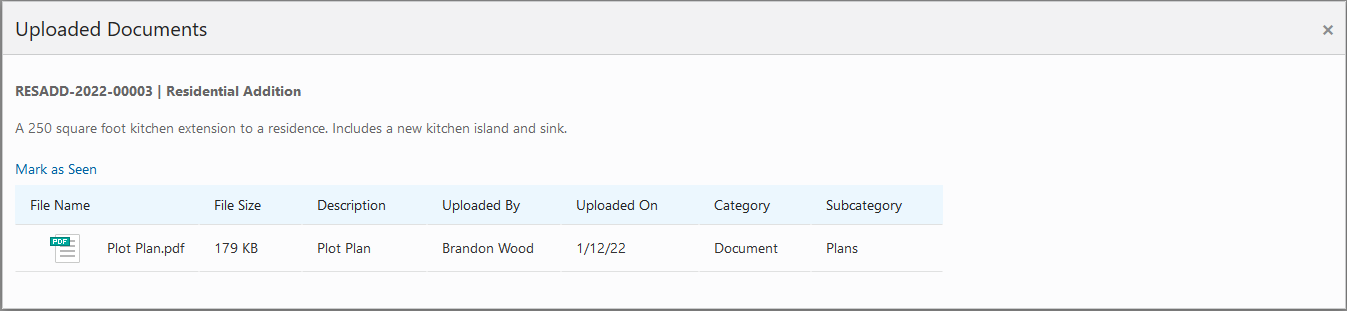
Uploaded Documents Page
Agency staff can see at a glance when an applicant has uploaded a document for a plan review cycle.
Steps to Enable
You don't need to do anything to enable this feature.
Tips And Considerations
This feature is only applicable to applicant uploads.
Key Resources
- See Using Community Development Permits, "Managing Plan Reviews," Using the Plan Review Console and Managing Plan Review Documents on the Oracle Help Center (available April 1, 2022).
Increased Attachment File Size Limit
The maximum file size for attachments is now 150 MB, depending on the page that you're uploading to in Oracle Public Sector Licensing and Permitting. The maximum file size in the Oracle Inspector mobile application is 25 MB.
Allows larger attachments (for example, attachments with a larger file size), while minimizing the need to potentially separate large plans into separate smaller plan sets for upload.
Steps to Enable
You don't need to do anything to enable this feature.
Tips And Considerations
The limit is now 150mb, 25mb for mobile. Individual implementations can set the threshold lower. Permits uses the 150mb threshold. Large files can take 10 minutes to upload.
Display Records in Notifications
Agency Staff can now print a list of all payments for a date range from the Report List.
When you set up the communication template for the communication event BNP-PAYMENT-RECEIPT, in the Communication Template Details page, you can click Add Grid and select up to five payment history line attributes: Department ID, Item Amount, Item Description, Line Number, Record ID, or Record Type.
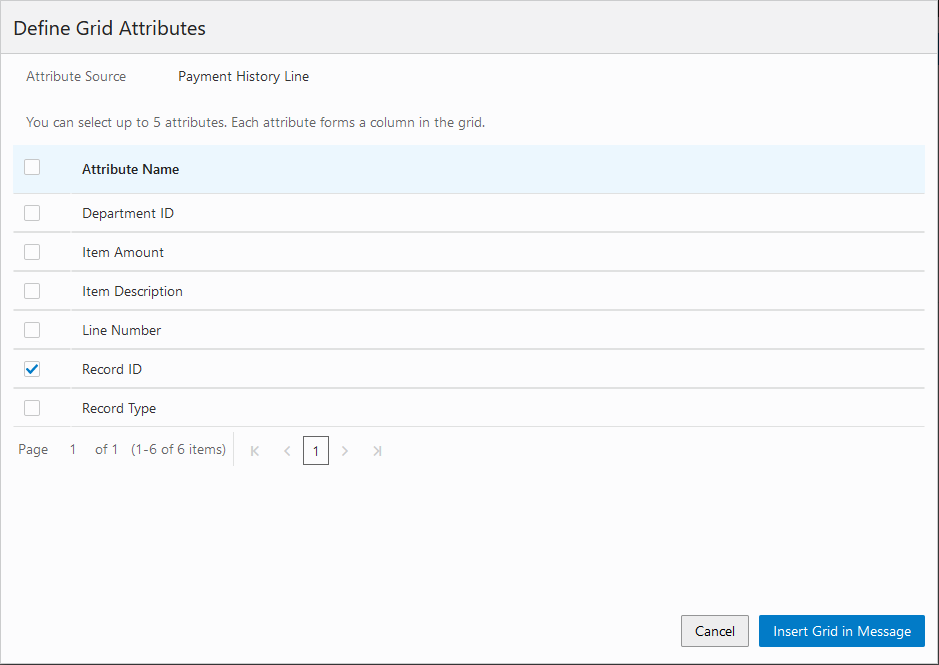
Define Grid Attributes
The Permit ID/Record ID variable is now available for Payment Received communication event, so stakeholders can tell which record got paid for.
Steps to Enable
You don't need to do anything to enable this feature.
Key Resources
- See Implementing Your Agency, "Setting Up Communications," Adding Communication Templates on the Oracle Help Center (available on April 1, 2022).
Fee Estimates for Anonymous Users
Anonymous users now have an Estimate Fees tile on their landing page. Using this tile, they can access an Estimate Fees page and choose an application to estimate the associated fees. The fee is calculated based on a simplified intake form with only the relevant questions needed for a fee estimation. This gives the non-registered users a quicker way of estimating fees without having to register themselves and complete an entire application.
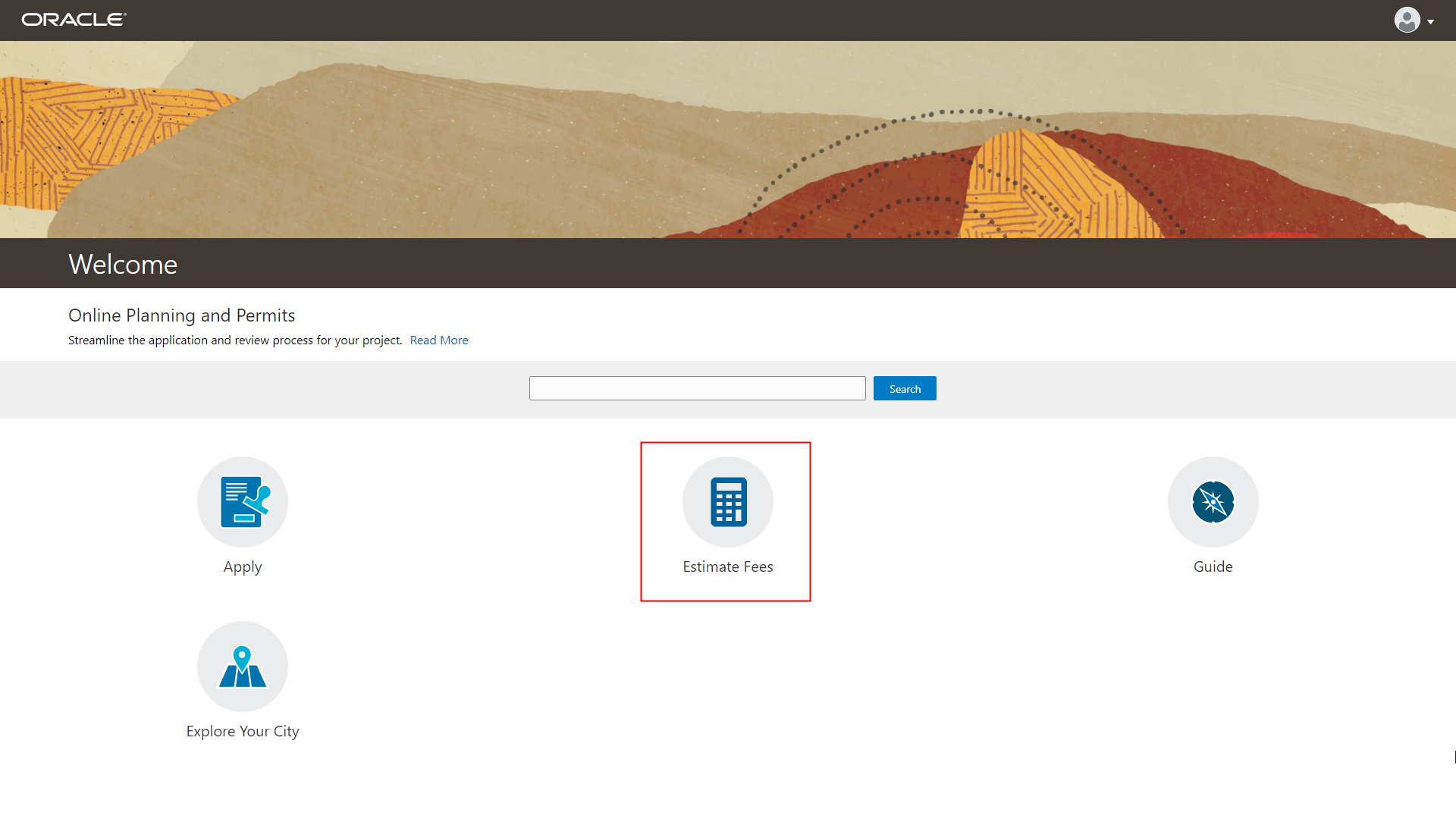
Anonymous User Landing Page
This feature helps public users understand and estimate fees before they apply for permits.
Steps to Enable
To enable the fee estimates:
- Enable guest users access to estimate fees by navigating to Agency, Agency Features.
- Configure the application form layout to display at least one group box for Fee Estimates.
- On the form layout, the Fee Summary read-to-use group should also be enabled for Fee Estimates.
Tips And Considerations
For existing form layouts, after enabling the Fee Estimate option on select group boxes, the design should be republished.
Key Resources
- See Using Community Development Permits, "Estimating Fees" on the Oracle Help Center (available April 1, 2022).
Role Information
This feature is enabled for agency implementation users.
Agencies can now collect detailed property data from GIS map layers during the application process. The GIS attributes and values from the map layers are automatically added to the application when an applicant identifies a parcel on the map, based on the spatial intersection to the selected property. The attributes help provide the agency with reference information about a parcel, such as address information, zoning districts, sub parcel count, and so on. The agency configures the map service to capture selected attributes and values from the map layers.
Example of an application's property information details, captured during the application process and displayed on the Property page. Agency staff and public users may see different attributes in the grid, depending on agency setup:
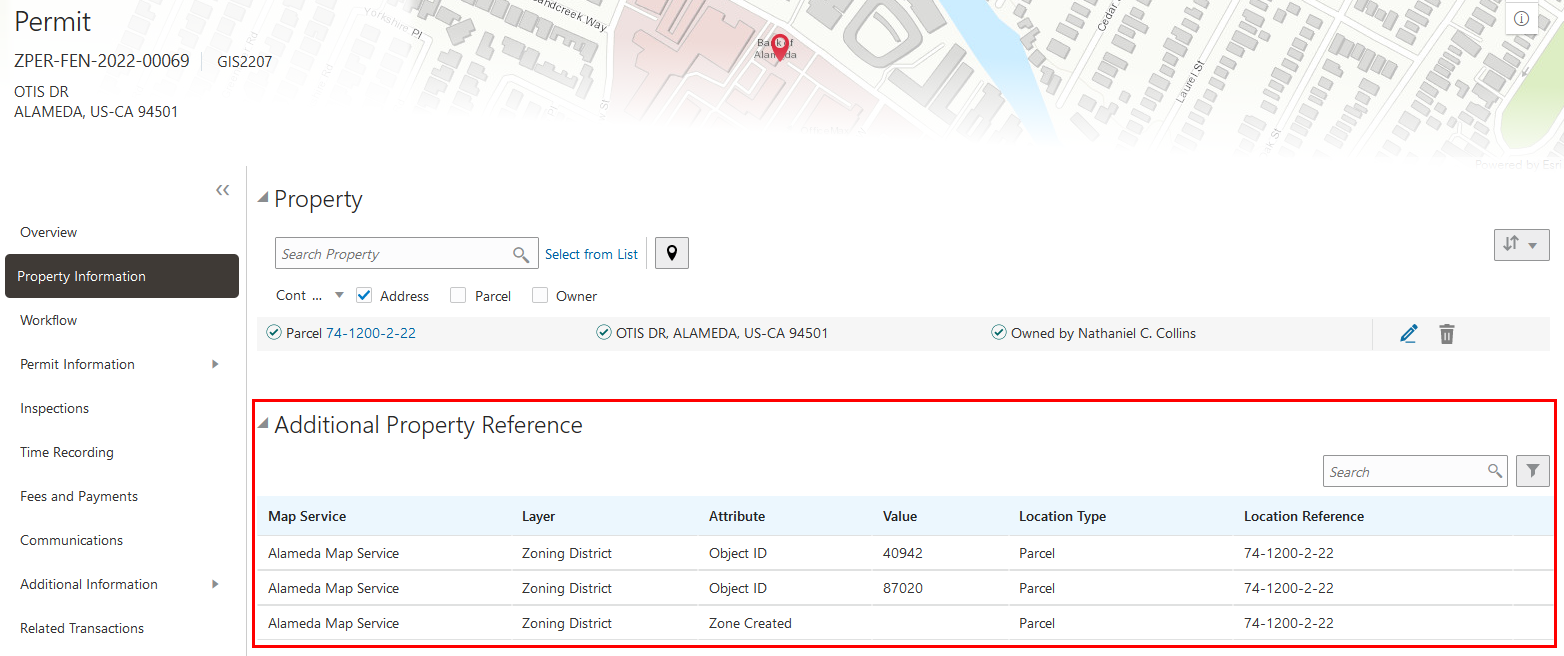
Additional Property Reference Section in the Permit Property Details
A new application component is now available to allow agencies to extract GIS information from map layer objects and display it in Public Sector Licensing and Permitting.
Steps to Enable
For a customer wanting to automatically populate GIS data, following setup is needed:
- On GIS Attribute Mapping page, on "Map Layer Content" tab, define a master list of GIS Attributes that needs to be populated.
- On the application intake form designer, add Map Layer Content predefined field group on the desired page. Ideally, it should be below the Property predefined field group.
- For Map Layer Content predefined field group, use Select Attributes link on the right panel. On the modal, you can select the GIS Attributes from the master list (defined in step 1 above) that you want to populated with this application intake. Define whether attributes are displayed to only agency users, or to public users too.
Key Resources
- See Implementing Your Cloud Integrations, "Setting Up GIS," Setting Up GIS Attribute Mapping on the Oracle Help Center (available April 1, 2022).
- See Using Community Development Permits, "Managing Permits," Working with Property Information on the Oracle Help Center (available April 1, 2022).
Flattening and Personalizing Grids
User experience enhancements continue to roll out for grids by supporting two different grid formats and personalization options:
- Condensed - A grid format that presents multiple data elements in a single column. (Existing)
- Expanded - A grid format that presents only one data element per column and provides user-level personalization options. (New)
Grids are rendered in either a condensed or expanded format based on the Functional Setup Manager option selection made during implementation.
Each agency staff member can now personalize expanded grids to display information in a manner that suits their own requirement. With the flexibility that the display settings offer, you can:
- Search columns by name
- Wrap text in a column
- Freeze specific columns
- Show or hide columns
- Rearrange column order
- Reset to the default settings
This example shows the personalization options used on the Fee and Payments page for a planning application:
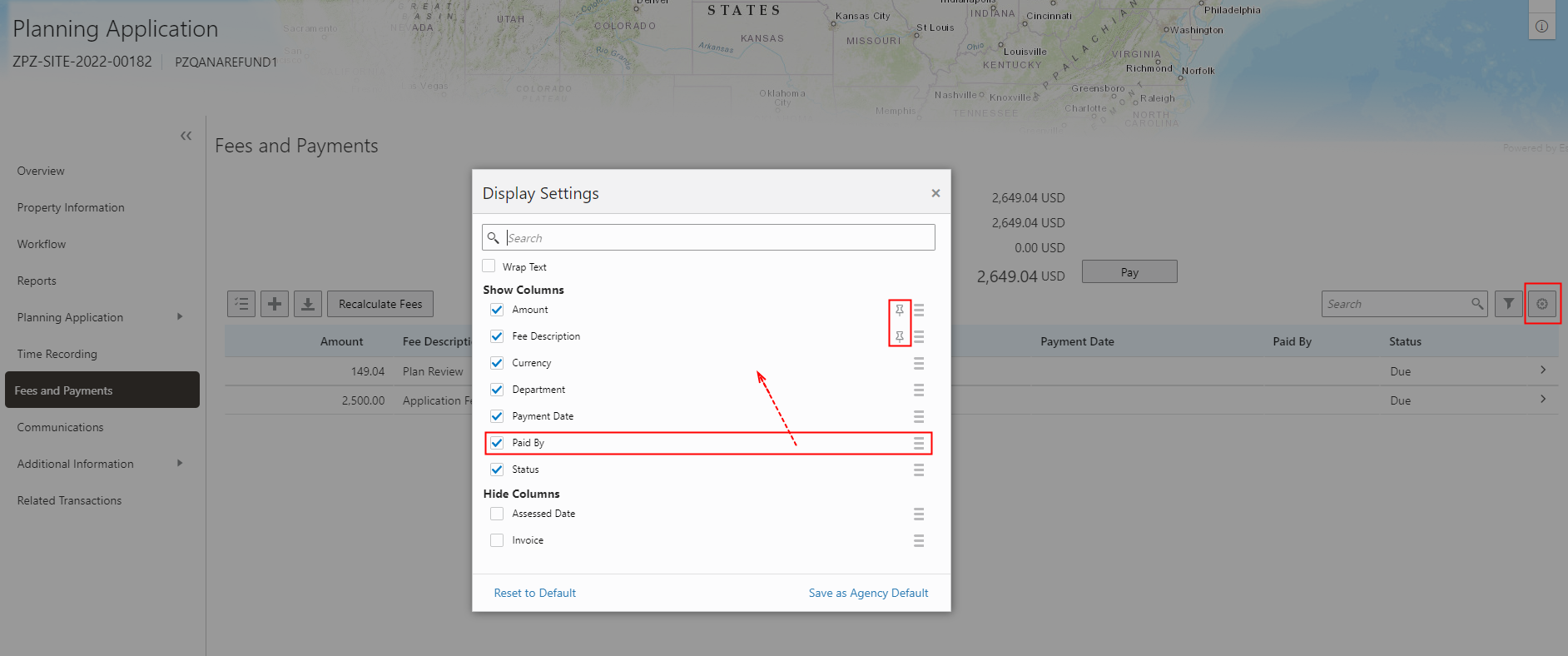
Fee and Payments – Personalization Display Settings
Agency staff can further optimize their daily work by setting display preferences on grids.
Steps to Enable
To enable the Enhanced Worklist:
- Navigate to Setup and Maintenance.
- Search for the Public Sector Permits offering.
- Click on Change Feature such as Opt-in.
- Edit the System Administration feature.
- Enable the Enhanced Worklist checkbox.
- Go to Initial Setup functional area.
- Run the Load Public Sector Workflow Tasks Job.
Tips And Considerations
Run the setup steps at the end of the day to avoid disruption of the worklist display. If worklists are not displaying correctly or you notice a loss of worklist data, you can turn off the enhanced worklist to display to the previous version of the worklist.
Key Resources
- See Using Community Development Permits. "Using Common Interface Pages and Elements" on the Oracle Help Center (available April 1, 2022).
Search, Sort, and Filter Worklists with Address or Location
User experience enhancements continue to roll out for grids, including the worklist. You can now enable the enhanced worklist feature, which flattens the worklist layout so each data element occupies its own column. The new worklist layout improves searching capabilities and allows you to use any column to sort the worklist.
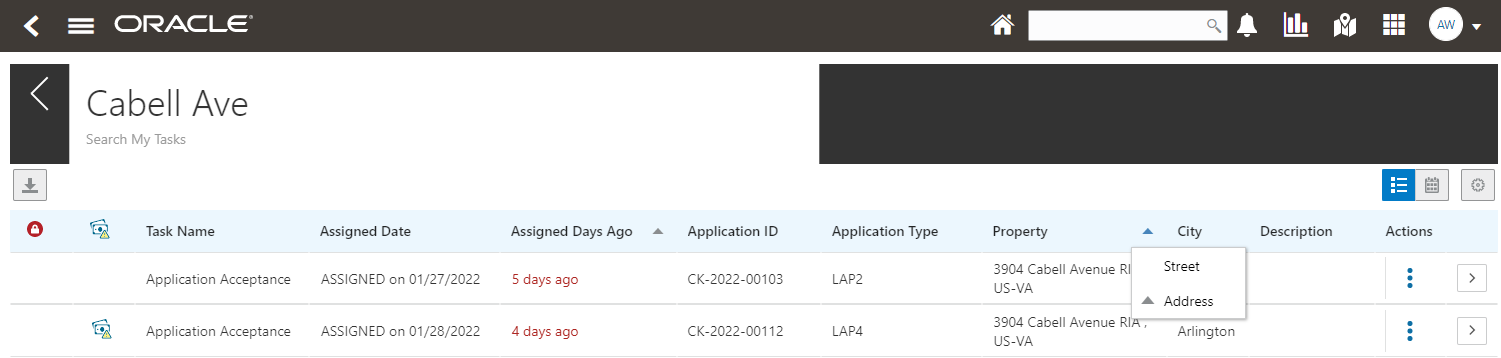
Search or Sort with Address or Location
To enable the enhanced worklist experience, select the Change Feature Opt In link in the Functional Setup Manager, and select Enhanced Worklist within the System Administration features.
Worklists now make it easier to sort tasks by whole addresses or by street name.
Steps to Enable
Flattening and Personalizing options are available for Enhanced Worklist.
To enable the Enhanced Worklist:
- Navigate to Setup and Maintenance.
- Search for the offering, Public Sector Permits.
- Click on Change Feature Opt-in.
- Edit the System Administration feature.
- Enable the Enhanced Worklist checkbox.
- Go to the Initial Setup functional area.
- Run the Load Public Sector Workflow Tasks Job.
Tips And Considerations
Run the steps during end of the day to avoid disruption of seeing worklist. In cases where all the worklists are not appearing or there's a loss of worklist data, you can turn off the enhanced worklist to go back to the older version of worklist.
Key Resources
- See Implementing Your Cloud Integrations, "Managing Worklists" on the Oracle Help Center (available April 1, 2022).
Financials Cloud Subledger Accounting for Code Enforcement Accounting Events
This extends Financials Cloud Subledger Accounting support to include overpayments, split payments, and Code Enforcement payments.
Financials Cloud Subledger Accounting supports Code Enforcement accounting events.
Steps to Enable
To use this new subledger accounting functionality for Code Enforcement transactions, you must enable two new accounting events.
If you are currently using the LNPFeePaid accounting event, you will need to move to the two new delivered accounting events - FeeReceipts and FeeRefunded. See My Oracle Support Document ID: 2851069.1 for instructions on how to transition to the new accounting events.
If you are enabling accounting events for the first time, you can set up the new accounting events in Functional Setup Manager. See Implementing Your Financial Framework, Setting Up Accounting, "Managing Accounting Events" on the Oracle Help Center.
Key Resources
- See Implementing Your Financials Framework, “Setting up Accounting,” Managing Accounting Events on the Oracle Help Center (available April 1, 2022).
Additional Plan Review Console Actions
Plan coordinators can now perform several actions directly from the Plan Review Console without having to access the application's Plan Review page. The Actions menu button appears for each permit or planning application on the All Reviews, Open Reviews, Unassigned Reviews, and Pending Reviews pages.
Select from these actions:
- Add Cycle Comments
- View Plan Comments
- View Cycle History
Example of the Actions menu button with actions available on the All Reviews page:

Plan Review Console
Plan Review Console row-level actions allow plan coordinators to quickly add cycle comments, view plan comments, and view cycle history without navigating to the permit plan review page.
Steps to Enable
You don't need to do anything to enable this feature.
Key Resources
- See Using Community Development Permits, "Managing Plan Reviews," Using the Plan Review Console on the Oracle Help Center (available April 1, 2022).
Contractor License Transactions List
The agency's license records offer a quick view of all transactions associated with a contractor license in the license details. The contractor details list the active permit and planning applications where the contractor is used. A filter provides the option to display applications that are no longer in progress, and an icon identifies applications where the contractor is no longer in use. Clicking the transaction in the list takes the agency user to the transaction details.
Example of the new Transactions page in the contractor details. The contractor is no longer in use when the highlighted icon appears in the application row.
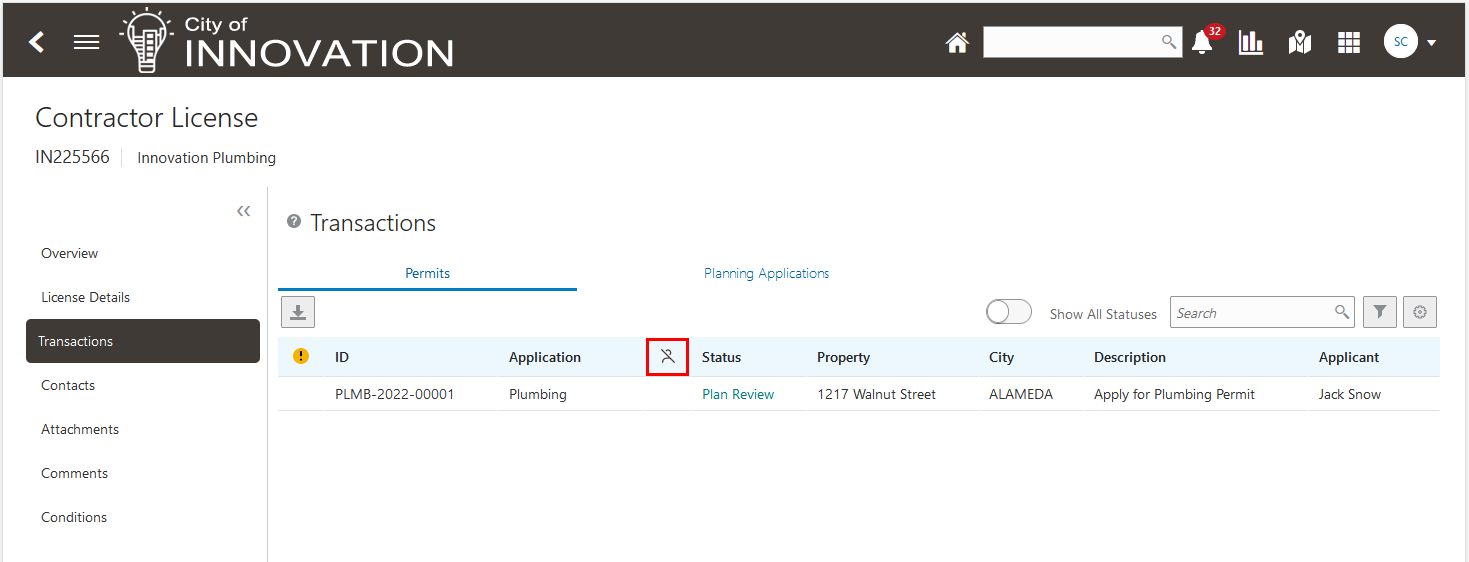
Contractor License - Transactions Page
Agency staff can quickly view all transactions that have used a specific contractor's license from the license detail page.
Steps to Enable
You don't need to do anything to enable this feature.
Key Resources
- See Using Community Development Permits, "Managing Contractor Information," Managing Contractor License Details on the Oracle Help Center (available April 1, 2022).
Menu for Active or Closed Permit Workflow
After reopening a permit or a planning application, a new workflow process instance gets assigned to the reopened transaction. From the Workflow tab for that transaction, you can view the active workflow instance as well as any previously closed workflow instances. Use the workflow drop-down list to select an active or closed workflow, which are listed chronologically.
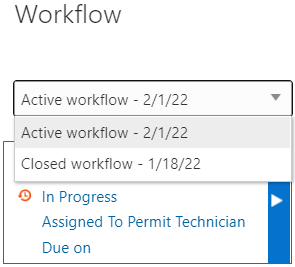
Workflow
Allows agency to review previous completed workflows and read any associated comments.
Steps to Enable
You don't need to do anything to enable this feature.
Code Inspection Notices Using Oracle Municipal Code Officer
Code officers can now add, print, and cancel ad hoc notices for inspections in Completed status.
Example of the Inspection page on the Oracle Municipal Code Officer application:
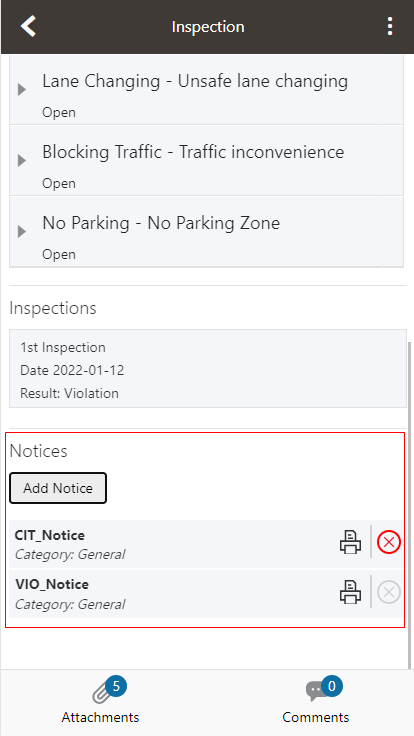
Inspection Page - Oracle Municipal Code Officer
To add a new ad hoc notice, click the Add Notice button and select from a category or search and select a notice, as shown in the example:
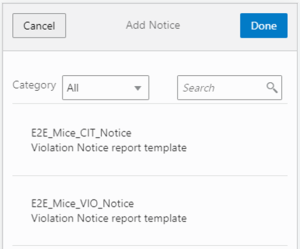
Add Notice Page - Oracle Municipal Code Officer
Code Officers can now choose to print ad hoc notices from the field using the mobile app.
Steps to Enable
You don't need to do anything to enable this feature.
Tips And Considerations
Notices can be added and generated for a completed inspection on a case.
Key Resources
- See Using Community Development Code Enforcement, "Overview of Mobile Oracle Municipal Code Officer," "Working with Code Enforcement Inspections" on the Oracle Help Center (available April 1, 2022).
Agencies can now configure time rules that will determine the compliance date after each inspection result is submitted.
You decide the number of days that a responsible party can get to ensure compliance against violations or citations, from the first and subsequent inspection results.
Example of the Time Rules page with policy occurrence and Unit of Measure values set up for compliance:
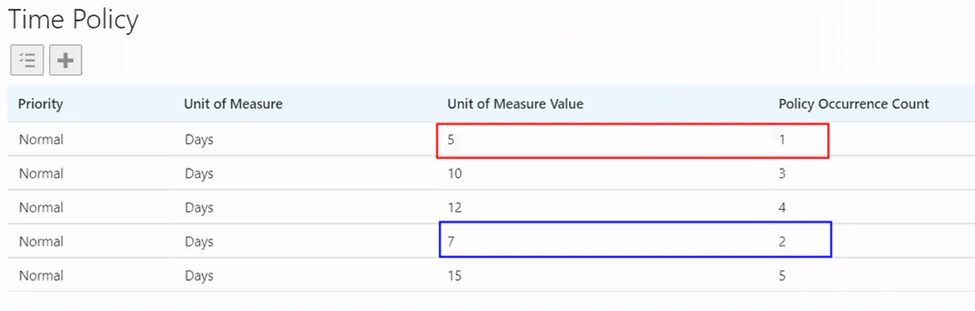
Time Policy Page
For example, as per setup, the compliance date is the 5th day from the inspection completion date for the first violation result:
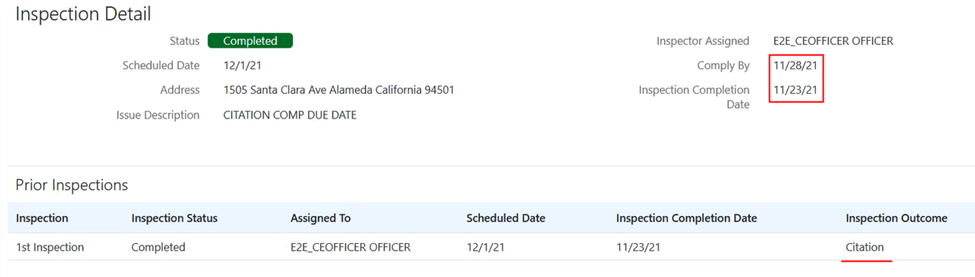
Inspection Detail Page Showing Compliance Date and Inspection Completion Date As Set Up in Time Rules
Then, for the second inspection result, the compliance date is the 7th day from the inspection completion date:
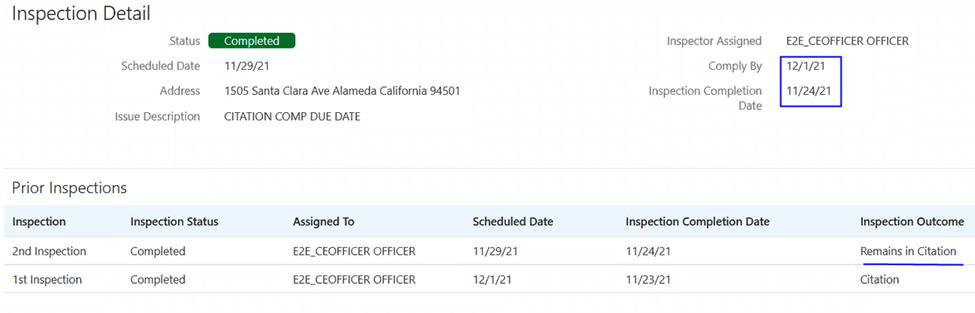
Inspection Detail Page Showing Compliance Date and Inspection Completion Date As Set Up in Time Rules
New time rule policies provide agency the flexibility to set the compliance due date based on each inspection date.
Steps to Enable
You don't need to do anything to enable this feature.
Tips And Considerations
Additional trigger points have been added to recalculate compliance and appeal due date.
Key Resources
- See Implementing Licensing and Permitting, "Setting Up Time Rules" on the Oracle Help Center (available April 1, 2022).
- See Using Community Development Code Enforcement, "Working with Code Enforcement Inspections" on the Oracle Help Center (available April 1, 2022).
Manually Schedule Inspections During Hearing, Appeal, or Legal Status
Agency staff can now schedule inspections for cases that are in hearing, appeal, or legal status.
Example of a case in Hearing status showing the Schedule Inspection button:
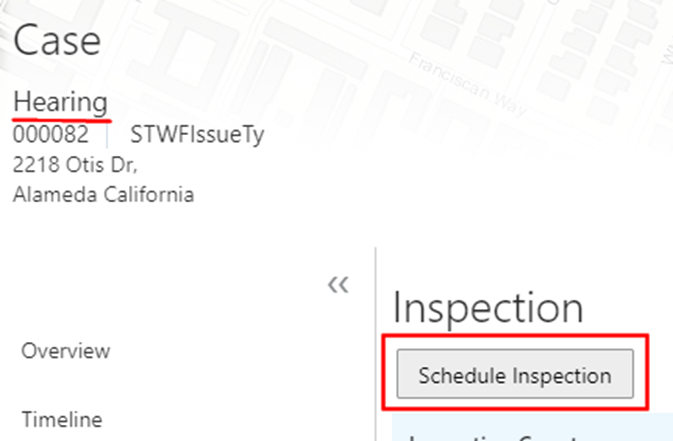
Case - Inspection Page
Code officers can submit inspection results based on whether the case is in compliance, needs extension, or not in compliance.
Example from the Worklist:

Example from the Worklist
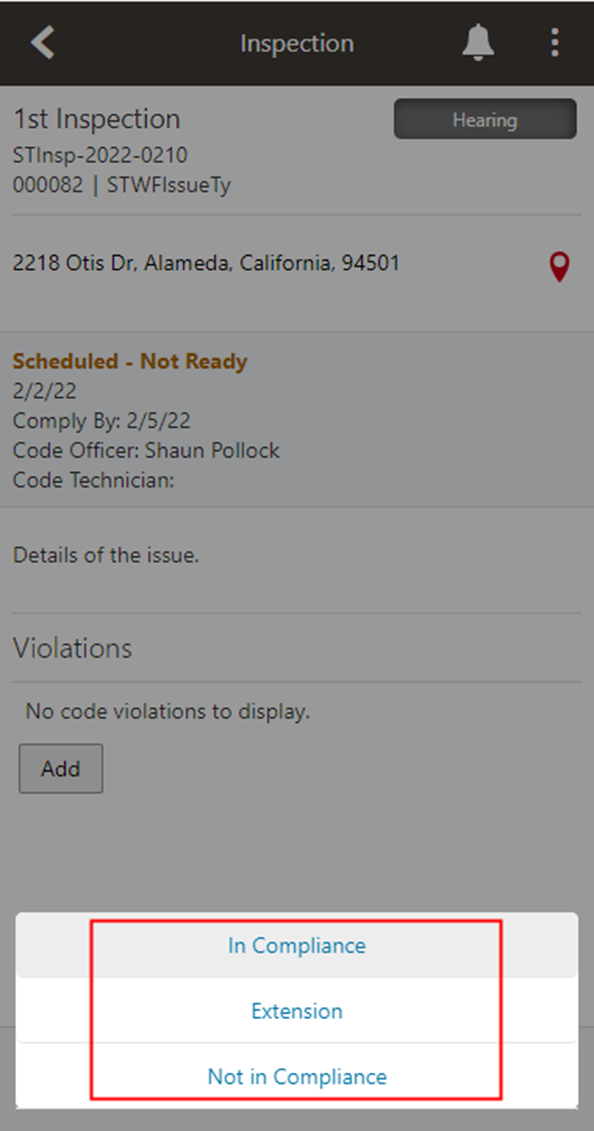
Example from the Mobile Application
Agency staff have the flexibility to perform inspections in support of hearing, appeal or legal proceedings.
Steps to Enable
You don't need to do anything to enable this feature.
Key Resources
- See Using Community Development Code Enforcement, "Working with Appeals and Hearings," “Working with Code Enforcement Inspections” on the Oracle Help Center (available April 1, 2022).
Search, Sort, Filter, and Export Single Row and Multilevel Row Lists for Code Enforcement
Code enforcement case list page can be searched, sorted, and filtered by case attributes in addition to other attributes on the page.
Each column name in the case console grid has a sort arrow. When you click a column that contains multiple attributes, a drop-down list shows each attribute in the column available to sort by.
This example illustrates the download, search, filter, and case and address sorting attributes on the Cases console for agency staff:

Partial View of the Cases Console
Download icon: Each visible field is included in the downloaded file as a separate column.
Search field: All visible fields in the grid are searchable.
Filter icon: All visible fields in the grid can be filtered. This button opens the advanced filter options.
Case list page now makes it easier to search, filter, sort and export case information.
Steps to Enable
You don't need to do anything to enable this feature.
Key Resources
-
See Using Community Development Code Enforcement, "Using Common Interface Pages and Elements" on the Oracle Help Center (available April 1, 2022).
Advance Dynamic Workflow for Active Incidents and Cases
Agencies can now advance dynamic workflow as a post-data migration process for Code Enforcement incident and cases.
Agencies can automatically progress workflow for imported in-flight legacy incident and code case transactions.
Steps to Enable
You don't need to do anything to enable this feature.
Key Resources
- See Implementing Licensing and Permitting, Migrating Legacy Data, "Assigning Workflow Status to Migrated Transactions" on the Oracle Help Center (available on April 1, 2022).
IMPORTANT Actions and Considerations
UPGRADE ACTIONS
With every upgrade, make sure to complete the following steps in the Initial Set Up functional area in Functional Setup Manager. This process ensures all new security definitions, such as job roles, duty roles, privileges, and so on, are included in your implementation.
- Run Public Sector Security Setup Process
- Manage Custom Roles
REPLACED OR REMOVED FEATURES
On occasion, Oracle replaces existing features with new features or removes existing features altogether. When a feature is replaced, the older version may be removed immediately or in the future. As a best practice, you should use the new version of a replaced feature as soon as the newest version is available.
| Removed Feature | Target Removal | Replacement Feature | Replaced In | Additional Information |
|---|---|---|---|---|
| LNPFeePaid (Accounting Event) | 22D | FeeReceipts FeeRefunded |
22A (for Permitting and Licensing Accounting Framework customers) 22B (for Financials Cloud Subledger Accounting customers) |
The LNPFeePaid accounting event will be deprecated and no longer available for use in 22D. You will need to transition to the new accounting events BEFORE you upgrade to 22D. For instructions on how to move to the new accounting event, see My Oracle Support Document ID: 2851069.1 |
DEPRECATED REST APIs
At times, REST APIs will be deprecated and no longer available for public use. For the most current information, see My Oracle Support Document ID: 2853758.1.
| REST API | Deprecated Release | Comments |
| Holiday Calendar Date Validations (publicSectorHolidayCalendarDateValidations) |
22B | This API has been deprecated and is no longer available for public use. |
| Inspections with Related Inspections (publicSectorRelatedInspections) |
22B | This API has been deprecated and is no longer available for public use. |
| Payment Accounts (publicSectorPaymentAccounts) |
22C | This API will be deprecated in 22C. Trust account information is being moved to new trust account structures. You should start planning to no longer use this resource and find alternatives. |
| Trust Account Notifications (publicSectorTrustAccountNotifications) |
22C | This API will be deprecated in 22C. Trust account information is being moved to new trust account structures. You should start planning to no longer use this resource and find alternatives. |
REST Backward Compatibility
Public Sector Permitting and Licensing updates REST APIs from release to release. Our goal is to not create APIS that are incompatible from one release to the next. However, due to circumstances and security impacts this may not be feasible.
For the most current information, see My Oracle Support Document ID: 2853758.1.
Documentation for all REST APIs included in Public Sector Permitting and Licensing can be found on the Oracle Help Center.