
- Revision History
- Overview
- Feature Summary
- Permitting and Licensing
-
- Permitting and Licensing Common
-
- Agency and Public User Header Maps
- Override Existing Parcel Conditions
- Parcel Selection Enablement
- Document Upload Events for Planning Applications
- Hide Map Sketch Ability
- Option to Remove District Information with APO Import Tool
- Legacy Data Migration for Business Entity Objects
- Permit or Planning Applications Without Workflow
- Improved Usability in Ad Hoc Message and Communication Events pages
- Trust Account Event for Business Rules Framework
- Resolve Condition for Business Rules Framework
- Read-Only Staff Profiles
- Task Status Display
- Financial Framework
- System Administration
-
- Permits and Inspections
- Code Enforcement
- Business Licensing
- Permitting and Licensing Common
- IMPORTANT Actions and Considerations
This document will continue to evolve as existing sections change and new information is added. All updates appear in the following table:
| Date | Module | Feature | Notes |
|---|---|---|---|
| 11 JAN 2023 | Code Enforcement | Default Filters for Code Officers | Updated document. Enhanced Steps to Enable. |
| 04 NOV 2022 | Permitting and Licensing Common | Parcel Selection Enablement | Updated document. Added Steps to Enable. |
| 04 NOV 2022 | Code Enforcement | Parcel Owner Name Display | Updated document. Revised feature information. |
| 10 OCT 2022 | Business Licensing | Search NAICS by Industry Title | Updated document. Revised screenshots. |
| 10 OCT 2022 | IMPORTANT Actions and Considerations | Updated document. Added section. | |
| 16 SEP 2022 | Created initial document. |
 HAVE AN IDEA?
We’re here and we’re listening. If you have a suggestion on how to make our cloud services even better then go ahead and tell us. There are several ways to submit your ideas, for example, through the Ideas Lab on Oracle Customer Connect. Wherever you see this icon after the feature name it means we delivered one of your ideas.
GIVE US FEEDBACK
We welcome your comments and suggestions to improve the content. Please send us your feedback at oracle_fusion_applications_help_ww_grp@oracle.com.
DISCLAIMER
The information contained in this document may include statements about Oracle’s product development plans. Many factors can materially affect Oracle’s product development plans and the nature and timing of future product releases. Accordingly, this Information is provided to you solely for information only, is not a commitment to deliver any material, code, or functionality, and should not be relied upon in making purchasing decisions. The development, release, and timing of any features or functionality described remains at the sole discretion of Oracle.
This information may not be incorporated into any contractual agreement with Oracle or its subsidiaries or affiliates. Oracle specifically disclaims any liability with respect to this information. Refer to the Legal Notices and Terms of Use for further information.
Column Definitions:
Report = New or modified, Oracle-delivered, ready to run reports.
UI or Process-Based: Small Scale = These UI or process-based features are typically comprised of minor field, validation, or program changes. Therefore, the potential impact to users is minimal.
UI or Process-Based: Larger Scale* = These UI or process-based features have more complex designs. Therefore, the potential impact to users is higher.
Features Delivered Disabled = Action is needed BEFORE these features can be used by END USERS. These features are delivered disabled and you choose if and when to enable them. For example, a) new or expanded BI subject areas need to first be incorporated into reports, b) Integration is required to utilize new web services, or c) features must be assigned to user roles before they can be accessed.
| Ready for Use by End Users Reports plus Small Scale UI or Process-Based new features will have minimal user impact after an update. Therefore, customer acceptance testing should focus on the Larger Scale UI or Process-Based* new features. |
Customer Must Take Action before Use by End Users Not disruptive as action is required to make these features ready to use. As you selectively choose to leverage, you set your test and roll out timing. |
|||||
|---|---|---|---|---|---|---|
| Feature |
Report |
UI or |
UI or |
|
||
Improved Usability in Ad Hoc Message and Communication Events pages |
||||||
Reusable User-Defined Fields for Business Rules Framework Criteria |
||||||
Mandatory Abatement Appeal Time Rule and Time Policy Setting |
||||||
Permitting and Licensing Common
Agency and Public User Header Maps
Agencies can now provide one transaction header map for everyone or separate transaction header maps for public users and agency users.
Configuring a separate transaction header map for the public allows you to distinguish header maps between both your agency and the public users. This is helpful when agency users need to see mapping layers that are not made available to public users.
Steps to Enable
You don't need to do anything to enable this feature.
Key Resources
- See Implementing Your Cloud Integrations, "Setting Up GIS," Setting Up Map Profiles on the Oracle Help Center.
Override Existing Parcel Conditions
The Parcel Condition detail page now displays whether the Allow Updates by Parcel Import switch is enabled on the condition setup page.
When the parcel import option is selected to resolve the parcel or address condition, the process will resolve the condition only if the switch is turned on.
The below example from the Condition Details page shows that the switch is turned on in the Condition setup page.
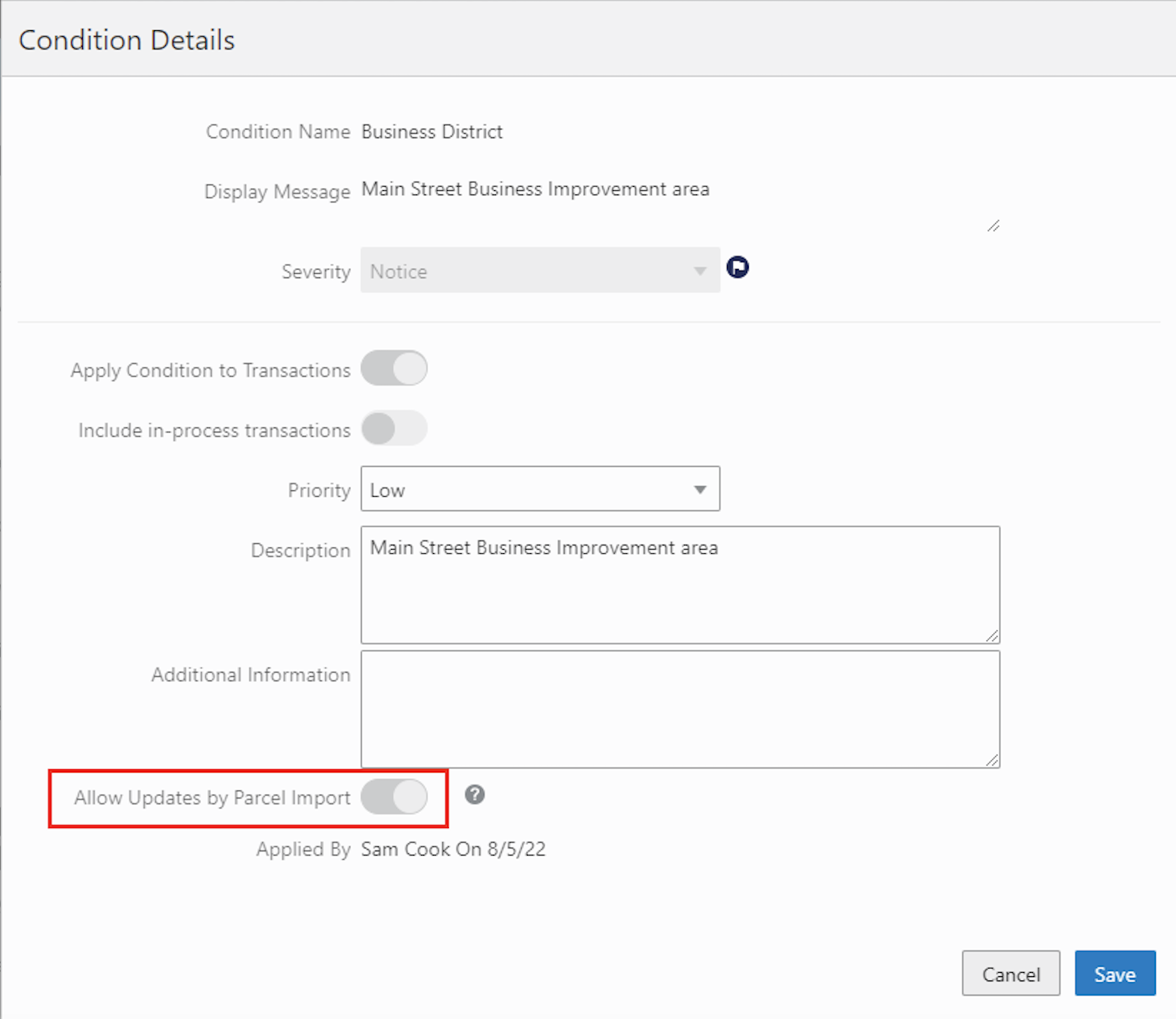
Condition Details Page
This improves data integrity by enabling staff to determine, on a case-by-case basis, when a condition can be updated or removed due to a subsequent parcel import.
Steps to Enable
You don't need to do anything to enable this feature.
Key Resources
- See Using Community Development Permits, “Managing Property Information,” Applying Conditions to Parcels and Addresses on the Oracle Help Center.
By default, when you select a GIS asset, the underlying parcel is automatically selected. Configure this feature if you want to use the layers widget to disable the Parcels layer selection so that when you select a GIS asset, the underlying reference parcel data won’t be automatically selected.
You only need to configure this feature if you want turn off selection of reference parcel data or enabled GIS assets while selecting a non-APO (address, parcel, or owner) or GIS asset on the application intake map. This functionality works when you add properties when filling out an application and on the Property Information page in the permit and planning application details when you update or select additional properties.
This example illustrates the Layers widget with the selectable Parcels layer on the application intake form’s Property page.
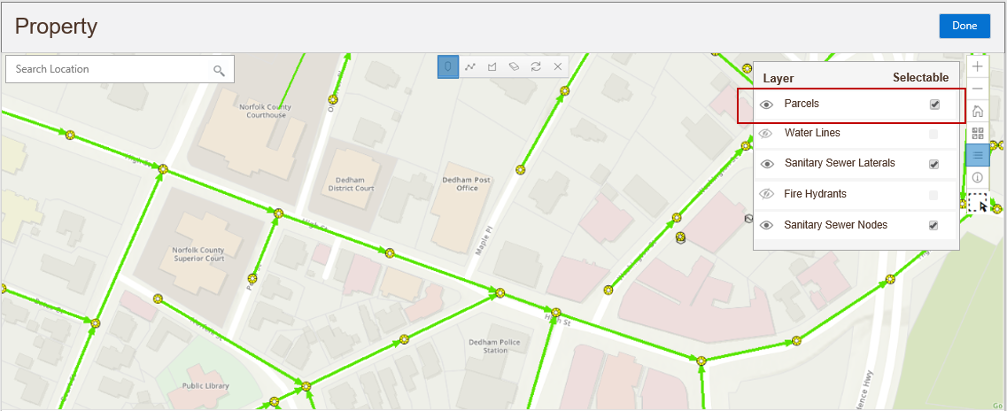
Property Page in the Application Intake Form
Having the option to enable or disable parcel selection when using the map selection tool gives your agency more flexibility with maps for public users.
Steps to Enable
Here’s how to set up the parcel selection functionality:
- Define the Map Layer Content on the GIS Attribute Mapping page to see the attributes on the map layers. Map Layer Content is used to set up the GIS attributes that you may want to capture during application intake.
This example illustrates the GIS Attributes to Capture page with the desired layers enabled:
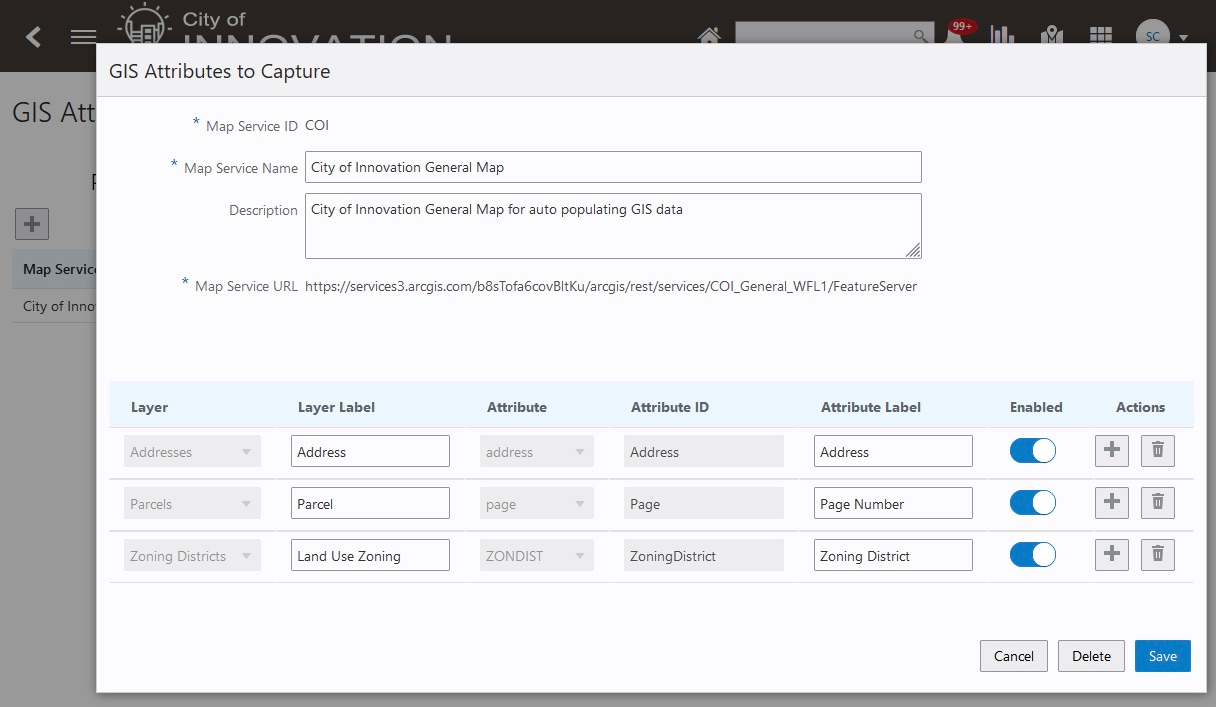
GIS Attributes to Capture
For more information, see Implementing Your Cloud Integrations, "Setting Up GIS," Setting Up GIS Attribute Mapping.
- When you add the application intake map to the map profile, configure these map-specific options on the Add Map Page:
- This example illustrates the Add Map Page with the options to enable map layers and enable selection tools turned on.
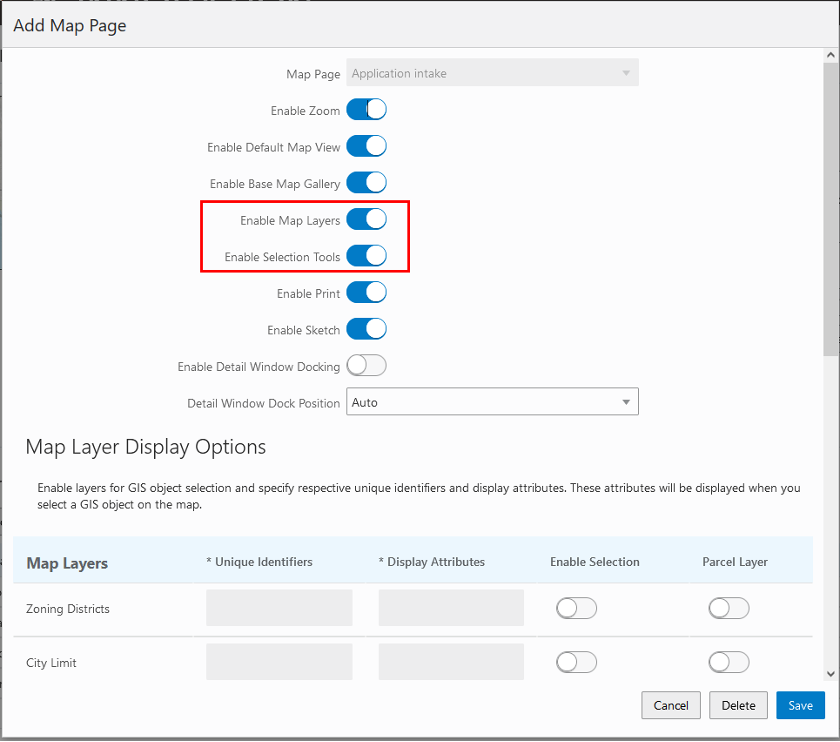
Add Map Page
- Turn on the Parcel Layer switch to identify the Parcel Layer and enable the map layer. The system allows you to identify only one layer as the Parcel layer.
This example illustrates the Map Layer Display Options grid where the Parcel layer has been identified.
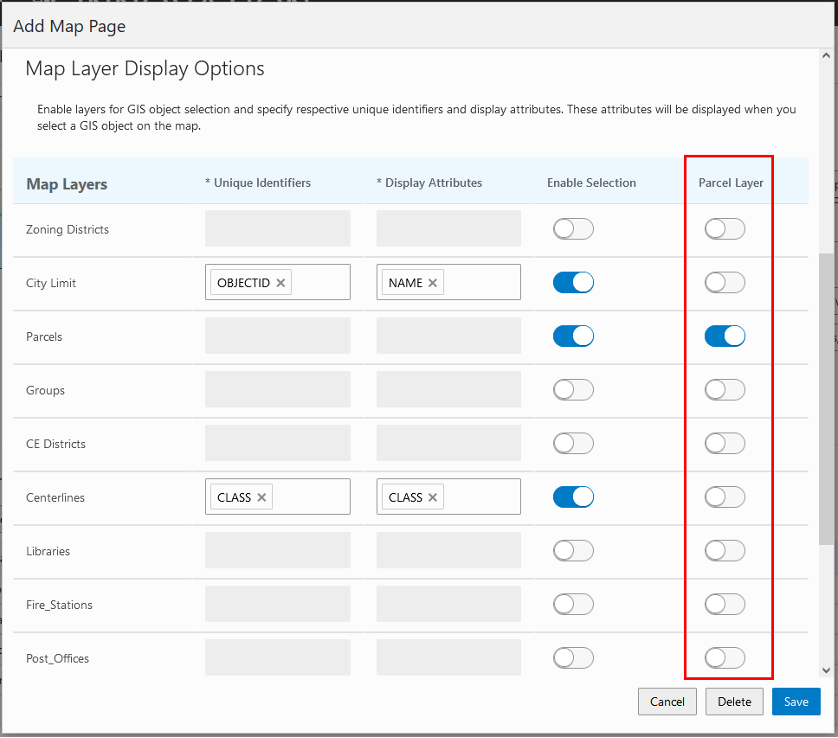
Add Map Page – Map Layer Display Options Grid
You must identify the parcel layer if you want the option to select reference parcel data independently of enabled GIS assets or objects on the application intake map.
For more information, see Implementing Your Cloud Integrations, Setting Up GIS, Setting Up Map Profiles and the "Selecting Parcels and Assets" section in Using Community Development Permits, Working with Maps, Using the Map Toolbar.
Tips And Considerations
By default, parcel properties are always selected when using the selection tool. Use this feature if you want turn off selection of reference parcel data or enabled GIS assets. This configuration applies to the application intake map only.
Key Resources
- See Implementing Your Cloud Integrations, "Setting Up GIS," Setting Up Map Profiles on the Oracle Help Center.
- See Using Community Development Permits, "Working with Maps," Using the Map Toolbar on the Oracle Help Center.
Document Upload Events for Planning Applications
Two new events in Business Rules Framework can prompt in-application or email notifications when attachments are uploaded to planning applications or pre-applications.
- Planning Application Document Attached
- Trigger: When an applicant adds an attachment to a planning application or a pre-application.
- Usage: This event is used to notify agency staff such as the assigned planner that a new document has been uploaded.
- Planning Application Document Attached for Plan Review
- Trigger: When an applicant adds an attachment to a planning application or a pre-application.
- Usage: This event is used to notify plan coordinators and plan reviewers that a document has been uploaded to a plan review cycle.
These new document upload events for planning applications provides needed consistency with permits. These also align with similar events for permits.
Steps to Enable
You don't need to do anything to enable this feature.
Tips And Considerations
For the Planning Application Document Attached for Plan Review event, you can use plan review cycle attributes to set up the Business Rules Framework criteria and the communication template.
If they want to view a property map without the sketches, agency staff and registered users with application access, now have the option to show or hide sketches using the Sketch Layers tool in the property map's main toolbar.
This example illustrates the Property map page for a permit with the sketch layer turned on.
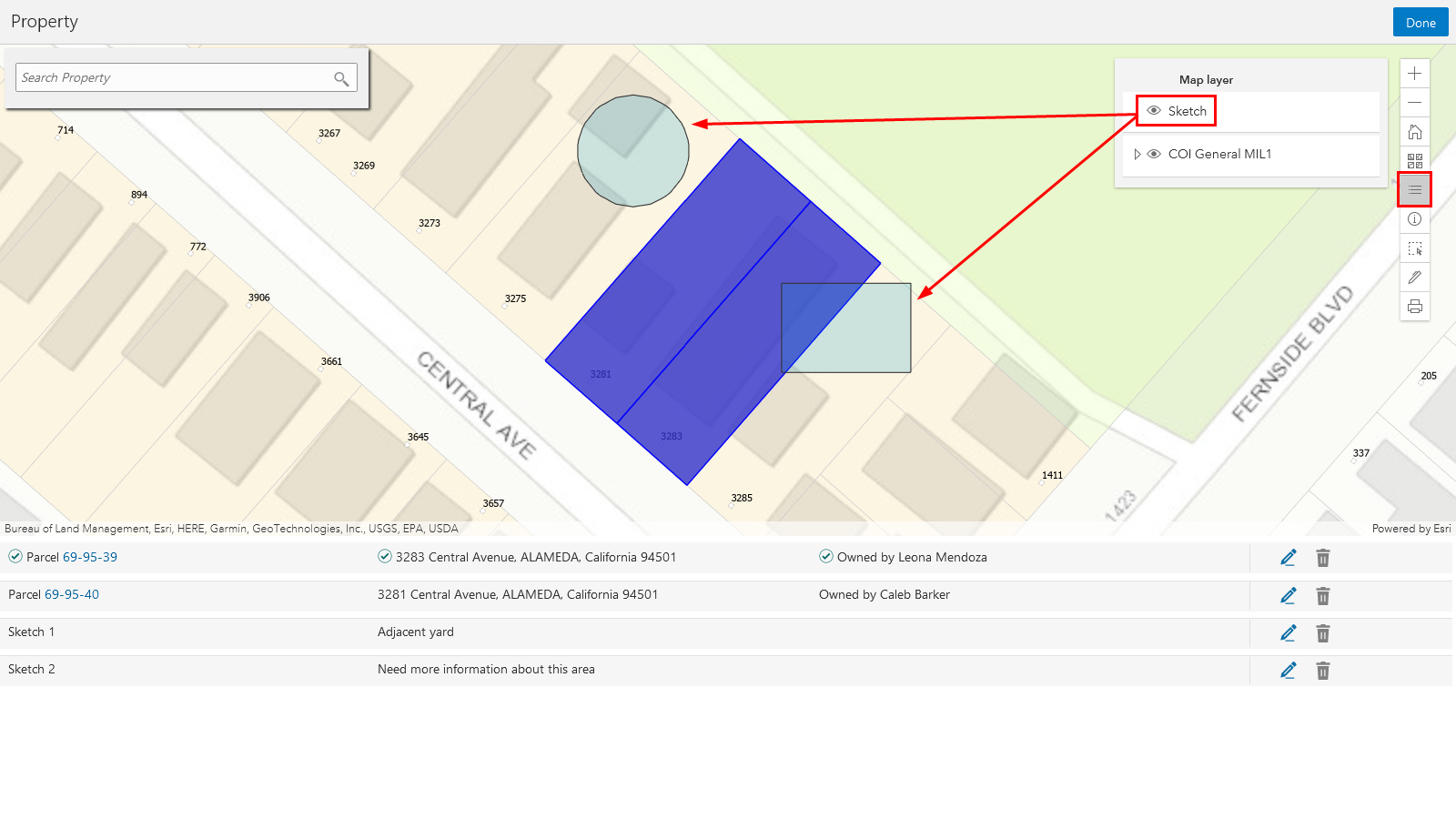
Property Map Page with Sketch Layer
Sketches are displayed as a layer. Users can show or hide the sketches by turning on or off the sketch layer.
Steps to Enable
You don't need to do anything to enable this feature.
Tips And Considerations
Map layers must be enabled on the map profile.
Key Resources
- See Using Community Development Permits, "Working with Maps," Using the Map Toolbar on the Oracle Help Center.
Option to Remove District Information with APO Import Tool
During the Post Parcel Import Processing, administrators can automatically remove references to district information for parcel and address. To enable this feature, turn on the Allow Updates by Parcel Import switch in the District Type Details page.
This optional setting identifies the differences between the imported file and existing reference information, and automatically removes the existing parcel and district information.
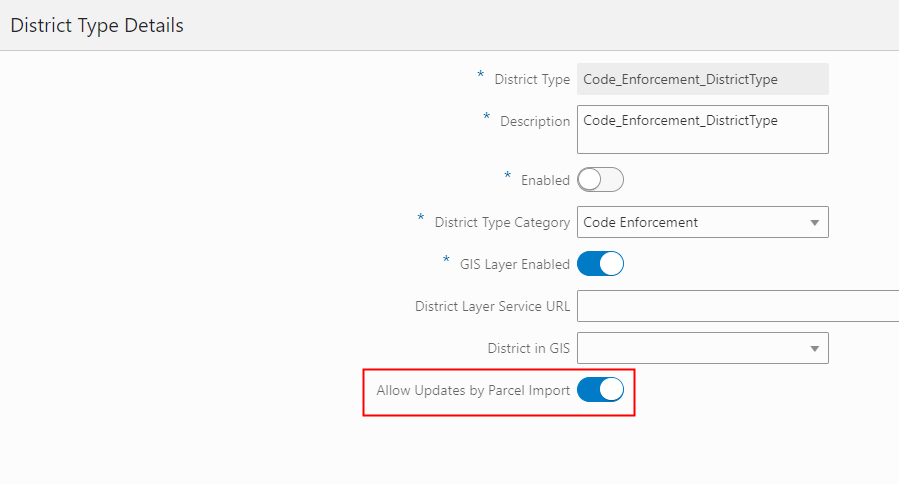
District Type Details Page
This increases data quality by setting options that specify when the district is updated during a parcel district import.
Steps to Enable
To enable the feature, log in as an administrator. Navigate to Property Information > Parcel Import Options and turn on the switch "Allow Updates by Parcel Import".
Key Resources
- See Implementing Your Agency, “Setting Up District Types” on the Oracle Help Center.
Legacy Data Migration for Business Entity Objects
You can migrate your legacy data for planning applications, permits, and code enforcement to Public Sector Permitting and Licensing using Import Management. Import Management improves definition, error handling, and performance for importing flat files (.CSV). For example, Import Management has drag and drop mapping capabilities and validates the first ten records in your data file before you import to ensure the data meets the import constraints of the various attributes. It also provides error files and diagnostic logs for analyzing unsuccessful imports.
These are the objects delivered in this release:
- Business
- Business Location
- Business Owner
- Custom Grid for Permits
- Custom Grid for Planning Applications
This extends legacy data migration tool to support business entity objects and related information.
Steps to Enable
You will need to complete the setup and configuration outlined in the technical brief "Migrating Data Using Import Management" on My Oracle Support.
Key Resources
- See Implementing Permitting and Licensing, “Migrating Legacy Data,” Migrating Data Using Import Management on the Oracle Help Center.
- See "Migrating Data Using Import Management" on My Oracle Support .
Permit or Planning Applications Without Workflow
You can process, issue, and complete a permit or planning application without workflow. This is especially relevant to those types of permits that do not require inspections, plan review, and other workflow dependent features.
Your agency may have sets of simple permits that you can now process quickly without going through workflow. This speeds up the process for your public users for these types of permits.
Steps to Enable
To enable this feature update the permit or planning application type setup and enable the option for "No Application Workflow".
Tips And Considerations
When the application is submitted and the fees generated as part of the intake are paid, the application status automatically updates to "Completed".
Improved Usability in Ad Hoc Message and Communication Events pages
A new Insert button has been added to the Ad Hoc Message and Communication Events pages that enables agency staff to easily search for and choose from different attributes available for every field on the page.
For example, if you click the Insert button in the To field, many contact attributes will appear for you to select from. The transaction attributes that are available for that field are based on the underlying application, like Permits. The number of attributes in each group is also displayed:

Ad Hoc Message Page
Click the Insert button in the From field to show the available email and transaction attributes:
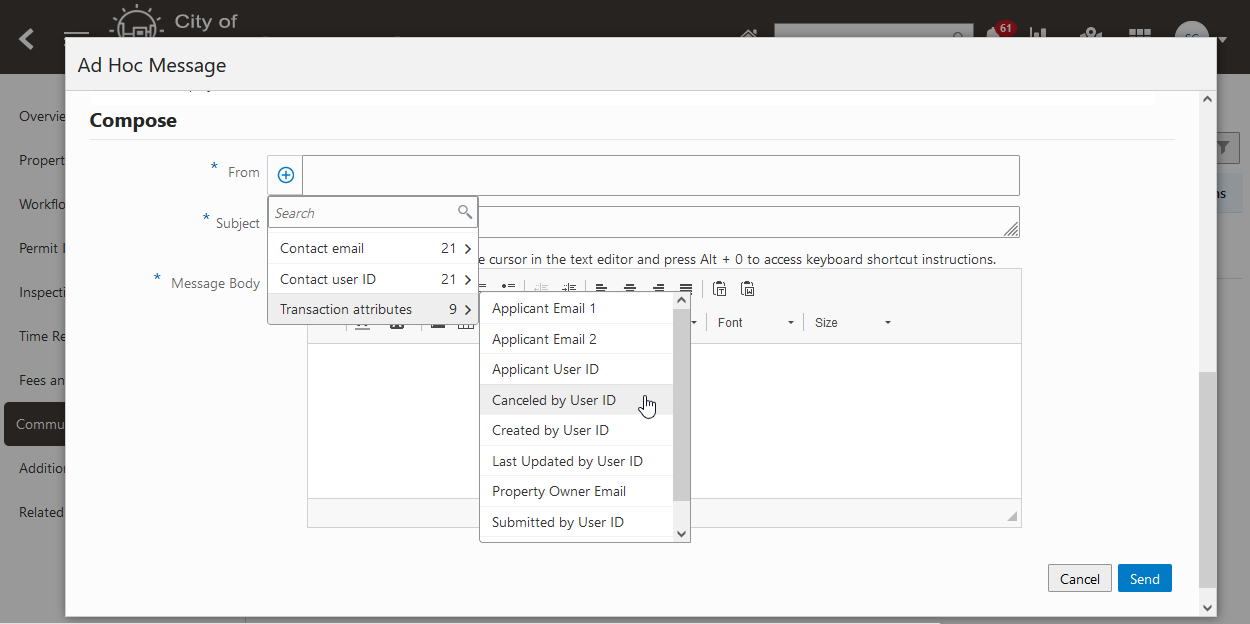
Ad Hoc Message Compose Page
You can also use the Search to filter results and easily insert transaction attributes in every field that has an Insert button:
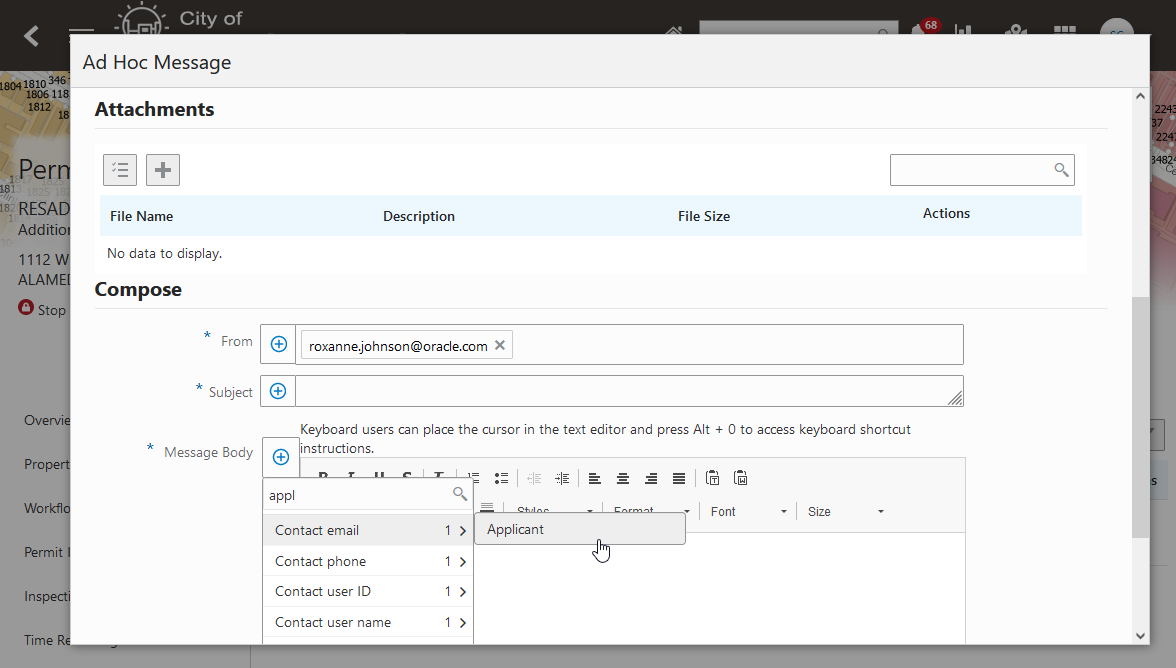
Ad Hoc Message Search Filter
The Insert button is also available in Communication Events templates:
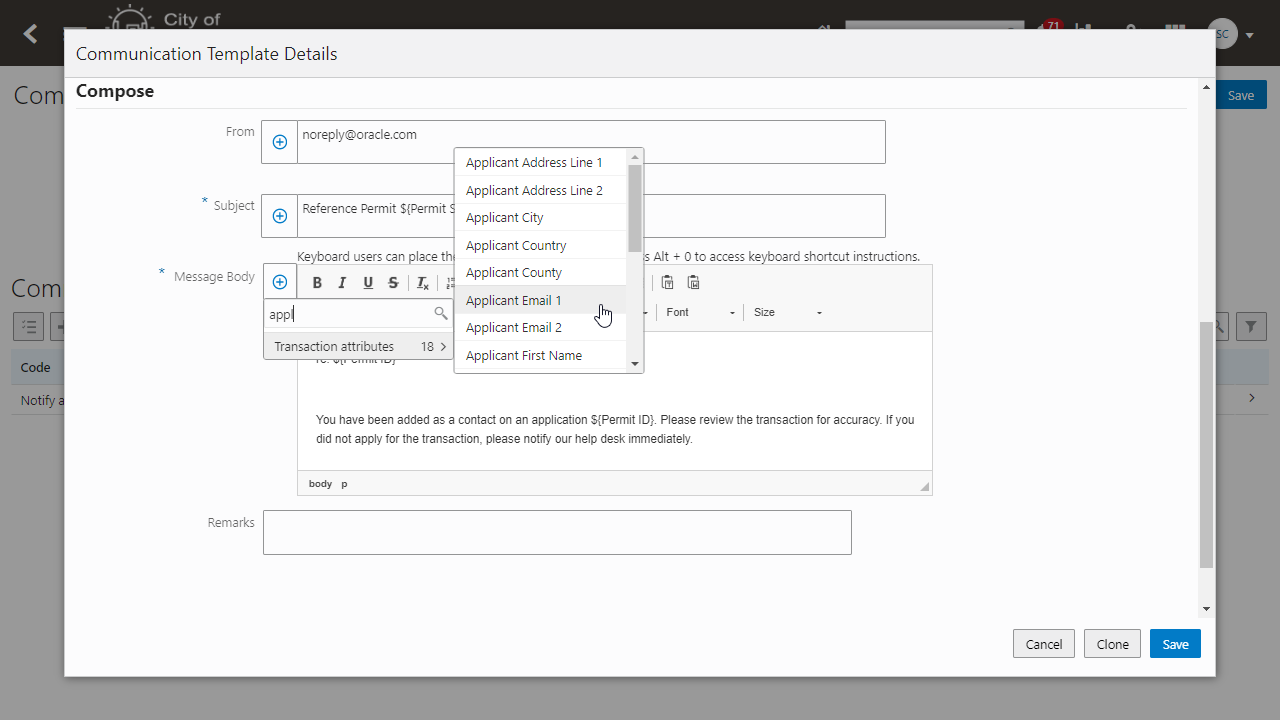
Communication Template Details page
This button helps simplify the entry of attributes in communication templates.
Steps to Enable
You don't need to do anything to enable this feature.
Key Resources
- See Using Community Development Permits, “Working with Communications,” Sending Communications on the Oracle Help Center.
- See Implementing Your Agency, “Setting Up Communications,” Using Attributes in Communication Templates on the Oracle Help Center.
Trust Account Event for Business Rules Framework
If you need to create a business rule based on a trust account receiving a deposit, use the new Deposit Received event, which you can find in the Common business rule event category. After creating your business rule criteria, you can trigger these actions based on the Deposit Received event:
- Relay to OIC
- Send communication
- Update workflow
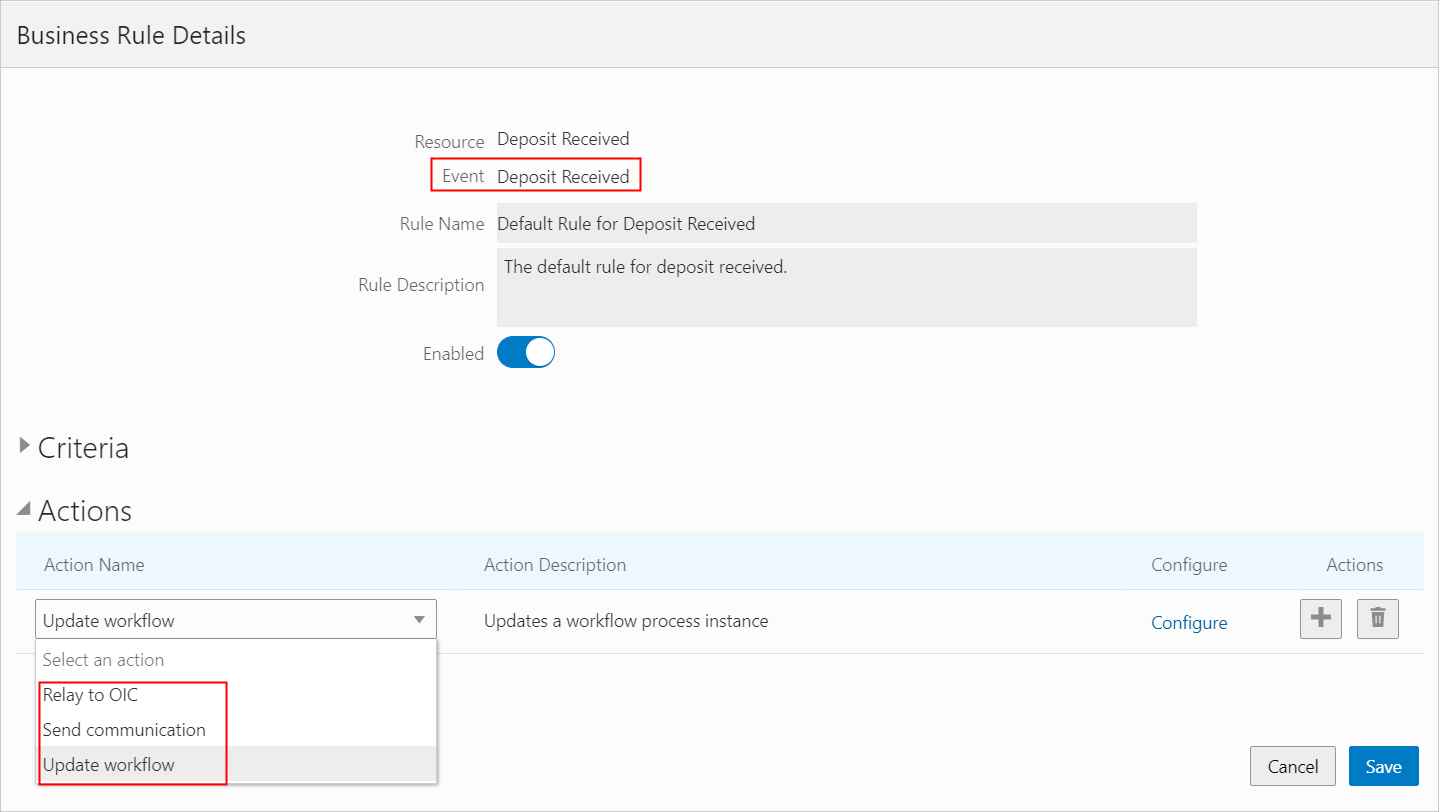
Business Rules Details Page
This allows you to enable new event Trust Account Deposit Received for permits and planning and zoning applications. You can configure a business rule to automate your business process after the trust account deposit is received.
Steps to Enable
You don't need to do anything to enable this feature.
Tips And Considerations
See "Deposit Account Workflow" for more information regarding this event.
Key Resources
- See Implementing Permitting and Licensing, "Implementing the Business Rules Framework," Business Rules Framework Event Details on the Oracle Help Center.
Resolve Condition for Business Rules Framework
In a previous release, the Business Rules Framework provided the ability to apply conditions based on your business rule.
You can now resolve a condition based on your business rule using the Resolve conditions action.

Configure Action Page
The new Resolve Conditions action allows agency staff to configure a business rule to automatically resolve a condition based on user-defined criteria.
Steps to Enable
You don't need to do anything to enable this feature.
Key Resources
-
See Implementing Permitting and Licensing, "Implementing the Business Rules Framework," Setting Up Resolve Conditions Actions on the Oracle Help Center.
If you import staff records through your Oracle Human Capital Management (HCM) implementation or any other external system, the employee information is read-only.
This example illustrates the fields you can make changes to before saving the record in the Permitting and Licensing system:
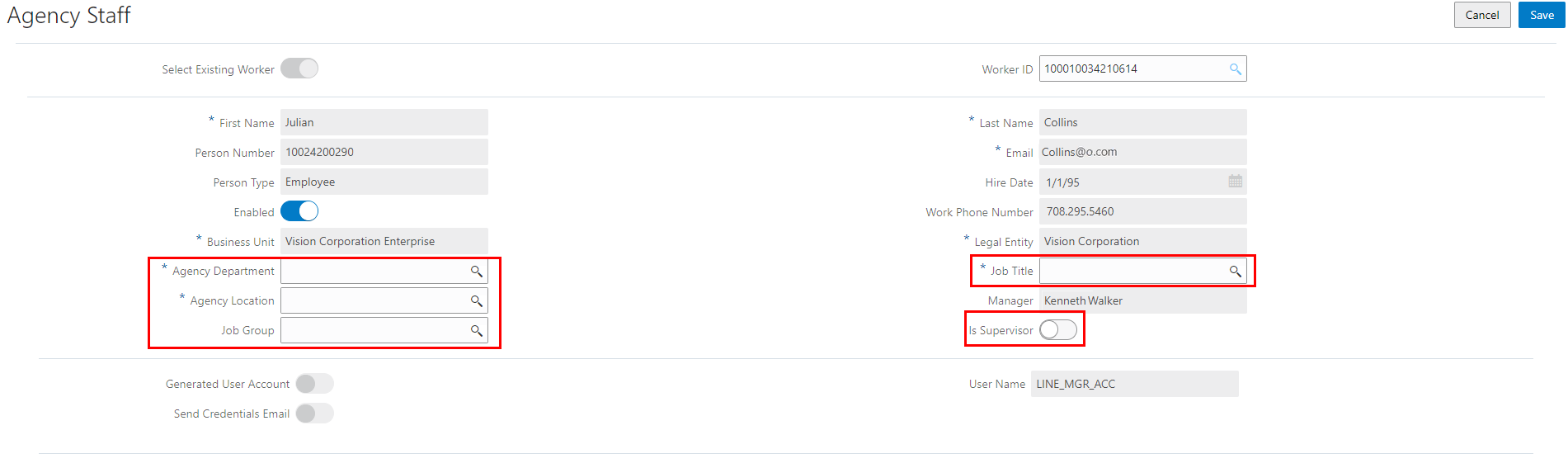
Add Agency Staff Page
This preserves your HCM staff profiles after importing them into Oracle Permitting and Licensing and prevents unintentional edits.
Steps to Enable
You don't need to do anything to enable this feature.
Key Resources
- See Implementing Your Agency, “Setting Up Your Agency Staff,” Managing Agency Staff Profiles on the Oracle Help Center.
Agency users can easily see the application status and sort by the application status. This prevents the need to navigate to the application to review the application status. This is particularly helpful for the agencies that create custom statuses for the application.
This feature allows agency staff to easily see the application status from the worklist, giving them quick and easy insight into the application.
Steps to Enable
You don't need to do anything to enable this feature.
Deprecation of LNPFeepaid Accounting Event
The LNPFeepaid accounting event has been deprecated. It cannot be enabled or used in accounting rules. Use the Payments and PaymentRefunds accounting events instead.
The LNPFeepaid accounting event is no longer needed and has been replaced by the new PaymentRefunds accounting event.
Steps to Enable
You don't need to do anything to enable this feature.
Key Resources
- See Implementing Your Financials Framework, “Setting Up Accounting,” Managing Accounting Events on the Oracle Help Center.
Deposit Account for Fees and Payments
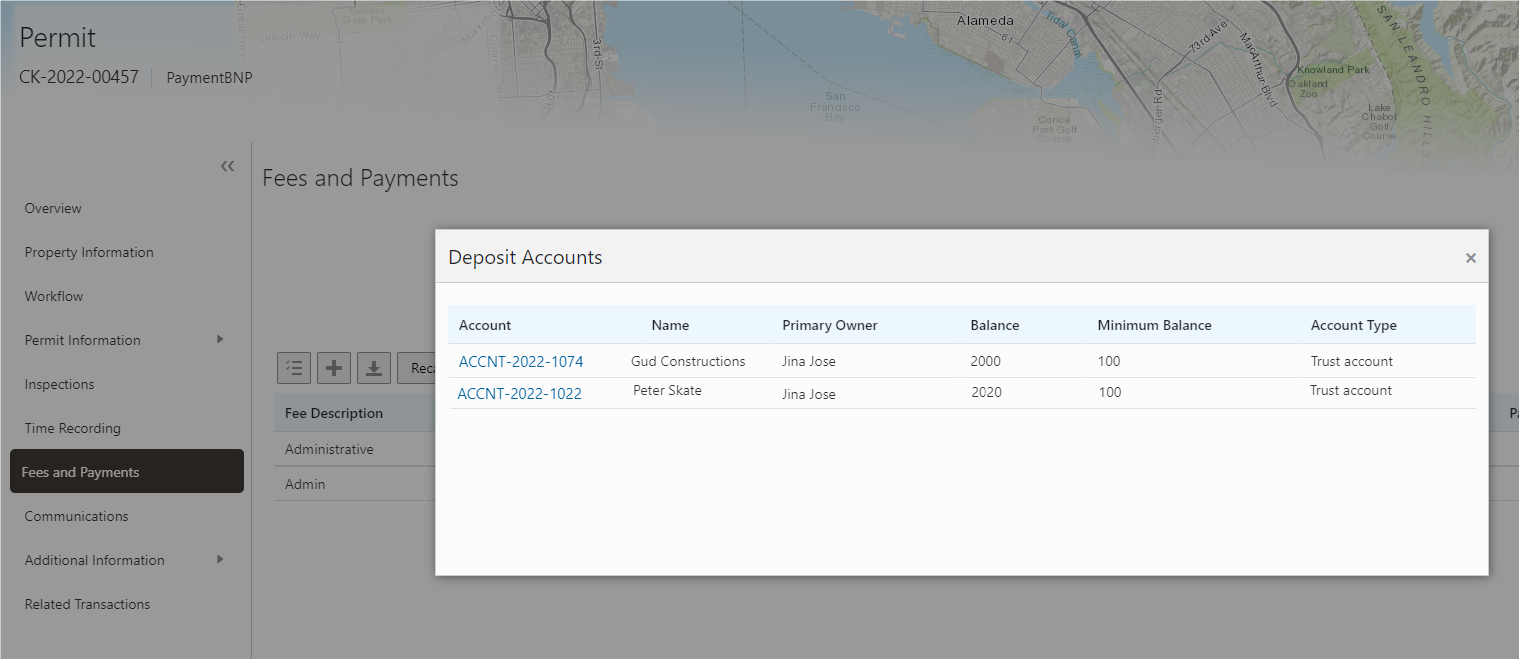
Agency staff and public users can now view the list of deposit accounts related to a permit application.
The following illustration shows the Deposit Accounts modal on the Fees and Payments page:
Fees and Payments Page
Click an account link to drill down to its account details.
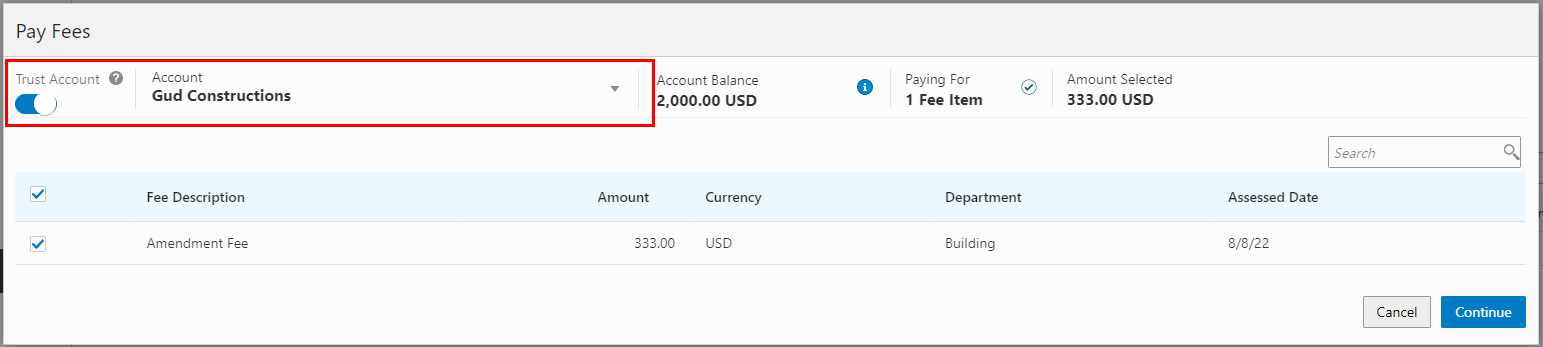
When paying the fees, you can select a deposit account from which you can pay fees for the eligible items:
Pay Fees Page
View of and access to deposit account information from the Fees and Payments tab by authorized public users helps to ensure that funds are available in the deposit account to cover fee payments. Once availability of funds is confirmed, payments from the deposit account can also be initiated.
Steps to Enable
You don't need to do anything to enable this feature.
Tips And Considerations
Only public users authorized to access applicable deposit accounts will be able to view deposit account information and initiate payments from the deposit account. If more than one deposit account is configured to pay applicable fees and it has an adequate balance, then the authorized public user will be able to choose which deposit account to initiate payment.
Key Resources
- See Using Community Development Permits, “Managing Permits,” Working with Fees and Payments on the Oracle Help Center.
Import ACH and Wire Deposits from Oracle Financials
Use the scheduled process, Import Electronic Deposits for Deposit Accounts, to import automated clearing house (ACH) and wire deposits from Oracle Financials Cash Management.

Process Monitor Page
Scheduled electronic deposit report import provides regular and consistent access to information needed to reconcile potential payment issues.
Steps to Enable
You don't need to do anything to enable this feature.
Tips And Considerations
When writing the ESS job to pull ACH/Wires data from Oracle Cash Management, options are to fetch data for all accounts or an individual account.
Key Resources
- See Using Community Development Permits, "Working with Processes," Using the Process Monitor on the Oracle Help Center.
Agency staff can assist customers in paying fees for multiple transactions using a single check, cash, credit, debit, PayPal, and offline payments. This includes cashier sessions, where you can now pay for multiple transactions with a single payment for the cash and check payment methods.
Agency staff assisted payments is extended to available payment methods.
Steps to Enable
You don't need to do anything to enable this feature.
Tips And Considerations
Current payment cart functionality allows paying for multiple transactions using a credit card. This extends the ability to pay for multiple transactions with a single payment to cash and check payment methods.
Key Resources
- See Using Community Development Permits, "Managing Permits," Working with Fees and Payments on the Oracle Help Center.
Support automated workflow advancement based on a deposit to a trust account driven from an estimate provided to the customer.
You can use the Business Rules Framework to advance workflow automatically using the new Deposit Received event, which you can find in the Common event category.
Add the criteria required for your business rule, and in the Actions section, select Update workflow from the Action Name drop-down list. Specify the update to make the workflow process.

Business Rule Details Page
Systematically advancing workflow triggered by deposits made to deposit accounts automates business processes, improving consistency and efficiency.
Steps to Enable
You don't need to do anything to enable this feature.
Tips And Considerations
The Custom Property for PSC_ACTIVITY_TYPE on the workflow model must be configured.
To automate the workflow action, you can set this up with Business Rules Framework. See "Trust Account Event for Business Rules Framework".
Key Resources
- See Implementing Permitting and Licensing, "Implementing the Business Rules Framework," Setting Up Update Workflow Actions on the Oracle Help Center.
- See Implementing Permitting and Licensing, "Implementing the Business Rules Framework," Business Rules Framework Event Details on the Oracle Help Center.
Reusable User-Defined Fields for Business Rules Framework Criteria
For specific events and resources, the reusable user-defined fields that you have created in the Intake Form Designer can be included in your business rule criteria.
On the Business Rules Details page, select the desired reusable field from the Field drop-down list in the Criteria section.
You can identify the reusable fields easily in the Field drop-down list by looking for the "Reusable" label within curly brackets that appears for each reusable field.
For example:
{Reusable} Environmental Impact Type
When creating business rule criteria you can now include reusable user-defined fields added to an application intake form as comparison values. This saves time when creating multiple application intake forms with the same fields.
Steps to Enable
You don't need to do anything to enable this feature.
Key Resources
- See Implementing Permitting and Licensing, "Implementing the Business Rules Framework," Setting Up Business Rule Criteria on the Oracle Help Center.
Configure Required Documents for Applications
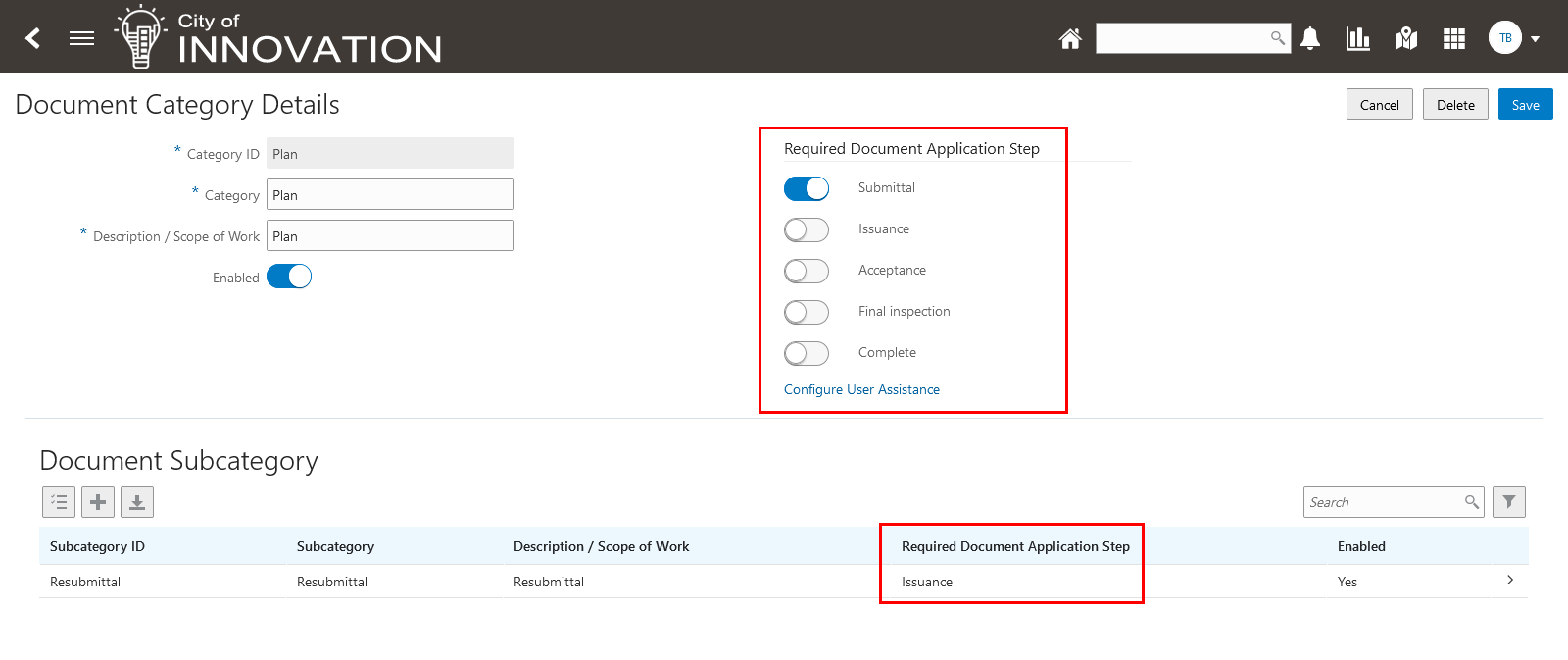
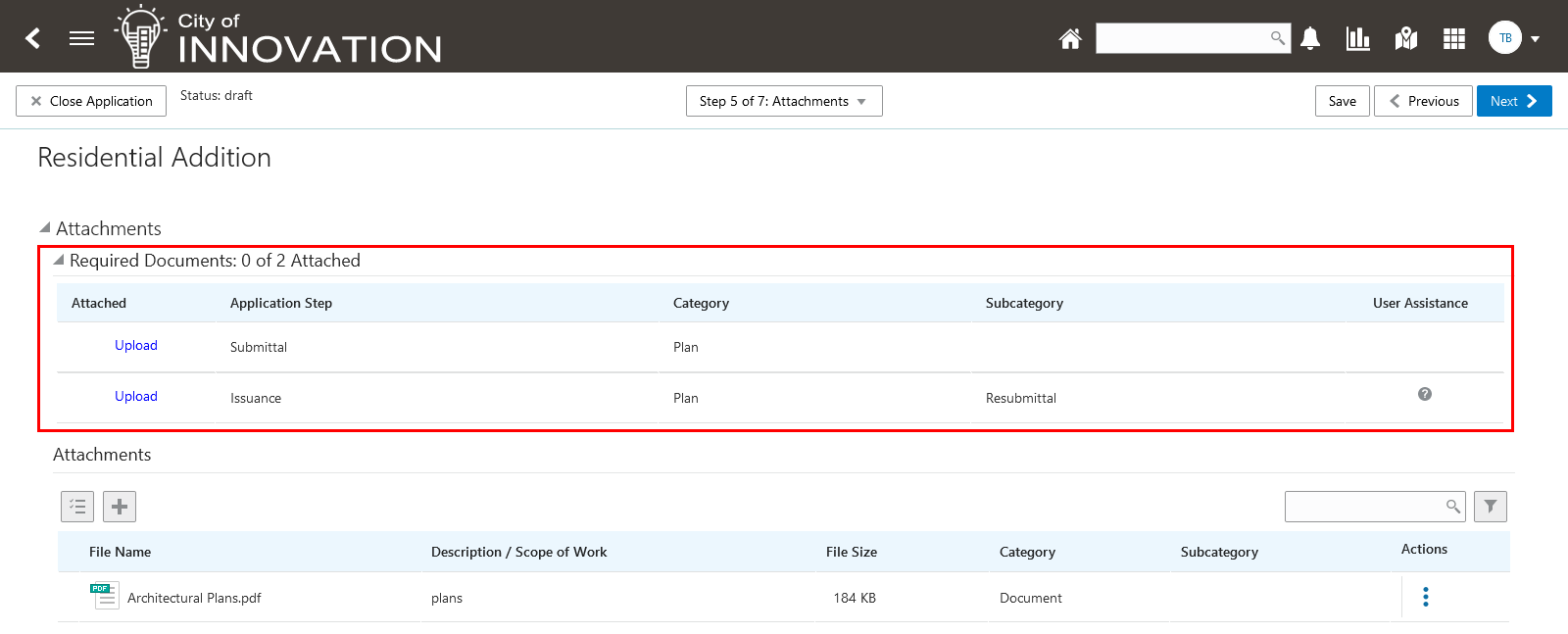
Agencies can now require certain documents to be provided during the application process, based on the application type. For example, when an applicant applies for a residential addition permit, the agency may require a floor plan document at the time the application is submitted. In addition to permits, agencies may require documents for selected types of business licenses or planning applications.
The agency determines the specific category of document as well as the point at which the document must be uploaded. Plans like architectural or electrical plans, or other types of documents, might be required at one of these stages in the application life cycle: Submittal, Issuance, Acceptance, Final inspection, and Complete.
Document Category Details Page
Application Intake Form - Attachments Step
This allows agencies to configure document requirements at different stages of the permit process.
Steps to Enable
You need to configure these settings in the Document Category details page.
Key Resources
- See Implementing Your Agency, "Setting Up Documents," Setting Up Document Categories and Subcategories and Setting Up Document Groups on the Oracle Help Center.
- See Using Community Development Permits, "Managing Permits," Working with Attachments on the Oracle Help Center.
Two new display features are provided for intake form grids.
You can now set a grid column to be read-only. You can prevent users from overwriting data stored in a grid, such as data imported into the grid from other data sources.
When designing the intake form, use the Read-only switch to set a grid column to be read-only.
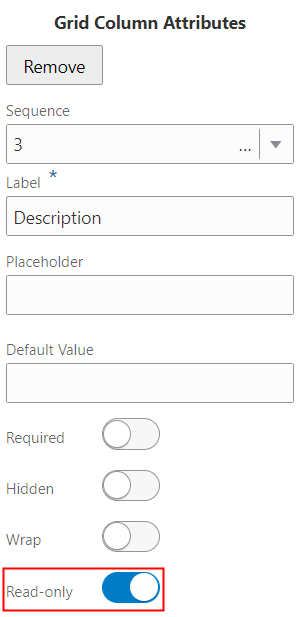
Grid Column Attributes
At runtime, the read-only grid columns are not editable.
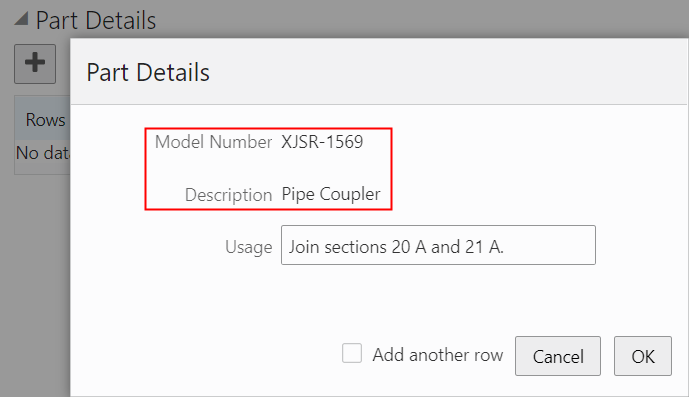
Runtime Grid Attributes
Also, grids now include row numbers to help users identify specific rows and keep track of information added to larger tables.
The additional grid display improves the usability of the grids.
Steps to Enable
You don't need to do anything to enable this feature.
Key Resources
- See Implementing Permitting and Licensing, "Creating Intake Forms," Working with Grids on the Oracle Help Center.
In a previous release, the Intake Form Designer provided the option of adding the grid control to your intake forms for Permits and Planning and Zoning. You can now add the grid control to all types of business license application form designs, including origination, amendment, renewal, adjustment, confidential, and fee estimate.
Grids enable you to collect and display data in a tabular fashion, with rows and columns.
Drag the grid element onto a page in the intake form, and then you drag fields onto the grid to create grid columns.
At run time, you can add rows to the grid using a modal dialog that enables you to select or enter values for each column in a grid row. To make adding multiple rows more efficient, select the Add another row option to keep the modal dialog open after you've added a row.
Current agency defined custom grid functionality is extended to allow an agency defined custom grid to be used on all business license intake types.
Steps to Enable
You don't need to do anything to enable this feature.
Tips And Considerations
Currently an agency defined custom grid applies only to the specific configured intake type (for example, a permit) and cannot be reused for the intake of other permit types.
Key Resources
- See Implementing Permitting and Licensing, "Creating Intake Forms," Working with Grids on the Oracle Help Center.
Consolidated Inspection Attachments
Agency staff and applicants can now view inspection attachments for a permit in a dedicated view on the Attachments page. Building inspectors add attachments to the inspection, inspection checklist, or inspection checklist items in the Oracle Inspector mobile app.
The documents uploaded for any inspection associated with the permit appear together on the Inspections tab, where you can see the inspection source of each attachment.
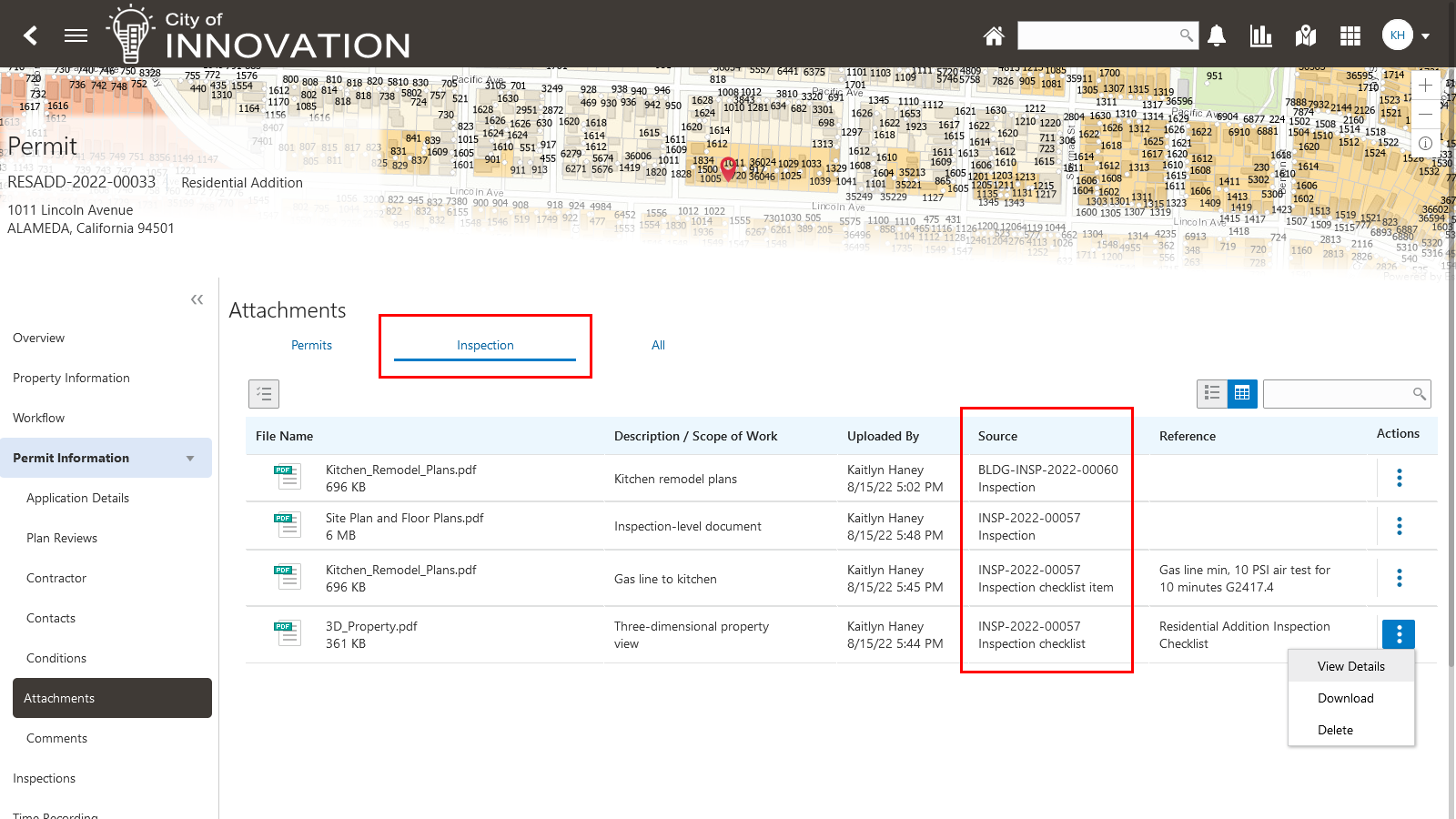
Attachments - Inspection Page in the Permit Details
A dedicated view of inspection attachments improves efficiency by consolidating inspection attachments and eliminating the need to sort through non-inspection related attachments when inspection attachments are of interest.
Steps to Enable
You don't need to do anything to enable this feature.
Key Resources
- See Using Community Development Permits, "Managing Permits," Working with Attachments on the Oracle Help Center.
Result Multiple Inspections Simultaneously
Inspectors and inspector supervisors can now provide results for multiple inspections from a central location at one time in the Oracle Inspector mobile application without first navigating to the inspection details page then to the inspection result page for each inspection.
To provide results for multiple inspections, you select from the day's inspections that are eligible to result on the Inspection Tasks home page. Then, on the new Result Inspections page, you can choose from these options:
- You can complete the result for each inspection on the Result Inspections page directly without going into each individual inspection. Each inspection can have a different result. You can also provide comments, attachments, assess fee option, and signatures for each inspection.
- You can apply the same result, inspector signature, and assess fee option to all of the selected inspections at one time using the Result All functionality.
You can select from the day's inspections that are eligible to result on the Inspection Tasks page.
This example illustrates the Result All page where you select the results that you want to apply to the selected inspections.

Result All Page in the Oracle Inspector Mobile Application for Permits
This provides the flexibility for inspectors to select and result multiple inspections at the same time. This prevents inspectors from opening each inspection one by one.
Steps to Enable
You don't need to do anything to enable this feature.
Tips And Considerations
If the inspection needs contractor and owner signature, you need to add them individually using the signature icon on each inspection row.
You will also need to review the contextual help text and modify it as necessary.
Key Resources
- See Using Community Development Permits, "Using Oracle Inspector," Submitting Inspection Results on the Oracle Help Center.
Inspection scheduling is enhanced to prevent the creation of a duplicate inspection type when a pending inspection for that inspection type already exists.
This allows an agency that has configured Pending inspections to prevent creating a new/duplicate inspection when there is already an inspection of the same type already pending.
Steps to Enable
You don't need to do anything to enable this feature.
Key Resources
- See Using Community Development Permits, "Working with Permit Inspections," Managing Inspections for a Permit and Requesting Inspections on the Oracle Help Center.
Building inspectors can now claim an inspection that's assigned to a different inspector by assigning it to themselves. This option is available when an inspection isn't yet complete and both inspectors have a matching district and inspection type in their job attributes. When an inspector claims the inspection, they can also select a new inspection date and time.
This example illustrates the Inspection Detail page for an inspection that can be claimed by the logged in building inspector by clicking the Assign to Me link or button. The option to reassign an inspection to self is also available when looking at an inspection request on a desktop.

Oracle Inspector Mobile Application - Inspection Detail Page
This gives the agency inspectors the flexibility to claim inspections while in the field.
Steps to Enable
You don't need to do anything to enable this feature.
Key Resources
- See Using Community Development Permits, "Working with Permit Inspections," Requesting Inspections on the Oracle Help Center.
- See Using Community Development Permits, "Using Oracle Inspector," Managing Scheduled Inspections on the Oracle Help Center.
Mandatory Abatement Appeal Time Rule and Time Policy Setting
The Time Policy Details page now has a new default setting for time policies.

Time Policy Details Page
Additionally, a new time rule is available for the Mandatory Abatement Appeal status.
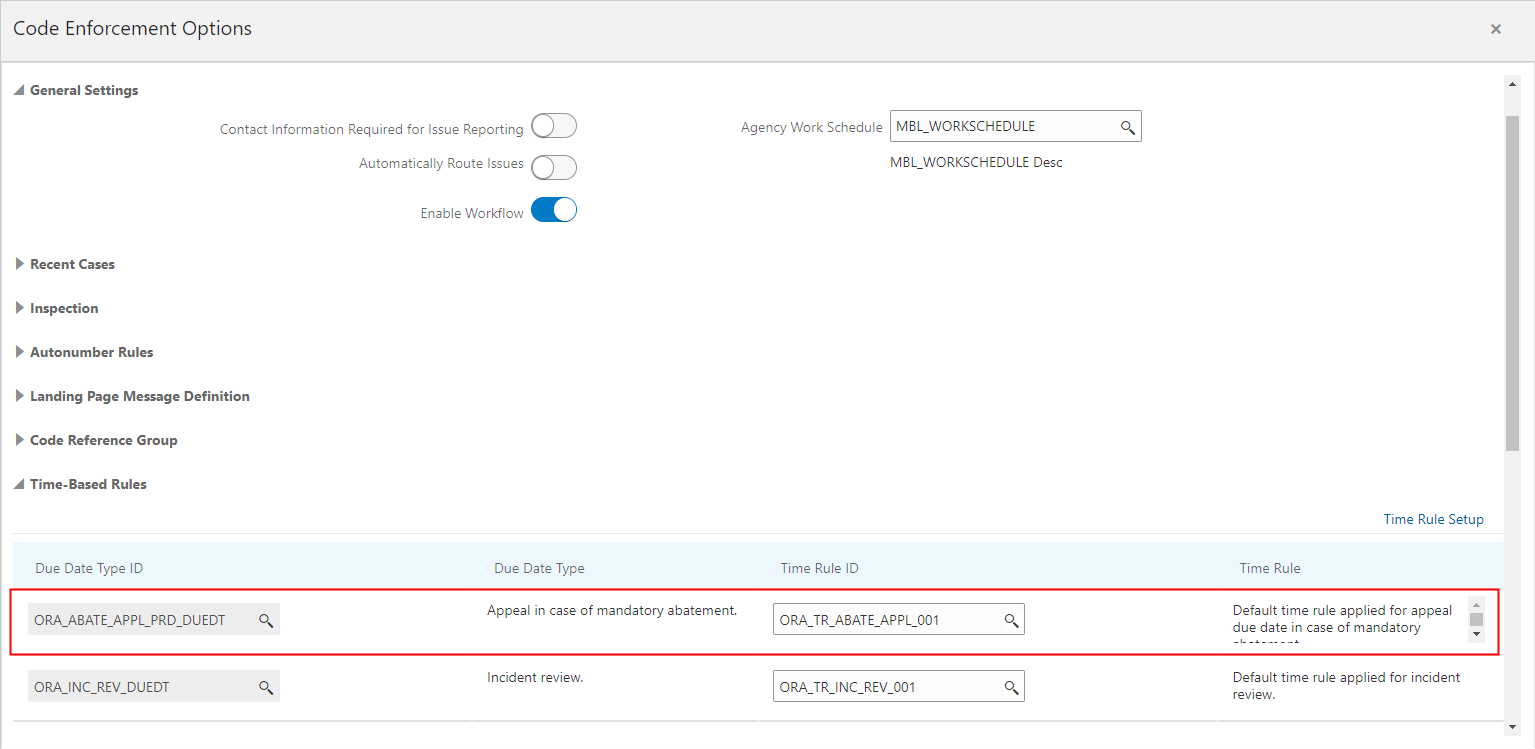
Mandatory Abatement Appeal Status
This introduces a default time policy option to simplify time rule setup while also extending time rules for appeal due dates when a case is in abatement status.
Steps to Enable
You don't need to do anything to enable this feature.
Tips And Considerations
You need to have a time rule set up and mapped against the new type ID, ORA_ABATE_APPL_PRD_DUEDT, for the rule to function.
Key Resources
- See Implementing Permitting and Licensing, "Setting Up Time Rules", Adding Time Rules on the Oracle Help Center.
When the parcel owner selected from the ‘Select from Parcel Owners’ link on the Add Responsible Party page matches the records on the agency's parcel database, the Primary Owner field and the name fields are autopopulated.
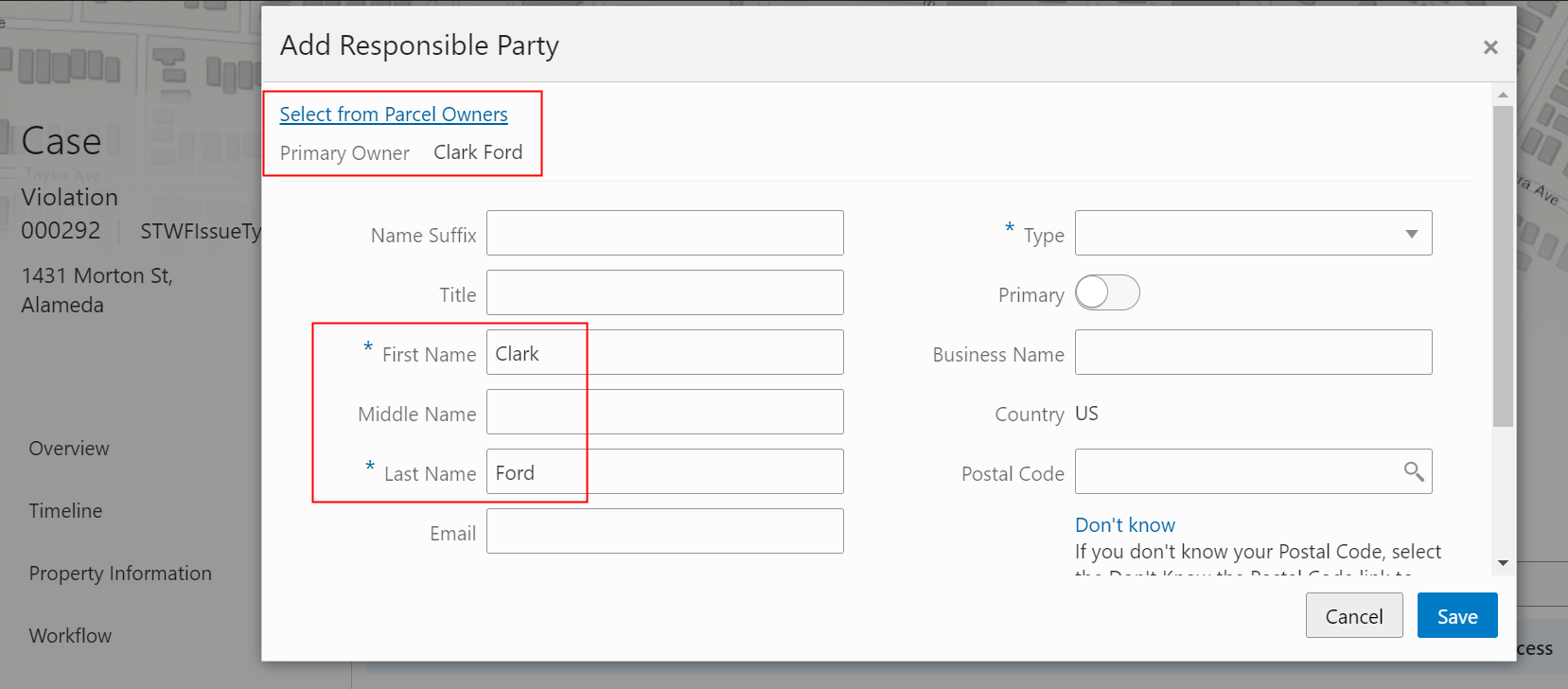
Responsible Party Page
This considerably speeds up responsible party updates by autopopulating the parcel owner name when a parcel is initially linked to a code case.
Steps to Enable
You don't need to do anything to enable this feature.
Tips And Considerations
Property information will be highly variable across agencies. Depending on how property information is stored, it is recommended that agency staff review and update parsed owner values during responsible party updates. For example, if the owner is a business, staff will be required to enter an individual's first and last name as a responsible party.
Key Resources
- See Using Community Development Code Enforcement, "Adding Responsible Parties" on the Oracle Help Center.
Code Incident, Case, and Inspection Navigation Improvements
Code Enforcement pages for incidents, cases and inspections, now have links to enable agency users to easily navigate between them.
An example of an Incident Overview page with links to the associated case and inspection:
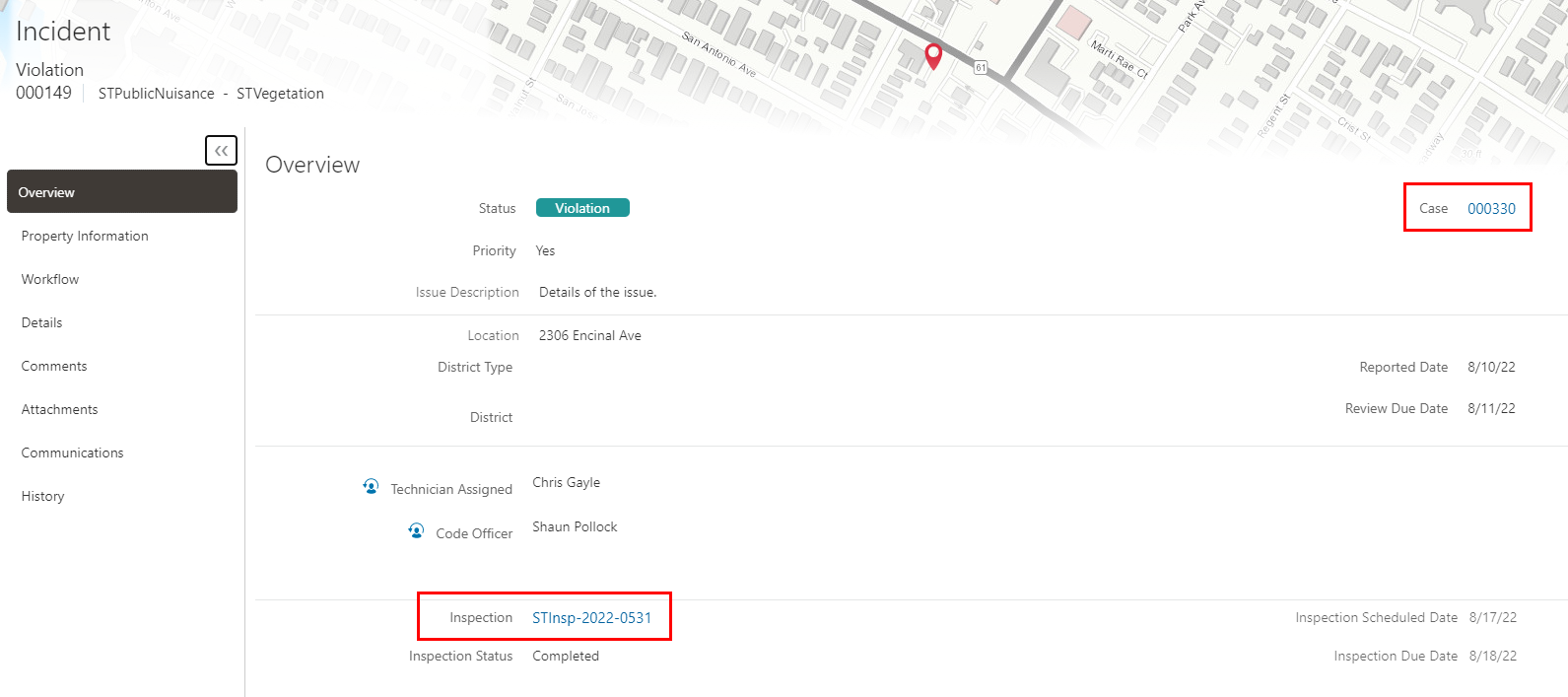
Incident Overview Page
An example of a Case Overview page with various sections and links to view details:
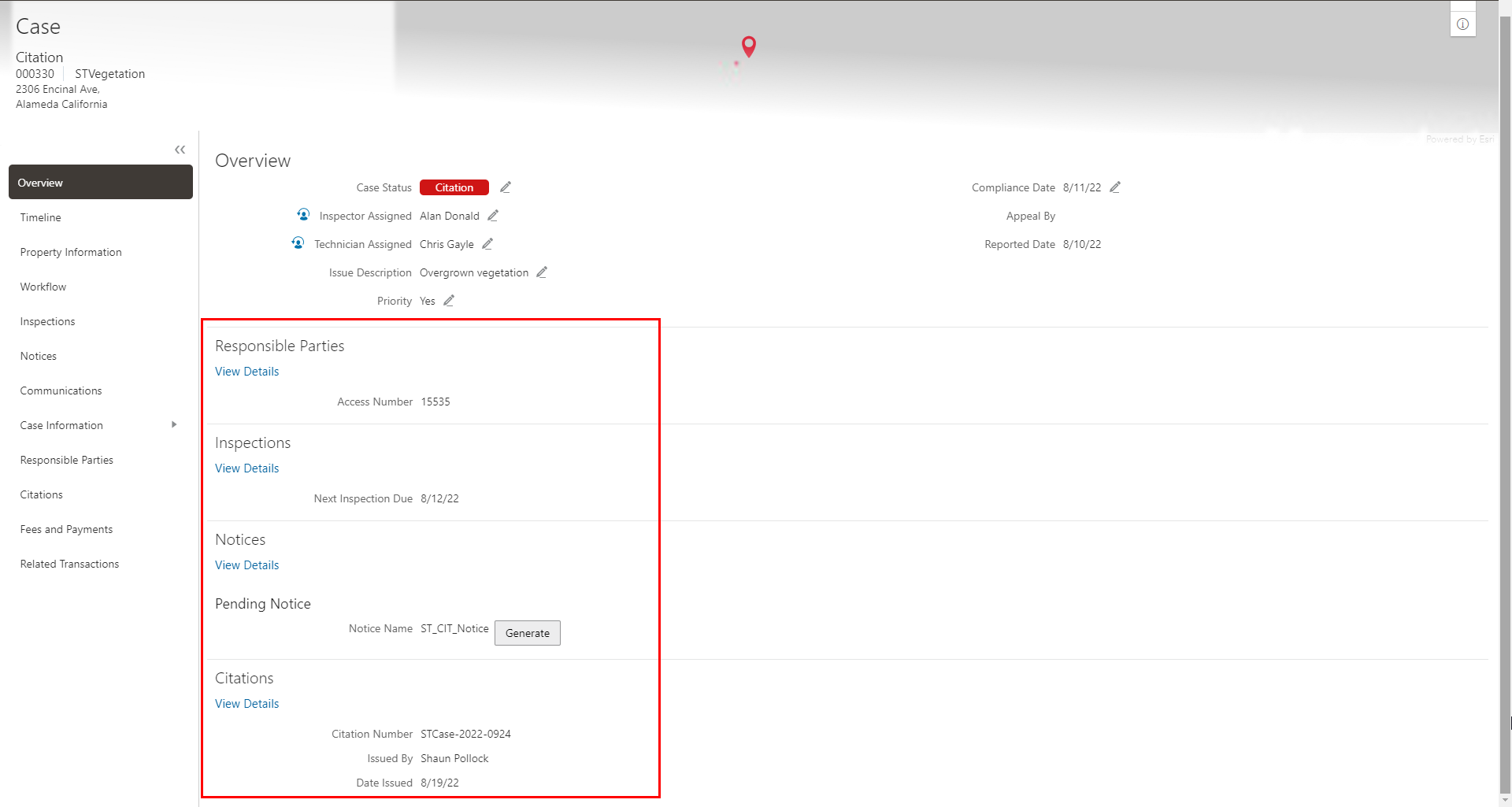
Case Overview Page
An example of a Case Inspection page with links to its associated inspections:

Case Inspection Page
An example of a Code Enforcement Inspection page with links to prior inspections:
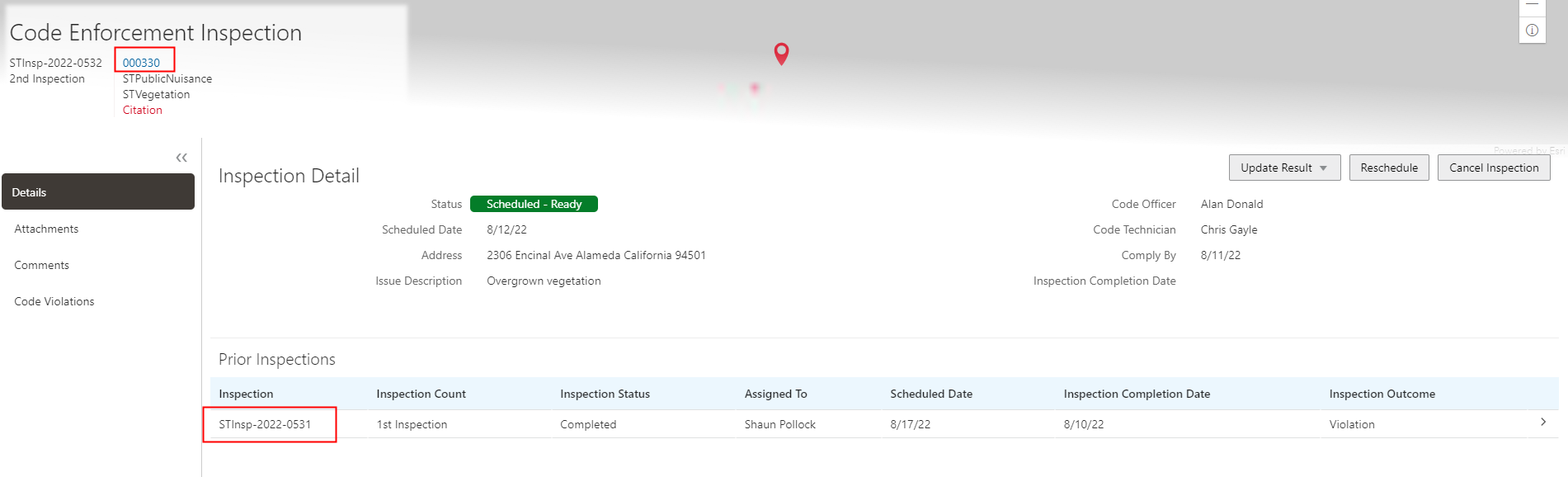
Code Enforcement Inspection Page
This improves the navigation between code cases, incidents, and inspections for easier access and daily flow.
Steps to Enable
You don't need to do anything to enable this feature.
Key Resources
- See Using Community Development Code Enforcement, "Working with Incident Details", Using the Incident Overview Tab on the Oracle Help Center.
- See Using Community Development Code Enforcement, “Viewing the Case Detail Overview", Using the Overview Page on the Oracle Help Center.
- See Using Community Development Code Enforcement, "Reviewing Code Enforcement Inspection Details", Reviewing the Inspection Details on the Oracle Help Center.
Reopen Incidents from Closed Status
You can now reopen closed incidents from the Incidents Overview page using the Reopen button.

Incident Details Page
Allowing an incident to be reopened provides greater flexibility in situations where incidents require additional review and investigation after being prematurely closed.
Steps to Enable
You don't need to do anything to enable this feature.
Tips And Considerations
Reopening an incident might be necessary when implemented with a bi-directional integration with a Customer/Citizen Relationship Management (CRM) system that centralizes the initial incident reporting and that requires synching between service requests and incidents.
Key Resources
- See Using Community Development Code Enforcement, "Processing Incidents", Reopening a Closed Incident on the Oracle Help Center.
The new Ready to Mail tab in the worklist lists all the generated notices for your code officers and technicians.
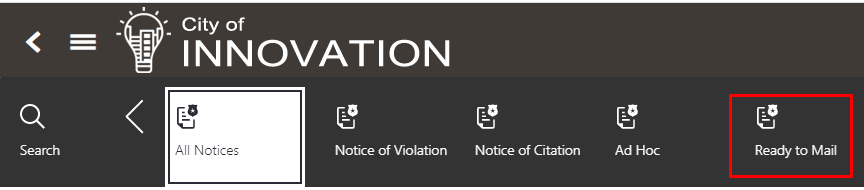
Worklist – Ready to Mail Notices
The following example illustrates the actions you can perform with a generated notice:

Ready to Mail Options
- Download to Print: Opens the notice report in a separate browser tab to save or print.
- Update Mailing Details: Opens the mailing details modal page to update the tracking details of the mailed report.
- Mark as Sent: Changes the status of the notice from Generated to Sent. The record is removed from the worklist.
Provides flexiblity for those agencies that require separate the notice generation and mailing tasks across staff.
Steps to Enable
You don't need to do anything to enable this feature.
Key Resources
- See Using Community Development Code Enforcement, “Overview of Working With Incidents And Cases,” Using the Code Technician Worklist on the Oracle Help Center.
- See Using Community Development Code Enforcement, “Managing Inspections,” Using the Code Officer Worklist on the Oracle Help Center.
Default Filters for Code Officers
Code enforcement officers can focus on the most relevant workload by filtering on incident and case lists by default using the Code Officer Job Attribute setup.
The Show All District Types switch, when turned off, helps the code enforcement officers to filter their incident and case lists. When the switch is turned on, the officers can see all incidents and cases, regardless of their area of responsibility.

Show All District Types
This enables a default option so that code officers can quickly access their daily workload based on their assigned districts.
Steps to Enable
You must turn on the Show All District Types switch in the Code Office job attribute setup.
To filter incidents and case lists:
- From the agency springboard, click the Incidents tile.
- If automatic routing or autoassignment is on, choose which incidents to view.
- The "Show All District Types" switch is only visible to code enforcement officers when autoassignment is available.
- Turn the switch on to so code enforcement officers can see all incidents regardless of their area of responsibility.
- Turn the switch off so code enforcement officers can only see the assigned incidents and other incidents in their area of responsibility.
Tips And Considerations
The Show All District Types switch is visible only to code enforcement officers when autoassignment is enabled.
Key Resources
- See Using Community Development Code Enforcement, “Reviewing Incident Lists”, Reviewing Incidents in the Main Incident List on the Oracle Help Center.
- See Using Community Development Code Enforcement, “Reviewing and Claiming Cases”, Reviewing Cases in the Main Case List on the Oracle Help Center.
Code Case Batch Reassignment in Worklist
Code technicians can now claim multiple cases at once from their worklist.
The Multiple Select option allows you to select multiple cases. You can then click the Claim button to assign all the selected cases to yourself:

Worklist - Unassigned Cases Tab
Save time by assigning or re-assigning multiple cases across staff members when needed.
Steps to Enable
You don't need to do anything to enable this feature.
Key Resources
- See Using Community Development Code Enforcement, “Overview of Working With Incidents And Cases,” Using the Code Technician Worklist on the Oracle Help Center.
Search NAICS by Industry Title
Now users can easily search for NAICS codes by code, industry title, or description and then choose from a list.
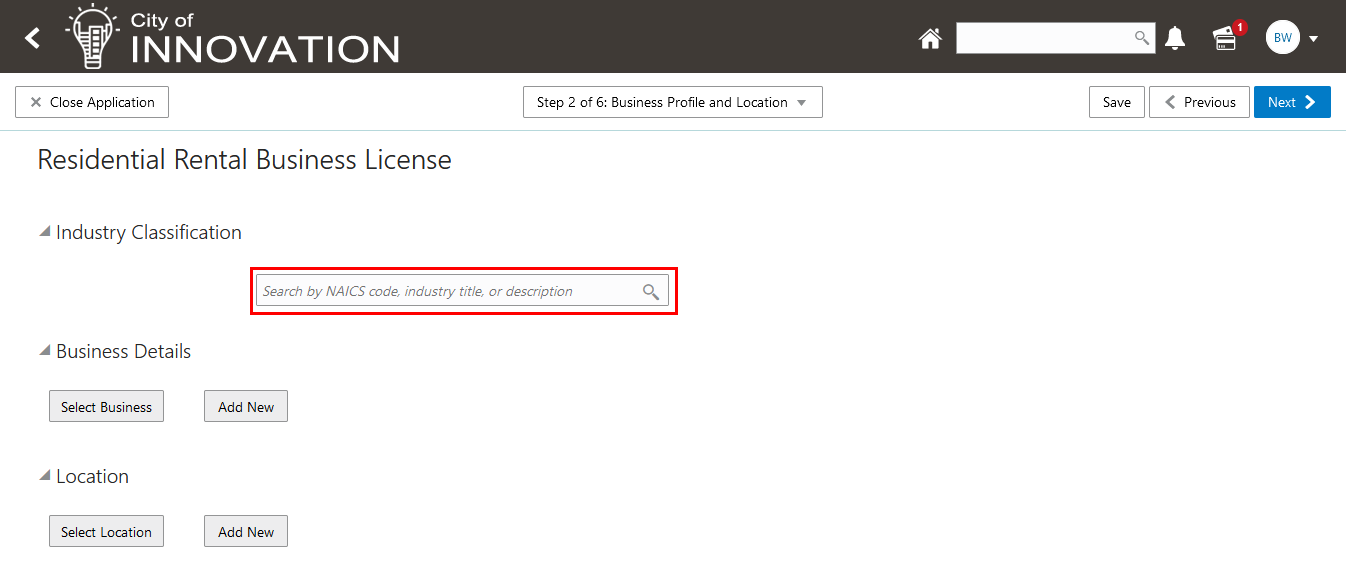
Business License Intake Form
For example, if you search for “residential” you will get a list of the NAICS codes that have that word in the industry title or description:

Residential Business License Intake Form
Searching by industry title simplifies the entry of NAICS code in application when it's not readily available.
Steps to Enable
You don't need to do anything to enable this feature.
Key Resources
- See Implementing Permitting and Licensing, "Setting Up Business Licenses," Setting Up NAICS Codes on the Oracle Help Center.
Owner Details on Business License Overview Page
Business owner details can be easily accessed from the owner boxes on the Business License overview page.
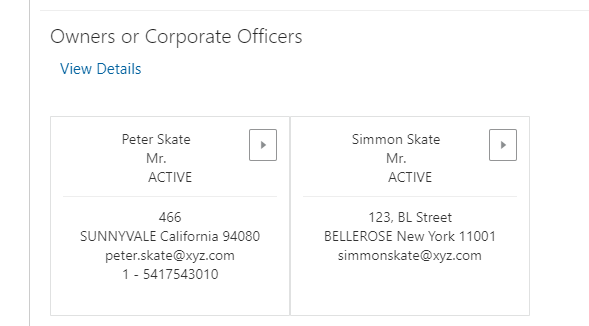
Owner Boxes
By accessing the details from the displayed owner boxes on the business license overview page you can now quickly see all the details regarding the business owner.
Steps to Enable
You don't need to do anything to enable this feature.
Key Resources
- See Using Business Licenses, “Managing Business Information” on the Oracle Help Center.
Agency staff and registered users can now copy existing permit, planning, or business license applications to create new business license applications.
The Copy Application modal page enables you to select what details you want to copy over to your new application, based on the selected application type.
This example displays the Business Information options for copying from the source business license application:

Business License – Copy Application
Copying an existing application instead of having to re-enter information again in new application saves agency staff and pubic users valuable time.
Steps to Enable
You don't need to do anything to enable this feature.
Key Resources
- See Using Business Licenses, “Managing the Business License,” Copying an Application on the Oracle Help Center.
IMPORTANT Actions and Considerations
UPGRADE ACTIONS
With every upgrade, make sure to complete the following steps in the Initial Set Up functional area in Functional Setup Manager. This process ensures all new security definitions, such as job roles, duty roles, privileges, and so on, are included in your implementation.
- Run Public Sector Security Setup Process
- Manage Custom Roles
REST Backward Compatibility
Public Sector Permitting and Licensing updates REST APIs from release to release. Our goal is to not create APIs that are incompatible from one release to the next. However, due to circumstances and security impacts this may not be feasible.
For the most current information, see My Oracle Support Document ID: 2853758.1.
Documentation for all REST APIs included in Public Sector Permitting and Licensing can be found on the Oracle Help Center.
REPLACED OR REMOVED FEATURES
On occasion, Oracle replaces existing features with new features or removes existing features altogether. When a feature is replaced, the older version may be removed immediately or in the future. As a best practice, you should use the new version of a replaced feature as soon as the newest version is available.
| Removed Feature | Target Removal | Replacement Feature | Replaced In | Additional Information |
|---|---|---|---|---|
| LNPFeePaid (Accounting Event) |
22D | FeeReceipts FeeRefunded |
22A (for Permitting and Licensing Accounting Framework customers) 22B (for Financials Cloud Subledger Accounting customers) |
The LNPFeePaid accounting event will be deprecated and no longer available for use in 22D. You will need to transition to the new accounting events BEFORE you upgrade to 22D. For instructions on how to move to the new accounting event, see My Oracle Support Document ID: 2851069.1 |