
This document will continue to evolve as existing sections change and new information is added. All updates appear in the following table:
| Date | Module | Feature | Notes |
|---|---|---|---|
| 06 FEB 2023 | Code Enforcement | Turn Off Incident Creation | Updated document. Revised feature information. |
| 20 JAN 2023 | Permits and Inspections | Public User Landing Page Inspection Count | Updated document. Revised feature information. |
| 20 JAN 2023 | Business Licenses | Hide Business Entity and License from Search | Updated document. Revised feature information. |
| 17 JAN 2023 | Permitting and Licensing Common | Property Parcel Comments | Updated document. Revised Steps to Enable. |
| 16 DEC 2022 | Created initial document. |
 HAVE AN IDEA?
We’re here and we’re listening. If you have a suggestion on how to make our cloud services even better then go ahead and tell us. There are several ways to submit your ideas, for example, through the Ideas Lab on Oracle Customer Connect. Wherever you see this icon after the feature name it means we delivered one of your ideas.
GIVE US FEEDBACK
We welcome your comments and suggestions to improve the content. Please send us your feedback at oracle_fusion_applications_help_ww_grp@oracle.com.
DISCLAIMER
The information contained in this document may include statements about Oracle’s product development plans. Many factors can materially affect Oracle’s product development plans and the nature and timing of future product releases. Accordingly, this Information is provided to you solely for information only, is not a commitment to deliver any material, code, or functionality, and should not be relied upon in making purchasing decisions. The development, release, and timing of any features or functionality described remains at the sole discretion of Oracle.
This information may not be incorporated into any contractual agreement with Oracle or its subsidiaries or affiliates. Oracle specifically disclaims any liability with respect to this information. Refer to the Legal Notices and Terms of Use for further information.
Column Definitions:
Report = New or modified, Oracle-delivered, ready to run reports.
UI or Process-Based: Small Scale = These UI or process-based features are typically comprised of minor field, validation, or program changes. Therefore, the potential impact to users is minimal.
UI or Process-Based: Larger Scale* = These UI or process-based features have more complex designs. Therefore, the potential impact to users is higher.
Features Delivered Disabled = Action is needed BEFORE these features can be used by END USERS. These features are delivered disabled and you choose if and when to enable them. For example, a) new or expanded BI subject areas need to first be incorporated into reports, b) Integration is required to utilize new web services, or c) features must be assigned to user roles before they can be accessed.
| Ready for Use by End Users Reports plus Small Scale UI or Process-Based new features will have minimal user impact after an update. Therefore, customer acceptance testing should focus on the Larger Scale UI or Process-Based* new features. |
Customer Must Take Action before Use by End Users Not disruptive as action is required to make these features ready to use. As you selectively choose to leverage, you set your test and roll out timing. |
|||||
|---|---|---|---|---|---|---|
| Feature |
Report |
UI or |
UI or |
|
||
Permitting and Licensing Common
The Comments functionality for parcels is now enabled for Agency staff. Agency users can add, view, and manage comments for parcels.

Parcel Comments Page
On the Manage Comments page, a new application group for parcel comments is available, enabling agency users to add standard comments for property parcels. These parcel comments are set to be Private and Disabled, and hence can't be made visible for the public.
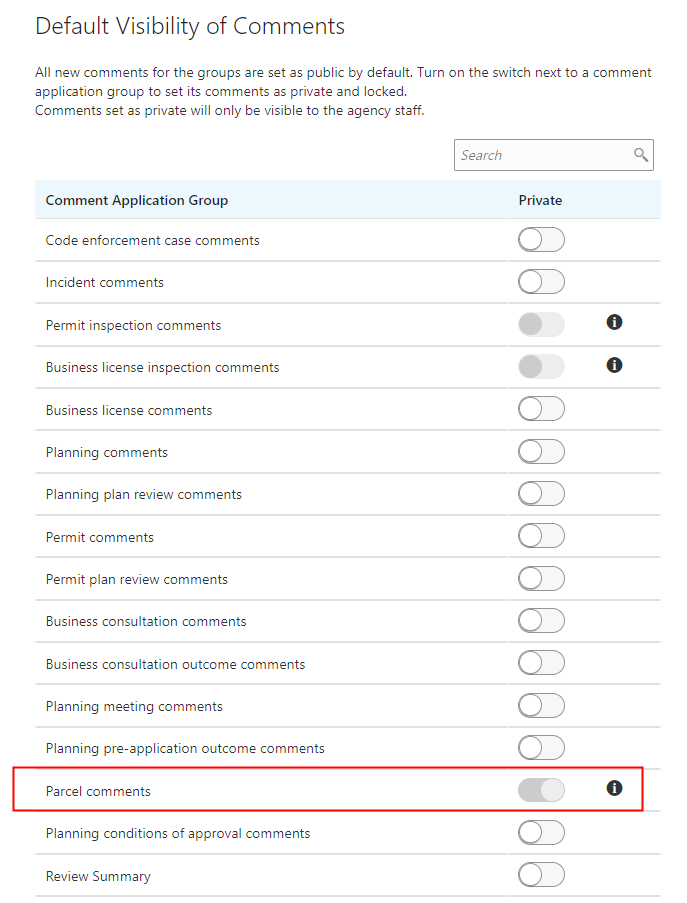
Manage Comments Page
Comments functionality is enabled for the reference parcel object. Agency staff can view and manage comments or notes on any reference parcels.
Steps to Enable
You can add comments to Parcels using the standard Comments framework.
To select pre-defined standard comments for Parcels:
- Select Comments Setup > Comment Categories.
- Click Add to add a new Comment Category.
- Enter "Parcel Comments" for the Comment Category along with a description.
- Select the Enable switch to enable the category when saved.
- If you want to add a subcategory, select the Comment Subcategories section and select Add.
- Enter the subcategory information and select the Enable switch to enable the subcategory when you save.
- Select Save.
- Navigate to the Standard Comments page Comments Setup > Standard Comments.
- Click Add and enter the comment.
- On the Standard Details page enter the Application Category and subcategory you just created for Parcels.
- Ensure the Enable switch is active so that the comment is enabled when saved.
- Click Save.
Key Resources
- See Implementing Your Agency, "Setting Up Comments", Managing Comments on the Oracle Help Center.
Default Visibility for Comments
Agencies can now set the default visibility of new comments across different application groups. On the Manage Comments page, when the Private switch is turned on for an application group, by default, all of its new comments are set to be private and locked to the public.
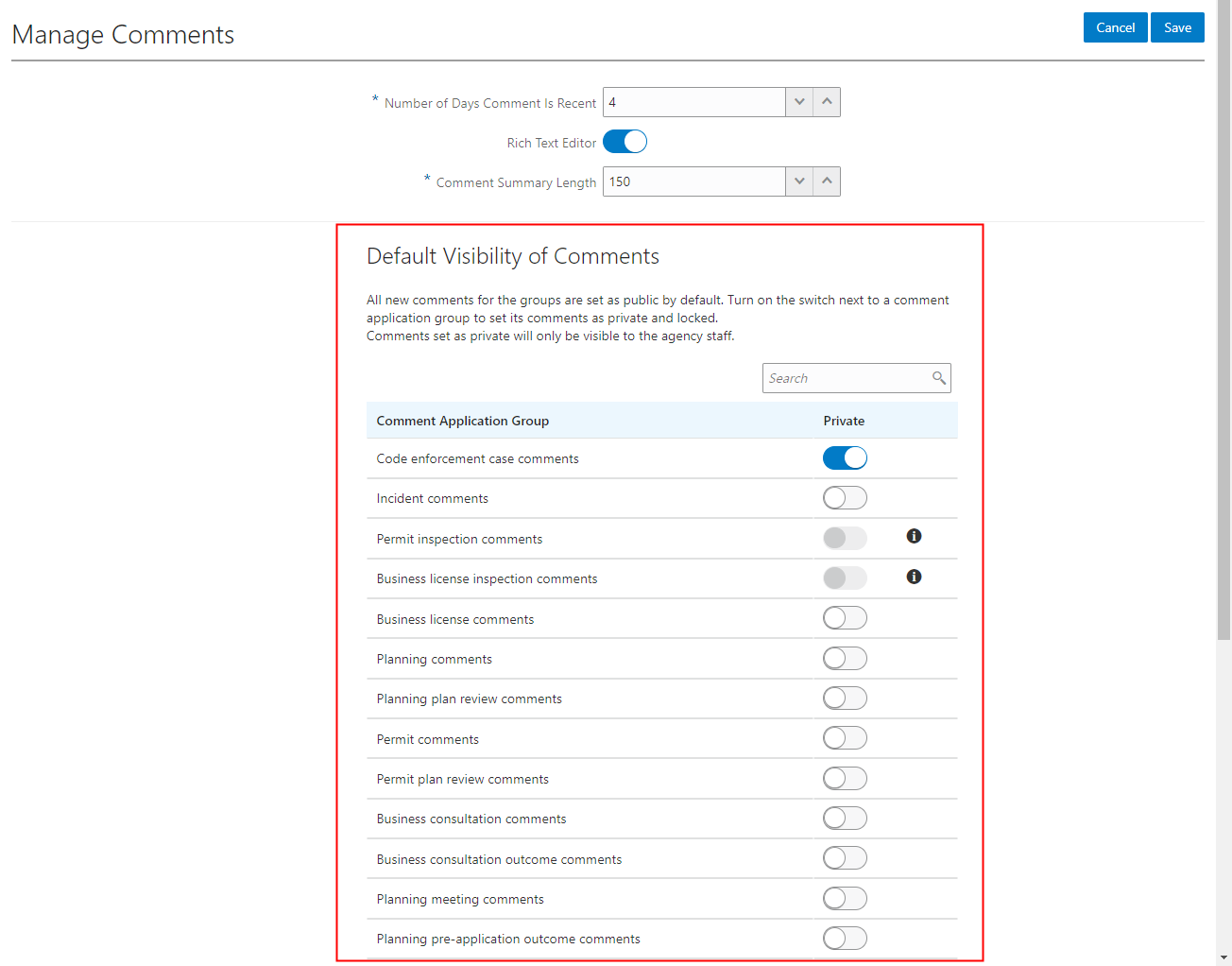
Manage Comments Page
All new comments are set as public by default. With the new private switch on the Manage Comments page, agency staff can set the default visibility of new comments to be private and only be visible to agency staff.
Steps to Enable
You don't need to do anything to enable this feature.
Key Resources
- See Implementing Your Agency, "Setting Up Comments", Managing Comments on the Oracle Help Center.
Intuitive Interface for Public User Related Transactions
Applicants and agency planners can now filter related transactions by primary, subapplication, or linked applications.
Use the "Include Indirect Links" switch to show or hide indirectly linked transactions.

Related Transactions Page
The drop-down menu shows the number of applications linked. You can quickly see the number of transactions of each link type:
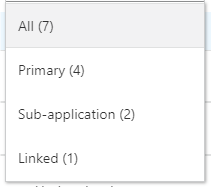
Drop-down Options
When linking transactions on the Link Transaction page, the Add Selected As option enables you to choose the type of link you want to establish between applications:
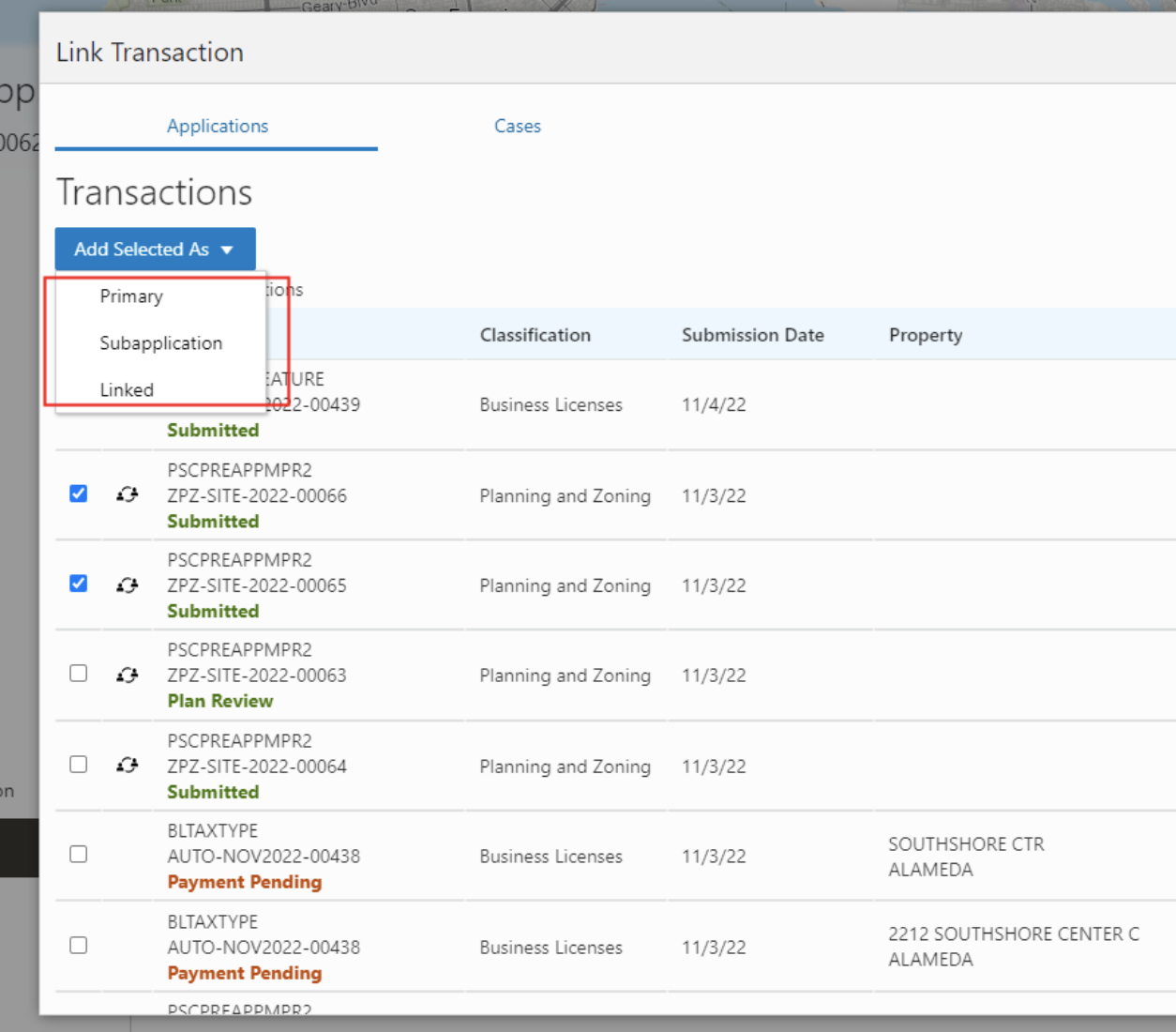
Link Transactions Page
With the improved user interface, users can link a related transaction and define the link type in a single action.
Steps to Enable
You don't need to do anything to enable this feature.
Tips And Considerations
Indirect links are not displayed by default.
Key Resources
- See Using Community Development Planning and Zoning, “Managing Applications for Planning and Zoning,” Working with Related Transactions on the Oracle Help Center.
Deposit Account Owner Access to Authorized Users
Owners of deposit accounts can now manage authorized user access.
Owners can:
- Send an invite to grant access to a deposit account.
- Revoke access to a deposit account (all access or specific access).
- Grant additional access after an invite has been accepted.
- Void an unaccepted invite.
Invited users can:
- Accept an invite to manage deposit accounts.
- Decline an invite to manage deposit accounts.
Agency staff can:
- Send an invite to grant access to deposit accounts.
- Void an unaccepted invite.
Deposit account owners can name authorized users and assign account privileges, accelerating the update of deposit account user access and reducing the workload for agency staff.
Steps to Enable
You don't need to do anything to enable this feature.
Key Resources
- See Implementing Your Financials Framework, “Setting Up Deposit Accounts,” Managing Authorized Users on the Oracle Help Center.
Offline Access for Oracle Inspector
New data caching in the Oracle Inspector mobile app enhances intermittent offline functionality for building inspectors. The mobile app uses online processing by default to automatically download inspection objects based on your daily assignments and access all inspection information when connected. You receive alerts when the app is offline and content isn't available.
This provides agency staff the flexibility and ability to complete inspections when temporarily going offline while using the Oracle Inspector app.
Steps to Enable
To activate mobile offline for Oracle Inspector:
- Navigate to Common Setup > Mobile Offline Settings.
- Turn on the "Enable Offline Data Caching" option.
- On the mobile device, enable the "Offline Mobile" on the Offline Settings page.
Tips And Considerations
In prior updates, data cached on the device was used when the device was offline. Now, when the device has internet connectivity, the app will continue to retrieve and update the data directly to Oracle Permitting and Licensing. When there is no internet connectivity, the app utilizes the data that is cached on the device when Offline Mobile is enhanced.
The data cached to use for Offline Mobile is limited to the following:
- Overdue and current date inspections assigned to the logged in user.
- Other inspection and permit data (those outside of the overdue and current date inspections) have limited view.
- Only permit attachments flagged as "Final" are available.
Key Resources
- See Using Community Development Permits, "Using Oracle Inspector," Performing Offline Mobile Inspections on the Oracle Help Center.
Application Workflow Request Info Option
The agency staff can request more information at different stages of the workflow by configuring the Request Info and Accept Info drop-down lists. After you request information, the workflow task is paused and resumed only when the information is accepted using the Accept Info option. You will also have an option of sending an e-mail to interested parties when these options are selected for more information.
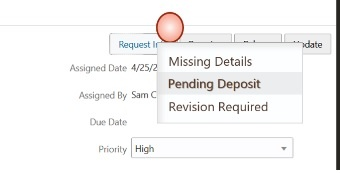
Request Info
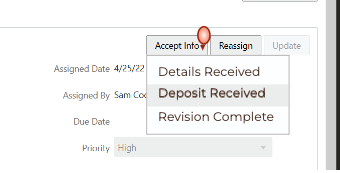
Accept Info
With the new Request Info drop-down list, agency staff can request more information at different stages of the workflow.
Steps to Enable
This is an extension of a previously delivered feature that delivered the custom property to request or accept info during workflow.
Now, you can update your existing custom properties with a list of values in your OIC Process Definition Human Task that is already configured. You then enable or disable the communication when the information is requested or accepted.
PSC_REQUEST_INFO_LABEL: (Pending Deposit, ENABLE_COMM), (Missing Details, DISABLE_COMM), (Information Required, ENABLE_COMM)
PSC_ACCEPT_INFO_LABEL: (Deposit Received, ENABLE_COMM), (Details Received, , DISABLE_COMM), (Information Received , ENABLE_COMM)
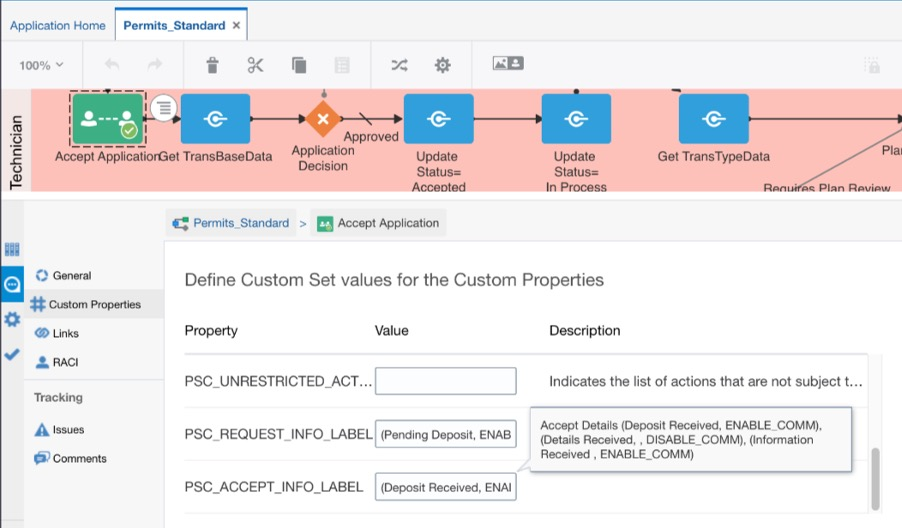
Custom Properties
Key Resources
- See Implementing Your Cloud Integrations, "Setting Up Workflow", Using Custom Properties on the Oracle Help Center.
- See Using Community Development Permits, "Managing Permits", Using Workflow on the Oracle Help Center.
Public User Landing Page Inspection Count
Contacts that have been granted access to permits and business licenses can now see a total count of scheduled permit inspections on the public user landing page after they log into Oracle Permitting and Licensing.
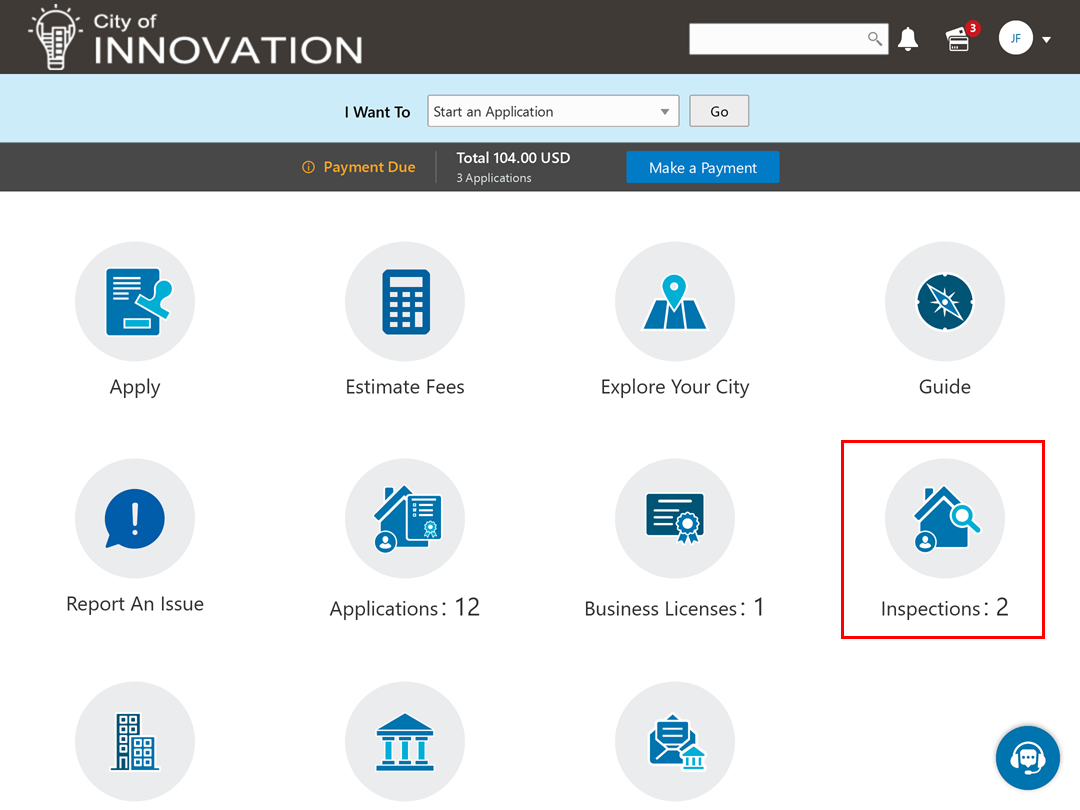
Inspections Tile on the Registered Public User Landing Page
When contacts click the Inspections tile, they'll see the list of scheduled inspections for their permits on the Inspections page.

Inspections Page Showing a Registered Public User's Inspections
This feature gives contacts a quick view of the number of inspections from the landing page for much easier access.
Steps to Enable
You don't need to do anything to enable this feature.
Tips And Considerations
For a given permit or planning application, if a contact's type allows access and the contact email matches the account email for a registered user, then they can access the permit and business license inspections for the application.
Key Resources
- See Using Community Development Permits, "Managing Public Users," Overview of Public Landing Pages on the Oracle Help Center.
Document Flattening to Prevent Edits After Finalizing
After you finalize an electronic plan review cycle, marked up documents copied back to the permit or planning application from the Bluebeam Studio™ Session can be viewed but not edited. Permitting and Licensing now flattens the documents to protect them from further editing.
Flattening a document involves moving markups from the PDF's annotations layer to the content layer, making them part of the drawing. Once flattened, markups can't be edited.
You can print the finalized, marked up document, comment, and extract pages. But if the document is downloaded and uploaded again as a new attachment, it can’t be used in a plan review due to the protection that was applied.
This prevents users, both public users and agency staff, from editing finalized plan review documents.
Steps to Enable
You don't need to do anything to enable this feature.
Tips And Considerations
When you click the Finalize Review Cycle button on an electronic plan review, the marked up documents are flattened and protection is applied.
Key Resources
- See Using Community Development Permits, "Managing Plan Reviews": Managing Plan Review Cycles, Managing Plan Review Documents, and Working with Electronic Plan Reviews on the Oracle Help Center.
Limit Assignment of Plan Reviewers
Your agency can now configure which plan coordinators can assign reviewers to a plan review cycle. A plan coordinator can assign a reviewer from a department or for an application type based on their Plan Coordinator Job Function, Job Attribute setup. There must be a match with Application Type and Department.
This example illustrates the plan reviews that the signed-in plan coordinator can assign from the Unassigned Reviews page of the console.

Plan Reviews console - Unassigned Reviews Page
Furthermore, previously restricted to plan coordinators only, all agency staff can now access the Plan Reviews console page to view the agency's plan reviews. Plan coordinators and plan reviewers can also filter the data displayed on the console based on their assigned job function for an application type and department by turning on the My Job switch. The new switch is available on the All Reviews, Open Reviews, Unassigned Reviews, and Pending Reviews pages.
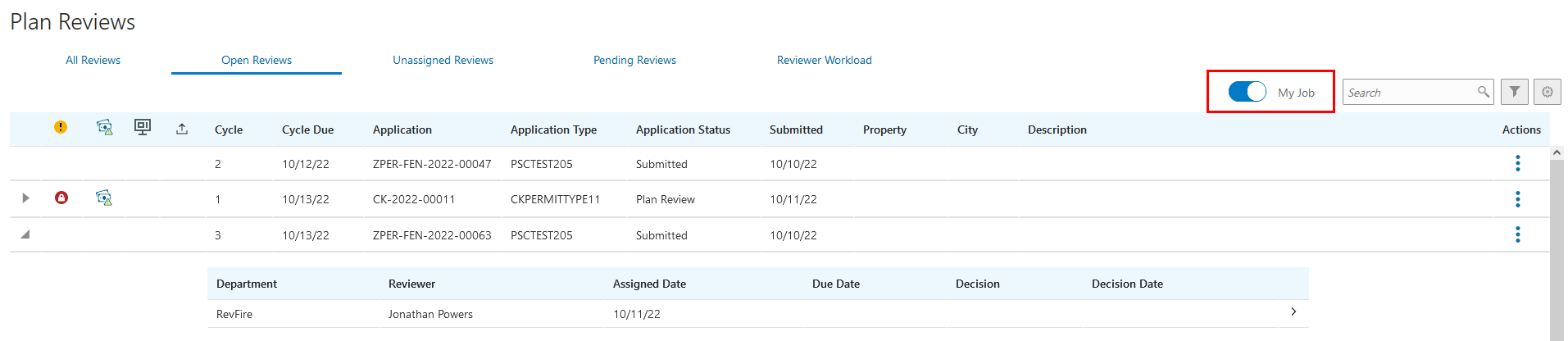
Plan Reviews console - Open Reviews Page
This feature helps agency staff assign plan reviews based on job roles.
Steps to Enable
Only users with the ORA_PLAN_COORDINATOR/Plan Coordinator Job Function can assign reviewers. A plan coordinator can assign a reviewer from a department or for an application type based on their Plan Coordinator Job Function, Job Attribute setup. There must be a match with Application Type and Department.
Plan coordinators can assign to all departments or all application types when the Job Function, Job Attribute is set to blank.
To enable this feature your agency staff must be set up with these parameters. See Implementing Your Agency, Setting Up Your Agency Staff for more details.
Tips And Considerations
When the My Job switch is turned on, the following filtering occurs based on the plan coordinator or plan reviewer's Job Function, Job Attribute setup:
- All Reviews – Match Job Function setup for Application Type and Department attributes.
- Open Reviews – Match Job Function setup for Application Type attribute.
- Unassigned Reviews – Match Job Function setup for Application Type and Department attributes.
- Pending Reviews – Match Job Function setup for Application Type.
- Reviewer Workload – There is no My Job switch.
Key Resources
- See Using Community Development Permits, "Managing Plan Reviews," Using the Plan Review Console and Managing Plan Reviewers on the Oracle Help Center.
- See Implementing Your Agency, "Setting Up Your Agency Staff," Setting Up Agency Staff on the Oracle Help Center.
System Generated Notice in Oracle Municipal Code Officer
The Oracle Municipal Code Officer app now lists system generated notices along with the ad hoc notices.
Code officers can view, print, or remove system generated notices from the app.
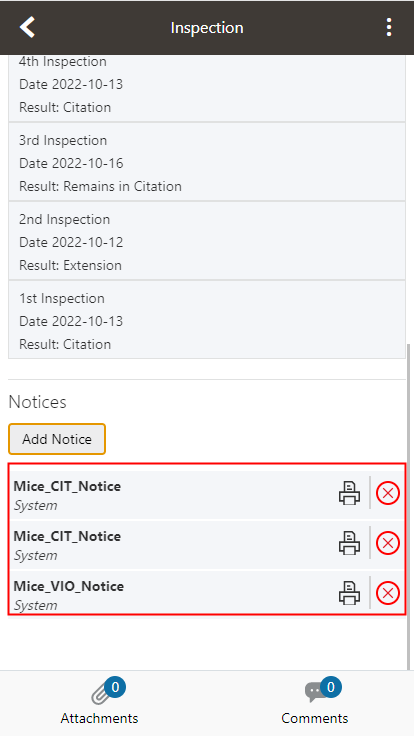
Oracle Municipal Code Officer – Inspection Detail Page
This feature provides agency staff the option to print and leave system-generated notices while performing inspections in the field.
Steps to Enable
You don't need to do anything to enable this feature.
Key Resources
- See Using Community Development Code Enforcement, “Using Oracle Municipal Code Officer,” Working With Code Enforcement Inspection Details on the Oracle Help Center.
Agencies can turn off the option to report an incident or create a case from Permitting and Licensing. This enables the bi-directional integration with an external CRM system where the service request will trigger a new incident or case in Permitting and Licensing.
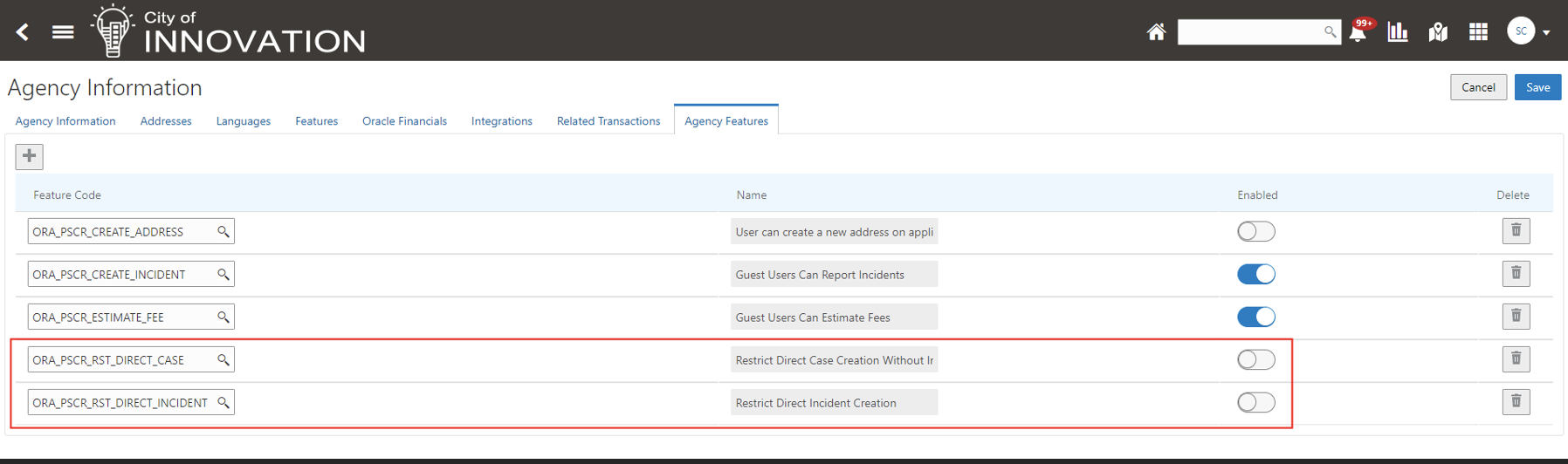
Agency Information - Agency Feature Tab
With this feature, an agency can now control whether an external CRM system will exclusively create incidents and cases in support of a bi-directional integration strategy.
Steps to Enable
This feature is disabled at delivery. If you want to enable this feature, you must complete the steps below.
- Navigate to Common Setup > Agency
- Select your agency.
- Select the Agency Features tab.
- Use the Enabled switch to control how incidents are created.
- If the Enabled switch is on, incidents are only created by an external CRM system and cannot be created directly in Permitting and Licensing.
- If the Enabled switch is off, incidents can be created directly in Permitting and Licensing.
Tips And Considerations
NOTE: Enabling this feature will turn off the ability to create an incident or case within the Code Enforcement pages.
Before enabling these agency features:
- Hide navigation entries for the menu item, Report An Issue, to ensure that the option to report issues is unavailable for public users.
- Provide special privileges (PSC_CREATE_STANDALONE_INCIDENT_PRIV and PSC_CREATE_STANDALONE_CASE_PRIV) to allow selected agency staff to still have access and complete the restricted tasks if required.
Key Resources
- See Implementing Your Agency, "Setting Your Agency", Setting Up Agencies, Enabling Agency Settings on the Oracle Help Center.
-
See Implementing Permitting and Licensing, “Setting Up Agency-Level Options for Code Enforcement”, Agency Features for Code Enforcement on the Oracle Help Center.
Case Fees Subject Area and Dashboard
The Case Fees subject area provides agencies with analytical information about their Case Fees as well as a real time dashboard. This provides important analytical information about case fees. The OTBI subject area for case fees enables customers to demonstrate these rich capabilities using real time dashboards.
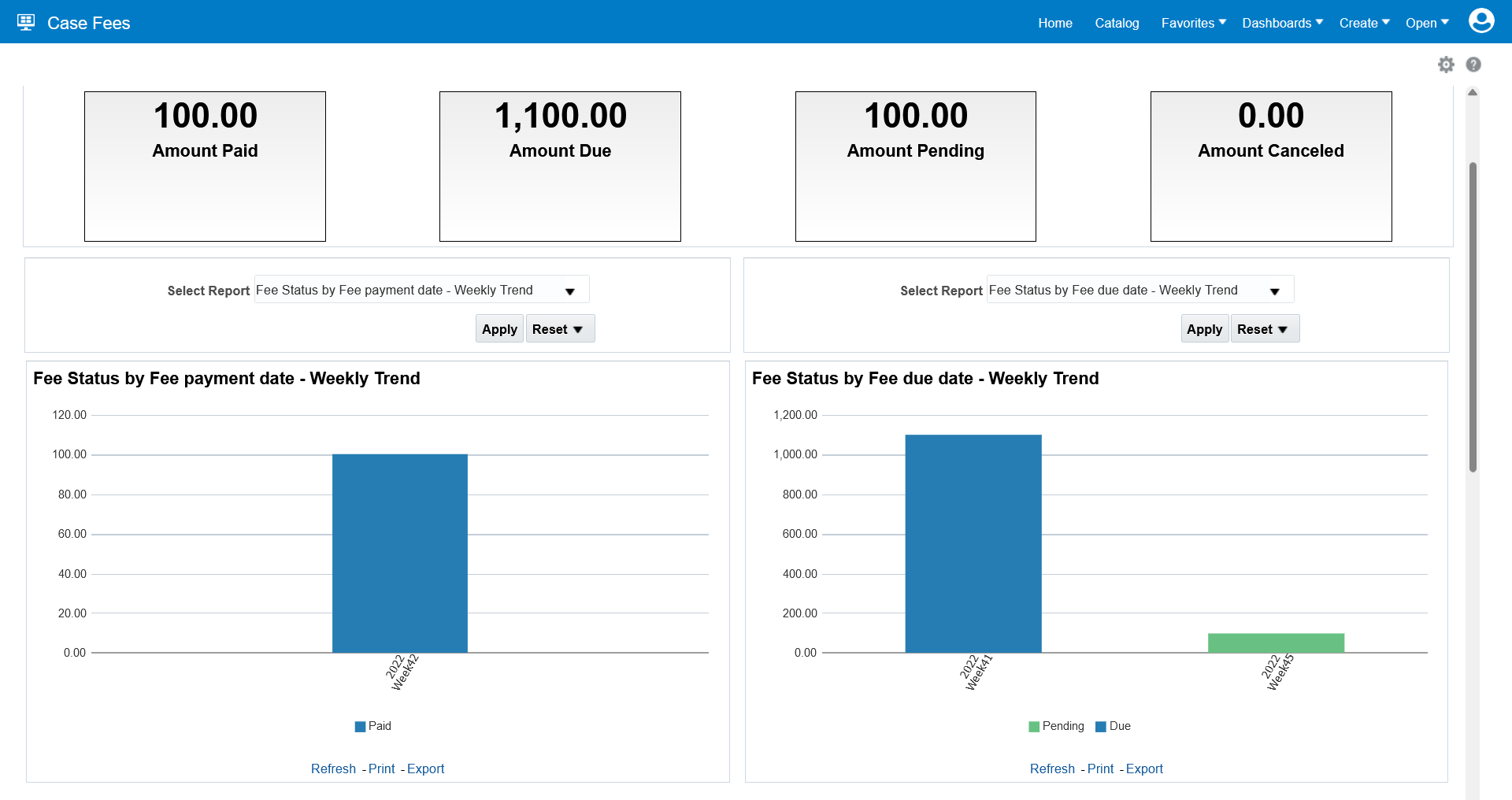
Case Fees Dashboard Page
Provides a new OTBI subject area on Code Enforcement Case Fees to support code enforcement financial analysis and report generation.
Steps to Enable
Leverage new subject area(s) by adding to existing reports or using in new reports. For details about creating and editing reports, see the Creating and Administering Analytics and Reports book (available from the Oracle Help Center > your apps service area of interest > Books > Administration).
Key Resources
-
See Implementing Your Agency, "Setting Up Analytics," Setting Up Dashboards on the Oracle Help Center.
Reusable Fields for Business Rules Framework
When creating business rule criteria, you can include reusable user-defined fields added to an application intake form as comparison values for applicable Code Enforcement events.
On the Business Rules Details page, select the desired reusable field from the Field drop-down list in the Criteria section. You can identify the reusable fields easily in the Field drop-down list by looking for the "Reusable" label within curly brackets that appear for each reusable field.
For example:
{Reusable} Issue Severity
You can now use reusable fields in your criteria when creating business rules for Code Enforcement.
Steps to Enable
You don't need to do anything to enable this feature.
Key Resources
-
See Implementing Permitting and Licensing, "Implementing the Business Rules Framework," Setting Up Business Rule Criteria on the Oracle Help Center.
Business License Legacy Data Migration
You can migrate your legacy data for planning applications, permits, code enforcement, and now business licenses to Permitting and Licensing using Import Management. Import Management improves definition, error handling, and performance for importing flat files (.CSV). For example, Import Management has drag and drop mapping capabilities and validates the first ten records in your data file before you import to ensure the data meets the import constraints of the various attributes. It also provides error files and diagnostic logs for analyzing unsuccessful imports. These are the objects delivered in this release:
- Business License
- License Header
- Business Entity
- Renewal
- Conditions (when added to Business Licenses)
- Contacts
- Fees & Payments
- Attachments
- Workflow
This extends the legacy data migration tool to support business license objects and related information.
Steps to Enable
You will need to complete the setup and configuration outlined in the technical brief "Migrating Data Using Import Management" Doc ID: 2808116.1 on My Oracle Support.
Key Resources
- See Implementing Permitting and Licensing, “Migrating Legacy Data,” Migrating Data Using Import Management on the Oracle Help Center.
- See Migrating Data to Permitting and Licensing Using Import Management (Doc ID: 2808116.1) on My Oracle Support.
Conditions on a Business License
Agency staff can now apply conditions on business licenses.
The following conditions are available:
- Notice: Informs applications of an issue with a license.
- Hold or Lock: Prevents the license from processing amendments or renewals.
You set up business license conditions on the Conditions page. The severity of the condition determines the rules you can apply for the license.
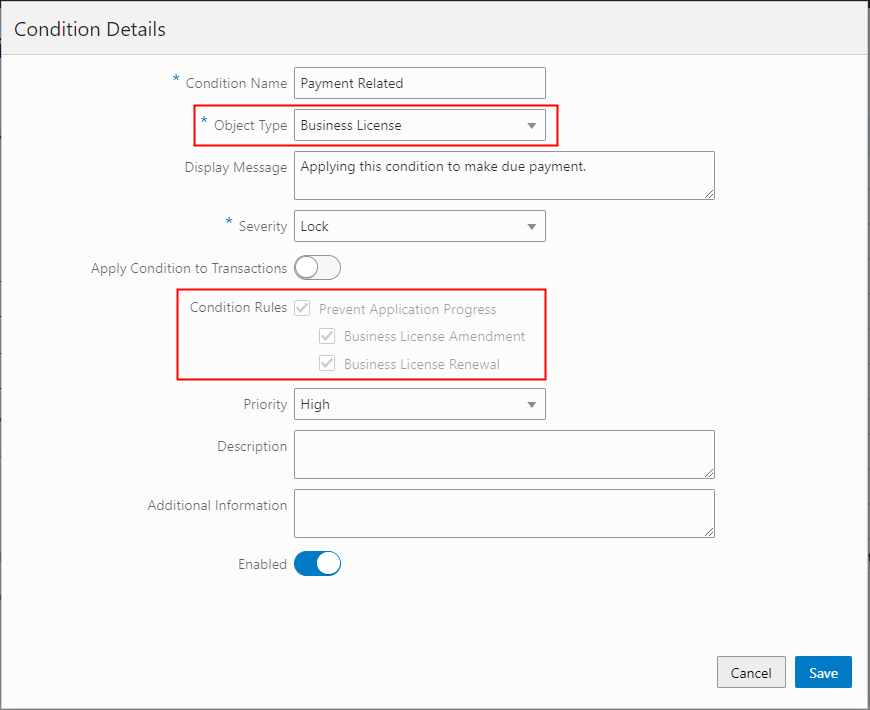
Condition Details Page
The following is an example of a Hold condition applied to a business license as shown in the license details.
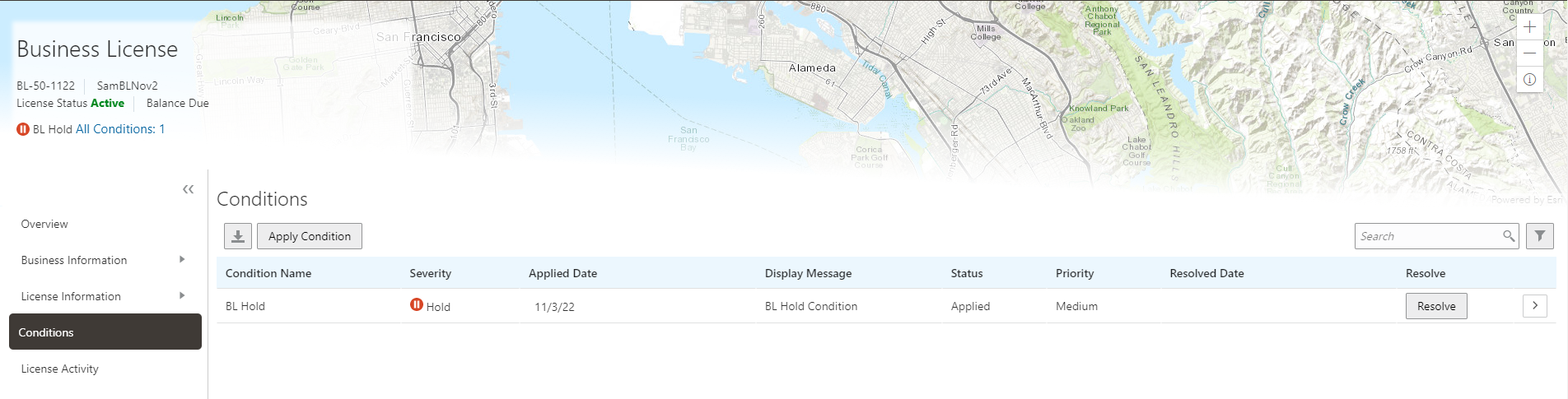
Business License Conditions Page
This feature provides agency staff the ability to apply and resolve conditions on business licenses. Agency staff has the flexibility to prevent the license renewal and/or amendment process.
Steps to Enable
You need to set up a condition library that can be used to apply the condition to a Business License or a Business License Activity.
- Navigate to Common Setup > Conditions.
- Select the Plus button to add a new condition.
- Enter the Condition Name and for the Object Type, select Business License.
- Select the Severity: Lock, Hold, or Notice.
- Turn on the "Apply Condition to Transactions".
- Select the Condition Rules.
- Select Save.
Tips And Considerations
This feature allows you to:
- Apply conditions to a business license or business license activity.
- Add the condition rules to prevent application progress for Business License Amendment or Business License Renewal.
- Set up Business Rules Framework Rules to apply conditions to the business license or business license activity.
- See condition information, icons, and summaries on various pages such as Business License List, Business License Transaction List, and Business License Details.
Key Resources
- See Implementing Your Agency, “Setting Up Your Agency,” Setting Up Conditions on the Oracle Help Center.
- See Using Business Licenses, "Managing Business License Transactions," Applying Conditions to Business Licenses on the Oracle Help Center.
Role And Privileges
A new role has been introduced to manage business license conditions:
ORA_PSC_BUSINESS_LICENSE_CONDITIONS_MANAGEMENT_DUTY, PSC Business License Conditions Management
The new privilege's associated with the role include:
- PSC_BL_VIEW_CONDITIONS_PRIV, PSC_BL_ADD_CONDITIONS_PRIV, PSC_BL_RESOLVE_CONDITIONS_PRIV and PSC_BL_UPDATE_CONDITIONS_PRIV
- For Apply and Resolve: Backend and UI security is derived based on Data privileges PSC_APPLY_CONDITION_DATA and PSC_RESOLVE_CONDITION_DATA.
Condition Inheritance on a License
Agency staff can apply conditions on business license in a way that the condition restricts activities of the applications that will be associated with the license.
Enable the "Apply Condition to Transactions" switch on the Condition Setup page. You can set up the condition rules that must apply on the associated business license applications:
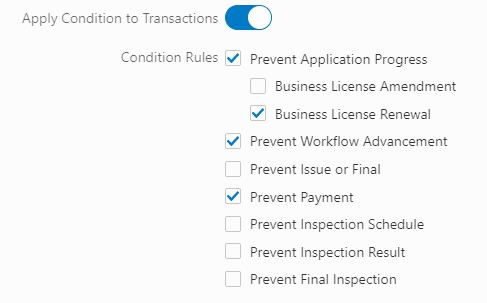
Apply Conditions to Transactions Switch
You can also select the condition rules at the time of applying the condition:

Business License – Condition Details Page
Condition inheritance functionality, agency staff can define whether the business transactions should inherit the condition when it is applied to the business license.
Steps to Enable
You can set up this inheritance in two ways:
- When creating a Business Condition Library
- When applying a condition to a Business License.
To create a Business Condition Library:
- Navigate to Common Setup > Conditions.
- Click the plus button to add a new library.
- Enter the condition name.
- Select "Business License" as the Object Type.
- Select "Hold" for the Severity.
- Enable the "Apply Condition to Transactions" switch.
- Select the Condition Rules.
To apply a Condition to a Business License:
- Select the Business License from the Business License page.
- Select "Conditions".
- Select "Apply Condition".
- Enter the Condition Name or use the magnifying glass to search.
- Enable the "Apply Condition to Transactions" switch.
Tips And Considerations
If a condition is applied to a business license, the condition can be inherited to the BL Activity (Transactions).
Condition source reference
- If condition is inherited from one of the following source, the condition list is updated to display the source reference:
- Person
- Parcel
- Property Address
- Contractor License
- Business License
Include link for agency user to drill down to view the source condition. Link is not available for public users.
Key Resources
- See Implementing Your Agency, “Setting Up Your Agency,” Setting Up Conditions on the Oracle Help Center.
- See Using Business Licenses, "Managing Business License Transactions," Applying Conditions to Business Licenses on the Oracle Help Center.
Owner Access for Business Licenses
You have the option to set access for all owners and corporate representatives listed on approved applications. Access options include no access set by agency, full access, view, or print only. You can modify the access on the Contact Type Details page.
A new contact type "Business owner or corporate officer" (ORA_BUSINESS_OWNER) is being delivered for business owner's access as application contacts. Follow the steps in the Steps to Enable section to modify the access as required.
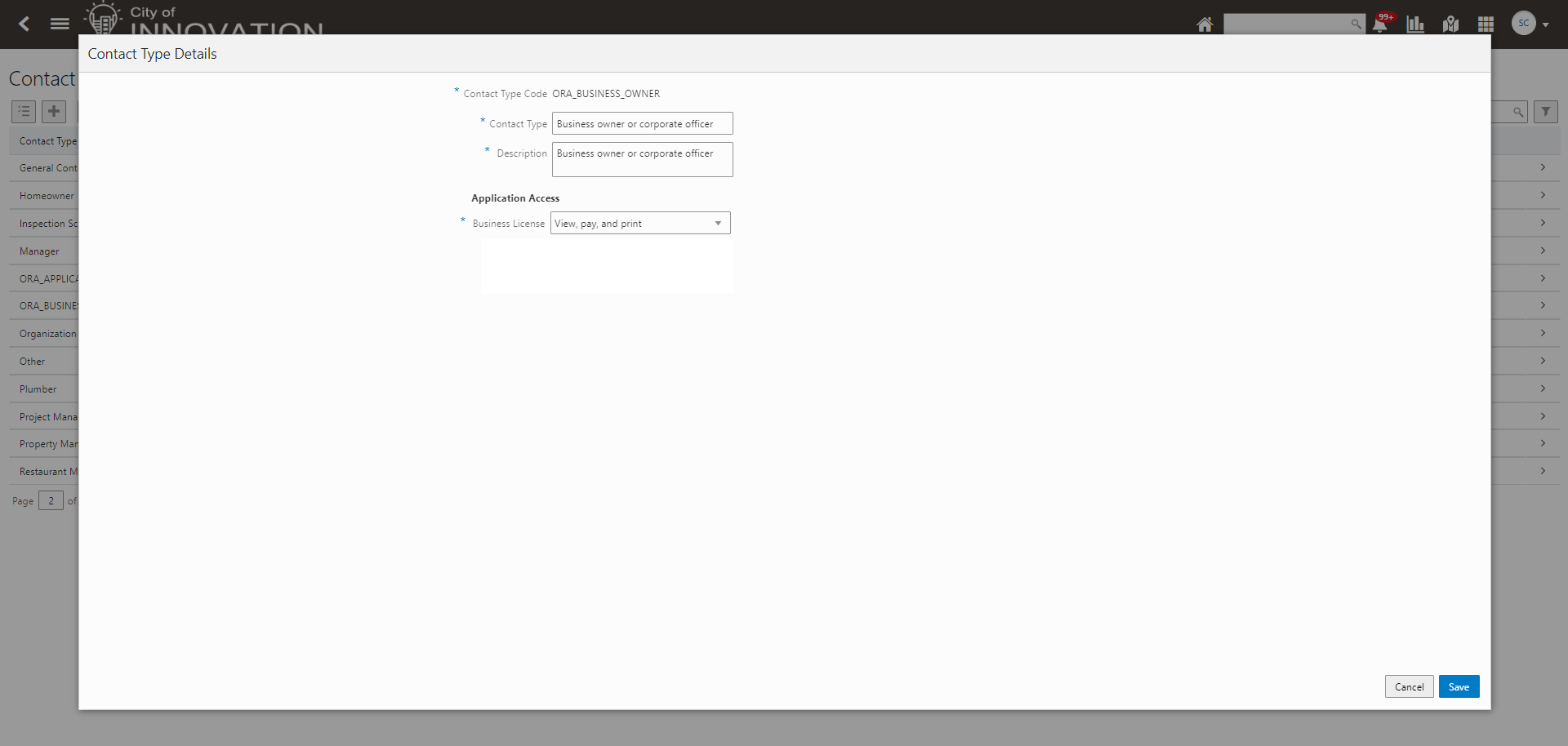
Contact Type Details Page
Agency can configure access for all owners of a business verses leaving it to the applicant to provide access. This feature prevents the applicant from 'downgrading' owner access provided by agency. If an agency allows the applicant to control access, they can still provide additional access to a specific owner. For example, if the agency sets all owners to view/print only, the application can award a particular owner full access but they cannot remove the view/print only access.
Steps to Enable
A new contact type "Business owner or corporate officer" (ORA_BUSINESS_OWNER) is being delivered for business owner's access as application contacts. The default access level is set to "None" but you can modify the access by following the steps below:
- Navigate to Common Setup > Contact Type.
- Select the Business Owner contact type, ORA_BUSINESS_OWNER.
- Select the Application Access for the Business Owner contact type. This includes Full, None, View/Pay/Print.
- Select Save.
Tips And Considerations
When the Business License Application intake is launched, and an existing Business Entity is selected, the respective owners from the Business Entity are brought over and a contact with type "Business owner or corporate officer" (ORA_BUSINESS_OWNER) is added for each of the owners, with the default access set as it is defined for the contact type.
Alternatively, during Business License application intake, if a new Business Entity is added during intake, when the owners area added for the Business Entity, each owner is also automatically added as a contact with the type "Business owner or corporate officer" with the default access set as it is defined for the contact type.
For existing business license applications, business owners are copied over as application contacts with the contact type of "Business owner or corporate officer" (ORA_BUSINESS_OWNER).
Key Resources
- See Using Business Licenses, "Managing Business License Applications," Working with Application Contacts on the Oracle Help Center.
- See Implementing Your Agency, "Setting Up Public Users," Setting Up Contact Types on the Oracle Help Center.
Contact Access to Businesses and Business Licenses
Agencies can now allow business license applicants and application contacts to add or inactivate a contact and set their access to the license, location, and entity. The applicant is always a contact even if another contact is identified as the primary contact. Levels of access include full access; view, pay, or print only; or none. Only an applicant, primary contact, or owner or corporate representative is able to change the access for primary contacts and owner or corporate representatives.
This example illustrates adding a contact type with a default access of view, pay, and print to a business license.
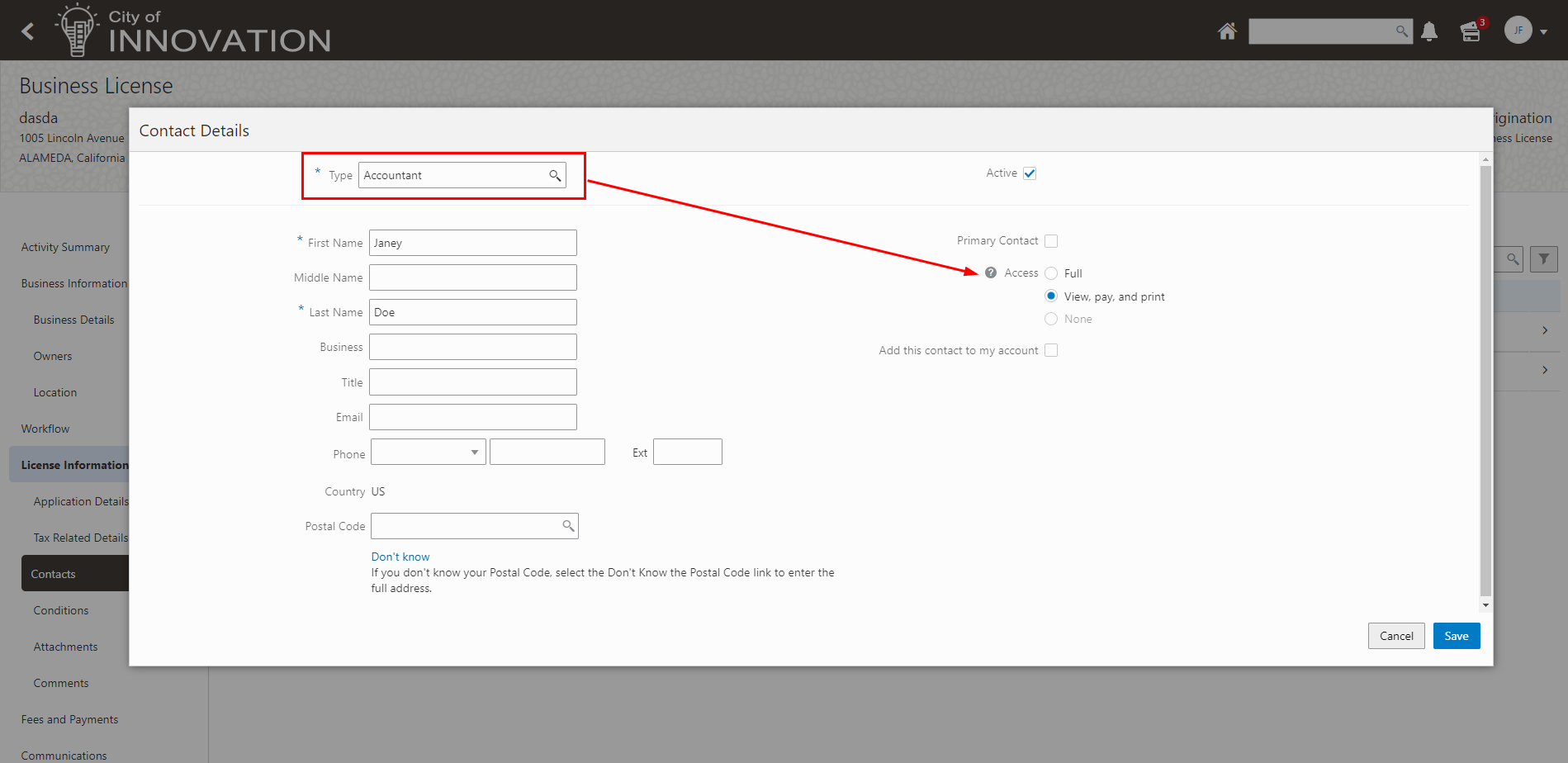
Business License - Contact Details Page
The access level appears in the contacts grid. Primary contacts, applicants, and business owners with full access can manage contacts in the application and upgrade a contact's access level.
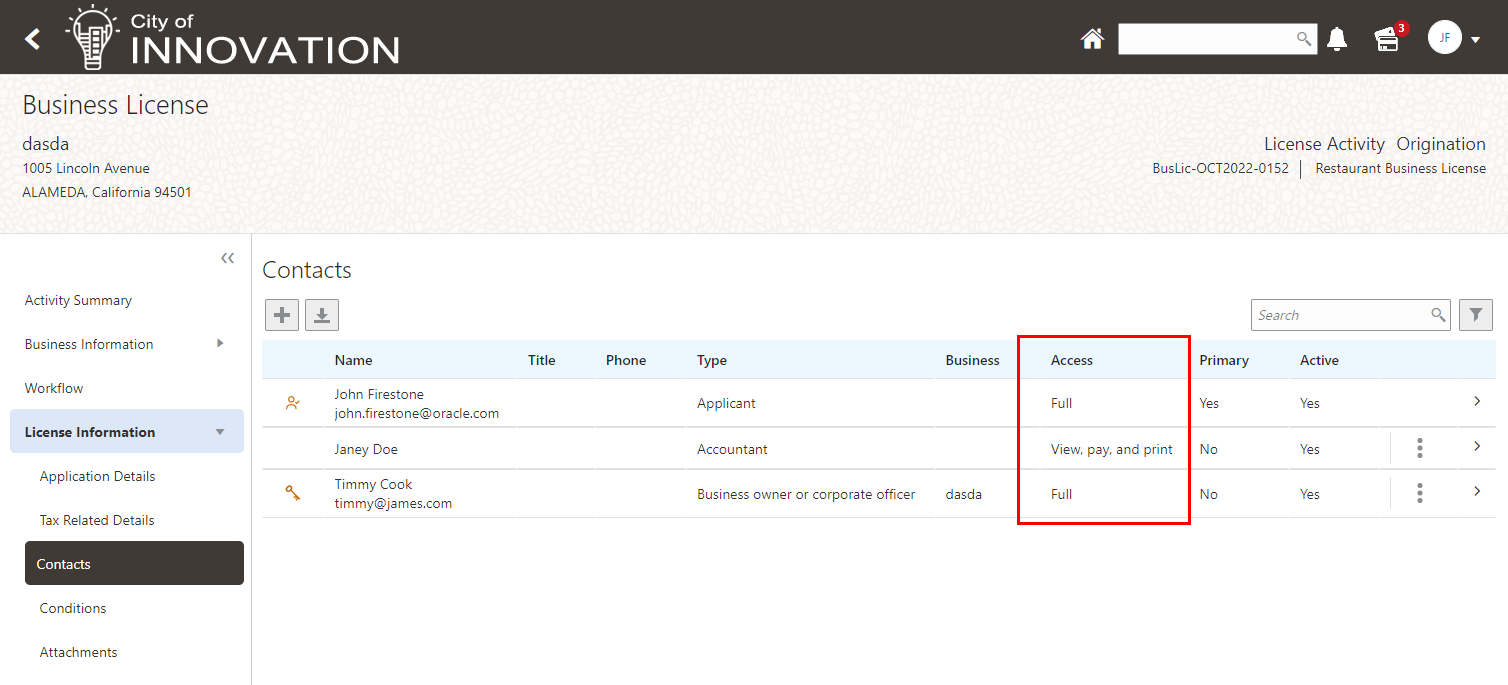
Business License Contacts Page
Applicant and contacts can now control access to the business and licenses.
Steps to Enable
A new contact type "Business owner or corporate officer" (ORA_BUSINESS_OWNER) is being delivered for business owner's access as application contacts. The default access level is set to "None" but you can modify the access by following the steps below:
- Navigate to Common Setup > Contact Type.
- Select the Business Owner contact type, ORA_BUSINESS_OWNER.
- Select the Application Access for the Business Owner contact type. This includes Full, None, View/Pay/Print.
- Select Save.
Tips And Considerations
Agency may configure communication to alert contact that they have been added to transaction.
Contacts must register using the email that was entered when they were added to the transaction before they can have access.
Key Resources
- See Using Business Licenses, "Managing Business License Applications," Working with Application Contacts on the Oracle Help Center.
- See Implementing Your Agency, "Setting Up Public Users," Setting Up Contact Types on the Oracle Help Center.
Hide Business Entity and License from Search
Agencies can allow businesses to opt out of displaying their business information from the public. On the agency-level page, Business License Options, the agency can turn on the switch in the General Setting section.
Enabling this switch gives the business owner the ability to hide their business license information from appearing when a public user searches for that business.
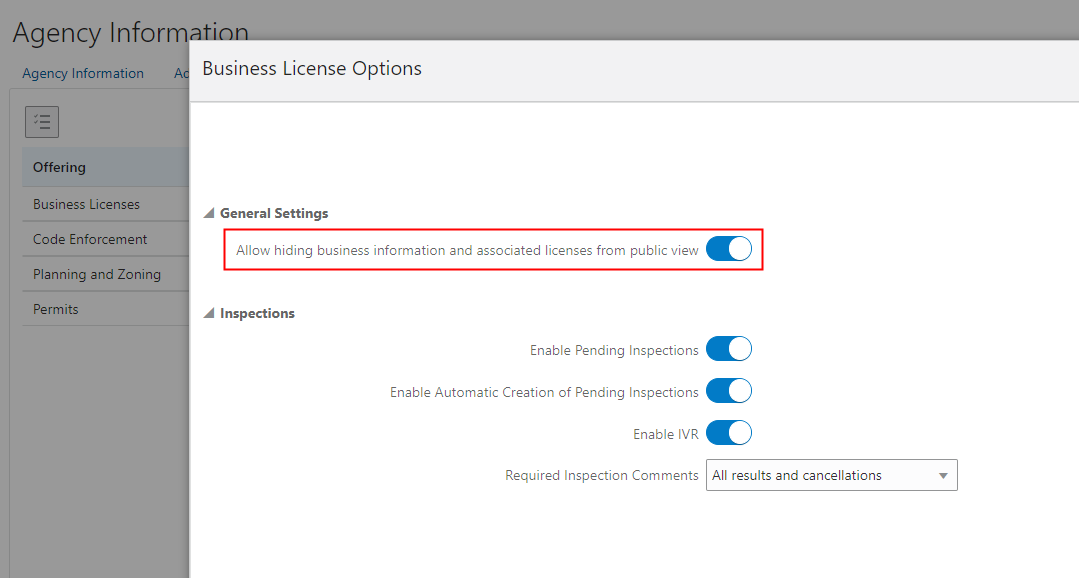
Business License Options Page
Once this feature is enabled, business owners can then select the option to hide their business license information from the public using the Business Overview page.
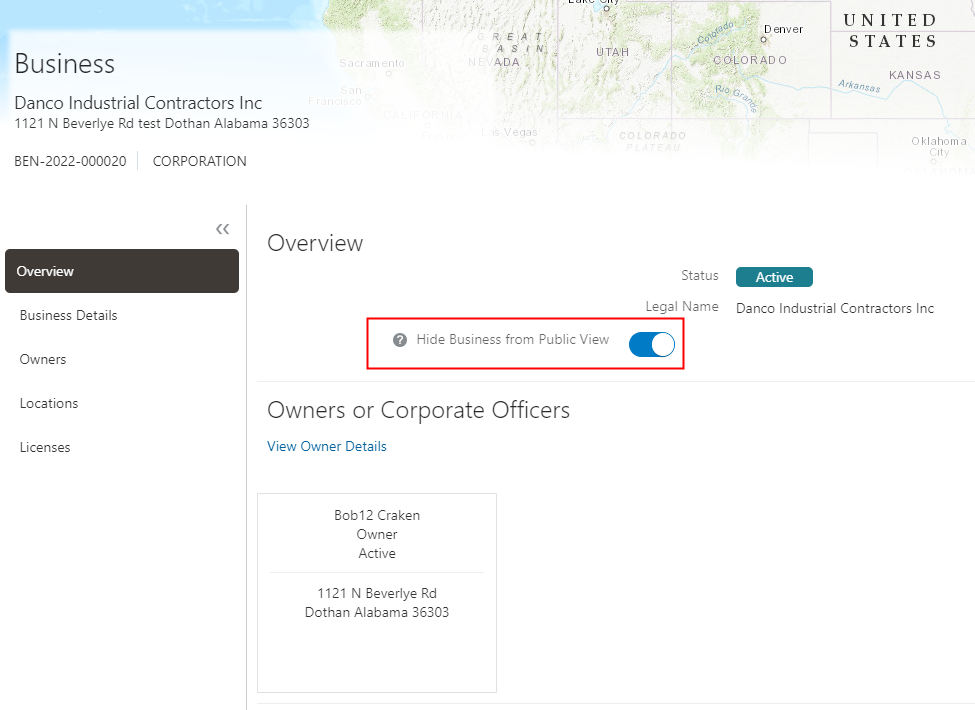
Business Overview Page
This gives agencies the option to allow businesses to hide their business and business license information from the public.
Steps to Enable
To turn on this option for business owners complete the steps below.
- Navigate to Common Setup > Agency > Features > Business License > Options.
- Select "Allow hiding business information and associated licenses from public view".
- Select Save.
Key Resources
- See Implementing Permitting and Licensing, "Setting Up Business Licenses", Setting Up Agency-Level Options for Business Licenses on the Oracle Help Center.
- See Using Business Licenses, "Managing the Business License", Managing Business Information on the Oracle Help Center.
As a business license specialist, you can now perform all your license related activities from a central location – Business License Worklist.
The separate tabs show:
- Unassigned applications.
- Applications with tasks assigned to you.
- Meetings calendar.

Business License Worklist
View the calendar for the meetings scheduled for the agency or for yourself:
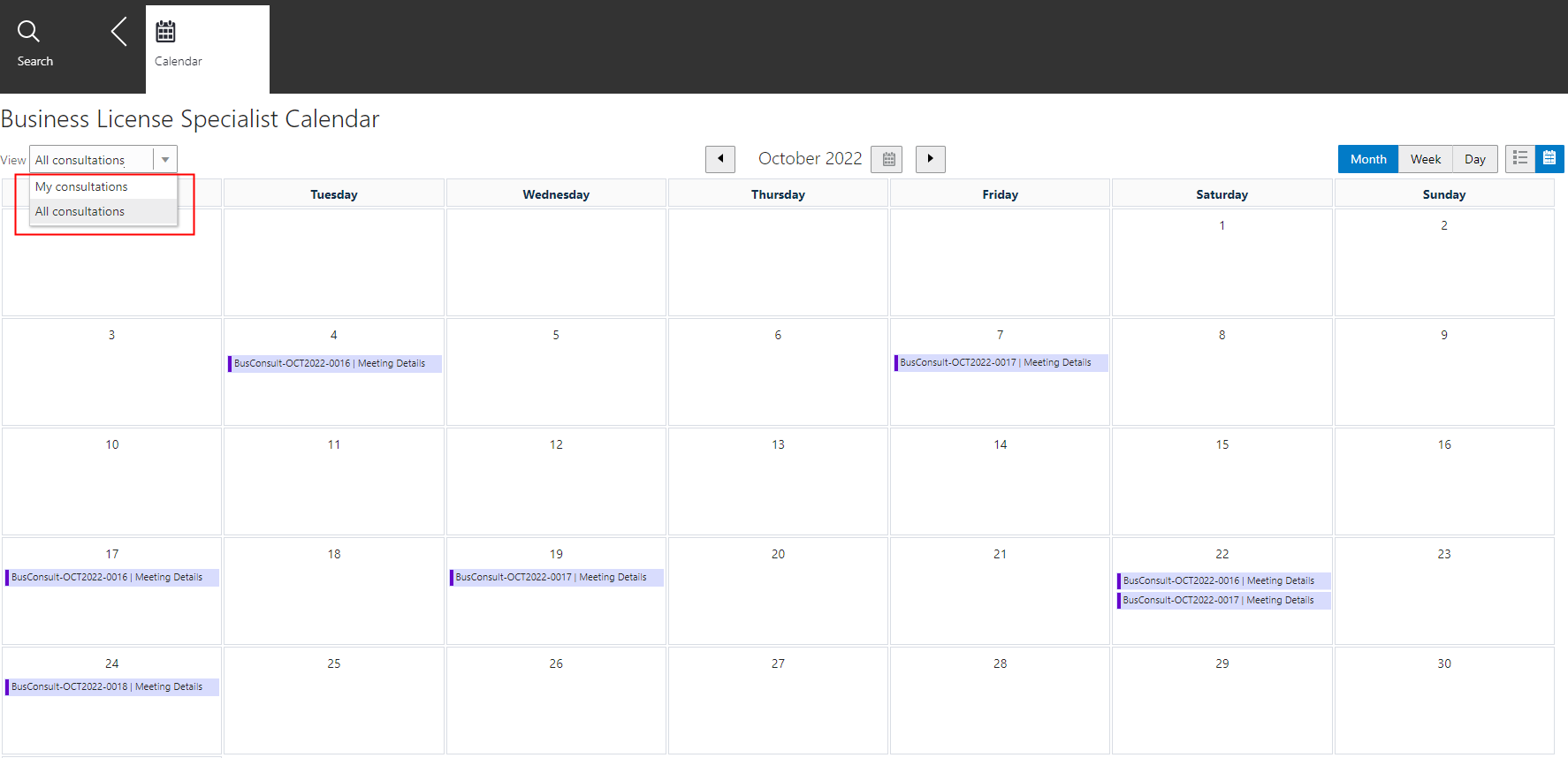
Business License Specialist Calendar
This gives a centralized location for agency staff to manage their daily tasks by role.
Steps to Enable
You don't need to do anything to enable this feature.
Key Resources
- See Using Business Licenses, “Managing Business License Applications,” Using the Business License Worklist on the Oracle Help Center.
Credentials for Business Licenses
Agencies can now collect and update credential information that is related to a specific type of business license from the application intake form. When filling out the origination or renewal application, applicants enter relevant attributes such as the credential or license number, start and expiration dates, exemptions, and more, depending on the agency setup. The credentials such as a food service license for a restaurant or OSHA certificate for a contractor business become part of the license information stored with the business license and are managed on the new Credentials page in the license details.
This example illustrates the design for a business license application form, with the new Credentials predefined field group configured to collect specific credential information.

Design Business License Application Page
This example illustrates the Credentials page in the business license application details displaying the information that was collected on the application intake form. Users with appropriate permissions can update the credential information.
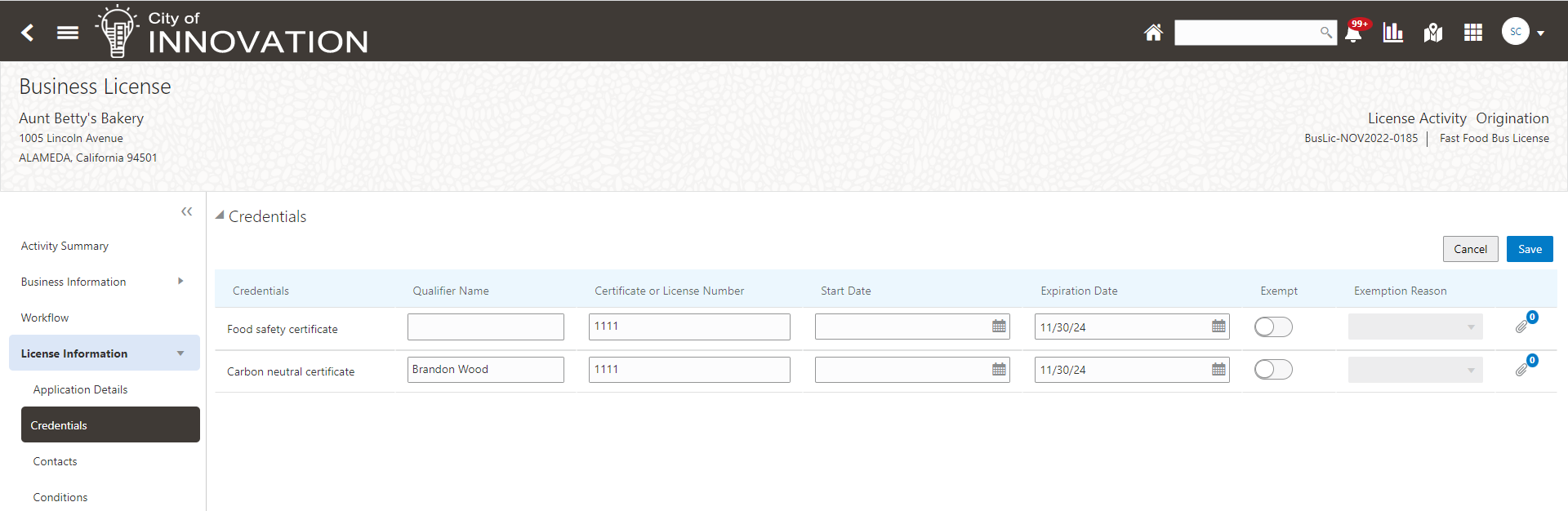
Credentials Page
This feature provides agency staff the flexibility and configurability to define and collect license specific credentials during the business license origination and/or the renewal process.
Steps to Enable
The Credentials feature allows agencies to capture any credentials such as certificates or qualifications needed to grant a business license.
Complete the steps below to enable.
- Navigate to Common Setup > Credentials.
- Select Credential Layout tab.
- Enable the columns that apply the credentials. This is a one-time setup and shouldn't change very often.
- On the Credentials tab, enable the credentials that need to be captured in the Business License applications.
- Click "Select Required Attributes" to set up the required columns for each credential.
- Navigate to Common Setup > Credentials Group.
- Select the Plus button to add the credential group.
- Select and enable the credentials that need to be captured for a Business License Application Type.
- Navigate to Common Setup > Lookups.
- Select the Exemption Reasons Lookup Type.
- Add the exemption reasons that can be selected when a credential is exempt.
- Navigate to Common Setup > Credential Exemption Reasons.
- Link the credentials to the exemption reasons you just set up.
- Add the Credential Predefined Field Group to the Business License Application Type.
Tips And Considerations
If the Exempt column is enabled in the layout, users can set a credential to be exempt in the application and you don't need to enter the required columns. Otherwise, users must enter values for required columns to be able to submit the application.
Role And Privileges
Six new duty roles are delivered to manage credentials:
- ORA_PSC_BUSINESS_LICENSE_CREDENTIALS_VIEW_DUTYPSC - Business License Credentials Inquiry
- ORA_PSC_BUSINESS_LICENSE_CREDENTIALS_MANAGEMENT_DUTYPSC - Business License Credentials Management
- ORA_PSC_BUSINESS_LICENSE_CREDENTIALS_ADMIN_DUTYPSC - Business License Application Administrator
- ORA_PSC_MANAGE_BUSINESS_LICENSE_CREDENTIAL_ATTACHMENTS_ADDED_BY_SELF_AND_OTHERSPSC - Manage Business License Credential Attachments Added by Self and Others
- ORA_PSC_MANAGE_BUSINESS_LICENSE_CREDENTIAL_ATTACHMENTS_ADDED_BY_SELFPSC Manage Business License Credential Attachments Added by Self
- ORA_PSC_VIEW_BUSINESS_LICENSE_CREDENTIAL_ATTACHMENTSPSC View Business License Credential Attachments
IMPORTANT Actions and Considerations
UPGRADE ACTIONS
With every upgrade, make sure to complete the following steps in the Initial Set Up functional area in Functional Setup Manager. This process ensures all new security definitions, such as job roles, duty roles, privileges, and so on, are included in your implementation.
- Run Public Sector Security Setup Process
- Manage Custom Roles
REST BACKWARD COMPATIBILITY
Public Sector Permitting and Licensing updates REST APIs from release to release. Our goal is to not create APIs that are incompatible from one release to the next. However, due to circumstances and security impacts this may not be feasible.
For the most current information, see My Oracle Support Document ID: 2853758.1.
Documentation for all REST APIs included in Public Sector Permitting and Licensing can be found on the Oracle Help Center.
DEPRECATED REST APIs
At times, REST APIs will be deprecated and no longer available for public use. For the most current information, see My Oracle Support Document ID: 2853758.1.
| REST API | Deprecated Release | Comments |
|---|---|---|
| Assigned or Unassigned Inspections publicSectorUnasgnInspections |
23A | This API will be deprecated in 23A. You should begin planning to no longer use this resource and find alternatives. |