
- Revision History
- Overview
- Feature Summary
- Permitting and Licensing
-
- Permitting and Licensing Common
- Permits and Inspections
- Planning and Zoning
- Code Enforcement
- Business Licensing
-
- Business License Inspections
- Agency Defined Tax Attributes for Business Licenses
- Agency Edits of Business License Information
- Penalty and Late Fees for Business Licenses
- Security Role Based Access to Business License Information
- Additional Attributes for Location and Owners Pages
- Business License Transaction, Inspection, and All Attachment Tabs
- Confidential Business License Grids
-
- IMPORTANT Actions and Considerations
This document will continue to evolve as existing sections change and new information is added. All updates appear in the following table:
| Date | Module | Feature | Notes |
|---|---|---|---|
| 17 MAY 2023 | Business Licensing | Confidential Business License Grids | Updated document. Revised feature information. |
| 27 APR 2023 | Business Licensing | Agency Edits of Business License Information | Updated document. Revised feature information. |
| 21 APR 2023 | Business Licensing | Confidential Business License Grids | Updated document. Revised feature information. |
| 21 APR 2023 | Business Licensing | Additional Attributes for Location and Owners Pages | Updated document. Revised feature information. |
| 21 APR 2023 | Business Licensing | Security Role Based Access to Business License Information | Updated document. Revised feature information. |
| 21 APR 2023 | Business Licensing | Agency Edits of Business License Information | Updated document. Revised feature information. |
| 21 APR 2023 | Business Licensing | Business License Inspections | Updated document. Revised feature information. |
| 21 APR 2023 | Code Enforcement | Code Violation Comply By Dates | Updated document. Revised feature information. |
| 21 APR 2023 | Planning and Zoning | Update Workflow Action for Public Hearing Events | Updated document. Revised feature information. |
| 21 APR 2023 | Permits and Inspections | Configurable Plan Review Due Dates | Updated document. Revised feature information. |
| 21 APR 2023 | Permitting and Licensing Common | Deposit Account Subject Area and Dashboard | Updated document. Revised feature information. |
| 21 APR 2023 | Permitting and Licensing Common | Returned Check Payments | Updated document. Revised feature information. |
| 17 MAR 2023 | Created initial document. |
 HAVE AN IDEA?
We’re here and we’re listening. If you have a suggestion on how to make our cloud services even better then go ahead and tell us. There are several ways to submit your ideas, for example, through the Ideas Lab on Oracle Customer Connect. Wherever you see this icon after the feature name it means we delivered one of your ideas.
GIVE US FEEDBACK
We welcome your comments and suggestions to improve the content. Please send us your feedback at oracle_fusion_applications_help_ww_grp@oracle.com.
DISCLAIMER
The information contained in this document may include statements about Oracle’s product development plans. Many factors can materially affect Oracle’s product development plans and the nature and timing of future product releases. Accordingly, this Information is provided to you solely for information only, is not a commitment to deliver any material, code, or functionality, and should not be relied upon in making purchasing decisions. The development, release, and timing of any features or functionality described remains at the sole discretion of Oracle.
This information may not be incorporated into any contractual agreement with Oracle or its subsidiaries or affiliates. Oracle specifically disclaims any liability with respect to this information. Refer to the Legal Notices and Terms of Use for further information.
Column Definitions:
Report = New or modified, Oracle-delivered, ready to run reports.
UI or Process-Based: Small Scale = These UI or process-based features are typically comprised of minor field, validation, or program changes. Therefore, the potential impact to users is minimal.
UI or Process-Based: Larger Scale* = These UI or process-based features have more complex designs. Therefore, the potential impact to users is higher.
Features Delivered Disabled = Action is needed BEFORE these features can be used by END USERS. These features are delivered disabled and you choose if and when to enable them. For example, a) new or expanded BI subject areas need to first be incorporated into reports, b) Integration is required to utilize new web services, or c) features must be assigned to user roles before they can be accessed.
| Ready for Use by End Users Reports plus Small Scale UI or Process-Based new features will have minimal user impact after an update. Therefore, customer acceptance testing should focus on the Larger Scale UI or Process-Based* new features. |
Customer Must Take Action before Use by End Users Not disruptive as action is required to make these features ready to use. As you selectively choose to leverage, you set your test and roll out timing. |
|||||
|---|---|---|---|---|---|---|
| Feature |
Report |
UI or |
UI or |
|
||
Application Received Date Determines the Effective Date for Fee Calculations |
||||||
Oracle Fusion Audit Registration for Business Entity Objects |
||||||
Required or Hidden Columns for the Business Owners Field Group |
||||||
Business License Transaction, Inspection, and All Attachment Tabs |
||||||
Permitting and Licensing Common
Property Address Agency Setting
Now Agencies can disable the "Create New" link on the Search Property page to prevent registered public users from creating new addresses during application intake.
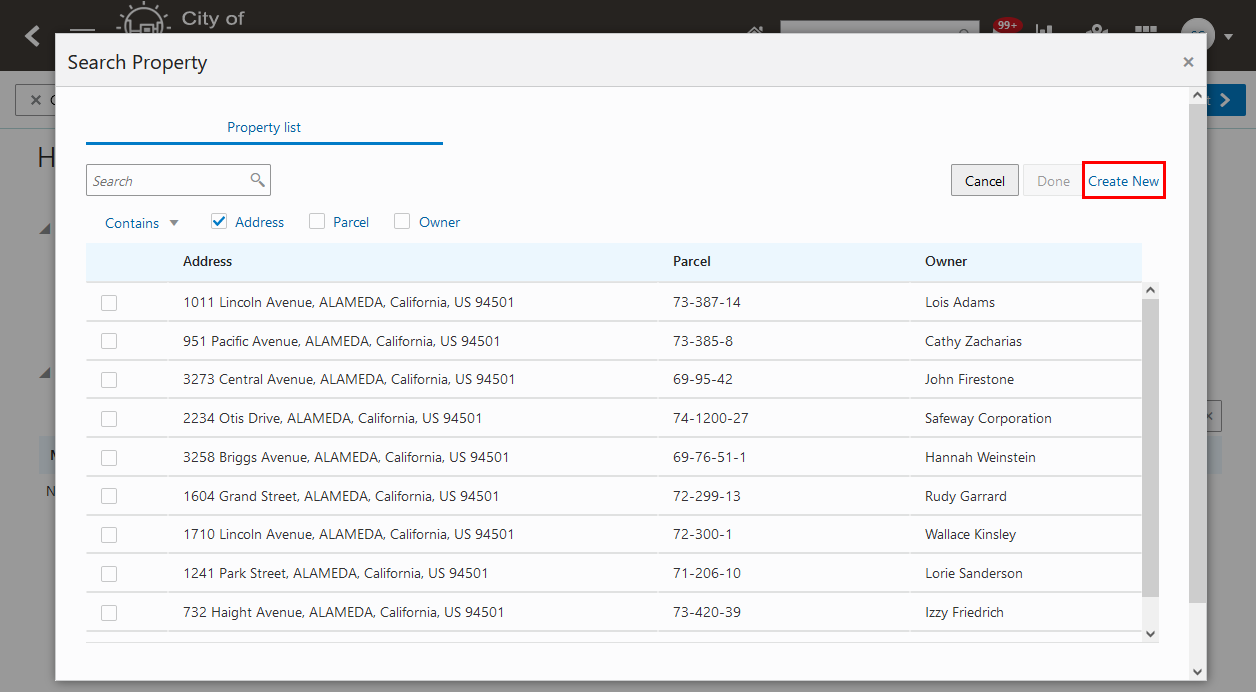
Application Intake
Agency staff can disable the Feature Code ORA_PSCR_CREATE_ADDRESS on the Agency Information page. After disabling the feature code, during application intake, the "Create New" link will no longer appear.
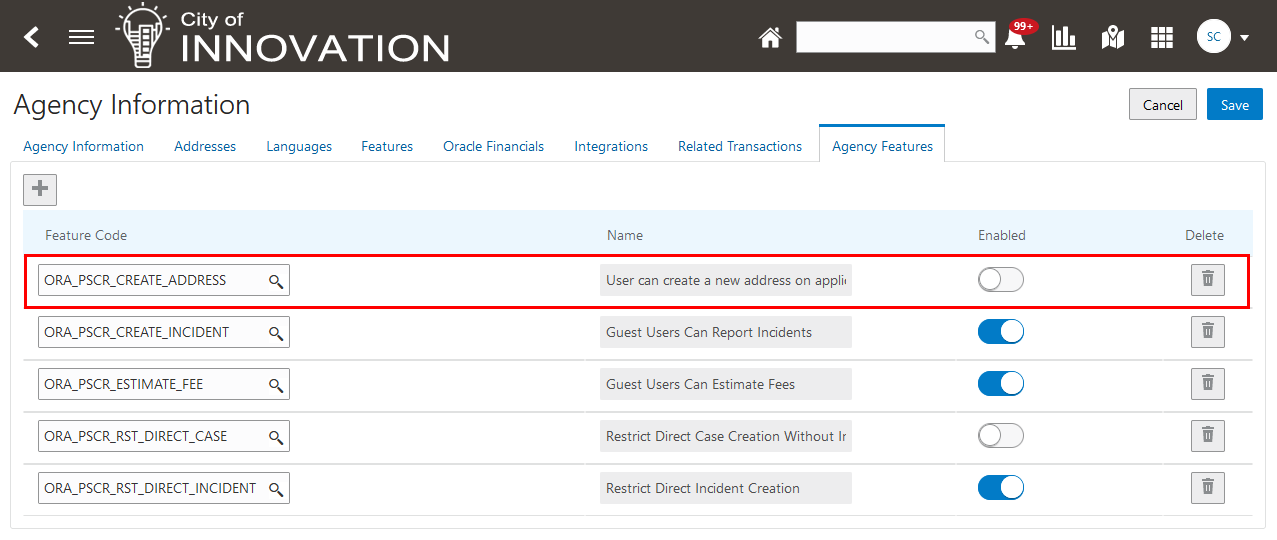
Agency Information Page
This feature allows the agency to disable the "Create New" link in the Property predefined field group during intake.
Steps to Enable
To enable this feature:
- Navigate to Common Setup > Agency.
- Select Agency Features tab.
- Add feature code ORA_PSCR_CREATE_ADDRESS.
- Use the enable switch to either enable or disable this feature.
- Disabled: Prevents registered users from creating new addresses on the Search Property page during application intake.
- Enabled: Allows registered users to create a new address on the Search Property page during application intake.
When you select a property on a map, the system finds all of the GIS attributes in the agency setup that intersect the selected geometry. You can use the negative buffer distance to subtract the specified distance from each side of the shape of the selected property to help reduce the number of extra attribute values captured.
This example illustrates the fields used to configure the negative buffer distance. The default value is 2 feet.
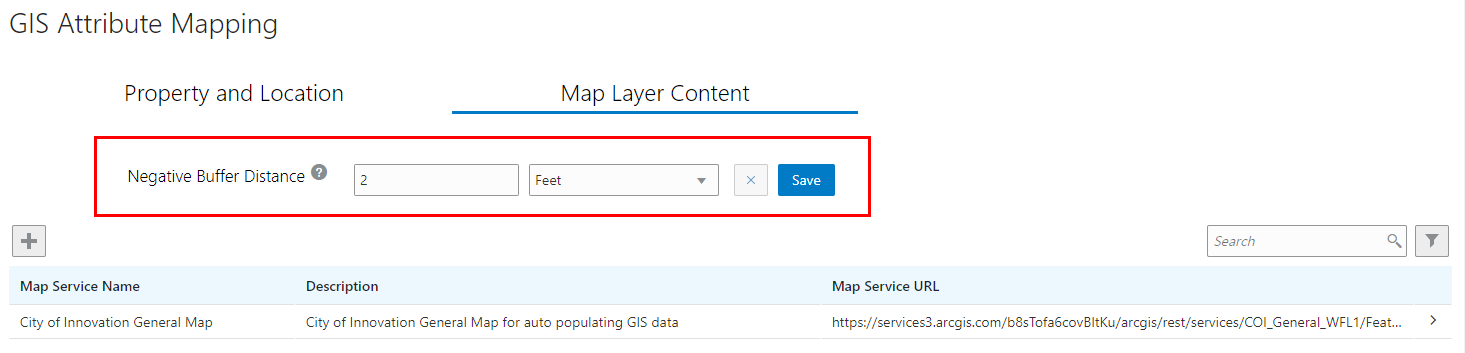
GIS Attribute Mapping - Map Layer Content Page
Allows the agency to set a negative buffer distance to query the GIS attributes.
Steps to Enable
To change the default buffer distance:
- Navigate to GIS Setup > Attribute Mapping.
- Select the Map Layer Content tab.
- In the Negative Buffer Distance field, select the pencil icon to change the default.
Tips And Considerations
If the negative buffer distance is too large and causes the polygon to collapse, the system will ignore the negative buffer distance setting and query the GIS attributes using 0 negative buffer distance.
Key Resources
- See Implementing Your Cloud Integrations, "Setting Up GIS," Setting Up GIS Attribute Mapping on the Oracle Help Center.
Issue and Reissue Date Retention
Agencies can now view and track the dates of permit issue and reissue. You choose if you want the issue date or the reissue date to be used for permit expiration date calculations. The default is to override the original reissuance date.
This example illustrates the most recent issue date, reissue date, and the link to the permit’s issuance dates history page:
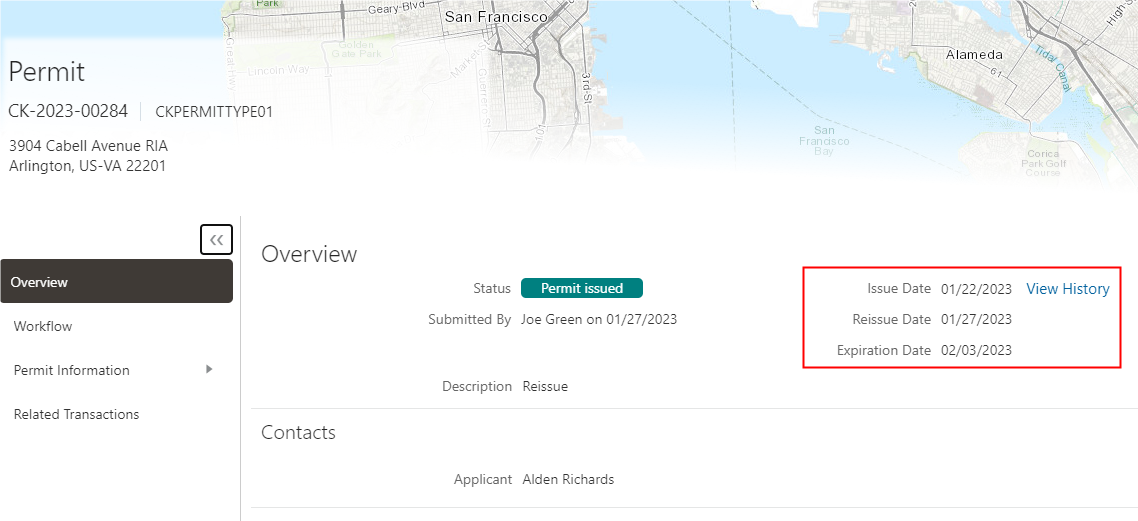
Permit Overview Page
This example illustrates the options that determine how the permit’s original issuance and reissuance dates must be used when calculating expiration date:
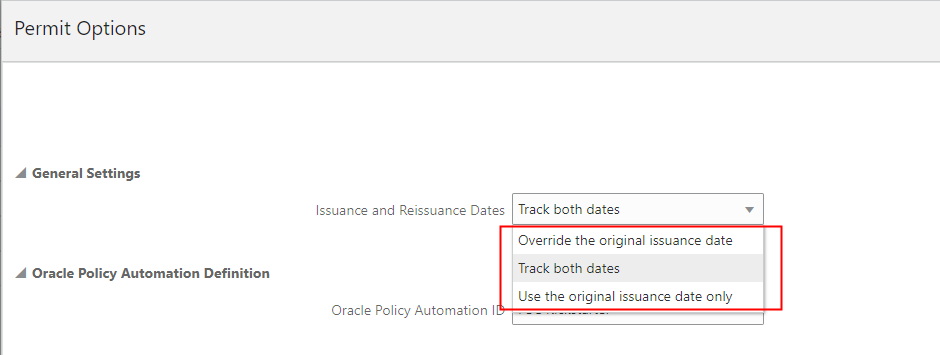
Permit Options Page
The expiration date is calculated by the reissue date or the issue date, as determined by the administrator.
This feature allows agencies to track and view both the original issue date and a date of reissuance if applicable on permits.
Steps to Enable
This functionality supports three options for tracking the Permit issuance and reissuance:
- Override the original issuance date.
- This is the default value and it functions as it did in the previous release. If you want to continue to use this functionality, you do not need to do anything further.
- Track both dates.
- This tracks both the issue and reissue dates. You will need to select this functionality if you want to track both dates.
- Use the original issuance date only.
- This option will not result in any changes on the expiration date even if the permit is reissued. You will need to review the Permit Expiration Group and deselect the "Automatically recalculate the expiration date when the permit is reissued".
NOTE: For both the first and second option, the rules will be effective the next time a permit is issued.
To select the Issue and Reissue date:
- Navigate to Common Setup > Agency.
- Select your agency.
- Select the Options link for Permits.
- Select the Features tab.
- Under General Settings, select the Issuance and Reissuance Dates option for your agency.
Tips And Considerations
Reissuance would be based off of the configuration of workflow and a second Issuance task.
Key Resources
- See Using Community Development Permits, "Managing Permits" Viewing the Permit Summary on the Oracle Help Center.
- See Implementing Permitting and Licensing, "Setting Up Permits" Setting Up Agency-Level Options for Permits on the Oracle Help Center.
Business Rules Framework User Interface Improvements
The Criteria section of the Business Rule Details page has been redesigned. The previous criteria grid has been updated to provide a more flexible list view approach, offering drag-and-drop support. You can now use two modes for entering business rule criteria, Simple or Advanced.
Simple mode displays the new user interface features and enables you to define multiple groups of criteria in a single layer. You can drag-and-drop criteria elements to rearrange as needed.
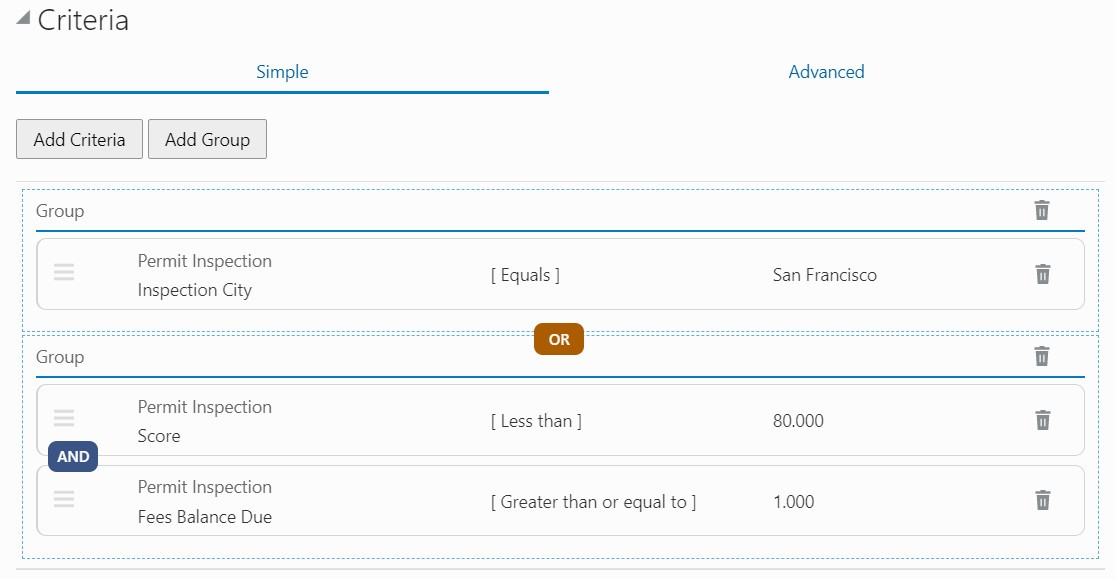
Business Rules Details Page - Criteria Section - Simple Tab
Use Advanced mode to define more complicated criteria involving nested groups of criteria. Advanced mode is text based, where you can add and configure criteria syntax manually as needed, such as adding parenthesis where appropriate.
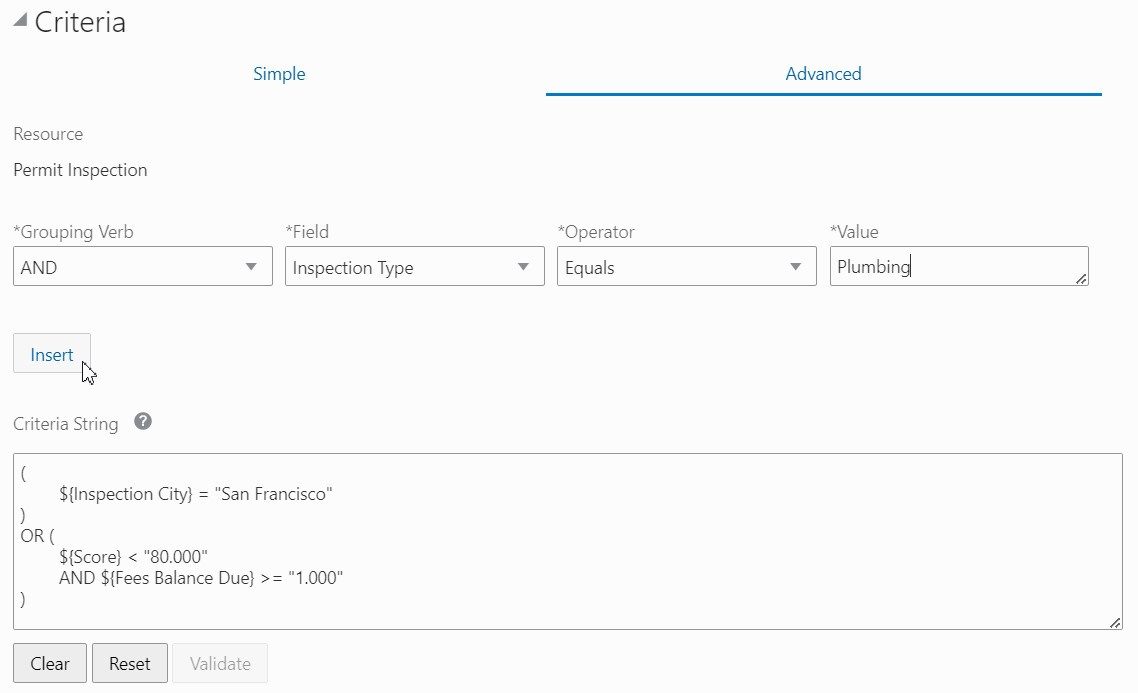
Business Rules Details Page - Criteria Section - Advanced Tab
Provides a more flexible way to define business rule criteria and include more complicated, nested criteria strings.
Steps to Enable
You don't need to do anything to enable this feature.
Key Resources
- See Implementing Permitting and Licensing, "Implementing the Business Rules Framework," Setting Up Business Rule Criteria on the Oracle Help Center.
Guaranteed Action Support for Business Rules Framework
You can now configure automatic retries for any business rule action that didn't succeed on the initial attempt.
You can schedule the new "Action Retry" ESS job to run on a regular basis, such as daily, to identify all unsuccessful business rule actions, and retry them.
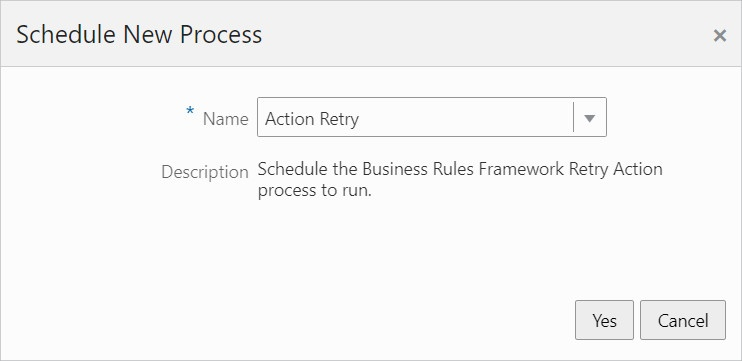
Schedule New Process Dialog on Process Monitor Page
You can set the maximum retry amount on the Agency Options page.

Agency Information Page
In the event that the Action Retry process has reached the retry limit for a business rule action, an administrator can see the retry count in the logs and intervene manually.

Logs Page
You can now configure an automated process to identify and retry business rules actions that have not completed successfully.
Steps to Enable
To schedule the Action Retry process:
- Navigate to Common > Process Monitor.
- Click Schedule New Process.
- Choose Action Retry from the Name dropdown list. There are no parameters required.
- Select the Schedule tab and set the processes to run on your desired schedule. Oracle recommends running this daily.
Tips And Considerations
Part of the Guaranteed Action feature is error notification which generates an email when an error occurs in the runtime process of the Business Rules Framework.
To enable this feature:
- Navigate to Common > Agency.
- Click on your agency row.
- Scroll to the Business Rules Framework section, turn on Notify on Error.
- Enter a destination email address in the Error Notification Email field.
NOTE. The email field is limited to 200 characters. For more than one email destination, using a distribution list is recommended.
Key Resources
- See Implementing Permitting and Licensing, "Implementing the Business Rules Framework," Scheduling Automated Action Retry on the Oracle Help Center.
Protected Document Switch by Offering
Your agency can now configure protected PDF document handling for permits and planning applications, including these options:
- Allow Protected Documents
- Prevent Protected Documents
- Remove Document Protection
Depending on your agency's protected document handling, you may be able to use archived-protected PDF documents in electronic plan reviews. The Remove Document Protection option enables you to upload protected PDF documents and creates an unarchived copy of the document when it’s used in an electronic plan review. The unarchived copy is editable in Bluebeam Studio™ and the marked-up document is copied back to the application attachments when the session is finalized.
Icons help identify protected documents on the Attachments page in application forms and after submittal in the application details. If the agency setup allows protected documents to be uploaded, the system displays a shield icon next to the protected document.
Additional enhancements for monitoring the processing of electronic review documents include processing indicators and cycle issue alerts.
This feature gives the agency the choice, by offering, to allow protected documents in Plan Review.
Steps to Enable
To configure this feature:
- Navigate to Common Setup > Agency.
- Click on the agency row.
- Select the Features tab.
- Select the Permits Options link.
- Scroll to Plan Reviews.
- In the Protected Documents drop down, select Allow Protected Documents.
- Allow Protected Documents is the default.
- Other options include "Prevent Protected Documents" and "Remove Document Protection".
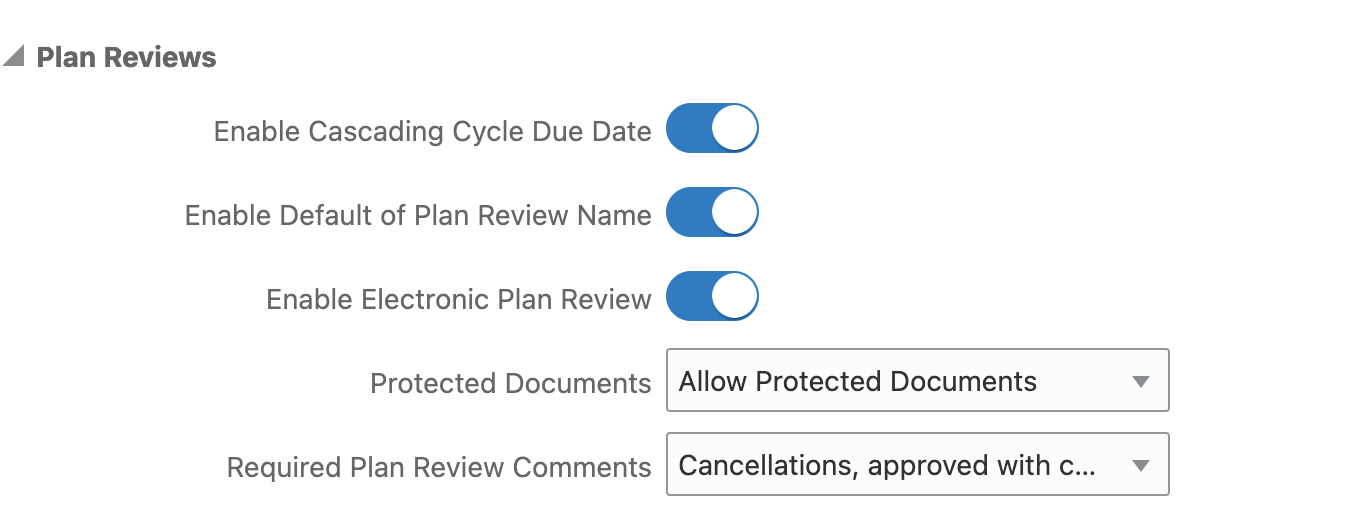
Permit Options Plan Reviews Page
See the documentation links below for details regarding the options for protected documents.
Tips And Considerations
Regardless of the protected documents setting your agency chooses, the system will always prevent you from uploading password-protected PDF documents that require a password to open.
There is upgrade impact, due to legacy protected PDF documents in the system and how they're handled, depending on the agency protected-document setting. Legacy protected PDF documents display a designated icon (solid blue shield).
Key Resources
- See Implementing Permitting and Licensing, "Setting Up Permits," Setting Up Agency-Level Options for Permits on the Oracle Help Center.
- See Implementing Permitting and Licensing, "Setting Up Planning Applications," Setting Up Agency-Level Options for Planning Applications on the Oracle Help Center.
- See Using Community Development Permits, "Managing Plan Reviews," Working with Plan Review Documents and Working with Electronic Plan Reviews on the Oracle Help Center.
Agency Assisted Deposit Account Payments
Agency staff can now use a customer's trust account to make payments for multiple applications.
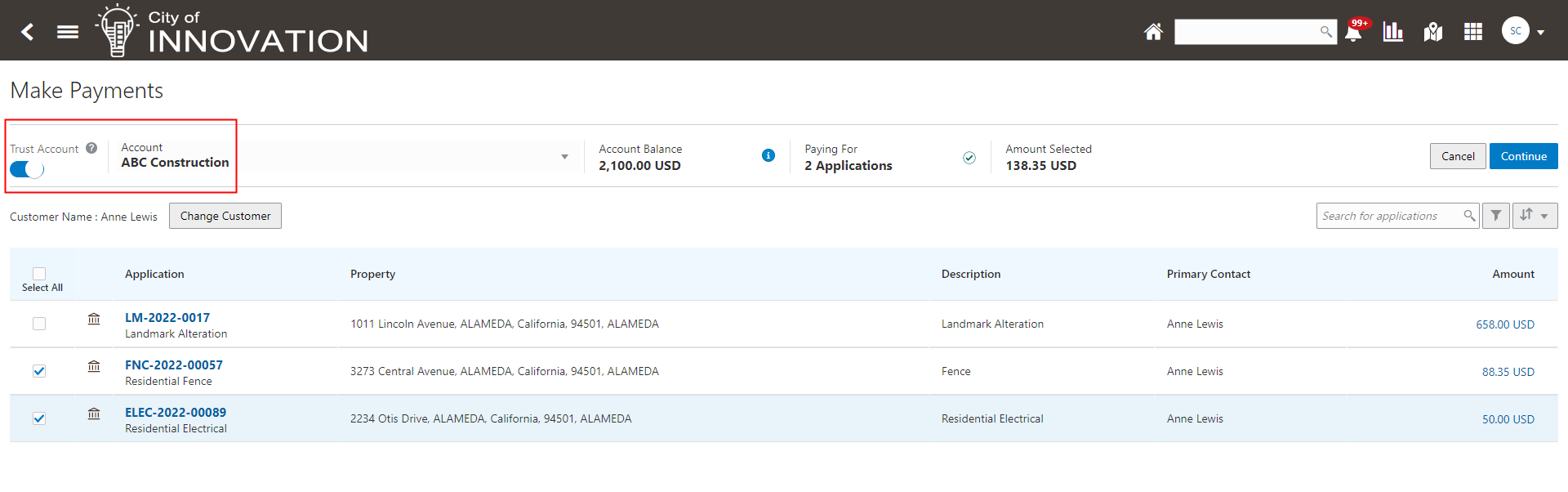
Make Payments Page
Allow agency staff to apply payments to multiple transactions using deposit accounts.
Steps to Enable
You don't need to do anything to enable this feature.
Key Resources
- See Using Community Development Planning and Zoning, "Completing a Planning Application", Making Payments on the Oracle Help Center.
Prevent Payment Condition with Autopay
The Autopay Fees with Deposit Account process was enhanced to evaluate if the prevent payment condition exists to not record fee payments using deposit accounts.
When a condition is applied to prevent payment processing, the autopay process will not record fee payments using deposit accounts.
Steps to Enable
You don't need to do anything to enable this feature.
Key Resources
- See Using Permits, “Working with Deposit Accounts,” Paying Fees on the Oracle Help Center.
- See Using Permits, “Working with Processes,” Using the Process Monitor on the Oracle Help Center.
Application Received Date Determines the Effective Date for Fee Calculations
Application fees are now calculated based on the date on which the agency received the application. On the intake form, the agency staff alone can update the received date, which determines the effective dated fee schedule used in fee calculations.
This example illustrates the Intake Form being filled by an agency staff:

Intake Form Page
Improve the accuracy of fee calculations by using the application received date to determine fees.
Steps to Enable
You don't need to do anything to enable this feature.
Tips And Considerations
Only when the received date is manually adjusted by an agency staff will the calculations possibly differ than in prior releases, where fee calculations were using the submission date.
Key Resources
- See Using Community Development Permits, "Applying for a Permit" Completing an Application on the Oracle Help Center.
Now you can manage attachments specific to deposit accounts, like change of ownership requests, enabling you to have more complete information about a deposit account in one place.
The Attachments tab is on the Deposit Account page:
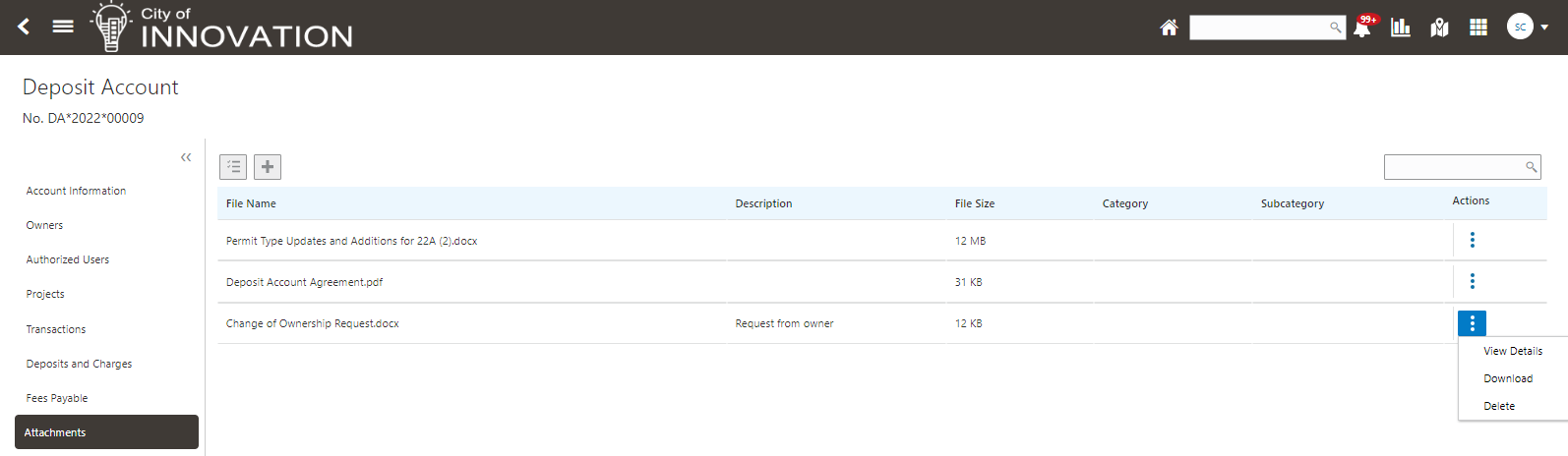
Deposit Account Page
Agency Staff can:
- View the list of attachments associated with the deposit account.
- Upload, download, and delete attachments.
- Grant authorized users access to upload and/or download attachments.
Deposit Account Owners can:
- View the list of attachments associated with the deposit account.
- Upload and download attachments.
- Grant authorized users access to upload and/or download attachments.
Deposit Account Authorized Users can:
- View the list of attachments associated with the deposit account.
- If granted access, upload and/or download attachments.
Manage documentation specific to a deposit account, such as change of ownership requests and terms of use.
Steps to Enable
You don't need to do anything to enable this feature.
Key Resources
- See Implementing Your Financials Framework, "Setting Up Deposit Accounts" on the Oracle Help Center.
Now agency staff can identify a returned check and optionally reinstate the fees paid with that check. In the Cash Drawer Payment History page, choose a payment line, and click the Reverse Payment button and choose a Reversal Reason, for example Not Sufficient Funds, Account Closed, or Error Correction:
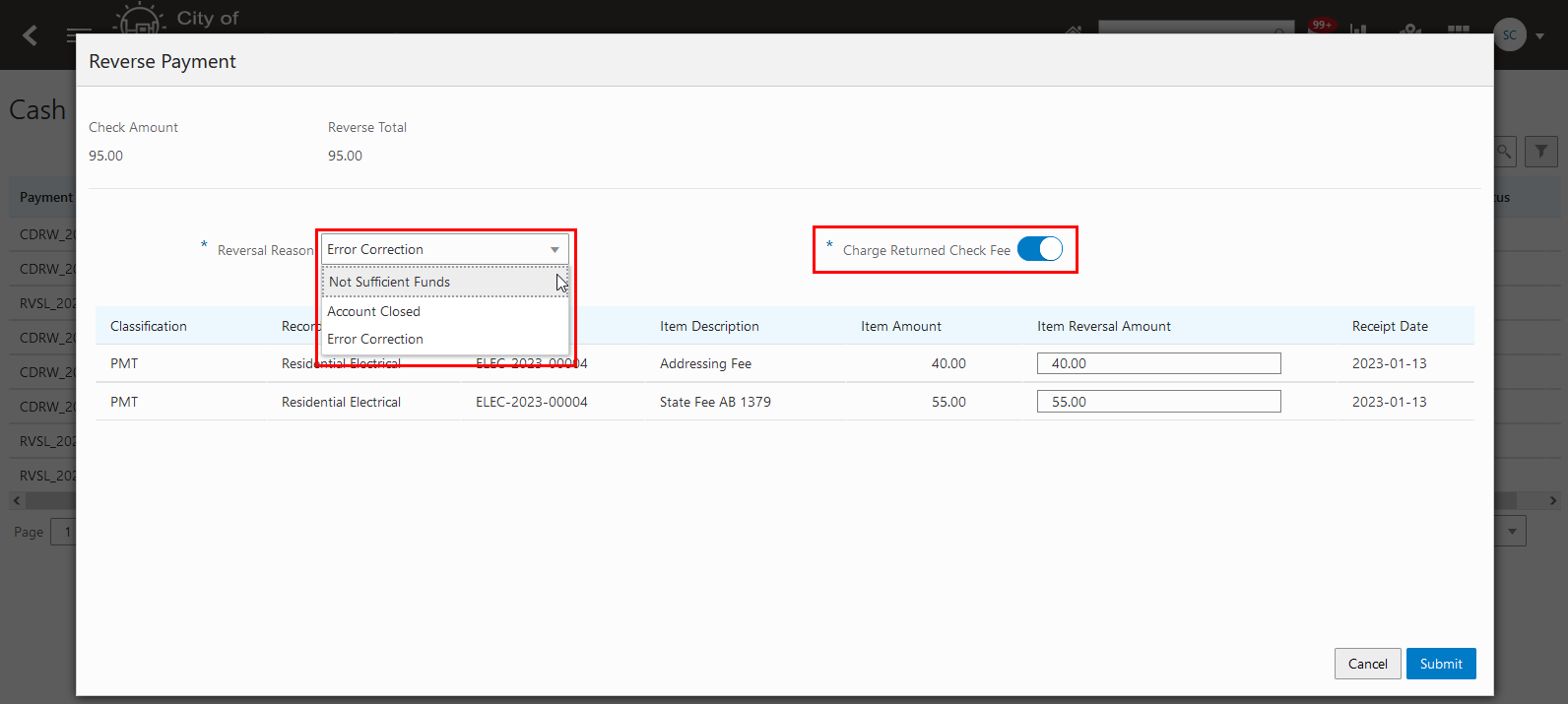
Reverse Payment Page
You can set up two new fee items for this feature, the “Returned Check Fee” and “Refund Recovery” fee items.
Configure the Returned Check Fee item if your agency wants to charge the account a fee if the check is returned. This is typically a flat fee. Configure the Refund Recovery fee item for situations in which the account was overpaid by a check and the agency issued a refund in the amount of the overpayment prior to the check clearing the bank. This fee item is to record the refund amount to be recovered.
Reverse payments and reinstate fees for check payments returned due to insufficient funds. You can also void the payment if the agency does not reinstate fees.
Steps to Enable
To enable this feature complete the following:
- Set up a "Returned Check Fee" fee item. (Optional)
- Navigate to Billing Setup > Fee Items.
- Click the plus icon to add a fee item for Returned Check Fee. This is the fee your agency charges for each returned item.
- Set up a "Refund Recovery Fee" fee item. (Optional)
- Navigate to Billing Setup > Fee Items.
- Click the plus icon to add a fee item to recover an overpayment amount refunded before the check cleared the bank.
- Determine if your agency wants to reinstate the fee when the check is returned.
- Navigate to Payment Setup > Agency Payment Options.
- Select the Cash row.
- Enable the Reinstate Fee switch.
- If the fee should be reinstated, associate the returned check fee item and refund recovery fee items with the payment method.
- Navigate to Payment Setup > Agency Payment Options.
- Select the Cash row.
- Add the fee items created above for the Return Check Fee and Refund Recovery.
Key Resources
- See Implementing Your Financials Framework, "Setting Up Payments", Setting Up Agency Payment Options on the Oracle Help Center.
- See Using Community Development Permits, "Working with Payments", Processing Returned Checks on the Oracle Help Center.
Deposit Account Subject Area and Dashboard
The Deposit Account subject area provides agencies with analytical information about their deposit accounts as well as a real time dashboard and various analyses related to deposit accounts.
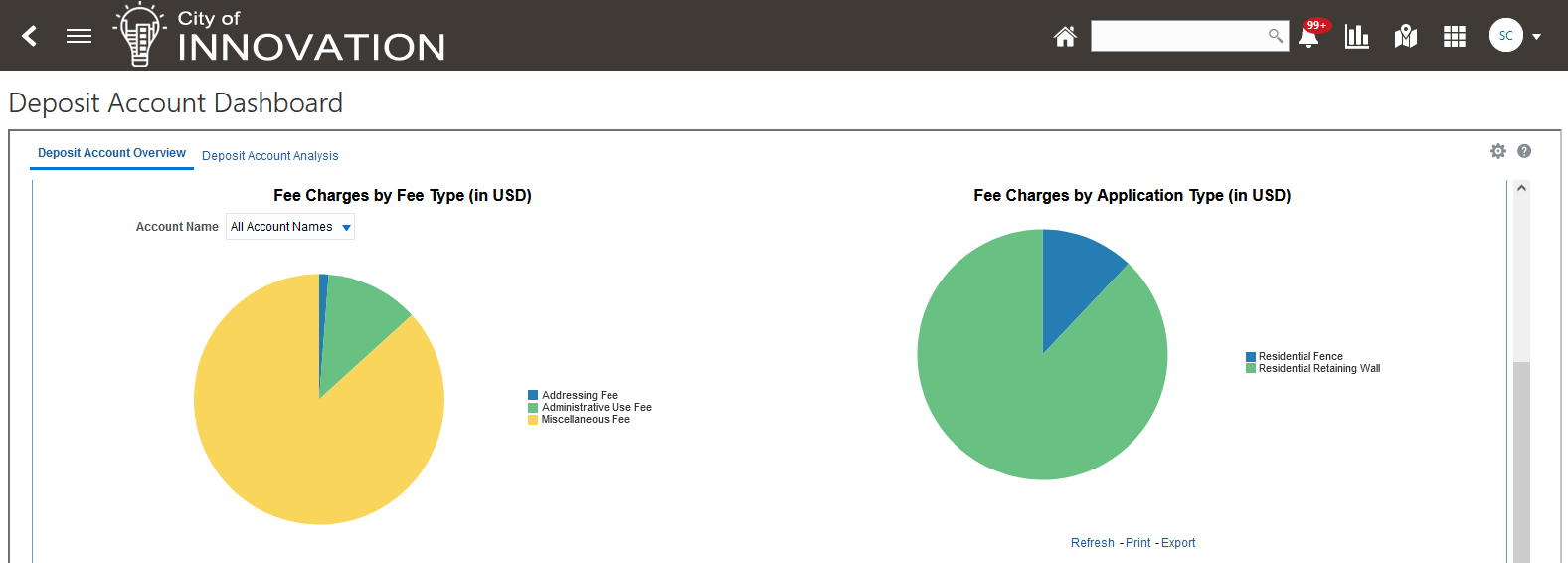
Deposit Account Dashboard and Overview Page
Analytical information about their Deposit Accounts is critical for agency operations. An Oracle Transactional Business Intelligence (OTBI) subject area allows access to real-time dashboards.
Steps to Enable
Leverage new subject area(s) by adding to existing reports or using in new reports. For details about creating and editing reports, see the Creating and Administering Analytics and Reports book (available from the Oracle Help Center > your apps service area of interest > Books > Administration).
Tips And Considerations
You can include up to 10 agency configured dashboards on the Reports and Dashboards header.
Key Resources
- See Implementing Your Agency, "Setting Up Analytics," Setting Up Dashboards on the Oracle Help Center.
Oracle Fusion Audit Registration for Business Entity Objects
We have extended the native Oracle Fusion Audit Reporting to the Business Entity object. It can be reported on, by Administrators, using the same tool.
Track audit activity related to a business entity through the Oracle Fusion Audit Reporting tool.
Steps to Enable
To enable auditing:
- Navigate to Setup and Maintenance.
- In FSM, navigate to Application Extensions > Manage Audit Policies.
- In Oracle Fusion Applications, set the Audit Level to "Auditing".
- Select Configure Business Object Attributes.
- Select Public Sector Common Components.
- Select the Businesses checkbox.
- Under Businesses, enable the Business Entity Objects checkbox and enable the desired attributes for each of the business entity objects.
Key Resources
- See Implementing Applications, "Audit Policies," Set Up Auditing for Oracle Fusion Applications on the Oracle Help Center.
- See Implementing Permitting and Licensing, Managing Audit Policies on the Oracle Help Center.
You can now set grids you add to intake forms to be reusable.
When defining a grid, turn on the Reusable switch in the Grid Attributes panel.
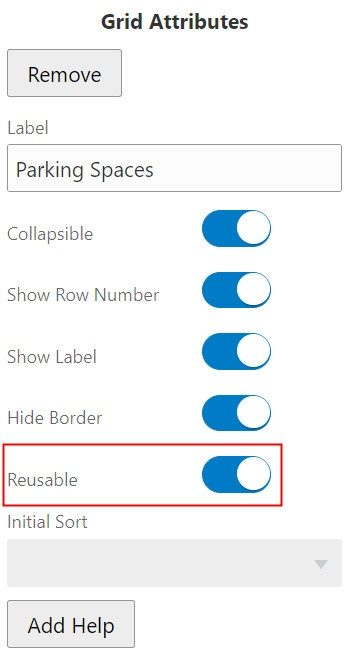
Grid Attributes
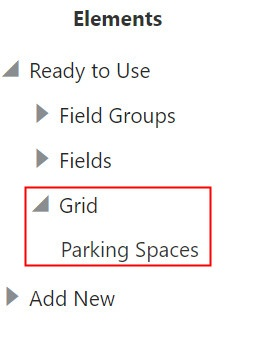
Elements
This feature is available for Permits, Planning and Zoning, and Business Licenses.
This item extends current agency defined custom grid functionality to allow an agency defined custom grid to be reusable on all intake types. Agency staff can build a grid once and can then use the grid on multiple application types.
Steps to Enable
You must set the reusable option when you create the grid. This cannot be enabled for existing grids.
Tips And Considerations
Currently an agency defined custom grid applies only to the specific configured intake type (for example, a permit type) and cannot be reused for the intake of other permit types.
Applicable to all offerings except Code Enforcement.
Required or Hidden Columns for the Business Owners Field Group
The Business Owners field group is required to be added to intake forms for Business Licenses. You can now configure whether a column will be required or displayed to applicants.
Add the Business Owners field group to your intake form design, select the field group, and click the Display Settings button in the Attributes panel.
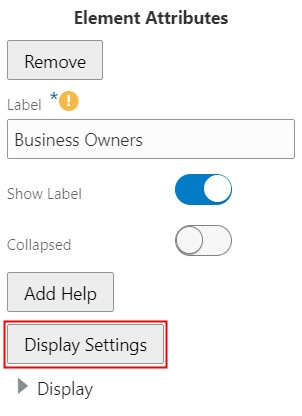
Elements Page
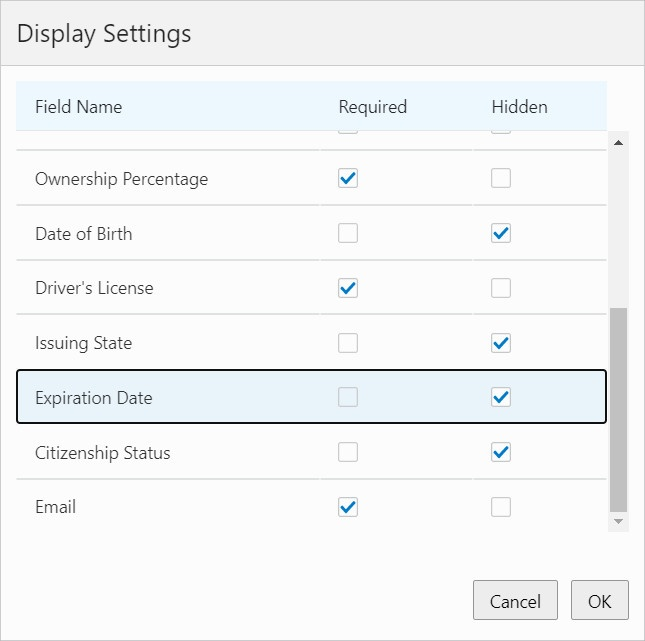
Display Settings
Allows the agency to hide a column or make a column required in the Business Owners field group.
Steps to Enable
When creating your Business License intake form, you can select the Business Owners field group and click the Display Setting button in the Attributes panel. This allows you to require or hide the attribute.
Inspection Console Bulk Reassignment
Inspection supervisors must now use the Inspections console page if they want to assign or reassign inspections in batch because the Supervisor Calendar has been removed. When you use the system's batch assignment, you can opt to exclude individual inspectors from the assignment pool as well exclude the inspection district from the assignment matching criteria.
This example illustrates the pages used to assign inspections in batch.
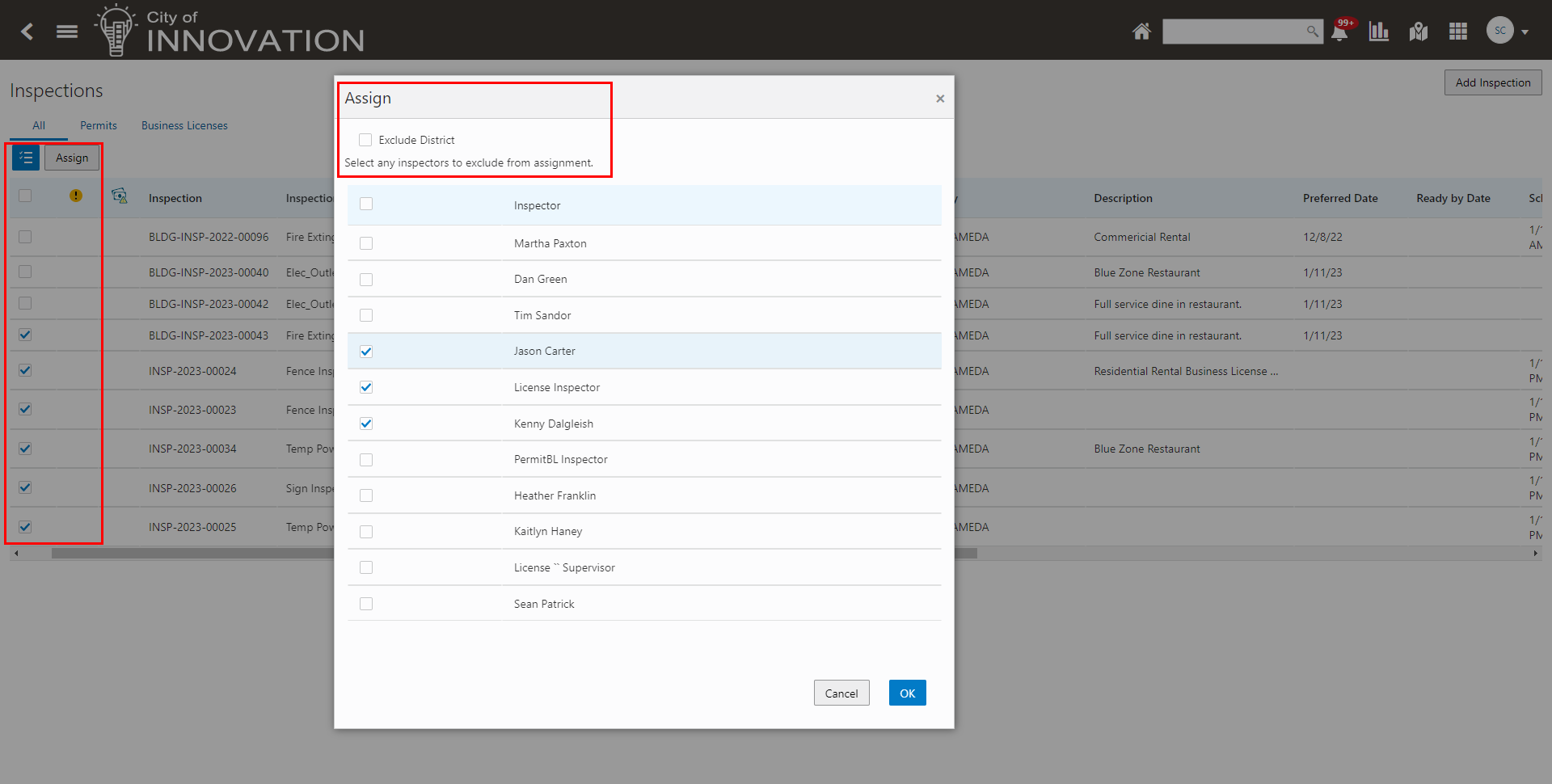
Inspections - Assign Page Used for Batch Inspector Assignments
This feature allows agencies to assign multiple inspections in a single selection.
Steps to Enable
You don't need to do anything to enable this feature.
Tips And Considerations
This functionality, previously found in the Supervisor Calendar, is no longer available from that location.
Key Resources
- See Using Community Development Permits, "Working with Permit Inspections," Assigning Inspections on the Oracle Help Center.
Inspection Request Date and Time Configuration
Agencies can now configure their permit and business license inspection requests so that public users enter a date without any time component when the Request and Ready scheduling methods are used. The options are Date only or Time range.
This example illustrates the permit options setup for inspections:
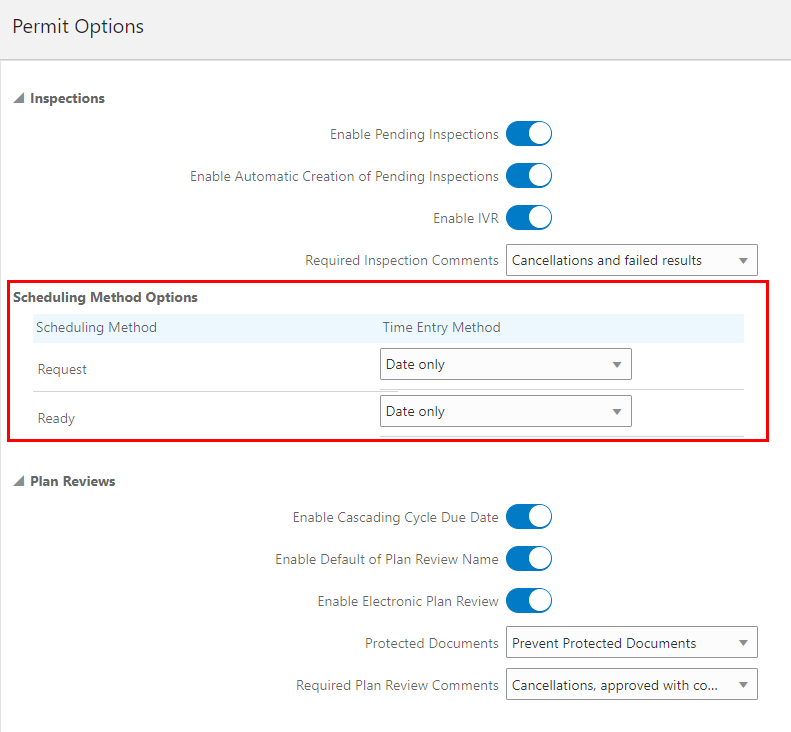
Permit Options Agency Setup Page - Scheduling Method Options
Allows an agency to decide and configure settings for inspections so that times and/or dates are not an option for public users when requesting or scheduling inspections.
Steps to Enable
To enable this feature:
- Navigate to Common Setup > Agency.
- Select the Features tab.
- Scroll to Schedule Method Options and select the desired options for scheduling inspections.
Tips And Considerations
This will require configuration of settings for the inspections at the agency level for permits and business licenses.
Key Resources
- See Implementing Permitting and Licensing, "Setting Up Permits," Setting Up Agency-Level Options for Permits on the Oracle Help Center.
- See Implementing Permitting and Licensing, "Setting Up Business Licenses," Setting Up Agency-Level Options for Business Licenses on the Oracle Help Center.
- See Using Community Development Permits, "Working with Permit Inspections," Requesting Inspections on the Oracle Help Center.
Configurable Plan Review Due Dates
Agencies can now configure the plan review system to automatically calculate cycle and reviewer due dates for a permit or planning application type. The due dates are displayed on the Plan Reviews page in the application details. The setup leverages time rules for defining the maximum review time for first or subsequent reviews to populate plan review cycle due dates as well as plan reviewer due dates based on department turnaround times.
This feature leverages Time Rule and Time Policy functionality to define plan review turnaround times. You associate the time rule definitions with the permit type or planning application type so that different application types can have different turnaround times. You can also decide to exclude Saturday and Sunday from the calculations. When you choose to exclude Saturday and Sunday, this will also exclude holidays as configured in your agency’s holiday calendar.
This example illustrates part of the time rules setup on a permit type.
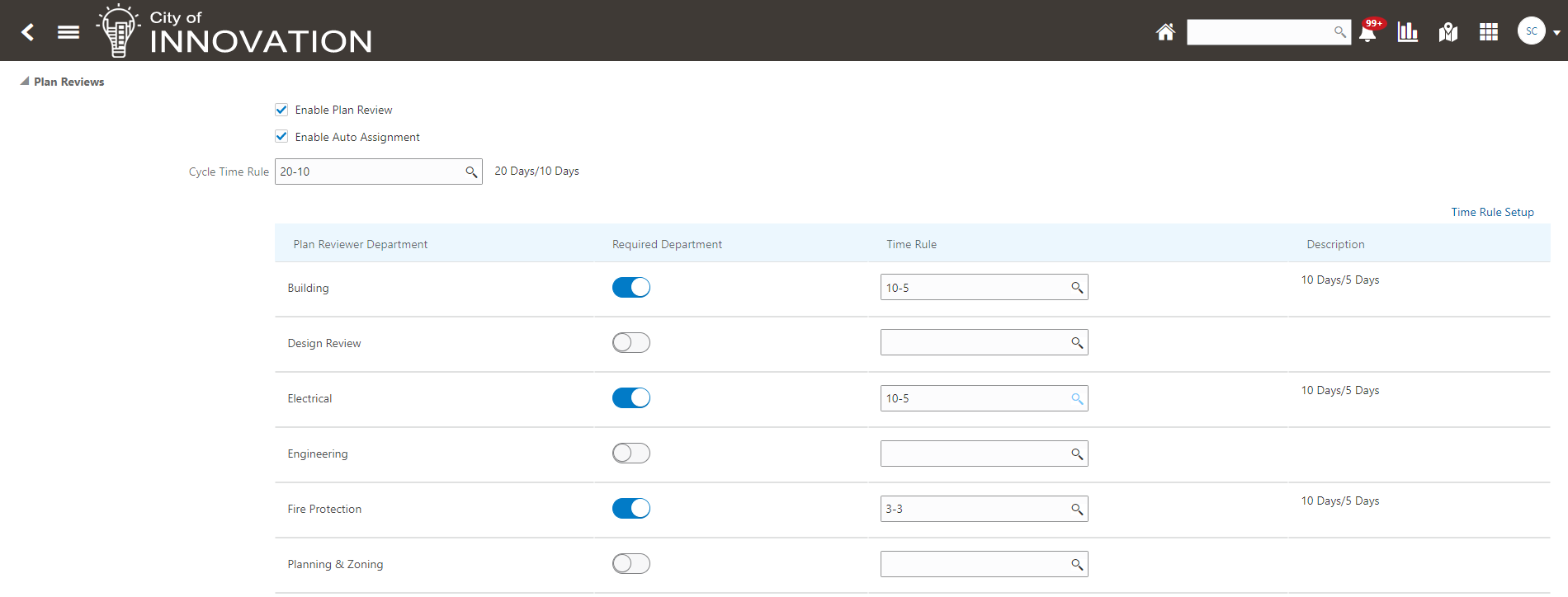
Permit Type Setup Page
The Plan Reviews page for a permit or planning application displays overdue icons as well as an indicator next to reviewer due dates that have been purposely configured to be past the cycle due date.
Allows the agency to set up due dates for each type of plan review. If configured, this will populate default separate due dates for each plan review department.
Steps to Enable
To enable this feature:
- Set up Time Rules page with time policies.
- Navigate to Common Setup > Time Rule.
- Configure the plan review time rules for the cycle level and department level on the Permit Type and Planning Application Type.
- Navigate to Permit Setup > Permit Type.
- Select the permit type you want to modify.
- Select Time Rule Setup link.
- Select the time rules you created.
- Navigate to Planning and Zoning Setup > Planning Application Type.
- Select the planning application type you want to modify.
- Select Time Rule Setup link.
- Select the time rules you created.
- Navigate to Permit Setup > Permit Type.
- Exclude Saturday and Sunday in the Plan Review due date calculations.
- Navigate to Common Setup> Agency.
- Enable the Exclude Saturday and Sunday switch in the Plan Review Section.
Key Resources
- See Implementing Permitting and Licensing, "Setting Up Plan Reviews," Setting Up Time Rules for Plan Reviews on the Oracle Help Center.
- See Using Community Development Permits, "Managing Plan Reviews," Managing Plan Review Cycles and Managing Plan Reviewers on the Oracle Help Center.
Plan Review Decision Statuses for Planning Applications
Agencies can now configure plan review decision status details separately for permits and planning and zoning on the Transaction Status-Plan Review Decision page. For each system-delivered plan review status, there can be different displayed descriptions for permits and planning and zoning, respectively, and they can also be enabled separately.
The configured plan review decision statuses appear on the plan review decision pages when performing plan reviews and in the Plan Reviews console page. The Permit Decision Description value is displayed for permit transactions and the Planning Decision Description value is displayed for planning application and preapplication transactions.
This example illustrates the separate columns for permit and planning decision descriptions and their respective enabled setting.
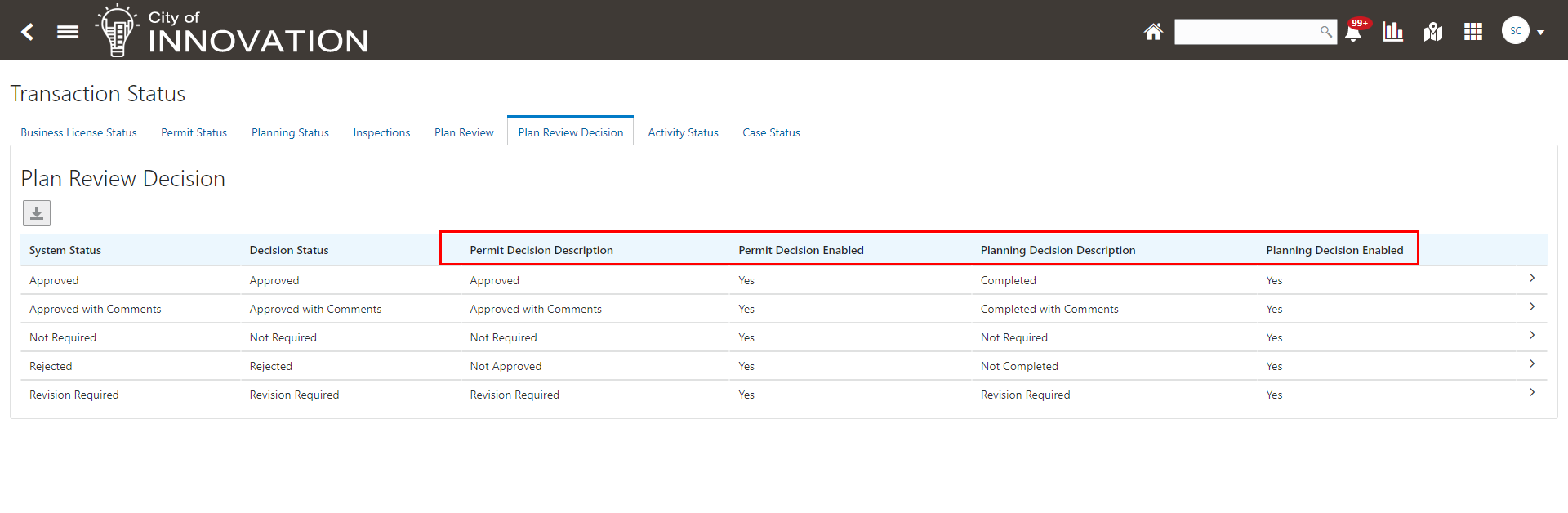
Transaction Status - Plan Review Decision Page
Select the system status row to update the plan review decision status details. In this example, the display values for the approved plan review decision status are Approved for Permits and Completed for Planning and Zoning.
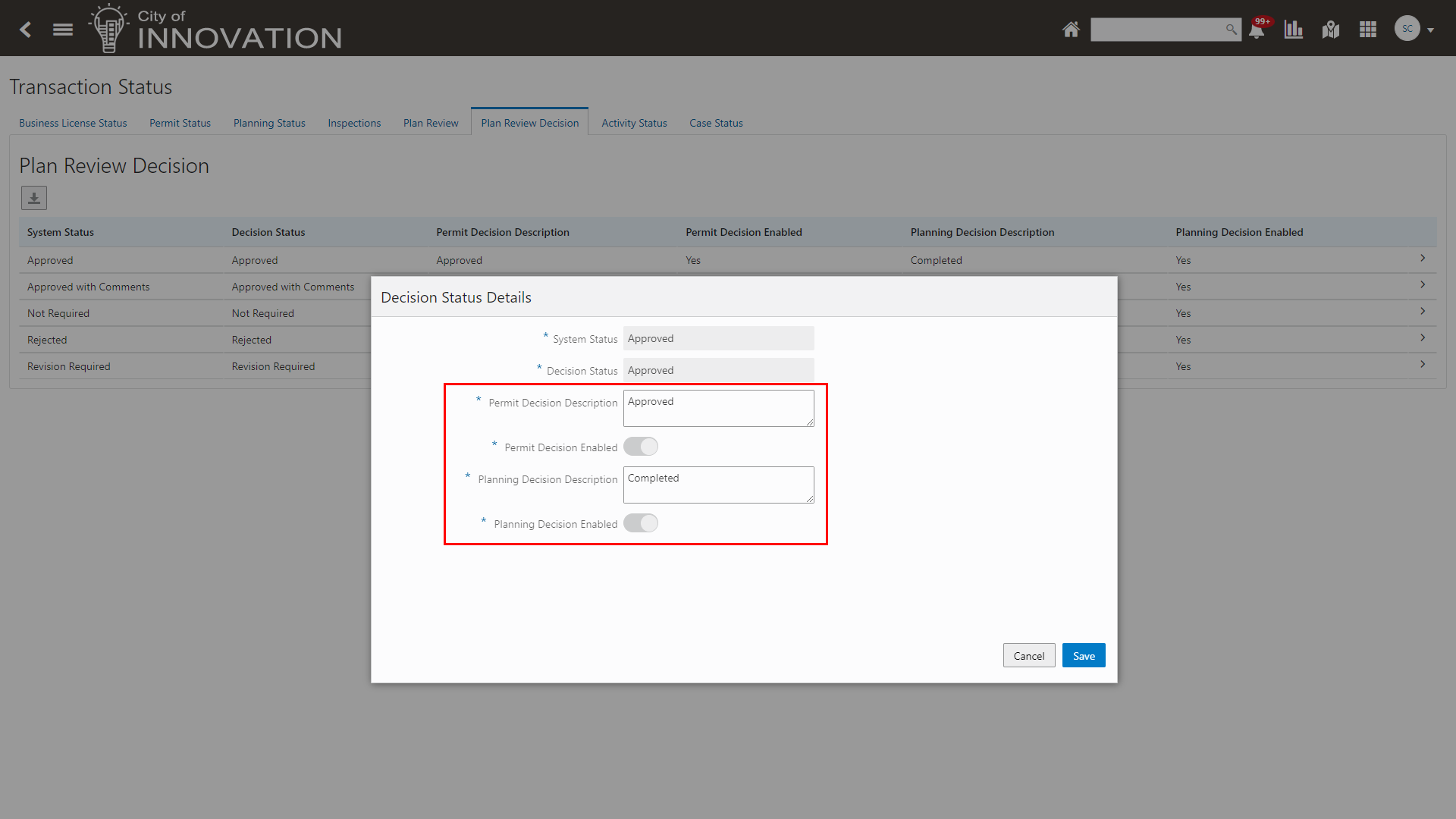
Plan Review Decision - Decision Status Details Page
Allows the agency to define a separate set of plan review decision statuses for planning applications.
Steps to Enable
An upgrade script will populate the review decision status values for planning application fields from the corresponding permit fields on the Transaction Status - Plan Review Decision page.
Tips And Considerations
This feature requires agency configuration on the Transaction Status - Plan Review Decision page, including the new Planning Decision Description field for enabled statuses. The description is the display value for plan review decisions, such as Completed or Not Completed.
Key Resources
- See Implementing Permitting and Licensing, "Setting Up Plan Reviews," Setting Up Plan Review Statuses on the Oracle Help Center.
- See Using Community Development Permits, "Managing Plan Reviews," Performing Plan Reviews on the Oracle Help Center.
Update Workflow Action for Public Hearing Events
The Update Workflow action is now enabled for the Public Hearing events in the Business Rules Framework (BRF). The agency can configure a business rule to automatically update an active workflow task when the public hearing is updated (and any other conditions if defined in BRF are met). The Update Workflow action leverages the OIC workflow custom property to determine which workflow task to update and what status to update to.
For example, a business rule can be configured with an action to automatically advance the workflow task from Public Hearings to Process Appeals when the agency's planner updates the planning application's public hearing decision.
This example illustrates the Update Workflow action configuration for the Hearing Decision Changed event, which is a one-time setup to trigger the workflow advancement:
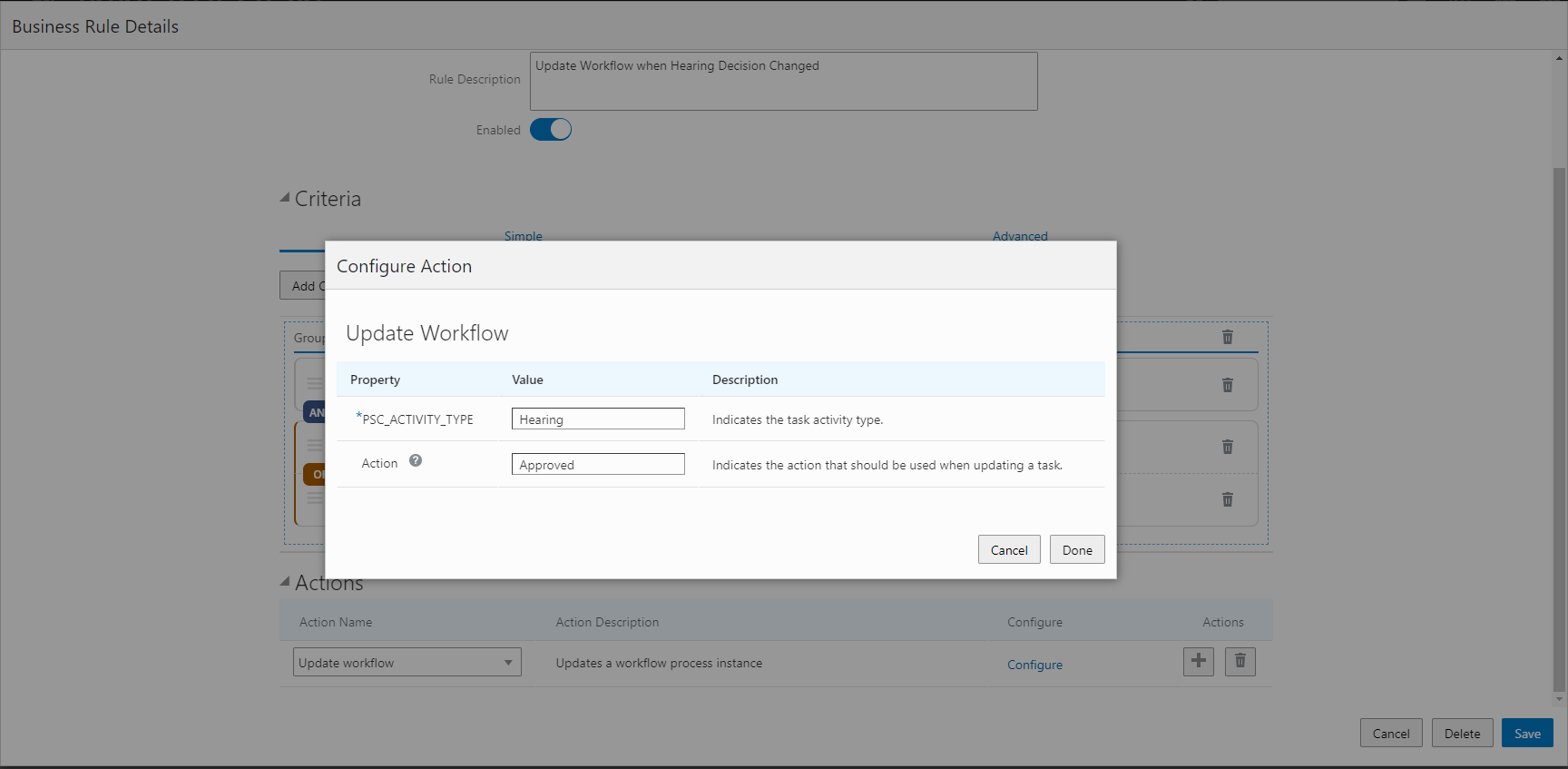
Business Rule Details - Configure Action Page
This example illustrates the workflow task advanced from Public Hearings to Process Appeals after the public hearing decision is approved:
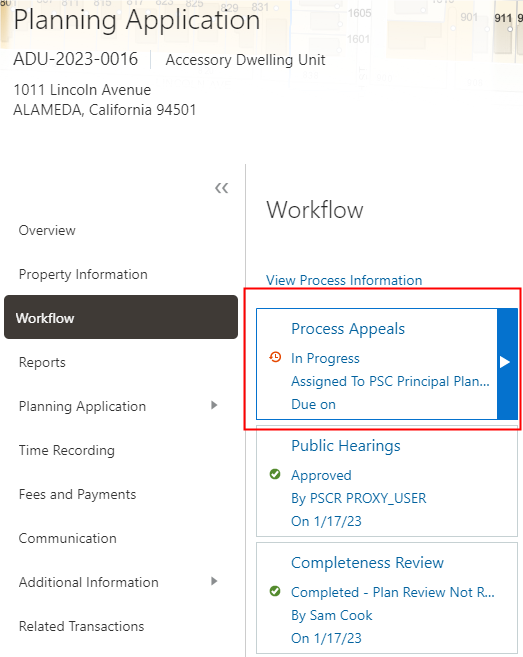
Planning Application - Workflow Page
Allows the agency to define a rule in the business rules framework to automatically update advance the workflow task when the hearing decision is updated.
Steps to Enable
To enable this feature:
- Configure the workflow model in Oracle Integration Cloud (OIC) to identify the hearing task with the custom property of PSC_ACTIVITY_TYPE.
- Configure a Business Rules Framework event for Planning and Zoning Hearings to update the workflow task.
See Key Resources for links to documentation for these steps.
Tips And Considerations
This workflow update automation requires the agency to define a rule in the Business Rule Framework.
Key Resources
- See Implementing Permitting and Licensing, "Implementing the Business Rules Framework" Setting Up Update Workflow Actions on the Oracle Help Center.
- See Using Community Development Planning and Zoning, “Managing Applications for Planning and Zoning,” Working with Public Hearings on the Oracle Help Center.
- See Using Community Development Planning and Zoning, “Managing Applications for Planning and Zoning,” Using Workflow on the Oracle Help Center.
Agencies can now configure Activities based on agency defined hearing decision statuses.
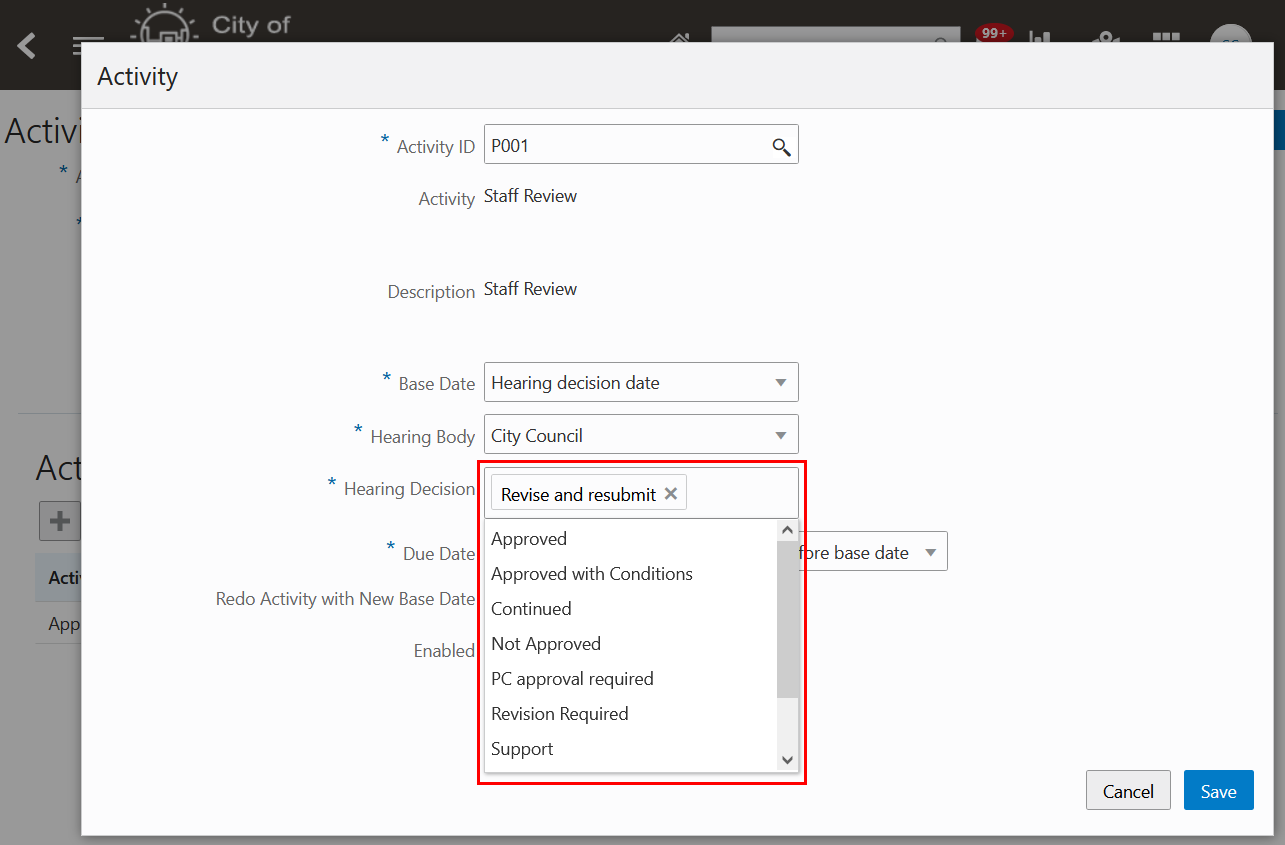
Activity Group Page
Currently, you can add new agency defined hearing decision statuses in the Hearing Decision Status page.
This feature allows the agency to generate and track planning activities based on agency defined hearing decision status.
Steps to Enable
To enable this feature:
- Create your own hearing decision statuses.(Skip this step if you already have existing hearing statuses.)
- Navigate to Hearing Setup > Hearing Decision.
- Select the Plus button to add a new Hearing Decision status.
- Configure activities based on the statuses created above.
- Navigate to Common Setup > Activity Group.
- Open an existing Activity group or select the Plus button to add a new Activity Group.
- Select the Hearing Decisions you created in the previous step when adding activities to the Activity Group.
Tips And Considerations
Once the planning hearing decisions have been configured, the agency defined decisions are displayed and can be selected in the Activity modal.
Key Resources
- See Using Community Development Planning and Zoning, “Tracking Planning Application Activities,” Overview of Activity Tracking for Planning Applications on the Oracle Help Center.
Recurring Fines Per Code Violation
Agencies can now manage recurring fines against an individual code violation. The recurring fine is assessed based on the violation comply by date, number of days in violation and rate per violation.
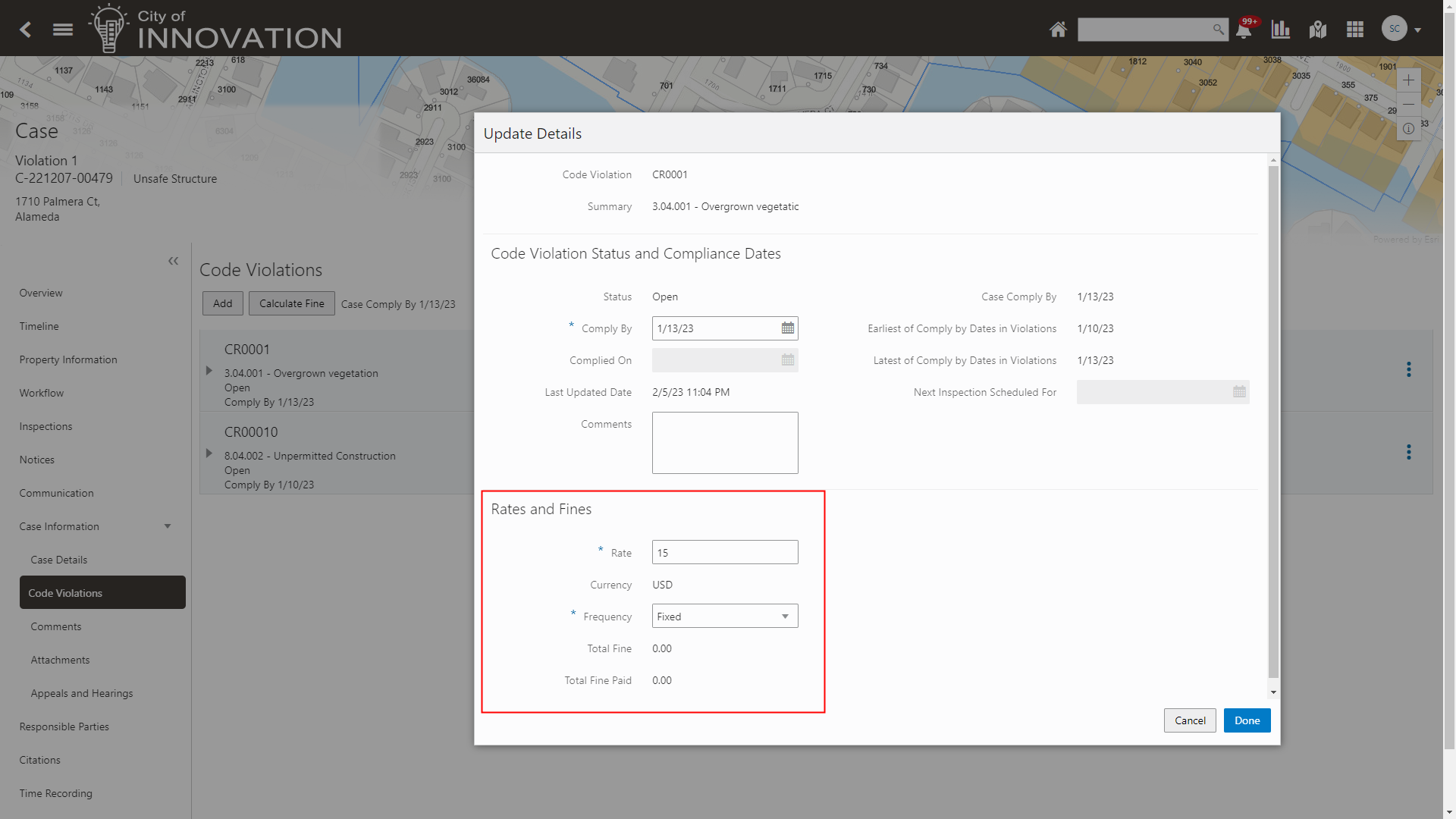
Code Violations - Update Details Page
This example illustrates the Code Violations - Update Details page displaying sections for:
- Code Violation Status and Compliance Dates
- Rates and Fines
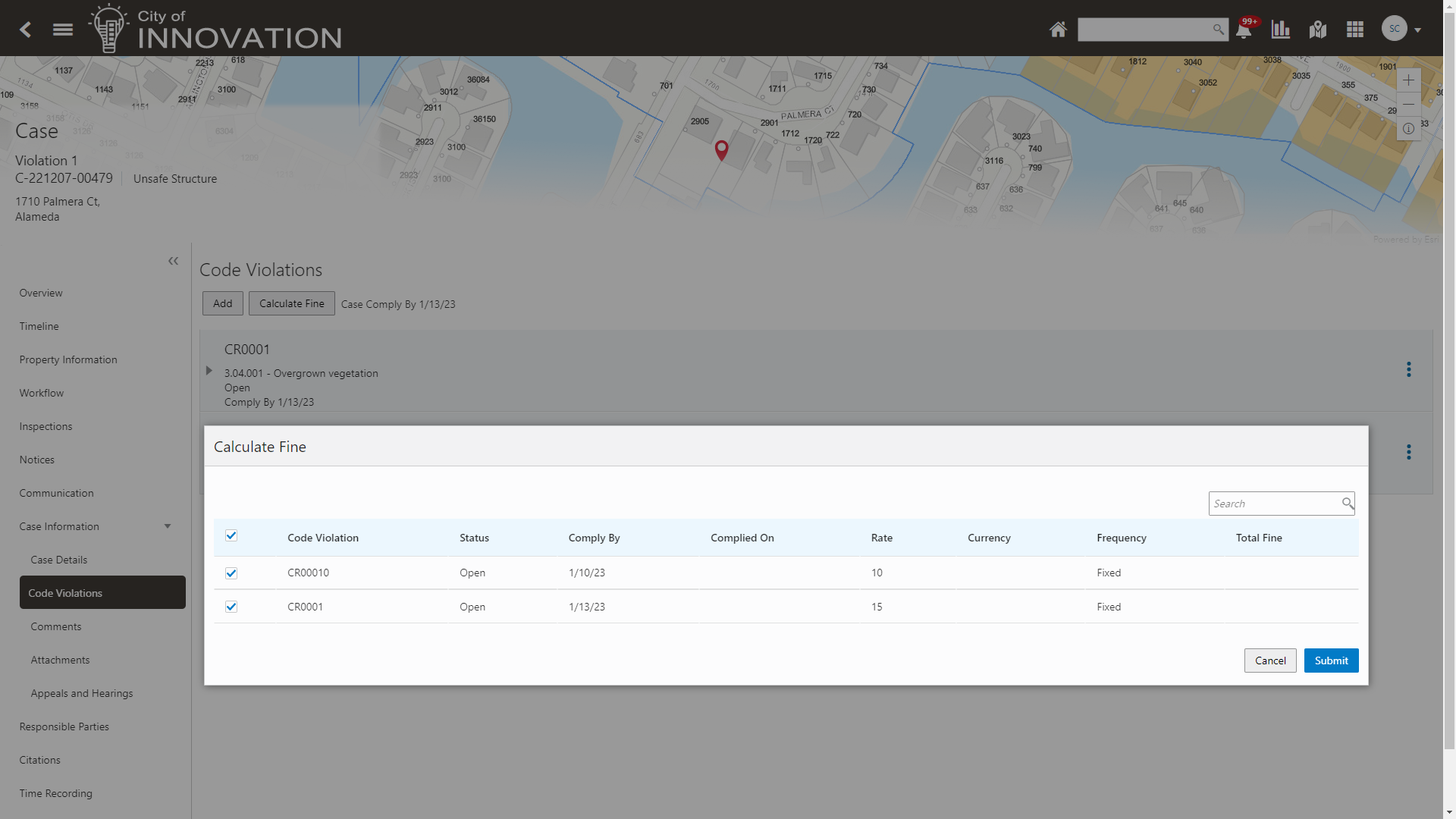
Code Violations - Calculate Fines Page
This example illustrates the Code Violations - Calculate Fine button on the Code Violations page and the Calculate Fines modal page.
You can now manage recurring fines against an individual violation. This includes capturing the starting date, number of days in violation and a rate per violation. Each violation that generates a recurring fine will automatically assess a separate fee.
Steps to Enable
To enable this feature:
- Create a DMN fee model in Oracle Integration Cloud (OIC) calculated fees based on Code Violations.
- Associate the DMN fee model created above to a Fee Schedule where the Fee Mapping Source is "Code Enforcement Violation Fees".
- Complete the Fee Mapping from the Fee Schedule.
- From the Business Rules Framework, create a Schedule Rule where the resource is "Code Enforcement Violation Fees".
See Key Resources for links to documentation for creating DMN Fee Models.
Tips And Considerations
Alternatively, the agency staff can manually trigger the calculation from the Code Violations page using the Calculate Fine button.
Key Resources
- See Using Community Development Code Enforcement, "Working with Code Enforcement Fees and Payments", Calculating Recurring Fines for Code Violations on the Oracle Help Center.
- See Using Community Development Code Enforcement, "Working with Code Violations", Calculating Fines for Code Violations on the Oracle Help Center.
- See Implementing Your Cloud Integrations, "Configuring Fee Decision Models" on the Oracle Help Center.
Cost Recovery Through Time Recording and Time Based Fees
Agencies can now record the time spent on various case-related activities for the purposes of reporting and billing. A new link for Time Recording is available on the Case page to:
- Record and categorize time
- Mark time as billable or not
- Assess fees
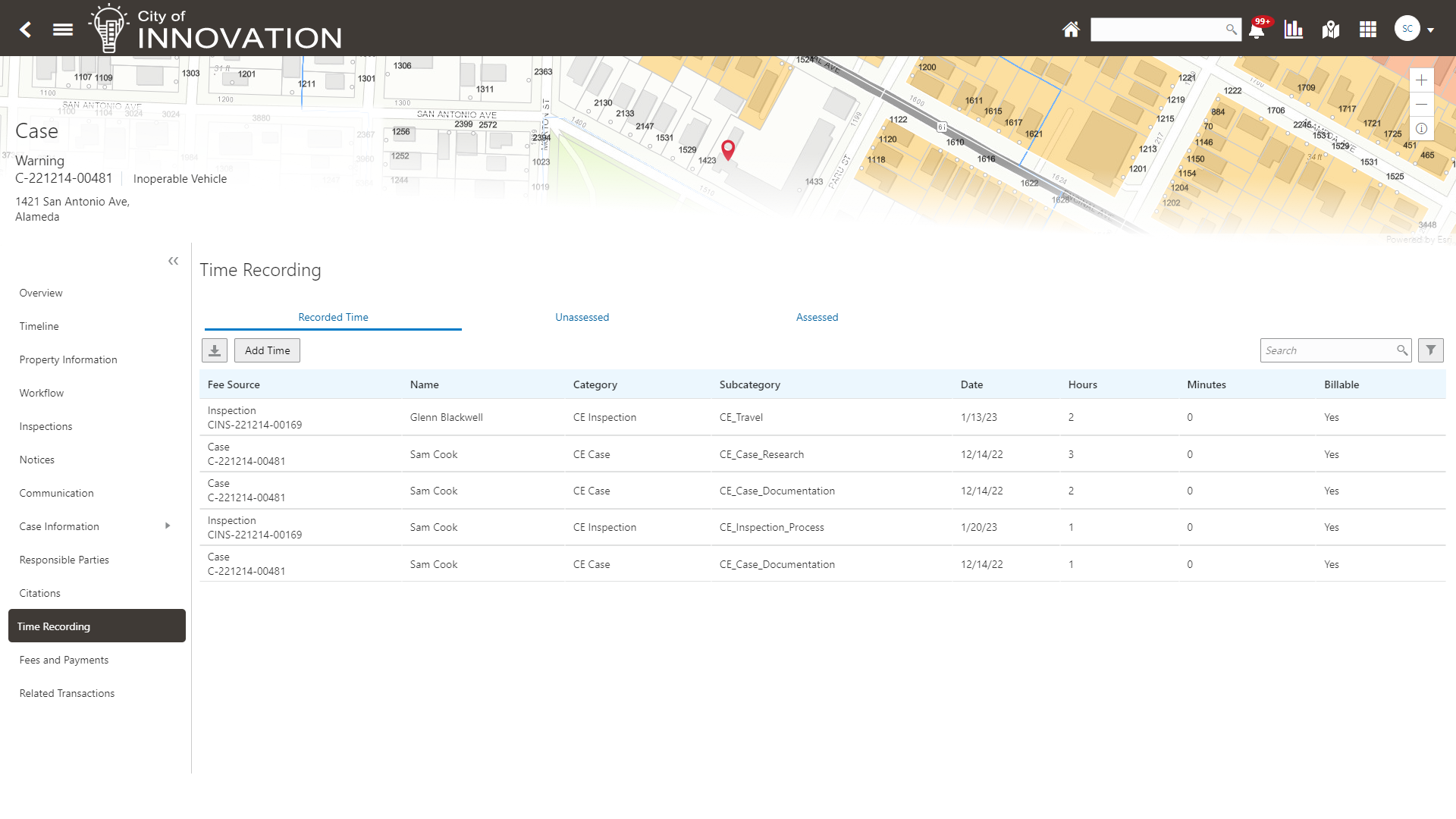
Time Recording Page
You can now track the time spent on a case as part your agency's cost recovery efforts. You can decide track time spent by category, decide whether time is billable and automatically assess a fee.
Steps to Enable
To enable cost recovery:
- Navigate to Time Recording Setup > Time Entry Type.
- Configure the Time Type Codes for Code Enforcement. The code can be either for a case or an inspections.
- Create a DMN fee model in Oracle Integration Cloud (OIC) to calculate fees based on time spent on a Code Case and/or Code Inspection.
- Associate the DMN fee model to a Fee Schedule where the Fee Mapping Source is the "Time Recording for Code Enforcement Case" or "Time Recording for Code Enforcement Inspection".
- Complete the Fee Mapping from the Fee Schedule.
- Use the Time Recording page from Case Details, to record the staff's time.
See Key Resources for links to documentation to complete these steps.
Key Resources
- See Using Community Development Code Enforcement,"Recording and Billing Time" on the Oracle Help Center.
- See Implementing Your Financial Framework, "Setting Up Fee Items" on the Oracle Help Center.
Code Violation Comply By Dates
Cases with multiple code violations can now have a different comply by date for each code violation. You can update a code violation comply by date for a case, which will reschedule the inspection date as per time rules set and the new rescheduled inspection date is displayed. The inspection will continue to be scheduled based on the case comply by date via the reinspection time rule and not on any of the individual violation comply by dates. When multiple violations exist, and those violation comply by dates are different, the case comply date is automatically updated with the violation date that is the furthest out.
You can update the comply by date from any of these pages:
- Case Overview
- Inspections
- Hearing
- Violation pages
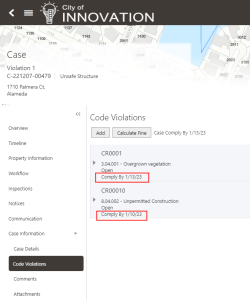
Code Violations Page
This example illustrates a case with two code violations having different comply by dates.
The case timeline only displays the case comply dates. You can see the violation comply dates using the pages listed above.
Track and manage separate comply by dates for each code violation. The rescheduled inspection date is displayed whenever the comply by date changes from the case overview, inspection, hearing, or violation page.
Steps to Enable
You don't need to do anything to enable this feature.
Key Resources
- See Using Community Development Code Enforcement, "Managing Cases", Viewing the Case Detail Overview on the Oracle Help Center.
The Business License offering now supports business license inspections for business license transactions, including origination, amendment, and renewal activities. Business license inspections are supported by the same robust inspections functionality used for permits, including the Oracle Inspector mobile application for performing inspections.
Agency staff and public users with permissions can request inspections and access business license inspection details in the business license activity details. Agency staff can manage business license inspections in the Inspections console. Applicants, business owners, and contacts with access can view a list of their business license inspections by clicking the Inspections tile on the registered user landing page.
This example illustrates the Business Licenses tab on the Inspections console page, where agency staff can view and manage the business license inspections for an agency.

Inspections Console Page for Agency Staff - New Business Licenses Tab to Display Business License Inspections Only
This example illustrates the Inspections page in the business license activity details for an origination application.
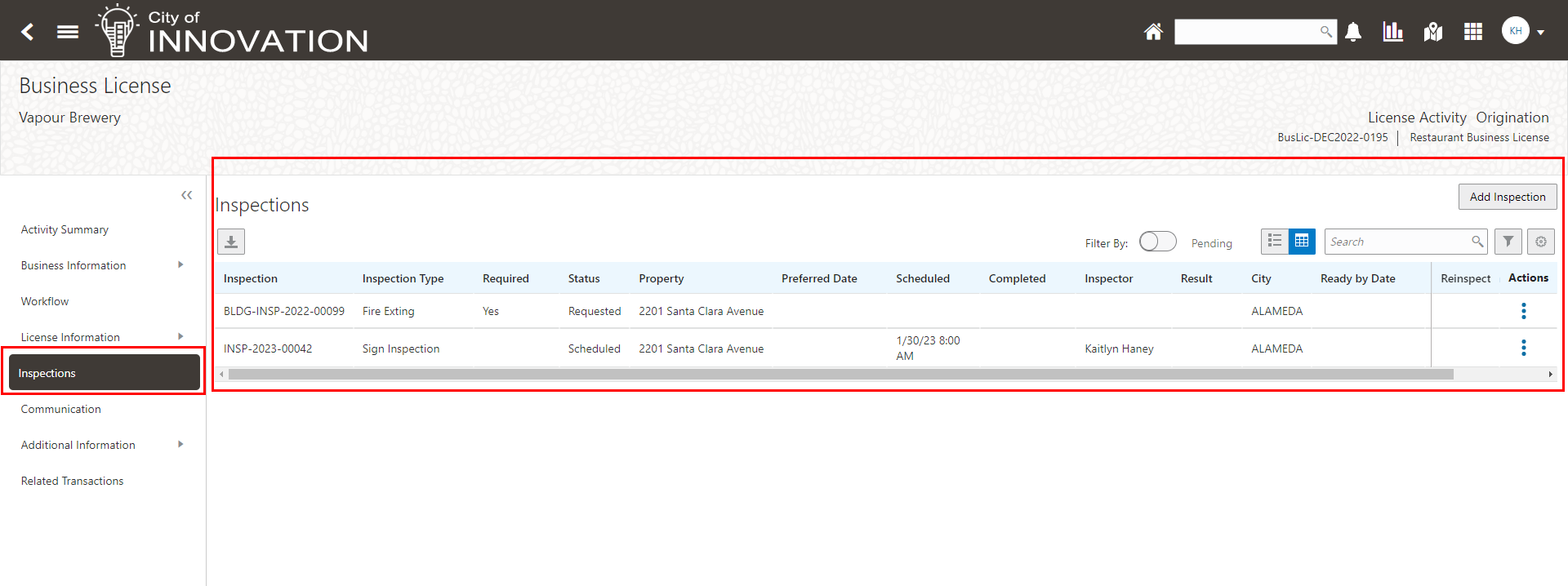
New Inspections Menu Button and Inspections Page in the Business License Activity Detail
The process for requesting an inspection follows the same flow as for permits.
Your agency can also leverage the same Business Rules Framework events and communication events templates that are available for permits. In addition to the standard inspection setup, agencies can set up this functionality for business license inspections:
- Pending inspections
- Interactive voice response
- Required inspection comments
The agency sets up business license inspectors using new job functions specifically for business licenses:
- ORA_BL_INSPECTION_SUPERVISOR
- ORA_BL_INSPECTOR
This setup is required for assigning an inspector to a business license inspection. The same job attributes are assigned to both permit inspectors and business license inspectors: District, Permit Type or Business License Type, and Work Schedule. Blank values can be used to indicate all district types and all permit or business license types.
Allows the agency to implement full inspection features and functionality for business licenses. This includes requesting, scheduling, and providing results for business license inspections.
Steps to Enable
To create the Business License Inspection setup:
- Create an Inspection Type.
- Navigate to Inspection Setup > Inspection Type.
- Use the plus button to add Inspection Types.
- Create an Inspection Group.
- Navigate to Inspection Setup > Inspection Group.
- Use the plus button to add an Inspection Group.
- Create Checklist/Checklist Group.
- Navigate to Inspection Setup > Inspection Checklist.
- Use the plus button to create an Inspection Checklist.
- Reuse or create a new setup for Assessment Type, Passing Rule and Rating Method.
- Create checklist items.
- Create a Checklist Group.
- Navigate to Inspection Setup > Checklist Group.
- Use the plus button to create Checklist Group.
- Associate Inspection Group to the Business License Type.
- Navigate to Business License Setup > Business Type.
- Scroll to Inspections and associate the appropriate Inspection Groups to the Business License Type.
Tips And Considerations
This will require full configuration of inspection types, groups, and results and associating them to the appropriate business license types.
Key Resources
- See implementing Permitting and Licensing, "Setting Up Inspections" on the Oracle Help Center.
- See Implementing Your Agency, "Setting Up Your Agency Staff," Setting Up Agency Staff on the Oracle Help Center.
- See Using Business Licenses, "Working with Business License Inspections" on the Oracle Help Center.
Access Requirements
The agency sets up business license inspectors using new job functions specifically for business licenses. Update or set up Agency Staff, Job Functions:
- ORA_BL_INSPECTOR - Business License Inspector
- ORA_BL_INSPECTOR_SUPERVISOR - Business License Inspection Supervisor
The same job attributes are assigned to both permit inspectors and business license inspectors: District, Permit Type or Business License Type, and Work Schedule. Blank values can be used to indicate all district types and all permit or business license types.
- ORA_PSC_BUSINESS_LICENSE_MANAGER_JOB
- ORA_PSC_BUSINESS_LICENSE_SPECIALIST_JOB
- ORA_PSC_CHIEF_BUILDING_OFFICER_JOB
Agency Defined Tax Attributes for Business Licenses
Agencies can now define custom tax attributes to better represent their business license tax classes. These measurable attributes can be used to calculate business taxes and for ad-hoc reporting.
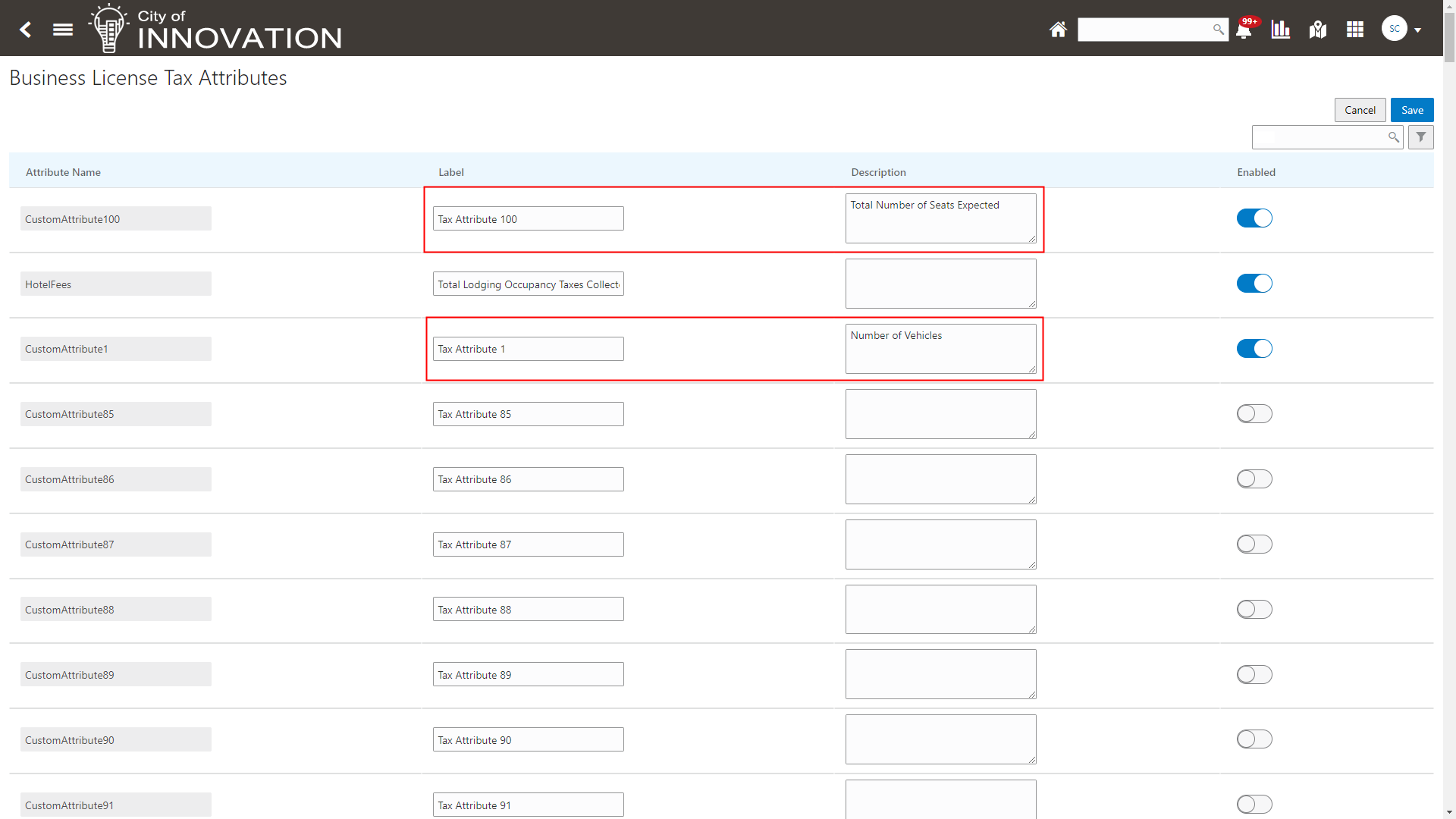
Business License Tax Attributes Page
This feature enables more precise configuration of business license tax classes.
Steps to Enable
To update the label and description of the Business License Tax Attributes:
- Navigate to Business License Setup > Business License Tax Attribute.
- Update the label and descriptions for the Tax Attributes.
- Select the tax attributes you wish to enable.
Key Resources
- See Implementing Permitting and Licensing, "Setting Up Business Licenses", Setting Up Business License Tax Attributes on the Oracle Help Center.
Agency Edits of Business License Information
Agency staff with access can now update business and license information from all business information pages, like Business Details, Owners, and Location.
Quickly update business and license information when managing in-person or phone transactions.
Steps to Enable
You don't need to do anything to enable this feature.
Penalty and Late Fees for Business Licenses
Agencies can now charge penalty and late fee on renewal applications submitted after the expiration grace period.
When business users are filling the application for a renewal of their business license, the system automatically adds fee components calculated based on the number of days past expiration date and your agency’s fee schedule settings.
This example illustrates the late fee charged on a renewal application form:
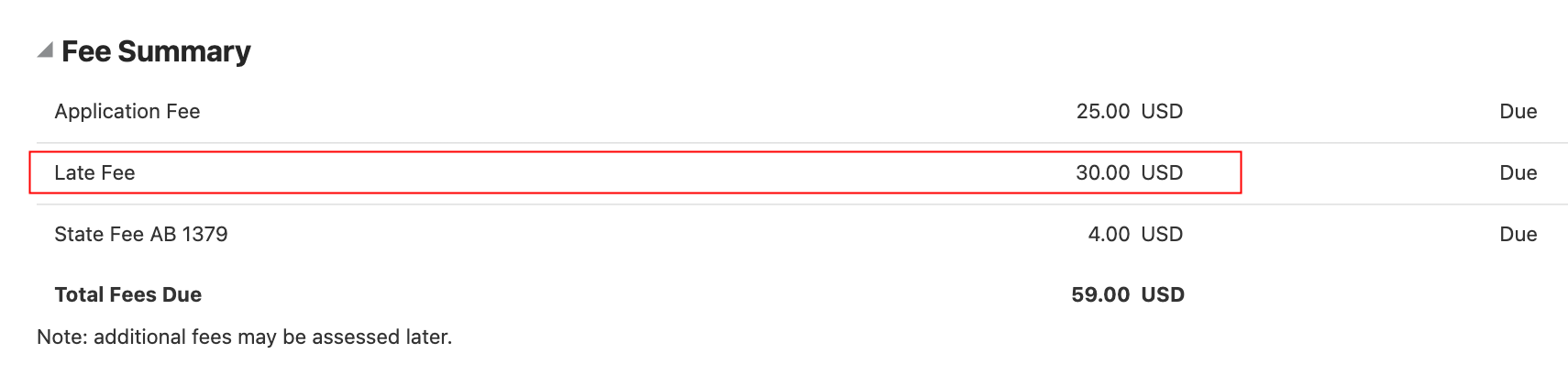
Renewal Application form – Fee Summary Section
Allowing agencies to calculate penalties and late fees when the business license is renewed after the expiration grace date grants more flexibility to the agency.
Steps to Enable
To enable this feature you must:
- Create a DMN fee model in Oracle Integration Cloud (OIC) that considers the current date, renewal due date, and the submit date.
- Associate the fee model created above to a fee schedule, which is then associated to a Business License Type.
- From the Form Designer, use the Fee Mapping page to map the current date, renewal due date, and the submit date to the DMN fee model.
See Key Resources for documentation links for these steps.
Tips And Considerations
The DMN fee model should include branching logic based on if the submit date is blank. It should then use the duration between the current date and the renewal due date to determine the number of days late the renewal is started. If the submit date is populated, then use the duration between the submit date and the renewal due date.
Key Resources
- See Using Business Licenses, "Managing the Business License" Applying for a Business License Renewal on the Oracle Help Center.
- See Using Business Licenses, "Managing the Business License" Applying for a Business License Amendment on the Oracle Help Center.
- See Implementing Your Cloud Integrations, "Configuring Fee Decision Models" on the Oracle Help Center.
Security Role Based Access to Business License Information
Agency administrators can now decide which information they want to show or hide from various types of users. By assigning users to roles that have predefined access to confidential business information, users can view values in the fields such as the federal, state, and city tax ID.
This example illustrates the field values that are hidden from contacts with application access:
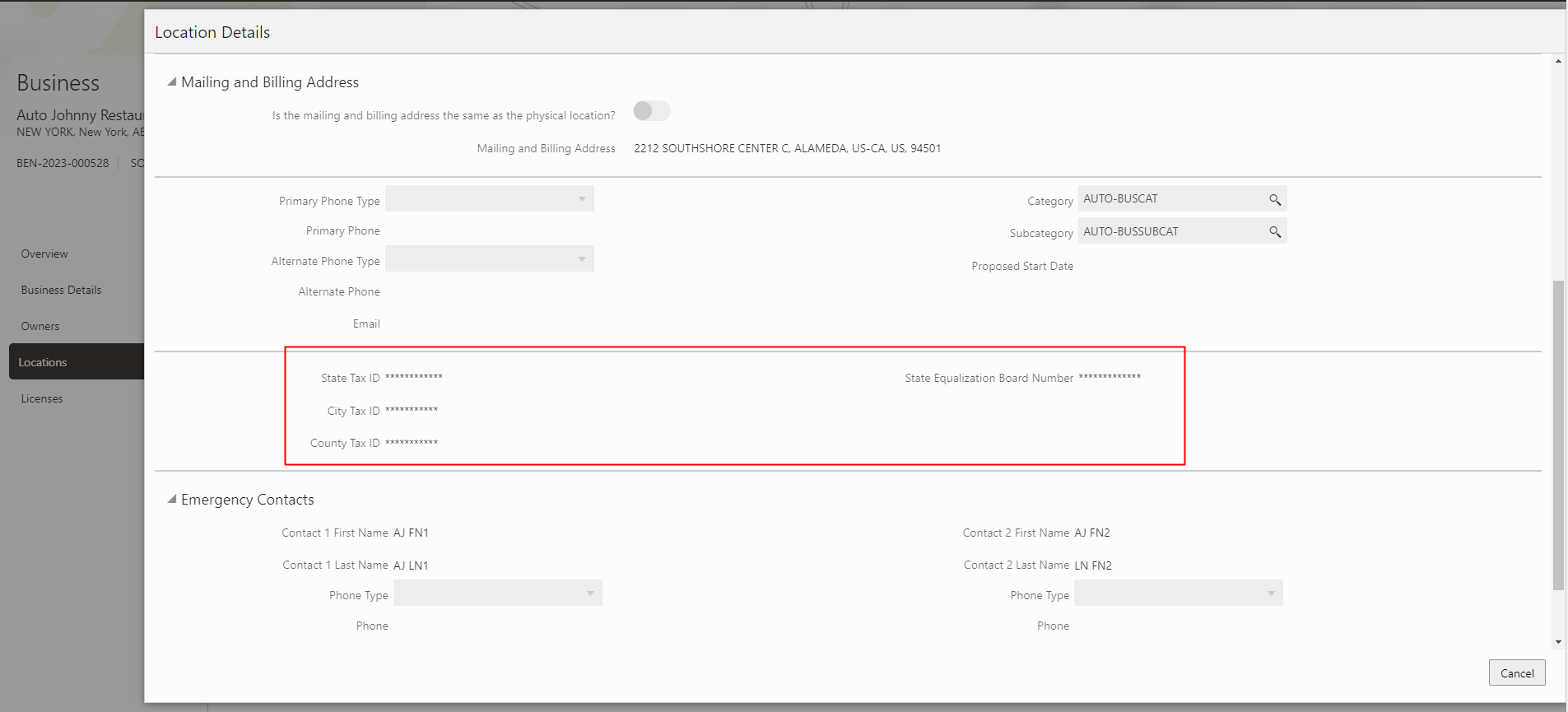
Business – Location Details Page
Sensitive information can be protected from agency staff that do not require the information to perform their responsibilities.
Steps to Enable
Provide the required access before using the feature. Details are in the Access #Requirements section.
For agency defined security roles, the new "limited confidential" role can be added to grant limited access to business owner information.
A new security role, ORA_PSC_BL_ACCESS_LIMITED_CONFIDENTIAL_DATA, has been added that allows agency staff limited access to business owner information.
Key Resources
- See Using Business Licenses, "Managing Business License Applications," Viewing a Summary of Business License Activity on the Oracle Help Center.
- See Implementing Security, "Managing Roles" on the Oracle Help Center.
Access Requirements
This new "limited confidential" role has been added to the following:
- PSC Building Inspector
- PSC Chief Building Officer
- PSC Code Enforcement Supervisor
- PSC Inspections Supervisor
- PSC Zoning Administrator
You can also add this role to any other job roles necessary for your agency.
Additional Attributes for Location and Owners Pages
We’ve added new attributes to collect citizenship status for owners of a business:
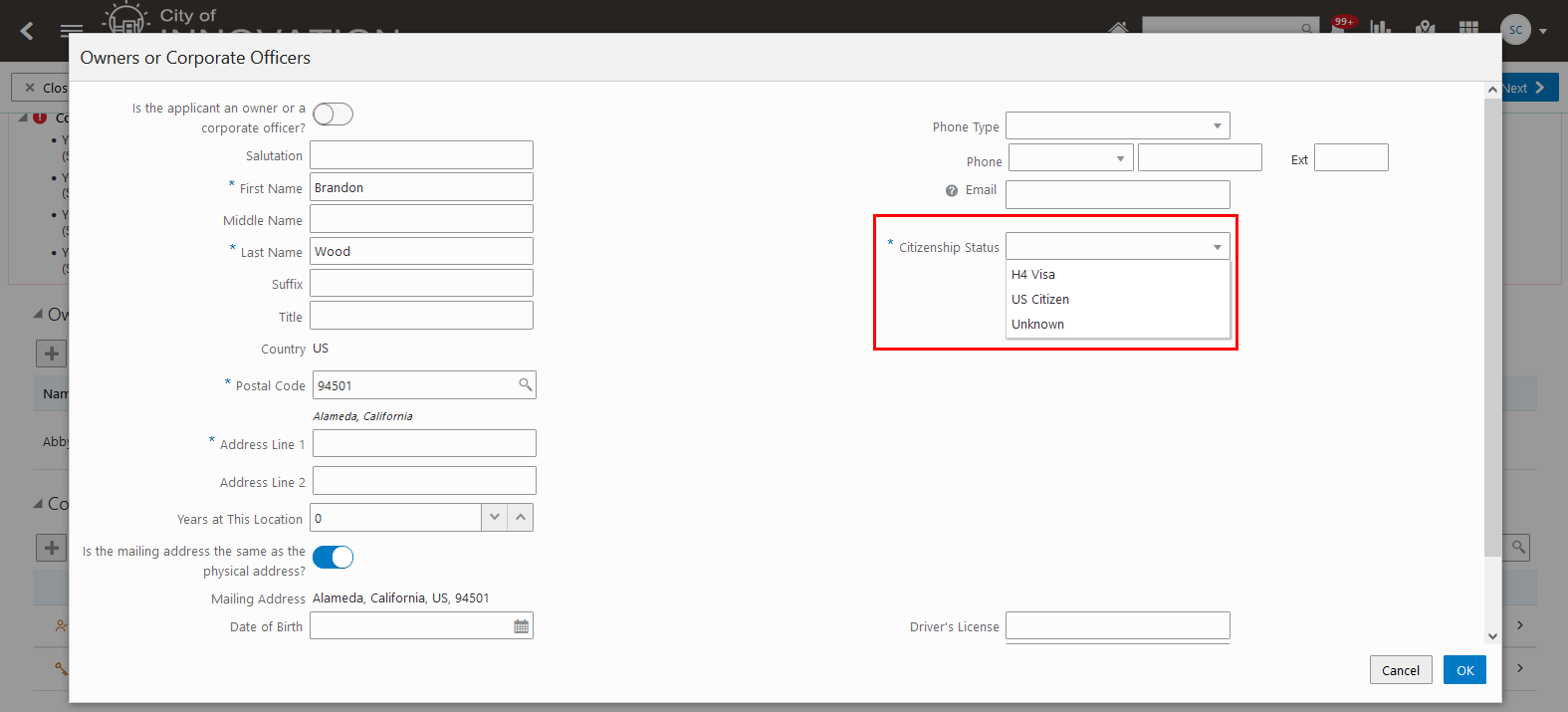
Owners or Corporate Officers Page
This is agency-defined and can be required or hidden depending on your agency’s preferences when you create the business license.
Additionally, you can identify the location type for business activity:
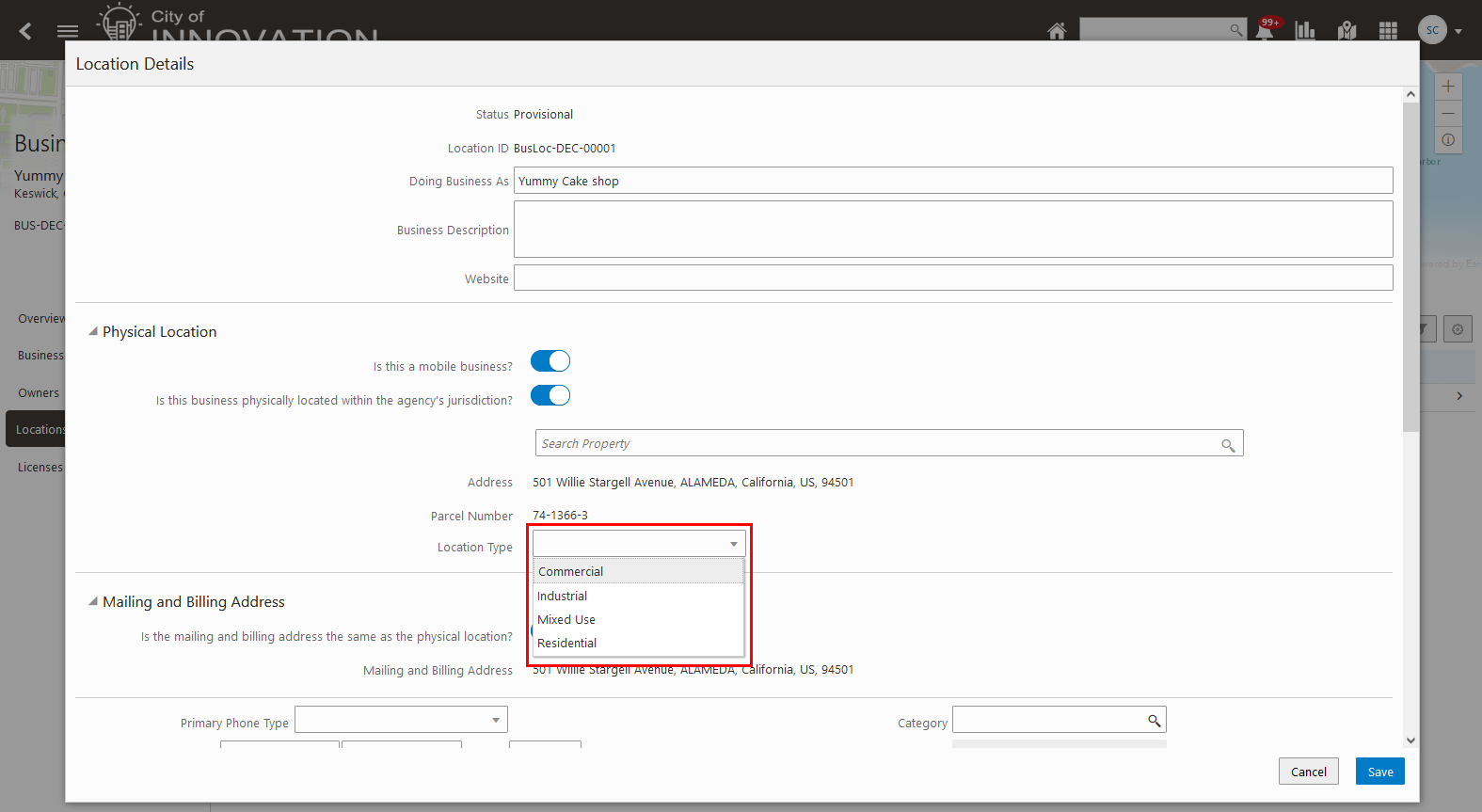
Location Details Page
These responses are defined by the agency. For example, you can add “Residential” or “Mixed Use” so you can easily identify where the business is located.
The Business Details page has been redesigned:
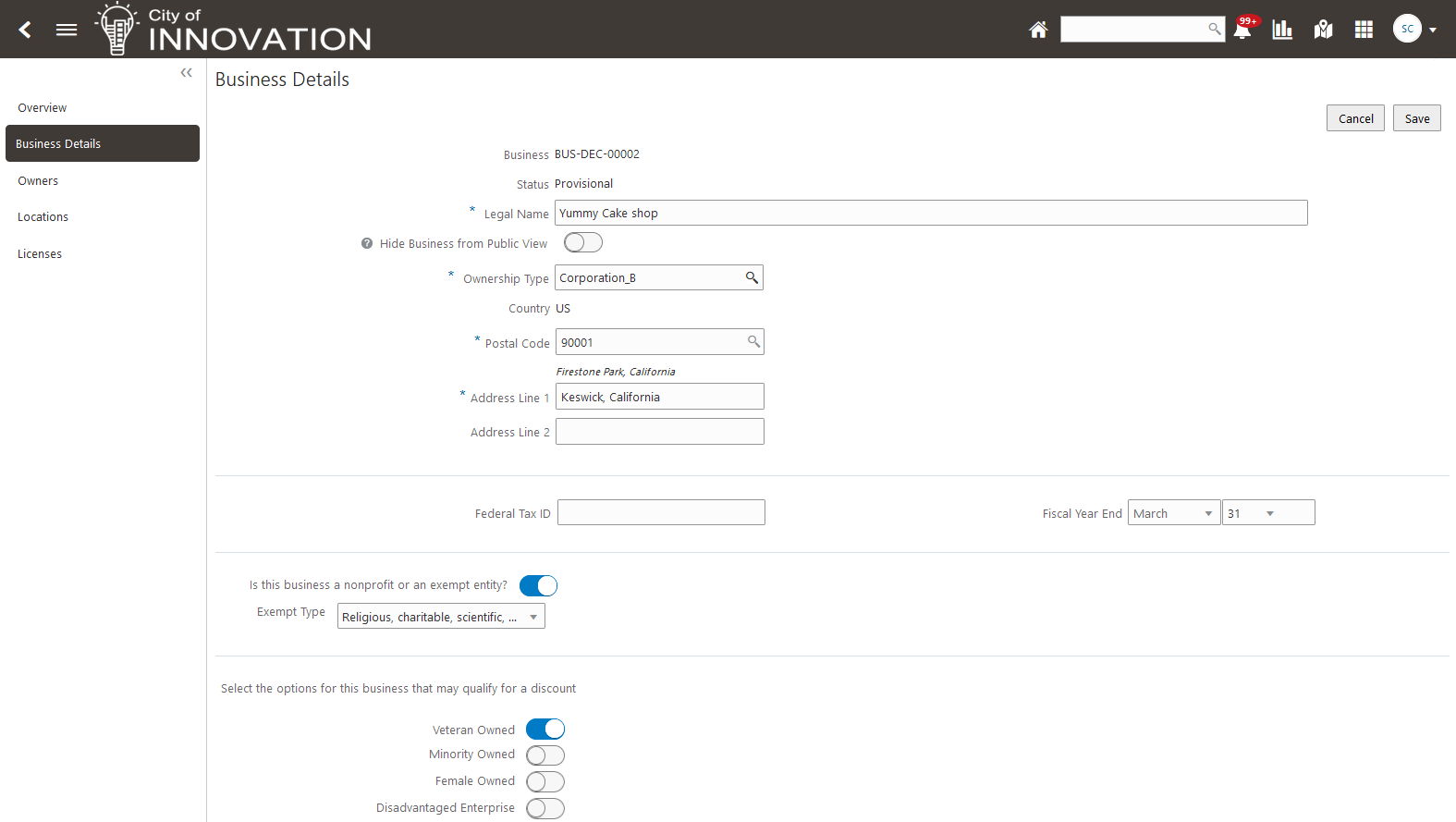
Business Details Page
Any updates you make on this page will be automatically synced to the current business licenses as well as in-progress activities for this business.
This feature introduces productized attributes for citizen status and exemption. Provides agency-defined entries for location type.
Steps to Enable
To require or hide the citizenship status complete the following steps:
- If you want to require the status, you will need to create lookup values.
- Navigate to Common Setup > Lookups.
- Search for "Citizenship" or select ORA_PSC_BL_CITIZENSHIP_STATUS.
- Using the plus button, create the statuses for your agency.
- Once the lookups are created, open your business license type in the Form Designer.
- In the Business Owners predefined field group, choose the display setting for Citizenship as either "Required" or "Hidden".
You will need to create the lookups for the location type for business activity.
- Navigate to Common Setup > Lookup Type Details.
- Choose ORA_PSC_BL_LOCATION_TYPE.
- Using the plus button, add the location types for your agency.
Tips And Considerations
Attribute display is controllable in Business License Designer. On the Location Type page, the Business Location attribute was added. Additionally, on the Business Owner page, the Citizenship Status field was added.
Business License Transaction, Inspection, and All Attachment Tabs
New tabs appear on the Attachments page in the business license transaction details: Business License, Inspections, and All. Whereas you could previously see only documents uploaded directly to the business license attachments, now you can also see:
- Inspections - This tab displays documents that were uploaded in the Oracle Inspector mobile application for an inspection associated with the business license transaction.
- All - This tab displays documents from the following sources: the business license transaction itself, inspections, and workflow.
This example illustrates the tabs with new content:
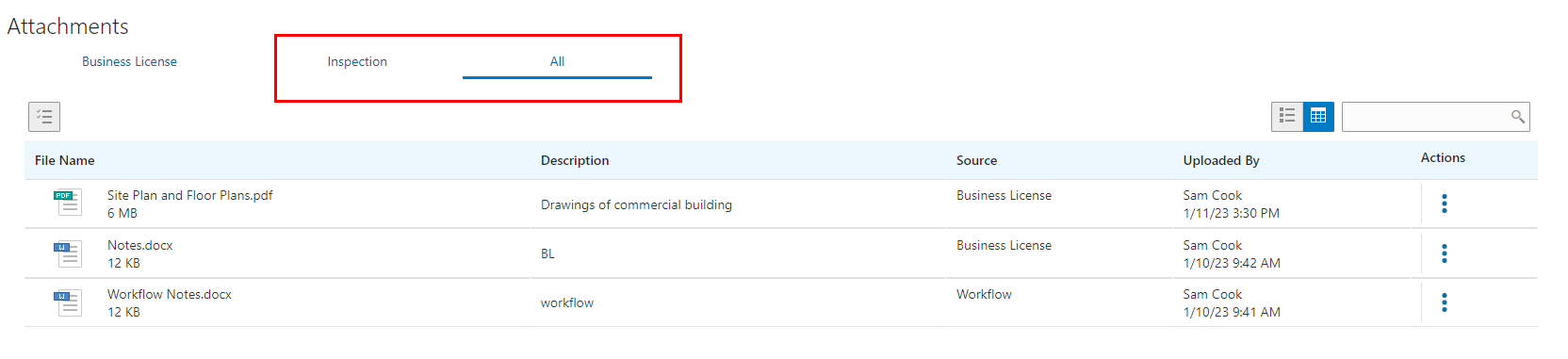
Business License Transaction - Attachments Page
Business License attachments can continue to be viewed and accessed separately or can now be viewed and accessed from a consolidated list of attachments from all offerings, providing a more efficient and consistent user experience.
Steps to Enable
You don't need to do anything to enable this feature.
Key Resources
- See Using Business Licenses, "Managing Business License Applications," Working with Attachments on the Oracle Help Center.
Confidential Business License Grids
When adding grids to intake forms for Business Licenses, you can now set the grids to be confidential.
Select the grid, and turn on the Confidential switch in the Grid Attributes panel.
Only selected users will be able to view the information, such as:
- Agency users directly associated with processing the business license.
- The applicant(s).
Role-based view and access ensures agency policies on who can access what type of business license information are automatically enforced.
Steps to Enable
To enable this feature, you must select the grid and go to the Grid Attributes panel. Enable the Confidential switch to make the grid confidential.
Access Requirements
The “Confidential” flag is secured using the role ORA_PSC_BL_ACCESS_CONFIDENTIAL_DATA. (This is the same role used to secure other Business License data, such as tax details.)
The delivered job roles that have this role are:
- Auditor
- BL Admin
- BL Manager
- BL Specialist
- Treasury Admin
- Treasury Supervisor
- System Admin
IMPORTANT Actions and Considerations
UPGRADE ACTIONS
With every upgrade, make sure to complete the following steps in the Initial Set Up functional area in Functional Setup Manager. This process ensures all new security definitions, such as job roles, duty roles, privileges, and so on, are included in your implementation.
- Run Public Sector Security Setup Process
- Manage Custom Roles
REST Backward Compatibility
Public Sector Permitting and Licensing updates REST APIs from release to release. Our goal is to not create APIS that are incompatible from one release to the next. However, due to circumstances and security impacts this may not be feasible.
For the most current information, see My Oracle Support Document ID: 2853758.1.
Documentation for all REST APIs included in Public Sector Permitting and Licensing can be found on the Oracle Help Center.
Deprecated REST APIs
At times, REST APIs will be deprecated and no longer available for public use. For the most current information, see My Oracle Support Document ID: 2853758.1.
| REST API | Deprecated Release | Comments |
|---|---|---|
| Business Rules Framework Resource Actions (publicSectorBusinessRulesFrameworkResourceActions) |
23C | This API will be deprecated in 23C. You should begin planning to no longer use this resource and find alternatives. |
| Business Rules Framework Conditions (publicSectorBusinessRulesFrameworkConditions) |
23C | This API will be deprecated in 23C. You should begin planning to no longer use this resource and find alternatives. |
| Business Rules Framework Schedules (publicSectorBusinessRulesFrameworkSchedules) |
23C | This API will be deprecated in 23C. You should begin planning to no longer use this resource and find alternatives. |
| Appeal Corrective Actions (publicSectorAppealCorrectiveActions) |
23C | This API will be deprecated in 23C. You should begin planning to no longer use this resource and find alternatives. |