
- Revision History
- Overview
- Feature Summary
- Permitting and Licensing
-
- Permitting and Licensing Common
- Permits and Inspections
- Planning and Zoning
- Code Enforcement
- Business Licensing
-
- Single Intake for Multiple Business Licenses
- Contractor Lifecycle Management
- Multiple NAICS Codes for a Business License
- Update Inspection Address for Business License Location
- Exclude Business License Information from Search Using the Location Type Attribute
- Inactivate Business License
- Parcel Reference Link to Business Licenses
- Consolidated Certificate for Multiple Business Licenses
- Additional Property Reference Grid on Business License Transactions
-
- IMPORTANT Actions and Considerations
This document will continue to evolve as existing sections change and new information is added. All updates appear in the following table:
| Date | Module | Feature | Notes |
|---|---|---|---|
| 17 AUG 2023 | Permits and Inspections | Inspection Dependencies for Primary and Subapplications | Updated document. Revised feature information. |
| 14 AUG 2023 | Permitting and Licensing Common | Subapplications | Updated document. Revised feature information. |
| 28 JUL 2023 | Permitting and Licensing Common | Legacy Data Migration Bulk Delete of Code Cases, Incidents, and Business Licenses | Updated document. Revised feature information. |
| 28 JUL 2023 | Business Licensing | Single Intake for Multiple Business Licenses | Updated document. Revised feature information. |
| 28 JUL 2023 | Permits and Inspections | Default Filter for Plan Review Console | Updated document. Revised feature information. |
| 28 JUL 2023 | Permits and Inspections | Required Property Location Setting | Updated document. Revised feature Information |
| 16 JUN 2023 | Created initial document. |
 HAVE AN IDEA?
We’re here and we’re listening. If you have a suggestion on how to make our cloud services even better then go ahead and tell us. There are several ways to submit your ideas, for example, through the Ideas Lab on Oracle Customer Connect. Wherever you see this icon after the feature name it means we delivered one of your ideas.
GIVE US FEEDBACK
We welcome your comments and suggestions to improve the content. Please send us your feedback at oracle_fusion_applications_help_ww_grp@oracle.com.
DISCLAIMER
The information contained in this document may include statements about Oracle’s product development plans. Many factors can materially affect Oracle’s product development plans and the nature and timing of future product releases. Accordingly, this Information is provided to you solely for information only, is not a commitment to deliver any material, code, or functionality, and should not be relied upon in making purchasing decisions. The development, release, and timing of any features or functionality described remains at the sole discretion of Oracle.
This information may not be incorporated into any contractual agreement with Oracle or its subsidiaries or affiliates. Oracle specifically disclaims any liability with respect to this information. Refer to the Legal Notices and Terms of Use for further information.
Column Definitions:
Report = New or modified, Oracle-delivered, ready to run reports.
UI or Process-Based: Small Scale = These UI or process-based features are typically comprised of minor field, validation, or program changes. Therefore, the potential impact to users is minimal.
UI or Process-Based: Larger Scale* = These UI or process-based features have more complex designs. Therefore, the potential impact to users is higher.
Features Delivered Disabled = Action is needed BEFORE these features can be used by END USERS. These features are delivered disabled and you choose if and when to enable them. For example, a) new or expanded BI subject areas need to first be incorporated into reports, b) Integration is required to utilize new web services, or c) features must be assigned to user roles before they can be accessed.
| Ready for Use by End Users Reports plus Small Scale UI or Process-Based new features will have minimal user impact after an update. Therefore, customer acceptance testing should focus on the Larger Scale UI or Process-Based* new features. |
Customer Must Take Action before Use by End Users Not disruptive as action is required to make these features ready to use. As you selectively choose to leverage, you set your test and roll out timing. |
|||||
|---|---|---|---|---|---|---|
| Feature |
Report |
UI or |
UI or |
|
||
Legacy Data Migration Bulk Delete of Code Cases, Incidents, and Business Licenses |
||||||
Exclude Business License Information from Search Using the Location Type Attribute |
||||||
Additional Property Reference Grid on Business License Transactions |
||||||
Permitting and Licensing Common
Support GIS Attributes in Business Rules Framework
You can now include GIS map layer attributes in your business rule criteria. From the Resource drop-down list, select Map Layer Content, and select the desired map.
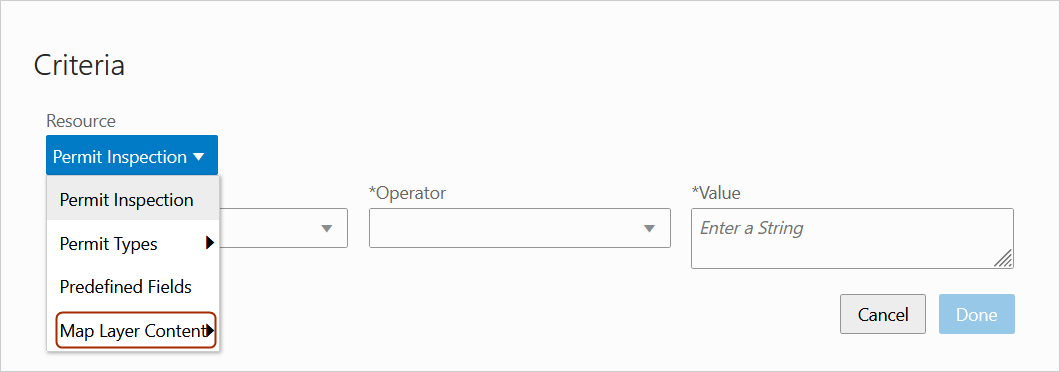
Map Layer Criteria
Then you can select the desired map layer attribute for your criteria.
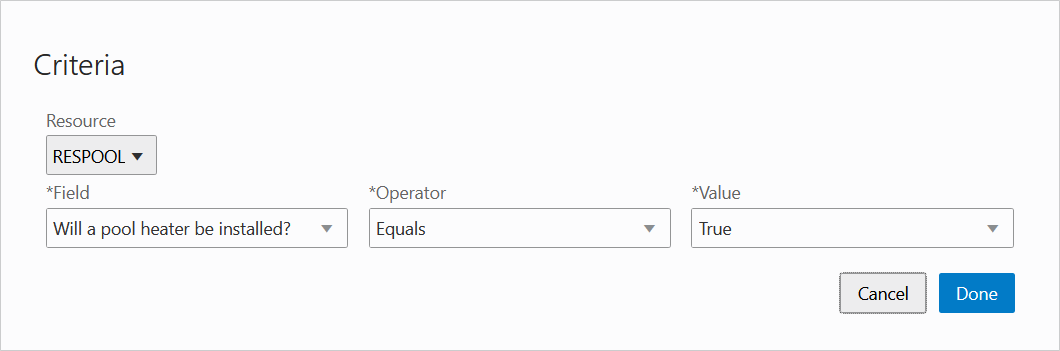
Criteria Page
NOTE: GIS attributes aren't available for scheduled rule criteria.
This will allow agencies to leverage the business rules framework to evaluate the data values coming from the GIS map layer attributes. For example, you may want to prevent business application submittal if the business activity falls within a prohibited zoning district. The business rule can now include GIS map layer attributes, in the example, the zoning district information, in the business rule criteria.
Steps to Enable
No steps are required in Business Rules Framework to enable this feature. If you have defined Map Layer Content attributes to capture in the GIS Attribute Mapping page you will see an additional selection in the Criteria Object selection list for "Map Layer Content" in the Rule edit page.
Key Resources
- See Implementing Permitting and Licensing, "Implementing the Business Rules Framework," Setting Up Business Rule Criteria on the Oracle Help Center.
Dynamic Resource Support for Intake Forms
You can now include all intake form attributes from a selected transaction type when creating business rule criteria. This includes predefined fields like Job Cost, user defined fields, field group fields, and reusable fields (which were made available for criteria previously).
Depending on the offering, when adding criteria, you can select Permit Type (Permits), Planning Type (Planning and Zoning), Issue Subtype (Code Enforcement), or License Type (Business Licenses).
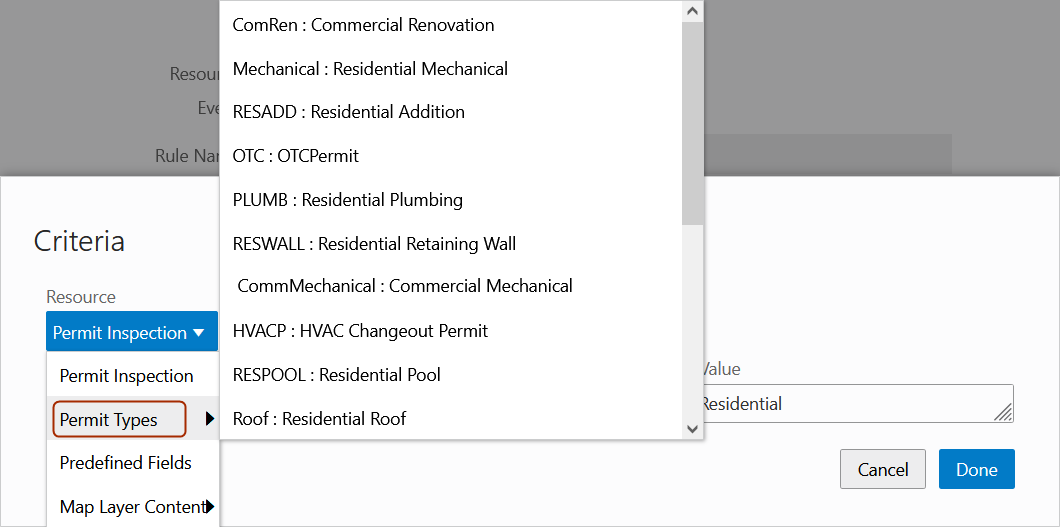
Permit Types - Intake Form
Then you can select the intake form fields to include in your criteria.
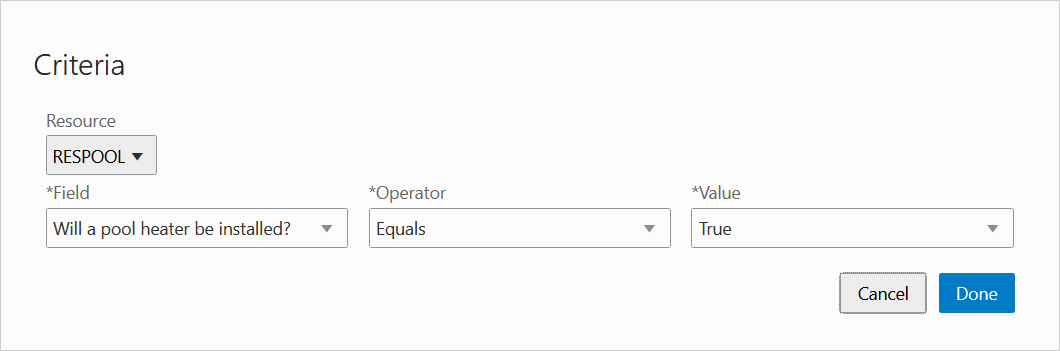
Criteria Entry
NOTE: Intake form attributes aren't available for scheduled rule criteria.
Agencies can now include all intake form attributes in business rule criteria.
Steps to Enable
There are no steps required in Business Rules Framework to enable this feature. You will now see additional selections in the Criteria Object selection list in the Rule edit page. Depending on the offering for your Event you will see a selection for "Permit Type", "Planning Type", "Issue Subtype" or "License Type." Any attribute in the Custom Object, predefined or custom, that has a title attribute in its REST describe is available to add as Criteria for a Rule.
Tips And Considerations
The reusable fields have been moved from the Resource field list to their own object in the Criteria Object selection. Also, custom objects are not supported in Scheduled Rules.
Key Resources
- See Implementing Permitting and Licensing, "Implementing the Business Rules Framework," Setting Up Business Rule Criteria on the Oracle Help Center.
The Total Fees by Category feature displays the breakup of the code enforcement total fees based on the agency-defined fee types, such as citation, violation, abatement, administrative fees, etc.
This example illustrates the Case - Fees and Payments page which has a breakup of the total fees.
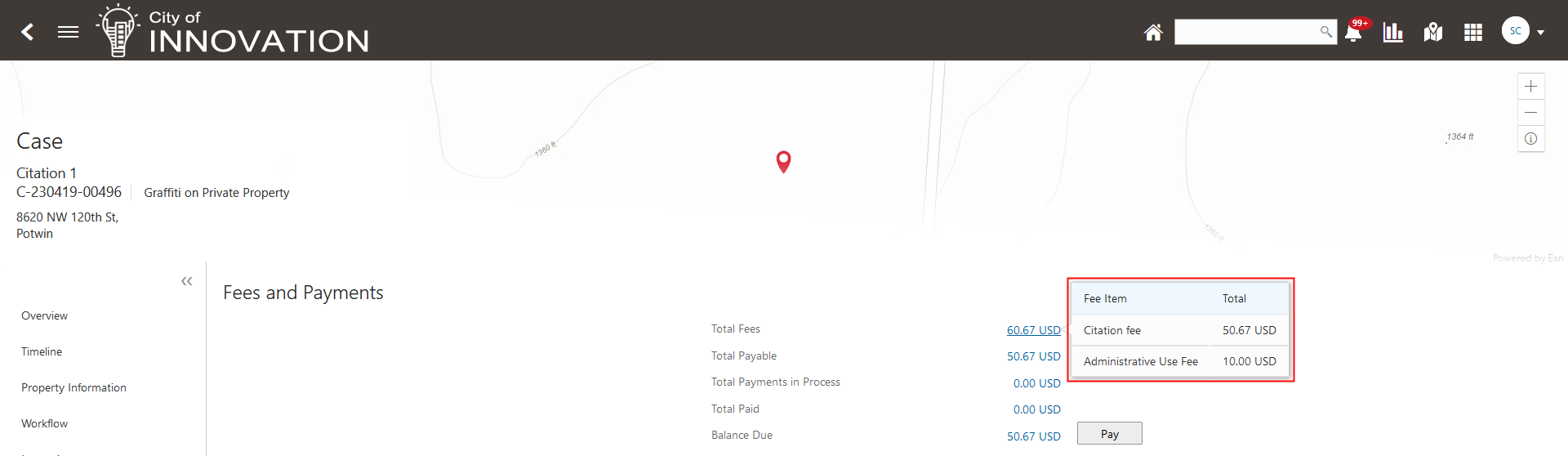
Case - Fees and Payments Page
This provides a quick way to see how total and sub-total fees break further down by fee type.
Steps to Enable
You don't need to do anything to enable this feature.
Key Resources
- See Using Community Development Code Enforcement, "Working with Code Enforcement Fees and Payments" on the Oracle Help Center.
Custom Filters Persist for Session
The Inspections console page for agency staff now retains your search, filter, and sort results when you navigate away from the All, Permits, or Business License tabs. Your selections for the Date Type and Date Range fields as well as the Pending and My Job switches are maintained while you work until you intentionally clear them or log out, ending your session.
You can click the Reset button, shown here, to remove all applied filter, search, and sort settings and return to the default settings. This button appears only when filters are applied.
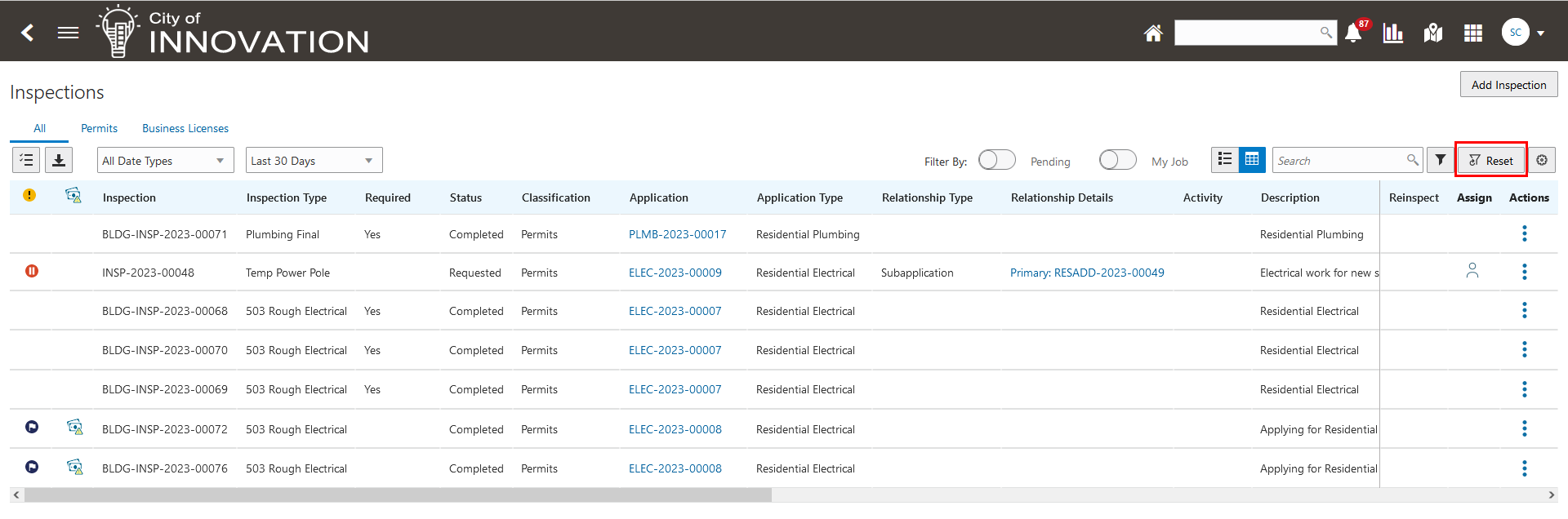
Inspections Console Page with Reset Button
This feature allows you to persist your filter, search and sort settings throughout your logged in session.
Steps to Enable
You don't need to do anything to enable this feature.
Tips And Considerations
The filters will reset when you start a new session.
Key Resources
- See Using Community Development Permits, "Working with Permit Inspections," Managing Inspections for an Agency on the Oracle Help Center.
- See Using Business Licenses, "Working with Business License Inspections," Managing Inspections for an Agency on the Oracle Help Center.
Legacy Data Migration Bulk Delete of Code Cases, Incidents, and Business Licenses
Agency administrators can import, review results, and now delete migrated data for Code Cases, Incidents, and Business Licenses. Administrators can run the Delete Migrated Data process iteratively as part of their legacy data migration effort until they are satisfied with the quality of the migrated data.
This allows agency administrators to delete and update migrated permits and related objects to support data migration iterations. You can delete imported transactions for each test run prior to converting to a production environment.
Extends existing functionality to enable you to delete code cases, incidents and business licenses in a test environment preparation to import legacy data.
Steps to Enable
You don't need to do anything to enable this feature.
Tips And Considerations
An ESS job is delivered for you to run the delete process. The process of importing, reviewing results, deleting migrated data and re-running the import will be an iterative process executed a number of times by implementers until they are satisfied with the quality of the migrated data. See the documentation links below.
Key Resources
- See Implementing Permitting and Licensing, "Migrating Legacy Data", Migrating Data Import Using Import Manager, Delete Migrated Transactions on the Oracle Help Center.
Multiple permit applications required for a project can all be added to one intake form. Applicants and agency staff can choose from the options:
- Mark the permit intake form as primary and submit the application. Later when needed, access the submitted application, add or create one or more subapplications to the primary permit application.
- Mark the permit intake form as subapplication. You can either link the primary permit before submission or submit it without linking. Later, you can access the submitted application and establish the link.
This example illustrates the options in the Primary and Subapplication section of the permit intake form:
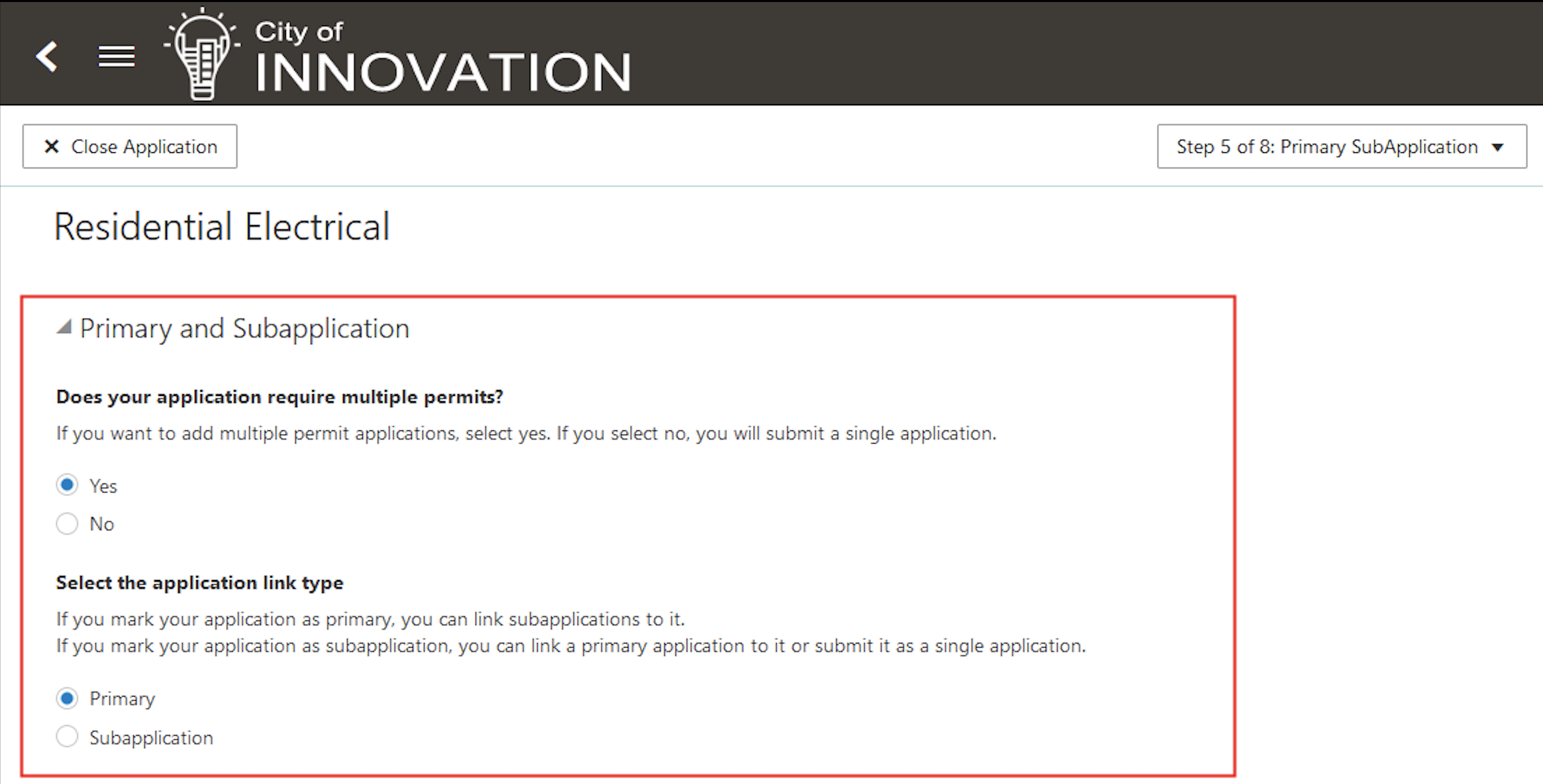
Application Intake Form
Primary and subapplication indicators enable you to easily identify the application type on the permit list page as well as on permit detail pages. You can also view and access the linked primary permit or subapplications from these pages.
These examples illustrate the Primary and Subapplication indicators (boxes) and links (arrows) on the permit list page and the detail pages respectively:
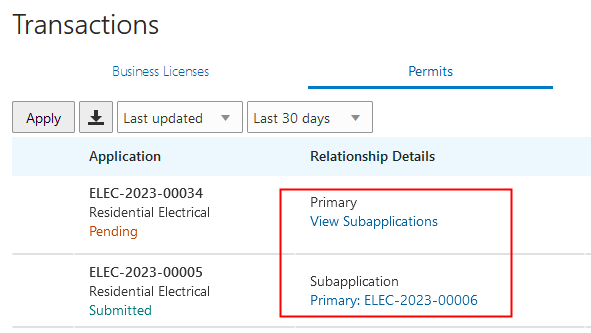
Permit List Page
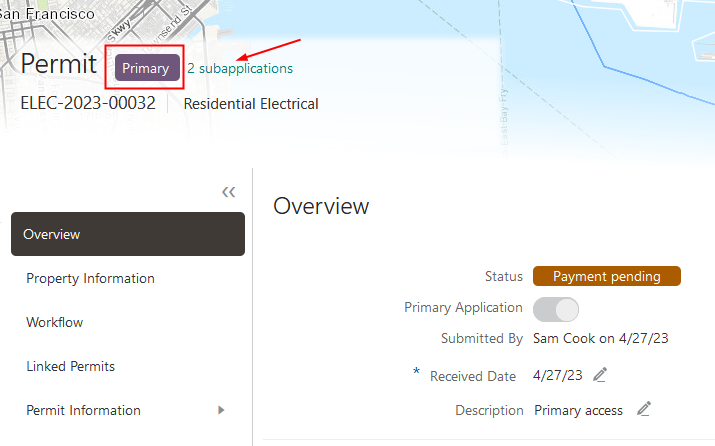
Primary Permit Overview Page
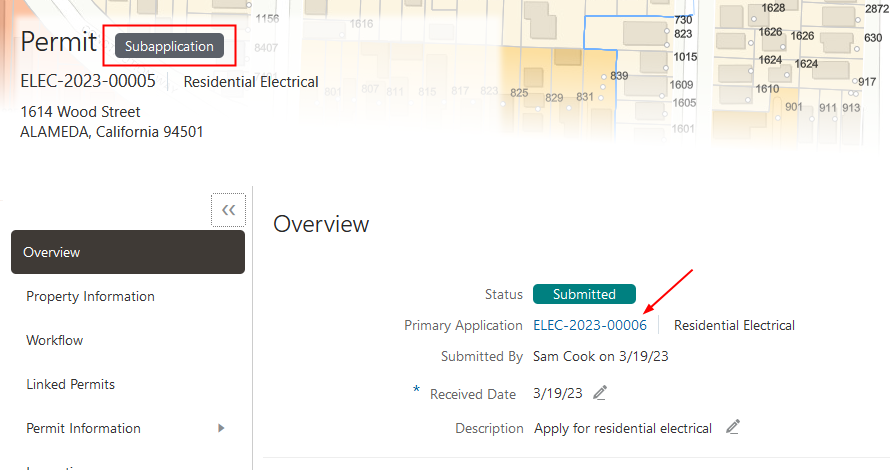
Subapplication Overview Page
This allows public users and agencies to link permits as part of multi-permit jobs. It will also allow for the enforcement of rules from the primary and subapplications.
Steps to Enable
You will need to configure the primary sub-field group on any permit intake forms where you want public users to be able to select primary or subapplications.
Key Resources
- See Using Community Development Permits, "Applying for a Permit," Completing an Application on the Oracle Help Center.
- See Using Community Development Permits, "Applying for a Permit," Linking Subapplications to a Permit on the Oracle Help Center.
- See Using Community Development Permits, “Managing Permits,” Working with Linked Permits on the Oracle Help Center.
Required Property Location Setting
You can require that applicants add at least one row to the grid on the Property field group. In the Intake Form Designer, select the Property field group and set the Minimum Rows and Maximum Rows attributes as required.
This feature removes the need to use Groovy scripting to get the same result.
This feature removes the need to use Groovy scripting to get the same result. It allows you to easily configure the property location requirement by specific permit type.
Steps to Enable
You don't need to do anything to enable this feature.
Tips And Considerations
If you have already configured this requirement using groovy scripting, you should turn off that scripting and use this configuration in its place.
Key Resources
- See Implementing Permitting and Licensing, "Working with Predefined Field Groups," Managing Grids in Predefined Field Groups on the Oracle Help Center.
- See Implementing Permitting and Licensing, "Using Predefined Field Groups," Common Predefined Field Groups on the Oracle Help Center.
Inspection Dependencies for Primary and Subapplications
Agencies can now configure prerequisites among inspections for a primary permit and its subapplications to establish an order for performing inspections across the linked permits.
Configure Inspection Dependencies
The global Inspection Dependencies setup page enables agencies to configure default inspection prerequisites that apply across all of an agency's permit types. These inspection dependencies are used when primary permits are created and linked with subapplications to establish dependencies between all permit inspections, which are enforced unless they are overridden on the permit. The default inspection dependencies within a permit come from the existing configuration of Inspection Group dependencies for the permit type.
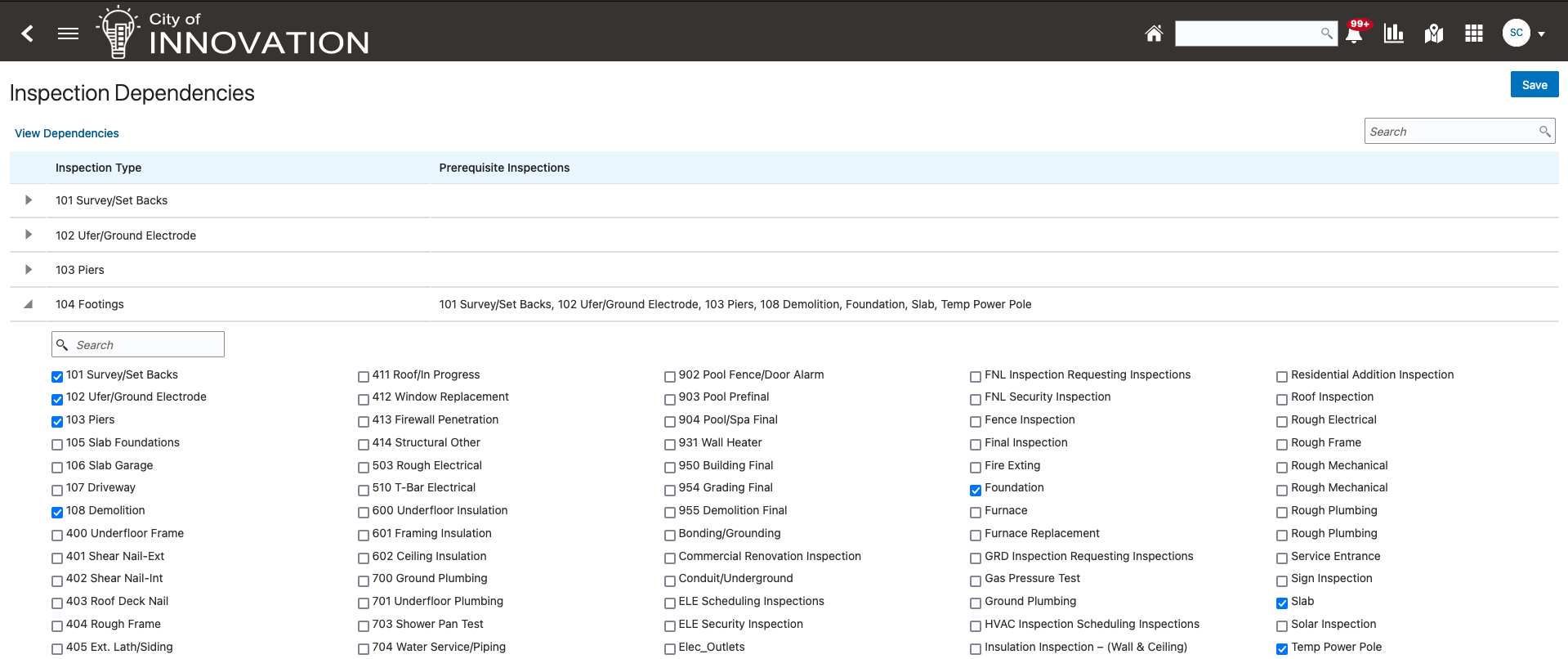
Inspection Dependencies page
Manage Inspection Dependencies on the Permit-Level Inspections Page
The Inspections page in the permit details now shows the inspections for all of the linked permits--primary permits and subapplications--in the inspections list. Public users only see inspections in the list for permits where they are the applicant or a contact with permit access. You can view and manage inspection dependencies on the Inspections page.
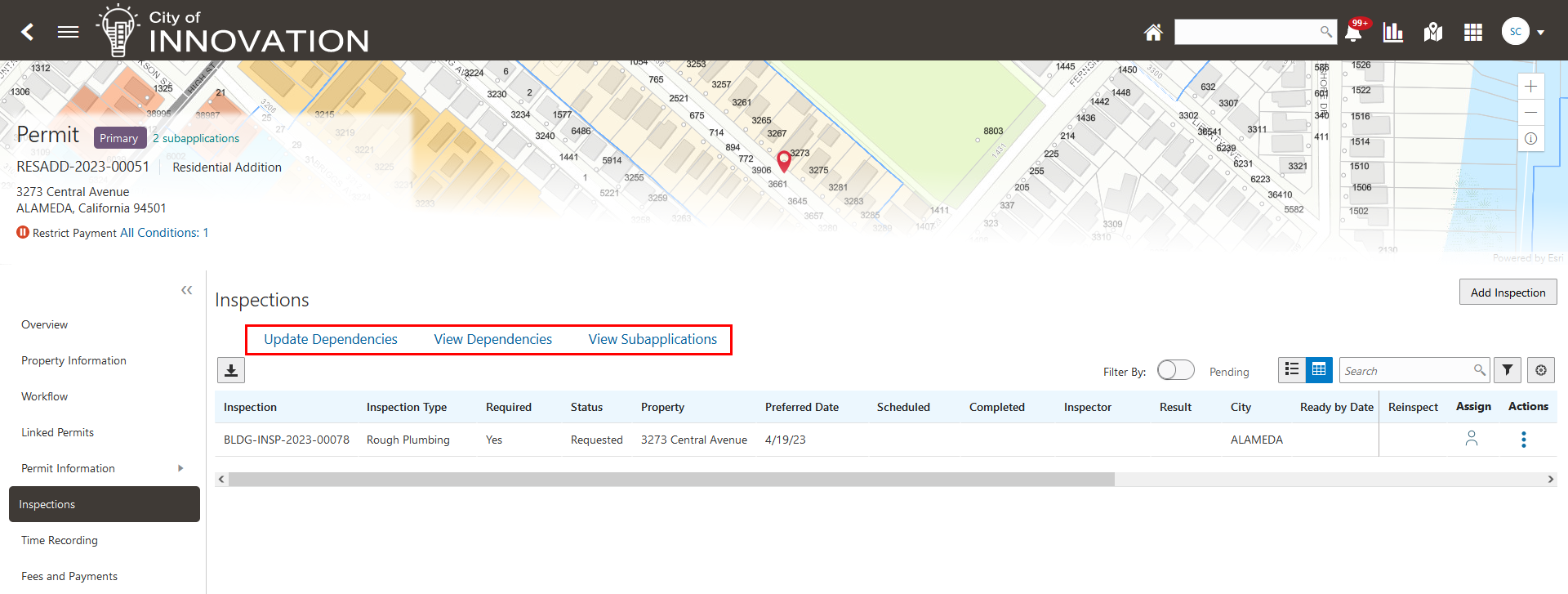
Inspections Page for a Permit
- Update Dependencies
Agency staff can click the Update Dependencies link on the permit-level Inspections page to view the default inspection dependencies as set up for each permit type and across linked permits and override the default dependencies. The dependencies that were set up on the global Inspection Dependencies page are defaulted across the different permits and the dependencies that were set up for each permit type's Inspection Group are defaulted within each permit in the linked permits.
- View Dependencies
Agency staff and public users with application access can click the View Dependencies link on the permit-level Inspections page to view inspections that have prerequisites for the primary permit and all subapplications. Required inspections that don't have prerequisites aren't displayed. The View Dependencies modal displays a graphical representation of the prerequisite inspections that have been defined for the permit on the Update Dependencies modal page.
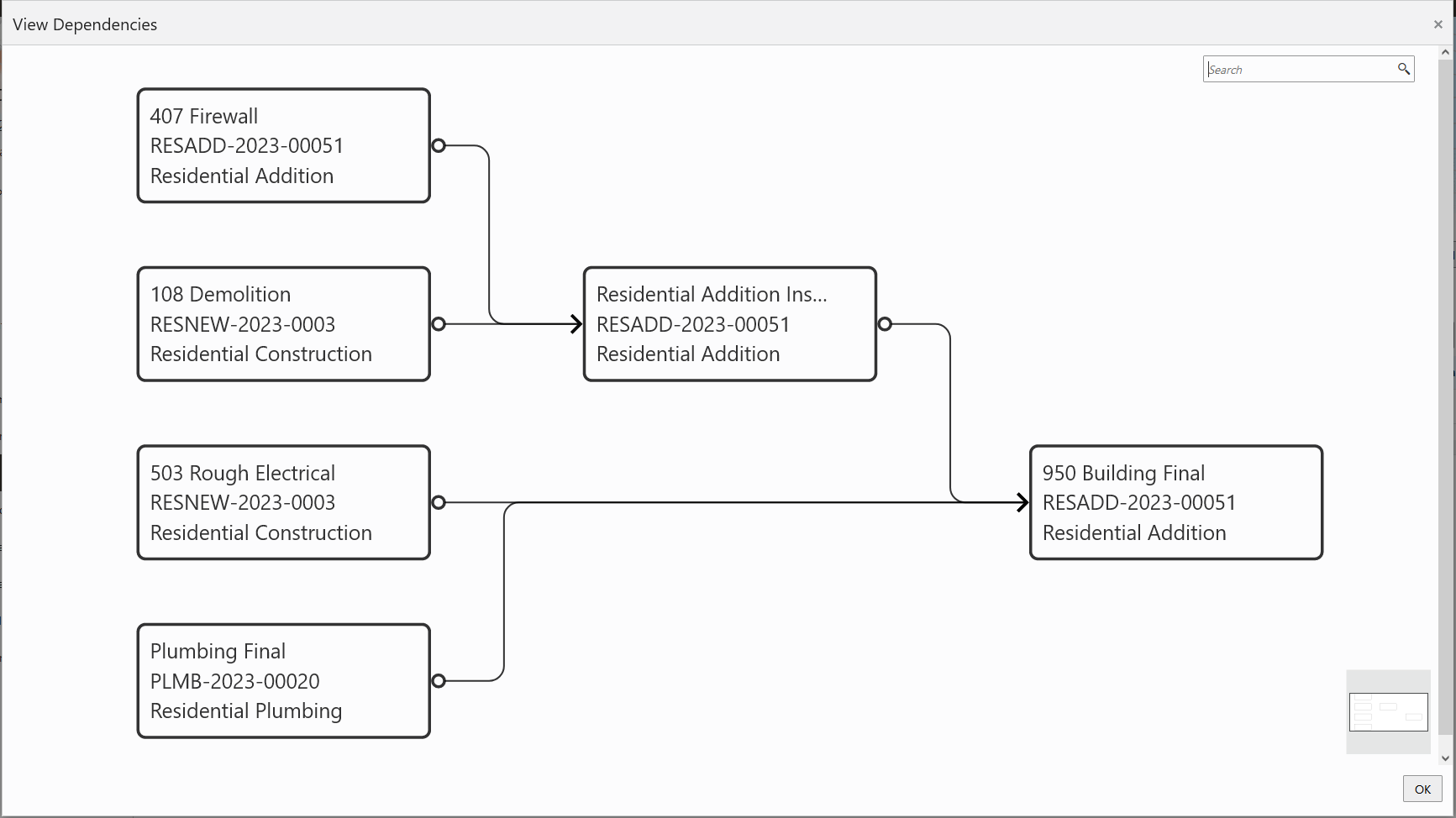
View Dependencies Page Showing Inspection Dependencies Among Linked Permits
Agency staff and public users with application access can also click the View Subapplication link to view a list of all of the subapplications that have been linked together. Users can create or link additional subapplications and can go to any existing subapplication.
This will allow agencies to order and prevent inspections on primary and subapplications from being scheduled out of order.
Steps to Enable
Cross-permit dependencies will need to be configured. These dependencies will be applied between primary and subapplications.
Complete the following steps:
- Navigate to Inspection Setup > Inspection Dependencies.
- Add prerequisite inspections that are needed to be passed prior to scheduling a dependent inspection.
- These dependencies default to the primary permit or subapplications when those relationships are established.
Tips And Considerations
This will require a setup of the agency's current permit inspection types and identifying them as dependent on other permit inspection types.
During the upgrade process, inspection group dependencies will be created for any linked application. Those dependencies will be available from the linked permit's Inspections page > View Dependencies or Update Dependencies links. Only agency staff will be able to update dependencies.
Key Resources
- See Implementing Permitting and Licensing, "Setting Up Inspections," Setting Up Inspection Dependencies on the Oracle Help Center.
- See Using Community Development Permits, "Working with Permit Inspections," Managing Inspections for a Permit with Subapplications on the Oracle Help Center.
Reschedule, Hold, and Cancel Inspections
Agency staff and public users can manage their inspections using reschedule, postpone, and cancel options, that are available depending on the inspection status and agency setup. Agency staff can always postpone or cancel inspections, but public users can only postpone or cancel inspections when configured at the agency level for permit and business licenses.
The options look like this:
- If the inspection is in the Requested status, that is, it hasn't yet been assigned, it can be postponed or canceled.
- If the inspection has been scheduled and is in the Scheduled status, the inspection can be rescheduled, postponed, or canceled.
This example illustrates the Inspection request page with the Postpone and Cancel Inspection buttons available.
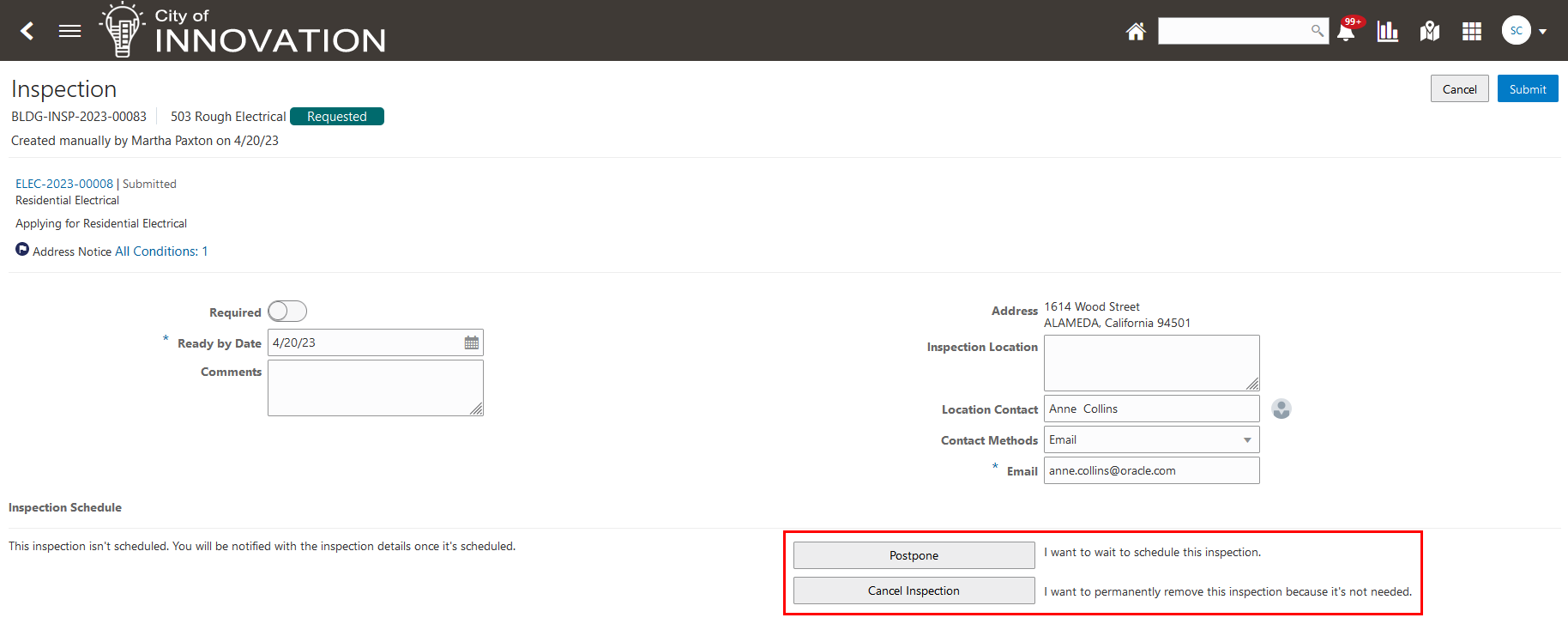
Inspection Request Page
The Schedule Change Policy now applies to the Postpone action in addition to the Cancel action. That is, you can't reschedule, postpone, or cancel if the time falls after the change policy cutoff time.
This will make the inspection scheduling and rescheduling more efficient by making the most frequently used inspection actions prominent.
Steps to Enable
If agencies want to enable public users to take an inspection out of a scheduled status or to cancel inspections, they have to set up the agency-level inspection options for permits and business licenses. Agency staff can always postpone or cancel inspections.
- Enable Postpone Inspection enables agency staff and public users to put an inspection back into a pending status.
- Public User Cancel Options enables public users to cancel any of their inspections, cancel only their inspections that aren't required, or cancel none.
This example illustrates the new inspection options for Permits. The same inspection options are available for Business Licenses.
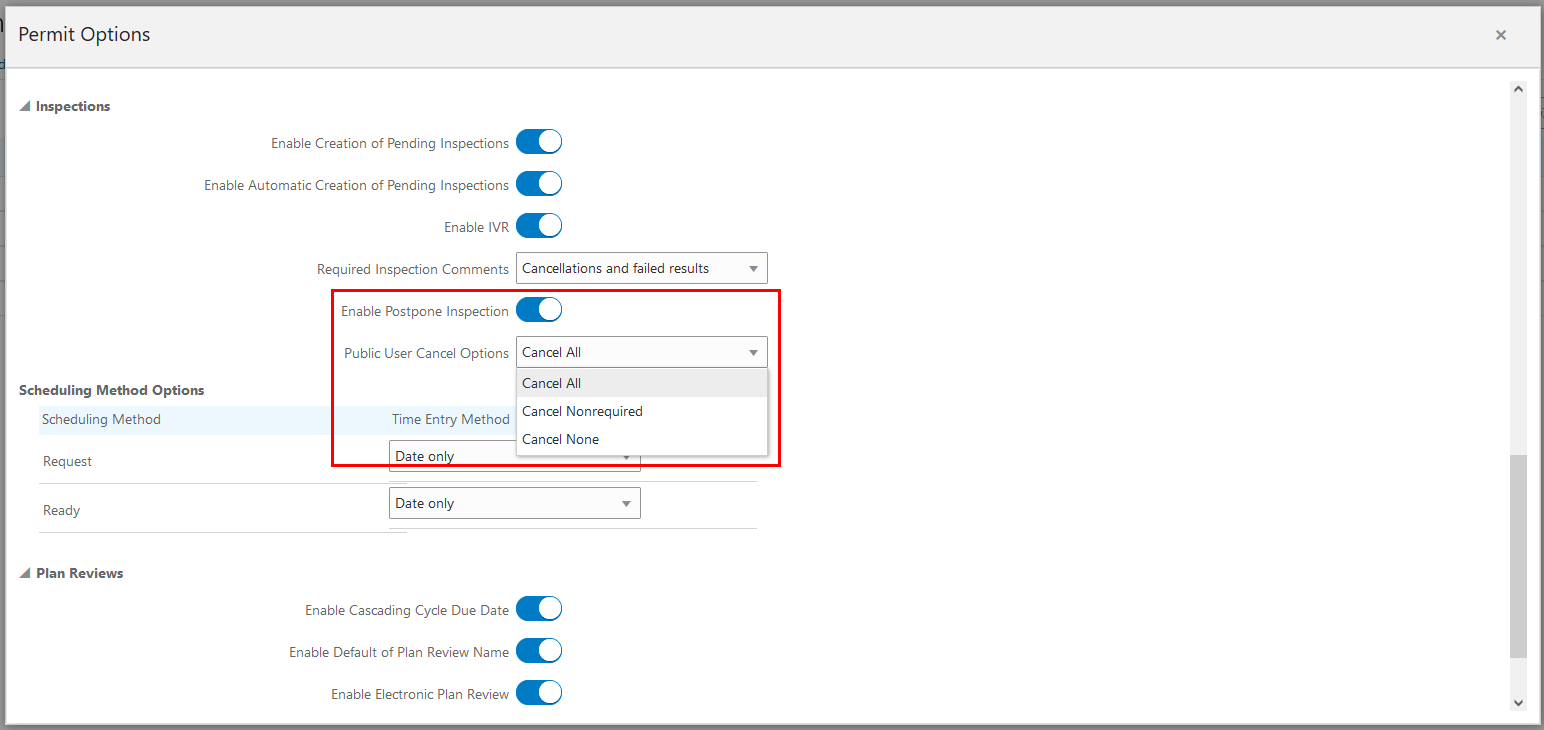
Partial View of the Permit Options Page
Tips And Considerations
This will give the public users the ability to put a scheduled inspection back to a pending status by postponing an inspection.
Key Resources
- See Implementing Permitting and Licensing, "Setting Up Permits," Setting Up Agency-Level Options for Permits and "Setting Up Business Licenses," Setting Up Agency-Level Options for Business Licenses on the Oracle Help Center.
- See Using Community Development Permits, "Working with Permit Inspections," Requesting Inspections on the Oracle Help Center.
- See Using Business Licenses, "Working with Business License Inspections, "Requesting Inspections on the Oracle Help Center.
Default Filter for Plan Review Console
Your agency can now configure the default date filtering selections on the Plan Reviews console page. The default values appear in the Date Type and Date Range filters, which enable agency staff to see different views of the plan review data.
The agency-level setup includes these new setup fields:
- Default Plan Review Date Type Filter - Valid values are Cycle Due, Cycle Created, Reviewer Due, Reviewer Decision, Cycle Decision, and All Date Types. The default value is Cycle Due.
- Default Plan Review Date Filter - Valid values are Today, Yesterday, Tomorrow, Last 14 Days, Next 14 Days, Last 30 Days, and Next 30 Days. The default value is Today.
This example illustrates the setup page and corresponding default date type and range on the Plan Reviews console page.
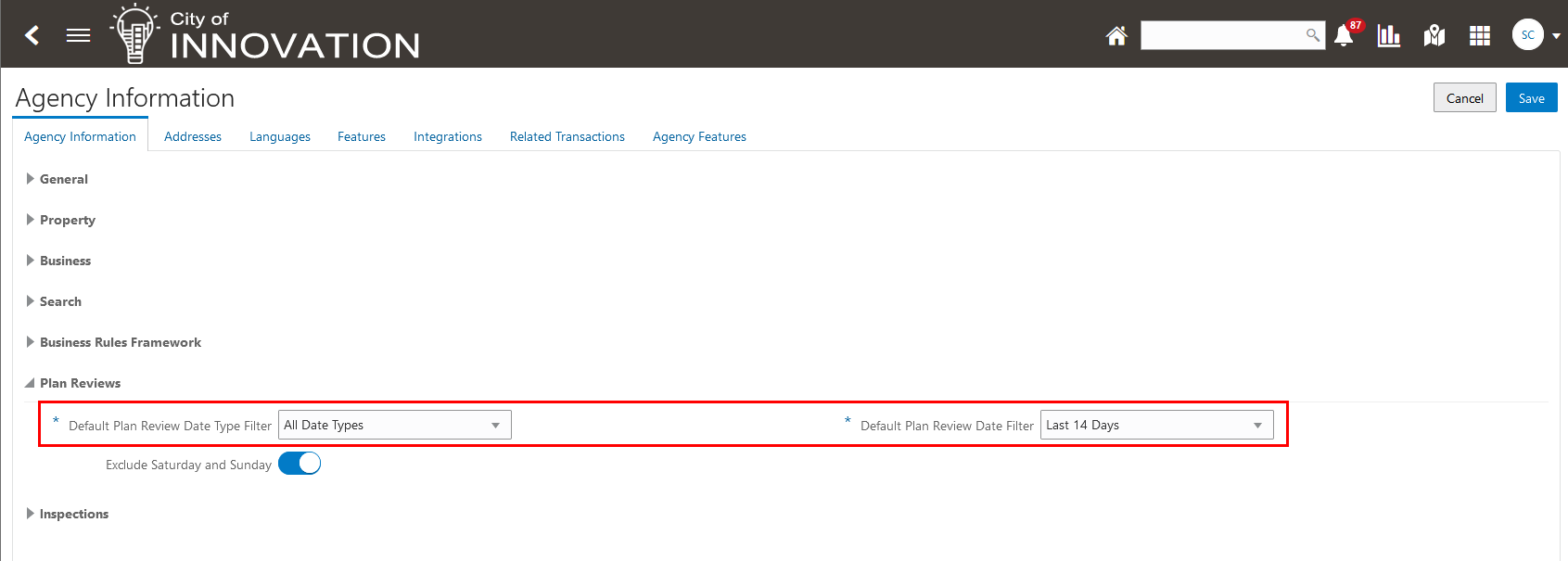
Agency-Level Setup for Plan Reviews on the Agency Information Page

Configured Default Values in the Date Type and Date Range Fields on the Plan Reviews Console Page
This will allow the users to use the Plan Review console more efficiently by filtering out those reviews the user does not need to view. It will also most likely help with page loading speed.
Steps to Enable
You will need to configure the default for the Plan Review Console.
Complete the following steps:
- Navigate to Common Setup > Agency > Agency Information.
- Scroll to the Plan Reviews section.
- Set the default for the filter that will show when the Plan Review Console initially loads.
Key Resources
- See Implementing Your Agency, "Setting Up Your Agency," Setting Up Agencies on the Oracle Help Center.
- See Using Community Development Permits, "Managing Plan Reviews," Using the Plan Review Console on the Oracle Help Center.
A new activity configuration option enables agency administrators to exclude weekends and/or holidays in the activity due date calculation.
If a calculated due date for an activity falls on a weekend or holiday, agency staff has the option to specify whether that date can be moved to the prior or the next working day.
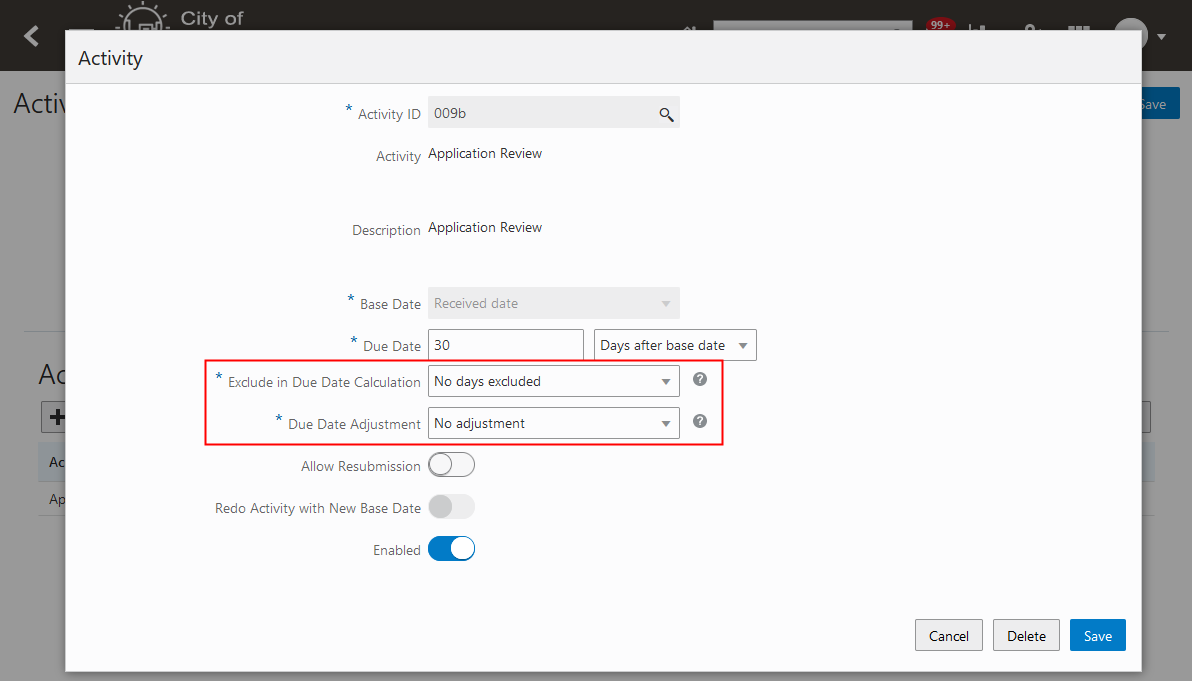
Activity Page
Additionally, agency staff can now close the planning activities on the activity tracking page and the planner worklist page with a specific status even after the planning record has reached a terminal status. Statuses include Completed, Not Applicable, and Canceled.
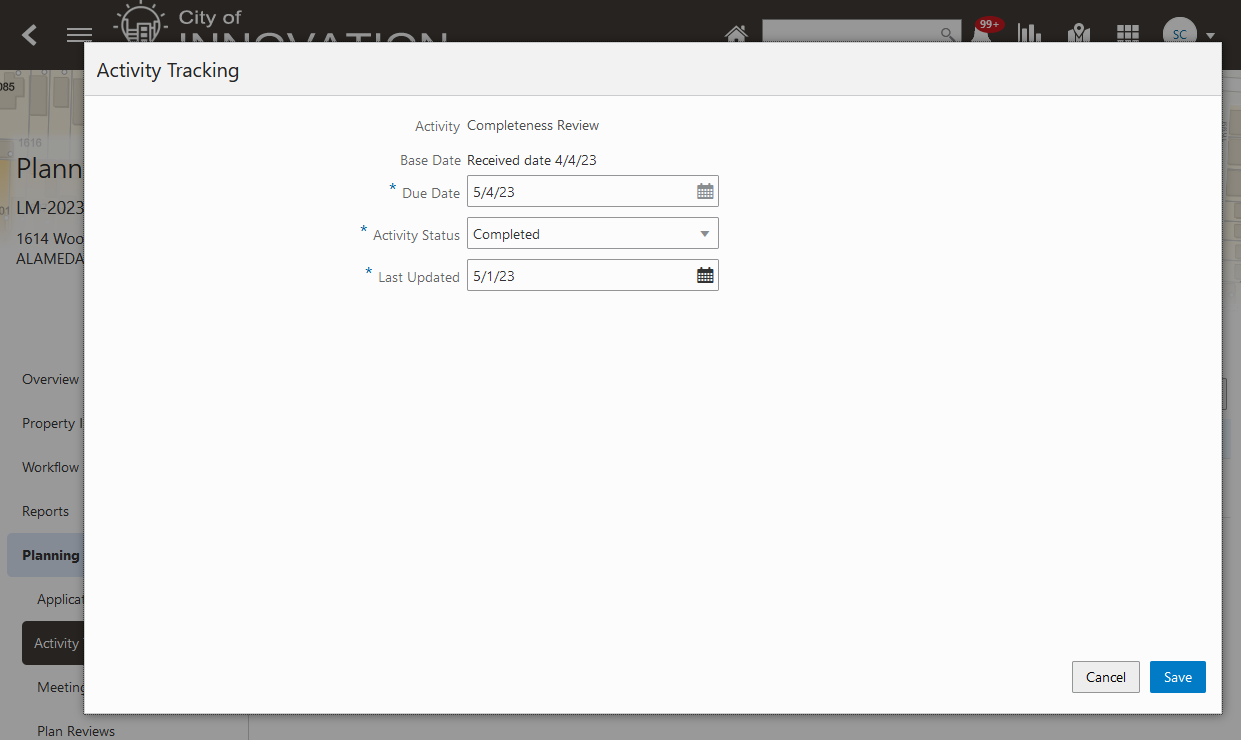
Activity Tracking Page
The planning activity due date calculations can now be calculated using the agency's work/holiday calendar. This will give agencies the flexibility to exclude weekends and/or holidays. In addition, agencies can now update the planning activity status even after the planning transaction is closed.
Steps to Enable
While adding an Activity to Activity Group, agency can exclude weekends and/or holidays in the activity due date calculation using "Exclude in Due Date Calculation" provided in the page.
Additionally, If a calculated due date for an activity falls on a weekend or holiday, the agency has the option to specify whether that date can be moved to the prior or the next working day using "Due Date Adjustment".
Key Resources
- See Implementing Permitting and Licensing, “Setting Up Activity Tracking,” Defining Planning Application Activity Rules on the Oracle Help Center.
Public Hearing Enhancements give you the ability to:
- Display the sequence of the scheduled items.
- Reorder the scheduled items.
- Generate and print a hearing agenda via a BIP template.
- Support multiple templates for hearing agendas.
You can now reorder the scheduled hearing items and generate a hearing agenda based on those items.
Steps to Enable
You don't need to do anything to enable this feature.
Key Resources
- See Using Community Development Planning and Zoning, "Working with Public Hearings", Using the Hearing Scheduler Page on the Oracle Help Center.
History and Reason for Code Violation Status
Agency staff can now enter the reason for any code violation updates. These can be viewed on the Case Timeline page as well as via a View History link on the Code Violations page.
This example illustrates the new Reason section available on the Code Violation - Update Details page.
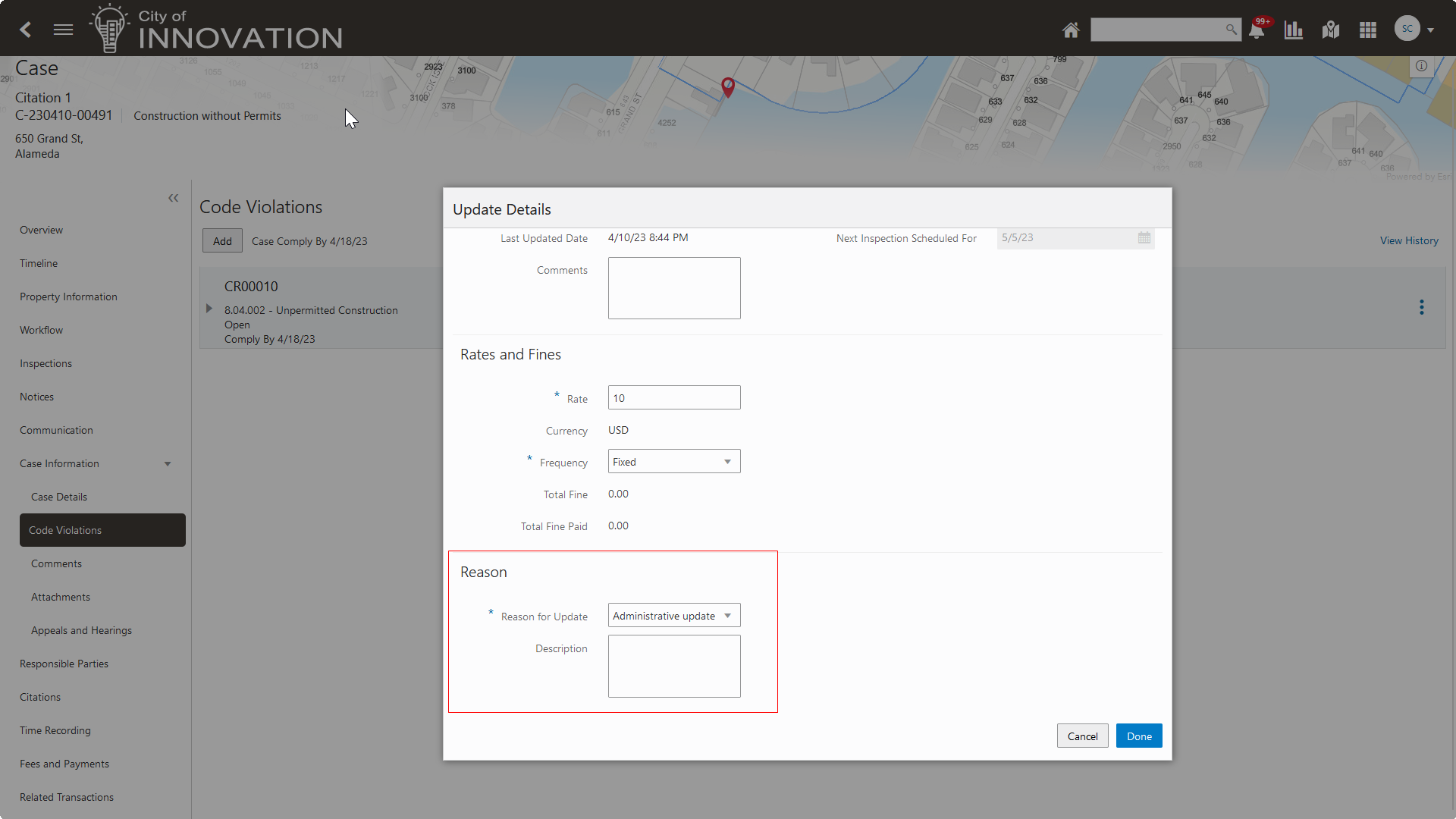
Code Violations - Update Details Page
This example illustrates the new View History link available on the Code Violation page.

Code Violations Page
This feature helps you understand why a comply by date is changed by adding history and reason codes when updating the comply by date for an individual code violation status.
Steps to Enable
You don't need to do anything to enable this feature.
Key Resources
- See Using Community Development Code Enforcement, "Working with Code Violations" on the Oracle Help Center.
Appeal and Hearing Custom Status
Agencies can now add custom statuses for appeal and hearing, which correspond to their respective system statuses. This allows agencies to have flexibility in managing processes that take place when a case is the appeal or hearing stages.
This example illustrates the Transaction Status setup page where custom statuses for appeal and hearing are added. Here, you can see a custom status, Second Appeal, added for the system status Appeal, and custom statuses, Pending Hearing and Hearing Notice Sent, added for the system status Hearing.
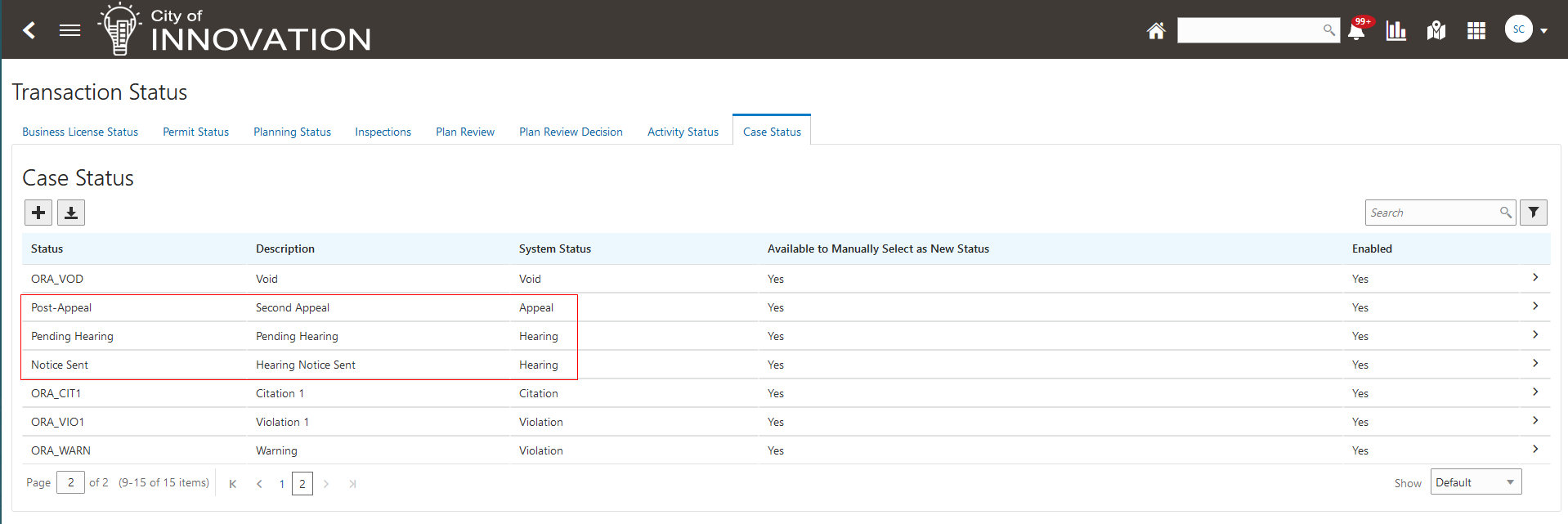
Transaction Status - Case Status Page
The existing custom status for system status mapping has been extended to the appeal and hearing system statuses. This gives you more flexibility to add custom status when a case is in the appeal or hearing phase.
Steps to Enable
Customer action required to create custom statuses for appeal and hearing.
To create custom statuses for appeal and hearing:
- Navigate to Common Setup > Transaction Status > Case Status.
- Select the plus button.
- Enter the Case Status Details.
- Select Save.
Key Resources
- See Implementing Permitting and Licensing, "Setting Up Transaction Statuses" on the Oracle Help Center.
- See Using Community Development Code Enforcement, "Working with Appeals and Hearings", Adding an Appeal on the Oracle Help Center.
- See Using Community Development Code Enforcement, "Working with Appeals and Hearings", Adding a Hearing on the Oracle Help Center.
Ad Hoc and Recurring Fines for a Code Violation
With updates to the Ad hoc and Recurring fee functionality, agencies now have the ability to:
- Add an ad hoc one-time fee
- Cancel recurring and one-time fees when the associated code violation is removed
The Fee and Payments page now displays a Calculate Fine button when active and eligible code violations are present. This allows the agency staff to manually recalculate fines when the code violation rates and fines are updated.
This feature provides flexibility when adding one-time and recurring fees to an individual violation type.
Steps to Enable
You don't need to do anything to enable this feature.
Key Resources
- See Using Community Development Code Enforcement, "Working with Code Violations" on the Oracle Help Center.
Single Intake for Multiple Business Licenses
One intake process supports the application for multiple business license types. You enter specific business information, such as business details, location, and owner information once, and then applicants move to the details for the selected multiple licenses.
Select the multiple licenses on the Apply page and click Apply.
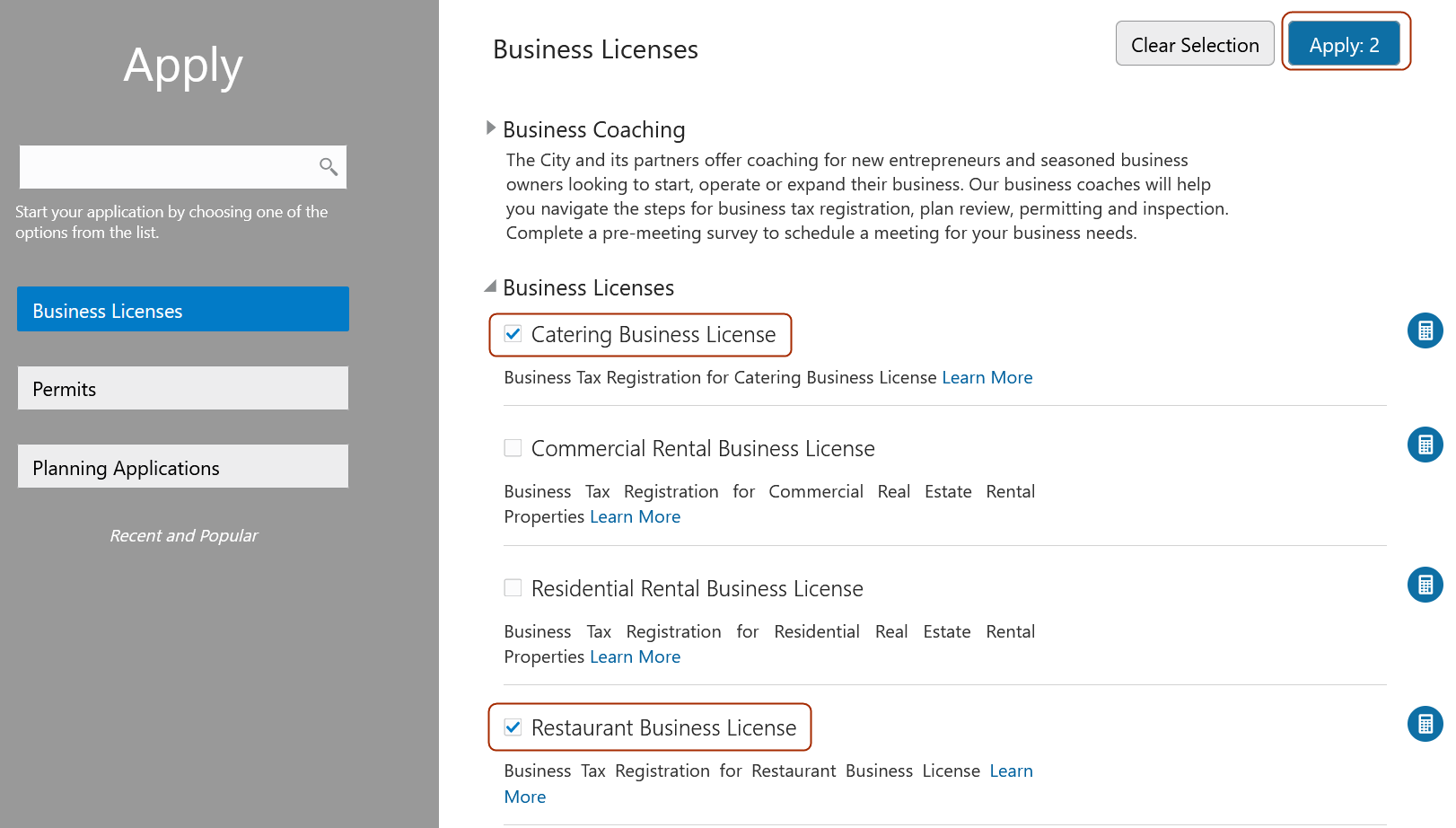
Apply Page
Applicants enter the information common to all selected business license types using the General Information section. When they select one of the business license types included in the set, they only need to provide the detailed information for that business license type, with all the common information already collected.
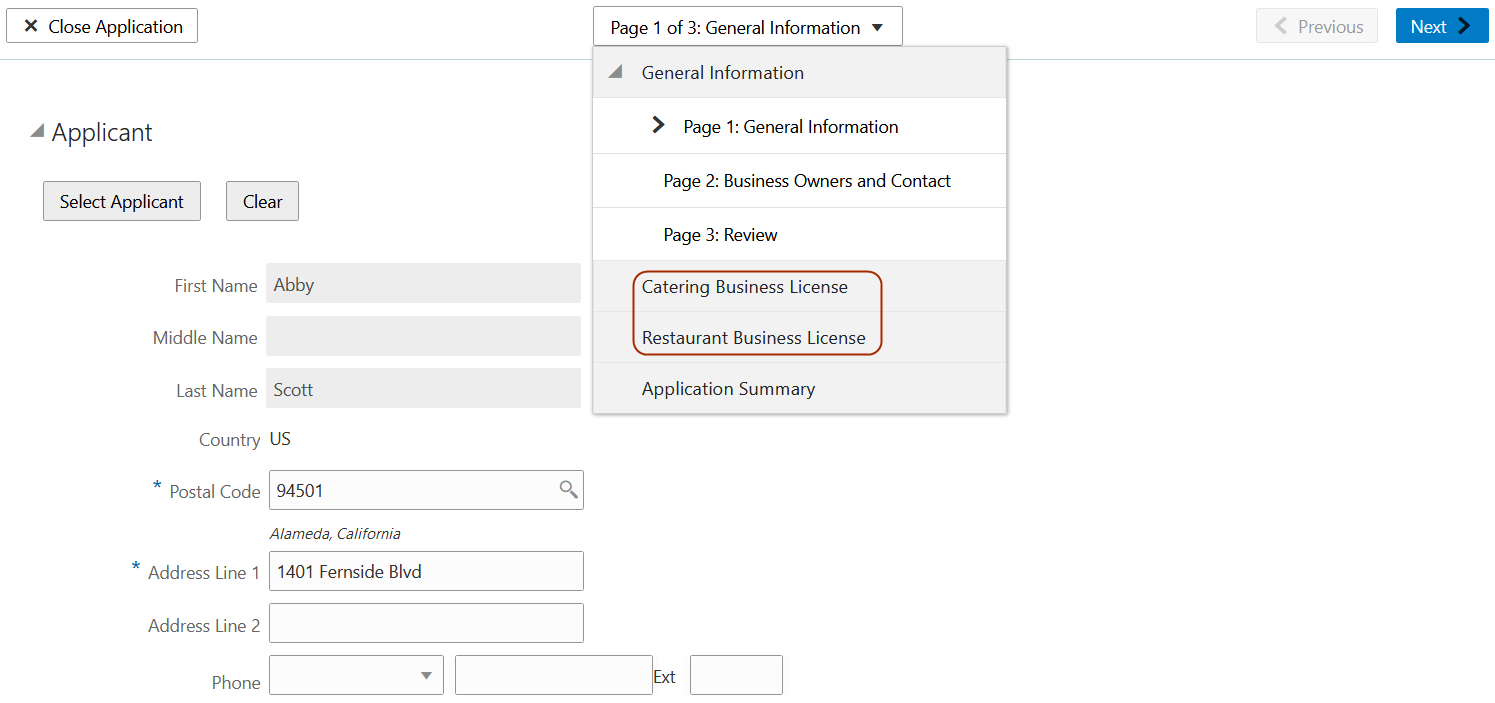
General Information Page
Applicants can review and edit input for all the selected business license types using the Application Summary section.
There is a new transaction type sub-classification called General Information with its own intake form design that the implementation team configures to contain all the common field groups, such as Applicant, Business Locations, Name, Owners and so on. The General Information transaction type defines the General Information section displayed when an applicant selects multiple applications.
NOTE: Selecting and submitting a single intake for multiple business license types at one time is available only for the Business Licenses offering.
Applicants may apply for multiple licenses in one intake form.
Steps to Enable
To enable this feature:
- Create a Business License Type using Subclassification = General Information.
- Navigate to Common Setup > Agency Options > Features, Business License options.
- In the Business License Group, enable Multiple Application Selection and select the General Information Type created in step 1.
Tips And Considerations
The General Information license type is a special intake form specifically used when multiple applications are selected. All the Business License types must include the same information/field groups that were included in the General Information Type.
The required field groups are:
- Applicant
- Business Details
- Business Location
- Business Owners
- Additional Contacts.
Terms and Conditions is optional on the General Information Type.
Key Resources
- See Implementing Permitting and Licensing, "Setting Up Business Licenses," Setting Up Business License Types on the Oracle Help Center.
- See Implementing Permitting and Licensing, "Creating Intake Forms," Creating Common Information Intake Forms on the Oracle Help Center.
- See Using Business Licenses, "Applying for a Business License," Choosing an Application Type on the Oracle Help Center.
- See Using Business Licenses, "Applying for a Business License," Completing Multiple Applications on the Oracle Help Center.
Contractor Lifecycle Management
The Business Licenses offering supports contractor registration for agencies to more effectively manage contractor licenses registered with them. When you configure a transaction type with the contractor registration subclassification, the transaction collects a variety of contractor license and business information. The Contractor License field group in the business license application design allows the agency to collect contractor license information such as classification, insurance, bond, and more during the registration intake. Agencies can optionally add instructional text to provide guidance and instructions in each contractor license section. After the registration is submitted, the agency staff manually reviews the application, completes the workflow, and approves the contractor license registration with the agency. When the registration is complete, the contractor’s license registration information is added to the agency's contractor license list.
With the exception of inspections and consultations, contractor registration in the Business Licenses offering shares this functionality used for business licenses:
- Business entity records
- Expiration
- Fees
- Population of address, parcel, and owner (APO) for business locations within the agency's jurisdiction
- Renewals and amendments
- Use of Communication Events and Business Rules Framework
This example illustrates the Registration Activity detail pages for a contractor. The Registration Information includes the contractor license details from the registration intake form:
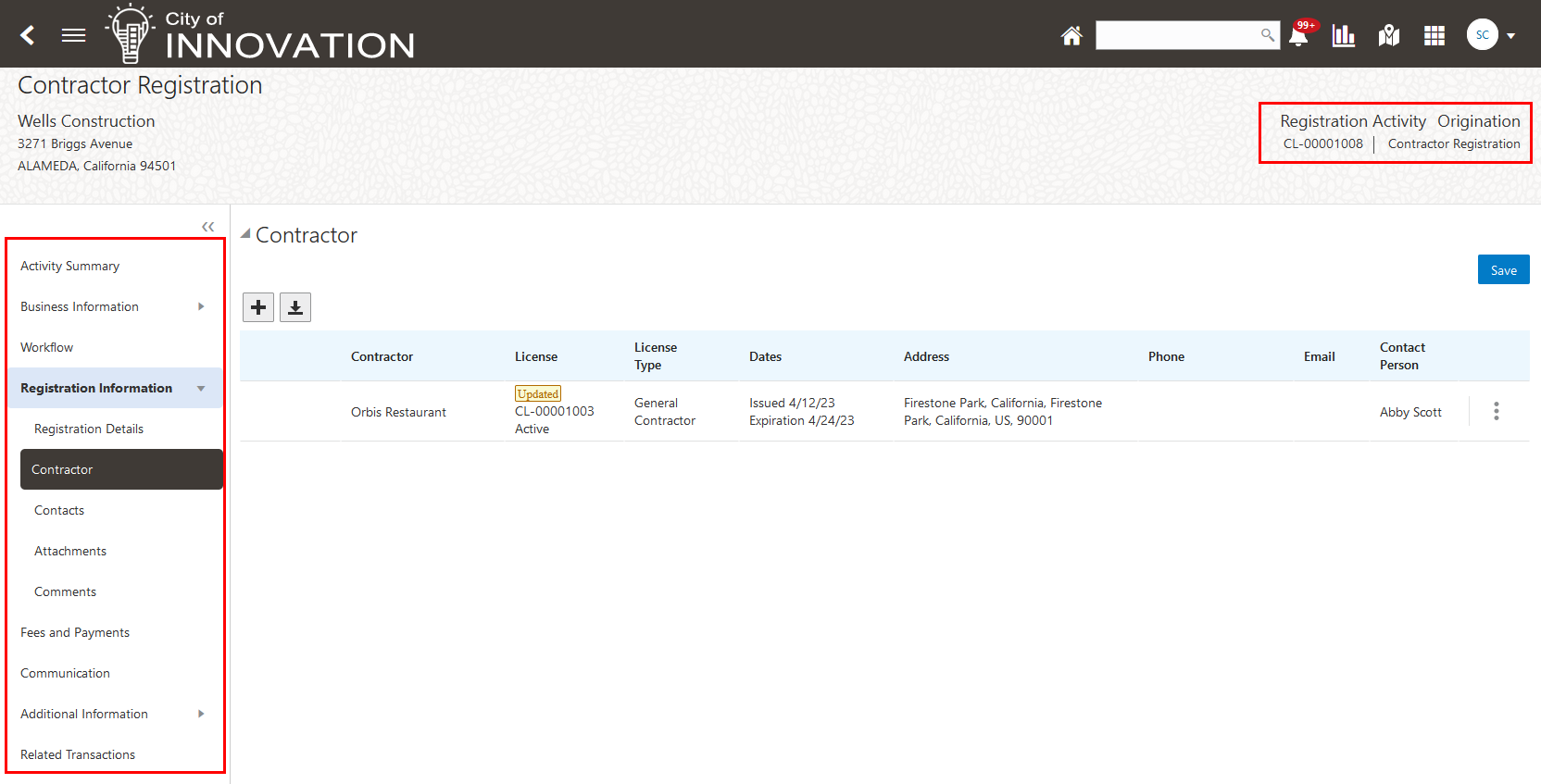
Registration Activity - Registration Information Pages
Your agency can also enable the renewal and amendment functionality for contractor registration transactions, like you can with business license transactions. When contractors renew or amend their registration, the original contractor license information is copied over to the renewal or amendment. This simplifies the data entry process for contractors who are renewing or amending their registration.
Contractor Registration using Business Licenses functionality helps contractors to register their contractor licenses with the agency.
Steps to Enable
Agencies may configure the business license transaction using the Contractor Registration subclassification or leave it blank. Contractor registration leverages the same setup used for business license transactions. Leaving the subclassification blank will allow you to optionally register the contractor license on the business license.
To add the contractor registration business license type:
- Create a Business License Type using the subclassification of "Contractor Registration".
- Add the contractor field group from the form designer when creating your form.
- Specify the display mode. Options include:
- Single Entry: Allows only 1 contractor license on the application.
- Multiple Entry: Allow you to register more than one contractor license on the application.
- Select from List: Allows the user to select a contractor from the contractor list.
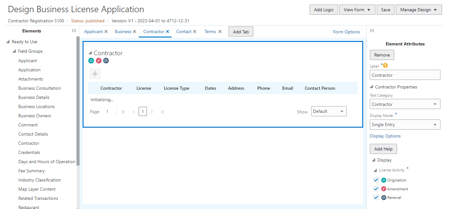
Business License Form Designer
You can configure the contractor field groups page to provide additional instruction information within each section of the contractor field group page. Once you render your page using the display mode, enable and assign instruction text to each section.
To do this complete the following steps:
- On the Lookup page, search for ‘Instructional text category’. Add lookup values for instruction text categories.
- On the Instructional Text page, create the content.
- Optionally you can change the section names on the form using the Contractor Sections page. This title will be reflected throughout the pages where the contractor license appears.
- Enable or disable sections of the contractor license using the Sections tab on the Contractor License Options page.
- On the contractor field groups page, in the contractor properties section you can do the following:
- Select the instructional text category to narrow down the set of instruction text to select from.
- Select the display mode to indicate single entry, multiple entry or select from list.
- Use the display options link to hide or display a section and add instructional text for each section.
Integrating Contractor License with an External Source
If you have set up your system to integrate contractor licenses with an external source such as the State License Board, you will now see the license type field on your contractor license. The license type is part of the key on the contractor license record. The integration defaulted the license type value "LICENSE" onto all contractor license integrated. You will need to set up a record with the license type value "LICENSE" in the Contractor License Options, License type page to represent the license type for the state contractor license.
Tips And Considerations
Review the following considerations:
- The Contractor Registration type has all the same functionality as a regular Business License Type, except Inspections in not supported. The detail pages will reflect that this is a "registration" instead of a "license" activity.
- Using the subclassification of "Contractor Registration" requires at least one contractor license be entered on the application.
- Leave the subclassification blank if you want to optionally capture contractor related information on business licenses.
- You can use validation groups to validate contractor licenses.
- Contractor licenses and contractor contact persons registered using the business license will automatically be added to the contractor list and contractor contact list when the transaction has been completed and active.
- Business License, Permits, Planning applications use the Limit License Usage to Authorized Contacts switch on the Contractor Setup options to only display contractor licenses the applicant has been authorized to use.
- New seeded section names have been added to the Contractor License Section and the Contractor License Options, Sections: Contractor, License, Conditions, Business, and Contact Persons.
Key Resources
- See Implementing Permitting and Licensing, "Setting Up Business Licenses," Setting Up Business License Types on the Oracle Help Center.
- See Using Business Licenses, "Working with Business Licenses," Working with Contractor Registration on the Oracle Help Center.
Access Requirements
Contractor List
The following new role has been delivered and granted to all agency staff:
- PSC Contractor Master Inquiry
The Contractor Master Management privilege (ORA_PSC_MANAGE_CONTRACTOR_MASTER_DUTY) was added to the following roles:
- Business License Business Admin
- Business License Business Specialist
- Business License Business Analysts
- Business License Business Manager
The Contractor Master Administration privilege (ORA_PSC_ADMIN_CONTRACTOR_MASTER_DUTY) was added to the following roles:
- Business License Business Admin
Business License Transaction
The Business License Transaction Contractor Management privilege was added to the Business License Business Analyst role along with the existing roles.
Business License Contractor Administration (Existing grant)
- Business License Business Admin
Business License Contractor Management (Existing grants)
- Business License Business Admin
- Business License Business Specialist
- Business License Business Manager
(New grant)
- Business License Business Analysts
Multiple NAICS Codes for a Business License
When this option is allowed by the agency, an applicant can select multiple NAICS codes to represent more than one activity or classification for that business license application. Fees can be associated with the selected NAICS codes.
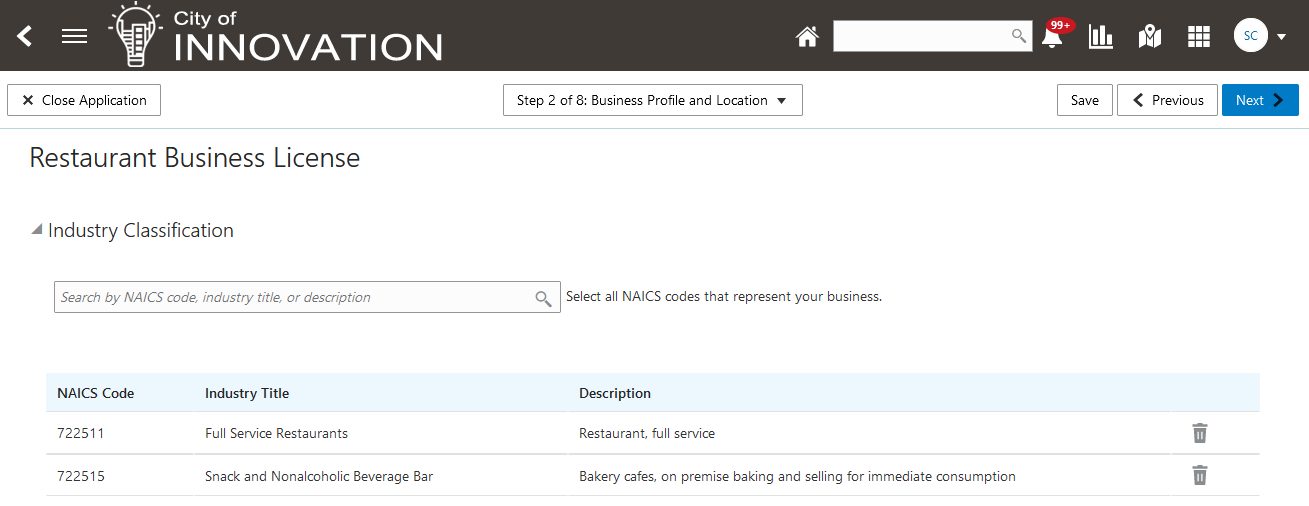
Business License Application page
Represent your business activity accurately when performing more than one activity.
Steps to Enable
When adding the Industry Classification (NAICS) field group to the intake form in the Intake Form Designer, you can specify the minimum and maximum rows that are allowed for the License Type.
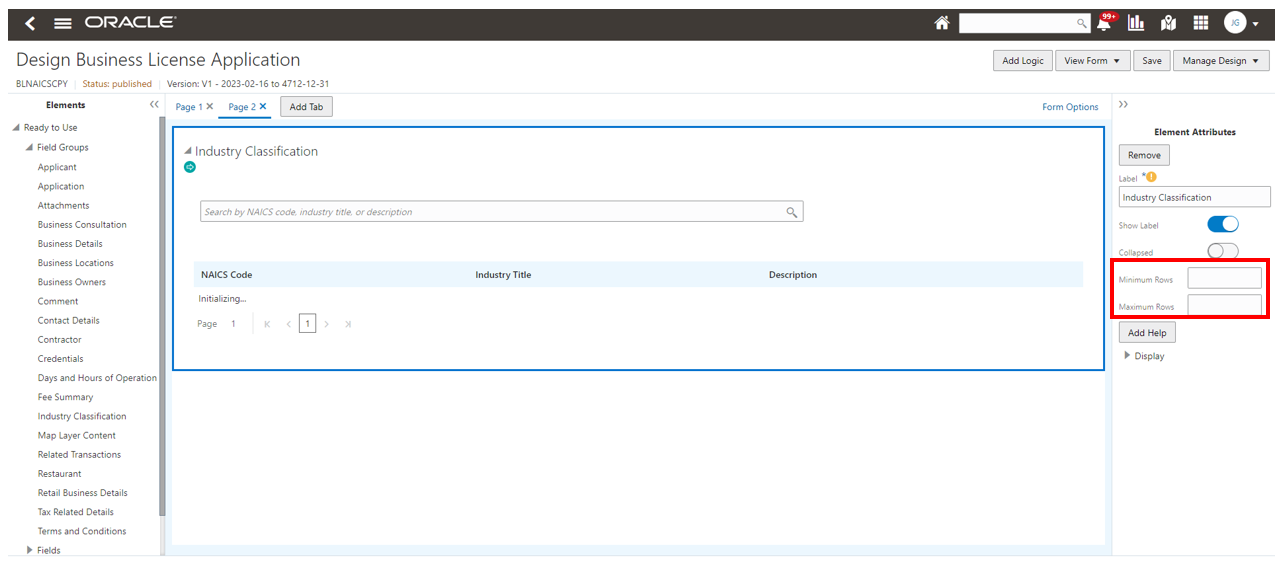
Intake Form Designer
Tips And Considerations
If using DMN to calculate fees for multiple NAICS:
- The input in DMN should be a list for passing in one or more NAICS codes.
- Add the DMN model to a Fee Schedule and use the "Form Designer" mapping source.
- In the Intake Form Designer Fee Mapping page, select the NAICS object and field to map to the DMN input.
Key Resources
- See Implementing Permitting and Licensing, "Creating Intake Forms," Using Predefined Field Groups on the Oracle Help Center.
Update Inspection Address for Business License Location
Business license location, business location, and the location of associated business license inspections are synchronized when the address is within the agency's jurisdiction. For example, if you're changing the business license address and the address is within the agency's jurisdiction, the business record and the addresses of active inspections will be updated. When the business license location is outside of the agency's jurisdiction, active inspections at that location are automatically canceled.
This example illustrates the existing field on the intake form for indicating whether a business is physically located within the agency's jurisdiction, which affects whether the locations are synchronized or not.
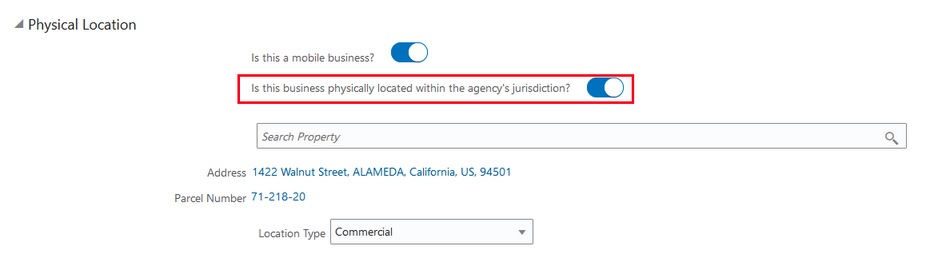
Business Physical Location Fields
This will be helpful if your agency needs the ability to prevent the initiation of an inspection for business activity when the business already has an active permit that results in a certificate of occupancy.
Steps to Enable
You don't need to do anything to enable this feature.
Key Resources
- See Using Business Licenses, "Managing the Business License," Managing Business Information on the Oracle Help Center.
- See Using Business Licenses, "Managing Business License Applications," Viewing Business Information on the Oracle Help Center.
Exclude Business License Information from Search Using the Location Type Attribute
Agencies can define a location type attribute to identify the type of property where the business activity is performed.
By defining the Location Type Attribute, agencies can select which business entities and license attributes public users can search on. They can also exclude certain business and license information from showing up on the global search and public map.
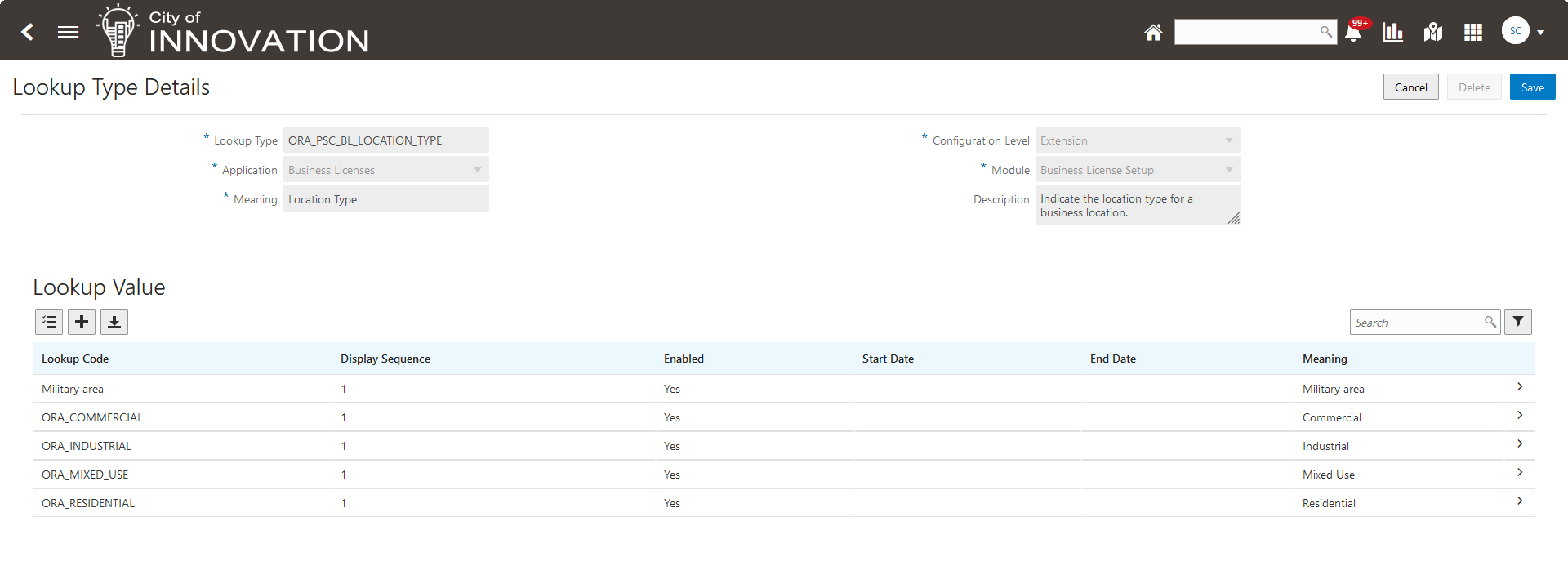
This example illustrates the Lookup Type page from where the agency can configure the location type attributes for a business.
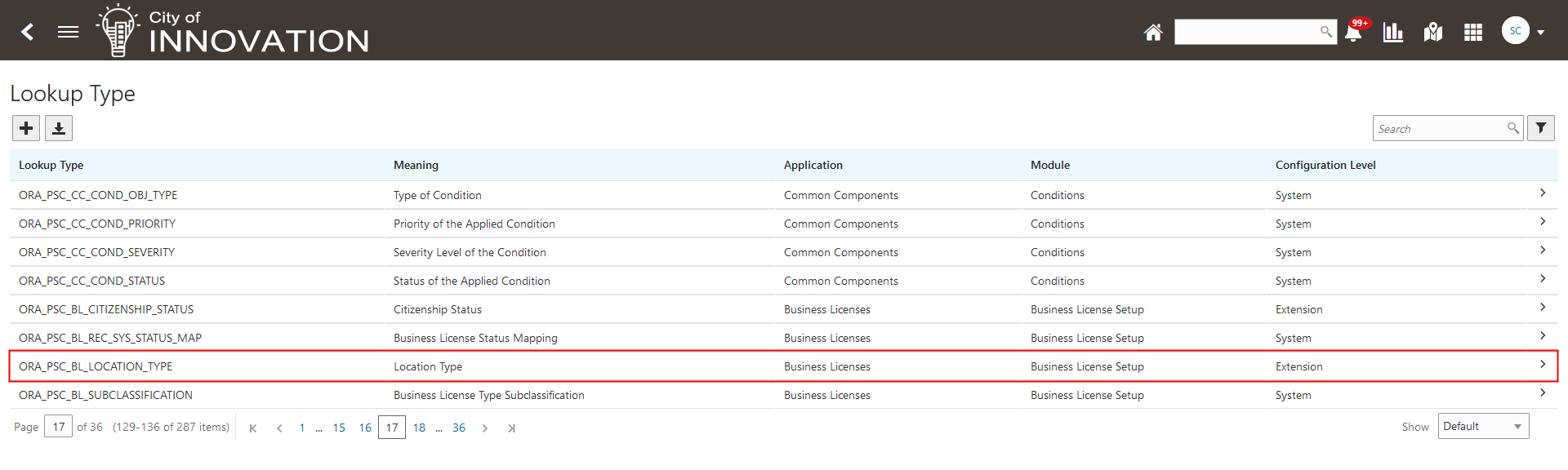
Lookup Type Page
This example illustrates the Lookup Details page for the business location attribute.
Configure Business License Search Modal Page
This example illustrates the Agency Information page where the feature code for configuring the business license search is available.
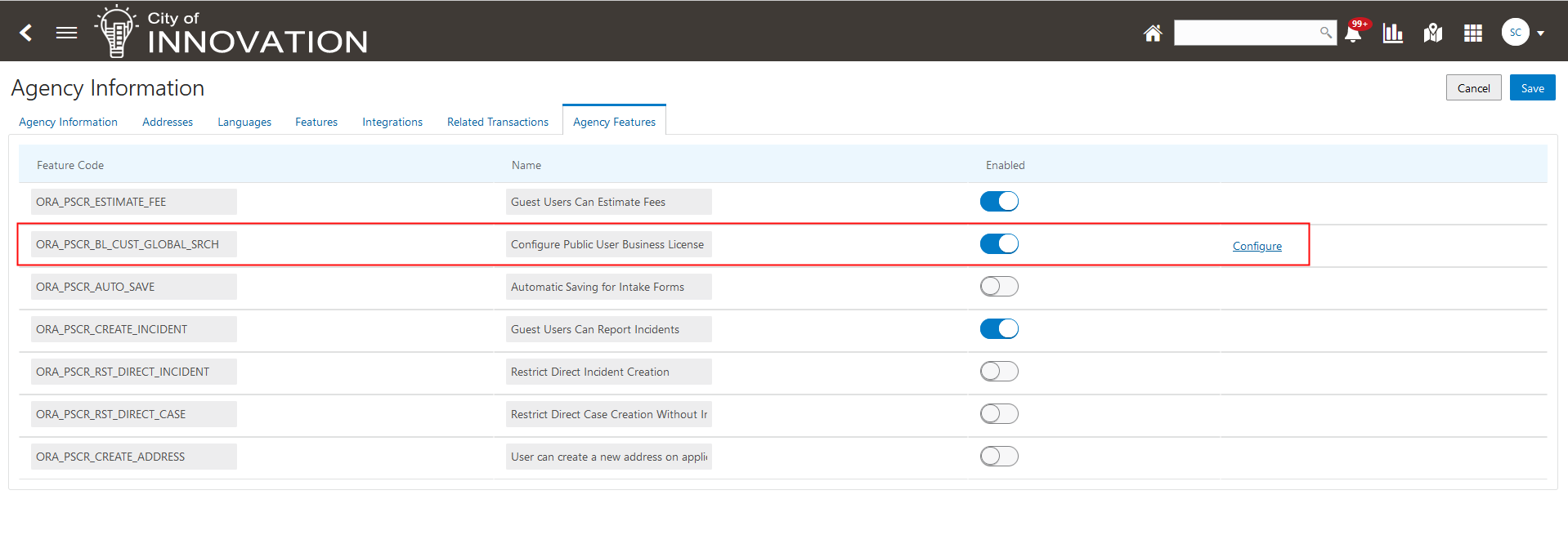
Agency Information - Agency Features Tab
Agencies can turn on the Location Address switch and add location types to the excluded list. Once added, the search results and the public map won't display their business addresses.
This example illustrates the setup page where the agency can add the location types to exclude from the business license search.
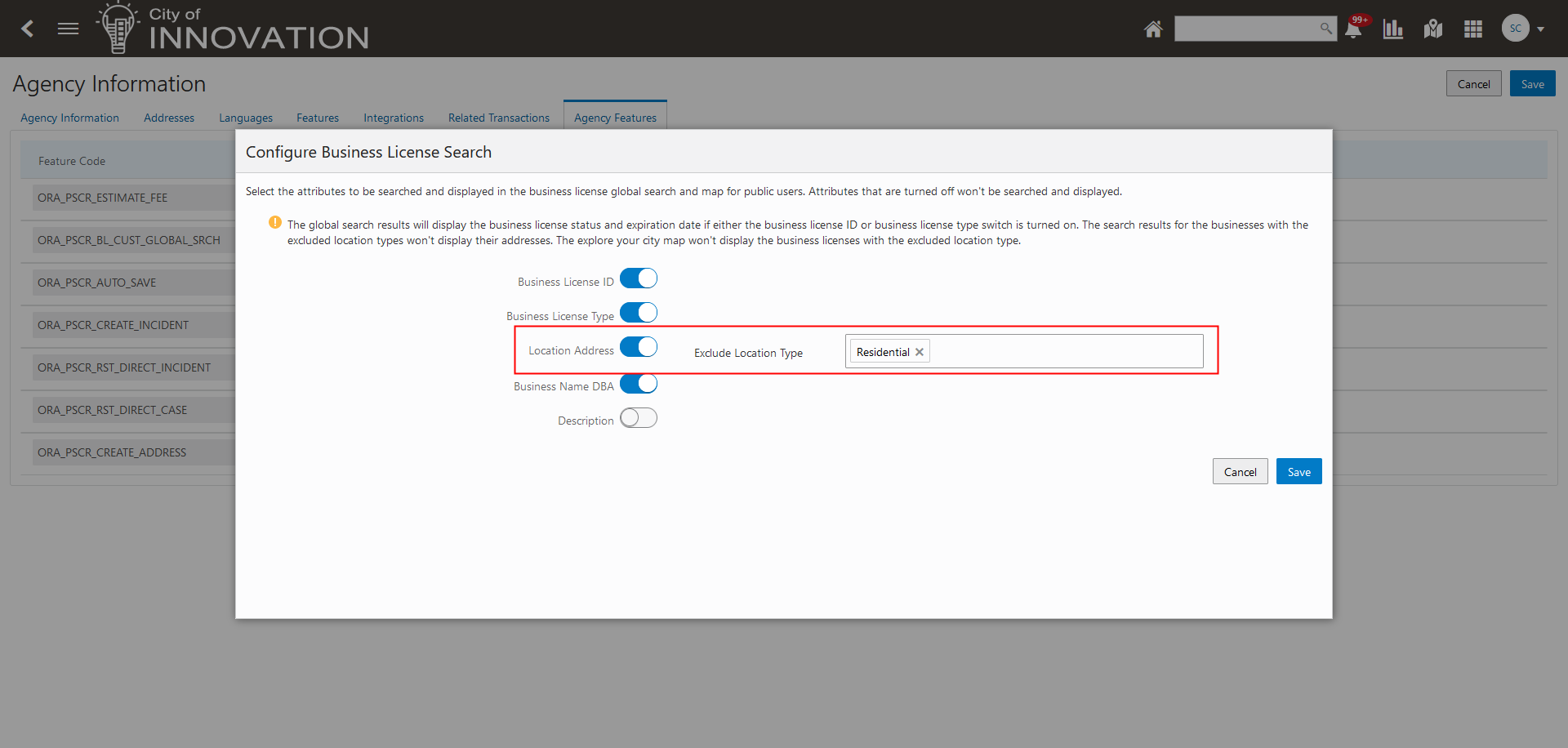
Configure Business License Search
This allows agencies to determine what type of property the business activity is being performed.
Steps to Enable
You can restrict public users to search on some Business License attributes and hide those attributes from the search results.
To enable:
- Navigate to Common Setup > Agency.
- Select your agency.
- Navigate to the Agency Features tab.
- Select ORA_PSCR_BL_CUST_GLOBAL_SRCH.
- Select Configure.
Turn the switch OFF for attributes that you do not want included in the search and displayed in the search results for public users.
When "Location Address" is ON, you can select the location type that should be excluded from the search criteria and the results.
The global search results will display the business license status and expiration date if either the business license ID or business license type switch is turned on. The search results for the businesses with the excluded location types won't display their addresses. The explore your city map won't display the business licenses with the excluded location type.
Tips And Considerations
Agencies may limit searchable/displayable attributes for public users that are not affiliated with the license/business. Applicants and contacts will have separate access.
Key Resources
-
See Implementing Your Agency, "Setting Up Agencies", Enabling Agency Features on the Oracle Help Center.
When a business is closed or they operate on a seasonal basis, agencies can inactivate their business licenses.
Registered public users such as the business owner, applicant, and contacts, with appropriate permissions, can request to inactivate their business license, which will be reviewed and approved by the agency staff.
To inactivate a license, use the Inactivate action from any of these pages:
- Business licenses list page
- Business License Overview page
- License tab of the Business page
This example illustrates the Inactivate Business License page:
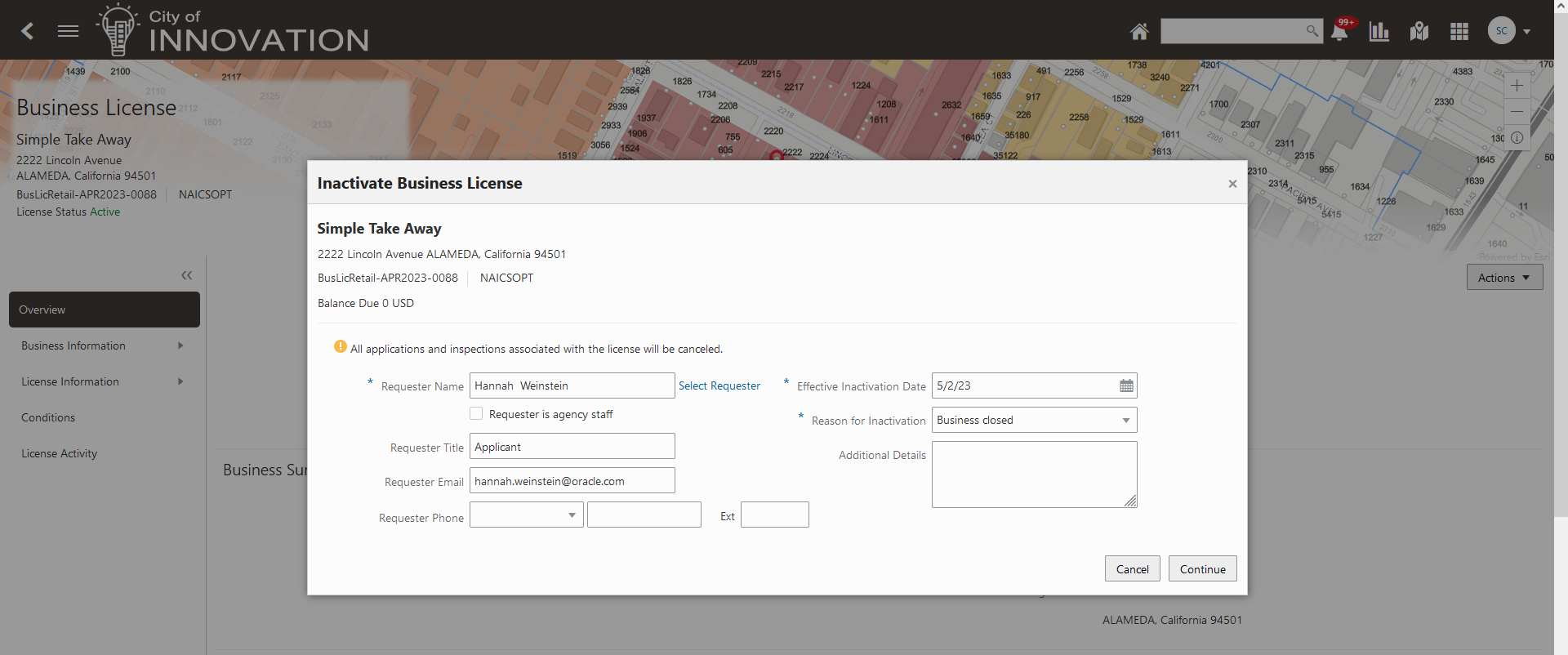
Inactivate Business License Page
When you inactivate a license, all the applications and inspections associated with the license will be canceled. The activity status of the license will show as Inactive. You can click the View Details link to review the inactivation summary.
This example illustrates the Inactive status and the View Details link on the Overview page of the inactivated license:
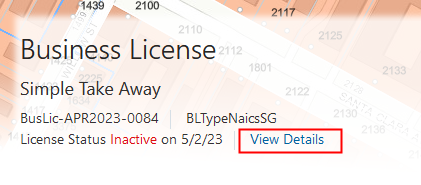
Business License Overview Page
This allows you to inactivate licenses giving you more flexibility with your business licenses.
Steps to Enable
You don't need to do anything to enable this feature.
Key Resources
-
See Using Business Licenses, "Managing the Business License," Managing Business Licenses on the Oracle Help Center.
Access Requirements
To inactivate business license information the following roles were granted PSC_BL_INACTIVATE_PRIV:
- PSC Business Analyst
- PSC Business License Application Administrator
- PSC Business License Manager
- PSC Business License Specialist
- System Administrator
To view the inactivated information, the following roles were granted PSC_BL_VIEW_INACTIVATION_DETAILS_PRIV:
- Agency staff that has access to Business Licenses
- Registered public users that have access to the Business License
Parcel Reference Link to Business Licenses
This feature allows the agency staff to create a link for Parcel or Address on the Business License Transactions, Business Licenses, Business Entity, and Application Intake pages. Once added, you can click the parcel link from the Location section of the Business License to get to the parcel information.
In the example below, the parcel link is enabled in the Location section of the Business License.
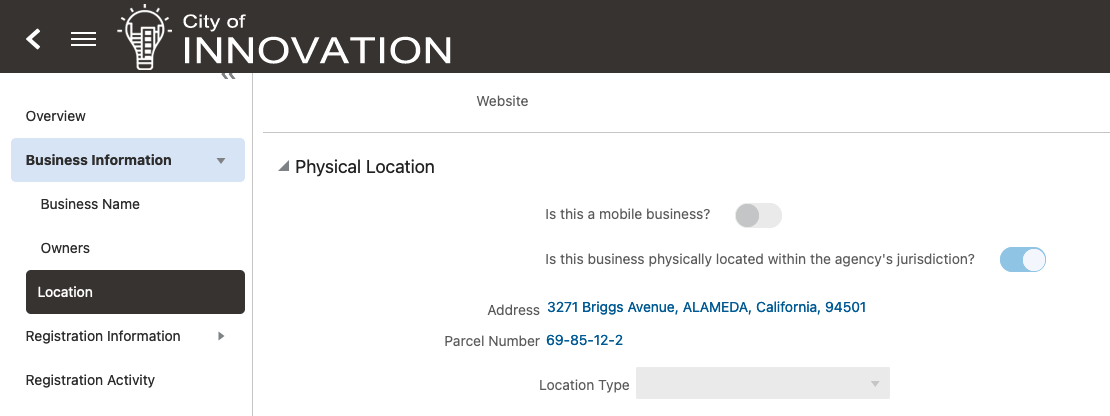
Business License Location - Parcel Link
Conversely, as a part of this feature, a new tab Business Licenses is added under Transactions on the Parcel Details and Parcel Address pages.
In the example below, the Business Licenses for a particular parcel are listed under the Transactions tab.
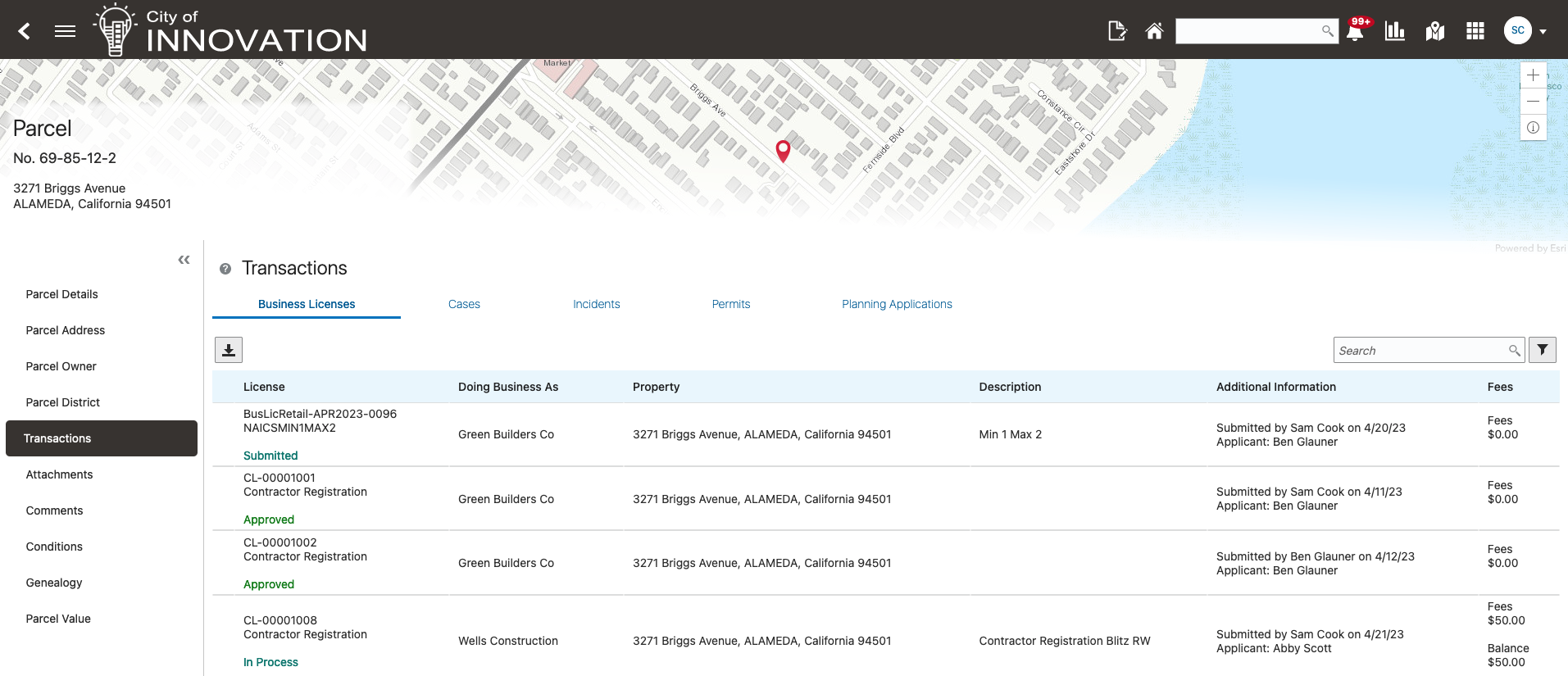
Transactions - Business Licenses
You can easily navigate from reference parcels and addresses to a linked business license on the transactions tab.
Steps to Enable
You don't need to do anything to enable this feature.
Consolidated Certificate for Multiple Business Licenses
Agencies can allow businesses to print and/or display one certificate for all the licenses awarded to a specific location or the business.
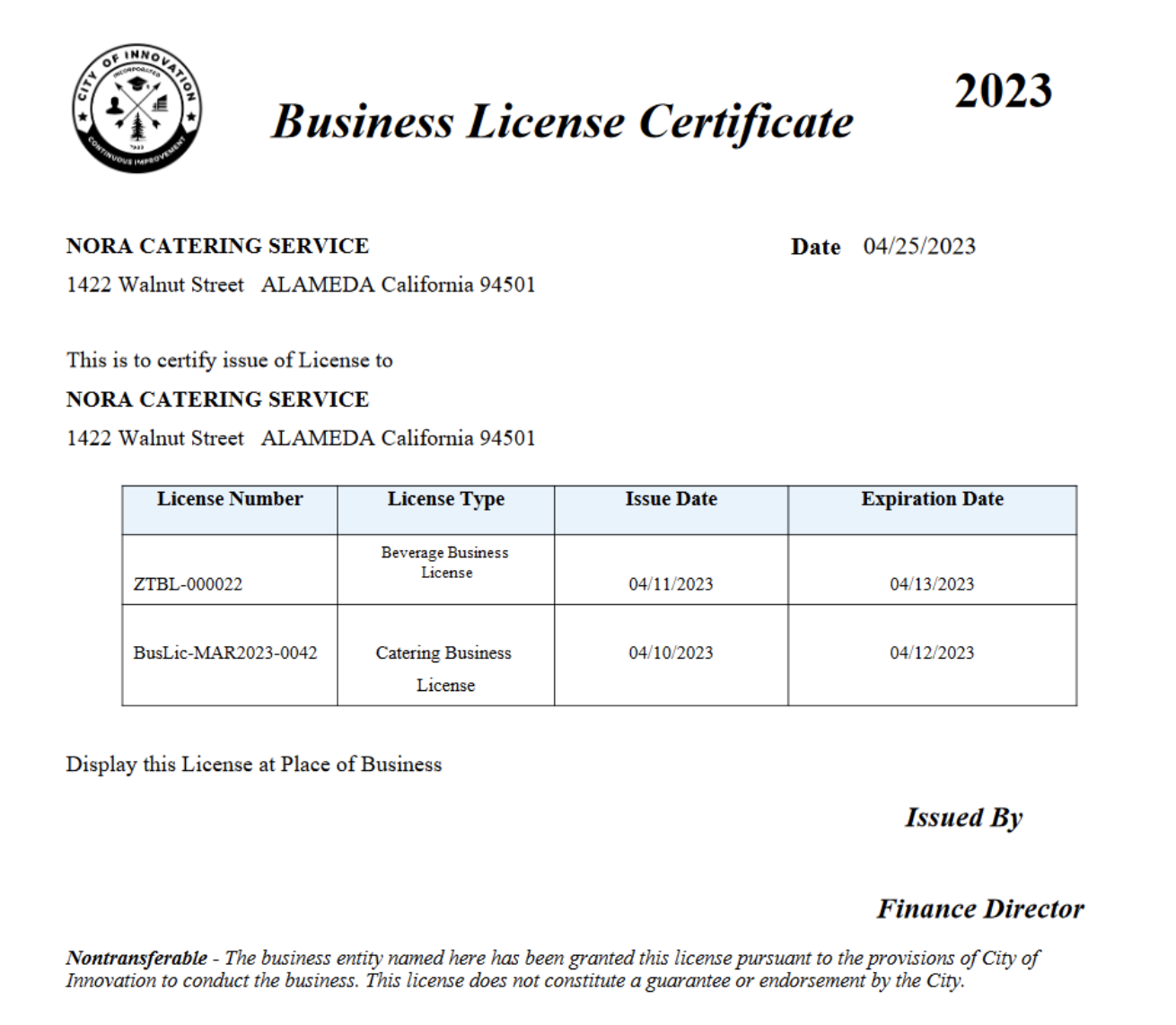
Business License Certificate
Agency Staff and Registered Public Users with full or view/print access to print the consolidated business license certificate for a location.
Business can now display one certificate that includes multiple licenses for the business location.
Steps to Enable
You don't need to do anything to enable this feature.
Tips And Considerations
You will need to identify that the report will be used to generate the Consolidated certificate for multiple licenses.
To do this:
- Navigate to Common Setup > Agency > Features > Business License Options.
- Select the report ID "BusinessLocationCertificate".
On the Business License options page, you can enable or disable these switches:
- Allow public user to view business license certificate for a location.
- Allow hiding businesses information and associated licenses from public view.
Key Resources
- See Using Business Licenses, "Managing the Business License," Viewing the Business License on the Oracle Help Center.
Additional Property Reference Grid on Business License Transactions
Agencies can now collect property reference information from map layer content for parcels associated with business license applications in addition to permit and planning applications.
When designing the business license intake form for a business license type, agencies must add the property field groups including Property and Map Layer Content to capture GIS information for a parcel based on the attributes in map layers. As with configured permit and planning applications, the business license applicant selects the physical location of the property, and the GIS attributes and values are saved with the application in the Additional Property Reference information when the application is submitted. The Additional Property Reference information appears in the business license activity details on the Location page, and can be displayed to the public, depending on agency setup.
This example illustrates the new fields in the Physical Location element on the Design Business License Application page, which will be displayed for the specified license activity type.
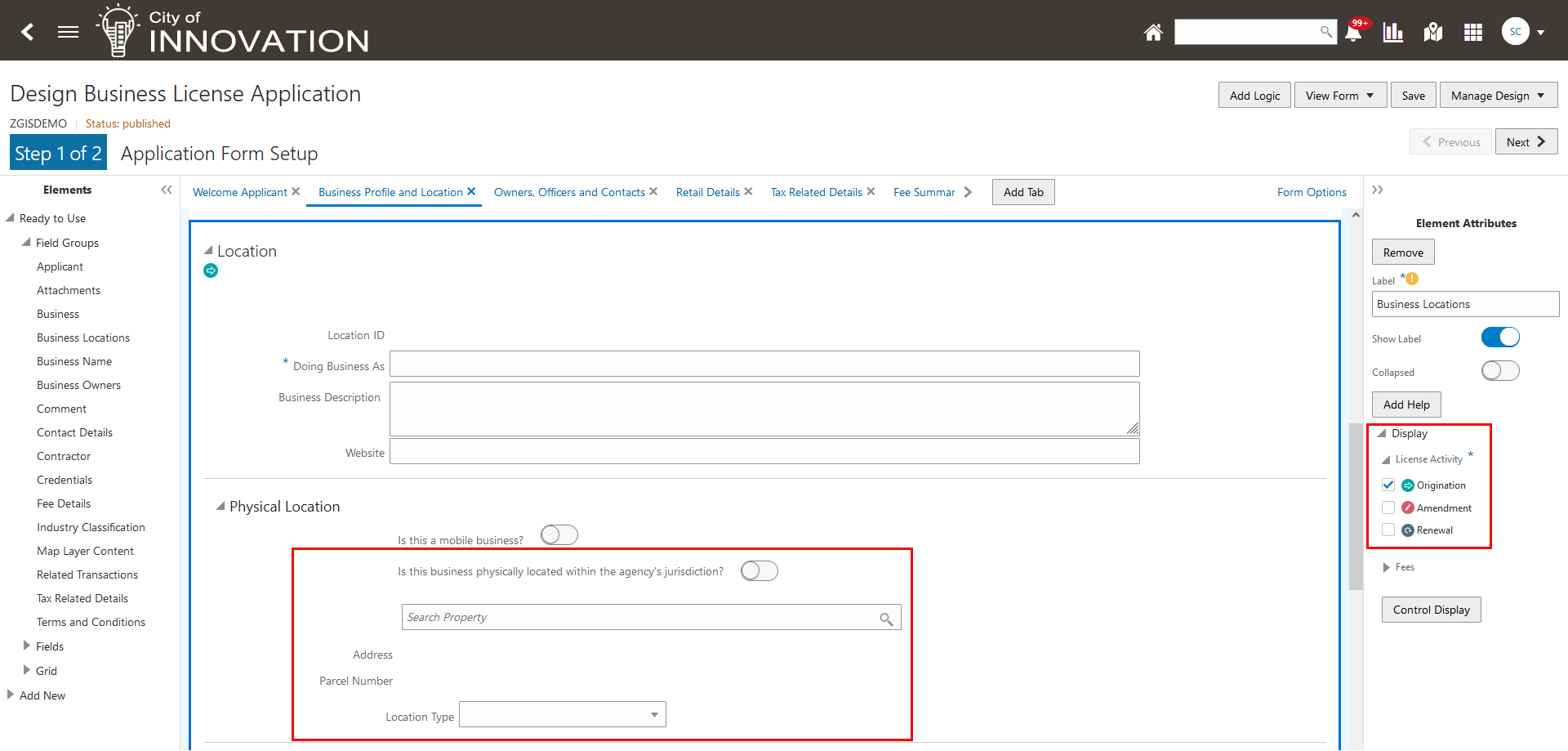
Intake Form Design for a Business License Origination Application
This example illustrates the Additional Property Reference grid after an applicant selects a property location in an application.

Populated Additional Property Reference Grid in an Application
This allows agencies to retrieve and store the mapping attributes from the GIS map layers after the business location is selected on the business license application.
Steps to Enable
The Map Layer Content field group is enabled for Business License offering.
While configuring a Business License application intake form, select the Map Layer Content field group. Oracle recommends this be placed below the Property field group.
Select the GIS Attributes that should be captured for this Business License application intake form using the right panel link.
NOTE: The master list of the GIS attributes that could be captured are defined in GIS Attribute Mapping > Map Layer Content. This is existing functionality.
During that Business License application intake, when the within jurisdiction Physical Location is selected, the map layer intersect is executed in the background and captures/displays the defined GIS Attributes.
Tips And Considerations
The same setup for permits and planning applications now also applies to business license applications, except the agency identifies the type of license activity (origination, amendment, and renewal) in the form design.
Key Resources
- See Using Business Licenses, "Managing Business License Applications," Viewing Business Information on the Oracle Help Center.
- See Implementing Permitting and Licensing, "Creating Intake Forms," Using Predefined Field Groups. See the section: "Working with Property Field Groups" on the Oracle Help Center.
IMPORTANT Actions and Considerations
UPGRADE ACTIONS
With every upgrade, make sure to complete the following steps in the Initial Set Up functional area in Functional Setup Manager. This process ensures all new security definitions, such as job roles, duty roles, privileges, and so on, are included in your implementation.
- Run Public Sector Security Setup Process
- Manage Custom Roles
REST Backward Compatibility
Public Sector Permitting and Licensing updates REST APIs from release to release. Our goal is to not create APIS that are incompatible from one release to the next. However, due to circumstances and security impacts this may not be feasible.
For the most current information, see My Oracle Support Document ID: 2853758.1.
Documentation for all REST APIs included in Public Sector Permitting and Licensing can be found on the Oracle Help Center.
Deprecated REST APIs
At times, REST APIs will be deprecated and no longer available for public use. For the most current information, see My Oracle Support Document ID: 2853758.1.
| REST API | Deprecated Release | Comments |
|---|---|---|
| Appeal Corrective Actions (publicSectorAppealCorrectiveActions) |
23C | This API is deprecated in 23C. |
| Business Rules Framework Resource Actions (publicSectorBusinessRulesFrameworkResourceActions) |
23D | This API will be deprecated in 23D. You should begin planning to no longer use this resource and find alternatives. |
| Business Rules Framework Conditions (publicSectorBusinessRulesFrameworkConditions) |
23D | This API will be deprecated in 23D. You should begin planning to no longer use this resource and find alternatives. |
| Business Rules Framework Schedules (publicSectorBusinessRulesFrameworkSchedules) |
23D | This API will be deprecated in 23D. You should begin planning to no longer use this resource and find alternatives. |
| Validation Group Usages (publicSectorValidationGroupUsages) |
23D | This API will be deprecated in 23D. You should begin planning to no longer use this resource and find alternatives. |
| License Notifications (publicSectorLicenseNotifications) | 23D | This API will be deprecated in 23D. You should begin planning to no longer use this resource and find alternatives. |