
This document will continue to evolve as existing sections change and new information is added. All updates appear in the following table:
| Date | Module | Feature | Notes |
|---|---|---|---|
| 27 OCT 2023 | Permitting and Licensing Common | Notification of Faulted Processes | Updated document. Added additional Steps to Enable. |
| 27 OCT 2023 | Permitting and Licensing Common | Payment Application Error Correction | Updated document. Added Access Requirements information. |
| 27 OCT 2023 | Permitting and Licensing Common | Transaction Expiration Events for Business Rules Framework | Updated document. Updated Tips and Considerations. |
| 27 OCT 2023 | Permits and Inspections | Contextual Help for Application Intake | Updated document. Added additional Steps to Enable. |
| 27 OCT 2023 | Planning and Zoning | All Applications and All Activities Worklist Tabs | Updated document. Added Steps to Enable. |
| 13 OCT 2023 | Business Licensing | Communication Event for Business License Inactivation | Updated document. Updated description. |
| 15 SEP 2023 | Created initial document. |
 HAVE AN IDEA?
We’re here and we’re listening. If you have a suggestion on how to make our cloud services even better then go ahead and tell us. There are several ways to submit your ideas, for example, through the Ideas Lab on Oracle Customer Connect. Wherever you see this icon after the feature name it means we delivered one of your ideas.
GIVE US FEEDBACK
We welcome your comments and suggestions to improve the content. Please send us your feedback at oracle_fusion_applications_help_ww_grp@oracle.com.
DISCLAIMER
The information contained in this document may include statements about Oracle’s product development plans. Many factors can materially affect Oracle’s product development plans and the nature and timing of future product releases. Accordingly, this Information is provided to you solely for information only, is not a commitment to deliver any material, code, or functionality, and should not be relied upon in making purchasing decisions. The development, release, and timing of any features or functionality described remains at the sole discretion of Oracle.
This information may not be incorporated into any contractual agreement with Oracle or its subsidiaries or affiliates. Oracle specifically disclaims any liability with respect to this information. Refer to the Legal Notices and Terms of Use for further information.
Column Definitions:
Report = New or modified, Oracle-delivered, ready to run reports.
UI or Process-Based: Small Scale = These UI or process-based features are typically comprised of minor field, validation, or program changes. Therefore, the potential impact to users is minimal.
UI or Process-Based: Larger Scale* = These UI or process-based features have more complex designs. Therefore, the potential impact to users is higher.
Features Delivered Disabled = Action is needed BEFORE these features can be used by END USERS. These features are delivered disabled and you choose if and when to enable them. For example, a) new or expanded BI subject areas need to first be incorporated into reports, b) Integration is required to utilize new web services, or c) features must be assigned to user roles before they can be accessed.
| Ready for Use by End Users Reports plus Small Scale UI or Process-Based new features will have minimal user impact after an update. Therefore, customer acceptance testing should focus on the Larger Scale UI or Process-Based* new features. |
Customer Must Take Action before Use by End Users Not disruptive as action is required to make these features ready to use. As you selectively choose to leverage, you set your test and roll out timing. |
|||||
|---|---|---|---|---|---|---|
| Feature |
Report |
UI or |
UI or |
|
||
Intake Form Versioning and Effective Dating for Business Licenses |
||||||
Permitting and Licensing Common
You can now set user-defined fields to be read-only for an intake form. In the Intake Form Designer, select the field, and turn on the Read-only switch in the Field Attributes panel.
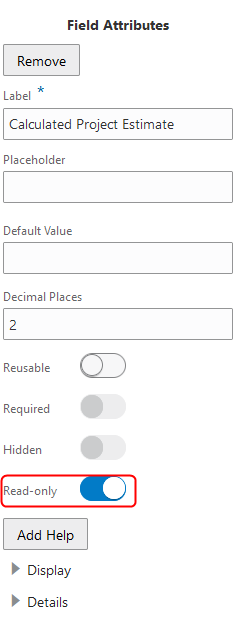
Field Attributes
The Read-only switch is not available for:
- Rich text areas
- Single-item check boxes
- Field group fields
- Delivered fields, like Job Cost
You can configure selected users to be able to update the read-only field values by creating a custom security role and applying it to just those users.
Agencies have the option to designate user-defined fields on an intake form as read-only.
Steps to Enable
To use, in the Intake Form Designer, select the field, and turn on the Read-only switch in the Field Attributes panel.
Tips And Considerations
Setting a field to read-only can be used when you want to prevent customers from altering the field's value, for example, when the field's value is automatically populated through integration.
Key Resources
- See Implementing Permitting and Licensing, "Creating Intake Forms," Working with Fields on the Oracle Help Center.
The time recording subject area provides agencies with analytical information about the time recorded by various categories and subcategories with assessed, unassessed information, as well as a real time dashboard and various analyses related to time recording.
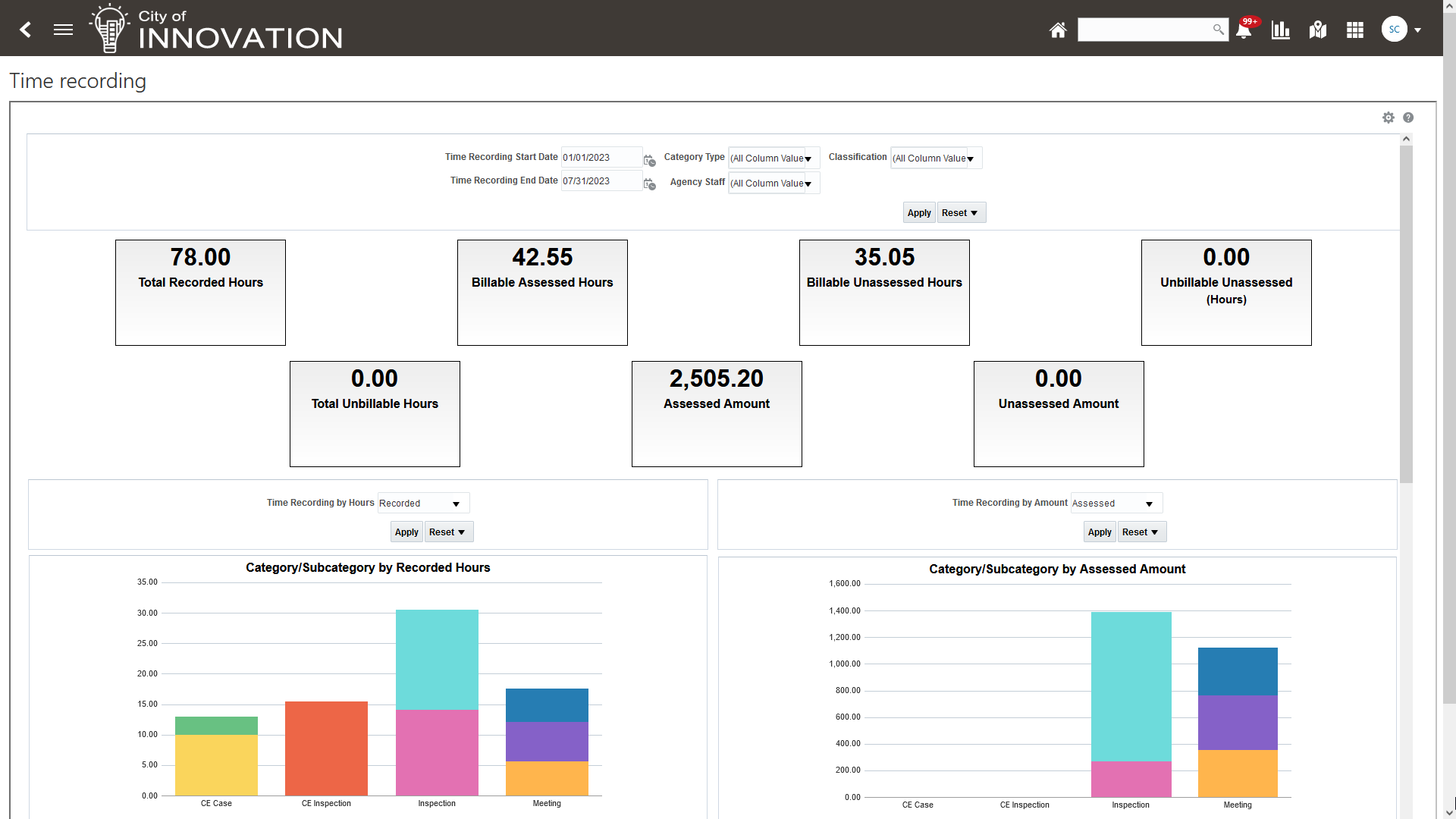
Time Recording Dashboard and Overview Page
Analytical information about time recording is critical for agency operations. An Oracle Transactional Business Intelligence (OTBI) subject area allows access to real-time dashboards.
Provides assessed and unassessed time recording information by various categories and subcategories.
Steps to Enable
Leverage new subject area(s) by adding to existing reports or using in new reports. For details about creating and editing reports, see the Creating and Administering Analytics and Reports book (available from the Oracle Help Center > your apps service area of interest > Books > Administration).
Tips And Considerations
You can include up to 10 agency configured dashboards on the Reports and Dashboards header. Time Recording OTBI subject areas shows analytics related to Time Recording functionality. This dashboard shows data when you uptake the time recording functionality.
Key Resources
- See Implementing Your Agency, "Setting Up Analytics," Setting Up Dashboards on the Oracle Help Center.
Access Requirements
This dashboard is accessible by users having following Fusion Job Role assigned:
- ORA_PSC_BUILDING_INSPECTOR_JOB
- ORA_PSC_CHIEF_BUILDING_OFFICER_JOB
- ORA_PSC_ECONOMIC_DEV_OFFICER_JOB
- ORA_PSC_FINANCE_ADMIN_JOB
- ORA_PSC_INSPECTIONS_SUPERVISOR_JOB
- ORA_PSC_PERMIT_TECHNICIAN_JOB
- ORA_PSC_PERMITS_SUPERVISOR_JOB
- ORA_PSC_PLAN_COORDINATOR_JOB
- ORA_PSC_PLAN_REVIEWER_JOB
- ORA_PSC_PRINCIPAL_PLANNER_JOB
- ORA_PSC_PERMITS_APPLICATION_ADMINISTRATOR_JOB
- ORA_PSC_CODE_ENFORCEMENT_APPLICATION_ADMINISTRATOR_JOB
- ORA_PSC_CODE_ENFORCEMENT_OFFICER_JOB
- ORA_PSC_CODE_ENFORCEMENT_SUPERVISOR_JOB
- ORA_PSC_CODE_ENFORCEMENT_TECHNICIAN_JOB
- ORA_PSC_SYSTEM_ADMINISTRATOR_JOB
- ORA_PSC_BUSINESS_ANALYST_JOB
Insurance and Job Valuation Validation
Validation of contractors on applications was extended to applications for business licenses and planning and zoning as well as permits in 23C. Now in 23D, agencies can configure validation of insurance by license type or license classification when contractor licenses are added to an application. They can also set up job cost validations by license type or license classification on permit applications that collect job cost on the intake form. Job cost isn't applicable to business license or planning applications; permits can be set up with both job cost and insurance validations.
This example illustrates job cost and insurance requirements by license classification that can be used for a permit application.
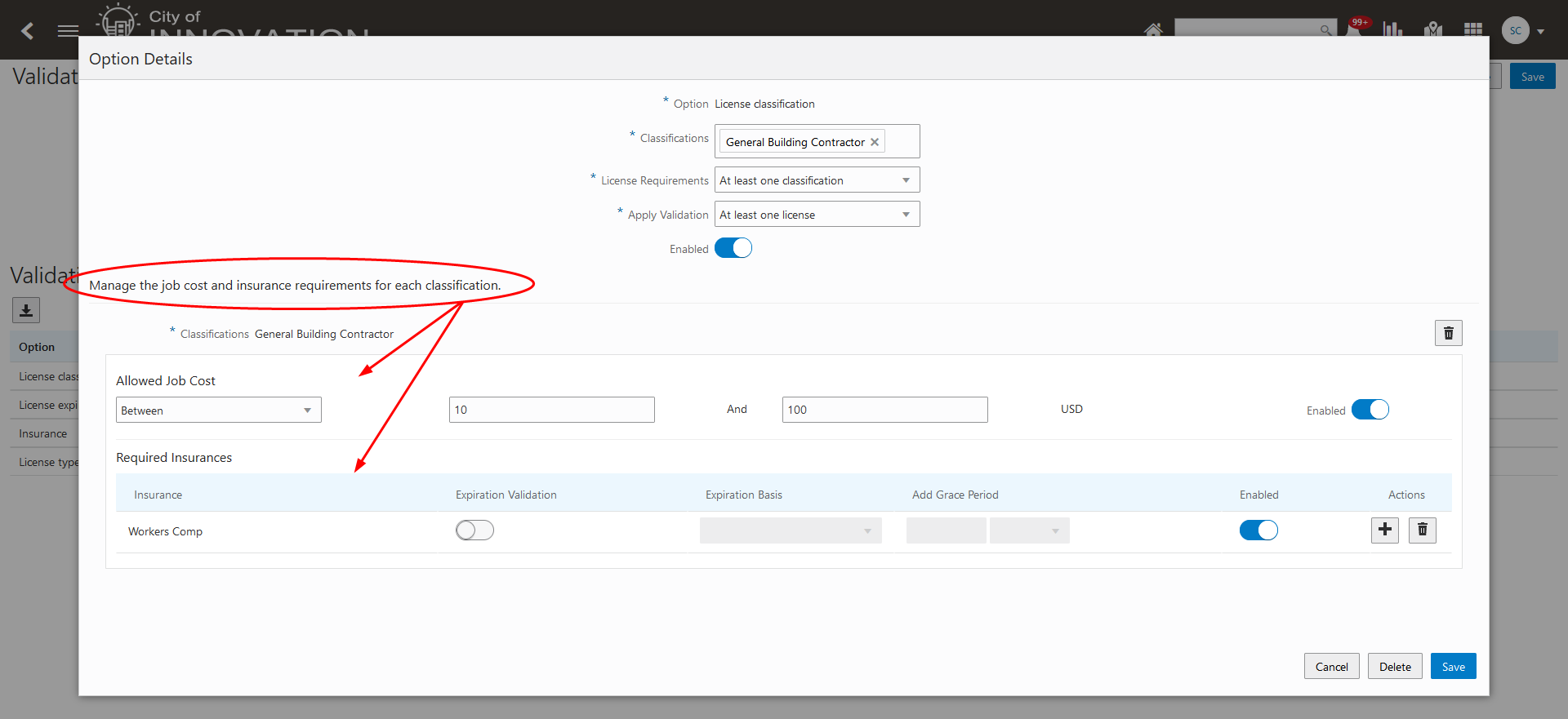
Validation Group Details - License Classification Option Details
Validation group-level configuration provides the option to prevent applicants from submitting their application when contractor license requirements aren't met, while allowing agency staff with contractor management roles to continue to submit the application.
Agencies can establish validation requirements for insurance and job valuation based on license classification or license type.
Steps to Enable
To add job cost validations for permit applications:
- Set up a validation group with the Permits usage. Indicate whether public applicants or agency staff can submit the application when requirements aren't met.
- Select the License classification or License type option to validate based on the classification or license type of the contractor license.
- Enter the allowable job cost in the validation options for each classification or license type.
- Set up the permit intake form with an Oracle-delivered job cost field: Select the Job Cost in the ready-to-use fields or add the Construction predefined field group, which includes the Job Cost field.
- Add the validation group to the permit type definition.
To add insurance validations for business license, permit, or planning applications based on license classification or license type:
- Set up a validation group with the Business Licenses, Permits, or Planning Applications usage. Indicate whether public applicants or agency staff can submit the application when requirements aren't met.
- Select the License classification or License type option to validate based on the classification or license type of the contractor license.
- Enter the required insurance for each classification or license type. You have the option to include expiration validations for each required insurance.
- Add the validation group with the corresponding usage to the business license type, permit type, or planning application type definition.
Tips And Considerations
Job cost is the value collected on permit intake forms using the Oracle-delivered Job Cost field. Custom job cost fields can't be validated
Key Resources
- See Implementing Permitting and Licensing, "Setting Up Application Validations," Setting Up Validation Groups on the Oracle Help Center.
Access Requirements
Only agency staff that has the contractor management duty role for an offering can override the contractor requirement validation during application submit. Roles are listed below:
- PSC Permit Contractor Management (ORA_PSC_PERMIT_CONTRACTOR_MANAGEMENT_DUTY)
- PSC Planning and Zoning Contractor Management (ORA_PSC_PNZ_CONTRACTOR_MANAGEMENT_DUTY)
- PSC Business License Contractor Management (ORA_PSC_BL_CONTRACTOR_MANAGEMENT_DUTY)
Manage Account and Self-Service Registration Update
Applicants and contractors can now self-identify as contractors when registering contractor licenses with the agency.
This includes changes to contractor license-related functionality on the Account Management and Registration pages, making the license information obsolete on those pages. The updates include:
- Public User Setup page - Contractors and license verification settings are removed.
- Public User Access page - Pending verification requests are not visible and contractor license and license notifications are no longer available. The Pending Verification Requests page is unavailable but existing contractor license verification information remains in the table.
- Register page for self-service registration and intake forms - The account use and contractor fields are removed and a new field, Business Title, is added.
- Manage Account - Profile Information page - A new field, Business Title, is added.
- Manage Account - Licenses page - Existing license details are view-only and can't be updated.
With the introduction of contractor registration in the Business Licenses offering in 23C, contractor information has moved to provide flexibility for tracking and managing contractors and their licenses.
Steps to Enable
You don't need to do anything to enable this feature.
Tips And Considerations
Contractor information will no longer be captured in Manage Account. For data currently captured, this information will be view only and deprecated in a future release. All license notifications have been deprecated.
Key Resources
- See Implementing Your Agency, "Setting Up Public Users," Setting Up Public Users on the Oracle Help Center.
- See Using Community Development Permits, "Managing Public Users," various topics on the Oracle Help Center.
Oracle Identity Domains as Identity Provider
This feature allows you to have public users register on the Identify Domain (IDCS) if you use IDCS as your Identity Provider (IdP).
This feature should be implemented if you:
- Currently use IDCS as your IdP
- Are implementing Permitting and Licensing and you want to start using IDCS as your IdP
If you do not meet the criteria above, there is no action for this feature.
You can use Identity Domain Cloud Service (IDCS) as an Identity Provider (IdP) for public users.
Steps to Enable
You will need to enable this task in Functional Setup Manager. See Oracle Permitting and Licensing: IDCS Requirement for Public Users (Doc ID 2973913.1) on My Oracle Support.
Tips And Considerations
If you are not or do not plan to use IDCS for your IdP there is no impact to you regarding this feature.
Key Resources
-
See Oracle Permitting and Licensing: IDCS Requirement for Public Users (Doc ID 2973913.1) on My Oracle Support.
Agency-level setup options now give you the flexibility to choose what information related to assigned staff you want to show to your applicants and contacts:
- No information
- Only assigned staff's name
- Assigned staff’s name and their email ID
- Assigned staff’s name and a general email ID
This example illustrates the various options from which you can select the information to display to public users:
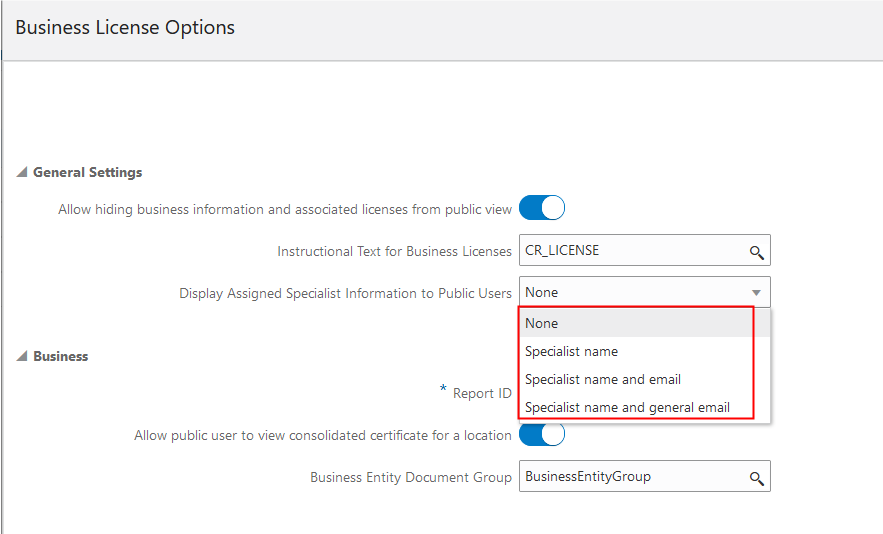
Business License Options Page
This example illustrates the Planning and Zoning Options page from where the Planner’s name and general email ID option is selected to display to public users:
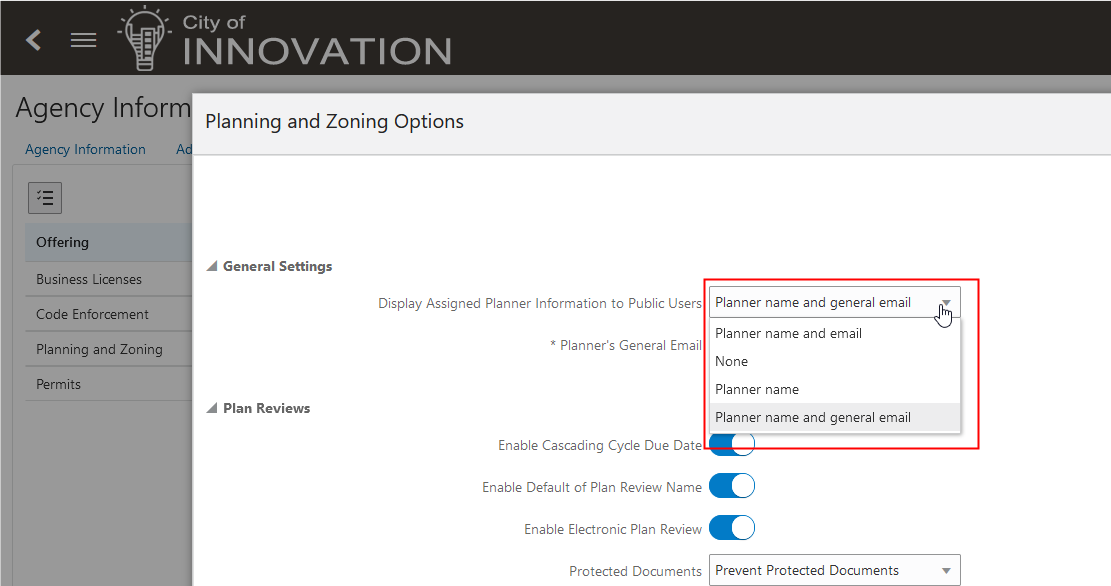
Planning and Zoning Options Page
With the above setting, registered public users, such as the applicant, will just see the selected assigned staff detail on their application pages.
This example illustrates the public user view of the Overview page, which shows the planner’s name and a general email ID of the agency:
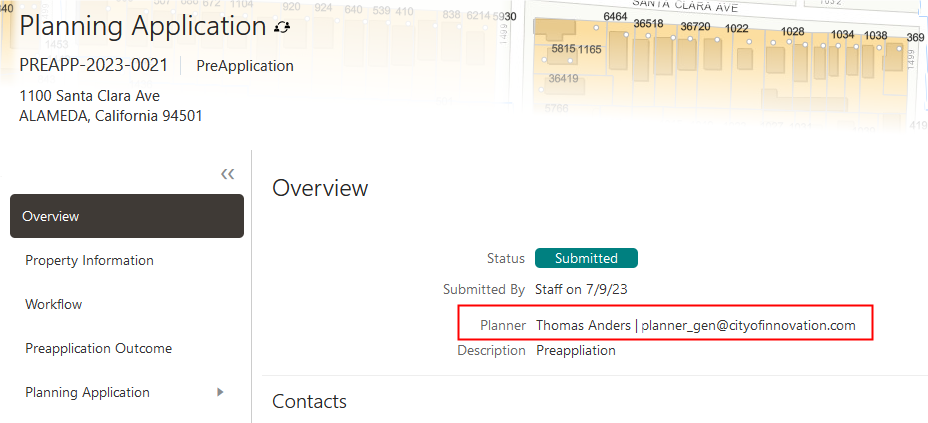
Planning and Zoning Overview Page
The assigned staff information can be optionally shown to the applicants or contacts through configuration options.
Steps to Enable
To enable this feature:
- Navigate to Common Setup > Agency.
- Select the Features tab.
- Select the Planning and Zoning Options or Business License Options.
- Use the "Display Assigned Specialist Information for Public Users" drop down to select the desirable agency staff display option.
Tips And Considerations
This feature is available for Planning and Zoning and Business Licenses.
Key Resources
- See Implementing Permitting and Licensing, "Setting Up Planning and Zoning," Setting Up Agency-Level Options for Planning and Zoning on the Oracle Help Center.
- See Using Community Development Planning and Zoning, "Managing Applications for Planning and Zoning," Viewing the Planning Application Detail Overview on the Oracle Help Center.
Manual Reset of Fee Status When Payment Is Not Processed
Sometimes payment gateways provide a response that cannot be interpreted as fee paid or unpaid. This feature enables agency staff to unlock the fee manually and reset the fee status to DUE. This feature assumes that the agency has reconciled payments online or using the Oracle Enterprise Scheduler (ESS) payment sync job first.
This feature grants agencies the ability to unlock fees manually so they can move forward with the transaction.
Steps to Enable
You don't need to do anything to enable this feature.
Tips And Considerations
Make sure to run the Oracle Enterprise Scheduler (ESS) payment sync job before manually resetting the fee status to Due. It is critical that you do not void checkout data unless you are absolutely certain. You can't reverse that action.
Key Resources
- See Using Community Development Permits, "Working with Payments," Voiding Checkouts on the Oracle Help Center.
Bank Transfers in Oracle Fusion Cash Management
Agency staff can now submit bank transfer requests to Oracle Fusion Cash Management from Oracle Permitting and Licensing to move money from one bank account to another to manage deposit account balances.
Bank accounts, business units, payment methods, and payment profiles must be set up in Oracle Fusion Cash Management.
Agencies that maintain deposit account funds in a separate bank account can manage the physical movement of those funds between agency bank accounts through Oracle Fusion Cash Management.
Steps to Enable
To enable bank transfers:
- Configure bank accounts, payment methods, payment profiles, and business units in Oracle Fusion Cash Management.
- Set up Deposit Accounts in Oracle Permitting and Licensing.
- Associate the deposit accounts with bank accounts in Oracle Permitting and Licensing.
See Implementing Your Financials Framework, Setting Up Deposit Accounts for information about setting up deposit accounts.
Tips And Considerations
The creation of a bank transfer in Oracle Fusion Cash Management requires the user to pass appropriate values fro the bank account, business unit, payment method, and payment profile. Agency staff submitting a bank transfer should know the appropriate values to populate on the Bank Transfer page.
Key Resources
- See Implementing Your Financials Framework, "Setting Up Deposit Accounts," on the Oracle Help Center.
- See Using Community Development Permits, "Working with Deposit Accounts," Working with Bank Transfers on the Oracle Help Center.
Agency staff can now use the bank reconciliation function in Oracle Fusion Cash Management to automatically or manually reconcile Oracle Permitting and Licensing payments, refunds and reversal transactions. We’ve added two ESS jobs:
- Prepare Reconciliation Data
- Create External Transactions
Agencies can push the Oracle Permitting and Licensing payments and refunds to Oracle Cash Management for reconciliation purposes daily.
Agencies can automate the reconciliation of permitting and licensing transactions to the bank statement in Oracle Fusion Cash Management.
Steps to Enable
To set up:
- Navigate to Payment Setup > Bank Reconciliation Options.
- Add a reconciliation option with the following information:
- Bank Account Name
- Business Unit Name
- Transaction Type
- Reference Text
- Description Text to map to External Cash Management Transaction
Tips And Considerations
Use transaction type codes configured for transaction type on Manage Cash Management lookups. Use separate transaction types for Oracle Permitting and Licensing payment methods where appropriate to increase reconciliation matches.
Key Resources
- See Using Community Development Permits, "Managing Permits," Working with Fees and Payments on the Oracle Help Center.
Now agency staff has the option to apply a credit for a payment on-account towards a payment of fee amount.
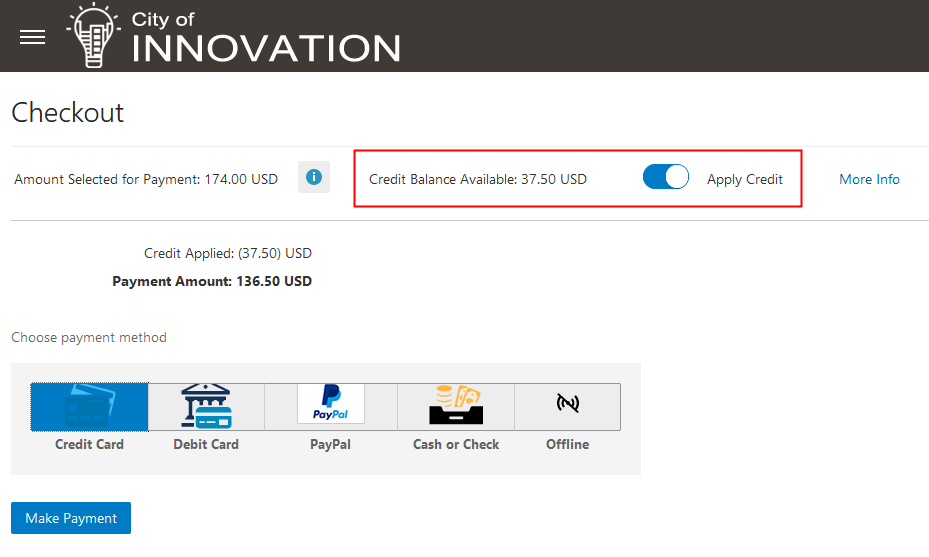
Checkout Page
Before applying credit, agency staff can access the link to get more information about the payment on-account balance. Agency staff can apply the credit of the payment on-account available for a registered public user.
If agency staff chooses not to apply the credit for the payment on-account balance, they can issue a refund for it.
Steps to Enable
You don't need to do anything to enable this feature.
Key Resources
- See Using Community Development Permits, "Applying for a Permit," Making Payments on the Oracle Help Center.
Payment Application Error Correction
Agency staff may accidentally record a payment against the wrong permit, planning application, or business license. Agency staff can now recover from such mistakes by unapplying a payment for a permit, planning application, or business license. When agency staff unapplies the payment, the system will:
- Create a payment on account record.
- Re-instate the fee for the unapplied permit, planning application, or business license.
Agency Staff can either refund the payment on the account balance or apply the payment on the account balance to pay fees for a permit, planning application, or business license.
Agency staff can unapply payments on the Payment History Details page:
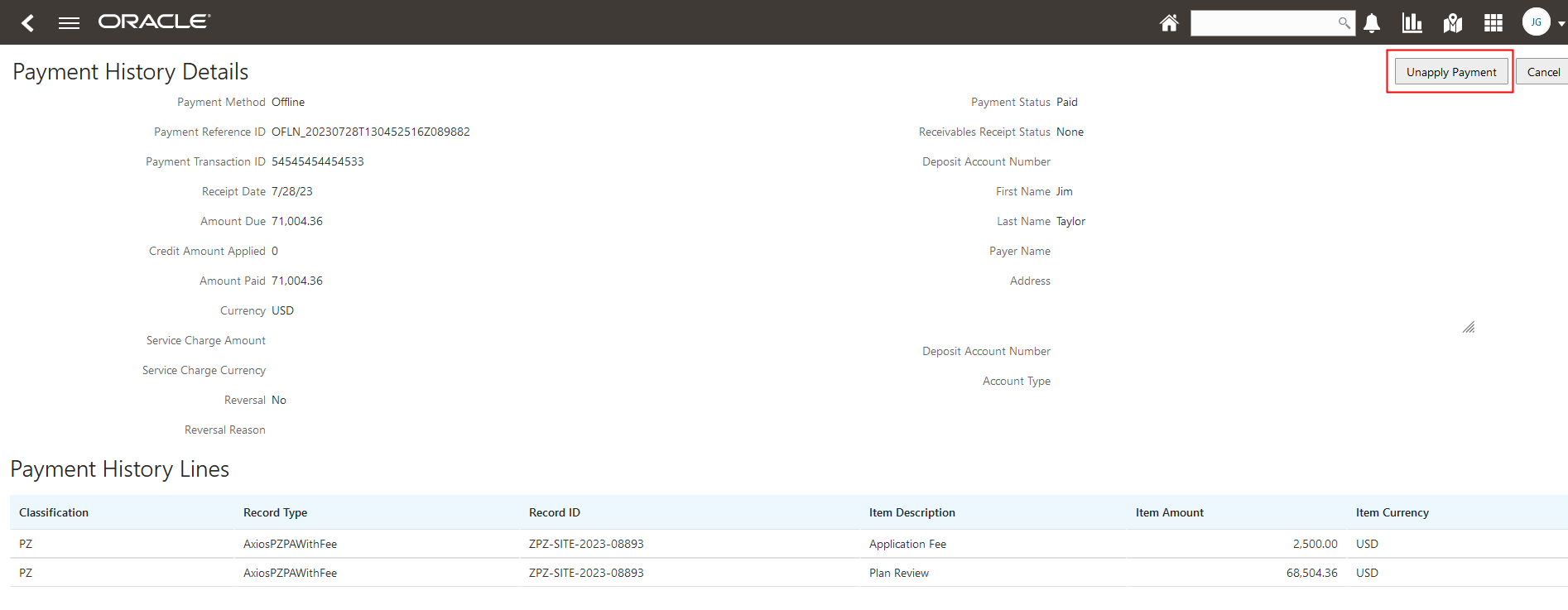
Payment History Details Page
Agency staff can reverse payments applied in error, creating a payment on account that can be applied to the correct fee or refunded.
Steps to Enable
You don't need to do anything to enable this feature.
Tips And Considerations
This is only available for the Permits, Planning and Zoning, and Business Licenses offerings.
Key Resources
- See Using Community Development Permits, "Working with Payments," Viewing Payment History on the Oracle Help Center.
Access Requirements
The Payment History page can be accessed with the VIEW_INVOICE_PAYMENT_LIST_PRIV privilege.
This privilege is granted to following roles:
- ORA_PSC_AGENCY_PERMITS_INQUIRY_DUTY
- ORA_PSC_APPLY_PERMIT_DUTY
- ORA_PSC_CASHIER_JOB
Agency staff who is assigned one of the above roles can unapply the payment.
Subledger Accounting by Refund Type
The Journal Entry Rule set, Payment Fee Refunds, has been expanded for more precise accounting of refunds of non-deposit account fee payments and refunds of overpayments:
- Refund: the condition was modified to select non-deposit account liability GL accounts.
- Refund Overpayment: a new account rule to select the on-account liability.
For the Journal Entry Rule set, Deposit Account Refunds, we revised the condition for Deposit Account Deposit Refund Liability to decrease the liability account.
Accounting rules can be configured for each of the four refund types: overpayments, fee payments, deposit account fee payments and deposit account balances.
Steps to Enable
You need to update the subledger accounting mapping sets and the journal rules. Use the payment method codes to differentiate accounting for the following:
- Fee refund
- On-account/overpayment refund
- Refund of deposit account balances
- Refund of fee charged against deposits
Follow the instructions outlined in the "Selecting Accounting Framework" topic in the Implementing Your Financial Framework guide. See the Key Resources below.
Key Resources
-
See Implementing Your Financials Framework, "Setting Up Accounting", Selecting an Accounting Framework on the Oracle Help Center.
Communications for Application Cancellation or Withdrawal
Whenever a Planning and Zoning or Business License application is canceled or withdrawn, a communication in the form of an e-mail or notification is sent to the agency staff and contacts as configured in the communication template by the agency.
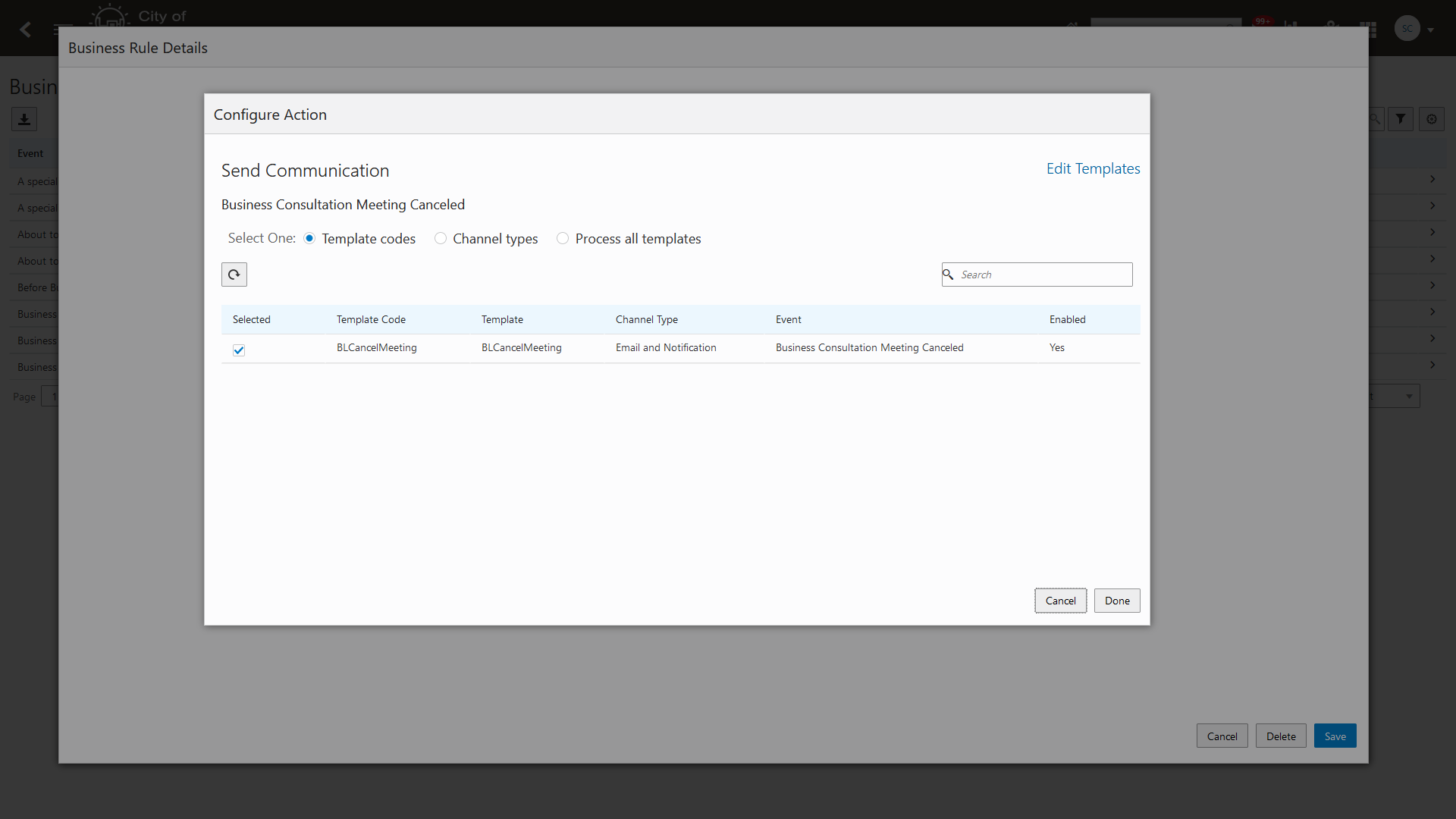
Communication Template
On the Communication Event Details page, the agency staff can configure the communication template. Agencies must configure the template attributes such as Code, Channel Type, Name, Display Format, and Visibility, and To field under the Email Attributes.
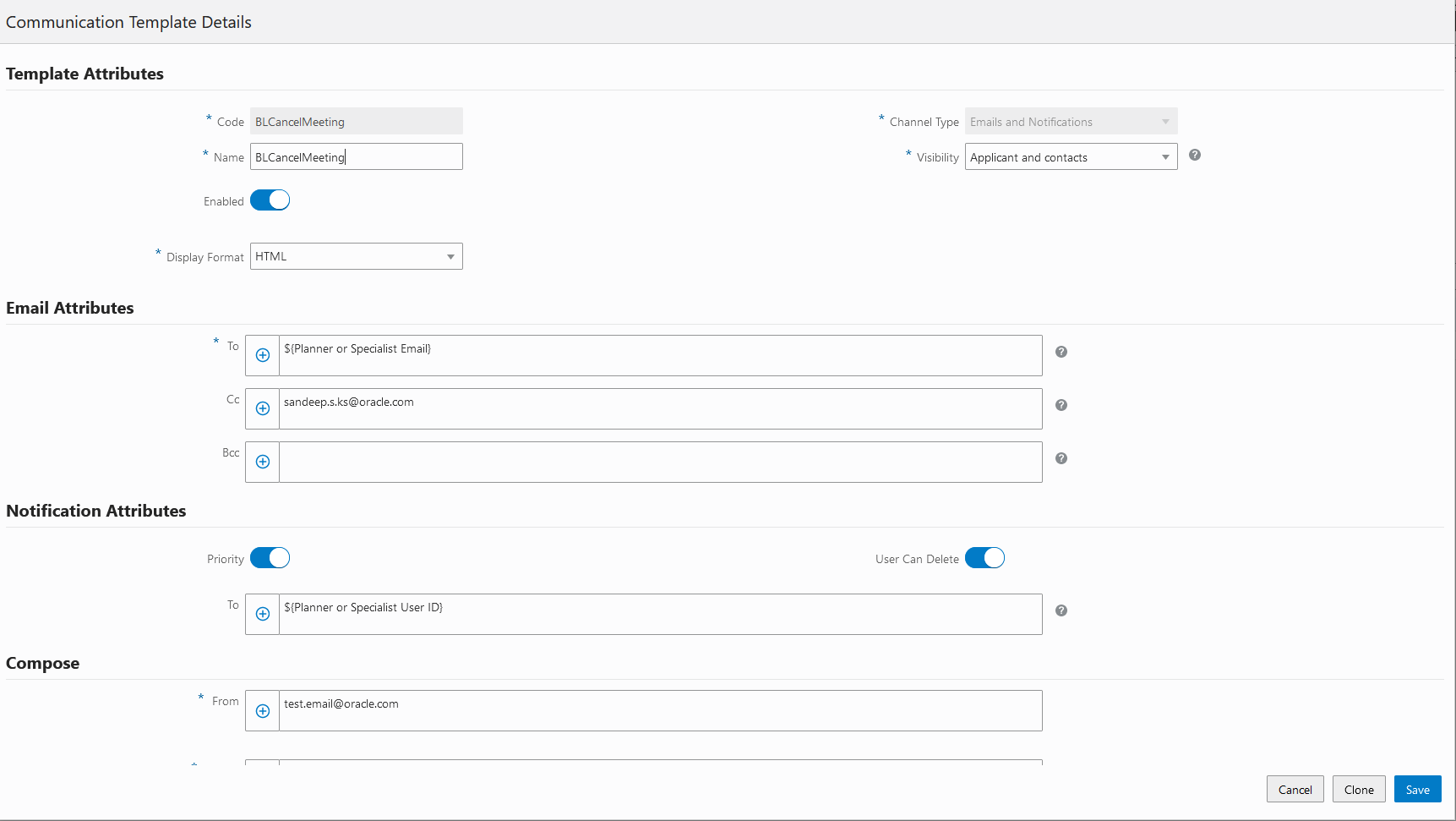
Communication Event Details
This serves as proof that application has been cancelled or withdrawn.
Steps to Enable
You will need to set up the Business Rules Framework events to configure the rules to allow different communications templates to be sent out when Planning and Zoning and Business License applications are canceled or withdrawn.
Follow the steps outlined in the Implementing Permitting and Licensing, Setting Up the Business Rules Framework, "Setting Up Send Communication Actions" on the Oracle Help Center.
Tips And Considerations
The following communication events are configured for the cancellation and withdrawal of business license applications:
- Business License Application Canceled
- Business License Consultation Application Canceled
- Business License Application Withdrawn
- Business License Consultation Application Withdrawn
The following communication events are configured for the cancellation and withdrawal of planning and zoning applications:
- Planning and Zoning Application Canceled
- Planning and Zoning Preapplication Canceled
- Planning and Zoning Application Withdrawn
- Planning and Zoning Preapplication Withdrawn
Key Resources
- See Implementing Permitting and Licensing, "Setting Up the Business Rules Framework", Setting Up Send Communication Actions on the Oracle Help Center.
Transaction Expiration Events for Business Rules Framework
Expiration related communication now leverages Business Rules Framework events. You can define rules and actions that trigger communication for about to expire and expired transactions.
The following communication events are delivered for Business Licenses, Permits, and Planning and Zoning applications:
- About to Expire
- Expired
Agencies can customize the email templates and send them to various types of recipients according to the criteria defined in the Business Rules Framework.
Steps to Enable
Use these delivered communication events and related Business Rules Framework Events to configure the rules to allow different communications templates to be sent out. Complete the steps outlined in the "Setting Up Send Communication Actions" topic of Implementing Permitting and Licensing on the Oracle Help Center. See Key Resources.
Tips And Considerations
If you decide to use Business Rules Framework instead of the communications framework, you must ensure the corresponding Business Rules Framework Events are correctly configured to trigger the communication action.
Key Resources
- See Implementing Permitting and Licensing, "Implementing the Business Rules Framework," Setting Up Business Rules, Setting Up Send Communication Actions on the Oracle Help Center.
Condition Validation to Prevent Issuance
New Business Rule Framework events have been added to prevent the issuance of permit or business license certificates depending on your defined business rule criteria.
The new events are:
- Before Permit Issuance
- Before Business License Issuance
The events can trigger these actions:
- Add fee
- Apply address condition (business licenses only)
- Apply parcel condition
- Apply transaction condition
- Relay to OIC
- Resolve conditions
- Send communication
- Stop process
- Update workflow (business licenses only)
For the stop process action associated the issuance events, you can configure the action to allow the agency user to override the business rule as needed by turning on the Allow Override switch when setting up the business rule action.
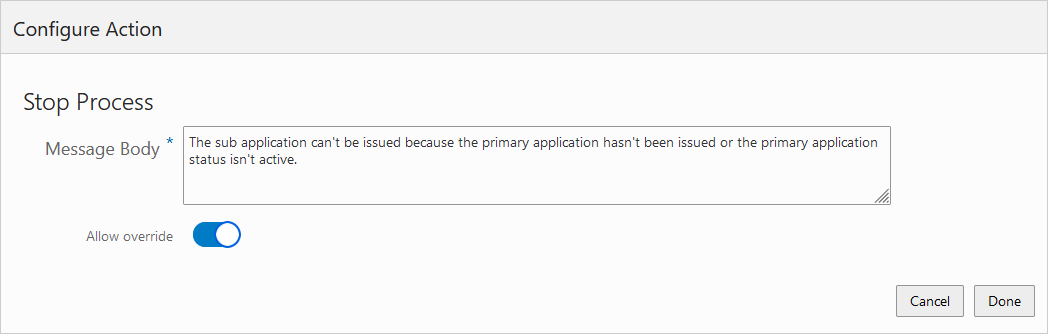
Configure Action Page
Agency staff can now run business rules to prevent issuance of permit or business license issuance.
Steps to Enable
For the Stop process action associated the issuance events, you can configure the action to allow the agency user to override the business rule as needed by turning on the Allow Override switch when setting up the business rule action.
You also need to update your workflow model to add the following workflow custom property to the task that you have turned on the Allow Override switch:
- PSC_BRF_EVENT_CODE
- PSC_BRF_ALL_WF_ACTIONS
- PSC_UNRESTRICTED_ACTIONS
Key Resources
- See Implementing Permitting and Licensing, "Implementing Business Rules Framework," Business Rules Framework Event Details on the Oracle Help Center.
- See Implementing Permitting and Licensing, "Implementing Business Rules Framework," Setting Up Stop Process Actions on the Oracle Help Center.
- See Implementing Your Cloud Integrations, "Setting Up Workflow," Using Custom Properties on the Oracle Help Center.
Use Existing UserName When Creating Agency Staff Profiles
When you are creating a new agency staff profile on the Agency Staff page, you can now search and select an existing user in the Fusion Human Capital Management system to link it to the new employee detail.
Agencies that have already set up internal agency staff as users in Active Directory, such as agencies having provisioned and deployed Oracle Fusion Cloud Human Capital Management (HCM), can allow use of existing UserName for Oracle Permitting and Licensing.
Steps to Enable
To set up your agency staff profiles:
- Navigate to Agency Staff > Agency Staff.
- On the Agency Staff page, click Add to add a new agency staff member – employee.
- Select the option "Select Existing Worker".
- You can enter the name of the employee or the Worker ID to find the employee in the system.
- Complete the remaining fields and click save.
Tips And Considerations
You must have Oracle Human Capital Management (HCM) already implemented to use this feature.
Key Resources
- See Implementing Your Agency, “Setting Up Your Agency Staff,” Managing Agency Staff Profiles on the Oracle Help Center.
Notification of Faulted Processes
From a worklist, agency staff can now gain insight into faulted workflow processes so that they can resolve them quickly on their own, rather than seek system administrator help.
System administrators can schedule an ESS job to run regularly to identify faulted workflow processes.
When the ESS job completes, agency staff can access their worklist and view the information about any faulted processes associated with their assigned transactions.
Agency staff can view and take action to resolve workflow process issues.
Steps to Enable
To enable the recurrence:
- Navigate to Setup and Maintenance.
- Select the offering, such as Public Sector Permits.
- Go to the System Administration functional area for the offering.
- Select the task, Managing Faulted Workflow Processes.
- On the Load Public Sector Faulted Workflow Processes Job page, select the Schedule tab.
- Set up a schedule to run the ESS job to suite your business requirements.
- Click Submit.
- You will be notified about the faulted process when this is set and the job is run based on the recurrence selected.
Key Resources
- See Implementing Your Cloud Integrations, "Setting Up Workflow," Managing Worklists on the Oracle Help Center.
Add Primary Application to Subapplication
With new enhancements to the Subapplication feature, agency staff can:
- Add primary application to a subapplication from the permit’s Overview page.
- Change the relationship type of an unlinked primary application or subapplication to an independent application
- Change the relationship type of an unlinked primary to a subapplication or a subapplication to a primary
- Link a subapplication or multiple subapplications to a primary application
This example illustrates the Edit option to add primary permits to subapplications:

Permit Overview Page
This example illustrates the options available to change an unlinked permit application:
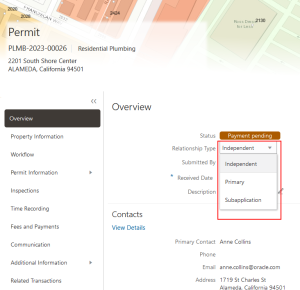
Permit Overview Page - Relationship Type Options
Relationship Types:
- Independent: The permit application is neither primary nor subapplication
- Primary: Link one or more subapplications
- Subapplication: Link a primary permit application
This feature provides multiple options for the agency to manage the primary/subapplication relationship.
Steps to Enable
You don't need to do anything to enable this feature.
Key Resources
- See Using Community Development Permits, "Managing Permits," Viewing the Permit Summary on the Oracle Help Center.
The enhanced Search Primary Application page on the permit application form now lists only those primary permit applications that are associated with the property selected in the intake form. Applicants can expand their search to include permits from all properties in the system.
This example illustrates the list of the primary permits that are associated with the property selected by the applicant:
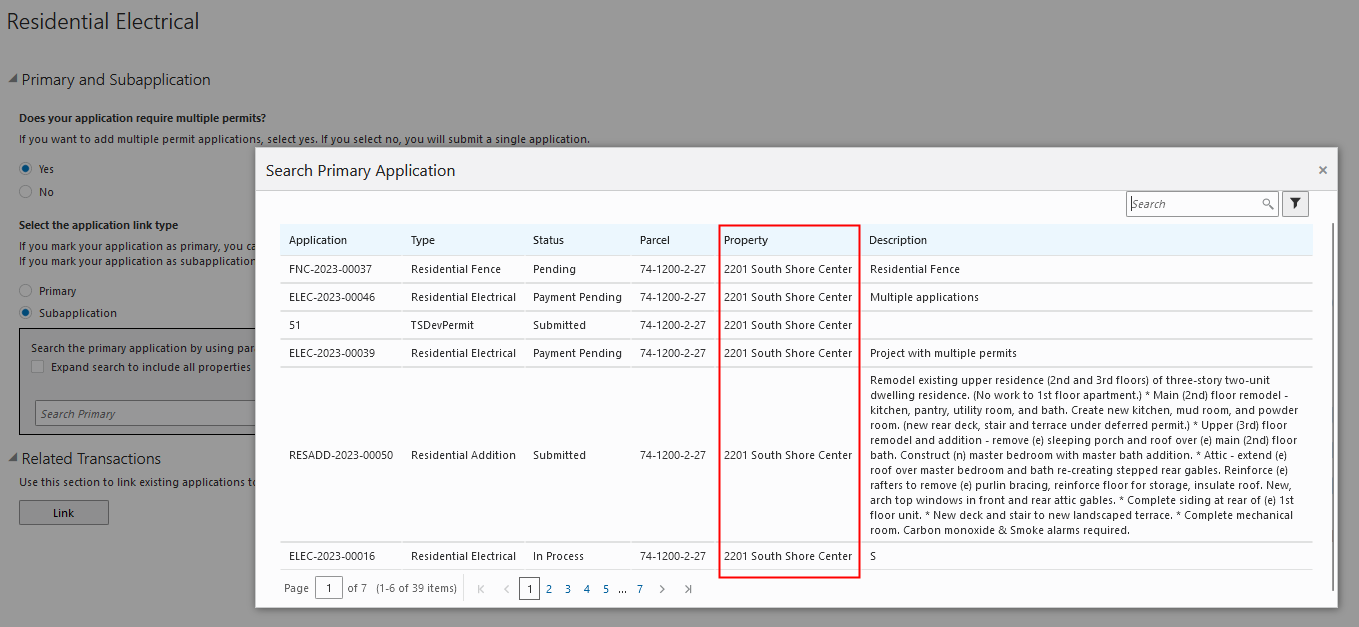
Search Primary Application Page
This example illustrates the list of permits from all properties in the system resulting from the expanded search:
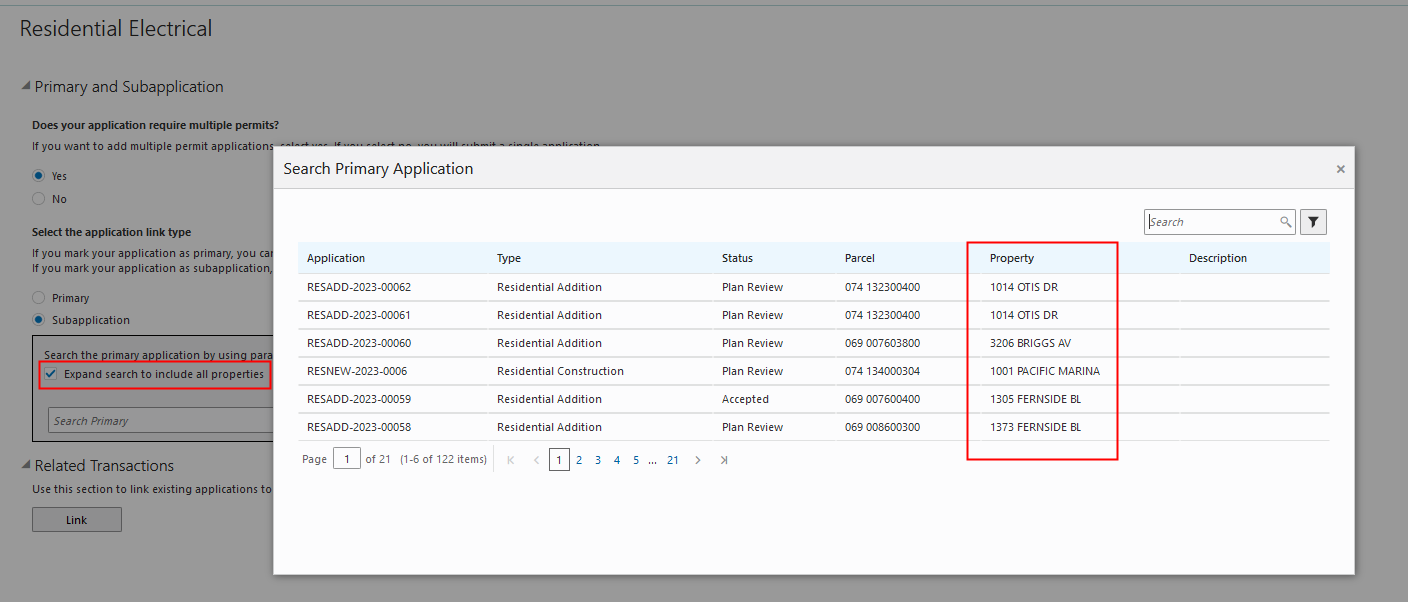
Search Primary Application Page with the Expand Option Selected
A more efficient ability to search for primary permits on intake for agencies that will take advantage of the primary to subapplication functionality.
Steps to Enable
You don't need to do anything to enable this feature.
Key Resources
-
See Using Community Development Permits, "Applying for a Permit," Completing an Application on the Oracle Help Center.
Copy Application Summary Page Links
When you save after copying an application, a summary page appears. The details on the page include a list of applications which couldn't be copied. You can click the links to open the applications which failed to copy and complete each application one at a time.
The Summary page also shows the number of copies created.
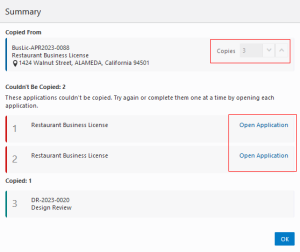
Summary Page
Agency staff can now configure the maximum number of copies that can be created at a time. This value can be set on the Agency Information page, in the Copy Applications section. By default, the maximum copies allowed is set to five, but the agency staff can use the increment or decrement buttons to choose any value between 0 and 100.
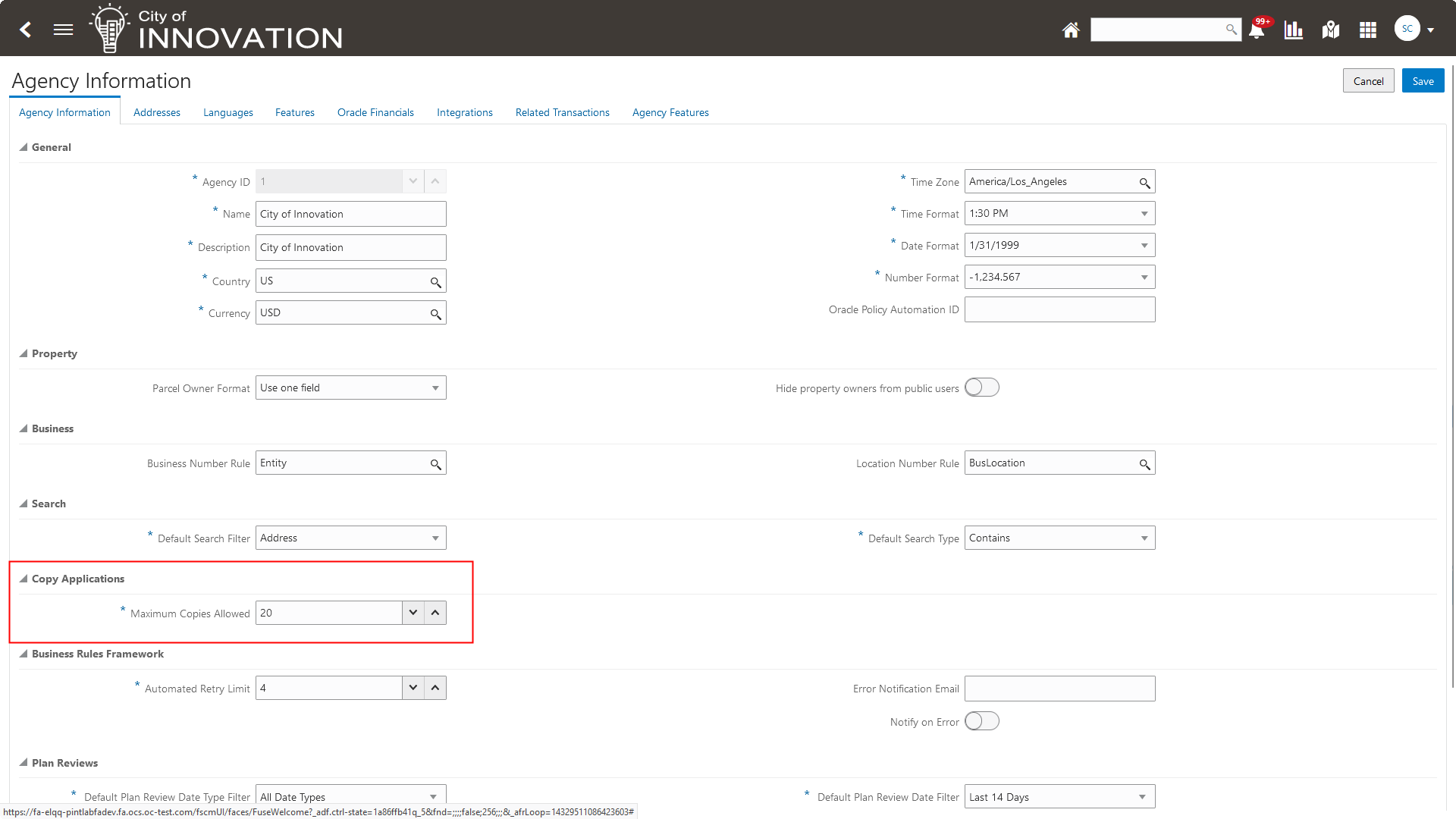
Agency Information Page
An efficient navigation to permits that may have failed copy due to required fields or other issues.
Steps to Enable
Complete the following steps:
- Navigate to Agency Options > Copy Applications Section.
- Enter a value from 0 to 100 (default is 5) in the Maximum Copies Allowed field.
Key Resources
- See Using Community Development Planning and Zoning, "Managing Applications for Planning and Zoning", Copying an Application on the Oracle Help Center.
- See Implementing Your Agency, "Setting Up Agencies" on the Oracle Help Center.
Contextual Help for Application Intake
Agencies can now add their own help content to show on the permit application form, using which applicants can easily select from options related to primary and subapplications.
You add a new agency-defined contextual help detail, enter the descriptive text related to primary permit application, and save. The Primary and Subapplication section of the permit application will show the newly added help content.
This example illustrates the descriptive text entered for agency-defined contextual help:
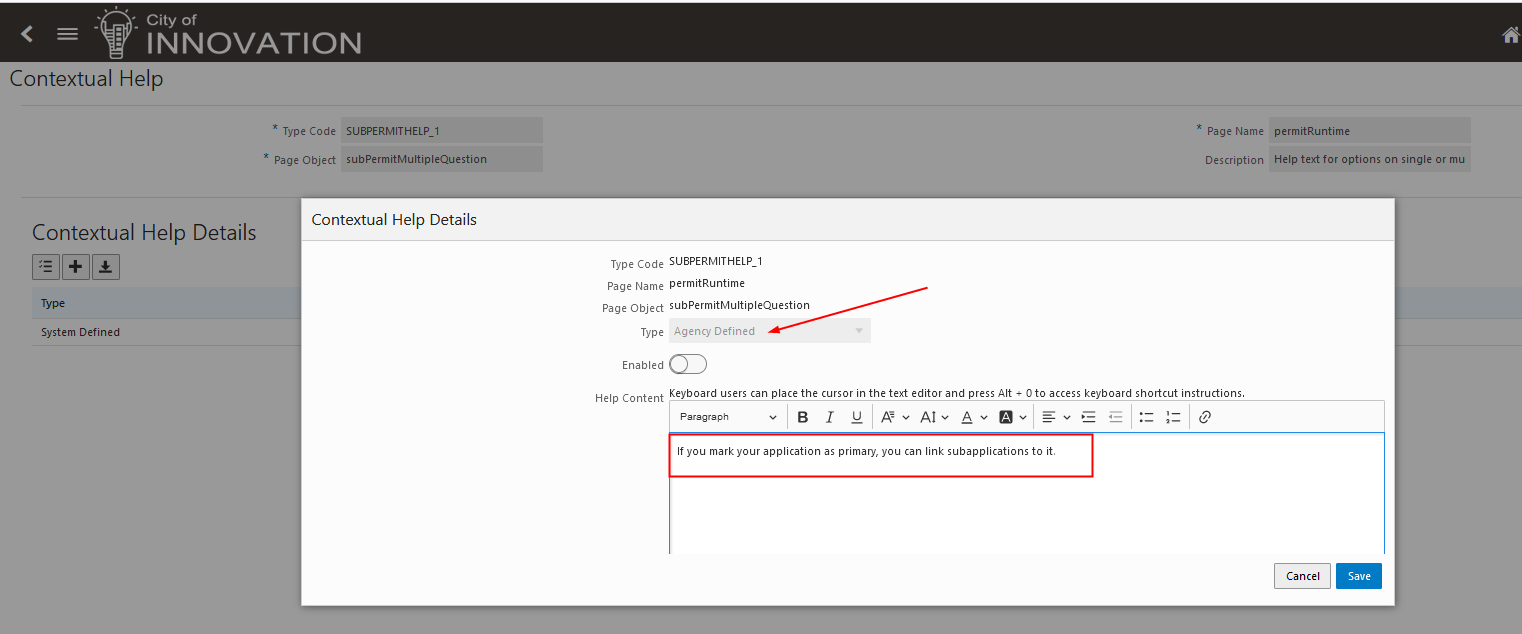
Contextual Help Details Page
This example illustrates the help content on the permit application form:
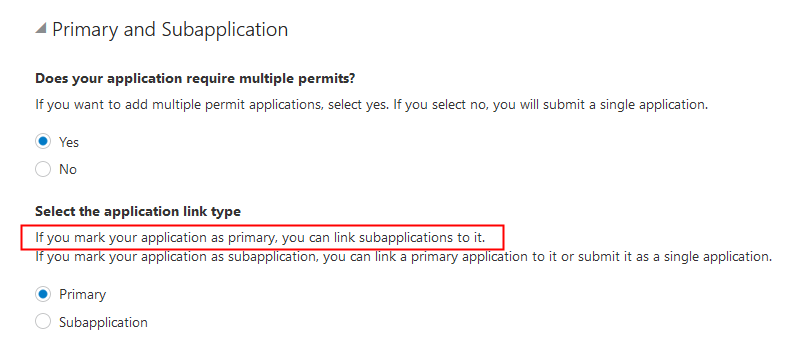
Primary and Subapplication Section on the Permit Application Form
This provides more flexibility for agencies to better instruct their customers on the primary-subapplication process.
Steps to Enable
We recommend you reference and complete the instructions in Implementing Permitting and Licensing, “Creating Intake Forms,” Adding Contextual Help to Forms.
The following steps are an overview of what you need to do to set up contextual help in your intake form:
- When creating your intake form, select the page element you want to add the contextual help to.
- Click the Help button.
- On the Contextual help Setup Page, note the Type Code, Page Name, and Page Object.
- In the Description field, add the purpose of the help text.
- Click Add New in the Contextual Help Details grid. The Type drop-down menu will display "Agency Defined".
- Activate the Help Content edit box by clicking to the right of the Help Content field label.
- Enter your help text in the Help Content edit box.
- Turn on the Enabled switch.
- Click Save on the Contextual Help Details page.
- Click Save on the Contextual Help page.
Key Resources
- See Implementing Permitting and Licensing, “Creating Intake Forms”, Adding Contextual Help to Forms on the Oracle Help Center.
- See Configuring User Experience, “Setting Up Help Management,” Setting Up Contextual Help on the Oracle Help Center.
- See Using Community Development Permits, "Applying for a Permit," Completing an Application on the Oracle Help Center.
All Applications and All Activities Worklist Tabs
The Planner Worklist now has two new tabs: All Applications and All Activities.
All planning agency staff can view these two tabs, and those with the appropriate access can update the associated objects of the planning applications and activities that are assigned to other planners.
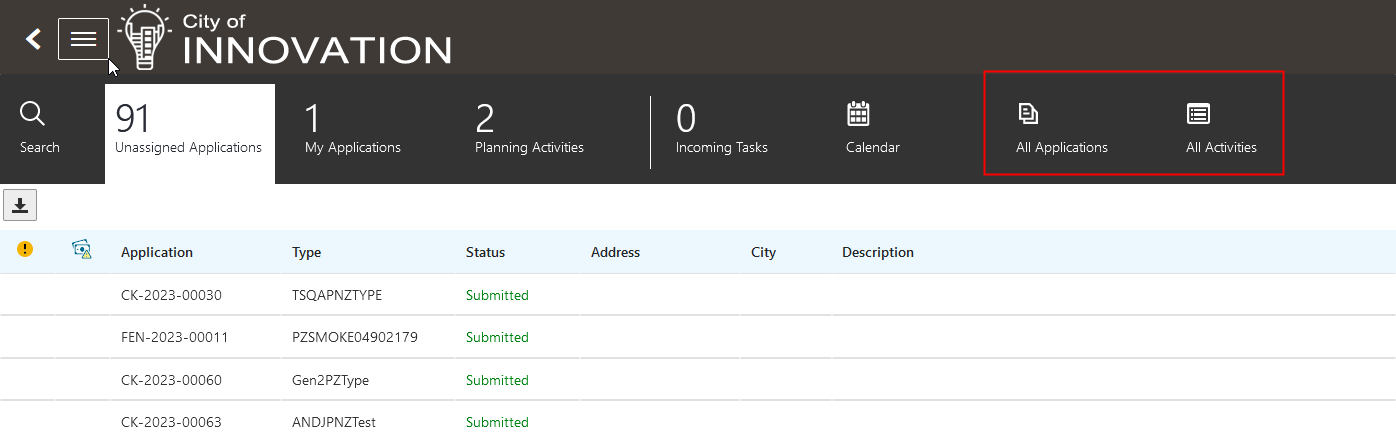
Planner Worklist Page
The tabs grant all planning staff access to all applications and activities on the Planner Worklist. This provides planning staff visibility to the applications not assigned to them.
Steps to Enable
To update associated objects on the planning activities and planning application assigned to others, staff will need to have elevated access. To update agency staff with planning roles to elevated access you will need to complete the following steps.
- Log in as a System Administrator.
- Navigate to Setup and Maintenance.
- Go to the Security Console.
- Create a new common job role:
- Name: PSC Custom PNZ Elevated Access Job
- Code: CUSTOM_PSC_PNZ_ELEVATED_JOB
- Add duty role ORA_PSC_MANAGEMENT_ELEVATED_ACCESS in the Role Hierarchy step.
- Exit the Security Console and navigate to Agency > Agency Staff Access.
- Add the role PSC CUSTOM PNZ ELEVATED ACCESS for the planning staff members you want to have elevated access.
Once the role has been added to the planning staff members, they should be able to update the activities from the All Applications and All Activities tabs for planning applications assigned to other planners.
Key Resources
- See Using Community Development Planning and Zoning, "Using the Agency Springboard and Worklists", Using the Planner Worklist on the Oracle Help Center.
Access Requirements
Only agency staff with planning roles (for example: planner, associate planner, planning assistant) with the following elevated access, PSC Planning Application Management with Elevated Access, can update the associated objects of the planning applications and activities that are assigned to other planners.
Parcel Selection for Public Notifications
Once agency administrators create a buffer distance for including parcels in an area on the Public Notification page, they can use the selection tools to manually add parcels outside of the notification area or remove parcels included in the notification area.
Turn on the Modify Selection switch to use the selection tools for adding or removing parcels. The selection outline appears when you add a parcel and is removed when you deselect a parcel.
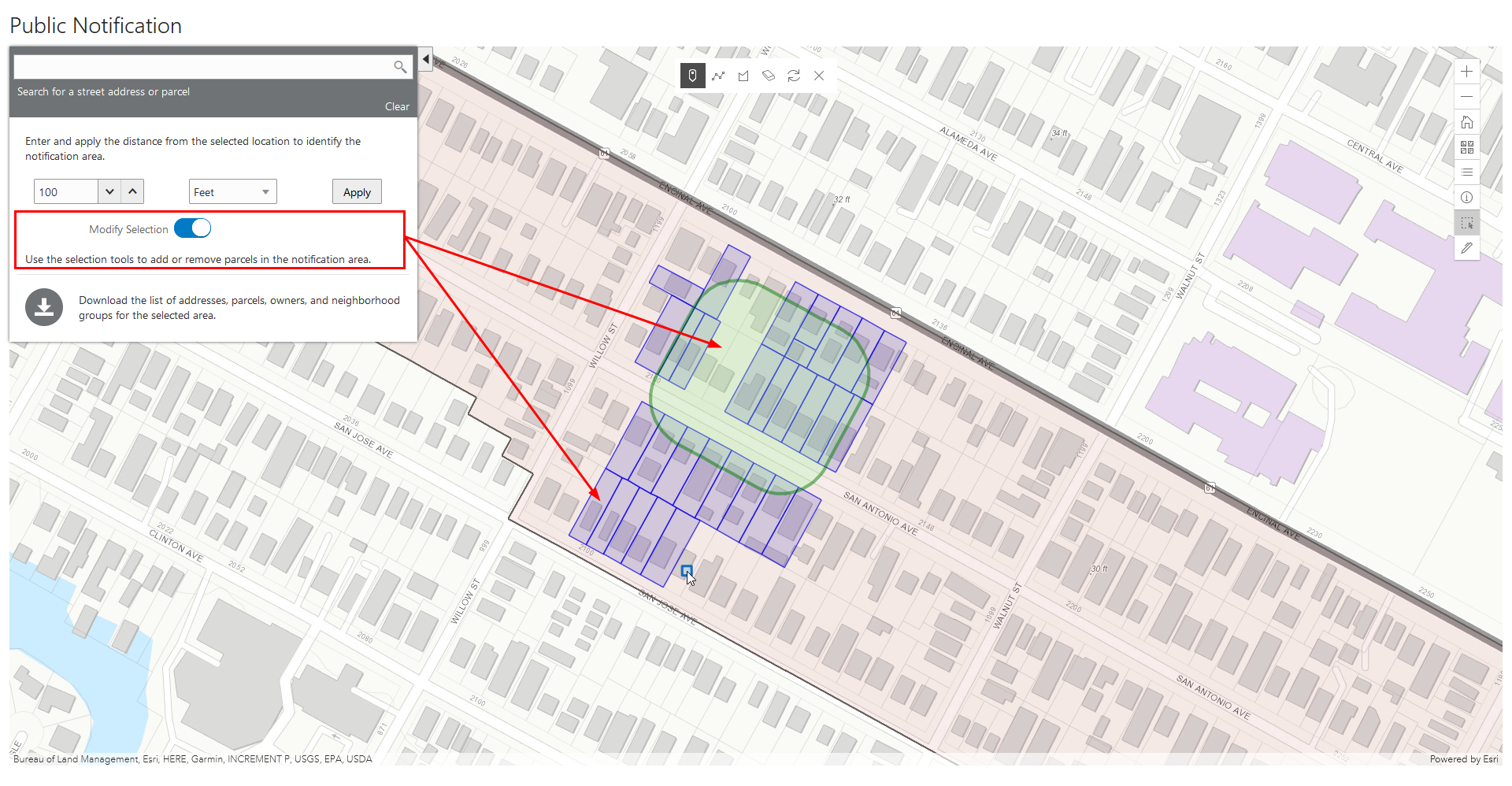
Public Notification Page with Modified Selection of Parcels
Agencies can modify parcel selection to meet public notification needs and requirements.
Steps to Enable
You don't need to do anything to enable this feature.
Tips And Considerations
Use the Modify Selection switch to select the parcels to you want to include or remove from notification. This switch appears when you select the area for notification.
Key Resources
- See Using Community Development Planning and Zoning, "Working with Maps," Creating Map-Based Public Notification Lists on the Oracle Help Center.
Extend Workflow for Custom Case and Notice Status
Additional events such as a change in the case functional status (including custom case statuses defined by the agency) or changes to notice status can now advance the case workflow.
On the Process Definition Group page, turn on the switch to enable the corresponding event to advance the case workflow.
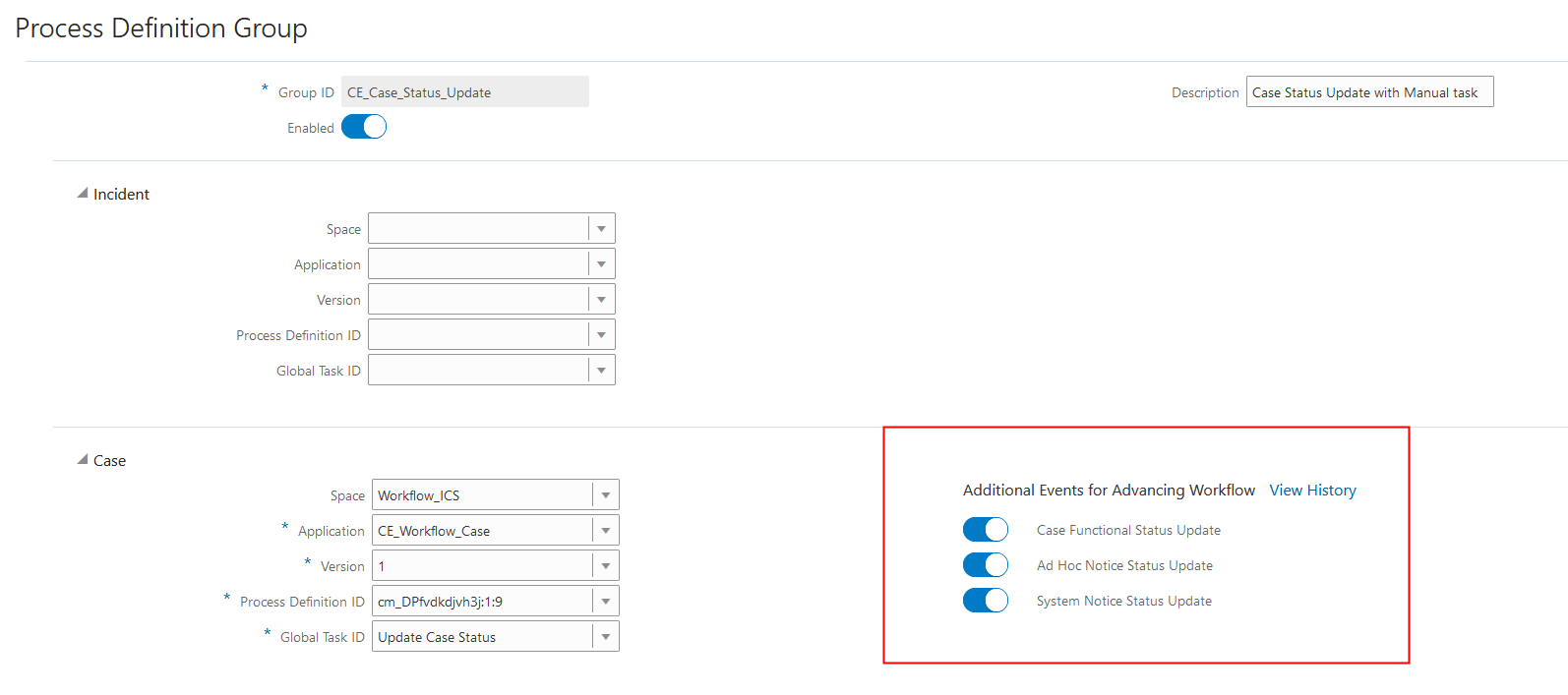
Process Definition Group Page
You can also view a list of all previous additional events that advanced the case workflow using the View History link.
Provides additional flexibility by extending the advance workflow functionality to other triggering events including a change in custom status (for example, agency-defined code case status) and updates to a system or ad hoc notice status.
Steps to Enable
To enable this feature:
- Navigate to Setup Code Enforcement > Process Definition Group.
- Select the Case process definition as needed.
- Ensure that the process definition can handle these additional triggers and the activation and termination conditions for stage/tasks have been modified to avoid duplicate task creation.
- Modify the process definition and publish a new version.
- Link the published version to a Process Definition Group.
Tips And Considerations
Flags are only enabled when there is no active transaction linked to the process definition.
Key Resources
- See Implementing Permitting and Licensing, "Setting Up Code Enforcement," Setting Up Process Definition Groups on the Oracle Help Center.
Inactivate License by Agency Staff
With this enhancement, when agency staff inactivate a business license:
- The business that holds the license is automatically inactivated if the business is not associated with any active license AND with any in-progress license that is in Origination activity status.
- The location for which the license is issued is automatically inactivated if the location is not associated with any active license AND with any in-progress license that is in Origination activity status.
As a result of business and location inactivation, when registered users are filling out their license application, inactive businesses and locations are not available for selection.
Agency staff may inactivate license from standard page.
Steps to Enable
You don't need to do anything to enable this feature.
Key Resources
- See Using Business Licenses, "Managing the Business License," Inactivating Business Licenses on the Oracle Help Center.
Communication Event for Business License Inactivation
When a business license is inactivated, only the current contacts on the most recent transaction will be notified.
Current contacts will be notified when the business license is inactivated.
Steps to Enable
You will need to create a template for the Business License Inactivated Communication Event. Steps can be found in Implementing Your Agency, "Setting Up Communication," Setting Up Communication Templates on the Oracle Help Center.
Additionally, you'll need to configure the Business Rules Framework communication event. Steps can be found in Implementing Permitting and Licensing, "Implementing the Business Rules Framework," Setting Up Send Communication Actions on the Oracle Help Center.
Key Resources
- See Using Business Licenses, "Managing the Business License," Inactivating Business Licenses on the Oracle Help Center.
- See Implementing Your Agency, "Setting Up Communication," Setting Up Communication Templates on the Oracle Help Center.
- See Implementing Permitting and Licensing, "Implementing the Business Rules Framework," Setting Up Send Communication Actions on the Oracle Help Center.
Fusion Audit Registration for Business License Objects
Business license related objects are now organized under the new Business Licenses section. When you want to run the Oracle Fusion audit, you can easily select your business objects and include their attributes.
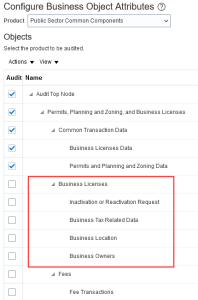
Configure Business Object Attributes Page
Business License objects have been registered and can be used in the Oracle Fusion Audit Reporting.
Steps to Enable
Navigate to Setup and Maintenance > Manage Audit Policies > Configure Business Object Attributes. Enable the business license attributes to the audit.
Key Resources
- See Fusion Applications Common, Implementing Applications, “Audit Policies,” Audit Configuration for Business Object Attributes on the Oracle Help Center.
Communication Tab for Business Entity Overview
Agency staff can view all communications using the Communication tab on the Business Overview page.
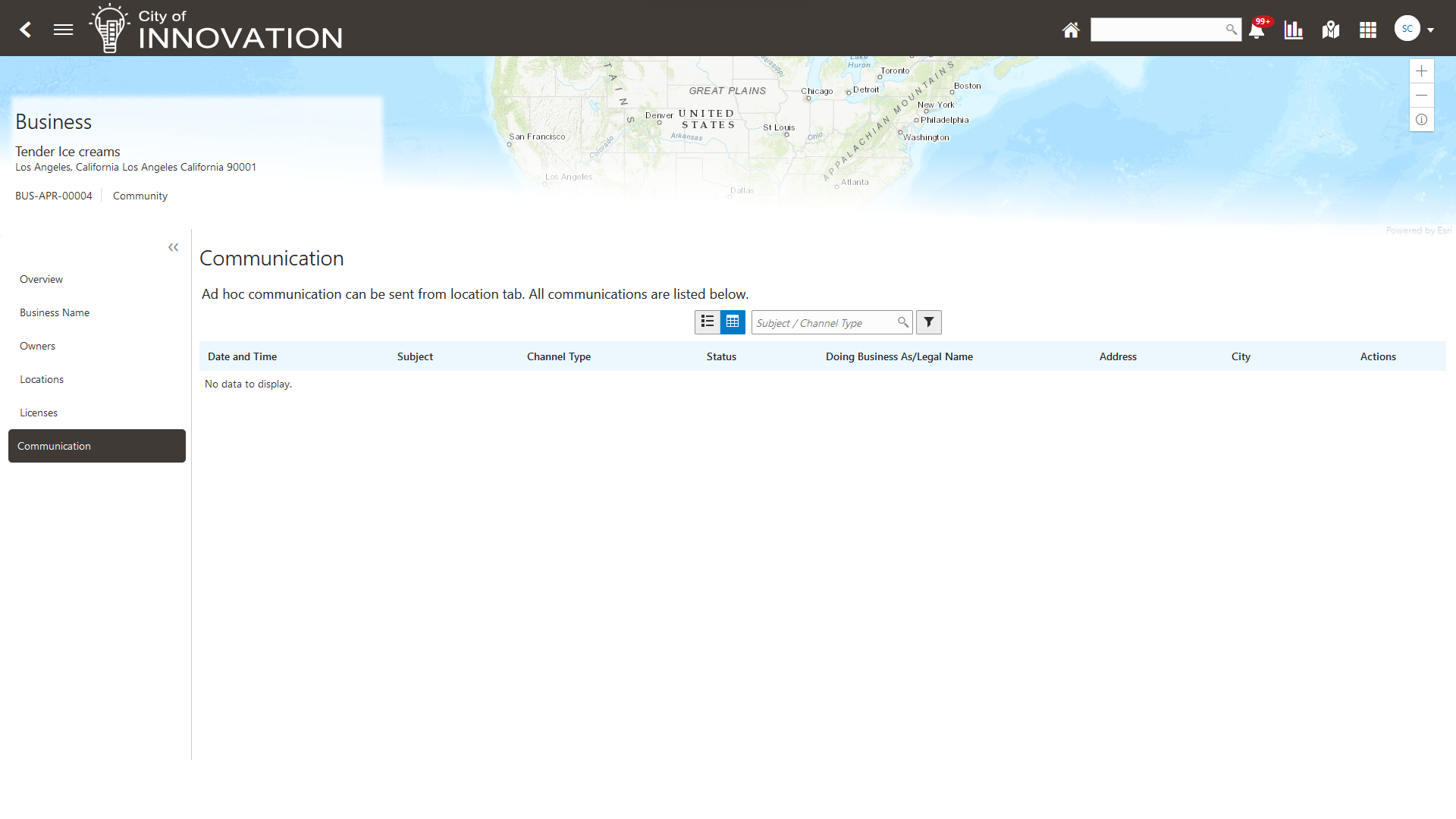
Checkout Page
Using the Send Message action on the Locations grid, the agency users can send ad-hoc communication to the business location. The registered public users can only view communications based on the visibility defined in the communication. Contacts with full access to the location are allowed to respond to the Web form.
Supports ad hoc messages ability from the business.
Steps to Enable
You don't need to do anything to enable this feature.
Tips And Considerations
The Communication tab is available for all Business Entities by default. Anyone that has access to a Business has access to the communication tab. Agency users can send ad hoc communication from "Send Communication" action provided in the location grid of the Location tab.
Access Requirements
The following Roles allow Agency user to view and update communication and attachments.
- ORA_PSC_BL_BUSINESS_ENTITY_INQUIRY_DUTY
- ORA_PSC_BL_BUSINESS_ENTITY_MANAGEMENT_DUTY
- ORA_PSC_AGENCY_STAFF_ABSTRACT
Intake Form Versioning and Effective Dating for Business Licenses
In a previous release, the ability to maintain effective-dated versions of your intake form designs became supported for Permits and for Planning and Zoning. In this release, versioning intake forms is now supported for Business Licenses. You can create a new version of a business license type. The effective start date of the new version becomes the end date for the current version. Once a new intake form becomes active, all new application transactions will use the new version, while all in-process transactions will continue to use the version of the form active when the application was first submitted.
Effective-dated intake forms for business licenses accommodate current and future business needs while maintaining the integrity of historical and in-process transactions.
Steps to Enable
To create a new version of a business license type, select Manage Design > Manage Version in the Intake Form Designer.
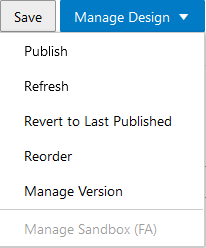
Manage Version
After creating a naming convention, you need to specify the version, such as V2 to differentiate it from the existing version. After creating the version, click Select Version to open that version in the Intake Form Designer and begin making your changes, while the previous version remains as is.
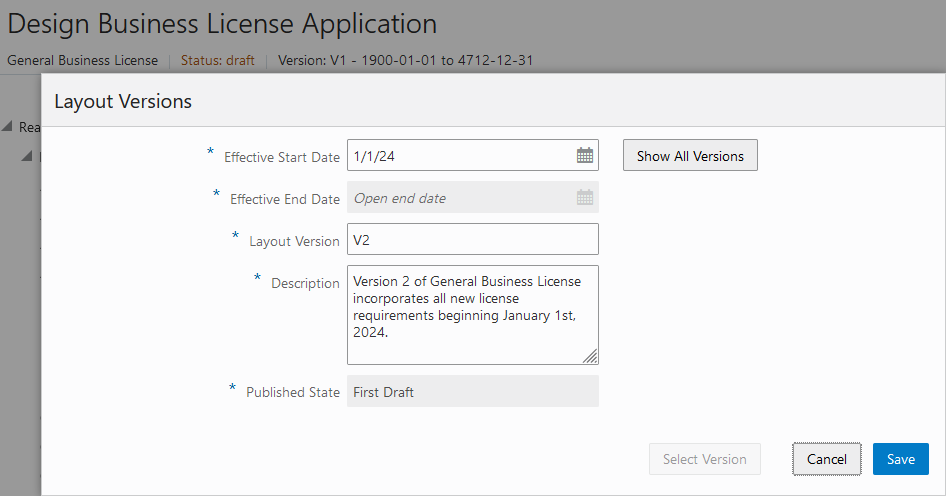
Layout Versions
Click Show All Versions to view all of the versions for an intake form and switch between different versions if needed.
Key Resources
- See Implementing Permitting and Licensing, "Creating Intake Forms," Creating Intake Form Versions on the Oracle Help Center.
IMPORTANT Actions and Considerations
Upgrade Actions
With every upgrade, make sure to complete the following steps in the Initial Set Up functional area in Functional Setup Manager. This process ensures all new security definitions, such as job roles, duty roles, privileges, and so on, are included in your implementation.
- Run Public Sector Security Setup Process
- Manage Custom Roles
REST Backward Compatibility
Public Sector Permitting and Licensing updates REST APIs from release to release. Our goal is to not create APIS that are incompatible from one release to the next. However, due to circumstances and security impacts this may not be feasible.
For the most current information, see My Oracle Support Document ID: 2853758.1.
Documentation for all REST APIs included in Public Sector Permitting and Licensing can be found on the Oracle Help Center.