

This document will continue to evolve as existing sections change and new information is added. All updates appear in the following table:
| Date | Update Version | Notes |
|---|---|---|
| 20 APR 2018 | Update 18B | Delivered new features in update 18B. |
This document will continue to evolve as existing sections change and new information is added. All updates appear in the following table:
| Date | Feature | Notes |
|---|---|---|
| 20 APR 2018 | Created initial document. |
This guide outlines the information you need to know about new or improved functionality in this update, and describes any tasks you might need to perform for the update. Each section includes a brief description of the feature, the steps you need to take to enable or begin using the feature, any tips or considerations that you should keep in mind, and the resources available to help you.
Customers Upgrading from Release 12
If you're upgrading from Release 12 to Release 13, then you should review all of the release readiness content for Release 13 (updates 17B - 17D, as well as, updates 18A - 18B) to learn about all of the features available in release 13.
GIVE US FEEDBACK
We welcome your comments and suggestions to improve the content. Please send us your feedback at oracle_fusion_applications_help_ww_grp@oracle.com
JOIN ORACLE CLOUD CUSTOMER CONNECT
Please take a moment to join the Cloud Customer Connect forums for Financials Cloud. Oracle Cloud Customer Connect is a community gathering place for members to interact and collaborate on common goals and objectives. This is where you will find the latest release information, upcoming events, or answers to use-case questions. Joining takes just a few minutes. Join now!
https://cloud.oracle.com/community
Take a look at the Customer Connect Events to help you learn more about your upgrade, and some of the new features in R13. You can sign up to attend Upcoming Events or watch replays of existing events.
| Action Required to Enable Feature |
|||||
|---|---|---|---|---|---|
| Feature |
None (Automatically Available) |
Enable via Opt In UI Only |
Enable via Opt In UI Plus Additional Steps |
Not Enabled via Opt In UI but Setup Required |
Issue Service Request |
Ability to Clear Balances for Zero Price Transaction Line Without Bill |
 |
||||
Assign Standalone Selling Prices Through Revenue Basis Data Import FBDI |
|
||||
|
|||||
Changes to Allocated Revenue on Open Performance Obligations Due to Immaterial Changes |
|
||||
Devolve Performance Obligations Associated with Revenue Contracts |
|
||||
View Consolidated Account Activity for Revenue Contract Group |
|
||||
Oracle Revenue Management Cloud is a centralized, automated revenue management solution that enables you to address the ASC 606 and IFRS 15 accounting standard Revenue from Contracts with Customers. The solution provides a configurable framework to automate the identification and creation of customer contracts and performance obligations, and their valuations and resulting accounting entries, with the ability to recognize revenue over time or at a point in time. The solution also provides an option to calculate or load and manage standalone selling prices.
Ability to Clear Balances for Zero Price Transaction Line Without Bill
You can now automatically create a billing line with an amount of zero (for free goods or services) when a revenue source document line with a unit selling price of zero is imported into Revenue Management, and apply the bill line to the performance obligation value, thus clearing out the right to bill.
Revenue Management will create a zero bill line on full satisfaction of the transaction line to clear out the balances in contract asset and allocated discount accounts.
When the full satisfaction status of a zero priced transaction line is revised due to revisions, Revenue Management discards the system generated zero bill line and its accounting and creates a new zero bill line based on the new full satisfaction date.
If the source system sends a zero bill line after Revenue Management had created a zero bill line, the zero bill line generated by Revenue Management is discarded, and its accounting is reversed. Accounting entries will be created according to the zero bill line received from the source system.
When the full satisfaction status is attained, Revenue Management generates a zero bill line only if no zero bill line was received from the source system.
Steps to Enable
No steps are needed to enable this feature. This feature is available by default.
Key Resources
Refer to Revenue Management documentation for further information on how to import revenue data using Revenue Basis Data Import file-based data import and how to import billing data using Billing Data Import file-based data import.
Role Information
No new role access is needed to use this feature.
Assign Standalone Selling Prices Through Revenue Basis Data Import FBDI
Assign Standalone Selling Prices through Revenue Basis Data Import file-based data import provides the flexibility to import unit standalone selling price (SSP) of an item or memo line for the source document line through Revenue Basis Data Import file-based data import.
For customers who calculate and manage the standalone selling prices in third party systems, this feature provides the ability to import the unit SSP of an item or memo line along with the source document line through revenue basis data import file-based data import.
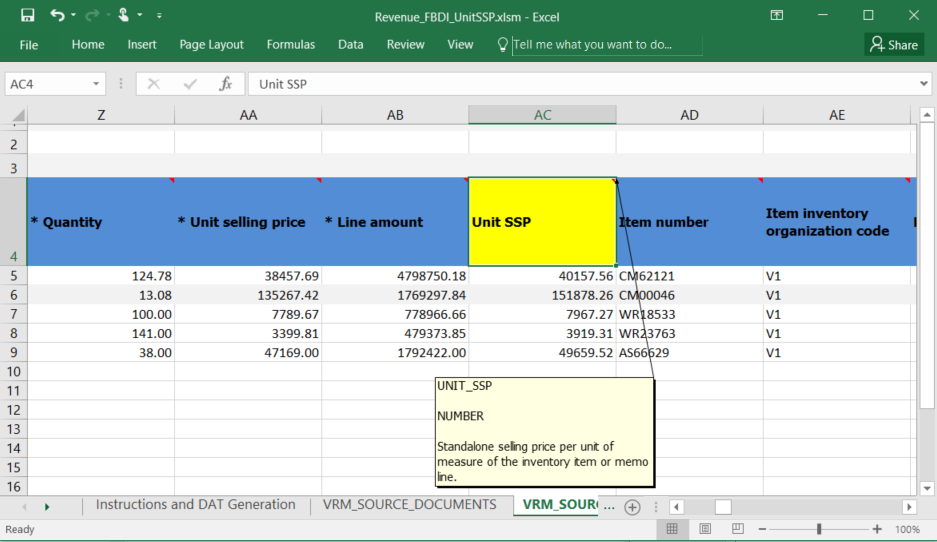
Revenue Basis Data Import FBDI
For customers who feed the unit standalone selling price through the Revenue Basis Data Import file-based data import, Revenue Management will not calculate or manage SSPs, the following setups related to managing SSPs can be bypassed:
- Manage Standalone Selling Price Profiles
- Manage Pricing Dimensions Value Sets
- Manage Pricing Dimension Structures
- Manage Pricing Dimension Assignments
- Manage Pricing Dimension Bands
- Manage Standalone Sales Pool Exclusion Rules and
- Manage Item Groups
Create Contract Renewal Source Data process copies the value of Unit SSP sent through the file-based data import while renewing the contract.
Steps to Enable
No steps are needed to enable this feature.
Tips And Considerations
- The value for Unit SSP sent through Revenue Basis Data Import file-based data import can be revised only until the contract is frozen.
- The value for Unit SSP should be an absolute value.
- If available SSP in a third party system is tracked as discount percentage of unit list price or gross margin percentage or perecentage of base unit price, only an absolute value of unit SSP can be sent through the Revenue Basis Data Import file-based data import.
- The values for Unit list price, Cost amount and Base price are irrelevant when unit SSP is sent through the Revenue Basis Data Import file-based data import.
- It is assumed that the approval has happened outside Revenue Management for the unit SSPs fed through Revenue Basis Data Import file-based data import.
- This feature can be used along with the existing standalone selling prices features supported by Revenue Management. For example, you can import unit SSP for a particular item or classification of items through Revenue Basis Data Import file-based data import and continue using the Observed standalone selling price or Estimated selling price for others.
Key Resources
Refer to Revenue Management documentation for further information on how to import revenue data using Revenue Basis Data Import file-based data import.
Role Information
No new role access is needed to use this feature.
Automatic Renewal of Revenue Contracts
You can now automatically renew customer contracts when the initial service term ends without receiving a new order (revenue) line for each renewal. You can either renew the original accounting contract or convert it to new periodic accounting contract, such as a month-to-month contract.
Revenue Management creates a new accounting contract for designated services for the period and amount, as indicated on the initial accounting contract. A new accounting contract is created at the end of each service period until terminated.
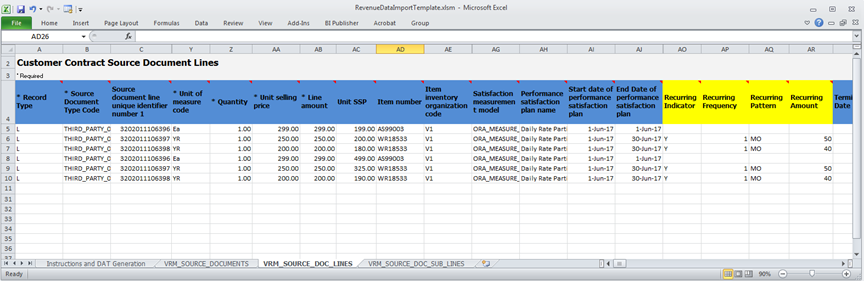
Revenue Basis Data Import File Based Data Import (FBDI)
Indicate the period-based service lines to be renewed by defining the following recurring attributes on the original order line with the Revenue Basis Data Import:
- Recurring Indicator
- Recurring Frequency
- Recurring Pattern
- Recurring Amount
You then submit the Create Contract Renewal Source Data program to renew eligible expired recurring promised detail lines.
The process:
- Scans promised details lines for your existing performance obligation to determine which lines have reached their plan end date.
- Determines renewal eligibility of the promised details line and contract.
- Locates the latest source document header and line version for the eligible promised details line.
- Creates new source document headers and lines by using the latest source document version line, and then updates the data to reflect the new plan period and amount or termination.
- Writes the new source document header and lines to the source document tables for further processing.
After the process is complete, submit the Validate Customer Contract Source Data and Identify Customer Contracts programs to process the newly received source documents and lines into new accounting contracts.
Steps to Enable
There are no steps to enable this feature.
Key Resources
Refer to Revenue Management documentation for further information on how to import revenue data using Revenue Basis Data Import FBDI.
Role Information
Users with the job roles Revenue Manager or Revenue Analyst can access the Revenue Basis Data Import FBDI to define recurring attributes and execute the Create Contract Renewal Source Data process.
Changes to Allocated Revenue on Open Performance Obligations Due to Immaterial Changes
For immaterial changes on a contract, you can now reallocate revenue on open performance obligations on the current and future periods only, without impacting revenue that has been recognized.
This feature provides the following benefits:
- Modify an existing accounting contract.
- Prospectively reallocate and account open obligations as of the contract revision date.
- Uses the standalone selling prices on the contract revision date to reallocate unrecognized contract revenue to new performance obligations.
- Uses the standalone selling prices on the contract inception date to reallocate unrecognized contract revenue to existing obligations.
- Does not adjust or reverse performance obligations that are recognized on the contract revision date.
- Prospectively accounts revisions of performance obligations when the Satisfaction Measurement Model is Period and the Satisfaction Plan Name is Daily Revenue Rate, Partial Periods.
- Revenue Management processes the entire contract as an immaterial change if all of the changes processed at the same time are marked as immaterial.
- Processes the entire contract as a material change if the revisions to the existing contract consist of a mix of material and immaterial changes.
- If multiple revisions are processed at the same time, sets the contract revision date to the earliest revision date for the purpose of revenue reallocation.
- Retrospectively allocates revisions for accounting contracts that were generated on the basis of performance obligation templates.
- Reverses or adjusts initial performance accounting entries for terminated obligations and other open obligations on the contract revision date.
- Books and adjusts accounting entries related to billing of immaterial revisions when billing amounts are interfaced to Revenue Management.
In the Source Document Types setup page, you can set the default value of the Immaterial Change Type to Immaterial change if most of your revisions are immaterial changes. You can override the immaterial change type on the Revenue Basis Data Import file-based data import when importing revisions from the source systems.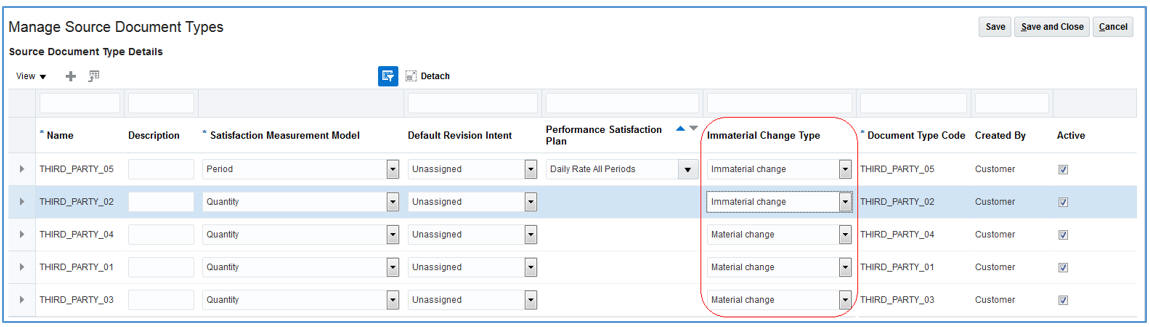
Populate the following new attributes in the Revenue Basis Data Import file-based data import to prospectively reallocate and account the contract revisions.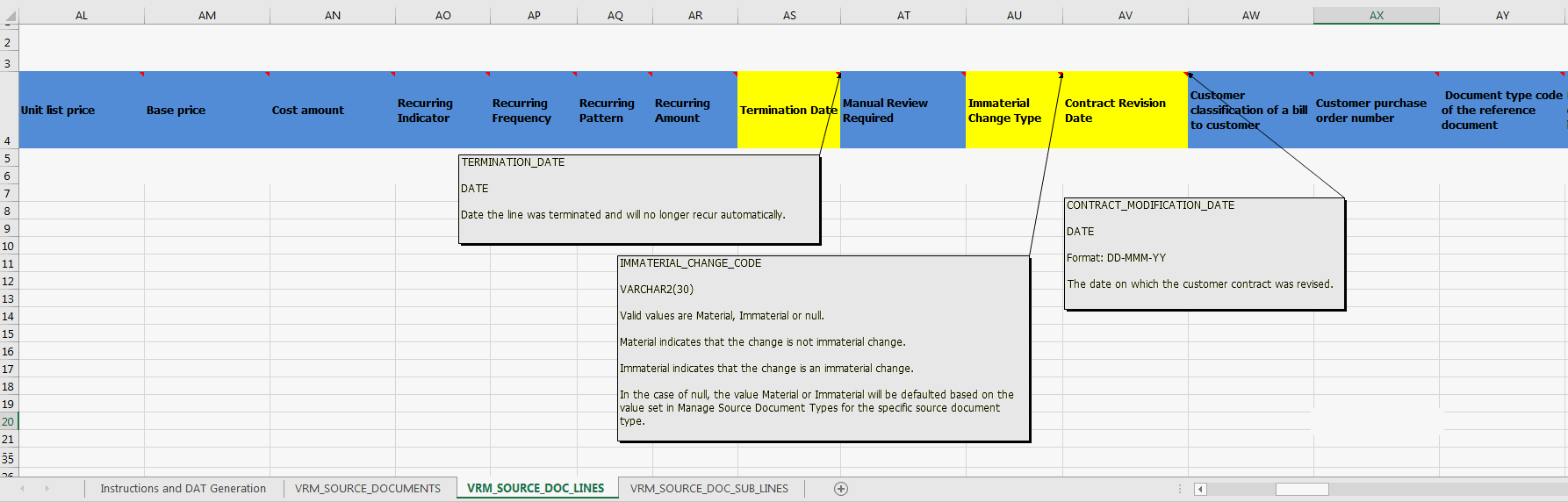
ENHANCED MANAGE CUSTOMER CONTRACT PAGE:
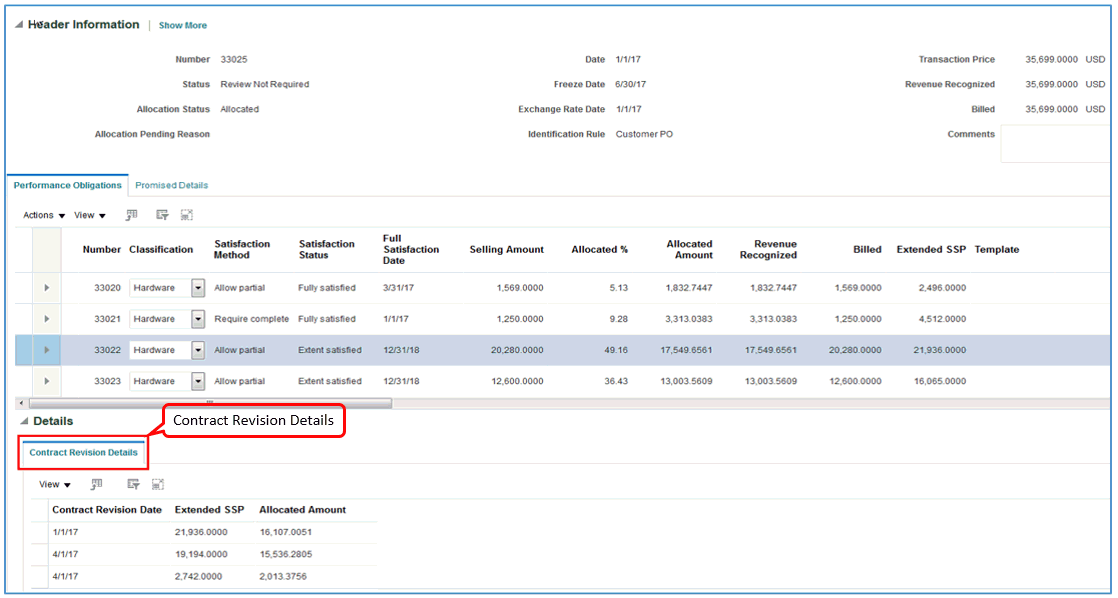
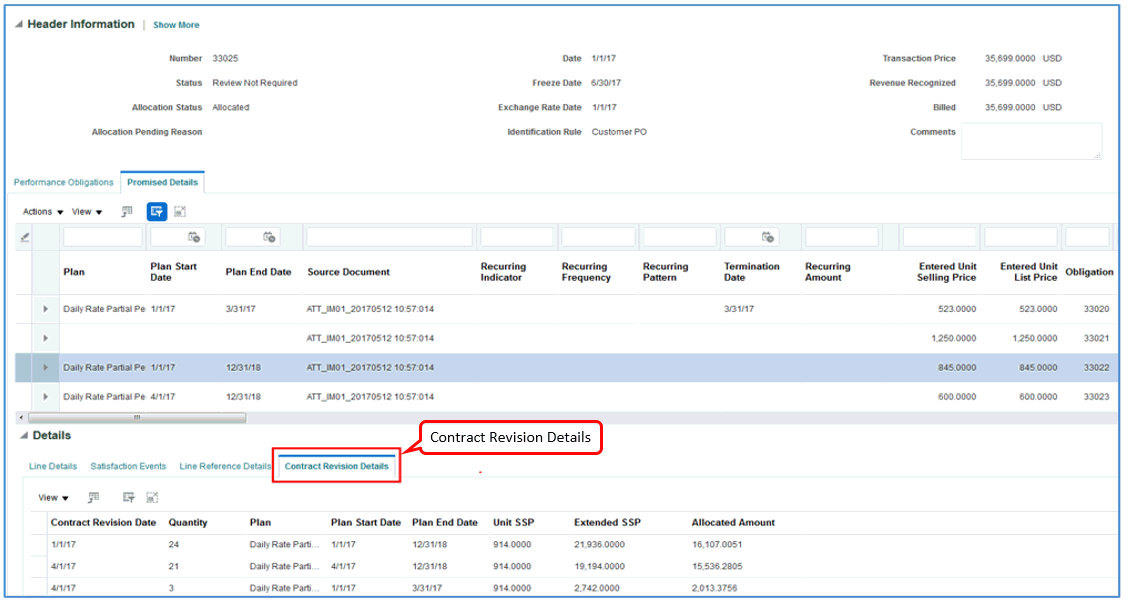
When you make an immaterial change to your contract, revenue that was not recognized on the contract revision is reallocated on all of the open performance obligations within the contract. Revenue recognized as of the contract revision date remains intact. Any unrecognized revenue as of the contract revision date is reallocated to open performance obligations.
On the Manage Customer Contracts page, you can review the immaterial change calculations in the Contract Revision Details subtab under the Promised Details and Performance Obligations tabs. Only contract revision details associated with immaterial changes are displayed in the Contract Revision Details subtabs.
Steps to Enable
No steps are needed to enable this feature. This feature is available by default.
Tips And Considerations
This example illustrates a contract update resulting in a revision to the existing contract:
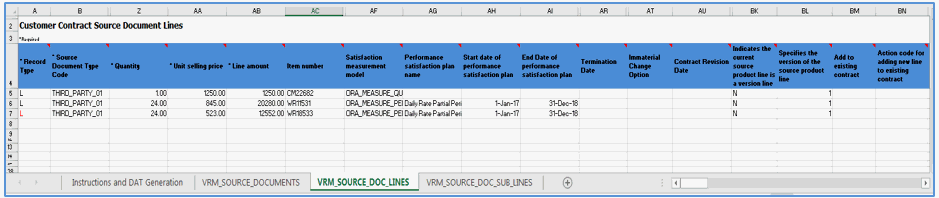
- The initial customer contract has three performance obligations for telephone, voice plan, and data plan. The phone is subsidized, and the voice and data plans cover a 24-month subscription period.
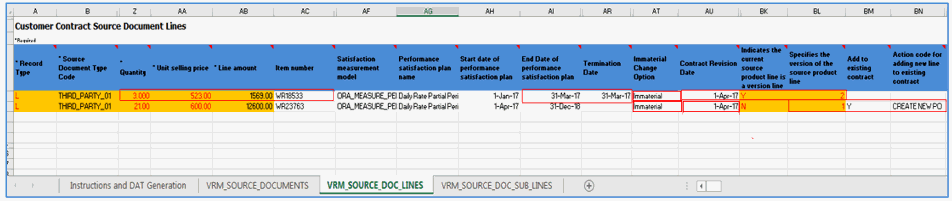
- The data plan upgraded from WR18533 to WR23763 starting from the start of 4th month.The business entity wants to treat this as an immaterial change and:
- Revise an existing contract.
- Calculate the revenue that was not recognized when the contract was revised for all open performance obligations.
- Reallocate unrecognized revenue using the standalone selling price basis, as of the contract revision date for new performance obligation and the contract inception date for existing open performance obligations.
- Recognize revenue in current and future periods only.
Initial Data File:
Data file for termination of service ‘WR18533’ and upgrade to service ‘WR23763’:
Use the Revenue Basis Data Import file-based data import to import revisions to your order lines or sales data from your source application to reflect the contract modifications to be applied. For successful processing of immaterial changes, ensure that the following attributes are included with the source document data in the Revenue Basis Data Import file-based data import:
TERMINATION ONLY USE CASE:
Termination Line Details
| Attribute |
Expected Value |
|---|---|
| Quantity |
Revised line quantity |
| Unit Selling Price |
Unit selling price of revised line |
| Line Amount |
Revised line amount |
| Performance Satisfaction Plan End Date |
Revised performance plan end date |
| Termination Date |
Line termination date |
| Immaterial Change Option |
Immaterial Change Option for terminated line (if not provided then default from Source Document Types setup page will be used) |
| Contract Revision Date |
Contract Revision Date <Should be Termination Date + 1> |
| Version Line |
Y |
| Version Line Number |
Greater than earlier version number |
UPGRADE USE CASE:
Termination Line Details
| Attribute |
Expected Value |
|---|---|
| Quantity |
Revised line Quantity |
| Unit Selling Price |
Unit selling price of revised line |
| Line Amount |
Revised line amount |
| Performance Satisfaction Plan End Date |
Revised performance plan end date |
| Termination Date |
Line termination date |
| Immaterial Change Option |
Immaterial Change Option for terminated line (if not provided then default from Source Document Types setup page will be used) |
| Contract Revision Date |
Contract Revision Date <Should be Termination Date + 1> |
| Version Line |
Y |
| Version Line Number |
Greater than earlier version number |
New Line or Upgraded Line details
| Attribute |
Expected Value |
|---|---|
| Quantity |
New line quantity |
| Unit Selling Price |
Unit selling price of new line |
| Line Amount |
New line amount |
| Performance Satisfaction Plan Start Date |
New performance plan start date |
| Performance Satisfaction Plan End Date |
New performance plan end date |
| Performance Satisfaction Plan Duration |
New performance plan duration |
| Termination Date |
|
| Immaterial Change Option |
Immaterial Change Option for new line (if not provided then default from Source Document Types setup page will be used) |
| Contract Revision Date |
Contract Revision Date |
| Add to Existing Contract |
Y |
| Action code for adding new line to existing contract |
CREATE NEW PO |
| Version Line |
N |
Key Resources
Refer to the Revenue Management documentation for further information on how to import revenue data using Revenue Basis Data Import file-based data import.
Role Information
No new role access is needed to use this feature.
Devolve Performance Obligations Associated with Revenue Contracts
You can now devolve a performance obligation into a series of performance obligations over time for service-based revenue contract lines.
This feature provides the following benefits:
- Automatically devolves a performance obligation into a series of performance obligations based on your setup on the Manage Performance Obligation Identification Rules page.
- Devolves performance obligations by accounting period.
- Includes a new Details Series subtab on the Manage Customer Contract page, which shows the automatically devolved performance obligations.
- Displays the logically split obligations for each accounting period along with the performance obligation amount, allocation amount, revenue recognized amount and initial performance amount on the Series tab on the Manage Customer Contract page.
- Creates the initial performance event for each obligation in the performance obligation series with the date as the first day of the accounting period.
- Uses the Daily Revenue Rate, Partial Periods rule to calculate the amounts displayed on the Details Series subtab.
- Automatically devolves implied performance obligations into a series of performance obligations based on setup in Manage Implied Performance Obligation Template page.
- Recalculates performance obligation series when contracts are revised or when products are returned.

Set the Devolve Performance Obligation option to Yes to devolve a performance obligation on the Edit Performance Obligation Identification Rule setup page.
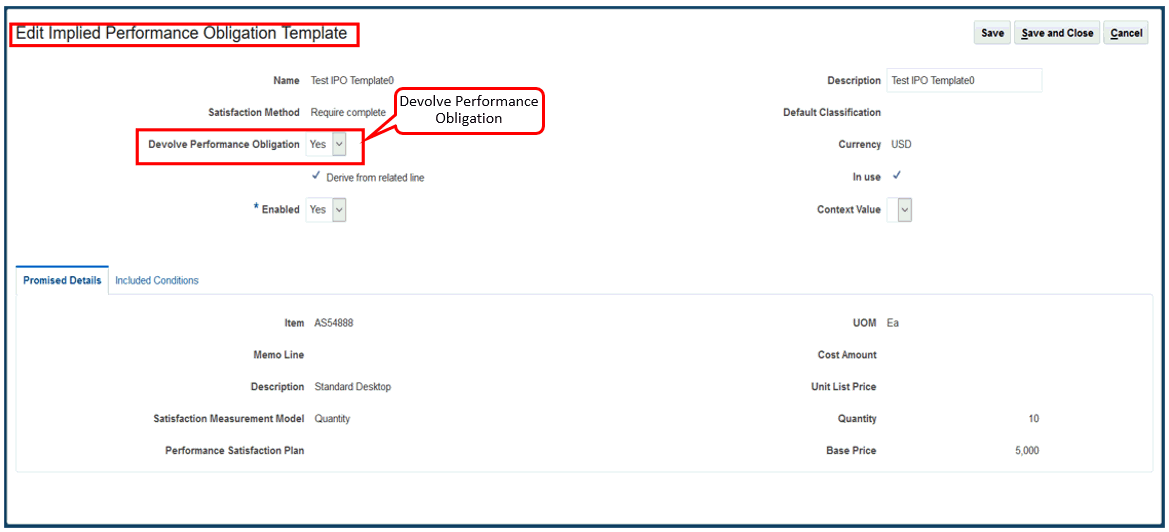
Set the Devolve Performance Obligation option to Yes to devolve an implied performance obligation on the Edit Implied Performance Obligation Template setup page.
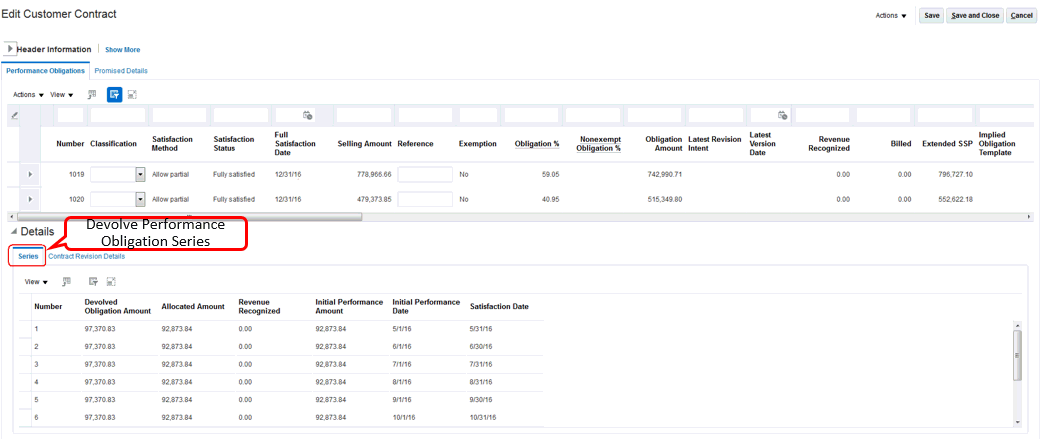
On the Performance Obligations tab on the Manage Customer Contracts page, you can review the automatically devolved performance obligations in the Series subtab under Details.
Steps to Enable
No steps are needed to enable this feature. This feature is available by default.
Tips And Considerations
- The use of this feature is driven by your company business practice and policy regarding the schedule of recording contract liability for given products and services.
Key Resources
Refer to the Revenue Management documentation for further information on how to configure performance obligation identification rules and implied performance obligation template rules.
Role Information
Users with the job roles Revenue Manager or Revenue Analyst can configure performance obligation setups to devolve a performance obligation into a series of performance obligations.
View Consolidated Account Activity for Revenue Contract Group
You can now view the consolidated accounting activities associated with all revenue contracts within a contract group or for an individual contract.
Assign contracts to a contract group by enabling the Use as Contract Group Number attribute on the Create Contract Identification Rule page or by enabling the Automatic Renewal of Revenue Contracts feature.
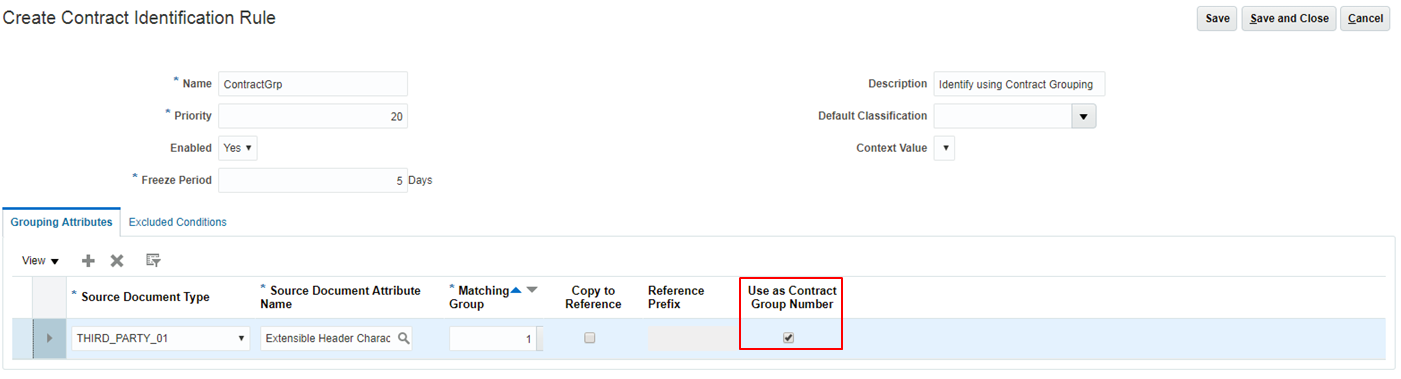
Contract Identification Rule - Use as Contract Group
Indicate the grouping attribute to be used to assign the contract group number on the Create Contract Identification Rule page.
When the contract is created during the Identify Customer Contracts process, the contract group number is assigned using the attribute selected as Use as Contract Group Number in the Contract Identification Rule. If no attribute is designated and the contract is a recurring contract, a contract group number is assigned by Revenue Management when the contract renews as a new recurring contract.
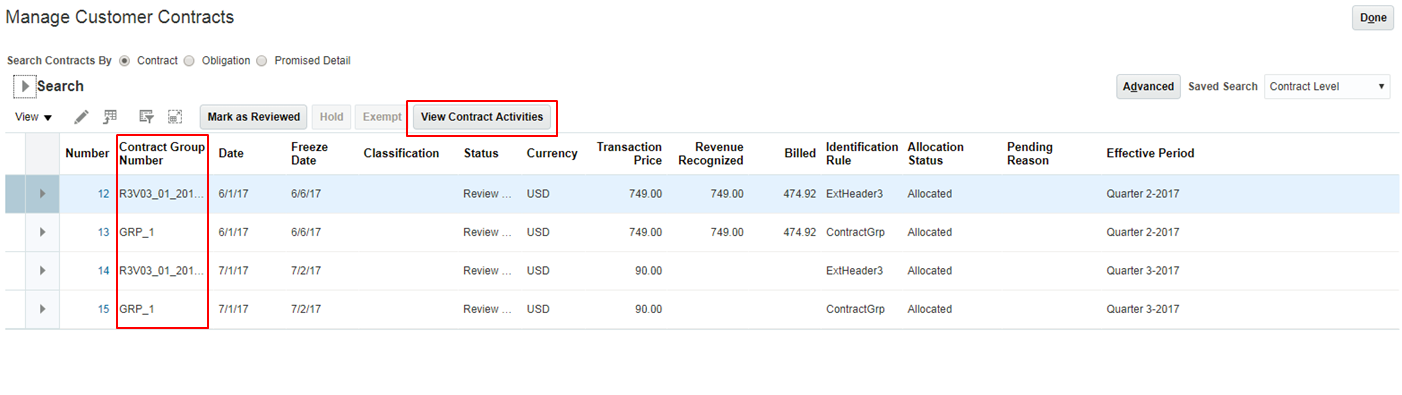
Manage Customer Contract User Interface
You can view consolidated account activity for your revenue contract group by clicking the View Contract Activities button after selecting the row with the appropriate Contract Group Number on the Manage Customer Contracts page.
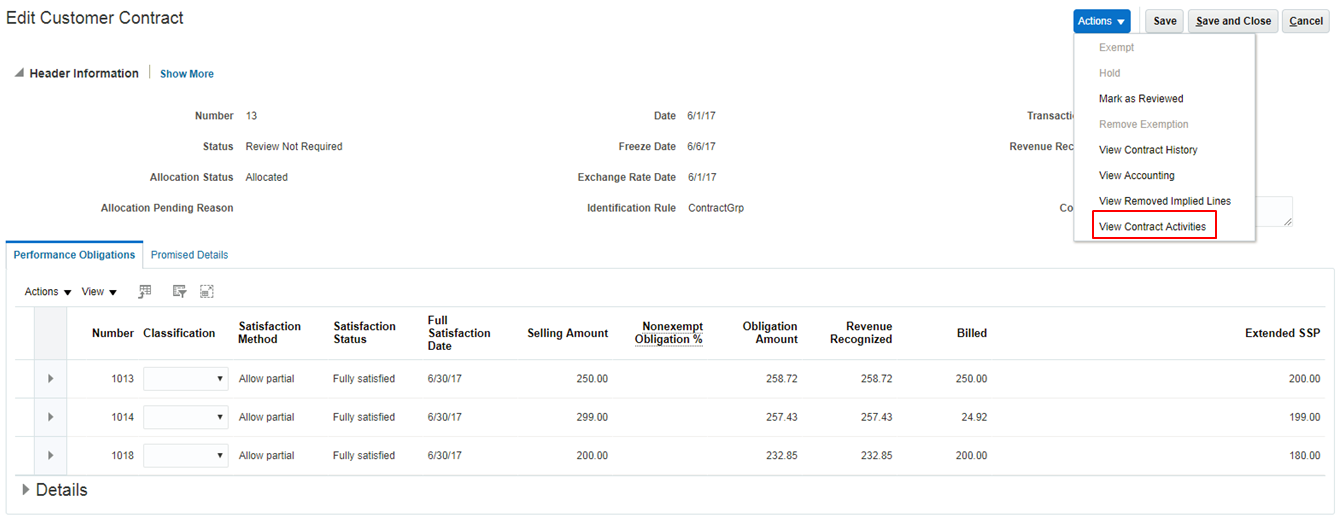
Edit Customer Contracts User Interface
You can also view the report by selecting the View Contract Activities option in the Action window on the Edit Customer Contract page for the individual contract.
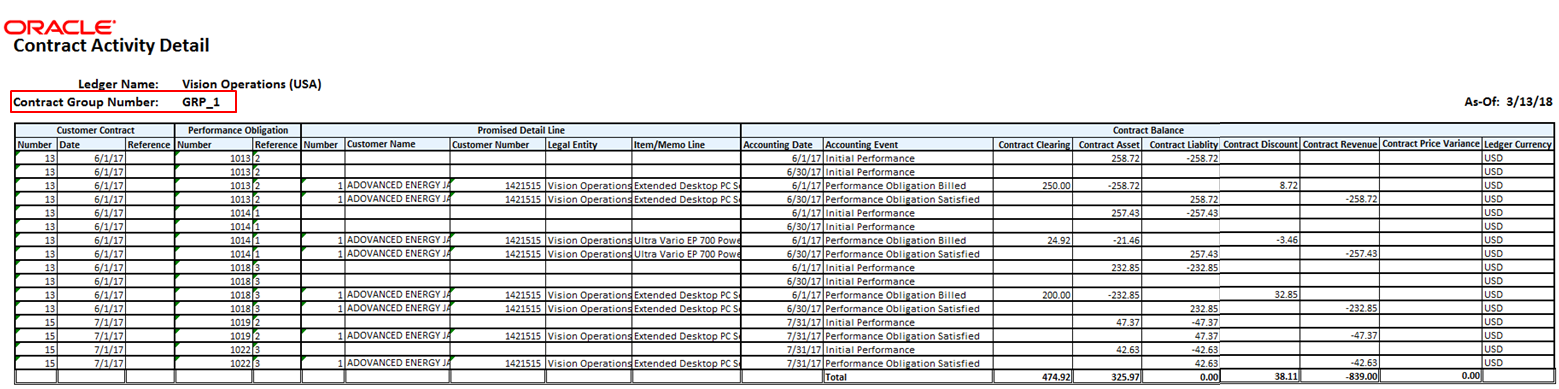
Contract Activity Detail Report
The Contract Activity Detail report displays the consolidated account activity for all of the contracts within the assigned contract group. If the contract does not belong to a contract group, the Contract Activity Detail report displays the accounting activity for the individual contract only.
The report lists the contract account balances by accounting date, accounting event, performance obligation, and promised detail line for each contract within the contract group.
Steps to Enable
No steps are needed to enable this feature.
Tips And Considerations
System Options for Revenue Management
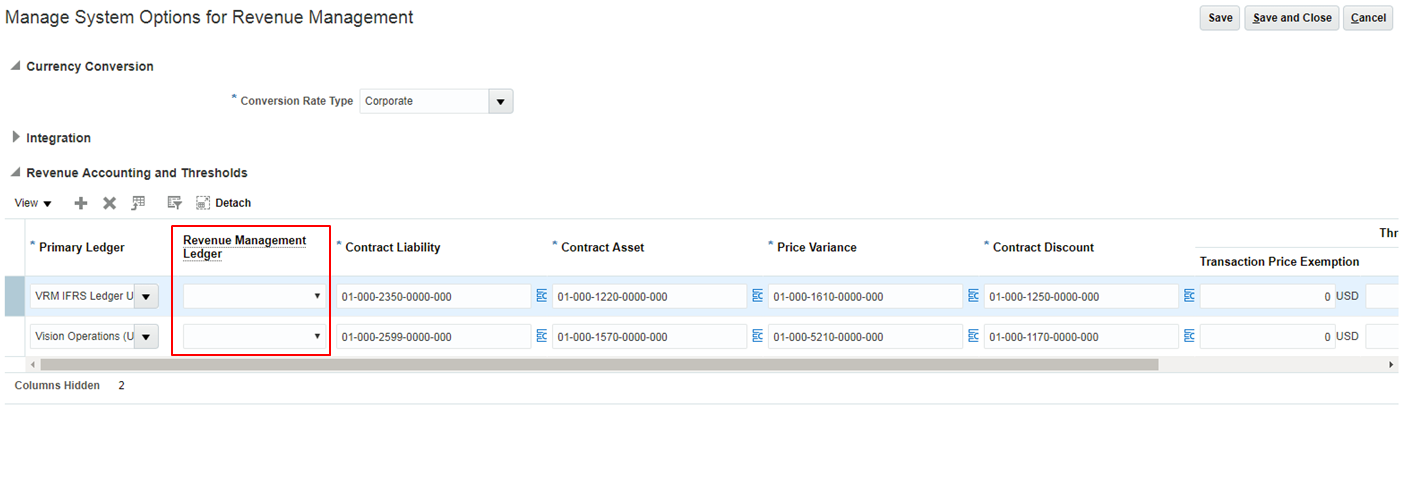
System Options for Revenue Management
The View Contract Consolidated Account Activity for Revenue Contract Group uses journal entries from the primary ledger to display the accounting activity. If you are using a ledger other than the primary ledger as your Revenue Management ledger, then you need to indicate the name of the ledger you are using in the Revenue Management Ledger attribute on the Manage System Options for Revenue Management page.
Key Resources
Refer to the Revenue Management documentation for further information on how to enable attributes on the Create or Edit Contract Identification Rule page to be used as a contract group number.
Role Information
Users with the job roles Revenue Manager or Revenue Analyst can execute the View Contract Activity action.
---

Copyright © 2018, Oracle and/or its affiliates. All rights reserved.
This document is provided for information purposes only, and the contents hereof are subject to change without notice.This document is not warranted to be error-free, nor subject to any other warranties or conditions, whether expressed orally or implied in law, including implied warranties and conditions of merchantability or fitness for a particular purpose. We specifically disclaim any liability with respect to this document, and no contractual obligations are formed either directly or indirectly by this document. This document may not be reproduced or transmitted in any form or by any means, electronic or mechanical, for any purpose, without our prior written permission.
Oracle and Java are registered trademarks of Oracle and/or its affiliates. Other names may be trademarks of their respective owners.
Intel and Intel Xeon are trademarks or registered trademarks of Intel Corporation.All SPARC trademarks are used under license and are trademarks or registered trademarks of SPARC International, Inc. AMD, Opteron, the AMD logo, and the AMD Opteron logo are trademarks or registered trademarks of Advanced Micro Devices. UNIX is a registered trademark of The Open Group.
