

This document will continue to evolve as existing sections change and new information is added. All updates appear in the following table:
| Date | Update Version | Notes |
|---|---|---|
| 21 SEP 2018 | Update 18C | Delivered new features in update 18C. |
| 20 APR 2018 | Update 18B | Delivered new features in update 18B. |
| 19 JAN 2018 | Update 18A | Delivered new features in update 18A. |
This document will continue to evolve as existing sections change and new information is added. All updates appear in the following table:
| Date | Feature | Notes |
|---|---|---|
| 21 SEP 2018 | Created initial document. |
This guide outlines the information you need to know about new or improved functionality in this update, and describes any tasks you might need to perform for the update. Each section includes a brief description of the feature, the steps you need to take to enable or begin using the feature, any tips or considerations that you should keep in mind, and the resources available to help you.
Security and New Features
The Role section of each feature identifies the security privilege and job role required to use the feature. If feature setup is required, then the Application Implementation Consultant job role is required to perform the setup, unless otherwise indicated. (If a feature doesn't include a Role section, then no security changes are required to use the feature.)
If you have created job roles, then you can use this information to add new privileges to those roles as needed.
Give Us Feedback
We welcome your comments and suggestions to improve the content. Please send us your feedback at oracle_fusion_applications_help_ww_grp@oracle.com.
Optional Uptake of New Features (Opt In)
We continue to add many new features to the Oracle Cloud Applications, and for some features, you can take advantage of new functionality at a pace that suits you by “opting in” to the feature when you’re ready. You can opt in to a feature in two ways: by using the New Features work area, or by using the Setup and Maintenance work area.
To opt in using the New Features work area:
- Click the Navigator, and then click New Features (under the My Enterprise heading).
- On the New Features page, select the offering that includes new features you’d like to review.
- Click Go to Opt In for any feature that you want to opt in to.
- On the Edit Features page, select the Enable option for the feature, and then click Done.
To opt in using the Setup and Maintenance work area:
- Click the Navigator, and then click Setup and Maintenance.
- On the Setup page, select your offering, and then click Change Feature Opt In.
- On the Opt In page, click the Edit Features icon.
- On the Edit Features page, select the Enable option for any feature you want to opt in to. If the Enable column includes an Edit icon instead of a check box, then click the icon, select your feature options, and click Save and Close.
- Click Done.
Column Definitions:
Report = New or modified, Oracle-delivered, ready to run reports.
UI or Process-Based: Small Scale = These UI or process-based features are typically comprised of minor field, validation, or program changes. Therefore, the potential impact to users is minimal.
UI or Process-Based: Larger Scale* = These UI or process-based features have more complex designs. Therefore, the potential impact to users is higher.
Opt In Only = These features are made available for use via Opt In. No additional setup steps are required.
Opt In, Plus Additional Steps Required = To use these features you must first Opt In, then perform additional setup steps.
Steps Required (No Opt In) = Setup steps must be performed before these features can be used. For example, new or expanded BI subject areas need to first be incorporated into reports. Integration is required to utilize new web services.
| New Features Delivered Ready to Use Reports plus Small Scale UI or Process-Based new features will have minimal user impact after an update. Therefore, customer acceptance testing should focus on the Larger Scale UI or Process-Based* new features. |
New Features That Customer Must Take Action to Use (Delivered Disabled) Not disruptive as action is required to make these features ready to use. As you selectively choose to leverage, you set your test and roll out timing. |
|||||
|---|---|---|---|---|---|---|
| Feature |
Report |
UI or |
UI or |
Customer Action: |
Customer Action: |
Customer Action: |
 |
||||||
|
||||||
|
||||||
Update Planning Table Data for Supply Chain Plans Using a REST Service |
|
|||||
|
||||||
|
||||||
|
||||||
|
||||||
Update Planning Table Data for Supply Chain Plans Using a REST Service |
|
|||||
|
||||||
Update Planning Table Data for Supply Chain Plans Using a REST Service |
|
|||||
|
||||||
|
||||||
|
||||||
Update Planning Table Data for Supply Chain Plans Using a REST Service |
|
|||||
|
||||||
|
||||||
Filter Tables by Configure-to-Order Model
To manage the forecast for several configure-to-order models, it is sometimes more efficient to focus your attention on one model and its options at a time. This feature lets you choose the CTO base model as a filter in the pivot table. The filter enables only the model and the options to be visible in the forecast analysis table, and helps you make quick forecast edits.
You can efficiently reflect customer preferences into the product mix and make focused forecast edits to reflect any trends.
Steps to Enable
No steps are required to enable this feature.
Tips And Considerations
- Open a table containing configure-to-order models
- On the table toolbar, click on View
- Select the check box for Set Page Filter to Base Model
- Page through your selected base models using the list of values in the page filter
- The base model will be visible in the page filter and in the table.
- Use the toolbar Action menu choice Save Layout to preserve the setting, if desired
When the option is not on, use the scroll bar for the table to see base models and their options in a column.
Key Resources
- The Filter Tables by Configure-to-Order Model release training, available on Release Readiness.
Store Plan Data at Aggregate Time Levels
Storing the demand signal data at a daily level is not efficient if you forecast using demand signals at aggregate levels, such as weekly and monthly.
With this feature, you can capture your demand signals at an aggregate time level instead of the daily level, and store the generated statistical forecast at that level only. Consequently, the embedded analytics are more responsive and perform faster across the demand plan. You can now analyze forecasts at the required level, improve application performance, reduce storage requirements, and still retain the capability to configure daily demand plans.
Steps to Enable
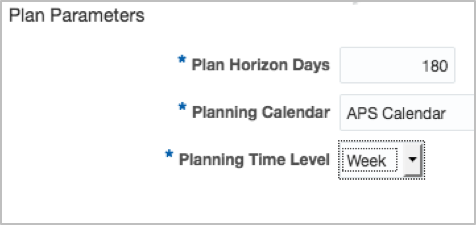
The Planning Time Level plan parameter on the Scope tab determines the time level at which the plan data is stored.
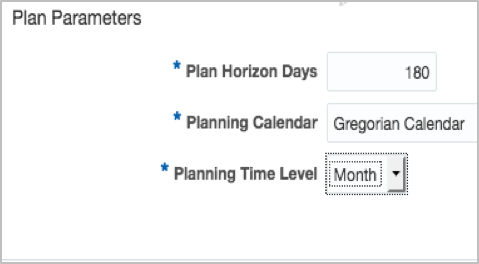
The values available for the Planning Time Level parameter are based on what was selected for the Planning Calendar parameter. Only the time levels relevant to the selected planning calendar will be available to select. For example, if you selected the Gregorian Calendar value for the Planning Calendar parameter, then only the Day and Month levels will be available to select for the Planning Time Level parameter.
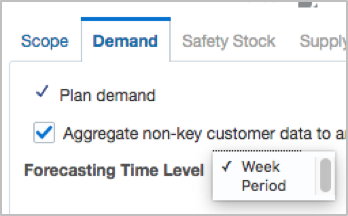
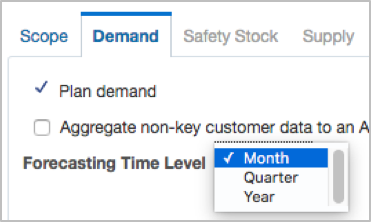
The Forecasting Time Level plan parameter was moved from the Scope tab to the Demand tab. The selections available for the Forecasting Time Level parameter will be limited to the selected planning time level and any parent levels above it in the selected planning calendar. For example, if the Month level in the Gregorian planning calendar is selected for the planning time level, then the Forecasting Time Level plan parameter is limited to Month, Quarter, and Year.
WEEKLY DEMAND PLAN CONFIGURATION
The following diagrams show the Plan Parameters section on the Scope tab and the Forecasting Time Level parameter on the Demand tab for weekly plan configuration.
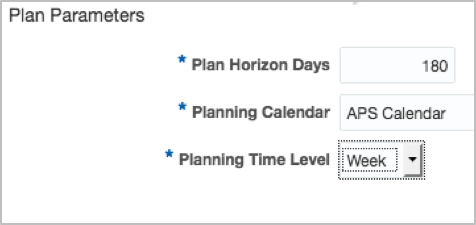
Plan Parameters Section on the Scope Tab for Weekly Demand Plan Configuration
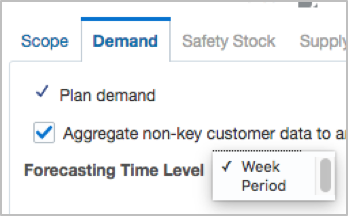
Forecasting Time Level Parameter on the Demand Tab for Weekly Demand Plan Configuration
MONTHLY DEMAND PLAN CONFIGURATION
The following diagrams show the Plan Parameters section on the Scope tab and the Forecasting Time Level parameter on the Demand tab for monthly plan configuration.
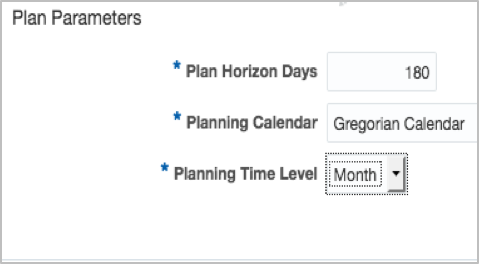
Plan Parameters Section on the Scope Tab for Monthly Demand Plan Configuration
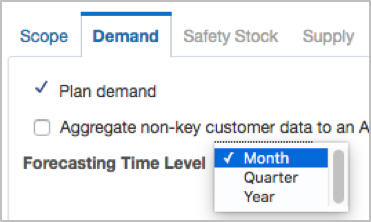
Forecasting Time Level Parameter on the Demand Tab for Monthly Demand Plan Configuration
Tips And Considerations
-
This feature is available only for plans with a plan type of Demand Plan. It is available for plans with the Demand Plans plan type created in the Demand Management work area, the Planning Central work area, and the Demand and Supply Planning work area. It is not available for plans with the Supply Plan plan type or the Demand and Supply Plan plan type.
- You enable the aggregate time level at a plan level, which retains the capability for you to configure daily demand plans.
- Fusion Source
- Shipments/Bookings History data is always collected at the day level from the Fusion source.
- For day level demand plans (Planning Time Level: Day), data will be loaded at the day level into relevant plan tables.
- For aggregate demand plans, such as the Week or Month planning time level, day level data will be aggregated to the selected plan planning time level definition and loaded into the relevant plan tables.
- File-Based Data Import (also known as Flat File Upload)
- For data loaded through CSV file uploads, you can load data either at the day level if you want to have both daily and aggregate demand plans or pre-aggregate the data to the corresponding planning time level definition (Start date of the week or month) if there is no need for a daily demand plan.
- Fusion Source
-
You can define day-level demand plans for shorter plan horizons, such as 30/45 days, and aggregate-time-level demand plans for longer plan horizons, such as 52/78 weeks if the planning time level is Week, or 12/18 months if the planning time level is a Gregorian Month.
-
The following time aggregation levels are supported:
- Gregorian Month
- Week (445 or 544 type manufacturing calendar)
- Period (445 or 544 only)
-
A manufacturing calendar with monthly periods is not supported.
-
You cannot change the planning calendar and planning time level selections after you run a demand plan. Both of these plan options are disabled after the plan is run. If you want to change the planning time level definition after a plan is run, then you have to create a new plan, and delete the old plan if it’s no longer required.
-
When a pivot table is opened or defined within the context of a plan defined at aggregate time levels, only the planning time level and any parent levels above it within the selected planning calendar are available for selection in the Hierarchy and Members tabs. Therefore, a pivot table defined at day time level may not return any data or return partial data when you open it within the context of a demand plan with an aggregate time level.
Key Resources
- The Store Plan Data at Aggregate Time Levels release training, available on Release Readiness.
Forecast and Consume Internal Orders
You may need to plan for transfer orders as independent demand in situations where only the source organization, not the destination organization, is in the scope of a named plan. For example, you may have one organization in a business unit that supplies a product to other inventory organizations in other business units in your enterprise, and you use internal transfer transactions to move inventory between these organizations. However, you may want to plan for the source organization independently.
You can now include transfer order history in the plan in which the transfer orders are a component of the overall shipments history for the purpose of statistical forecasting process. Additionally, open transfer orders consume the forecast as well. To avoid double counting, this feature is triggered only when the source organization, not the destination, is part of the planning scope.
This feature provides you the flexibility to model your supply chain for planning purposes that aligns best with your organizational structures.
Steps to Enable
No steps are required to enable this feature.
Tips And Considerations
- In the Supply Network Model on the Organizations tab, do the following:
- Specify a customer and customer site for organizations that are sources for transfers.
- Select the Use Customer and Customer Site for Interorganization Transfers check box for the applicable organizations.
- In your demand plan, select to include transfer orders. Note the following:
- Demand plans must include only the source organization.
- Demand planning avoids double counting demand when including transfers by excluding transfers between organization pairs included in the plan.
- Supply plans must include only the source organization. Note the following:
- The plan includes transfer forecasts for internal orders shipped from the source organization.
- Only transfers that are not between two organizations in the plan can consume forecasts.
Update Planning Table Data for Supply Chain Plans Using a REST Service
Oracle Supply Chain Planning Cloud applications may need to coexist with other enterprise applications that you may have. You can use technologies, such as File Based Data Import (FBDI) or REST API, to enable these integrations with other applications. In this update, you can update data for any measure at any aggregation level in a planning table using a REST API. For example, you can integrate the financial budgets from your financial planning systems into Oracle Sales and Operations Planning Cloud using this REST API. This feature augments the existing functionality to retrieve data from a planning table. This new update capability enables standards-based interoperability of Oracle Supply Chain Planning Cloud with other applications that you may have in your enterprise.
Steps to Enable
Review the changes to the Supply Chain Plans/PlanningTables/Data service, and update your REST client as desired.
Tips And Considerations
- To update the measure data related to a plan, a predefined pivot table must exist. The pivot table should contain the details of measures, hierarchies, and levels that the measures need to be updated at.
- You can use the GET method on the Supply Chain Plans/PlanningTables/Data resource to get the measure data at the levels as specified in the pivot table. This step is optional.
- You can then use the POST method on the Supply Chain Plans/PlanningTables/Data resource to update the values of one or more measures in a pivot table.
Key Resources
- The Update Planning Table Data REST Service release training, available on Release Readiness.
- Refer to the REST APIs for Oracle Supply Chain Management Cloud documentation available on the Oracle Help Center.
Filter Supplies and Demands by Comparing Date Attributes
When there is a large volume of orders, it is imperative to narrow down the list of orders to those that meet the critical exception conditions. For example, you may need to focus on late orders by comparing the suggested due date and the need-by date on the order. Oracle Supply Planning Cloud and Oracle Planning Central Cloud already offer advanced filtering conditions on the Supplies and Demands page. You can additionally use the enhanced filtering feature to express logical date comparison conditions. This feature enhances your ability to monitor and respond to changes in your supply chain as they occur.
Take these steps to use this feature::
- Open Manage Conditions window from the Search panel of Supplies and Demands window
- Define a condition header
- Define the condition details by comparing supplies and demands date attributes with or without offset
- Save and Close
- Perform search in the Supplies and Demands page using the defined condition to filter orders
Steps to Enable
No steps are required to enable this feature.
Tips And Considerations
The relative comparison options are available only for date-based attributes, such as Requested Ship Date or Actual Arrival Date. The values for relative comparison options are enabled when you select one of the following operators:
- Before
- After
- On or before
- On or after
Key Resources
- The Filter Supplies and Demands by Comparing Date Attributes release training, available on Release Readiness.
Forecast and Consume Internal Orders
You may need to plan for transfer orders as independent demand in situations where only the source organization, not the destination organization, is in the scope of a named plan. For example, you may have one organization in a business unit that supplies a product to other inventory organizations in other business units in your enterprise, and you use internal transfer transactions to move inventory between these organizations. However, you may want to plan for the source organization independently.
You can now include transfer order history in the plan in which the transfer orders are a component of the overall shipments history for the purpose of statistical forecasting process. Additionally, open transfer orders consume the forecast as well. To avoid double counting, this feature is triggered only when the source organization, not the destination, is part of the planning scope.
This feature provides you the flexibility to model your supply chain for planning purposes that aligns best with your organizational structures.
Steps to Enable
No steps are required to enable this feature.
Tips And Considerations
- In the Supply Network Model on the Organizations tab, do the following:
- Specify a customer and customer site for organizations that are sources for transfers.
- Select the Use Customer and Customer Site for Interorganization Transfers check box for the applicable organizations.
- In your demand plan, select to include transfer orders. Note the following:
- Demand plans must include only the source organization.
- Demand planning avoids double counting demand when including transfers by excluding transfers between organization pairs included in the plan.
- Supply plans must include only the source organization. Note the following:
- The plan includes transfer forecasts for internal orders shipped from the source organization.
- Only transfers that are not between two organizations in the plan can consume forecasts.
Calculate Safety Stock Based on Multiple Demand Schedules
To accurately hedge for unexpected demand, safety stock calculations need to account for all sources of demand and demand variability represented as independent demand schedules in a supply plan. In this update, the planning process recognizes all the demand schedules for safety stock calculations in a supply plan. This ensures that the plan you generate has the appropriate safety stock supply that is proportional to the expected demand. This feature also takes all expected demand variability into account, thus increasing your ability to maintain adequate service levels even in the face of extreme demand variability.
Steps to Enable
No steps are required to enable this feature.
Tips And Considerations
- Each demand schedule will be used to drive safety stock calculation for the items that belong to that demand schedule
- If the same item is present in two or more demand schedules, then only one of the demand schedules will be picked for safety stock calculation purposes.
- With this feature, the Safety Stock Forecast Plan plan option and the Forecast plan option have been removed from the Safety Stock stab under the Supply tab in plan options.
Key Resources
-
The Calculate Safety Stock Based on Multiple Demand Schedules release training, available on Release Readiness.
Configure Measures to Reduce Planning Cycle Times
Prior to this update, the supply planning measures were always calculated at the lowest level for all dimensions, even though you may not need all the available dimensions for analyzing your supply plans. This could result in unnecessarily long query times. You may want to turn off unneeded dimensions to accelerate performance while working with plans.
You can now choose to disable the Customer, Supplier, Demand Class, Order Type, or Exception Type dimensions for specific measures to optimize data volumes and significantly improve query performance. These dimensions are disabled by default for supply plan measure calculation if you don’t select them in the dimension catalog. The Item, Organization, Resource, and Time dimensions are always used. By not using unneeded dimensions for a supply planning measure, you can increase productivity and decrease planning cycle times.
Steps to Enable
No steps are required to enable this feature.
Tips And Considerations
- You can configure the dimensions to be enabled for a supply plan or a demand and supply plan in the Advanced Plan Option in the Supply Tab of the Plan Options page. You can enable or disable the following dimensions:
- Customer
- Supplier
- Demand Class
- Order Type
- Exception Type
- When a specific dimension is disabled, the related measures will be pre-aggregated along that dimension.
-
Measure edits will not be disaggregated along any disabled dimension.
Key Resources
- The Configure Measures To Reduce Planning Cycle Times release training, available on Release Readiness.
Update Planning Table Data for Supply Chain Plans Using a REST Service
Oracle Supply Chain Planning Cloud applications may need to coexist with other enterprise applications that you may have. You can use technologies, such as File Based Data Import (FBDI) or REST API, to enable these integrations with other applications. In this update, you can update data for any measure at any aggregation level in a planning table using a REST API. For example, you can integrate the financial budgets from your financial planning systems into Oracle Sales and Operations Planning Cloud using this REST API. This feature augments the existing functionality to retrieve data from a planning table. This new update capability enables standards-based interoperability of Oracle Supply Chain Planning Cloud with other applications that you may have in your enterprise.
Steps to Enable
Review the changes to the Supply Chain Plans/PlanningTables/Data service, and update your REST client as desired.
Tips And Considerations
- To update the measure data related to a plan, a predefined pivot table must exist. The pivot table should contain the details of measures, hierarchies, and levels that the measures need to be updated at.
- You can use the GET method on the Supply Chain Plans/PlanningTables/Data resource to get the measure data at the levels as specified in the pivot table. This step is optional.
- You can then use the POST method on the Supply Chain Plans/PlanningTables/Data resource to update the values of one or more measures in a pivot table.
Key Resources
- The Update Planning Table Data REST Service release training, available on Release Readiness.
- Refer to the REST APIs for Oracle Supply Chain Management Cloud documentation available on the Oracle Help Center.
Configure Sales and Operations Planning Cycle Stages
Oracle Sales and Operations Planning Cloud contains process templates for five commonly used stages of the Sales and Operations (S&OP) process. These process templates are Product Review, Demand Review, Supply Review, Financial Review, and Executive Review. However, you may want to have fewer stages or change the names to conform with your company’s S&OP process.
You can now change the names of the stages as well as eliminate stages. Once you make such changes for one S&OP cycle, you can copy this new set of stages for use in the future S&OP planning cycles. You can tailor Sales and Operations Planning Cloud’s planning templates to your company’s process to:
- Foster a common understanding of your process
- Accelerate user adoption
- Increase the overall S&OP process effectiveness
Steps to Enable
To enable this feature:
- In the Sales and Operations Planning work area, select the Manage Planning Cycles task.
- On the Manage Planning Cycles page, search for and select your planning cycle.
- When the planning cycle opens, click Actions, and then select Configure Stages. The Configure Planning Cycle Stages dialog box opens.
- In the Stage Name Override column, enter a new name to use instead of the predefined review stage name.
- In the Enabled column, select Yes to display the tab, or No to hide the tab for that stage on the user interface.
- Click Save and Close. Your changes appear on the Manage Planning Cycle page.
- If you make a copy of this planning cycle, your changes carry over to the new planning cycle.
Tips And Considerations
- The planning cycle stage name that you enter must be unique. The name cannot already exist in the planning cycle.
- You can only have up to five review stages in a planning cycle.
- You must have at least one planning cycle review stage set to Yes.
- When you copy a planning cycle, changes that you made to the planning cycle stage names and your choices to display stage names or not will be copied over to the new planning cycle
Key Resources
-
The Configure Sales and Operations Planning Cycle Stages release training, available on Release Readiness.
Role Information
To use this feature, the following privilege or role is required:
- Privilege Name and Code:
- Review Planning Cycle (MSC_REVIEW_PLANNING_CYCLES_PRIV)
- Job Role Name and Code:
- Sales and Operations Planner (MSC_SALES_AND_OPERATIONS_PLANNER_JOB)
To set up this feature, the following privilege or role is required:
- Privilege Name and Code:
- Administer Planning Cycles (MSC_MANAGE_PLANNING_CYCLES_PRIV)
- Job Role Name and Code:
- Sales and Operations Planner (MSC_SALES_AND_OPERATIONS_PLANNER_JOB)
Update Planning Table Data for Supply Chain Plans Using a REST Service
Oracle Supply Chain Planning Cloud applications may need to coexist with other enterprise applications that you may have. You can use technologies, such as File Based Data Import (FBDI) or REST API, to enable these integrations with other applications. In this update, you can update data for any measure at any aggregation level in a planning table using a REST API. For example, you can integrate the financial budgets from your financial planning systems into Oracle Sales and Operations Planning Cloud using this REST API. This feature augments the existing functionality to retrieve data from a planning table. This new update capability enables standards-based interoperability of Oracle Supply Chain Planning Cloud with other applications that you may have in your enterprise.
Steps to Enable
Review the changes to the Supply Chain Plans/PlanningTables/Data service, and update your REST client as desired.
Tips And Considerations
- To update the measure data related to a plan, a predefined pivot table must exist. The pivot table should contain the details of measures, hierarchies, and levels that the measures need to be updated at.
- You can use the GET method on the Supply Chain Plans/PlanningTables/Data resource to get the measure data at the levels as specified in the pivot table. This step is optional.
- You can then use the POST method on the Supply Chain Plans/PlanningTables/Data resource to update the values of one or more measures in a pivot table.
Key Resources
- The Update Planning Table Data REST Service release training, available on Release Readiness.
- Refer to the REST APIs for Oracle Supply Chain Management Cloud documentation available on the Oracle Help Center.
Calculate Safety Stock Based on Multiple Demand Schedules
To accurately hedge for unexpected demand, safety stock calculations need to account for all sources of demand and demand variability represented as independent demand schedules in a supply plan. In this update, the planning process recognizes all the demand schedules for safety stock calculations in a supply plan. This ensures that the plan you generate has the appropriate safety stock supply that is proportional to the expected demand. This feature also takes all expected demand variability into account, thus increasing your ability to maintain adequate service levels even in the face of extreme demand variability.
Steps to Enable
No steps are required to enable this feature.
Tips And Considerations
- Each demand schedule will be used to drive safety stock calculation for the items that belong to that demand schedule
- If the same item is present in two or more demand schedules, then only one of the demand schedules will be picked for safety stock calculation purposes.
- With this feature, the Safety Stock Forecast Plan plan option and the Forecast plan option have been removed from the Safety Stock stab under the Supply tab in plan options.
Key Resources
-
The Calculate Safety Stock Based on Multiple Demand Schedules release training, available on Release Readiness.
Configure Measures to Reduce Planning Cycle Times
Prior to this update, the supply planning measures were always calculated at the lowest level for all dimensions, even though you may not need all the available dimensions for analyzing your supply plans. This could result in unnecessarily long query times. You may want to turn off unneeded dimensions to accelerate performance while working with plans.
You can now choose to disable the Customer, Supplier, Demand Class, Order Type, or Exception Type dimensions for specific measures to optimize data volumes and significantly improve query performance. These dimensions are disabled by default for supply plan measure calculation if you don’t select them in the dimension catalog. The Item, Organization, Resource, and Time dimensions are always used. By not using unneeded dimensions for a supply planning measure, you can increase productivity and decrease planning cycle times.
Steps to Enable
No steps are required to enable this feature.
Tips And Considerations
- You can configure the dimensions to be enabled for a supply plan or a demand and supply plan in the Advanced Plan Option in the Supply Tab of the Plan Options page. You can enable or disable the following dimensions:
- Customer
- Supplier
- Demand Class
- Order Type
- Exception Type
- When a specific dimension is disabled, the related measures will be pre-aggregated along that dimension.
-
Measure edits will not be disaggregated along any disabled dimension.
Key Resources
- The Configure Measures to Reduce Planning Cycle Times release training, available on Release Readiness.
Forecast and Consume Internal Orders
You may need to plan for transfer orders as independent demand in situations where only the source organization, not the destination organization, is in the scope of a named plan. For example, you may have one organization in a business unit that supplies a product to other inventory organizations in other business units in your enterprise, and you use internal transfer transactions to move inventory between these organizations. However, you may want to plan for the source organization independently.
You can now include transfer order history in the plan in which the transfer orders are a component of the overall shipments history for the purpose of statistical forecasting process. Additionally, open transfer orders consume the forecast as well. To avoid double counting, this feature is triggered only when the source organization, not the destination, is part of the planning scope.
This feature provides you the flexibility to model your supply chain for planning purposes that aligns best with your organizational structures.
Steps to Enable
No steps are required to enable this feature.
Tips And Considerations
- In the Supply Network Model on the Organizations tab, do the following:
- Specify a customer and customer site for organizations that are sources for transfers.
- Select the Use Customer and Customer Site for Interorganization Transfers check box for the applicable organizations.
- In the Planning Central demand plan, transfer order forecasting is not available. Create the transfer order forecast in the Demand Management plan.
- Supply plans must include only the source organization. Note the following:
- The plan includes transfer forecasts for internal orders shipped from the source organization.
- Only transfers that are not between two organizations in the plan can consume forecasts.
- In the Planning Central supply plan, include the Demand Management plan. The Planning Central supply plan includes transfer forecasts and consumes the transfer forecasts.
Update Planning Table Data for Supply Chain Plans Using a REST Service
Oracle Supply Chain Planning Cloud applications may need to coexist with other enterprise applications that you may have. You can use technologies, such as File Based Data Import (FBDI) or REST API, to enable these integrations with other applications. In this update, you can update data for any measure at any aggregation level in a planning table using a REST API. For example, you can integrate the financial budgets from your financial planning systems into Oracle Sales and Operations Planning Cloud using this REST API. This feature augments the existing functionality to retrieve data from a planning table. This new update capability enables standards-based interoperability of Oracle Supply Chain Planning Cloud with other applications that you may have in your enterprise.
Steps to Enable
Review the changes to the Supply Chain Plans/PlanningTables/Data service, and update your REST client as desired.
Tips And Considerations
- To update the measure data related to a plan, a predefined pivot table must exist. The pivot table should contain the details of measures, hierarchies, and levels that the measures need to be updated at.
- You can use the GET method on the Supply Chain Plans/PlanningTables/Data resource to get the measure data at the levels as specified in the pivot table. This step is optional.
- You can then use the POST method on the Supply Chain Plans/PlanningTables/Data resource to update the values of one or more measures in a pivot table.
Key Resources
- The Update Planning Table Data REST Service release training, available on Release Readiness.
- Refer to the REST APIs for Oracle Supply Chain Management Cloud documentation available on the Oracle Help Center.
Filter Supplies and Demands by Comparing Date Attributes
When there is a large volume of orders, it is imperative to narrow down the list of orders to those that meet the critical exception conditions. For example, you may need to focus on late orders by comparing the suggested due date and the need-by date on the order. Oracle Supply Planning Cloud and Oracle Planning Central Cloud already offer advanced filtering conditions on the Supplies and Demands page. You can additionally use the enhanced filtering feature to express logical date comparison conditions. This feature enhances your ability to monitor and respond to changes in your supply chain as they occur.
Take these steps to use this feature:
- Open the Manage Conditions dialog box from the Search section of the Supplies and Demands page.
- Define a condition header.
- Define the condition details by comparing supplies and demands date attributes with or without offset.
- Save and close.
- Perform a search on the Supplies and Demands page using the defined condition to filter orders.
Steps to Enable
No steps are required to enable this feature.
Tips And Considerations
The relative comparison options are available only for date-based attributes, such as Requested Ship Date or Actual Arrival Date. The values for relative comparison options are enabled when you select one of the following operators:
- Before
- After
- On or before
- On or after
Key Resources
-
The Filter Supplies and Demands by Comparing Date Attributes release training, available on Release Readiness.
Store Plan Data at Aggregate Time Levels
Storing the demand signal data at a daily level is not efficient if you forecast using demand signals at aggregate levels, such as weekly and monthly.
With this feature, you can capture your demand signals at an aggregate time level instead of the daily level, and store the generated statistical forecast at that level only. Consequently, the embedded analytics are more responsive and perform faster across the demand plan. You can now analyze forecasts at the required level, improve application performance, reduce storage requirements, and still retain the capability to configure daily demand plans.
Steps to Enable
The Planning Time Level plan parameter on the Scope tab determines the time level at which the plan data is stored.
The values available for the Planning Time Level parameter are based on what was selected for the Planning Calendar parameter. Only the time levels relevant to the selected planning calendar will be available to select. For example, if you selected the Gregorian Calendar value for the Planning Calendar parameter, then only the Day and Month levels will be available to select for the Planning Time Level parameter.
The Forecasting Time Level plan parameter was moved from the Scope tab to the Demand tab. The selections available for the Forecasting Time Level parameter will be limited to the selected planning time level and any parent levels above it in the selected planning calendar. For example, if the Month level in the Gregorian planning calendar is selected for the planning time level, then the Forecasting Time Level plan parameter is limited to Month, Quarter, and Year.
WEEKLY DEMAND PLAN CONFIGURATION
The following diagrams show the Plan Parameters section on the Scope tab and the Forecasting Time Level parameter on the Demand tab for weekly plan configuration.
Plan Parameters Section on the Scope Tab for Weekly Demand Plan Configuration
Forecasting Time Level Parameter on the Demand Tab for Weekly Demand Plan Configuration
MONTHLY DEMAND PLAN CONFIGURATION
The following diagrams show the Plan Parameters section on the Scope tab and the Forecasting Time Level parameter on the Demand tab for monthly plan configuration.
Plan Parameters Section on the Scope Tab for Monthly Demand Plan Configuration
Forecasting Time Level Parameter on the Demand Tab for Monthly Demand Plan Configuration
Tips And Considerations
-
This feature is available only for plans with a plan type of Demand Plan. It is available for plans with the Demand Plans plan type created in the Demand Management work area, the Planning Central work area, and the Demand and Supply Planning work area. It is not available for plans with the Supply Plan plan type or the Demand and Supply Plan plan type.
- You enable the aggregate time level at a plan level, which retains the capability for you to configure daily demand plans.
- Fusion Source
- Shipments/Bookings History data is always collected at the day level from the Fusion source.
- For day level demand plans (Planning Time Level: Day), data will be loaded at the day level into relevant plan tables.
- For aggregate demand plans, such as the Week or Month planning time level, day level data will be aggregated to the selected plan planning time level definition and loaded into the relevant plan tables.
- File-Based Data Import (also known as Flat File Upload)
- For data loaded through CSV file uploads, you can load data either at the day level if you want to have both daily and aggregate demand plans or pre-aggregate the data to the corresponding planning time level definition (Start date of the week or month) if there is no need for a daily demand plan.
- Fusion Source
-
You can define day-level demand plans for shorter plan horizons, such as 30/45 days, and aggregate-time-level demand plans for longer plan horizons, such as 52/78 weeks if the planning time level is Week, or 12/18 months if the planning time level is a Gregorian Month.
-
The following time aggregation levels are supported:
- Gregorian Month
- Week (445 or 544 type manufacturing calendar)
- Period (445 or 544 only)
-
A manufacturing calendar with monthly periods is not supported.
-
You cannot change the planning calendar and planning time level selections after you run a demand plan. Both of these plan options are disabled after the plan is run. If you want to change the planning time level definition after a plan is run, then you have to create a new plan, and delete the old plan if it’s no longer required.
-
When a pivot table is opened or defined within the context of a plan defined at aggregate time levels, only the planning time level and any parent levels above it within the selected planning calendar are available for selection in the Hierarchy and Members tabs. Therefore, a pivot table defined at day time level may not return any data or return partial data when you open it within the context of a demand plan with an aggregate time level.
Key Resources
- The Store Plan Data at Aggregate Time Levels release training, available on Release Readiness.
This document will continue to evolve as existing sections change and new information is added. All updates appear in the following table:
| Date | Feature | Notes |
|---|---|---|
| 20 APR 2018 | Created initial document. |
This guide outlines the information you need to know about new or improved functionality in this update, and describes any tasks you might need to perform for the update. Each section includes a brief description of the feature, the steps you need to take to enable or begin using the feature, any tips or considerations that you should keep in mind, and the resources available to help you.
Security and New Features
The Role section of each feature identifies the security privilege and job role required to use the feature. If feature setup is required, then the Application Implementation Consultant job role is required to perform the setup, unless otherwise indicated. (If a feature doesn't include a Role section, then no security changes are required to use the feature.)
If you have created job roles, then you can use this information to add new privileges to those roles as needed.
Customers Upgrading from Release 12
If you're upgrading from Release 12 to Release 13, then you should review all of the release readiness content for Release 13 (updates 17B - 17D, as well as, updates 18A - 18B) to learn about all of the features available in release 13.
Give Us Feedback
We welcome your comments and suggestions to improve the content. Please send us your feedback at oracle_fusion_applications_help_ww_grp@oracle.com.
Optional Uptake of New Features (Opt In)
We continue to add many new features to the Oracle Cloud Applications, and for some features, you can take advantage of new functionality at a pace that suits you by “opting in” to the feature when you’re ready. You can opt in to a feature in two ways: by using the New Features work area, or by using the Setup and Maintenance work area.
To opt in using the New Features work area:
- Click the Navigator, and then click New Features (under the My Enterprise heading).
- On the New Features page, select the offering that includes new features you’d like to review.
- Click Go to Opt In for any feature that you want to opt in to.
- On the Edit Features page, select the Enable option for the feature, and then click Done.
To opt in using the Setup and Maintenance work area:
- Click the Navigator, and then click Setup and Maintenance.
- On the Setup page, select your offering, and then click Change Feature Opt In.
- On the Opt In page, click the Edit Features icon.
- On the Edit Features page, select the Enable option for any feature you want to opt in to. If the Enable column includes an Edit icon instead of a check box, then click the icon, select your feature options, and click Save and Close.
- Click Done.
| Action Required to Enable Feature |
|||||
|---|---|---|---|---|---|
| Feature |
None (Automatically Available) |
Enable via Opt In UI Only |
Enable via Opt In UI Plus Additional Steps |
Not Enabled via Opt In UI but Setup Required |
Issue Service Request |
Generate Supply Plans that Automatically Respect Capacity Constraints |
|
||||
|
|||||
Analyze Aggregate Supply Plans Across the Entire Supply Chain |
|
||||
|
|||||
|
|||||
Integrate and Extend Sales and Operations Planning Using REST Services |
|||||
|
|||||
|
|||||
Manage Planning Data Collections from Oracle Cloud Using REST Services |
|
||||
|
|||||
|
|||||
|
|||||
|
|||||
|
|||||
|
|||||
Select the Order Types to Be Considered for Demand and Supply Netting |
|
||||
|
|||||
|
|||||
|
|||||
Manage Planning Data Collections from Oracle Cloud Using REST Services |
|
||||
|
|||||
|
|||||
|
|||||
|
|||||
|
|||||
|
|||||
|
|||||
|
|||||
|
|||||
|
|||||
Manage Planning Data Collections from Oracle Cloud Using REST Services |
|
||||
|
|||||
|
|||||
|
|||||
Select Alternate Resources and Substitute Components for Planned Orders |
|
||||
|
|||||
|
|||||
|
|||||
|
|||||
Select the Order Types to Be Considered for Demand and Supply Netting |
|
||||
|
|||||
|
|||||
|
|||||
|
|||||
Manage Planning Data Collections from Oracle Cloud Using REST Services |
|
||||
|
|||||
|
|||||
Generate Supply Plans that Automatically Respect Capacity Constraints
When you run what-if aggregate supply plans in Oracle Sales and Operations Planning Cloud, you will want the option to generate plans that automatically respect capacity constraints. Prior to this update, the application indicated where resource and supplier overloading occurred, and you had to manually make adjustments to avoid such overloading.
You can now generate plans that respect supply constraints automatically. Resources are constrained at the level of work center or production line and supplier capacity is constrained at the component category level. With such constraint-based planning, Sales and Operations Planning can automatically generate feasible supply plans and reduce the need for manual adjustments and replanning.
To configure capacity constraints in a plan:
- In the Navigator, click the Sales and Operations Planning link.
- In the Sales and Operations work area, click Manage Plans from the Tasks drawer.
- On the Manage Plans page, use the search feature to locate a plan.
- In the Search Results region, select the plan that you want to edit.
- Click Actions. and then click Edit Plan Options.
- On the Supply tab, select the Consider work center capacity constraints check box.
- Specify the level members for constrained work centers to constrain the resource capacity.
- Select the Consider supplier capacity constraints check box to constrain the supplier capacity.
- Click Save and Close.
Steps to Enable
No steps are required to enable this feature.
Tips And Considerations
- Supplier capacity is enforced at the component category level in a constrained plan, not for an individual component item. Supplier capacity overloading can still occur for items in a constrained component category.
- Resource capacity is enforced at the work center level in a constrained plan, not for an individual resource. Resource capacity overloading can still occur for resources in a constrained work center.
- When constraining component categories, specify the available supplier capacity for all items in the category.
- If you do not want to constrain a component category in a constrained plan, do not specify the available supplier capacity for its items.
- Overloading can still occur in a constrained plan for unconstrained resources and suppliers.
Key Resources
- Oracle Supply Chain Planning Cloud - Release Readiness.
Role Information
Access to this feature is available through the following shipped job roles and privileges:
- Privilege Name and Code:
- Edit Plan Options (MSC_EDIT_PLAN_OPTIONS)
- Job Role Name and Code:
- Sales and Operations Planner (MSC_SALES_AND_OPERATIONS_PLANNER_JOB)
During the planning process, it is useful to record notes to document the thinking behind plans. A best practice is to characterize each note with attributes such as Assumption, Risk, and Possibility.
You can now characterize each note with such attributes, and other attributes including General, Decision, Issue, Special, and Reference. Classification of notes helps you clarify the purpose of each note for your colleagues to help reach agreement on new plans. Classification of notes is also helpful for future reference when reviewing past plans.
Steps to Enable
No steps are required to enable this feature.
Tips And Considerations
- You can create page layouts that include the Notes table.
- The Notes table displays level notes for Product hierarchies in the dimension catalog associated with a plan.
- You can drill to the Notes table and define dynamic links to it from the source reports.
Key Resources
- Oracle Supply Chain Planning Cloud - Release Readiness.
Analyze Aggregate Supply Plans Across the Entire Supply Chain
When creating supply plans, you will want to understand the potential supply constraints for each finished good. With this feature, you can see all key components and resources for each end item, and where the potential bottlenecks are. Data is available at multiple levels, so you can drill into details to understand the root causes of constraints and take corrective action. This feature provides insight into the potential causes of bottlenecks and their impact on demand fulfillment.
To configure and view an aggregate build plan:
- In the Sales and Operations Planning work area, open the Aggregate Build Plan table using the Open action from the page-level actions.
- From the Criteria drop-down list, click Manage.
- Enter a name and a description for the criteria.
- In the End Item Criteria section, select either an item or a category of items as your end items.
- Click the Refresh Lists button to build the list of components and resources that are used in the assembly of the selected end item or category.
- Select the critical components and resources, and click Save and Close.
- From the Criteria drop-down list, select the criteria you just created. The application displays the measures available in the Application Default layout.
- From the Layout drop-down list, click Manage.
- In the Manage Layouts dialog box, click the Add Row button to create a new layout.
- Enter a name and a description for the layout.
- In the Time column, select Month or Week according to the calendar in your sales and operations plan.
- On the End Item Measures, Component Measure, Resource Measures, and Supplier Measures tabs, select and move measures from the Available pane to the Selected pane.
- Click Save and Close.
- From the Layout drop-down list, select the layout you just created. The Aggregate Build Plan table displays data for the criteria and layout that you created.
Steps to Enable
No steps are required to enable this feature.
Tips And Considerations
- You can create criteria and layouts per your business requirement to show only critical components, resources and suppliers, and the related measures.
- You cannot add new measures to a layout. You can only use the predefined measures, which are available in the Available pane of a layout.
- You cannot use the Aggregate Build Plan table in Plan Comparison mode.
- You need to define layouts according to the planning calendar. For example, if the planning calendar is Gregorian, then the layout should not be defined at the weekly level, it should be defined at the monthly level.
- The list of components and resources shown in the Aggregate Build Plan table is obtained from the Aggregate Bill of Resource table.
- The list of components and resources shown in the Aggregate Build Plan table is not updated dynamically. After you modify the Aggregate Bill of Resource table by adding new components, subassemblies, or resources to the assembly item, rerun the plan with the Refresh with current data option. To obtain the latest list of components and resources after making modifications in the Aggregate Bill of Resource table, click the Refresh Lists button and then select components and resources from the latest list.
Role Information
Access to this feature is available through the following shipped job roles and privileges:
- Privilege Name and Code:
- Edit Planning Items (MSC_EDIT_PLANNING_ITEMS_PRIV)
- View Planning Items (MSC_VIEW_PLANNING_ITEMS_PRIV)
- Job Role Name and Code:
- Sales and Operations Planner (MSC_SALES_AND_OPERATIONS_PLANNER_JOB)
- Sales and Operations Planner (MSC_SALES_AND_OPERATIONS_PLANNER_JOB)
Lock Cells When Editing or Allocating Values
You can lock one or more editable cells in a pivot table to disable editing the data values in the cells. Locking protects the value in the cells, and the values in all cells that are its children. You can also make changes at the summary level above the locked cell to allocate changes to the peers of the locked cell, without changing values in the locked cell. Locking cells helps you make selective adjustments to a forecast and reflect customer demand accurately.
Steps to Enable
To enable this feature:
- Open a table and select the Configure Summaries option from the View menu.
- In the Configure Summaries dialog box, select the hierarchy levels to show the summary in the table. You can then lock cells and adjust the summary value.
Tips And Considerations
- The Lock, Unlock, and Unlock All options are only available when a summary is configured for a table.
- Locks apply to a table only until the table is refreshed or closed.
Key Resources
- Oracle Supply Chain Planning Cloud - Release Readiness.
Integrate with E-Business Suite
Some enterprises may want to move a portion of their overall supply chain management processes to the cloud, while continuing to use the existing systems, such as Oracle E-Business Suite, to enable a phased implementation approach.
You can now integrate your on-premises Oracle E-Business Suite 12.2.6 application with Oracle Supply Chain Planning Cloud in one click. All the required information, such as item master, bills of material, routings, and supplies and demands information is transferred from Oracle E-Business Suite to Supply Chain Planning. This full cycle integration allows you to plan your supply chain in Oracle Cloud, and execute in Oracle E-Business Suite. The integration helps you reduce the implementation burden through fully automated prepackaged integration.
Steps to Enable
No steps are required to enable this feature.
Tips And Considerations
- The net change mode of collecting data does not support collection of the Price Lists and Fiscal Calendar entities.
- The date filter range for history is not used for targeted mode of collecting data, but is used only when collecting data using the net change mode.
- The following measures are not currently uploaded into Oracle Supply Chain Planning Cloud. Hence, the value for these entities should be set to No when running the Extract Data for Supply Chain Planning Cloud concurrent program:
- Internal Sales Order History
- Bookings History: Requested Item by Requested Date
- Shipments History: Requested Item by Requested Date
- When the Category filters are used to restrict items during collections from the Oracle E-Business Suite application, the filters should be setup such that the all items that need to be planned across all levels are included in the specified categories. The extract process does not derive the components.
- In the Oracle E-Business Suite application, when importing the recommendations from Oracle Supply Chain Planning Cloud, the MSC: Self Service Loads Delimiter profile option should be set to “,” (comma) so that the .csv files can be imported.
Key Resources
- The Integrate with E-Business Suite release training, available on Release Readiness.
Role Information
Access to this feature is available through the following privilege:
- Perform Order Orchestration and Planning Data Load ( MSP_PERFORM_ORDER_ORCHESTRATION_AND_PLANNING_DATA_LOAD)
Integrate and Extend Sales and Operations Planning Using REST Services
Extract Planning Measure Data Using a REST Service
Data in Oracle Supply Chain Planning Cloud sometimes needs to be extracted back to your enterprise for a variety of reasons, such as reporting.
You can now extract the data in a measure using a REST API. After you configure the measures that you need in a planning table, you can efficiently extract the data in the table using this REST API. This REST API allows you to support coexistence scenarios that require data from supply chain planning to be available for other systems, such as enterprise data warehouses.
Steps to Enable
No steps are required to enable this feature.
Tips And Considerations
- To get the measure data related to a plan, a predefined pivot table must exist. The pivot table should contain the details of measures, hierarchies, and levels that the measures need to be extracted at.
- Use the GET method on the Supply Chain Plans/PlanningTables resource to get the names and IDs of the pivot tables.
- You can then use the GET method on the Supply Chain Plans/PlanningTables/Planning Table Data resource to get the measure data at the levels, as specified in the pivot table.
Key Resources
- The REST Services to Manage Plans and Enable Integrations with External Systems release training, available on Release Readiness.
-
Refer to the REST APIs for Oracle SCM Cloud documentation available on the Oracle Help Center.
Role Information
Access to this feature is available through the following privilege:
- View Planning Tables (MSC_VIEW_PLANNING_TABLES)
Manage Planning Processes Using REST Services
Fully automated planning is a preferred end state for most enterprises. However, the planning process is typically structured as discrete batch activities. For example, you may want to copy an existing plan and run the copied plan as part of the orchestration process. Another example is to archive the data in an existing plan at the end of the planning cycle.
You can now run the processes associated with a plan as one of the elements of your overall orchestration process using a set of REST services. This feature not only takes you a step closer towards fully automated planning, but also increases the productivity of your Information Technology staff by automating the existing manual activities.
Steps to Enable
No steps are required to enable this feature.
Tips And Considerations
- Use the GET method on the Supply Chain Plans/Archives resource to get the details of the archives of any plan.
- Use the GET method on the Supply Chain Plans/Duplicates resource to get the details of the copies of any plan.
- Use the POST method on the Supply Chain Plans/Archives resource to submit a new Archive Plan request for any plan.
- Use the POST method on the Supply Chain Plans/Duplicates resource to submit a new Copy Plan request for any plan.
Key Resources
- The REST Services to Manage Plans and Enable Integrations with External Systems release training, available on Release Readiness.
-
Refer to the REST APIs for Oracle SCM Cloud documentation available on the Oracle Help Center.
Role Information
Access to this feature is available through the following privileges:
- Save Plan Extract (MSC_SAVE_PLAN_EXTRACT)
- Edit Plans (MSC_EDIT_PLANS)
Manage Planning Data Collections from Oracle Cloud Using REST Services
Planning technical processes are typically structured as discrete batch activities, with planning data collection being one of them. You may want to automate and orchestrate the discrete batch activities.
You can now use a REST service to run the processes associated with collecting data from Oracle Supply Chain Management Cloud as one of the elements of your overall orchestration process. This feature not only takes you a step closer towards fully automated planning, but also increases the productivity of your Information Technology staff by automating the existing manual activities.
NOTE: This feature is not applicable for collection of data using the file-based data import process.
Steps to Enable
No steps are required to enable this feature.
Tips And Considerations
- Use the GET method on the Data Collections resource to get the status details of the current or previous collections process.
- Use the POST method on the Data Collections resource to submit a new Data Collections request from the Oracle Supply Chain Management Cloud source system. All parameters in the POST request must conform to the same validation rules that are enforced when the Launch Collections request is submitted manually in the application. The list of entities to be collected should already be defined in a collection template and the template name should be used as a parameter in the POST request.
- Use the DELETE method on the Data Collections resource to cancel a collections process that is currently running.
Key Resources
- The REST Services to Manage Plans and Enable Integrations with External Systems release training, available on Release Readiness.
-
Refer to the REST APIs for Oracle SCM Cloud documentation available on the Oracle Help Center.
Role Information
Access to this feature is available through the following privilege:
- Perform Order Orchestration and Planning Data Collection (MSP_PERFORM_ORDER_ORCHESTRATION_AND_PLANNING_DATA_COLLECTION)
Run Sales and Operations Plans Using a REST Service
Planning technical processes are typically structured as discrete batch activities, with running a plan being one of them. You may want to automate and orchestrate the discrete batch activities.
You can now use a REST service to run a sales and operations plan as one of the elements of your overall orchestration process. This feature not only takes you a step closer towards fully automated planning, but also increases the productivity of your Information Technology staff by automating the existing manual activities.
Steps to Enable
No steps are required to enable this feature.
Tips And Considerations
- Use the GET method on the Sales and Operations Plans resource to get the plan options of any sales and operations plan.
- Use the GET method on the Sales and Operations Plans/Runs resource to get the status details of the current or previous runs of any sales and operations plan.
- Use the POST method on the Sales and Operations Plans/Runs resource to submit a Run Plan request for any sales and operations plan. All parameters in the POST request must conform to the same validation rules that are enforced when the Run Plan request is submitted manually in the application.
Key Resources
- The REST Services to Manage Plans and Enable Integrations with External Systems release training, available on Release Readiness.
-
Refer to the REST APIs for Oracle SCM Cloud documentation available on the Oracle Help Center.
Role Information
Access to this feature is available through the following privilege:
- Run Plan with Snapshot (MSC_RUN_PLAN_WITH_SNAPSHOT)
During the planning process, it is useful to record notes to document the thinking behind plans. A best practice is to characterize each note with attributes such as Assumption, Risk, and Possibility.
You can now characterize each note with such attributes, and other attributes including General, Decision, Issue, Special, and Reference. Classification of notes helps you clarify the purpose of each note for your colleagues to help reach agreement on new plans. Classification of notes is also helpful for future reference when reviewing past plans.
Steps to Enable
No steps are required to enable this feature.
Tips And Considerations
- You can create page layouts that include the Notes table.
- The Notes table displays level notes for Product hierarchies in the dimension catalog associated with a plan.
- You can drill to the Notes table and define dynamic links to it from the source reports.
Key Resources
- Oracle Supply Chain Planning Cloud - Release Readiness.
Lock Cells When Editing or Allocating Values
You can lock one or more editable cells in a pivot table to disable editing the data values in the cells. Locking protects the value in the cells, and the values in all cells that are its children. You can also make changes at the summary level above the locked cell to allocate changes to the peers of the locked cell, without changing values in the locked cell. Locking cells helps you make selective adjustments to a forecast and reflect customer demand accurately.
Steps to Enable
To enable this feature:
- Open a table and select the Configure Summaries option from the View menu.
- In the Configure Summaries dialog box, select the hierarchy levels to show the summary in the table. You can then lock cells and adjust the summary value.
Tips And Considerations
- The Lock, Unlock, and Unlock All options are only available when a summary is configured for a table.
- Locks apply to a table only until the table is refreshed or closed.
Key Resources
- Oracle Supply Chain Planning Cloud - Release Readiness.
Associate Calendars with Supplier Sites
The planning process usually needs to consider calendar constraints applicable at a supplier site. For example, the Chinese New Year holiday period should be considered in a plan at supplier sites that observe this holiday. In most cases, it is more efficient to associate the calendar with a supplier site rather than associating the calendar for each item sourced from the supplier site.
You can now optionally associate a calendar to a supplier site, which will be overridden by the calendar that you may have associated at the item-supplier site combination. This feature reduces the burden of maintaining the information at supplier site-item combinations, minimizing errors and improving plan quality.
Steps to Enable
No steps are required to enable this feature.
Tips And Considerations
- Associate calendars with supplier sites on the Maintain Supply Network Model page, Suppliers tab. The calendars are used to measure the processing lead times for purchases from the supplier sites. Populate the Supplier Site field before associating a calendar with a supplier site.
- A supplier site calendar applies to all items purchased from that supplier. If an item uses a different calendar, you can create an item-specific supplier site calendar using the file-based data import process for Approved Supplier List (ASL).
- If no calendar is defined for a supplier site, then the 24/7 calendar is used for processing the lead time.
Key Resources
- Oracle Supply Chain Planning Cloud - Release Readiness.
Maintain Safety Stock Plan Parameters Efficiently
Oracle Planning Central Cloud supports various methods for calculating safety stock levels, and planning supply to meet safety stock levels. Prior to this update, there were multiple plan options that needed to be set, and these plan options were present in different sections of the Plan Options page.
You can now specify the plan options related to calculation of safety stock, planning supply to meet safety stock, and safety stock smoothing on the Safety Stock tab of the Plan Options page. This consolidation of safety stock plan parameters helps your plan option choices around safety stock planning translate into supply planning behavior without ambiguity.
Steps to Enable
- In the Product Information Management work area, do the following:
- In the Specifications tab of an item, expand Item Organization, and click Planning.
- In the Safety Stock section, select either Not MRP Planned or Days of Cover from the Safety Stock Planning Method drop-down list.
- If you selected Days of Cover from the Safety Stock Planning Method drop-down list, specify values in the Demand Period and Days of Cover fields.
- In the Planning Central work area, do the following:
- Collect planning data.
- Upload the safety stock quantities using the Load Planning Data from Files task.
- Define or modify safety stock plan options on the Create Plan page, Safety Stock tab or the Edit Plan Options page, Safety Stock tab.
- Run the plan.
- In the Items table, use the Planned Safety Stock Type column to verify the type of safety stock for an item in an organization.
- Use the Material Plan table to verify the planned safety stock quantities.
Tips And Considerations
- If you have manually overridden safety stock values, select the Apply the override quantities for safety stock check box on the on the Create Plan page, Safety Stock tab or the Edit Plan Options page, Safety Stock tab.
- To disable safety stock planning for a plan, select Do not plan safety stock from the Safety Stock Planning Method drop-down list.
- When you update to Release 13 update 18B, the value for the Safety Stock Planning Method drop-down list is set based on the following attributes that you defined previously:
- Calculate new safety stock quantities for end items
- Safety Stock Planning Method
After upgrading, review the new plan option settings before running the plan.
Key Resources
- The Maintain Safety Stock Plan Parameters Efficiently release training, available on Release Readiness.
Integrate with E-Business Suite
Some enterprises may want to move a portion of their overall supply chain management processes to the cloud, while continuing to use the existing systems, such as Oracle E-Business Suite, to enable a phased implementation approach.
You can now integrate your on-premises Oracle E-Business Suite 12.2.6 application with Oracle Supply Chain Planning Cloud in one click. All the required information, such as item master, bills of material, routings, and supplies and demands information is transferred from Oracle E-Business Suite to Supply Chain Planning. The plan information, such as planned order recommendations and order reschedules, can be reported back to Oracle E-Business Suite for execution in one click as well. This full cycle integration allows you to plan your supply chain in Oracle Cloud, and execute in Oracle E-Business Suite. The integration helps you reduce the implementation burden through fully automated prepackaged integration.
Steps to Enable
No steps are required to enable this feature.
Tips And Considerations
- The net change mode of collecting data does not support collection of the Price Lists and Fiscal Calendar entities.
- The date filter range for history is not used for targeted mode of collecting data, but is used only when collecting data using the net change mode.
- The following measures are not currently uploaded into Oracle Supply Chain Planning Cloud. Hence, the value for these entities should be set to No when running the Extract Data for Supply Chain Planning Cloud concurrent program:
- Internal Sales Order History
- Bookings History: Requested Item by Requested Date
- Shipments History: Requested Item by Requested Date
- When the Category filters are used to restrict items during collections from the Oracle E-Business Suite application, the filters should be setup such that the all items that need to be planned across all levels are included in the specified categories. The extract process does not derive the components.
- In the Oracle E-Business Suite application, when importing the recommendations from Oracle Supply Chain Planning Cloud, the MSC: Self Service Loads Delimiter profile option should be set to “,” (comma) so that the .csv files can be imported.
Key Resources
- The Integrate with E-Business Suite release training, available on Release Readiness.
Role Information
Access to this feature is available through the following privilege:
- Perform Order Orchestration and Planning Data Load (MSP_PERFORM_ORDER_ORCHESTRATION_AND_PLANNING_DATA_LOAD)
Select the Order Types to Be Considered for Demand and Supply Netting
In some business scenarios, granular control is required over the orders types of demand and supply to be considered in a plan. For example, in a make-to-stock environment, you may want to generate a plan based only on forecasts, without considering the backlog. You may then want to compare the plan generated with a plan that considers the backlog, to make some production decisions.
You can now control the order types that are to be included in a plan. This level of granular control allows you to create the most effective plan for the environment your business operates in.
Steps to Enable
No steps are required to enable this feature.
Tips And Considerations
- You can select or deselect the following order types for inclusion in a plan:
- Sales orders
- Reservations
- On hand
- Purchases
- Transfers
- Work orders
- If sales orders are not included, you cannot select the Include Reservations check box.
- Including or excluding transfer orders should be the same for all organizations in a plan, else you may get unexpected results.
Key Resources
- Oracle Supply Chain Planning Cloud - Release Readiness.
Assign Time Zones to Locations
All the plan data in Oracle Supply Chain Planning Cloud is handled internally in the Coordinated Universal Time (UTC) time zone. This can lead to confusion when you analyze a plan with multiple locations that may be in different time zones. For example, a planned order for an organization in Asia for a particular day may translate to an order for the previous day, when translated to UTC.
You can now assign a time zone to organizations, suppliers, and customer locations in your supply chain network. Assigning a time zone helps you see the plan data in the context of the location being transacted or analyzed. In addition, when calculating in-transit times, the planning engine considers the time zone difference between the source and destination locations. The planning engine ensures that the dates reflect the appropriate day for the location where the event occurs. Assigning time zones allows for enhanced productivity by automatically handling time zone calculations and eliminating mistakes related to manual conversions from the UTC time zone.
Steps to Enable
When using an Oracle Cloud source system, do the following:
- In the Setup and Maintenance work area, select the Manufacturing and Supply Chain Materials Management offering.
- On the Setup: Manufacturing and Supply Chain Materials Management page, click the Facilities functional area.
- In the Facilities functional area, use the Manage Inventory Organizations task to assign time zones to organizations.
- Optionally, assign time zones to customer sites and supplier sites in one of the following ways:
- The applicable file-based data import (FBDI) template.
- The Maintain Supply Network Model task in the Planning Central work area.
When using an external source system, optionally assign time zones to organizations, customer sites, and supplier sites in one of the following ways:
- The applicable file-based data import (FBDI) template.
- The Maintain Supply Network Model task in the Planning Central work area.
Tips And Considerations
- When collecting from an Oracle Cloud source system, the demand and supply dates are converted from the database server time zone (UTC) to the time zone of the location. A similar conversion back to database server time zone occurs upon release.
- When collecting from an external source system, only date (not time) is collected for the majority of demand and supply dates. Therefore, no time zone conversion is performed. It is assumed that the demand and supply dates in the .csv files are bucketed to the appropriate date.
Key Resources
- The Assign Time Zones to Locations in Supply Planning release training, available on Release Readiness.
Automatically Include Newly Created Subinventories
In some situations, subinventories in the nettable status are created frequently to support various business needs; for example, a requirement to segregate inventory by customer. When you plan without considering such inventory, you will plan more supply than required. Prior to this update, you had to ensure that these subinventories were considered for planning purposes.
When you now create a nettable subinventory in your inventory applications, such as Oracle Inventory Cloud, the supply plan will automatically consider inventory at these locations for supply calculations. You can manually exclude this subinventory from calculations when you want. Proactively including all inventories to be considered in a plan, with no user intervention, helps minimize planning errors.
Steps to Enable
No steps are required to enable this feature.
Tips And Considerations
- Subinventories must be collected before they can be automatically included in plans.
- When defining new subinventories, consider that selecting the Nettable check box includes the on-hand quantities in supply plans.
- You can open the Plan Options page and review the subinventory list.
Key Resources
- Oracle Supply Chain Planning Cloud - Release Readiness.
Integrate and Extend Planning Central Using REST Services
Run Integrated Demand and Supply Plans Using a REST Service
Planning technical processes are typically structured as discrete batch activities, with running a plan being one of them. You may want to automate and orchestrate the discrete batch activities.
You can now use a REST service to run a demand and supply plan as one of the elements of your overall orchestration process. This feature not only takes you a step closer towards fully automated planning, but also increases the productivity of your Information Technology staff by automating the existing manual activities.
Steps to Enable
No steps are required to enable this feature.
Tips And Considerations
- Use the GET method on the Demand and Supply Plans resource to get the plan options of any demand and supply plan.
- Use the GET method on the Demand and Supply Plans/Runs resource to get the status details of the current or previous runs of any demand and supply plan.
- Use the POST method on the Demand and Supply Plans/Runs resource to submit a Run Plan request for any demand and supply plan.
- All parameters in the POST request must conform to the same validation rules that are enforced when the Run Plan request is submitted manually in the application.
Key Resources
- The REST Services to Manage Plans and Enable Integrations with External Systems release training, available on Release Readiness.
-
Refer to the REST APIs for Oracle SCM Cloud documentation available on the Oracle Help Center.
Role Information
Access to this feature is available through the following privilege:
- Run Plan with Snapshot (MSC_RUN_PLAN_WITH_SNAPSHOT)
Manage Planning Data Collections from Oracle Cloud Using REST Services
Planning technical processes are typically structured as discrete batch activities, with planning data collection being one of them. You may want to automate and orchestrate the discrete batch activities.
You can now use a REST service to run the processes associated with collecting data from Oracle Supply Chain Management Cloud as one of the elements of your overall orchestration process. This feature not only takes you a step closer towards fully automated planning, but also increases the productivity of your Information Technology staff by automating the existing manual activities.
NOTE: This feature is not applicable for collection of data using the file-based data import process.
Steps to Enable
No steps are required to enable this feature.
Tips And Considerations
- Use the GET method on the Data Collections resource to get the status details of the current or previous collections process.
- Use the POST method on the Data Collections resource to submit a new Data Collections request from the Oracle Supply Chain Management Cloud source system. All parameters in the POST request must conform to the same validation rules that are enforced when the Launch Collections request is submitted manually in the application. The list of entities to be collected should already be defined in a collection template and the template name should be used as a parameter in the POST request.
- Use the DELETE method on the Data Collections resource to cancel a collections process that is currently running.
Key Resources
- The REST Services to Manage Plans and Enable Integrations with External Systems release training, available on Release Readiness.
-
Refer to the REST APIs for Oracle SCM Cloud documentation available on the Oracle Help Center.
Role Information
Access to this feature is available through the following privilege:
- Perform Order Orchestration and Planning Data Collection (MSP_PERFORM_ORDER_ORCHESTRATION_AND_PLANNING_DATA_COLLECTION)
Extract Planning Measure Data Using a REST Service
Data in Oracle Supply Chain Planning Cloud sometimes needs to be extracted back to your enterprise for a variety of reasons, such as reporting.
You can now extract the data in a measure using a REST API. After you configure the measures that you need in a planning table, you can efficiently extract the data in the table using this REST API. This REST API allows you to support coexistence scenarios that require data from supply chain planning to be available for other systems, such as enterprise data warehouses.
Steps to Enable
No steps are required to enable this feature.
Tips And Considerations
- To get the measure data related to a plan, a predefined pivot table must exist. The pivot table should contain the details of measures, hierarchies, and levels that the measures need to be extracted at.
- Use the GET method on the Supply Chain Plans/PlanningTables resource to get the names and IDs of the pivot tables.
- You can then use the GET method on the Supply Chain Plans/PlanningTables/Planning Table Data resource to get the measure data at the levels, as specified in the pivot table.
Key Resources
- The REST Services to Manage Plans and Enable Integrations with External Systems release training, available on Release Readiness.
-
Refer to the REST APIs for Oracle SCM Cloud documentation available on the Oracle Help Center.
Role Information
Access to this feature is available through the following privilege:
- View Planning Tables (MSC_VIEW_PLANNING_TABLES)
Run Supply Plans Using a REST Service
Planning technical processes are typically structured as discrete batch activities, with running a plan being one of them. You may want to automate and orchestrate the discrete batch activities.
You can now use a REST service to run a supply plan as one of the elements of your overall orchestration process. This feature not only takes you a step closer towards fully automated planning, but also increases the productivity of your Information Technology staff by automating the existing manual activities.
Steps to Enable
No steps are required to enable this feature.
Tips And Considerations
- Use the GET method on the Supply Plans resource to get the plan options of any supply plan.
- Use the GET method on the Supply Plans/Runs resource to get the status details of the current or previous runs of any supply plan.
- Use the POST method on the Supply Plans/Runs resource to submit a Run Plan request for any supply plan. All parameters in the POST request must conform to the same validation rules that are enforced when the Run Plan request is submitted manually in the application.
Key Resources
- The REST Services to Manage Plans and Enable Integrations with External Systems release training, available on Release Readiness.
-
Refer to the REST APIs for Oracle SCM Cloud documentation available on the Oracle Help Center.
Role Information
Access to this feature is available through the following privilege:
- Run Plan with Snapshot (MSC_RUN_PLAN_WITH_SNAPSHOT)
Manage Planning Processes Using REST Services
Fully automated planning is a preferred end state for most enterprises. However, the planning process is typically structured as discrete batch activities. For example, you may want to copy an existing plan and run the copied plan as part of the orchestration process. Another example is to archive the data in an existing plan at the end of the planning cycle.
You can now run the processes associated with a plan as one of the elements of your overall orchestration process using a set of REST services. This feature not only takes you a step closer towards fully automated planning, but also increases the productivity of your Information Technology staff by automating the existing manual activities.
Steps to Enable
No steps are required to enable this feature.
Tips And Considerations
- Use the GET method on the Supply Chain Plans/Archives resource to get the details of the archives of any plan.
- Use the GET method on the Supply Chain Plans/Duplicates resource to get the details of the copies of any plan.
- Use the POST method on the Supply Chain Plans/Archives resource to submit a new Archive Plan request for any plan.
- Use the POST method on the Supply Chain Plans/Duplicates resource to submit a new Copy Plan request for any plan.
Key Resources
- The REST Services to Manage Plans and Enable Integrations with External Systems release training, available on Release Readiness.
-
Refer to the REST APIs for Oracle SCM Cloud documentation available on the Oracle Help Center.
Role Information
Access to this feature is available through the following privileges:
- Save Plan Extract (MSC_SAVE_PLAN_EXTRACT)
- Edit Plans (MSC_EDIT_PLANS)
Run Demand Plans Using a REST Service
Planning technical processes are typically structured as discrete batch activities, with running a plan being one of them. You may want to automate and orchestrate the discrete batch activities.
You can now use a REST service to run a demand plan as one of the elements of your overall orchestration process. This feature not only takes you a step closer towards fully automated planning, but also increases the productivity of your Information Technology staff by automating the existing manual activities.
Steps to Enable
No steps are required to enable this feature.
Tips And Considerations
- Use the GET method on the Demand Plans resource to get the plan options of any demand plan.
- Use the GET method on the Demand Plans/Runs resource to get the status details of the current or previous runs of any demand plan.
- Use the POST method on the Demand Plans/Runs resource to submit a Run Plan request for any demand plan. All parameters in the POST request must conform to the same validation rules that are enforced when the Run Plan request is submitted manually in the application.
Key Resources
- The REST Services to Manage Plans and Enable Integrations with External Systems release training, available on Release Readiness.
-
Refer to the REST APIs for Oracle SCM Cloud documentation available on the Oracle Help Center.
Role Information
Access to this feature is available through the following privilege:
- Run Plan with Snapshot (MSC_RUN_PLAN_WITH_SNAPSHOT)
During the planning process, it is useful to record notes to document the thinking behind plans. A best practice is to characterize each note with attributes such as Assumption, Risk, and Possibility.
You can now characterize each note with such attributes, and other attributes including General, Decision, Issue, Special, and Reference. Classification of notes helps you clarify the purpose of each note for your colleagues to help reach agreement on new plans. Classification of notes is also helpful for future reference when reviewing past plans.
Steps to Enable
No steps are required to enable this feature.
Tips And Considerations
- You can create page layouts that include the Notes table.
- The Notes table displays level notes for Product hierarchies in the dimension catalog associated with a plan.
- You can drill to the Notes table and define dynamic links to it from the source reports.
Key Resources
- Oracle Supply Chain Planning Cloud - Release Readiness.
Lock Cells When Editing or Allocating Values
You can lock one or more editable cells in a pivot table to disable editing the data values in the cells. Locking protects the value in the cells, and the values in all cells that are its children. You can also make changes at the summary level above the locked cell to allocate changes to the peers of the locked cell, without changing values in the locked cell. Locking cells helps you make selective adjustments to a forecast and reflect customer demand accurately.
Steps to Enable
To enable this feature:
- Open a table and select the Configure Summaries option from the View menu.
- In the Configure Summaries dialog box, select the hierarchy levels to show the summary in the table. You can then lock cells and adjust the summary value.
Tips And Considerations
- The Lock, Unlock, and Unlock All options are only available when a summary is configured for a table.
- Locks apply to a table only until the table is refreshed or closed.
Key Resources
- Oracle Supply Chain Planning Cloud - Release Readiness.
Assign Time Zones to Locations
All the plan data in Oracle Supply Chain Planning Cloud is handled internally in the Coordinated Universal Time (UTC) time zone. This can lead to confusion when you analyze a plan with multiple locations that may be in different time zones. For example, a planned order for an organization in Asia for a particular day may translate to an order for the previous day, when translated to UTC.
You can now assign a time zone to organizations, suppliers, and customer locations in your supply chain network. Assigning a time zone helps you see the plan data in the context of the location being transacted or analyzed. In addition, when calculating in-transit times, the planning engine considers the time zone difference between the source and destination locations. The planning engine ensures that the dates reflect the appropriate day for the location where the event occurs. Assigning time zones allows for enhanced productivity by automatically handling time zone calculations and eliminating mistakes related to manual conversions from the UTC time zone.
Steps to Enable
When using an Oracle Cloud source system, do the following:
- In the Setup and Maintenance work area, select the Manufacturing and Supply Chain Materials Management offering.
- On the Setup: Manufacturing and Supply Chain Materials Management page, click the Facilities functional area.
- In the Facilities functional area, use the Manage Inventory Organizations task to assign time zones to organizations.
- Optionally, assign time zones to customer sites and supplier sites in one of the following ways:
- The applicable file-based data import (FBDI) template.
- The Maintain Supply Network Model task in the Demand Management work area.
When using an external source system, optionally assign time zones to organizations, customer sites, and supplier sites in one of the following ways:
- The applicable file-based data import (FBDI) template.
- The Maintain Supply Network Model task in the Demand Management work area.
Tips And Considerations
- When collecting from an Oracle Cloud source system, the demand and supply dates are converted from the database server time zone (UTC) to the time zone of the location. A similar conversion back to database server time zone occurs upon release.
- When collecting from an external source system, only date (not time) is collected for the majority of demand and supply dates. Therefore, no time zone conversion is performed. It is assumed that the demand and supply dates in the .csv files are bucketed to the appropriate date.
Key Resources
- The Assign Time Zones to Locations in Supply Planning release training, available on Release Readiness.
Integrate with E-Business Suite
Some enterprises may want to move a portion of their overall supply chain management processes to the cloud, while continuing to use the existing systems, such as Oracle E-Business Suite, to enable a phased implementation approach.
You can now integrate your on-premises Oracle E-Business Suite 12.2.6 application with Oracle Supply Chain Planning Cloud in one click. All the required information, such as item master, bills of material, routings, and supplies and demands information is transferred from Oracle E-Business Suite to Supply Chain Planning. This full cycle integration allows you to plan your supply chain in Oracle Cloud, and execute in Oracle E-Business Suite. The integration helps you reduce the implementation burden through fully automated prepackaged integration.
Steps to Enable
No steps are required to enable this feature.
Tips And Considerations
- The net change mode of collecting data does not support collection of the Price Lists and Fiscal Calendar entities.
- The date filter range for history is not used for targeted mode of collecting data, but is used only when collecting data using the net change mode.
- The following measures are not currently uploaded into Oracle Supply Chain Planning Cloud. Hence, the value for these entities should be set to No when running the Extract Data for Supply Chain Planning Cloud concurrent program:
- Internal Sales Order History
- Bookings History: Requested Item by Requested Date
- Shipments History: Requested Item by Requested Date
- When the Category filters are used to restrict items during collections from the Oracle E-Business Suite application, the filters should be setup such that all items that need to be planned across all levels are included in the specified categories. The extract process does not derive the components.
- In the Oracle E-Business Suite application, when importing the recommendations from Oracle Supply Chain Planning Cloud, the MSC: Self Service Loads Delimiter profile option should be set to “,” (comma) so that the .csv files can be imported.
Key Resources
- The Integrate with E-Business Suite release training, available on Release Readiness.
Role Information
Access to this feature is available through the following privilege:
- Perform Order Orchestration and Planning Data Load (MSP_PERFORM_ORDER_ORCHESTRATION_AND_PLANNING_DATA_LOAD)
Integrate and Extend Demand Management Using REST Services
Manage Planning Processes Using REST Services
Fully automated planning is a preferred end state for most enterprises. However, the planning process is typically structured as discrete batch activities. For example, you may want to copy an existing plan and run the copied plan as part of the orchestration process. Another example is to archive the data in an existing plan at the end of the planning cycle.
You can now run the processes associated with a plan as one of the elements of your overall orchestration process using a set of REST services. This feature not only takes you a step closer towards fully automated planning, but also increases the productivity of your Information Technology staff by automating the existing manual activities.
Steps to Enable
No steps are required to enable this feature.
Tips And Considerations
- Use the GET method on the Supply Chain Plans/Archives resource to get the details of the archives of any plan.
- Use the GET method on the Supply Chain Plans/Duplicates resource to get the details of the copies of any plan.
- Use the POST method on the Supply Chain Plans/Archives resource to submit a new Archive Plan request for any plan.
- Use the POST method on the Supply Chain Plans/Duplicates resource to submit a new Copy Plan request for any plan.
Key Resources
- The REST Services to Manage Plans and Enable Integrations with External Systems release training, available on Release Readiness.
-
Refer to the REST APIs for Oracle SCM Cloud documentation available on the Oracle Help Center.
Role Information
Access to this feature is available through the following privileges:
- Save Plan Extract (MSC_SAVE_PLAN_EXTRACT)
- Edit Plans (MSC_EDIT_PLANS)
Extract Planning Measure Data Using a REST Service
Data in Oracle Supply Chain Planning Cloud sometimes needs to be extracted back to your enterprise for a variety of reasons, such as reporting.
You can now extract the data in a measure using a REST API. After you configure the measures that you need in a planning table, you can efficiently extract the data in the table using this REST API. This REST API allows you to support coexistence scenarios that require data from supply chain planning to be available for other systems, such as enterprise data warehouses.
Steps to Enable
No steps are required to enable this feature.
Tips And Considerations
- To get the measure data related to a plan, a predefined pivot table must exist. The pivot table should contain the details of measures, hierarchies, and levels that the measures need to be extracted at.
- Use the GET method on the Supply Chain Plans/PlanningTables resource to get the names and IDs of the pivot tables.
- You can then use the GET method on the Supply Chain Plans/PlanningTables/Planning Table Data resource to get the measure data at the levels, as specified in the pivot table.
Key Resources
- The REST Services to Manage Plans and Enable Integrations with External Systems release training, available on Release Readiness.
-
Refer to the REST APIs for Oracle SCM Cloud documentation available on the Oracle Help Center.
Role Information
Access to this feature is available through the following privilege:
- View Planning Tables (MSC_VIEW_PLANNING_TABLES)
Manage Planning Data Collections from Oracle Cloud Using REST Services
Planning technical processes are typically structured as discrete batch activities, with planning data collection being one of them. You may want to automate and orchestrate the discrete batch activities.
You can now use a REST service to run the processes associated with collecting data from Oracle Supply Chain Management Cloud as one of the elements of your overall orchestration process. This feature not only takes you a step closer towards fully automated planning, but also increases the productivity of your Information Technology staff by automating the existing manual activities.
NOTE: This feature is not applicable for collection of data using the file-based data import process.
Steps to Enable
No steps are required to enable this feature.
Tips And Considerations
- Use the GET method on the Data Collections resource to get the status details of the current or previous collections process.
- Use the POST method on the Data Collections resource to submit a new Data Collections request from the Oracle Supply Chain Management Cloud source system. All parameters in the POST request must conform to the same validation rules that are enforced when the Launch Collections request is submitted manually in the application. The list of entities to be collected should already be defined in a collection template and the template name should be used as a parameter in the POST request.
- Use the DELETE method on the Data Collections resource to cancel a collections process that is currently running.
Key Resources
- The REST Services to Manage Plans and Enable Integrations with External Systems release training, available on Release Readiness.
-
Refer to the REST APIs for Oracle SCM Cloud documentation available on the Oracle Help Center.
Role Information
Access to this feature is available through the following privilege:
- Perform Order Orchestration and Planning Data Collection (MSP_PERFORM_ORDER_ORCHESTRATION_AND_PLANNING_DATA_COLLECTION)
Run Demand Plans Using a REST Service
Planning technical processes are typically structured as discrete batch activities, with running a plan being one of them. You may want to automate and orchestrate the discrete batch activities.
You can now use a REST service to run a demand plan as one of the elements of your overall orchestration process. This feature not only takes you a step closer towards fully automated planning, but also increases the productivity of your Information Technology staff by automating the existing manual activities.
Steps to Enable
No steps are required to enable this feature.
Tips And Considerations
- Use the GET method on the Demand Plans resource to get the plan options of any demand plan.
- Use the GET method on the Demand Plans/Runs resource to get the status details of the current or previous runs of any demand plan.
- Use the POST method on the Demand Plans/Runs resource to submit a Run Plan request for any demand plan. All parameters in the POST request must conform to the same validation rules that are enforced when the Run Plan request is submitted manually in the application.
Key Resources
- The REST Services to Manage Plans and Enable Integrations with External Systems release training, available on Release Readiness.
-
Refer to the REST APIs for Oracle SCM Cloud documentation available on the Oracle Help Center.
Role Information
Access to this feature is available through the following privilege:
- Run Plan with Snapshot (MSC_RUN_PLAN_WITH_SNAPSHOT)
Run Integrated Demand and Supply Plans Using a REST Service
Planning technical processes are typically structured as discrete batch activities, with running a plan being one of them. You may want to automate and orchestrate the discrete batch activities.
You can now use a REST service to run a demand and supply plan as one of the elements of your overall orchestration process. This feature not only takes you a step closer towards fully automated planning, but also increases the productivity of your Information Technology staff by automating the existing manual activities.
Steps to Enable
No steps are required to enable this feature.
Tips And Considerations
- Use the GET method on the Demand and Supply Plans resource to get the plan options of any demand and supply plan.
- Use the GET method on the Demand and Supply Plans/Runs resource to get the status details of the current or previous runs of any demand and supply plan.
- Use the POST method on the Demand and Supply Plans/Runs resource to submit a Run Plan request for any demand and supply plan.
- All parameters in the POST request must conform to the same validation rules that are enforced when the Run Plan request is submitted manually in the application.
Key Resources
- The REST Services to Manage Plans and Enable Integrations with External Systems release training, available on Release Readiness.
-
Refer to the REST APIs for Oracle SCM Cloud documentation available on the Oracle Help Center.
Role Information
Access to this feature is available through the following privilege:
- Run Plan with Snapshot (MSC_RUN_PLAN_WITH_SNAPSHOT)
During the planning process, it is useful to record notes to document the thinking behind plans. A best practice is to characterize each note with attributes such as Assumption, Risk, and Possibility.
You can now characterize each note with such attributes, and other attributes including General, Decision, Issue, Special, and Reference. Classification of notes helps you clarify the purpose of each note for your colleagues to help reach agreement on new plans. Classification of notes is also helpful for future reference when reviewing past plans.
Steps to Enable
No steps are required to enable this feature.
Key Resources
- Oracle Supply Chain Planning Cloud - Release Readiness.
Select Alternate Resources and Substitute Components for Planned Orders
Responding to supply and demand variability is one of the key aspects of a planner’s job. Supply and demand variability can cause resource or inventory shortages, or both. One way of resolving these shortages is to use an alternate work definition or alternate supplier. However, sometimes, using an alternate work definition or alternate supplier is not enough to address supply and demand variability. So a planner may need to adopt a more granular approach, such as using a substitute component or an alternate resource.
A planner can now make these granular decisions and release detailed recommendations for execution in Oracle Manufacturing Cloud. A corresponding enhancement in Manufacturing allows planner recommendations to be incorporated in the work order generated for execution. This enhancement helps planners use existing resource capacity and component inventory more effectively.
To select alternate resources and substitute components for planned orders:
In the Manufacturing work area, do the following:
- Define one or more alternate resources in the item's work definition for resources that are typically overloaded.
- Define one or more substitute components for components that typically have shortages.
- Define multiple work definitions and the associated item structures for added flexibility, when offloading material and resource requirements to other resources and components respectively.
In the Supply Planning work area, do the following:
- Collect planning data.
- Run the plan.
- On the Supplies and Demands page, use the Firm Resources and Firm Components actions to select and firm alternate resources and substitute components for selected planned orders.
- Rerun the plan and release the planned orders with firm selections for execution.
Steps to Enable
No steps are required to enable this feature.
Tips And Considerations
- When you firm a resource or component on a planned order, the planned order also gets automatically firmed. Ensure that the firm planned orders align as closely as possible with the demands they meet.
- You can firm a resource across multiple planned orders at the same time, provided all the selected planned orders are make planned orders in the same organization, with at least one work definition defined.
- You can firm a component across multiple planned orders at the same time only if all the selected planned orders have the same item and organization, with at least one work definition or one item structure defined.
- Alternate resources and substitute components need to be effective in the date ranges in which you want to use them for your firm planned orders.
Key Resources
- The Manually Select Alternate Resources and Substitute Components release training, available on Release Readiness.
Associate Calendars with Supplier Sites
The planning process usually needs to consider calendar constraints applicable at a supplier site. For example, the Chinese New Year holiday period should be considered in a plan at supplier sites that observe this holiday. In most cases, it is more efficient to associate the calendar with a supplier site rather than associating the calendar for each item sourced from the supplier site.
You can now optionally associate a calendar to a supplier site, which will be overridden by the calendar that you may have associated at the item-supplier site combination. This feature reduces the burden of maintaining the information at supplier site-item combinations, minimizing errors and improving plan quality.
Steps to Enable
No steps are required to enable this feature.
Tips And Considerations
- Associate calendars with supplier sites on the Maintain Supply Network Model page, Suppliers tab. The calendars are used to measure the processing lead times for purchases from the supplier sites. Populate the Supplier Site field before associating a calendar with a supplier site.
- A supplier site calendar applies to all items purchased from that supplier. If an item uses a different calendar, you can create an item-specific supplier site calendar using the file-based data import process for Approved Supplier List (ASL).
- If no calendar is defined for a supplier site, then the 24/7 calendar is used for processing the lead time.
Key Resources
- Oracle Supply Chain Planning Cloud - Release Readiness.
Maintain Safety Stock Plan Parameters Efficiently
Oracle Supply Planning Cloud supports various methods for calculating safety stock levels, and planning supply to meet safety stock levels. Prior to this update, there were multiple plan options that needed to be set, and these plan options were present in different sections of the Plan Options page.
You can now specify the plan options related to calculation of safety stock, planning supply to meet safety stock, and safety stock smoothing on the Safety Stock tab of the Plan Options page. This consolidation of safety stock plan parameters helps your plan option choices around safety stock planning translate into supply planning behavior without ambiguity.
Steps to Enable
- In the Product Information Management work area, do the following:
- In the Specifications tab of an item, expand Item Organization, and click Planning.
- In the Safety Stock section, select either Not MRP Planned or Days of Cover from the Safety Stock Planning Method drop-down list.
- If you selected Days of Cover from the Safety Stock Planning Method drop-down list, specify values in the Demand Period and Days of Cover fields.
- In the Supply Planning work area, do the following:
- Collect planning data.
- Upload the safety stock quantities using the Load Planning Data from Files task.
- Define or modify safety stock plan options on the Create Plan page, Safety Stock tab or the Edit Plan Options page, Safety Stock tab.
- Run the plan.
- In the Items table, use the Planned Safety Stock Type column to verify the type of safety stock for an item in an organization.
- Use the Material Plan table to verify the planned safety stock quantities.
Tips And Considerations
- If you have manually overridden safety stock values, select the Apply the override quantities for safety stock check box on the on the Create Plan page, Safety Stock tab or the Edit Plan Options page, Safety Stock tab.
- To disable safety stock planning for a plan, select Do not plan safety stock from the Safety Stock Planning Method drop-down list.
- When you update to Release 13 update 18B, the value for the Safety Stock Planning Method drop-down list is set based on the following attributes that you defined previously:
- Calculate new safety stock quantities for end items
- Safety Stock Planning Method
After upgrading, review the new plan option settings before running the plan.
Key Resources
- The Maintain Safety Stock Plan Parameters Efficiently release training, available on Release Readiness.
Lock Cells When Editing or Allocating Values
You can lock one or more editable cells in a pivot table to disable editing the data values in the cells. Locking protects the value in the cells, and the values in all cells that are its children. You can also make changes at the summary level above the locked cell to allocate changes to the peers of the locked cell, without changing values in the locked cell. Locking cells helps you make selective adjustments to a forecast and reflect customer demand accurately.
Steps to Enable
To enable this feature:
- Open a table and select the Configure Summaries option from the View menu.
- In the Configure Summaries dialog box, select the hierarchy levels to show the summary in the table. You can then lock cells and adjust the summary value.
Tips And Considerations
- The Lock, Unlock, and Unlock All options are only available when a summary is configured for a table.
- Locks apply to a table only until the table is refreshed or closed.
Key Resources
- Oracle Supply Chain Planning Cloud - Release Readiness.
Assign Time Zones to Locations
All the plan data in Oracle Supply Chain Planning Cloud is handled internally in the Coordinated Universal Time (UTC) time zone. This can lead to confusion when you analyze a plan with multiple locations that may be in different time zones. For example, a planned order for an organization in Asia for a particular day may translate to an order for the previous day, when translated to UTC.
You can now assign a time zone to organizations, suppliers, and customer locations in your supply chain network. Assigning a time zone helps you see the plan data in the context of the location being transacted or analyzed. In addition, when calculating in-transit times, the planning engine considers the time zone difference between the source and destination locations. The planning engine ensures that the dates reflect the appropriate day for the location where the event occurs. Assigning time zones allows for enhanced productivity by automatically handling time zone calculations and eliminating mistakes related to manual conversions from the UTC time zone.
Steps to Enable
When using an Oracle Cloud source system, do the following:
- In the Setup and Maintenance work area, select the Manufacturing and Supply Chain Materials Management offering.
- On the Setup: Manufacturing and Supply Chain Materials Management page, click the Facilities functional area.
- In the Facilities functional area, use the Manage Inventory Organizations task to assign time zones to organizations.
- Optionally, assign time zones to customer sites and supplier sites in one of the following ways:
- The applicable file-based data import (FBDI) template.
- The Maintain Supply Network Model task in the Supply Planning work area.
When using an external source system, optionally assign time zones to organizations, customer sites, and supplier sites in one of the following ways:
- The applicable file-based data import (FBDI) template.
- The Maintain Supply Network Model task in the Supply Planning work area.
Tips And Considerations
- When collecting from an Oracle Cloud source system, the demand and supply dates are converted from the database server time zone (UTC) to the time zone of the location. A similar conversion back to database server time zone occurs upon release.
- When collecting from an external source system, only date (not time) is collected for the majority of demand and supply dates. Therefore, no time zone conversion is performed. It is assumed that the demand and supply dates in the .csv files are bucketed to the appropriate date.
Key Resources
- The Assign Time Zones to Locations in Supply Planning release training, available on Release Readiness.
Select the Order Types to Be Considered for Demand and Supply Netting
In some business scenarios, granular control is required over the orders types of demand and supply to be considered in a plan. For example, in a make-to-stock environment, you may want to generate a plan based only on forecasts, without considering the backlog. You may then want to compare the plan generated with a plan that considers the backlog, to make some production decisions.
You can now control the order types that are to be included in a plan. This level of granular control allows you to create the most effective plan for the environment your business operates in.
Steps to Enable
No steps are required to enable this feature.
Tips And Considerations
- You can select or deselect the following order types for inclusion in a plan:
- Sales orders
- Reservations
- On hand
- Purchases
- Transfers
- Work orders
- If sales orders are not included, you cannot select the Include Reservations check box.
- Including or excluding transfer orders should be the same for all organizations in a plan, else you may get unexpected results.
Key Resources
- Oracle Supply Chain Planning Cloud - Release Readiness.
Automatically Include Newly Created Subinventories
In some situations, subinventories in the nettable status are created frequently to support various business needs; for example, a requirement to segregate inventory by customer. When you plan without considering such inventory, you will plan more supply than required. Prior to this update, you had to ensure that these subinventories were considered for planning purposes.
When you now create a nettable subinventory in your inventory applications, such as Oracle Inventory Cloud, the supply plan will automatically consider inventory at these locations for supply calculations. You can manually exclude this subinventory from calculations when you want. Proactively including all inventories to be considered in a plan, with no user intervention, helps minimize planning errors.
Steps to Enable
No steps are required to enable this feature.
Tips And Considerations
- Subinventories must be collected before they can be automatically included in plans.
- When defining new subinventories, consider that selecting the Nettable check box includes the on-hand quantities in supply plans.
- You can open the Plan Options page and review the subinventory list.
Key Resources
- Oracle Supply Chain Planning Cloud - Release Readiness.
Integrate with E-Business Suite
Some enterprises may want to move a portion of their overall supply chain management processes to the cloud, while continuing to use the existing systems, such as Oracle E-Business Suite, to enable a phased implementation approach.
You can now integrate your on-premises Oracle E-Business Suite 12.2.6 application with Oracle Supply Chain Planning Cloud in one click. All the required information, such as item master, bills of material, routings, and supplies and demands information is transferred from Oracle E-Business Suite to Supply Chain Planning. The plan information, such as planned order recommendations and order reschedules, can be reported back to Oracle E-Business Suite for execution in one click as well. This full cycle integration allows you to plan your supply chain in Oracle Cloud, and execute in Oracle E-Business Suite. The integration helps you reduce the implementation burden through fully automated prepackaged integration.
Steps to Enable
No steps are required to enable this feature.
Tips And Considerations
- The net change mode of collecting data does not support collection of the Price Lists and Fiscal Calendar entities.
- The date filter range for history is not used for targeted mode of collecting data, but is used only when collecting data using the net change mode.
- The following measures are not currently uploaded into Oracle Supply Chain Planning Cloud. Hence, the value for these entities should be set to No when running the Extract Data for Supply Chain Planning Cloud concurrent program:
- Internal Sales Order History
- Bookings History: Requested Item by Requested Date
- Shipments History: Requested Item by Requested Date
- When the Category filters are used to restrict items during collections from the Oracle E-Business Suite application, the filters should be setup such that all items that need to be planned across all levels are included in the specified categories. The extract process does not derive the components.
- In the Oracle E-Business Suite application, when importing the recommendations from Oracle Supply Chain Planning Cloud, the MSC: Self Service Loads Delimiter profile option should be set to “,” (comma) so that the .csv files can be imported.
Key Resources
- The Integrate with E-Business Suite release training, available on Release Readiness.
Role Information
Access to this feature is available through the following privilege:
- Perform Order Orchestration and Planning Data Load (MSP_PERFORM_ORDER_ORCHESTRATION_AND_PLANNING_DATA_LOAD)
Integrate and Extend Supply Planning Using REST Services
Manage Planning Processes Using REST Services
Fully automated planning is a preferred end state for most enterprises. However, the planning process is typically structured as discrete batch activities. For example, you may want to copy an existing plan and run the copied plan as part of the orchestration process. Another example is to archive the data in an existing plan at the end of the planning cycle.
You can now run the processes associated with a plan as one of the elements of your overall orchestration process using a set of REST services. This feature not only takes you a step closer towards fully automated planning, but also increases the productivity of your Information Technology staff by automating the existing manual activities.
Steps to Enable
No steps are required to enable this feature.
Tips And Considerations
- Use the GET method on the Supply Chain Plans/Archives resource to get the details of the archives of any plan.
- Use the GET method on the Supply Chain Plans/Duplicates resource to get the details of the copies of any plan.
- Use the POST method on the Supply Chain Plans/Archives resource to submit a new Archive Plan request for any plan.
- Use the POST method on the Supply Chain Plans/Duplicates resource to submit a new Copy Plan request for any plan.
Key Resources
- The REST Services to Manage Plans and Enable Integrations with External Systems release training, available on Release Readiness.
-
Refer to the REST APIs for Oracle SCM Cloud documentation available on the Oracle Help Center.
Role Information
Access to this feature is available through the following privileges:
- Save Plan Extract (MSC_SAVE_PLAN_EXTRACT)
- Edit Plans (MSC_EDIT_PLANS)
Extract Planning Measure Data Using a REST Service
Data in Oracle Supply Chain Planning Cloud sometimes needs to be extracted back to your enterprise for a variety of reasons, such as reporting.
You can now extract the data in a measure using a REST API. After you configure the measures that you need in a planning table, you can efficiently extract the data in the table using this REST API. This REST API allows you to support coexistence scenarios that require data from supply chain planning to be available for other systems, such as enterprise data warehouses.
Steps to Enable
No steps are required to enable this feature.
Tips And Considerations
- To get the measure data related to a plan, a predefined pivot table must exist. The pivot table should contain the details of measures, hierarchies, and levels that the measures need to be extracted at.
- Use the GET method on the Supply Chain Plans/PlanningTables resource to get the names and IDs of the pivot tables.
- You can then use the GET method on the Supply Chain Plans/PlanningTables/Planning Table Data resource to get the measure data at the levels, as specified in the pivot table.
Key Resources
- The REST Services to Manage Plans and Enable Integrations with External Systems release training, available on Release Readiness.
-
Refer to the REST APIs for Oracle SCM Cloud documentation available on the Oracle Help Center.
Role Information
Access to this feature is available through the following privilege:
- View Planning Tables (MSC_VIEW_PLANNING_TABLES)
Manage Planning Data Collections from Oracle Cloud Using REST Services
Planning technical processes are typically structured as discrete batch activities, with planning data collection being one of them. You may want to automate and orchestrate the discrete batch activities.
You can now use a REST service to run the processes associated with collecting data from Oracle Supply Chain Management Cloud as one of the elements of your overall orchestration process. This feature not only takes you a step closer towards fully automated planning, but also increases the productivity of your Information Technology staff by automating the existing manual activities.
NOTE: This feature is not applicable for collection of data using the file-based data import process.
Steps to Enable
No steps are required to enable this feature.
Tips And Considerations
- Use the GET method on the Data Collections resource to get the status details of the current or previous collections process.
- Use the POST method on the Data Collections resource to submit a new Data Collections request from the Oracle Supply Chain Management Cloud source system. All parameters in the POST request must conform to the same validation rules that are enforced when the Launch Collections request is submitted manually in the application. The list of entities to be collected should already be defined in a collection template and the template name should be used as a parameter in the POST request.
- Use the DELETE method on the Data Collections resource to cancel a collections process that is currently running.
Key Resources
- The REST Services to Manage Plans and Enable Integrations with External Systems release training, available on Release Readiness.
-
Refer to the REST APIs for Oracle SCM Cloud documentation available on the Oracle Help Center.
Role Information
Access to this feature is available through the following privilege:
- Perform Order Orchestration and Planning Data Collection (MSP_PERFORM_ORDER_ORCHESTRATION_AND_PLANNING_DATA_COLLECTION)
Run Supply Plans Using a REST Service
Planning technical processes are typically structured as discrete batch activities, with running a plan being one of them. You may want to automate and orchestrate the discrete batch activities.
You can now use a REST service to run a supply plan as one of the elements of your overall orchestration process. This feature not only takes you a step closer towards fully automated planning, but also increases the productivity of your Information Technology staff by automating the existing manual activities.
Steps to Enable
No steps are required to enable this feature.
Tips And Considerations
- Use the GET method on the Supply Plans resource to get the plan options of any supply plan.
- Use the GET method on the Supply Plans/Runs resource to get the status details of the current or previous runs of any supply plan.
- Use the POST method on the Supply Plans/Runs resource to submit a Run Plan request for any supply plan. All parameters in the POST request must conform to the same validation rules that are enforced when the Run Plan request is submitted manually in the application.
Key Resources
- The REST Services to Manage Plans and Enable Integrations with External Systems release training, available on Release Readiness.
-
Refer to the REST APIs for Oracle SCM Cloud documentation available on the Oracle Help Center.
Role Information
Access to this feature is available through the following privilege:
- Run Plan with Snapshot (MSC_RUN_PLAN_WITH_SNAPSHOT)
Run Integrated Demand and Supply Plans Using a REST Service
Planning technical processes are typically structured as discrete batch activities, with running a plan being one of them. You may want to automate and orchestrate the discrete batch activities.
You can now use a REST service to run a demand and supply plan as one of the elements of your overall orchestration process. This feature not only takes you a step closer towards fully automated planning, but also increases the productivity of your Information Technology staff by automating the existing manual activities.
Steps to Enable
No steps are required to enable this feature.
Tips And Considerations
- Use the GET method on the Demand and Supply Plans resource to get the plan options of any demand and supply plan.
- Use the GET method on the Demand and Supply Plans/Runs resource to get the status details of the current or previous runs of any demand and supply plan.
- Use the POST method on the Demand and Supply Plans/Runs resource to submit a Run Plan request for any demand and supply plan.
- All parameters in the POST request must conform to the same validation rules that are enforced when the Run Plan request is submitted manually in the application.
Key Resources
- The REST Services to Manage Plans and Enable Integrations with External Systems release training, available on Release Readiness.
-
Refer to the REST APIs for Oracle SCM Cloud documentation available on the Oracle Help Center.
Role Information
Access to this feature is available through the following privilege:
- Run Plan with Snapshot (MSC_RUN_PLAN_WITH_SNAPSHOT)
This document will continue to evolve as existing sections change and new information is added. All updates appear in the following table:
| Date | Feature | Notes |
|---|---|---|
| 19 JAN 2018 | Created initial document. |
This guide outlines the information you need to know about new or improved functionality in this update, and describes any tasks you might need to perform for the update. Each section includes a brief description of the feature, the steps you need to take to enable or begin using the feature, any tips or considerations that you should keep in mind, and the resources available to help you.
Security and New Features
The Role section of each feature identifies the security privilege and job role required to use the feature. If feature setup is required, then the Application Implementation Consultant job role is required to perform the setup, unless otherwise indicated. (If a feature doesn't include a Role section, then no security changes are required to use the feature.)
If you have created job roles, then you can use this information to add new privileges to those roles as needed.
Customers Upgrading from Release 12
If you're upgrading from Release 12 to Release 13, then you should review all of the release readiness content for Release 13 (updates 17B - 17D, as well as, updates 18A - 18B) to learn about all of the features available in release 13.
Give Us Feedback
We welcome your comments and suggestions to improve the content. Please send us your feedback at oracle_fusion_applications_help_ww_grp@oracle.com.
Optional Uptake of New Features (Opt In)
We continue to add many new features to the Oracle Cloud Applications, and for some features, you can take advantage of new functionality at a pace that suits you by “opting in” to the feature when you’re ready. You can opt in to a feature in two ways: by using the New Features work area, or by using the Setup and Maintenance work area.
To opt in using the New Features work area:
- Click the Navigator, and then click New Features (under the My Enterprise heading).
- On the New Features page, select the offering that includes new features you’d like to review.
- Click Opt In for any feature that you want to opt in to.
- On the Edit Features page, select the Enable option for the feature, and then click Done.
To opt in using the Setup and Maintenance work area:
- Click the Navigator, and then click Setup and Maintenance.
- On the Setup page, select your offering, and then click Change Feature Opt In.
- On the Opt In page, click the Edit Features icon.
- On the Edit Features page, select the Enable option for any feature you want to opt in to. If the Enable column includes an Edit icon instead of a check box, then click the icon, select your feature options, and click Save and Close.
- Click Done.
| Action Required to Enable Feature |
|||||
|---|---|---|---|---|---|
| Feature |
None (Automatically Available) |
Enable via Opt In UI Only |
Enable via Opt In UI Plus Additional Steps |
Not Enabled via Opt In UI but Setup Required |
Issue Service Request |
View Table Height in Short or Tall Mode and Save the Setting |
|
||||
|
|||||
Specify Different Item Catalogs for Different Sourcing Rules |
|
||||
View Table Height in Short or Tall Mode and Save the Setting |
|
||||
|
|||||
Specify Different Item Catalogs for Different Sourcing Rules |
|
||||
Specify Different Item Catalogs for Different Sourcing Rules |
|
||||
|
|||||
View Table Height in Short or Tall Mode and Save the Setting |
|
||||
View Table Height in Short or Tall Mode and Save the Setting
Oracle Demand Management Cloud allows you to configure tables, such as the Material Plan table, to analyze large volumes of data efficiently. Based on your monitor’s resolution, you can configure the table height to display data in Tall or Short mode. In prior releases, you had to set the table height to Tall manually. However, tables are now displayed in Tall mode by default. You can change the table height setting to Short when you want to see less data.
Steps to Enable
No steps are required to enable this feature.
Tips And Considerations
- All tables open in Tall mode by default.
- In the table toolbar, use the Height action from the View menu to toggle between Tall and Short modes.
- The Save Layout action saves the current table height along with the other table layout attributes.
- Consider the number of rows in the table as well as the available space in the pane when specifying table height.
Key Resources
- Oracle Supply Chain Planning Cloud - Release Readiness.
Create and Edit Bills of Resources for Simulations
When you want to simulate new supply scenarios using new or modified bills of resources, you want to be able to manage bills of resources quickly and easily. You can now create and edit a bill of resources with a streamlined navigation within a simulation set. You first create a simulation set, then create a bill of resources, and then associate the simulation set with a plan. The new navigation makes it quicker and easier to manage bills of resources and run alternative supply scenarios.
To create and edit bills of resources for simulations:
- Create a simulation set:
- In the Navigator, click the Sales and Operations Planning work area link.
- In the Plans panel drawer, select Simulation Sets and then click Actions > Create.
- In the Create Simulation Set dialog box, in the Simulation Set field, enter the name of the simulation set you want to create.
- Click Save and Close.
- In the Plans panel drawer, do the following:
- Expand the list of Simulation Sets.
- Select your simulation set, and then click Actions > Open.
- On the Simulation Set page, click Open and then select Full Pane.
- In the Open Table, Graph, or Tile Set dialog box, search for and select the Aggregate Bill of Resource table, and then click OK. On the Simulation Set page, a new tab opens for the Aggregate Bill of Resource table.
- In the Search Results region, click Actions > Create.
- Do the following in the Create Bill of Resources dialog box:
- Select an organization and an assembly item.
- Select either a component item or a resource.
- Enter either a usage quantity or resource quantity.
- Optionally, select effective dates for the record.
- Click OK.
- If required, create additional records in the Aggregate Bill of Resource table.
- Save the changes in your simulation set.
- In the Tasks panel drawer, click the Manage Plans link.
- On the Manage Plans page, in the Search area, search for you plan and then click Actions > Edit Plan Options.
- On the Edit Plan Options page, in the Scope tab, add the simulation set you created.
- Click Save and Close.
- Run the plan with the Refresh with current data option selected.
Steps to Enable
No steps are required to enable this feature.
Tips And Considerations
If you want to edit records for simulations in a bill of resources you collected using a CSV file, copy the assembly items and organizations records to your simulation set in the Plan Inputs work area.
Key Resources
- Oracle Supply Chain Planning Cloud - Release Readiness.
Role Information
- Privilege Name and Code: Edit Bills of Resources (MSC_EDIT_BILLS_OF_RESOURCES_PRIV)
- Job Role Name and Code: Sales and Operations Planner (MSC_SALES_AND_OPERATIONS_PLANNER_JOB)
Specify Different Item Catalogs for Different Sourcing Rules
Oracle Sales and Operations Planning Cloud allows you to flexibly define your supply chain by assigning sourcing rules to a product category. Items in a product category use the same sourcing rule for planning purposes. You can define different definitions of a product grouping (product catalogs) when defining sourcing assignments. For example, you can use one product catalog for the assignment set used for Oracle Global Order Promising Cloud, and another one for Oracle Supply Planning Cloud.
Steps to Enable
No steps are required to enable this feature.
Tips And Considerations
- While creating or editing an assignment set, you can specify a catalog to use for category assignments using the Catalog drop-down list.
- Plan the creation of an assignment set to use specific item catalogs when it is used for a specific purpose. For example, create an assignment set to use for just order promising.
Key Resources
- Oracle Supply Chain Planning Cloud - Release Readiness.
View Table Height in Short or Tall Mode and Save the Setting
Oracle Sales and Operations Planning Cloud allows you to configure tables, such as the Material Plan table, to analyze large volumes of data efficiently. Based on your monitor’s resolution, you can configure the table height to display data in Tall or Short mode. In prior releases, you had to set the table height to Tall manually. However, tables are now displayed in Tall mode by default. You can change the table height setting to Short when you want to see less data.
Steps to Enable
No steps are required to enable this feature.
Tips And Considerations
- All tables open in Tall mode by default.
- In the table toolbar, use the Height action from the View menu to toggle between Tall and Short modes.
- The Save Layout action saves the current table height along with the other table layout attributes.
- Consider the number of rows in the table as well as the available space in the pane when specifying table height.
Key Resources
- Oracle Supply Chain Planning Cloud - Release Readiness.
Identify Planners by Name in the Supplies and Demands Table
You can now display the Planner Description column in the Supplies and Demands table to provide more information about the planner and analyze plan data more easily. In addition to using the existing Planner column, you can also use the Planner Description column to analyze plan data. The Planner Description column facilitates easier data analysis when information in the Planner column alone is not sufficient to analyze plan data.
Steps to Enable
No steps are required to enable this feature.
Tips And Considerations
- You can search for planners by name using the Planner field in the Search region of the Supplies and Demands table.
- The Planner column is displayed by default in the Supplies and Demands table.
- You can add the Planner Description column to the search panel to search the Supplies and Demands table by planner description.
- In the table toolbar, use the Columns action in the View menu to add the Planner Description column to the Supplies and Demands table.
Key Resources
- Oracle Supply Chain Planning Cloud - Release Readiness.
Specify Different Item Catalogs for Different Sourcing Rules
Oracle Supply Planning Cloud allows you to flexibly define your supply chain by assigning sourcing rules to a product category. Items in a product category use the same sourcing rule for planning purposes. You can define different definitions of a product grouping (product catalogs) when defining sourcing assignments. For example, you can use one product catalog for the assignment set used for Oracle Global Order Promising Cloud, and another one for Oracle Supply Planning Cloud.
Steps to Enable
No steps are required to enable this feature.
Tips And Considerations
- While creating or editing an assignment set, you can specify a catalog to use for category assignments using the Catalog drop-down list.
- Plan the creation of an assignment set to use specific item catalogs when it is used for a specific purpose. For example, create an assignment set to use for just order promising.
Key Resources
- Oracle Supply Chain Planning Cloud - Release Readiness.
Specify Different Item Catalogs for Different Sourcing Rules
Oracle Planning Central Cloud allows you to flexibly define your supply chain by assigning sourcing rules to a product category. Items in a product category use the same sourcing rule for planning purposes. You can define different definitions of a product grouping (product catalogs) when defining sourcing assignments. For example, you can use one product catalog for the assignment set used for Oracle Global Order Promising Cloud, and another one for Oracle Supply Planning Cloud.
Steps to Enable
No steps are required to enable this feature.
Tips And Considerations
- While creating or editing an assignment set, you can specify a catalog to use for category assignments using the Catalog drop-down list.
- Plan the creation of an assignment set to use specific item catalogs when it is used for a specific purpose. For example, create an assignment set to use for just order promising.
Key Resources
- Oracle Supply Chain Planning Cloud - Release Readiness.
Identify Planners by Name in the Supplies and Demands Table
You can now display the Planner Description column in the Supplies and Demands table to provide more information about the planner and analyze plan data more easily. In addition to using the existing Planner column, you can also use the Planner Description column to analyze plan data. The Planner Description column facilitates easier data analysis when information in the Planner column alone is not sufficient to analyze plan data.
Steps to Enable
No steps are required to enable this feature.
Tips And Considerations
- You can search for planners by name using the Planner field in the Search region of the Supplies and Demands table.
- The Planner column is displayed by default in the Supplies and Demands table.
- You can add the Planner Description column to the search panel to search the Supplies and Demands table by planner description.
- In the table toolbar, use the Columns action in the View menu to add the Planner Description column to the Supplies and Demands table.
Key Resources
- Oracle Supply Chain Planning Cloud - Release Readiness.
View Table Height in Short or Tall Mode and Save the Setting
Oracle Planning Central Cloud allows you to configure tables, such as the Material Plan table, to analyze large volumes of data efficiently. Based on your monitor’s resolution, you can configure the table height to display data in Tall or Short mode. In prior releases, you had to set the table height to Tall manually. However, tables are now displayed in Tall mode by default. You can change the table height setting to Short when you want to see less data.
Steps to Enable
No steps are required to enable this feature.
Tips And Considerations
- All tables open in Tall mode by default.
- In the table toolbar, use the Height action from the View menu to toggle between Tall and Short modes.
- The Save Layout action saves the current table height along with the other table layout attributes.
- Consider the number of rows in the table as well as the available space in the pane when specifying table height.
Key Resources
- Oracle Supply Chain Planning Cloud - Release Readiness.
---

Copyright © 2018, Oracle and/or its affiliates. All rights reserved.
This document is provided for information purposes only, and the contents hereof are subject to change without notice.This document is not warranted to be error-free, nor subject to any other warranties or conditions, whether expressed orally or implied in law, including implied warranties and conditions of merchantability or fitness for a particular purpose. We specifically disclaim any liability with respect to this document, and no contractual obligations are formed either directly or indirectly by this document. This document may not be reproduced or transmitted in any form or by any means, electronic or mechanical, for any purpose, without our prior written permission.
Oracle and Java are registered trademarks of Oracle and/or its affiliates. Other names may be trademarks of their respective owners.
Intel and Intel Xeon are trademarks or registered trademarks of Intel Corporation.All SPARC trademarks are used under license and are trademarks or registered trademarks of SPARC International, Inc. AMD, Opteron, the AMD logo, and the AMD Opteron logo are trademarks or registered trademarks of Advanced Micro Devices. UNIX is a registered trademark of The Open Group.
