

This document will continue to evolve as existing sections change and new information is added. All updates appear in the following table:
| Date | Update Version | Notes |
|---|---|---|
| 31 MAY 2019 | Update 18C | Revised update 18C. |
| 27 JUL 2018 | August Quarterly Maintenance Pack for 18B | Delivered new features in August Quarterly Maintenance Pack for 18B. |
| 27 JUL 2018 | July Maintenance Pack for 18B | Revised July Maintenance Pack for 18B. Features were also included in the August Quarterly Maintenance Pack. |
| 27 MAR 2020 | Update 18B | Revised update 18B. |
| 27 JUL 2018 | August Quarterly Maintenance Pack for 18A | Delivered new features in August Quarterly Maintenance Pack for 18A. |
| 27 APR 2018 | May Maintenance Pack for 18A | Delivered new features in May Maintenance Pack for 18A. |
| 23 FEB 2018 | March Maintenance Pack for 18A | Delivered new features in March Maintenance Pack for 18A. |
| 23 NOV 2018 | Update 18A | Revised update 18A. |
This document will continue to evolve as existing sections change and new information is added. All updates appear in the following table:
| Date | Feature | Notes |
|---|---|---|
| 31 MAY 2019 | Performance Management: Mass Create Performance Documents When Running Eligibility Batch Process |
Updated document. Revised feature information. |
| 26 APR 2019 | Succession Management: Succession Plan Access Changes |
Updated document. Revised feature information. |
| 21 DEC 2018 | Performance Management: Mass Print Performance Documents | Updated document. Revised feature information. |
| 26 OCT 2018 | Performance Management: Mass Create Performance Documents When Running Eligibility Batch Process | Updated document. Revised feature information. |
| 07 SEP 2018 | Created initial document. |
HCM Cloud applications have two types of patches you can receive that are documented in this What's New:
- Release Updates (18A, 18B and 18C)
- Optional Monthly Maintenance Packs to each update
It is important for you to know what Release Update your environment is on. You can find this in your Cloud Portal. If you are on Update 18A, you will only have features that are in 18A or the Monthlies for 18A, you will not have 18B features until you receive the 18B update. You can however read ahead on future release so you can make plans for when you will receive the next update.
If you are upgrading from Release 12, you should read all features up through the Release Update that you will receive in the upgrade, this can also be found in Cloud Portal.
This document outlines the information you need to know about new or improved functionality in Oracle HCM Cloud. Each section includes a brief description of the feature, the steps you need to take to enable or begin using the feature, any tips or considerations that you should keep in mind, and the resources available to help you.
In addition to this document you will also want to review the Oracle Human Capital Management Cloud Functional Known Issues and Maintenance Packs (Document ID 1554838.1). These documents identify bug fixes and possible known issues. You will also need to review these documents based in the release update version you are currently on or will be moving to.
Oracle HCM Cloud release documents are delivered in five functional groupings:
Suggested Reading for all HCM Products:
- HCM Cloud Common Features (This document pertains to all HCM applications. It is the base human resource information for all products and HCM Tools.)
- Global Human Resources Cloud (Global Human Resources contains the base application in which other application use for common data such as workforce structures and person information. Regardless of what products you have implemented you may want to see the new features for Global Human Resources that could impact your products.)
NOTE: Not all Global Human Resource features are available for Talent and Compensation products.
Optional Reading for HCM Products (Depending on what products are in your cloud service):
- Talent Management Cloud (All Talent applications)
- Workforce Rewards Cloud (Compensation, Benefits, Payroll and Global Payroll Interface)
- Workforce Management Cloud (Absence Management and Time and Labor)
Additional Optional Reading:
- Common Technologies and User Experience (This documents the common features across all Cloud applications and is not specific to HCM)
NOTE: All of these documents can be found on the Oracle Help Center at: https://cloud.oracle.com/saasreadiness/hcm under Human Capital Management Release Readiness.
Give Us Feedback
We welcome your comments and suggestions to improve the content. Please send us your feedback at oracle_fusion_applications_help_ww_grp@oracle.com. Indicate you are inquiring or providing feedback regarding the HCM Cloud What’s New for Release 13 in the body or title of the email.
Column Definitions:
Report = New or modified, Oracle-delivered, ready to run reports.
UI or Process-Based: Small Scale = These UI or process-based features are typically comprised of minor field, validation, or program changes. Therefore, the potential impact to users is minimal.
UI or Process-Based: Larger Scale* = These UI or process-based features have more complex designs. Therefore, the potential impact to users is higher.
Opt In Only = These features are made available for use via Opt In. No additional setup steps are required.
Opt In, Plus Additional Steps Required = To use these features you must first Opt In, then perform additional setup steps.
Steps Required (No Opt In) = Setup steps must be performed before these features can be used. For example, new or expanded BI subject areas need to first be incorporated into reports. Integration is required to utilize new web services.
| New Features Delivered Ready to Use Reports plus Small Scale UI or Process-Based new features will have minimal user impact after an update. Therefore, customer acceptance testing should focus on the Larger Scale UI or Process-Based* new features. |
New Features That Customer Must Take Action to Use (Delivered Disabled) Not disruptive as action is required to make these features ready to use. As you selectively choose to leverage, you set your test and roll out timing. |
|||||
|---|---|---|---|---|---|---|
| Feature |
Report |
UI or |
UI or |
Customer Action: |
Customer Action: |
Customer Action: |
 |
||||||
|
||||||
|
||||||
|
||||||
HDL Support for New Talent Pool and Succession Plan Detail Descriptive Flexfields |
|
|||||
|
||||||
|
||||||
|
||||||
|
||||||
|
||||||
|
||||||
|
||||||
Mass Create Performance Documents When Running Eligibility Batch Process |
|
|||||
|
||||||
|
||||||
|
||||||
|
||||||
|
||||||
|
||||||
|
||||||
|
||||||
|
||||||
New Subject Area: Workforce Performance - Performance Check-In Real Time |
|
|||||
Oracle Talent Review is an analytic product enabling your organization to review and evaluate data from the profile, performance, goals, career development, and compensation management solutions.
HDL Support for Oracle Talent Review Meeting Objects
Streamline the mass upload of talent review meeting configuration by using the new HCM data loader. You can create new meetings and update existing meetings using HCM Data Loader and HCM Spreadsheet Data Loader. Using HCM Data Loader and HCM Spreadsheet Loader reduces the likelihood of errors that can occur when manually entering the data.
To use HCM Data Loader use the Import and Load Data task in the Data Exchange work area. Use the TalentReviewMeeting.dat file to upload data. To use HCM Spreadsheet Data Loader, in the Data Exchange work area you must first create a spreadsheet, and then upload it using the Load Spreadsheet Data task.
Steps to Enable
No steps are required to enable this feature.
Tips And Considerations
Using HCM Data Loader, you can create a new meeting only with the meeting configuration status as Draft and meeting status as Not started. If you do not specify the meeting status during upload, the meeting status defaults to Not started.
Key Resources
For more information, go to Application Help for the following topic:
- Inbound Integrations: Explained
Oracle Succession Management helps to create succession plans to replace key personnel. Succession plans identify workers who are ready now, or can develop the necessary skills, for jobs and positions that aren't currently vacant, insuring, a smooth transition and help you to manage candidate development.
Succession Plan Access Changes
Automate access to succession plans with the new method to control who has access to which plans. From this release, there will be no public plans. Succession plans will be classified as private and nonprivate plans only. No user other than a super user can access all succession plans. Private plans, as before, can be accessed by the specified plan owners only. Access to nonprivate succession plans is no longer restricted only to the plan owners. From this release, nonprivate plan access is also determined by the named or inferred incumbent of the plan. Any person who holds the job or position for which the succession plan is created is an inferred incumbent. Users who have data security access to an employee and Manage Succession Plans privileges can access plans in which the employee is either the named incumbent or holds the job or position for which the succession plan is created. By default, the plan creator is made the plan owner, but you can change the plan owner.
To apply the new security access changes to your existing public succession plans, schedule the new Succession Plan Incumbents process after you upgrade to this release. This process insures that:
- The access to the existing public succession plans is also determined by the named or inferred incumbent of the plan.
- The most recent incumbent assignment information is maintained in case of transfers or promotions.
Some changes have been made in the page in which you enter details when you create or edit a succession plan. The Private check box replaces the Privacy list shown earlier. Now, all new plans are nonprivate plans by default. You must select the Private check box to mark a plan as a private plan. As multiple users can access a nonprivate succession plan, in the details page of a succession plan, the following information is also displayed:
- The user who created the plan
- The creation date
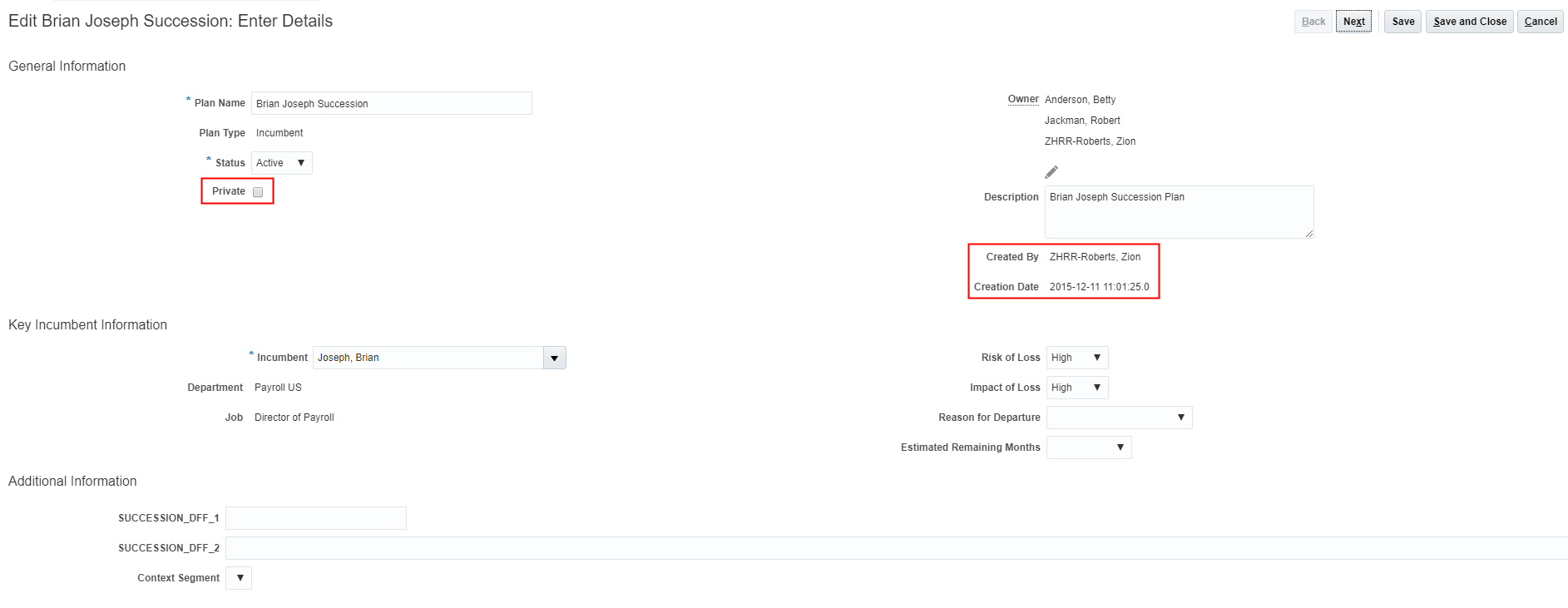
Enter Details Page
The Succession Planning page in person spotlight for a selected direct report now lists only the plans for which you have automatic succession plan view access or for which you are a named owner. You can also view the candidate count and information for each succession plan. The sunburst shows only the candidates for whom you have view succession data security access.
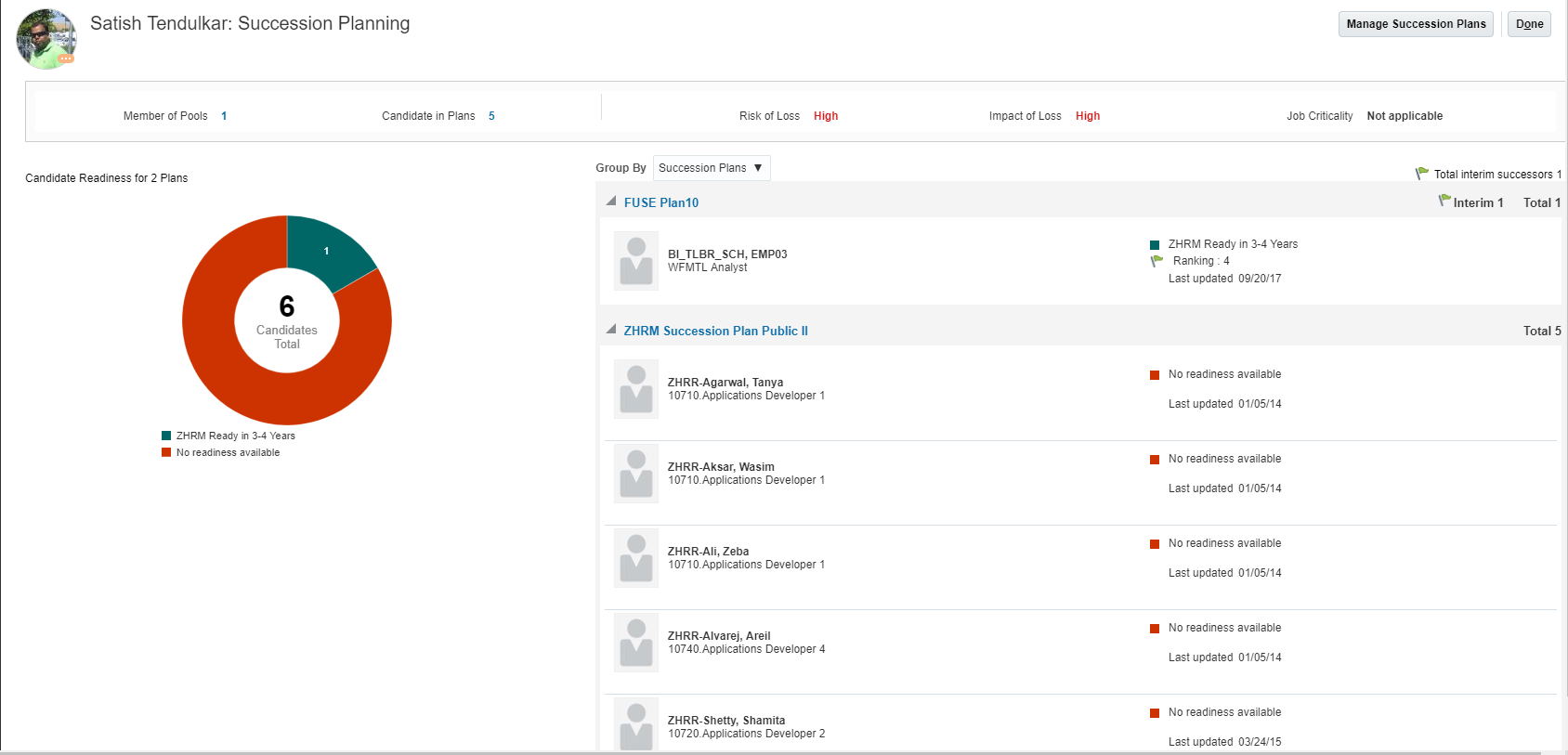
Person Spotlight - Succession Planning Tab
When you try to add a candidate to a succession plan, you can only search plans for which you have automatic succession plan view access or for which you are a named owner with Administrator or Candidate Manager access.
You can view all succession plans that have already been associated with a talent review meeting on its facilitator dashboard even if you aren’t the plan owner. However, when you try to add a succession plan, the new security model will apply. You can only search for plans for which you have automatic succession plan view access or for which you are a named owner.
When you generate OTBI reports, the report will list only the succession plans for which you have automatic succession plan view access or for which you are a named owner.
Steps to Enable
To implement the new succession plan access changes, when no roles associated with succession privileges exist, do these tasks:
- Create person security profiles.
- Create data roles with the person security profile.
- Assign the appropriate data role to the users.
To ensure that the new succession plan access changes work for existing roles associated with succession privileges, do these tasks:
- Use the Manage Person Security Profiles task to submit all person security profiles associated with roles that have succession privileges.
- Edit and resubmit all data roles that have succession plan privileges.
You have to do this once only. After making any role changes, run the Import User and Role Application Security Data process in Scheduled Processes. For more details on how to do this, see the Securing HCM guide.
Ensure that you run the new Succession Plan Incumbents process in Scheduled Processes.
Tips And Considerations
- Automatic succession plan access takes precedence over the specified plan owner type privileges. For example, if a plan owner has an ownership type of candidate manager and also has automatic access to the plan, then the plan owner will have full access to the plan and will not be restricted by the candidate manager ownership.
- A super user can access all succession plans including plans in which the super user is a named owner with only Candidate Manager or Viewer access.
-
Run the new Succession Plan Incumbents process in Scheduled Processes regularly to ensure that the inferred incumbents details of nonprivate succession plans is current.
- If you use only private succession plans, then you don't need to implement the new succession plan access changes. You also don't need to schedule the new Succession Plan Incumbents process as it is meant to identify the incumbents of nonprivate plans.
Ability to Delete A Succession Plan
Manage your succession plans better with the ability to delete a succession plan. Now, you can delete unwanted succession plans if you have access to the plans.
You can view the Delete button in the Succession Plans tab only if you have full access to the selected succession plan. The Delete button is disabled if you are only a candidate manager or a plan viewer for the selected plan.
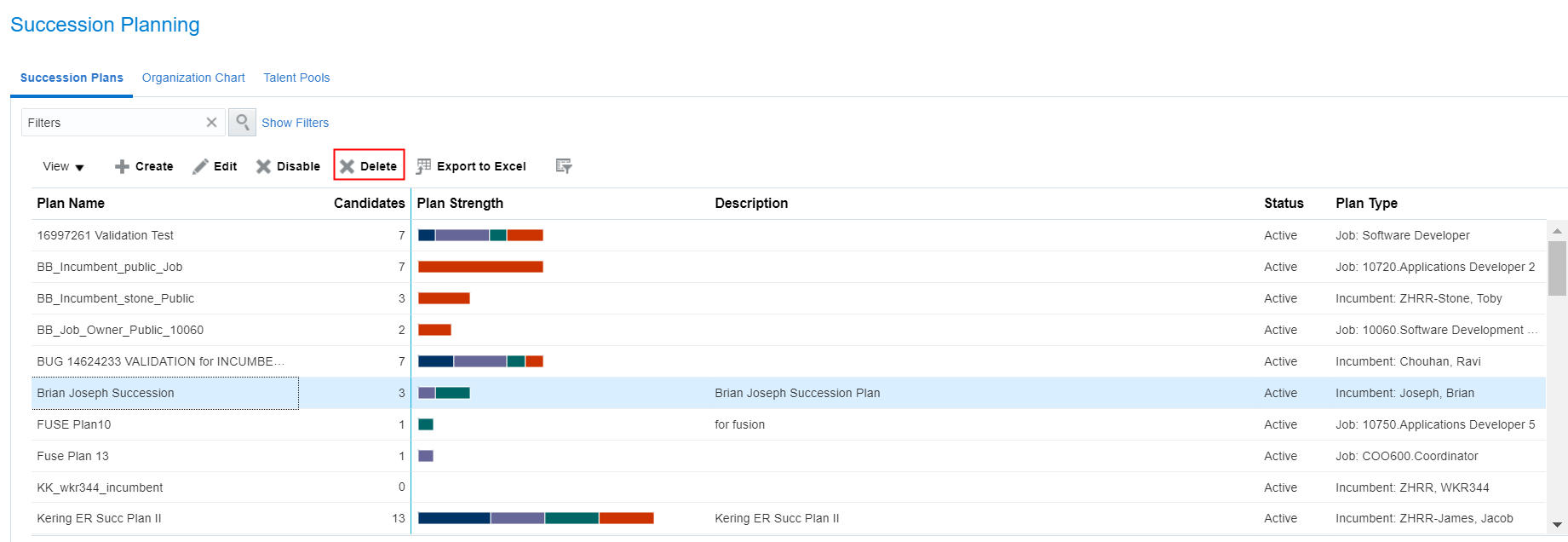
Succession Plans Tab
When you delete a succession plan, the plan is no longer listed in the Succession Plans tab. The plan is removed from all talent review meetings to which it was earlier added. The profile items associated with the plan are also deleted. The plan is no longer displayed in the Succession Planning page of person spotlight.
Steps to Enable
No steps are required to enable this feature.
Tips And Considerations
- You can delete only one succession plan at a time.
- To restrict plan deletion ability, use Page Composer to hide the Delete button in the Succession Plans tab.
Succession Plan Type List of Values Changes
Control the order of plans types that appear in the succession Plan Type drop-down list. The default display sequence of the Plan Type list options is:
- Job: 1
- Incumbent: 2
- Position: 3
However, you can now change the order in which these options appear by changing the display sequence of the HRM_SUCC_PLAN_TYPE lookup.
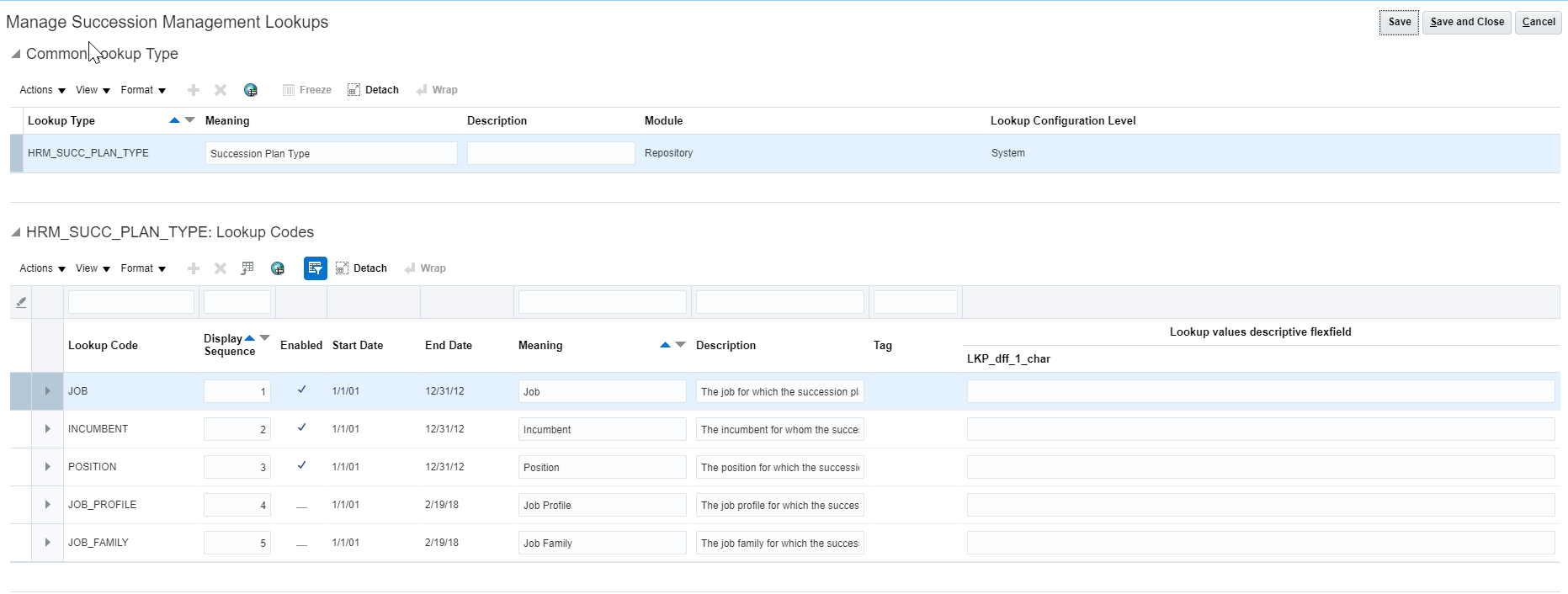
Manage Succession Management Lookups Task
The default succession plan type has the display sequence value as 1. According to your company’s requirements, you can select the default succession plan type. For example, if you often create succession plans of Position type, you can set its display sequence to 1.
In this release, we have also deprecated the Job Family and Job Profile plan types. When you create new succession plans, you can only choose from one of the other three plan type options: Incumbent, Job, or Position.
Steps to Enable
No steps are required to enable this feature.
Tips And Considerations
- You manage lookups using the Manage Succession Management Lookups tasks in the Setup and Maintenance work area.
- If you have existing succession plans that are of the Job Family and Job Profile deprecated plan types, when you view the plans, the plan type will display a blank value. Select one of the three available plan types that best fit the succession plan.
- If you use only one plan type, then set its display sequence value to 1 and then use Page Composer to configure the Plan Type field as a read-only field.
HDL Support for New Talent Pool and Succession Plan Detail Descriptive Flexfields
Extend the use of HCM Data Loaders for mass uploading succession plans and talent pools by supplying succession plan and talent pools descriptive flexfield data. The business object templates generated for succession plans and talent pools data now automatically include both the flexfield code and the descriptive flexfield attributes in the METADATA line. You specify the context value on the MERGE line against the flexfield code for the descriptive flexfield in the METADATA line.
Steps to Enable
No steps are required to enable this feature.
Key Resources
For more information go to Application Help for the following topic:
- Loading Data for Descriptive Flexfields: Explained
Oracle Goal Management enables you to transform business objectives into goals across various organization levels, providing a clear line of sight from managers to employees. Business leaders can communicate high-level initiatives which managers can translate into goals for their employees.
Verifying Person Eligibility in Goal Mass Assignment Tools
As an administrator, you can now check if a person is eligible for goal assignment based on the eligibility profiles. For example, you can use the Check Person Eligibility button in the Population page of the goal plan and verify the person eligibility. You can search for a person and review the person's eligibility. If multiple eligibility profiles exist, the application provides an overall eligibility of the person.
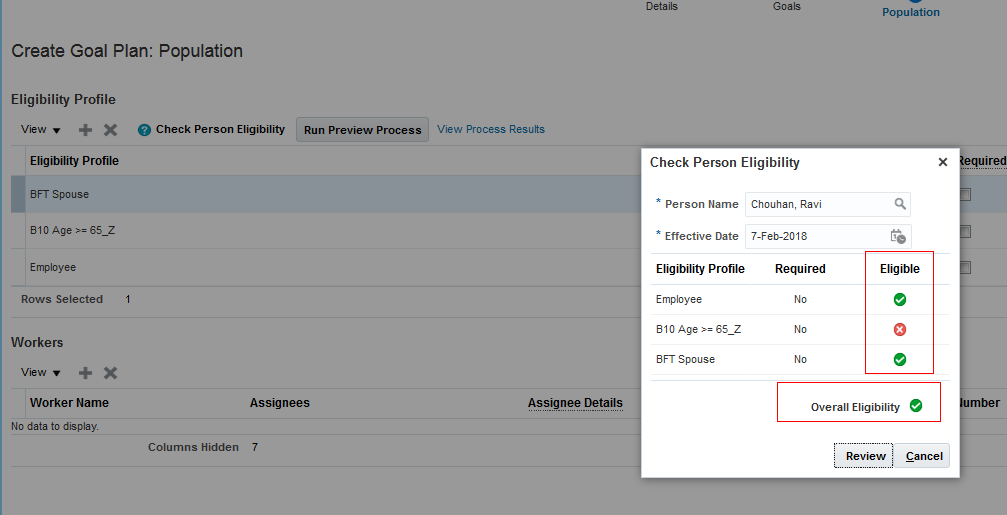
Checking Person Eligibility for Assigning a Goal Plan
Steps to Enable
No steps are required to enable this feature.
Tips And Considerations
You can also check why an employee is not eligible for a goal plan after you run the goal plan assignment process.
Key Resources
For more information, go to Applications Help for the following topic:
- Can I verify if a person is eligible for assigning the goal plan or goal plan set?
Support for Approval Delegation
You can now delegate the Goal Approval tasks using the security role delegation in My Account area. In addition to receiving the access to employee goals, the proxy users can now perform goal approval tasks of the delegator on the employee's Spotlight page and in the Worklist application.
Steps to Enable
No steps are required to enable this feature.
Key Resources
For more information, go to Applications Help for the following topics:
- What happens if I delegate a role?
- Can I delegate any role?
- What happens if I delegate approvals?
- What's a delegated role?
New Asynchronous Purge Process
You can now delete temporary goal assignment records by scheduling and running the new process, Purge Goal Temporary Records. Unlike the Purge Goal Mass Request Data process, this new process is asynchronous and does not have any run time constraints.
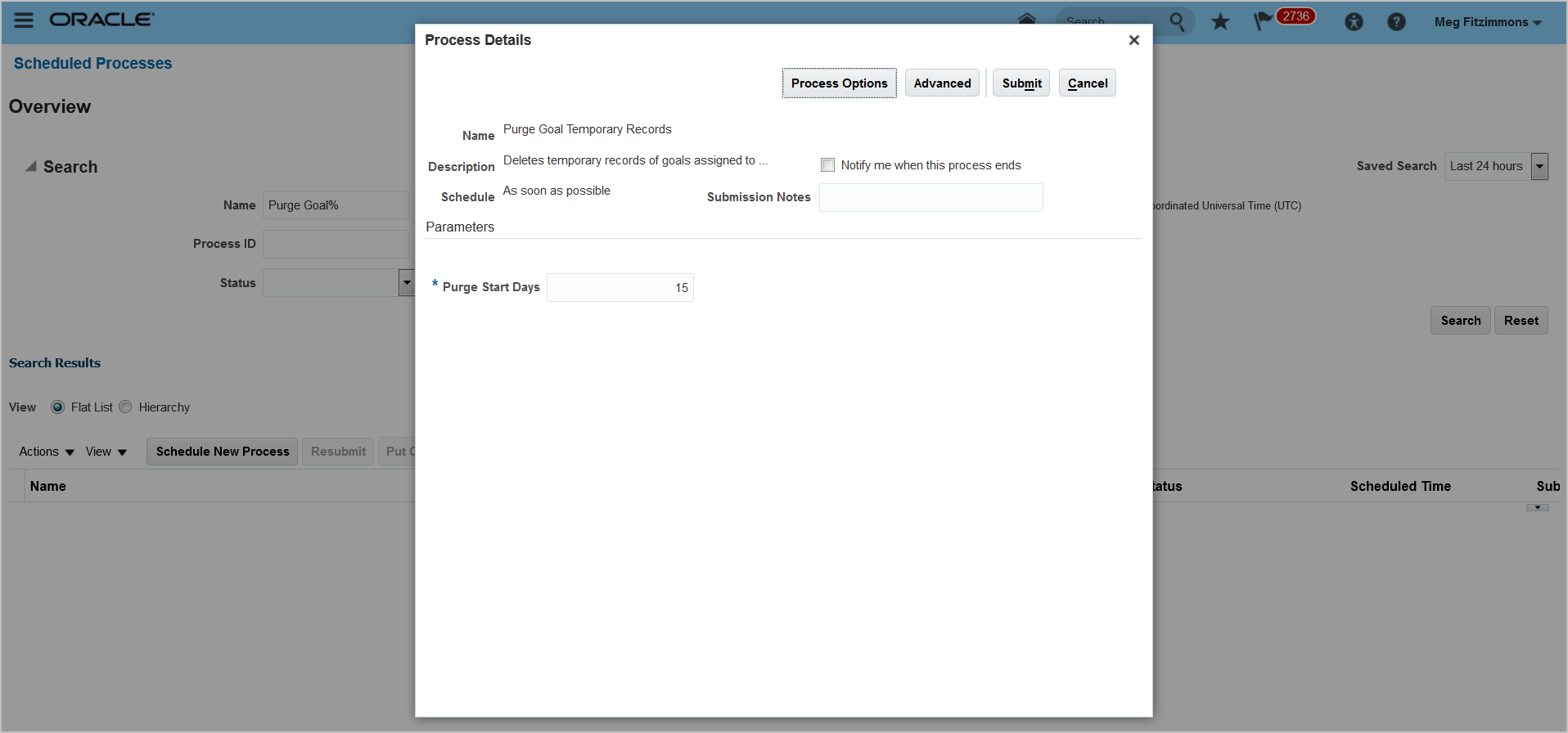
Purge Goal Temporary Records Process
Steps to Enable
No steps are required to enable this feature.
Tips And Considerations
If the Purge Goal Mass Request Data process is already scheduled, you must cancel it because it is no longer applicable. Schedule the new process, Purge Goal Temporary Records in the Manage Scheduled Processes page.
Key Resources
For more information, go to Applications Help for the following topics:
-
Scheduled Processes in Goal Management: Overview
Support for Claiming Role-Based Approval Tasks
You can use the Worklist Role-Based Task Claim functionality in Goal Approval transactions. If a user is granted an HCM security role that is configured in the approval rule as the approver, the user can now claim the approval task in the approval notification and then perform approval actions in the Worklist and Goal Management application.
Steps to Enable
No steps are required to enable this feature.
You can now add check-in discussion topics for both performance and development goals. The check-in template is configured to automatically add performance goal and development goal discussion topics to a check-in document. Now, the HR can add a check-in for both for the worker and manager.
Additionally, you can also embed the Contextual Notes component on a performance goal and development goal to include the check-in notes.

Discussion Topics for Active Development Goals in Check-In Document
Steps to Enable
Administrator can manage and create check-in templates in My Client Groups > Talent> Manage Check-In Templates. You can create a check-in template with an Active or Inactive status and choose to enable the use of Performance Goal Discussion Topics, Development Goal Discussion Topics, General Discussion Topics, or Questionnaires for the workers and managers in check-in documents. The check-in template can be configured to automatically add performance goal and development goal discussion topics to a check-in document.
You can include the eligibility profile for the use of check-in template so that managers and workers create check-in documents only from the eligible check-in templates. Only the eligible check-in templates are made available to the worker or manager, when creating the check-in document.
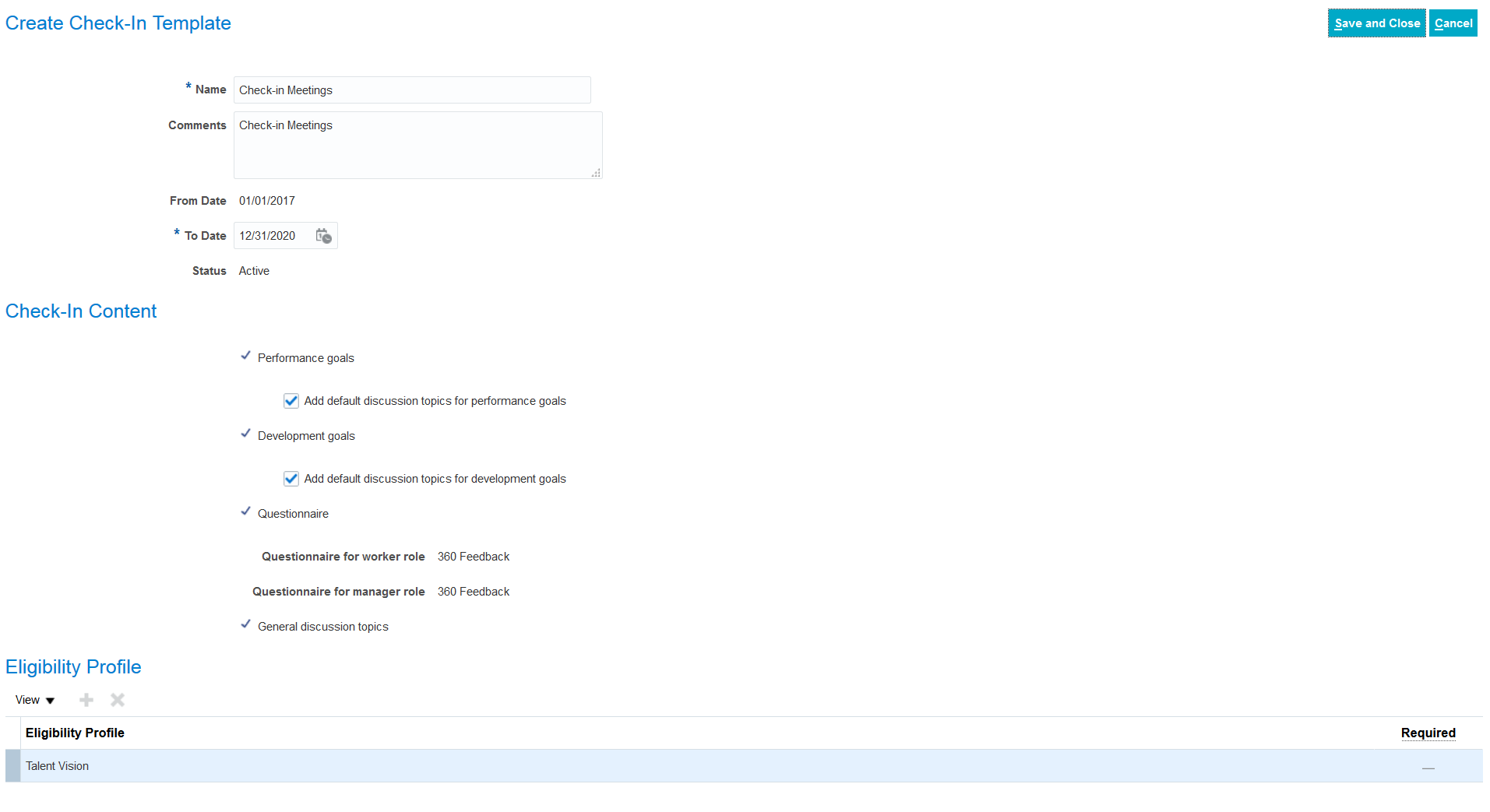
Check-In Template Options to Add Default Discussion Topics to the Performance and Development Goals
Key Resources
For more information, go to Applications Help for the following topics:
- Check-In Template Options: Points to Consider
- Creating a Check-In Document: Procedure
HR Specialist Landing Page for Performance
We’ve created a new landing page for HR Specialists that need access to workers’ performance documents or to perform administrative tasks. HR specialists no longer need to navigate through their My Evaluations page to perform administrative activities; this page can be found under Performance from My Client Groups. You can perform administrative tasks such as Create, Update, and Transfer.

Search My Organization Performance Documents
Steps to Enable
No steps are required to enable this feature.
Mass Print Performance Documents
Now you are able to print all of the documents for a particular performance document name or performance cycle in mass.
To save a file of the data, check the Save to Content Server in Oracle UCM check box. Alternatively, you can open the downloaded file to view individual PDF's or the XML data.
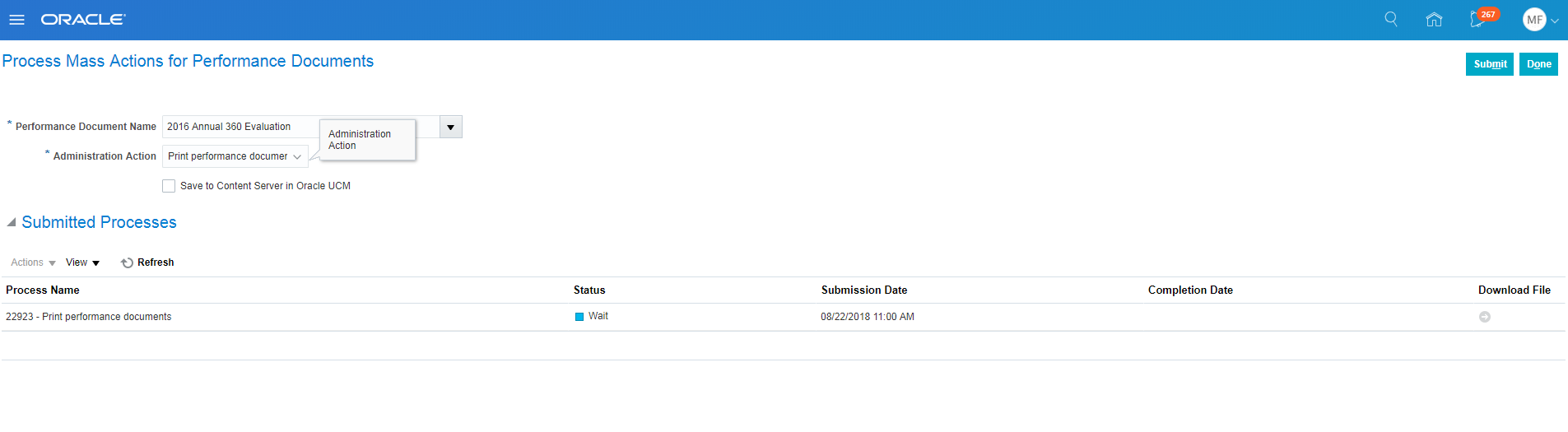
Mass Print Performance Documents
Steps to Enable
No steps are required to enable this feature.
Key Resources
For more information about Oracle Universal Content Management, see the Fusion Middleware System Administrator's Guide for Content Server.
Mass Create Performance Documents When Running Eligibility Batch Process
You can now create performance documents while processing eligibility rules, using the Manage Eligibility Batch Process. Only regular performance documents will be created. Anytime performance documents or check-ins will not be created.
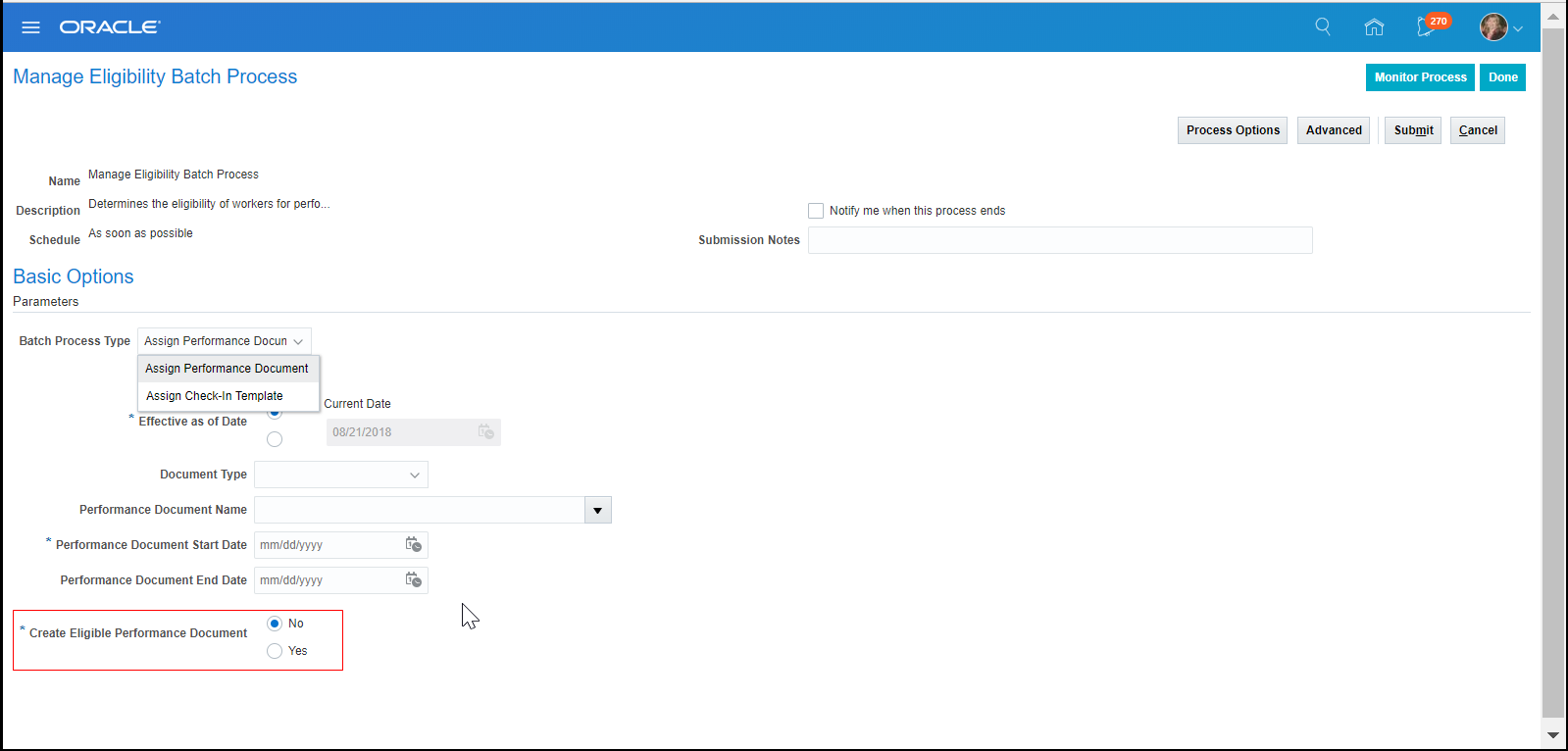
Set Create Eligible Performance Document to Yes to create regular performance documents.
If Create Eligible Performance Document is set to No, then only eligibility will be assigned without the performance documents being created. Note that you can mass create performance documents at a later date using the Mass Process Performance Documents task.
Steps to Enable
No steps are required to enable this feature.
Tips And Considerations
- You can configure the default performance document manager to be a custom manager role instead of the line manager role. Create your performance document manager role using the Manage Performance Role setup task.
- If a worker eligible for the performance document does not have a manager with the custom manager role a performance document will not be created for the employee.
- If a worker eligible for the the performance document has more than one manager with the custom manager role a performance document will not be created for the employee.
- Performance documents for workers who do not have one created automatically can be created by HR using the admin task Create Performance Documents.
- HR can use the Send Email notification administration task to notify employees when their performance documents are available.
Key Resources
For more information on performance documents and eligibility process go to Application Help for the following topic:
- Performance Document Eligibility Batch Process: Explained
Data Loader Support for Performance Actions
Streamline mass actions for performance documents using HCM Spreadsheet Data Loader or HCM Data Loader. You can now create, complete, cancel or delete performance documents for employees. You can also load participants for the manage participant feedback task to provide feedback for workers' created performance documents.
Steps to Enable
No steps are required to enable this feature.
Key Resources
For more information go to Application Help for the following topic:
- Integrating with Oracle HCM Cloud
Performance Data Integrity Check Process
Now you can easily identify and resolve data integrity errors using the Performance Data Integrity Check process. Run this process to identify and fix issues with worker and manager assignment data or performance document and task statuses. You can run a Preview to see what conflicts you might have and to see old and new values. Then you can run an Update to make those changes. Here is an example of the CSV file that this process generates:
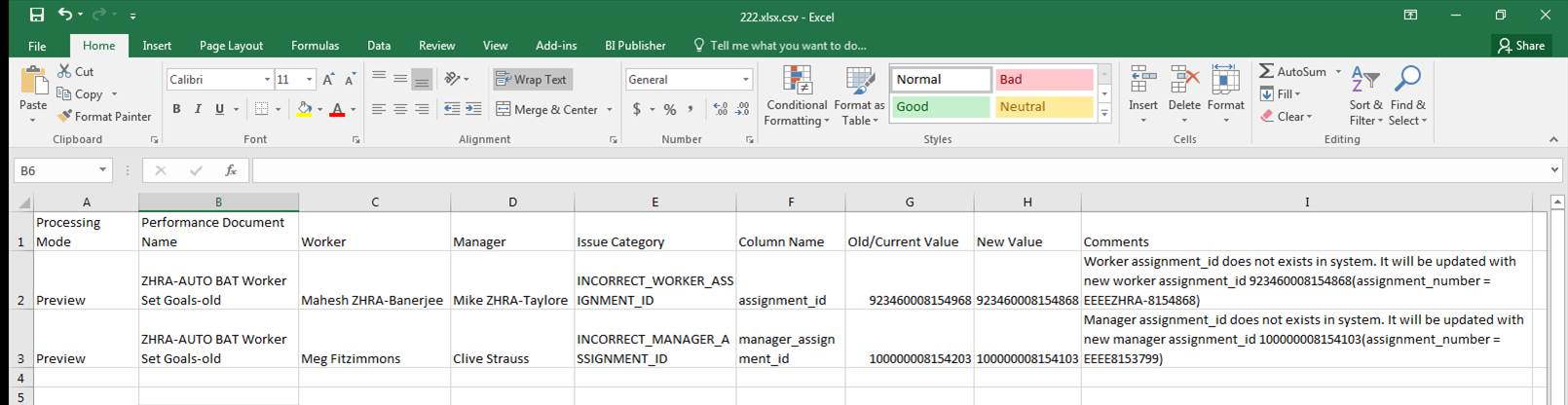
CSV File Results
To run the process:
- From the Navigator, choose Tools > Scheduled Processes > Schedule New Process tab, and search for Performance Data Integrity Check.
- Highlight the Performance Data Integrity Check row and click OK.
- In the Schedule New Process dialog box, click OK.
- In the Process Details dialog box, you can specify some options:
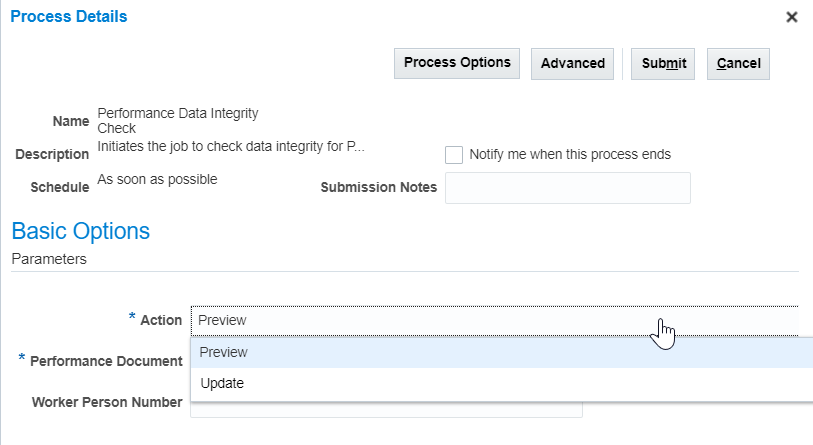
Process Details
- In the Action field, choose Preview to run the data integrity check to see what kinds of conflicts you may have. If the Performance Document applies to many employees, you can use the Worker Person Number to run the Preview check on just the specified employee. Running the data integrity check produces a CSV file that displays conflicts and shows old and new values in the Comments column.
- If you have already run a Preview and want to fix conflicts, choose Update. Search for and select the appropriate Performance Document and click Submit.
- Go back to the Scheduled Processes page and click the Process Name to highlight the row. You will see the Log and Output, as shown below:
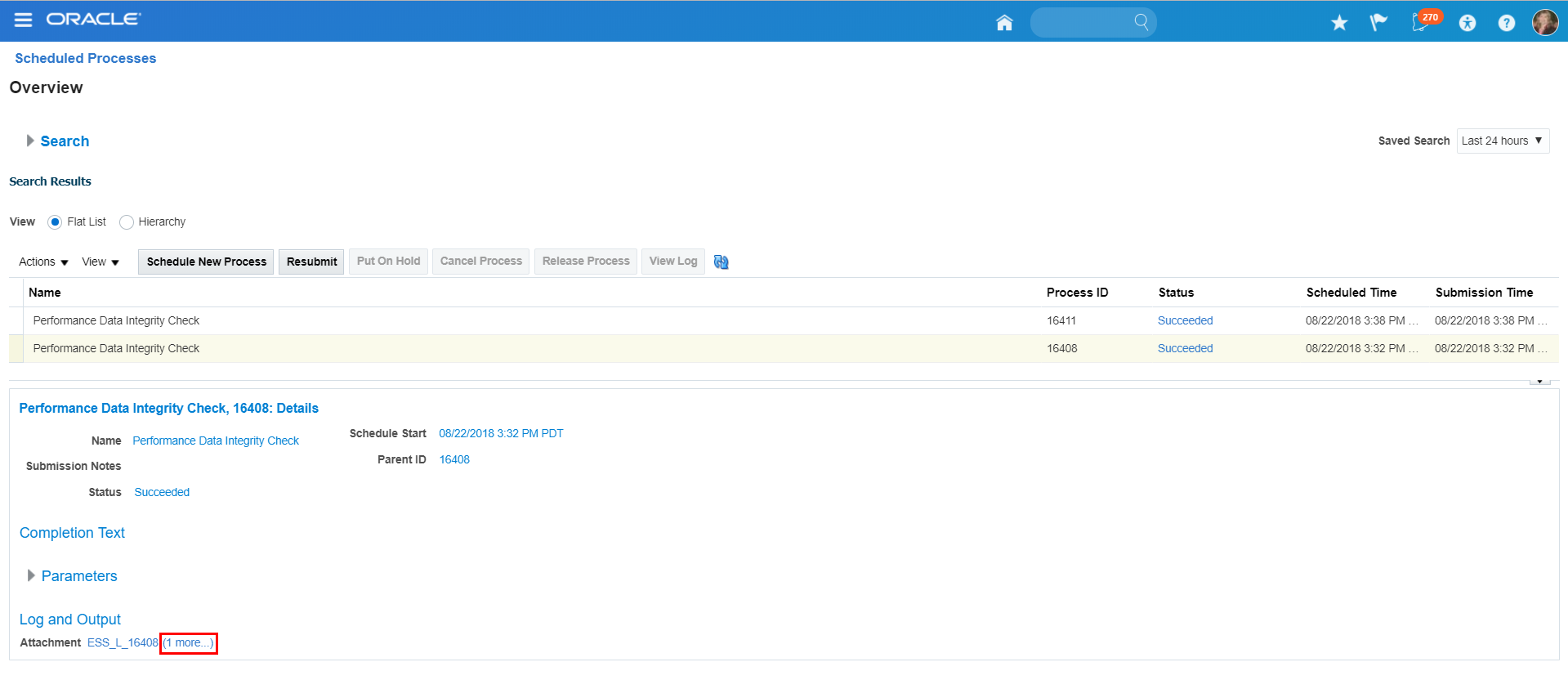
Scheduled Processes
- Click the (1 more...) link to open the Attachments:
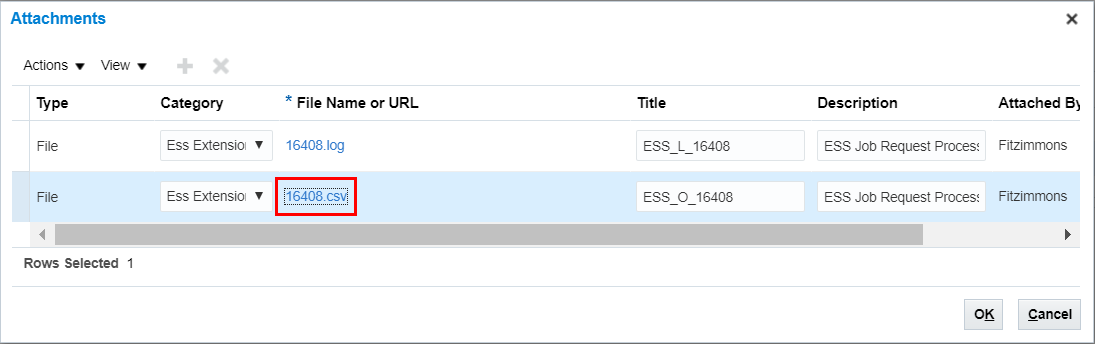
Attachments
- Review the CSV file. If there are no records in this file, then no conflicts were found.
Steps to Enable
No steps are required to enable this feature.
Tips And Considerations
These are the five checks that are run by the Data Integrity Check process:
- The assignment_id in the hra_evaluations table does not exist in the per_all_assignments_m table.
- The manager_id in the hra_evaluations table does not exist in per_person_names_f table.
- The manager_assignment_id in the hra_evaluations table does not exist in the per_all_assignments_m table.
- The evaluation is complete, but some of the evaluation step status are still in progress.
- The evaluation is in progress, but more than one evaluation tasks are in progress (excluding the Manage Participant Feedback, the Set Next Period Goals and concurrent tasks).
Oracle Recruiting Cloud provides tools for hiring managers and recruiters to source and nurture candidates, create and manage job requisitions, screen and select candidates, create and manage job offers, and onboard new employees into the organization. It also provides career sites for employees and external candidates to search, discover and apply to jobs using a frictionless application process.
Use candidate search archiving to track candidate searches ran by recruiters. Search result archiving supports requirements from the Office of Federal Contract Compliance Programs (OFCCP).
When candidate search archiving is enabled, you can track and record the following information:
- User who ran the candidate search
- Criteria used for the search
- Date and time when the candidate search was run
- Candidates returned in search results
Candidate search queries are saved for a period of two years.
A search query can contain a maximum of 500 candidates. Search queries returning no candidate are also archived.
Steps to Enable
To enable candidate search archiving:
- In the Setup and Maintenance work area, go to:
- Offering: Recruiting and Candidate Experience
- Functional Area: Recruiting and Candidate Experience Management
- Task: Manage Enterprise Recruiting and Candidate Experience Information
- In the Candidate Search Archiving section, select Active.
Enable candidates to parse their resume using customer preferred parsing tools.
When candidates apply for a job, they have the option to upload their resume. A call is made to the resume parsing partner’s web service and the data returned by the partner is used to populate the candidates’ job application.
Steps to Enable
These are the main steps to enable third party resume parsing:
- The third-party Partner configures their Oracle HCM instance with integration details.
- Contact the Partner to obtain the implementation project file and import it in Oracle HCM Cloud.
- Configure the profile import integration. In the Setup and Maintenance work area, go to the following:
- Offering: Recruiting and Candidate Experience
- Functional Area: Recruiting and Candidate Experience Management
- Task: Recruiting Category Provisioning and Configuration
- Activate the integration.
Once the profile import integration is activated, the resume upload option appears in the job application flow.
Job Requisitions in Workforce Modeling
Use workforce modeling to create models which include job requisitions.
When you create a workforce model, existing job requisitions located in the hierarchy of the model's top-level manager are included as part of the default data included in the model. Data security is enforced. Only job requisitions which you are allowed to see are included in the model.
Within a workforce model, you can create new job requisitions. Requisitions created in a model only exist within the model. You must have the Initiate Job Requisition privilege to create job requisitions in a model.
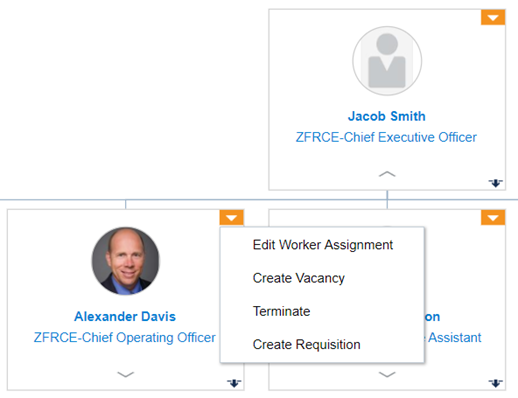
Create Requisition in Workforce Model
You can also view, edit, and move job requisitions within the workforce model hierarchy.
Once the workforce model is ready, you can implement the model to create or update job requisitions within Hiring. The model is implemented if there are no conflicts between the model and the existing job requisitions. In Hiring, requisitions are created in the "Draft - In Progress" status.
Steps to Enable
No steps are required to enable this feature.
Content Builder for Candidate Experience
Increase external candidate engagement by creating custom content HTML pages with the Content Builder for Candidate Experience. Administrators can build HTML pages using content widgets in a WYSIWYG editor. Content can be styled directly to integrate with the career site appearance and to provide an integrated experience to candidates.
Two designed page templates are available to provide a quick starting point.
When you create custom content for a page, you can add sections to the page, copy sections, move sections, remove sections, indicate the desired width of each section. You can add and format elements in a section such as the headline, text, images, videos, background color. For videos, enter a YouTube URL or a URL to an mp4 file.
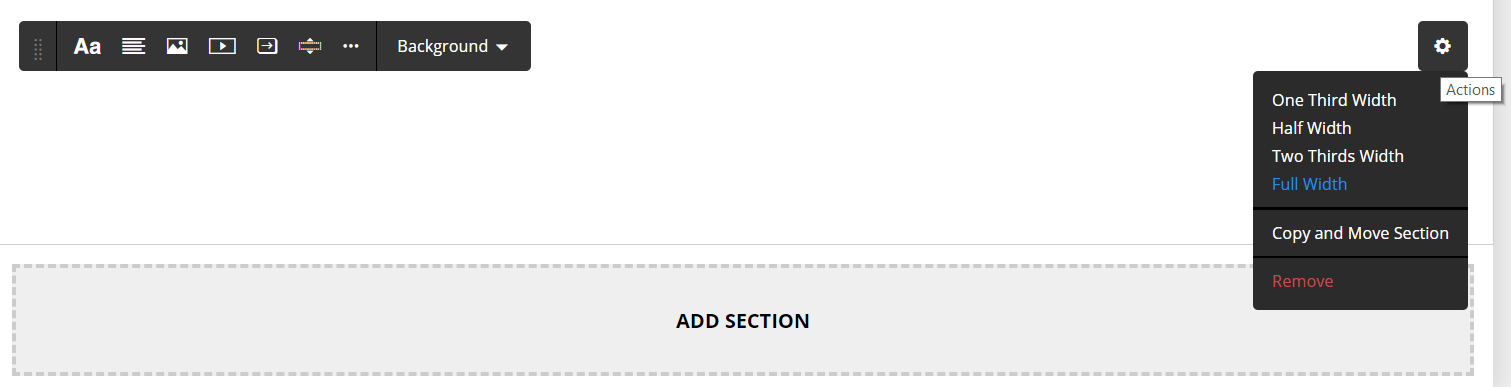
Add and Configure Section
You can add a job list to the page to show relevant jobs. Specify the number of jobs you want to display and job list filtering criteria such as keyword, location, title.
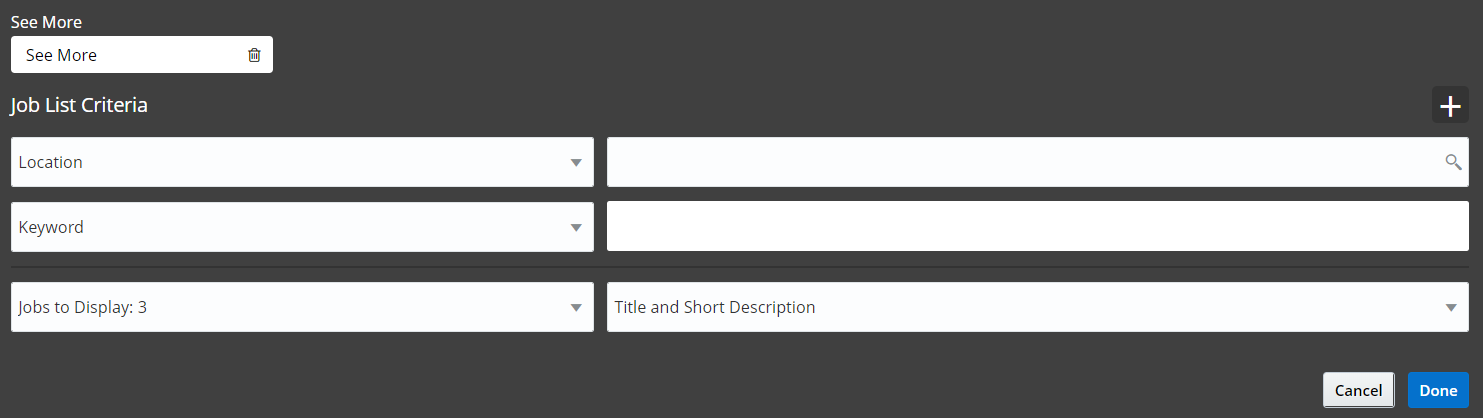
Add Job List to a Section
You can use custom Cascading Style Sheets (CSS) to style content created with the HTML widget. You enter custom CSS in the Custom CSS area of the theme editor.
You can translate the content of a custom page into available supported languages. On the Career Site Look and Feel Configuration page, go to the Translations tab, select the page, and translate the content.
Content can be saved in a draft state or published immediately.
Steps to Enable
To create custom content HTML pages:
- In the Setup and Maintenance work area, use the following:
- Offering: Recruiting and Candidate Experience
- Functional Area: Candidate Experience
- Task: Configure Career Site
- Click the Pages tab.
- In the Custom Pages section, click Add Page to start the creation of the custom page.
- On the Page Settings window, enter a title for the page. Select a predefined page layout. The URL is created automatically. This URL is used by candidates to access the custom page.
- Click Create when you are finished.
- Add sections to the page and configure them. For example, you can define the width of the sections, add and format elements in sections, add a job list.
- When you are done configuring the page, go to the Pages tab, hover your mouse over the newly created page, and click Activate.
Transactional Business Intelligence for Talent Management
Oracle Transactional Business Intelligence is a real time, self-service reporting solution offered to all Oracle Cloud application users to create ad hoc reports and analyze them for daily decision-making. Oracle Transactional Business Intelligence provides human resources managers and specialists, business executives, and line managers the critical workforce information to analyze workforce costs, staffing, compensation, performance management, talent management, succession planning, and employee benefits.
New CLOB Attribute - Goals Subject Areas
Enhance your reporting on the new attribute added to the goals subject areas that is based on a CLOB column. This attribute is used to report on the description in the respective dimensions. The new CLOB column named Long Description is shown here.
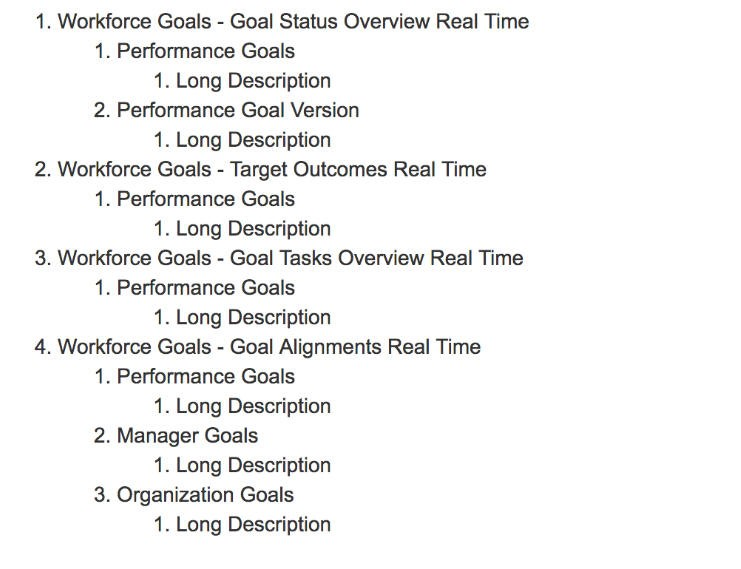
Steps to Enable
No steps are required to enable this feature.
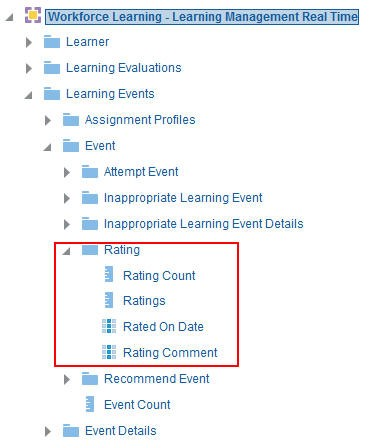
Learning Subject Area - 5 Star Rating
Enhance your reporting on learning with the ability to report on the five star ratings provided for learning items. A new dimension Rating is added to the subject area. The Five Star Rating feature allows the learner to show their opinion of a learning item. Rating scale goes from 1 to 5 stars with 1 being a low score.
Five Star Rating is supported on the following Learning Item Types:
- Offering
- Course
- Video
- Tutorial
The dimension Rating includes:
- Rating Count
- Ratings
- Rated On Date
- Rating Comment
Steps to Enable
No steps are required to enable this feature.
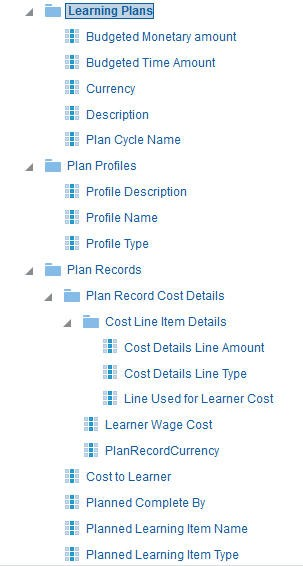
New Dimension in Learning Subject Area - Learning Plans
Enhance your reporting on learning with the inclusion of learning plans and plan items learning management subject area. As part of this enhancement a new dimension named learning planning is added. This new dimension allows you to report on the learning plans, plan profiles, and plan cost details.
Steps to Enable
No steps are required to enable this feature.
New Subject Area: Workforce Performance - Performance Check-In Real Time
Enhance your reporting on the manager and worker performance appraisal process with the new functionality named Check-Ins. A new subject area has been added to report on this functionality. This subject area provides real time information on the Check-Ins done by the manager and workers in a review period to monitor the progress and provide guidance on an ongoing basis to support active performance management within the organization.
This subject area can be used to report on the meetings between manager and worker, the templates used to create the check-ins, the details within the check-ins like performance and development goals, questionnaire, general topics, and notes related to each of these items.
Steps to Enable
No steps are required to enable this feature.
August Quarterly Maintenance Pack for 18B
This document will continue to evolve as existing sections change and new information is added. All updates appear in the following table:
| Date | Feature | Notes |
|---|---|---|
| 27 JUL 2018 | Created initial document. |
HCM Cloud applications have three types of patches you can receive that are documented in this What's New:
- Release Updates (18A, 18B and 18C)
- Optional Monthly Maintenance Packs
- Quarterly Mandatory Maintenance Packs (delivered in February, May, August and November). All features that show in the Monthly Maintenance Packs will be included in the next Quarterly Mandatory Maintenance Pack, so no need to request the monthly maintenance packs.
It is important for you to know what Release Update you environment is on. You can find this in your Cloud Portal. If you are on Update 18A, you will only have features that are in 18A or the Monthly and Quarterly updates for 18A, you will not have 18B features until you receive the 18B update. You can however read ahead on future release so you can make plans for when you will receive the next update.
If you are upgrading from Release 12, you should read all features up through the Release Update that you will receive in the upgrade. This can also be found in Cloud Portal.
Oracle HCM Cloud release documents are delivered in five functional groupings:
Suggested Reading for all HCM Products:
- HCM Cloud Common Features (This document pertains to all HCM applications. It is the base human resource information for all products and HCM Tools.)
- Global Human Resources Cloud (Global Human Resources contains the base application in which other application use for common data such as workforce structures and person information. Regardless of what products you have implemented you may want to see the new features for Global Human Resources that could impact your products.)
NOTE: Not all Global Human Resource features are available for Talent and Compensation products.
Optional Reading for HCM Products (Depending on what products are in your cloud service):
- Talent Management Cloud (All Talent applications)
- Workforce Rewards Cloud (Compensation, Benefits, Payroll and Global Payroll Interface)
- Workforce Management Cloud (Absence Management and Time and Labor)
Additional Optional Reading:
- Common Technologies and User Experience (This documents the common features across all Cloud applications and is not specific to HCM)
NOTE: All of these documents can be found on the Oracle Help Center at: https://cloud.oracle.com/saasreadiness/hcm under Human Capital Management Release Readiness.
Give Us Feedback
We welcome your comments and suggestions to improve the content. Please send us your feedback at oracle_fusion_applications_help_ww_grp@oracle.com. Indicate you are inquiring or providing feedback regarding the HCM Cloud What’s New for Release 13 in the body or title of the email.
| Action Required to Enable Feature |
|||||
|---|---|---|---|---|---|
| Feature |
None (Automatically Available) |
Enable via Opt In UI Only |
Enable via Opt In UI Plus Additional Steps |
Not Enabled via Opt In UI but Setup Required |
Issue Service Request |
Create Learning Item Access Group from a Community Membership |
|
||||
|
|||||
Complete Required Evaluation When Instructor-Led Activity is Not Complete |
|
||||
|
|||||
|
|||||
|
|||||
|
|||||
Configure Default Advanced Assignment Rule Values at Course Level |
|
||||
|
|||||
|
|||||
|
|||||
|
|||||
|
|||||
|
|||||
|
|||||
|
|||||
|
|||||
|
|||||
Oracle Learning Cloud enables you to make a transformational shift in learning delivery. Subject matter experts in your organization can easily publish videos and assemble tutorials to deliver on-demand and social learning. Collaboration features encourage continuous community feedback.
Create Learning Item Access Group from a Community Membership
Create a learning item access group from a community membership. The Administrator can search and select a community and that community membership will then be used to define the access group for a learning item.
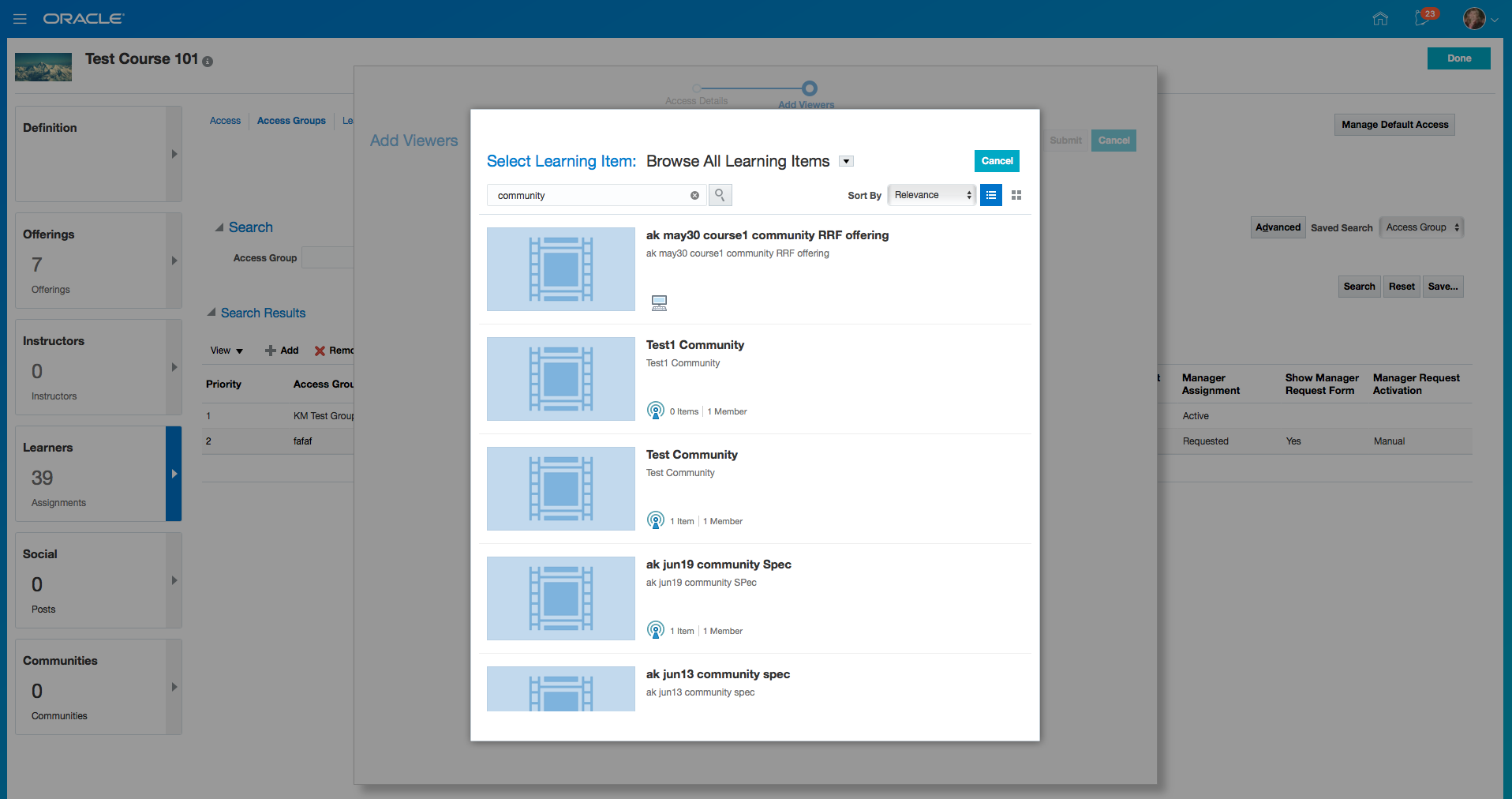
Create Access Group from Community Membership
Steps to Enable
No steps are required to enable this feature.
Price Details in Learning Request Notification
Enhance the learning request notification so that the notification contains price details if the learning item is configured with self-service price amounts.
Steps to Enable
No steps are required to enable this feature.
Complete Required Evaluation When Instructor-Led Activity is Not Complete
Allow learners to complete a required evaluation when the current system date is greater than the last instructor-led activity end date on the offering, and even if the instructor-led activities have not been marked as complete.
Steps to Enable
No steps are required to enable this feature.
Offering Link More Prominent to Learner
Enhance the Learner self-service view of a course by making the View All Offerings link more prominent.
Steps to Enable
No steps are required to enable this feature.
Configure a deep link to a learning item.
| COURSE | |
|---|---|
| Self Service |
|
| Administrator |
| SPECIALIZATION | |
|---|---|
| Self Service |
|
| Administrator |
| COMMUNITY | |
|---|---|
| Self Service |
|
| Administrator |
| OFFERINGS | |
|---|---|
| Self Service |
|
| Administrator |
| SELF SERVICE | |
|---|---|
| Video |
|
| Tutorial |
| SEARCH RESULTS | |
|---|---|
| Search Results |
Steps to Enable
No steps are required to enable this feature.
Enable or disable the request form for assignments created by the Manager and the Learner.
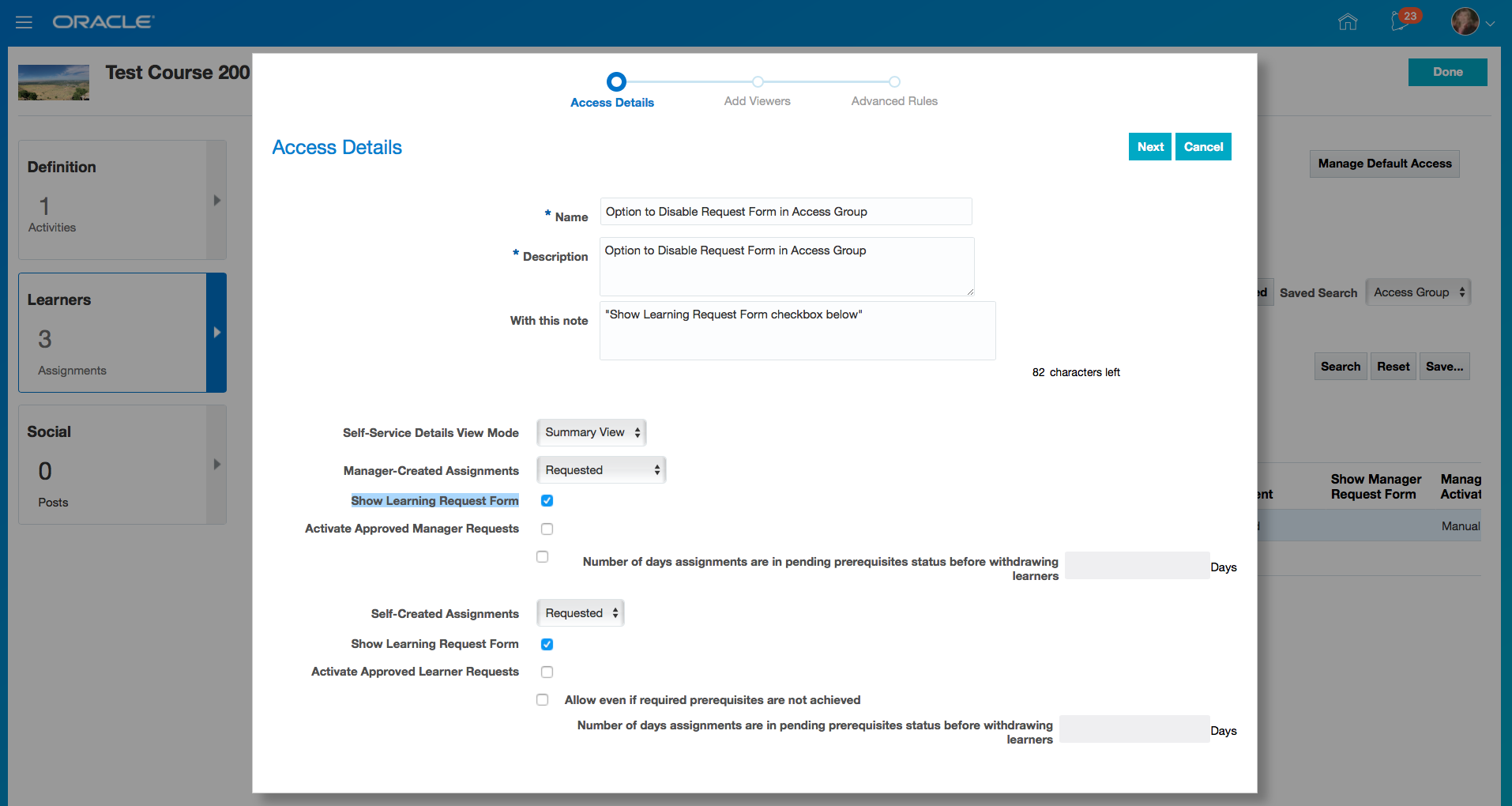
Show Learning Request Form Option
Steps to Enable
No steps are required to enable this feature.
Associate Attachments to an Activity
Associate attachments to an activity so that administrators can download and review the information in these attachments.
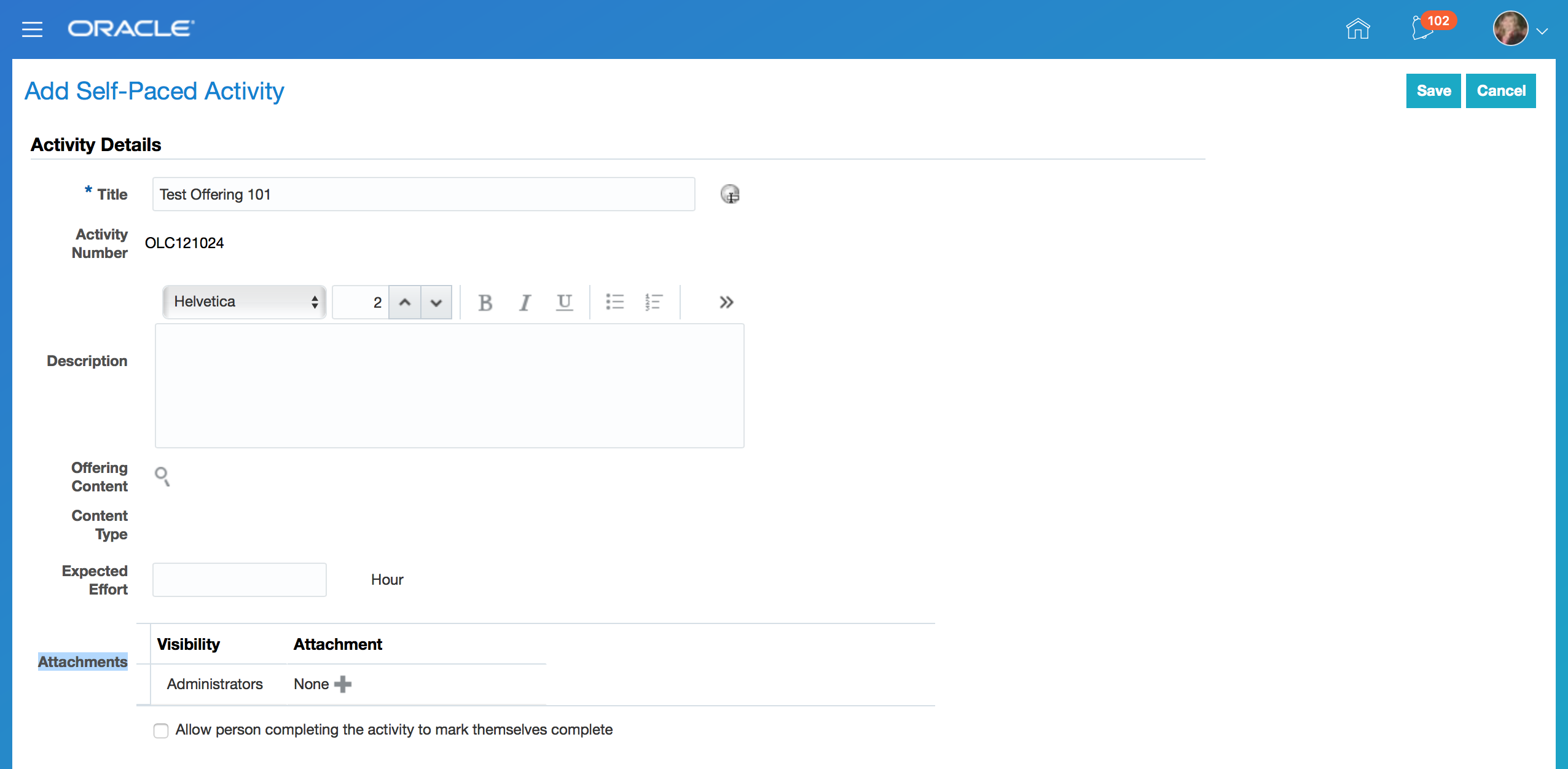
Attachment on an Activity
Steps to Enable
No steps are required to enable this feature.
Configure Default Advanced Assignment Rule Values at Course Level
Set default values for assignment expiration and renewals so that these defaults appear when course assignments are being created.
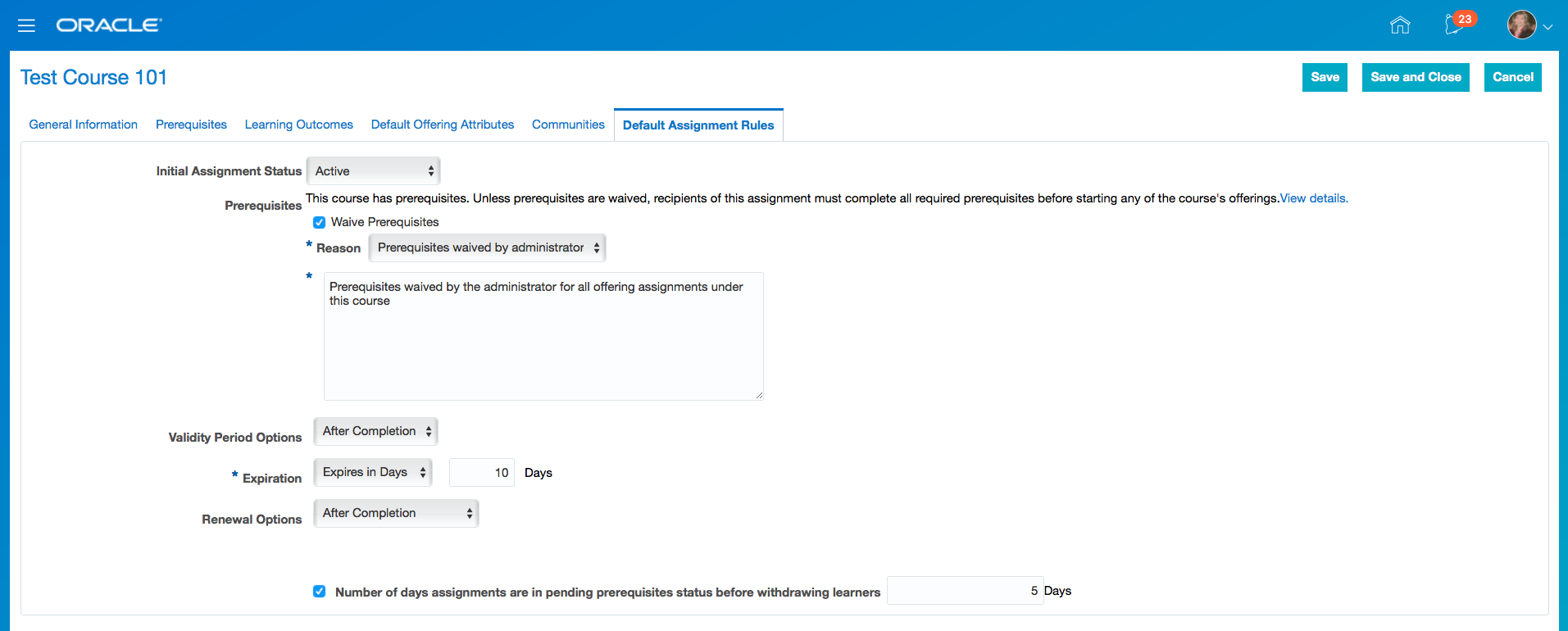
Default Assignment Rules at a Course Level
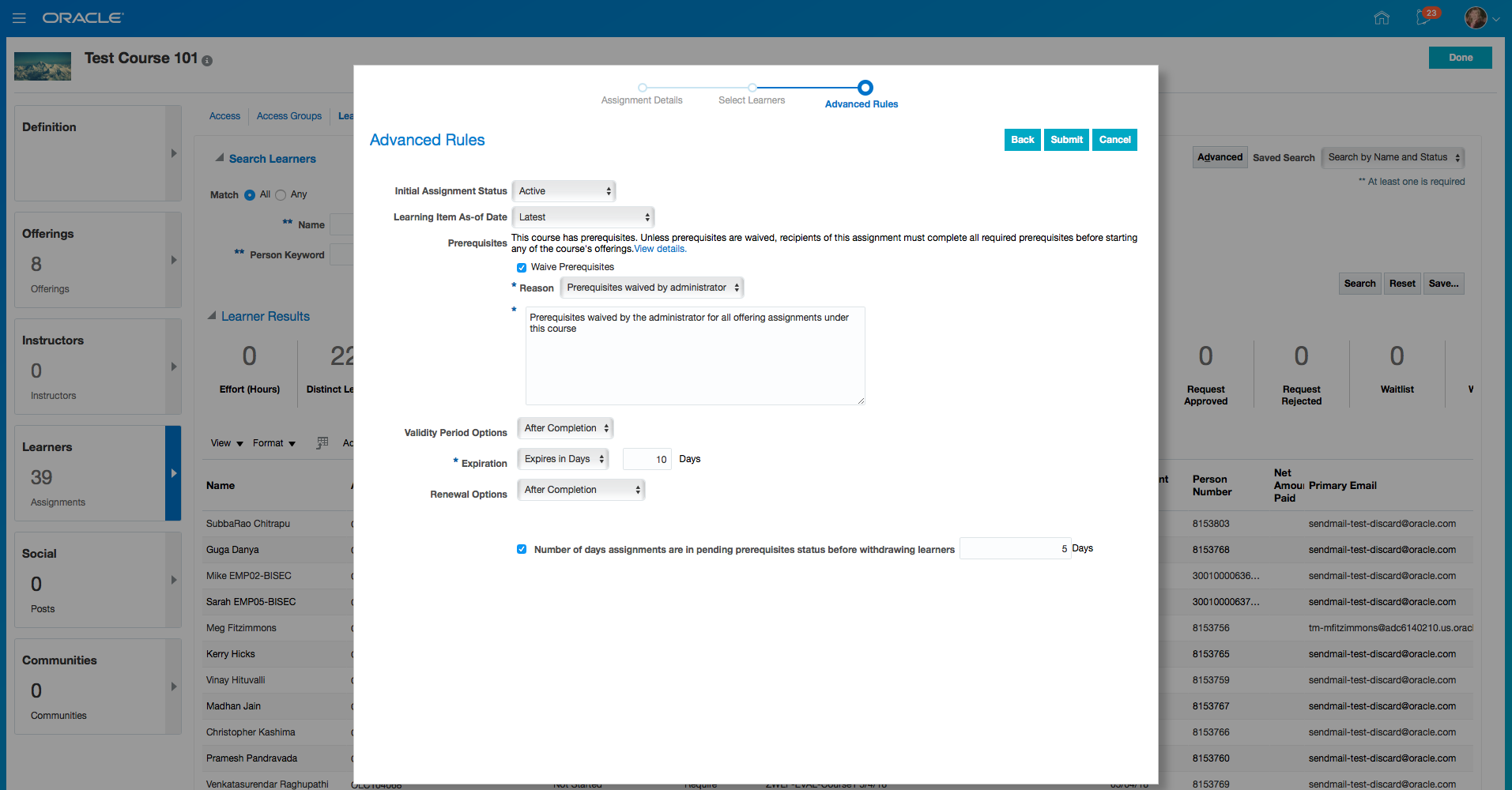
Defaults Populated During Course Assignment Creation
Steps to Enable
No steps are required to enable this feature.
Configure Default Offering Attributes at the Course Level
Use default offering attributes at the course level. When offerings are created, these default values are used to streamline the offering creation process. Offering price defaults and minimum and maximum offering capacity defaults can be defined at the course level.
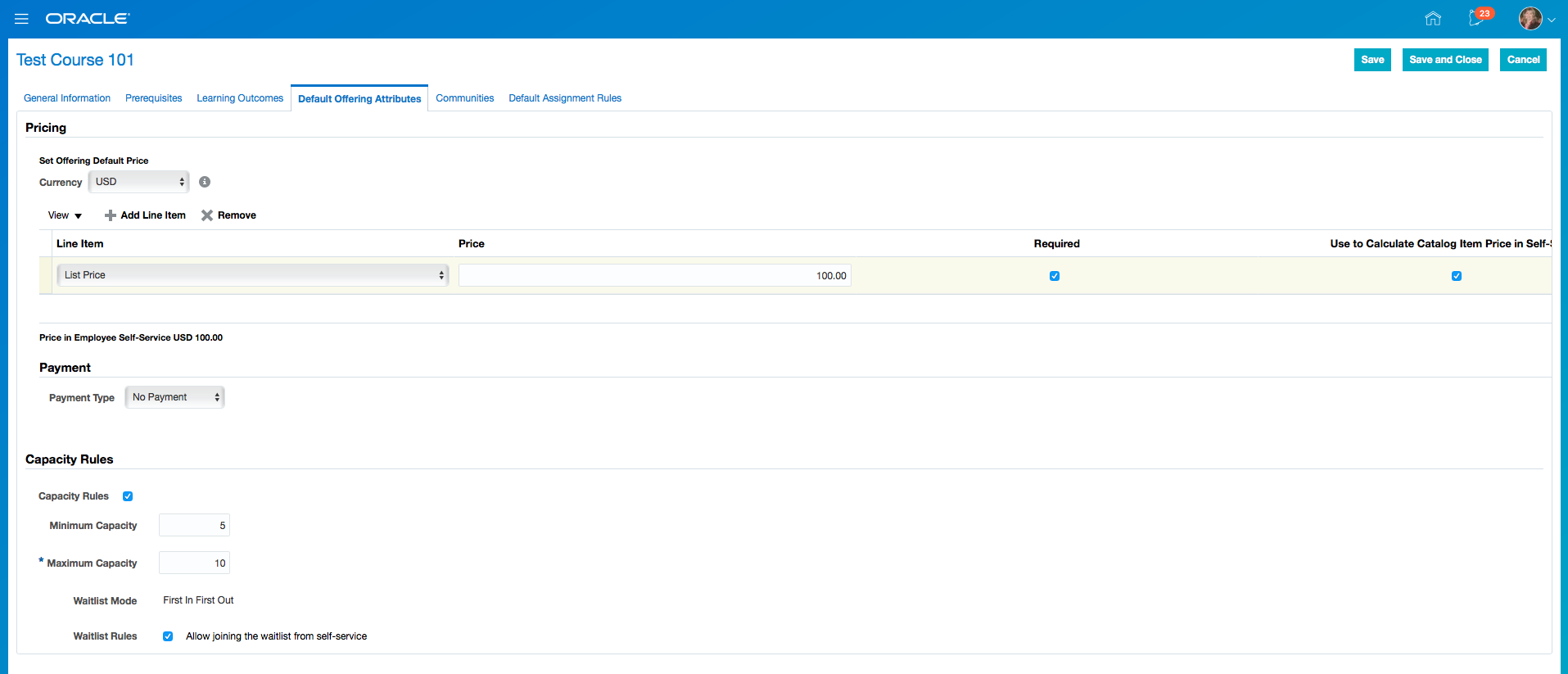
Default Offering Attributes
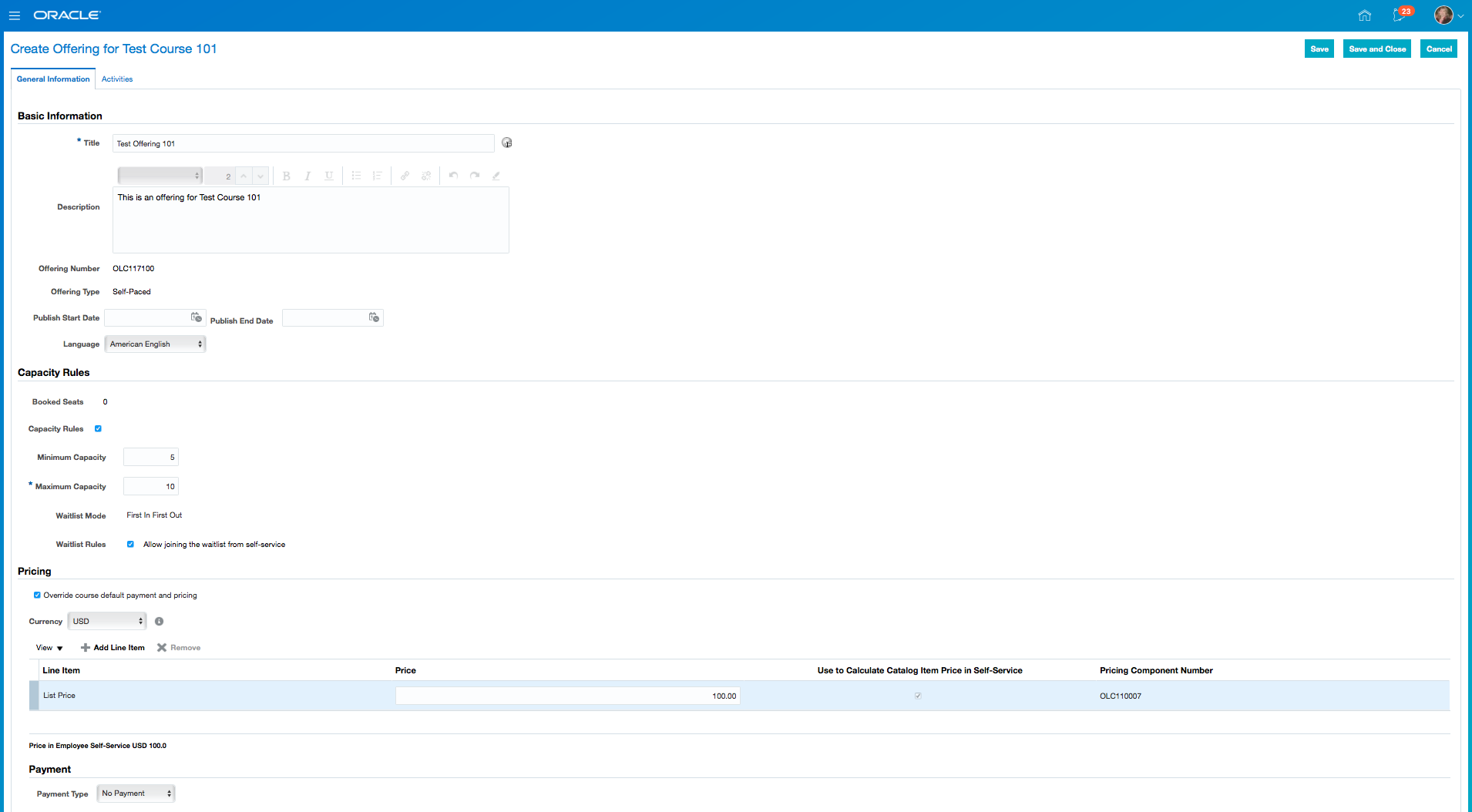
New Offering Created with Defaults Populated
Steps to Enable
No steps are required to enable this feature.
Configure Learner Defaults at System Level
Configure learning assignment default values, learner selection criteria default values, and summary metrics at the system level. When creating a course, the course default values can override the system default values. The purpose of the system default values is to streamline the user experience for the Administrator to easily create assignments, search for assignment data, and configure how to view assignment counts.
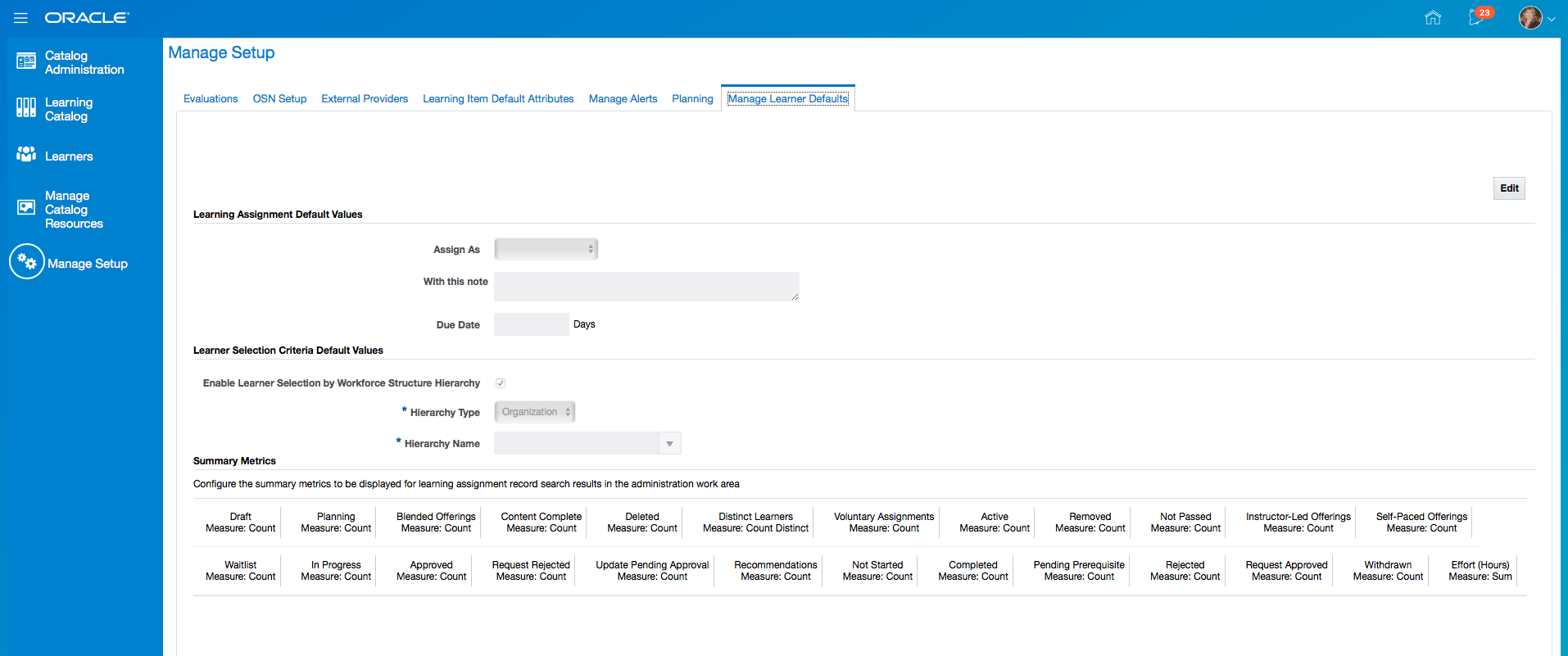
Manage Learner Defaults Page
Steps to Enable
No steps are required to enable this feature.
Specify the offering start date, offering end date, primary instructor, and primary location. Offerings can have many activities associated to them. These activities can start and end at different times. Each activity can also have different instructors and locations. The Administrator needs these primary fields at the offering level so they can be presented to the Learner in the case of self-service.
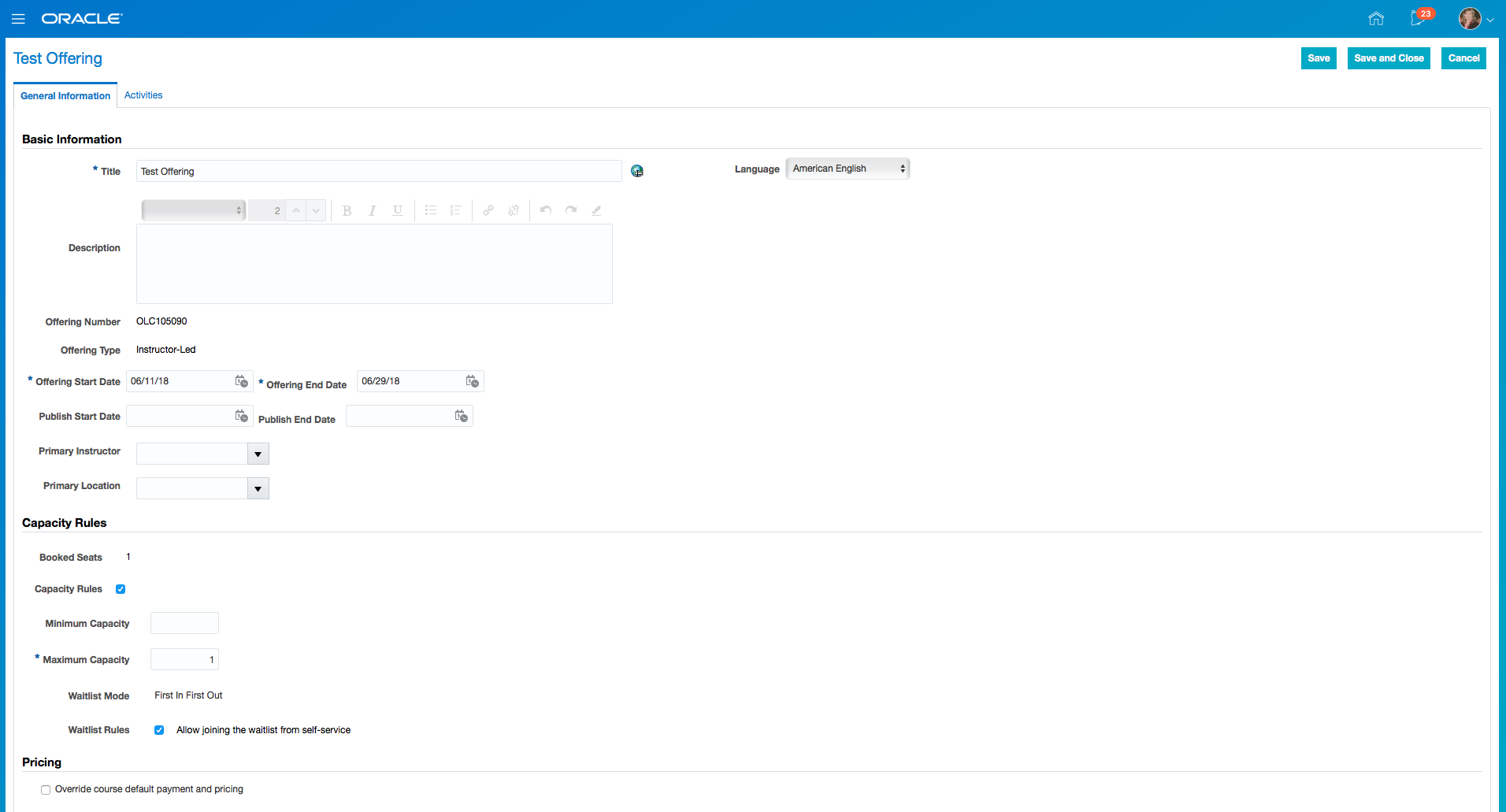
Offering Definition for an Instructor-Led Offering
Steps to Enable
No steps are required to enable this feature.
Set Course Assignment Initial Status Value
Enhanced the Administrator course assignment flow so that the Administrator can choose the status of the assignment on creation. Administrator is able to set the initial assignment status as active, pending active and request approved when creating a required or voluntary assignments.
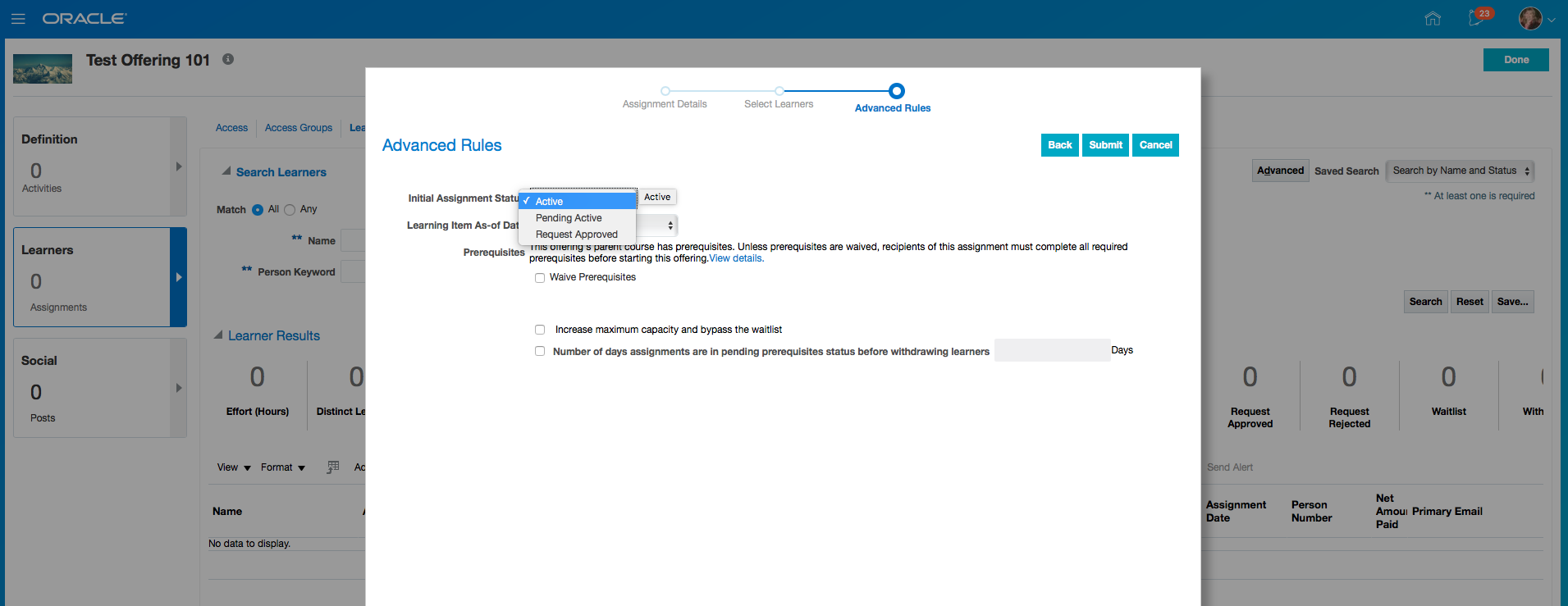
Steps to Enable
No steps are required to enable this feature.
Identify Course Assignments Without Offering Assignments
Enhance the manage learners functionality so that an Administrator can search and view course assignments that do not have offering assignments.
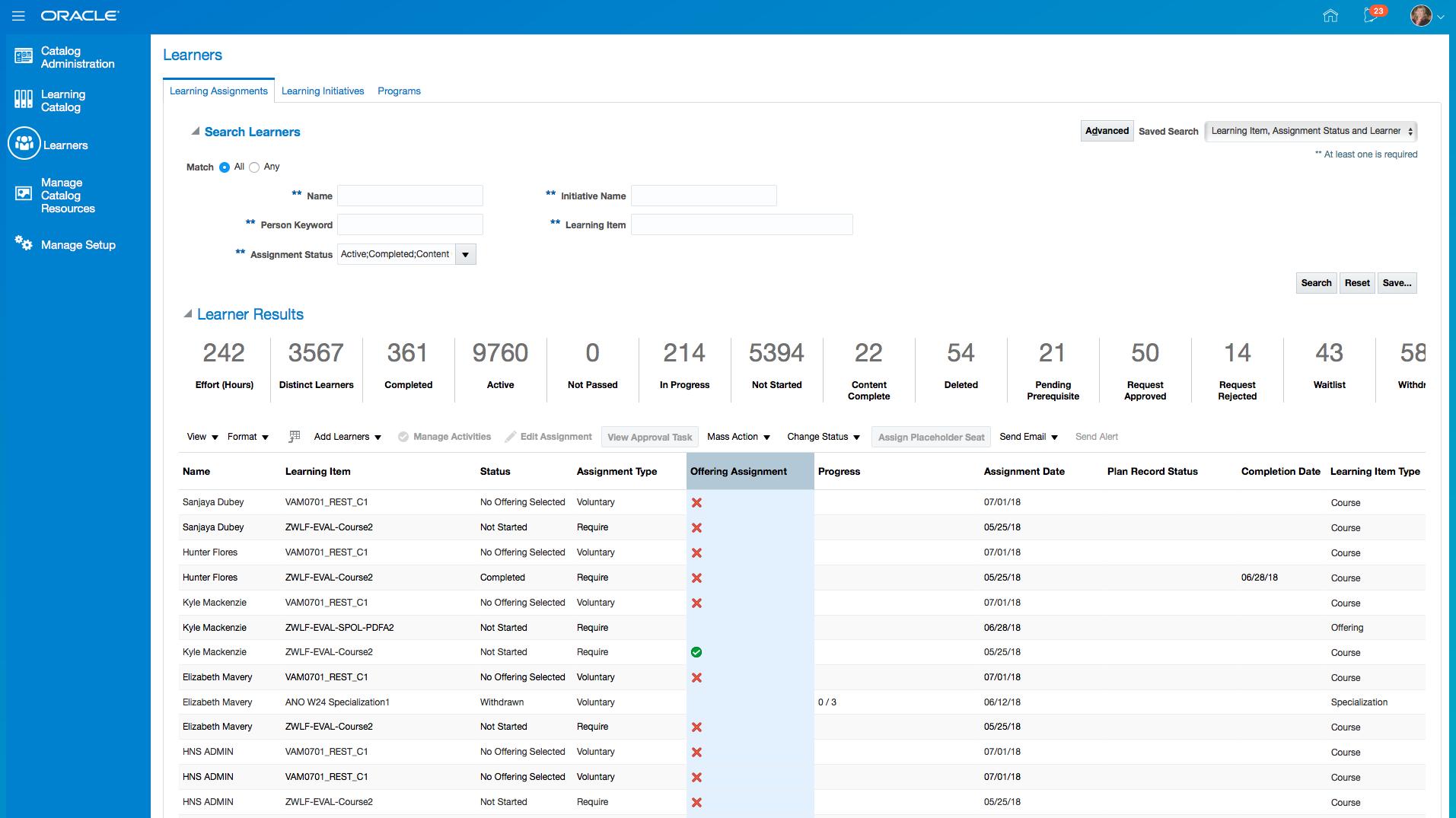
Offering Assignment Indicator on Learning Assignments
Steps to Enable
No steps are required to enable this feature.
Search Assignments Using Request Details
Search for learner assignments using request detail information. The Administrator can also make these request detail fields available in the search results table.
Steps to Enable
No steps are required to enable this feature.
Deep Link Support for Native Mobile
Use deep links to get a web view to a specific URL within the HCM mobile iOS or Android application.
Allows you to use a URL Scheme so that when the User clicks on one of these links, it will open the web View to a specific learning object within the HCM mobile iOS or Android application.
| Learning Object | Web Deeplink | Mobile Deeplink |
|---|---|---|
| Tutorial | https://FS-HOST/fndSetup/faces/deeplink?objType=WLF_LEARN_SS_VIEW_TUTORIAL&action=NONE&objKey=itemId%3D<LEARNING_ITEM_ID> |
hcmcloudmobile://deeplink?objType=WLF_LEARN_SS_VIEW_TUTORIAL&action=NONE&objKey=itemId%3D<LEARNING_ITEM_ID> |
Please review the What's new for the Web Deeplinks.
Steps to Enable
No steps are required to enable this feature.
Offline Learning for Native Mobile
Use offline learning in the mobile application. The Learner can consume current learning, learning suggested to them, and past learning. Currently, learning is the only capability that can be utilized in the offline mode.
When airplane mode is used or the connection to the server is lost, the Learner is asked to stay online or to switch to the offline learning mode.
When the application is started in airplane mode or when there is no connection to the server, the offline authentication process is used. The Learner must authenticate with the last used server and user combination.
If the Learner chooses to go back online, the Learner must authenticate again.
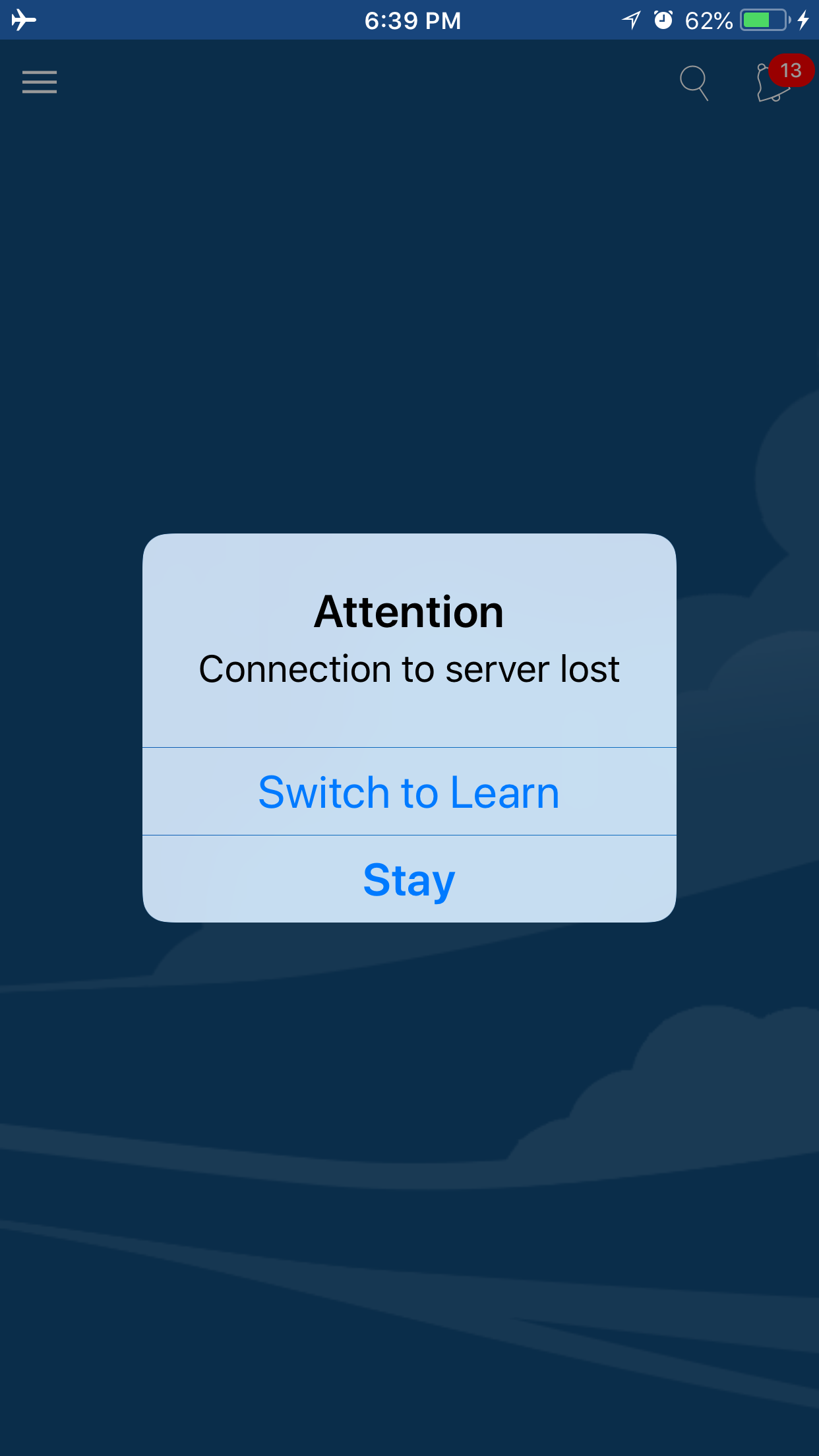
Connection to Server Lost
Steps to Enable
No steps are required to enable this feature.
Native Mobile Account Selection
Use the enhanced native mobile account access flows for single accounts and multiple accounts on iOS and Android.
As you enter the environment host name or URL, a validation is done to ensure that the value matches all HTTP standards for a valid URL. When you click “I’m ready to go mobile!”, an additional validation is done to ensure that the URL entered actually has a server responding on the other end. If either of these validations fail, the user is alerted with an inline error message that appears in red text underneath the URL input field.
Users must enable a setting to add multiple accounts / URLs. The primary account URL setting always matches the primary account card URL in the multiple account experience, regardless of where you change it. The plus icon allows you to add multiple accounts, similar to how a user adds a primary account.
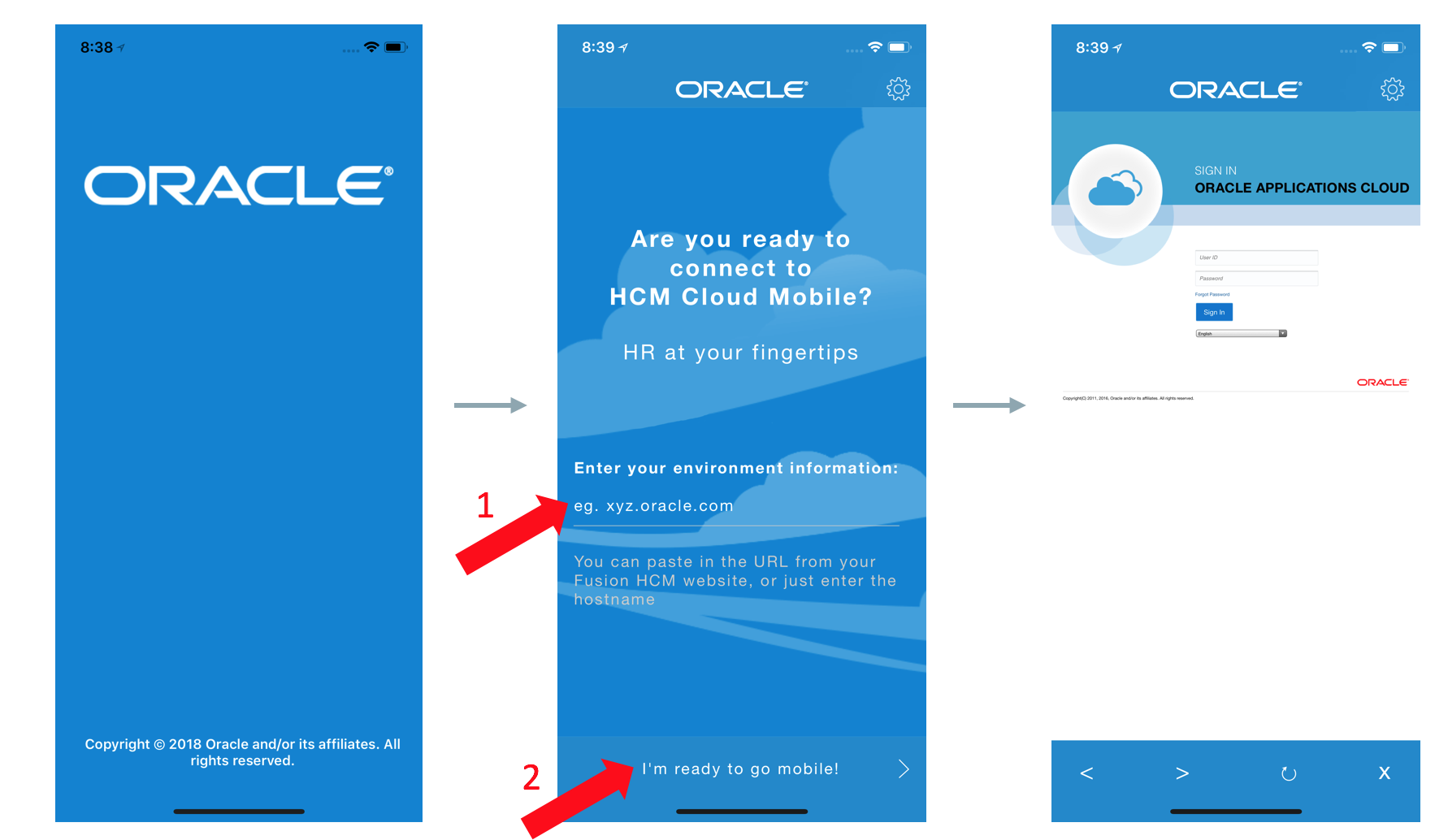
Single Account User Experience
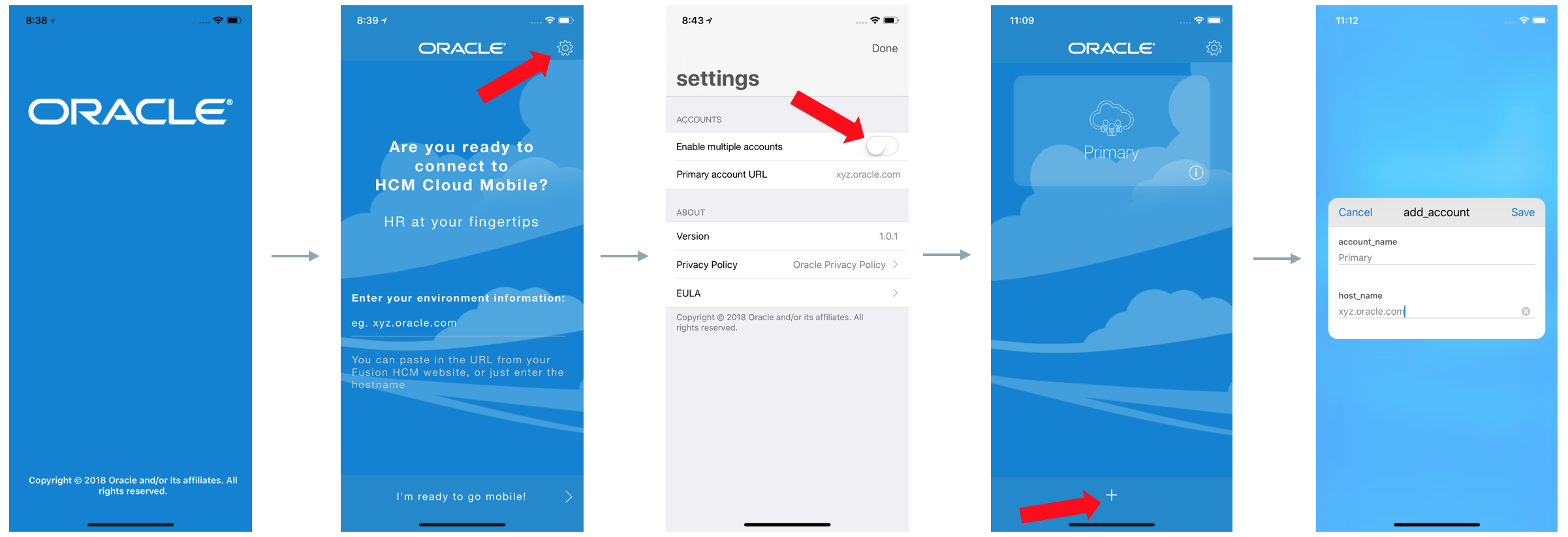
Multiple Account User Experience
Steps to Enable
No steps are required to enable this feature.
Enhance your use of Oracle Learning Cloud with performance improvements done in the following areas:
- Self-service search of learning items.
- Selection of learners in the manager self-service.
- ESS job to rebuild indexes.
Steps to Enable
No steps are required to enable this feature.
This document will continue to evolve as existing sections change and new information is added. All updates appear in the following table:
| Date | Feature | Notes |
|---|---|---|
| 27 JUL 2018 | Learning Cloud: Direct Links to Catalog Items | Updated document. Revised feature information. |
| 27 JUL 2018 | Learning Cloud: Enable Assignment Summary Metrics | Updated document. Revised feature information. |
| 27 JUL 2018 | Learning Cloud: Enhance HCM Data Loader for Oracle Learning Cloud | Updated document. Revised feature information. |
| 27 JUL 2018 | Learning Cloud: Enhance Learner Selection | Updated document. Revised feature information. |
| 27 JUL 2018 | Learning Cloud: Enhance Training Resource | Updated document. Revised feature information. |
| 27 JUL 2018 | Learning Cloud: Enhanced Contextual Learning Functionality | Updated document. Revised feature information. |
| 27 JUL 2018 | Learning Cloud: Enhanced My Team's Assignments View | Updated document. Revised feature information. |
| 27 JUL 2018 | Learning Cloud: Enhanced REST Services | Updated document. Delivered feature in the July Monthly Maintenance Pack for 18B, which was also included in the August Quarterly Maintenance Pack. |
| 27 JUL 2018 | Learning Cloud: Hide Recommendations | Updated document. Revised feature information. |
| 27 JUL 2018 | Learning Cloud: New Course Management Data Security | Updated document. Revised feature information. |
| 27 JUL 2018 | Learning Cloud: Remove Flash Requirement | Updated document. Revised feature information. |
| 27 JUL 2018 | Learning Cloud: Skills and Qualification Prerequisites for Courses and Specializations | Updated document. Revised feature information. |
| 27 JUL 2018 | Learning Cloud: Support Assessment as a Learning Activity | Updated document. Revised feature information. |
| 27 JUL 2018 | Learning Cloud: Support of Alerts | Updated document. Revised feature information. |
| 27 JUL 2018 | Learning Cloud: Waitlisting | Updated document. Revised feature information. |
| 29 JUN 2018 | Created initial document. |
HCM Cloud applications have three types of patches you can receive that are documented in this What's New:
- Release Updates (18A, 18B and 18C)
- Optional Monthly Maintenance Packs
- Quarterly Mandatory Maintenance Packs (delivered in February, May, August and November). All features that show in the Monthly Maintenance Packs will be included in the next Quarterly Mandatory Maintenance Pack, so no need to request the monthly maintenance packs.
It is important for you to know what Release Update you environment is on. You can find this in your Cloud Portal. If you are on Update 18A, you will only have features that are in 18A or the Monthly and Quarterly updates for 18A, you will not have 18B features until you receive the 18B update. You can however read ahead on future release so you can make plans for when you will receive the next update.
If you are upgrading from Release 12, you should read all features up through the Release Update that you will receive in the upgrade. This can also be found in Cloud Portal.
Oracle HCM Cloud release documents are delivered in five functional groupings:
Suggested Reading for all HCM Products:
- HCM Cloud Common Features (This document pertains to all HCM applications. It is the base human resource information for all products and HCM Tools.)
- Global Human Resources Cloud (Global Human Resources contains the base application in which other application use for common data such as workforce structures and person information. Regardless of what products you have implemented you may want to see the new features for Global Human Resources that could impact your products.)
NOTE: Not all Global Human Resource features are available for Talent and Compensation products.
Optional Reading for HCM Products (Depending on what products are in your cloud service):
- Talent Management Cloud (All Talent applications)
- Workforce Rewards Cloud (Compensation, Benefits, Payroll and Global Payroll Interface)
- Workforce Management Cloud (Absence Management and Time and Labor)
Additional Optional Reading:
- Common Technologies and User Experience (This documents the common features across all Cloud applications and is not specific to HCM)
NOTE: All of these documents can be found on the Oracle Help Center at: https://cloud.oracle.com/saasreadiness/hcm under Human Capital Management Release Readiness.
Give Us Feedback
We welcome your comments and suggestions to improve the content. Please send us your feedback at oracle_fusion_applications_help_ww_grp@oracle.com. Indicate you are inquiring or providing feedback regarding the HCM Cloud What’s New for Release 13 in the body or title of the email.
| Action Required to Enable Feature |
|||||
|---|---|---|---|---|---|
| Feature |
None (Automatically Available) |
Enable via Opt In UI Only |
Enable via Opt In UI Plus Additional Steps |
Not Enabled via Opt In UI but Setup Required |
Issue Service Request |
|
|||||
|
|||||
|
|||||
|
|||||
|
|||||
Skills and Qualification Prerequisites for Courses and Specializations |
|
||||
|
|||||
|
|||||
|
|||||
|
|||||
|
|||||
|
|||||
|
|||||
|
|||||
|
|||||
|
|||||
|
|||||
|
|||||
|
|||||
|
|||||
|
|||||
|
|||||
|
|||||
|
|||||
|
|||||
|
|||||
|
|||||
|
|||||
|
|||||
|
|||||
|
|||||
|
|||||
|
|||||
|
|||||
Change Learning Assignment Type Between Voluntary and Required |
|
||||
|
|||||
|
|||||
Support Learning Assignments Not Meeting Completion Criteria |
|
||||
|
|||||
|
|||||
|
|||||
|
|||||
|
|||||
|
|||||
|
|||||
|
|||||
|
|||||
|
|||||
|
|||||
|
|||||
|
|||||
|
|||||
|
|||||
|
|||||
Oracle Learning Cloud enables you to make a transformational shift in learning delivery. Subject matter experts in your organization can easily publish videos and assemble tutorials to deliver on-demand and social learning. Collaboration features encourage continuous community feedback.
WebEx Virtual Classroom Integration
Streamline the WebEx Meeting Center and WebEx Training Center meeting creation and update process for the Administrator by integrating Oracle Learning Cloud to WebEx. Meetings in WebEx are automatically created or updated from Oracle Learning Cloud for the Instructor (meeting host) and Learner (attendee) when virtual classroom activities are managed by the Administrator.
Administrator Experience
The Administrator can select the Instructors Virtual Classroom Account (Webex Account) when creating a virtual instructor-led training activity. When the Administrator saves the activity, the integration runs and creates meetings in WebEx for the Instructor and the Learner assigned to the activity. If the Administrator modifies the activity, the meeting in WebEx is updated accordingly.
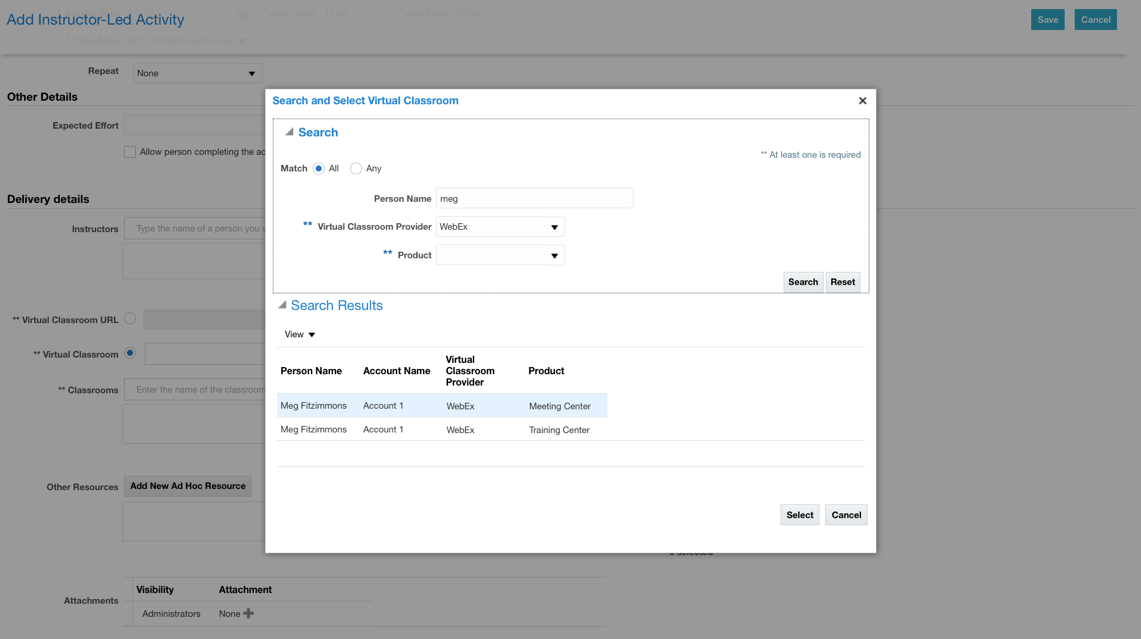
Search and Select Virtual Classroom
Learner Experience
When a Learner takes a seat on an activity, the Learner receives an official assignment. When the integration runs, the Learner is added as an attendee in WebEx. When a Learner is withdrawn from an activity, the Learner is removed as an attendee from WebEx.
When Webex is enabled, the learner can do the following:
- Add the virtual classroom information on their calendar from the activity details page prior to the event.
- Join the virtual classroom directly from the activity details page the day of the event.
- View the recording directly from the activity details page after the event.
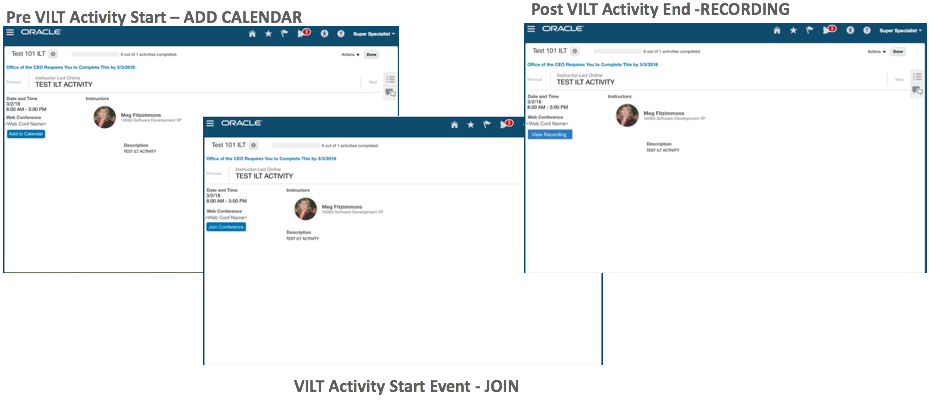
Virtual Classroom with WebEx
Instructor Experience
When Webex is enabled, the instructor can do the following:
- Add the virtual classroom information to their calendar from the offering details page.
- Join the virtual classroom directly from the offering details page on the day of the event.
- View the recording directly from the offering details page after the event.
- View the attendance report in the activity details page after the event. This typically takes several hours after the event because Webex has to create the attendance report before it can be attached to the activity details page.
Steps to Enable
Several steps are required to enable and configure the WebEx integration. The following is an overview:
Create a WebEx Site Account
The Administrator creates a virtual instructor-led site account in Oracle Learning Cloud to call the proper customer site account.
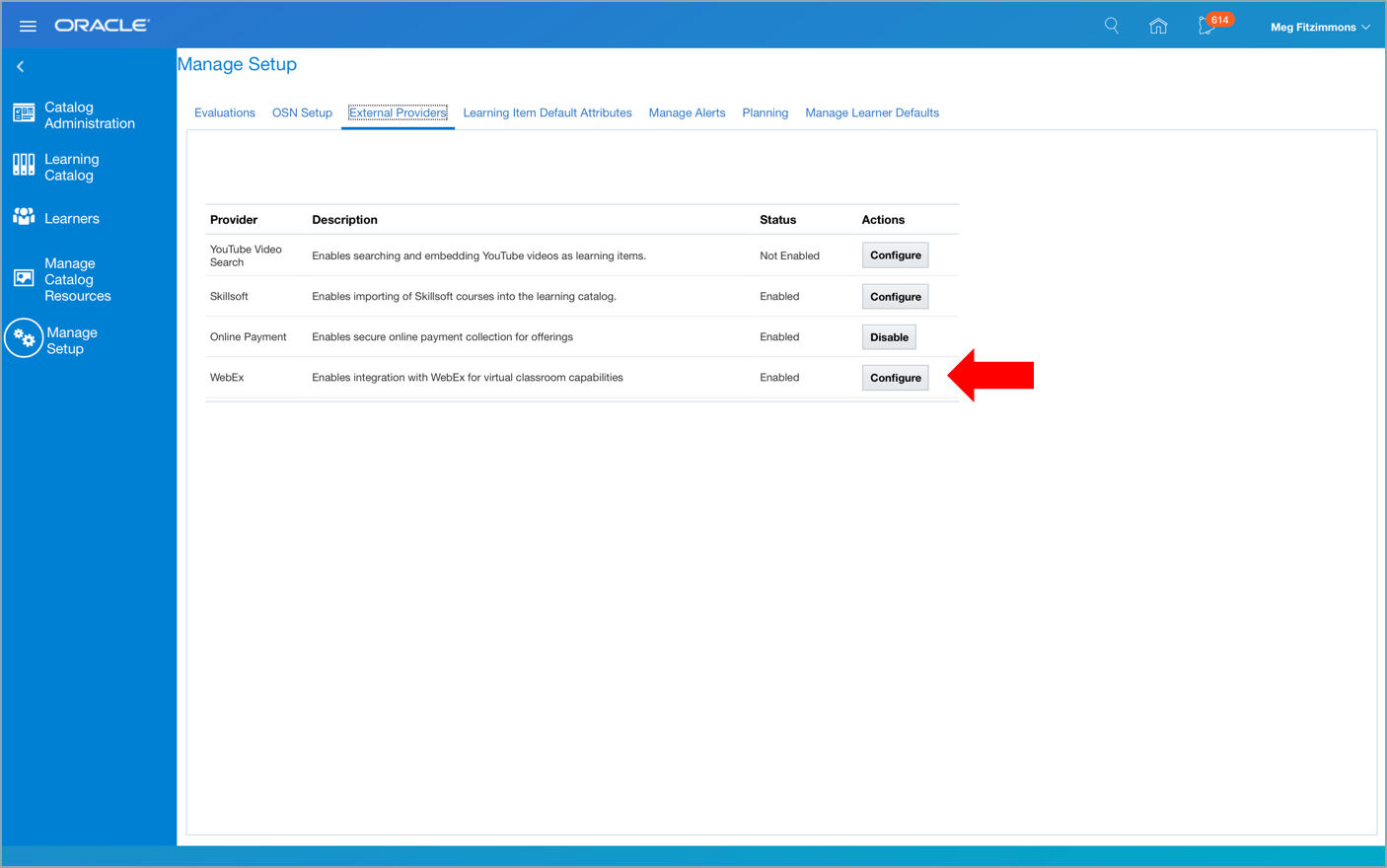
Manage Setup - External Providers
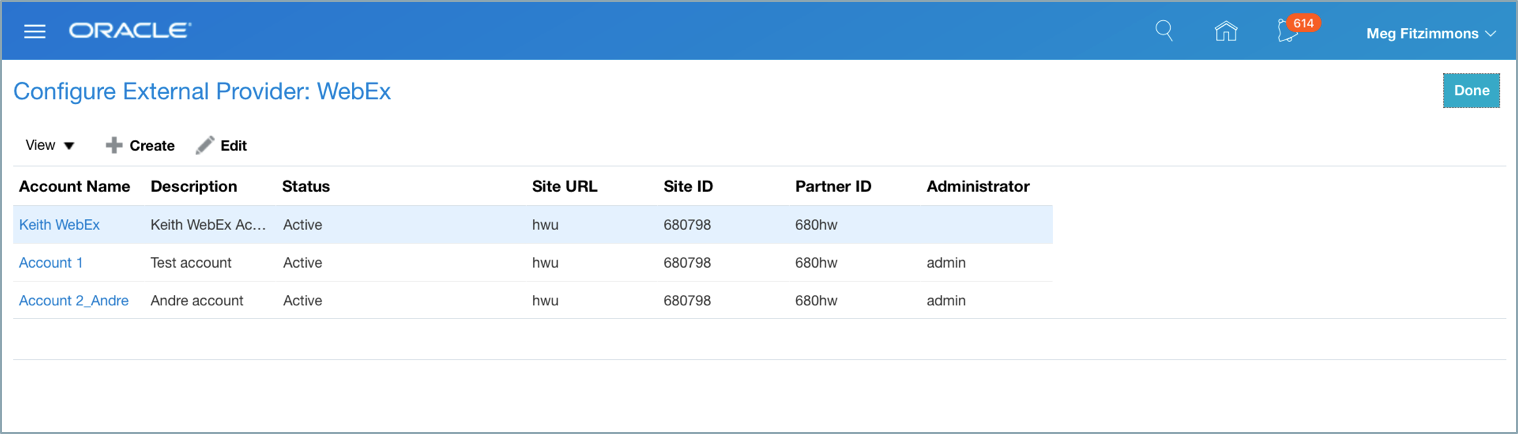
Configure External Provider - WebEx
Create a WebEx External Provider
The Administrator creates a site level provider account. Prior to saving the account, the Administrator validates the account integration to ensure the configuration parameters are setup correctly. The Administrator account behaves like an integration user. The Administrator account must be setup first in WebEx and assigned as a delegate for all the instructors in WebEx. As a result, when accounts are created for instructors in Oracle Learning Cloud, it is not necessary to maintain WebEx instructor passwords. When a delegate is created in Webex the delegate can create and modify meetings on behalf of the instructor within Webex.
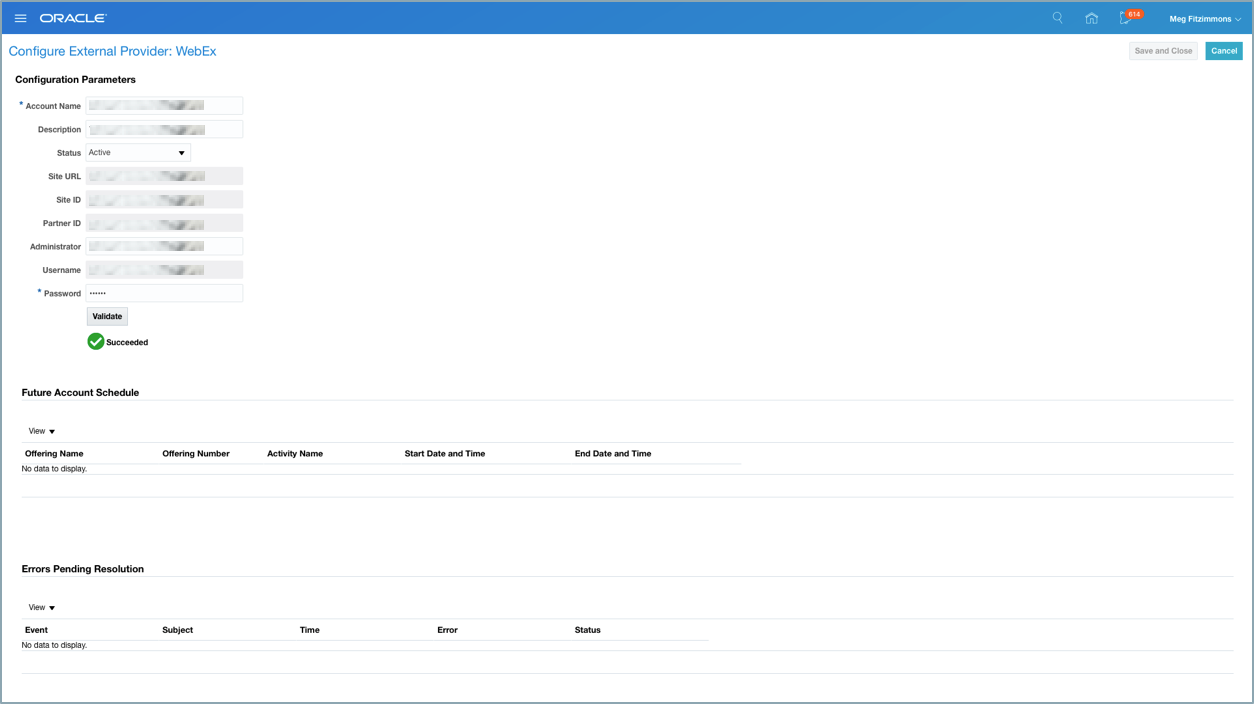
Configure External Provider - WebEx - Configuration Parameters
Modify the WebEx External Provider
Once the site level provider account is created, the Administrator can modify the following fields:
- Account Name
- Description
- Administrator
- Password: If the password is modified, you must validate it again.
- Status: The account can be active or inactive. When you change the status to inactive, you must ensure that virtual instructor-led offerings using this account are removed from the account. When an account is inactive, it is inactive for all instructors associated to the account, you can no longer associate the account to instructors and offering activities.
Create a WebEx Account for Instructors
The Administrator associates a WebEx account to an instructor. Prior to saving the account, the Administrator validates the account integration. When the validation is successful, the Administrator can choose the default product template to use for the instructor account. Product templates are created in Webex and used to define default meeting options in WebEx.
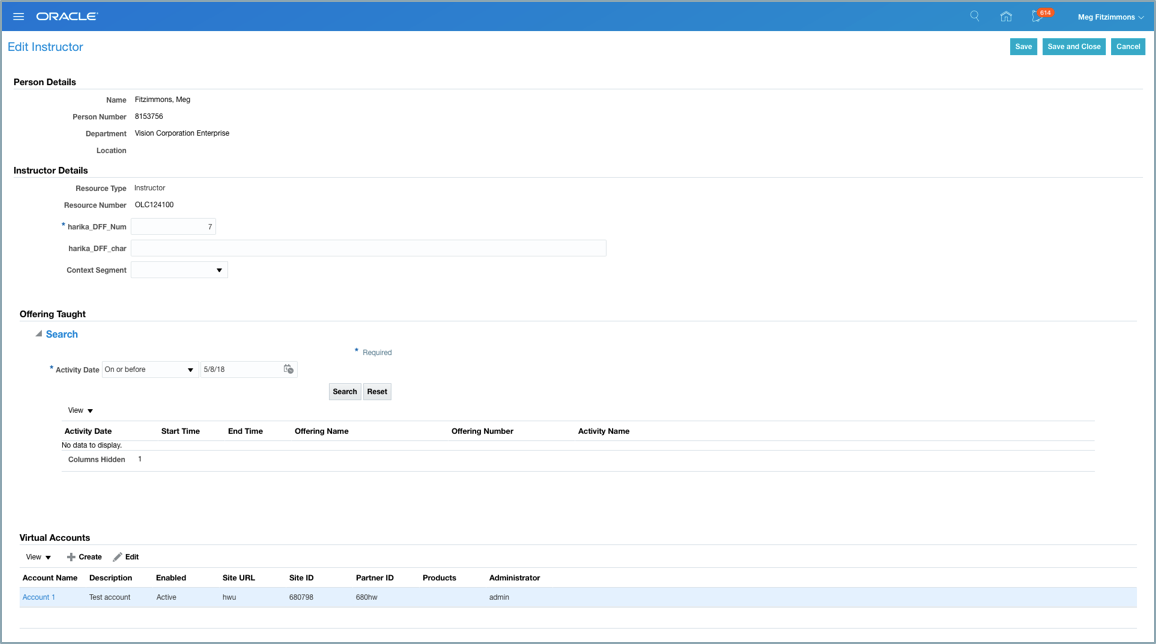
Edit Instructor
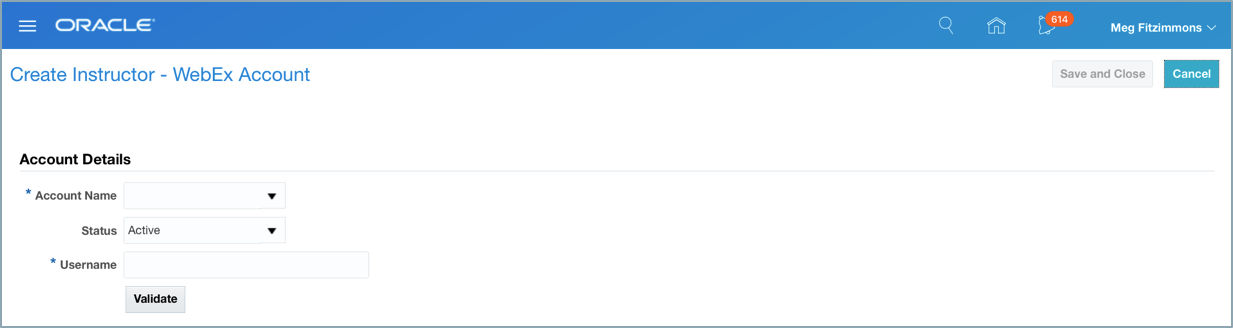
Create Instructor - WebEx Account
Modify the Instructor WebEx Account
Once the instructor account is created, the Administrator can modify the following field:
- Status: The account can be active or inactive. When you change the status to inactive, you must ensure that virtual instructor-led offerings using this account are removed from the account. When an account is inactive, you can no longer associate the account to offering activities.
An ESS job needs to be configured to run daily to pull the attendance report from the Webex event and associate it as an attachment to the activity details page. On the Webex side the attendance report can take up to a few hours to create so be aware of this when reviewing the attendance report on the activity.
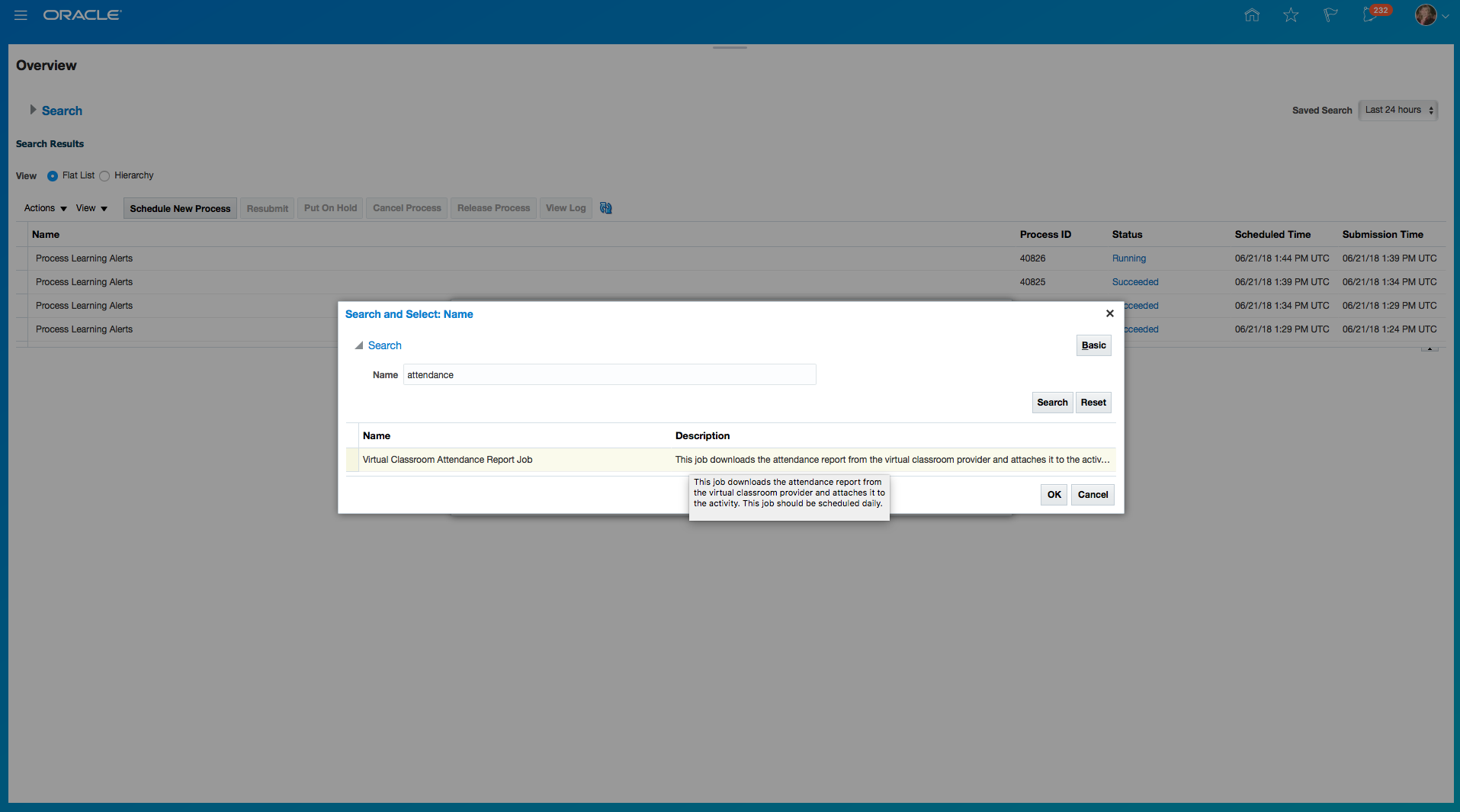
Configure ESS Job to Associate Attendance Report
Streamline the Learning Item creation process for the Administrator by integrating Skillsoft content to Oracle Learning Cloud. Automatic creation of courses, offerings, activities, and content occur when a bulk import or single import is initiated by the Administrator.
The Administrator imports Skillsoft content in Oracle Learning Cloud, from the Manage Catalog Resources area. The Administrator can do a bulk import or a single import. Bulk import is useful on the initial implementation where as the simple import is useful for ongoing content maintenance. The Administrator can also search and select specific Skillsoft courses and import them.
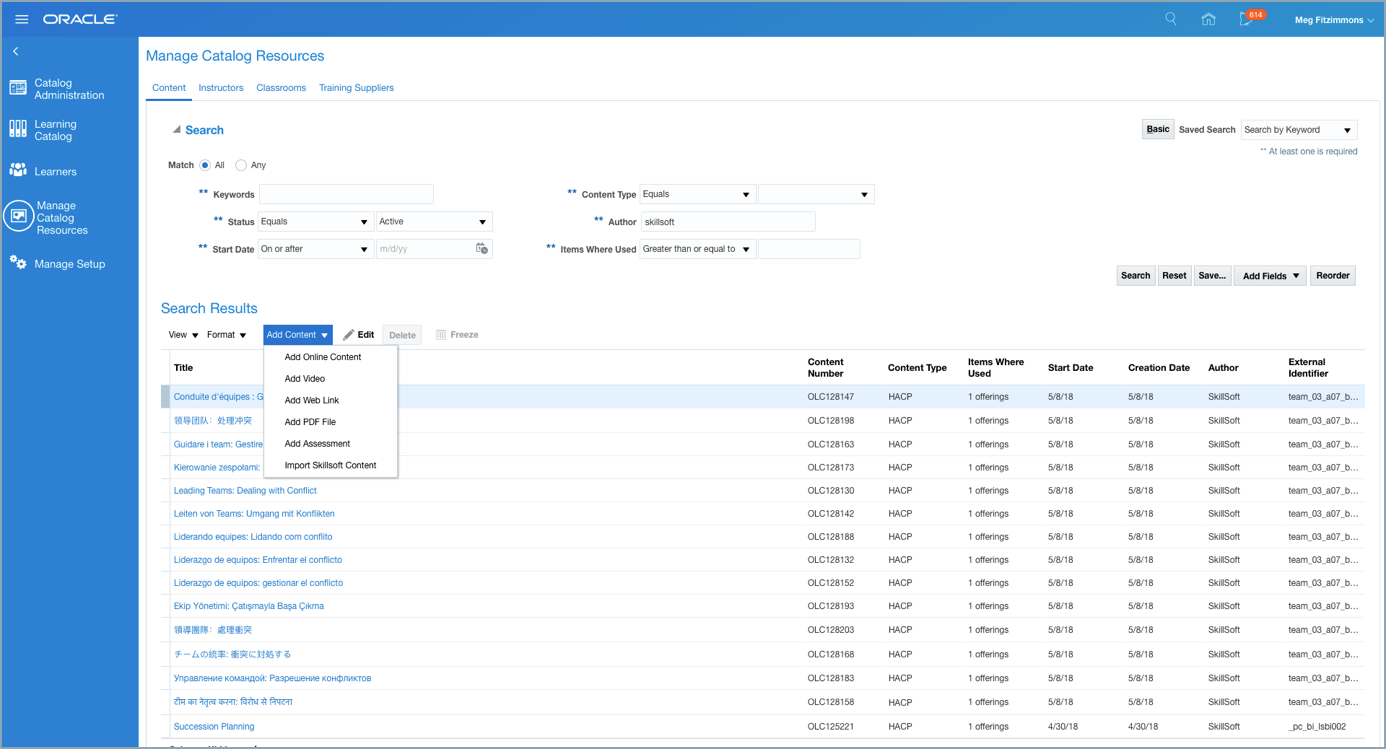
Manage Catalog Resources - Access Import Skillsoft Content Area
Once the import is done, courses, offerings and activities are available in Oracle Learning Cloud. Multiple offerings can be created under a course based on the Skillsoft course number naming standards. If a Skillsoft course exists in multiple languages, the import will create one course and many offerings based on the number of content languages.
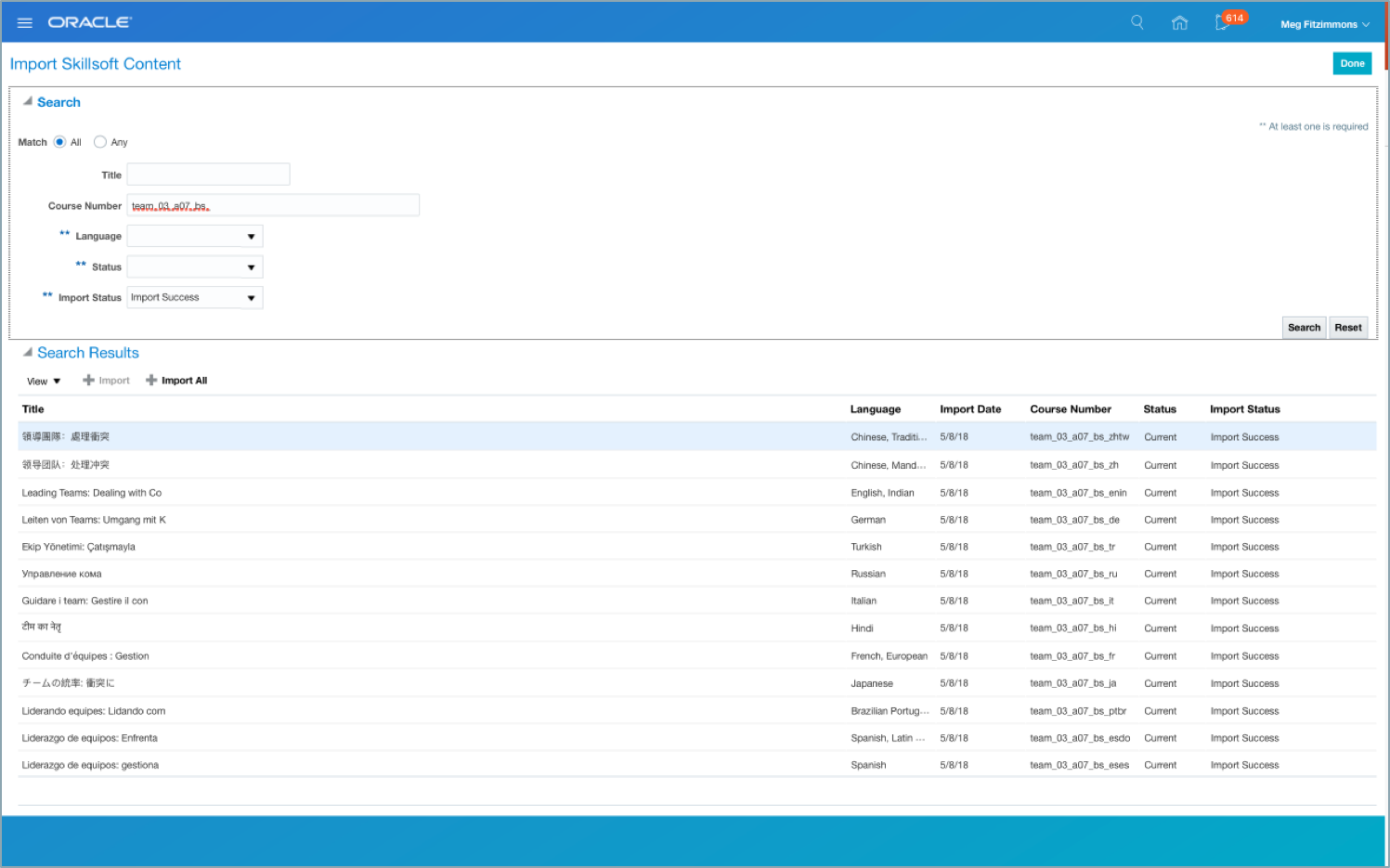
Import Skillsoft Content Page
Steps to Enable
The Administrator accesses the Skillsoft setup integration area within Oracle Learning Cloud to configure the required integration parameters so the two systems communicate together.
To configure the integration parameters:
- In Oracle Learning Cloud, go to Manage Setup Tab.
- Click the External Providers tab.
- Click Configure next to Skillsoft.
- Enter configuration parameters.
- Click Save and Close
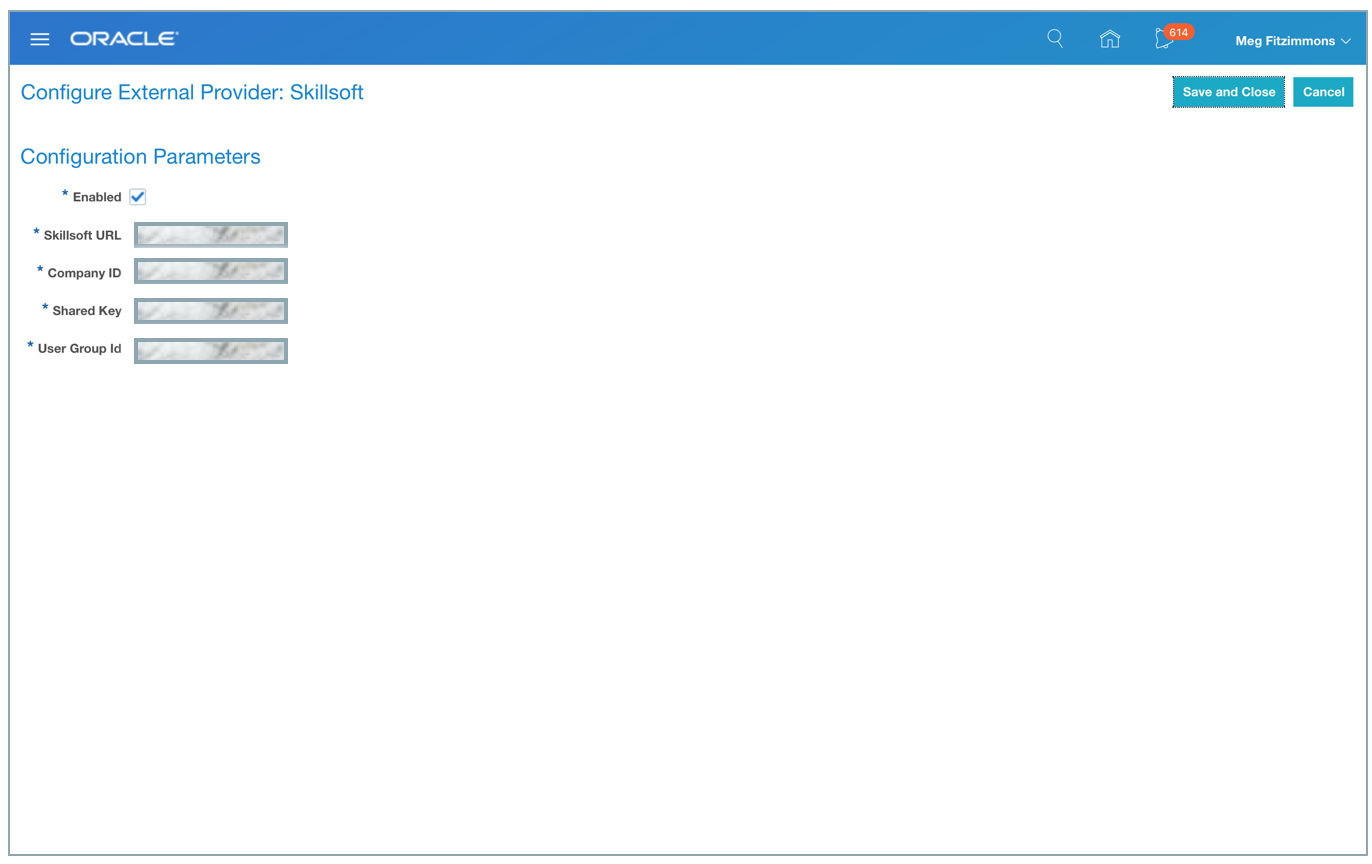
Configure Skillsoft as an External Provider
To ensure Skillsoft data is up to date within Oracle Learning Cloud, the Administrator must periodically run the Load and Synchronize Skillsoft Content job from the Scheduled Processes work area.
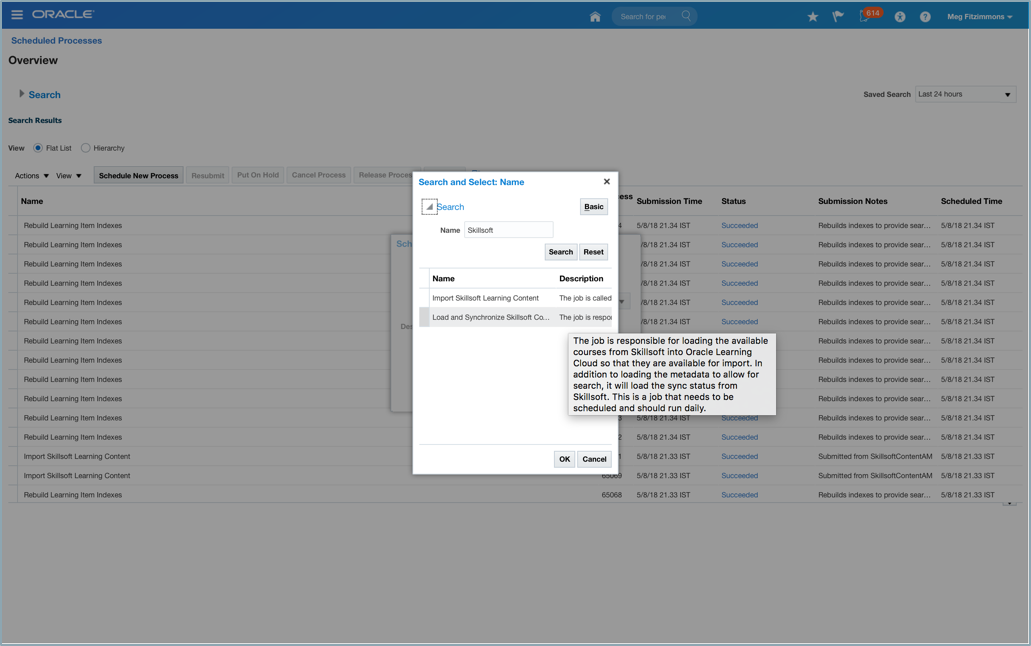
Load and Synchronize Skillsoft Content
Allow self-service users to join the waitlist of an offering when it is already at capacity. Waitlists are automatically processed by the system. When seats become available, the first in, first out clearing method is used. Offerings requiring that self-service users obtain an enrollment approval must first be approved before the system places the learner on the waitlist. Offering capacity management can be defined for all offering types, that is self-paced, blended, and instructor-led training.
Offerings with capacity enabled will by default also enable self-service users to join the waitlist when the offering is at capacity. Allowing self-service users to join the waitlist can be disabled even while having capacity management enabled. This configuration blocks learners and managers from joining or assigning the offering once capacity has been reached. Capacity management rules can be defined on the course offering defaults and apply to every offering within the course. Each offering can also be set individually with their own rules as needed
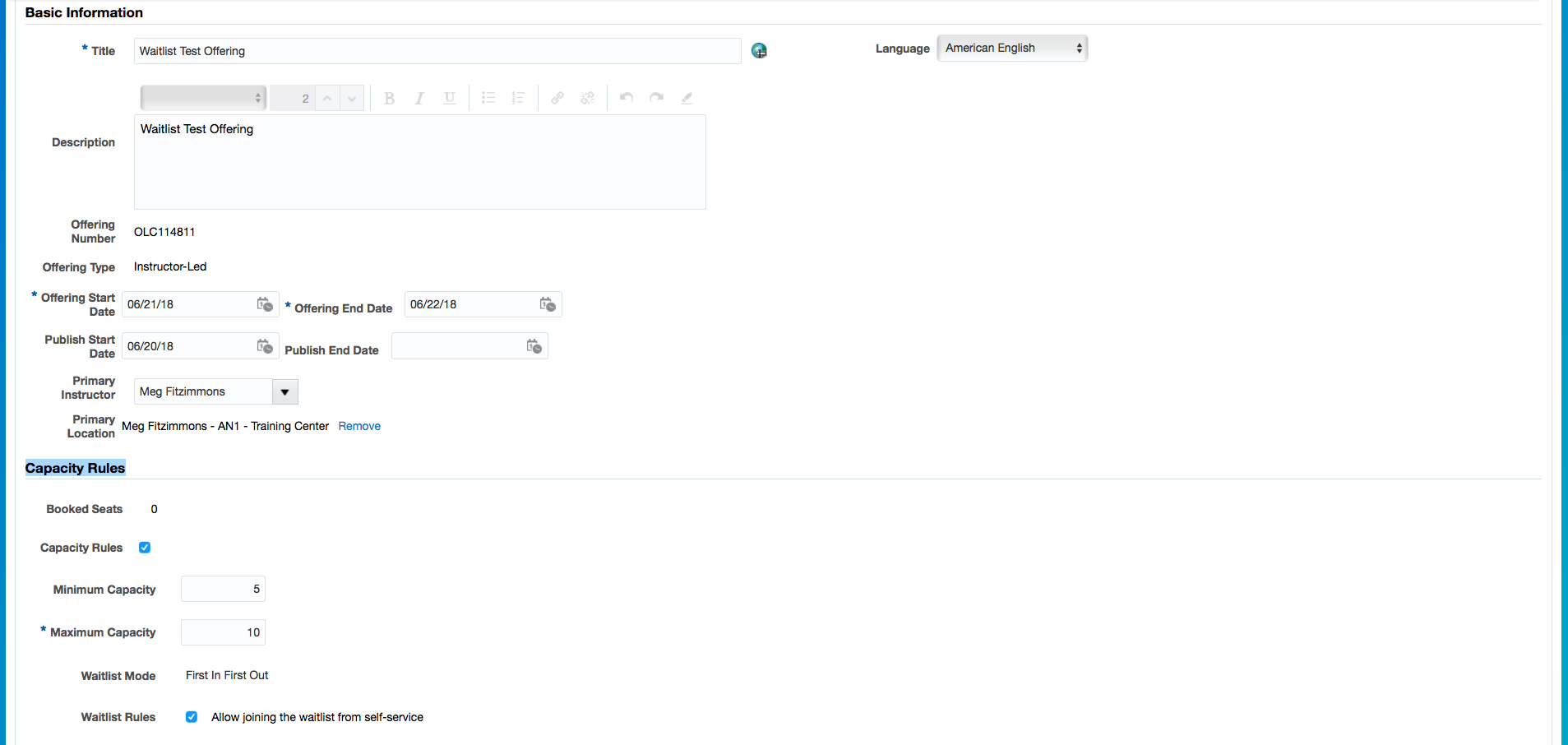
Waitlist Rule - Allow Joining the Waitlist from Self-Service
A learner viewing an offering with capacity management enabled can see the number of available seats, or if it’s already at capacity, can see the number of people already on the waitlist. If it is at capacity and the learner is allowed to join the waitlist, the Join Waitlist action is available. The learner on the waitlist can see his current position, and also has the ability to cancel his waitlisted assignment. While a learner is on the waitlist, they are blocked from engaging with the offering. From the learner’s requested learning view, he can also see waitlisted assignments.
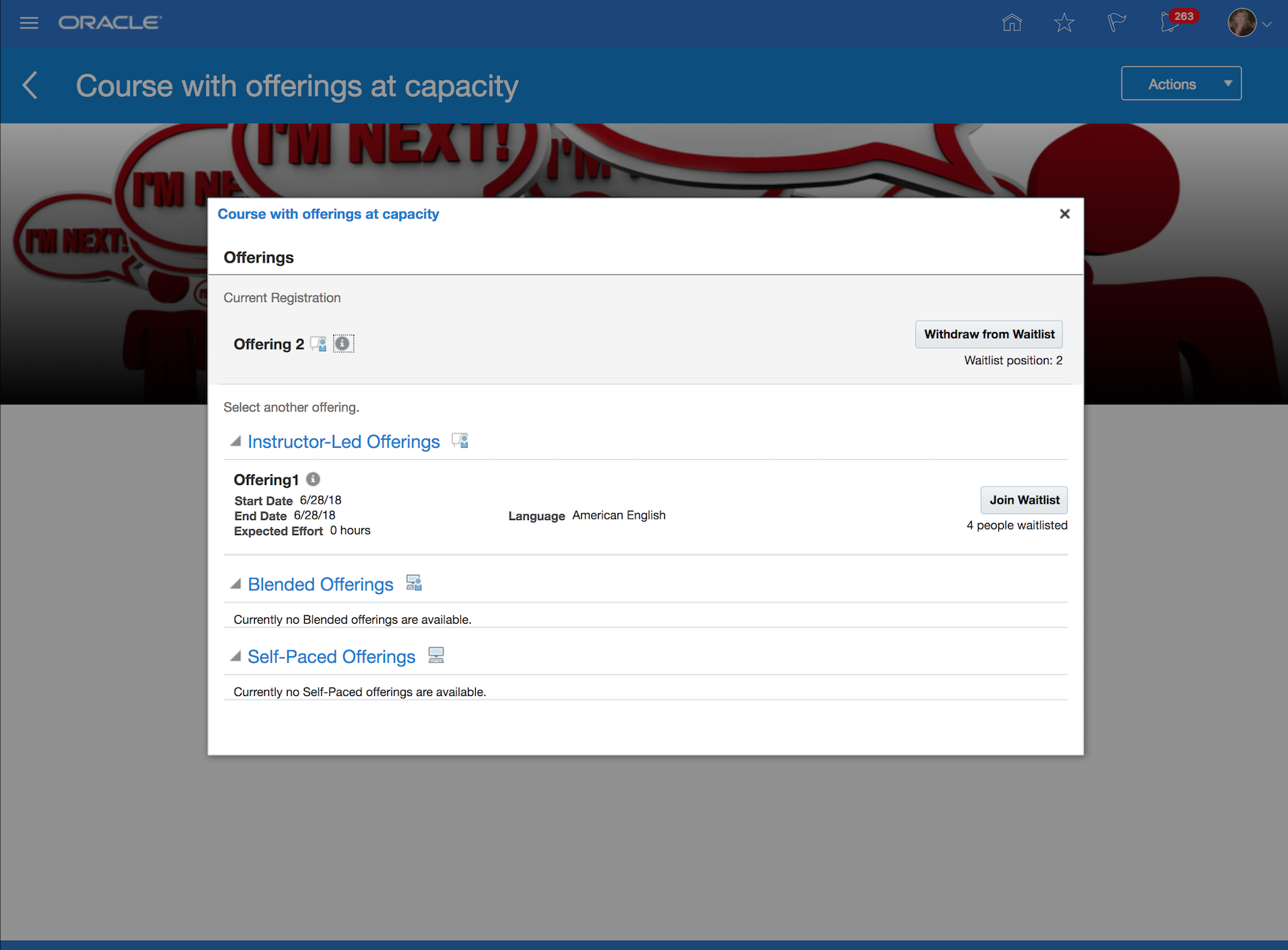
Learner View of Offering with Waitlist
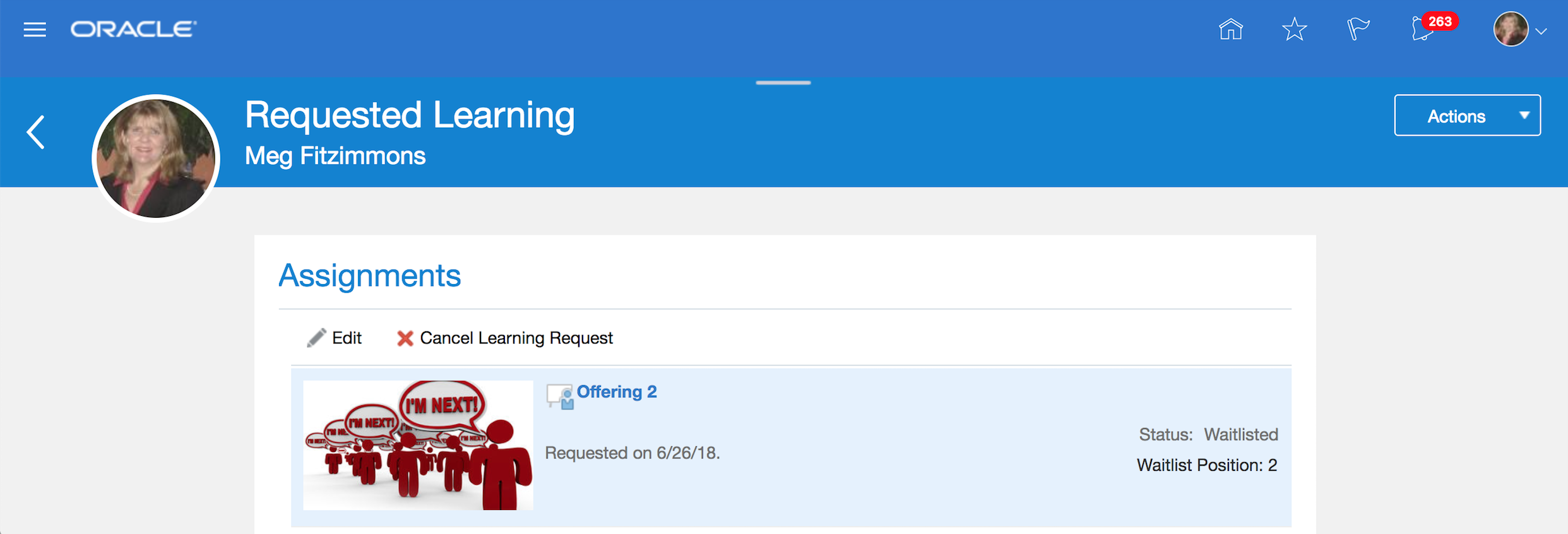
Learner Views Waitlisted Item in Assignments
Steps to Enable
No steps are required to enable this feature.
Increase the configured offering capacity while creating an assignment to satisfy the selected recipients of a learning assignment. This allows the Administrator to guarantee seats for the assignment recipients even if there are already other people on the waitlist.
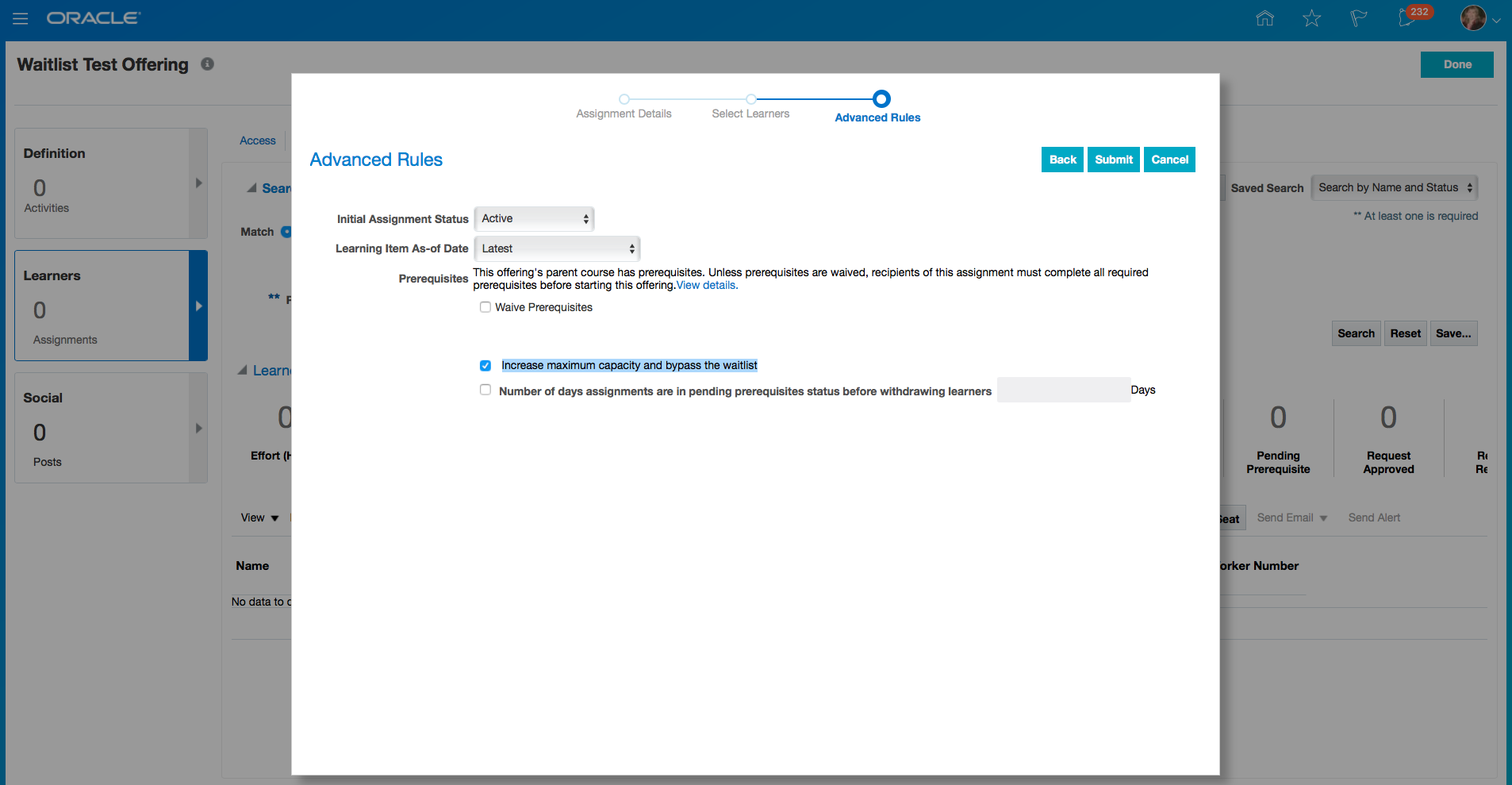
Increase Maximum Capacity Setting
Steps to Enable
No steps are required to enable this feature.
Manually Processing a Waitlisted Learner
Administrators can activate a waitlisted assignment, and optionally choose to increase the offering capacity. This action overrides the system automatic processing and recalculates the waitlsit position for the remaining people on the waitlist. Additionally, administrators can withdraw waitlisted assignments, and also move active assignments onto the waitlist.
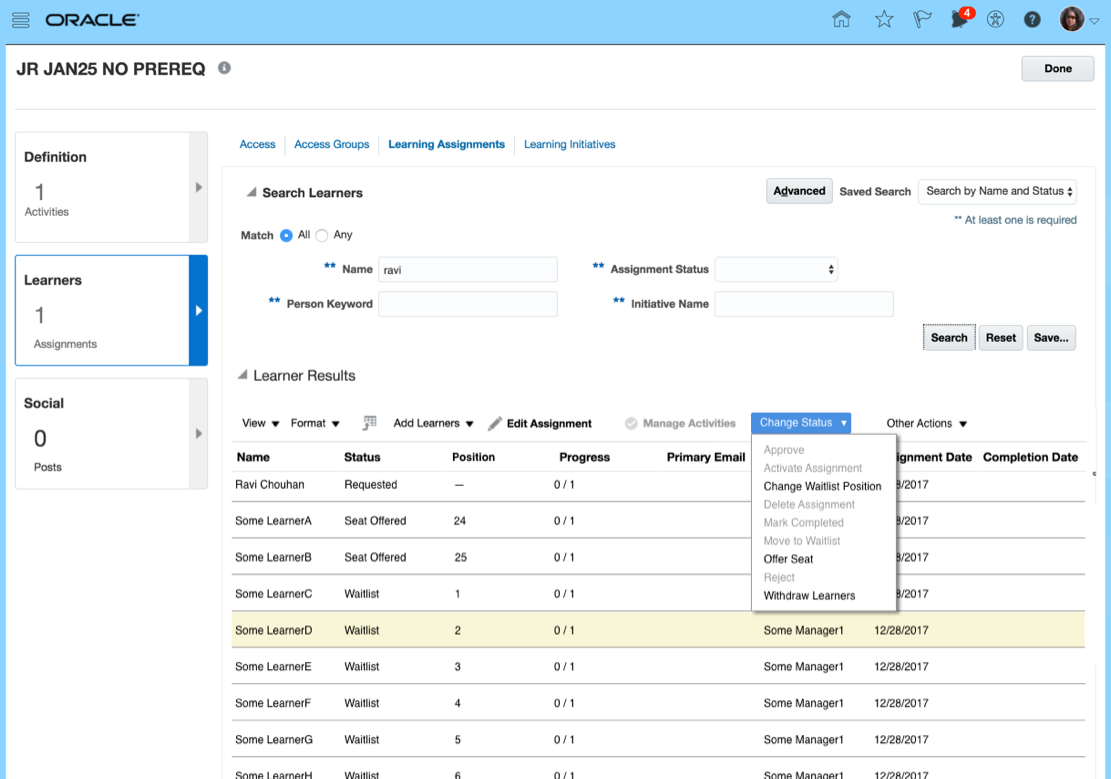
Manually Processing a Waitlist
Steps to Enable
No steps are required to enable this feature.
Skills and Qualification Prerequisites for Courses and Specializations
Configure courses and specializations with prerequisite skills and qualifications. This prevents learners from engaging with a learning item until prerequisites are met. The Administrator and managers can view learning assignments blocked by missing prerequisites. Additionally, Administrators can unblock assignments missing prerequisites if they choose.
Administrator Experience
The Administrator defines prerequisites for courses and specializations using profile items coming from the HCM Cloud Profiles work area.
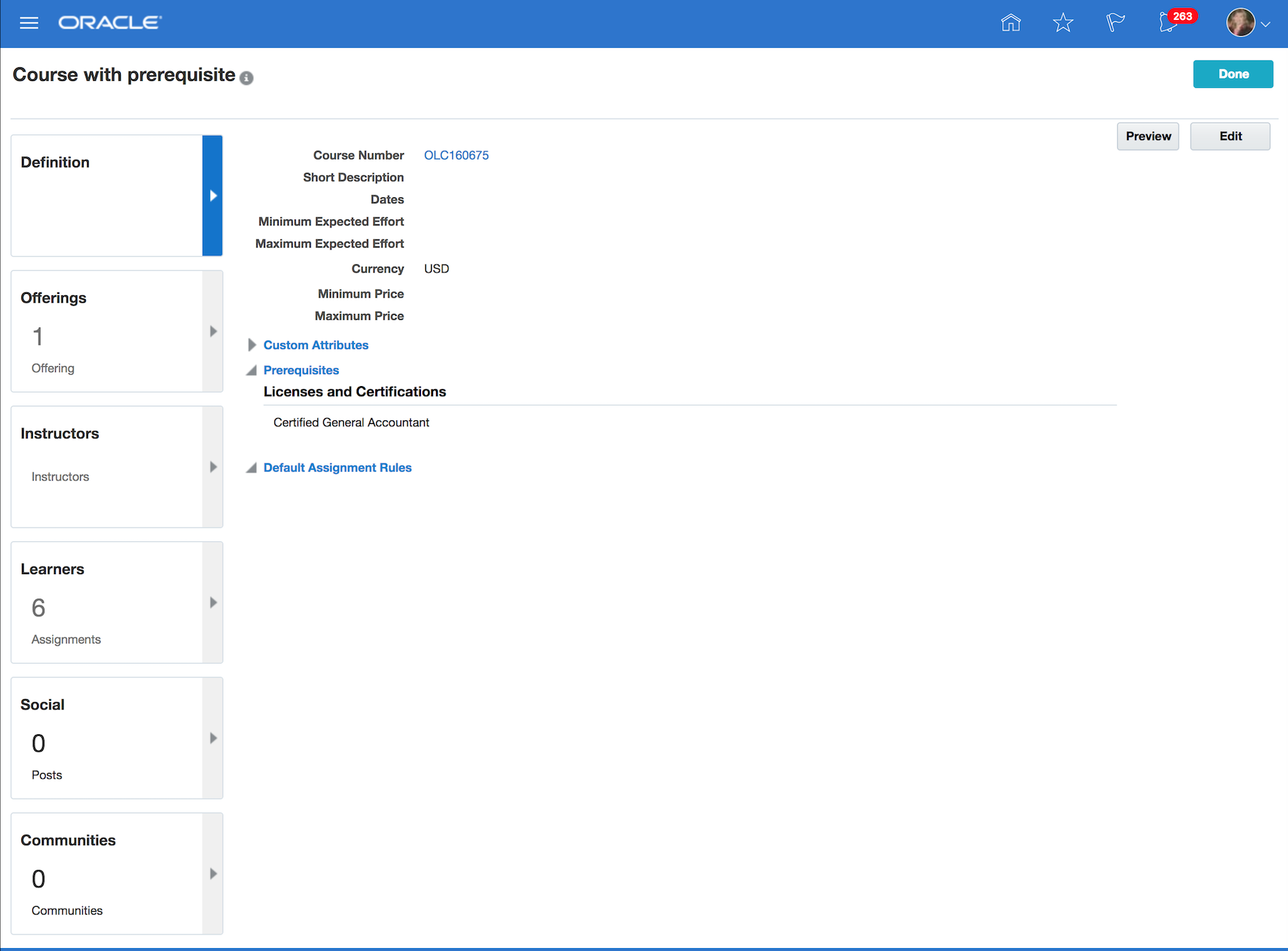
Course View
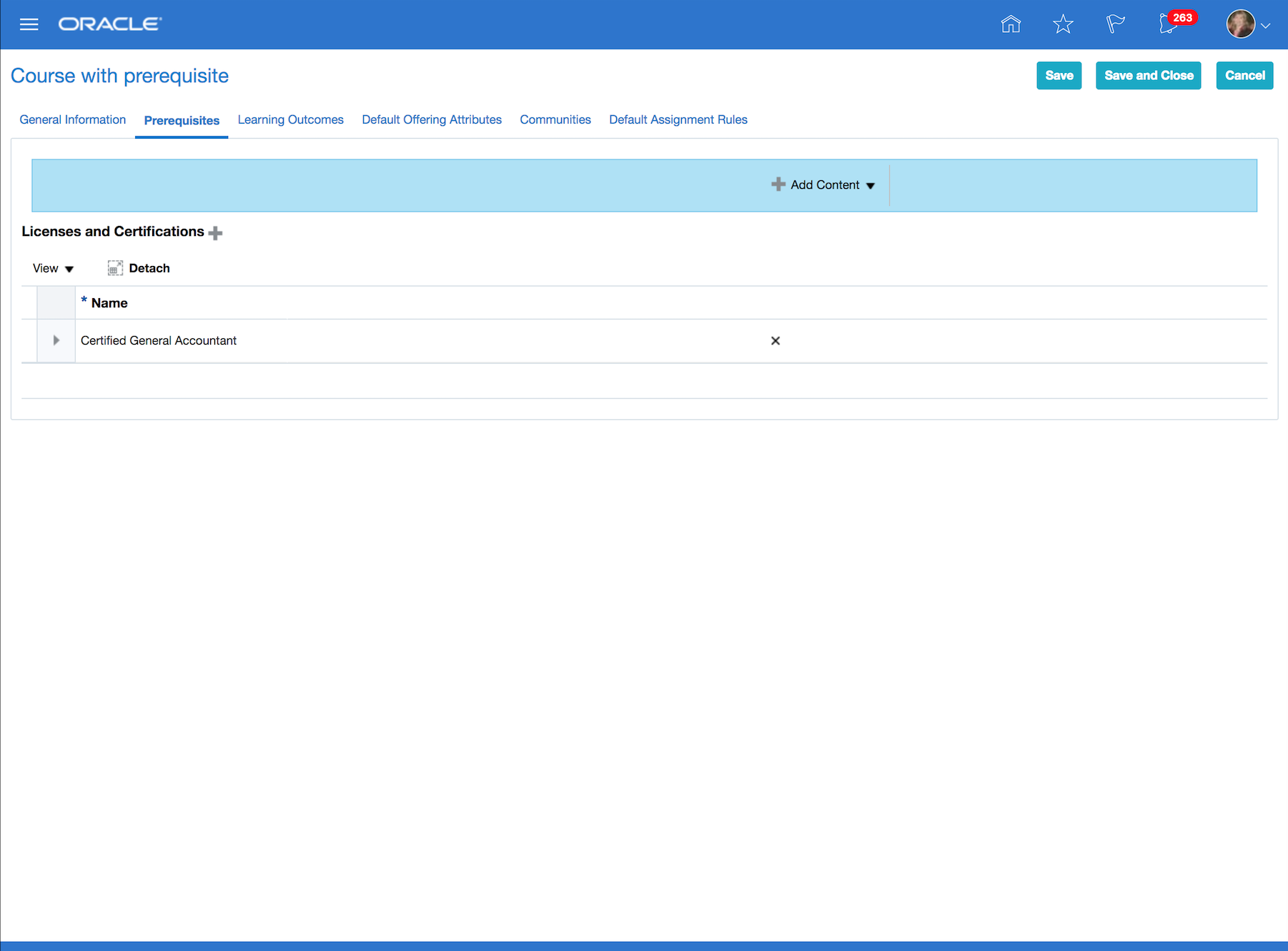
Prerequisite on a Course
The prerequisite functionality also contains the following capabilities:
- Ability for an Implementer to configure which profiles content sections can be used as learning prerequisites
- Ability for administrators to configure one or more skill or qualification as a learning prerequisite for a course or specialization
- Ability for administrators to waive prerequisites while assigning learning
- Ability for administrators to search for learning assignments blocked by missing prerequisites
- Ability for administrators to waive prerequisites for learning assignments blocked by missing prerequisites
- Assignments blocked by missing prerequisites are automatically unblocked by the system on completion of learning with a learning outcome that applies the prerequisite skill or qualification to the learner’s talent profile
- Support for non-learning based skills and prerequisites as learning prerequisites for integration to other business processes
- Ability for an administrator to configure an offering to allow learners to hold a seat while they obtain the missing prerequisites
Learner Experience
The Learner can view the course prerequisites and the user status on the self-service course details page. When the Learner is missing course prerequisites for an offering, the learner self-join and request learning actions are disabled. The self-service manager require and request for my team actions can still be performed. Learners missing the prerequisites will be blocked from engaging with the offering until the prerequisites are met.
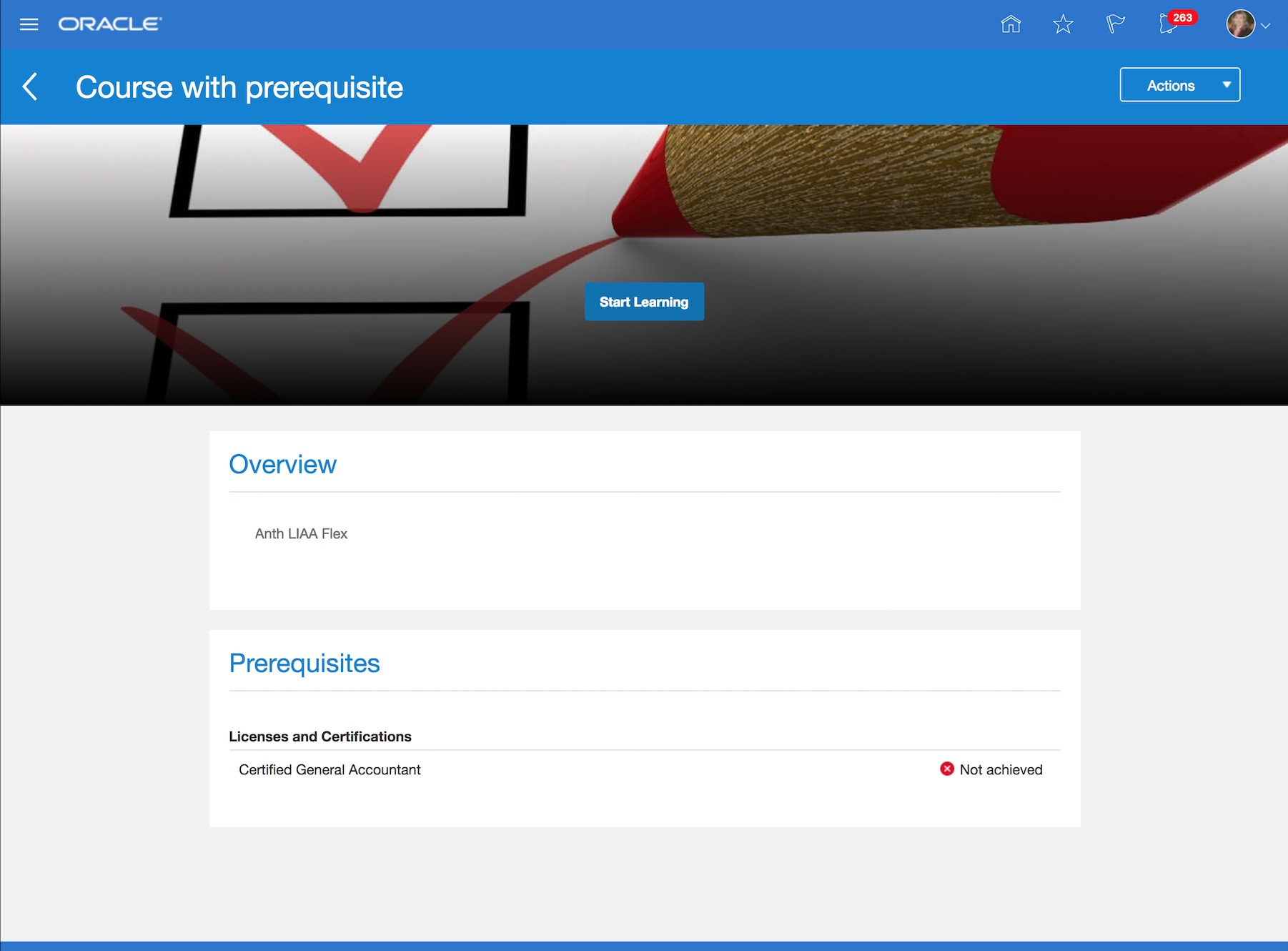
Course Prerequisites on the Course Details Page
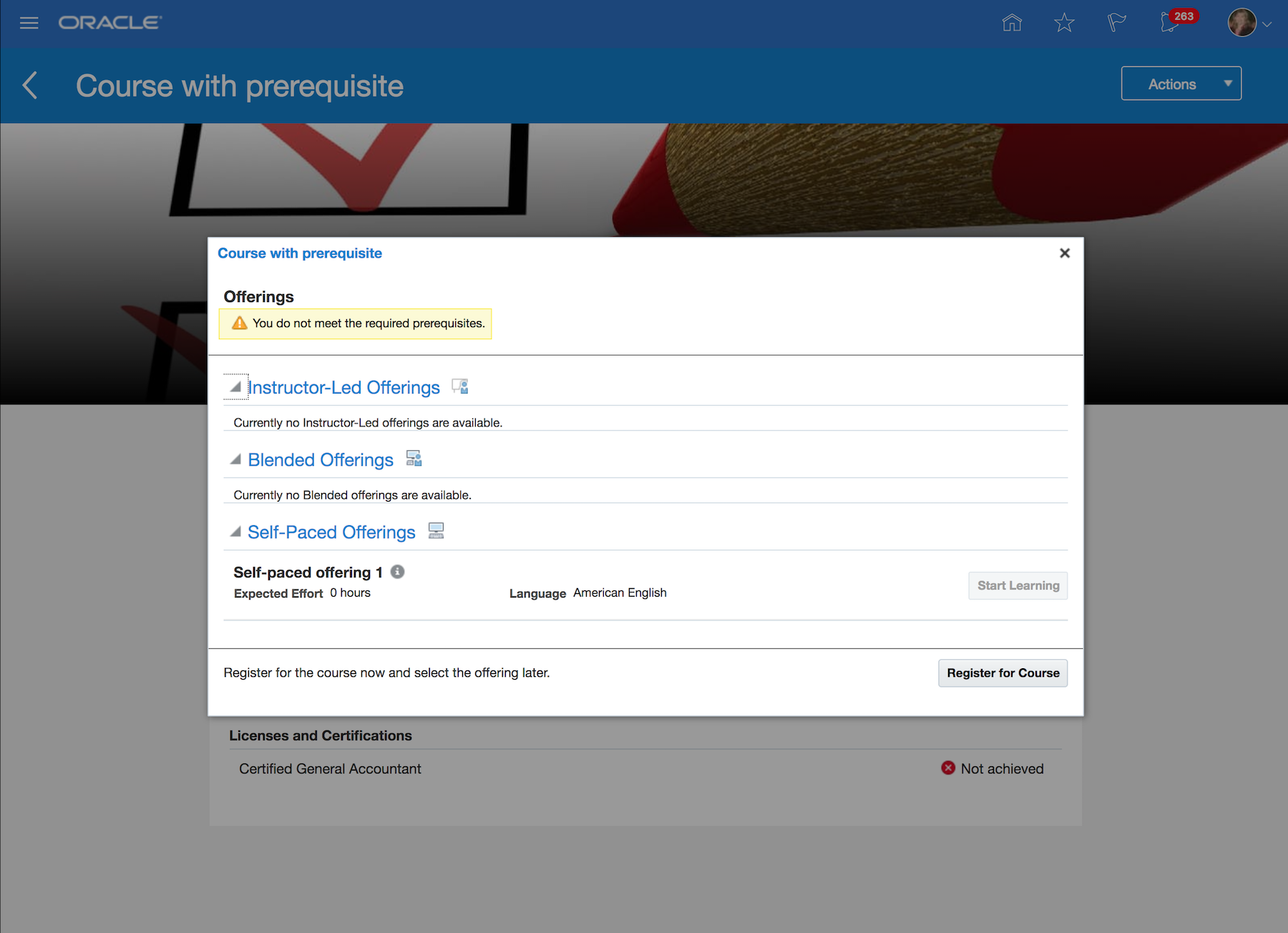
Prerequisites on the Offering List Page
Steps to Enable
Steps to Configure Prerequisite Items in Fusion Profiles Module:
- Go to Fusion Profiles module that is located under the navigation of My Workforce and select the option to manage content types from the sub navigation tab.
- Edit the content type that you want to enable for Learning and go to the Subscribers tab and add the “WLFLM” – “Learning Outcomes” as a subscriber and save.
- Create content items under the content this content type if none exist.
Please reference the Fusion Profiles Module user guide documentation for more details.
ESS Job for Reconciling Learning Assignment Status:
This job has several purposes, configurable by reconciliation type shown below.
- Reconcile Pending Prerequisite Assignments with Talent Profile - This mode scans assignments in pending prerequisite status and forces a check against the learner’s talent profile to see if he now has the missing prerequisite content item. Customers only need to run in this mode if they are using non-learning based prerequisites, and if so should be run daily.
- Evaluate Pending Prerequisite Assignments with Cut off Date (which will be renamed to Reconcile Pending Prerequisite Assignment Status Expiration)- This mode scans the assignments in pending prerequisites and cancels those whose status expiration date is in the past. Customers should schedule this one daily if they are using prerequisites and want to automatically expire these assignments, and if so should be run daily.
- Reconcile Waitlist Assignment- This mode fills open seats for the waitlist based on waitlist position. It is triggered on demand by the system when a seat becomes available. Customers do not need to use this mode. It will be removed.
- Reconcile Pending Payment Assignments With Expiration Date - Ignore, this functionality is not currently available.
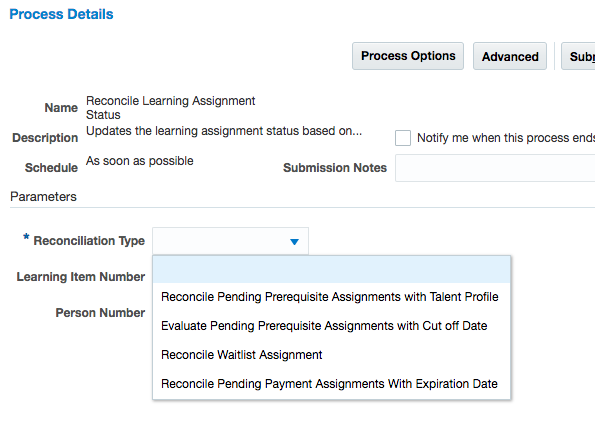
Reconcile Learning Assignment Scheduled Job
Expire Learning Assignments Pending Prerequisites
Expire learning assignments after a set number of days when prerequisites are missing.
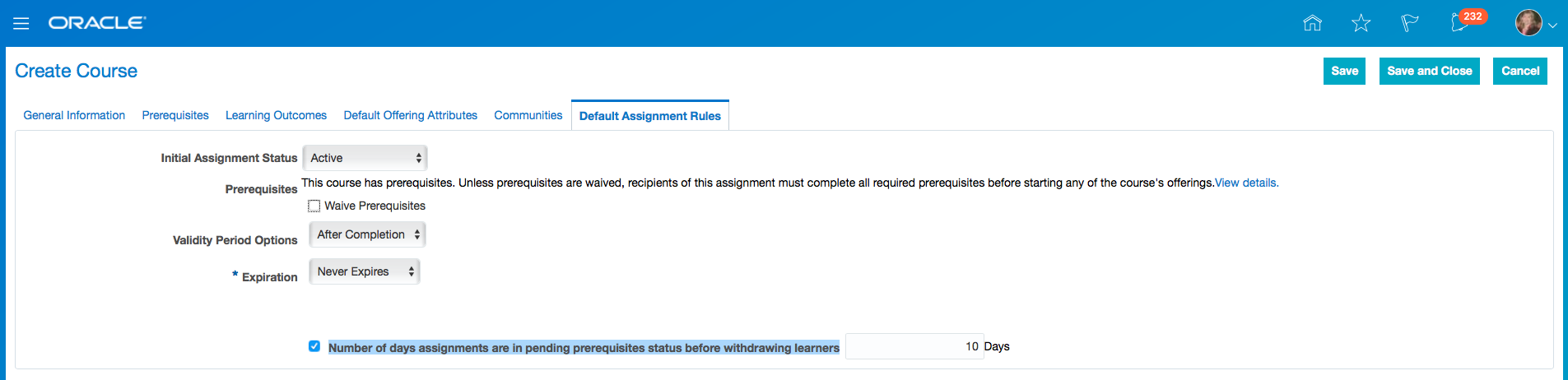
Course Default Assignment Rule for Expiring Learning Assignments Pending Prerequisites
Steps to Enable
No steps are required to enable this feature.
Choose to waive prerequisites during assignment creation or on existing learning assignments blocked by prerequisites.
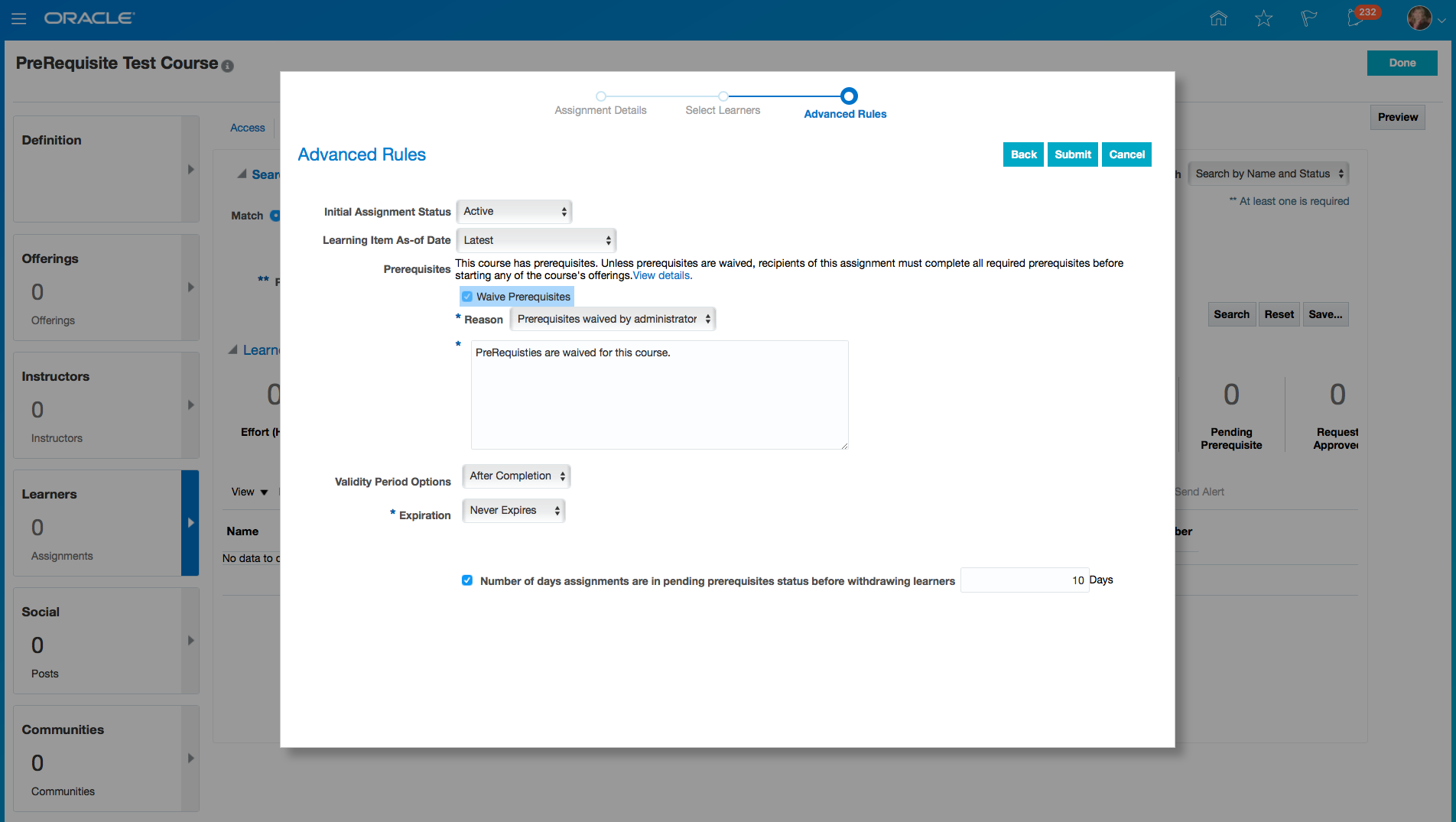
Waive Prerequisites During Assignment
Steps to Enable
No steps are required to enable this feature.
Support Assessment as a Learning Activity
Support assessments so that a learner can be measured on the knowledge and skills that have been learned. This ensures that the offering is achieving the learning outcomes of a course.
Based on the assessment configuration, the learner can perform the following assessment activities:
- Take an assessment.
- Retake an assessment.
- Be timed when taking an assessment.
- Save an assessment and take it at a later time.
- Review a completed assessment.
- View the attempt history that they have made on a specific assessment activity.
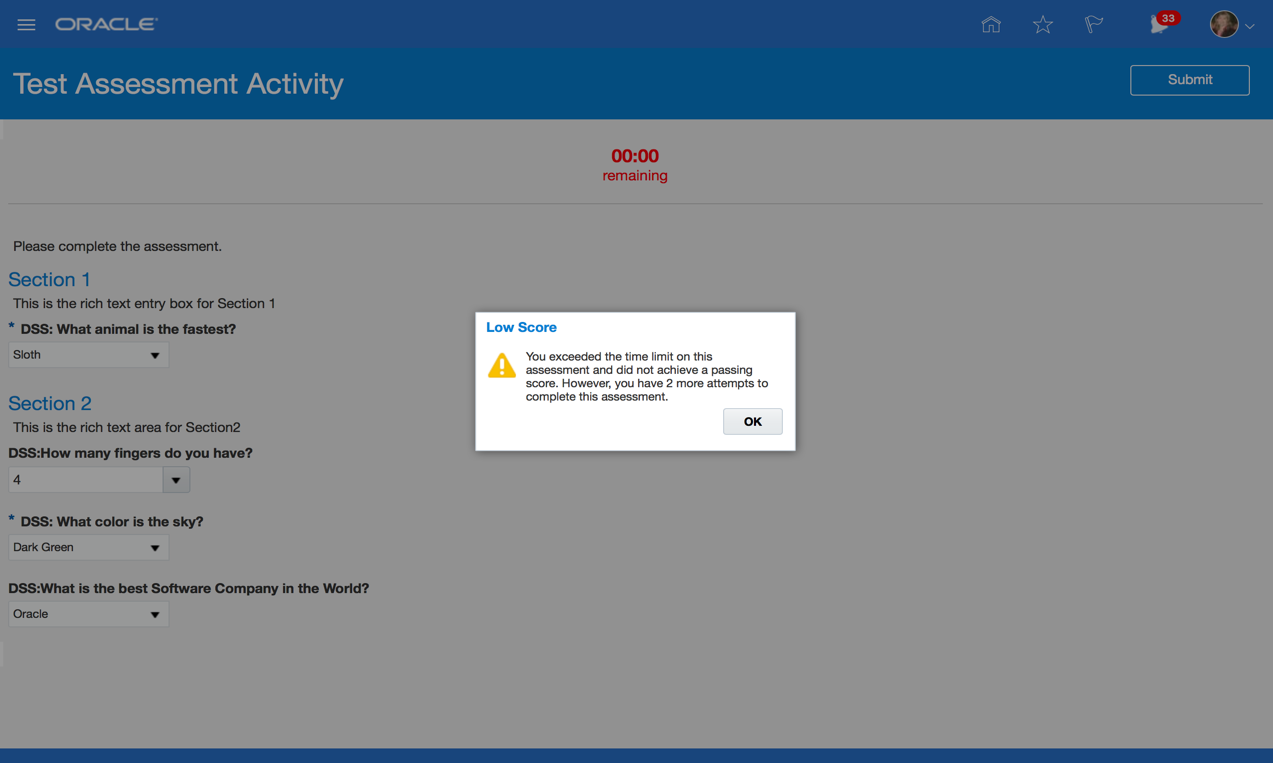
Learner Assessment Experience
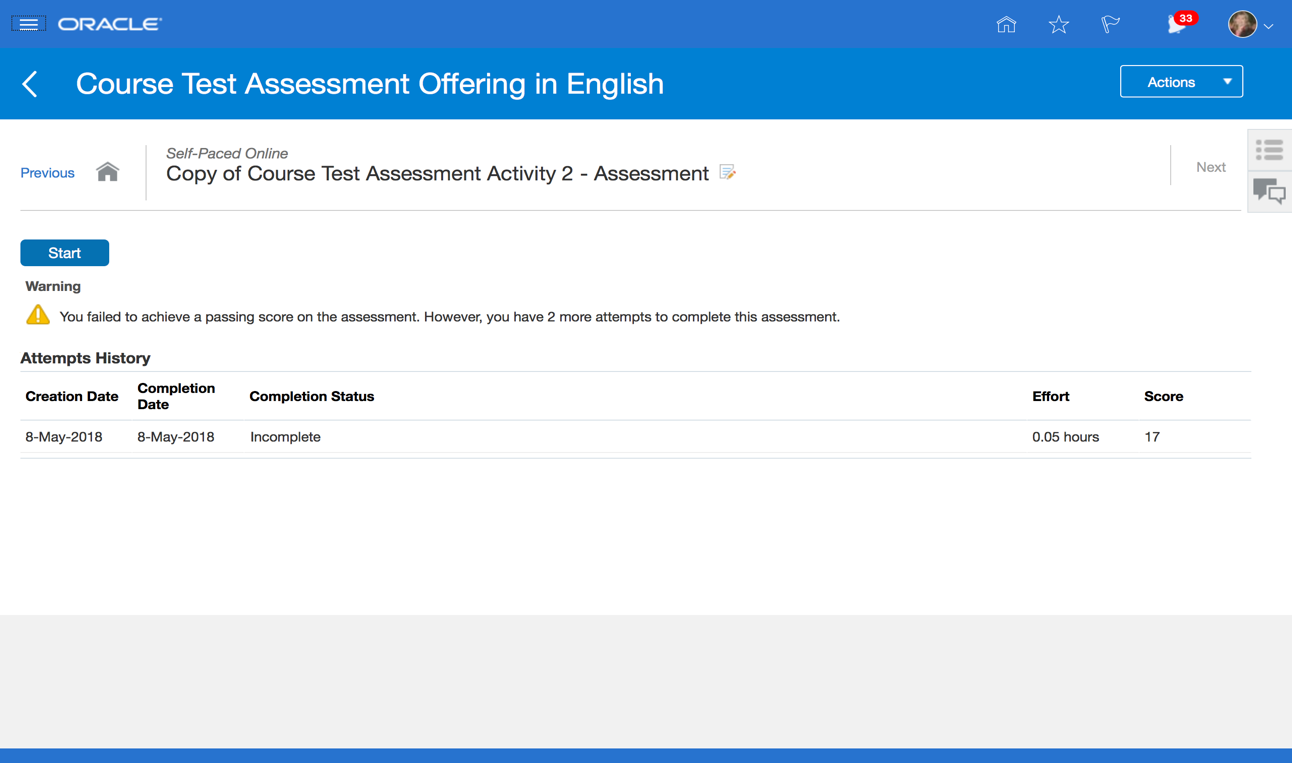
Learner Views Attempt History
The Administrator can view assessment attempts, responses and also manually mark an assessment activity as completed or exempt the learner from having to take the assessment in the manage activities area.
Steps to Enable
Assessments are created and configured on the Content tab of the Manage Catalog Resources page. The Administrator can associate a questionnaire assessment that has been created in the questionnaire area of Fusion. Once the questionnaire has been associated the administrator can configure the following Oracle Learning configurations onto the assessment:
- Enable a passing mastery score
- Set who can see the actual assessment score, the administrator or the learner.
- Set if the Learner can view the completed assessment.
- Set a time limit on how long the learner has to complete an assessment.
- Set the number of attempts to take an assessment.
- View an assessment attempt history
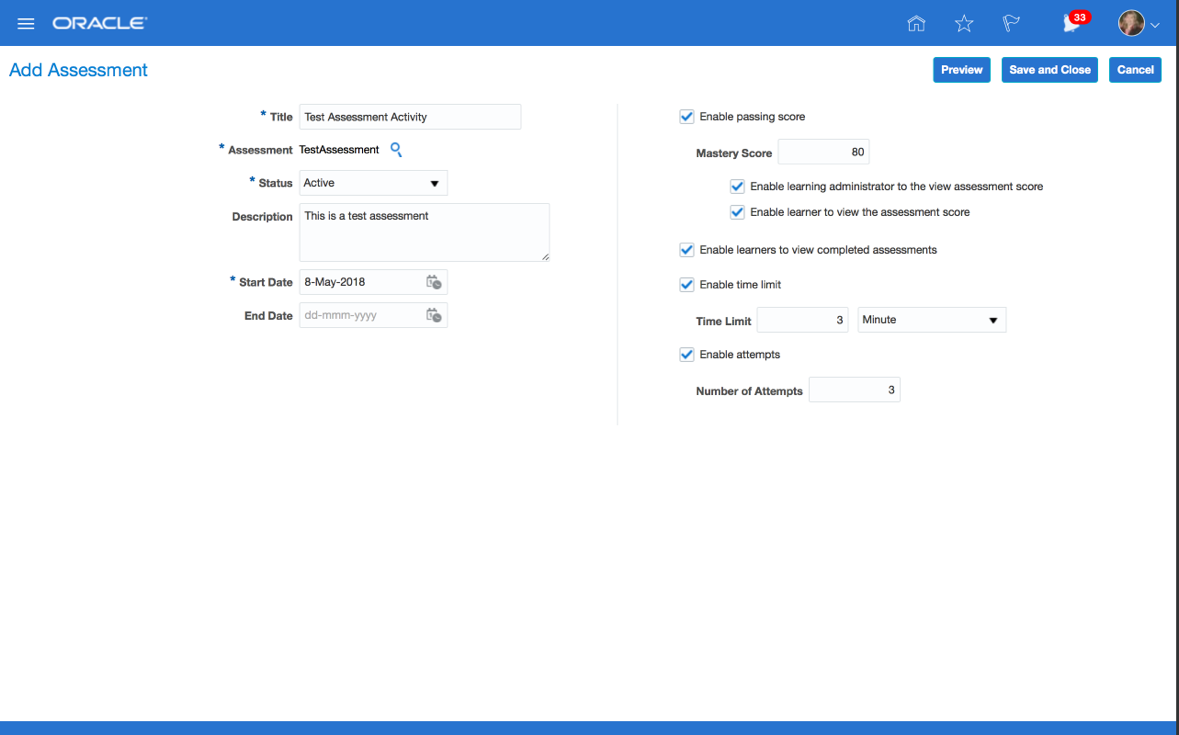
Configure an Assessment
Notify users of important learning events using new alerts.
Examples of new alerts:
- Customer-defined alerts initiated by the Administrator when viewing assignments. This alert can be configured and used as an action from the manage learners area.
- Alert to recommend a learning item to a Learner. This alert can be configured to be sent when a learning item has been recommended to a Learner.
- Alert to a Learner when the Administrator updates an instructor-led activity. This alert can be configured to be sent when instructor-led activities in an offering have changed.
- Alert to an Instructor when the Administrator updates an instructor-led activity. This alert can be configured to be sent when instructor-led activities in an offering have change.
- Alert to remind an Instructor that an instructor-led activity start date is approaching. This alert can be configured to be sent to remind an Instructor when the start date of an instructor-led activity that they are associated with is approaching.
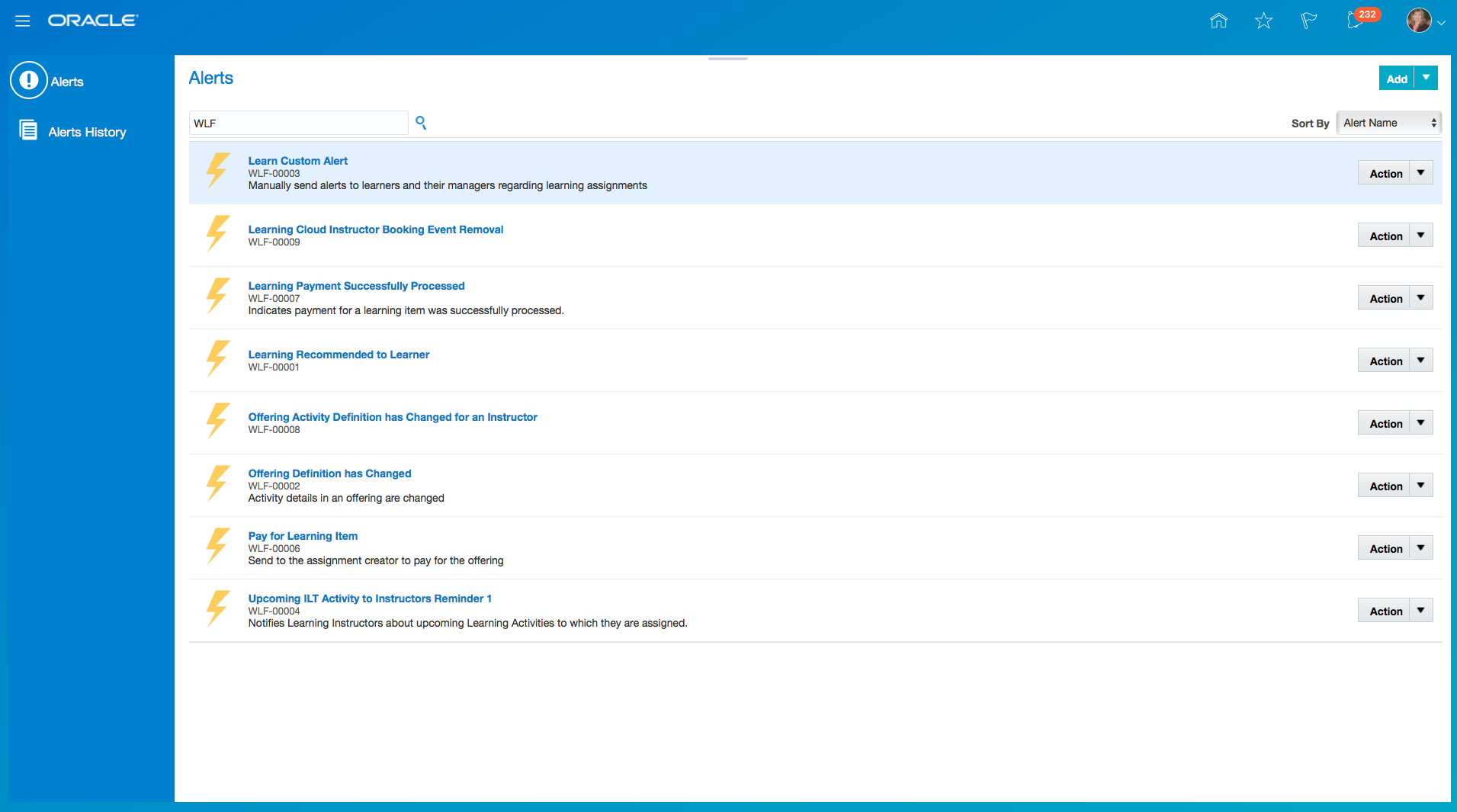
Oracle Learning Cloud Alerts
When users select the Send Alert Action button, they can select the template they wish to send to the Learner. The alert templates are setup with the message text, the recipient, and the communication method (email or worklist).

Custom Alert Action
Steps to Enable
The Administrator enables Oracle Learning alerts in the Manage Setup page and then configures alerts in the Alerts configuration page.
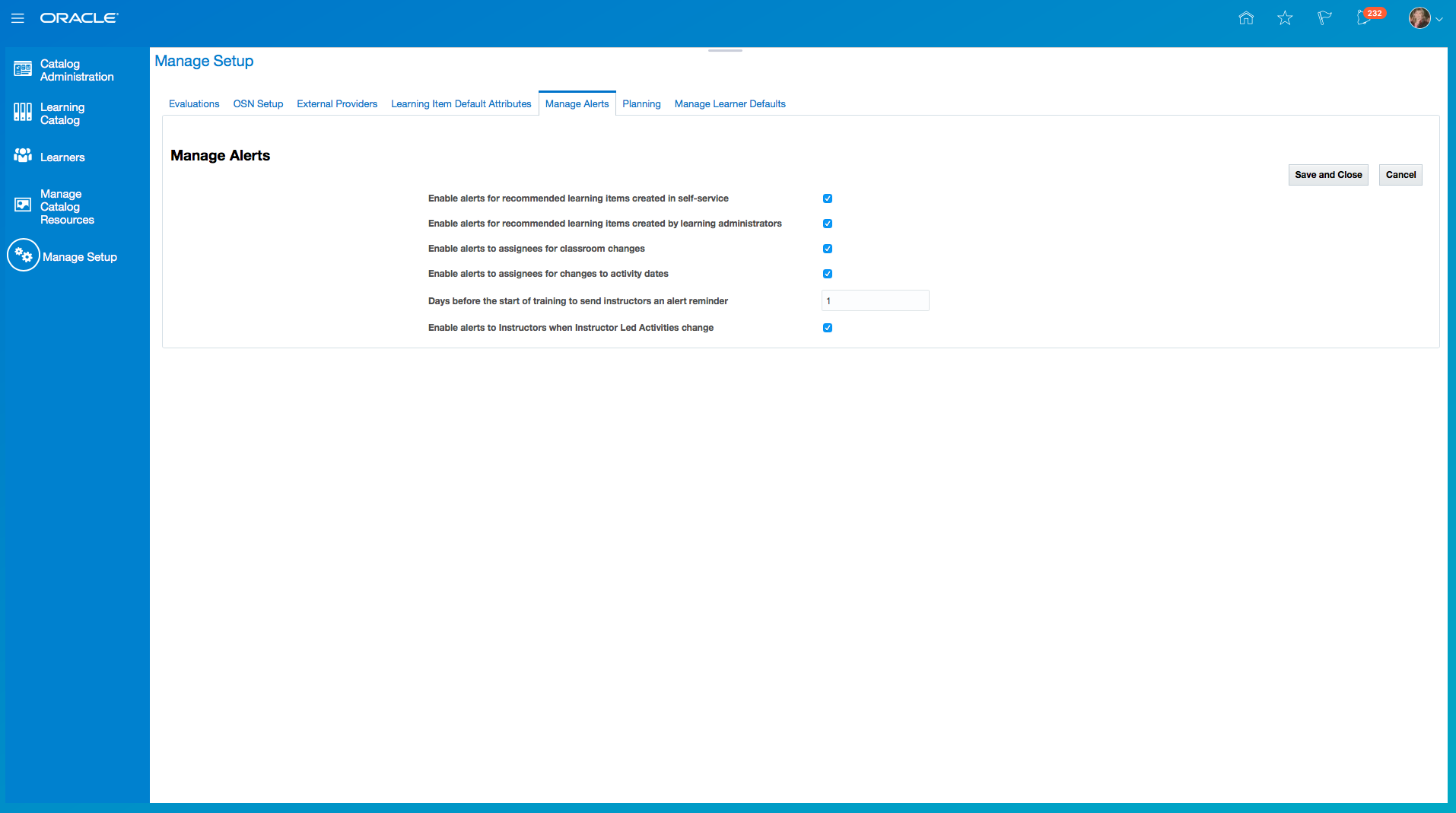
Manage Alerts Page
Manage Alerts Setup Options:
- Enable alerts for recommended learning items created in self-service: When this is enabled, if a recommendation is created by the Learner, the alert (Alert when a learning item is recommended to a Learner) will be sent to the recipients defined in the alert.
- Enable alerts for recommended learning items created by the learning administrators. When this is enabled, if a recommendation is created by the administrator, the alert (Alert when a learning item is recommended to a Learner) will be sent to the recipients defined in the alert.
- Enable alerts to assignees for changes to classroom changes: When this is enabled, if an Administrator updates an instructor-led activity classroom, the alert (Alert to a Learner when the Administrator updates an instructor-led activity), will be sent to the recipient defined in the alert.
- Enable alerts to assignees for changes to date changes: When this is enabled, if an Administrator updates an instructor-led activity date or time, the alert (Alert to a Learner when the Administrator updates an instructor-led activity), will be sent to the recipient defined in the alert.
- Days before the start of training to send instructors an alert reminder: When a value is entered into this field the alert is enabled, if it is Null it is disabled and if it is 0 it will fire off the alert on the day of the activity. The value defines how many days before the start of the training the instructors will receive the alert (Alert to remind an Instructor that an instructor-led activity start date is fast approaching).
- Enable alerts to instructors when instructor led activities change: When this is enabled, if an Administrator updates an instructor-led activity, the alert (Alert to a Instructor when the Administrator updates an instructor-led activity), will be sent to the recipient defined in the alert.
To ensure alerts are being processed, the Administrator must run the Process Learning Alerts job from the Scheduled Processes work area.
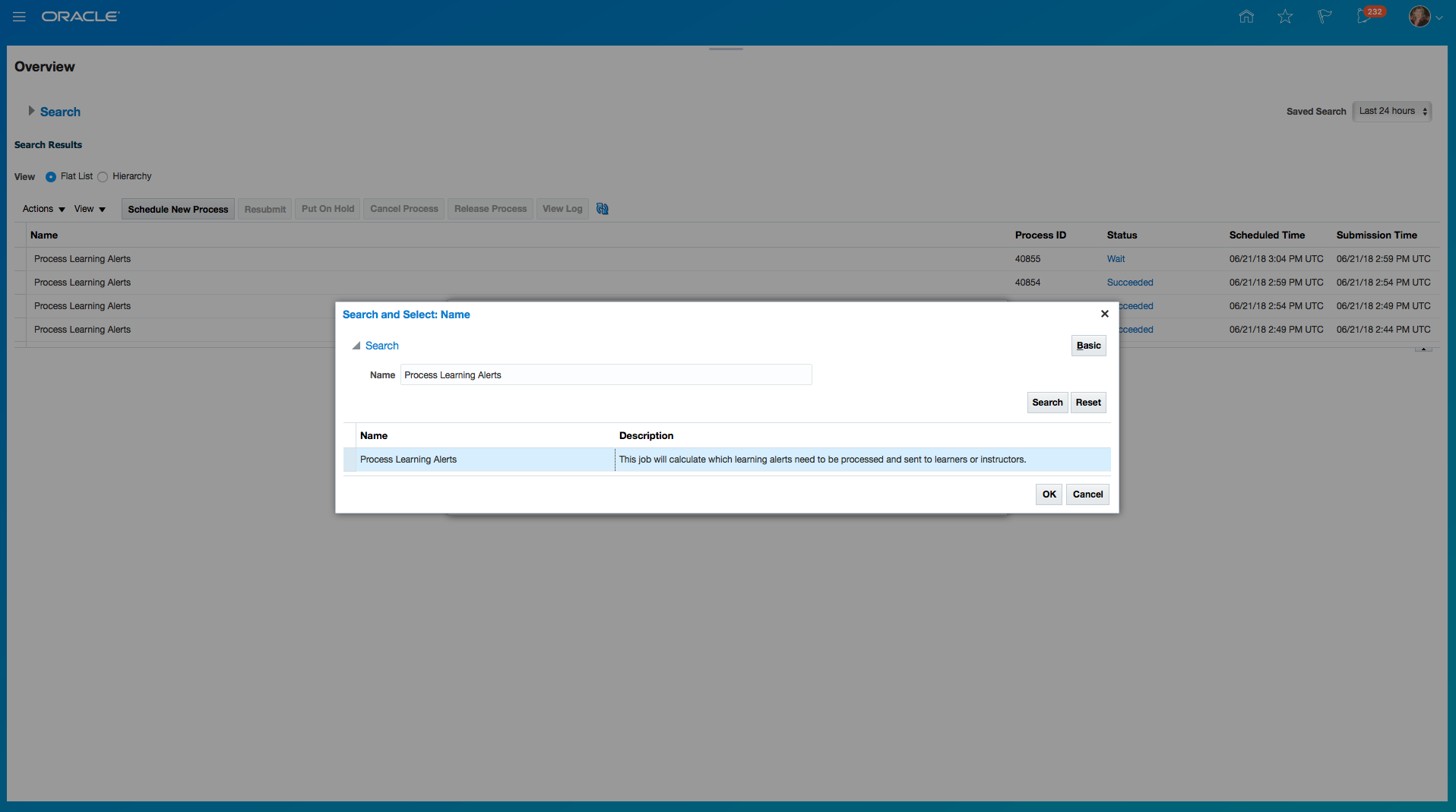
Process Learning Alerts Job in the Scheduled Processes Work Area
Define Instructors Who Can Teach Offerings
Configure instructors who can be selected to teach offerings within a specific course.
When the Administrator creates an instructor-led offering activity, only the instructors who have been defined as part of the access group on the course can be associated to the instructor-led offering activity or a virtual instructor-led offering activity.
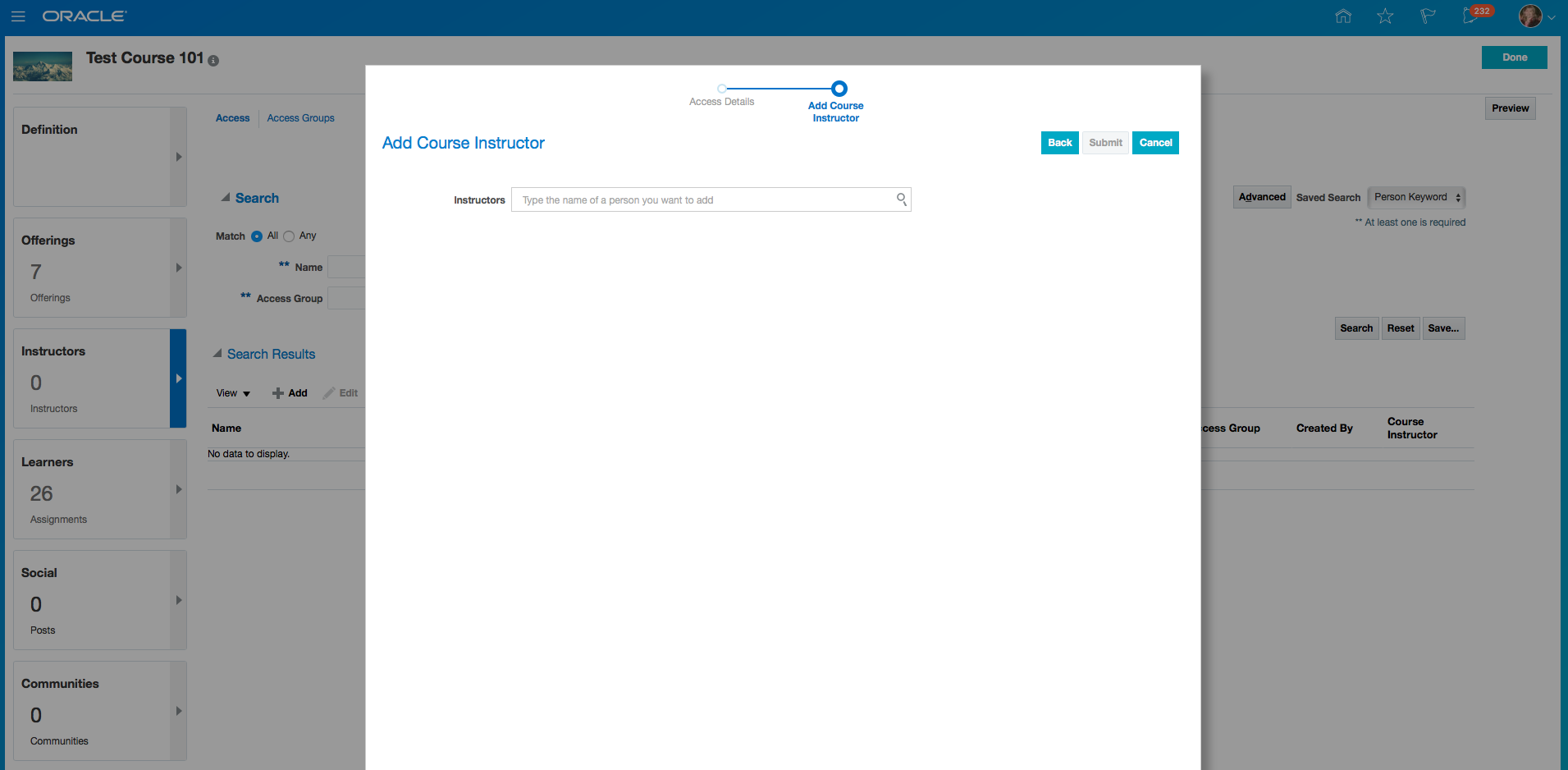
Add Instructors that Can Teach the Course
Steps to Enable
No steps are required to enable this feature.
Approve Self-Service Withdrawal from Catalog Items
Configure the approval process when self-service users attempt to withdraw from a course, offering, or specialization.
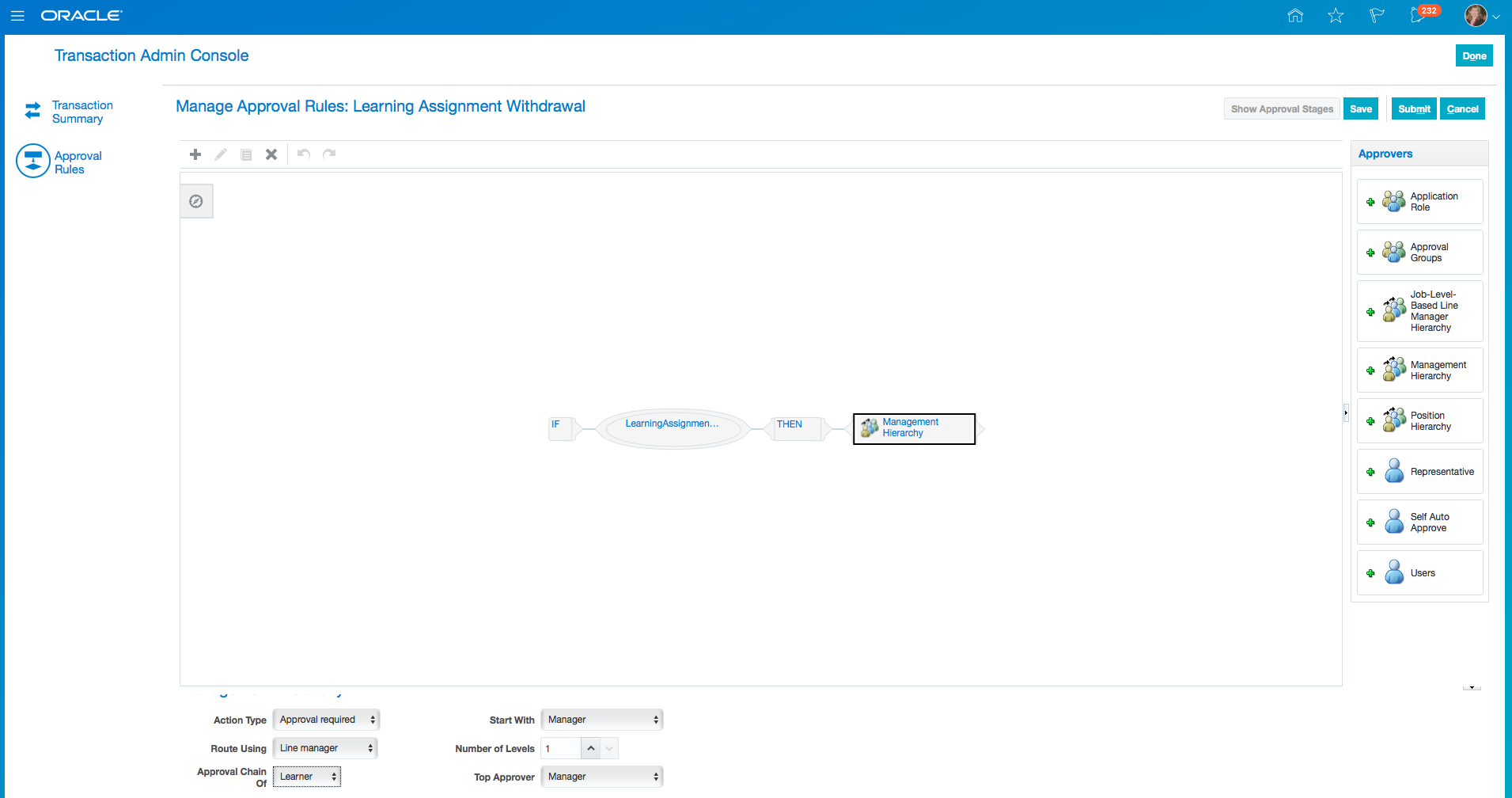
Approval Configuration for Withdraw
Steps to Enable
No steps are required to enable this feature.
Disable Self-Service Learning Request Form
Option to disable the learning request form, when approvals are required without the additional request data.
Steps to Enable
No steps are required to enable this feature.
Enhanced Request Approvals with Self-Service Price
Use self-service price or self-service price currency in learning request approval rules. This provides the ability to route approvals to different approvers based on currency or price.
Steps to Enable
No steps are required to enable this feature.
Add Courses and Specializations to Communities
Add courses and specializations to community catalogs from the administrator course and specialization details pages.
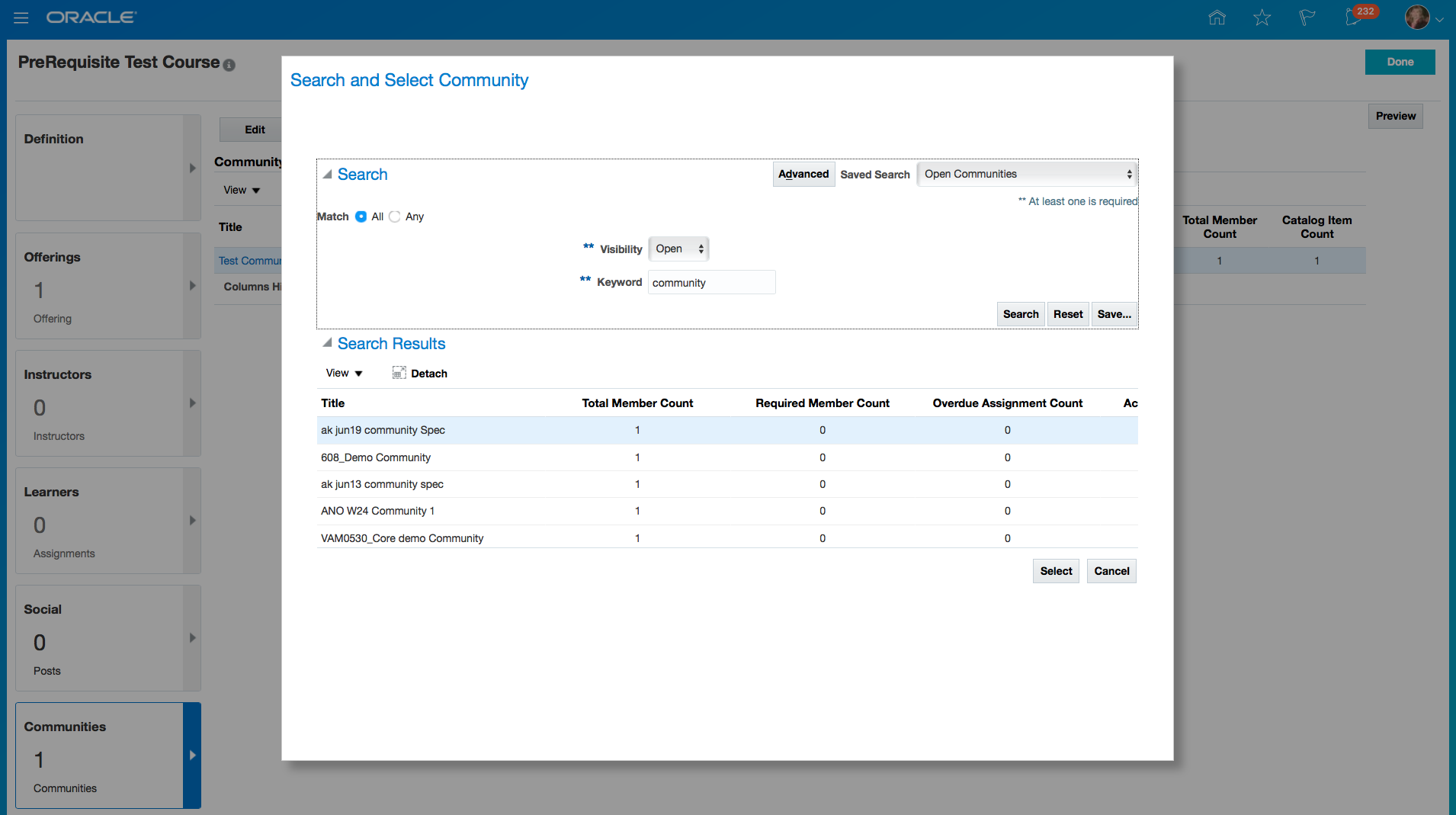
Add Course to a Community
Steps to Enable
No steps are required to enable this feature.
Catalog Item Translation Editor
Use the translation editor to translate the title and short description of courses, offerings, offering activities, and specializations. This allows the Administrator to provide translations without having to sign out and sign in, in a different language.
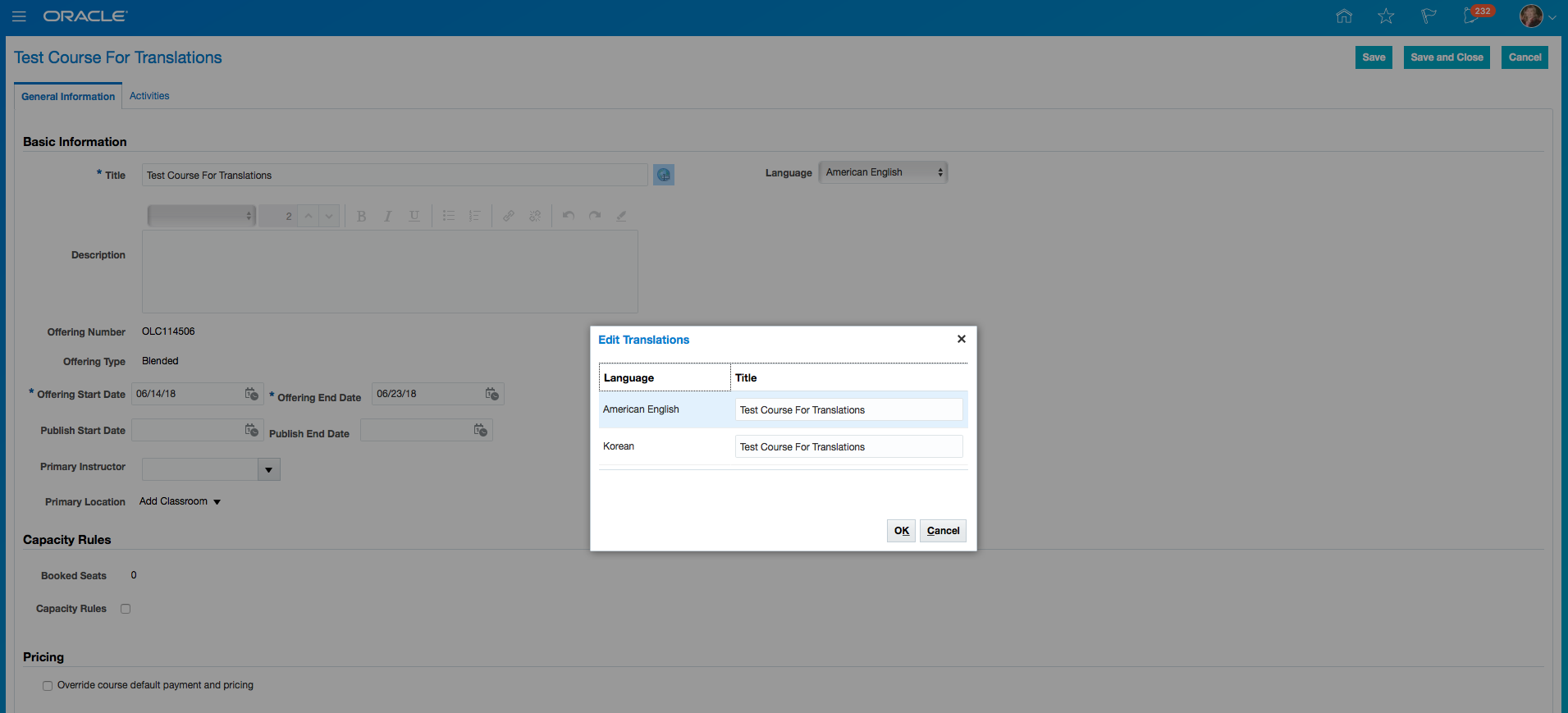
Translation Editor on a Course
Steps to Enable
No steps are required to enable this feature.
Manage Self-Service Content by the Administrator
Manage self-service videos, tutorials, and self-service communities created by employees and managers using the self-service functionality. The Administrator can delete self-service videos and tutorials, and manage self-service communities.
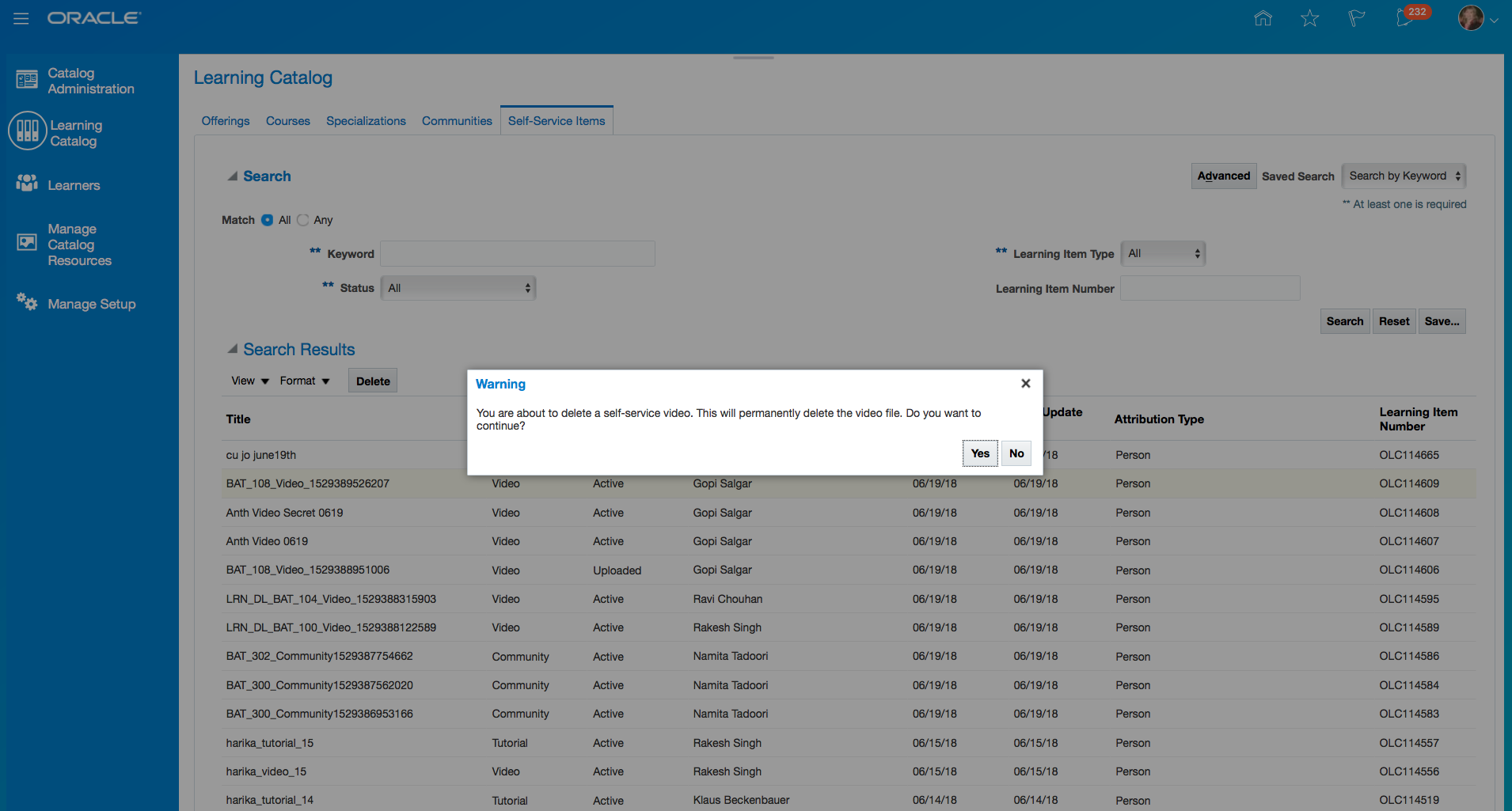
Self-Service Content Managed by the Administrator
Steps to Enable
No steps are required to enable this feature.
Support Deletion of Content Items
Delete SCORM content, videos, PDF documents, and web pages used in self-paced learning.
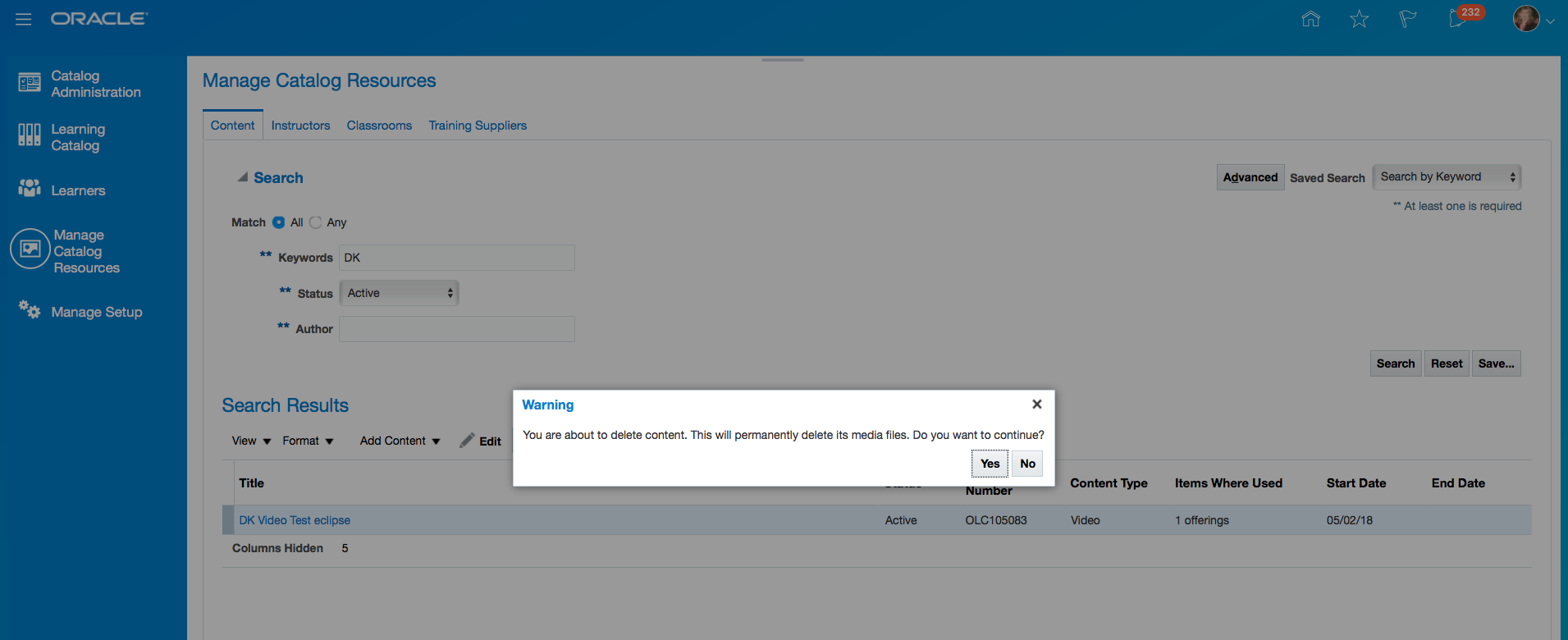
Deleting Content
When content is deleted, a message indicating that content is not available is displayed to the learners when they access an activity backed by the deleted content. The activity cannot be automatically transitioned to a completed state. The Administrator can manually change the activity status from the Manage Activities page.
Message Displayed to Learner
Steps to Enable
No steps are required to enable this feature.
View Content Item Import Errors
Enhance resource management by viewing errors during the import of SCORM content, HACP courses, videos, and PDF documents. This allows the Administrator to troubleshoot import issues. Whe the User selects the Processing Failed active link in the search results table a popup will display information about the error.
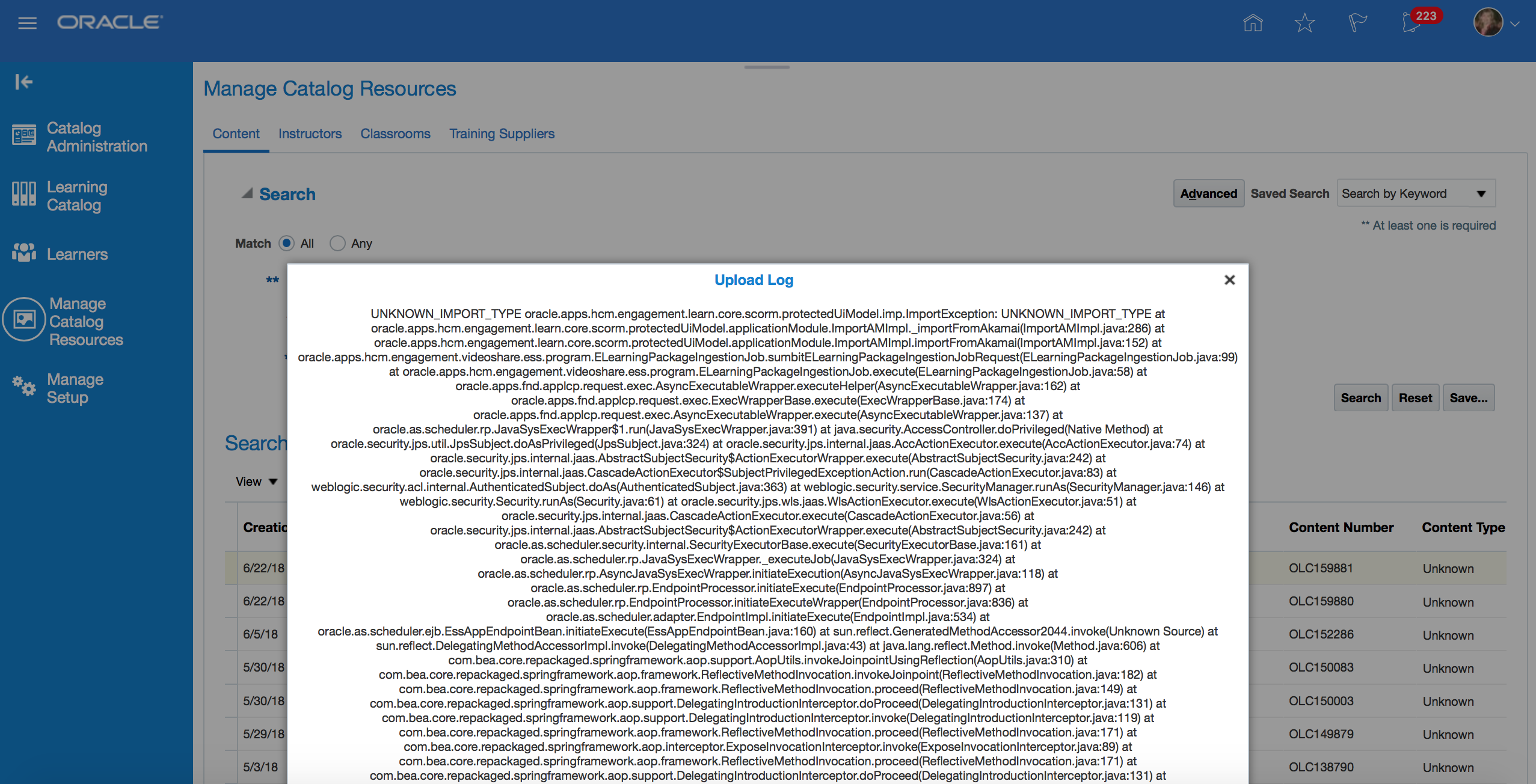
Steps to Enable
No steps are required to enable this feature.
Use Privileges to Access Content Items REST Endpoint
Use privileges to access the Learning Content Items REST endpoint. Two new privileges provide read-only or read-write access to the REST service and another for the ATOM feed.
- Use REST Service – eLearning Content
- Use REST Service – eLearning Content Read Only
- Use ATOM Feed – Learn Workspace
Steps to Enable
No steps are required to enable this feature.
Key Resources
For more information go to My Oracle Support for the following document:
- Oracle Learning Cloud Security Guide Release 13 (Document ID: 2336032.1)
Allow learners to hide a recommendation they received when they are viewing items recommended to them.
To hide a recommendation, click the "..." option available at the top right corner of the recommendation card and select “Hide”. When “Hide” is triggered, the assignment is updated to the "Deleted" status.
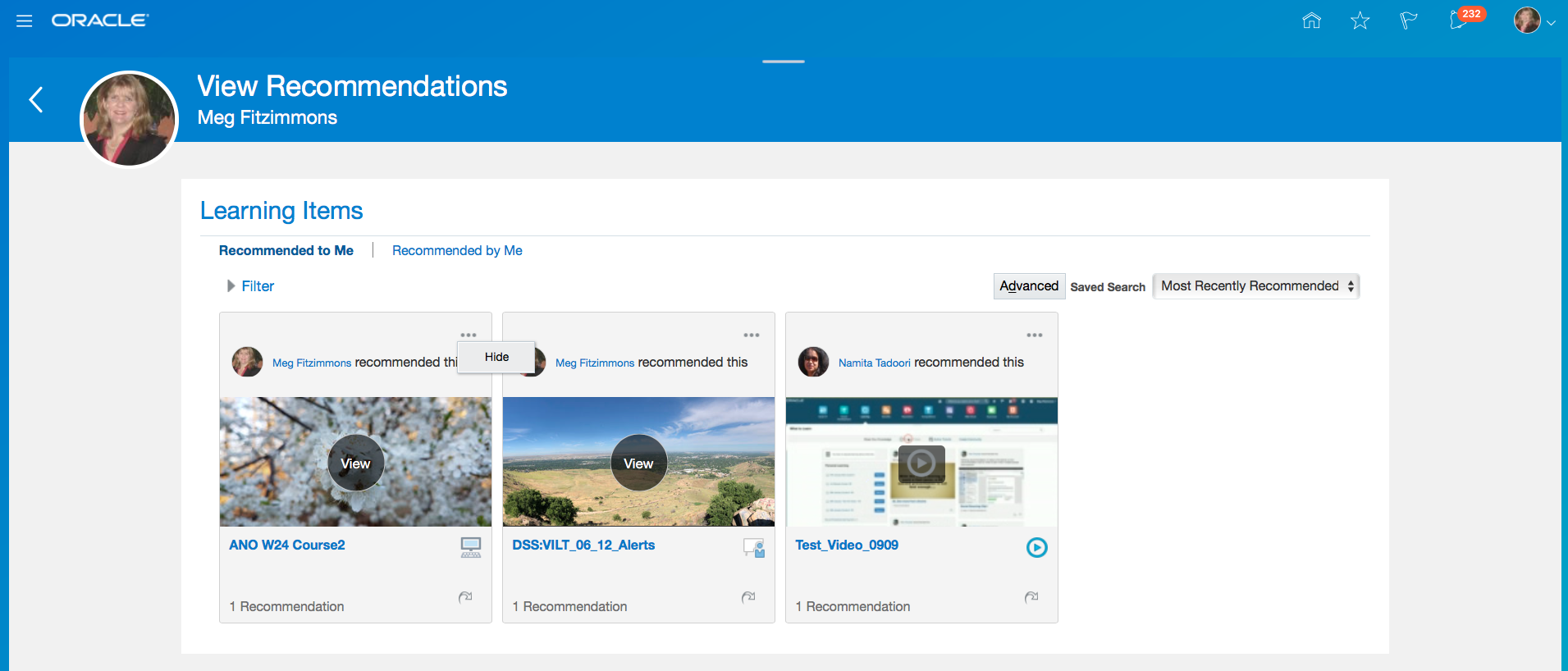
Hide a Recommendation
Steps to Enable
No steps are required to enable this feature.
Support direct access to the self-service and administrator views of catalog courses, offerings, and specializations. The Administrator can obtain these direct links from the Learning Item Number link when viewing learning items, and share them with others. An HTML code snippet is also available to embed the self-service details page of an item into other applications or web pages. Learners can access these direct links from the learning item details page action button.
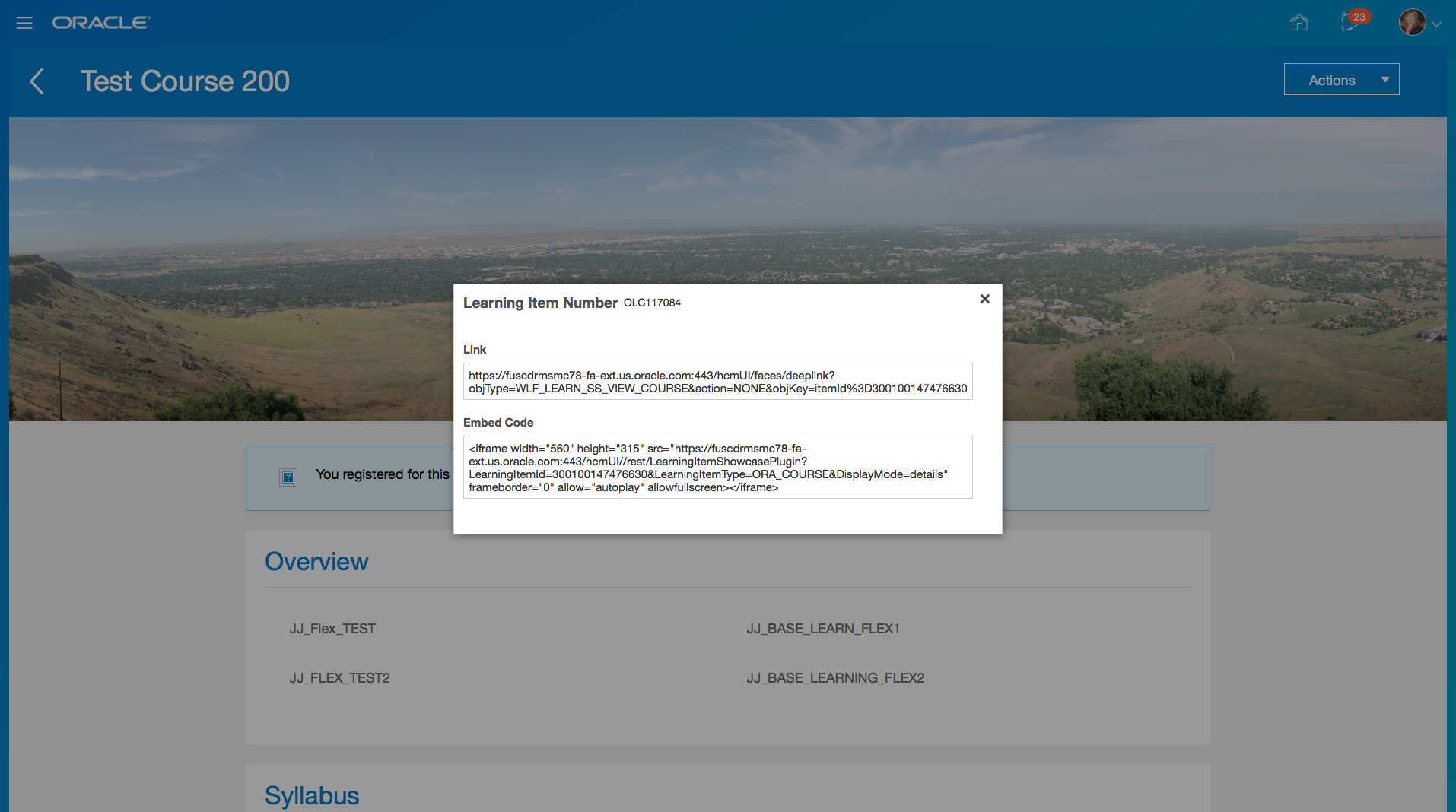
Learner Can View Links Using Copy Link Action
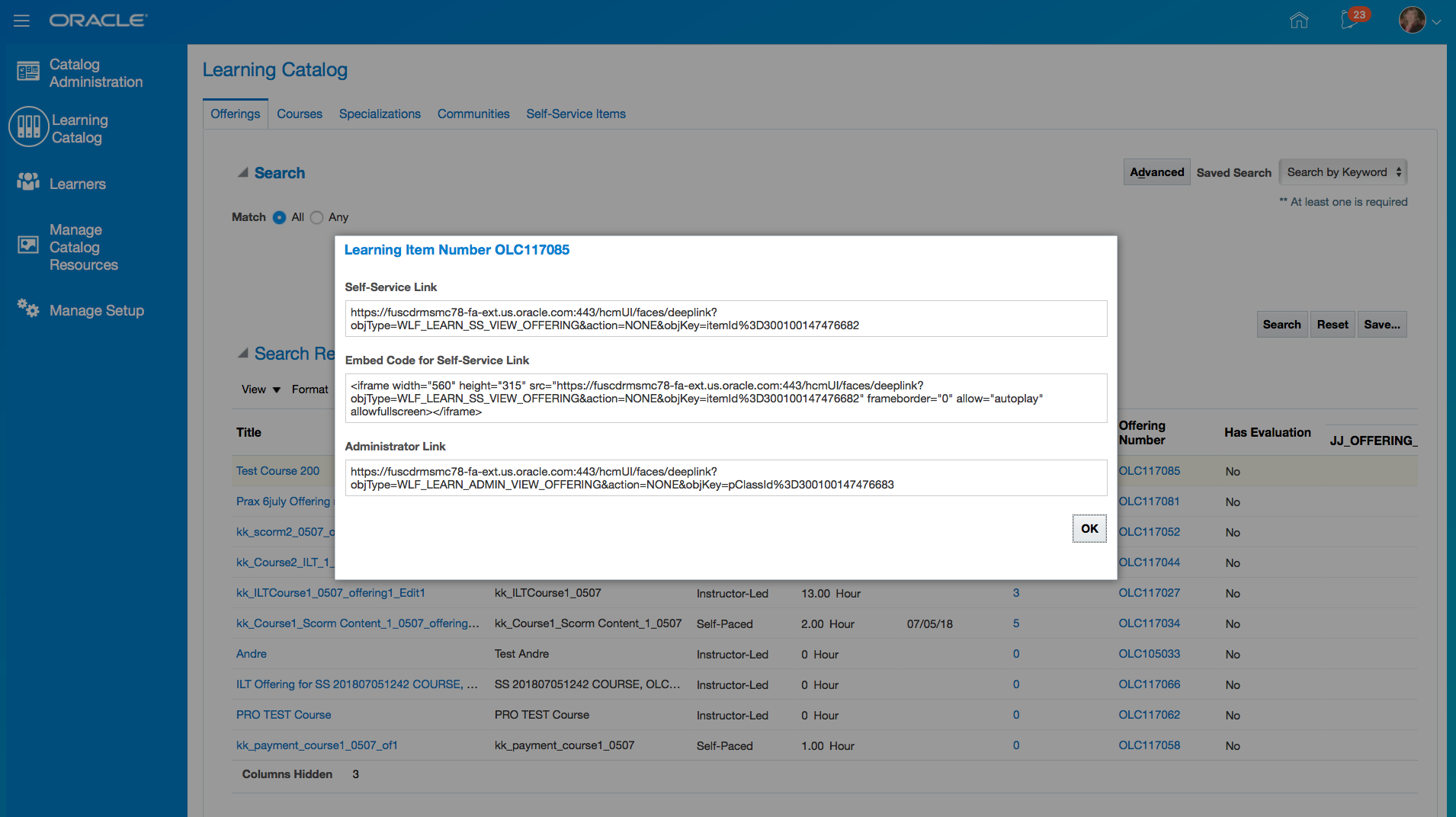
Administrator Can View Links by Clicking on Offering Number
Steps to Enable
No steps are required to enable this feature.
Enhanced Contextual Learning Functionality
Enhanced contextual learning functionality so that the activity player can be directed to a specific activity or the evaluation step in the activity player. This also includes enhancing the web plugin to be directed to a specific activity or evaluation step in the activity player.
Deeplink to Activity Player
This is to support deep link and showcase web plugin access to activity player initialized to specific activity ID. Added a new parameter to the deeplink called "activity". When the "showActivity" parameter is set to "activity", the "activityId" parameter should be passed to the activity player task flow with the activity ID of the activity to show. When "showActivity" = "activity" and the activityId is not null, the player should automatically navigate to that activity. If the learner does not have access to the activity for any reason, the player should show the blocked facet.
Example URLs:
Sample Url : https://<HOST>/hcmUI/rest/LearningItemShowcasePlugin?LearningItemId=300100100233269&LearningItemType=ORA_CLASS&ActivityLearningItemId=100100057481622&ShowActivity=activity&DisplayMode=details
Sample expression to be used in HTML Markup in page composer in offering player: <img src="/hcmCore/images/func_link_16_ena.png"> <a href="<HOST>/hcmUI/rest/LearningItemShowcasePlugin?LearningItemId=#{bindings.ClassLearningItemId.inputValue}&LearningItemType=ORA_CLASS&ActivityLearningItemId=#{bindings.ActivityLearningItemId.inputValue}&ShowActivity=activity&DisplayMode=details">Right click to copy link to Activity</a>
Deeplink to Evaluation
The player needs to support a deep link to its evaluation step. The task flow is enhanced to accept two additional parameters "showActivity", that can be the "eval", "home", "resume", "completion". The player will display the first available activity of that type that is not yet completed, if one exists, or the most recently completed activity of that type. If the activity is locked, the player will show the lock page.
Example URL:
https://<HOST>/fndSetup/faces/deeplink?objType=WLF_LEARN_SS_VIEW_OFFERING&action=NONE&objKey=itemId%3D300100097361784%3BshowActivity%3Deval
Web Plugin for Self Paced Activity Content Player
This enhancement is to extend the showcase web plugin to allow the caller to view the content player for SCORM, assessments, and videos.
This needs to accept the following parameters:
- DisplayMode - This should be "contentPlayer" for the content player
- ActivityLearningItemId - This is the learning item ID of the activity
- ActivityContentType - This is content type from the activity table
- AssignmentRecordId - This is the assignment record ID of the offering
- CloseMode - This is the way the component is to close the player:
- postMessage - It will post a message using JavaScript postMessage(message:"learnContentPlayerDone", dataSource:"learningItemShowcasePlugin") so the page embedding the component can close itself
- closeWindow - It will call top.window.close() to close the window or tab
The player will display in a headless view with a Done button.
Sample for SCORM :
https://<HOST>/hcmUI/rest/LearningItemShowcasePlugin?ActivityLearningItemId=100100057481622&AssignmentRecordId=300100130116004&ActivityContentType=ORA_SCORM&DisplayMode=contentPlayer&CloseMode=closeWindow
Sample for Assessment :
https://<HOST>/hcmUI/rest/LearningItemShowcasePlugin?ActivityLearningItemId=300100125247020&AssignmentRecordId=300100130116052&ActivityContentType=ORA_ASSESSMENT&DisplayMode=contentPlayer&CloseMode=closeWindow
Sample for Video :
https://<HOST>/hcmUI/rest/LearningItemShowcasePlugin?ActivityLearningItemId=100100057482540&AssignmentRecordId=300100129968045&ActivityContentType=ORA_VIDEO&DisplayMode=contentPlayer&CloseMode=closeWindow
Sample expression to be used in HTML Markup in page composer in offering player: <img src="/hcmCore/images/func_link_16_ena.png"> <a href="<HOST>/hcmUI/rest/LearningItemShowcasePlugin?ActivityLearningItemId=#{bindings.ActivityLearningItemId.inputValue}&AssignmentRecordId=#{bindings.AssignmentRecordId.inputValue}&ActivityContentType=ORA_ASSESSMENT&DisplayMode=contentPlayer&CloseMode=postMessage">Right click to copy link to Content Player</a>
Web Plugin for Learning Evaluation Player
This enhancement is to extend the showcase web plugin to allow the caller to view the content player for evaluation player.
This needs to accept the following parameters:
- DisplayMode - This should "evaluation" for the evaluation player
- LearningItemId - This is the ID of the offering for which to show the evaluation
- AssignmentRecordId - The ID of the assignment record
- CloseMode - This is the way the component is to close the player:
- postMessage - It will post a message using JavaScript postMessage(message:"learnEvaluationPlayerDone", dataSource:"learningItemShowcasePlugin") so the page embedding the component can close itself
- closeWindow - It will call top.window.close() to close the window or tab
The player will display in a headless view with a Done button.
Sample Url :
https://<HOST>/hcmUI/rest/LearningItemShowcasePlugin?LearningItemId=300100125778981&AssignmentRecordId=300100125785103&DisplayMode=evaluation&CloseMode=postMessage
Sample expression to be used in HTML Markup in page composer in offering player :<img src="/hcmCore/images/func_link_16_ena.png"> <a href="https://<HOST>/hcmUI/rest/LearningItemShowcasePlugin?LearningItemId=#{bindings.ClassLearningItemId.inputValue}&AssignmentRecordId=#{bindings.AssignmentRecordId.inputValue}&DisplayMode=evaluation&CloseMode=postMessage">Right click to copy link to Evaluation Player</a>
Steps to Enable
No steps are required to enable this feature.
Flexfield Support on Learning Items
Support learning item and specialization level flexfields.
Steps to Enable
No steps are required to enable this feature.
Default Learning Assignment Attributes
Streamline the assignment creation process by using configurable default assignment details.

Default Assignment Rules for a Course
Steps to Enable
No steps are required to enable this feature.
Enable Assignment Summary Metrics
Enable assignment summary metrics on pages where assignment records are displayed.
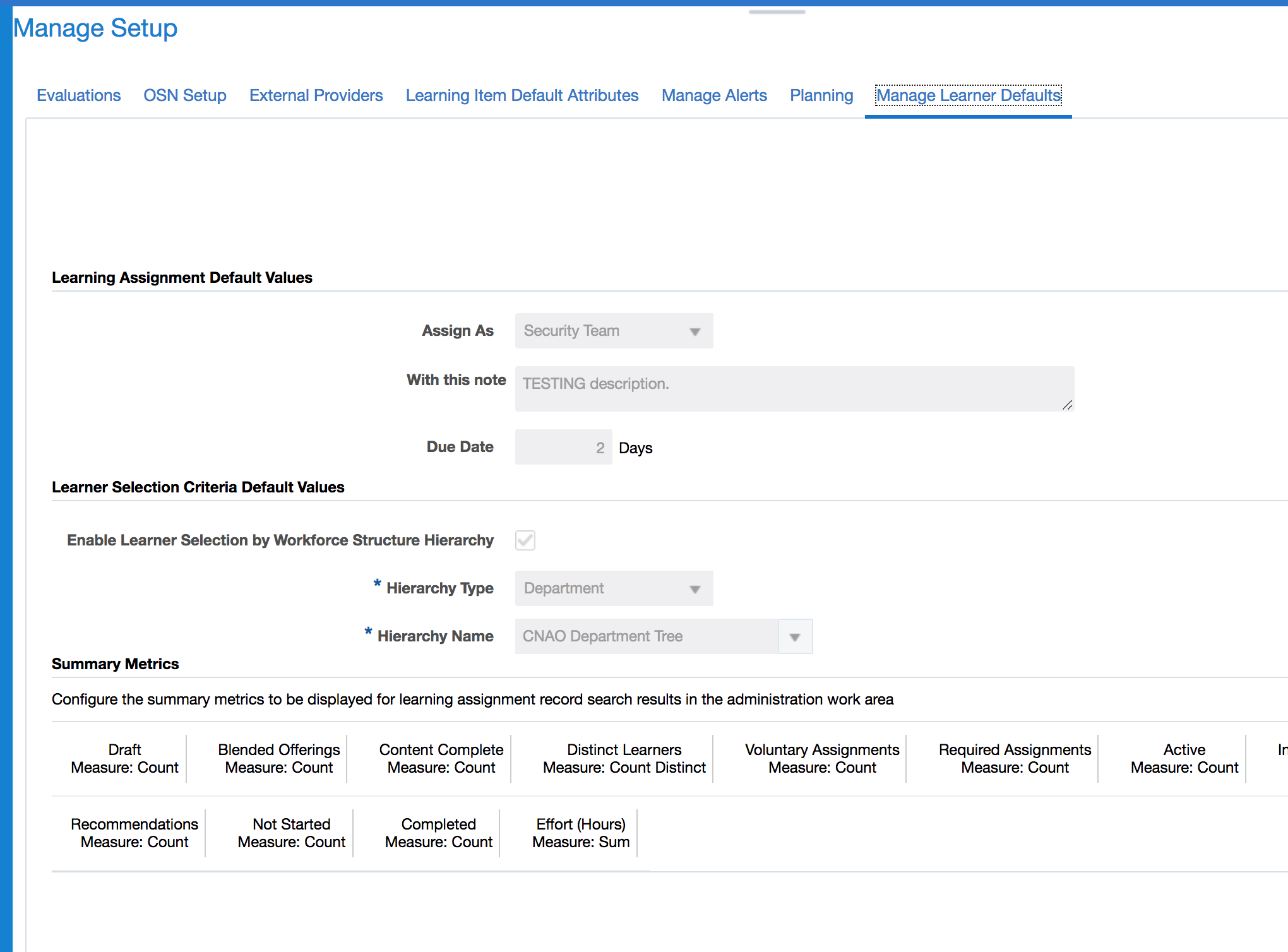
Manage Setup of Summary Metrics
Steps to Enable
No steps are required to enable this feature.
Associate Attachments to an Offering
Associate attachments to an offering so that administrators can download and review the information in these attachments.
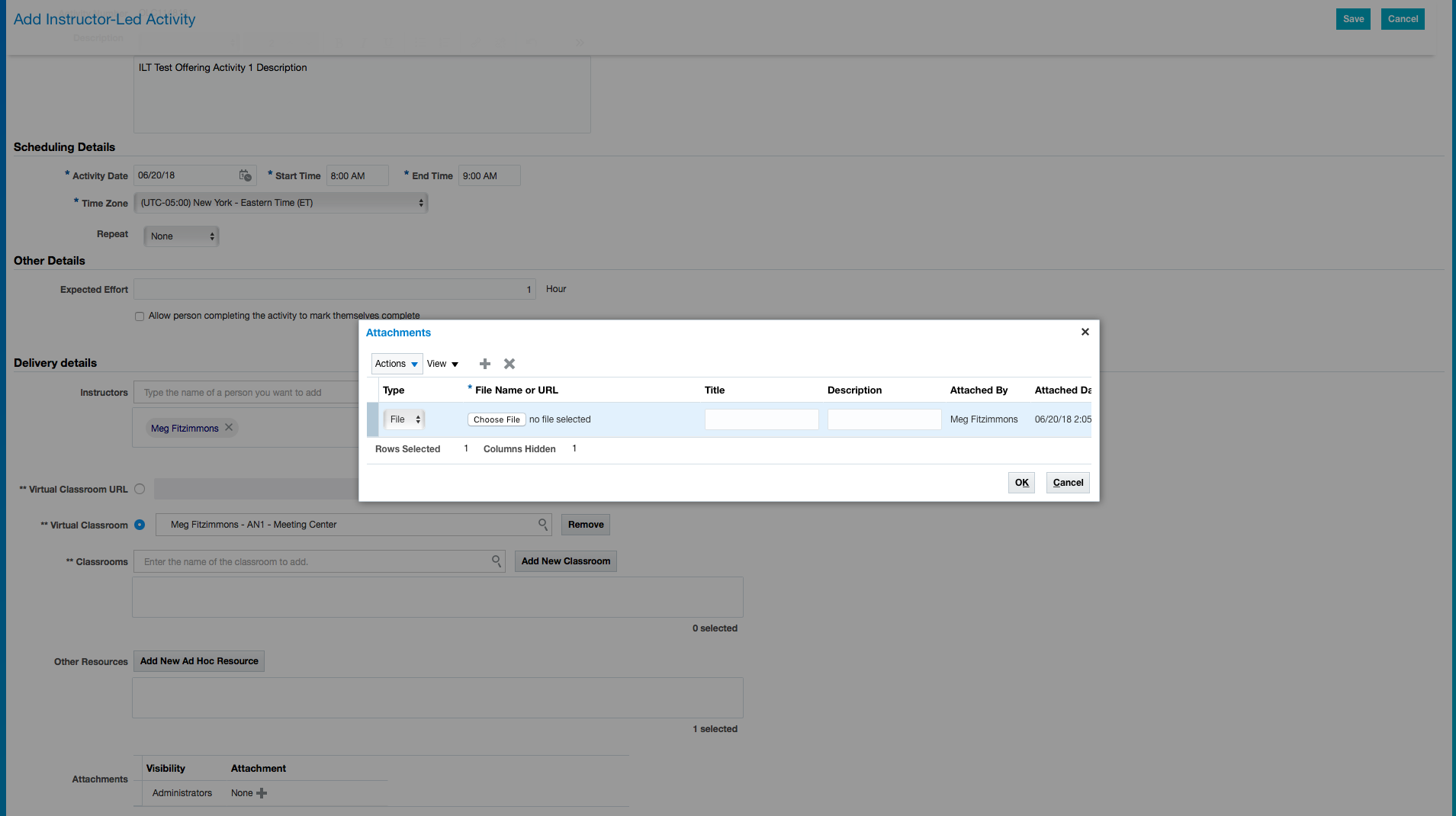
Associate File to an Instructor-Led Offering
Steps to Enable
No steps are required to enable this feature.
Bulk Create Offering Activities
Enhance instructor-led offerings to support the creation of multiple activities using a daily, weekly, or monthly cadence. This functionality helps streamline the activity creation process for the Administrator.
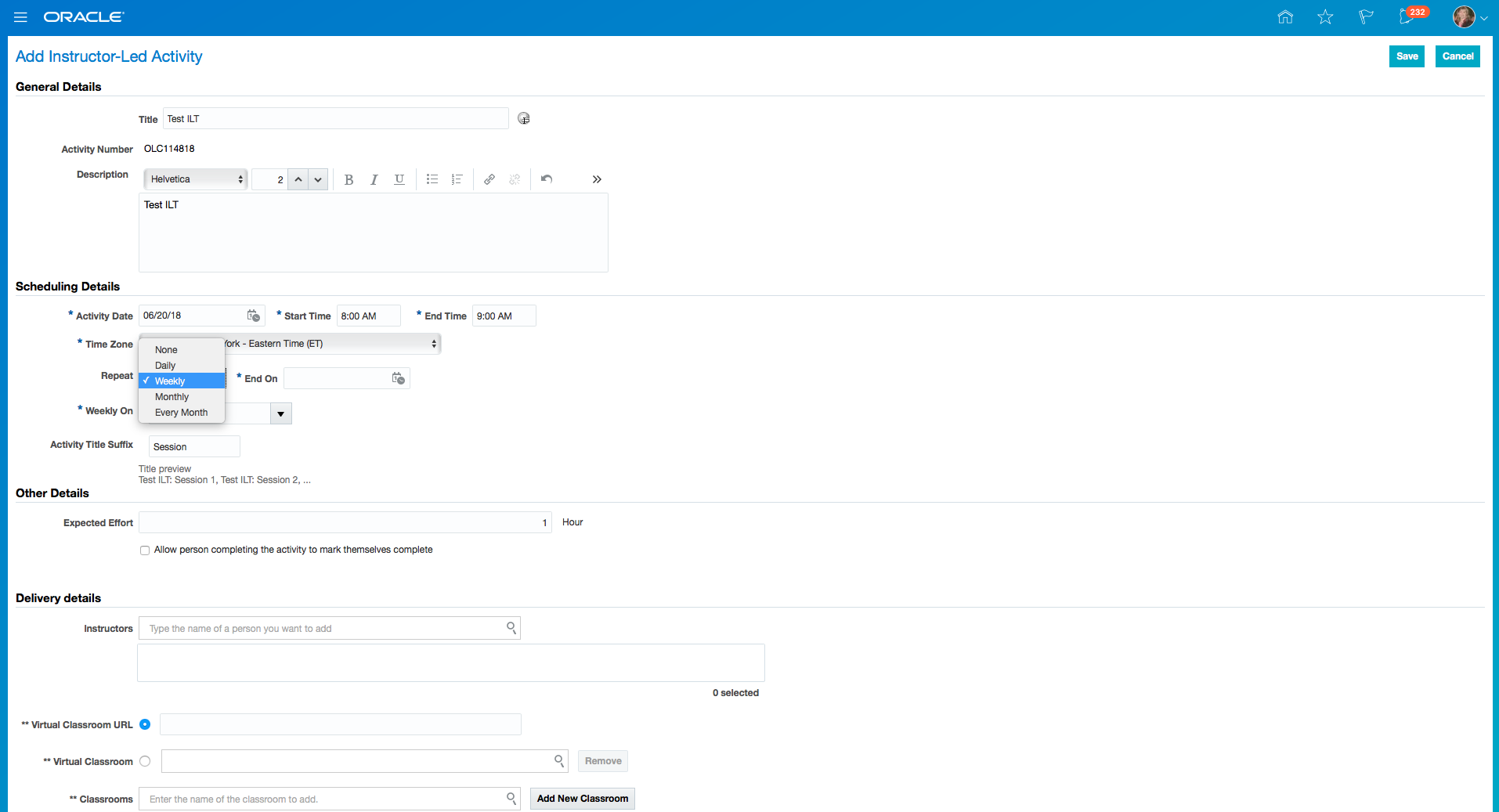
Repeat Activities
Steps to Enable
No steps are required to enable this feature.
New Course Management Data Security
Control for which courses the Administrator can create offerings. When the Administrator creates an offering and chooses an offering, data security is enforced.
Steps to Enable
No steps are required to enable this feature.
Enhance Offering Activities Management
Mark offering activities as complete, exempted, or incomplete using a completion date. On manually setting the completion status of an activity, require manual setting of completion date. This allows the Administrator to better manage offering assignments.
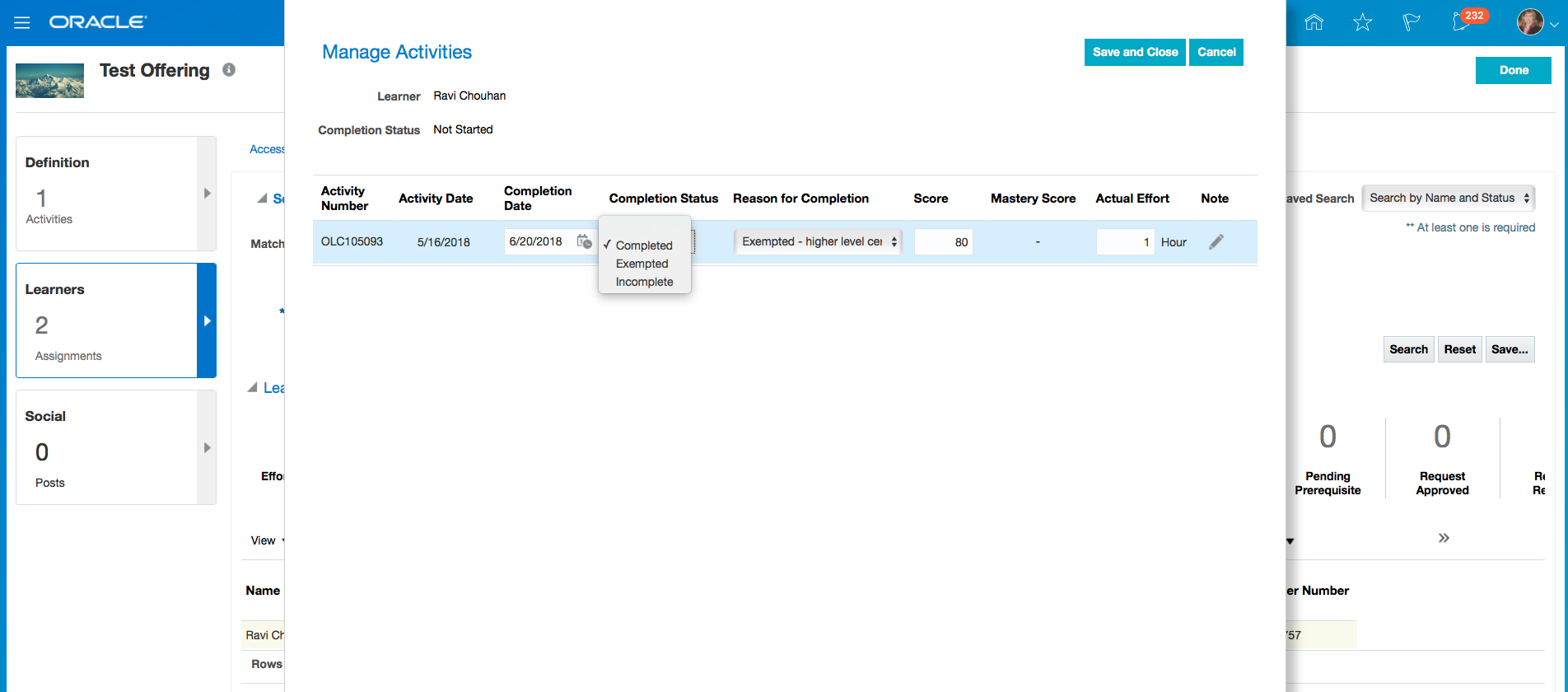
Manage Activities Page
Steps to Enable
No steps are required to enable this feature.
Use the enhanced learner selection capabilities when creating an assignment. This functionality streamlines the assignment creation process by supporting additional search mechanisms to find learners.
The Administrator can search learners the following ways:
- Using worker attributes.
- Based on system person type and manager name attributes.
- Using department or organization hierarchies.
- Based on assignment attributes.
- In the case of a course recommendation assignment, on the assignment status of another learning item where the learners are not already registered on an offering.
- Based on assignment status. It provides the ability to choose request status detail values (Requested, Request Approved, Request Rejected).
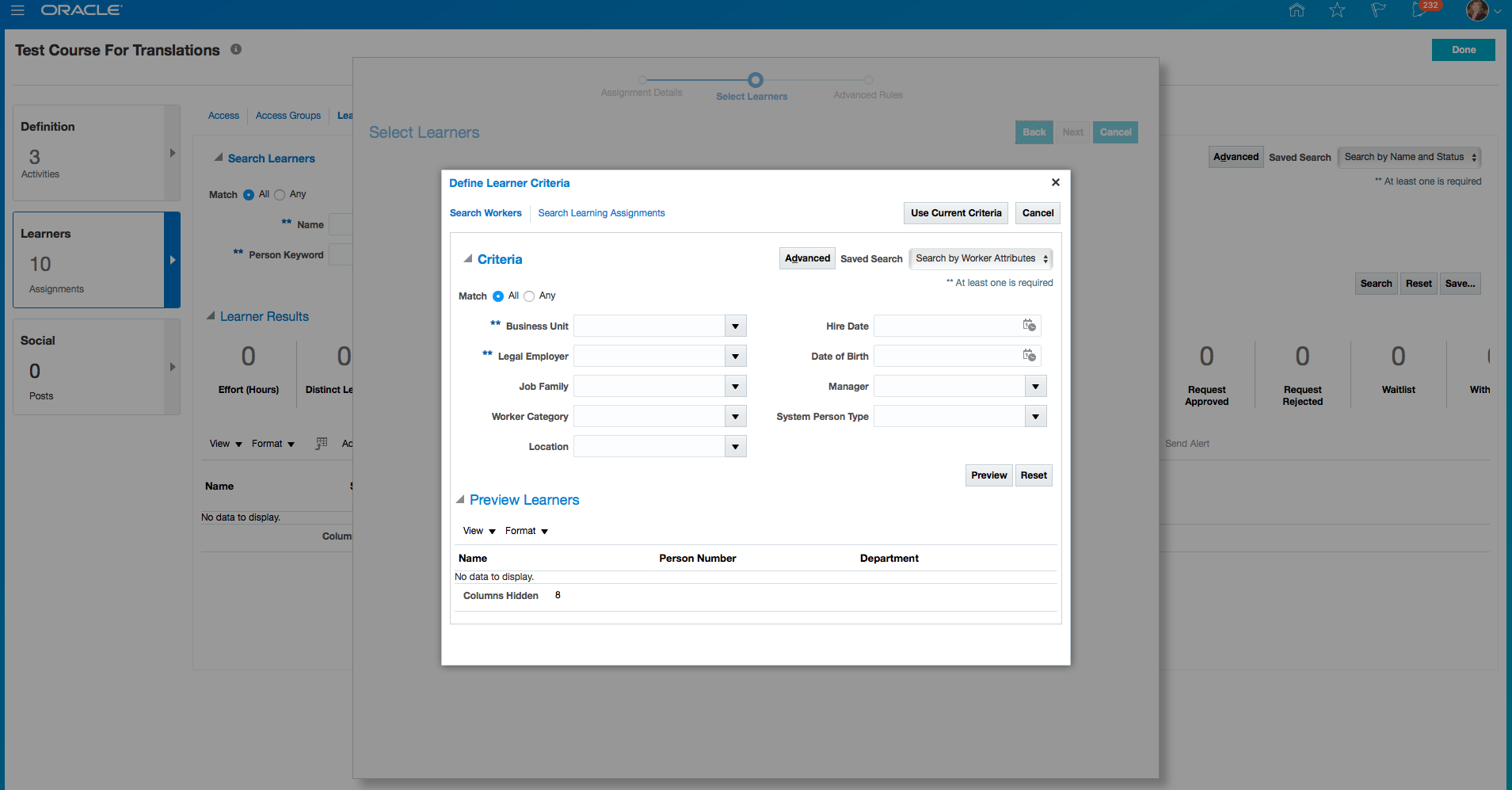
Search by Worker Attributes
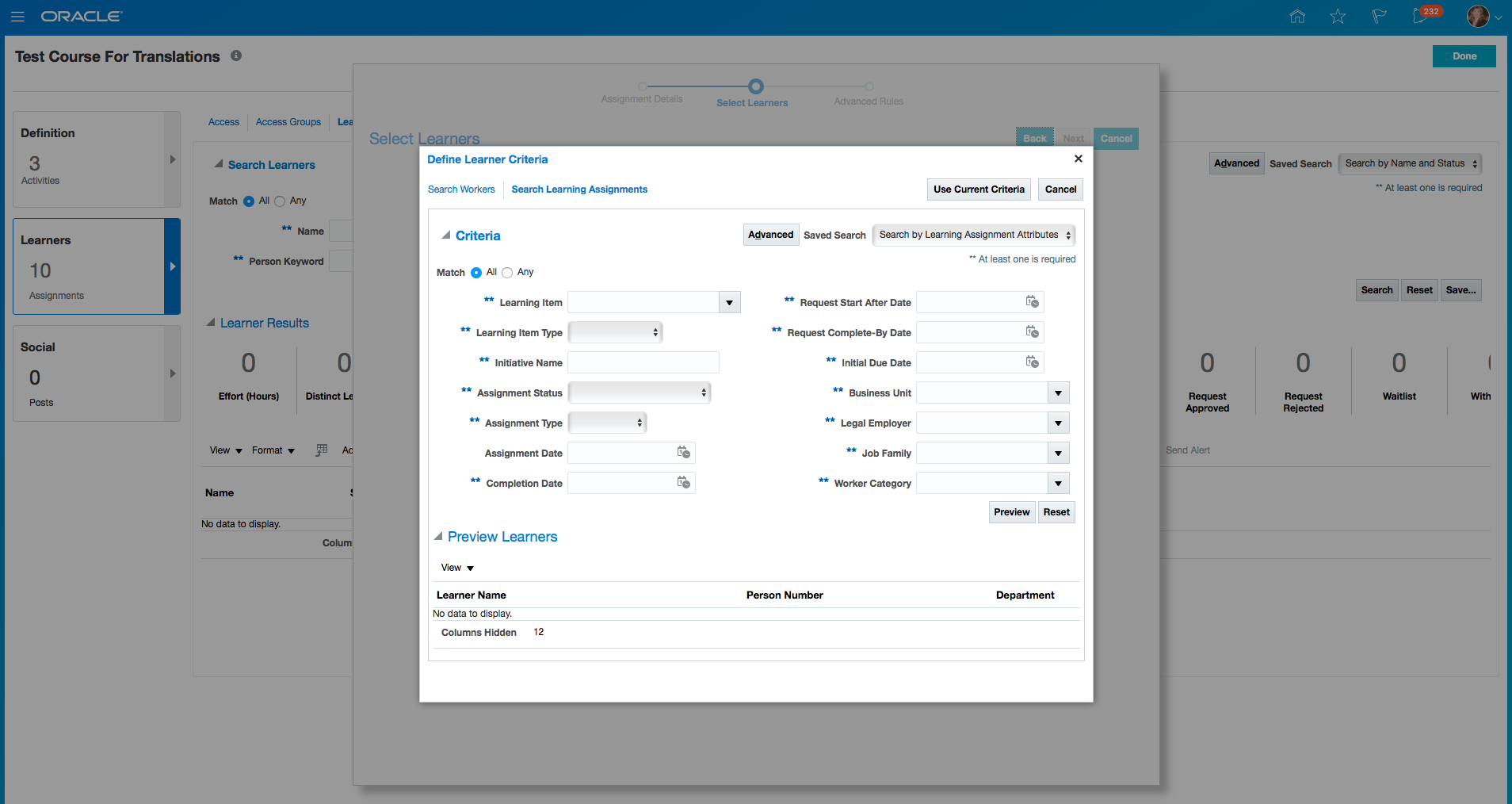
Search by Learning Assignments
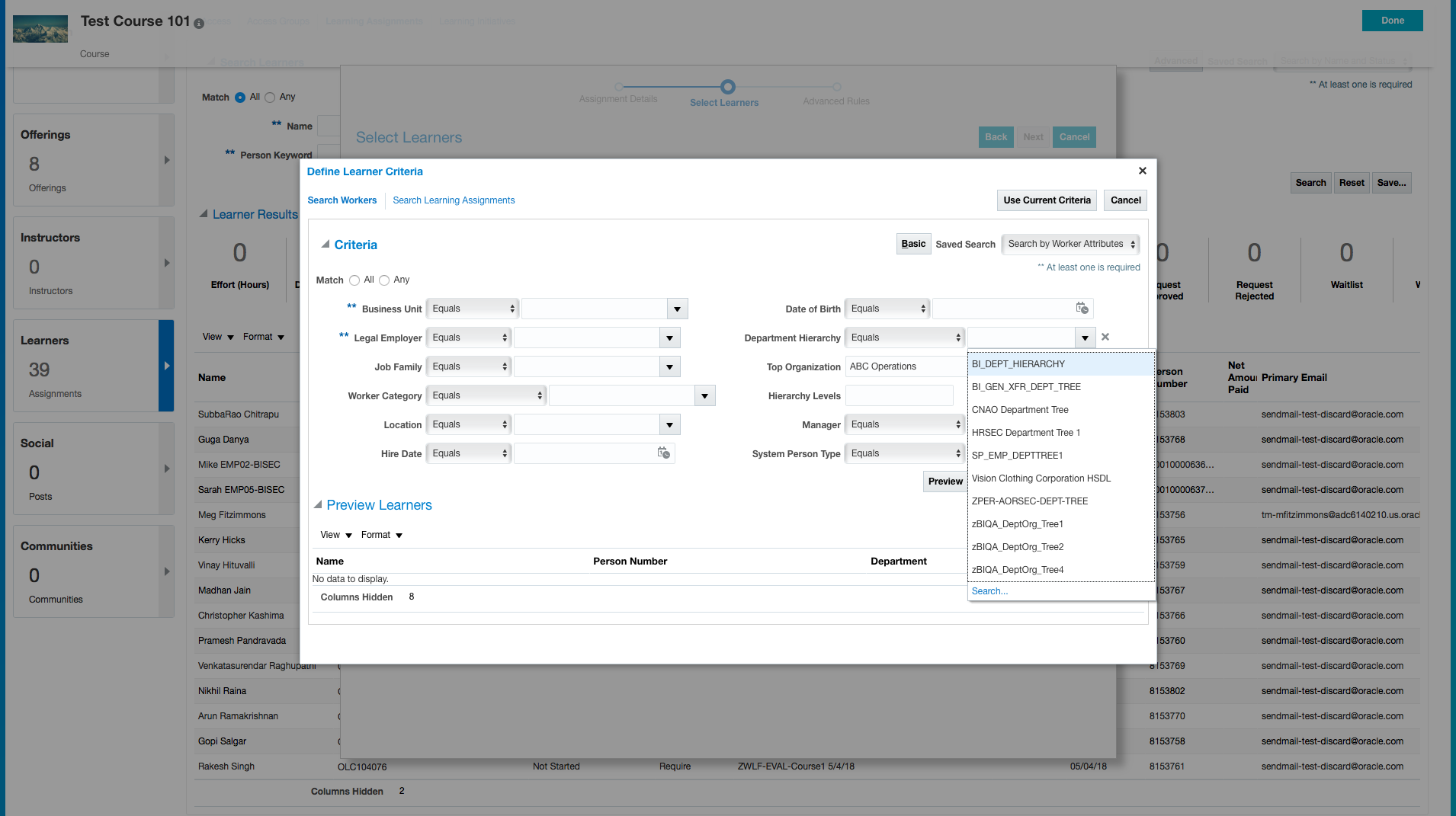
Search by Department Hierarchy
Steps to Enable
Searching by hierarchy setup you will need to choose the tree type to expose, either org or department. Then you choose the tree. What this does is in admin assignment creation flows, in both dynamic learner criteria and learner search, in advanced search you will see the attributes “top org/dept”, “include top” checkbox, and “hierarchy levels”
So the admin can choose the top org/dept from the configured tree, and choose to include learners below that level in the hierarchy or including the top level, and choose how far down into the tree to search for learners.
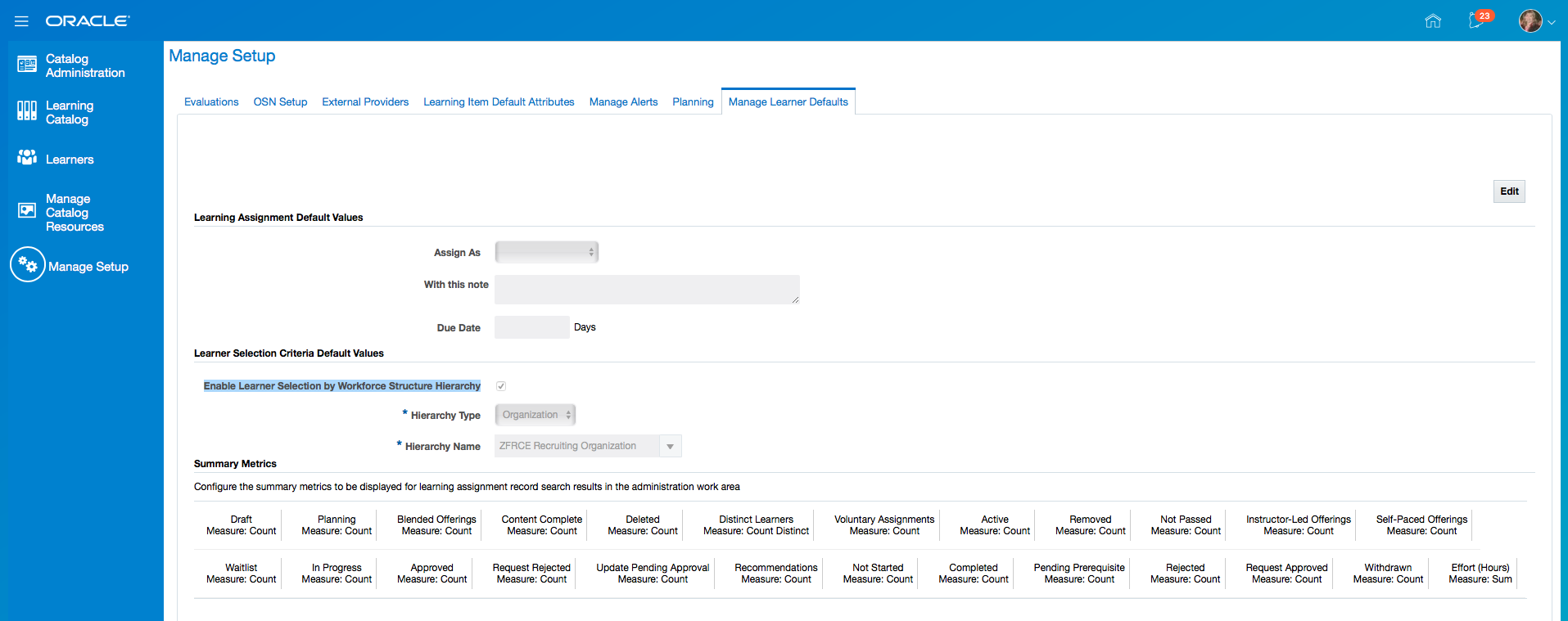
Learner Selection Hierarchy Default Setup
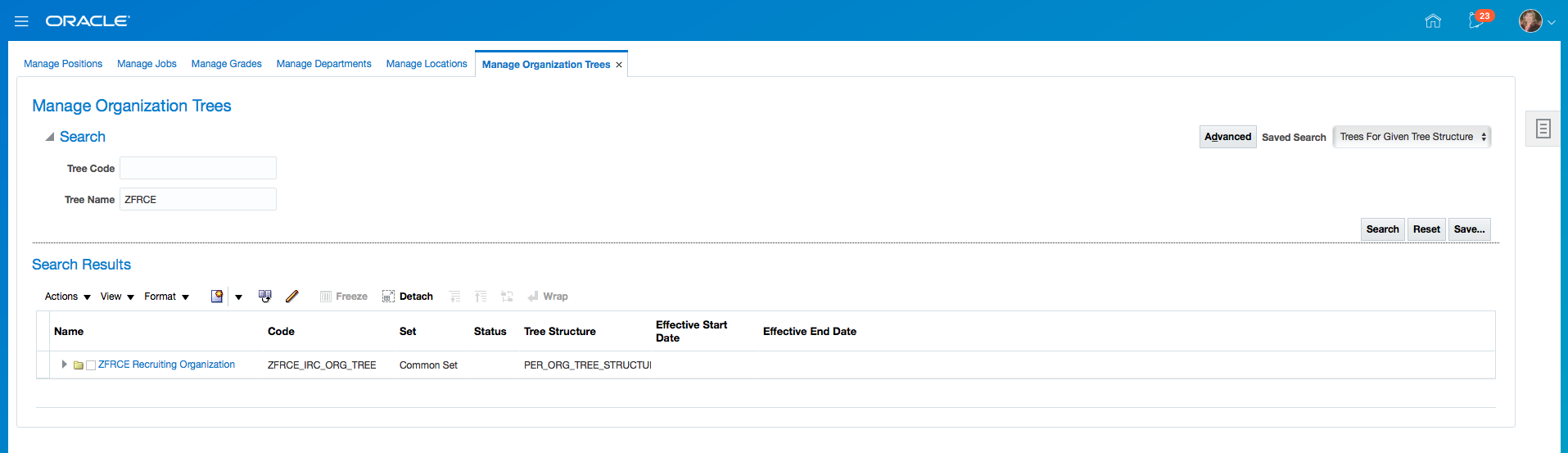
Setup Organization Tree in Worforce Structures
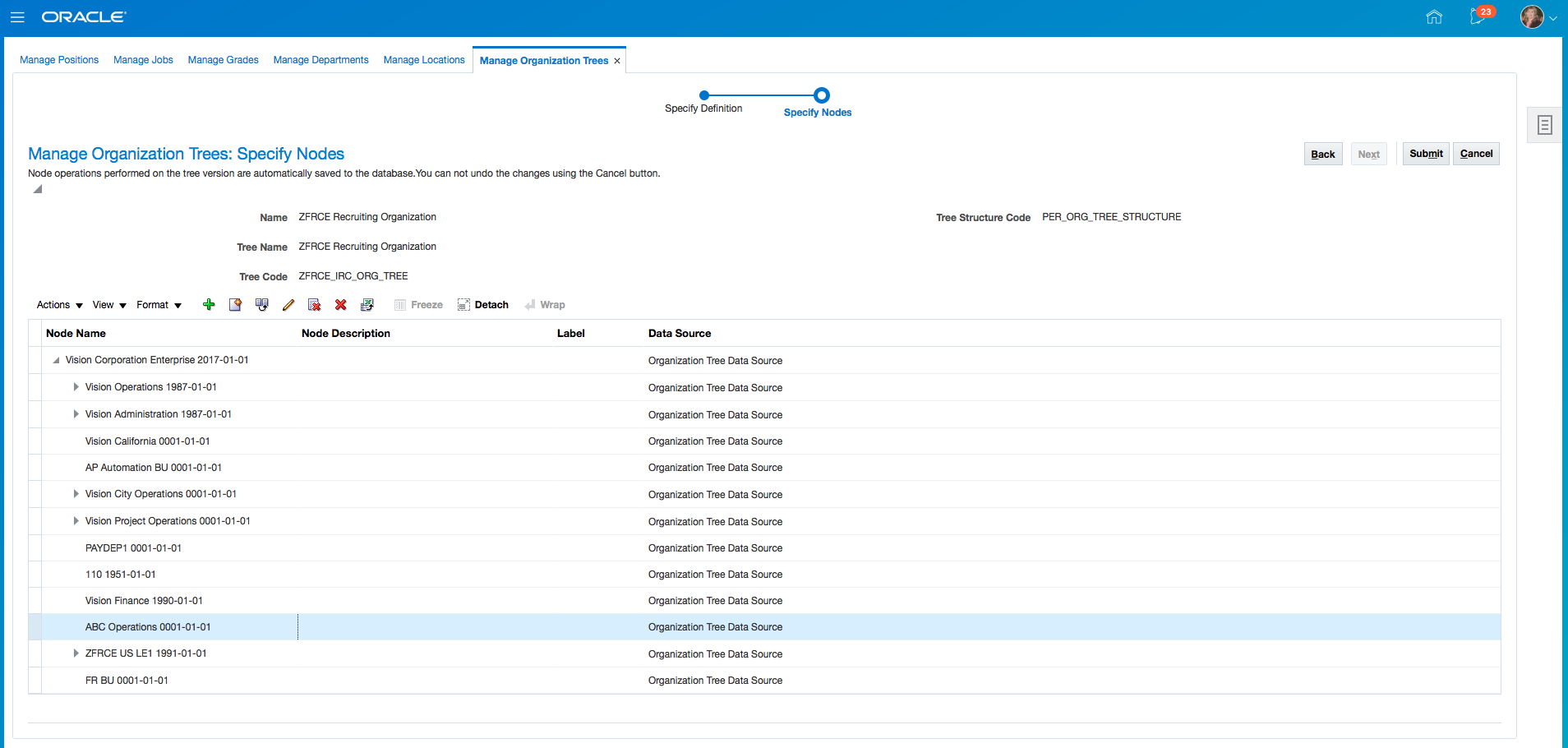
Organization Structure
Set the status of assignment records to active, bypass approval, bypass reject and send an alert based on multiple selections from the Learners assignments page.
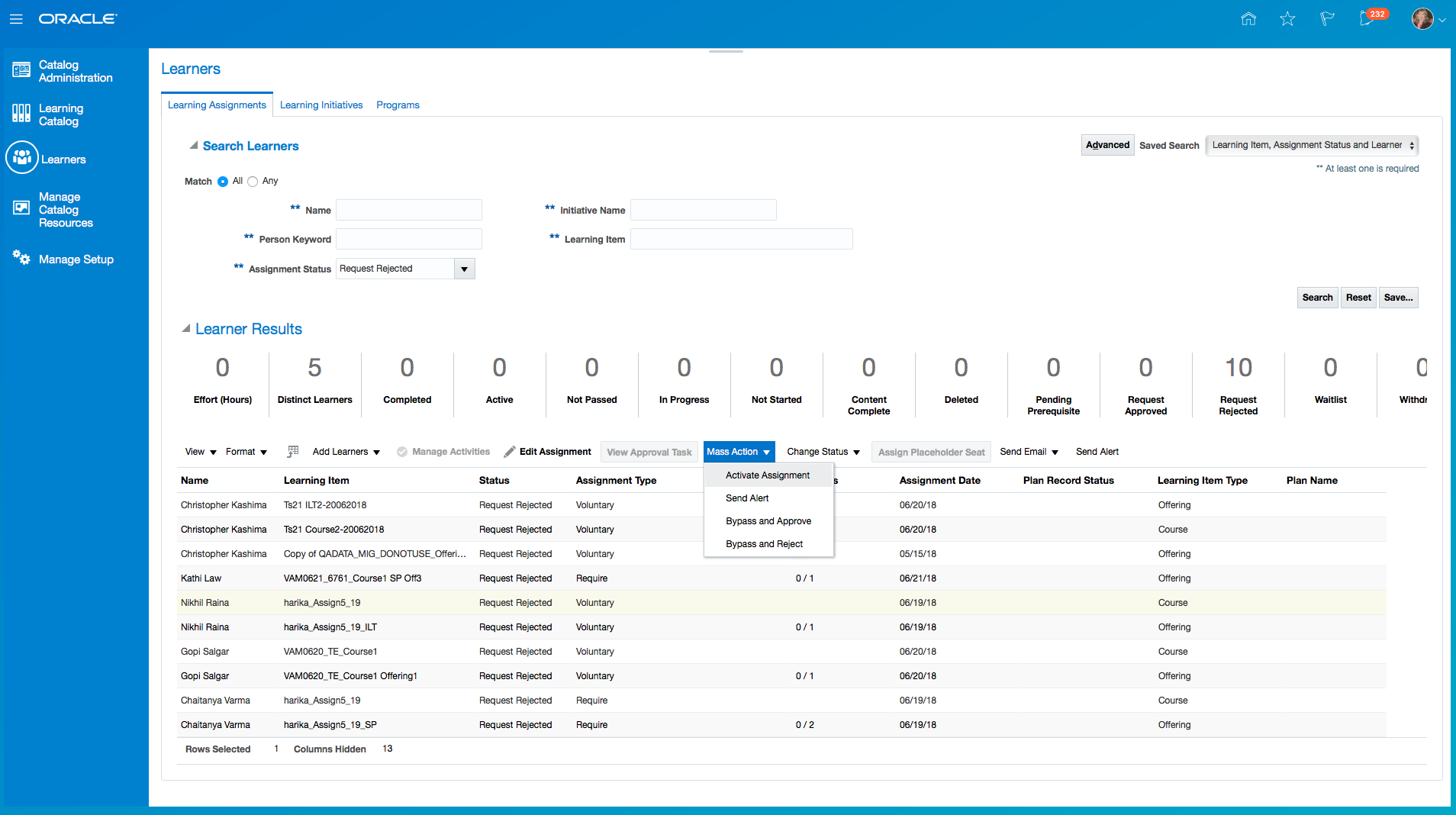
Mass Actions Menu
Steps to Enable
No steps are required to enable this feature.
Bypass Approve and Bypass Reject Multiple Learners
Select multiple learners and perform the Bypass Approve and Bypass Reject actions in bulk.
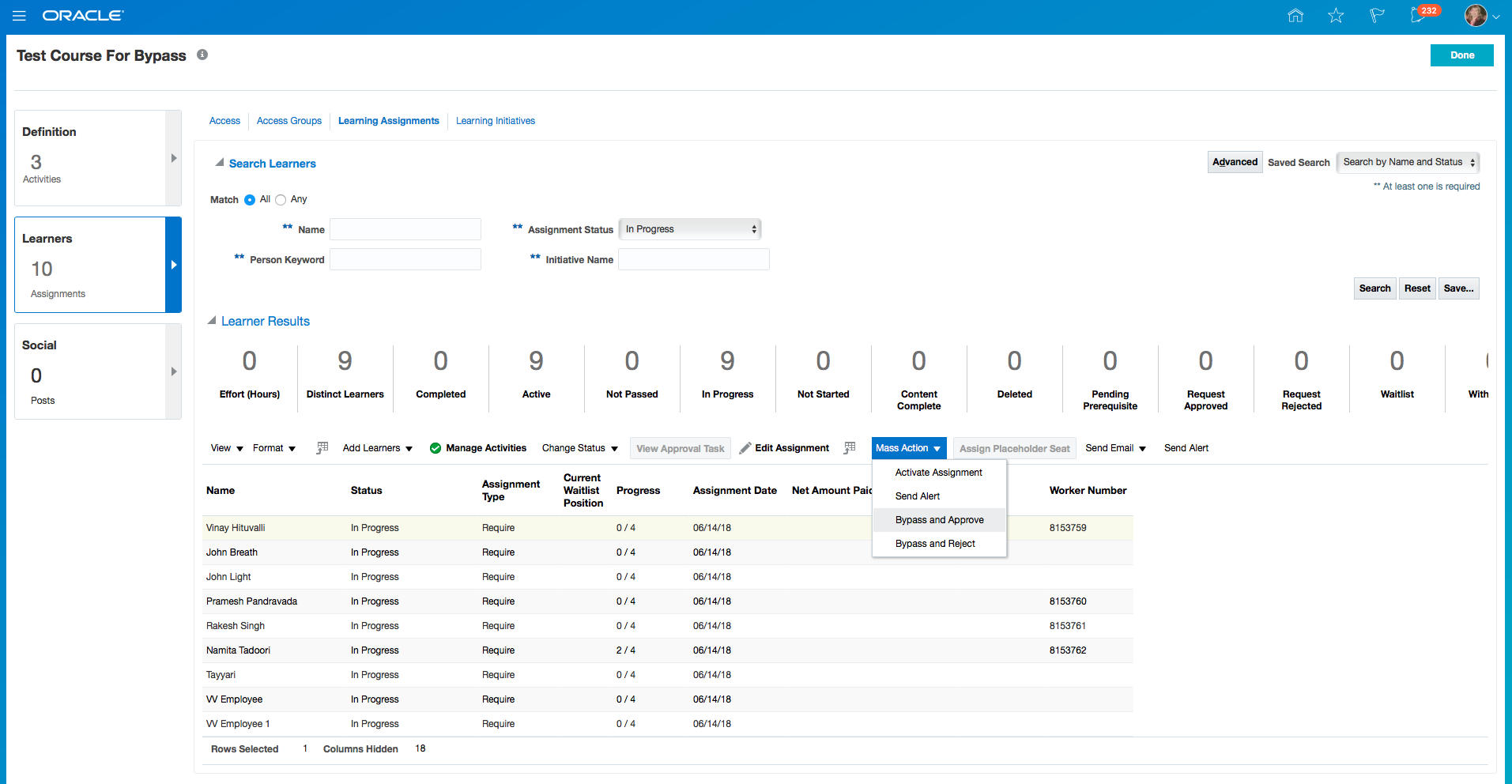
Mass Action Menu - Bypass and Approve
Steps to Enable
No steps are required to enable this feature.
Approve Previously Rejected Learning Requests
Approve learning requests previously rejected. This allows the Administrator to take corrective action on existing requests if needed.
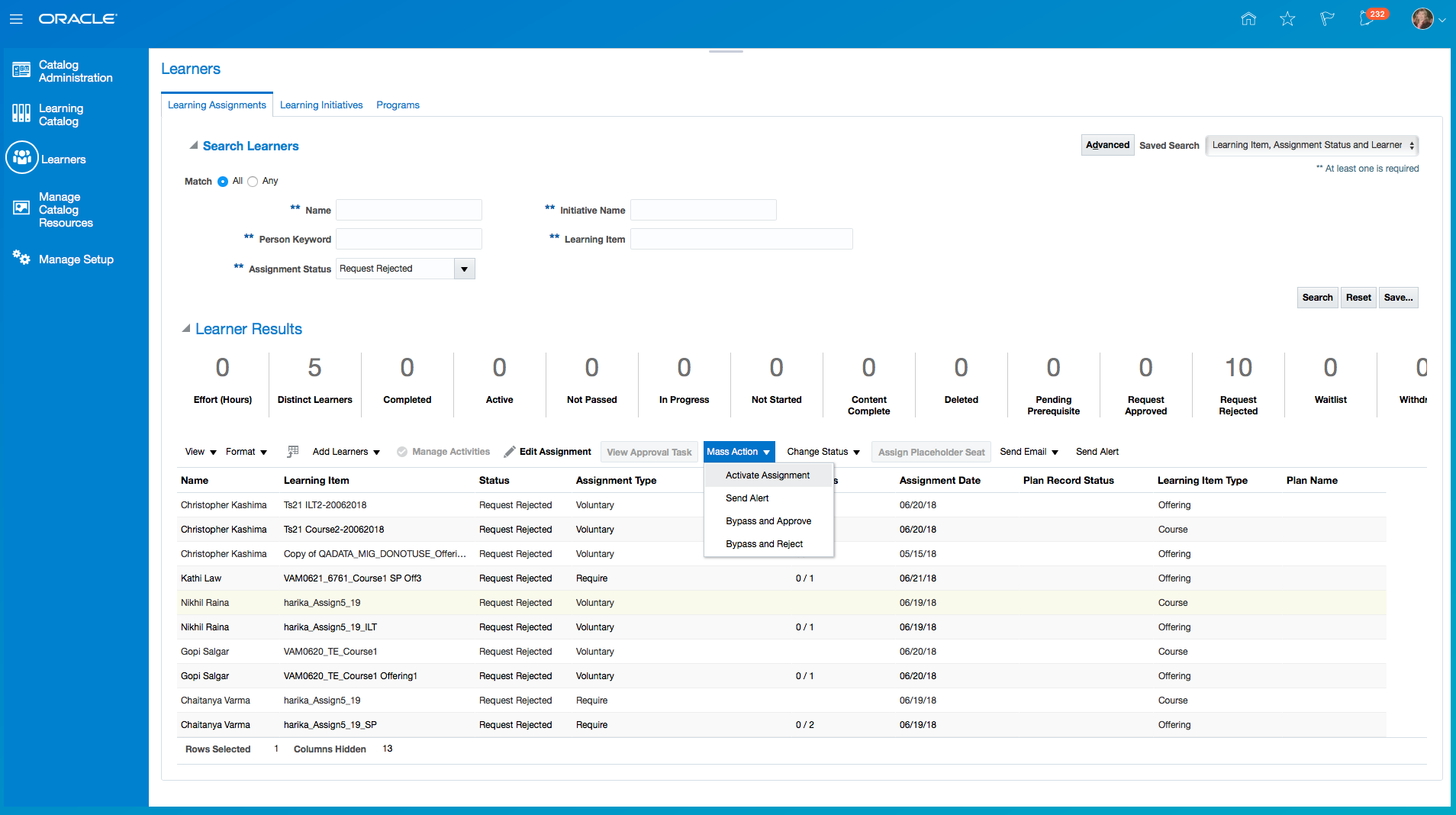
Approve Requests Rejected
Steps to Enable
No steps are required to enable this feature.
Change Learning Assignment Type Between Voluntary and Required
Change the learning assignment from required learning to voluntary learning, or vice versa. This allows the Administrator to perform corrective action instead of withdrawing the assignment and creating a new one.
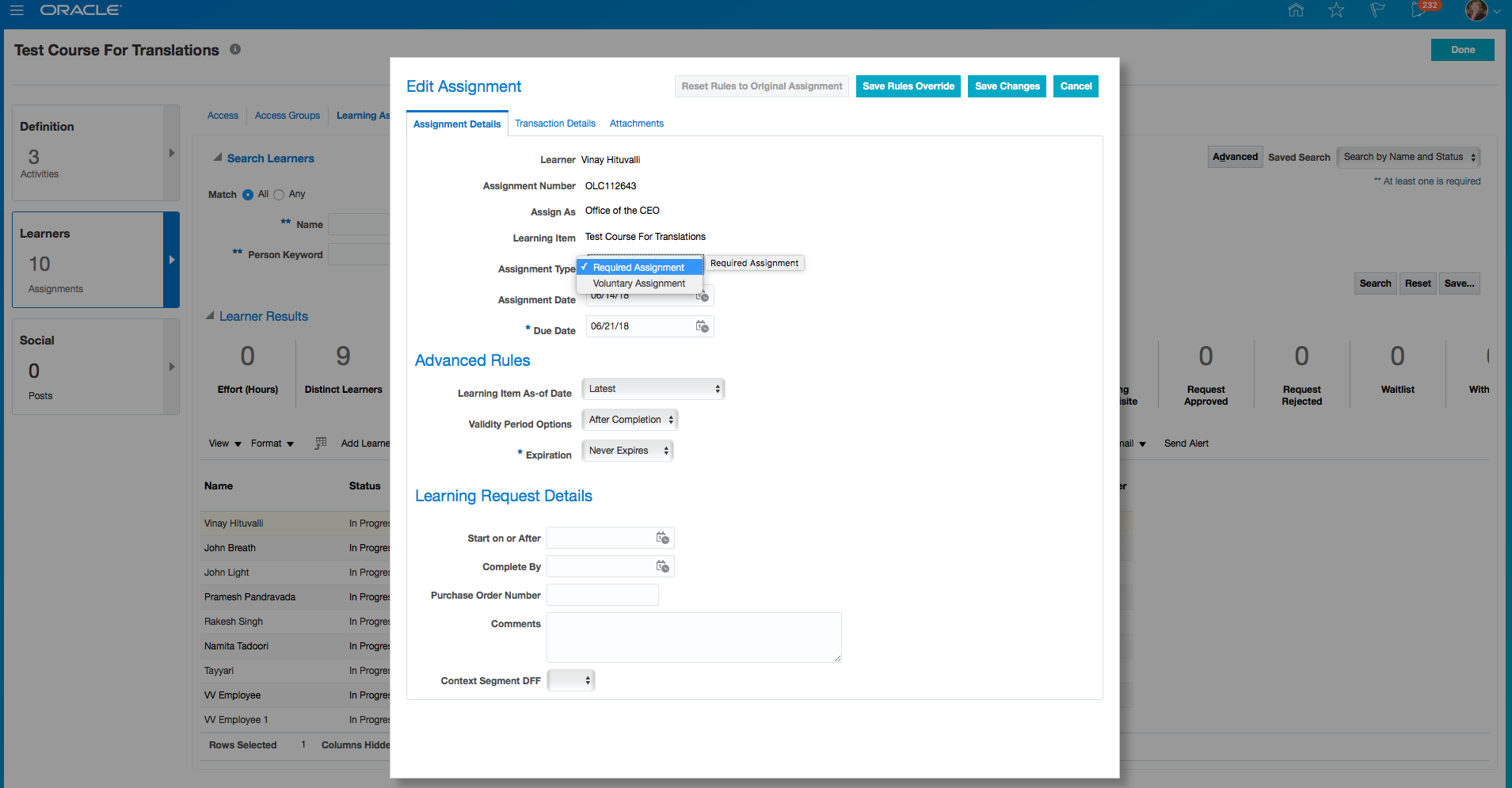
Edit Assignment Type
Steps to Enable
No steps are required to enable this feature.
Enhance Required and Voluntary Assignments
Allow only one active assignment at a time per learner. Simultaneous required and voluntary assignments on the same learning item are no longer supported. A required assignment has higher priority over a voluntary assignment and as such a learner receiving a required learning assignment will replace a voluntary assignment if one exists. Additionally, course and offering assignments have been updated to follow the course and offering relationship. As such, a course assignment will always exist when a learner is assigned an offering. For every course assignment, a learner may have one or more related offering assignments, but only one can be active or completed at any given moment.
Steps to Enable
No steps are required to enable this feature.
Person Number Support in Manage Learners
Enhance tables with a new column displaying the HCM person number of assignment recipients. This functionality helps to uniquely identify people.
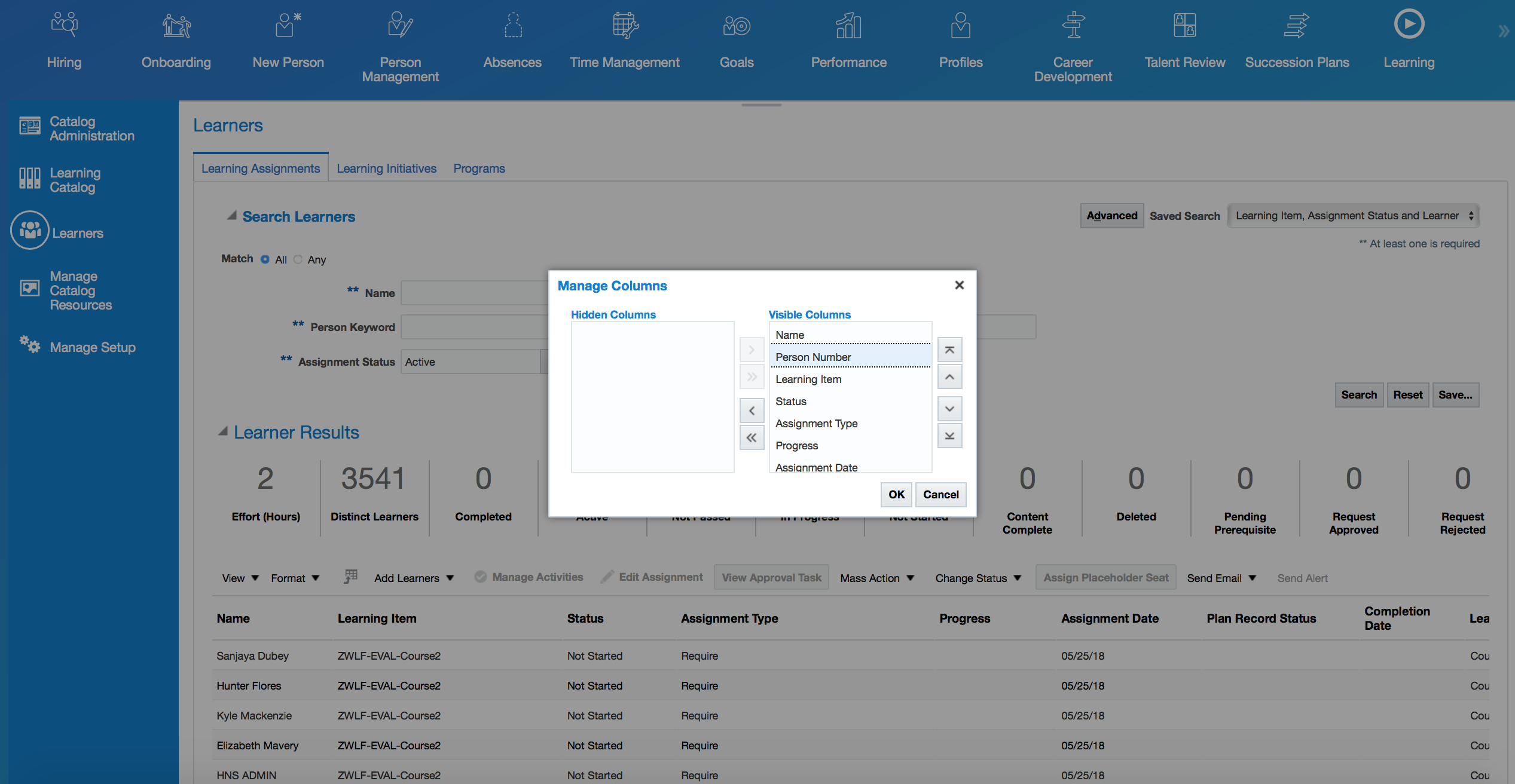
Steps to Enable
No steps are required to enable this feature.
Support Learning Assignments Not Meeting Completion Criteria
Capture a learner's attempt to complete a learning item without achieving the completion criteria.
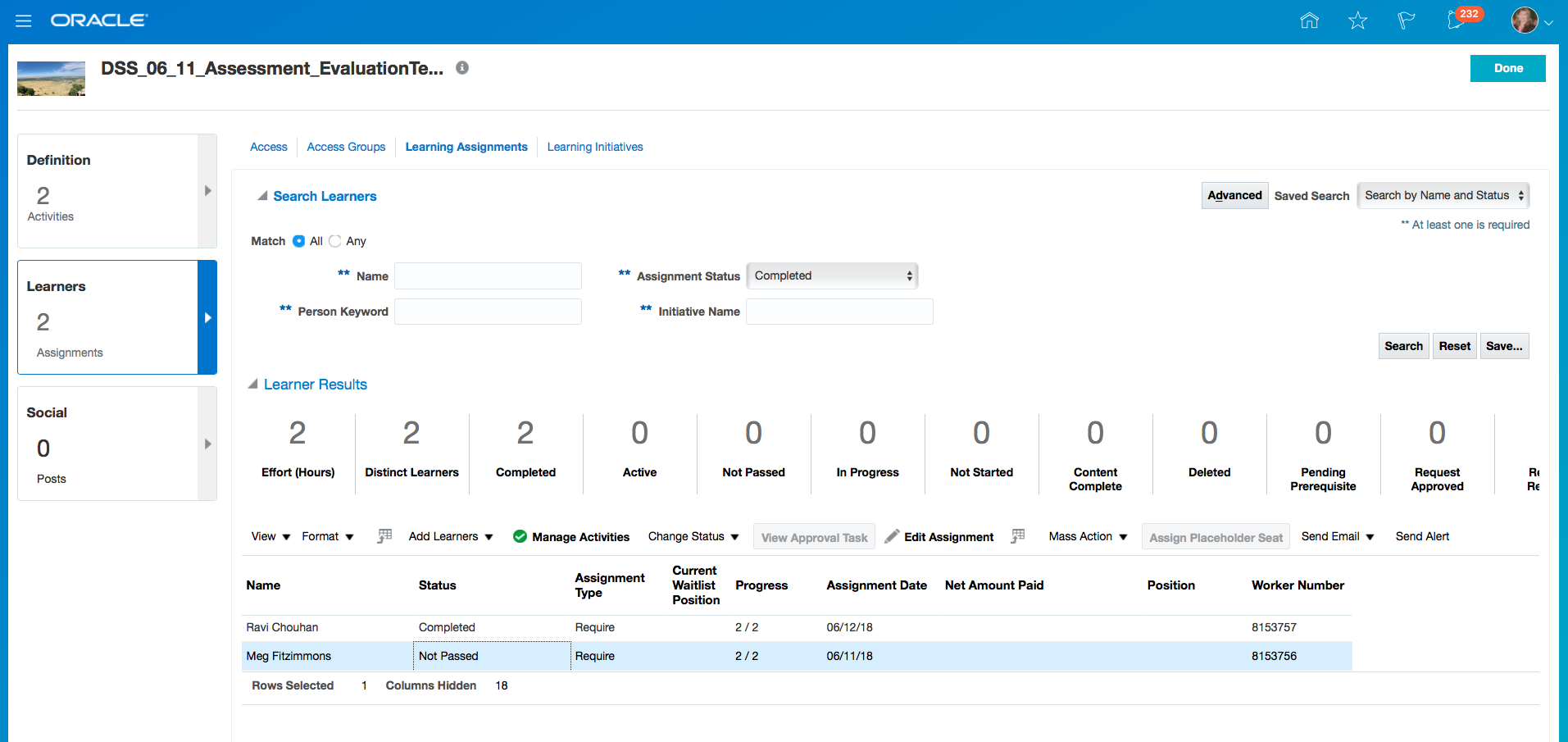
Manage Learners Where Status Is Not Passed
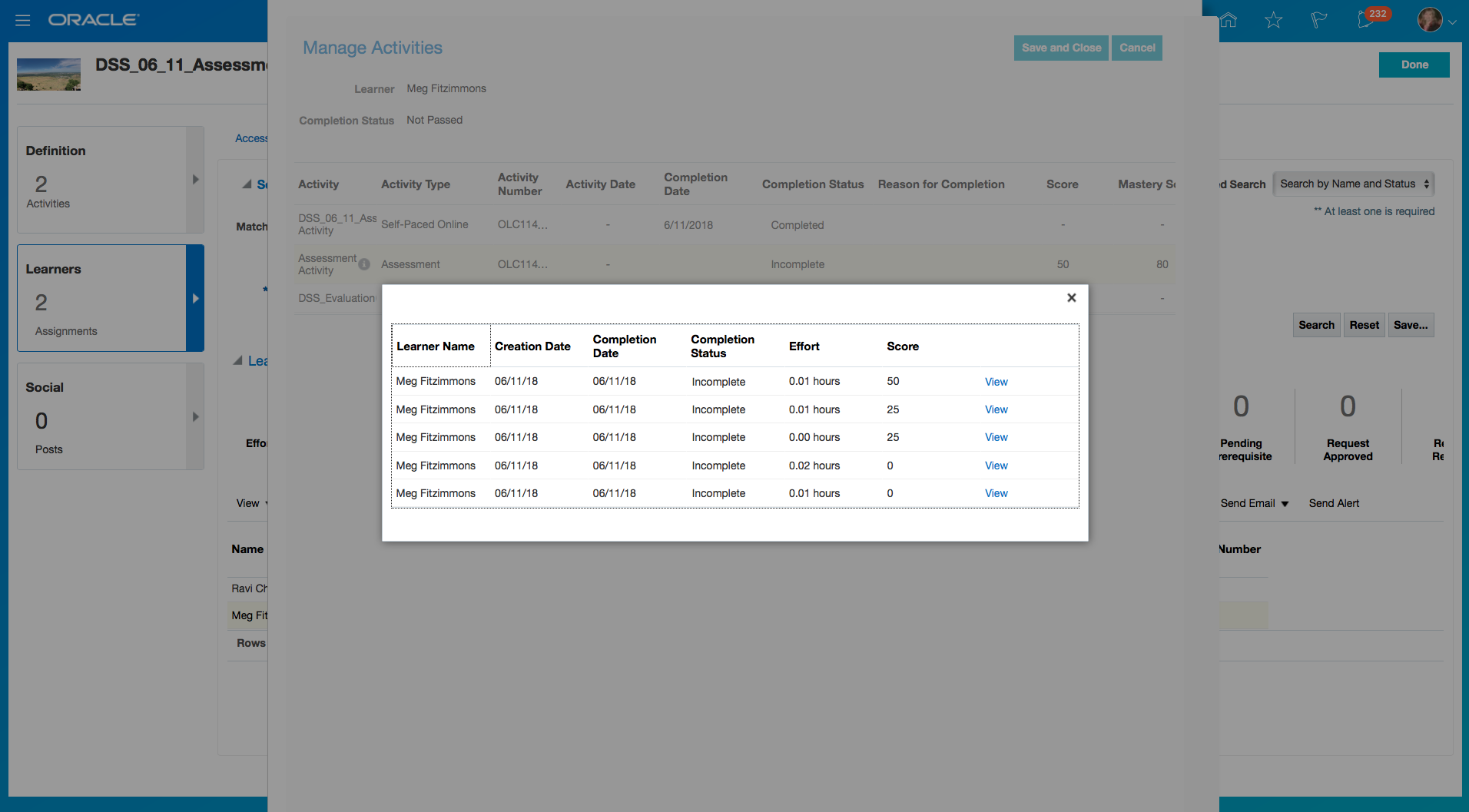
Attempt History Where Activity Is Incomplete
Steps to Enable
No steps are required to enable this feature.
Reactivate learning assignments previously withdrawn. This allows the Administrator to take corrective action if needed.
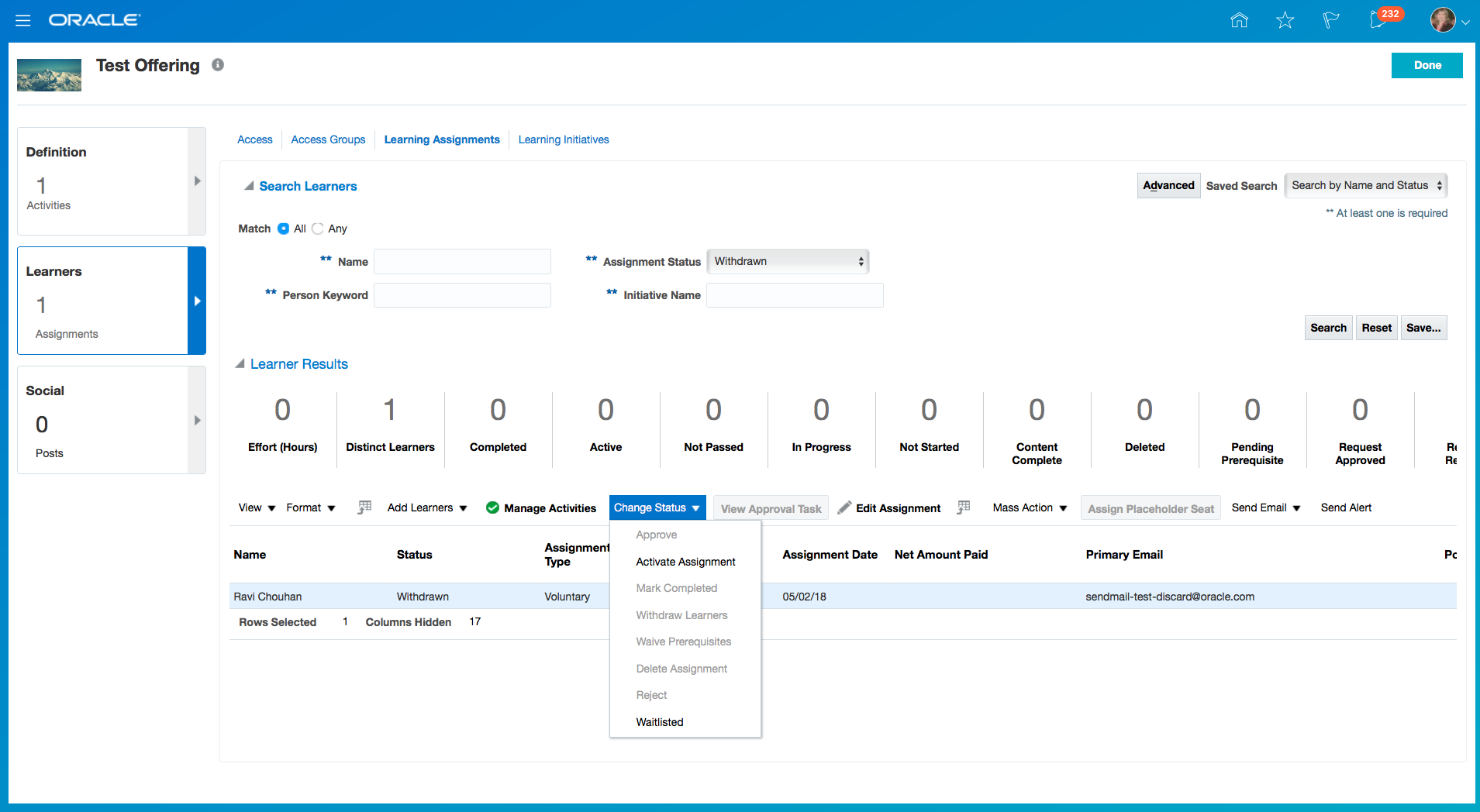
Change Withdrawn Status from Manage Learners
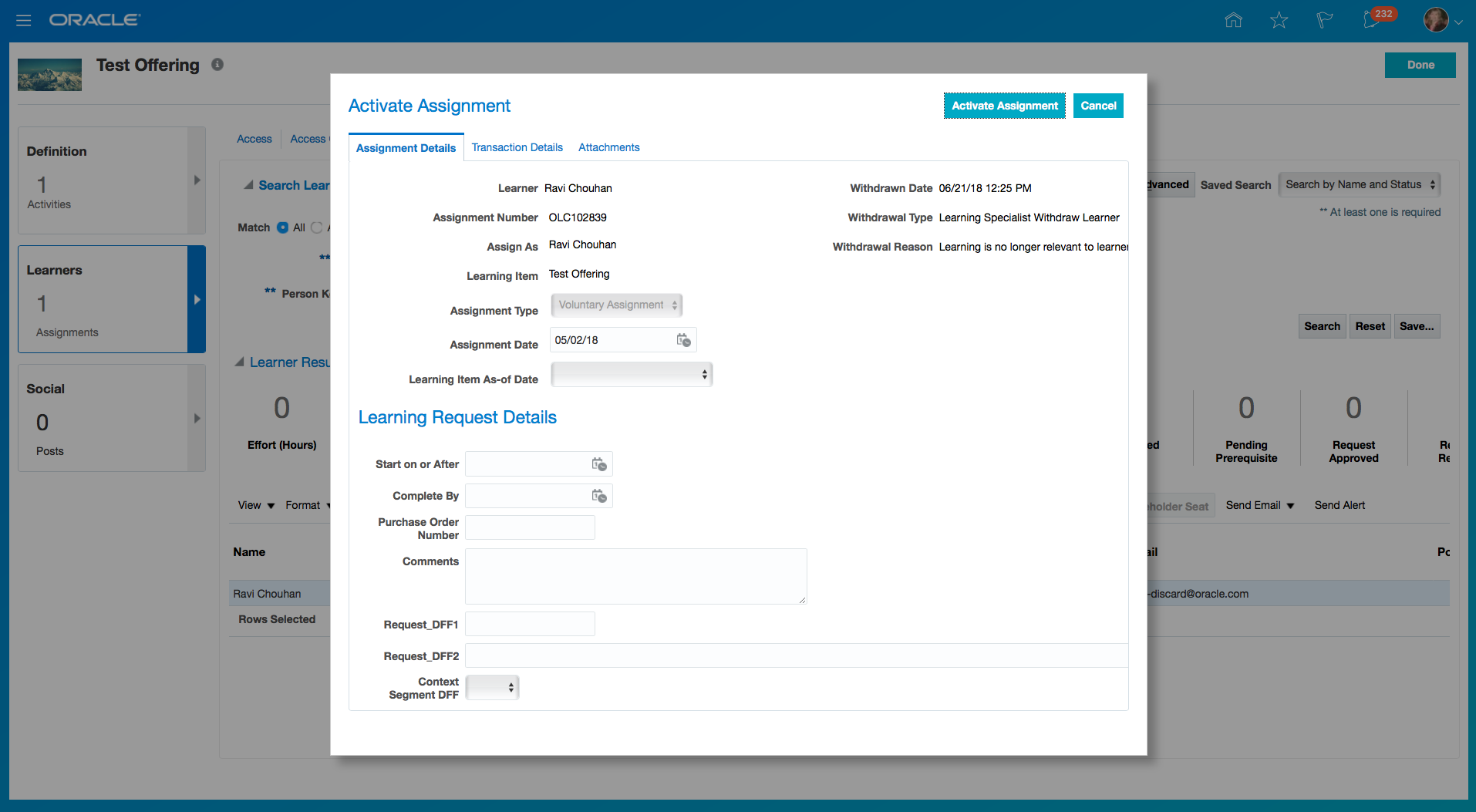
Activate Assignment Detail Page
Steps to Enable
No steps are required to enable this feature.
Create Assignments in Request Approved Status
Allow the Administrator to create an assignment in a request approved status.
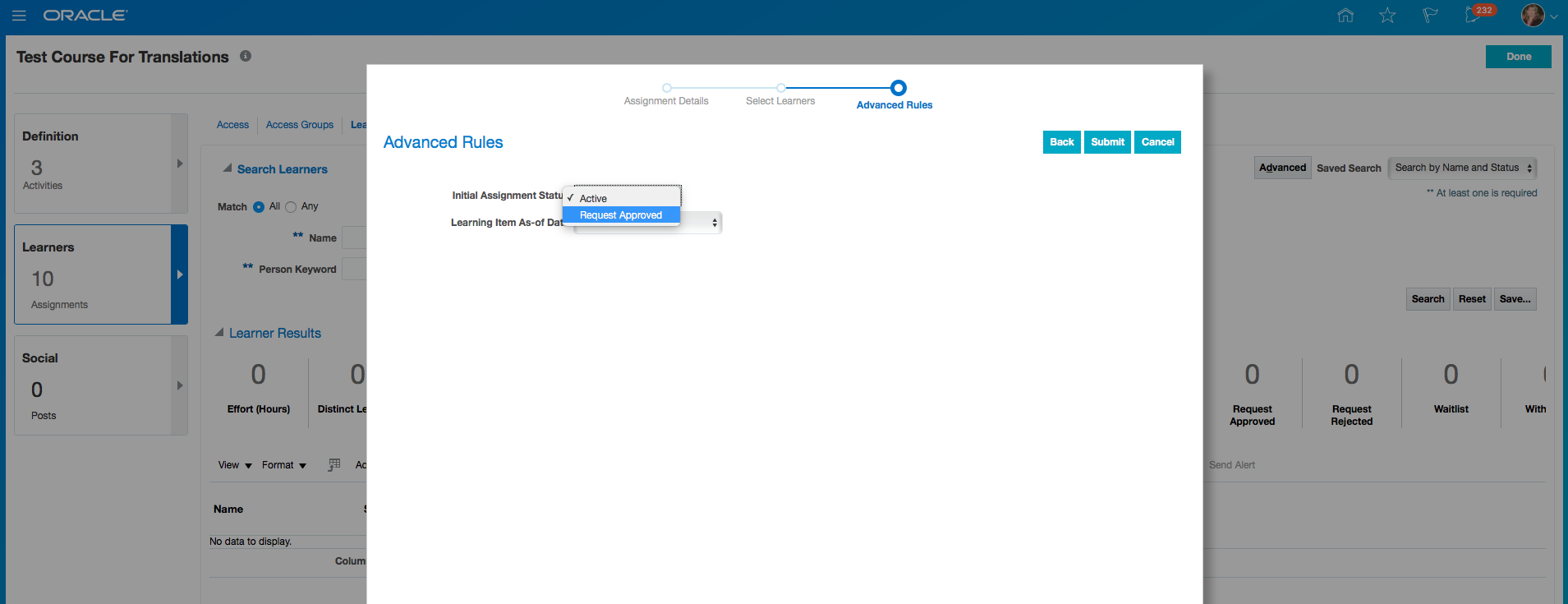
Advanced Rules for Assignments
Steps to Enable
No steps are required to enable this feature.
Include learning request attributes on all learning assignment records, even if the assignment did not originate from a learning request. This allows the Administrator to fill in additional request details either during the assignment creation or while editing an assignment record.
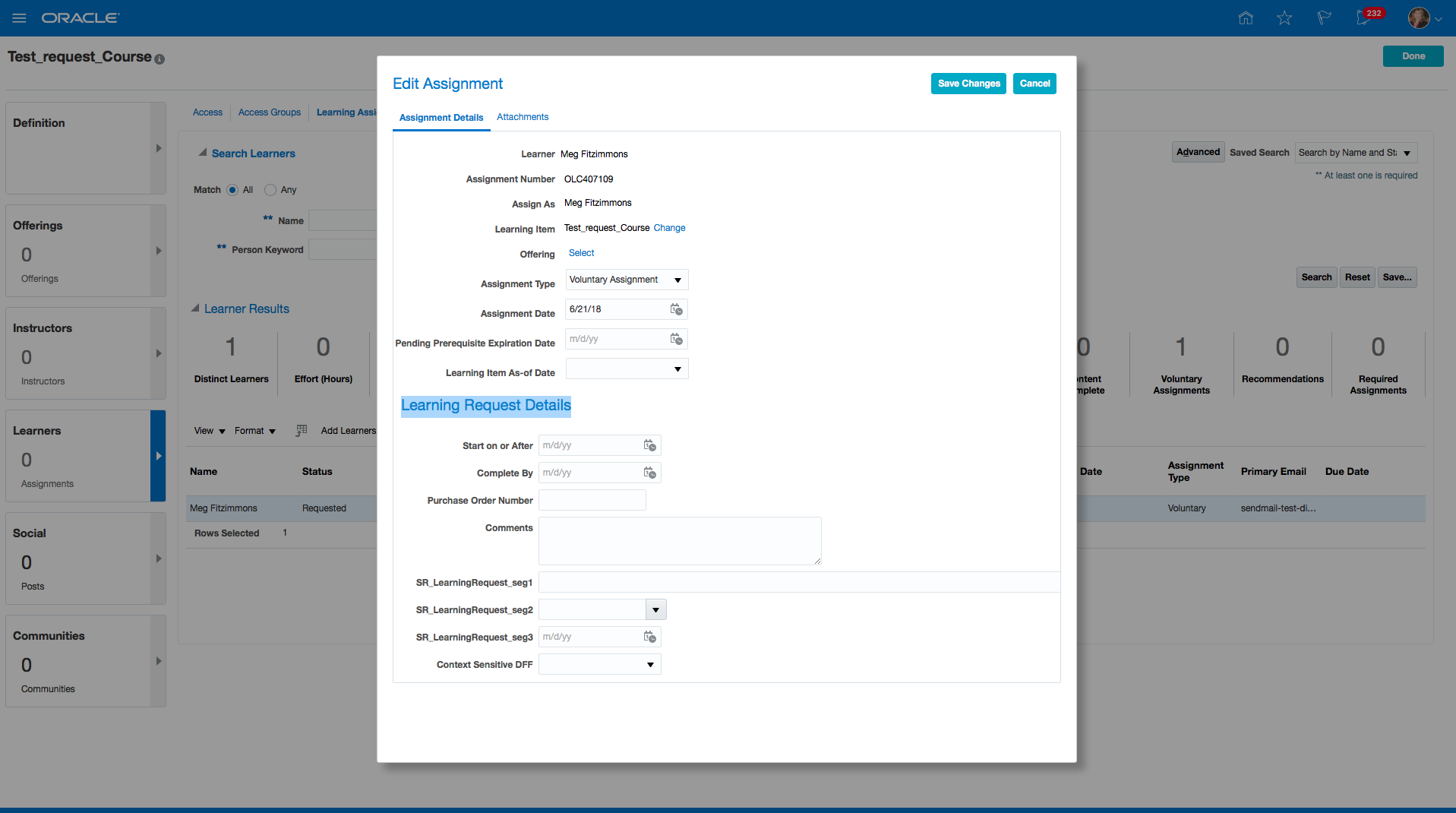
Learning Request Details on Edit Assignment
Steps to Enable
No steps are required to enable this feature.
Use the enhanced classroom and instructor training resources.
The classroom training resource has the following enhancements:
- Make the classroom resource name an active link. When the link is clicked, the classroom details page appears and displays information about the classroom and the offerings that the classroom is scheduled on.
- Ability for the Administrator to create external locations versus using locations already defined in HCM Cloud.
- Show capacity column when searching for classrooms on an offering activity.
- Use of attachments available to the Learner or Administrator.
- On the instructor-led training creation and edition screens, the Administrator can select classrooms and instructors based on a given location.
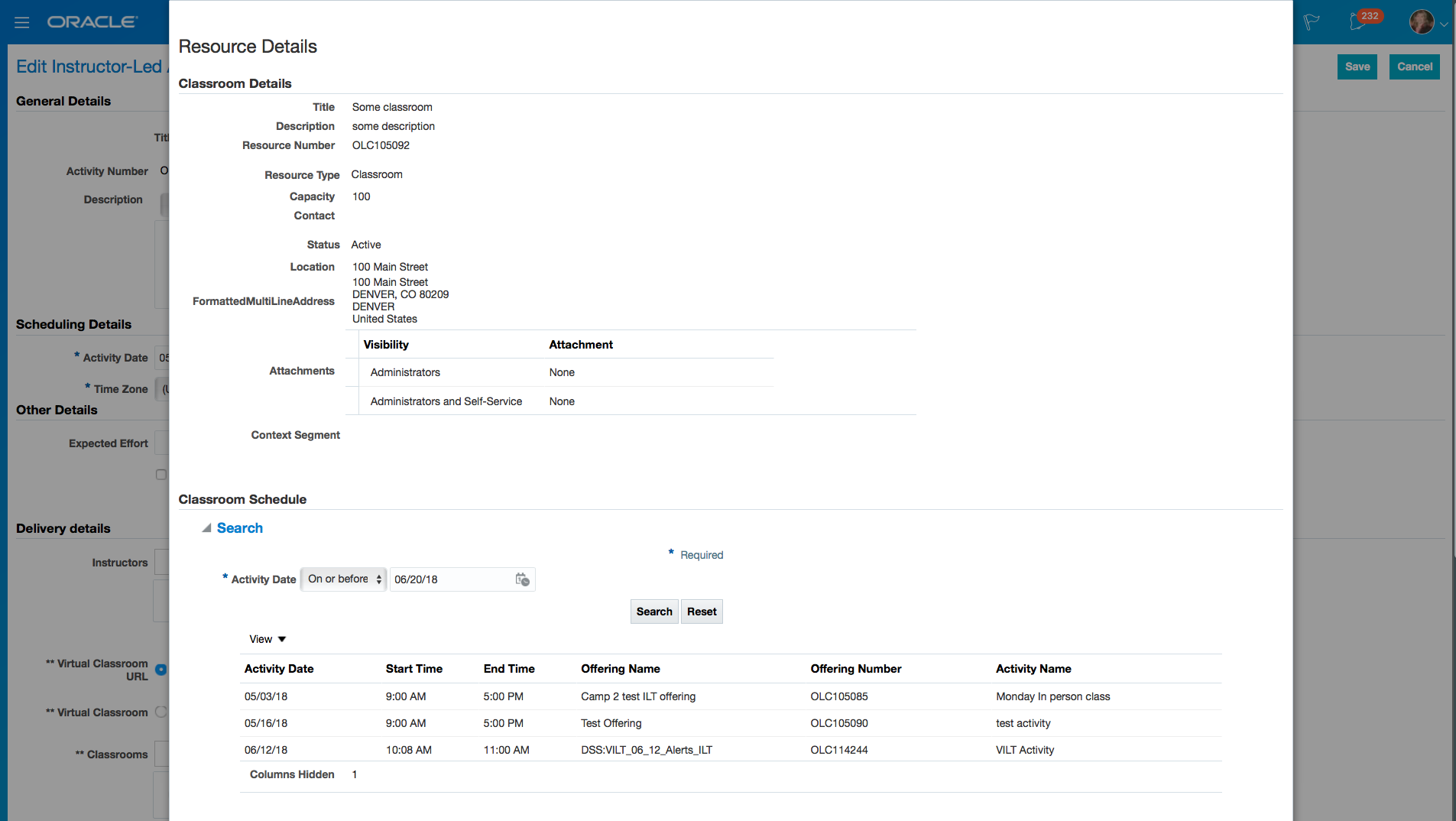
Classroom Resource Details Page
The instructor training resource has the following enhancements:
- Instructor resource with standalone search.
- Show the schedule and history of offerings taught by the instructor in the manage instructor resource view
- Use of flexfields in the instructor resource page.
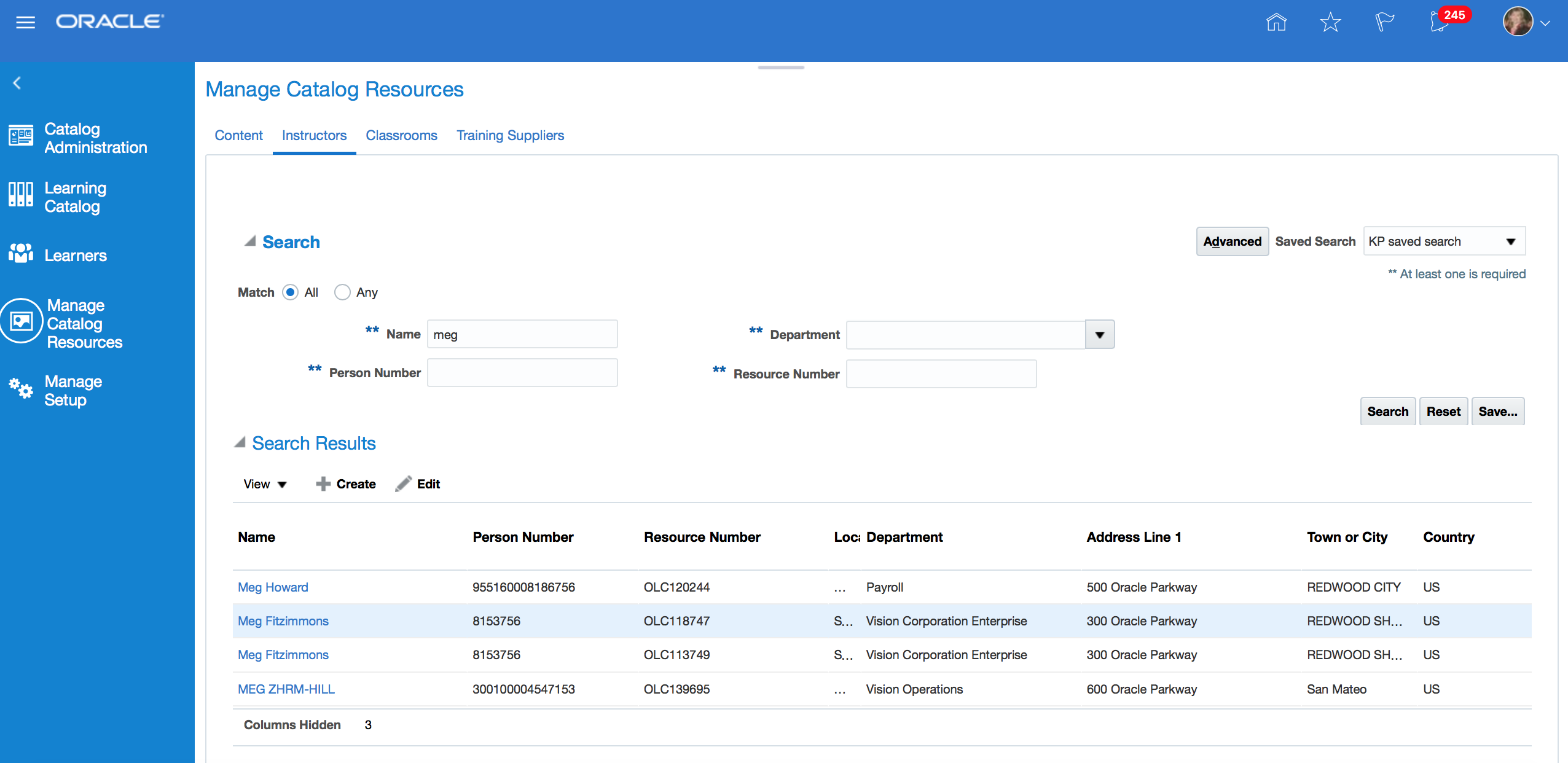
Instructor Resource List Page
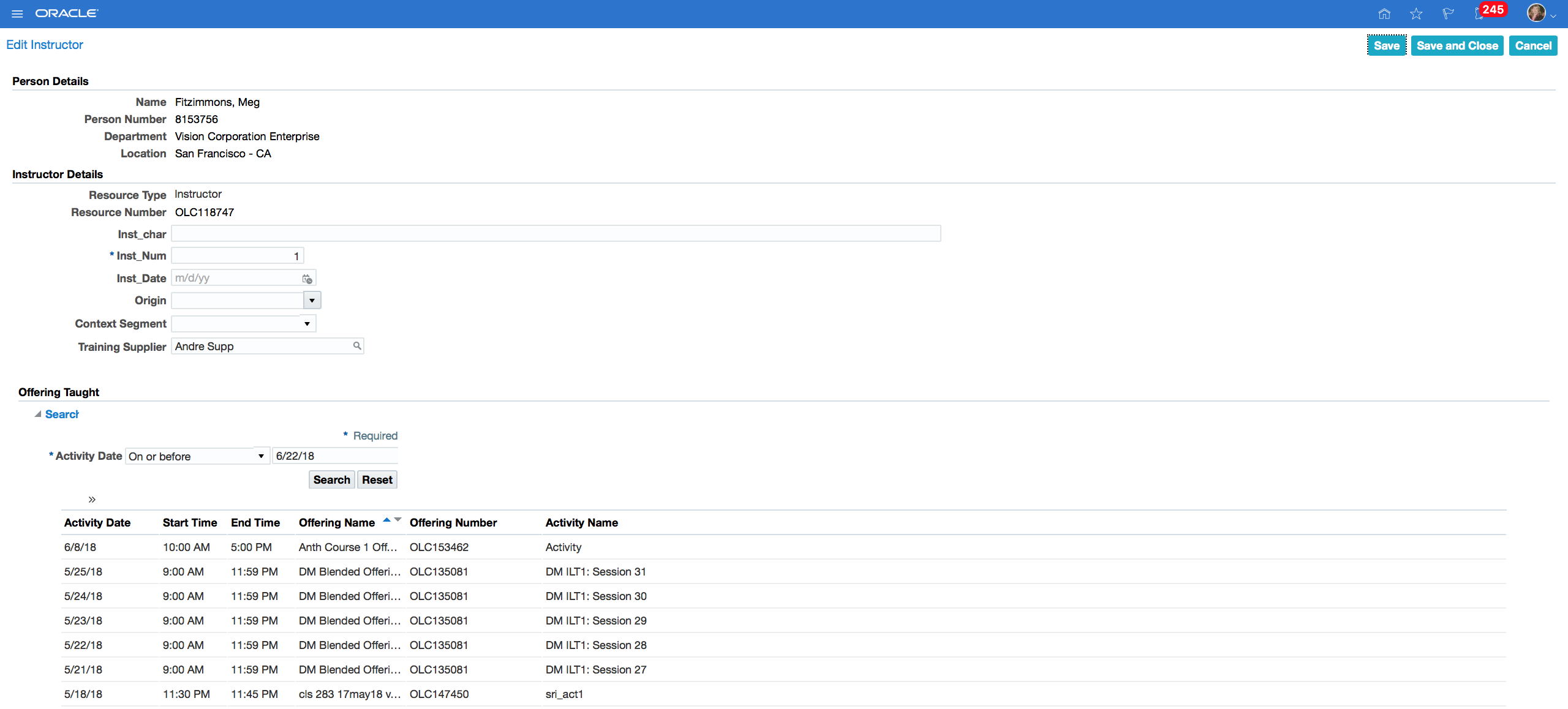
Instructor Resource Details Page
Steps to Enable
No steps are required to enable this feature.
Link training suppliers to instructors and classrooms. This helps the Administrator find instructors and classrooms by training supplier.
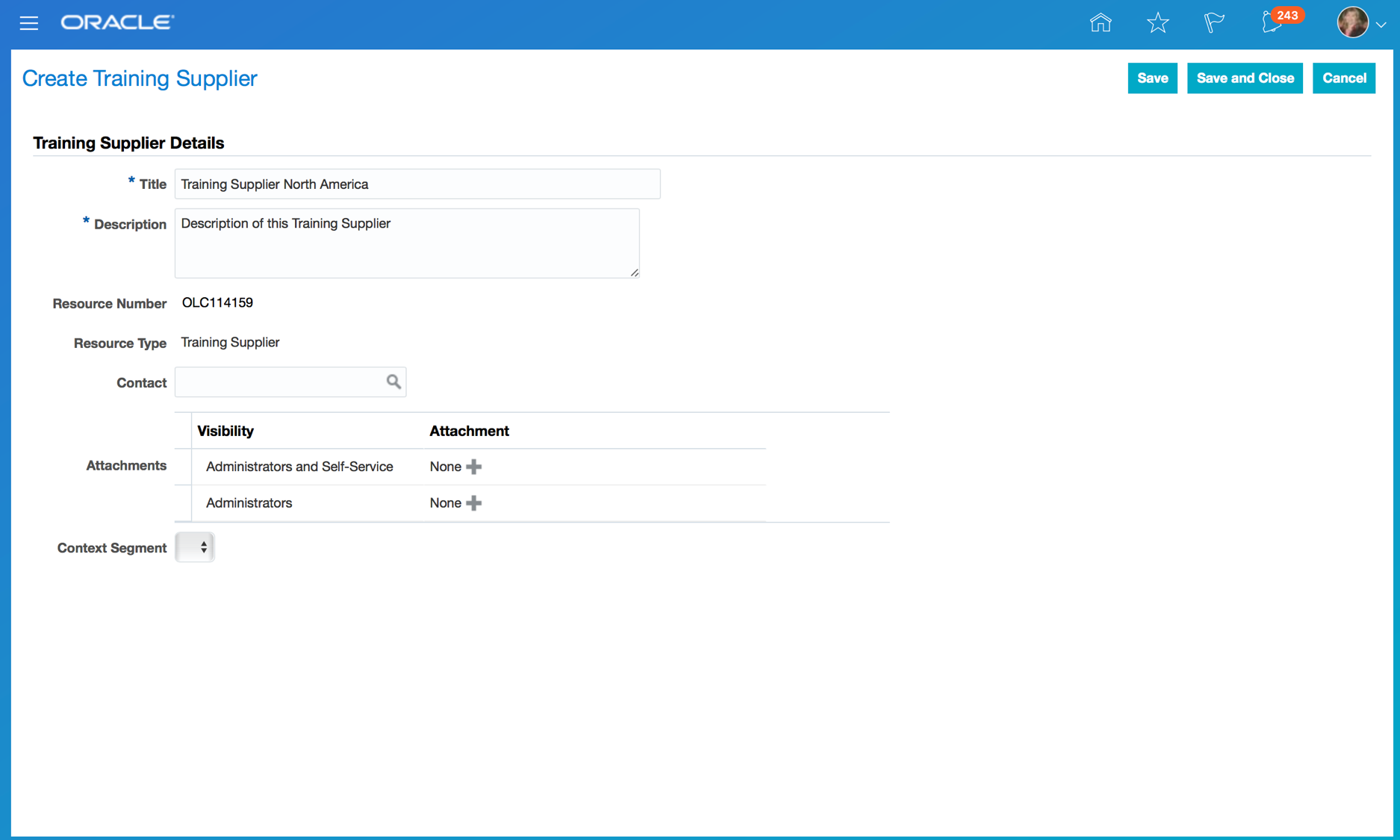
Create Training Supplier Page
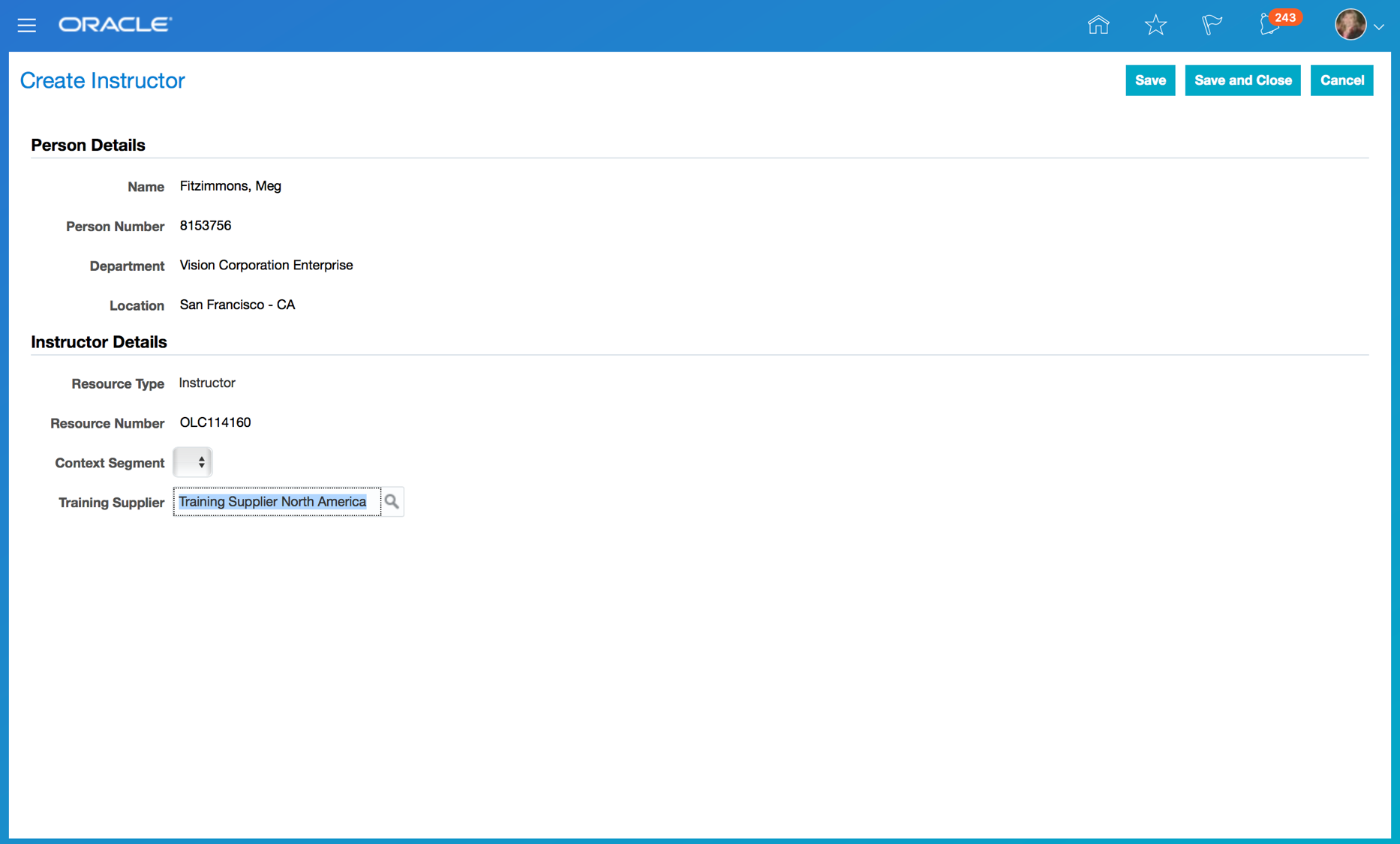
Associate Training Supplier to an Instructor
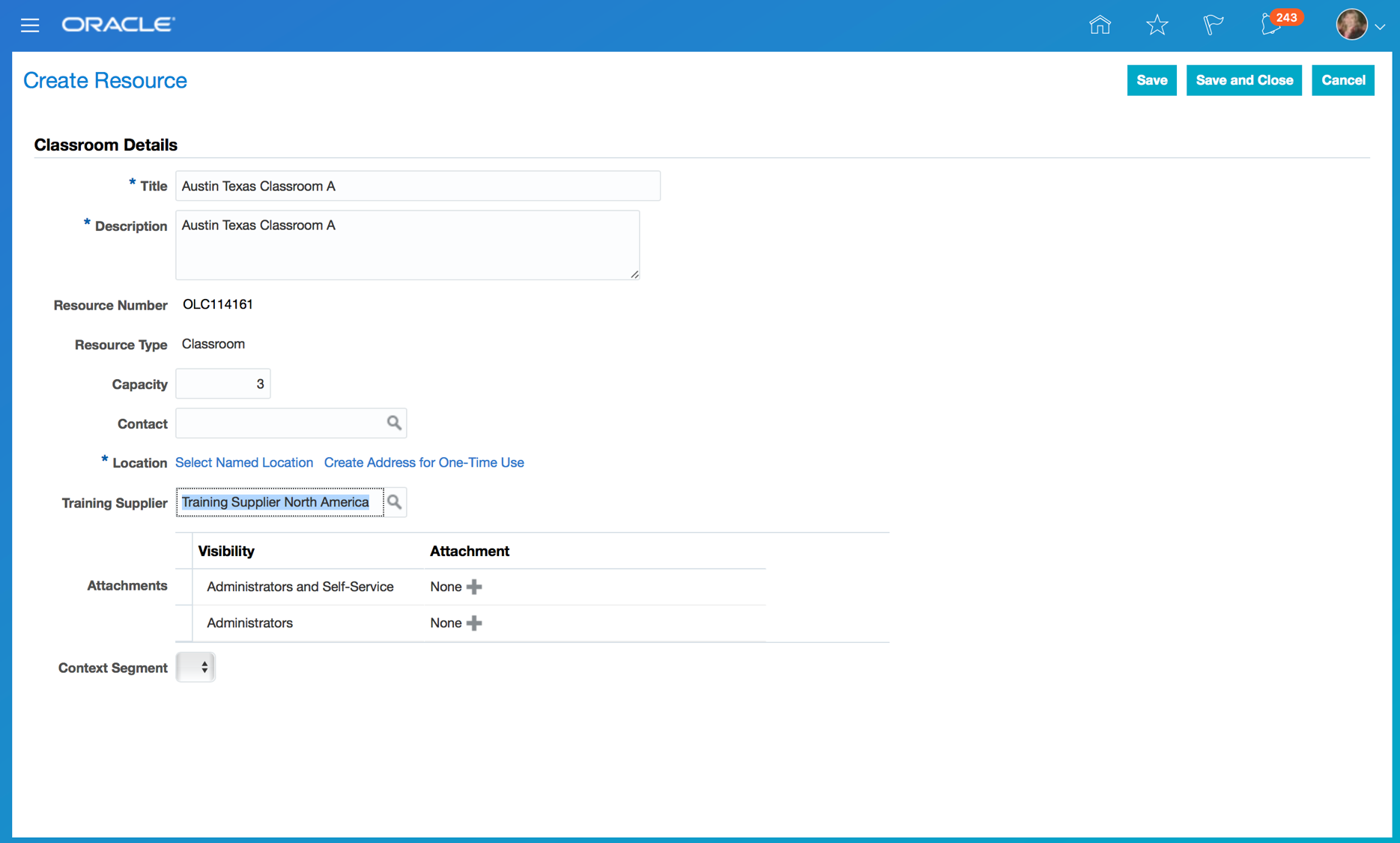
Associate Training Supplier to a Classroom
Steps to Enable
No steps are required to enable this feature.
Complete an Optional Learning Evaluation at any Time
Complete the optional learning evaluation at any time no matter the completion status on other activities.
Steps to Enable
No steps are required to enable this feature.
Enhanced Look and Feel of Learner Self-Service
Use the enhanced look and feel of the learner self-service pages such as course details page, specialization details page, video details page, profile page, learning catalog page, community details page, tutorial creation page, activity player, SCORM player, assessment player, and video player.
Steps to Enable
No steps are required to enable this feature.
View all learning activities of a particular offering in a single listing.
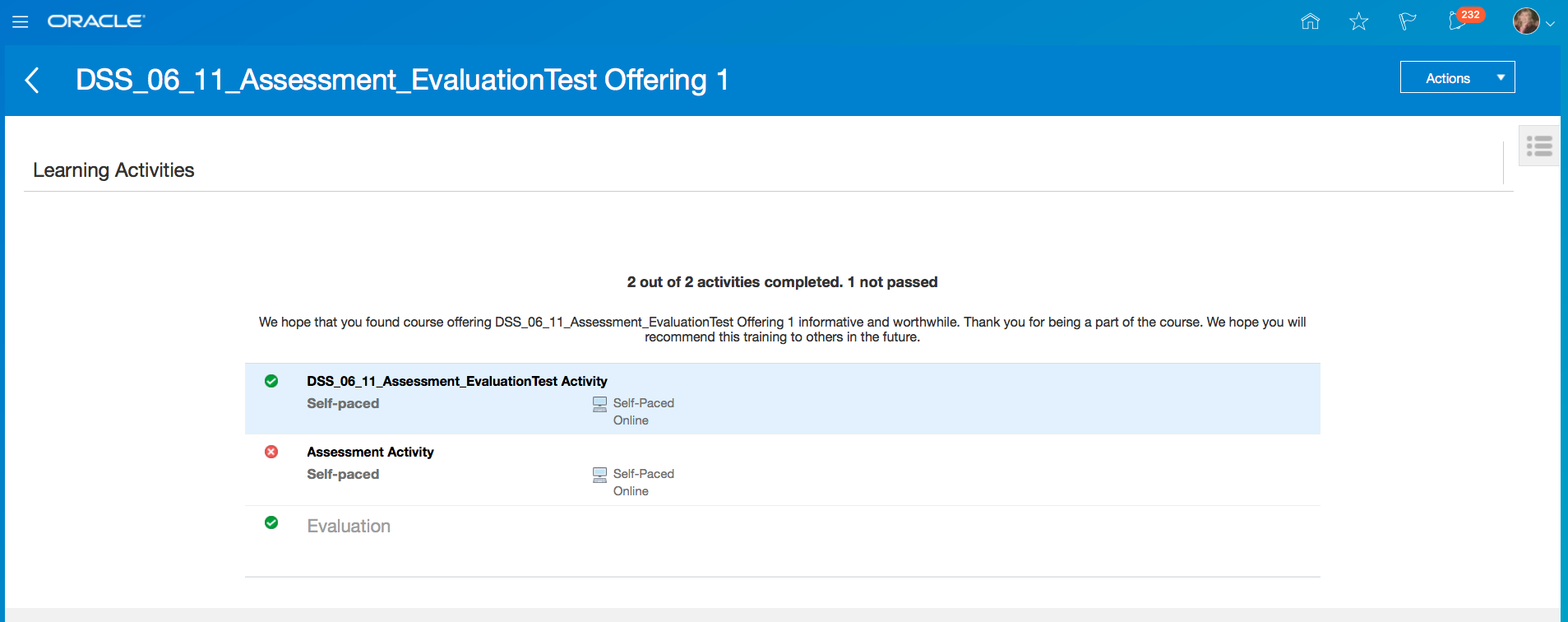
Learning Activities Dashboard
Steps to Enable
No steps are required to enable this feature.
Rate Learning Items Using a 5-Star System
Rate courses, offerings, videos, and tutorials using a 5-star rating system.
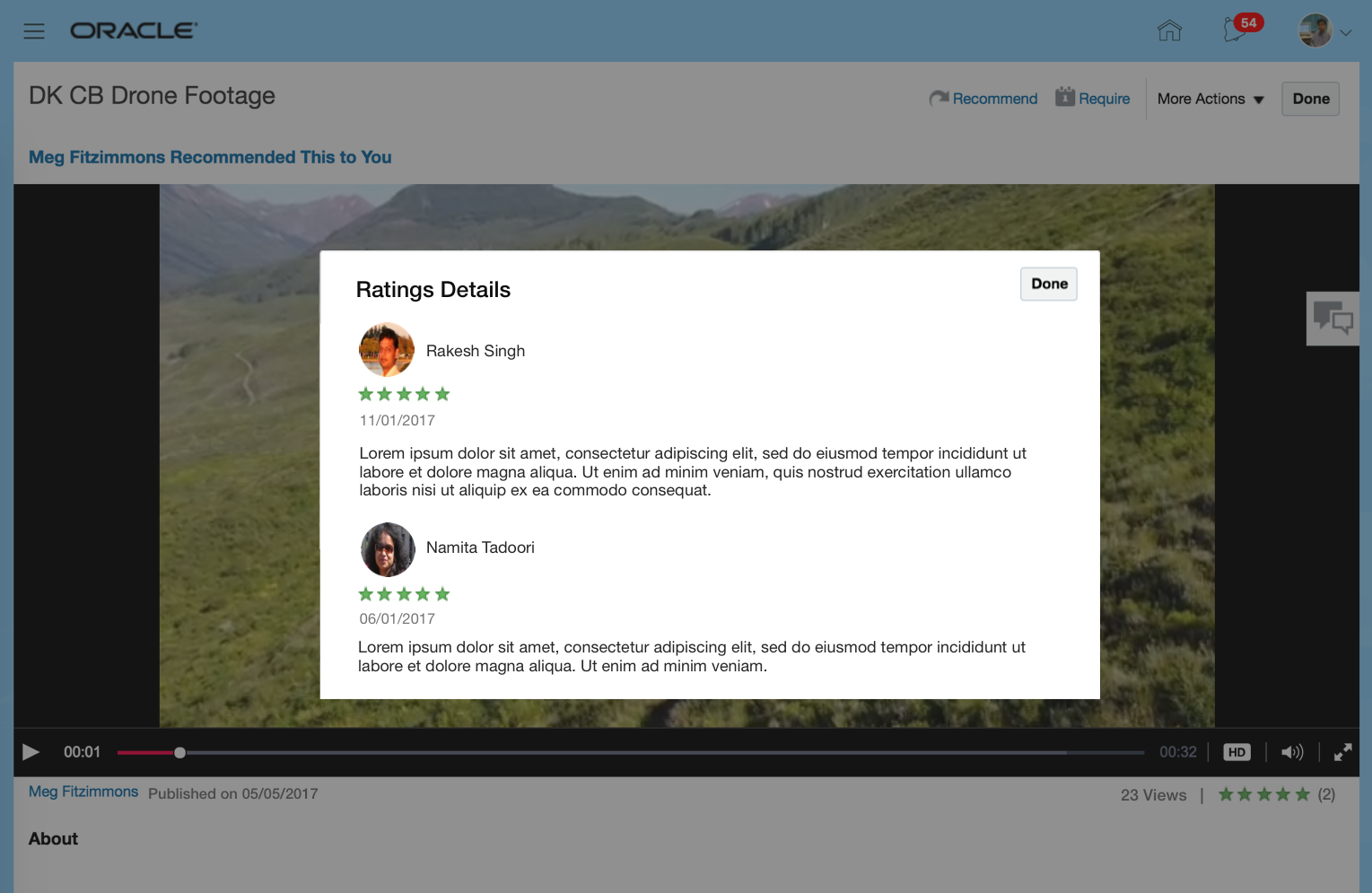
Rating Details Page
Steps to Enable
No steps are required to enable this feature.
Show Ranking in Search Results
Show relevancy ranking in search results. Relevancy is displayed as follows for each line item in the search results: Search Relevance: Low, Search Relevance: Medium, Search Relevance: High.
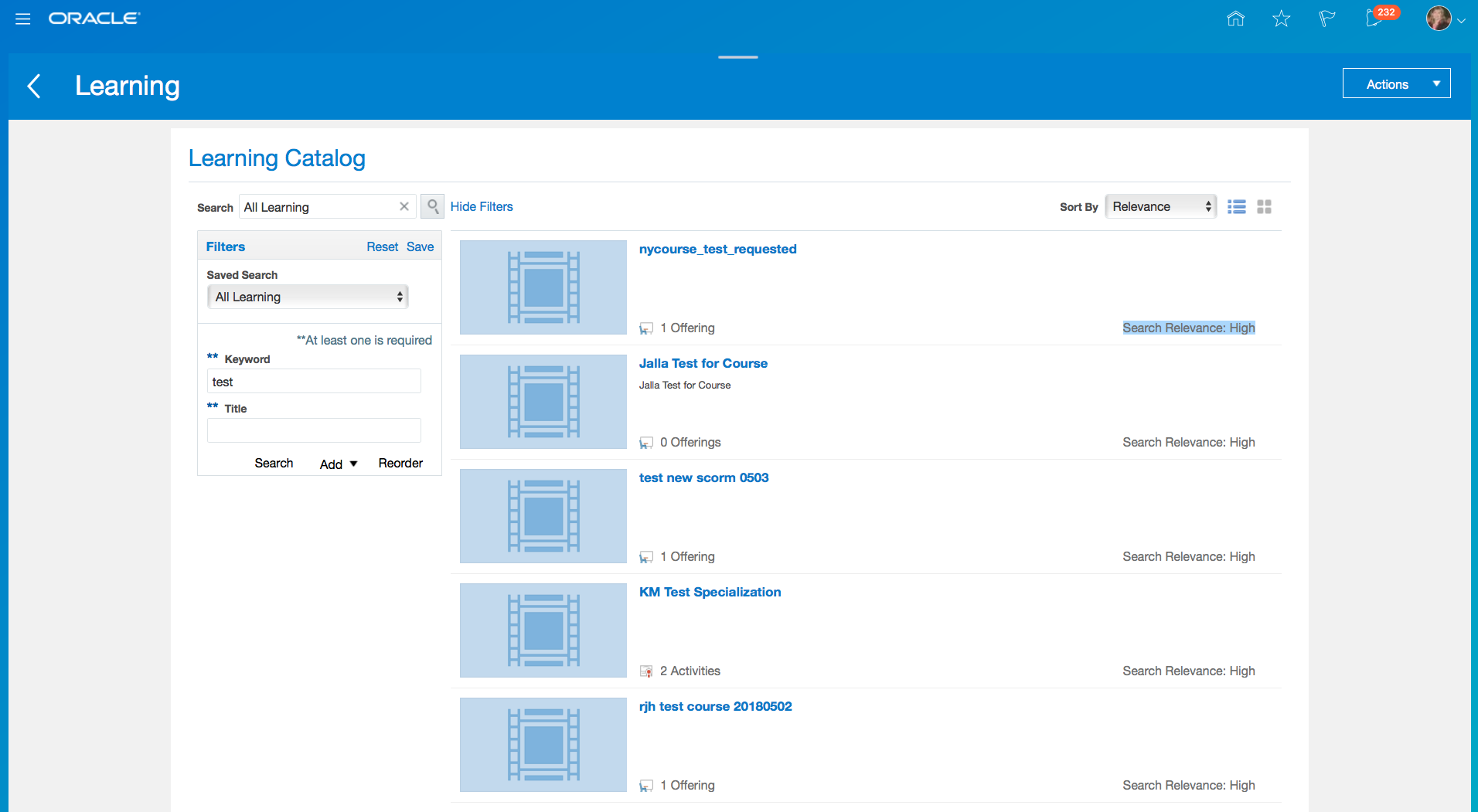
Self Service Search Results
Steps to Enable
No steps are required to enable this feature.
Support quick actions so that the Learner and Manager can quickly publish videos, request noncatalog learnings, and request noncatalog learnings for My Team.
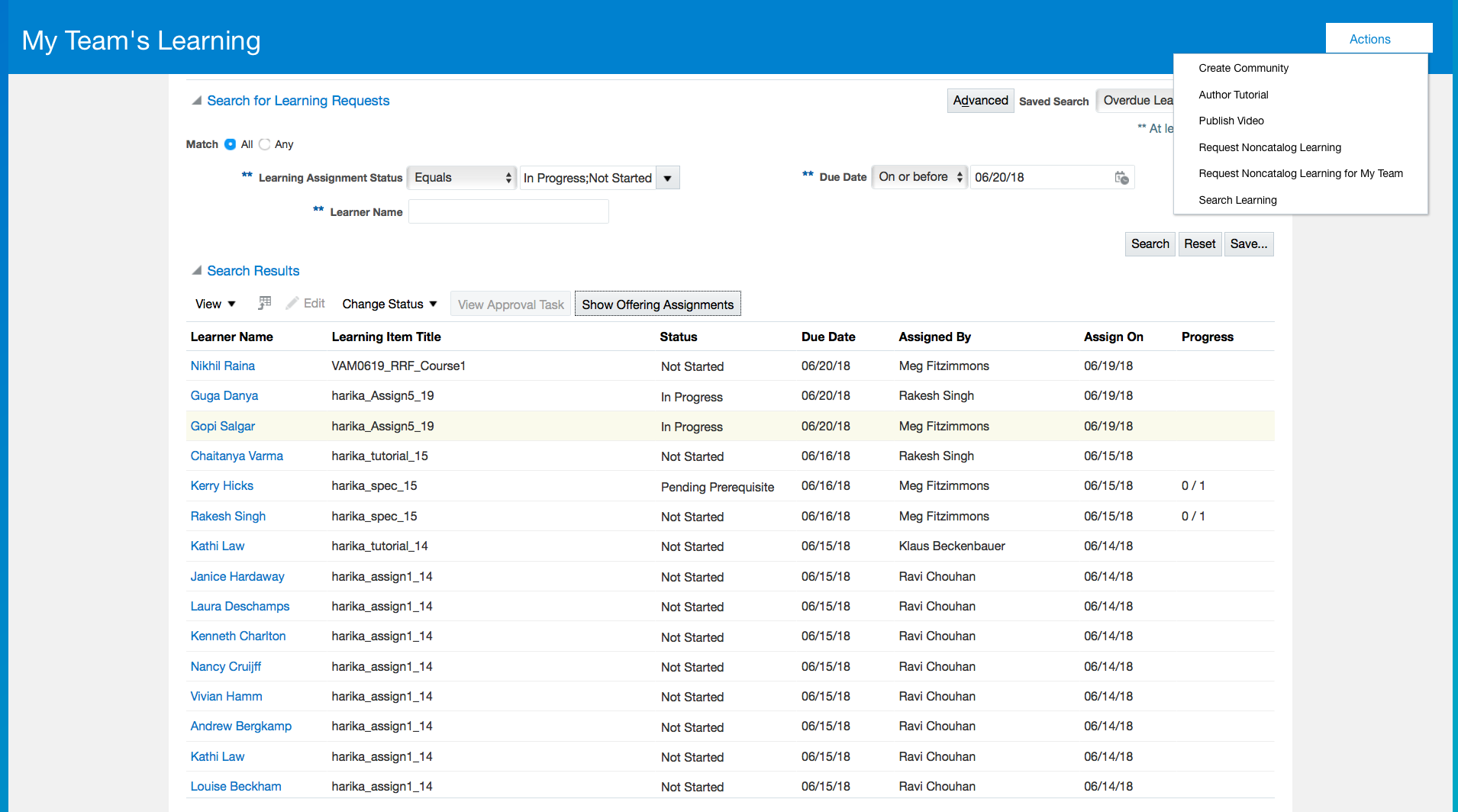
Quick Actions from My Team's Learning
Steps to Enable
No steps are required to enable this feature.
Enhance learner self service search capabilities with options to search by delivery mode and language.
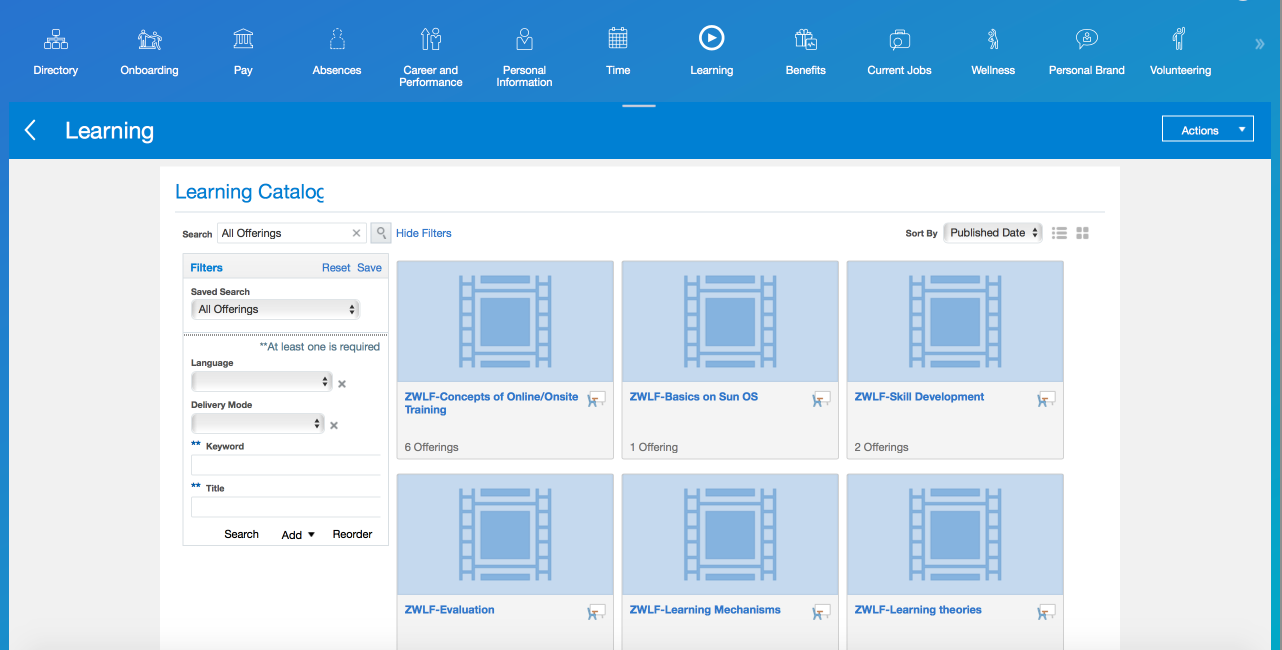
Steps to Enable
No steps are required to enable this feature.
Enhanced My Team's Assignments View
Use the enhanced My Team's Assignments view.
- View all learning assignments created for your team.
- Filter assignments using a variety of filters.
- Click on the name of a learner to view learner's learning profile.
- Export your team assignments to Microsoft Excel.
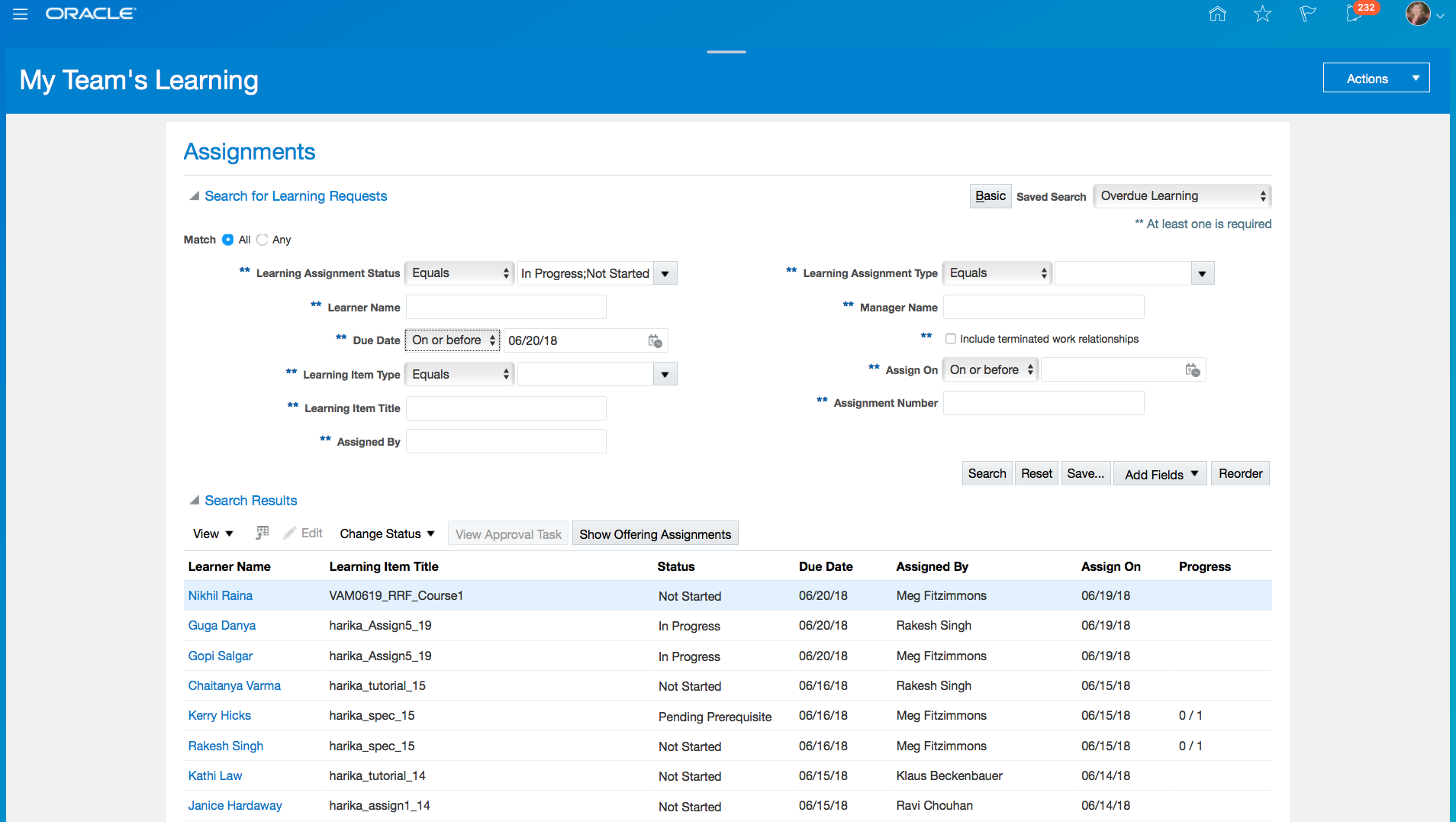
View My Team's Learning Assignments
Steps to Enable
No steps are required to enable this feature.
Enhance HCM Data Loader for Oracle Learning Cloud
Use these enhanced HCM Data Loader objects:
- Learning Record: Support of midstream assignments.
- Learning Record Support for Offerings
- Learning Record Support for Specializations
- Learning Record Support for Tutorials
- Learning Record Support for Videos
- Ability to upload learning records with an initiative ID.
- Course (including flexfields and default access as per learning setup).
- Offering (including learning evaluation enablement and override, and including flexfields and default access as per learning setup).
- Instructor Led Activity: Add custom virtual classroom URL.
- Classroom Reservation
- Instructor Reservation on Person
- Adhoc Resource
- Self-Paced Activity: Including the support of assessments.
- Course Offering Pricing Defaults
- Offering Custom Pricing
- Course Translation
- Offering Translation
- Offering ILT Activity Translation
- Offering Self-Paced Activity Translation
- Classroom Resource (including flexfields)
- Classroom Resource Translation
- Specialization (including flexfields)
- Specialization Section
- Specialization Section Activity
- Specialization Translation
- Specialization Section Translation
- Support for prerequisites and learning outcomes on courses
- Support for prerequisites and learning outcomes on specializations
- Offering Instructor Led Training Activity Instructor Reservation on a Learning Instructor Resource
- Instructor Resource (including flexfields)
Steps to Enable
No steps are required to enable this feature.
HDL Support for Learning Outcomes and Prerequisites
Associate learning outcomes and prerequisites to a course or specialization.
Steps to Enable
No steps are required to enable this feature.
Use these new REST services:
- Get learner assignment and activity details.
- Manage Content Items task supports assessments and disabling of auto-complete for web links and PDFs.
Steps to Enable
No steps are required to enable this feature.
Remove the Browser Flash requirements for playing videos.
Supported operating systems and browsers when Flash is disabled:
- Windows 7 / Chrome
- Windows 10 / Chrome
- Windows 7 / Firefox
- Windows 10 / Firefox
- Windows 10 / Microsoft Edge
Operating systems and browsers not supported:
- Windows 7 / Internet Explorer 11
- Windows 10 / Internet Explorer
Steps to Enable
No steps are required to enable this feature.
This document will continue to evolve as existing sections change and new information is added. All updates appear in the following table:
| Date | Feature | Notes |
|---|---|---|
| 27 MAR 2020 |
Talent Management: Performance Goals and Documents Integration with Mass Legal Employer Change Process | Updated document. Revised feature information. |
| 26 OCT 2018 | Talent Review: Delete or Reopen Completed Talent Review Meetings | Updated document. Revised feature information. |
| 27 APR 2018 | Goal Management: New Attribute for Goal Object - Long Description | Updated document. Delivered feature in update 18B. |
| 27 APR 2018 | Talent Review: Talent Review Dashboard Redesigned | Updated document. Revised feature information. |
| 06 APR 2018 | Created initial document. |
HCM Cloud applications have three types of patches you can receive that are documented in this What’s New:
- Release Updates (18A, 18B and 18C)
- Optional Monthly Maintenance Packs
- Quarterly Mandatory Maintenance Packs (delivered in February, May, August and November). All features that show in the Monthly Maintenance Packs will be included in the next Quarterly Mandatory Maintenance Pack, so no need to request the monthly maintenance packs.
It is important for you to know what Release Update you environment is on. You can find this in your Cloud Portal. If you are on Update 18A, you will only have features that are in 18A or the Monthly and Quarterly updates for 18A, you will not have 18B features until you receive the 18B update. You can however read ahead on future release so you can make plans for when you will receive the next update.
If you are upgrading from Release 12, you should read all features up through the Release Update that you will receive in the upgrade. This can also be found in Cloud Portal.
This document outlines the information you need to know about new or improved functionality in Oracle HCM Cloud. Each section includes a brief description of the feature, the steps you need to take to enable or begin using the feature, any tips or considerations that you should keep in mind, and the resources available to help you.
Oracle HCM Cloud release documents are delivered in five functional groupings:
Suggested Reading for all HCM Products:
- HCM Cloud Common Features (This document pertains to all HCM applications. It is the base human resource information for all products and HCM Tools.)
- Global Human Resources Cloud (Global Human Resources contains the base application in which other application use for common data such as workforce structures and person information. Regardless of what products you have implemented you may want to see the new features for Global Human Resources that could impact your products.)
NOTE: Not all Global Human Resource features are available for Talent and Compensation products.
Optional Reading for HCM Products (Depending on what products are in your cloud service):
- Talent Management Cloud (All Talent applications)
- Workforce Rewards Cloud (Compensation, Benefits, Payroll and Global Payroll Interface)
- Workforce Management Cloud (Absence Management and Time and Labor)
Additional Optional Reading:
- Common Technologies and User Experience (This documents the common features across all Cloud applications and is not specific to HCM)
NOTE: All of these documents can be found on the Oracle Help Center at: https://cloud.oracle.com/saasreadiness/hcm under Human Capital Management Release Readiness
Customers Upgrading from Release 12
If you're upgrading from Release 12 to Release 13, then you should review all of the release readiness content for Release 13 (updates 17B - 17D, as well as, updates 18A - 18B) to learn about all of the features available in release 13.
Give Us Feedback
We welcome your comments and suggestions to improve the content. Please send us your feedback at oracle_fusion_applications_help_ww_grp@oracle.com. Indicate you are inquiring or providing feedback regarding the HCM Cloud What’s New for Release 13 in the body or title of the email.
| Action Required to Enable Feature |
|||||
|---|---|---|---|---|---|
| Feature |
None (Automatically Available) |
Enable via Opt In UI Only |
Enable via Opt In UI Plus Additional Steps |
Not Enabled via Opt In UI but Setup Required |
Issue Service Request |
Performance Goals and Documents Integration with Mass Legal Employer Change Process |
|
||||
Configurable In-App Notifications for Talent Management Based on Reports |
|
||||
|
|||||
|
|||||
Flexible Data Security for Succession Candidates and Incumbents |
|
||||
|
|||||
|
|||||
|
|||||
|
|||||
|
|||||
|
|||||
|
|||||
Extended Set of Person Search Fields in Human Resource Specialist Administrative Tasks |
|
||||
|
|||||
|
|||||
|
|||||
|
|||||
|
|||||
Learning Record Cost to Learner - Learning Management Real Time |
|
||||
|
|||||
|
|||||
|
|||||
|
|||||
New Dimension - Member Details in Talent Pools Real Time Subject Area |
|
||||
Features under this section are available to all talent applications.
Performance Goals and Documents Integration with Mass Legal Employer Change Process
You can now choose to move performance goals and documents to workers’ new assignments with a legal employer when using the Global HR administration task Mass Legal Employer Change process.
You can move all of the workers performance goals and documents associated with all review periods, or you can choose only current and future review periods and leave historic performance goals and documents associated with the inactive assignments.
Moving performance goals and documents to the new assignment means that workers will not need to switch between assignments to see all of their performance goals and documents.
Use the Additional Changes section to move performance goals and documents and to select the review period:
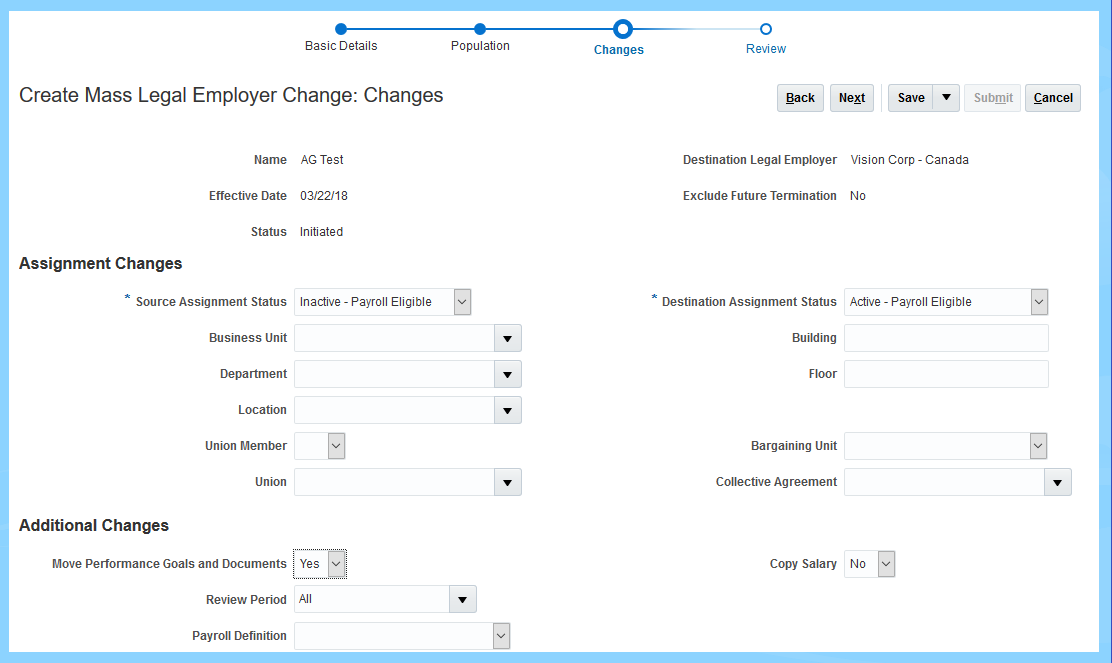
Changes Page of the Mass Legal Employer Change Process
Steps to Enable
No steps are required to enable this feature.
Tips And Considerations
- If a worker has the same performance goals, goal plans, or performance documents associated with multiple assignments within the same work relationship, only the performance goals and documents associated with the primary assignment will be moved to the new assignment created by the Mass Legal Employer Change process. The performance goals and documents associated with secondary assignments will remain associated with those for further processing, canceling, or deleting.
- Eligibility profiles are not changed by the Mass Legal Employer Change process. So if the eligibility profiles used for performance goals and documents include inactive assignments then when the process runs and moves the performance goals and documents to the new assignment the inactive assignments will continue to be eligible for the same performance goals and documents. Eligibility profiles would need be updated to exclude the inactive assignments to prevent these being created again.
- If the global transfer is cancelled, the moved performance goals and documents will not be automatically moved back to the original assignments. The Performance Data Integrity Check process can be used to associate the orphaned performance documents back to the employee's primary assignment. HDL can be used to associate the orphaned goals back to the employee's active primary assignment.
Key Resources
For more information, go to Applications Help for the following topics:
- Creating a Mass Legal Employer Change: Worked Example
- Mass Legal Employer Change Statuses: Explained
- Adding Population for the Mass Legal Employer Change: Explained
Configurable In-App Notifications for Talent Management Based on Reports
You can now configure Talent Management in-app notifications using Oracle Business Intelligence (BI) Publisher reports. You can use the standard BI Publisher templates to configure the in-app notifications for the following workflow tasks:
Notifications are available for the following business processes:
- Profile Management
- Goal Management
- Performance Management
- Career Development
- Talent Review
To configure the report templates, you must download the templates from the BI Publisher server and use Microsoft Word to edit them. You upload the edited templates back to the BI Publisher server.
Steps to Enable
The following prerequisites must be met for using BI Publisher notifications:
- Download and install the Oracle BI Publisher Desktop: http://www.oracle.com/technetwork/middleware/bi-publisher/downloads/index.html.
- Download and install the Template Builder for Word to use Microsoft Word to edit the layout templates. To download, install, and set up Template Builder for Word, see Creating RTF Templates by Using BI Publisher 11g Template Builder for Word.
NOTE: You can modify the BI Templates only if you have the BI Administrator role.
You must also configure the profile options to use the BI Publisher for notifications:
- Click Navigator > Setup and Maintenance.
- On the Setup page, click the Tasks panel drawer.
- In the Tasks panel drawer, click Search.
- In the Search text box, enter Manage Administrator Profile Values and click the Search icon.
- Click the Manage Administrator Profile Values task.
- On the Manage Administrator Profile Values page, in the Profile Option Code field, enter BIP_ONLINE and click Search.
- In the Search section, set the following to true:
- BIP_ONLINE_NOTIFICATION_HCM - Enable Oracle Business Intelligence Publisher worklist notifications for human capital management applications
- BIP_ONLINE_NOTIFICATION_HCM_TALENT - Enable Oracle Business Intelligence Publisher worklist notifications for Talent Management
- BIP_ONLINE_NOTIFICATION_HCM_GOALS - Enable Oracle Business Intelligence Publisher worklist notifications for Goals and Career Management
Tips And Considerations
- You can edit the BI Publisher templates to add headers and text.
- You can add data model attributes to the template if they already exist in the data model used for the template.
Key Resources
For more information, go to Applications Help for the following topics:
- HCM Email and In-App Notifications Based on Reports: Overview
- Templates and Data Models Used for HCM Notifications Based on Reports
- Configuring Career Development Notifications Using Reports: Worked Example
- Configuring Goal Management Notifications Using Reports: Worked Example
- Configuring Performance Management Notifications Using Reports: Worked Example
- Configuring Profile Management Notifications Using Reports: Worked Example
- Configuring Talent Review Notifications Using Reports: Worked Example
- Configuring Workforce Deployment Notifications Using Reports: Worked Example
- Configuring Feedback Notifications Using Reports: Worked Example
Notes Resource Catalog Component in Talent Management
Enhance the application workflows by embedding the Notes Resource Catalog component in Talent Management application pages. Using the Page Composer, the administrator can associate the Notes component with a person or object in the application page, so that employees and managers can create contextual notes to their needs. Examples of contextual notes cases include:
- Notes for an employee in the context of an employee’s performance goal
- Notes for an employee in the context of an employee’s performance goal plan
- Notes for an employee in the context of an employee’s performance review period
- Notes for an employee in the context of an employee's development goal
- Notes for an employee in the context of an employee’s career development
- Notes for a talent review meeting
- Notes for a succession plan
- Notes for a talent pool
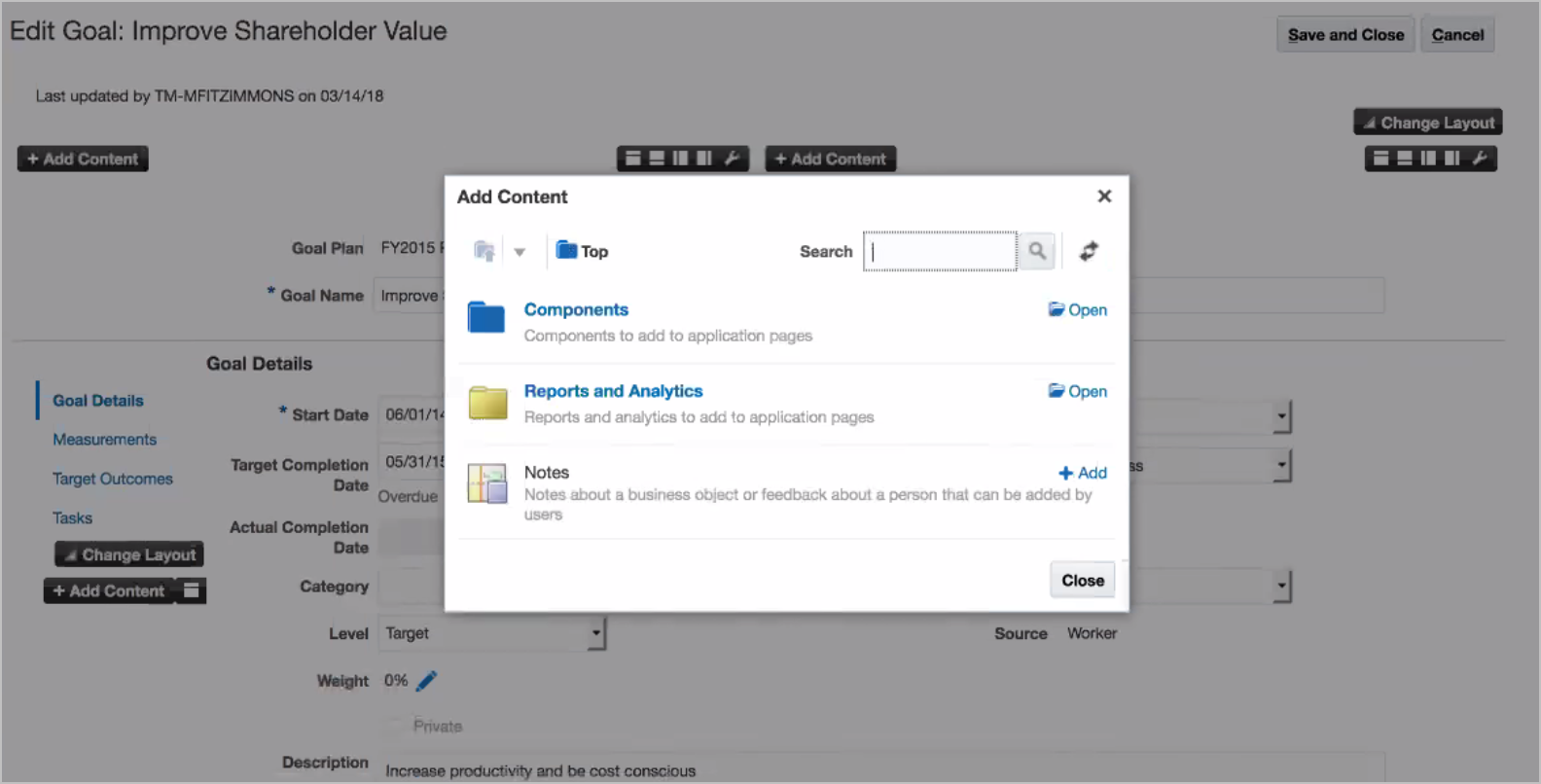
Adding Notes Resource Catalog Component
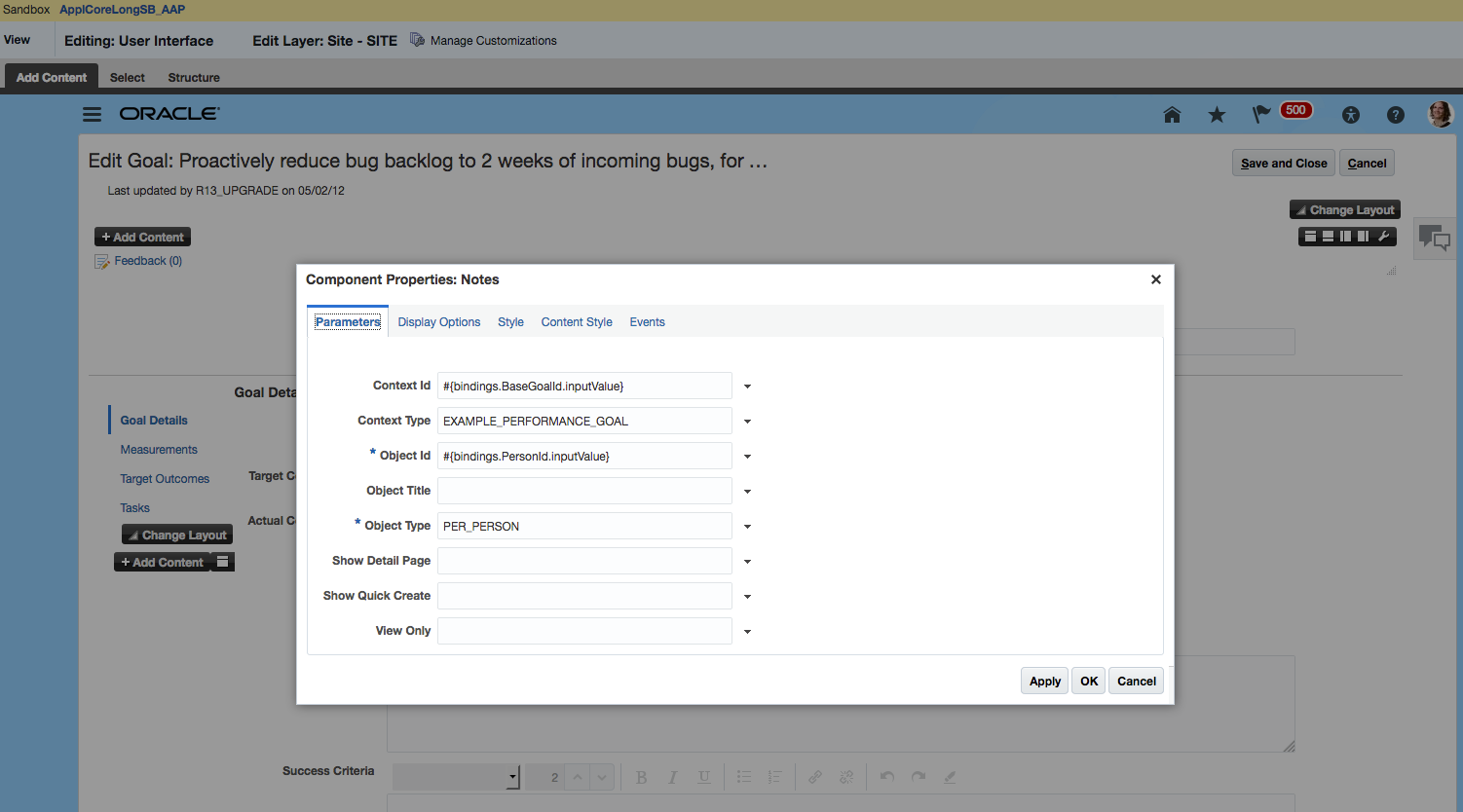
Notes Component Embedded into Employee's Performance Goal Page
Steps to Enable
You must configure the page, add the component and define the component as required. For example, you can add the Notes component for an employee in the performance goal:
- Sign in to the application as a user with configuration privileges.
- In the Setting and Actions menu, go to Administration and select Manage Sandboxes.
- Create and then activate the sandbox.
- Navigate to the employee's Goals page where you want to embed the Notes component.
- In the Setting and Actions menu, go to Administration and select Edit Pages.
- In the Edit Pages window, select the level -- Site, HCMCountry, or HCMOrganization -- at which you want to add the component.
- From the View menu select Source.
- Click Add Content.
- To add the Notes resource catalog component click Add.
- From the View menu select Design.
- Click the Configure icon to configure the contextual parameters.
CONTEXTUAL PARAMETERS OF NOTES COMPONENT IN EMPLOYEE'S PERFORMANCE GOAL
| Parameter | EL Expression |
|---|---|
| Object Type | PER_PERSON |
| Object ID | #{bindings.PersonId.inputValue} |
| Context Type | EXAMPLE_PERFORMANCE_GOAL |
| Context ID | #{bindings.BaseGoalId.inputValue} |
To define the appearance of the Notes component in the application page, in addition to Resource Catalog component standard features, you can use and specify the following attributes:
- Object Title
- Show Details Page
- Show Quick Create
- View Only
NOTE: You can modify the default Visibility settings of Person Notes using the Manage Common Lookups and Manage Feedback Visibility tasks in Functional Setup Manager.
Key Resources
For more information about customizing pages for Functional Administrators, see Chapter 3 Page Modification in Configuring and Extending Applications
For more information on the Notes Resource Catalog Component and Security and Role Information, see My Oracle Support for Implementing Contextual Notes in Oracle HCM Cloud Talent Management Document ID: 2375556.1,
Oracle Fusion Succession Management helps to create succession plans to replace key personnel. Succession plans identify workers who are ready now, or can develop the necessary skills, for jobs and positions that aren't currently vacant, ensuring, a smooth transition and help you to manage candidate development.
Super User for Succession Management
Leverage the ability to create a succession management super user role and access all succession plans in your organization. Additionally, you can configure the super user role to report on all plans in OTBI.
More than one user can be a super user. You can make any user who has access to the Succession Management work area a super user. A super user can create a succession plan for any incumbent. A super user can view and update most of the plans, public or private, without being named as an owner of the plan. Super users can view all candidates, even if they are not in the super user's data security profile. Super users can add any candidate to a succession plan. A super user can also add a candidate to a succession plan from the candidate’s Directory and the Person Spotlight pages.
Steps to Enable
You have to create a super user role before assigning this role to any user. See the Securing HCM guide to learn how to create a super user role and configure the super user role to report on all plans in OTBI.
Tips And Considerations
- The super user role is not a predefined role. You must create a custom super user role.
- Only a user with IT Security Manager Privilege can create a super user role.
- The super user role does not affect the Best Fit functionality, which will still be restricted to the user's normal data security.
- In this release, a super user who is selected as the owner type Candidate Manager for a plan can edit only the plan’s candidate list.
- In this release, a super user who is selected as the owner type Viewer for a plan can only view the plan and not edit it.
Flexible Data Security for Succession Candidates and Incumbents
Enhance the succession planning process by allowing users to select candidates outside of their normal data security profile. You can support your business process requirements by independently configuring the candidate and incumbent searches to allow or not allow users to search outside their data security profile.
Previously, the incumbent search list, the candidate search list, and the plan candidates were secured by the Choose Worker privilege. Users could only search for or view candidates who were within their data security profile. However, users could search for incumbents who were outside their data security profile.
With the new security model changes, the incumbent and candidates of a succession plan are secured by different privileges. Specifying an incumbent for an existing plan or a new plan in the Plan Details page is now secured by the Create Succession Plan for Worker Data privilege. Adding candidates to a succession plan in the Select Candidates page is now secured by the Add Worker to Succession Plan privilege.
In the new security model, you can define your own securing conditions for the incumbents and candidates that a user can access. You can create data roles, specify securing conditions for the data roles, and assign these roles to different users. The candidates and the incumbents that a signed-in user can search are determined by the role the signed-in user is assigned to.
Steps to Enable
To change the candidate or incumbent search behavior, you have to configure the data security policies of different roles like the Human Resource Specialist and Line Manager roles. For all job roles such as the Human Resource Specialist role, you must create a data role from the job role and then assign that data role to the job role. For abstract roles such as the Line Manager role, you can add data security policies directly to the role. See the Securing HCM guide to learn how to configure the data security policies for a job role and an abstract role.
Oracle Fusion Talent Review is an analytic product enabling your organization to review and evaluate data from the profile, performance, goals, career development, and compensation management solutions.
Talent Review Dashboard Redesigned
Improve your user experience with the redesigned talent review dashboard.
We have moved the actions to the Actions menu and have made the dashboard easier to use. You can perform actions on the dashboard on individual and multiple workers. To perform an action, select one or more workers and then from the Actions menu, select the action to perform. To perform an action on all workers displayed in the box chart and Holding Area, select the Select Visible Workers check box. To perform an action on all workers displayed in a particular box of the box chart, double-click the box to zoom it, and then select the Select Visible Workers check box.
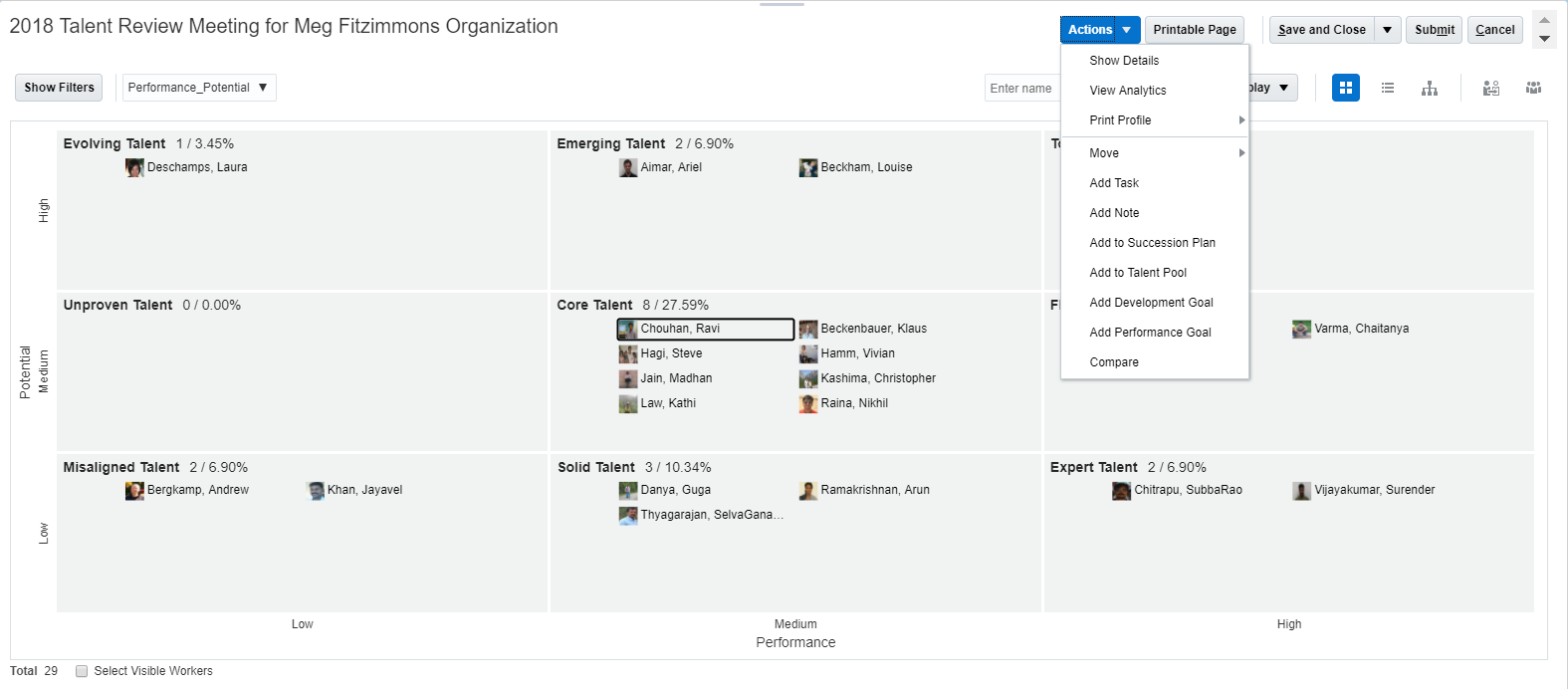
Talent Review Meeting Dashboard – Actions Menu
You can also select a worker in the box chart displayed, right-click, and from the menu displayed, select the action to perform.
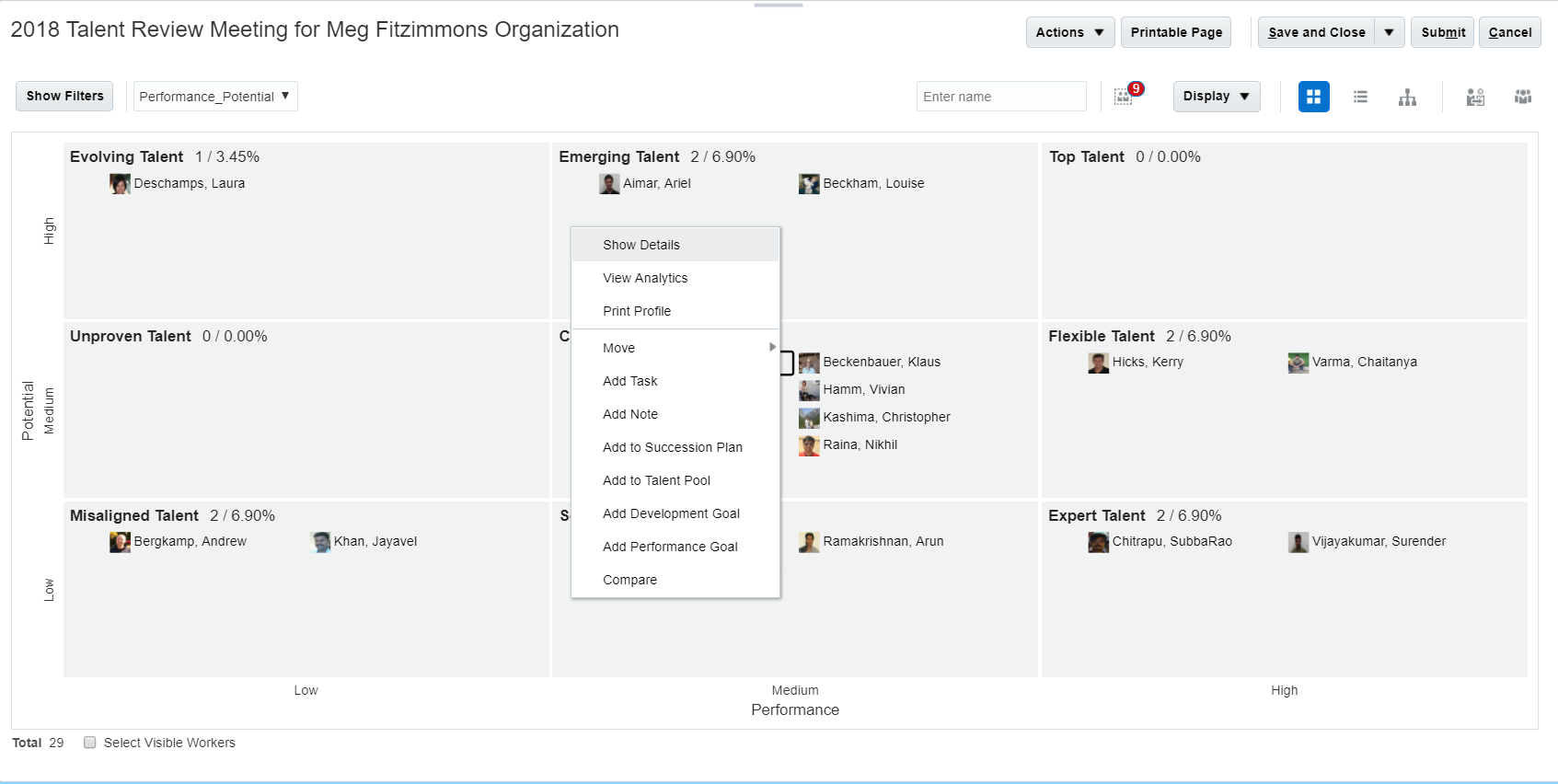
Talent Review Meeting Dashboard – Actions for a Single Worker
We have also implemented popular enhancements such as including worker pictures and providing more information about the worker in the redesigned dashboard. Hover over a worker’s name to view more information about the worker.
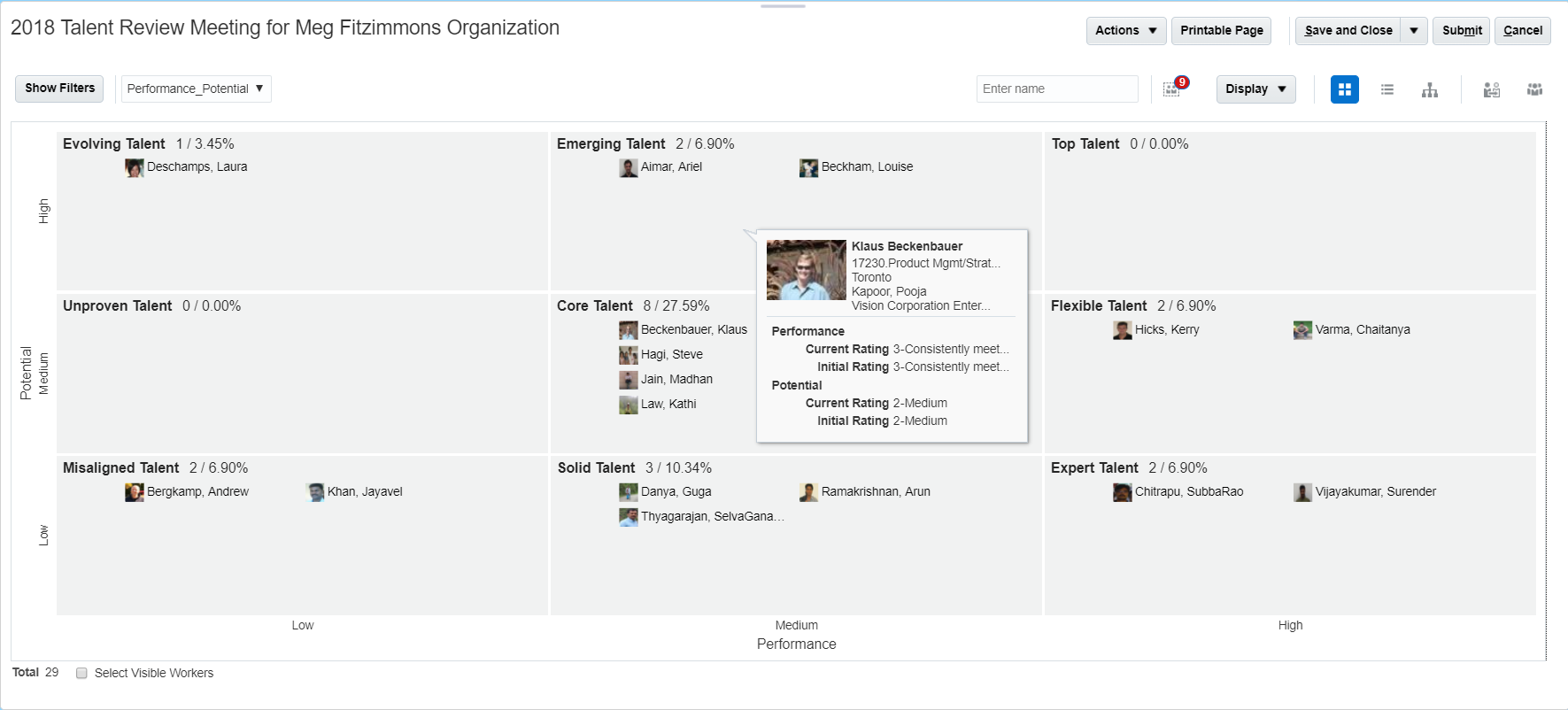
Talent Review Meeting Dashboard –Worker Information
To configure the display of the dashboard, from the Display menu, select the display option that you want to use.
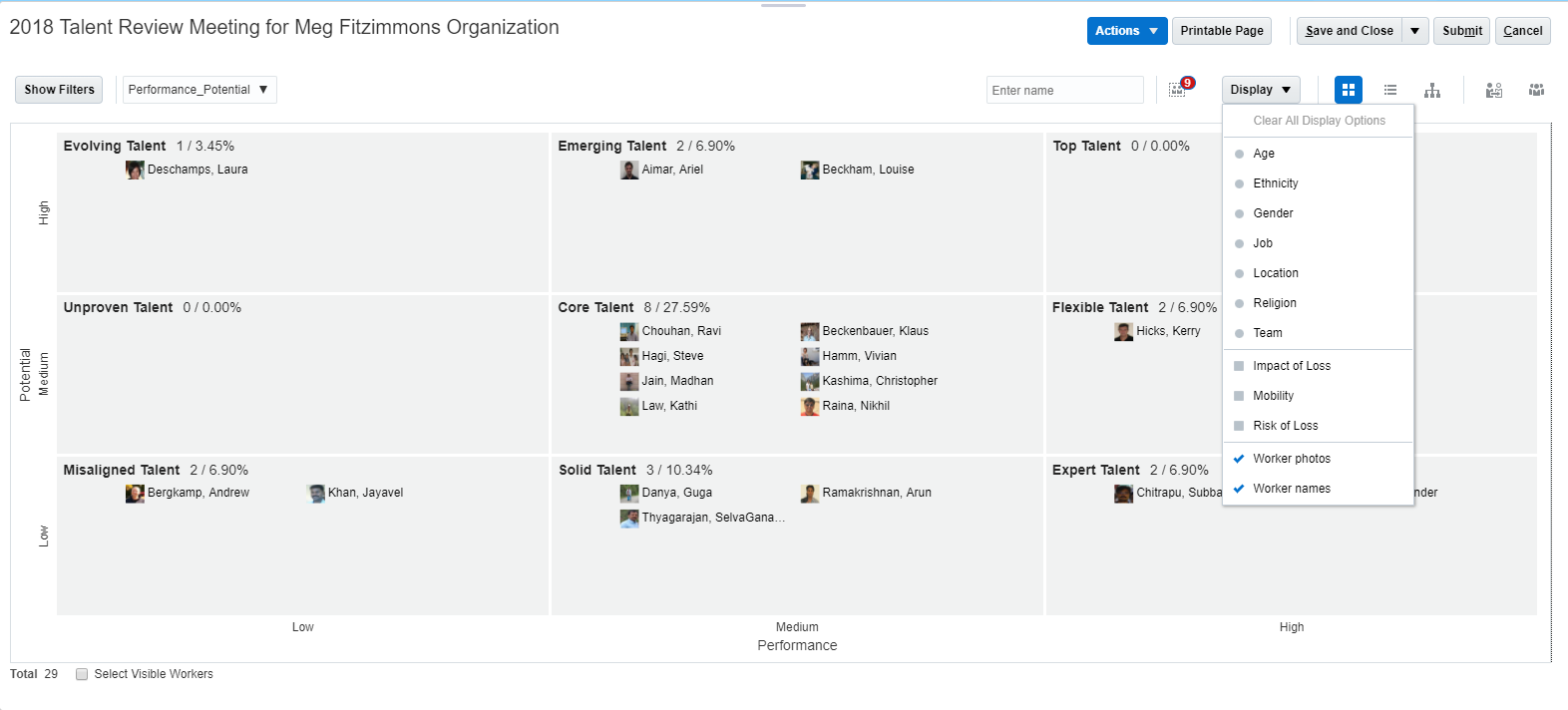
Talent Review Meeting Dashboard - Display Menu
When you select any display option except worker photos and names, the option appears in a legend on the dashboard. In the legend, each category within the option appears with a different color code or symbol.
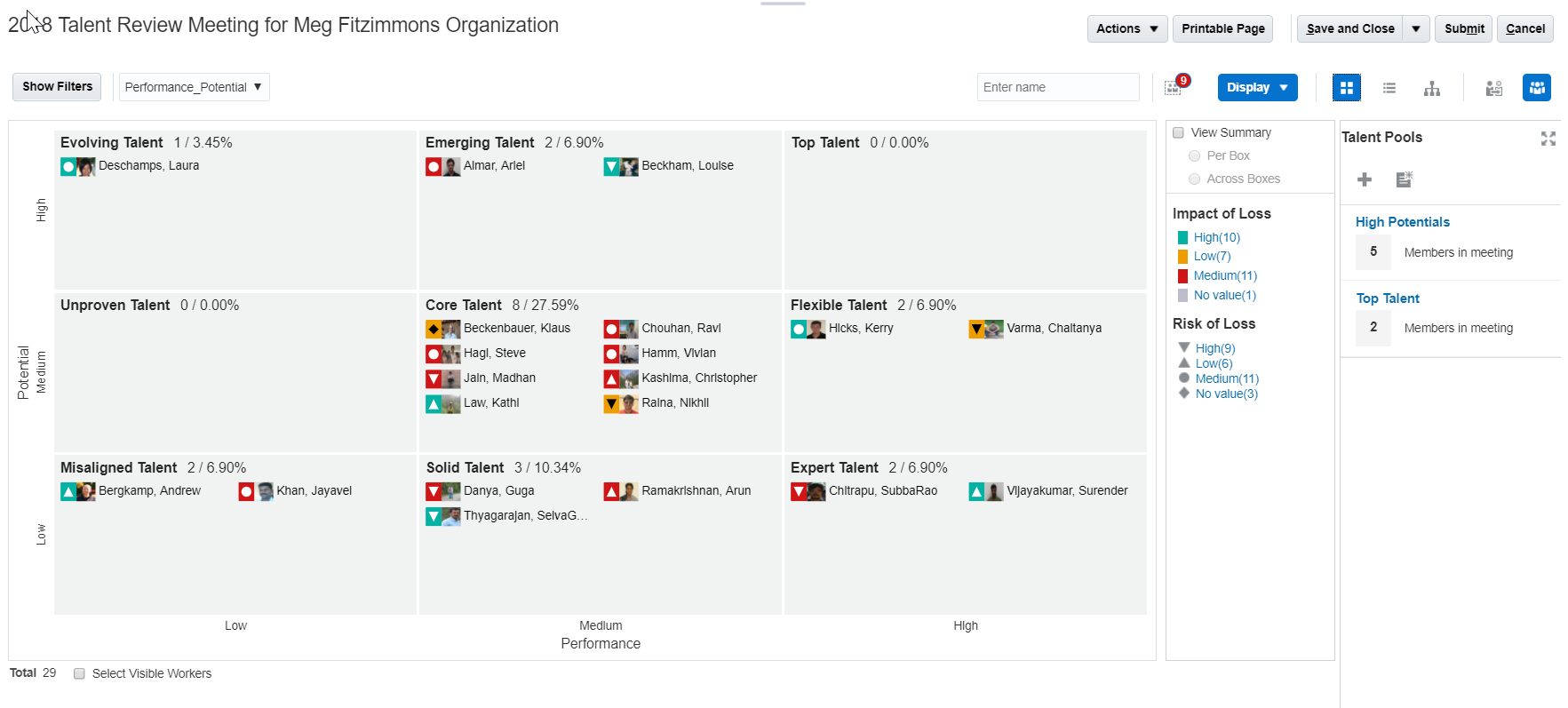
Talent Review Meeting Dashboard - Display Legends
The redesigned dashboard also provides full page views of succession plans, talent pools, and analytics that are associated with the meeting. Click the Maximize icon ( ) in the Talent Pools or Succession Plan pane to open the corresponding full page view.
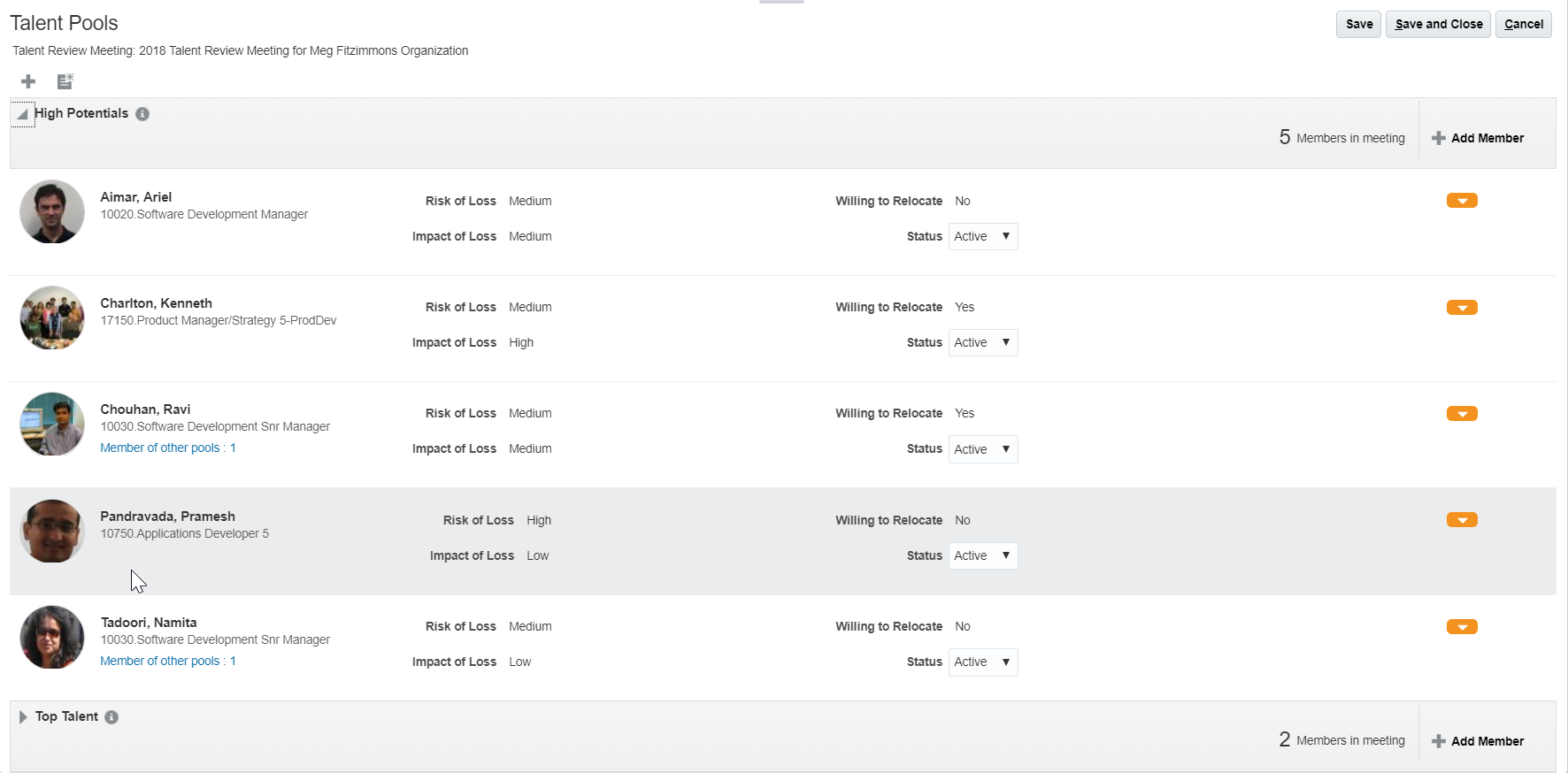
Talent Pools – Full Page View
The new Talent Review dashboard has Printable Page Support enabled. To view the printable page of the dashboard, click the Printable Page button on the top of the dashboard.
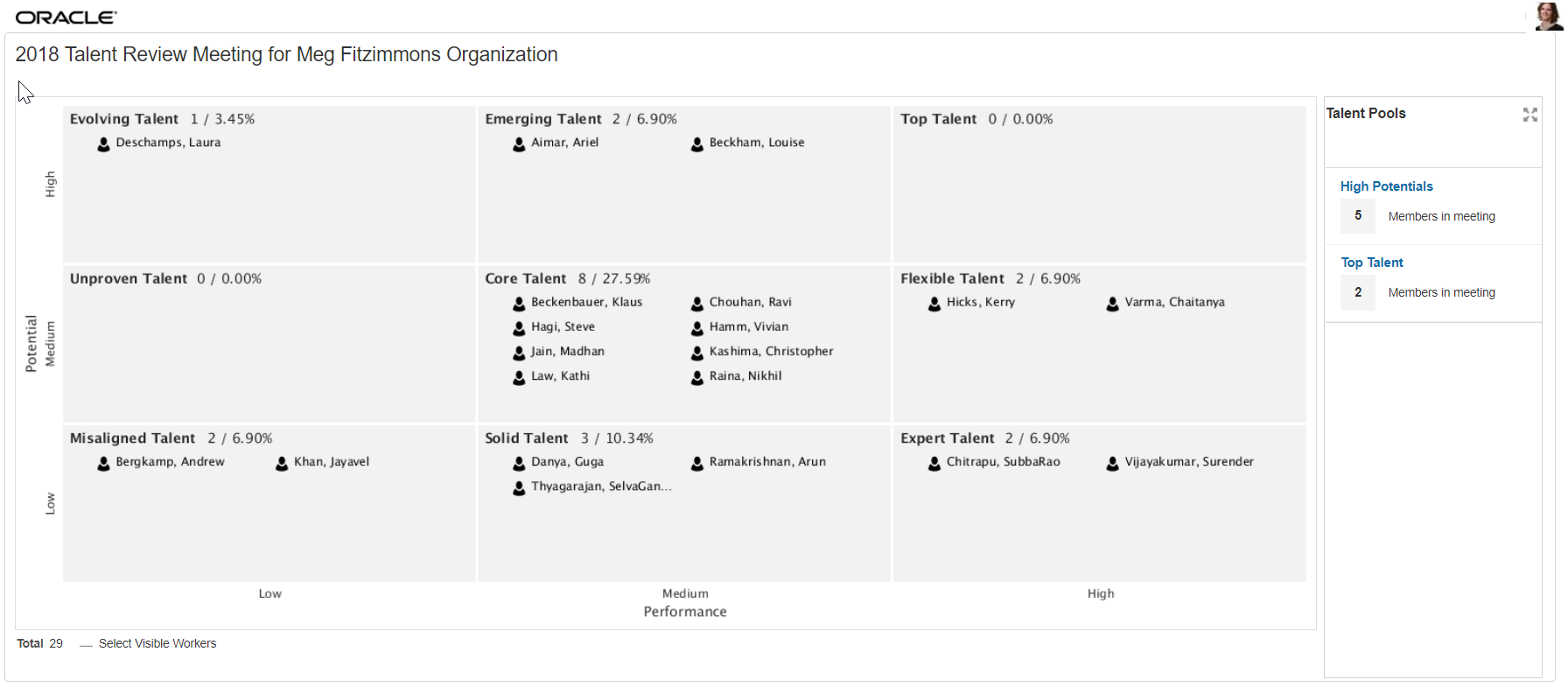
Talent Review Meeting Dashboard – Printable Page
The redesigned dashboard includes the new Prior Ratings feature, which replaces the Prior Meetings feature that was previously available. You no longer need to select specific meetings to retrieve the prior ratings. Now, you enter a date range, and the system retrieves the most recently submitted rating within the range. The retrieved prior ratings are then converted to the box assignment of the current ratings and displayed in the box chart. This makes it easy to compare the prior ratings information with the current ratings displayed. The color coding helps you to quickly identify the ratings that have changed for each worker. The most recent rating is displayed for each worker within the prior rating range.
Steps to Enable
The redesigned dashboard is not available by default. To use the redesigned dashboard, you must create the HRR_NEW_DASHBOARD profile option and update it at site level to Y.
-
Create the HRR_NEW_DASHBOARD profile option by giving the values specified in the following table in the Manage Profile Options page.
Field Value Profile Option Code
HRR_NEW_DASHBOARD
Profile Display Name
HRR_NEW_DASHBOARD
Application
Talent Review
Module
Talent Review
Description
Add profile option for the new dashboard
-
In the Manage Profile Options page:
- Search and select the HRR_NEW_DASHBOARD profile option.
- Select the Enabled and Updateable check boxes at the Site level.
-
Save the changes made.
-
In the Manage Administrator Profile Values page:
- Search and select the HRR_NEW_DASHBOARD profile option code.
- Set the Profile Value to Y.
-
Save the changes made.
Tips And Considerations
- The options that appear in the Action and Display menus depend on the configuration of the template used for the meeting.
- In the Table view of the dashboard, only the Actions menu appears.
Key Resources
For more information, refer to the following topics in the Applications Help:
- Talent Review Data Options: Points to Consider
- Actions for Talent Review Meetings: Explained
Delete or Reopen Completed Talent Review Meetings
Improve the maintenance of talent review meetings by using the DELETE MEETING and REOPEN MEETING features. Both features provide you with more administrative options to assist with maintaining your talent review meetings. When you delete or reopen a meeting, the associated ratings that exist in Profiles for each reviewee are deleted. A new column Meeting Submission Date has also been included in the Talent Review Overview page to indicate when a talent review meeting was actually submitted.
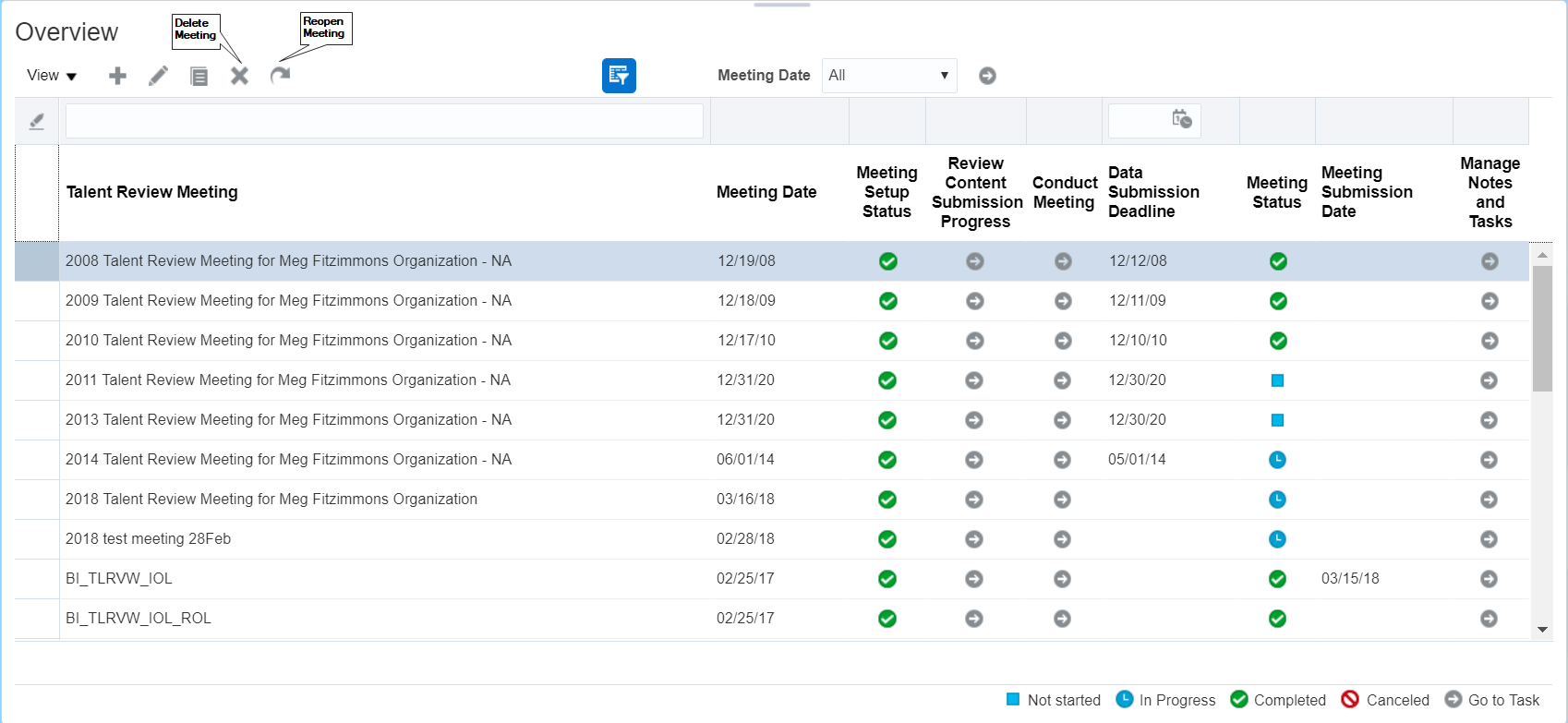
Talent Review – Overview Page
In previous releases, you could only delete meetings that were not started or that were canceled. In this release, you can also delete a completed meeting. When you delete a meeting, all notes and tasks associated with the meeting are deleted.
The REOPEN MEETING feature allows you to reopen a completed meeting. When you submit a reopened meeting after making your changes, the ratings of the current reviewees are resent to Profiles.
When you reopen a meeting:
- The meeting status changes from Completed to In Progress.
- The meeting submission date is no longer displayed in the Talent Review Overview page.
- The dashboard no longer lists the workers who were terminated since the meeting was last submitted.
- The dashboard no longer lists transfers or inactive assignments.
- The dashboard reflects the current assignment information of the review population.
Deleting or reopening a meeting triggers an Enterprise Scheduler Service (ESS) job, which does the deletion or reopening of the meeting. A meeting is reopened only when its associated ESS job completes successfully. To refresh the status of a meeting that is being processed by the ESS job, you must navigate away from the Talent Review Overview page and then return to the page.
Steps to Enable
No steps are required to enable this feature.
Tips And Considerations
- Only meeting facilitators can view the delete and reopen icons.
- You cannot delete a meeting that is in progress.
- Both the delete and reopen icons are available by default. However, you can write an EL expression to hide them conditionally or all together.
- When you delete a meeting, the application creates a log regarding the success or failure of the deletion.
Increased Size of Talent Review Descriptive Flexfields
Leverage the increased size of user-defined descriptive flexfields by including more information about talent review meeting configuration. We have increased column size of the descriptive flexfields to 2,000 characters to enable you to capture more information.
Steps to Enable
No steps are required to enable this feature.
Tips And Considerations
Use the Manage Descriptive Flexfields task to define descriptive flexfields.
Key Resources
For more information, see the following topics in Applications Help:
- Descriptive Flexfields for Oracle Fusion Talent Review
- Descriptive Flexfields: Explained
- Flexfields: Overview
Ability to Configure Visibility Options for Meeting Notes
You can configure visibility options for talent review meeting notes to exclude roles that can see notes and specify default values. With the new Manage Feedback Visibility task in the Setup and Maintenance work area, you can now override the existing defaults.
You can set feedback visibility options for the following contexts:
- ORA_NO_CONTEXT: Used for feedback notes for a person in the Person Spotlight, Person Smart Navigation, and elsewhere throughout Oracle Fusion applications.
- ORA_TALENT_REVIEW_TYPE: Used for feedback notes only for talent review meetings. Notes created in a talent review are visible as Feedback elsewhere in Oracle Fusion applications, but no Feedback created elsewhere appears in talent review meetings.
The options and descriptions for each visibility option are shown in the following table.
| Visibility Option |
Description |
|---|---|
| Everyone |
A note that can be viewed by everyone in the organization |
| Managers only |
A note that can be viewed by the managers in the hierarchy of the worker for whom the note is created |
| Managers and the worker |
A note that can be viewed by the managers in the hierarchy of the worker and the worker for whom the note is created |
| Only me |
A note that can be viewed by only the worker who has authored the note |
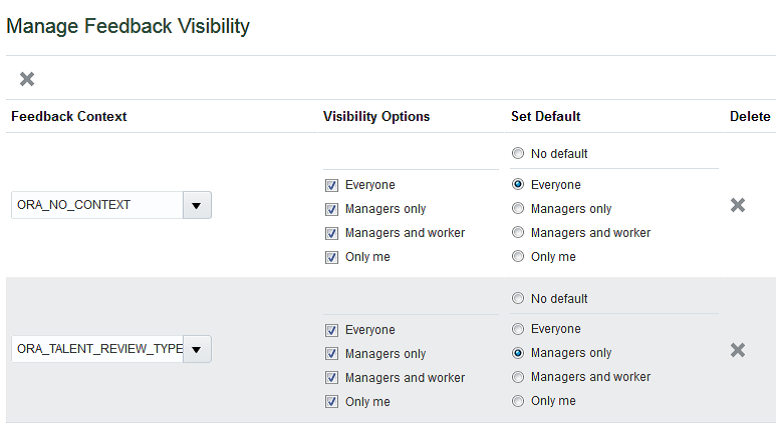
Use the New Manage Feedback Visibility Task to Specify the Visibility Options and Default Settings
You can edit the default value that appears in the Visibility list when a person creates a note. If you select the No default option, no predefined option appears in the field. Note authors can select the available options whether a default is set or not.
Steps to Enable
No steps are required to enable this feature.
Tips And Considerations
- HR specialists can view all notes except those with the Only me visibility setting.
- Note visibility is also determined by data security; you can only see notes for people whom you have authorization to view.
- If you don't edit the visibility options or defaults, the predefined default settings apply.
- If you delete context settings, users can still add and view notes, but you can no longer edit the context settings. When you delete notes context settings, the following rules apply:
- If you delete only ORA_NO_CONTEXT, the predefined default values for ORA_NO_CONTEXT applies for the person feedback. All visibility options are available, and the default setting is No default.
- If you delete only ORA_TALENT_REVIEW_TYPE, the ORA_NO_CONTEXT settings apply for both the person feedback and talent review notes.
- If you delete both ORA_NO_CONTEXT and ORA_TALENT_REVIEW_TYPE, the predefined default values for ORA_NO_CONTEXT apply for both the person feedback and talent review notes.
Key Resources
For more information, view the following topics in the Applications Help:
- Configuring Feedback Visibility Options: Points to Consider
- Feedback: Explained
Survey employees with our Questionnaires.
Extended Set of Person Search Fields When Assigning Owner of Questions, Templates, and Questionnaires
When assigning the owner of the question, template, or questionnaire, you can now use the following additional person-related search fields:
- Worker Name
- Manager Name
- Person Number
- Job
- Position
- Business Unit
- Location
- Assignment Name
- Assignment Status
- Assignment Number
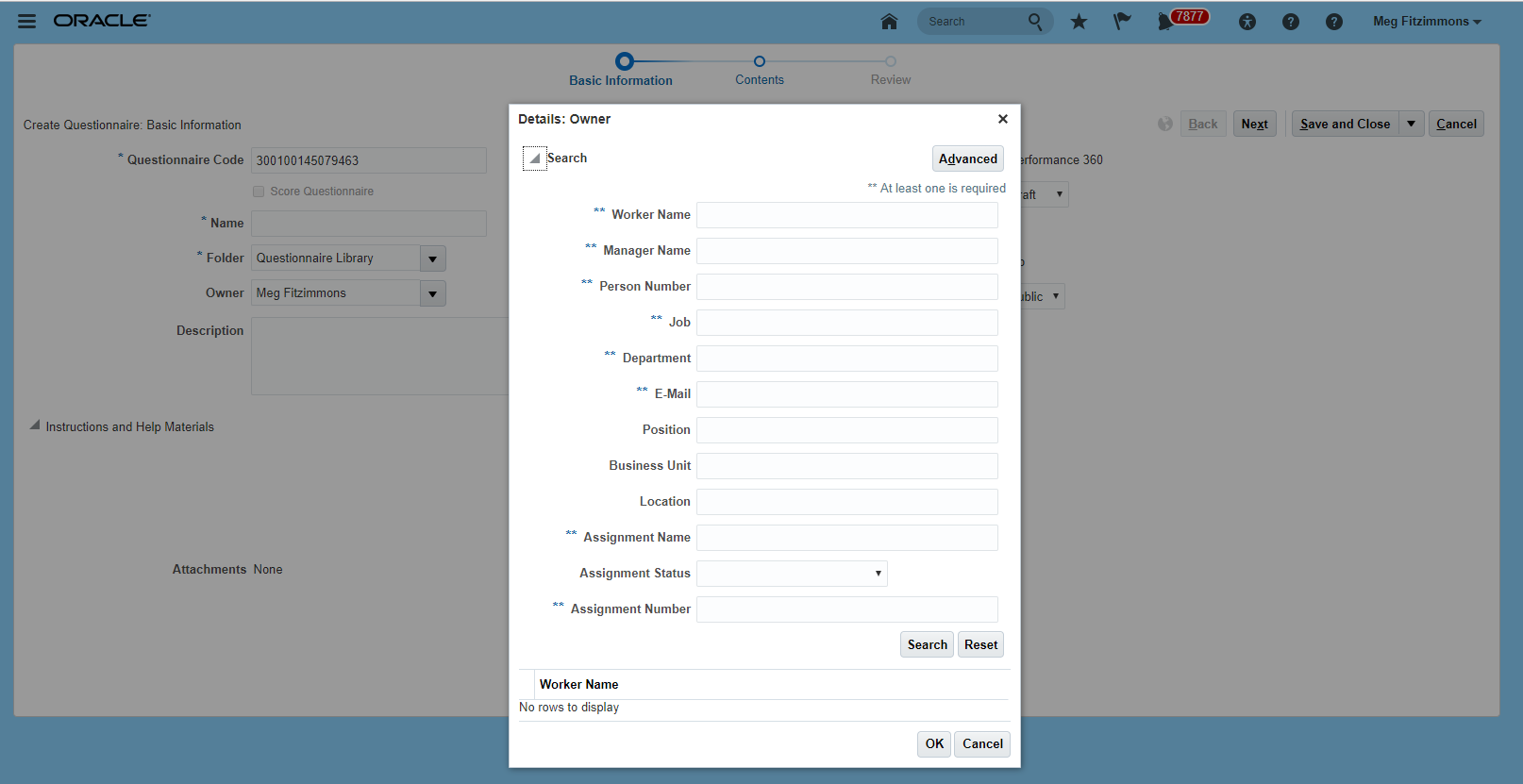
Person Search Fields When Assigning the Owner
Steps to Enable
No steps are required to enable this feature.
Using Oracle Fusion Goal Management, you can transform business objectives into goals across various organization levels, providing a clear line of sight from managers to employees. Business leaders can communicate high-level initiatives which managers can translate into goals for their employees.
New Attribute for Goal Object - Long Description
You now have an additional attribute, Long Description, for the goal object. Apart from the existing Description attribute, you can provide a detailed description of the goal in the Long Description field that can hold up to 2 GB data.
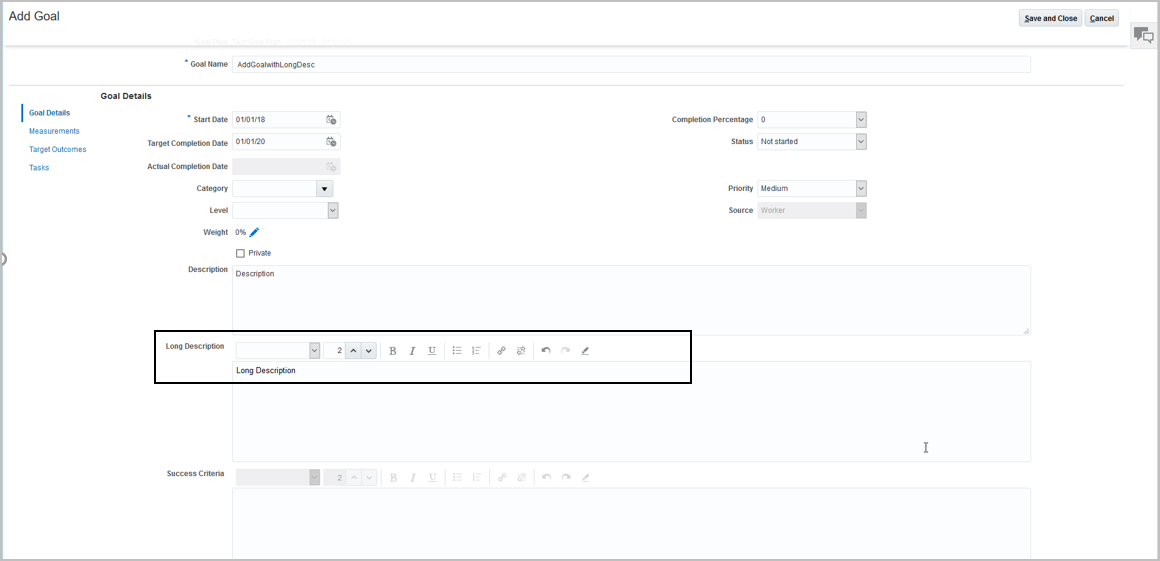
Long Description Field in Goal Details Page
Steps to Enable
Using Page Composer, you must enable the Long Description field.
Tips And Considerations
Use Page Composer to show the Long Description attribute in the Goal Details page. By default, this field is hidden and you can choose to show or hide it. You can use the Long Description field with or without the Description field.
Key Resources
For more information about customizing pages for Functional Administrators, see Chapter 3 Page Modification in Configuring and Extending Applications
Oracle Fusion Performance Management supports features and functions for measuring and reporting worker performance.
Now employees and managers can have ongoing, meaningful discussions and provide feedback throughout the year by creating check-in documents from their desktop or smartphone.
When workers or managers create a check-in document, they must select the review period and a check-in template and then specify a name for the document, date, and the manager. Only after creating the check-in document and when updating it, you can find the check-in content based on the check-in template definition. You can respond to your questionnaire. You can add notes by creating general discussion topics and performance goal discussion topics.
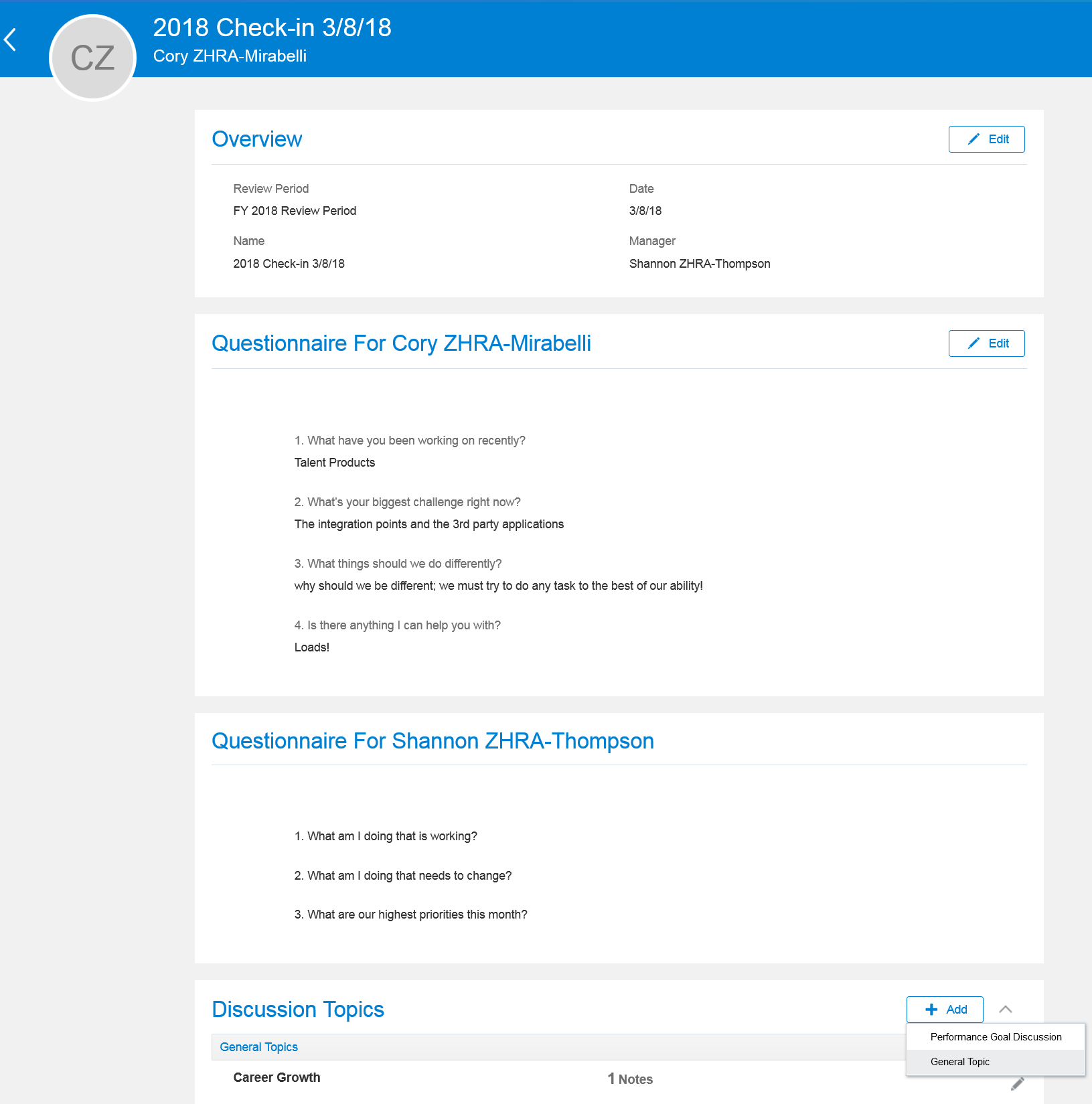
Add a Check-In Document for a Review Period Including Questionnaires and Discussion Topics
Steps to Enable
The administrator can manage and create check-in templates in My Client Groups > Talent> Manage Check-In Templates. You can create a check-in template with an Active or Inactive status and choose to enable the use of Performance Goal Discussion Topics, General Discussion Topics, or Questionnaires for the workers and managers in check-in documents. You can include the eligibility profile for the use of check-in template so that managers and workers create check-in documents only from the eligible check-in templates. Only the eligible check-in templates are made available to the worker or manager, when creating the check-in document.
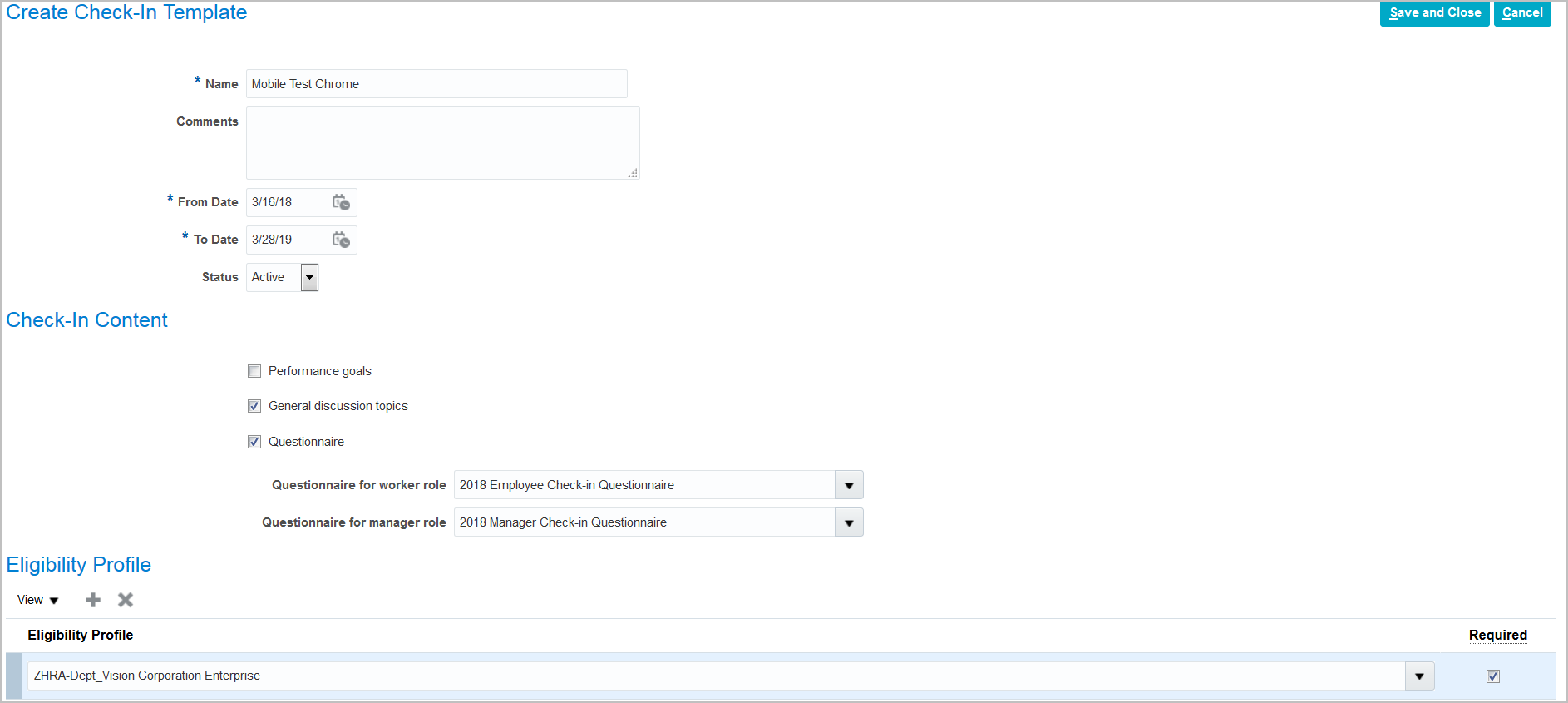
Creating a Check-In Template
Tips And Considerations
- The worker can't delete a discussion topic when notes exist for the topic. You must first delete the notes and then the discussion topic. In a similar way, if discussion topics exist, you cannot delete a check-in document.
- You can add a performance goal discussion topic only when the worker is assigned with goals for the selected review period.
Role Information
By default, only the HR specialist role can create check-in templates (Privilege Name: HRA_MANAGE_PERFORMANCE_TEMPLATE_PRIV).
You must add ORA_HRA_MANAGE_CHECK_IN_DOCUMENT aggregate privilege to Worker and Line Manager job roles to manage check-in documents.
Extended Set of Person Search Fields in Human Resource Specialist Administrative Tasks
You can now search in Human Resource Specialist Administrative tasks using an extended set of person search fields including person number, location and position. The set of person search fields are made consistent for all tasks, where appropriate. Assignment status is added as a specific field replacing the check box to include terminated assignments and workers.
Steps to Enable
No steps are required to enable this feature.
Oracle Recruiting Cloud (ORC) provides tools for hiring managers and recruiters to source and nurture candidates, create and manage job requisitions, screen and select candidates, create and manage job offers, and onboard new employees into the organization. It also provides career sites for employees and external candidates to search, discover and apply to jobs using a frictionless application process.
Simplify and automate the complexities of hiring with comprehensive end-to-end functionalities from job requisition management, job board distribution, approval workflows, candidate selection, electronic job offer distribution, and seamless candidate to new hire workflow. It leverages the power of the complete HCM suite to deliver deep insights and easy access to information about your talent through all stages of employment. Work structures, security roles, data security, and configuration tools are unified across the platform to deliver an efficient and consistent user experience.
Steps to Enable
No steps are required to enable this feature.
Candidate Relationship Management
Leverage Candidate Relationship Management (CRM) features - candidate pools, email campaigns and candidate search - to provide robust sourcing and to empower recruiters with AI matching to make the best data-driven recruiting decisions. Targeted CRM campaigns can be used to communicate with candidate pools and market open job requisitions to both internal and external candidates, which drives proactive engagement and helps build a talent pipeline.
Steps to Enable
No steps are required to enable this feature.
Leverage Candidate Relationship Management (CRM) features - candidate pools, email campaigns and candidate search - to provide robust sourcing and to empower recruiters with AI matching to make the best data-driven recruiting decisions. Targeted CRM campaigns can be used to communicate with candidate pools and market open job requisitions to both internal and external candidates, which drives proactive engagement and helps build a talent pipeline.
Steps to Enable
No steps are required to enable this feature.
Talent Management Transactional Business Intelligence
Oracle Fusion Transactional Business Intelligence is a real time, self-service reporting solution offered to all Oracle Cloud application users to create ad hoc reports and analyze them for daily decision-making. Oracle Transactional Business Intelligence provides human resources managers and specialists, business executives, and line managers the critical workforce information to analyze workforce costs, staffing, compensation, performance management, talent management, succession planning, and employee benefits.
ADF Labels in Learning Management Real Time
The enhanced column labels in the Workforce Learning - Learning Management Real Time subject area allow you to use the names from the ADF Labels instead of the existing custom values for the labels.
Steps to Enable
No steps are required to enable this feature.
Specialist Videos - Learning Management Real Time
Enhance your reporting on Learning Management Real Time subject area with the inclusion of the new learning item type ORA_CONTENT_VIDEO. This enhancement allows you to report on specialist video-based classes.
Steps to Enable
No steps are required to enable this feature.
Learning Record Cost to Learner - Learning Management Real Time
Enhance your reporting on Learning with the inclusion of attributes to report on the cost involved for the learner to enroll.
Each learning record may have an associated cost. The cost is broken into a "cost to learner" which is constructed from a series of price components. Each component has a type, for example, "list price" or "Discount", and a value with currency, for example, 2000 USD or -500 USD. Each learning record has a "price to learner" and a "cost currency". Each cost line item has a type, an amount (which may be negative), and a flag that indicates whether that cost line item is used in the calculation for the learner.
| Learner Name | Learning Item | Cost Currency | Cost to Learner Amount | Cost Details Line Type | Cost Details Line Amount | Line Used for Learner Cost |
|---|---|---|---|---|---|---|
| Smith | Java 101 | USD | 1000 | List Price | 2000 | Yes |
| Discount | -1000 | Yes | ||||
| Other | 300 | No | ||||
| Jones | FlyFishing | GBP | 1200 | List Price | 3200 | Yes |
| Discount | -1000 | No | ||||
| Other | -2000 | Yes |
Steps to Enable
No steps are required to enable this feature.
DFF's on Learning Requests - Learning Management Real Time
Enhance your reporting on Learning Management Real Time subject area with the addition of DFFs to report on learning requests. The DFFs have been exposed under the following folders:
- Assignment Profile Requests
- Learning Record Requests
Steps to Enable
No steps are required to enable this feature.
New Subject Area - Recruiting Events Real Time
Manage key historic metrics of your recruiting process using the “Recruiting - Recruiting Events Real Time” subject area. You can report on various phases and states of the main recruiting objects such as job requisitions, job applications, and candidate pools using this subject area.
Steps to Enable
No steps are required to enable this feature.
New Subject Area - Recruiting Real Time
Manage the recruiting process in your organization using the “Recruiting - Recruiting Real Time” subject area. You can report on job requisitions created by managers and recruiters, job offers, candidate sources, and candidate information such as personal details, education and work experience, and previous employers. Analyze the candidate hiring timeframe using key metrics such as:
- Time since job application creation
- Number of job applications
- Job offer acceptance rate
Steps to Enable
No steps are required to enable this feature.
New Subject Area - Sourcing Real Time
Manage recruiting campaign metrics of your recruiting process using the “Recruiting – Sourcing Real Time” subject area. You can report on campaigns, their goals, teams, and various counts.
Steps to Enable
No steps are required to enable this feature.
New Dimension - Member Details in Talent Pools Real Time Subject Area
Manage reporting on the descriptive flex fields related to talent pool members with the addition of a new dimension in the Workforce Succession Management - Talent Pools Real Time subject area. A new folder named Member Details is created and the DFF attributes are exposed along with other attributes including: pool member id, member status, created by, and created date.
Steps to Enable
No steps are required to enable this feature.
August Quarterly Maintenance Pack for 18A
This document will continue to evolve as existing sections change and new information is added. All updates appear in the following table:
| Date | Feature | Notes |
|---|---|---|
| 27 JUL 2018 | Created initial document. |
HCM Cloud applications have three types of patches you can receive that are documented in this What’s New:
- Release Updates (18A, 18B and 18C)
- Optional Monthly Maintenance Packs
- Quarterly Mandatory Maintenance Packs (delivered in February, May, August and November). All features that show in the Monthly Maintenance Packs will be included in the next Quarterly Mandatory Maintenance Pack, so no need to request the monthly maintenance packs.
It is important for you to know what Release Update you environment is on. You can find this in your Cloud Portal. If you are on Update 18A, you will only have features that are in 18A or the Monthly and Quarterly updates for 18A, you will not have 18B features until you receive the 18B update. You can however read ahead on future release so you can make plans for when you will receive the next update.
If you are upgrading from Release 12, you should read all features up through the Release Update that you will receive in the upgrade. This can also be found in Cloud Portal.
This document outlines the information you need to know about new or improved functionality in Oracle HCM Cloud. Each section includes a brief description of the feature, the steps you need to take to enable or begin using the feature, any tips or considerations that you should keep in mind, and the resources available to help you.
Oracle HCM Cloud release documents are delivered in five functional groupings:
Suggested Reading for all HCM Products:
- HCM Cloud Common Features (This document pertains to all HCM applications. It is the base human resource information for all products and HCM Tools.)
- Global Human Resources Cloud (Global Human Resources contains the base application in which other application use for common data such as workforce structures and person information. Regardless of what products you have implemented you may want to see the new features for Global Human Resources that could impact your products.)
NOTE: Not all Global Human Resource features are available for Talent and Compensation products.
Optional Reading for HCM Products (Depending on what products are in your cloud service):
- Talent Management Cloud (All Talent applications)
- Workforce Rewards Cloud (Compensation, Benefits, Payroll and Global Payroll Interface)
- Workforce Management Cloud (Absence Management and Time and Labor)
Additional Optional Reading:
- Common Technologies and User Experience (This documents the common features across all Cloud applications and is not specific to HCM)
NOTE: All of these documents can be found on the Oracle Help Center at: https://cloud.oracle.com/saasreadiness/hcm under Human Capital Management Release Readiness.
Give Us Feedback
We welcome your comments and suggestions to improve the content. Please send us your feedback at oracle_fusion_applications_help_ww_grp@oracle.com. Indicate you are inquiring or providing feedback regarding the HCM Cloud What’s New for Release 13 in the body or title of the email.
| Action Required to Enable Feature |
|||||
|---|---|---|---|---|---|
| Feature |
None (Automatically Available) |
Enable via Opt In UI Only |
Enable via Opt In UI Plus Additional Steps |
Not Enabled via Opt In UI but Setup Required |
Issue Service Request |
|
|||||
Oracle Learning Cloud enables you to make a transformational shift in learning delivery. Subject matter experts in your organization can easily publish videos and assemble tutorials to deliver on-demand and social learning. Collaboration features encourage continuous community feedback.
Enable Learner Selection by Workforce Structure Hierarchy
Enhance the manage setup to include the capability to define the workforce structure hierarchy, per the Areas of Responsibilities, and to use it when selecting learners for an assignment. This allows the Administrator to choose a work structure top level item and then the number of hierarchy levels below. It also allows the Administrator to determine if they want to include the people at the top level work structure. This configuration is then used by the Administrator when selecting learners for an assignment and use a workforce structure hierarchy like an Organization or Department.
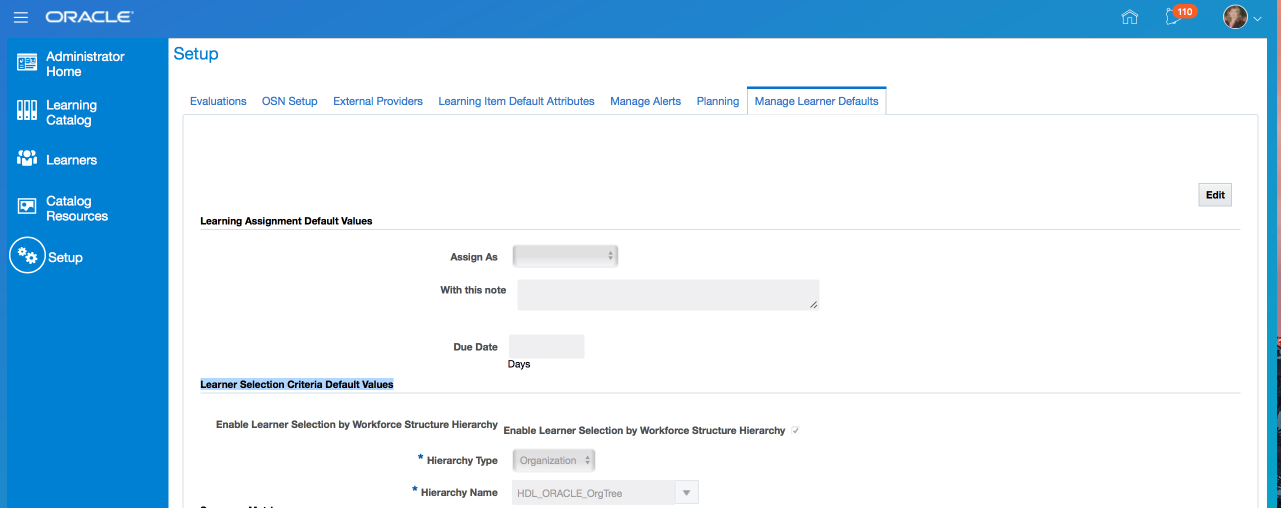
Learner Selection Criteria Default Values
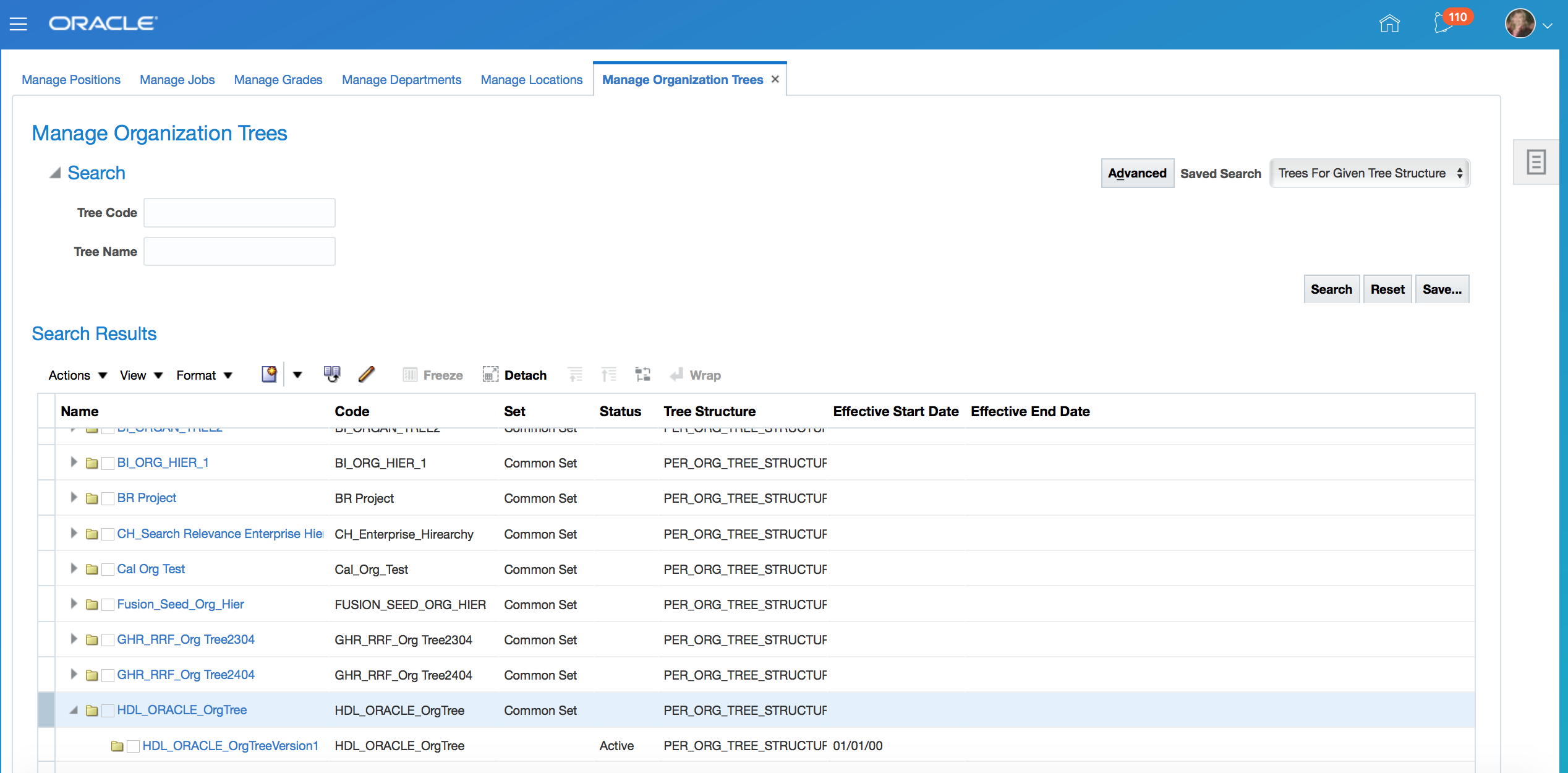
Manage Workforce Structures - Organization Tree
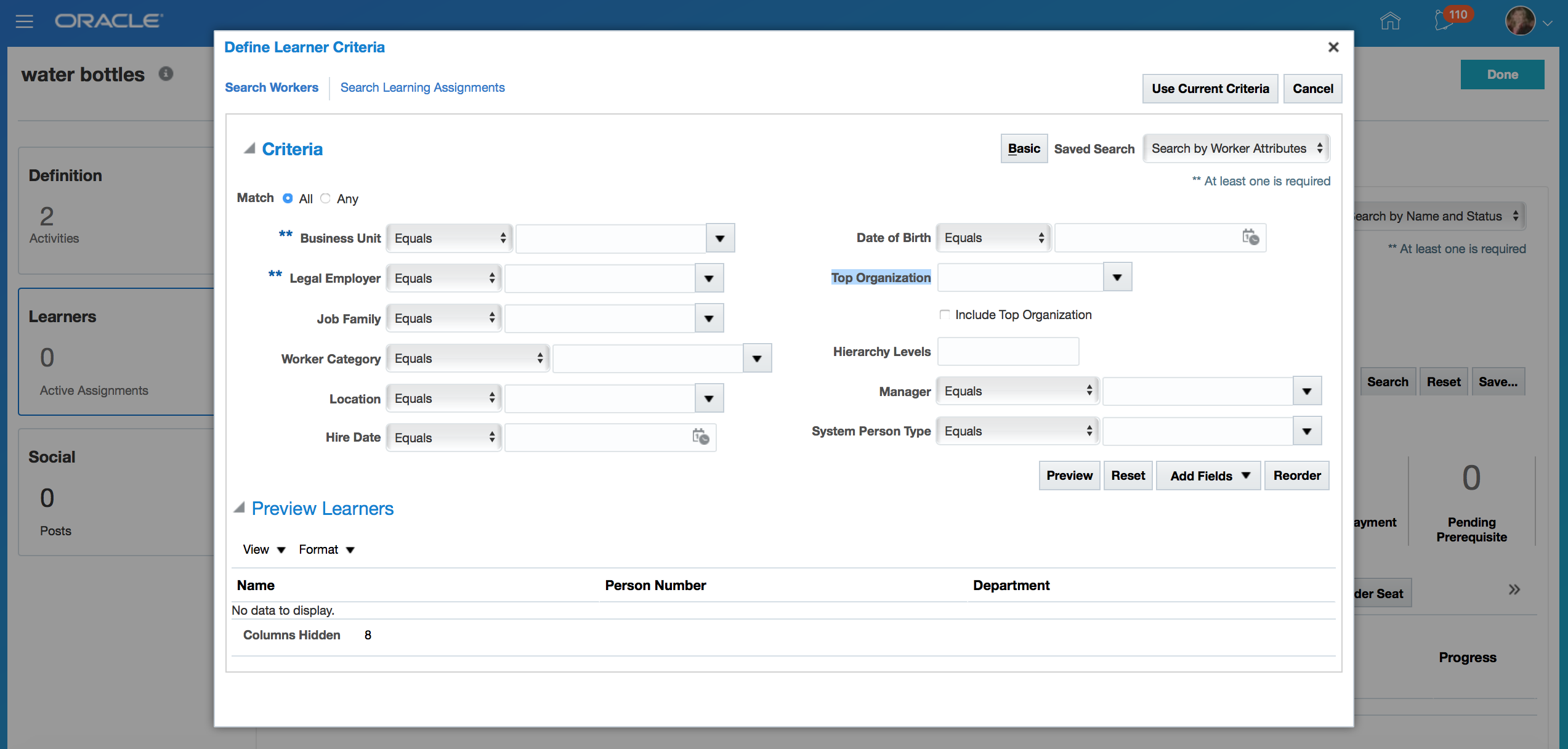
Search for Learner by Organization Hierarchy
Steps to Enable
No steps are required to enable this feature.
This document will continue to evolve as existing sections change and new information is added. All updates appear in the following table:
| Date | Feature | Notes |
|---|---|---|
| 27 APR 2018 | Created initial document. |
This guide outlines the information you need to know about new or improved functionality in Oracle HCM Cloud Release 13. Each section includes a brief description of the feature, the steps you need to take to enable or begin using the feature, any tips or considerations that you should keep in mind, and the resources available to help you.
Oracle HCM Cloud release documents are delivered in five functional groupings:
Suggested Reading for all HCM Products:
- HCM Cloud Common Features (This document pertains to all HCM applications. It is the base human resource information for all products and HCM Tools.)
- Global Human Resources Cloud (Global Human Resources contains the base application in which other application use for common data such as workforce structures and person information. Regardless of what products you have implemented you may want to see the new features for Global Human Resources that could impact your products.)
NOTE: Not all Global Human Resource features are available for Talent and Compensation products.
Optional Reading for HCM Products (Depending on what products are in your cloud service):
- Talent Management Cloud (All Talent applications)
- Workforce Rewards Cloud (Compensation, Benefits, Payroll and Global Payroll Interface)
- Workforce Management Cloud (Absence Management and Time and Labor)
Additional Optional Reading:
- Common Technologies and User Experience (This documents the common features across all Cloud applications and is not specific to HCM)
NOTE: All of these documents can be found on the Oracle Help Center at: https://cloud.oracle.com/saasreadiness/hcm under Human Capital Management Release Readiness.
Give Us Feedback
We welcome your comments and suggestions to improve the content. Please send us your feedback at oracle_fusion_applications_help_ww_grp@oracle.com. Indicate you are inquiring or providing feedback regarding the HCM Cloud What’s New for Release 13 in the body or title of the email.
| Action Required to Enable Feature |
|||||
|---|---|---|---|---|---|
| Feature |
None (Automatically Available) |
Enable via Opt In UI Only |
Enable via Opt In UI Plus Additional Steps |
Not Enabled via Opt In UI but Setup Required |
Issue Service Request |
|
|||||
Using Oracle Fusion Goal Management, you can transform business objectives into goals across various organization levels, providing a clear line of sight from managers to employees. Business leaders can communicate high-level initiatives which managers can translate into goals for their employees.
New Attribute for Goal Object - Long Description
You now have an additional attribute, Long Description, for the goal object. Apart from the existing Description attribute, you can provide a detailed description of the goal in the Long Description field that can hold up to 2 GB data.
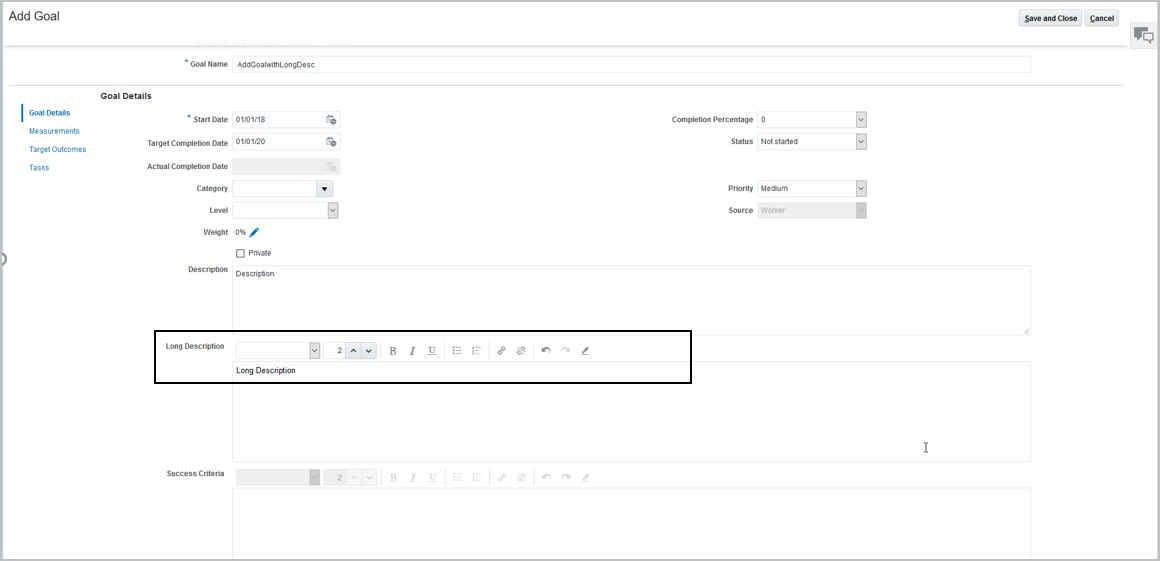
Long Description Field in Goal Details Page
Steps to Enable
Using Page Composer, you must enable the Long Description field.
Tips And Considerations
Use Page Composer to show the Long Description attribute in the Goal Details page. By default, this field is hidden and you can choose to show or hide it. You can use the Long Description field with or without the Description field.
Key Resources
For more information about customizing pages for Functional Administrators, see Chapter 3 Page Modification in Configuring and Extending Applications
March Maintenance Pack for 18A
This document will continue to evolve as existing sections change and new information is added. All updates appear in the following table:
| Date | Feature | Notes |
|---|---|---|
| 23 FEB 2018 | Created initial document. |
This guide outlines the information you need to know about new or improved functionality in Oracle HCM Cloud Release 13. Each section includes a brief description of the feature, the steps you need to take to enable or begin using the feature, any tips or considerations that you should keep in mind, and the resources available to help you.
Oracle HCM Cloud release documents are delivered in five functional groupings:
Suggested Reading for all HCM Products:
- HCM Cloud Common Features (This document pertains to all HCM applications. It is the base human resource information for all products and HCM Tools.)
- Global Human Resources Cloud (Global Human Resources contains the base application in which other application use for common data such as workforce structures and person information. Regardless of what products you have implemented you may want to see the new features for Global Human Resources that could impact your products.)
NOTE: Not all Global Human Resource features are available for Talent and Compensation products.
Optional Reading for HCM Products (Depending on what products are in your cloud service):
- Talent Management Cloud (All Talent applications)
- Workforce Rewards Cloud (Compensation, Benefits, Payroll and Global Payroll Interface)
- Workforce Management Cloud (Absence Management and Time and Labor)
Additional Optional Reading:
- Common Technologies and User Experience (This documents the common features across all Cloud applications and is not specific to HCM)
NOTE: All of these documents can be found on the Oracle Help Center at: https://cloud.oracle.com/saasreadiness/hcm under Human Capital Management Release Readiness.
Give Us Feedback
We welcome your comments and suggestions to improve the content. Please send us your feedback at oracle_fusion_applications_help_ww_grp@oracle.com. Indicate you are inquiring or providing feedback regarding the HCM Cloud What’s New for Release 13 in the body or title of the email.
| Action Required to Enable Feature |
|||||
|---|---|---|---|---|---|
| Feature |
None (Automatically Available) |
Enable via Opt In UI Only |
Enable via Opt In UI Plus Additional Steps |
Not Enabled via Opt In UI but Setup Required |
Issue Service Request |
Create an Offering Assignment When Editing Course Assignment |
|
||||
|
|||||
Create an Offering Assignment When Editing Course Assignment
View and add offering assignments when you are editing an assignment at the course level. This allows you to quickly and easily sign a learner up for an offering if they were not already signed up as part of the course assignment.
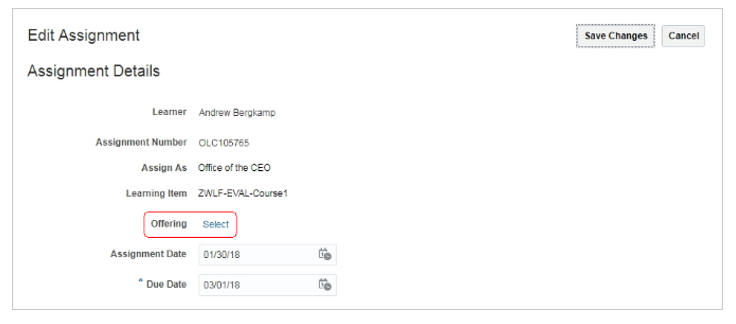
Create an Offering Assignment
Steps to Enable
No steps are required to enable this feature.
Create a Direct Link to Learning Item
Use Page Composer to display a link to a learning item. You can then copy and paste this link to an email message or notification. Recipients can use the link to get direct access to the learning item from the email or notification.
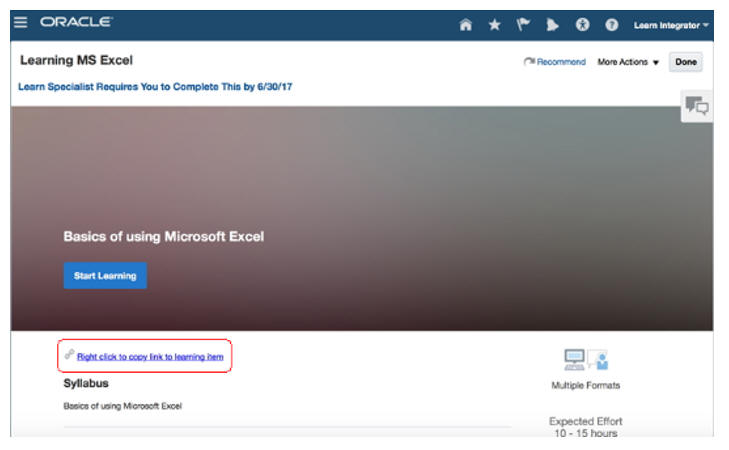
Link to a Learning Item
Steps to Enable
To make a learning item link visible to learners, place a direct link to the learning item on a Learning Cloud page using Page Composer.
- Open Page Composer in Source View mode, and select the area in which you want to place a learning item link.
- Add the HTML element to the page.
- Edit the HTML element.
- Select the Expression Builder for the Value.
- Copy and paste the Deep Link Page Composer snippet.
- Close the configuration window and confirm that the link displays in Source View mode.
- Close Source View mode, and confirm the link displays properly on the page to end users.
Tips And Considerations
A good place to put the link is in a panelGroupLayout: vertical layout.
This document will continue to evolve as existing sections change and new information is added. All updates appear in the following table:
| Date | Feature | Notes |
|---|---|---|
| 23 NOV 2018 | Succession Management: Succession and Talent Pool Information on Succession Planning Page | Updated document. Revised feature information. |
| 23 FEB 2018 | Goal Management: Support for Purging Transient ESS Data | Updated document. Revised feature information. |
| 23 FEB 2018 |
Profile Management: Ability to Configure Visibility Options for Anytime Feedback Notes | Updated document. Revised feature information. |
| 19 JAN 2018 | Created initial document. |
This guide outlines the information you need to know about new or improved functionality in Oracle HCM Cloud Release 13. Each section includes a brief description of the feature, the steps you need to take to enable or begin using the feature, any tips or considerations that you should keep in mind, and the resources available to help you.
Oracle HCM Cloud release documents are delivered in five functional groupings:
Suggested Reading for all HCM Products:
- HCM Cloud Common Features (This document pertains to all HCM applications. It is the base human resource information for all products and HCM Tools.)
- Global Human Resources Cloud (Global Human Resources contains the base application in which other application use for common data such as workforce structures and person information. Regardless of what products you have implemented you may want to see the new features for Global Human Resources that could impact your products.)
NOTE: Not all Global Human Resource features are available for Talent and Compensation products.
Optional Reading for HCM Products (Depending on what products are in your cloud service):
- Talent Management Cloud (All Talent applications)
- Workforce Rewards Cloud (Compensation, Benefits, Payroll and Global Payroll Interface)
- Workforce Management Cloud (Absence Management and Time and Labor)
Additional Optional Reading:
- Common Technologies and User Experience (This documents the common features across all Cloud applications and is not specific to HCM)
NOTE: All of these documents can be found on the Oracle Help Center at: https://cloud.oracle.com/saasreadiness/hcm under Human Capital Management Release Readiness.
Customers Upgrading from Release 12
If you're upgrading from Release 12 to Release 13, then you should review all of the release readiness content for Release 13 (updates 17B - 17D, as well as, updates 18A - 18B) to learn about all of the features available in release 13.
Give Us Feedback
We welcome your comments and suggestions to improve the content. Please send us your feedback at oracle_fusion_applications_help_ww_grp@oracle.com. Indicate you are inquiring or providing feedback regarding the Talent Management Cloud What’s New for Release 13 in the body or title of the email.
Oracle Fusion Career Development provides tools for workers and managers to manage their career interests and development plan. These tools include:
- Recommendations on roles based on workers’ qualifications
- Comparisons to target roles and required development needs for workers
- Management of roles of interest to the worker
- Comprehensive development plan for workers to establish development goals and manage development progress
Extended Set of Person Search Fields in Administrative Tools
When searching for development goals data, you can now use the following additional person-related search fields in all the administrative pages:
- Worker Name
- Manager Name
- Person Number
- Job
- Position
- Business Unit
- Location
- Assignment Name
- Assignment Status
- Assignment Number
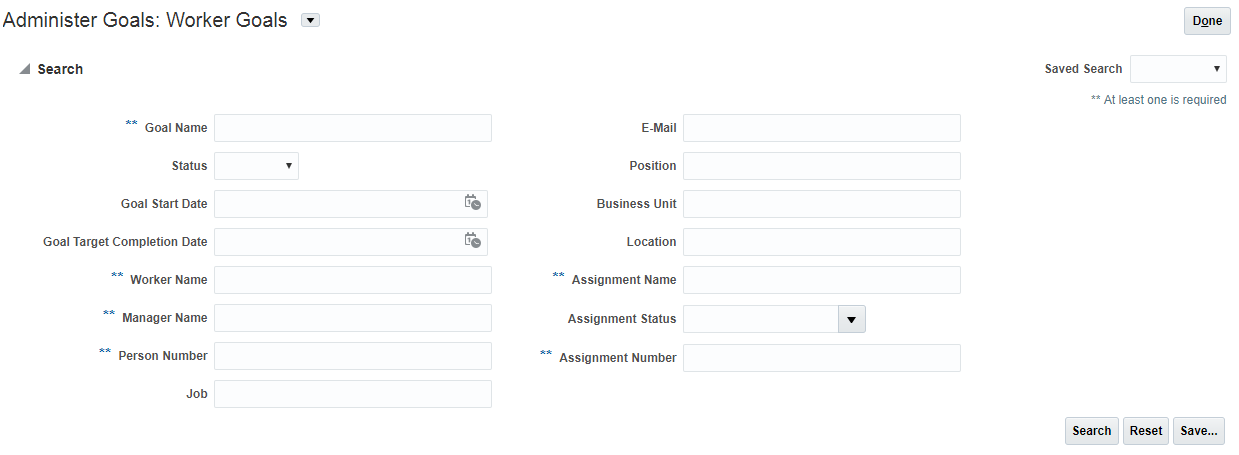
Search Area Displays the Additional Person-Related Fields
Steps to Enable
No steps are required to enable this feature.
Tips And Considerations
By default, the Advanced button is disabled in the Search area. Use Page Composer to enable the Advanced button.
Using Oracle Fusion Succession Management, you can create succession plans to replace key personnel. Succession plans identify workers who are ready now or can develop the necessary skills, for jobs and positions that aren't currently vacant, ensuring, a smooth transition and help you to manage candidate development.
Succession and Talent Pool Information on Succession Planning Page
You can simplify your succession information search in the person spotlight by viewing succession and talent pool information on one page. We moved the succession candidate and talent pool membership information from the Career Planning page to the Succession Planning page for one consolidated view.
On the Succession Planning page for a worker, you can now see the number of the succession plans in which the worker is a candidate, and the talent pools in which the person is a member. You must be the owner of the talent pool to see the count. For succession plans, you can see the count for any public plan and the private plans that you own. If you click the number, the names of the plans and pools appears.
You continue to see the number of succession plans that were created for the worker, along with a graphical representation of the total number of candidates for the plans for each readiness category.
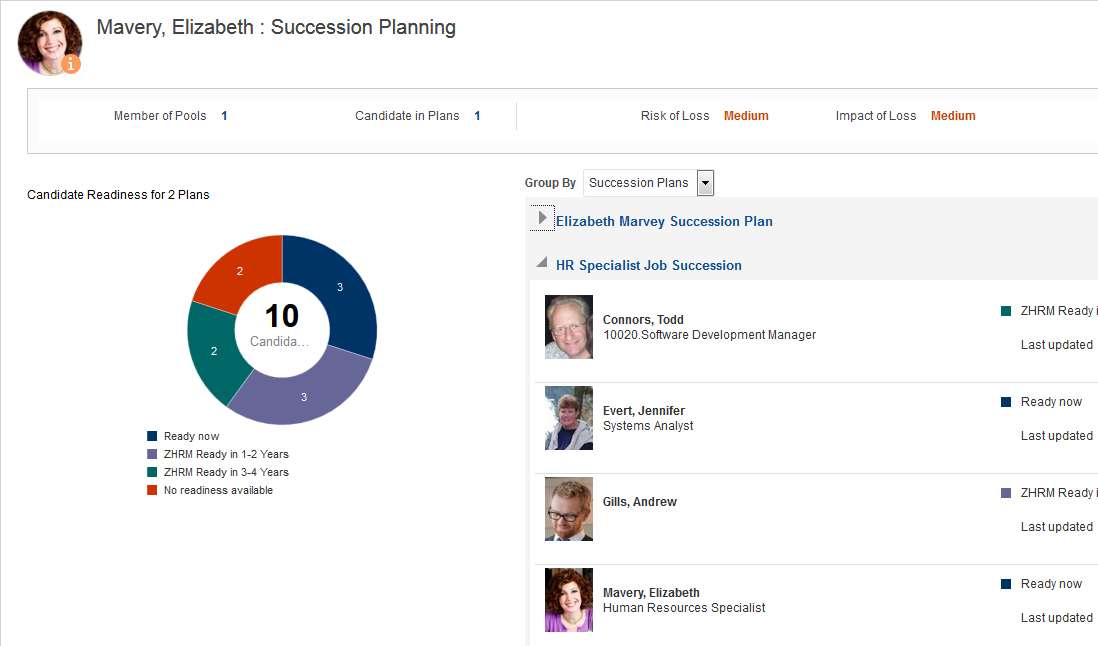
Succession Planning Page Shows Consolidated Succession Plan and Talent Pool Data for a Worker
Steps to Enable
No steps are required to enable this feature.
Tips And Considerations
- You can create succession plans from the Succession Planning work area, person smart navigation, and the Directory and Succession Planning organization charts.
- You can create talent pools from the Succession Planning work area.
Key Resources
For more information go to Applications Help for the following topics:
- Succession Management: Explained
- Selecting Owners and Privacy Levels for Succession Plans: Points to Consider
- Talent Pools: Explained
Increased Size of Succession Plan and Candidate Descriptive Flexfields
You can use the increased size of user-defined descriptive flexfields (DFFs) to include more information about succession plans or succession candidates. We have increased the column size of the DFFs to 2,000 characters to support the ability to capture more information in both the HRM_PLANS and HRM_ PLAN_ CANDIDATES DFFs.
Steps to Enable
No steps are required to enable this feature.
Tips And Considerations
- Use the Manage Descriptive Flexfields task to define descriptive flexfields.
Key Resources
For more information, see the following topics in Applications Help:
- Descriptive Flexfields for Succession Management
- Descriptive Flexfields: Explained
- Flexfields: Overview
Talent Pool Descriptive Flexfields
You can capture additional information about talent pools and talent pool members with the new user-defined descriptive flexfields (DFFs). Now you can enter more information on the pool and member levels by adding your own DFFs.
These DFFs appear on the Pool Details and Member Details pages. The HRT_POOLS_B DFF appears on the Enter Details page in the Additional Information section. The HRT_POOL_MEMBERS DFF appears on the Select Members page, in the Additional Information section.
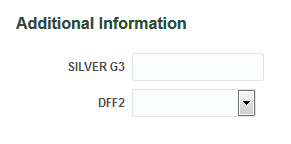
Capture More Information About Talent Pools or Members with DFFs
Steps to Enable
No steps are required to enable this feature.
Tips And Considerations
- Use the Manage Descriptive Flexfields task to define a segment for a descriptive flexfield.
- The maximum number of characters for each flexfield is 2000.
Key Resources
For more information go to Applications Help for the following topics:
- Descriptive Flexfields for Talent Pools
- Descriptive Flexfields: Explained
- Flexfields: Overview
Oracle Fusion Profile Management provides a common foundation for the Oracle Fusion talent suite of products and other Oracle Fusion applications to retrieve, insert, and update talent profile information. Profile Management also supports the HR specialists, line managers, matrix managers, and employees in performing critical HR talent functions. Managing people and job profiles, career planning functions, managing, and tracking talent data can be also done through Profile Management.
Ability to Configure Visibility Options for Anytime Feedback Notes
You can configure visibility options for Anytime Feedback notes to exclude roles that can see feedback and specify default values. With the new Manage Feedback Visibility task in the Setup and Maintenance work area, you can now override the existing defaults.
You can set feedback visibility options for the following contexts:
- ORA_NO_CONTEXT: Used for feedback notes for a person in the person spotlight, person smart navigation, and elsewhere throughout Oracle Fusion applications.
- ORA_TALENT_REVIEW_TYPE: Used for feedback notes only for talent review meetings. Notes created in a talent review are visible as Feedback elsewhere in Oracle Fusion applications, but no Feedback created elsewhere appears in talent review meetings.
The options and descriptions for each visibility option are shown in the table.
| Visibility Option | Description |
|---|---|
| Everyone | A public note visible to any person in the organization |
| Managers only | Managers in the hierarchy of the worker about whom the Feedback is created |
| Managers and the worker | Managers in the hierarchy of the worker, and the worker who receives the feedback |
| Only me | A private note created by an author about the author or another person and visible only to the author |
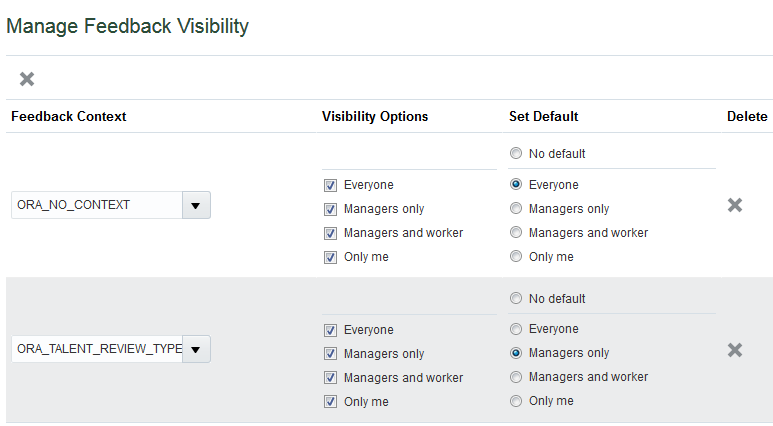
Use the New Manage Feedback Visibility Task to Specify the Visibility Options and Default Settings
You can edit the default value that appears in the Visibility choice list when a person creates feedback. If you select the No default option, no predefined option appears in the field. Feedback authors can select the available options whether a default is set or not.
Steps to Enable
No steps are required to enable this feature.
Tips And Considerations
- HR specialists can view all feedback except that with the Only me visibility setting.
- Feedback visibility is also determined by data security; you can only see notes for people whom you have authorization to view.
- If you don't edit the visibility options or defaults, the predefined default settings apply.
- If you delete context settings, users can still add and view feedback, but you can no longer edit the context settings. When you delete feedback context settings, the following rules apply:
- If you delete only ORA_NO_CONTEXT, the predefined default values for ORA_NO_CONTEXT applies for the person feedback. All visibility options are available, and the default setting is No default.
- If you delete only ORA_TALENT_REVIEW_TYPE, the ORA_NO_CONTEXT settings apply for both the person feedback and talent review feedback.
- If you delete both ORA_NO_CONTEXT and ORA_TALENT_REVIEW_TYPE, the predefined default values for ORA_NO_CONTEXT apply for both the person feedback and talent review feedback.
Key Resources
For more information go to Applications Help for the following topics:
- Configuring Feedback Visibility Options: Points to Consider
- Feedback: Explained
Configurable eMail Notifications for Anytime Feedback Based on Reports
You can now tailor Anytime Feedback notifications to your organization using Oracle Business Intelligence (BI) Publisher reports. Use standard BI Publisher templates to configure Feedback manager and worker email notifications. You can modify the delivered templates to display information based on your business requirements and policies. You configure profile options to enable your customized report templates to take the place of the delivered notifications.
To customize the report templates, you download the templates from the BI Publisher server and use Microsoft Word to edit them. You upload the edited templates back to the BI Publisher server. The table shows the templates that are available for each business process, and the data models associated with each. For Anytime Feedback, use the following templates:
- NoteSentToManager.rtf
- NoteSentToWorker.rtf
Both are associated with the data model: PersonNotesDM.
To specify the usage of BI Publisher reports rather than the default notifications, configure profile options using the Manage Administrator Profile Values task in the Setup and Maintenance work area. The table shows the profile option codes that determine which business processes use BI Publisher templates for notifications, and the order the application checks to apply them.
| Business Processes | Profile Option Code | Profile Option Display Name |
Effect |
|---|---|---|---|
| All Talent Management |
BIP_EMAIL_NOTIFICATION_HCM_TALENT |
BI Publisher Notifications Enabled for Talent Management |
The application first checks this setting. If set to true, all Talent Management business processes that can use BI Publisher reports for workflow notifications use them. |
| All HCM |
BIP_EMAIL_NOTIFICATION_HCM |
BIP E-MAIL NOTIFICATION PER FAMILY LEVEL |
The application checks this setting next. If set to true, all HCM business processes that can use BI Publisher reports for workflow notifications use them. |
| All Oracle Fusion |
BIP_EMAIL_NOTIFICATION |
BIP EMAIL NOTIFICATION PER ORACLE FUSION LEVEL |
Lastly, the application checks this setting. If set to true, all Oracle Fusion business processes, including those in HCM, that can use BI Publisher reports for workflow notifications use them. |
Steps to Enable
To use BI Publisher notifications, you must perform the following prerequisites:
- Download and install the Oracle BI Publisher Desktop: http://www.oracle.com/technetwork/middleware/bi-publisher/downloads/index.html.
- Download and install the Template Builder for Word to use Microsoft Word to edit the layout templates. To download, install, and set up Template Builder for Word, see Setting Up for RTF and Excel Report Layout Templates: Procedure.
You must also configure the profile options to use BI Publisher for notifications:
- Click Navigator > Setup and Maintenance.
- On the Setup page, click the Tasks panel drawer.
- In the Tasks panel drawer, click Search.
- In the Search text box, enter Manage Administrator Profile Values and click the Search icon.
- Click Manage Administrator Profile Values.
- On the Manage Administrator Profile Values page, in the Profile Option Code field, enter BIP_EMAIL and click Search.
- In the Search section, select the following to true:
- BIP_EMAIL_NOTIFICATION_HCM_TALENT: to use BI Publisher notifications for Talent Management only
- BIP_EMAIL_NOTIFICATION_HCM: to use BI Publisher notifications for all HCM business processes that can use for BI Publisher notifications
- BIP_EMAIL_NOTIFICATION: to use BI Publisher notifications for all Oracle Fusion business processes that can use BI Publisher notifications
Tips And Considerations
- If you elect to use BI Publisher templates for notifications, all notifications use BI Publisher templates.
- You can edit the BI Publisher templates to add headers and text.
- You can also add data model attributes to the template if they already exist in the data model used for the template.
Key Resources
For more information go to Applications Help for the following topics:
- HCM Email Notifications Based on Reports: Overview
- Templates and Data Models Used for HCM Notifications Based on Reports
- Configuring Feedback Notifications Using Reports: Worked Example
Translation Editor in Questionnaire
You can simplify the translation of your questionnaire data using the translation editor. Using the translation editor, you can translate text-based data for more than one language at a time without having to sign out of your current session.
You can translate text-based data that you can edit in questionnaire templates, questionnaires, and questions into any language that is installed and active in the application.
For templates and questionnaires, you can translate:
- Name, description, and introduction
- Section title, description, and introduction
For questions you can translate:
- Question text
- Question response short description
- Question response feedback
To translate the text, click the Translation Editor icon. On the dialog box that appears, you can enter the text for any available language for each field. The translated text appears in the application for the respective language a user selects when signing in.
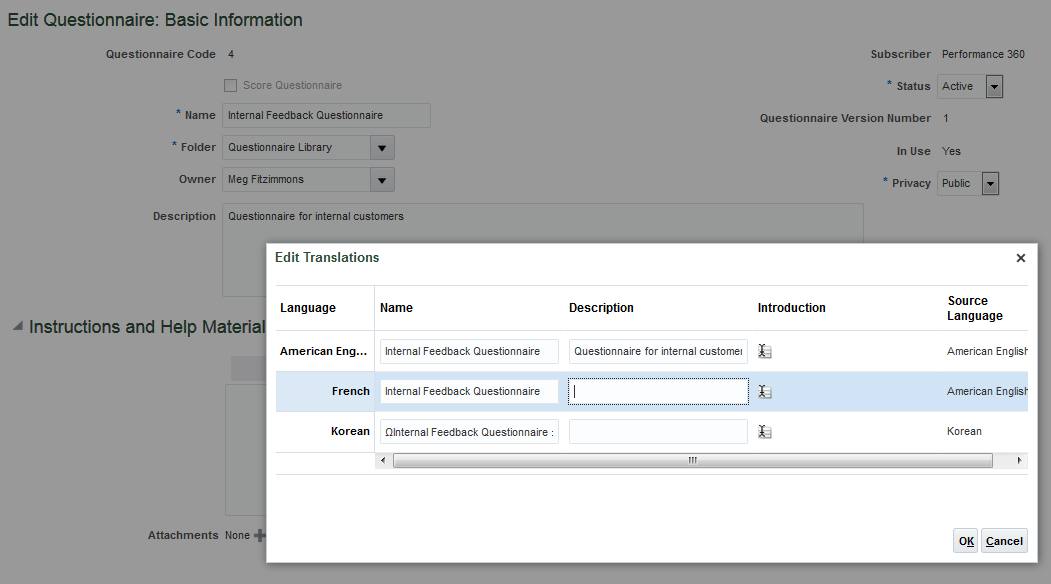
Enter Translations for the Editable Fields in Questionnaires and Questions
Steps to Enable
No steps are required to enable this feature.
Tips And Considerations
- When you create a new questionnaire, template, or question, you must first save it before using the Translation Editor. Once the object is saved to the database, the Translation Editor becomes available.
- You can edit the translations to change them.
- Questionnaires inherit translations from the template.
- Question translations that you configure are also inherited by that question if it’s used later in another questionnaire or template.
- You can edit the translation either in the Question Library, or in the questionnaire in which it’s used.
Key Resources
For more information, see the following topics in Applications Help:
- Using the Translation Editor with Questionnaires and Questions: Explained
- Questionnaires: Explained
- Questionnaire Templates: Explained
- Questionnaire Questions and Responses: Explained
Using Oracle Fusion Goal Management, you can transform business objectives into goals across various organization levels, providing a clear line of sight from managers to employees. Business leaders can communicate high-level initiatives, which managers can translate into goals for their employees.
Full HCM Spreadsheet Data Loader Support
You can now use the HCM Spreadsheet Data Loader tool to upload goals data. You can create goal objects using HCM Spreadsheet Data Loader. This was earlier possible only with the HCM Data Loader tool.
Steps to Enable
No steps are required to enable this feature.
Support for Purging Transient ESS Data
Reduce consumption of database storage by using the new process, Purge Goal Mass Request Data. You can schedule the process in the Manage Goal Scheduled Process page to purge the transient data in the application periodically.
By default, the Purge Start Days is set to 15 days from the current date. If you have more data to purge, you can set it to a minimum of 3 days so that data prior to 3 days from the current date is purged.
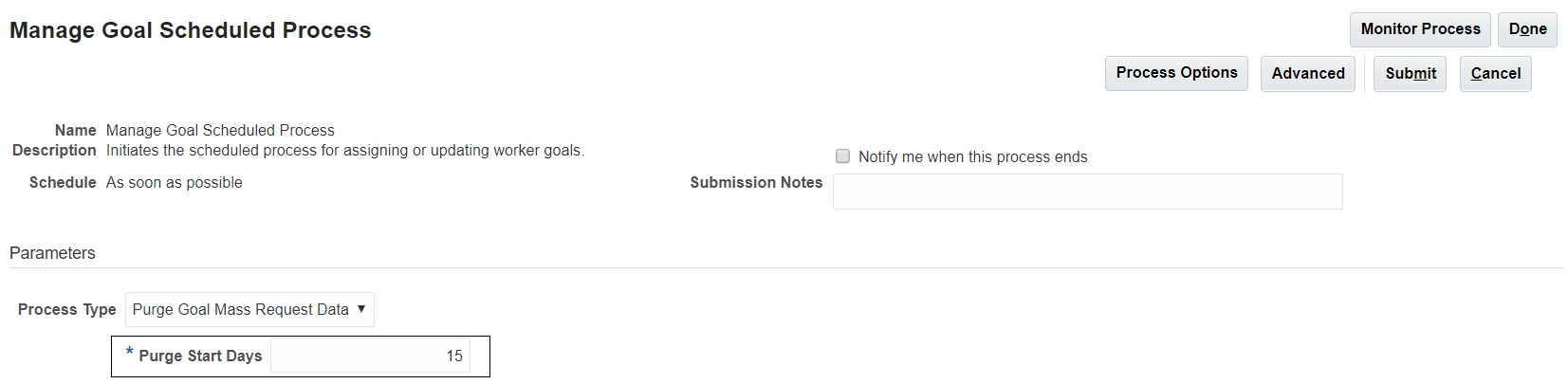
Purge Goal Mass Request Data Process
Steps to Enable
No steps are required to enable this feature.
Tips And Considerations
Depending on the frequency you run the Goal processes such as Mass Assign Goals, Assign Goal Plans, or Assign Goal Plan Sets, data accumulates in database storage and slows down the application. So, you can schedule the Purge Goal Mass Request Data process accordingly and purge the data.
Key Resources
For more information, go to Applications Help for the following topic:
-
Manage Goal Scheduled Process Parameters for Goal Management
Oracle Fusion Performance Management supports features and functions for measuring and reporting worker performance.
Deep Links to Performance Documents from Manager and Worker Notifications
You can now navigate directly to a performance document from notifications to managers and workers. Instead of navigating to the Performance overview pages, the link in notifications to managers and workers is replaced with a link to the performance document. The manager and worker will be taken directly to their next available task or a read only version of a completed one, depending on the order of the tasks configured in the process flow.

Select the Link to Navigate Directly to the Performance Document
Steps to Enable
No steps are required to enable this feature.
Tips And Considerations
- The logic used to determine where the link in the notification navigates the manager or the worker to is the same as used for the performance document name link in the My Manager Evaluations and My Evaluation pages.
- Since the tasks to manage participant feedback and set next period goals can be performed concurrently with other tasks, the link in notifications when other tasks are completed doesn't navigate to these tasks. Managers and workers can access these tasks from the My Manager Evaluations and My Evaluation pages.
- Notifications sent to managers and workers from actions related to the task to manage participant feedback will continue to navigate to the manage participant feedback task.
Resend Standard and Critical Alerts
You can improve employee completion of performance evaluation tasks by resending standard and critical alert notifications, even after the task due date has passed. Select the tasks for which you want to enable repeat alerts in the performance template. Then enable the alerts only when required to avoid excessive notifications. Alerts will not be sent to employees who have completed the task.
To set up the notifications, you select the notifications in the performance template. On the Process tab, select either, or both, the Repeat Standard Alert Until Task Completes and Repeat Critical Alert Until Task Completes check boxes. Then you must run an Oracle Enterprise Scheduler Service process to send the notifications. Use the Send Performance Document Alert Notifications job to send the notifications, and set the schedule as appropriate for your business processes.
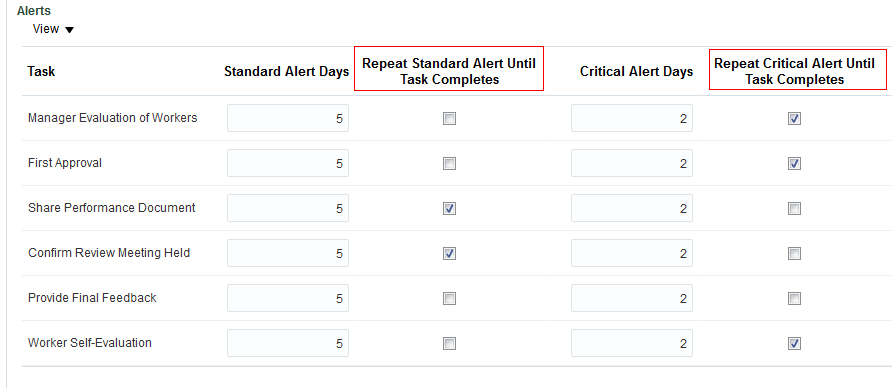
Select the Options to Repeat Standard and Critical Alerts on the Process Tab in the Performance Template
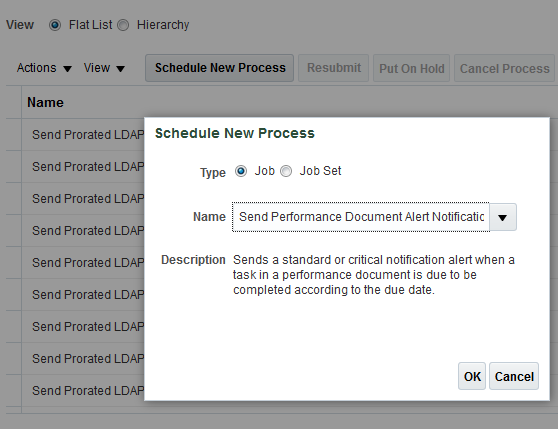
Use the Send Performance Document Alert Notifications Job to Schedule and Send Notifications
Steps to Enable
No steps are required to enable this feature.
Tips And Considerations
- The notifications cease when the task is completed for the respective role or the performance document is completed.
- For tasks that aren't completed, you must turn off the notifications to prevent them from continuing even after the task is due. To turn off the notifications, you must either:
- Deselect the options in the performance template and save the template.
- Turn off the Enterprise Scheduler Service process.
- If you select the options to repeat both standard and critical alerts, workers and managers receive both. They receive notifications starting from the number of standard alert days before the task is due. Then they receive critical alerts starting from the number of critical alert days before the task is due. The notifications are sent according to the process job schedule.
- It is recommended that you set the process job to run daily for repeat notifications.
- You can select the repeated standard and critical alert notifications without entering days for the regular standard and critical alert notifications to set your own schedule.
Key Resources
For more information go to Applications Help for the following topic:
- Performance Document Task Alert Notifications: Explained
You can increase visibility into changes to Performance data using additional audit attributes. With the new attributes, you can track changes to the performance document and task statuses, and maintain a history of who performed those changes. You can also audit details for participants requested to provide feedback.
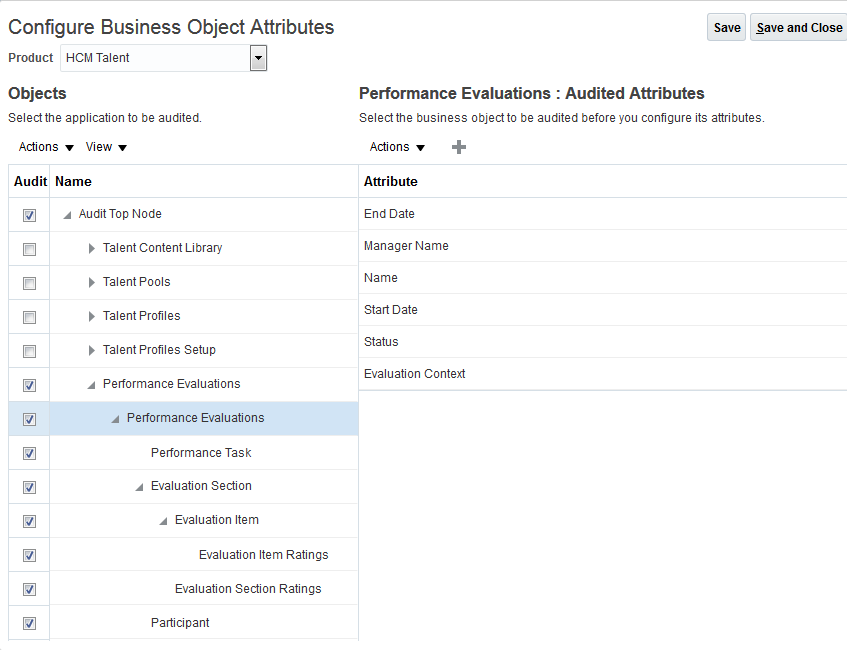
Additional Performance Objects Are Available for Auditing
Steps to Enable
- Click Navigator > Setup and Maintenance.
- On the Setup page, click the Tasks panel drawer.
- In the Tasks panel drawer, click Search.
- In the Search text box, enter Manage Audit Policies and click the Search icon.
- Click Manage Audit Policies Flows.
- On the Manage Audit Policies page, in the Oracle Fusion Applications section, click Configure Business Object Attributes.
- On the Configure Business Object Attributes page, in the Product list, select HCM Talent.
- On the Performance Evaluations row, select the Audit check box.
- Select the business objects you want to audit for performance evaluations, such as Performance Task, Evaluation Section, and so on.
- To add or remove attributes for a business object, select the business object, then in the pane on the right, click the Create plus icon.
- Select or deselect attributes as required for your business process.
- Click Save and Close.
- To run the audit, access the Audit Reports work area. Select Navigator>Tools>Audit Reports.
Key Resources
For more information go to Applications Help for the following topics:
- Managing Audit Policies: Explained
- Configuring Audit Business Object Attributes: Points to Consider
- Auditing Talent Management Business Objects: Explained
Transactional Business Intelligence for Talent Management
New Subject Area for Workforce Profiles - Feedback Notes by Recipient Real Time
Enhanced reporting capability with the addition of a new subject area to report anytime feedback to the workers. The occasions of providing these notes can be during the talent review meeting, feedback on the worker, or any general public kudos to the worker. This feedback can be provided by the managers, peers, direct/indirect reports and so on.
Steps to Enable
No steps are required to enable this feature.
Enhance Workforce Performance Subject Areas to Report on Anytime Templates
Enhance reporting on workforce performance with the addition of a new performance Anytime template created by the performance administrators, and used by managers to evaluate workers. A new Performance Document Details dimension and Template Type attribute are also available.
Using the Anytime template, manager, workers and matrix managers can create anytime performance documents on an as needed basis to achieve real time performance outcomes aligned to better business results.
As part of this, the following enhancements are available:
- Performance Document Details dimension is added in all Workforce Performance Subject Areas.
- New attribute is added in Performance Template Dimension : Template Type.
Steps to Enable
No steps are required to enable this feature.
New Attributes to Goal Management Subject Areas
Enhance your reporting on goals with the addition of new attributes that provides the information on the reference goal, from which the worker goal is created, if the reference exists. As part of this two new attributes are added to the following subject areas:
- Workforce Goals - Goal Alignments Real Time
- Workforce Goals - Goal Status Overview Real Time
- Workforce Goals - Goal Tasks Real Time
- Workforce Goals - Target Outcomes Real Time
Organization Goals, Manager Goals, and Colleague Goals are stored as regular goals in the goals schema. Library Goals are stored as content items in profiles.The worker goals can be created from any of these sources. The following attributes provides details of the source goal for the worker goals:
- Reference Goal Name
- Reference Item Name
Steps to Enable
No steps are required to enable this feature.
Talent Review and Succession Management
New Dimension - Potential Assessment in Talent Review Real Time Subject Area.
Enhanced reporting on Talent Review Real Time subject area with the addition of the new potential assessment dimension to report on the questions and responses provided by the worker's manager while preparing for the talent review meeting of the worker.
Steps to Enable
No steps are required to enable this feature.
New DFF - Talent Pools Real Time Subject Area
Enhanced reporting on employee talent pools with the addition of the Descriptive Flexfield HRT_POOLS_B.
For example: If we create a segment 'TP_1', it gets exposed as 'HRT_POOLS_B_TP_1' under the folder 'Talent Pool Details' (after deployment of the DFF 'Succession Plan Details' and BI extender is ran).
Steps to Enable
No steps are required to enable this feature.
New DFF - Succession Management Subject Areas
Enhance your reporting on succession plans with the addition of the Descriptive Flexfield HRM_PLANS under the Succession Plan Details folder across all the succession planning subject areas.
- "Workforce Succession Management - Incumbent Plans Real Time"
- "Workforce Succession Management - Job Plans Real Time"
- "Workforce Succession Management - Plan Candidates Real Time"
- "Workforce Succession Management - Position Plans Real Time"
For example: If you create a segment named 'DFF_1', it displays as 'HRM_PLANS_DFF_1' in the folder 'Succession Plan Details' (after deployment of the DFF 'Succession Plan Details' and BI extender is ran).
Steps to Enable
No steps are required to enable this feature.
Enhanced Subject Area for Learning - Expected Training Hours for a Course
Enhanced Learning Subject Area includes the minimum and maximum training hours specified for a learning course.
Steps to Enable
No steps are required to enable this feature.
Enhanced Subject Area for Learning - Offering Activities and Assignment Tasks
Modified Class specific information eliminates the contents directly under the classes. Instead, Classes are enhanced to have Activities under them. Each activity that needs to be completed by a learner is tracked through Assignment Tasks.
Steps to Enable
No steps are required to enable this feature.
New Dimensions in Learning Subject Area for Learning Requests and Non-Catalog Items
Enhanced reporting on Learning systems now requires the learners request learning rather than enroll themselves. Similarly a manager can request learning for his or her team.
You can also report on learning items that are not in the learning catalog and have been requested by the workers.
Steps to Enable
No steps are required to enable this feature.
---

Copyright © 2018, 2019, Oracle and/or its affiliates. All rights reserved.
This document is provided for information purposes only, and the contents hereof are subject to change without notice.This document is not warranted to be error-free, nor subject to any other warranties or conditions, whether expressed orally or implied in law, including implied warranties and conditions of merchantability or fitness for a particular purpose. We specifically disclaim any liability with respect to this document, and no contractual obligations are formed either directly or indirectly by this document. This document may not be reproduced or transmitted in any form or by any means, electronic or mechanical, for any purpose, without our prior written permission.
Oracle and Java are registered trademarks of Oracle and/or its affiliates. Other names may be trademarks of their respective owners.
Intel and Intel Xeon are trademarks or registered trademarks of Intel Corporation.All SPARC trademarks are used under license and are trademarks or registered trademarks of SPARC International, Inc. AMD, Opteron, the AMD logo, and the AMD Opteron logo are trademarks or registered trademarks of Advanced Micro Devices. UNIX is a registered trademark of The Open Group.
