

This document will continue to evolve as existing sections change and new information is added. All updates appear in the following table:
| Date | Update Version | Notes |
|---|---|---|
| 20 APR 2018 | May Maintenance Pack for 17D | Delivered new features in May Maintenance Pack for 17D. |
This document will continue to evolve as existing sections change and new information is added. All updates appear in the following table:
| Date | Feature | Notes |
|---|---|---|
| 20 APR 2018 | Created initial document. |
Oracle CX for Communications is a comprehensive cloud solution built on Oracle’s unified CX platform and tailored to meet the needs of the Communications industry. It leverages Oracle investments in the newest and most innovative technologies like IOT, Big Data, Virtual Assistance and AI, in addition to supporting industry best practice processes, such as order-to-cash-to-care, with cross-channel purchasing and personalized care.
Oracle CX for Communications enables communications service providers to:
- Generate new revenues, with innovative monetization engagements;
- Deliver the experience that customers demand, with a proven digital platform; and
- Increase efficiency and cut cost, with a complete solution spanning across CX, Business Support Systems (BSS), and Supply Chain Management.
With Release 13, sales and service agents benefit from an optimized user experience and additional capabilities in managing their customer profiles. Sales agents can also view, search, and access the details of their customer subscription services assets.
This guide outlines the information you need to know about new or improved functionality in this update, and describes any tasks you might need to perform for the update. Each section includes a brief description of the feature, the steps you need to take to enable or begin using the feature, any tips or considerations that you should keep in mind, and the resources available to help you.
Customers Upgrading from Release 12
If you're upgrading from Release 12 to Release 13, then you should review all of the release readiness content for Release 13 (update 17D) to learn about all of the features available in release 13.
GIVE US FEEDBACK
We welcome your comments and suggestions to improve the content. Please send us your feedback at SALESCLOUD-PRODEX_WW@ORACLE.COM.
| Action Required to Enable Feature |
|||||
|---|---|---|---|---|---|
| Feature |
None (Automatically Available) |
Enable via Opt In UI Only |
Enable via Opt In UI Plus Additional Steps |
Not Enabled via Opt In UI but Setup Required |
Issue Service Request |
 |
|||||
|
|||||
|
|||||
|
|||||
As a communications service provider, this feature enables you to store and display the product and service assets contracted or purchased by enterprise customers, when you integrate Oracle Sales Cloud with the application that generates asset data from order fulfillment. By storing asset information in Oracle Sales Cloud, the application sales predictors and white space analysis report leverage asset information to provide accurate outcomes.
As a sales agent, you can now view the lists of assets contracted, used, and paid by your enterprise accounts when working on an opportunity or a customer request. Under a specific account, you can view the three different list of assets as subtabs:
- Owned Assets subtab, displaying the list of assets owned or contracted by the account.
- Installed Assets subtab, displaying the list of assets used or delivered to the account.
- Billing Items subtab, displaying the list of assets paid by the account.
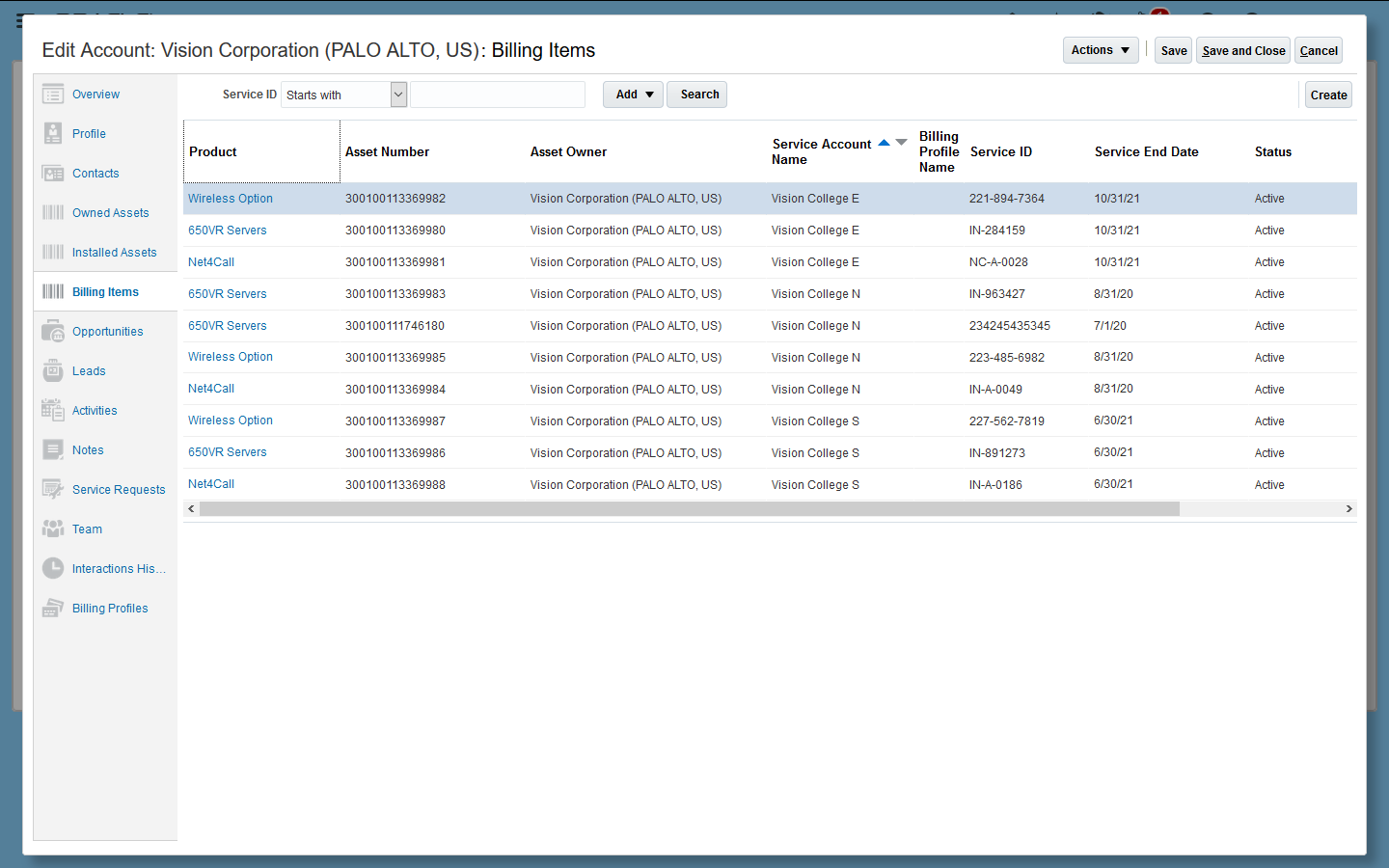
Billing Items Subtab
You can also view assets across all accounts in the top-level asset landing page of the application. On this page, you can search assets for specific asset attribute values, such as Asset Number, Status, Service ID, and Service End Date, and so on.
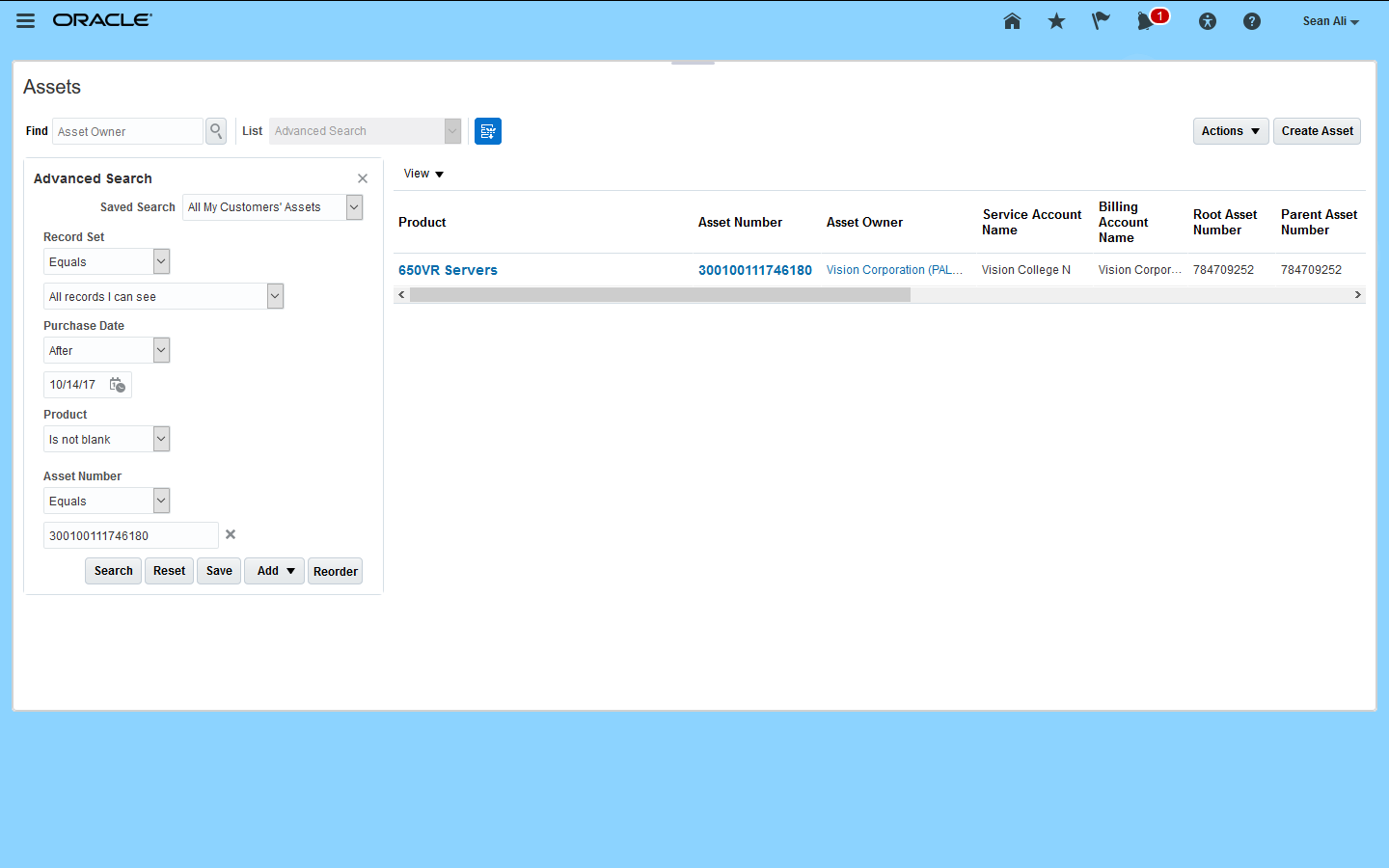
Advanced Search Menu
You can drill down on any asset record in a list to view it's asset details. The asset detail view displays the various fields that are relevant to communications subscription services, such as the accounts that you own, pay, and use; the negotiated price of the asset with its price elements; the asset structure with the root and parent asset numbers; the billing profile information; and so on.
As a sales or service agent, you can associate a contact to the asset, for example, when you want to refer a person to be contacted for any service issues related to the asset. You can also edit the location description of the asset to make it easier to locate at times of service. Other fields are generally setup as read-only for sales and service agents, as they are generated via fulfilled orders to create or modify the subscription service.
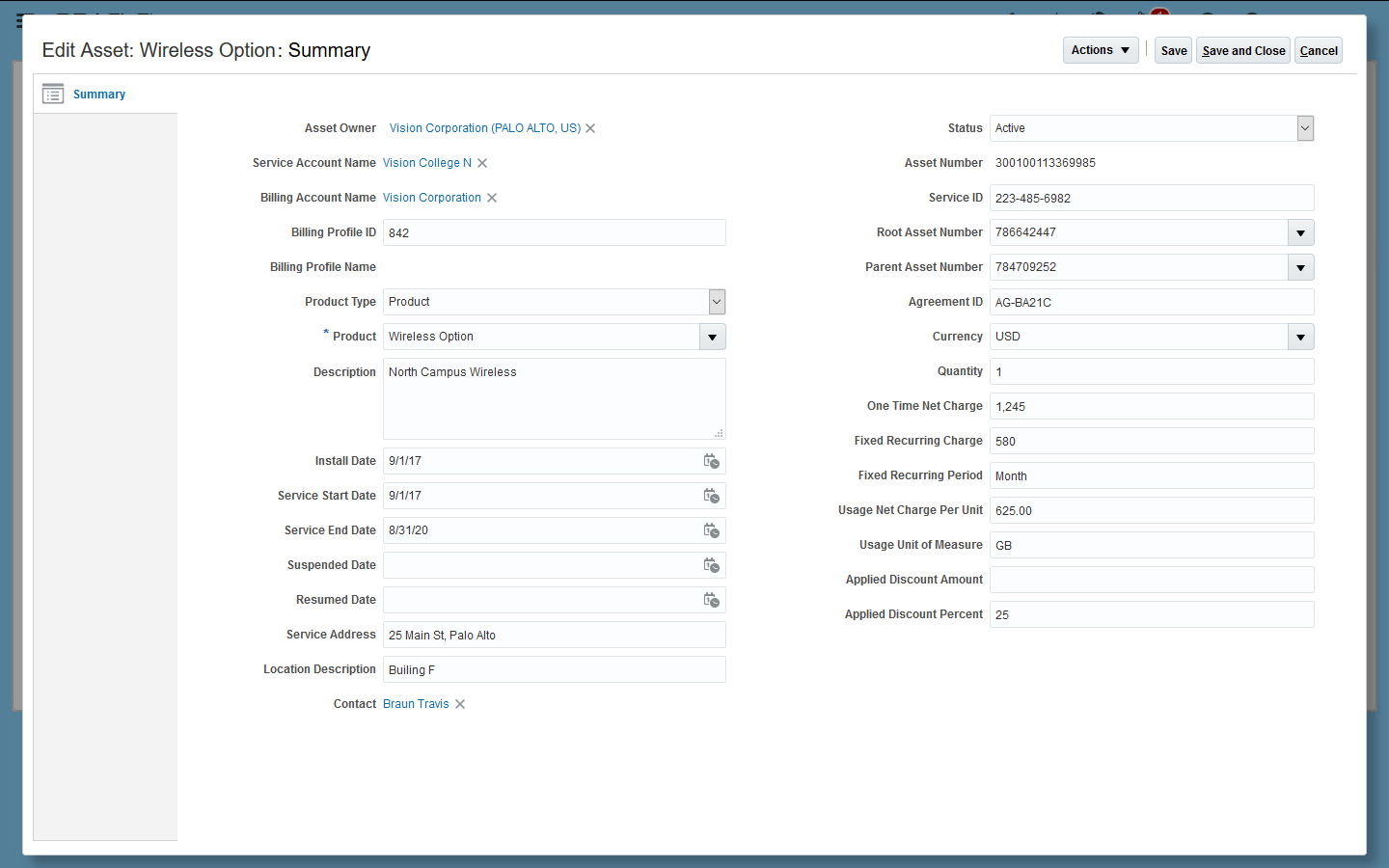
Asset Details View
Steps to Enable
You must duplicate and activate the default inactive layouts to be able to view the object pages.
To duplicate the Account detail layout:
- In Application Composer, navigate to Sales > Standard Objects > Account > Pages.
- Duplicate the inactive ORATC Detail Layout.
- Add the given Advanced Expression to the duplicated layout:
return (('ORATCDetailLayout')==__ORATC__getLayoutName())?true:false
To duplicate the Asset layouts:
-
In Application Composer, navigate to Sales > Standard Objects > Asset > Pages.
-
Duplicate the following inactive layouts:
- ORATC Detail Layout
- ORATC Create Layout
- ORATC Landing Layout
Additionally, you may want to:
- Make asset fields read-only based on role code.
- Add communications specific look up codes to Asset Status field.
- Rename asset standard fields to communications specific terminologies.
- Rename asset subtab under account object.
For details on how to perform the above steps, see the Configuring Assets topic in the Oracle Sales Cloud Getting Started with Communications Implementation.
Tips And Considerations
BULK IMPORT OF ASSETS
While importing assets, ensure that the Billing Account Name and Service Account Name text fields are populated, along with Organization Name (Account Name), for the Billing Account and Service Account associated to the assets.
Organization Name of the Account can be obtained by exporting the Object 'Account Profile' from the Scheduled Export process.
Key Resources
For details on the export process, refer to the Defining Bulk Export Process: Procedure topic in the Oracle Sales Cloud Understanding File-Based Data Import and Export guide.
Enable sales and service agents to:
- Capture and view customer information which may make customers eligible for a tax exemption. Customer information include sales tax permit or license number, or the registration status of the customer’s organization such as nonprofit or charitable organization.
- See the status and status date of a customer request for participation to telephone or directory assistance programs.
Steps to Enable
- In Application Composer, navigate to Sales > Standard Objects > Account > Pages.
- Select All Layouts under Details Page Layouts.
- Duplicate the inactive ORATC Detail Layout to get the Exemption Profile region on the Account Profile subtab.
- Add the advanced expression to the duplicated layout return:
(('ORATCDetailLayout')==__ORATC__getLayoutName())?true:fals
- Click Reorder Layouts, to ensure that the layout with advanced expression appears at the beginning of the table.
Key Resources
For additional information, refer to the Using Exemption Profiles topic in the Oracle Sales Cloud Getting Started with Communications Implementation guide.
Role Information
- Sales Agents
Billing Profile Name and UI Optimization
- Enable sales agents to provide unique descriptive names to billing profiles across accounts. This facilitates the selection of the correct profile record when, for example, an update must be made to the existing billing information.
- Improve the display of billing information by resetting the Prepaid profile information, whenever a profile is changed to Postpaid and saved.
Steps to Enable
No steps are required to enable this feature.
Role Information
- Sales Agents
Enhance Address Selection in Billing Profile
Improve application usability by restricting the list of billing profile addresses available for selection to eligible addresses only. Eligible billing profile addresses are addresses attached to the account of which the billing profile is a child.
Steps to Enable
No steps are required to enable this feature.
---

Copyright © 2018, Oracle and/or its affiliates. All rights reserved.
This document is provided for information purposes only, and the contents hereof are subject to change without notice.This document is not warranted to be error-free, nor subject to any other warranties or conditions, whether expressed orally or implied in law, including implied warranties and conditions of merchantability or fitness for a particular purpose. We specifically disclaim any liability with respect to this document, and no contractual obligations are formed either directly or indirectly by this document. This document may not be reproduced or transmitted in any form or by any means, electronic or mechanical, for any purpose, without our prior written permission.
Oracle and Java are registered trademarks of Oracle and/or its affiliates. Other names may be trademarks of their respective owners.
Intel and Intel Xeon are trademarks or registered trademarks of Intel Corporation.All SPARC trademarks are used under license and are trademarks or registered trademarks of SPARC International, Inc. AMD, Opteron, the AMD logo, and the AMD Opteron logo are trademarks or registered trademarks of Advanced Micro Devices. UNIX is a registered trademark of The Open Group.
