

This document will continue to evolve as existing sections change and new information is added. All updates appear in the following table:
| Date | Update Version | Notes |
|---|---|---|
| 20 OCT 2017 | Update 17D | New features delivered in update 17D. |
This document will continue to evolve as existing sections change and new information is added. All updates appear in the following table:
| Date | Feature | Notes |
|---|---|---|
| 20 OCT 2017 | Created initial document. |
This guide outlines the information you need to know about new or improved functionality in this update, and describes any tasks you might need to perform for the update. Each section includes a brief description of the feature, the steps you need to take to enable or begin using the feature, any tips or considerations that you should keep in mind, and the resources available to help you.
Security and New Features
The Role section of each feature in this guide identifies the security privilege and job role required to use the feature. If feature setup is required, then the Application Implementation Consultant job role is required to perform the setup unless otherwise indicated.
If you have created custom job roles, then you can use this information to add new privileges to those roles as needed.
Give Us Feedback
We welcome your comments and suggestions to improve the content. Please send us your feedback at oracle_fusion_applications_help_ww_grp@oracle.com.
Optional Uptake of New Features (Opt In)
We continue to add many new features to the Oracle Cloud Applications, and for some features, you can take advantage of new functionality at a pace that suits you by “opting in” to the feature when you’re ready. You can opt in to a feature in two ways: by using the New Features work area, or by using the Setup and Maintenance work area.
To opt in using the New Features work area:
- Click the Navigator, and then click New Features (under the My Enterprise heading).
- On the New Features page, select the offering that includes new features you’d like to review.
- Click Opt In for any feature that you want to opt in to.
- On the Edit Features page, select the Enable option for the feature, and then click Done.
To opt in using the Setup and Maintenance work area:
- Click the Navigator, and then click Setup and Maintenance.
- On the Setup page, select your offering, and then click Change Feature Opt In.
- On the Opt In page, click the Edit Features icon.
- On the Edit Features page, select the Enable option for any feature you want to opt in to. If the Enable column includes an Edit icon instead of a check box, then click the icon, select your feature options, and click Save and Close.
- Click Done.
| Action Required to Enable Feature |
|||||
|---|---|---|---|---|---|
| Feature |
None (Automatically Available) |
Enable via Opt In UI Only |
Enable via Opt In UI Plus Additional Steps |
Not Enabled via Opt In UI but Setup Required |
Issue Service Request |
 |
|||||
|
|||||
|
|||||
Manufacturing and process-related companies, such as those related to life sciences (medical devices, pharmaceutical, biotechnology, biopharmaceutical), aerospace, food and beverage, and chemicals, are increasingly being regulated by government agencies. The companies must keep detailed records of their design, inventory, and product manufacturing processes. The usual practice is to maintain paper records of all information. The Current Good Manufacturing Practices (cGMP) for life science manufacturers is to retain records for a period equal to the life of the product plus seven years. Maintaining just the production records for even a relatively short-lived product can become quite cumbersome.
More and more companies want to maintain and store the records in electronic format to reduce paperwork burden. This is of particular importance for regulated industries in light of the Food and Drug Administration’s (FDA) regulation on electronic records and signatures, called Code of Federal Regulations Title 21, Part 11.
Oracle E-Signatures and E-Records is a configurable framework for securely capturing, storing, retrieving, and printing electronic records and signatures. Based on the predicate GMP rules, critical supply chain management business events are now enabled in the areas of inventory, manufacturing, and quality in the Oracle Applications Cloud.
Capture e-signature information, such as user ID, password, comments, and date and time stamp, as part of transaction creation.
Electronic signatures require a valid user ID, password, reason for signing (such as review, approval, responsibility, or authorship which is currently implemented in a comment field), and date and time stamp. Since electronic signatures are a legal and binding equivalent of handwritten signatures, it is important to review the data you are responsible for signing. At the time of electronic signature capture, you can review the pertinent data using a linked .pdf report, rather than having to review it using the transaction windows.
Inline processing is supported when a signature needs to be captured immediately, so you do not delay further processing. This is accomplished by using a screen to capture the electronic signature information during transaction creation. If multiple signatures are required, the screen captures the first signature, then a notification is sent to subsequent approvers to capture the remaining signatures. If the signers are not available immediately, the Back button is available to return to the transaction in progress. The new or updated transaction data is not committed to the database and is held in a pending status until all approvals are complete.
The predicate rules, which describe where in a document the signatures are needed and which historically refer to paper documents, also apply to electronic records. The following list contains the places in the business flows where the capture of inline electronic signatures are enabled.
- Manufacturing
- Manufacturing Standard Operation Management
- Work Order Material Transaction
- Work Order Operation Transaction
- Orderless Transaction
- Inventory Management
- Receipt
- Put Away
- Receiving Transaction Correction
- Miscellaneous Transaction
- Ship Confirm
- Quality Management
- Quality Inspection Disposition
The following figure illustrates Inline Signature Capture for a work order operation transaction.

Inline Signature Capture for a Work Order Operation Transaction
Steps to Enable
You must opt in to and enable the Capture Electronic Signatures and Electronic Records for SCM Transactions feature. For instructions, refer to the Optional Uptake of New Features section of this document.
To enable electronic records and capture electronic signatures for Supply Chain Management transactions, you must determine and configure electronic signatures for each inventory organization using the Configure E-Signature Preferences task in the Setup and Maintenance work area.
After you enable electronic signatures for a transaction, you can also define configurable business process rules in Oracle Business Process Management Studio using the Manage Task Configurations for Supply Chain Management and the Manage Approval Groups tasks in the Setup and Maintenance work area to determine the approvers for each transaction.
Role Information
- Privilege Name and Code: Add Electronic Signatures (EDR_ADD_ESIGNATURES_TRANSACTIONS_PRIV)
- Job Role Name and Code: All roles provisioned with the Add Electronic Signatures (EDR_ADD_ESIGNATURES_TRANSACTIONS_PRIV) privilege. Existing roles applicable to the supply chain management transactions that use e-signatures and e-records are provisioned by default.
Configure E-Signatures and E-Records for Transactions
Identify the transactions that require e-signatures in each of your organizations. You can define the approvers and additional signing rules during setup.
Your company determines the business events that will trigger electronic signatures and electronic records based on the transactions types that require signatures on paper documents.By default, electronic signatures and electronic records are set to off for all transactions. During setup, you can determine which transactions require electronic signatures for each your organizations. If electronic signatures are enabled, then the electronic signature screen displays, requiring entry from the appropriate user and a snapshot of the event takes place at the appropriate time. An additional setup is required in Oracle Business Process Management Studio, to identify the list of approvers and any rules that you would like to set up for the approval workflow process.
The following figure illustrates e-signature preferences configured for an inventory organization.

E-Signature Preferences Configured for an Inventory Organization
Steps to Enable
You must opt in to and enable the Capture Electronic Signatures and Electronic Records for SCM Transactions feature. For instructions, refer to the Optional Uptake of New Features section of this document.
To enable electronic records and capture electronic signatures for supply chain management transactions, you must determine and configure e-signatures for each inventory organization using the Configure E-Signature Preferences task in the Setup and Maintenance work area.
Once you enable electronic signatures for a transaction, you can also define configurable business process rules in Oracle Business Process Management Studio using the Manage Task Configurations for Supply Chain Management and the Manage Approval Groups setup tasks to determine the approvers for each transaction.
Key Resources
- Managing and Monitoring Processes with Oracle Business Process Management guide, available on the Oracle Help center.
- Designing Business Rules with Oracle Business Process Management guide, available on the Oracle Help center.
Role Information
- Privilege Name and Code: Determine Transactions Requiring Electronic Signature (EDR_DETERMINE_ESIGNATURES_TRANSACTIONS_PRIV)
- Job Role Name and Code: Supply Chain Application Administrator (ORA_RCS_SUPPLY_CHAIN_APPLICATION_ADMINISTRATOR_JOB)
Retrieve e-signatures and e-records from a separate repository, which can be accessed from the Electronic Records work area.
The created e-records are stored in a separate repository that can be accessed from the Electronic Records work area. Copies of records are stored in common portable formats, such as PDF. These documents provide review of a clear and legible copy of the information. Each e-record preserves the content of the record.
Your users will be able to search the e-records based the transactional information displayed in the e-record heading.
The following figure shows the Electronic Records page launched from the electronic records work area.
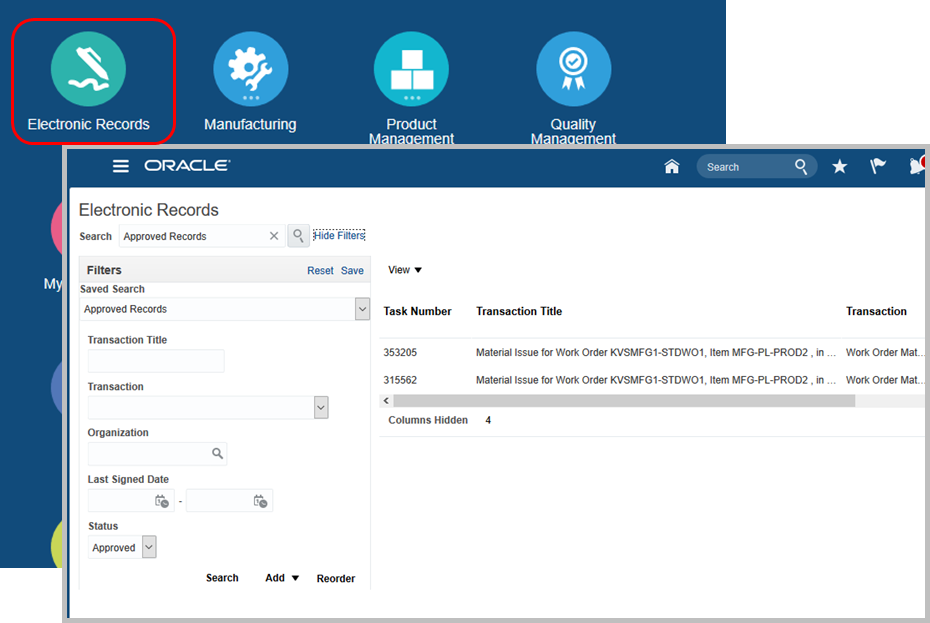
Electronic Records Page
The following figure shows the drill down to signature history and the downloading of the PDF from the Electronic Records page.

Signature History and PDF Download from the Electronic Records Page
Steps to Enable
You must opt in to and enable the Capture Electronic Records and Electronic Signatures for SCM Transactions feature. For instructions, refer to the Optional Uptake of New Features section of this document.
To enable e electronic records and capture electronic signatures for Supply Chain Management transactions, you must determine and configure electronic signatures for each inventory organization using the Configure E-Signature Preferences task in the Setup and Maintenance work area.
Once you enable electronic signatures for a transaction, you can also define configurable business process rules in Oracle Business Process Management Studio using the Manage Task Configurations for Supply Chain Management, and the Manage Approval Groups tasks in the Setup and Maintenance work area to determine the approvers for each transaction.
Role Information
- Privilege Name and Code: View Electronic Records and Signatures (EDR_VIEW_RECORDS_ESIGNATURES_PRIV)
- Job Role Name and Code: Compliance Business Analyst (ORA_EDR_COMPLIANCE_BUSINESS_ANALYST_JOB)
---

Copyright © 2017, Oracle and/or its affiliates. All rights reserved.
This document is provided for information purposes only, and the contents hereof are subject to change without notice.This document is not warranted to be error-free, nor subject to any other warranties or conditions, whether expressed orally or implied in law, including implied warranties and conditions of merchantability or fitness for a particular purpose. We specifically disclaim any liability with respect to this document, and no contractual obligations are formed either directly or indirectly by this document. This document may not be reproduced or transmitted in any form or by any means, electronic or mechanical, for any purpose, without our prior written permission.
Oracle and Java are registered trademarks of Oracle and/or its affiliates. Other names may be trademarks of their respective owners.
Intel and Intel Xeon are trademarks or registered trademarks of Intel Corporation.All SPARC trademarks are used under license and are trademarks or registered trademarks of SPARC International, Inc. AMD, Opteron, the AMD logo, and the AMD Opteron logo are trademarks or registered trademarks of Advanced Micro Devices. UNIX is a registered trademark of The Open Group.
