

This document will continue to evolve as existing sections change and new information is added. All updates appear in the following table:
| Date | Update Version | Notes |
|---|---|---|
| 20 OCT 2017 | Update 17D | New features delivered in update 17D. |
| 01 SEP 2017 | Update 17C | New features delivered in update 17C. |
| 01 SEP 2017 | Update 17B | Revised update 17B. |
This document will continue to evolve as existing sections change and new information is added. All updates appear in the following table:
| Date | Feature | Notes |
|---|---|---|
| 20 OCT 2017 | Created initial document. |
This guide outlines the information you need to know about new or improved functionality in this update, and describes any tasks you might need to perform for the update. Each section includes a brief description of the feature, the steps you need to take to enable or begin using the feature, any tips or considerations that you should keep in mind, and the resources available to help you.
GIVE US FEEDBACK
We welcome your comments and suggestions to improve the content. Please send us your feedback at oracle_fusion_applications_help_ww_grp@oracle.com.
Optional Uptake of New Features (Opt In)
We continue to add many new features to the Oracle Cloud Applications, and for some features, you can take advantage of new functionality at a pace that suits you by “opting in” to the feature when you’re ready. You can opt in to a feature in two ways: by using the New Features work area, or by using the Setup and Maintenance work area.
To opt in using the New Features work area:
- Click the Navigator, and then click New Features (under the My Enterprise heading).
- On the New Features page, select the offering that includes new features you’d like to review.
- Click Opt In for any feature that you want to opt in to.
- On the Edit Features page, select the Enable option for the feature, and then click Done.
To opt in using the Setup and Maintenance work area:
- Click the Navigator, and then click Setup and Maintenance.
- On the Setup page, select your offering, and then click Change Feature Opt In.
- On the Opt In page, click the Edit Features icon.
- On the Edit Features page, select the Enable option for any feature you want to opt in to. If the Enable column includes an Edit icon instead of a check box, then click the icon, select your feature options, and click Save and Close.
- Click Done.
| Action Required to Enable Feature |
|||||
|---|---|---|---|---|---|
| Feature |
None (Automatically Available) |
Enable via Opt In UI Only |
Enable via Opt In UI Plus Additional Steps |
Not Enabled via Opt In UI but Setup Required |
Issue Service Request |
Oracle Transactional Business Intelligence: Standalone Selling Price Report Dashboard |
 |
||||
Oracle Transactional Business Intelligence: Standalone Selling Price Report Dashboard
Use the Oracle Transactional Business Intelligence (OTBI) Standalone Selling Price Report Dashboard to analyze the standalone selling prices (SSPs) for a selected effective period or a range of selected effective periods. The dashboard aids in the analysis of exactly how the standalone selling prices were calculated by providing a drill down to the standalone sales transaction data used to derive the standalone selling prices.
Use the Standalone Selling Price Report for analysis and auditing, or you can copy the report and use it as a starting point to create a report that will meets your own unique reporting needs.
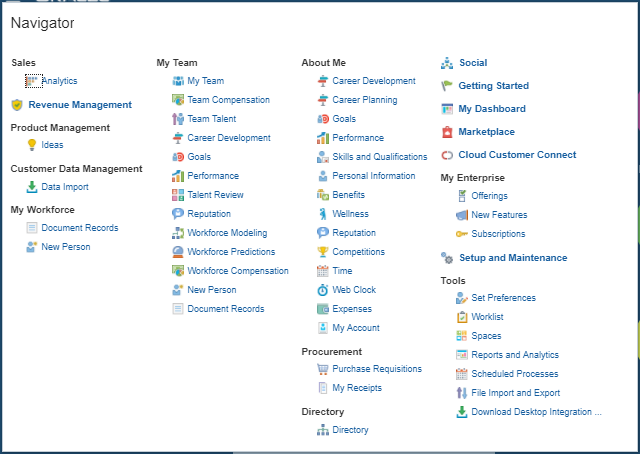
Access the Standalone Selling Price Report From Reports and Analytics Under Tools Within the Navigator

Select the Pre-Built Standalone Selling Price Report From the Revenue Management => Standalone Selling Price Shared Folders
The Standalone Selling Price Report enables you to review the standalone selling prices for the selected effective periods. You can filter the report output by attributes such as item, item group, memo line, item classification, performance obligation template, pricing dimension, SSP Profile, and SSP Representation.
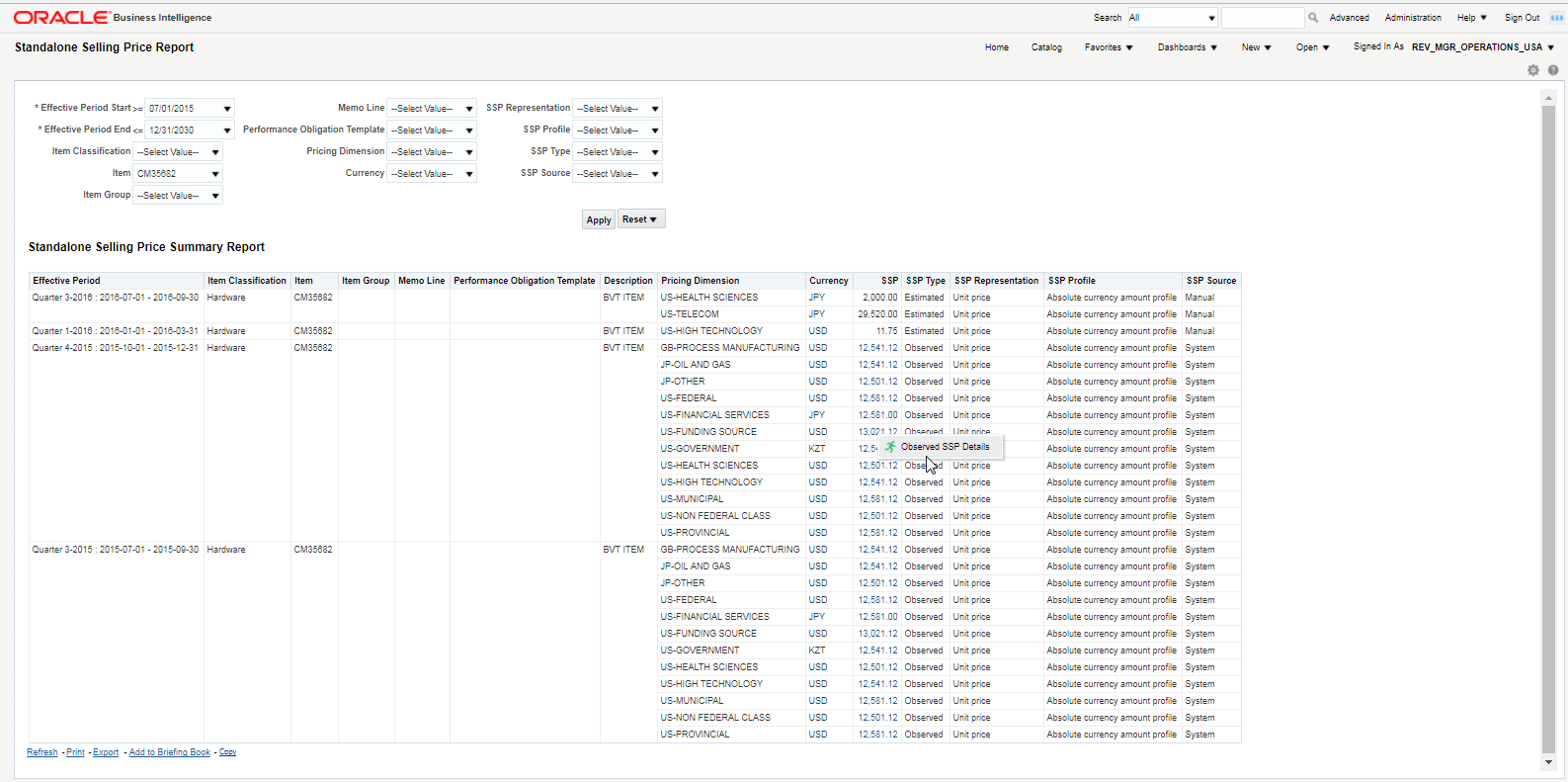
Standalone Selling Price Report Output Sample
Drill down to the Observed SSP Details report, which provides details of the individual sales used to systematically derive the observed standalone selling price.

Observed SSP Details Report Output Sample
Steps to Enable
There are no steps necessary to enable this feature. On installation of the release, the dashboard and report is available to you.
Tips And Considerations
Report can be edited or modified after copying or saving the report from the shared folder to your personal folder.
This document will continue to evolve as existing sections change and new information is added. All updates appear in the following table:
| Date | Feature | Notes |
|---|---|---|
| 01 SEP 2017 | Created initial document. |
This guide outlines the information you need to know about new or improved functionality in this update, and describes any tasks you might need to perform for the update. Each section includes a brief description of the feature, the steps you need to take to enable or begin using the feature, any tips or considerations that you should keep in mind, and the resources available to help you.
GIVE US FEEDBACK
We welcome your comments and suggestions to improve the content. Please send us your feedback at oracle_fusion_applications_help_ww_grp@oracle.com.
Optional Uptake of New Features (Opt In)
We continue to add many new features to Oracle Cloud Applications and we now give you the option to take advantage of new functionality at a pace that suits you. The ‘New Features UI’ is available to you from your cloud homepage, where you can make your choices and do any configuration necessary.
| Action Required to Enable Feature |
||||
|---|---|---|---|---|
| Feature |
Automatically Available |
End User Action Required |
Administrator Action Required |
Oracle Service Request Required |
|
||||
Oracle Revenue Management Cloud is a centralized, automated revenue management solution that enables you to address the ASC 606 and IFRS 15 accounting standard “Revenue from Contracts with Customers”. The solution provides a configurable framework to automate the identification and creation of customer contracts and performance obligations, and their valuations, and resulting accounting entries, with the ability to recognize revenue over time or at a point in time. The solution also provides an option to calculate or load and manage standalone selling prices.
Oracle Transactional Business Intelligence Reporting - Subject Areas for Customer Contracts, Performance Obligations and Revenue
You can now analyze and create reports to address your organization’s reporting needs with respect to the ASC 606 and IFRS 15 accounting standard for Revenue from Contracts with Customers with two new Oracle Transactional Business Intelligence subject areas:
- Customer Contracts Real Time
- Standalone Selling Price Real Time
Use these new subject areas to analyze information on accounting contracts, performance obligations, and promised details, such as standalone selling prices, allocated revenue amounts, billed amounts, revenue recognized, satisfaction plans, and related accounting.
Use the standard features of Oracle Transactional Business Intelligence reporting technology to select the attributes you want from these new subject areas and to filter and group data according to your needs. The subject area attributes expose the same data as the fields you find in the Manage Customer Contracts page, making it easy to select just the right information for your reports.
CUSTOMER CONTRACTS REAL TIME SUBJECT AREA
The Customer Contracts Real Time subject area enables you to analyze accounting contracts, performance obligations, and promised details, including standalone selling prices, allocated revenue amounts, billed amounts, revenue recognized, satisfaction plans, and related accounting along with integrated source document data.
The subject area consists of the following folders:
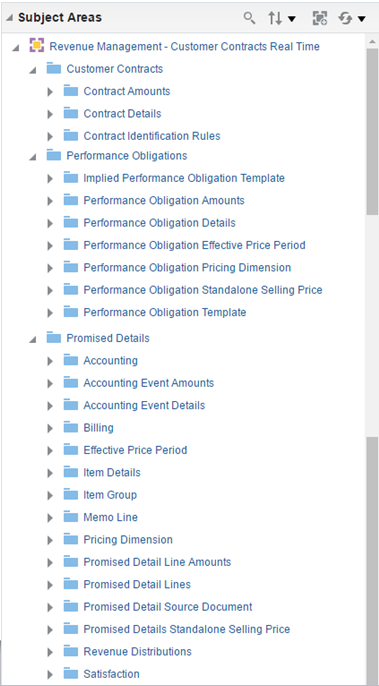
Customer Contracts Real Time Subject Area
STANDALONE SELLING PRICE REAL TIME SUBJECT AREA
The Standalone Selling Price Real Time subject area enables enables you to analyze estimated and observed standalone selling prices for item group, item, or memo line by pricing dimension, item classification and effective period. The subject area contains uploaded and system observed standalone selling prices.
The subject area consists of the following folders:
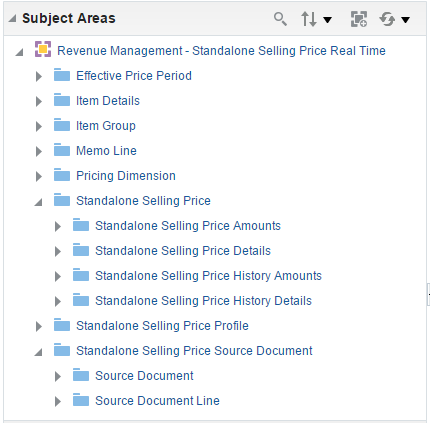
Standalone Selling Price Real Time Subject Area
Steps to Enable
No steps are required to enable this feature.
This document will continue to evolve as existing sections change and new information is added. All updates appear in the following table:
| Date | Feature | Notes |
|---|---|---|
| 01 SEP 2017 | Integrate Data from Enterprise Contracts and Project Billing | Updated document. Revised feature information. |
| 21 APR 2017 | Created initial document. |
This guide outlines the information you need to know about new or improved functionality in this update, and describes any tasks you might need to perform for the update. Each section includes a brief description of the feature, the steps you need to take to enable or begin using the feature, any tips or considerations that you should keep in mind, and the resources available to help you.
GIVE US FEEDBACK
We welcome your comments and suggestions to improve the content. Please send us your feedback at oracle_fusion_applications_help_ww_grp@oracle.com.
Optional Uptake of New Features (Opt In)
We continue to add many new features to Oracle Cloud Applications and we now give you the option to take advantage of new functionality at a pace that suits you. The ‘New Features UI’ is available to you from your cloud homepage, where you can make your choices and do any configuration necessary.
| Action Required to Enable Feature |
||||
|---|---|---|---|---|
| Feature |
Automatically Available |
End User Action Required |
Administrator Action Required |
Oracle Service Request Required |
|
||||
|
||||
|
||||
Integrate Data from Enterprise Contracts and Project Billing |
|
|||
|
||||
Revenue Basis Data and Billing Data Import Template Improvements |
|
|||
|
||||
Assign Items Automatically to Standalone Selling Price Profiles |
|
|||
Oracle Revenue Management Cloud is a centralized, automated revenue management solution that enables you to address the ASC 606 and IFRS 15 accounting standard “Revenue from Contracts with Customers”. The solution provides a configurable framework to automate the identification and creation of customer contracts and performance obligations, and their valuations, and resulting accounting entries, with the ability to recognize revenue over time or at a point in time. The solution also provides an option to calculate or load and manage standalone selling prices.
Contract Revision Classification - Revision Intent Type
The ASC 606 and IFRS 15 accounting standards require entities to distinguish between revisions to contract data that reflect estimation accounting and those that reflect true contract modifications, because the standards' disclosure requirements require the entity to make specific disclosures on contract modifications. In other words, entities must distinguish between these two categories of revision:
- Variable Consideration Estimation Correction also referred to as 'Estimate Correction'. Estimate Corrections are due to contract updates where the organization made an estimate at inception for terms such as price, quantity or contingency clauses so that they could accrue the performance obligation, and are now truing up that initial estimate.
- Contract Modification. Contract Modification is a contract update where the organization and their customer agreed to a change in the scope or price of the contract, such as purchasing additional goods or services not originally agreed.
In support of the reporting requirement, Revenue Management has introduced the Revision Intent Type. Revision Intent Type provides the ability to capture the intent from upstream source systems or automatically defaulting a revision classification assignment when processing contract revisions or manually assigning the classification using the Manage Customer Contracts page.
For organizations whose upstream source systems enable you to assign and provide the revision classification for contract revision lines, Revenue Management added a new attribute called 'Revision Intent' to support the capture and correction of the Revision Intent Type within the Revenue Basis Data Import File Based Data Import (FBDI) and the Correct Source Document Error spreadsheet integrator.
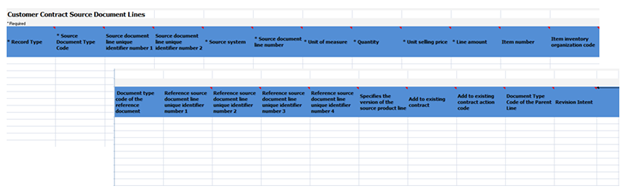
Revenue Data Basis Import FBDI Worksheet
For organizations where users are not able to assign a revision classification in the upstream source systems, Revenue Management provides the ability to systematically assign a default revision classification to the revision line based on the source of the line in the Manage Source Document Types page.
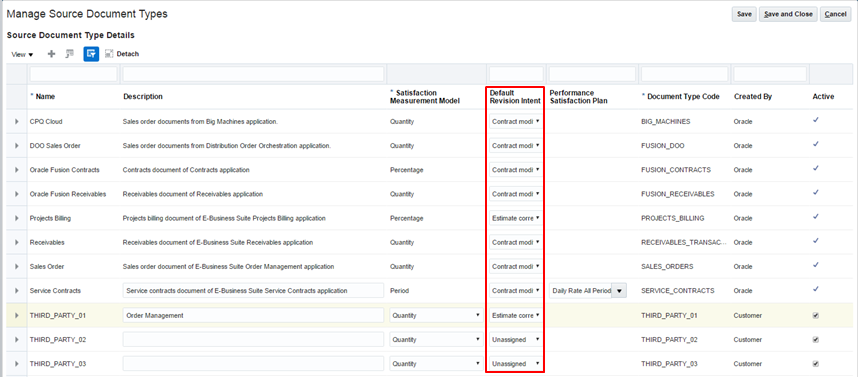
Manage Source Document Types
In the event the source system-originated revision intent or default assignment of the revision classification needs to be updated, Revenue Management provides the ability to change the classification for the line using the Manage Customer Contracts page.
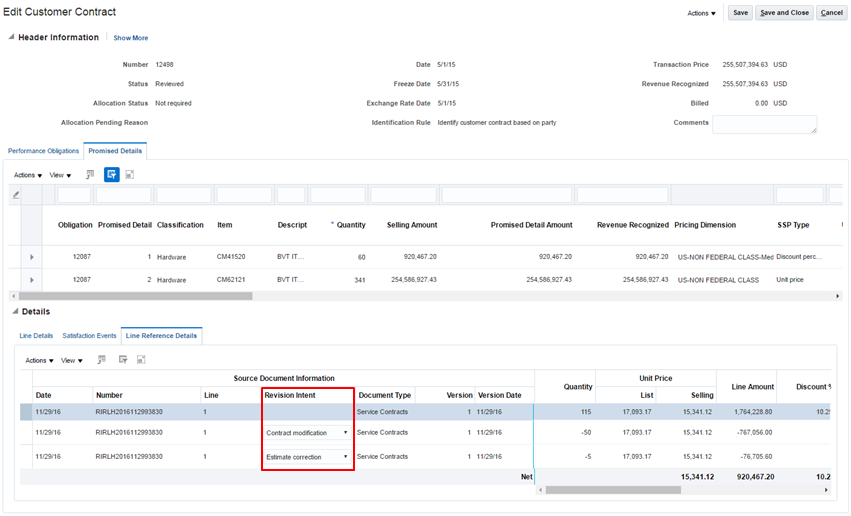
Edit Customer Contract - Line Reference Details
The Revision Intent has also been enabled as a source to use to derive custom Subledger Accounting rules for Revenue Management.
Use the Revision Intent source as a condition:
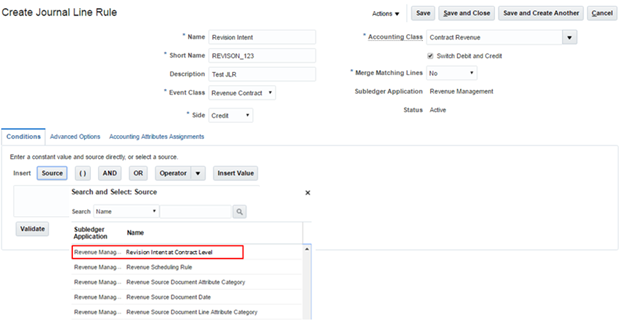
Create Journal Line Rule - Source
Navigator > Setup and Maintenance > Implementation Projects
- Search for Financials; Click on Financials IP.
- Expand Financials in the search results table.
- Scroll down and expand the task Define Revenue Management > Define Subledger Accounting Rules > Define Subledger Accounting Methods > Manage Journal Line Rules.
- Go to the task 'Manage Journal Line Rules' and click ‘+’ to create a new rule.
- Provide the details in the header.
- In the Conditions tab, add the source 'Revision Intent at Contract Level'.
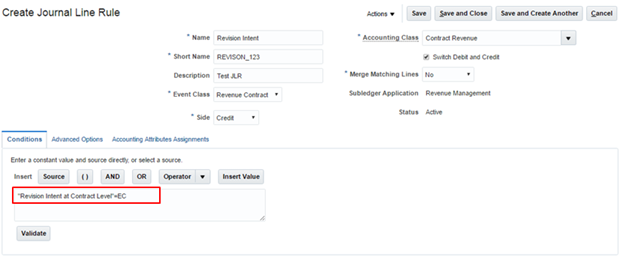
Create Journal Line Rule - Conditions
- Define a condition using the Revision Intent and validate the rule.
- Attach the rule to the Journal Entry Rule Set.
The Revision Intent source can also be used in a similar way in the Description or the Account Rule.
Steps to Enable
No steps are required to enable this feature.
Process Historical Data from Oracle EBS and Oracle Cloud
Import historical data from Oracle E-Business Suite and Oracle Enterprise Resource Planning (ERP) Cloud into Revenue Management Cloud to support iterative modeling during the transition period. Import historical revenue basis and billing source data that was created on or after 01 Jan 2014.
During the transition period you can integrate the historical source document data into Revenue Management to use for iterative modeling and comparative analysis. Historical data import helps ensure that accounting contracts are properly created, valued, and allocated, and that the appropriate accounting entries are generated.
Revenue Management uses the historical billing data to generate the conditional accounting that reduces balances for contract liabilities, contract assets, and contract discount liabilities. Revenue Management imports all subsequent contract revisions that are applied to the historical data in Oracle E-Business Suite and Oracle ERP Cloud.
Steps to Enable
No steps are required to enable this feature.
Tips And Considerations
In the Manage Revenue System Options and EBS AR System Options pages you have to provide the start date of integration from various sources.
- Note that you cannot interface any contracts which are created before 01 Jan 2014.
- You will need to consider the retrospective adoption approach your organization chooses when assessing the start date for the historical source data data import into Revenue Management.
- It important to decide how far back to integrate source data to support the iterative modeling for retrospective adoption.
View Discarded Customer Contracts
Use the Discard Customer Contracts program to dismantle already identified customer contracts and reassemble the original source document lines into a new customer contract.
Select the Discarded status in the Manage Customer Contracts user interface to view discarded contracts in read-only format.
Steps to Enable
No steps are required to enable this feature.
Integrate Data from Enterprise Contracts and Project Billing
You can now import contract data from Enterprise Contracts and Project Billing Cloud to Revenue Management Cloud to perform iterative modeling.
Use Revenue Management to:
- Import, identify, create, value, and allocate accounting contracts and performance obligations.
- Recognize revenue at a point in time or over time.
- Account performance obligations to ensure compliance with IFRS 15 and ASC 606.
- Import contract revisions from Enterprise Contracts and Project Billing as contract modifications, which are reallocated and re-accounted in Revenue Management.
- Import events from Enterprise Contracts and Project Billing to record satisfaction events and book revenue in Revenue Management.
The following screenshot illustrates this feature and its benefits.
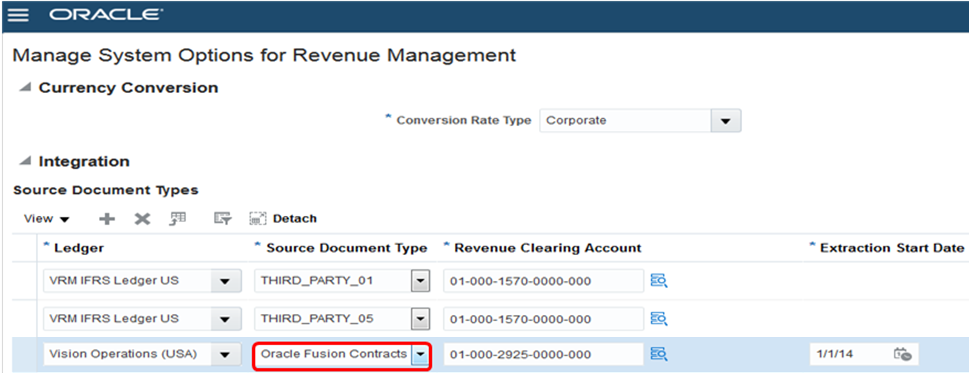
Manage System Options for Revenue Management
For integration with Enterprise Contracts and Project Billing, enable the source document type Oracle Fusion Contracts for the required ledger and provide the start date to extract data.
Steps to Enable
No steps are required to enable this feature.
Tips And Considerations
In the Manage System Options for Revenue Management page you must provide the start date of integration of Enterprise Contracts and Project Billing Cloud sales data with Revenue Management. You'll need to identify the retrospective adoption approach your organization chooses and take that into account when considering the start date for historical source data to interface to Revenue Management.
- This is an important decision point because the start date will be disabled after the first extraction of data into Revenue Management.
- All contract data which is created on or after the start date will be interfaced to Revenue Management.
Revenue Contract Account Activities Report - Output Option
The Revenue Contract Account Activities Report provides contract and performance obligation account balance and transaction activity to support analysis and auditing. This report is now available in a flat file report format, in addition to the existing default spreadsheet format. You can use the flat file report format to assist in handling large numbers of records.
Steps to Enable
There are no steps necessary to enable this feature.
Revenue Basis Data and Billing Data Import Template Improvements
The column descriptions in the Revenue Basis Data Import and Billing Data Import File-Based Data Import (FBDI) templates have been improved to help you enter the correct information that is required for each data column.
Steps to Enable
There are no steps necessary to enable this feature.
Reference Information for Contracts and Obligations
You can now automatically populate the Contract or Performance Obligation Reference field by utilizing the Copy to Reference and Reference Prefix option. Within each identification rule, you can select the matching group attribute with or without a descriptive prefix that is to be copied into the Reference field on the contract, performance obligation, or both.
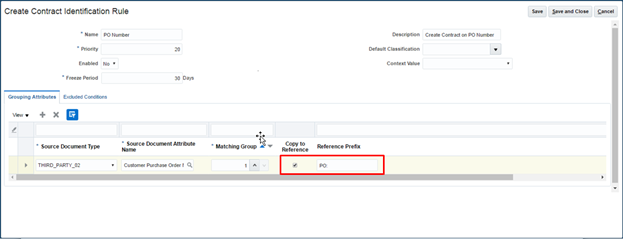
Contract Identification Rule
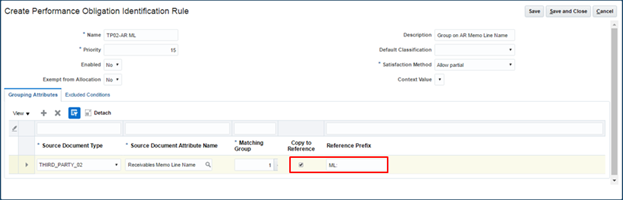
Create Performance Obligation Identification Rule
When you select Copy to Reference for a grouping attribute in the rule, the value of the grouping attribute is populated in the Reference field on the customer contract. You can then use this value in the Advanced Search feature or change it using the Manage Customer Contracts page.
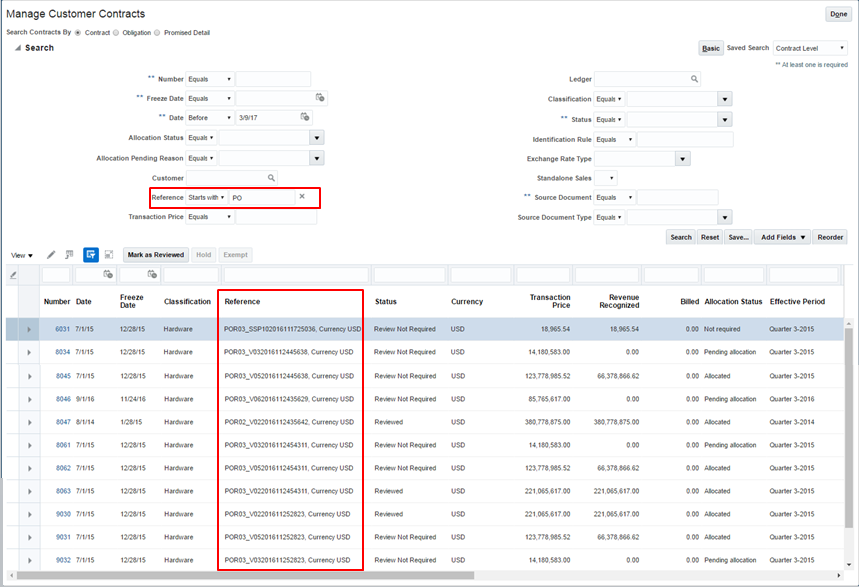
Manage Customer Contracts
Steps to Enable
No steps are required to enable this feature.
Tips And Considerations
- Only one Source Document Attribute Name per Matching Group can be enabled.
- Copy to Reference can only be enabled on rule creation.
- Once the rule is in use, the Copy to Reference and Reference Prefix fields can no longer be updated
Assign Items Automatically to Standalone Selling Price Profiles
You can now assign items to your standalone selling price profile and upload standalone selling price values in one step using the Create Standalone Selling Prices spreadsheet:
- Review default data from the standalone selling price profile, such as the effective period and pricing dimensions.
- Add the required item assignments and their standalone selling prices to the spreadsheet.
- Upload the spreadsheet into Revenue Management.
The following screenshots illustrate this feature and its benefits.
Automatically assign items to the standalone selling price profile through the Create Standalone Selling Prices spreadsheet.
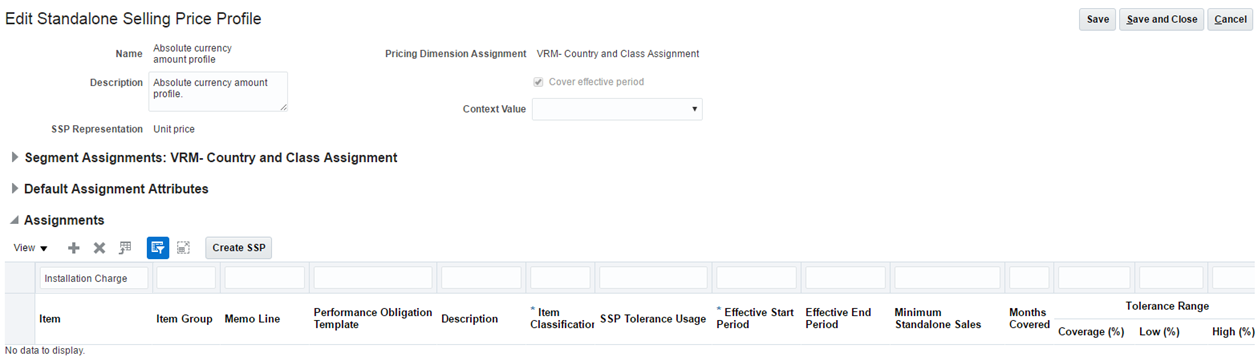
Edit Standalone Selling Price Profile User Interface
In the screenshot above the installation charge has not yet been assigned to a standalone selling price profile.
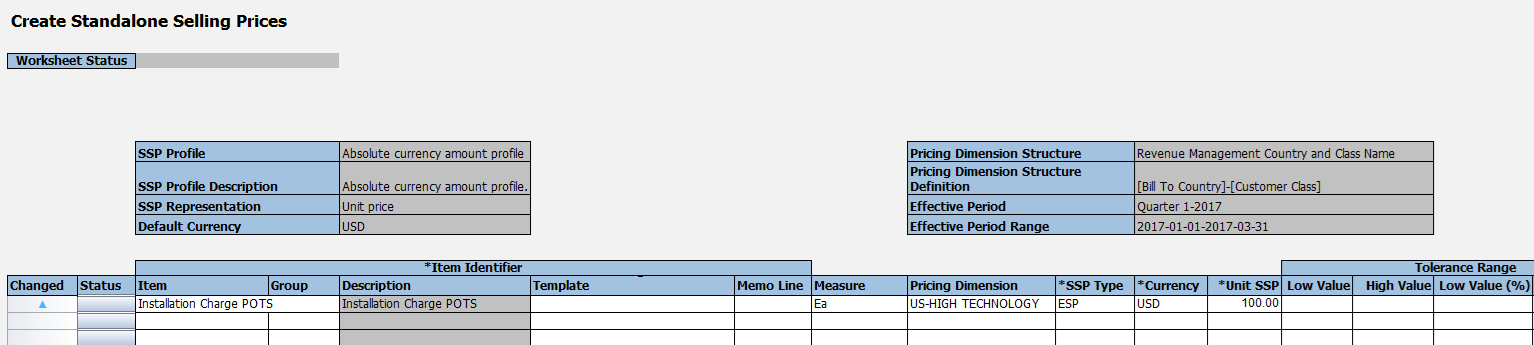
Create Standalone Selling Prices Spreadsheet
In this example, a new item called Installation Charge POTS will be assigned to the standalone selling price profile along with a standalone selling price.
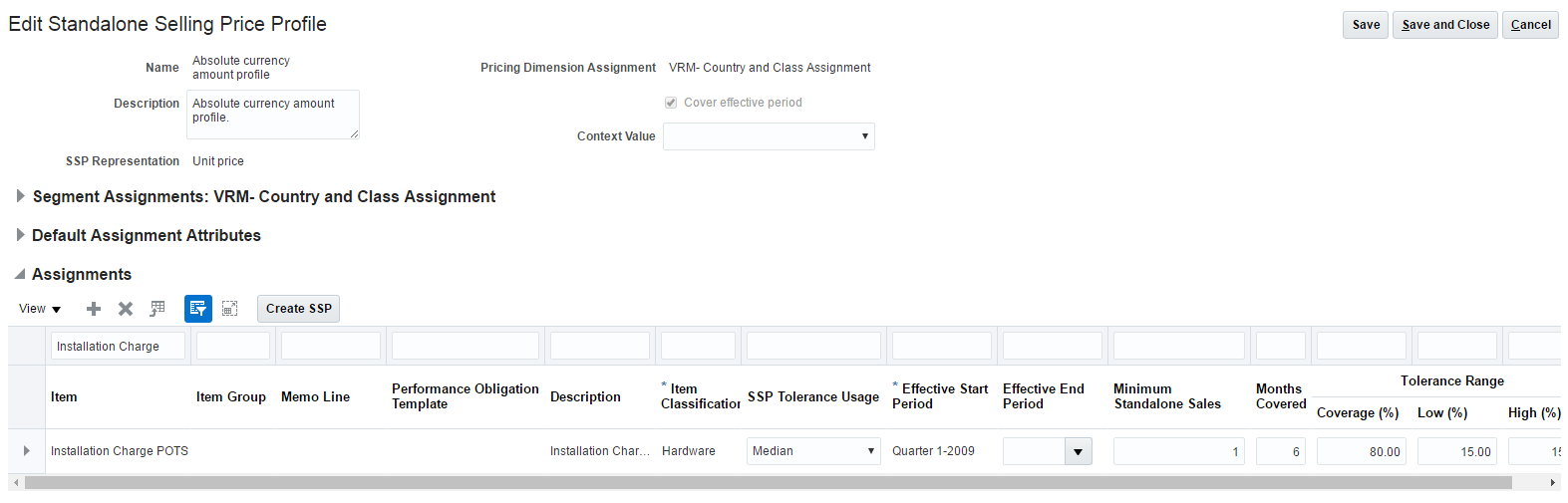
The item Installation Charge POTS is added along with its standalone selling price, and then is uploaded to Revenue Management for processing.
Steps to Enable
No steps needed to enable this feature. Enabled by default.
Tips And Considerations
- It is assumed that item assignment in large volumes is more appropriate during an initial implementation when the standalone selling prices are usually uploaded via spreadsheet integration (and not calculated by Revenue Management).
- If at a later stage you need to perform item assignment ONLY, you must manually enter the item assignments through the Manage Standalone Selling Price Profile page.
- The Create Standalone Selling Prices spreadsheet integration enables item assignments with defaults.
- When you upload standalone selling prices using the Create Standalone Selling Prices spreadsheet, the upload process adds the default attributes to the item assignment. If you need to change these default attributes, you must use the Manage Standalone Selling Prices page.
---

Copyright © 2017, Oracle and/or its affiliates. All rights reserved.
This document is provided for information purposes only, and the contents hereof are subject to change without notice.This document is not warranted to be error-free, nor subject to any other warranties or conditions, whether expressed orally or implied in law, including implied warranties and conditions of merchantability or fitness for a particular purpose. We specifically disclaim any liability with respect to this document, and no contractual obligations are formed either directly or indirectly by this document. This document may not be reproduced or transmitted in any form or by any means, electronic or mechanical, for any purpose, without our prior written permission.
Oracle and Java are registered trademarks of Oracle and/or its affiliates. Other names may be trademarks of their respective owners.
Intel and Intel Xeon are trademarks or registered trademarks of Intel Corporation.All SPARC trademarks are used under license and are trademarks or registered trademarks of SPARC International, Inc. AMD, Opteron, the AMD logo, and the AMD Opteron logo are trademarks or registered trademarks of Advanced Micro Devices. UNIX is a registered trademark of The Open Group.
