
- Revision History
- Overview
- Feature Summary
- HCM Common
- IMPORTANT Actions and Considerations for HCM Common
- Controlled Availability for HCM Common
- Recruiting
- IMPORTANT Actions and Considerations for Recruiting
- Controlled Availability for Recruiting
April Maintenance Pack for 22A
This document will continue to evolve as existing sections change and new information is added. All updates appear in the following table:
| Date | Product | Feature | Notes |
|---|---|---|---|
| 25 MAR 2022 | Created initial document. |
HCM Cloud applications have two types of patches you can receive that are documented in this What’s New:
- Release Updates (22A, 22B, 22C, and 22D)
- Optional Monthly Maintenance Packs to each update
It is important for you to know what Release Update your environment is on. You can find this in your Cloud Portal.
____________________
 HAVE AN IDEA?
We’re here and we’re listening. If you have a suggestion on how to make our products better, please let us know. To enter an idea go to the Ideas Lab on Oracle Customer Connect. In this document wherever you see the light bulb icon after the feature name it means we delivered one of your ideas.
____________________
Suggested Reading for all HCM Products:
- Human Resources What’s New – In the Global Human Resources section you will find features on the base application in which other application are built upon.
NOTE: Not all Global Human Resource features are available for Talent and Compensation products.
- Oracle Human Capital Management Cloud Functional Known Issues and Maintenance Packs (Document ID 1554838.1). These documents identify bug fixes and possible known issues. You will also need to review these documents based in the release update version you are currently on or will be moving to.
- Oracle Help Center – Here you will find guides, videos and searchable help.
- Release Readiness – New Feature Summary, What’s New, Feature Listing Spreadsheet, Spotlights and Release Training
GIVE US FEEDBACK
We welcome your comments and suggestions to improve the content. Please send us your feedback at oracle_fusion_applications_help_ww_grp@oracle.com. Indicate you are inquiring or providing feedback regarding the HCM Cloud What’s New in the body or title of the email.
Column Definitions:
Report = New or modified, Oracle-delivered, ready to run reports.
UI or Process-Based: Small Scale = These UI or process-based features are typically comprised of minor field, validation, or program changes. Therefore, the potential impact to users is minimal.
UI or Process-Based: Larger Scale* = These UI or process-based features have more complex designs. Therefore, the potential impact to users is higher.
Features Delivered Disabled = Action is needed BEFORE these features can be used by END USERS. These features are delivered disabled and you choose if and when to enable them. For example, a) new or expanded BI subject areas need to first be incorporated into reports, b) Integration is required to utilize new web services, or c) features must be assigned to user roles before they can be accessed.
| Ready for Use by End Users Reports plus Small Scale UI or Process-Based new features will have minimal user impact after an update. Therefore, customer acceptance testing should focus on the Larger Scale UI or Process-Based* new features. |
Customer Must Take Action before Use by End Users Not disruptive as action is required to make these features ready to use. As you selectively choose to leverage, you set your test and roll out timing. |
|||||
|---|---|---|---|---|---|---|
| Feature |
Report |
UI or |
UI or |
|
||
Oracle Recruiting Cloud provides tools for hiring managers and recruiters to source and nurture candidates, create and manage job requisitions, screen and select candidates, create and manage job offers, and onboard new employees into the organization. It also provides career sites for employees and external candidates to search, discover and apply to jobs using a frictionless application process.
Opportunity Marketplace for Jobs
Use the new Opportunity Marketplace for Jobs to allow internal users and employees to browse through the list of job requisitions.
With this feature you can:
- Let users search and filter through job requisitions to find relevant ones to apply to.
- View your list of job applications and their current status.
- Perform job application related actions like scheduling interviews, or reviewing offers.
- Refer suitable candidates to job applications.
- View lists of referrals you have made and their application status.
- Set preferences to view recommended job requisitions on the page, as well as via job alert emails.
Opportunity Marketplace primarily will have two user personas:
- Job Creators - people in the organization who create jobs. Job creators create opportunities, update them, review applicants, select and assign candidates to them, and close the opportunities.
- Job Seekers - people searching for opportunities. Job seekers can browse Opportunity Marketplace for jobs, can view the details, bookmark the jobs, and apply for them.
Once enabled the Opportunity Marketplace landing page can be located in two places:
-
Me > Quick Actions > Show More > Opportunity Marketplace. Use the quick link called Opportunity Marketplace, which is part of the user personal profile dashboard.
-
Me > Opportunity Marketplace
Opportunity Marketplace Dashboard
On the dashboard you will see the following:
- Recommended: Opportunity Marketplace recommends jobs for users that match their candidate preferences, such as job type, location, recently applied for jobs, and recently favorite jobs. The recommendations display on the top of the list.
- Trending: The most favorite job (favorite by more than 5 users) within the last few days are presented as trending.
- Favorites: Jobs the user has shortlisted by bookmarking them. Users can remove jobs from favorites at any time.
Opportunity Marketplace lets organizations and employees connect to ensure that organizations are getting the most out of their talent. it also gives employees the ability to work on stretch assignments to help them leverage and grow their skills as well as grow their network.
Steps to Enable
The following are required before you can configure Opportunity Marketplace:
-
Enable Oracle Cloud Recruiting or Talent Modules - Opportunity Marketplace can be enabled along with Oracle Fusion HCM. Opportunity marketplace requires either ORC (Oracle Recruitment Cloud) or Oracle Talent Cloud to get this offering for free.
-
Recruiting Location Hierarchy Setup - Recruiting locations hierarchy needs to be setup to use locations in opportunity marketplace. These setup instructions can be found here.
You can can enable Opportunity Marketplace through the configuration settings. Complete steps to enable this feature are described in the technical brief called "xxxx", located on My Oracle Support.
Tips And Considerations
If you are already using Oracle Recruiting, upon enabling Opportunity Marketplace, you will see both Opportunity Marketplace and the Current Jobs Lists under Me.
Key Resources
Refer to the technical brief on My Oracle Support called Opportunity Marketplace for Jobs (Document ID 2834538.1).
This document will continue to evolve as existing sections change and new information is added. All updates appear in the following table:
| Date | Product | Feature | Notes |
|---|---|---|---|
| 27 MAY 2022 | Recruiting / Candidates and Candidate Job Applications |
LinkedIn Embedded Search | Updated document. Revised feature information. |
| 25 MAR 2022 | Recruiting | Controlled Availability for Recruiting | Updated document. Revised feature information. |
| 28 JAN 2022 |
HCM Common / HCM Common Architecture |
Enhancements to Approvals and Notifications | Updated document. Revised feature information. |
| 22 DEC 2021 | Recruiting / Job Requisitions | Job Application Grid View | Updated document. Delivered feature in update 22A. |
| 06 DEC 2021 | Created initial document. |
HCM Cloud applications have two types of patches you can receive that are documented in this What’s New:
- Release Updates (22A, 22B, 22C, and 22D)
- Optional Monthly Maintenance Packs to each update
It is important for you to know what Release Update your environment is on. You can find this in your Cloud Portal.
____________________
HAVE AN IDEA?
We’re here and we’re listening. If you have a suggestion on how to make our products better, please let us know. To enter an idea go to the Ideas Lab on Oracle Customer Connect. In this document wherever you see the light bulb icon after the feature name it means we delivered one of your ideas.
____________________
Suggested Reading for all HCM Products:
- Human Resources What’s New – In the Global Human Resources section you will find features on the base application in which other application are built upon.
NOTE: Not all Global Human Resource features are available for Talent and Compensation products.
- Oracle Human Capital Management Cloud Functional Known Issues and Maintenance Packs (Document ID 1554838.1). These documents identify bug fixes and possible known issues. You will also need to review these documents based in the release update version you are currently on or will be moving to.
- Oracle Help Center – Here you will find guides, videos and searchable help.
- Release Readiness – New Feature Summary, What’s New, Feature Listing Spreadsheet, Spotlights and Release Training
GIVE US FEEDBACK
We welcome your comments and suggestions to improve the content. Please send us your feedback at oracle_fusion_applications_help_ww_grp@oracle.com. Indicate you are inquiring or providing feedback regarding the HCM Cloud What’s New in the body or title of the email.
Column Definitions:
Report = New or modified, Oracle-delivered, ready to run reports.
UI or Process-Based: Small Scale = These UI or process-based features are typically comprised of minor field, validation, or program changes. Therefore, the potential impact to users is minimal.
UI or Process-Based: Larger Scale* = These UI or process-based features have more complex designs. Therefore, the potential impact to users is higher.
Features Delivered Disabled = Action is needed BEFORE these features can be used by END USERS. These features are delivered disabled and you choose if and when to enable them. For example, a) new or expanded BI subject areas need to first be incorporated into reports, b) Integration is required to utilize new web services, or c) features must be assigned to user roles before they can be accessed.
| Ready for Use by End Users Reports plus Small Scale UI or Process-Based new features will have minimal user impact after an update. Therefore, customer acceptance testing should focus on the Larger Scale UI or Process-Based* new features. |
Customer Must Take Action before Use by End Users Not disruptive as action is required to make these features ready to use. As you selectively choose to leverage, you set your test and roll out timing. |
|||||
|---|---|---|---|---|---|---|
| Feature |
Report |
UI or |
UI or |
|
||
Extending Regenerate Security Profiles for Transaction, Recruiting, and Payroll |
||||||
Position Security Profile Hierarchy Access Enhances HCM Delegation |
||||||
Autocomplete Rules for HCM Experience Design Studio Enhancements |
||||||
Transaction Design Studio for HCM Experience Design Studio Enhancements |
||||||
Define Scope of Candidate Selection Processes Being Exported |
||||||
Honor Individual Compensation Allocations in Job Offers when Multiple Element Entries Aren't Allowed |
||||||
Link Existing Job Requisition to a Pipeline Requisition Using HCM Data Loader |
||||||
Opportunity Marketplace Subject Area - Report on Seeker Preferences |
||||||
Oracle Applications Security provides a single console where IT Security Managers and Administrators can perform various functions including user lifecycle management, role definition, security policy management(both functional and data), role hierarchy maintenance, username and password policy administration, and certificate management. The console also enables users to simulate the effect of security changes, to run security reports, and download a connector for integration with Microsoft Active Directory.
Extending Regenerate Security Profiles for Transaction, Recruiting, and Payroll
We've enhanced the Regenerate Data Security Profiles process to include the transaction, recruiting job requisition, and payroll-related security profiles for bulk regeneration. The specific security profiles that are now supported are:
- Payroll Security Profile
- (Payroll) Flow Pattern Security Profile
- Transaction Security Profile
- Job Requisition Security Profile
This enhancement now supports all of the available security profile types. Prior to this enhancement, you would have to go into each security profile and manually save each security profile individually.
Steps to Enable
You don't need to do anything to enable this feature.
Tips And Considerations
- The Regenerate Data Security Profiles process only needs to be run if instructed by the respective Oracle Development team, in case they changed the predicate logic for any reason.
- While not recommended to do; however if you have manually modified the Database Resource Conditions through the Security Console, be careful when running this process as it will overwrite your customizations with the system-generated SQL predicate!
- In the case of a person security profile using a payroll security profile, if the payroll security profile is regenerated, so is the person security profile.
Key Resources
For more information please go to the HCM Common What's New for the following features:
- 19D - Regenerating Data Security Profiles feature
-
21D - Regeneration of Security Profiles to Support Document Types feature
Additionally you can go to Application Help for the following topic:
-
Regenerate Security Profiles
Position Security Profile Hierarchy Access Enhances HCM Delegation
We've enhanced the Position Security Profile to allow your users to dynamically delegate position hierarchy access to proxy users. When securing by position hierarchy, the system will dynamically display the positions available for access.
Which positions appear in the position LOVs is dependent upon the Hierarchy Content selection. The Hierarchy Content controls the positions that are displayed in the position LOVs, based on these options:
- Delegating user's hierarchy displays positions derived from the delegating user's position hierarchy; or
- Both displays positions from both the signed-in user's position hierarchy, as well as those positions that are available from the delegating user's position hierarchy.
Note that Current user's hierarchy displays positions from the signed-in user's position hierarchy. This is the ready-to-use, existing behavior as if delegation is not enabled.
For the Users and Security functional area which can be found under the Workforce Deployment offering, the Manage Position Security Profile task's Export/Import capability has also been enhanced. It now supports the addition of the Hierarchy Content Selection attribute on the existing position security profile object. You will find that a new PosHierarchyContent column has been added to the resulting CSV file. We have also enhanced the HCM data Loader (HDL) support for Position Security Profiles. From the Data Exchange area under View Business Objects, you will see that the Position Security Profile business object now supports the addition of the Hierarchy Content Selection (HierarchyContent) attribute. Additionally, a description has been added to existing attribute, PositionHierarchyTreeStructure.
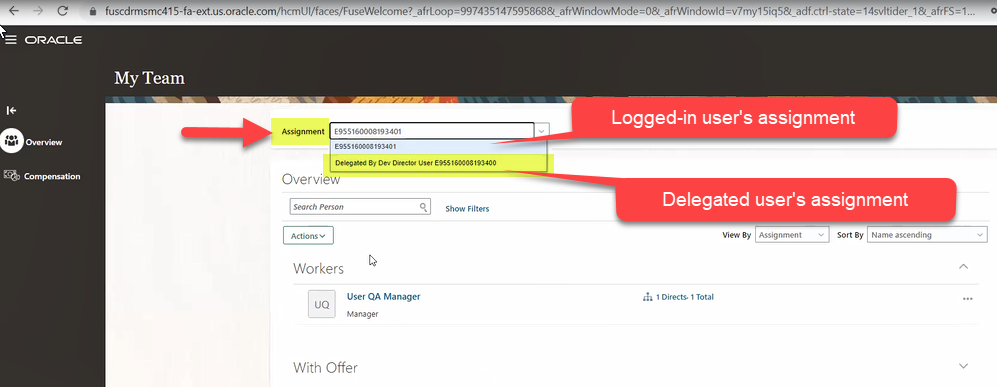
Once your setup is complete, proxy users may need to leverage the assignment switcher to view the expected positions. By default on My Team, the proxy's own assignment appears, but they can choose the delegator's assignment in order to access the additional positions. Here's a screenshot from My Team:
My Team
Change the assignment switcher to the delegated assignment and View By "Position" in order to see the new positions, as in this screenshot:
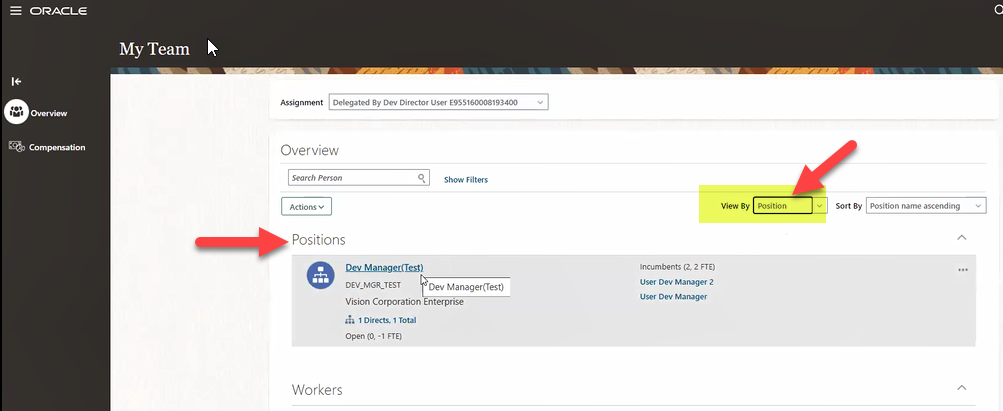
View By Position
Under the Positions action menu ellipsis (...), the user may see actions due to their new data access related to the delegated position which is inherited from the delegated role.
The current HCM Delegation process allows a data role to be delegated to a proxy user. Prior to this enhancement a static list of positions could be delegated; however, it was not possible for a delegator to dynamically delegate access based on a user's own position hierarchy using HCM Delegation.
This enhancement now allows your IT Security Managers to configure the position security profile so that users, such as Line Managers, can delegate position hierarchy access through a delegated data role.
A typical scenario is when a Line Manager has an assistant and wants to delegate position management activities during the manager's absence while away for vacation, or an indefinite period of time. This will now be possible when you enable this enhancement.
Steps to Enable
To enable this feature, IT Security Manager must:
-
Enable the profile option ORA_PER_ENABLE_POSITION_SECURITY_DELEGATION using these steps:
- Navigate to the Setup and Maintenance work area.
-
Search for and click the Manage Administrator Profile Values task.
-
Search for the ORA_PER_ENABLE_POSITION_SECURITY_DELEGATION profile option code and select the profile option in the search results.
-
In the Profile Values area, enter Y in the Profile Value field.
-
Click Save and Close.
-
Sign out and sign in to the application for the changes to take effect
- Once this profile option is enabled, a new field for Hierarchy Content appears in the Position Hierarchy section of the Position Security Profile.
- Configure the Hierarchy Content display behavior on the position security profile.
- Current user's hierarchy will display positions from the signed-in user's position hierarchy. This is the existing behavior as if delegation is not enabled.
- Delegating user's hierarchy will display positions derived from the delegating user's position hierarchy.
- Both will display positions from both the signed-in user's position hierarchy, as well as those positions that are available from the delegating user's position hierarchy.
- Note that the position security profiles must be uniquely associated to roles (such as custom Line Manager abstract or HR Specialist data roles) that are intended to provide position delegation.
- Use Data Roles and Security Profiles to associate your position security profile to your delegation-allowed role.
Tips And Considerations
- When securing by Position Hierarchy, if a position security profile has Top Position Selection of "Select position", then it is not in the context of a user since it is a static list. Since no user context is involved, the Hierarchy Content does not apply for this option and is not available for selection. Hierarchy Content comes into play and is enabled when the Top Position Selection is in the context of a signed-in user, so the remaining options that are relative to a user will then apply.
-
Once this feature is enabled for delegation-allowed roles on the Data Roles and Security Profile page, verification messages enforcing the synchronization of position security profile's Hierarchy Content Selection will appear if they are not in sync. You must verify that the position security profile is consistent with delegation-allowed roles.
-
Similar to the person security profile implementation, the same position security profile cannot be used across multiple abstract or data roles. If this is attempted, then a validation error message will appear.
-
This feature has no impact when your position security profile is secured by area of responsibility (AOR). Similar to person security profiles that are secured by area of responsibility, you must assign AORs directly to the proxy user to grant direct access to such positions.
-
If you're using automated software for testing, note that the fields in the Position Hierarchy section of the Position Security Profile have been rearranged due to logical dependencies. Additionally, with the profile option enabled, a new field for Hierarchy Content appears in the Position Hierarchy section of the Position Security Profile.
-
We have also improved the existing person security profile messages PER-1531594 and PER-1531817, to clarify that they're caused when a role is allowed to be delegated (i.e., delegation allowed checkbox is enabled).
Key Resources
For more information please go to the Oracle Help Center for the following topics:
- Role Delegation
- How You Enable Delegation for a Role
- Assign Security Profiles to Job and Abstract Roles
This section covers features used across all HCM Applications.
Enhancements to Approvals and Notifications
Now, you can immediately refresh the status of approval transactions. You no longer need to wait for the Refresh Transaction Administrator Console Transaction Status batch process to complete to view the updated status.
On the Transaction Summary tab of the Transaction Manager, click the refresh icon in each row to refresh the status of individual transactions or the icon in the header row to refresh all transactions shown on the page.
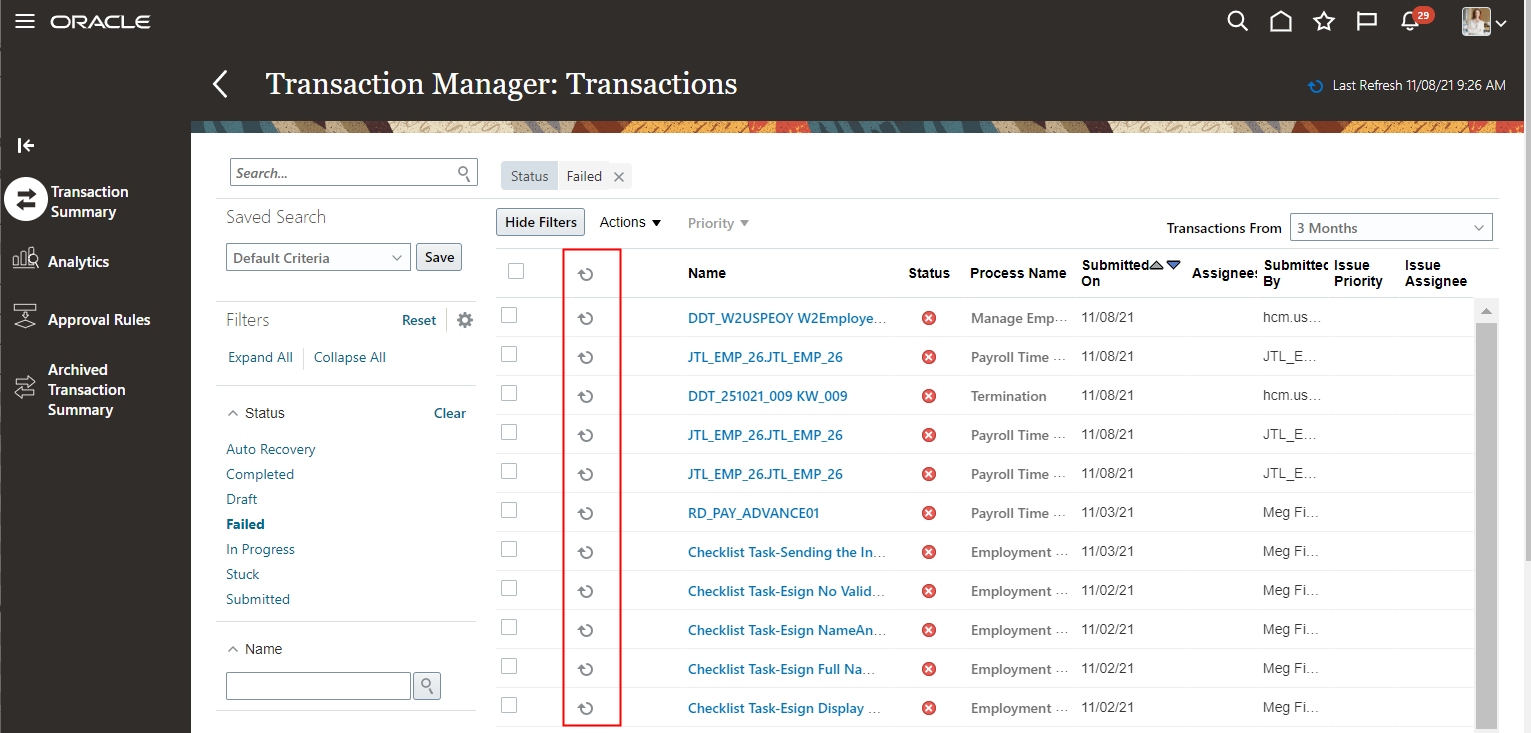
Refresh Icon on the Transaction Summary Tab
These 3 columns are refreshed when you click the refresh icon:
- Status
- Assignee
- Issue Assignee
View the current status of approval transactions and take immediate action.
Steps to Enable
You don't need to do anything to enable this feature.
Tips And Considerations
To hide the refresh column, create the HCM_TAC_ROW_REFRESH_HIDE profile option and set it to true.
- Create the HCM_TAC_ROW_REFRESH_HIDE profile option:
- Navigate to the Setup and Maintenance work area.
- Search for and select the Manage Profile Options task.
- In the Search Results section, click New. You can see the Create Profile Option page.
- Specify the values indicated in this table for the new profile option.
| Field | Value |
|---|---|
| Profile Option Code |
HCM_TAC_ROW_REFRESH_HIDE |
| Profile Display Name |
Approval Rules Row Refresh Hide Enabled |
| Application |
Global Human Resources |
| Module |
Global Human Resources |
| Description |
A suitable description such as Enable hiding approval rules row refresh. |
| Start Date |
1/1/2000 |
- Click Save and Close.
- On the Manage Profile Options page, select the Enabled and Updateable check boxes for the Site level.
-
Click Save and Close.
2. Set the HCM_TAC_ROW_REFRESH_HIDE profile option value to true:
- Navigate to the Setup and Maintenance work area.
- Search for and select the Manage Administrator Profile Values task.
-
Search for the HCM_TAC_ROW_REFRESH_HIDE profile option.
- Set the Profile Value field to true.
- Click Save and Close.
This section covers features used across all HCM Applications.
Autocomplete Rules for HCM Experience Design Studio Enhancements
Enhance the user experience authoring new rules in Autocomplete Rules for HCM Experience Design Studio with more capabilities.
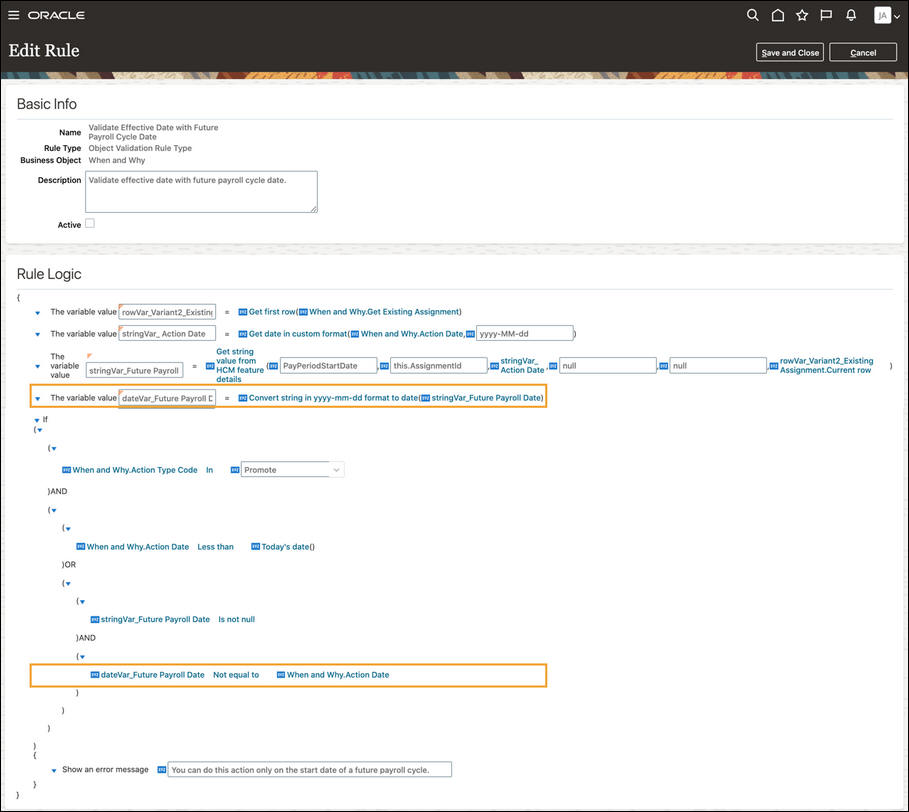
Convert String in yyyy-mm-dd Format to Date Global Function
You can now convert a string in yyyy-mm-dd format to a date global function. The new global function is useful when you need to author rules based on the payroll cycle date. The payroll cycle date is returned by the Get string value from HCM feature details global function with a string format. Using this global function to convert the payroll cycle into a date helps you to compare the payroll cycle date with any other dates.
The expected format of the string is yyyy-mm-dd otherwise it will return a null value.
New Options to Improve the Performance Execution of Your Rules
There are 3 new options available to improve performance execution of your rule.
- Exit rule in a condition block
As your requirements evolve, you may have to exclude some of your existing rules to execute for certain conditions.
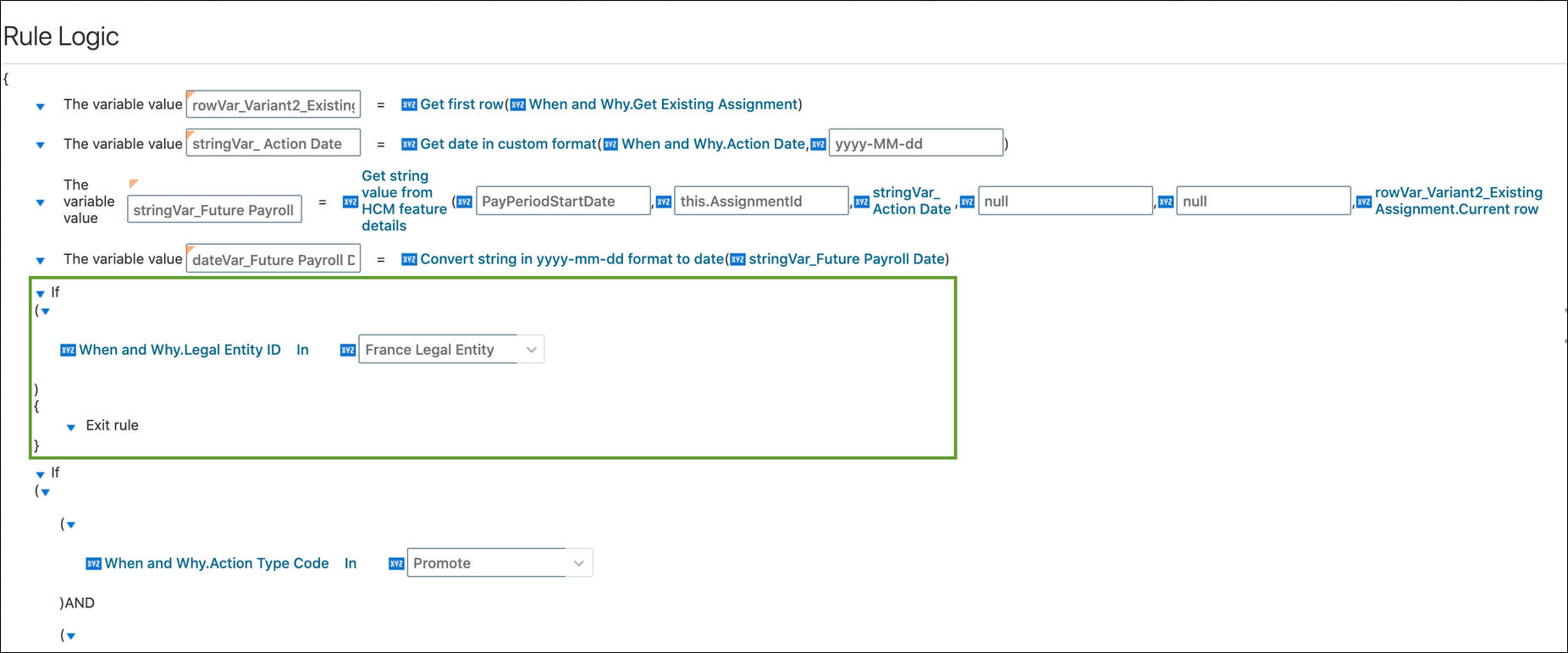
For example, you need to exclude the French legal entity from the validation for an existing rule as shown below.
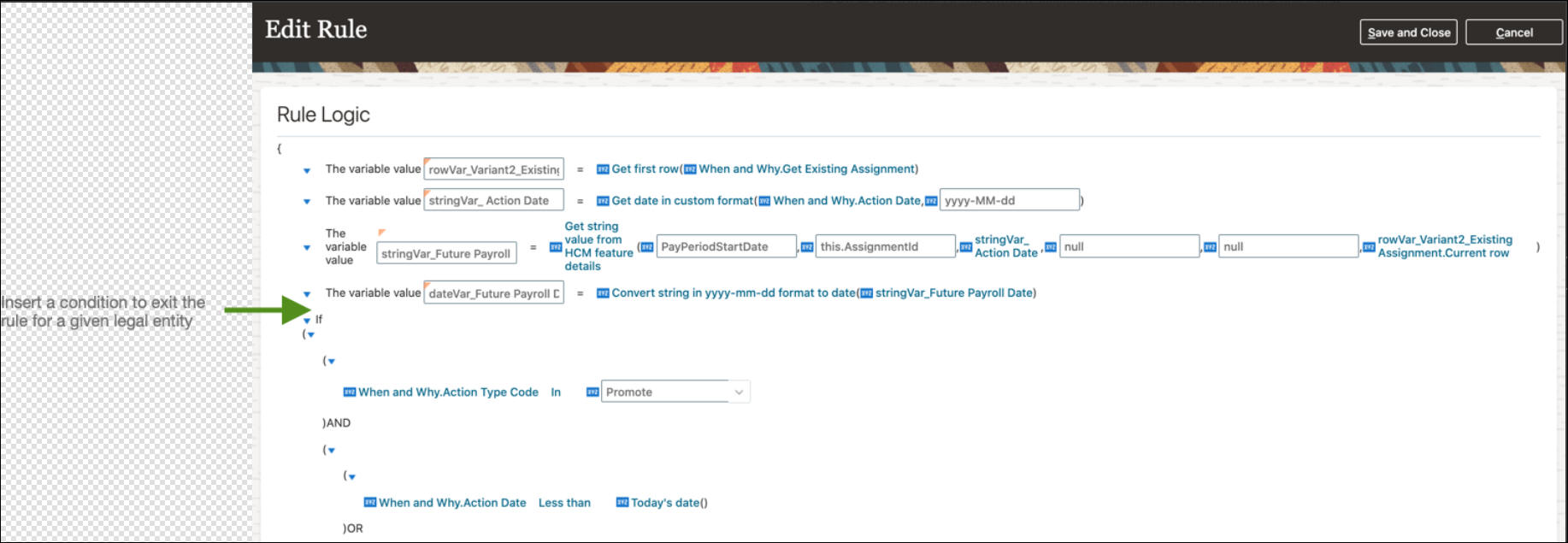
So instead of updating the entire rule, you can insert a condition to exit the rule for the French legal entity only.
- Exit Loop and Skip to the next row in a Row Collection Looping Block
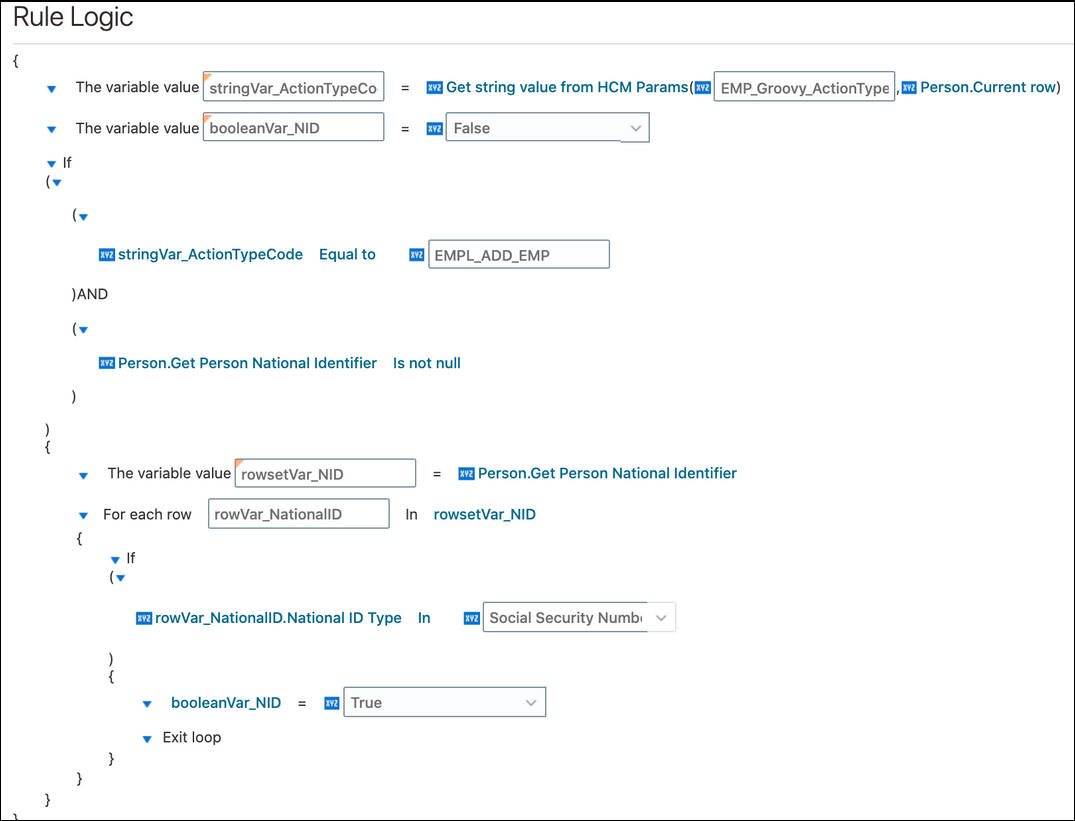
When you loop on a row collection, you can now:
- Exit Loop once you find the row you're looking for
- Skip to the next row when the current row isn't the one you're looking for
The 2 options are available within a Row Collection Looping Block in a condition block.
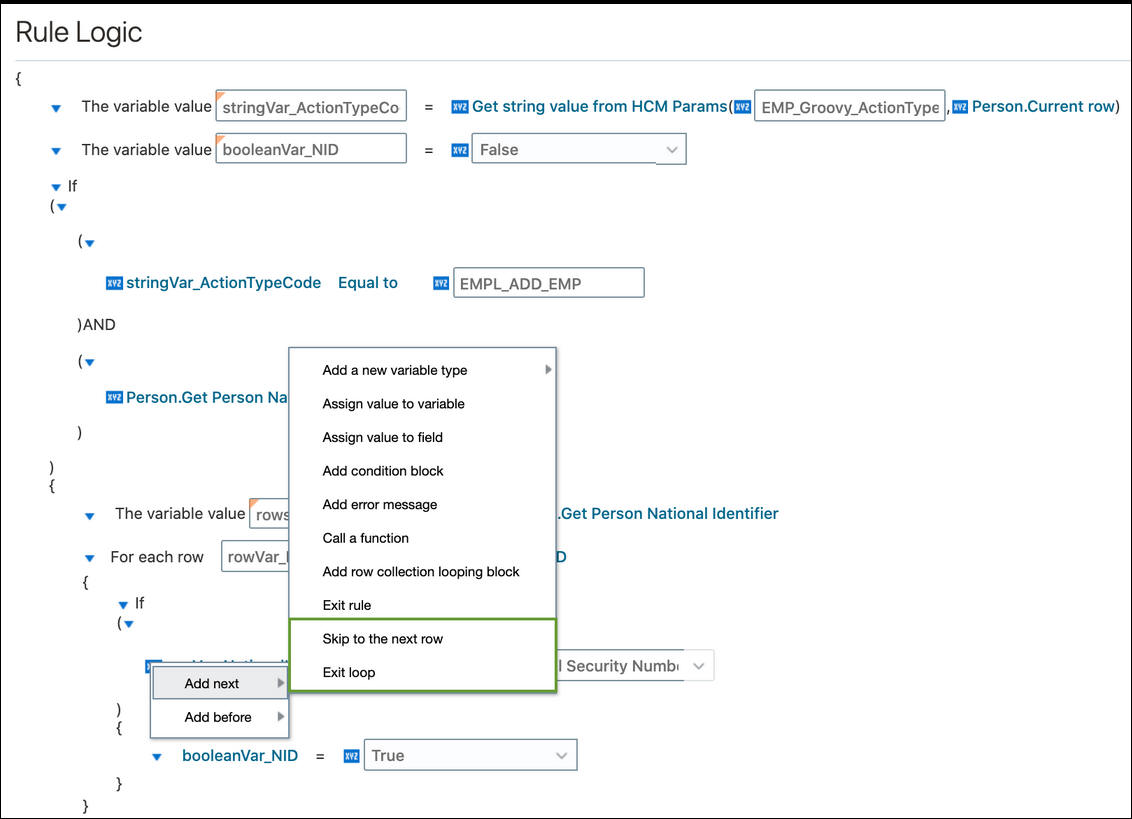
Exit Loop or Skip to the next are the last expressions in a block.
- Improves user experience and reduces time spent on transactions by defaulting values
- Ensures accurate and consistent data by validating the user-entered values
- Allows your organizations to adjust quickly with HR compliance without relying on new releases
Steps to Enable
To enable this feature you need to log a Service Request (SR).
To enable Autocomplete Rules in the HCM Experience Design Studio, you need to log a service request (SR).
To get access, please review and follow the instructions provided in the My Oracle Support document, Enabling Oracle HCM Cloud Autocomplete Rules (Document ID 2767655.1).
Key Resources
For more information on Autocomplete Rules for HCM products, refer these What's New features in Update 22A:
- Global Human Resources:
- Autocomplete Rules for Person Contact Relationship Business Object
- Autocomplete Rule for Document Records Business Object
- Autocomplete Rules in Position and Job Business Objects Based on Current and Proposed Values
- Talent Management
- Autocomplete Rules for Talent Review Meeting Business Object in Talent Management
- Add Remaining Attributes for Autocomplete Talent Profile Content Sections
Role Information
You must be granted the Human Capital Management Application Administrator role to work in a sandbox.
Transaction Design Studio for HCM Experience Design Studio Enhancements
Required Regions
Increase your data quality by ensuring that your users complete the required fields before submitting the transaction. In the example below, for the Hire an Employee flow the Payroll Details and Salary sections have been made mandatory. When the user initiates the process, the behavior of the questionnaire remains the same. Payroll Details and Salary are not displayed as an option as they must be part of the guided process.
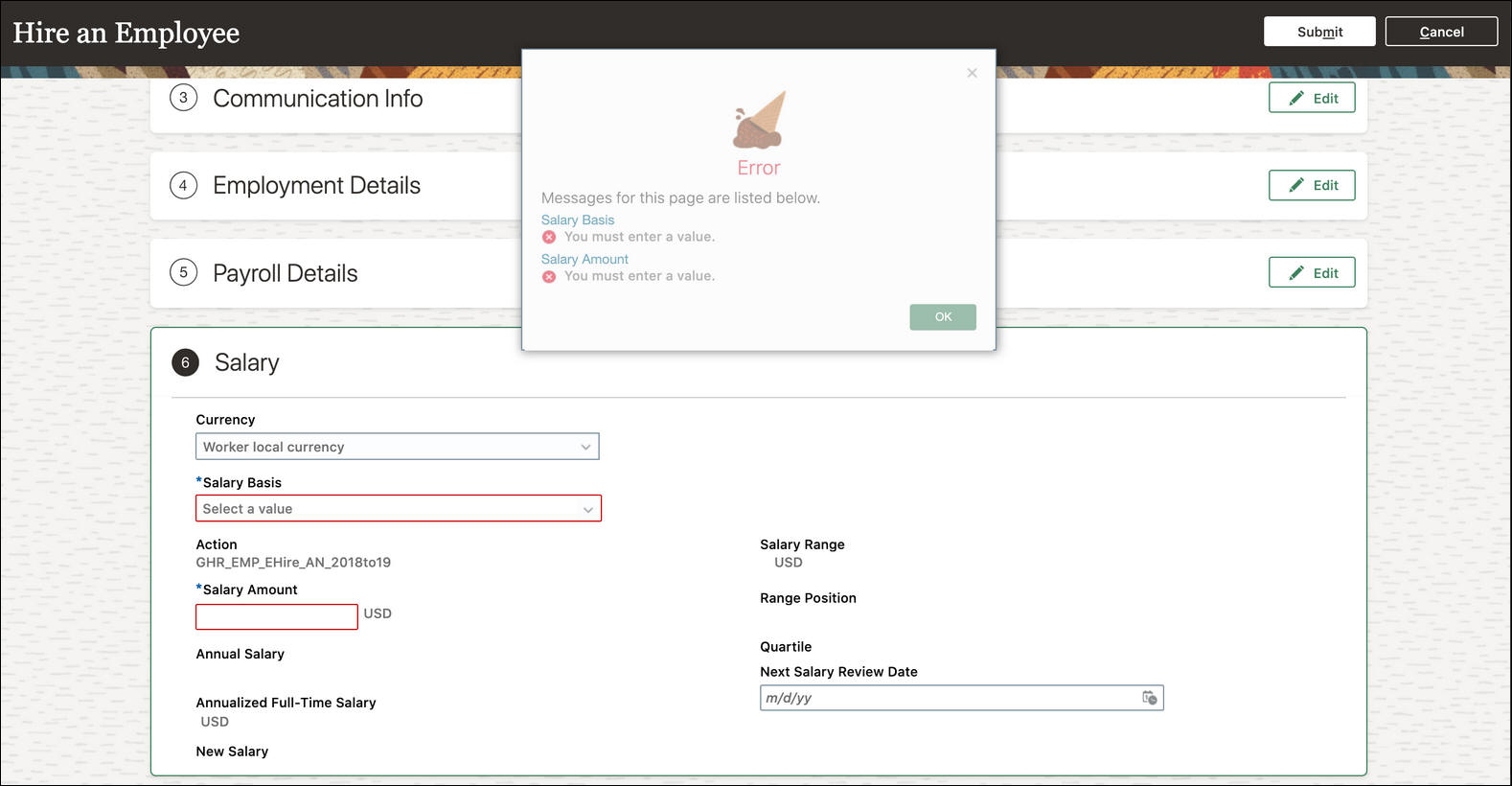
The feature is extended to more actions:
| Release | Action | Release | Action |
|---|---|---|---|
| 21C | Recruiting - Create Job Requisition |
22A | Change Assignment |
| 21D | Add Assignment |
22A | Change Location |
| 21D | Add Contingent Worker |
22A | Change Manager |
| 21D | Add Pending Worker |
22A | Change Working Hours |
| 21D | Add a Nonworker |
22A | Create Job |
| 21D | Create Work Relationship |
22A | Create Location |
| 21D | Edit Pending Worker |
22A | Direct Reports |
| 21D | Hire an Employee |
22A | Employment Start Dates |
| 21D | Local and Global Transfer |
22A | Promote |
| 22A | Request a New Position | ||
| 22A | Request a Position Change | ||
| 22A | Resignation | ||
| 22A | Termination | ||
| 22A | Transfer | ||
| 22A | Work Relationship |
Personalize the Save and Save and Close Actions in the Toolbar
Enhance the user experience by allowing your users to save their transactions at any point of time. For example, a user is adding a new contractor and has already provided half of the required info. If they need to switch to another task, they can save their work, resume later where they left off. Out-of-the-box, the two buttons are hidden.
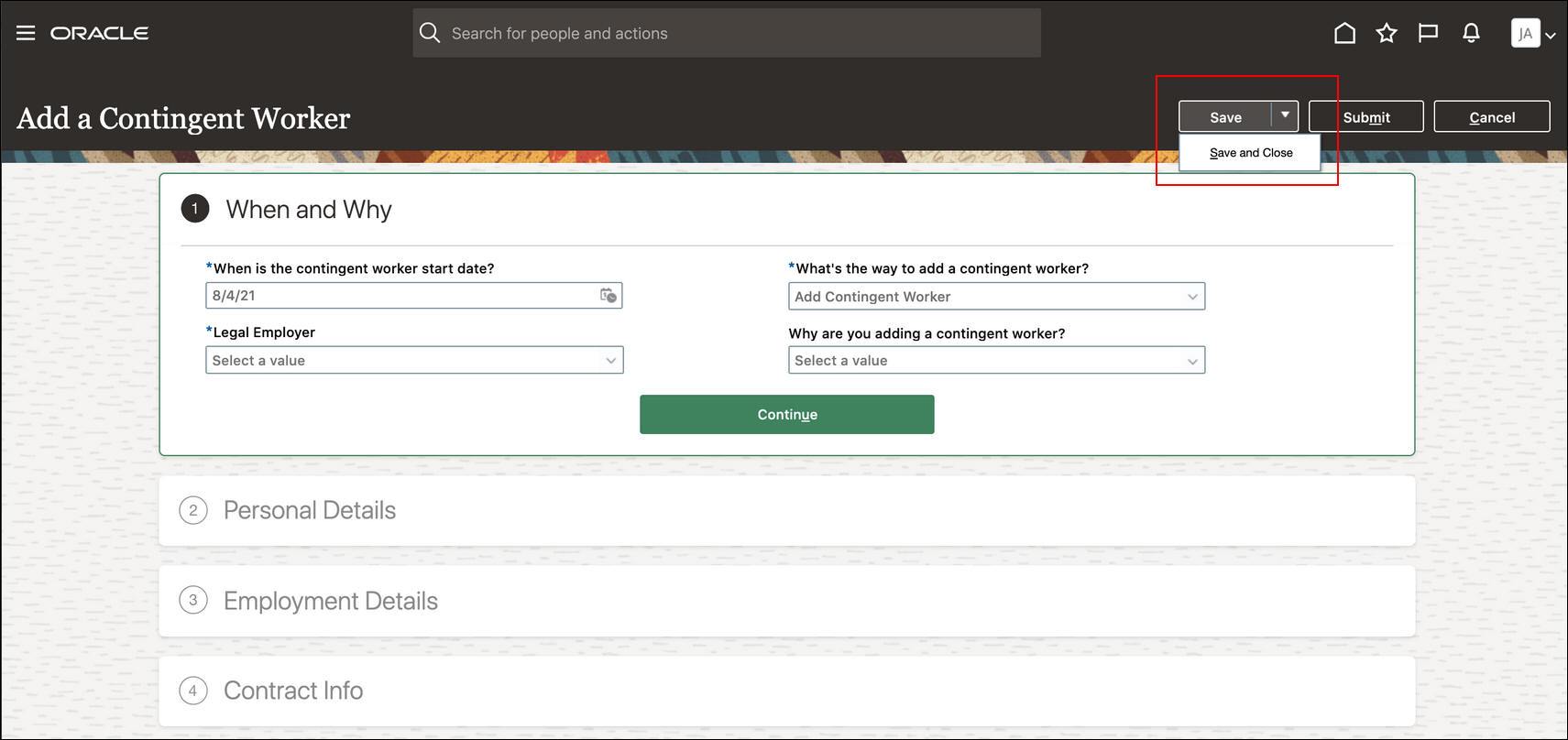
The feature is extended to more actions:
| Release | Action | Release |
Action |
|---|---|---|---|
| 21D | Add Assignment |
22A | Change Assignment |
| 21D | Add Contingent Worker |
22A | Change Location |
| 21D | Add Pending Worker |
22A | Change Manager |
| 21D | Add a Nonworker |
22A | Change Working Hours |
| 21D | Create Work Relationship |
22A | Create Job |
| 21D | Edit Pending Worker |
22A | Create Location |
| 21D | Hire an Employee |
22A | Direct Reports |
| 21D | Local and Global Transfer |
22A | Job Details |
| 22A | Location Details | ||
| 22A | Position Details | ||
| 22A | Employment Start Dates | ||
| 22A | Promote | ||
| 22A | Request a New Position | ||
| 22A | Request a Position Change | ||
| 22A | Resignation | ||
| 22A | Termination | ||
| 22A | Transfer | ||
| 22A | Work Relationship |
With this feature you can:
- Ensure accurate and consistent data by enforcing the entry of required fields for a specific process.
- Improve your user experience and reduces time spent setting up your solution by simplifying the personalization of HCM Cloud
- Streamline your transactions and processes by allowing your users to save their work at any point of time and resume later where they left off.
Steps to Enable
You don't need to do anything to enable this feature.
Tips And Considerations
Required Regions
From this release onward:
- Users will get a warning message if they have configured sections as required in the Transaction Design Studio.
- Users will get a warning message if they have not visited the mandatory sections in the above flows.
Save and Save and Close
A point to note is that rules will be evaluated for each attribute for active rules in the Transaction Design Studio. If the same attribute is defined in multiple rule definitions, only the first in order of active rule attribute conditions are applied. For example, if you define:
- Rule 1: Generic rule where Save and Close is available unconditionally, but not Save.
- Rule 2: Save is available only for a specific legal employer
As a result, rule 1 is evaluated as the first rule in order of active rules and so the Save button won't be displayed for the legal employer selected in rule 2.
Key Resources
For additional information, refer to the following HCM Common What's New features:
- Update 21C - Required Sections During Job Requisition Creation
- Update 21D- Transaction Design Studio for HCM Experience Design Studio Enhancements
Role Information
You must be granted the Human Capital Management Application Administrator role to enable a sandbox.
HCM Data Loader provides a flexible and efficient method of bulk loading business object data for data-migration and on-going incremental updates to Oracle Human Capital Management Cloud.
Enhancements to View Business Objects
The Attributes tab of the View Business Objects user interface now displays the Reference attributes. These attributes have always been available in HCM Data Loader files and have been added to the Attributes page to encourage their use for reporting. Data supplied to these attributes is only available in the HCM Data Loader staging tables. These attributes are used for reporting on your data set until they expire and are then deleted from the staging tables.
Reference attributes remove the need for creating custom SQL in order to retrieve specific values from the HCM Data Loader staging tables for reporting and reconciliation.
Steps to Enable
You don't need to do anything to enable this feature.
Tips And Considerations
Data supplied to reference attributes is available in the Imported Objects folder of the HCM Integrations Real Time subject area. If you're creating OTBI reports to filter by specific reference attribute values, assign these values to the first 4 reference attributes as only these are indexed.
Key Resources
You can download the HCM Data Loader Dashboard for OTBI from the HCM Report Sharing Center of Cloud Customer Connect.
You can now extend your data loading capabilities with these enhanced business objects:
UPDATED BUSINESS OBJECTS
Absence Management
| Business Object | Component | New Attributes |
|---|---|---|
| Absence Entry | Absence Entry |
|
Benefits
| Business Object | Component | Changes |
|---|---|---|
| Person Benefit Balance | Person Benefits Balance | These attributes are no longer available:
|
| Potential Life Event | Potential Life Event |
The user key for this object has been extended to include LifeEventStatusCode. You can't update the status of a record unless you identify it using an integration key or the surrogate ID. |
Global HR
| Business Object | Component | Changes |
|---|---|---|
| Action Reasons | Action Reasons | You can no longer delete action reasons. |
| Actions | Actions | You can no longer delete actions. |
| Allocated Checklist | Allocated Checklist | New attributes:
|
| Allocated Checklist | Allocated Checklist Tasks | This attribute is decommissioned:
|
| Checklist Template | Checklist Template | New attributes:
|
| Document Record | Document Attachment | This attribute has been removed having previously been decommissioned. If you include this attribute, your uploads will fail:
|
| Position Security Profile | Position Security Profile | New attributes:
|
| Role Mapping | Role Mapping | New attributes:
|
| Worker | You can no longer upload date-effective updates for pending worker assignments, only create and correct existing assignment records. |
Global Payroll
The following attributes have been removed, attempting to supply these will cause your upload to fail:
| Business Object | Removed Attributes |
|---|---|
| Electronic Income Withholding Orders |
|
| Payroll Interface Inbound Record |
|
Learning
| Business Object | Component | New Attributes |
|---|---|---|
| Specialization V3 | Specialization V3 |
|
Talent Management
| Business Object | Component | New Attributes |
|---|---|---|
| Goal Plan | Goal Plan |
|
Expand your bulk loading capabilities.
Steps to Enable
You don't need to do anything to enable this feature.
Key Resources
Use the View Business Objects task to review the latest business object information.
Availability of Purge Person Data in Test Environments
The Purge Person Data from Test Environment process is now automatically available on your test or stage environments. Use this process to purge person records and related data, such as assignment records, calculation cards, element entries, absences and benefits.
You no longer have to request access to this process.
Steps to Enable
You don't need to do anything to enable this feature.
Tips And Considerations
This process is not available on production environments.
If you're unable to find the process on your test or stage environment, raise a service request with Oracle Support.
Key Resources
For more information, see the following help topics in the HCM Data Loader guide located in the Oracle Help Center:
- Purge Person Data from Test Environments
- Tables Purged by the Purge Person Data in Test Environments Process
HCM Spreadsheet Data Loader provides a flexible and efficient method of bulk loading business object data for data-migration and on-going incremental updates to Oracle Human Capital Management Cloud.
Secured Business Objects Now Available to Business Users
You can now extend your business users' bulk-loading capabilities for an object. Spreadsheets based on these objects now implement user's data security and can be shared with business users.
Global Payroll
- Payroll Interface Inbound Record
Your business users can bulk load data for this object using spreadsheets.
Steps to Enable
When creating a new spreadsheet template, the template security automatically defaults to the setting where data is uploaded as session user. For existing templates based on these objects, you can update the template configuration and set the user type to Session User.
Key Resources
For more information, see the following help topics in the HCM Data Loader guide located in the Oracle Help Center:
- HCM Spreadsheet Data Loader Templates
- How You Associate A User Name with a Data Upload
Preconfigured HCM Spreadsheet Data Loader Access
You would require the following access to use HCM Spreadsheet Data Loader spreadsheets for bulk-data loading:
| Privilege | Access |
|---|---|
| Load Data using HCM Spreadsheet Data Loader | Enables the ability to generate spreadsheet for bulk-data loading. |
| Access HCM Spreadsheet Data Loader | Provides access to the Run Spreadsheet Data Loader task, which provides access to generate spreadsheets for the templates a user has access to. |
| Manage Data Exchange Work Area | Provides access to the Data Exchange work area where the Run Spreadsheet Data Loader task resides. |
This access is now preconfigured for these job roles:
- Compensation Analyst
- Compensation Manager
- Human Resource Specialist
- Human Capital Management Application Administrator
- Payroll Manager
- Payroll Administrator
- Payroll Interface Coordinator
- Time and Labor Manager
Reduces the security setup requirements for providing access to bulk-loading spreadsheets.
Steps to Enable
If you are using custom versions of these job roles, you can add HCM Spreadsheet Data Loader access by granting these privileges:
Aggregate Privileges
- Load Data using HCM Spreadsheet Data Loader (ORA_HRC_LOAD_DATA_USING_HSDL)
- Access HCM Spreadsheet Data Loader Templates (ORA_HRC_ACCESS_HSDL_TEMPLATES)
Function Security Privilege
-
Manage Data Exchange Work Area (HRC_MANAGE_DATA_EXCHANGE_PRIV)
Tips And Considerations
Access to the Run Spreadsheet Data Loader task doesn't automatically provide bulk-data loading capabilities. The user is only able to access active spreadsheet templates that have been assigned to a job role granted to the user.
Key Resources
For more information please go to the HCM Data Loader guide on the Oracle Help Center for the following topics:
- How You Enable Access to HCM Spreadsheet Data Loader Tasks
- Access to Templates and Generated Spreadsheets
Occasionally, errors occur after your data is successfully loaded. Now, a new warning message will communicate the problem, and your data set will have a warning status instead of an error status.
Data sets where all data was successfully loaded will no longer be marked in error.
Steps to Enable
You don't need to do anything to enable this feature.
Tips And Considerations
Errors can occur when updating the HCM Data Loader staging tables after the Oracle HCM Cloud changes have been made.
HCM Extracts provide a method for extracting data from your HCM applications that can be used for interfacing data to another source or extracting data to integrate reporting across systems.
Retention Period for HCM Extracts Archive Data
All HCM Extracts generated archive data are retained for 90 days from the date the archives are created. Archives generated by full run extracts that are older than 90 days are automatically purged to improve the efficiency of extract runs.
Earlier, you were required to manually purge the older archives to improve the performance of the Extracts run. Now, archives that are older than 90 days are automatically purged.
Steps to Enable
You don't need to do anything to enable this feature.
Tips And Considerations
- The retention period of 90 days apply to all non-incremental user-defined extracts (full extracts) for the runs that are triggered after your 22A upgrade.
- If required, you must test and update queries or reports that directly access the pay_action_information archive table related to these extracts.
- You can remove the output files generated by these extracts that are stored in WebCenter Content using the 'Delete HCM Extract Documents' ESS Job.
- Files generated by Extracts that are stored in UCM (for WebCenter Content delivery options) are placed in hcm$/extracts$/export$. If there is an explicit reference to the UCM account in your scripts, then ensure that you update your scripts to refer to the new dDocAccount.
IMPORTANT Actions and Considerations for HCM Common
REPLACED OR REMOVED FEATURES
From time to time, Oracle replaces existing Cloud service features with new features or removes existing features. When a feature is replaced the older version may be removed immediately or at a future time. As a best practice, you should use the newer version of a replaced feature as soon as the newer version is available.
| Product | Removed Feature | Target Removal | Replacement Feature | Replaced In | Additional Information |
|---|---|---|---|---|---|
| Nothing at this time. |
_________________________
KNOWN ISSUES / MAINTENANCE PACK SPREADSHEETS
Oracle publishes a Known Issues document for every Update to make customers are aware of potential problems they could run into and the document provides workarounds if they are available.
Oracle also publishes Maintenance Pack and Statutory Maintenance Pack documentation of bugs that are fixed in the monthly or statutory patching.
To review these documents you must have access to My Oracle Support:
Oracle Human Capital Management Cloud Functional Known Issues and Maintenance Packs (Document ID 1554838.1)
Controlled Availability for HCM Common
The following is a list of Controlled Availability features that are being offered by our Controlled Availability Program.
NOTE: These features are not generally available for all customers at this time. These are only available through the Controlled Availability Program and will require approval to become a part of the features program. To be a part of these programs you will be required to participate in testing and providing feedback. Some programs may require other participation as well.
Not to worry if you don't have to time to be a part of these early stage programs. You can uptake this feature when it is generally available for all customers. When these features are available for all customers you will see the features under their product headings as usual.
We invite you all to browse through the list of features to see if there are any features you are interested in implementing in advance of the features scheduled release. The table below will provide information on signing up for features. Please sign up soon, as these programs have limited availability and some are designed for specific types of customers.
The table below gives you a brief description of the features available and how to sign up. Some features are bigger than others, so for more information there may be a What's New describing the feature in more detail below this table.
We look forward to hearing your thoughts and ideas as you participate the Controlled Availability programs!
| Product | Feature Name | Feature Description | Type of Customer Needed to Test | How to Sign Up | Controlled Availability Release | Is the Program Still Open? |
|---|---|---|---|---|---|---|
| Across All HCM Products |
New Global Search for HCM provides faster person search experience and introduces new person search capabilities. It is based on Oracle Search Person Index Updates (feature below), a dedicated search platform for Oracle Cloud. |
It is dependent on the Oracle Search for HCM feature below. |
See the following My Oracle Support Document on how to apply: Fusion Global HR: How to Apply for Oracle Search-Based Global Search Under Controlled Availability (Doc ID 2743208.1) |
Revised 21A - 22A |
Closed |
|
| Across All HCM Products |
Oracle Search is a dedicated search engine available in your Human Capital Management Cloud environments. It is based on Oracle Search Person Index Updates (feature below), a dedicated search platform for Oracle Cloud. |
Is dependent on Oracle Search-Based Global Search above or Connections that can be found in the 21A Global HR What's New under Controlled Availability Features. |
Customers cannot request Oracle Search as a standalone feature. It has to be requested as via specific Oracle Search-dependent feature like Connections (In 21A Global HR What's New Under Controlled Availability Features or Oracle Search-based Global Search (In the 21A HCM Common What's New under Controlled Availability Features: |
Revised 21A - 22A |
Closed |
|
| Across All HCM Products |
Oracle Search person index is optimized for better performance. This feature is needed for the Oracle Search-dependent features, see Oracle Search for HCM above. Controlled availability customers using HCM Oracle Search features (Connections, Oracle Search-based Global Search, Succession Organization Chart) are required to rebuild the index. |
Use of HCM Oracle Search features (Connections, Oracle Search-based Global Search, Succession Organization Chart). |
Only customers using Oracle Search features (Connections, Oracle Search-based Global Search, Succession Organization Chart). |
21C - 22A | Closed |
Oracle Recruiting Cloud provides tools for hiring managers and recruiters to source and nurture candidates, create and manage job requisitions, screen and select candidates, create and manage job offers, and onboard new employees into the organization. It also provides career sites for employees and external candidates to search, discover and apply to jobs using a frictionless application process.
Social Sharing for External Career Sites
You can share more engaging content with social platforms when you post links to external career sites. Site-level configuration for Open Graph image was added to make content more shareable. You can now add a URL for an image you want to use when posting jobs on social platforms.
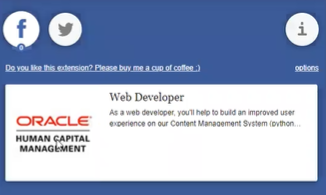
Image Displayed in Social Channel
Also, when posting jobs on Twitter, an additional tag was added to determine how the image is rendered. When the image URL uses an Open Graph image and the job is shared on Twitter, the image is rendered as a large image. The card format value is hard-coded, you can’t configure it. The card format is: <meta name="twitter:card" value="summary_large_image">

Image Rendered on a Twitter Job Posting
Also, when sharing career site pages with social platforms, the following Open Graph tags were added to the splash page and search results pages.
NOTE: The tags were not added to the Job Details and Custom Content pages because they have their own Open Graph tags.
- “<site name> Careers” is used as og:title (translated to a correct language)
- branding text is used as og:description
- image configured for a site is used as og:image (with fallback to site logo/desktop)
- "website" is used as og:type
- site name is used as og:site_name
- If the page is shared to Twitter, the twitter card is rendered in summary_large_image format
This feature enhances job sharing on social media.
Steps to Enable
When you configure your career site, you can define the image that will be used when career site pages are shared with social media. A new Social Sharing section is available in the General tab. You can add the URL for the image as an Open Graph image. If no image is added, the site logo is used.
For optimal experience when sharing job links in social media sites, the logo should have an aspect ratio of 1.9:1.
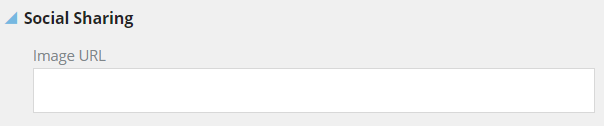
Image URL Field in Social Sharing Section
Key Resources
Refer to Twitter documentation for more details on the summary card with a large image:
Candidates and Candidate Job Applications
You can request feedback for multiple candidates using the new batch Collect Feedback action on the job application list.
When you select five or less job applications, the Collect Feedback action is performed real time. When you select more than five job applications, the action is performed asynchronously and is processed as soon as possible. You're still able to continue to work. When the process is completed, you receive an email informing you that the action was successful for the number of job applications. You can also view which job applications were skipped or failed for any reason.
- On the Job Applications list, select some or all of the candidates.
- In the Actions menu, select Collect Feedback.
- On the Collect Feedback page, in the Candidates section, you can keep the candidates you selected or remove some of them.
- In the Select Respondents section, select respondents. By default, the Hiring Team defined on the job requisition is available for selection as respondents. You can add other respondents (any HCM user). They will also be added to the job requisition's Hiring Team as collaborators, unless the new profile option has been set to not add respondents to the Hiring Team.
- In the Select Interview Questionnaire section, select interview feedback questionnaires. These questionnaires contain questions to collect interview feedback.
- In the Include Documents section, select job application's attachments to include in the feedback request. You can include a resume, cover letter, or miscellaneous attachments.
- In the Request Details, enter an expiration date for the request. You can also add a note for respondents.
- Click Submit.
With this feature, you save time when requesting interview feedback using the new batch action, instead of having to request feedback one candidate at a time.
Steps to Enable
As an administrator, you can decide if interview feedback respondents are added to the job requisition's Hiring Team as collaborators. For details, see Feedback Respondents Added to Hiring Team.
Tips And Considerations
The existing single candidate Collect Feedback action was enhanced to support the batch Collect Feedback action. In the Include Documents section, the following options are now available:
- Include resume
- Include cover letter
- Include miscellaneous attachments (job application attachments assigned to the miscellaneous category)
Prior to this enhancement the Include Documents displayed the names of the candidate's attachments.
Define Scope of Candidate Selection Processes Being Exported
When exporting setup data for candidate selections processes, you can define the scope of which candidate selection processes you want to export. You can select all candidate selection processes (as in previous releases) but you can now also select specific ones.
The import of setup data for candidate selection processes has also been modified to only import candidate selection processes in the draft status.
Exporting only specific candidate selection processes makes it easier to export only the processes you need to import in another environment. Allowing to import only draft candidate selection processes prevents overwriting currently used processes which might have job applications already using those processes.
Steps to Enable
To define which candidate selection processes to export, follow these steps.
- In the Setup and Maintenance work area, go to:
- Offering: Recruiting and Candidate Experience
- Functional Area: Candidate Job Applications
- Click the Actions menu next to Candidate Job Applications and select Export or Export to CSV File > Create New.
- On the Export Setup Data to CSV File page, go to the Business Objects section.
- In Search field, enter Candidate Selection Process and click the Search icon.
- In the Candidate Selection Process: Scope section, click Add to select the candidate selection processes you want to export. You can select one or multiple processes. You can use search parameters to filter the list.
- Click Save and Close.
Key Resources
For details on exporting and importing setup data, refer to the chapter Setup Data Export and Import in the Using Functional Setup Manager guide.
You can now find more candidates using LinkedIn’s search functionality, which is embedded in the Candidate Search page. This provides a unified experience by allowing you to search and browse LinkedIn profiles from within Oracle Recruiting Cloud.
When you search for candidates on the Candidate Search page, the Search in LinkedIn Recruiter link is displayed on the results page. Clicking this link takes you to the LinkedIn search page, where you can search and browse for LinkedIn profiles. If you searched using a set of keywords on the Candidate Search page, clicking the LinkedIn search link displays candidate search results based on those same set of keywords.
NOTE: When you click the LinkedIn search link, it takes you to the Recruiter login page, if you didn’t previously log in. You need to provide your credentials and select the contract type to view the LinkedIn search page.
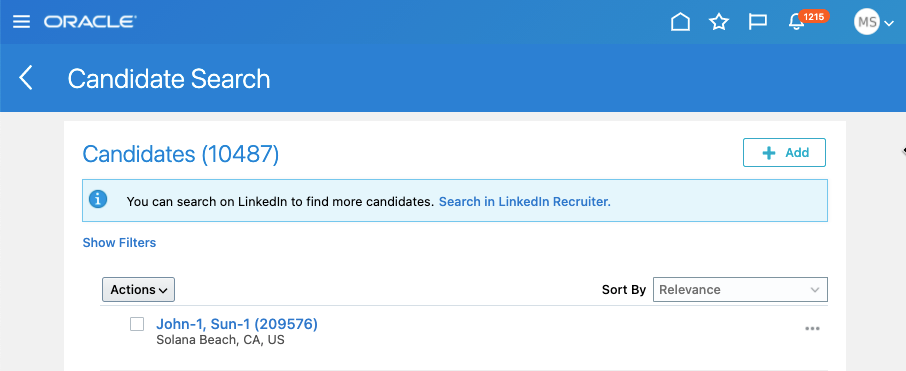
LinkedIn Embedded Search
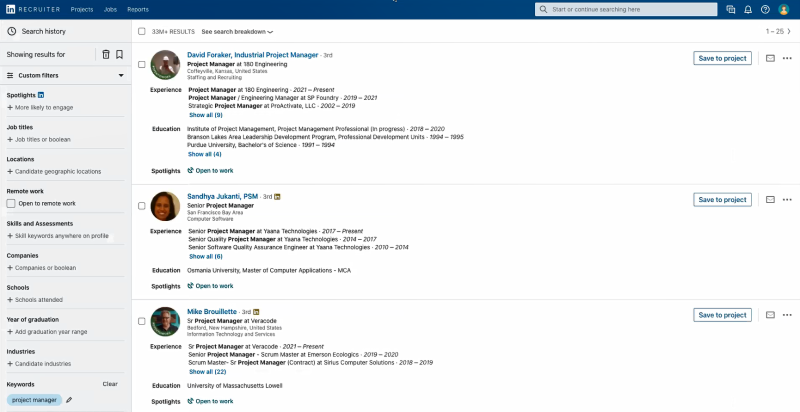
LinkedIn Search Results
Using this feature, you can now access LinkedIn’s member base at your fingertips.
Steps to Enable
To view the LinkedIn search page, the following prerequisites are necessary:
- The LinkedIn Recruiter System Connect (RSC) feature must be enabled.
- The Full Synchronization status should be set to Completed.
The administrator must set these up in the Setup and Maintenance work area:
- In the Setup and Maintenance work area, go to:
-
Offering: Recruiting and Candidate Experience
-
Functional Area: Recruiting and Candidate Experience Management
-
Task: Recruiting Category Provisioning and Configuration
-
-
On the Category Provisioning and Configuration page, click Edit next to Profile Import Partners.
- Select the Active check box in the LinkedIn Recruiter System Connect section.
- Ensure that the Full Synchronization status shows as Completed.
Key Resources
For details on candidate search, refer to Chapter 5, Candidate Search of the Using Recruiting guide in the Oracle Help Center.
Role Information
The Recruiter role needs to have the privilege, IRC_ACCESS_LINKEDIN_CANDIDATE_SEARCH_PRIV. This is added by default.
Tag Candidates Using Predefined Labels
You can tag candidates using labels defined by your administrator. For example, you may want to tag a candidate as being a finance expert.
A new section called Labels is available in candidate profiles, prospects records, and pool members.

Labels Section in Candidate Profile
With this feature, recruiters and hiring managers can tag labels on candidates and review them.
Steps to Enable
As an administrator, you can create labels that recruiters and hiring managers can use to tag candidates.
- In the Setup and Maintenance work area, go to:
- Offering: Recruiting and Candidate Experience
- Functional Area: Recruiting and Candidate Experience Management
- Task: Manage Recruiting Labels
- On the Candidate Labels page, click the Create icon.
- Enter a label name.
- Click Save and Close.
Use Skills to Define Audience in Recruiting Campaigns
As a campaign manager, you can now use skills to define the audience for a campaign.
The Add menu available for the Audience Criteria now offers the Skills option that you can use to define the audience.
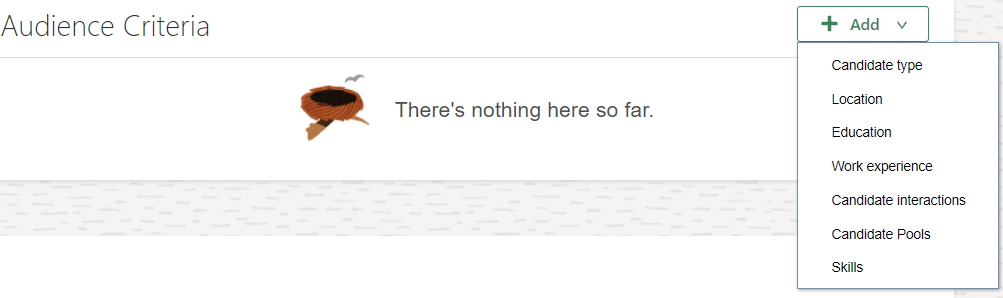
Skills Option for Defining Campaign Audience
You can target campaigns to those candidates with a specific skill. This allows campaigns to have content and jobs which are focused to a specialization.
Steps to Enable
You don't need to do anything to enable this feature.
When the Job Application Grid View feature is enabled, data in job applications list is displayed in a columnar layout. Views display the most important information in the job applications list and help you review and compare job applications.
When you navigate to a job applications list, the Summary grid view is displayed. This is the default view for all users. You can zoom in and zoom out or scroll horizontally to see additional columns.
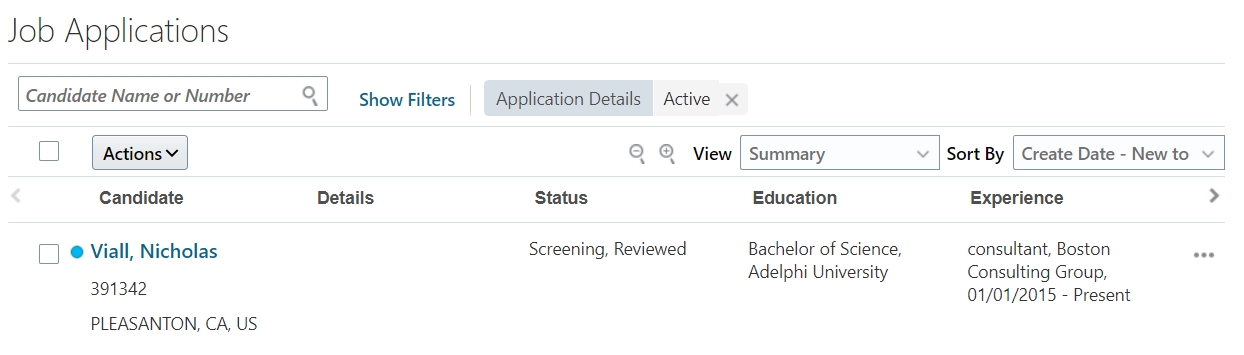
Job Applications List Summary View
If you were assigned the Personalize Candidate Job Application Lists privilege, you can access the Manage Views page available in the View menu and create your own personal views to display the columns and fields that you're interested in. This is useful when you want to review and compare job applications. You can also edit, delete, and copy views. You can also define which view is your default view when accessing a job applications list. Note that you can't edit or delete the default Summary view.
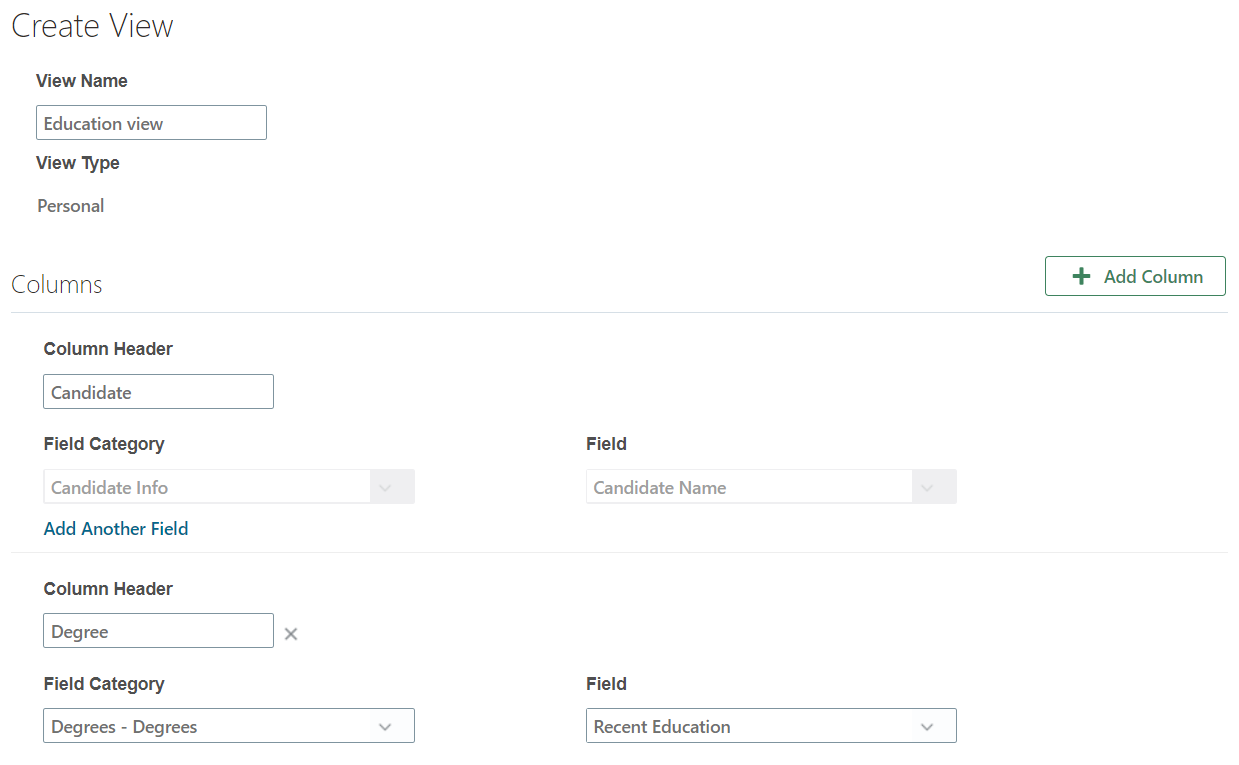
Create a Personalized Job Application Grid View
If you were assigned the Manage Candidate Job Application Lists privilege, you can access the Manage Views page available in the View menu. You can create views that are available to all users, called site level views, and role based views, that are available only to the roles defined when creating that view. From the Manage Views page there are two additional actions:
- Manage Compound Fields: You can create compounds fields to display only specific fields that are of interest in the grid view. You can also edit and delete compound fields.
- Manage Mask Data: If your organization is using blind sifting or name blind recruiting processes, you can mask data in the job application grid view. You can write an EL Expression to define the roles, phases, and states to mask data and select which grid view fields to anonymize.
Here's how you can mask data:
- Go to a requisition's job applications list.
- In the View menu, select Manage Views.
- On the Manage Views page, click the Actions menu and select Manage Masked Data.
- On the Manage Masked Data page, define the EL expression to mask grid view data.
The EL expression field is limited to 2000 characters. The result of the EL expression must be true or false. When the EL expression is true, the selected fields are masked on all job application grid views. Masked fields appear with '*****' in the grid view.
Fields that can be used in EL expressions:
| Context | EL Expression |
|---|---|
| To check for role | securityContext.userInRole[‘ORA_IRC_RECRUITER_JOB’] Pass the role code for the roles that should see masked data. |
| Phase ID | item.PhaseId Run a query to get the Phase ID (see below on CSP query). |
| State ID | item.StateId Run a query to get the State ID. |
| Phase Name | item.PhaseName Run a query to get the Phase Name. |
| State Name | item.StateName Run a query to get the State Name. |
- In the Grid View Fields to Mask, click Add to add the fields you want to mask.
- Click Save and Close.
Here's an example of an EL expression: #{securityContext.userInRole['ORA_IRC_RECRUITER_JOB'] ? !(item.PhaseId == 14 and item.StateId == 1020 and item.PhaseName == 'Offer' and item.StateName eq 'Draft') : false}
The new job application grid view combines data that was previously only visible in separate views into a single columnar layout, to make comparing candidates easier for users.
The configurable compound fields feature expands the set of fields that can be displayed in the grid view. Previously, only a limited set of fields could be viewed from the job application list and which fields were used in compound fields wasn't configurable. Talent Profile, job application specific fields, and EFFs can be used to create compound fields.
Watch a Demo.
Steps to Enable
Here are the steps to enable the Job Application Grid View feature and assign privileges to provide users with more capabilities:
- Create a Profile Option to Enable the Job Application Grid View
- Enable the Profile Option for the Job Application Grid View
- Assign Job Application Grid View Privileges
Step 1: Create a Profile Option to Enable the Job Application Grid View
The Job Application Grid View feature is disabled by default. You need to create a profile option called IRC_SUBMISSION_LIST_GRID_VIEW_ENABLED to enable the feature.
- In the Setup and Maintenance work area, search for the task Manage Profile Options.
- On the Manage Profile Options page, click the Create icon.
- On the Create Profile Option page, create the profile by entering these values:
| Option | Description |
|---|---|
| Profile Option Code | IRC_SUBMISSION_LIST_GRID_VIEW_ENABLED |
| Profile Display Name | Job Application Grid View |
| Application | Recruiting |
| Module | Recruiting Common |
| Description | Enable the job application grid view feature. |
| Start Date | Today's date |
- Click Save and Close.
- You're back on the Manage Profile Options page and the profile option IRC_SUBMISSION_LIST_GRID_VIEW_ENABLED is displayed.
- Go to the Profile Option Levels section.
- Set the profile option to be enabled and updatable at the Site level.
- Click Save and Close.
Step 2: Enable the Profile Option for the Job Application Grid View
You need to enable the profile option IRC_SUBMISSION_LIST_GRID_VIEW_ENABLED at the site level so that the Job Application Grid View feature becomes available in Recruiting.
- In the Setup and Maintenance work area, search for the task Manage Administrator Profile Values.
- On the Manage Administrator Profile Values page, search for the profile option code IRC_SUBMISSION_LIST_GRID_VIEW_ENABLED.
- In the Profile Values section, set the Site profile value to Y.
- Click Save and Close.
Step 3: Assign Job Application Grid View Privileges
When the Job Application Grid View feature is enabled, all users have access to the Summary grid view in job applications list and they can set their default view amongst the views created for them. There are privileges that you can assign which control the user's ability to create and manage job application grid views.
Personalize Candidate Job Application Lists
- Users with this privilege can create and manage their own personal job application grid views. Users without this privilege can only define their default view, from the set of seeded and customer created views they can see.
- By default, this privilege is granted to the Recruiter role.
Manage Candidate Job Application Lists
- Users with this privilege can create and manage views that other users will have access to. Site level views are available to all users, role based views are available to users depending on their user roles.
- Users can create compound fields.
- Users can define data masking for the grid view.
- By default, this privilege is granted to the Recruiting Manager role.
Tips And Considerations
When managing grid views:
- Views are available across all requisitions' job application lists.
- You can add a maximum of three individual fields or one compound field to a column.
- Skills and Languages compound fields show all skill/language name values the candidate supplied (in comma separated list).
- EFFs can be configured to appear in views. However multi-row EFFs are only supported when used in configurable compound fields.
- Only the EFF value appears, consider using the EFF label as the column header.
- It’s not possible to edit or delete the seeded Summary view.
When managing compound fields:
- Compound fields must come from the same field category.
- Compound fields are comma separated when displayed in the grid view.
- Field names can be translated after saving the field, using the Translation Editor action on the Manage Compound Fields list page.
- Multi-row fields can be configured to show multiple values on the grid view.
- If a multi-row field is configured to be a multivalued field then it will display up to the three most recent entries on the grid view.
- If a multi-row field isn't configured to be a multivalued field then it will display the one most recent entry on the grid view.
- Compound fields are available to add to grid views by any user who can create views, not only the user who created the compound field.
- Multi-row EFFs can be used in compound fields.
Key Resources
Feedback Respondents Added to Hiring Team
As an administrator, you can decide if interview feedback respondents are added to the job requisition's Hiring Team as collaborators. A new profile option is available:
- Add Feedback Respondents as Collaborators
By default, this profile option is enabled to retain the existing behavior where feedback respondents are added as collaborators.
By default, interview feedback respondents are added to the job requisition's Hiring Team as collaborators so that for future feedback requests they will be suggested automatically. However, some organizations don't want interview feedback respondents to be added to the requisition's Hiring Team, either because they don't want these users to have access to the requisition or because they don't want them to be inherited on the job offer's Hiring Team.
Steps to Enable
To modify the profile option Add Feedback Respondents as Collaborators, follow these steps.
- In the Setup and Maintenance work area, click the Tasks icon, then click the Search option.
- Search for the task Manage Administrator Profile Values.
- Click the task name.
- On the Manage Administrator Profile Values page, search for the profile option name Add Feedback Respondents as Collaborators.
- Configure the profile value:
- Y: This is the default value. Respondents are added as collaborators.
- N: Respondents are not added as collaborators.
- Click Save and Close.
Improved Skill Usage for Job Requisitions
In Update 21D, skills added to a job requisition were only visible to external candidates. With this update, when skills are added to a job requisition, internal candidates can see the skills when they view the details of a job on an internal career site. Recruiting agents can also see the skills when they view the job details in their agency portal.
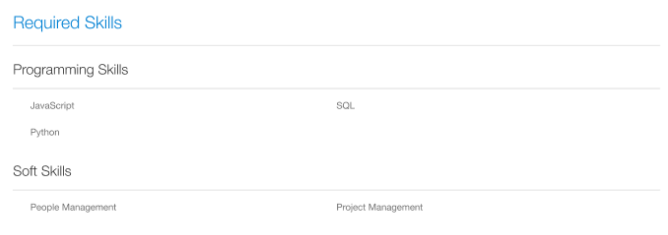
Skills for an Internal Job
When internal candidates search for a job, they can search using skill names that are included in the job requisition’s Skills section. This feature is not available to recruiting agents.
When additional skill attribute values are captured on requisitions, only the skill name is displayed to candidates and recruiting agents viewing the requisition details. Other attributes aren't displayed.
Also, your administrator can configure which fields are visible in the Skills section.
With this feature, skills are visible to both external and internal candidates and also to recruiting agents. Also, you can now control which fields are visible in the Skills section.
Steps to Enable
You can configure the fields displayed in a job requisition’s Skills section using Transaction Design Studio. You can define if a field is visible or not, and if it’s required or not. By default, all fields are visible and not required. Only the Skill attribute (skill name) configuration is always visible and required, it can't be modified.
The Skills section in job requisitions is hidden by default and isn’t mandatory. To display the Skills section and configure its attributes, you need to create a rule in Transaction Design Studio using these actions:
- Recruiting - Create Job Requisition
- Recruiting – View and Edit Job Requisition
- Activate a sandbox and page editing at the Site layer in Settings and Actions Menu > Edit Pages > Activate a sandbox.
- On your Home page, click My Client Groups > Quick Actions > HCM Experience Design Studio.
- Click the Transaction Design Studio tab.
- Select the action Recruiting - Create Job Requisition or Recruiting - View and Edit Job Requisition.
- Click Add to create a rule to display the Skills section.
- In the Basic Details section, enter a name and description for the rule. You can also select a role name, recruiting type, and country.
- In the Show or Hide Regions section, set the Skills to Visible. You can also set the section to be required.
- In the Page Attributes section, select the Skills region.
- Configure which fields are visible and required.
- Click Save and Close.
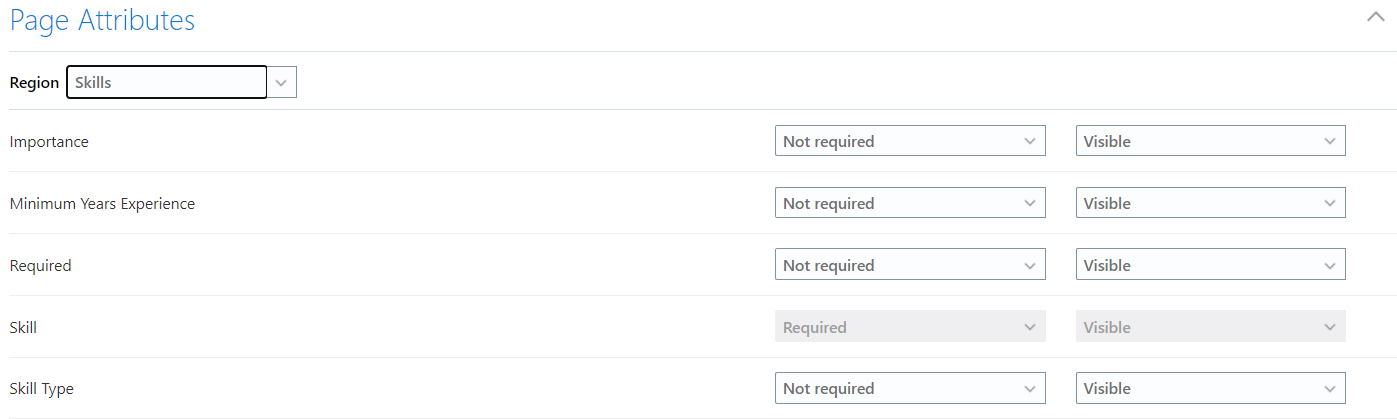
Skills Attributes in Transaction Design Studio
NOTE: If a field is included in multiple Skills content sections, a single configuration controls if the field is visible and required in all Skills content sections.
Tips And Considerations
Skills aren't multilingual, it's not possible to translate the name of a skill in multiple languages. For this reason, it's recommended to not use skills in multilingual job requisitions because the skill name will always be displayed to candidates exactly as entered, regardless of the language in which candidates are viewing the requisition.
You can now quickly create one or more job offers for external candidates on a requisition by copying an offer that’s already been created for another external candidate.
If you have the new Copy Job Offer privilege, you can go into any job requisition, select one or multiple external candidates who don’t yet have a job offer, and select the new Copy Offer action.
NOTE: The only person types you can select are external candidates, including new hires and rehires. Current employees and current contingent workers usually need more tailored job offers, so these internal workers can’t be selected to receive a copied offer from a prior external candidate’s offer. If you do select these current employees or contingent workers, they will be omitted from the list of people intended to receive a copy of the selected offer.
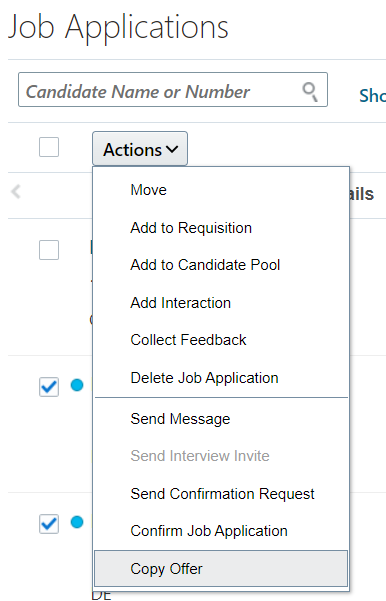
Copy Offer Action
On the Copy Offer page, you select an external candidate on this requisition who has a job offer in any state. All of the content and attachments on their offer will be copied to create new job offers for the other selected candidates. It’s preferable to select a recent offer because it contains active values. Older offers on this requisition may no longer be selectable, or if they have values that aren’t current anymore then the copying will be unsuccessful.
If you want, you can choose a projected start date for all the new offers that's different than the original offer's start date. Except for this, the fields in the new offers will have all the same values as the original offer.
The name of each Batch Offer Process can be set here, or a default name is provided which includes the requisition number and the current date and time. This name is useful for tracking all of these newly-copied offers on the Job Offers list in the Recruiting area.
Before submitting the Copy Offer action, you can decide what should happen next for all of the new offers that get successfully drafted.
- Submit new offers for approval: If you select this default option, all the newly-created offers will be immediately submitted directly into the approval cycle. They will move from the phase and state in which they started, into the status Offer - Pending Approval. This option is helpful to reduce clicks, if you won't need to edit each newly-created offer before sending it to any approvers.
- Stay in draft state to edit new offers: If you select this option, all the newly-created offers will remain editable in case any changes need to be made to each one. They will move from the phase and state in which they started, into the status Offer - Draft. This is helpful for using the original offer as a starting point, if you know that each individual candidate will need to be adjusted.
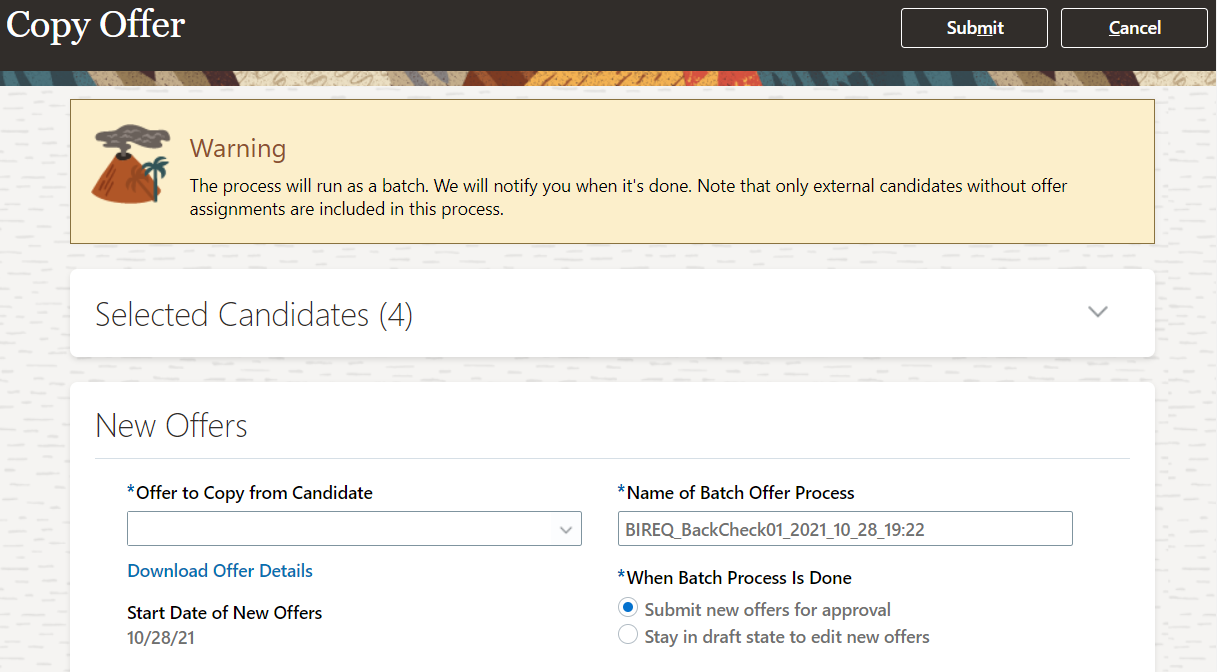
Copy Offer Page
Submitting the Copy Offer action will create new job offers for all the selected external candidates unless a warning or error arises. For instance, if the original offer letter was adjusted to include specific info about the candidate, you'll see a warning to update each new candidate's offer letter after it gets copied, and then the copies will be created. Or if the recruiter or hiring manager on the original offer is no longer working for the company, the copy cannot proceed and you'll see an error asking you to select a different candidate's offer to be copied. Errors will also prevent the copying process from starting if the original offer has no salary amount or no offer letter, or if the requisition doesn't have enough openings left to accommodate all of the candidates selected (and if you don't have the privilege "Communicate Job Offer Ignoring Number of Openings").
You receive a notification as soon as the batch process is finished. The notification indicates the number of offers that were successfully copied as well as those that failed, were skipped, or canceled.
In case of any failure, all of the selected candidates will likely have a partially-created offer but you will have to check the Errors section for each candidate's offer to see which regions' fields were unable to be copied. For example, the Assignment section may not be filled out for all the new candidates if the original offer's assignment had a location or grade that's currently inactive. Or the Other Compensation section may be empty for all the new candidates if they don't satisfy the eligibility profile or element eligibility for the original offer's Individual Compensation Plan. These incomplete new offers will remain in the status Offer - Draft so that the missing values can be manually provided as needed, even if the option selected when copying the offer was "Submit new offers for approval". When each offer is edited to be complete, you can submit them individually for approval.
Depending on your administrator's configuration, all the job applications with copied offers can be automatically moved forward quickly through various points in the candidate selection process. Offer approval can be bypassed and other moves through the lifecycle can be automated, if desired. Or if these quick configurations aren't implemented, these copied job offers will act like all other job applications which your users individually approve, extend, and move into the HR phase when each candidate is ready.
Lastly, new filters are available on the Job Offers list, where all of your job applications in the Offer phase are available. The filter Job Requisition allows showing only the offers for a specific requisition, and the filter Batch Offer Process allows showing only the offers that were created in a specific named Copy Offer action within the filtered requisition. When the list displays only a set of offers from a specific batch process, a banner on the page displays whether any of them encountered problem during the copying, and how many new offers were successfully created automatically.
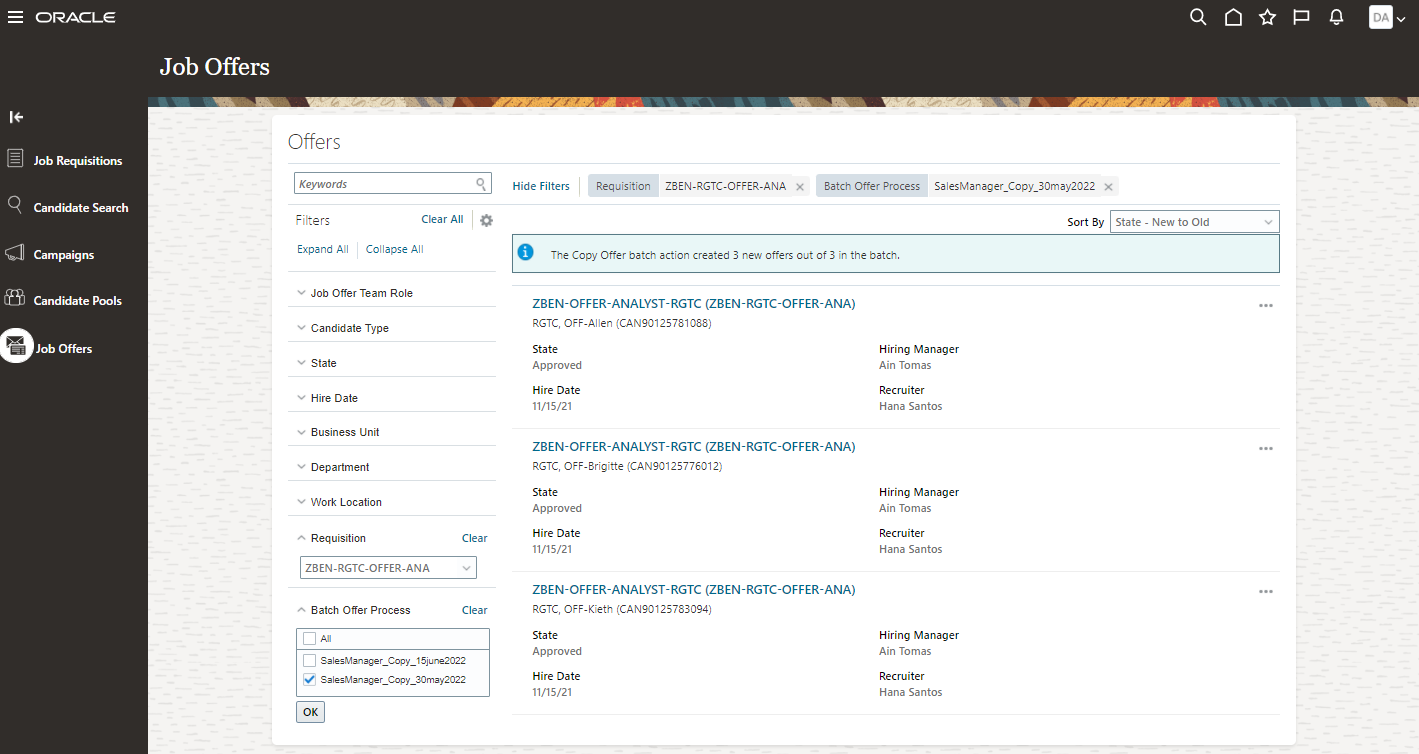
Batch Offer Process Filter on Job Offers List
With this feature, you can save time and enforce consistency of job offers by quickly creating new offers from prior external offers. You can also save time in moving these copied offers through the recruiting lifecycle, by configuring some or all of the following:
- automatically approve new offers copied from prior offers
- automatically extend these copied offers to candidates
- automatically move these copied offers to HR after they're accepted
- automatically take any other actions in the Candidate Selection Process for these copied offers
Finally, you can track the progress of these copied offers by quickly finding them with new filters and seeing their progress summarized in a new banner.
Watch a Demo.
Steps to Enable
The Copy External Job Offers feature is delivered disabled. To enable it, you need to configure the profile option ORA_IRC_ALLOW_COPY_JOB_OFFER.
- Go to the Setup and Maintenance work area.
- Click the Tasks icon on the right-hand side then click Search.
- Search for the task Manage Administrator Profile Values.
- Click the task name.
- Search for the profile option code ORA_IRC_ALLOW_COPY_JOB_OFFER.
- Set the profile value to Y.
- Click Save and Close.
You can configure approval rules for the copy offer batch process. These new fields are available:
- Batch Creation Flag - value 'Y' indicates an offer that was created using this Copy Offer action.
- Source State Name - value can be used to create approval rules depending on whether the new offers were copied from an original offer in a given state, for example Approved or Processed.
Here’s how you can configure an approval rule for offers that were created using the copy offer batch process.
- Go to the Tools work area.
- Click Transaction Console.
- Click the Approval Rules tab.
- On the Transaction Manager: Rules page, select the Approve Job Offer process and click the Edit icon in the Configure Rules column.
- On the Approval Rules: Approve Job Offer page, click on the job offer approval rule and click the Edit icon in the toolbar.
- Click on the rule again and click the Edit Selection icon in the toolbar.
- In the Approval Rules: Edit Condition Expression window, create the expression as displayed below.
- Click OK

Approval Rule Using the Batch Creation Flag
You can configure actions in the candidate selection process if you want all newly-copied offers to be automatically extended to the candidates, or if you want them all to get automatically moved forward into the HR phase of the lifecycle. A new database item is available to create a fast formula:
- IRC_CSP_JOBOFFER_BATCH_COPIED_FLAG
You create a fast formula of the Recruiting Candidate Selection Process formula type and use the database item IRC_CSP_JOBOFFER_BATCH_COPIED_FLAG which is used to indicate if the job offer was created using a batch process.
The notification sent when the batch action is completed is available in Alerts Composer:
- Code: IRC_BatchAction_Done
- Name: Batch Action Notification
Tips And Considerations
Any offer for an external candidate that’s in any state on the current requisition can be copied. When you select the person’s offer to copy, you can see its current state, so you can be sure to select an offer that’s in a state that you want, for instance one that’s in the state Approved, Accepted, or even HR - Processed. You can also select an offer to copy even if it’s in the state of Draft, Approval Rejected, or Rejected by Candidate. An offer that was approved but rejected by one candidate might be perfectly acceptable to other candidates.
You can choose one new hire or rehire offer to be copied to create one or many new offers, as long as they’re all within one single job requisition. Choosing an existing offer for one requisition and copying it to a different requisition isn’t supported. So if you have to create several job offers in a requisition that doesn’t have any usable prior offers, you can still save time by manually creating one new offer first, and then immediately using that one as the source to make copies for the rest of the offers that you need.
It’s better to select a recently created offer to base your new offers because obsolete info can’t be copied. Also, no adjustments can be made between the source job offer and the copies, except the start date.
If you’re using position-based offers and your system is configured to check headcount and FTE, consider this useful info. When you try to make copies of an offer but there’s not enough room in the associated position for all the new candidates, then the new offers will be created and some can move forward for approval but the rest will remain in Draft state, even if you configured the new offers to go into the approval cycle. This is just the same way individually-created offers work when they’re associated with a position; you can draft as many as you’d like, but moving them forward can be stopped. Approvers are only requested to approve each offer if there is sufficient FTE and headcount in the intended position.
Key Resources
- Watch Copy Job Offers Readiness Training
- For more information on how to use a fast formula as a condition in a candidate selection process, refer to these topics in the Implementing Recruiting guide available in Oracle Help Center.
- Fast Formulas for Candidate Selection Processes
- Define Conditions to Move Candidates
Role Information
Users must have the new Copy Job Offer privilege to see and use the Copy Offer action.
| Privilege Name | Privilege Code | Job Role |
|---|---|---|
| Copy Job Offer | IRC_COPY_JOB_OFFER | Recruiter |
Honor Individual Compensation Allocations in Job Offers when Multiple Element Entries Aren't Allowed
Individual compensation allocations from job offers are copied to the newly-created assignment when the Human Resource specialist processes an internal candidate’s offer. This copy now happens even when the worker already has the same plan in their current assignment and the underlying element setup doesn't allow the creation of multiple element entries for the recurring element.
In previous releases, Human Resource specialists who processed the offer received an error saying that the offered compensation allocations couldn't be copied to the internal candidate's new assignment because of the plan's restriction against multiple element entries.
What Happens When Current Assignment Plan Payments Have Already Started
When an HR specialist processes an internal candidate’s job offer, any existing plan payments in the worker’s current assignment that are already underway will become end-dated. The end-date is set as 1 day before the start date of the new payments from the offer’s individual compensation plan.
What Happens When Current Assignment Plan Payments Start in the Future
When an HR specialist processes a job offer for an internal candidate whose current assignment already has plan payments which will start in the future after their job offer’s start date, the new plan payments from the offer will be allocated and end-dated. The new plan payments’ end-date is set as 1 day before the existing payments will start for the current assignment.
What Happens when Both Plan Payments Start on the Same Day
When an HR specialist processes an internal candidate’s job offer with plan payments that would start on the same day as plan payments in the worker’s current assignment, they see a warning. The region in the process flow displays an explanation that the individual compensation plans were not copied from the offer due to this conflict.
This enhancement increases data accuracy and minimizes manual intervention.
Steps to Enable
You don't need to do anything to enable this feature.
Tips And Considerations
- This feature works with responsive change assignment flows for internal candidates, such as Change Assignment, Transfer, and Promote, where the job offer’s details are copied to an existing assignment. It isn’t relevant for internal candidate offers that create a new assignment or work relationship, because these can always allocate a new individual compensation payment plan to the worker without any error arising.
- When the HR specialist processes the internal candidate’s offer in flows such as Change Assignment, the compensation plans are copied to the worker when the individual compensation region is reached. If the flow is submitted before the user visits the individual compensation region, the offered compensation isn't copied.
- This feature applies to recurring elements that don't allow multiple element entries.
Key Resources
For more information on this feature, see examples and screenshots in the 22A Workforce Rewards What's New feature "Honor Individual Compensation Allocations in Job Offers when Multiple Element Entries Aren't Allowed."
For more information on job offers and how they're processed into internal assignments, refer to the topic Internal Job Offers: How They're Processed in the Using Recruiting guide.
Streamline Internal Candidate Processing
Oracle Recruiting provides new capabilities to streamline the processing of internal mobility candidates, after they’ve accepted their job offers.
Automatically Process Internal Candidates into HR
With this new capability, internal mobility candidates who accepted their job offer and were moved to the HR phase are automatically processed into their new roles in the HR system as their proposed start date approaches. With this method, no manual processing is required by the Human Resource specialists.
In prior releases, internal candidates would go into the state Pending Manual Processing. Now they go into the state Pending Automated Processing until the proposed start date arrives. On that number of days before each candidate's proposed start date, the worker's new assignment and salary are automatically created by the scheduled process Perform Recruiting Candidate Selection Process Offer Actions. As soon as the proposed start date approaches, the new assignment gets created. The state becomes Processing in Progress, then Processed.
If some problem arises while transforming the promised offer into the final assignment, the candidate’s job application goes into the state Error During Processing. The HR specialist can try to fix the error and process the candidate again.
NOTE: For internal candidates in a complex hiring situation, they still go into the state Pending Manual Processing and you will still need to manually process them.
Administrators configure the timing of this automatic processing. They can set the number of days before all candidates' proposed job start dates that best suits your organization’s business needs.
Benefits:
- Greatly reduces time spent by HR specialists for internal mobility. HR specialists no longer need to spend significant time clicking through each section of each internal candidate’s new assignment, after these candidates’ job offers have already been created, approved, and accepted.
- Creates new assignments with consistent lead-time and values. All new internal assignments are created in the HR system as of a specific consistent number of days before their new job starts. All the values that were agreed upon in the offer are recopied perfectly into the new assignment. The resulting assignments are consistent with their offers; there’s no room for manual changes nor manual error.
- Retains flexibility for fixing errors, manual updates, and urgent processing. HR specialists can still manually make any changes as needed. In case any errors occur when the system automatically tries to process any of these internal candidates, the HR specialist can still click through the guided process and fix any errors as they’re shown on the page. Another reason they might still want to manually process these internal candidates is in case there’s a need to change anything about the new assignment. And lastly the processing can be triggered manually in urgent cases where the HR specialist may not want to wait until the standard amount of days before the worker’s proposed date to start the new job.
Quickly Process Internal Candidates into HR
With this new capability, Human Resource specialists can process any individual internal candidate quickly into their new assignment, with a single click, after they were moved to the final HR phase of the recruiting life cycle.
HR specialists can use the new Quick Process Offer action. This immediately creates the new assignment, new salary, and any new individual compensation based exactly on the information in the candidate’s accepted job offer.
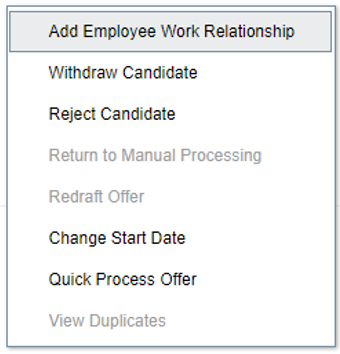
Quick Process Offer Action
You can use the Quick Process Offer action for internal candidates in the following HR phase states:
- Pending Automated Processing
- Error During Processing
- Pending Manual Processing
This action is available to process most internal candidates in the HR phase.
NOTE: For internal candidates in a complex hiring situation, you will still need to manually process them.
Benefits:
- Fastest way for HR specialists to transform internal candidates with job offers into their new assignments. HR specialists can process candidates earlier, they don’t have to wait for the automatic processing date to arrive for each candidate.
- Ensures consistent values from each offer into each new assignment and salary. When using the Quick Process Offer action, HR specialists don't review all the fields and can’t change any values. The new assignment is identical to the accepted job offer.
Change Proposed Start Date for Internal Candidates
With this new capability, Human Resource specialists can change the proposed start date for internal candidates after they’ve accepted their job offer, in case the intended date in their offer now needs to be adjusted before their new assignment is processed.
HR specialists can use the new Change Start Date action to fix the agreed-upon start date that was in the job offer. This new date will be used when transforming the offer into the new assignment either by using the new automatic processing option, or using the new Quick Process Offer action, or by using the older method where an HR specialist clicks through the guided process to review all the values from the offer. This changed date will not affect the candidate's job offer letter which was already accepted.
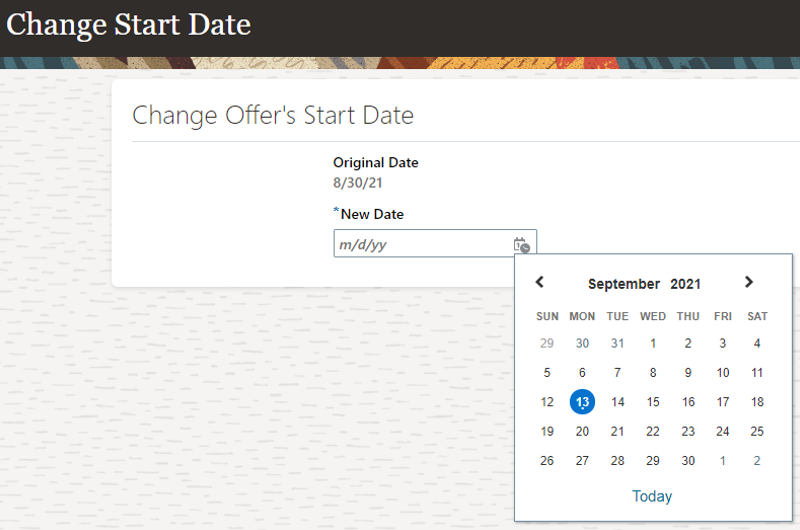
Change Start Date Action
The Change Start Date action isn’t available for internal candidates in complex hiring situations. You will still need to manually process them.
Benefits:
- Provides a convenient method to update the internal mobility start date, without affecting the offer letter that the candidate already accepted. This new start date will be used in the new assignment, which today can’t be updated using the manual guided process where other fields can be changed if they need to deviate from the original offer.
- Provides flexibility for any changes in the business needs of the new job that they’re joining or the current job that they’re leaving.
With these new streamlined processes, HR specialists can move internal candidates quickly and efficiently into their new assignments. They also have more flexibility on how to proceed.
Watch a Demo.
Steps to Enable
These new streamlined processes are delivered disabled. To enable them, you need to configure the profile option ORA_IRC_AUTO_PROCESS_INTERNAL_OFFERS.
- Go to the Setup and Maintenance work area.
- Click the Tasks icon on the right-hand side and click Search.
- Search for the task Manage Administrator Profile Values.
- Click the task name.
- Search for the profile option code ORA_IRC_AUTO_PROCESS_INTERNAL_OFFERS.
- Set the profile value to Y.
- Click Save and Close.
When the profile option ORA_IRC_AUTO_PROCESS_INTERNAL_OFFERS is enabled, you can configure the timing of when the automatic processing of internal job offers will occur. By default, internal candidate offers get transformed into their new assignments 7 days before their proposed start date.
- In the Setup and Maintenance work area, go to:
- Offering: Recruiting and Candidate Experience
- Functional Area: Recruiting and Candidate Experience Management
- Task: Enterprise Recruiting and Candidate Experience Information
- In the Automatically Process Internal Offers to Assignments section, set the number of days.
- Click Save and Close.
On that number of days before each candidate's proposed start date, the worker's new assignment and salary are automatically created by the scheduled process Perform Recruiting Candidate Selection Process Offer Actions.
NOTE: If your organization is using Payroll-based Salary Basis in their offers, or has salary element eligibility defined on Payroll, don't enable these new capabilities.
Key Resources
Recommendation Strength on AI Features
When you view the top recommendations for a job requisition or view the list of similar candidates for a specific candidate, you can now view a matching score relative to the candidates recommended.
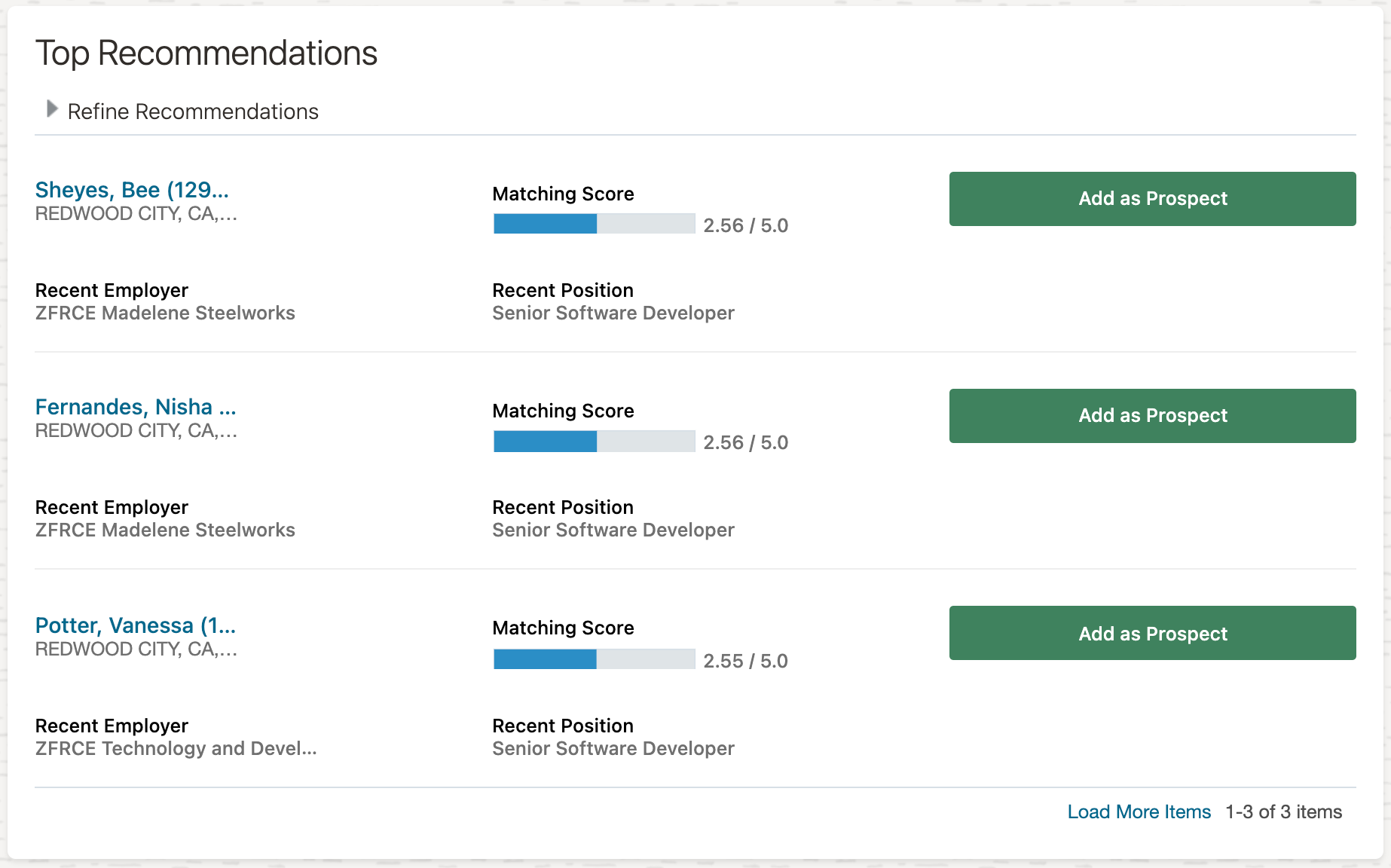
Matching Score for Recommended Candidates
With this feature, the hiring team can now understand the relative strength of the recommendations.
Steps to Enable
The appropriate AI features must be enabled. For details, refer to the chapter Adaptive Intelligence for Recruiting in the Implementing Recruiting guide.
Oracle Digital Assistant - Recruiting Skills Enhancements
External candidates can now check and review upcoming interviews using the Candidate Experience skill. A new intent, Show my upcoming interviews, has been introduced for external candidates which displays interview schedules.
Candidates need to sign in to view their interview schedules. The response displays details such as the title, date, and time of the interview, along with a View Details link. Candidates can click this link to view additional details on the Candidate Experience page.
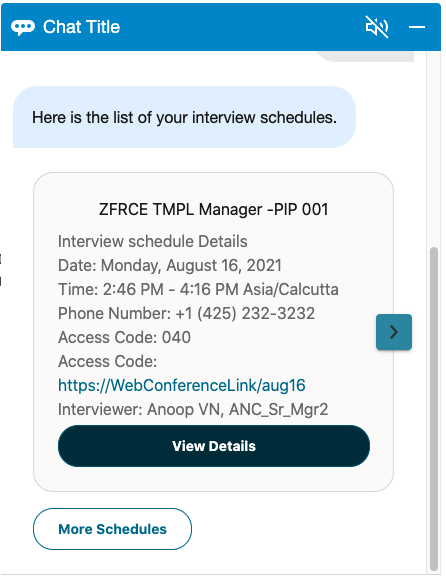
Interview Details
The enhanced Internal Candidate Experience skill now displays location and job category conversations to internal candidates when they search for jobs. This helps them select a job location and job category without having to enter related keywords in their utterances.
The enhanced Internal Candidate Experience skill now shows suggested locations and job categories to internal candidates when they search for jobs. This helps them select a job location and job category without having to enter related keywords in their utterances, even though they can still search with keywords.
When internal candidates search for popular cities, the skill understands the cities and displays a response accordingly. The response also shows the location entered by the candidate and the location resolved by the skill to resolve any ambiguity between the two.
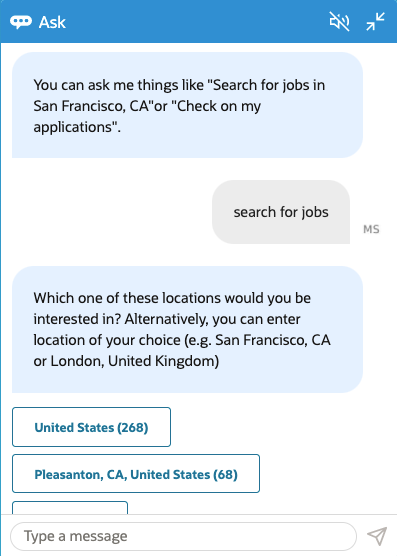
Suggested Job Search
Using these enhancements, external candidates can view interview schedules, and internal candidates can find relevant jobs easier and faster.
Steps to Enable
You don't need to do anything to enable this feature.
Key Resources
- Enable a digital assistant from the Skill Store: https://docs.oracle.com/en-us/iaas/digital-assistant/doc/get-started-skills-and-digital-assistants.html
- Getting Started with Oracle Digital Assistant for Cloud Applications in the Oracle Help Center
- Using Oracle Digital Assistant in the Oracle Help Center
Purge Processed Internal Recruiting Data
You can now run a scheduled process to purge processed, internal non-transactional recruiting data that's older than 90 days. The process is called Purge Processed Internal Recruiting Data.
Periodic purging of data that's no longer required helps optimize application performance.
Steps to Enable
You don't need to do anything to enable this feature.
Tips And Considerations
It's recommended to run this process weekly for optimal performance, and schedule it when the usage of the system is low. For example, every Saturday at 10:00 p.m.
Key Resources
For more information on running scheduled processes, refer to Chapter 25, Recruiting Scheduled Process, in the Implementing Recruiting guide in Oracle Help Center.
Add Skills to Job Requisitions Using HCM Data Loader
You can now use HCM Data Loader to add and update skills in a job requisition or a job requisition template.
This feature provides an alternative option to update skills in a job requisition or a job requisition template, without having to do it manually from the user interface.
Steps to Enable
You don't need to do anything to enable this feature.
Key Resources
- For details on how to load data using HCM Data Loader, refer to the HCM Data Loader guide in the Oracle Help Center.
Link Existing Job Requisition to a Pipeline Requisition Using HCM Data Loader
You can now link one or more existing standard job requisitions to a pipeline requisition using HCM Data Loader.
You can do the linking if the job requisition is as follows:
- It's a standard job requisition that isn’t linked to a pipeline requisition yet.
- It's active, meaning it’s not filled or canceled.
- It has no prospects or job applications.
- It isn’t scheduled to be posted, or isn't already posted on an external or internal career site or on a job board.
- It has no recruiting agent added to it.
In addition, you can do the linking only if the pipeline requisition isn't in the Draft or Approval phase.
This feature provides an alternative option to link an existing standard job requisition to a pipeline requisition, without having to do it manually from the user interface.
Steps to Enable
You don't need to do anything to enable this feature.
Key Resources
For details on how to load data using HCM Data Loader, refer to the HCM Data Loader guide in the Oracle Help Center.
Role Information
The Recruiter role needs to have the privilege, Associate Job Requisition to Pipeline Requisition, which is added by default.
Transactional Business Intelligence for Recruiting
Oracle Transactional Business Intelligence is a real time, self-service reporting solution offered to all Oracle Cloud application users to create ad hoc reports and analyze them for daily decision-making. Oracle Transactional Business Intelligence provides human resources managers and specialists, business executives, and line managers the critical workforce information to analyze workforce costs, staffing, compensation, performance management, talent management, succession planning, and employee benefits.
Don’t want to start from scratch building a report or analytics? Check out the library of sample reports for all products on Customer Connect on the Report Sharing Center.
Opportunity Marketplace Subject Area - Report on Seeker Preferences
The seeker preferences are now available for reporting under the Opportunity Marketplace subject area. You'll find those new additions:
Seeker Preferences > Basic Info
- Seeker Alert Activated Indicator
- Seeker Alert Activated
Seeker Preferences > Seeker Interests
- Seeker Preferred Geography ID
- Seeker Preferred Geography Name
- Seeker Favored Gig Number
- Seeker Favored Gig Title
With this new feature, you can know the interests of your various job and gig seekers.
Steps to Enable
You don't need to do anything to enable this feature.
IMPORTANT Actions and Considerations for Recruiting
REPLACED OR REMOVED FEATURES
From time to time, Oracle replaces existing Cloud service features with new features or removes existing features. When a feature is replaced the older version may be removed immediately or at a future time. As a best practice, you should use the newer version of a replaced feature as soon as the newer version is available.
| Product | Removed Feature | Target Removal | Replacement Feature | Replaced In | Additional Information |
|---|---|---|---|---|---|
| Nothing at this time. |
_________________________
RECRUITING PAGES IN TRANSACTION DESIGN STUDIO
Rename actions in Transaction Design Studio to personalize Recruiting pages. The prefix Recruiting was added to recruiting actions to easily identify and select the pages.
_________________________
KNOWN ISSUES / MAINTENANCE PACK SPREADSHEETS
Oracle publishes a Known Issues document for every Update to make customers are aware of potential problems they could run into and the document provides workarounds if they are available.
Oracle also publishes Maintenance Pack and Statutory Maintenance Pack documentation of bugs that are fixed in the monthly or statutory patching.
To review these documents you must have access to My Oracle Support:
Oracle Human Capital Management Cloud Functional Known Issues and Maintenance Packs (Document ID 1554838.1)
Controlled Availability for Recruiting
The following is a list of Controlled Availability features that are being offered by our Controlled Availability Program.
NOTE: These features are not generally available for all customers at this time. These are only available through the Controlled Availability Program and will require approval to become a part of the features program. To be a part of these programs you will be required to participate in testing and providing feedback. Some programs may require other participation as well.
Not to worry if you don't have to time to be a part of these early stage programs. You can uptake this feature when it is generally available for all customers. When these features are available for all customers you will see the features under their product headings as usual.
We invite you all to browse through the list of features to see if there are any features you are interested in implementing in advance of the features scheduled release. The table below will provide information on signing up for features. Please sign up soon, as these programs have limited availability and some are designed for specific types of customers.
The table below gives you a brief description of the features available and how to sign up. Some features are bigger than others, so for more information there may be a What's New describing the feature in more detail below this table.
We look forward to hearing your thoughts and ideas as you participate the Controlled Availability programs!
| Product | Feature Name | Feature Description | Type of Customer Needed to Test | How to Sign Up | Controlled Availability Release | Is the Program Still Open? |
|---|---|---|---|---|---|---|
| Recruiting |
Vanity URL |
You can use a customer branded URL to host external career sites. All career sites will be hosted under the same vanity domain. |
Customers must be: Live with HCM |
You will need to log a Service Request (SR) in My Oracle Support to request to be part of this program and be approved. Please tag the SR with "OR-Vanity-URL" |
21C | Yes |
| Recruiting |
Job Application Filters on Oracle Search |
Search the job application list with enhanced filtering capabilities like the new skills and languages filters using Oracle Search. Oracle Search is a dedicated search platform for Oracle Cloud that provides a faster search experience. |
Customers must be: Live with HCM Be on the Oracle Search Controlled Availability Program. See the Human Resources What's New for details. |
You will need to log a Service Request (SR) in My Oracle Support to request to be part of this program and be approved. Please tag the SR with "OR-JAFilters" |
21C | Yes |
| Recruiting |
Advanced Job Application List Filters |
Perform more complex, targeted searches on the job application list with advanced filtering capabilities. Users can now select multiple job application questions/answers and skills to find the right candidates faster. Advanced filters requires uptake of job application filters on Oracle Search, a controlled availability feature in 21C. |
Customers must be on the following Controlled Availability Programs:
|
You will need to log a Service Request (SR) in My Oracle Support to request to be part of this program and be approved. Please tag the SR with "OR-JAFilters" |
21D | Yes |