
- Revision History
- Overview
- Feature Summary
-
- Common
- Financial Reporting Compliance
- Advanced Access Controls
- Access Certification
- Advanced Financial Controls
-
- New Read-Audit Models in Content Library
- Changes Are Made to Business Objects
- Data Available for Secured Audit Business Objects
- Improved Error Messaging When Environment Resource Capacity Is Reached
- Use "Related to" Condition Between Unrelated Business Objects
- Select from Multiple Searches During Model Import
-
- Transactional Business Intelligence for Risk Management
-
- Perspective Values Are Delimited in the Related Records Dashboard
- Reports Now Cover User Assignment Security for Assessments
- New Risk Related Dimensions
- Ability to Report on Incident Information Codes
- Added Global User ID Attribute to Advanced Access Controls Subject Area
- State and Status Code Attributes Are Added to Advanced Access Controls Subject Area
- Deep Drill to Results by Control, User, and Role
- Pass State and Status to Override Default Search
-
- IMPORTANT Actions and Considerations
This document will continue to evolve as existing sections change and new information is added. All updates appear in the following table:
| Date | Product | Feature | Notes |
|---|---|---|---|
| 18 AUG 2021 | Common Risk Management | Updated document. Updated New Privilege table. | |
| 18 JUN 2021 | Created initial document. |
This guide outlines the information you need to know about new or improved functionality in this update, and describes any tasks you might need to perform for the update. Each section includes a brief description of the feature, the steps you need to take to enable or begin using the feature, any tips or considerations that you should keep in mind, and the resources available to help you.
Give Us Feedback
We welcome your comments and suggestions to improve the content. Please send us your feedback at oracle_fusion_applications_help_ww_grp@oracle.com.
Column Definitions:
Report = New or modified, Oracle-delivered, ready to run reports.
UI or Process-Based: Small Scale = These UI or process-based features are typically comprised of minor field, validation, or program changes. Therefore, the potential impact to users is minimal.
UI or Process-Based: Larger Scale* = These UI or process-based features have more complex designs. Therefore, the potential impact to users is higher.
Features Delivered Disabled = Action is needed BEFORE these features can be used by END USERS. These features are delivered disabled and you choose if and when to enable them. For example, a) new or expanded BI subject areas need to first be incorporated into reports, b) Integration is required to utilize new web services, or c) features must be assigned to user roles before they can be accessed.
| Ready for Use by End Users Reports plus Small Scale UI or Process-Based new features will have minimal user impact after an update. Therefore, customer acceptance testing should focus on the Larger Scale UI or Process-Based* new features. |
Customer Must Take Action before Use by End Users Not disruptive as action is required to make these features ready to use. As you selectively choose to leverage, you set your test and roll out timing. |
|||||
|---|---|---|---|---|---|---|
| Feature |
Report |
UI or |
UI or |
|
||
Access Certifications Certifier Worksheet Contains Additional Data Access Information |
||||||
Improved Error Messaging When Environment Resource Capacity Is Reached |
||||||
Use "Related to" Condition Between Unrelated Business Objects |
||||||
Perspective Values Are Delimited in the Related Records Dashboard |
||||||
Added Global User ID Attribute to Advanced Access Controls Subject Area |
||||||
State and Status Code Attributes Are Added to Advanced Access Controls Subject Area |
||||||
Ability to Use REST API to Mass-Edit Advanced Controls
An update to the existing advancedControls REST API feature enables you to perform mass edit on advanced controls. This feature enables customers to use REST services to perform a mass edit of advanced controls for the following:
- Priority
- Status
- Comments
- Result Investigator
The benefit of this feature is that it enables an external process to make updates to advanced controls.
Steps to Enable
Review the REST service definition in the REST API guides, available from the Oracle Help Center > your apps service area of interest > REST API. If you're new to Oracle's REST services you may want to begin with the Quick Start section.
New security has been implemented for user assignment groups to enable the protection of membership within each group. You can now assign owners, editors, and viewers for each group. You can select individual users for these assignments, or you can create groups that grant these assignments.
This enhancement protects membership for each group, which can now be controlled by those who create the group and use it for securing records.
Steps to Enable
You don't need to do anything to enable this feature.
Tips And Considerations
In earlier releases, users with the privilege to create groups could edit all groups, even those created by other users. In release 21C, those users become owners of the groups created in earlier releases, and users with the privilege to view those groups become viewers. So in release 21C, each owner is initially the owner of all groups created in earlier releases. This is to maintain the same level of access to the user groups after the upgrade. To secure those groups properly, an owner with a genuine interest in each group must configure its security so that owners with no legitimate interest are removed.
Role Information
The new security for user assignment groups required a privilege to be added to two predefined duty roles, and another privilege to be renamed in those roles. If you've customized those roles, you need to add the new privilege to them. If you use predefined duty roles, you don't need to make any changes.
NEW PRIVILEGE
The new privilege establishes the rights a group editor is expected to have.
| Job Role | Updated Duty Role | Added Privilege |
|---|---|---|
| Risk Administrator |
Risk Management Security Administrator Duty ORA_GTG_RISK_MANAGEMENT_SECURITY_ ADMINISTRATOR_DUTY |
Edit User Assignment Groups GTG_EDIT_USER_ASSIGNMENT_ GROUPS |
| Access Certification Administrator |
Access Certification Configuration and Maintenance ORA_GTR_ACCESS_CERTIFICATION_ CONFIGURATION_AND_MAINTENANCE_DUTY |
Edit User Assignment Groups GTG_EDIT_USER_ASSIGNMENT_ GROUPS |
RENAMED PRIVILEGE
The renamed privilege is the one establishing the rights an owner is expected to have. Its new display name is Create User Assignment Groups and Assign Users. (Formerly it was called Create and Edit User Assignment Groups.) Its technical name — GTG_CREATE_AND_EDIT_USER_ASSIGNMENT_GROUPS — has not changed. The display name is updated automatically, and no change is required on your part.
Default Sorting Implemented Across Risk Management
The new default sorting for records on Risk Management pages is alpha-numerical, case sensitive, on the record name. The one exception is for assessments, for which the default sorting is by assessment batch due date.
This feature better organizes the data within each page, without the end user having to perform any additional action.
Steps to Enable
You don't need to do anything to enable this feature.
Tips And Considerations
Because the default sorting is case sensitive, it's important to understand how that impacts the rendering of information. The following are examples of how case sensitivity impacts the ordering of information.
- A > B > Z > a > b > z
- 12 > 2
Financial Reporting Compliance
Risk Analysis and Evaluations Tables Are Now Sortable
You can now sort analyses and evaluations. By default, the records are sorted by most recent completion date.

Example of Risk Analysis Tab
Over time, you can have several analysis and evaluation transactions. The default sort allows you to view the most recent analysis or evaluation first. In addition, the sortable columns within the table are those that identify a specific record easily.
Steps to Enable
You don't need to do anything to enable this feature.
Surveys can now be secured. Conceptually, security for surveys works in the same way as it does for other Risk Management objects. Each survey must have at least one owner; by default, that's the user who creates the survey. That person may optionally authorize additional owners, editors, and viewers. An owner can select individual users for these assignments, or can create and select groups that grant these assignments. No additional workflow authorization is available. Owners use a Security Assignment page to authorize users, and that page is available only after the survey has been saved for the first time.
Survey actors have these capabilities:
- An owner can edit the survey definition and participants, view the survey responses, and modify the survey's authorizations.
- An editor can edit the survey definition and participants, view the survey responses, and view (but not modify) the survey's authorizations.
- A viewer can see (but not modify) the survey definition, participants, responses, and authorizations.
Example of Managing a Survey's Security Assignment
MASS EDIT SECURITY ASSIGNMENT
A new object value, Survey, has been added to the Mass Edit Security Assignment tool. This enables a user authorized as the owner of multiple surveys to update security for any number of those surveys at once.

Example of Mass Edit
USER ASSIGNMENT GROUPS
A new object value, Survey, has been added to the tool to create and edit user assignment groups. Users can now create groups of survey owners, survey editors, and survey viewers.

Example of Creating Survey User Group
The survey definition and the participants' responses are considered sensitive data, and authorized users can now capture it securely.
Steps to Enable
Survey security requires that the Survey Manager duty role include the following privileges. If you use a customized copy of this role, ensure that the copy includes these privileges. Add them if they're missing. If you use the predefined role, you don't need to do anything.
- Create Survey and Assign Users
- Edit Survey
- View Survey Responses
Users who had edit access to surveys in earlier releases become owners of those surveys in release 21C. Users who had view access to surveys remain viewers in release 21C. Once the Security Synchronization job runs, owners without the Create Survey and Assign Users privilege are flagged as ineligible, and applicable orphan-record notifications are generated.
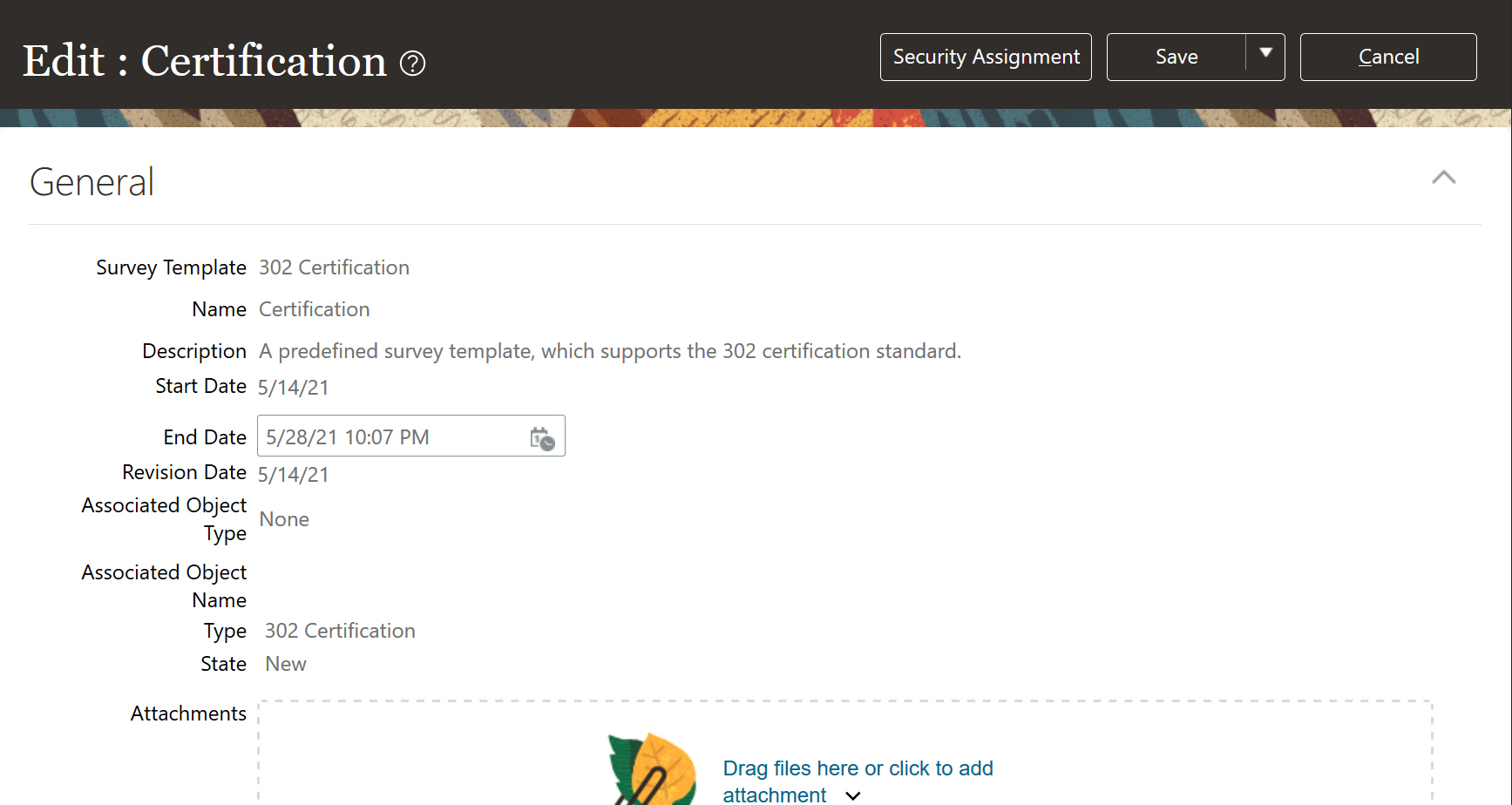
You can now initiate a standalone survey with no association to the record of a process, risk, control, or perspective. Simply select the value None in an Associated Object Type field of the page to initiate a survey. (As in past releases, you may still associate standalone surveys with object or perspective records. You would select the type of object in the Associated Object Type field, and a specific record in the Associated Object Name field.)

Example of Initiating a Survey
You can use the survey tool to gather information holistically, rather than associate survey results directly to an object. For example, you can initiate a generic risk survey to identify new potential risk within your organization.
Steps to Enable
You don't need to do anything to enable this feature.
View Approval History Panel Within the Assessment Record
Assessment actors can now view approval history within an assessment record. The Approval History panel includes comments, action taken, date, and the name of the user who submitted the action. The Approval History panel is hidden initially as the assessor completes the assessment. Once the assessor submits the assessment record, all actors can view the panel and its content.
The Approval History panel is secured by one of the following privileges:
- View Risk Assessment Approval History
- View Control Assessment Approval History
- View Process Assessment Approval History

View of the Audit History Within an Assessment Record
All assessment actors can easily view the approval history while the record is within workflow. There is no longer the need to navigate away from the workflow to view the comments provided by the assessment actors.
Steps to Enable
You don't need to do anything to enable this feature.
Tips And Considerations
If you want users to be able to view the assessment record but not the approval history, ensure they are not granted the privilege. The existing privilege is being used, which secures the action to view approval history.
When you copy an existing record that includes flexfields, all flexfield values are included in the copied version.
This enables the user to copy a complete version of the record.
Steps to Enable
You don't need to do anything to enable this feature.
Enhancements to Import Error Messages
Numerous import error messages have been implemented to further streamline the import process of legacy data, specifically to the risk models tabs. The error messages range from not mapping model relationships correctly to incorrect models definitions.
With the additional error messages you can quickly identify and resolve issues within your import template.
Steps to Enable
You don't need to do anything to enable this feature.
Select from Multiple Searches During Model Import
In the Models page under Actions > Import, you can select from various libraries of models to import. After you select a library you can search and select models you'd like to import. Often you'll want to import several models that require multiple searches. It used to be that after each search the selected models weren't remembered. Now they are.
Below, models that satisfy the Journals search criteria are returned. Note two of them have been selected.

Search for Models Related to Journals
Now execute another search that returns models related to Purchasing. Note one has been selected.

Search for Models Related to Purchasing
On the Review train-stop, note all three of the selected models are selected.

Review All Selected Models
This streamlines what was a painful process of only being able to select models that matched one search at a time. Now all desired models can be searched for and selected in one go.
Steps to Enable
You don't need to do anything to enable this feature.
Access Certifications Certifier Worksheet Contains Additional Data Access Information
The Access Certifications certifier worksheet has new attributes to display the data access associated to the user-role combination. The additional data elements are limited to those available and mapped through use of the Manage Data Access functionality. The new attributes are prefaced with "User-Role" to separate them from similar definitions at the user level. Specifically these are:
- User-Role Asset Book
- User-Role Business Unit
- User-Role Data Access Set
- User-Role Ledger
- Use-Role Ref Data Set
Also, the number of data-related attributes that can be displayed in a worksheet has been increased from 5 to 6.

Selection of New Attributes
With this additional data-related information, certifiers can more easily identify and certify only users with a specific level of data access. This is because certifiers can use each attribute separately to filter data within the worksheet.
Steps to Enable
To enable these new attributes, navigate to the Access Certifications work area, select the Additional Attributes Options tab, enable edit, and select the data attributes you want.
Tips And Considerations
You can apply these additional attributes to new certifications generated after the attributes are selected in the Additional Attributes Options tab.
Each User Who Performs a Certification for a Specific User-Role Within a Shared Worksheet Is Retained
When performing a certification, multiple users can work within a single worksheet. Each user who performs a certification for a specific user-role is now retained as the user who last updated the record. This is regardless of who submits the overall certification worksheet.
The benefit of this feature is to identify the explicit certifier who determined that a user's access either is approved or should be removed. This feature is especially helpful when users who perform the certification are also included in the certification and shouldn't certify their own access. It can now be validated that a different certifier performed the certification.
Steps to Enable
You don't need to do anything to enable this feature.
Tips And Considerations
As part of this implementation, the Last Update Date is now entered only when a decision to approve or remove is selected. If either decision has not been selected, the Last Update Date is set to no value. This impact may be experienced as part of the upgrade to 21C for all open certifications.
New Read-Audit Models in Content Library
Advanced Financial Controls has six new models that can be imported through the delivered Content Library. These models are delivered in conjunction with a new business object called Sensitive Data Access Audit. The data source is the audit of viewing sensitive data in Global Human Resources pages, such as users who read person attribute values related to National Identifier Number, Personal Home Address, Passport Number, among others.
The new models and business object also introduce a new Content Library called Advanced Sensitive Data Access Audit Controls, located under Common Setup Library for the Import action when you have access.

New Content Library
Each of these new models uses the new business object Sensitive Data Access Audit, and uses three shared user-defined objects. The following table provides the model name and user-defined business objects associated to the each model.
| Model Name | User-Defined Objects |
|---|---|
| 70001: Users Who View Sensitive Pages on the Weekend |
|
| 70002: Users Who View Sensitive Person Records on the Weekend |
|
| 70003: Users Who View Sensitive Pages Prior to Termination |
|
| 70004: Users Who View Sensitive Person Records prior to Termination |
|
| 70005: Users Who View Sensitive Pages Prior to Position Change |
|
| 70006: Users Who View Sensitive Person Records Prior to Position Change |
|
These new models for transaction analysis track who has viewed sensitive data that may appear suspicious based on auditing those user's viewing attributes on weekends or have had a recent change in employment.
Steps to Enable
These new models in Advanced Controls, and their returning any audit data on persons viewing sensitive data, depend on another feature enabled in Oracle Global Human Resources. Confirm the profile option is enabled and set to Y for Mobile-Responsive Sensitive Data View Audit Enabled (ORA_HCM_SENSITIVE_DATA_VIEW_AUDIT_ENABLED). Additional information on this feature can be found in Oracle Human Resources Cloud, What's New for 21B, feature called Sensitive Data Access Audit.
No advance setup is required for you to import models in Advanced Controls. However, a Risk Management administrator must set the Transaction and Audit Performance Configuration date options under the Advanced Controls Configurations tab under Risk Management > Setup and Administration. Two created-as-of-date options are required, one for transactions and the other for audit events. These settings improve performance by eliminating older data from data-synchronization jobs.
Finally, once you have performed the above and imported the models, you must run data synchronization, which retrieves the source data used during model analysis.
Key Resources
- Review the Advanced Controls dependency for using these new read-audit models in the Oracle Human Resources Cloud, What's New for 21B, feature called Sensitive Data Access Audit. The auditing of sensitive information read by individuals must be enabled to return any data records.
Changes Are Made to Business Objects
This release includes additions, changes, and removal of attributes and business objects.
NEW BUSINESS OBJECTS
Two new business objects are introduced:
- Audit Policies for Application Configurations
- Sensitive Data Access Audit
The latter is used to support six new models delivered in the content library.
NEW BUSINESS OBJECT ATTRIBUTES
The Audit - Journal Category Setup business object was updated to add the following attributes:
- Exclude from Manual Journal Entry Old
- Exclude from Manual Journal Entry New
ATTRIBUTE NAME CHANGES
Business objects have attributes that correspond to various business areas such as Expenses, Procurement, Payables, and so on. In an effort to align the attribute labels shown in the Advanced Financial Controls business objects to labels defined in the corresponding application pages, several are updated.
| Business Object |
Old Attribute Name |
New Attribute Name |
|---|---|---|
| Audit - Supplier |
GlobalAttributeCategory Old |
Global Attribute Category Old |
| Audit - Supplier |
GlobalAttributeCategory New |
Global Attribute Category New |
| Audit - Supplier Sites |
GlobalAttributeCategory Old |
Global Attribute Category Old |
| Audit - Supplier Sites |
GlobalAttributeCategory New |
Global Attribute Category New |
| Audit - Supplier Sites |
ModeOfTransport Old |
Mode of Transport Old |
| Audit - Supplier Sites |
ModeOfTransport New |
Mode of Transport New |
| Audit - Supplier Sites |
ServiceLevel Old |
Service Level Old |
| Audit - Supplier Sites |
ServiceLevel New |
Service Level New |
| Audit - Supplier Sites |
AttributeCategory Old |
Attribute Category Old |
| Audit - Supplier Sites |
AttributeCategory New |
Attribute Category New |
| Audit - Supplier Sites |
InvoiceChannel Old |
Invoice Channel Old |
| Audit - Supplier Sites |
InvoiceChannel New |
Invoice Channel New |
ATTRIBUTE VALUES RESIZED
Prior to 21C, a few attributes had truncated values, and the size of the field needed to be increased. These attributes included:
- Corporate Card: Number in Payables Procurement Card business object
- Number in Payment Card business object
- Number in Payables Procurement Card business object
Any existing control incidents using these attributes will not impact the state or status of your incidents.
ATTRIBUTES REMOVED
The following attributes are no longer available in the Audit - Element Entry Value business object, and have been removed:
- Effective End Date
- Effective Start Date
BUSINESS OBJECTS REMOVED
Three audit business objects were removed because they no longer align to Manage Audit Policies data source, previously configured under the Tax product:
- Audit - PartyTaxProfileVO
- Audit - TaxReportingCodeAssociationVO
- Audit - TaxRegistrationVO
The new business objects support new delivered content for Advanced Controls. Updates to business objects support additional attribute criteria for your controls, and those updated for audit maintain alignment to Manage Audit Policies data source.
Steps to Enable
You don't need to do anything to enable this feature.
Tips And Considerations
For renamed and resized attributes and business objects, you don't need to do anything to models or controls that reference these names. Just be aware they have changed.
Data Available for Secured Audit Business Objects
Previously, secured audit business objects became available but the required security to bring over the data from Manage Audit Policies was missing. When you have enabled audit policies related to the following business objects, the necessary security is now part of the Transaction Data Source Synchronization job and will return data records when available. Some of these secured business objects include:
- Audit - Customer Billing Account Profile
- Audit - Customer Billing Account Profile Amount
- Audit - Customer Account
- Audit - Customer Site Profile Amount
- Audit - Customer Account Site
- Audit - Customer Site Location Details
- Audit - Customer Account Site Use
- Audit - Customer Site Profile
- Audit - Customer Billing Account
- Audit - Customer Item Attachments
- Audit - Customer Item Relationship
- Audit - Customer Items
- Audit - Fixed Asset Category
- Audit - Fixed Asset Depreciation Method
- Audit - Contract
- Audit - Contract Line
- Audit - General Payables Options
- Audit - Person
Updated security to the data synchronization job returns available data for secured audit business objects to support models and controls that use them.
Steps to Enable
In order to initiate the security associated to the Transaction Data Source Synchronization job, a few one-time steps are required.
- Create a model that uses a non-secured audit business object that you have not used. It does not need to be enabled in Manage Audit Policies. For example, pick one of the following non-secured objects: Audit - Standard Lookup Type or Audit - Standard Lookup Values. (If you have already used these two objects in a model, select one from from the Oracle Middleware Extensions for Applications product.)
- On the model page, run the Synchronize Business Objects job. (It is not necessary to run the model, or that it returns any results.)
- When this job has reaches completion, run the Transaction Data Source Synchronization job from the Advanced Controls Configurations page.
Once you complete these steps, the data security required has been invoked going forward for the data synchronization job. After testing one of the above secured audit business objects in a model that returns data, you can delete the model created in Step 1.
IMPORTANT: The above steps are required one-time to invoke the security, and are necessary for both existing and new customers wanting to use secured audit business objects.
Improved Error Messaging When Environment Resource Capacity Is Reached
A new message appears when the Risk Management application reaches capacity due to transaction synchronization, the generation of Advanced Control incident results, or those tasks in combination. The new message includes options to resolve the issue.
This feature will be very useful to customers with larger sets of data who could run into capacity issues either due to the volume of data to be synchronized or the volume of incidents generated from the deployed advanced controls.
Steps to Enable
You don't need to do anything to enable this feature.
Tips And Considerations
This message provides users with options to potentially reduce the amount of data to fit within available capacity.
Use "Related to" Condition Between Unrelated Business Objects
The "Related to" condition in the past has been used to associate a user-defined business object to another business object. Now you can use the "Related to" condition with a delivered business object that has no other relationship (stand-alone), and associate it to another other object.
First, you must confirm that at least one of the seeded business objects you are using has no relationship to any other. You can verify this from the Business Object Visualization tool. In the following example, you can see Legal Entity is a stand-alone object.
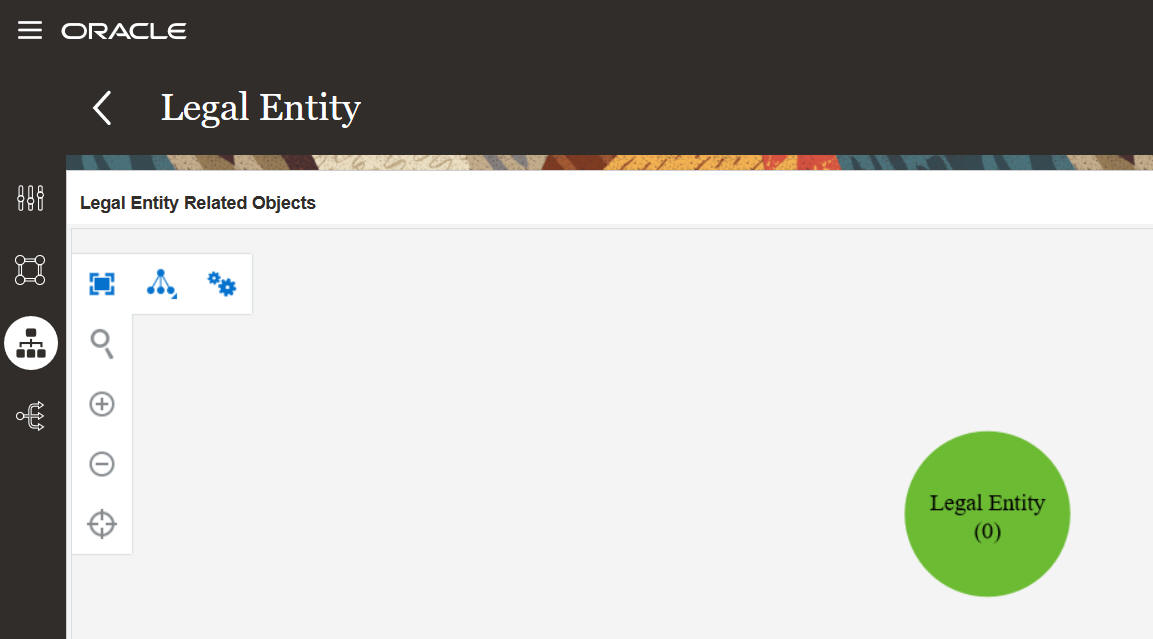
Business Object Visualization Example
Next, you can add the stand-alone business object to a model and associate it to another using the "Related to" condition. As is the case when you use a user-defined object, you must select the stand-alone object first in the filter.

Filter Using "Related to" Condition
In previous releases, the unrelated business object had to be defined as a user-defined object.
Expanding the use of the "Related to" condition for stand-alone business objects can minimize the need to maintain user-defined objects for a controls.
Steps to Enable
You don't need to do anything to enable this feature.
Tips And Considerations
As is the case with user-defined business objects, using the "Related to" condition forces a relationship between two business objects. As you use it, carefully consider the characteristics of the objects you join, such as whether the attribute is key between the objects or allows blank values. For example, relating one object's attribute to another that allows blanks will cause false negative by ignoring rows. Or if both attributes allow blanks it could generate numerous false positive data rows. Follow similar best practice guidelines for the "Related to" condition between business objects.
Key Resources
- For more information about user-defined objects, see the "User-Defined Object Best Practices" topic in the Using Advanced Controls guide.
Select from Multiple Searches During Model Import
In the Models page under Actions > Import you can select from various libraries of models to import. After you select a library you can search and select models you'd like to import. Often you'll want to import several models that require multiple searches. It used to be that after each search the selected models weren't remembered. Now they are.
Below, models that satisfy the Journals search criteria are returned. Note one has been selected.

Search for Models Related to Journals
Now execute another search that returns models related to Purchasing. Note one has been selected.

Search for Models Related to Purchasing
On the Review train-stop, note both of the selected models are selected.

Review All Selected Models
This streamlines what was a painful process of only being able to select models that matched one search at a time. Now all desired models can be searched for and selected in one go.
Steps to Enable
You don't need to do anything to enable this feature.
Transactional Business Intelligence for Risk Management
Perspective Values Are Delimited in the Related Records Dashboard
The Related Records dashboard lists processes, risks, or controls, and for each it lists related controls. Previously, perspectives assigned to the related controls were listed in the Control Perspective Value column as a continuous string, without any delimiter between the perspective values. Now a comma separates each value.

Related Records Report
With the values separated, it's much easier to identify the control perspective values.
Steps to Enable
You don't need to do anything to enable this feature.
Reports Now Cover User Assignment Security for Assessments
To secure Risk Management assessment batches, you authorize users as owners, editors, or viewers, or you assign user groups that grant these authorizations. To secure assessment records within a batch, you assign assessors, reviewers, approvers, and viewers to each. You can now report on the users and groups selected for assessment batches and records, and their levels of authorization. Reports also display whether each user is eligible, meaning that the user also has the functional access.

Example of Security Dimensions in the Risk Management Cloud - Assessment Results Real Time Subject Area
The addition of these new dimensions in OTBI allows reporting on assessment security assignment groups and their members, in addition to reporting on the assigned user authorizations for assessment batches and the associated assessment records for a given batch.
Steps to Enable
You don't need to do anything to enable this feature.
The Risk Management Cloud - Compliance Real Time subject area has been enhanced to purposely organize the risk analysis and evaluation values within the Risk dimension. The Risk dimension has been enhanced to include four dimensions: Facts-Risks, Risk Analysis, Risk Evaluation, and Treatment Plans. Each dimension includes the values that are applicable to those Financial Reporting Compliance features. In addition, new values have been added to the Risk Analysis and Risk Evaluation dimensions.

The Risk Management Cloud - Compliance Real Time Risk Subject Area
The Risk Analysis dimension includes the corresponding values to analysis records.
The following labels have been included:
- Created By
- Last Approved By
- Likelihood Model Name

The Risk Analysis Dimension within Risk Management Cloud - Compliance Real Time
The Risk Evaluation dimension includes the corresponding values to evaluation records.
The new labels have been included:
- Analysis Type
- Risk Criteria Name
- Risk Criteria Rating
- Risk Criteria Value
- Last Approved By

The Risk Evaluation Dimension within Risk Management Cloud - Compliance Real Time
The Treatment Plans dimension includes the corresponding values to the defined treatment plan to mitigate the risk.
The following labels have been included:
- Inuse Treatment Cost
- Residual Likelihood
- Target Likelihood
- Treatment Details Description
- Treatment Details Name
- Treatment Details Type
- Treatment Plan Description
- Treatment Plan Name
- Usage

The Treatment Plans Dimension within Risk Management Cloud - Compliance Real Time
The data available for risk analyses, evaluations, and treatment plans within the Risk dimension is organized to streamline their relevant values.
Steps to Enable
You don't need to do anything to enable this feature.
Tips And Considerations
In the event you have exciting reports leveraging the Risks dimension, you will need to update those reports to account for the changes.
Ability to Report on Incident Information Codes
A new attribute, Incident Information Codes, uses role and privilege codes to report the path to an access point involved in a control or model violation. A previously existing attribute, Incident Information, continues to use role and privilege display names to report the same path. Role and privilege codes are unique; role and privilege names may not be. These attributes are available in the Incident Result Details dimension of the Risk Management Cloud - Advanced Access Controls Real Time subject area, and in the Result Details dimension of the Risk Management Cloud - Advanced Access Models Real Time subject area.

Incident Information Codes
Having these role and privilege codes handy may make for more precise investigation.
Steps to Enable
You don't need to do anything to enable this feature.
Added Global User ID Attribute to Advanced Access Controls Subject Area
In the Risk Management Cloud - Advanced Access Controls Real Time subject area, in the Incident Result Details dimension there is a new Global User ID attribute.

Global User ID
With this attribute, you'll be able to utilize the Results by Control, User, and Role deep drill.
Steps to Enable
You don't need to do anything to enable this feature.
State and Status Code Attributes Are Added to Advanced Access Controls Subject Area
In the Risk Management Cloud - Advanced Access Controls Real Time subject area, the Incident Result Details dimension contains State and Status attributes. The State value was actually a state code, so that attribute has been renamed to State Code. A new attribute called State with business-friendly values is now available. Also a new attribute called Status Code is available that has the corresponding status code. These code attribute values can be used in the updated results deep links to override the default saved search for pending results.

State and Status Code Attributes
End users will certainly appreciate a more business-friendly value for state in reports, and when defining deep drills that pass state and status, there's less work involved since no functions need to be applied to convert the data to the format needed by the parameters.
Steps to Enable
You don't need to do anything to enable this feature.
Deep Drill to Results by Control, User, and Role
The Risk Management Cloud - Advanced Access Controls Real Time Subject area offers deep link URLs to the Results by Control and User page as well as to the Results by Control, User, and Role page. These deep links allow you to view specific results by passing parameters.
For example, this URL navigates to the Results by Control and User page, filtered by the control and user.

Results by Control and User
- https://<server_url>/fscmUI/faces/deeplink?objType=@{1}&action=@{2}&objKey=controlId=@{3};GlobalUser=@{4};Navigation=deepLink

Action Link for Results by Control and User
To drill to the Results by Control, User, and Role page, filtered by the control, user, and role, create an action link that passes all three values, as in the example below.
- https://<server_url>/fscmUI/faces/deeplink?objType=@{1}&action=@{2}&objKey=ControlId=@{3};GlobalUserId=@{4};Role=@{5};Navigation=deepLink

Action Link for Results by Control, User and Role
Below is an example OTBI report with deep drill links to the Results by Control, User, and Role page.

Example Analysis

Results by Control, User, and Role
The primary benefit of drilling directly to these pages from an OTBI analysis is so that results for a control, user, and even role combination can be mass edited. For example, while viewing data in OTBI, a decision to remediate all the results for a user and role combination where a specific control has violations becomes a quick process because the user can simply drill to the results and mass edit with a couple of clicks.
Steps to Enable
You don't need to do anything to enable this feature.
Tips And Considerations
There are a couple nuances to consider:
- The deep link for Results by Control and User expects Global User Name to be passed (not the Global User ID). This is because the page where you land expects global user name as the search parameter. The search criteria in this page is treated as "contains," so any global user that contains the global user name passed will be returned.
- The deep link for Results by Control, User, and Role expects Global User ID to be passed (not the Global User Name). This is because the page where you land will only show one user at a time, and so it must be unique. You'll notice however this link expects Role Name to be passed (not the Role ID). This is because the page where you land expects role name as the search parameter. The search criteria in this page is treated as "contains," so any role name that contains the role name passed will be returned.
Key Resources
- Refer to Link Analyses to Application Pages and topics that follow it for detailed examples on creating deep drills.
Pass State and Status to Override Default Search
The Risk Management Cloud - Advanced Access Controls Real Time subject area offers several deep link URLs to the Results page. These deep links allow you to view specific results by passing parameters that filter on control, user, entitlement and role. Two new parameters can now be passed for state and status code. An example URL looks like this:
-
https://<server_url>/fscmUI/faces/deeplink?objType=@{1}&action=@{2}&objKey=controlId=@{3};Navigation=deepLink;statusCode=@{4};stateCode=@{5}

Deep Drill Action Link Parameters
Use this or one of the other Result deep link URLs to drill from a report to the Results page. In the example below, state and status codes are shown in the filters section and results are filtered accordingly.

Pass State and Status
The Risk Management Cloud - Advanced Financial Controls Real Time subject area offers one deep link URL (View Results for a Control) to the Results page. This deep link allows you to view specific results by passing a parameter that filters on control. The same two new parameters can now be passed for state and status. State Code and Status Code attributes have not been added to the Risk Management Cloud - Advanced Financial Control Real Time subject area, and so in order to implement the action link for Risk Management Cloud - Advanced Financial Controls Real Time, be sure to apply an uppercase function to the status attribute (see tips and considerations section in this document). Below is an example of the action link:
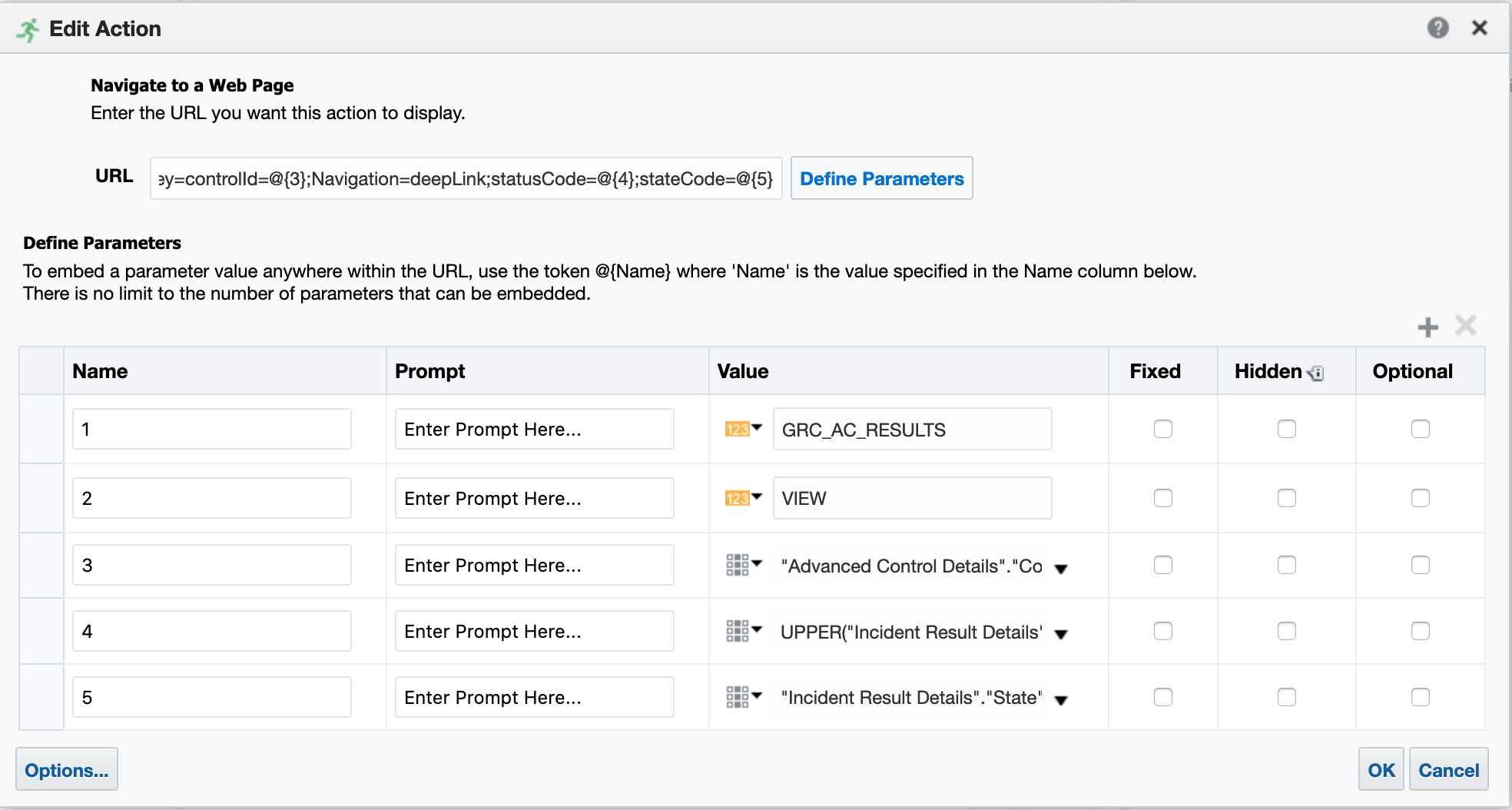
Advanced Financial Controls Action Link
Deep link URLs that can now pass statusCode and stateCode are listed below. Only the first row is applicable for Advanced Financial Controls.
| Object Type | Deep-link URL |
|---|---|
| View Results for a Control |
https://<server_url>/fscmUI/faces/deeplink?objType=@{1}&action=@{2}&objKey=controlId=@{3};Navigation=deepLink;statusCode=@{4};stateCode=@{5} |
| View Results for a Control and User |
https://<server_url>/fscmUI/faces/deeplink?objType=@{1}&action=@{2}&objKey=controlId=@{3};Navigation=deepLink;GlobalUser=@{4};statusCode=@{5};stateCode=@{6} |
| View Results for a Control and Entitlement |
https://<server_url>/fscmUI/faces/deeplink?objType=@{1}&action=@{2}&objKey=controlId=@{3};Navigation=deepLink;Entitlement=@{4};statusCode=@{5};stateCode=@{6} |
| View Results for a Control and a Role |
https://<server_url>/fscmUI/faces/deeplink?objType=@{1}&action=@{2}&objKey=controlId=@{3};Navigation=deepLink;Role=@{4};statusCode=@{5};stateCode=@{6} |
| View Results for a Control and User and Role and Entitlement |
https://<server_url>/fscmUI/faces/deeplink?objType=@{1}&action=@{2}&objKey=controlId=@{3};Navigation=deepLink;GlobalUser=@{4};Entitlement=@{5};Role=@{6};statusCode=@{7};stateCode=@{8} |
Now you can drill from OTBI to results that aren't in a pending state. For example, you can drill to results that have been accepted and quickly change the status to remediate or assigned. Previous to this enhancement, you could view only pending results as you drilled from OTBI, and then had to manually change the filter criteria to view the other statuses (such as accepted or closed). This saves time and manual steps.
Steps to Enable
You don't need to do anything to enable this feature.
Tips And Considerations
Some things to consider:
- If state is not passed, the default state will remain. This could lead to an invalid combination and would return no results (e.g., statusCode = CLOSED, stateCode = IN_INVESTIGATION would return no results). If you plan on passing status, your best bet is to pass state also.
- It's not possible to override a user-defined saved search. If a user-defined saved search is the default, the parameters passed in the deep link don't work.
- State and status values you pass must be the codes, not the display values. Be sure to use the new attributes, Status Code and State Code, when you use the Advanced Access Controls subject area, and be sure to apply an uppercase function to status when you use the Advanced Financial Controls subject area. Below is an example of applying that function.

Uppercase Function
IMPORTANT Actions and Considerations
FINANCIAL REPORTING COMPLIANCE
New Security Inheritance
The existing predefined Survey Results Viewer Duty was updated to include an additional privilege to allow view access to responses. If you've customized the duty roles, and would like to include the access, you must add the new privilege to them. Predefined duty roles are updated automatically.
| Job Role | Duty Role Updated | Privilege Added |
|---|---|---|
| Risk Activities Manager |
Survey Results Viewer Duty ORA_GTG_SURVEY_RESULTS_VIEWER_DUTY |
View Survey Responses GTG_VIEW_SURVEY_RESPONSES |
Obsolete Security Artifacts
Maintenance was performed on security to remove privileges that are no longer used. Several of these artifacts are related to workflow that no longer exists. There is no replacement.
| Privilege Name | Privilege Technical Name |
|---|---|
| Approve Consequence Changes |
GTG_APPROVE_CONSEQUENCE_CHANGES |
| Approve Event Changes |
GTG_APPROVE_EVENT_CHANGES |
| Create Impromptu Control Assessment and Assign Users |
GTG_IMPROMPTU_CONTROL_ASSESSMENT_AND_ASSIGN_USERS |
| Create Impromptu Process Assessment and Assign Users |
GTG_IMPROMPTU_PROCESS_ASSESSMENT_AND_ASSIGN_USERS |
| Create Impromptu Risk Assessment and Assign Users |
GTG_IMPROMPTU_RISK_ASSESSMENT_AND_ASSIGN_USERS |
| Review Consequence Changes |
GTG_REVIEW_CONSEQUENCE_CHANGES |
| Review Event Changes |
GTG_REVIEW_EVENT_CHANGES |
| View Consequence Approval History |
GTG_VIEW_CONSEQUENCE_APPROVAL_HISTORY |
| View Event Approval History |
GTG_VIEW_EVENT_APPROVAL_HISTORY |
Treatment Plans
In future releases, each treatment plan will support only a single treatment, rather than multiple treatments per plan. You may continue to have multiple treatment plans to manage a specific risk record.

Treatment Plans