
- Revision History
- Overview
- Pre-Update and Post-Update Tasks
- Optional Uptake of New Features (Opt In)
- Feature Summary
- Sales and Operations Planning
-
- Sales and Operations Planning
-
- Search for Measure-Based Exceptions Using Additional Criteria
- Hover on a Value in a Pivot Table to Display Measure Description
- Use Supplier Sites Codes That Are Up to 240 Characters
- Receive Detailed Responses When You Call the Planning Table Data REST Service
- Improve Performance When Refreshing Measure Data Collected at an Aggregate Level
-
- Sales and Operations Planning
This document will continue to evolve as existing sections change and new information is added. All updates appear in the following table:
| Date | Module | Feature | Notes |
|---|---|---|---|
| 28 FEB 2023 | Sales and Operations Planning | Improve Performance When Refreshing Measure Data Collected at an Aggregate Level | Updated document. Added feature. |
| 02 DEC 2022 | Created initial document. |
 HAVE AN IDEA?
We’re here and we’re listening. If you have a suggestion on how to make our cloud services even better then go ahead and tell us. There are several ways to submit your ideas, for example, through the Ideas Lab on Oracle Customer Connect. Wherever you see this icon after the feature name it means we delivered one of your ideas.
GIVE US FEEDBACK
We welcome your comments and suggestions to improve the content. Please send us your feedback at oracle_fusion_applications_help_ww_grp@oracle.com.
DISCLAIMER
The information contained in this document may include statements about Oracle’s product development plans. Many factors can materially affect Oracle’s product development plans and the nature and timing of future product releases. Accordingly, this Information is provided to you solely for information only, is not a commitment to deliver any material, code, or functionality, and should not be relied upon in making purchasing decisions. The development, release, and timing of any features or functionality described remains at the sole discretion of Oracle.
This information may not be incorporated into any contractual agreement with Oracle or its subsidiaries or affiliates. Oracle specifically disclaims any liability with respect to this information. Refer to the Legal Notices and Terms of Use for further information.
Pre-Update and Post-Update Tasks
Depending on the features you're using in your Cloud applications, you may be required to perform certain steps immediately before or after your quarterly update. For details of these pre-update and post-update steps and the product areas that are affected, refer to Oracle Fusion Cloud SCM: Performing Your Quarterly Update (doc ID 2337485.1) on My Oracle Support.
Optional Uptake of New Features (Opt In)
Oracle Cloud Applications delivers new updates every quarter. This means every three months you'll receive new functionality to help you efficiently and effectively manage your business. Some features are delivered Enabled meaning they are immediately available to end users. Other features are delivered Disabled meaning you have to take action to make available. Features delivered Disabled can be activated for end users by stepping through the following instructions using the following privileges:
- Review Applications Offering (ASM_REVIEW_APPLICATIONS_OFFERINGS_PRIV)
- Configure Oracle Fusion Applications Offering (ASM_CONFIGURE_OFFERING_PRIV)
Here’s how you opt in to new features:
- Click Navigator > My Enterprise > New Features.
- On the Features Overview page, select your offering to review new features specific to it. Or, you can leave the default selection All Enabled Offerings to review new features for all offerings.
- On the New Features tab, review the new features and check the opt-in status of the feature in the Enabled column. If a feature has already been enabled, you will see a check mark. Otherwise, you will see an icon to enable the feature.
- Click the icon in the Enabled column and complete the steps to enable the feature.
In some cases, you might want to opt in to a feature that's not listed in the New Features work area. Here's how to opt in:
- Click Navigator > My Enterprise > Offerings.
- On the Offerings page, select your offering, and then click Opt In Features.
- On the Opt In page, click the Edit Features (pencil) icon for the offering, or for the functional area that includes your feature.
- On the Edit Features page, complete the steps to enable the feature.
For more information and detailed instructions on opting in to new features for your offering, see Offering Configuration.
Opt In Expiration
Occasionally, features delivered Disabled via Opt In may be enabled automatically in a future update. This is known as an Opt In Expiration. If your cloud service has any Opt In Expirations you will see a related tab in this document. Click on that tab to see when the feature was originally delivered Disabled, and when the Opt In will expire, potentially automatically enabling the feature. You can also click here to see features with Opt In Expirations across all Oracle Cloud Applications.
Column Definitions:
Report = New or modified, Oracle-delivered, ready to run reports.
UI or Process-Based: Small Scale = These UI or process-based features are typically comprised of minor field, validation, or program changes. Therefore, the potential impact to users is minimal.
UI or Process-Based: Larger Scale* = These UI or process-based features have more complex designs. Therefore, the potential impact to users is higher.
Features Delivered Disabled = Action is needed BEFORE these features can be used by END USERS. These features are delivered disabled and you choose if and when to enable them. For example, a) new or expanded BI subject areas need to first be incorporated into reports, b) Integration is required to utilize new web services, or c) features must be assigned to user roles before they can be accessed.
| Ready for Use by End Users Reports plus Small Scale UI or Process-Based new features will have minimal user impact after an update. Therefore, customer acceptance testing should focus on the Larger Scale UI or Process-Based* new features. |
Customer Must Take Action before Use by End Users Not disruptive as action is required to make these features ready to use. As you selectively choose to leverage, you set your test and roll out timing. |
|||||
|---|---|---|---|---|---|---|
| Feature |
Report |
UI or |
UI or |
|
||
Search for Measure-Based Exceptions Using Additional Criteria |
||||||
Hover on a Value in a Pivot Table to Display Measure Description |
||||||
Receive Detailed Responses When You Call the Planning Table Data REST Service |
||||||
Improve Performance When Refreshing Measure Data Collected at an Aggregate Level |
||||||
Search for Measure-Based Exceptions Using Additional Criteria
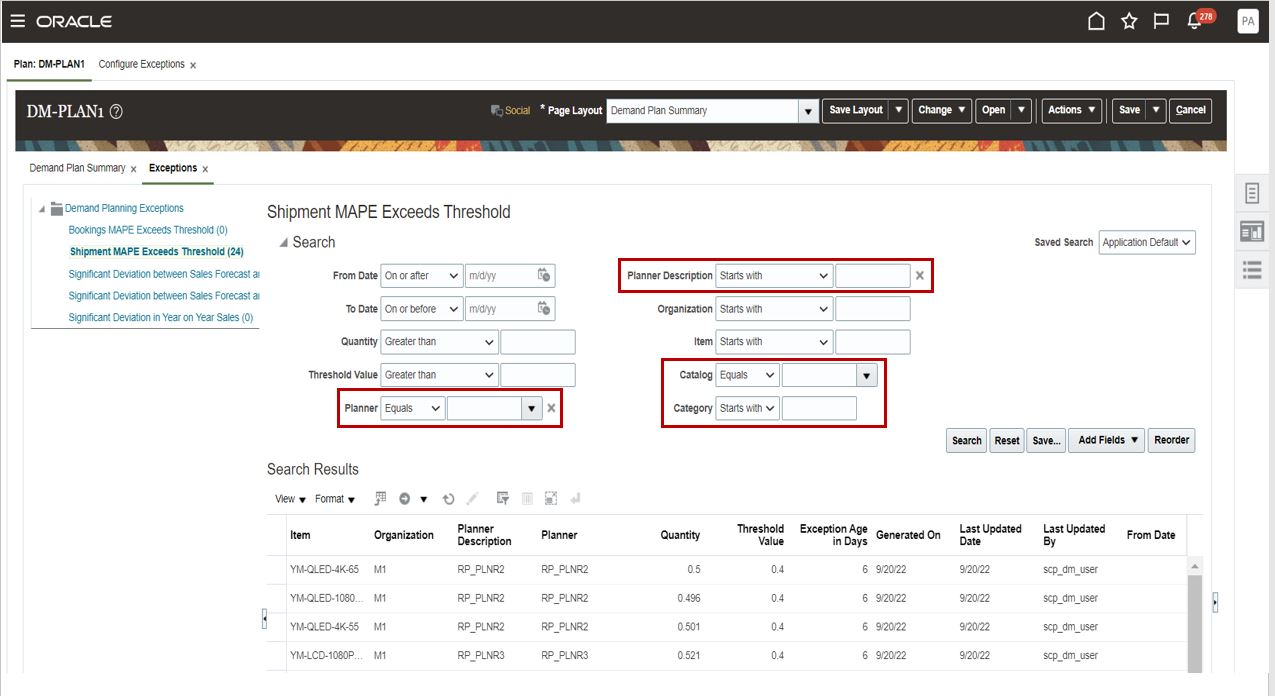
You can now search for measure-based exceptions by filtering on planners and item categories that are of interest to you. These filters are in addition to the attributes previously available for search. With these additions, you can manage the plans for your enterprise by focusing on the exceptions that matter the most to you.
For example, you can now filter measure-based exceptions using the fields highlighted in the following screenshot.
Watch a Demo.
Steps to Enable
You don't need to do anything to enable this feature.
Tips And Considerations
If a measure-based exception was created at the Category level, then the catalog selected for the Hierarchy field will be considered for that specific measure. On the Exceptions page, categories specific to that catalog will appear.
Key Resources
Role And Privileges
You have a couple options for giving people access to this feature, depending on whether you're assigning them predefined job roles or your own configured job roles.
- Users who are assigned any of these predefined job roles are automatically able to access this feature:
- Supply Chain Planner (ORA_MSC_SUPPLY_CHAIN_PLANNER_JOB)
- Demand and Supply Planner (ORA_MSC_DEMAND_AND_SUPPLY_PLANNER_JOB)
- Demand Planner (ORA_MSC_DEMAND_PLANNER_JOB)
- Replenishment Planner (ORA_MSC_REPLENISHMENT_PLANNER_JOB)
- Sales and Operations Planner (ORA_MSC_SALES_AND_OPERATIONS_PLANNER_JOB)
- Materials Planner (ORA_MSC_MATERIALS_PLANNER_JOB) role is common for all the above work area
-
There's no change to existing privileges needed to take advantage of this feature. If a user has access to the Exceptions tab, then the user will see the new fields for filtering.
Hover on a Value in a Pivot Table to Display Measure Description
With this update, your planner productivity is enhanced by the ability to display measure descriptions in planning tables with no clicks. When the intent of a particular measure isn’t clear to you, you can hover over the measure to see the associated description for the measure.
Example of the description for the Net Forecast measure appearing as a result of hovering over the measure in the Material Plan table.
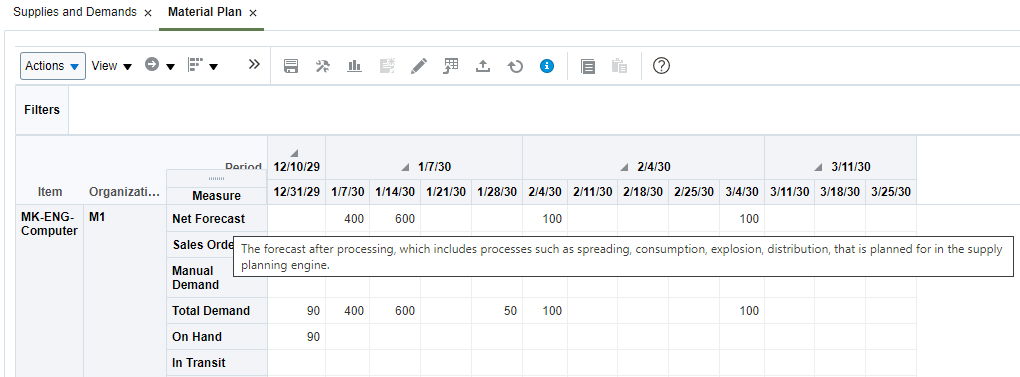
This feature is available for any predefined or user-defined pivot table that is configured using the selector tool. This feature is also available in the Build Plan.
Steps to Enable
You don't need to do anything to enable this feature.
Role And Privileges
You have a couple options for giving people access to this feature, depending on whether you're assigning them predefined job roles or your own configured job roles.
- Users who are assigned any of these predefined job roles are automatically able to access this feature:
- Supply Chain Planner (ORA_MSC_SUPPLY_CHAIN_PLANNER_JOB)
- Materials Planner (ORA_MSC_MATERIALS_PLANNER_JOB)
- Demand Planner (ORA_MSC_DEMAND_PLANNER_JOB)
- Replenishment Planner (ORA_MSC_REPLENISHMENT_PLANNER_JOB)
- Sales and Operations Planner (ORA_MSC_SALES_AND_OPERATIONS_PLANNER_JOB)
- Users will need one of the following privileges in planning to access this feature:
- View Planning Tables (MSC_VIEW_PLANNING_TABLES_PRIV)
- Maintain Planning Tables (MSC_MAINTAIN_PLANNING_TABLES_PRIV)
Use Supplier Sites Codes That Are Up to 240 Characters
Supplier site codes are typically a short alphanumeric character set. However, in some business situations, it may be useful to have a longer site code to improve readability. In this update, the maximum length of the supplier site code has been increased to 240 characters in conjunction with the same capability in Oracle Fusion Cloud Procurement. This change is applicable for both Oracle Fusion source systems and external source systems for which you can collect supplier site codes up to the new maximum using the Oracle file-based data import (FBDI) template for Supply Chain Planning Suppliers (ScpSupplierImportTemplate.xlsm.)
Here's an example of the Supply Network Model page showing supplier sites for Big Computers. Two of the sites have a supplier site code longer than 30 characters, which was the maximum supported by planning in previous updates.
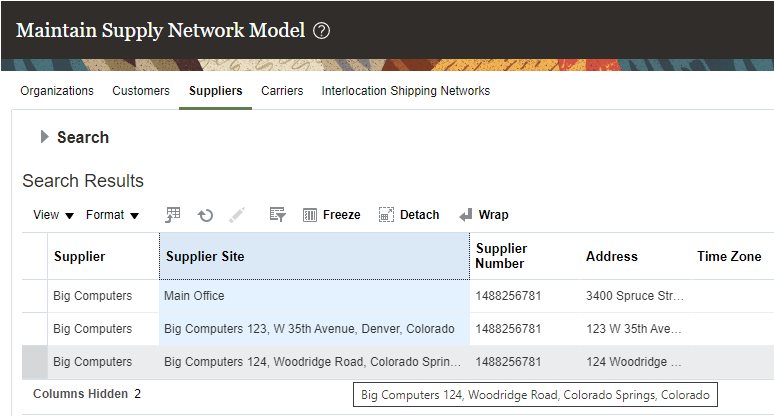
Depending on the width of the column, the data may be truncated, in which case the ellipses are displayed. If you hover over the field, the full supplier site code is displayed in the hover text.
Steps to Enable
You don't need to do anything to enable this feature.
Tips And Considerations
-
Whether a longer supplier site code can be entered in Oracle Fusion Cloud Procurement is controlled through an opt in feature named Create Supplier Sites with Longer Names.
-
Planning collects the full supplier site codes (up to 240 characters) that have been saved to the Oracle Fusion database regardless of whether the opt-in feature noted in the preceding bullet is enabled or not.
Role And Privileges
You have a couple options for giving people access to this feature, depending on whether you're assigning them predefined job roles or your own configured job roles.
- Users who are assigned any of these predefined job roles are automatically able to access this feature:
- Supply Chain Planner (ORA_MSC_SUPPLY_CHAIN_PLANNER_JOB)
- Materials Planner (ORA_MSC_MATERIALS_PLANNER_JOB)
- Demand Planner (ORA_MSC_DEMAND_PLANNER_JOB)
- Replenishment Planner (ORA_MSC_REPLENISHMENT_PLANNER_JOB)
- Sales and Operations Planner (ORA_MSC_SALES_AND_OPERATIONS_PLANNER_JOB)
- Backlog Manager (ORA_MSC_BACKLOG_MANAGER_JOB)
- Order Promising Manager (ORA_MSC_ORDER_PROMISING_MANAGER_JOB)
- There's no change to existing privileges needed to take advantage of this feature. If a user has access to a page that displays supplier site code, then the user will see the longer value for a supplier site code after it's collected into planning.
Receive Detailed Responses When You Call the Planning Table Data REST Service
When you’re using the Planning Table Data REST service for large volumes of data, it’s likely that some of the rows of data being uploaded have errors. Typically, these errors require some human intervention to analyze the cause of the errors and then upload the corrected data. This update enables faster analysis by pinpointing the data rows that have errors and the cause for the errors.
Here's an example of the detailed responses received after the POST operation performed by the Planning Table Data REST Service.
In this example of the POST operation, one of the highlighted member combinations, abcd-KB-CSP-COND-VALVE, in the payload isn't valid. After the POST operation is completed, planning returns a message that provides information on the invalid combination that couldn't be found in the planning table data and informs the user to investigate further by reviewing the application log
Example of POST payload:
{
"TableHierarchies": "Product,Enterprise,APS Calendar,APS Calendar",
"TableDataHeader": "Item,Organization,Period,Week,Net Forecast,Manual Demand, Planned Orders",
"TableData": "abcd-KB-CSP-COND-VALVE,M3,12/10/29,12/31/29,11,0,0,1,1,1\r\nKB-CSP-COND-VALVE,M3,01/07/30,01/07/30,2,3,4\r\n"
}
2 combination points : abcd-KB-CSP-COND-VALVE,M3,12/10/29,12/31/29,11,0,0,1,1,1\r\n KB-CSP-COND-VALVE,M3,01/07/30,01/07/30,2,3,4\r\n
Message returned by POST operation:
"Message": "The service was completed. Refer to message details for diagnostic information.
(MSC-2806429)<br> Payload Combination Points = 2, Parsed Combination Points = 1, No Value Points = 0, Same Value Points = 0, Found Points = 3.
For more details check the application log at the ServiceServer_1 service server.",
Payload Combination Points = 2 - 2 combination points in payload
Parsed Combination Points = 1 - after validation, only 1 combination point is found in table data
....
To know exactly which combination point is invalid Log should be enabled at SEVERE level and check the application log at the ServiceServer_1
Steps to Enable
Use the Opt In UI to enable this feature. For instructions, refer to the Optional Uptake of New Features section of this document.
Offering: Supply Chain Planning No Longer Optional From: Update 23C
Key Resources
- Watch Receive Detailed Responses when you Call the Planning Table Data REST Service Readiness Training
Role And Privileges
You have a couple of options for giving people access to this feature, depending on whether you're assigning them predefined job roles or your own configured job roles.
- Users who are assigned any of these predefined job roles can access this feature:
- Supply Chain Planner (ORA_MSC_SUPPLY_CHAIN_PLANNER_JOB)
- Supply Chain Planning Application Administrator (ORA_MSC_SUPPLY_CHAIN_PLANNING_APPLICATION_ADMINISTRATOR_JOB)
- Replenishment Planner (ORA_MSC_REPLENISHMENT_PLANNER_JOB)
- Materials Planner (ORA_MSC_MATERIALS_PLANNER_JOB)
- Order Promising Manager (ORA_MSC_ORDER_PROMISING_MANAGER_JOB)
- Sales & Operations Planner (ORA_MSC_SALES_AND_OPERATIONS_PLANNER_JOB)
- Demand Planner (ORA_MSC_DEMAND_PLANNER_JOB)
- Users who are assigned a configured job role that contains this privilege can access this feature:
- No new privileges are required for this feature to be used. Users who are assigned the Maintain Planning Tables privilege (MSC_MAINTAIN_PLANNING_TABLES) are automatically able to access this feature.
Improve Performance When Refreshing Measure Data Collected at an Aggregate Level
You can load data for stored measures in Oracle Fusion Cloud Supply Chain Planning at an aggregate level using the Supply Chain Planning Measures file-based data import (FBDI) template. For example, if a measure is configured with the stored dimension levels of Item, Organization, Customer Site, Demand Class, and Day, then you can load data for this measure either at these stored levels or at aggregate levels that are parents of these stored levels, such as product category, business unit, customer, demand class, and month.
Measure data that's collected at an aggregate level is disaggregated to the stored levels during the data refresh step in a plan run and when you incrementally refresh a plan after loading new measure data.
The process that disaggregates measure data is single-threaded. Consequently, long processing times can result when there's a large volume of measure data to disaggregate.
With this 23A update, you can reduce the run time by configuring disaggregation to run as a multithreaded process. In this case, the disaggregate measure process runs in parallel for different time ranges within the time range for the collected data.
When run as a multithreaded process, the disaggregate measure process groups the collected data into 90-day increments by default and processes each increment in parallel. For example, if you've collected measure data at an aggregate level for the past year (365 days), then the process runs five disaggregation jobs in parallel with four jobs each processing 90 days of data and the fifth job processing the remaining five days of data.
Steps to Enable
To enable multithreading for the process that disaggregates data for all plans in your work area, follow these steps:
- In the Demand Management, Demand and Supply Planning, Plan Inputs, Planning Central, Replenishment Planning, Sales and Operations Planning or Supply Planning work area, go to the Manage Planning Profile Options task.
- On the Manage Planning Profile Options page, search for the SCP_PARAMETER_OVERRIDES profile option code.
- If the SCP_PARAMETER_OVERRIDES profile option exists, then add a profile value as follows:
- Profile Level: Select Site to set the value globally for all users. Select User to set the value for a specific user, in which case you must then select a user. User-level values take precedence over the site-level value.
- Profile Value: Enter enableParallelDisaggMeasure=true. You can enter multiple profile values for a profile level provided you separate them with spaces.
- If the SCP_PARAMETER_OVERRIDES profile option doesn't exist, then follow these steps:
- In the Setup and Maintenance work area, search for and select the Manage Profile Options task.
- Create the profile option as follows:
- Profile Option Code: SCP_PARAMETER_OVERRIDES
- Profile Display Name: SCP_PARAMETER_OVERRIDES
- Application: Planning Common
- Module: Planning Common
- Start Date: current date
- Leave the remaining fields blank.
- Save the profile option.
- For the profile option levels, select the check boxes under the Enabled and Updatable columns for both the Site and User levels.
- Save the profile option.
- In the Demand Management, Demand and Supply Planning, Plan Inputs, Planning Central, Replenishment Planning, Sales and Operations Planning or Supply Planning work area, go to the Manage Planning Profile Options task.
- On the Manage Planning Profile Options page, search for the SCP_PARAMETER_OVERRIDES profile option code.
- Set the profile value as previously explained.
For more information, see the topics titled Set Profile Option Values and Create and Edit Profile Options.
To enable multithreading for the process that disaggregates data in a single plan that's enabled for demand forecasting, follow these steps:
- In the Demand Management, Demand and Supply Planning, Replenishment Planning, or Sales and Operations Planning work area, on the Plan Options page for the plan, click the Demand tab.
- Click the Select Advanced Options button.
- In the Demand: Advanced Options dialog box, in Forecasting Control Parameters, in the Parameter Overrides field, enter enableParallelDisaggMeasure=true. You can enter multiple values in the Parameter Overrides field provided you separate them with the number sign (#).
You can override the default of 90 days after you've enabled multithreading for the process that disaggregates data. To override the default for the multithreaded process, follow these steps:
-
In the Setup and Maintenance work area, search for and select the Manage Profile Options task.
- Create a profile option as follows:
- Profile Option Code: MSC_DISAGG_PERF_BATCH_SIZE
- Profile Display Name: MSC_DISAGG_PERF_BATCH_SIZE
- Application: Planning Common
- Module: Planning Common
- Start Date: current date
- Leave the remaining fields blank.
- Save the profile option.
- For the profile option levels, select the check boxes under the Enabled and Updatable columns for both the Site and User levels.
- Save the profile option.
- In the Demand Management, Demand and Supply Planning, Plan Inputs, Planning Central, Replenishment Planning, Sales and Operations Planning or Supply Planning work area, go to the Manage Planning Profile Options task.
- On the Manage Planning Profile Options page, search for the MSC_DISAGG_PERF_BATCH_SIZE profile option code.
- Set the profile value as follows:
- Profile Level: Select Site to set the value globally for all users. Select User to set the value for a specific user, in which case you must then select a user. User-level values take precedence over the site-level value.
- Profile Value: Enter the number of days for processing in each parallel job. You can enter multiple profile values for a profile level provided you separate them with spaces.
You may need to work with someone who has administration privileges to make these profile-related changes.
Role And Privileges
There are no new roles or security privileges needed to access this enhancement. Users who currently have access to run plans will automatically be able to use this feature.
You have a couple options for giving people access to this feature, depending on whether you're assigning them predefined job roles or your own configured job roles.
- Users who are assigned any of these predefined job roles are automatically able to access this feature:
- Demand Planner (ORA_MSC_DEMAND_PLANNER_JOB)
- Supply Chain Planner (ORA_MSC_SUPPLY_CHAIN_PLANNER_JOB)
- Supply Chain Planning Application Administrator (ORA_MSC_SUPPLY_CHAIN_PLANNING_APPLICATION_ADMINISTRATOR_JOB)
- Supply Chain Application Administrator (ORA_RCS_SUPPLY_CHAIN_APPLICATION_ADMINISTRATOR_JOB)
- Users who are assigned configured job roles that contain this privilege are able to access this feature:
- Run Plan with Snapshot (MSC_RUN_PLAN_WITH_SNAPSHOT_PRIV)