- Revision History
- Overview
- Pre-Update and Post-Update Tasks
- Optional Uptake of New Features (Opt In)
- Feature Summary
- Supply Chain Orchestration
- Supply Planning
-
- Supply Planning
-
- Import Routings Taking into Account Effectivity Start Dates
- Plan Considering Requirements for Same Component at Different Stages of Manufacturing Process
- View an Error Icon When Import from Excel Process has Errors
- Export Data in Format Specified in a Planning Table
- Release Planned Buy Orders for Execution with Status Firm
- Constraint-Based Planning
- Attribute-Based Planning and Constraint-Based Planning
-
- Backlog Management
- Production Scheduling
- Supply Planning
- IMPORTANT Actions and Considerations
Update 24A
Revision History
This document will continue to evolve as existing sections change and new information is added. All updates appear in the following table:
| Date | Module | Feature | Notes |
|---|---|---|---|
| Date | Module | Feature | Notes |
| 19 AUG 2024 | Supply Planning | Release Planned Buy Orders for Execution with Status Firm | Updated document. Corrected a privilege name in the Access Requirements section. |
| 01 DEC 2023 | Created initial document. |
Overview
 HAVE AN IDEA?
We’re here and we’re listening. If you have a suggestion on how to make our cloud services even better then go ahead and tell us. There are several ways to submit your ideas, for example, through the Ideas Lab on Oracle Customer Connect. Wherever you see this icon after the feature name it means we delivered one of your ideas.
GIVE US FEEDBACK
We welcome your comments and suggestions to improve the content. Please send us your feedback at oracle_fusion_applications_help_ww_grp@oracle.com.
DISCLAIMER
The information contained in this document may include statements about Oracle’s product development plans. Many factors can materially affect Oracle’s product development plans and the nature and timing of future product releases. Accordingly, this Information is provided to you solely for information only, is not a commitment to deliver any material, code, or functionality, and should not be relied upon in making purchasing decisions. The development, release, and timing of any features or functionality described remains at the sole discretion of Oracle.
This information may not be incorporated into any contractual agreement with Oracle or its subsidiaries or affiliates. Oracle specifically disclaims any liability with respect to this information. Refer to the Legal Notices and Terms of Use for further information.
Pre-Update and Post-Update Tasks
Depending on the features you're using in your Cloud applications, you may be required to perform certain steps immediately before or after your quarterly update. For details of these pre-update and post-update steps and the product areas that are affected, refer to Oracle Fusion Cloud SCM: Performing Your Quarterly Update (doc ID 2337485.1) on My Oracle Support.
Optional Uptake of New Features (Opt In)
Oracle Cloud Applications delivers new updates every quarter. This means every three months you'll receive new functionality to help you efficiently and effectively manage your business. Some features are delivered Enabled meaning they are immediately available to end users. Other features are delivered Disabled meaning you have to take action to make available. Features delivered Disabled can be activated for end users by stepping through the following instructions using the following privileges:
- Review Applications Offering (ASM_REVIEW_APPLICATIONS_OFFERINGS_PRIV)
- Configure Oracle Fusion Applications Offering (ASM_CONFIGURE_OFFERING_PRIV)
Here’s how you opt in to new features:
- Click Navigator > My Enterprise > New Features.
- On the Features Overview page, select your offering to review new features specific to it. Or, you can leave the default selection All Enabled Offerings to review new features for all offerings.
- On the New Features tab, review the new features and check the opt-in status of the feature in the Enabled column. If a feature has already been enabled, you will see a check mark. Otherwise, you will see an icon to enable the feature.
- Click the icon in the Enabled column and complete the steps to enable the feature.
In some cases, you might want to opt in to a feature that's not listed in the New Features work area. Here's how to opt in:
- Click Navigator > My Enterprise > Offerings.
- On the Offerings page, select your offering, and then click Opt In Features.
- On the Opt In page, click the Edit Features (pencil) icon for the offering, or for the functional area that includes your feature.
- On the Edit Features page, complete the steps to enable the feature.
For more information and detailed instructions on opting in to new features for your offering, see Configure Offerings.
Opt In Expiration
Occasionally, features delivered Disabled via Opt In may be enabled automatically in a future update. This is known as an Opt In Expiration. If your cloud service has any Opt In Expirations you will see a related tab in this document. Click on that tab to see when the feature was originally delivered Disabled, and when the Opt In will expire, potentially automatically enabling the feature. You can also click here to see features with Opt In Expirations across all Oracle Cloud Applications.
Feature Summary
Column Definitions:
Report = New or modified, Oracle-delivered, ready to run reports.
UI or Process-Based: Small Scale = These UI or process-based features are typically comprised of minor field, validation, or program changes. Therefore, the potential impact to users is minimal.
UI or Process-Based: Larger Scale* = These UI or process-based features have more complex designs. Therefore, the potential impact to users is higher.
Features Delivered Disabled = Action is needed BEFORE these features can be used by END USERS. These features are delivered disabled and you choose if and when to enable them. For example, a) new or expanded BI subject areas need to first be incorporated into reports, b) Integration is required to utilize new web services, or c) features must be assigned to user roles before they can be accessed.
| Ready for Use by End Users Reports plus Small Scale UI or Process-Based new features will have minimal user impact after an update. Therefore, customer acceptance testing should focus on the Larger Scale UI or Process-Based* new features. |
Customer Must Take Action before Use by End Users Not disruptive as action is required to make these features ready to use. As you selectively choose to leverage, you set your test and roll out timing. |
|||||
|---|---|---|---|---|---|---|
| Feature |
Report |
UI or |
UI or |
|
||
Improve Processing After Supply Chain Orchestration Updates Supply or Demand |
||||||
Add Postprocessing Days When You Modify Ship Dates in Your Back-to-Back Flows |
||||||
Plan Considering Requirements for Same Component at Different Stages of Manufacturing Process |
||||||
View an Error Icon When Import from Excel Process has Errors |
||||||
Plan Components and Resources for Nonnettable Work Orders in Constrained Supply Planning |
||||||
Supply Chain Orchestration
Improve Processing After Supply Chain Orchestration Updates Supply or Demand
Manually reduce or cancel the quantity that remains open on a transfer order or purchase order even when only part of the supply is available. Reduce the errors that might come up when you make these adjustments. Let Oracle Order Management know when Oracle Inventory Management closes a transfer order that's within the shipment tolerance but under the quantity that you requested. Use this functionality in your back-to-back flows.
Manage the response that you get from your fulfillment systems when Oracle Supply Chain Orchestration closes one transfer order but the supply order has other transfer orders that remain open. Use this functionality with your internal material transfers when you might have more than one transfer line in a single supply order.
Reduce errors and user interaction when changes are required to supply or demand.
Steps to Enable
Use the Opt In UI to enable this feature. For instructions, refer to the Optional Uptake of New Features section of this document.
Offering: Manufacturing and Supply Chain Materials Management No Longer Optional From: Update 24B
Key Resources
Access Requirements
The feature is available to any privilege that can create and submit a sales order.
Users who are assigned a configured job role that contains these privileges can access this feature:
- Initiate Order (FOM_CREATE_ORDER_PRIV)
- Submit Order (FOM_SUBMIT_ORDER_PRIV)
Users who are assigned a configured job role that contains these privileges and can create a supply order in the Supply Orchestration work area can access other parts of this feature.
- Create Supply Request (DOS_CREATE_SUPPLY_REQUEST)
- View Supply Line Details (DOS_VIEW_SUPPLY_LINE_DETAILS)
Add Postprocessing Days When You Modify Ship Dates in Your Back-to-Back Flows
Add postprocessing days to the supply's requested delivery date when you modify the sales order's scheduled ship date. Use this feature to help you reliably meet that ship date in your back-to-back flow.
Here's how it works:
- You update the sales order's scheduled ship date, then submit the sales order for scheduling and fulfillment.
- Oracle Global Order Promising calculates the scheduled ship date and updates the sales order. Promising adds the postprocessing days to the scheduled ship date because the shipping warehouse will need them when the item arrives at the warehouse.
- Oracle Order Management sends the update on the requested delivery date to Oracle Supply Chain Orchestration. The requested delivery date includes the postprocessing days.
- Promising subtracts the postprocessing days from the scheduled ship date to calculate the recommended requested delivery date that it sends to Supply Chain Orchestration so Supply Chain Orchestration can make the supply available in the warehouse. The warehouse manager can then do the postprocessing activities before shipping the item to the customer. For example, if the scheduled ship date is November 30, and if the postprocessing days is 5, then Promising will recommend November 25 as the requested delivery date.
- Supply Chain Orchestration picks the requested delivery date from Global Order Promising's recommendation, then sends an update to your downstream application, such as Oracle Manufacturing.
Steps to Enable
Use the Opt In UI to enable this feature. For instructions, refer to the Optional Uptake of New Features section of this document.
Offering: Manufacturing and Supply Chain Materials Management No Longer Optional From: Update 24C
Key Resources
Access Requirements
Users who are assigned a configured job role that contains these privileges can access this feature:
- Process Supply Order Interface (DOS_PROCESS_SUPPLY_ORDER_INTERFACE_PRIV)
- View Supply Orders (DOS_VIEW_SUPPLY_ORDERS_PRIV)
- Manage Supply Request Exceptions (DOS_MANAGE_SUPPLY_REQUEST_EXCEPTIONS_PRIV)
- View Supply Order Exceptions and Status (DOS_VIEW_SUPPLY_ORDER_EXCEPTIONS_AND_STATUS_PRIV)
These privileges were available prior to this update.
Supply Planning
Supply Planning
Import Routings Taking into Account Effectivity Start Dates
You may have routings with future effective start dates defined in your external manufacturing system of record. With this update, a new Effective Date attribute is added to the import template for Routings, ScpRoutingsImportTemplate, so that you can use the file-based data import process to upload routings with future effective start dates. Both unconstrained and constrained supply plans will honor the effective start dates. This capability enables you to flexibly define manufacturing processes in your systems as they evolve over time and have this evolution be part of the planning calculations.
Example of how you can define an effective start date for a routing in the ScpRoutingsImport file-based data import (FBDI) template:

Steps to Enable
You don't need to do anything to enable this feature.
Tips And Considerations
- Effective start date for a routing can be in the past, the system date, or a future date
- Operation effective start dates can be either equal to or greater than the start date of the routing
- Effective start date is supported for both discrete and process work definition methods from an external source system
- Effective start date for routing can be collected in targeted and incremental or net change collection types
Access Requirements
Users who are assigned a configured job role that contains these privilege can access this feature:
- Monitor Supply Planning Work Area (MSC_MONITOR_SUPPLY_PLANNING_WORK_AREA_PRIV)
- Monitor Demand and Supply Planning Work Area (MSC_MONITOR_DEMAND_AND_SUPPLY_PLANNING_WORK_AREA_PRIV)\
- Manage Sales and Operations Planning (MSC_MONITOR_SALES_AND_OPERATIONS_PLANNING_WORK_AREA_PRIV)
- Monitor Backlog Management Work Area (MSC_MONITOR_BACKLOG_MANAGEMENT_WORK_AREA_PRIV)
- Monitor Order Promising Work Area (MSC_MONITOR_ORDER_PROMISING_WORK_AREA_PRIV)
These privileges were available prior to this update.
Plan Considering Requirements for Same Component at Different Stages of Manufacturing Process
In Oracle Fusion Cloud Supply Chain Management, you can now enter a new Find Number attribute that models situations where the same component is used multiple times in the manufacturing process. With this update, Oracle Supply Planning honors the work definition that has the usage of the same component specified at different stages, including different substitution rules. You can now flexibly model and plan for complexities in your manufacturing process.
This feature is supported for plans in the constrained and unconstrained modes in these work areas:
- Supply Planning
- Demand and Supply Planning
This feature supports only the Fusion source.
Steps to Enable
You don't need to do anything to enable this feature.
Tips And Considerations
- This functionality isn't supported for work orders. As a result, the duplicate components are aggregated in a work order for the same operation.
- The Find Number attribute is defaulted to 1 in all existing Item structures.
- In Oracle Manufacturing, the Find Number attribute is editable in the item structure before it's saved. You can't edit the find number after it's saved.
- Similarly, the find number also isn't editable in Oracle Supply Planning.
- The same component with different find numbers can have different substitute components.
- If there's no work definition, the Operation Sequence Number attribute will be set to 1 during the collections process. Then it will be displayed as blank in the UI.
Access Requirements
Users who are assigned a configured job role that contains these privileges can access this feature:
- Supply Chain Planner (ORA_MSC_SUPPLY_CHAIN_PLANNER_JOB)
- Materials Planner (ORA_MSC_MATERIALS_PLANNER_JOB)
These privileges were available prior to this update.
View an Error Icon When Import from Excel Process has Errors
The ability to import data from Microsoft Excel is a popular productivity enhancing mechanism in Oracle Fusion Cloud Supply Chain Planning. With this update, error icons alert you when there are some records in the Excel file that didn’t pass validation conditions. Previously, the success icon was displayed to convey that the process was complete even if some of the records had errors. Now you see the success icon only if no rows had errors. This new error icon helps you identify and correct errors more efficiently.
For example, as soon as the Update Planning Table Data scheduled process completes with an error, the status of the icon for import will be updated to an error icon.

Steps to Enable
You don't need to do anything to enable this feature.
Tips And Considerations
If the Update Planning Table Data scheduled process completes with an error or warning condition, the status of the icon for import will be updated to an error icon  .
.
Access Requirements
Users who are assigned a configured job role that contains these privileges can access this feature:
- Monitor Supply Planning Work Area (MSC_MONITOR_SUPPLY_PLANNING_WORK_AREA_PRIV)
- Monitor Demand and Supply Planning Work Area (MSC_MONITOR_DEMAND_AND_SUPPLY_PLANNING_WORK_AREA_PRIV)
Export Data in Format Specified in a Planning Table
The planning table layouts in Oracle Fusion Cloud Supply Chain Planning enable you to flexibly slice and dice data per your business requirements. Sometimes your configuration of a table can result in data that exceeds the limit set for the amount of data that you can view on the page. Previously, you could export data only when it was within the limits for online viewing. With this update, you can export data even if it exceeds the limits set for online analysis, which enables you to do offline analysis with large volumes of data.
You can now export a table without opening it, so you can now export data even if it exceeds the limits set for online analysis. The exported data retains the table layout, including the positioning of dimension levels and measures in rows and columns, column and row headings, and summaries.
Steps to Enable
You don't need to do anything to enable this feature.
Tips And Considerations
You can export data in table format from:
- The Actions button for the currently open plan
- The Actions menu on the Manage Plans page for the currently selected plan
- The Scheduled Processes work area by running the Export Data in Table Format process and selecting the plan and table name
The format of the export file is based on the layout of the selected table including:
- The positioning of dimension levels and measures in rows and columns
- Column and row headings
- Summaries
Levels on the filter bar will be converted to columns.
All hierarchies will be fully expanded.
Member filters and measure filters configured for the table will be respected.
The export file will be:
- An XLS file that can be opened in Microsoft Excel
- Limited to 65,536 rows and 256 columns
- Zipped and posted in File Import and Export
- Named <Plan Name>_<Table Name>_<Process ID>
Conditional formatting won't be reflected in the export file.
Import of exported file isn't supported.
Access Requirements
There are no new roles or security privileges needed to access this enhancement.
- Users who currently have access to open planning tables will automatically be able to use this feature.
Users who are assigned a configured job role that contains one or both of these privileges can access this feature:
- Maintain Planning Tables (MSC_MAINTAIN_PLANNING_TABLES_PRIV)
- View Planning Tables (MSC_VIEW_PLANNING_TABLES_PRIV)
These privileges were available prior to this update.
Release Planned Buy Orders for Execution with Status Firm
In some businesses, you may start engaging with suppliers using the output from the supply planning process prior to the release of planned orders to execution systems. If the supplier can come up with a date and quantity that’s agreeable to both parties, you can set the status of a planned order to Firm to indicate that this order shouldn’t be rescheduled.
You can release this planned order for execution to Oracle Fusion Cloud Procurement, and this firm status is carried over to the purchase requisition and then onto the resulting purchase order. You now have a closed loop process so that in subsequent planning cycles the purchase order isn’t eligible for rescheduling.
You can firm the planned order either before or after marking the planned order for release. If the planned order is firmed prior to marking the order for release, the firm status is defaulted into the implement status after the planned order is marked for release. Otherwise, you can update the Implement Firm field after the planned order is marked for release as shown in the following example.

Firm Planned Order
Steps to Enable
You don't need to do anything to enable this feature.
Tips And Considerations
- You aren't able to view the firm status field on a supply request or purchase requisition in the Oracle Fusion source system.
- After collecting the Purchase Requisition entity into planning, you can view the firm status from the Plan Inputs work area.
- You can see the firm status of a purchase order in Oracle Fusion Cloud Procurement from the Manage Schedules page. The information icon is displayed, and after you click it, you'll see the following:

Access Requirements
Users who are assigned a configured job role that contains these privileges can access this feature:
- Edit Supplies and Demands (MSC_EDIT_DEMANDS_AND_SUPPLIES_PRIV)
- Mark Orders for Release (MSC_MARK_ORDERS_FOR_RELEASE_PRIV)
- Release Planning Recommendations (MSC_RELEASE_PLANNING_RECOMMENDATIONS_PRIV)
These privileges were available prior to this update.
Constraint-Based Planning
Create and run supply plans that consider material and capacity constraints. Focus on meeting demand on time by evaluating all possible alternatives, such as using different sources, substitute components, or alternative work definitions.
After you opt in to the feature named Constraint-Based Planning, you can use the features described in this section.
Plan Components and Resources for Nonnettable Work Orders in Constrained Supply Planning
You may have various types of work orders on your shop floor that consume capacity and material required for your forward supply chain, but the output of these work orders isn’t to be used for satisfying demand. For example, you may be creating a nonnettable work order to have supply to honor requests for sample products.
With this update, Oracle Supply Planning in the constrained mode will plan for the material and resource requirements of these work orders.
For example, you can now use the Subinventory Netting option in the Organizations and Schedules tab of the Edit Plan Options page to control the nettable status of the work order supplies.

For such nonnettable work orders, the work order supply won't be considered as a valid supply, but the components and resources of that work order will be planned based on the technical parameter, such as SubinvOnWODemResReq.

Steps to Enable
Use the Opt In UI to enable this feature. For instructions, refer to the Optional Uptake of New Features section of this document.
Offering: Supply Chain Planning
Tips And Considerations
If you want to use the Plan Components and Resources for Nonnettable Work Orders in Constrained Supply Planning feature, then you must opt in to its parent feature: Constraint-Based Planning. If you’ve already opted in to this parent feature, then you don’t have to opt in again.
- This feature is supported for constrained supply plans.
- Drilling from the Resource Requirements page to the Supplies and Demand page will open a blank page for a nonnettable work order.
Key Resources
- Refer to the readiness training for Plan Components and Resources for Nonnettable Work Orders (update 23D)
Access Requirements
Users who are assigned a configured job role that contains these privileges can access this feature:
- Monitor Supply Planning Work Area (MSC_MONITOR_SUPPLY_PLANNING_WORK_AREA_PRIV)
- Monitor Demand and Supply Planning Work Area (MSC_MONITOR_DEMAND_AND_SUPPLY_PLANNING_WORK_AREA_PRIV)
Analyze Late Demands Due to Capacity Constraints
Understand the root cause of late demands in plans when you’re enforcing capacity constraints by analyzing how early a supply can be built considering both lead time and capacity constraints on resources or at suppliers. The existing Earliest Start Date and Slack attributes will be calculated considering both capacity and lead time constraints. Previously, only lead times constraints were considered in calculating these attributes. This refinement to the calculations can help you understand the root causes behind late demand in a plan when you’re enforcing capacity constraints.
Example of how you can analyze a demand that's late due to supplies using resources and suppliers that are capacity constrained:

Steps to Enable
Use the Opt In UI to enable this feature. For instructions, refer to the Optional Uptake of New Features section of this document.
Offering: Supply Chain Planning
If you want to use the Analyze Late Demands Due to Capacity Constraints feature, then you must opt in to its parent feature: Constraint-Based Planning and Plan Considering Manufacturing and Supplier Capacity Constraints as Inviolable Constraints If you’ve already opted in to these features, then you don’t have to opt in again.
Perform the following steps to compute the Earliest Start Date and Slack attributes based on capacity and lead time constraints for analyzing demands late due to constraints:
- Create a constraint-based plan.
- In the Constraints and Decisions Rule subtab in the Supply tab enable Enforce resource capacity constraints for enforcing resource capacity constraints as inviolable constraints.
- Enable the Enforce supplier capacity constraints for enforcing supplier capacity constraints as inviolable constraints plan option.
- Save and run plan.
You can now analyze lateness for demands due to supplies with resource and suppliers having capacity constraints enforced as inviolable constraints.
Tips And Considerations
- Earliest start dates for supplies are computed based on capacity and lead time constraints.
- Slack displayed in the Late Demand Analysis user interfaced is also computed based on capacity and lead time constraints.
- You can now perform the GET operation for supplies from your plans of the Supply Plan and Demand and Supply Plan plan types for the Earliest Start Date and Latest Start Date attributes.
Access Requirements
Users who are assigned a configured job role that contains these privilege can access this feature:
- Monitor Supply Planning Work Area (MSC_MONITOR_SUPPLY_PLANNING_WORK_AREA_PRIV)
- Monitor Demand and Supply Planning Work Area (MSC_MONITOR_DEMAND_AND_SUPPLY_PLANNING_WORK_AREA_PRIV)\
These privileges were available prior to this update.
Attribute-Based Planning and Constraint-Based Planning
After you opt into the features named Attribute-Based Planning and Constraint-Based Planning, you can use the feature described in this section.
Respect Configured Attributes in Constrained Supply Plans
You can configure Oracle Supply Planning to consider rules that govern the supply that's eligible to meet demand based on your configured attributes on supply or demand, which is referred to as attribute-based planning. If you’re in a project-driven supply chain environment, Projects and Tasks are first order attributes that govern the processes to match supply to demand. Previously, when the attribute-based planning mode was enabled, you could run the plan only in the unconstrained mode, so the Supply Planning module wouldn’t evaluate alternate sources, components, or resources.
This update extends the ability to honor material and capacity constraints to fulfill your customer demand on-time by considering the supply to demand matching rules based on configured attributes. The constraints considered include alternate sources, components, and resources. You can now flexibly plan for your supply chain considering many layers of constraints and attribute matching rules to increase your ability to plan accurately and increase fulfillment metrics, even as the complexity of your supply chain increases.
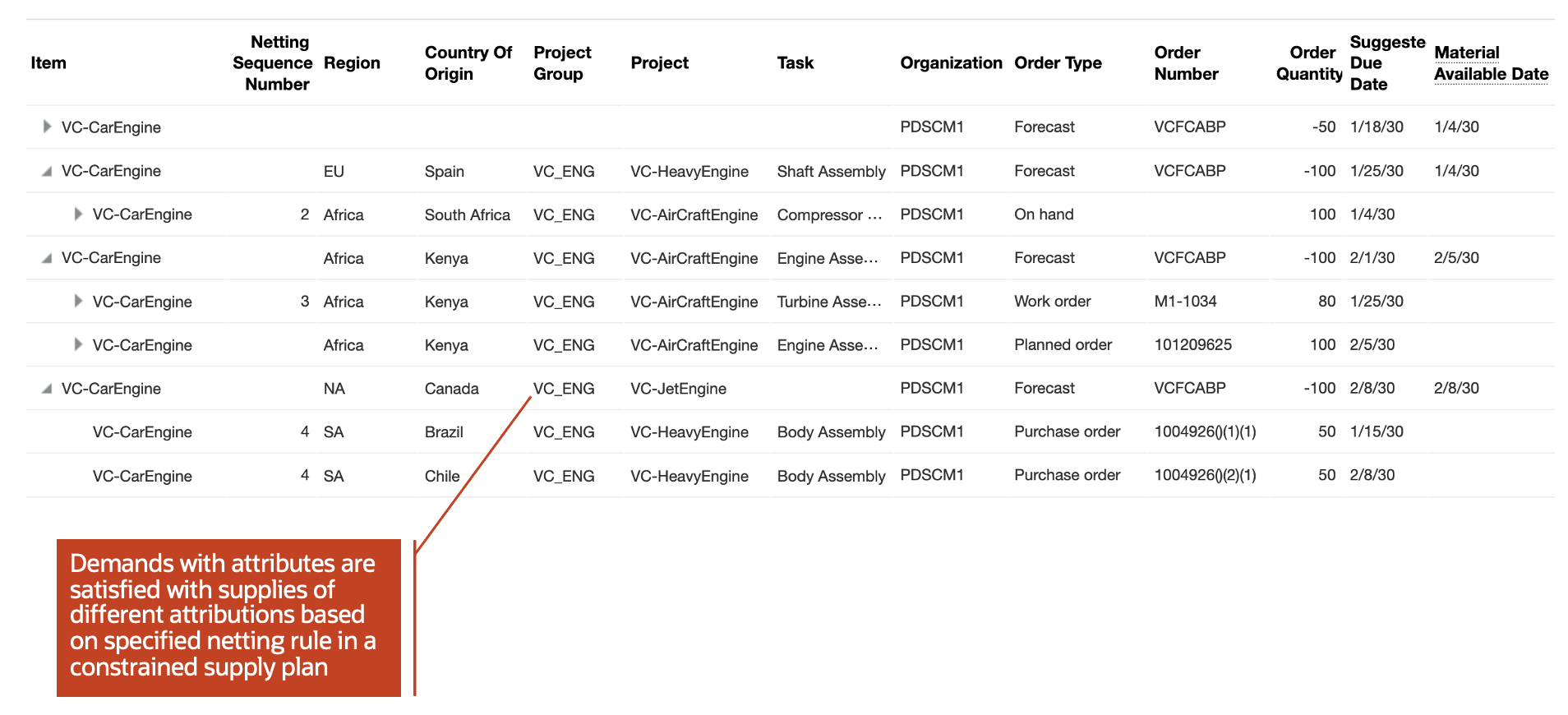
Navigation: Supply Chain Planning -> Supply Planning -> Manage Plans -> Open a supply plan -> Open Supplies and Demands page
Steps to Enable
Use the Opt In UI to enable this feature. For instructions, refer to the Optional Uptake of New Features section of this document.
Offering: Supply Chain Planning
Tips And Considerations
If you want to use the Respect Configured Attributes in a Constrained Supply Plans feature, then you must opt in to one of the following parent features:
- Constraint-Based Planning. If you’ve already opted in to this parent feature, then you don’t have to opt in again
- Attribute-Based Panning. If you’ve already opted in to this parent feature, then you don’t have to opt in again
Access Requirements
Users who are assigned a configured job role that contains these privileges can access this feature:
- View Demands and Supplies (MSC_VIEW_DEMANDS_AND_SUPPLIES_PRIV)
- Monitor Supply Planning Work Area (MSC_MONITOR_SUPPLY_PLANNING_WORK_AREA_PRIV)
- Exceptions view (MSC_MANAGE_PLANNING_EXCEPTIONS_PRIV)
- Demand fulfillment view (MSC_MANAGE_DEMAND_FULFILLMENT_PRIV)
These privileges were available prior to this update.
Backlog Management
Reschedule your order backlog by prioritizing orders based on flexible demand priority rules. You can simulate the effect of different rules to find the best combination of scheduled dates and sources based upon the latest supply information, and then release the updated orders to order management systems for execution.
After you opt in to to the feature named Backlog Management, you can use the features in this section.
Use Pick-Pack Lead Time in Backlog Management
Oracle Backlog Management typically schedules order lines to ship on the day that supply becomes available at the fulfillment location. It delays fulfillment only if it reschedules a same-day order after the cutoff time. However, some organizations need extra time to package and label goods, arrange for transportation, or perform quality checks before shipment. You can now add extra pick-pack lead time for these activities that can vary based on the fulfillment organization, carrier, and destination. Any pick-pack lead time you specify will offset the scheduled ship dates and scheduled delivery dates for order lines fulfilled in those organizations.

Pick and Pack Lead Time column on the Interlocation Shipping Networks tab (Navigation: Plan Inputs work area > Manage Supply Network Model task > Interlocation Shipping Networks tab)
Steps to Enable
Use the Opt In UI to enable this feature. For instructions, refer to the Optional Uptake of New Features section of this document.
Offering: Supply Chain Planning
If you want to use the Use Pick-Pack Lead Time in Backlog Management feature, then you must opt in to its parent feature: Order Backlog Management. If you’ve already opted in to this parent feature, then you don’t have to opt in again.
Additional steps you must take for Oracle Backlog Management to plan sales order lines using this feature:
- Navigate to the Maintain Supply Network Model page in the Plan Inputs work area.
- On the Maintain Supply Network Model page, navigate to the Interlocation Shipping Networks tab to provide a value for the Pick and Pack Lead Time column for a source, destination, and carrier combination, or to the Carriers tab to provide a pick and pack lead time for a shipping method, or to the Organization tab to provide a pick and pack lead time for an organization.
- Enter values for the Pick and Pack Lead Time columns in whole number format.
- Save the settings.
Tips And Considerations
- Oracle Backlog Management will use the following hierarchy for pick and pack lead time if it's defined in multiple tabs:
- Use the pick and pack lead time defined for the source-destination-carrier combination, if applicable
- Use the pick and pack lead time defined for the carrier, if applicable
- Use the pick and pack lead time defined for the organization
-
The pick and pack lead time is applicable to different types of supplies including on hand, transfer orders, purchase orders, and work orders.
-
This feature isn't applicable to Drop Ship flows.
-
Order cutoff times will be respected by this feature.
-
This feature isn't applicable to configure-to-order and shipment and arrival sets.
Access Requirements
Users who are assigned a configured job role that contains this privilege can access this feature:
- Monitor Backlog Management Work Area (MSC_MONITOR_BACKLOG_MANAGEMENT_WORK_AREA_PRIV)
- Edit Supply Network Model (MSC_EDIT_SUPPLY_NETWORK_MODEL_PRIV)
This privilege was available prior to this update.
Import Routings Taking into Account Effectivity Start Dates
You may have routings with future effective start dates defined in your external manufacturing system of record. With this update, a new Effective Date attribute is added to the import template for Routings, ScpRoutingsImportTemplate, so that you can use the file-based data import process to upload routings with future effective start dates. Both unconstrained and constrained supply plans will honor the effective start dates. This capability enables you to flexibly define manufacturing processes in your systems as they evolve over time and have this evolution be part of the planning calculations.
Example of how you can define an effective start date for a routing in the ScpRoutingsImport file-based data import (FBDI) template:

Steps to Enable
Use the Opt In UI to enable this feature. For instructions, refer to the Optional Uptake of New Features section of this document.
Offering: Supply Chain Planning
Tips And Considerations
If you want to use the Import Routings Taking into Account Effectivity Start Dates feature, then you must opt in to its parent feature: Order Backlog Management. If you’ve already opted in to this parent feature, then you don’t have to opt in again.
Other Tips and Considerations:
- Effective start date for a routing can be in the past, the system date, or a future date
- Operation effective start dates can be either equal to or greater than the start date of the routing
- Effective start date is supported for both discrete and process work definition methods from an external source system
- Effective start date for routing can be collected in targeted and incremental or net change collection types
Access Requirements
Users who are assigned a configured job role that contains these privilege can access this feature:
- Monitor Supply Planning Work Area (MSC_MONITOR_SUPPLY_PLANNING_WORK_AREA_PRIV)
- Monitor Demand and Supply Planning Work Area (MSC_MONITOR_DEMAND_AND_SUPPLY_PLANNING_WORK_AREA_PRIV)\
- Manage Sales and Operations Planning (MSC_MONITOR_SALES_AND_OPERATIONS_PLANNING_WORK_AREA_PRIV)
- Monitor Backlog Management Work Area (MSC_MONITOR_BACKLOG_MANAGEMENT_WORK_AREA_PRIV)
- Monitor Order Promising Work Area (MSC_MONITOR_ORDER_PROMISING_WORK_AREA_PRIV)
These privileges were available prior to this update.
Production Scheduling
Generate feasible factory schedules that maximize shop floor throughput and return on investment in resources and labor. You can calculate, manage, and monitor realistic schedules that the shop floor can execute on, while optimizing the usage of critical resources and meeting customer demand on time as best as possible.
After you opt in to the feature named Production Scheduling, you can use the features in this section.
Consider Resource Calendars for Production Changeovers
You can now decide if resource downtimes should be considered while undertaking production changeovers, such as setups and cleanups. Considering resource downtimes can result in a better representation of capacity usage in the schedule.
You determine whether downtimes are considered via a new advanced schedule option and that applies to all constrained resources in the schedule.

New schedule option: Respect resource calendar during changeovers
Steps to Enable
Use the Opt In UI to enable this feature. For instructions, refer to the Optional Uptake of New Features section of this document.
Offering: Supply Chain Planning
Tips And Considerations
If you want to use the Consider Resource Calendars for Production Changeovers feature, then you must opt in to its parent feature: Production Scheduling. If you’ve already opted in to this parent feature, then you don’t have to opt in again.
Access Requirements
Users who are assigned a configured job role that contains this privilege can access this feature:
- Edit Production Schedule (MSC_EDIT_PRODUCTION_SCHEDULE_PRIV)
This privilege was available prior to this update.
Schedule Planned Make Orders from Supply Planning
If you have implemented both Oracle Production Scheduling and Oracle Supply Planning, you can take advantage of visibility into planned orders within a finite production schedule. You can also consider detailed, short-term schedule results in a longer-range supply plan. The planned make orders from Oracle Supply Planning that are within the scope of a production schedule are now scheduled in Oracle Production Scheduling together with work orders from Oracle Manufacturing.
In the scope section of the Schedule Options page for a production schedule, you can reference a supply plan or an integrated demand and supply plan.
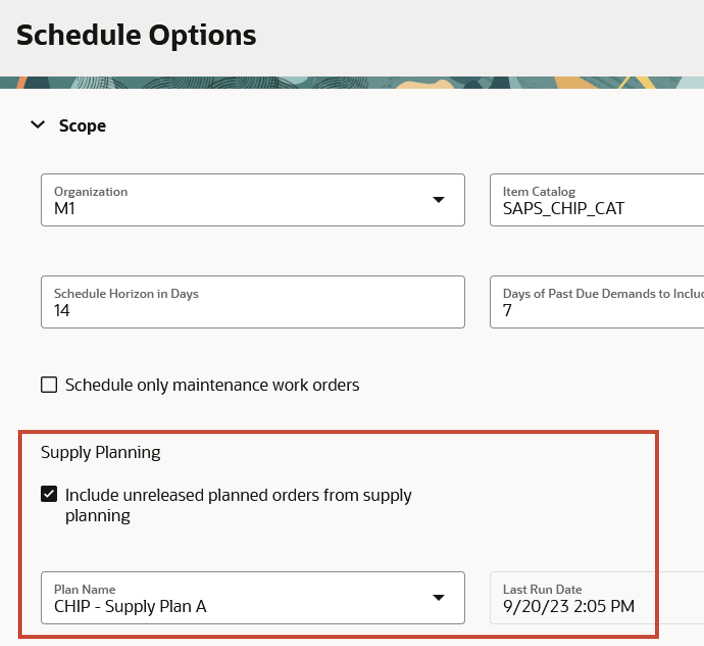
Reference a Supply Plan or Demand and Supply Plan
If the Include unreleased planned orders from supply planning check box is selected, then a subsequent schedule refresh will include planned make orders from the referenced supply plan, provided the planned make orders satisfy the other schedule scope criteria.
You can distinguish planned orders from work orders by their status value.

Status Planned, Released, and Unreleased Distinguish Planned Orders and Work Orders
In the Gantt chart, the operations belonging to planned orders will be displayed using a darker color than those belonging to work orders.

Planned Orders in the Gantt Chart
A subsequent supply plan or integrated demand and supply plan run will consider the schedule results for the planned orders as firm. To do so, reference the relevant production schedules, one per organization, in the plan options under Supply > Organizations and Schedules > Demand Schedules.
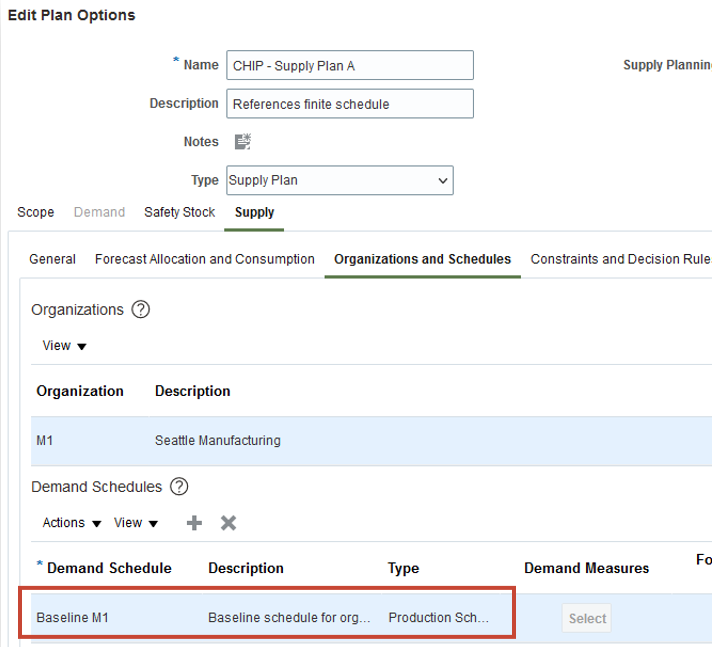
Reference a Production Schedule in a Supply Plan or Integrated Demand and Supply Plan
Steps to Enable
Use the Opt In UI to enable this feature. For instructions, refer to the Optional Uptake of New Features section of this document.
Offering: Supply Chain Planning
Tips And Considerations
- If you want to use the Schedule Planned Make Orders from Supply Planning feature, then you must opt in to its parent feature: Production Scheduling. If you’ve already opted in to this parent feature, then you don’t have to opt in again.
- This feature is supported for both unconstrained and constrained supply plans.
- Production Scheduling doesn't maintain the same pegging as the supply plan while scheduling. Supply Planning will perform the pegging again after it's run with the production schedule as an input.
- Production Scheduling schedules only make supplies. If the components in the work definition of make items are either buy or transfer, then Supply Planning will further plan them.
Key Resources
- Review the readiness training Supply Planning and Production Scheduling Integration (update 24A) for more details.
Access Requirements
Users who are assigned a configured job role that contains these privileges can access this feature:
- Edit Production Schedule (MSC_EDIT_PRODUCTION_SCHEDULE_PRIV)
- Edit Plan Options (MSC_EDIT_PLAN_OPTIONS_PRIV)
- Edit Plans (MSC_EDIT_PLANS_PRIV)
- Run Plan with Snapshot (MSC_RUN_PLAN_WITH_SNAPSHOT_PRIV)
- Edit Demands and Supplies (MSC_EDIT_DEMANDS_AND_SUPPLIES_PRIV)
These privileges were available prior to this update.
Visualize Supplies and Demands in Gantt Chart
In the Gantt chart, you can now use enhanced pegging visibility that links sales orders, outbound and inbound transfer orders, and purchase orders to their pegged producing or consuming work order operations across the schedule horizon. This visibility complements pegging information that was previously available for operations within a work order and pegging of upstream and downstream work orders.
Using the controls on the toolbar for the Gantt chart, you can trigger the display of supplies and demands. Pegging links from supplies and to demands will be shown if the pegged operations are currently displayed in the Gantt chart. In the following example, the pegging link from the work order operation to the pegged outbound transfer order demand goes backwards, immediately indicating that the pegged demand is late.
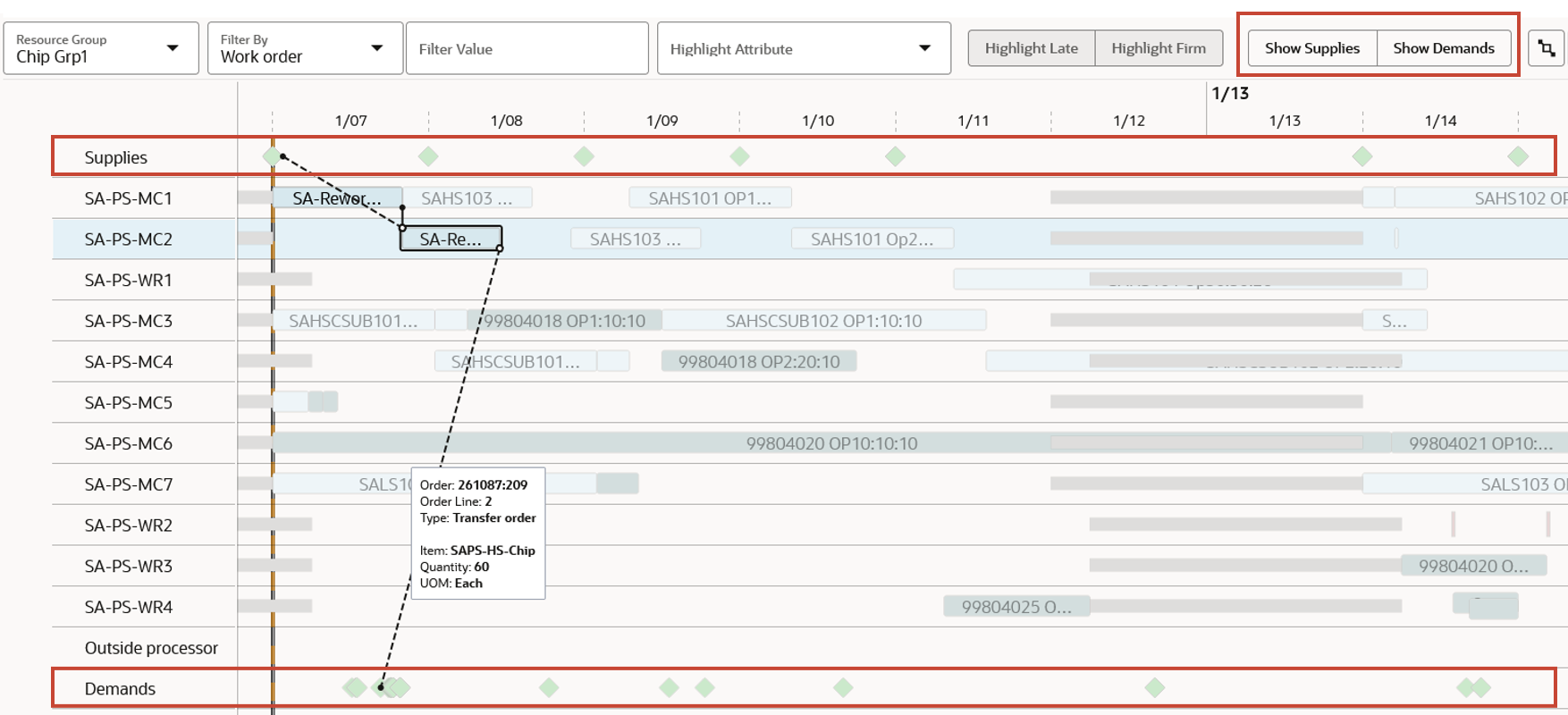
Supplies and demands with pegging links
Steps to Enable
Use the Opt In UI to enable this feature. For instructions, refer to the Optional Uptake of New Features section of this document.
Offering: Supply Chain Planning
Tips And Considerations
If you want to use the Visualize Supplies and Demands in Gantt Chart feature, then you must opt in to its parent feature: Production Scheduling. If you’ve already opted in to this parent feature, then you don’t have to opt in again
Access Requirements
Users who are assigned a configured job role that contains this privilege can access this feature:
- Edit Production Schedule (MSC_EDIT_PRODUCTION_SCHEDULE_PRIV)
This privilege was available prior to this update.
IMPORTANT Actions and Considerations
Changes to File-Based Data Import (FBDI) Templates
Some Supply Chain Planning FBDI templates have changed in this update. For details of the specific changes, refer to the Instructions tab of these FBDI templates:
- Organizations (ScpOrganizationImportTemplate)
- Carriers (ScpCarrierImportTemplate)
- Interlocation Shipping Methods (ScpInterLocationShipMethodsImportTemplate)
- Routings (ScpRoutingsImportTemplate)
You can find the latest templates in the Supply Chain Planning section of Oracle Fusion Cloud SCM: File-Based Data Import (FBDI) for SCM, available on the Oracle Help Center.