
This document will continue to evolve as existing sections change and new information is added. All updates appear in the following table:
| Date | Module | Feature | Notes |
|---|---|---|---|
| 03 MAR 2023 | Created initial document. |
 HAVE AN IDEA?
We’re here and we’re listening. If you have a suggestion on how to make our cloud services even better then go ahead and tell us. There are several ways to submit your ideas, for example, through the Ideas Lab on Oracle Customer Connect. Wherever you see this icon after the feature name it means we delivered one of your ideas.
GIVE US FEEDBACK
We welcome your comments and suggestions to improve the content. Please send us your feedback at oracle_fusion_applications_help_ww_grp@oracle.com.
DISCLAIMER
The information contained in this document may include statements about Oracle’s product development plans. Many factors can materially affect Oracle’s product development plans and the nature and timing of future product releases. Accordingly, this Information is provided to you solely for information only, is not a commitment to deliver any material, code, or functionality, and should not be relied upon in making purchasing decisions. The development, release, and timing of any features or functionality described remains at the sole discretion of Oracle.
This information may not be incorporated into any contractual agreement with Oracle or its subsidiaries or affiliates. Oracle specifically disclaims any liability with respect to this information. Refer to the Legal Notices and Terms of Use for further information.
Optional Uptake of New Features (Opt In)
Oracle Cloud Applications delivers new updates every quarter. This means every three months you'll receive new functionality to help you efficiently and effectively manage your business. Some features are delivered Enabled meaning they are immediately available to end users. Other features are delivered Disabled meaning you have to take action to make available. Features delivered Disabled can be activated for end users by stepping through the following instructions using the following privileges:
- Review Applications Offering (ASM_REVIEW_APPLICATIONS_OFFERINGS_PRIV)
- Configure Oracle Fusion Applications Offering (ASM_CONFIGURE_OFFERING_PRIV)
Here’s how you opt in to new features:
- Click Navigator > My Enterprise > New Features.
- On the Features Overview page, select your offering to review new features specific to it. Or, you can leave the default selection All Enabled Offerings to review new features for all offerings.
- On the New Features tab, review the new features and check the opt-in status of the feature in the Enabled column. If a feature has already been enabled, you will see a check mark. Otherwise, you will see an icon to enable the feature.
- Click the icon in the Enabled column and complete the steps to enable the feature.
For more information and detailed instructions on opting in to new features for your offering, see Configure Offerings.
Opt In Expiration
Occasionally, features delivered Disabled via Opt In may be enabled automatically in a future update. This is known as an Opt In Expiration. If your cloud service has any Opt In Expirations in this update, you will see a related tab in this document. Click on that tab to see when the feature was originally delivered Disabled, and when the Opt In will expire, potentially automatically enabling the feature. You can also click here to see features with current Opt In Expirations across all Oracle Cloud Applications. Beyond the current update, the Financials forums on Cloud Customer Connect have details of Opt In Expirations upcoming in future updates.
Column Definitions:
Report = New or modified, Oracle-delivered, ready to run reports.
UI or Process-Based: Small Scale = These UI or process-based features are typically comprised of minor field, validation, or program changes. Therefore, the potential impact to users is minimal.
UI or Process-Based: Larger Scale* = These UI or process-based features have more complex designs. Therefore, the potential impact to users is higher.
Features Delivered Disabled = Action is needed BEFORE these features can be used by END USERS. These features are delivered disabled and you choose if and when to enable them. For example, a) new or expanded BI subject areas need to first be incorporated into reports, b) Integration is required to utilize new web services, or c) features must be assigned to user roles before they can be accessed.
| Ready for Use by End Users Reports plus Small Scale UI or Process-Based new features will have minimal user impact after an update. Therefore, customer acceptance testing should focus on the Larger Scale UI or Process-Based* new features. |
Customer Must Take Action before Use by End Users Not disruptive as action is required to make these features ready to use. As you selectively choose to leverage, you set your test and roll out timing. |
|||||
|---|---|---|---|---|---|---|
| Feature |
Report |
UI or |
UI or |
|
||
Service Excellence Continuing Investments
Our ongoing investment in service excellence has a focus on overall usability, resiliency, performance, and security. This work is based on monitoring performance trends, reviewing common use patterns, analyzing service requests, and participating in many discussions with customers.
In this update, our ongoing investment in service excellence includes improvements in the following areas:
Performance
- Improved performance of Import Auto Invoice and Create Receivables Accounting process.
- Improved performance of the Receivables Aging by General Ledger Account Report by generating the aging data and populating the extract tables using a non-BIP-based process. The BIP-based process is used only to extract data from the tables and generate the report.
- Improved performance of the streaming process to reduce delay in updating the Budgetary Control cube and provide more accurate balances on the Budgetary Control dashboard.
- Improved performance of the Budgetary Control validation engine. This helps reduce budgetary control processing time when multiple processes are running at the same time that require budgetary control validation.
- Enabled parallel processing of Customer Statement delivery Business Intelligence bursting process for processing high-volume statements.
- Enabled parallel processing of Automatic Receipt Remittance process for faster processing of extremely high-volume remittances.
Usability
- Submit Synchronize Transaction Workflow Status process for a specific workflow by selecting either Invoice Approval or Journal Approval, to generate a spreadsheet report with records for the selected workflow only.
- Submit the Synchronize Transaction Workflow Status ESS process for a specific supplier in Invoice Approval by selecting the Supplier Name option, which displays and allows recovery action only on transactions specific to the selected supplier. Note that this option is available only for Invoice Approval workflow.
Resiliency
- Select a recovery action for stuck transactions using the Synchronize Transaction Workflow Status With File Upload option. This option provides flexibility by allowing users to choose an action for each record in the spreadsheet, either Withdraw or Force Approve and upload it when submitting the process. Note: Force Approve action is only available if the ‘FUN_ENABLE_FORCEAPPROVE_FROM_STUCK_TRANS_ESSJOB’ profile option is created and set True.
Steps to Enable
You don't need to do anything to enable this feature.
Simplified Workflow Rules Configuration
Use the Simplified Workflow Rules Configuration feature to create workflow rules using spreadsheets for Payables Invoice Approval and General Ledger Journal Approval workflows. Download the templates using the Manage Workflow Rules in Spreadsheet task to create and manage workflow rules according to your approval policies.
This feature was introduced in update 18C. In addition to the existing features, the 23B update also lets you to do the following:
- Name the rule blocks for organizing and ease of understanding.
- Initiate various approvals in parallel.
- Configure or model the blocks to facilitate better approval routing.
Naming rules blocks can help to organise the approval process and make it easier for users to understand and navigate, as users can clearly see the purpose and function of each block.
Rule block configuration can increase the accuracy of decisions made during the approval process, as it is easier to track the flow of approvals and identify any potential issues or bottlenecks in the process. It allows for easy configuration and adaptation to specific business needs. Additional advantages include,
- Ability to ensure that each participant has reviewed and approved the item before it moves on to the next stage of the process.
- Faster approval times, as multiple participants can review and approve the item simultaneously.
- A greater number of participants can be involved in the approval process, as different participants may have different areas of expertise.
Steps to Enable
You don't need to do anything to enable this feature.
Tips And Considerations
Naming the Rules Block
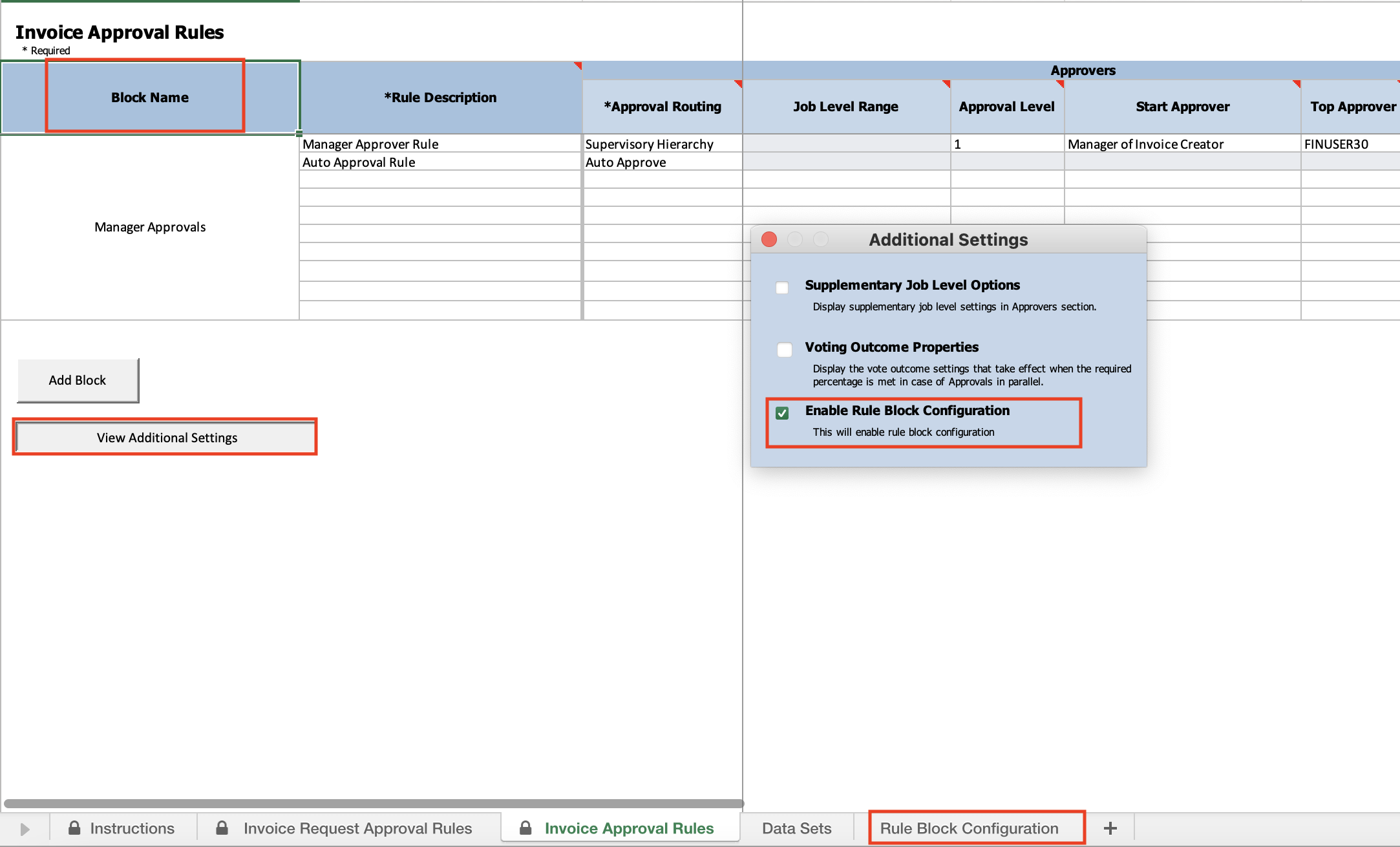
You may enter any legible name describing the rules defined in the block for a block name in the respective column. E.g. Refer screenshot below for block with block name in first column.
Enabling Rule Block Configuration
By default, all the blocks will be executed in serial in the order they are defined in the rules sheet.
Users may Enable Rule Block Configuration by following the below steps,
- Click on View Additional Settings.
- Select the Enable Rule Block Configuration checkbox.
- This will open new sheet where users can define block configuration in different levels.
- Blocks must be named in order to be used in configuration sheet.
Arranging Rule Blocks for Parallel Execution
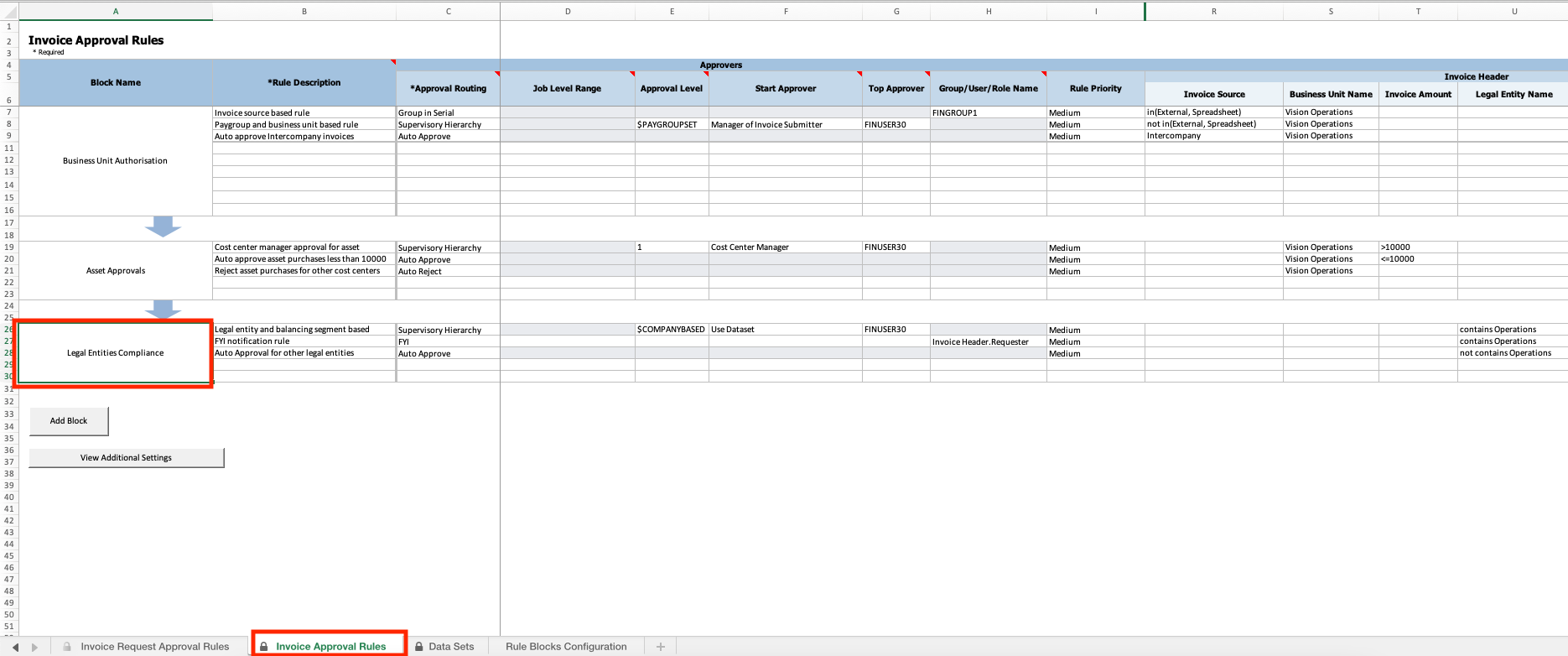
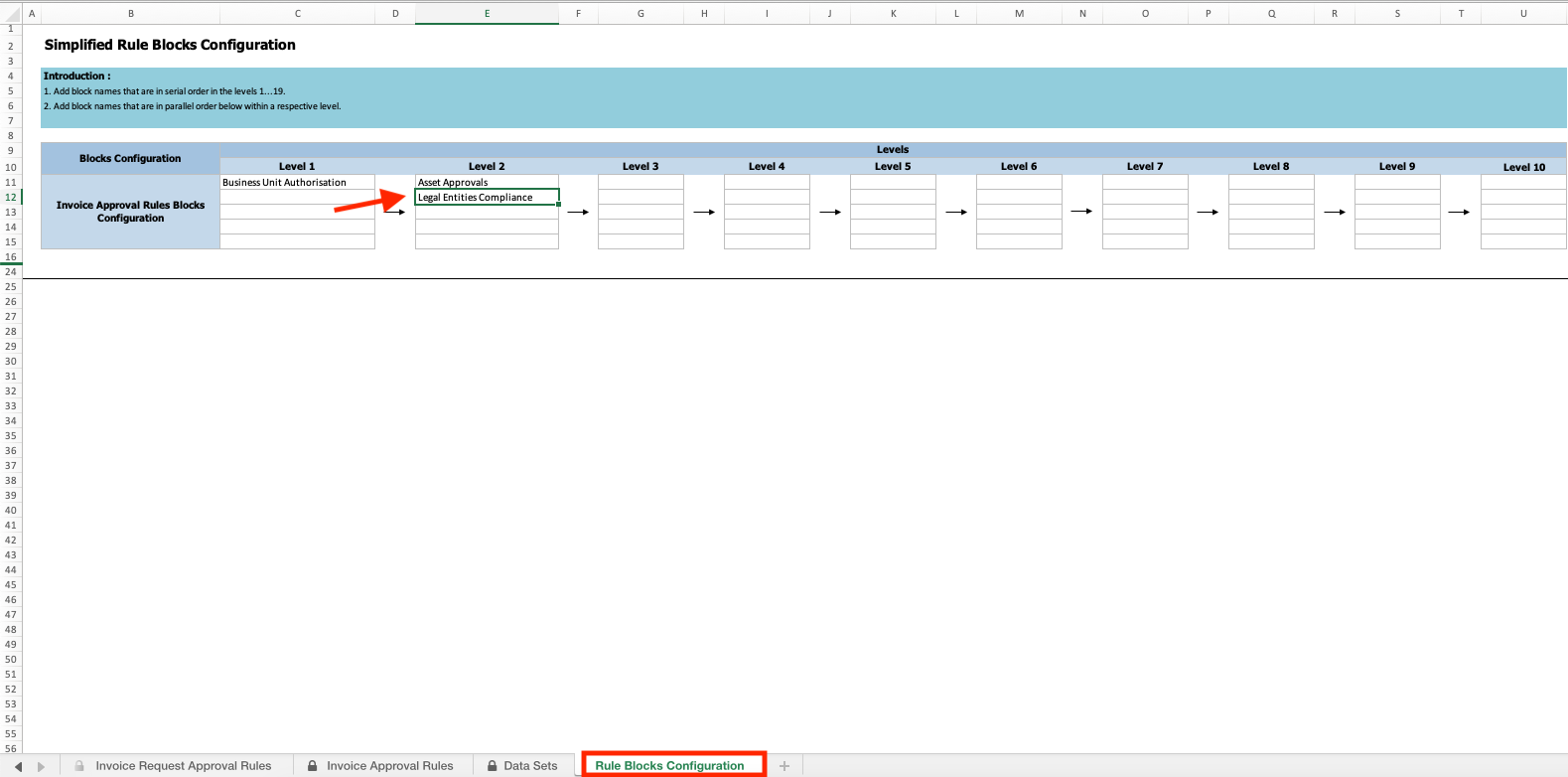
You may enter multiple rule blocks in one level such that execution of rules configured in those blocks will occur simultaneously. In the example below, you can see both approval processes - Asset Approvals and Legal Entities Compliance - are in one level, therefore initiated at once.
Key Resources
- For an overview of the Simplified Workflow Rules Configuration feature, refer to the Manage Workflow Rules Using a Spreadsheet topic on the Oracle Help Center.
Role And Privileges
- To use simplified workflow rules configuration, you need this role:
- Financial Application Administrator
Payment Method Selection in Cash Advance Request
Allow employees to select a cash advance payment method. This option allows employees to select their preferred payment method as part of the cash advance request process.
Administrators can enable this option using the Manage Cash Advances and Authorization Policies task. This option is configurable at the business unit level and thus can be enabled for all business units, or for individual business units.
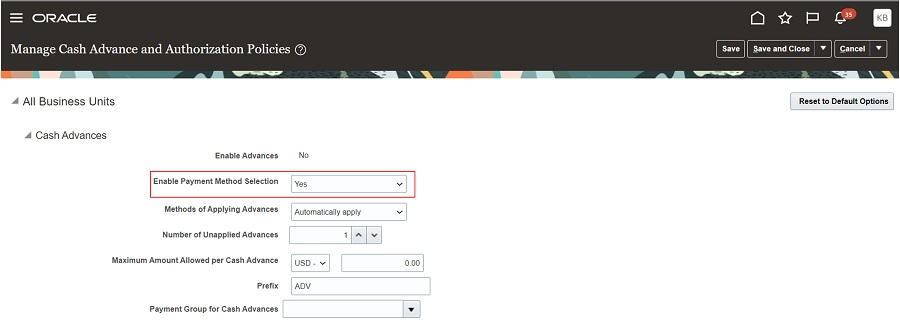
Once enabled in the setup, employees can choose the payment method at the time of requesting for the Cash Advance.

Business benefit:
This gives employees the flexibility to select the payment method (such as Cash, Electronic, check etc.) through which they would like to get their Cash Advance credited to them
Steps to Enable
You don't need to do anything to enable this feature.
Tips And Considerations
If the 'Enable Payment Method' option in the 'Manage Cash Advance and Authorization Policy' is set to 'No' then the default payment method for the business unit will apply to all cash advances raised by employees assigned to that business unit.
Key Resources
- This feature originated from the Idea Labs on Oracle Customer Connect : Idea 596577
Role And Privileges
- Only users with the Financial Application Administrator job role can enable the Payment method option for Cash Advances, through the "Manage Cash Advances and Authorization Policies" task in the Functional Setup Manager available in Setup and Maintenance work area.
Waypoints in Audit and View Expense Report Pages
View waypoints in routes for mileage expenses in the Audit Expense Report and the View Expense Report pages. This lets auditors and managers view the complete route information for mileage expenses and ensure compliance with regulations.
Auditors can review the interim stops of a mileage expense trip directly from the View Expense Item page by clicking the View Maps button.
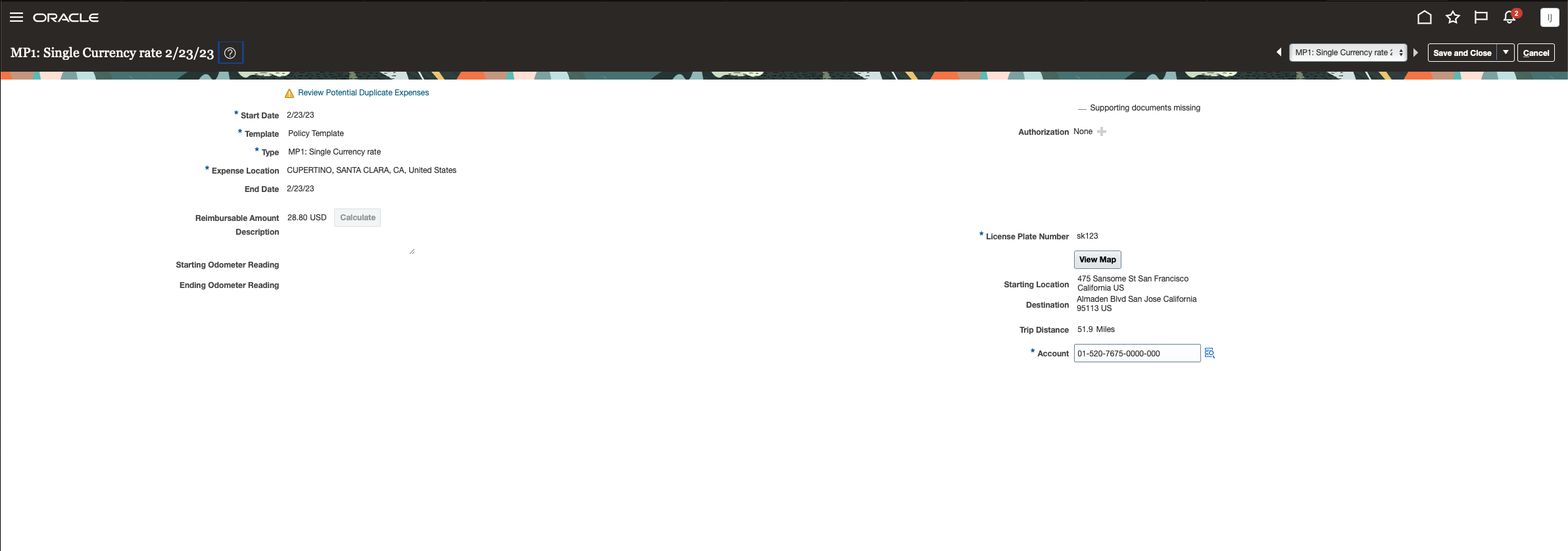
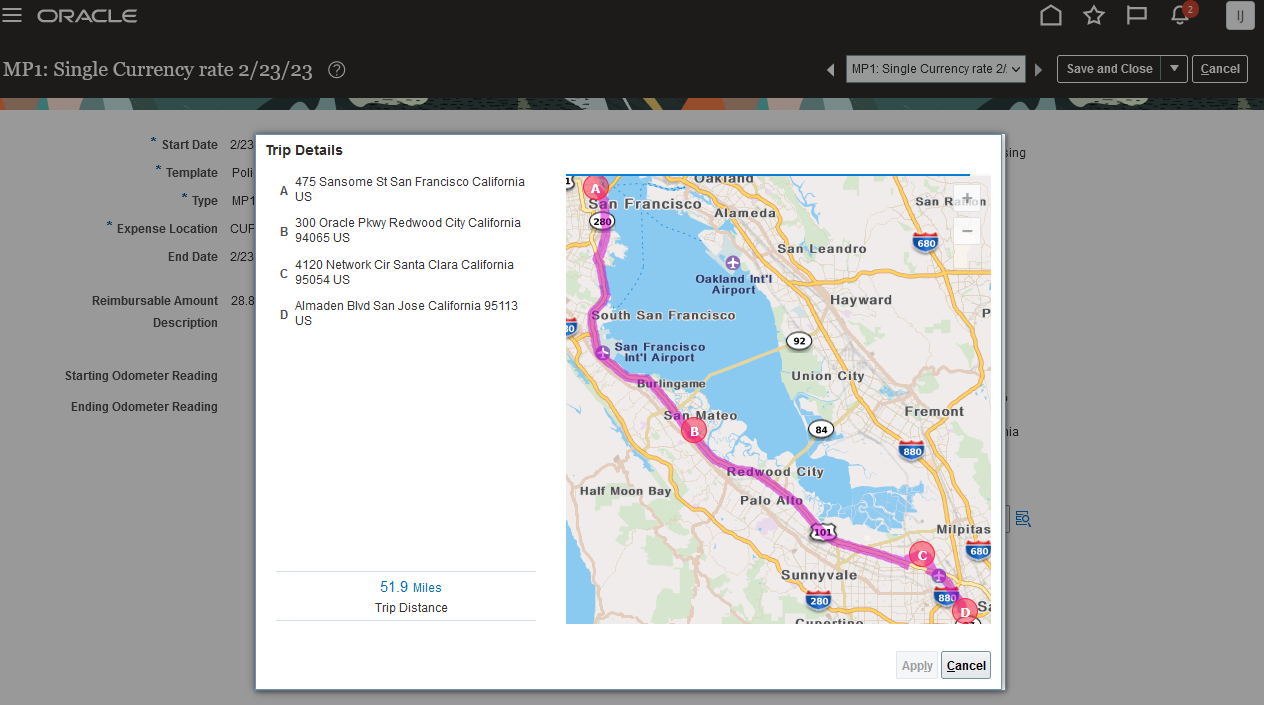
Companies can configure the expense report approval notification to provide the route visibility to managers.
Allow better insight into policy compliance on mileage expenses. Readily available route details allow auditor and managers to process mileage expenses more efficiently as they don't have to look for them outside the system.
Steps to Enable
You don't need to do anything to enable this feature.
Tips And Considerations
Customers can display interim stops of a mileage expense to managers by configuring the expense report notification using the BI Publisher template. Attributes SEQUENCE_NUM and DISPLAYED_ADDRESS in the EXM_MILEAGE_WAYPOINTS table are newly added to the BIP data model to support this custom configuration. Refer to Example of Modifying Expenses Email Notifications Using Oracle Analytics Publisher in the Implementing Expenses guide.
Key Resources
- This feature originated from the Idea Labs on Oracle Customer Connect : Idea 636944
Role And Privileges
- You don't need any new privileges.