
This document will continue to evolve as existing sections change and new information is added. All updates appear in the following table:
| Date | Module | Feature | Notes |
|---|---|---|---|
| 09 FEB 2024 | Common Financials | Approvals Work Area with Enhanced User Interface and Adaptive Search | Updated document. Added new feature in update 24A. |
| 01 DEC 2023 | Created initial document. |
 HAVE AN IDEA?
We’re here and we’re listening. If you have a suggestion on how to make our cloud services even better then go ahead and tell us. There are several ways to submit your ideas, for example, through the Ideas Lab on Oracle Customer Connect. Wherever you see this icon after the feature name it means we delivered one of your ideas.
GIVE US FEEDBACK
We welcome your comments and suggestions to improve the content. Please send us your feedback at oracle_fusion_applications_help_ww_grp@oracle.com.
DISCLAIMER
The information contained in this document may include statements about Oracle’s product development plans. Many factors can materially affect Oracle’s product development plans and the nature and timing of future product releases. Accordingly, this Information is provided to you solely for information only, is not a commitment to deliver any material, code, or functionality, and should not be relied upon in making purchasing decisions. The development, release, and timing of any features or functionality described remains at the sole discretion of Oracle.
This information may not be incorporated into any contractual agreement with Oracle or its subsidiaries or affiliates. Oracle specifically disclaims any liability with respect to this information. Refer to the Legal Notices and Terms of Use for further information.
Optional Uptake of New Features (Opt In)
Oracle Cloud Applications delivers new updates every quarter. This means every three months you'll receive new functionality to help you efficiently and effectively manage your business. Some features are delivered Enabled meaning they are immediately available to end users. Other features are delivered Disabled meaning you have to take action to make available. Features delivered Disabled can be activated for end users by stepping through the following instructions using the following privileges:
- Review Applications Offering (ASM_REVIEW_APPLICATIONS_OFFERINGS_PRIV)
- Configure Oracle Fusion Applications Offering (ASM_CONFIGURE_OFFERING_PRIV)
Here’s how you opt in to new features:
- Click Navigator > My Enterprise > New Features.
- On the Features Overview page, select your offering to review new features specific to it. Or, you can leave the default selection All Enabled Offerings to review new features for all offerings.
- On the New Features tab, review the new features and check the opt-in status of the feature in the Enabled column. If a feature has already been enabled, you will see a check mark. Otherwise, you will see an icon to enable the feature.
- Click the icon in the Enabled column and complete the steps to enable the feature.
For more information and detailed instructions on opting in to new features for your offering, see Configure Offerings.
Opt In Expiration
Occasionally, features delivered Disabled via Opt In may be enabled automatically in a future update. This is known as an Opt In Expiration. If your cloud service has any Opt In Expirations in this update, you will see a related tab in this document. Click on that tab to see when the feature was originally delivered Disabled, and when the Opt In will expire, potentially automatically enabling the feature. You can also click here to see features with current Opt In Expirations across all Oracle Cloud Applications. Beyond the current update, the Financials forums on Cloud Customer Connect have details of Opt In Expirations upcoming in future updates.
Column Definitions:
Report = New or modified, Oracle-delivered, ready to run reports.
UI or Process-Based: Small Scale = These UI or process-based features are typically comprised of minor field, validation, or program changes. Therefore, the potential impact to users is minimal.
UI or Process-Based: Larger Scale* = These UI or process-based features have more complex designs. Therefore, the potential impact to users is higher.
Features Delivered Disabled = Action is needed BEFORE these features can be used by END USERS. These features are delivered disabled and you choose if and when to enable them. For example, a) new or expanded BI subject areas need to first be incorporated into reports, b) Integration is required to utilize new web services, or c) features must be assigned to user roles before they can be accessed.
| Ready for Use by End Users Reports plus Small Scale UI or Process-Based new features will have minimal user impact after an update. Therefore, customer acceptance testing should focus on the Larger Scale UI or Process-Based* new features. |
Customer Must Take Action before Use by End Users Not disruptive as action is required to make these features ready to use. As you selectively choose to leverage, you set your test and roll out timing. |
|||||
|---|---|---|---|---|---|---|
| Feature |
Report |
UI or |
UI or |
|
||
Approvals Work Area with Enhanced User Interface and Adaptive Search |
||||||
Audit Evaluation of Resubmitted Expense Reports for Potential Duplicates |
||||||
Service Excellence Continuing Investments
Our ongoing investment in service excellence has a focus on overall usability, resiliency, performance, and security. This work is based on monitoring performance trends, reviewing common use patterns, analyzing service requests, and participating in many discussions with customers.
In this update, our ongoing investment in service excellence includes improvements in the following areas.
Usability:
- Enhanced the AutoPost Journals process to post journal entries for all ledgers across all data access sets assigned to the user at the time of submission. This helps reduce the manual effort that was required to post all assigned journal entries. Previously the AutoPost Journals process only posted journal entries for ledgers in the assigned data access set belonging to the user's active session.
Steps to Enable
You don't need to do anything to enable this feature.
Approvals Work Area with Enhanced User Interface and Adaptive Search
Use the Approvals work area to review and take action on your approval tasks. The Approvals work area provides an enhanced user interface and adaptive search functionality where tasks can be filtered by approval type, task type, or sender, or be searched by keyword.
When enabled, the Approvals work area replaces the Worklist: Approvals and Notifications work area.
If the application is set up, you can click Navigator > Tools > Approvals to open it, instead of Navigator > Tools > Worklist to open the Worklist: Approvals and Notifications work area.
The Approvals work area has three views.
Approvals Tasks
The Approvals Tasks page shows a list of the tasks assigned to the current user, including business attributes related to the approval type. You can organize your work using supplied filters, search on keywords, and approve or reject approvals.
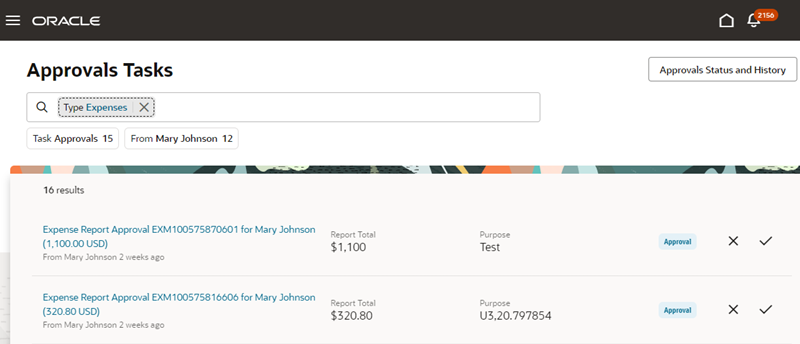
Supplied filters include:
- Task type, for example Approval, FYI, or Request
- Approval type, for example, expense reports
- From, or the person who sent the approval
You can also search by keywords on other attributes of the tasks. Any combination of search and filters can be bookmarked and shared.
You can quickly address your tasks without waiting for each to complete before moving to the next approval. Supported actions include:
- Approve
- Reject
- Dismiss (FYIs)
You can also comment on approval or rejection actions in a drawer if comments are set up as 'Required' in the task configuration in Business Process Management.
Quick View
Click a task in the list to open the Quick View, which displays additional information about the task and allows you to approve or reject it. You can click the arrow to navigate to the next task in the list.
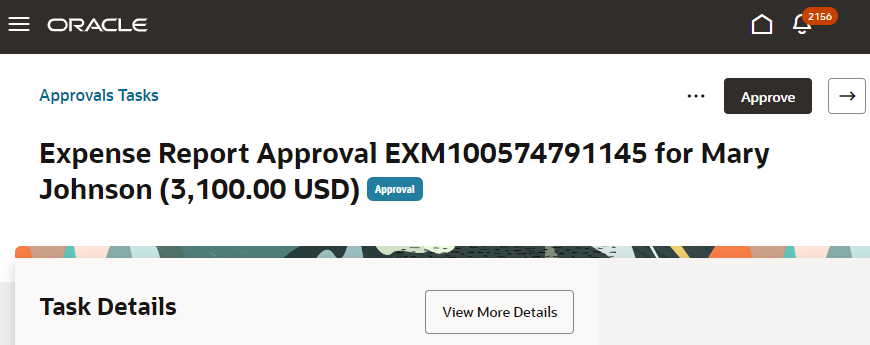
To get more information or take an action that isn’t yet available in the Quick View, click View More Details to open the Analytics Publisher or Application Development Framework (ADF) notification.
Click the Approvals Tasks link to navigate back to the list.
Approvals Status and History
Click Approvals Status and History to view the current status and assignee for approvals that you’ve either submitted or been assigned as an approver.
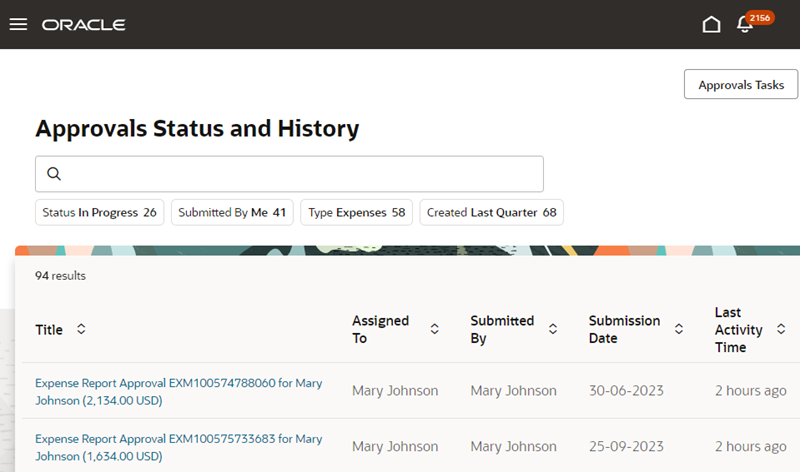
Use the supplied filters and search by keyword to find historic approval information.
The Approvals work area is limited in functionality and isn’t a complete replacement for the Business Process Management (BPM) Worklist. For this reason, it’s available to set up at a site or user level.
The Approvals work area is designed and built with performance as a priority. The user experience is improved for both desktop and tablet or mobile users, making it easy to act quickly on approval tasks and notifications.
Steps to Enable
- Check that your environment is enabled for hybrid search. Refer to the 'Set Up the Approvals Work Area' topic in the Implementing Applications guide in Oracle Help Center for details.
- In the Scheduled Processes work area, run the Create Search Index for Worklist scheduled process once and ensure it has completed.
- In the Setup and Maintenance work area, go to the Manage Applications Core Administrator Profile Values task in the Application Extensions functional area. Set the Approval Requests UI Enabled (ORA_FND_APPROVALS) profile value depending on whether you want the Approvals work area to be available to all users or only some users.
Tips And Considerations
- The Approvals work area doesn’t replace the BPM worklist or change the behavior of the Notifications icon. You still click Show All from the notifications list in the global header, then click Worklist to open the BPM Worklist and use these tools with the application. Setting up the application doesn’t impact the BPM Worklist or Notifications icon and data remains consistent.
- The Tasks List view isn't currently configurable. It includes two attributes for each approval type, and additional attributes are shown in the Quick View.
- Users can only approve, reject or respond to request for information for the supported workflows in the Approvals work area. For all other actions, use the actions in the in-app notifications.
- As a new application, not all BPM Worklist use cases are yet supported. You can choose to set up the application at the site or user level. If you have some users who would benefit from this application, but want to keep others using the existing Worklist for all tasks, you can enable this feature for specific users by setting the profile option at the user level.
- Notifications for the following Financial workflows are available in the Approvals work area.
Financial workflow notifications available in the Approvals work area
| Product | Workflow |
|---|---|
| Payables | Invoice Approval |
| Payables | Payment Approval |
| Expenses | Expense Report Approval |
| Expenses | Cash Advance Approval |
| Expenses | Spend Authorization Approval |
| General Ledger | Journal Approval |
| Intercompany | Intercompany Transaction Approval |
- In addition to these, notifications for the following Financials workflows are also available in the Approvals work area. However, the requisite primary actions for such workflows are not yet supported in the Approval work area and thus, users should take action on such tasks using the in-app notifications. Click on View More Details in the Quick View page to open the in-app notification.
Other Financial workflow notifications available in the Approvals work area
| Product | Workflow |
|---|---|
| Payables | Invoice Account Coding Workflow |
| Payables | Holds Resolution Workflow |
| Intercompany | Intercompany Enter Receiver Distribution Workflow |
Key Resources
- Set Up the Approvals Work Area
- Use the Approvals Work Area to Manage Approvals
- Update Existing Setup Data
- Set Profile Option Values
Embedded Tax Compliance Service for Avalara
Implement Avalara for tax partner processing in Oracle Tax with automated tax partner enablement.
Use the Manage Indirect Tax Automation with Avalara page to initiate Avalara enablement and track the status of each individual task.

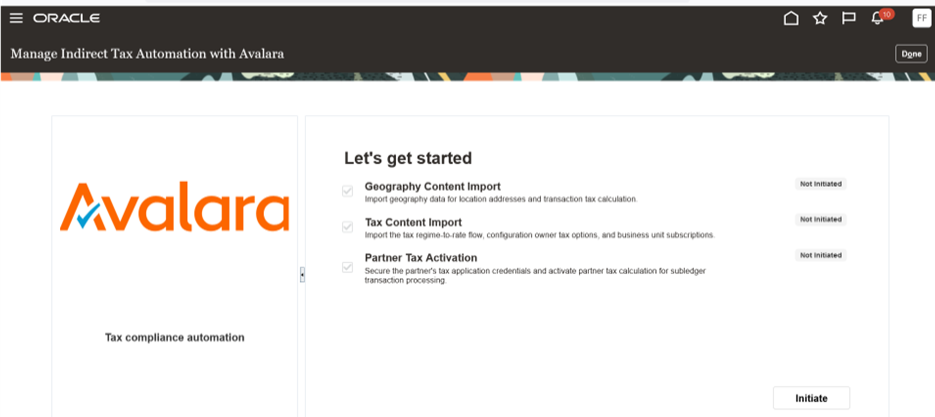
The page displays three required tasks.
- Geography Content Import - Loads the geography data which is used for addresses and transaction tax calculations.
- Tax Content Import - Loads the regime-to-rate flow setup, configuration owner tax options and business unit subscriptions.
- Partner Tax Activation - Loads the application credentials and activates partner tax calculation for subledger transactions.
Oracle customers need real-time access to tax compliance solutions as part of their ERP. Oracle and Avalara have pre-wired and pre-configured the two systems to streamline and automate the integration between them and reduce ERP implementation efforts.
Steps to Enable
You don't need to do anything to enable this feature. However, you must complete some pre-requisite setups before you can initiate the enablement from the Manage Indirect Tax Automation with Avalara page.
- Complete the registration process with Avalara and get the login details.
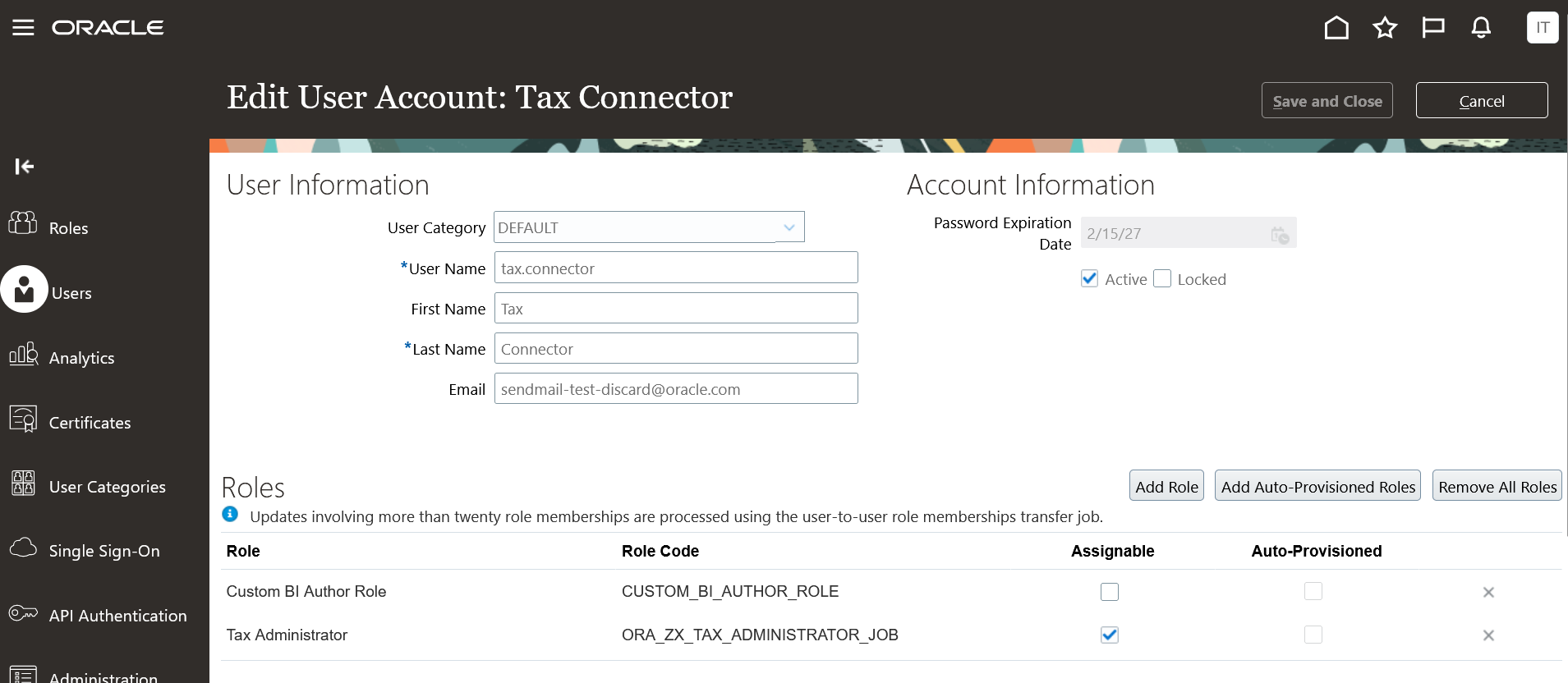
- Create a new Oracle user and assign the Tax Administrator role to the user.
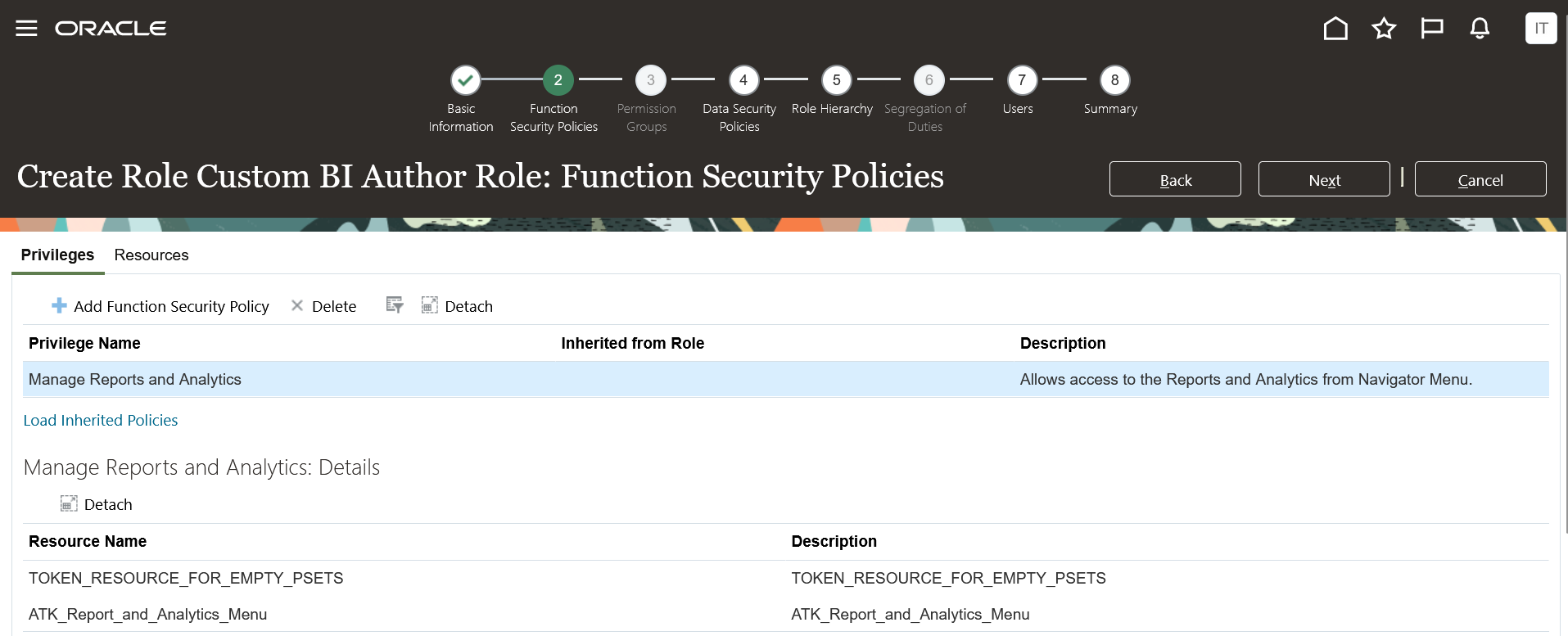
- Create a new custom role with Role Category of BI - Abstract Roles. Add the Manage Reports and Analytics privilege to the role and add the user created in the previous step to this role.
- Role Name – user defined value
- Role Code – user defined value
- Role Category – BI – Abstract Roles
- Description - user defined value
The user should now have both the roles assigned.
- Run the Retrieve Latest LDAP Changes process followed by Send Personal Data for Multiple Users to LDAP process.
You can use this user to initiate the enablement and provide the same user to Avalara on the Oracle Readiness for Avalara Enablement page. It is displayed once you initiate the enablement and login using your Avalara credentials.
Tips And Considerations
- The Oracle Fusion Cloud ERP customers who are also Avalara customers can take advantage of this automated enablement process.
- This automated enablement process is only available for pods without geography setup or Avalara tax content setup configured. You can't use this process if you already use Avalara for tax partner calculations.
- This automated enablement process is currently limited to business units and legal entities based in the United States and subject to United States taxes.
- The automated enablement process is only for initial configuration. For incremental updates, you should use your existing processes.
Access Requirements
You need to have a job role assigned that has the privilege Manage Tax Partner Configuration (ZX_MANAGE_PARTNER_CONFIGURATIONS_PRIV) to access the Manage Indirect Tax Automation with Avalara page. The Tax Administrator role has this privilege so you can access the page if you have this role assigned.
Audit Evaluation of Resubmitted Expense Reports for Potential Duplicates
Evaluate resubmitted expense reports using audit rules to identify potential duplicates. This helps auditors identify potential duplicate expenses added to the resubmitted expense report.
When an employee submits an expense report, Expenses identifies duplicate expenses both in the existing report and in expense reports previously submitted by the employee. The Expense Item Audit Reason Details page displays for auditors any duplicate expenses during the expense report audit.
If the employee withdraws and resubmits the expense report, new potential duplicate expenses may emerge in the report due to the addition of new expense items in the current report or new expense items to other reports. This feature now evaluates all resubmitted expense reports for duplicate expenses.
The Business benefits of this feature includes:
- Provides auditors with the most current list of potential duplicate expenses.
- Streamlines the overall audit process.
- Reduces the risk of non-compliance.
- Reduces potential overpayments.
Steps to Enable
You don't need to do anything to enable this feature.
Key Resources
- This feature originated from the Idea Labs on Oracle Customer Connect: Idea 658823