
This document will continue to evolve as existing sections change and new information is added. All updates appear in the following table:
| Date | Product | Feature | Notes |
|---|---|---|---|
| 28 MAR 2022 | Responsive Self Service Procurement Application | Procure Goods and Services Using the Responsive Self Service Procurement Application | Updated document. Revised Role details. |
| 18 MAR 2022 | Created initial document. |
IMPORTANT NOTE: If you are being updated directly from 21D to 22B you should review the content of both 22A and 22B sections to ensure you see all the changes included in the update.
 HAVE AN IDEA?
We’re here and we’re listening. If you have a suggestion on how to make our cloud services even better then go ahead and tell us. There are several ways to submit your ideas, for example, through the Ideas Lab on Oracle Customer Connect. Wherever you see this icon after the feature name it means we delivered one of your ideas.
GIVE US FEEDBACK
We welcome your comments and suggestions to improve the content. Please send us your feedback at oracle_fusion_applications_help_ww_grp@oracle.com.
DISCLAIMER
The information contained in this document may include statements about Oracle’s product development plans. Many factors can materially affect Oracle’s product development plans and the nature and timing of future product releases. Accordingly, this Information is provided to you solely for information only, is not a commitment to deliver any material, code, or functionality, and should not be relied upon in making purchasing decisions. The development, release, and timing of any features or functionality described remains at the sole discretion of Oracle.
This information may not be incorporated into any contractual agreement with Oracle or its subsidiaries or affiliates. Oracle specifically disclaims any liability with respect to this information. Refer to the Legal Notices and Terms of Use for further information.
Optional Uptake of New Features (Opt In)
Oracle Cloud Applications delivers new updates every quarter. This means every three months you'll receive new functionality to help you efficiently and effectively manage your business. Some features are delivered Enabled meaning they are immediately available to end users. Other features are delivered Disabled meaning you have to take action to make available. Features delivered Disabled can be activated for end users by stepping through the following instructions using the following privileges:
- Review Applications Offering (ASM_REVIEW_APPLICATIONS_OFFERINGS_PRIV)
- Configure Oracle Fusion Applications Offering (ASM_CONFIGURE_OFFERING_PRIV)
Here’s how you opt in to new features:
- Click Navigator > My Enterprise > New Features.
- On the Features Overview page, select your offering to review new features specific to it. Or, you can leave the default selection All Enabled Offerings to review new features for all offerings.
- On the New Features tab, review the new features and check the opt-in status of the feature in the Enabled column. If a feature has already been enabled, you will see a check mark. Otherwise, you will see an icon to enable the feature.
- Click the icon in the Enabled column and complete the steps to enable the feature.
In some cases, you might want to opt in to a feature that's not listed in the New Features work area. Here's how to opt in:
- Click Navigator > My Enterprise > Offerings.
- On the Offerings page, select your offering, and then click Opt In Features.
- On the Opt In page, click the Edit Features (pencil) icon for the offering, or for the functional area that includes your feature.
- On the Edit Features page, complete the steps to enable the feature.
For more information and detailed instructions on opting in to new features for your offering, see Offering Configuration.
Opt In Expiration
Occasionally, features delivered Disabled via Opt In may be enabled automatically in a future update. This is known as an Opt In Expiration. If your cloud service has any Opt In Expirations you will see a related tab in this document. Click on that tab to see when the feature was originally delivered Disabled, and when the Opt In will expire, potentially automatically enabling the feature. You can also click here to see features with Opt In Expirations across all Oracle Cloud Applications.
Column Definitions:
Report = New or modified, Oracle-delivered, ready to run reports.
UI or Process-Based: Small Scale = These UI or process-based features are typically comprised of minor field, validation, or program changes. Therefore, the potential impact to users is minimal.
UI or Process-Based: Larger Scale* = These UI or process-based features have more complex designs. Therefore, the potential impact to users is higher.
Features Delivered Disabled = Action is needed BEFORE these features can be used by END USERS. These features are delivered disabled and you choose if and when to enable them. For example, a) new or expanded BI subject areas need to first be incorporated into reports, b) Integration is required to utilize new web services, or c) features must be assigned to user roles before they can be accessed.
| Ready for Use by End Users Reports plus Small Scale UI or Process-Based new features will have minimal user impact after an update. Therefore, customer acceptance testing should focus on the Larger Scale UI or Process-Based* new features. |
Customer Must Take Action before Use by End Users Not disruptive as action is required to make these features ready to use. As you selectively choose to leverage, you set your test and roll out timing. |
|||||
|---|---|---|---|---|---|---|
| Feature |
Report |
UI or |
UI or |
|
||
Procure Goods and Services Using the Responsive Self Service Procurement Application |
||||||
Integrate and Extend Procurement Using REST Services
In this update, Oracle Fusion Cloud Procurement delivers new and modified REST APIs to enable and simplify integration with external systems.
The new REST APIs introduced in this update are:
- Procurement Business Units List of Values
- Work Confirmations
The following REST APIs are enhanced:
- Purchase Requisitions
- POST and PATCH now support dual UOM-controlled items. For items with dual units of measure, use the REST API to create requisitions in a UOM that matches how the item is packed and shipped, and is different from the UOM that you use to price and invoice the item. Use the custom actions calculateTaxAndAccounting and submitRequisition to recognize dual UOM-controlled items and apply agreement prices that are based on the secondary UOM.
- POST and PATCH are supported for attributes related to suggested buyer (SuggestedBuyerId, SuggestedBuyerEmail). If you need to specify a suggested buyer, only one of the attributes is required. If both attributes are provided, SuggestedBuyerEmail takes precedence.
- POST is supported for blanket purchase agreements with a currency other than the requisitioning business unit's functional currency. The custom operations calculateTaxAndAccounting and submitRequisition are also enhanced to calculate prices in the functional currency using the default conversion rate type, conversion date, and conversion rate information.
- Use the processPunchoutShoppingCart custom action to add punchout items in a currency other than the requisitioning business unit's functional currency.
- Purchase Order Schedules
- Use the confirmWork custom action to upload lines to a draft work confirmation.
You can use these modified REST services to simplify integrations and support standards-based interoperability with your other applications and external systems.
Steps to Enable
Review the REST service definition in the REST API guides, available from the Oracle Help Center > your apps service area of interest > REST API. If you're new to Oracle's REST services you may want to begin with the Quick Start section.
Key Resources
- Refer to the REST API for Oracle Procurement Cloud documentation available on the Oracle Help Center.
Role Information
- Refer to the Job Roles and Privileges section in the REST API for Oracle Procurement Cloud documentation, available on the Oracle Help Center.
Employee Vacation and Delegation Rules Report
Use the Employee Vacation and Delegation Rules Report to view the vacation and delegation rules set by your employees in BPM Worklist. Administrators can use this report to review details of the rules defined by employees to delegate or reassign their workflow tasks. To submit the report and see the output, use the Scheduled Processes work area.
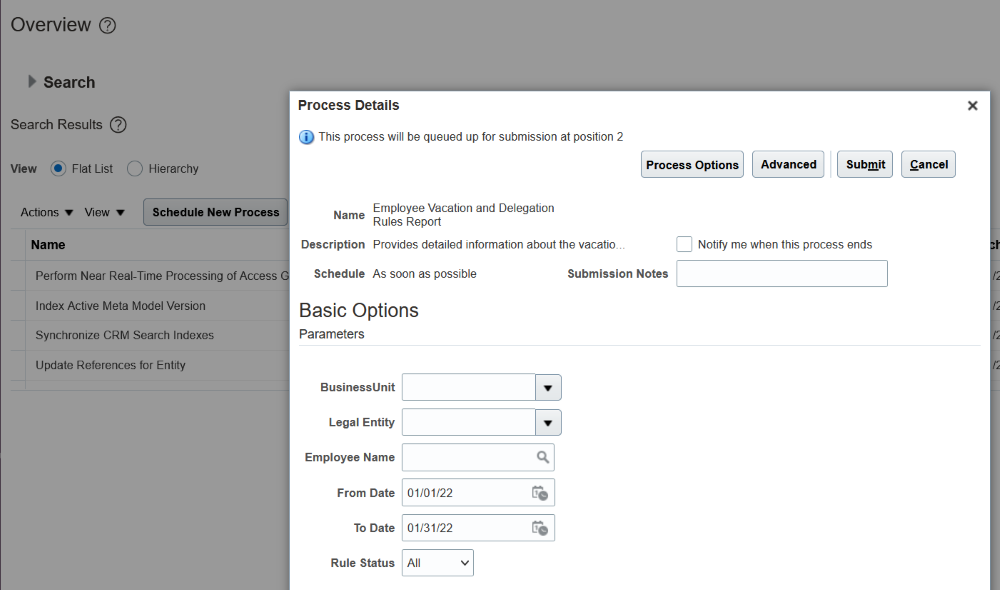
Submitting the Report in the Scheduled Processes Work Area
The report contains the following details:
| Section | Content |
|---|---|
| Originator Employee Details | Information about the employee who has defined the vacation or delegation rule, such as the employee name, person number, position, job code, location and email ID. |
| Rule Details | Details of the rule defined by the employee. Includes the rule type (vacation or delegation), validity period, type of action(reassign or delegate) and the rule conditions based on which the workflow tasks will be reassigned or delegated. |
| Destination Employee Details | Information about the employee to whom the workflow tasks are reassigned or delegated. Includes the employee's name, person number, position, job code, location, email ID and the name and person number of the employee's manager. |
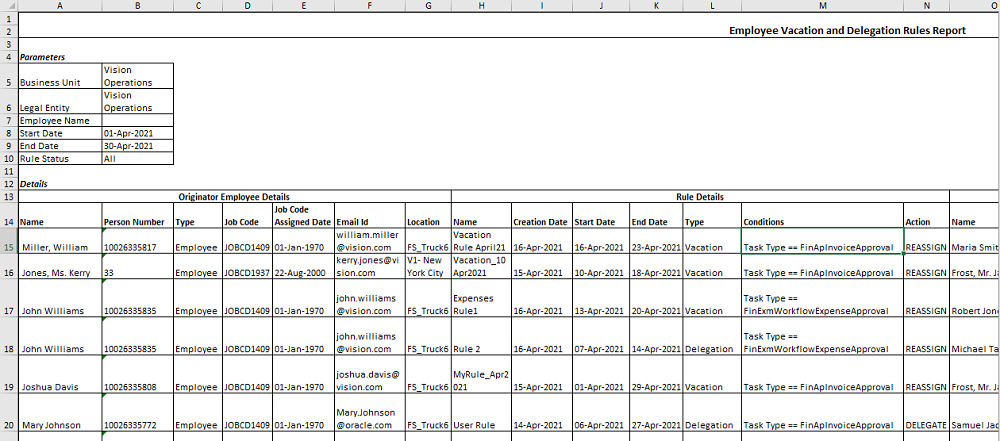
Employee Vacation and Delegation Rules Report
This report helps you manage and troubleshoot approvals, for example for people who are out of office.
Steps to Enable
You don't need to do anything to enable this feature.
Tips And Considerations
If you don’t enter the date parameters while submitting the report, the report runs as if you had entered the first and last date of the current month.
Key Resources
- Review Employee Vacation and Delegation Rules (available April 1, 2022)
Role Information
- To run and view this report, you must have a role that contains both:
- Run BPM Workflow Reports (FUN_RUN_BPM_WORKFLOW_REPORTS_PRIV) privilege
- Run BPM Workflow Reports (FUN_RUN_BPM_WORKFLOW_REPORTS_PRIV_OBI) role
- Both are already granted to these predefined job roles:
- Financial Application Administrator (ORA_FUN_FINANCIAL_APPLICATION_ADMINISTRATOR_JOB)
- Procurement Application Administrator (ORA_PO_PROCUREMENT_APPLICATION_ADMIN_JOB)
Disable Automatic Sourcing of Requisition Lines
You can now disable automatic sourcing of a requisition line, added using the Enter Requisition Line page, to an agreement.
The feature allows the Buyer to source the requisition line from suppliers who can best fulfill the requirements, such as when a shorter lead time than is possible in an existing agreement is required.
Steps to Enable
Use the Opt In UI to enable this feature. For instructions, refer to the Optional Uptake of New Features section of this document.
Offering: Procurement
Tips And Considerations
-
It applies only to requisition lines created using the Enter Requisition Line page. It doesn’t apply to requisition lines created using Smart Forms, Non-catalog request, or REST resources.
-
It applies only to new requisition lines that don’t include a document source or existing requisition lines whose document source is no longer valid. The lines must have been created via the Enter Requisition Line page in both cases.
-
After a requisition line is created with the feature turned on, the behavior of the line will be consistent even if the feature is subsequently turned off. For example, suppose the feature is turned on, and a requisition line that doesn’t have a valid document source is created using the Enter Requisition Line page. In that case, the requisition line will never be automatically sourced to an agreement even if the feature is later turned off.
Role Information
You have a couple of options for giving people access to this feature, depending on whether you’re assigning them predefined job roles or your own configured job roles.
- Procurement Application Administrator (ORA_PO_PROCUREMENT_APPLICATION_ADMIN_JOB)
- Users who are assigned a configured job role that contains this privilege can access the Enter Requisition Line page:
- Create Requisition with Quick Entry (POR_CREATE_REQUISITION_ALLOW_QUICK_ENTRY_PRIV)
Responsive Self Service Procurement Application
Procure Goods and Services Using the Responsive Self Service Procurement Application
Procure goods and services using the Responsive Self Service Procurement application on your mobile device. Using the application, you can create requisitions for local and punchout catalog items, smart forms, and request noncatalog items.
You can now create a requisition anytime and anywhere with just a few taps on your mobile. To shop for catalog content, you can use the new smart search to find items you are looking for quickly. You can then choose to add items to the cart directly from the search results or view details of each item before adding it. After adding the item, you can review and update delivery and accounting information on lines in the cart according to your requirements. Finally, submit the shopping cart for approval. You can track the status of your requisitions on the Home page.
Here's the list of features that are available in this release of the Responsive Self Service Procurement application:
-
My Requisitions
View your 10 most recently submitted requisitions with the real-time status indicated on a card. With a tap on the card, you can drill down to view details of all requisitions lines. In addition to existing statuses, new enhanced statuses are added to capture downstream events after a requisition line is processed onto a purchase order like Ordered, Shipped, In receiving, Delivered, and Billed. Similarly, when associated purchase orders are canceled or placed on hold, requisition lines indicates the events by means of statuses like Order canceled, Order canceled with reinstatement, and Order on hold.
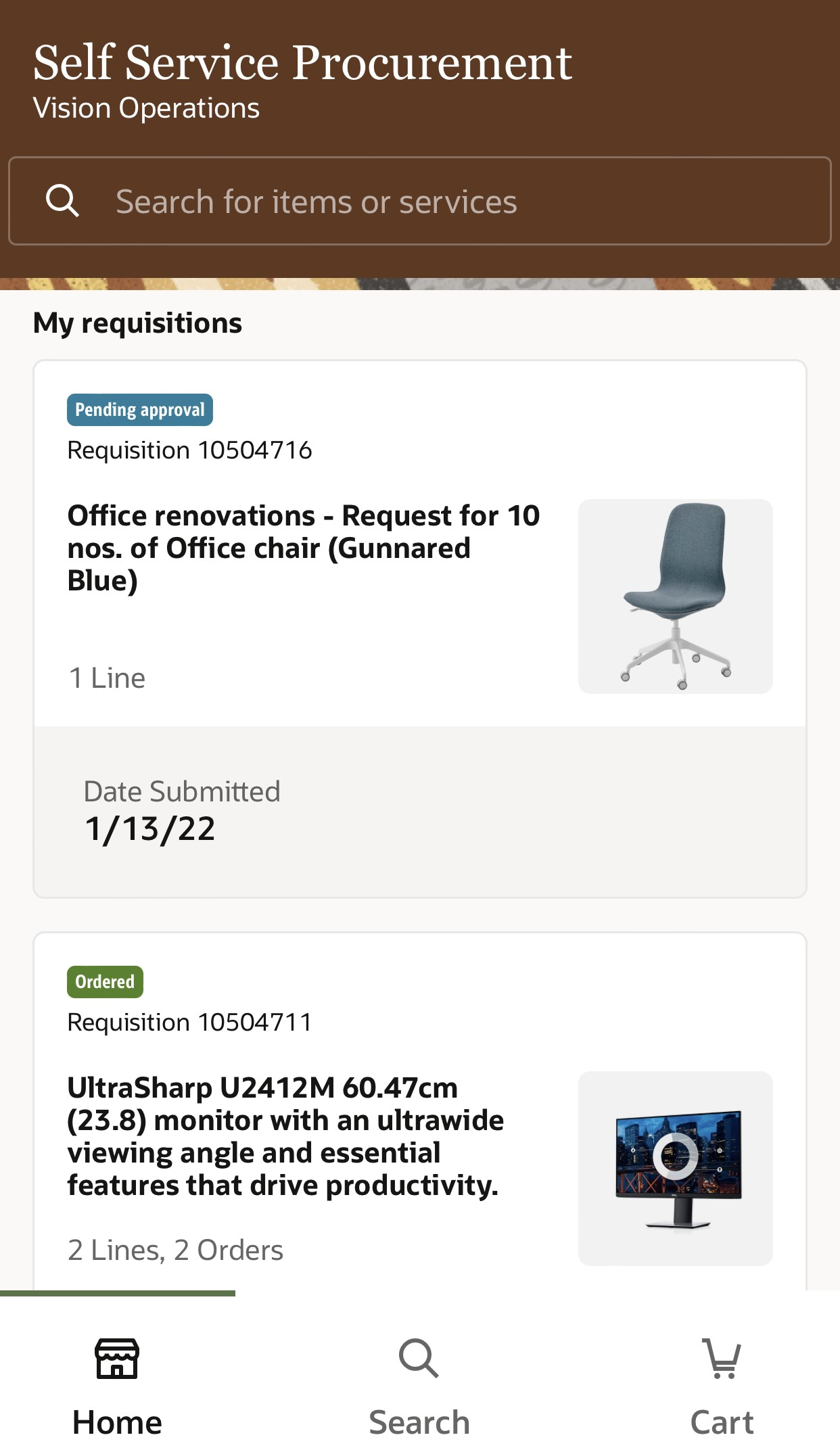
My Requisitions
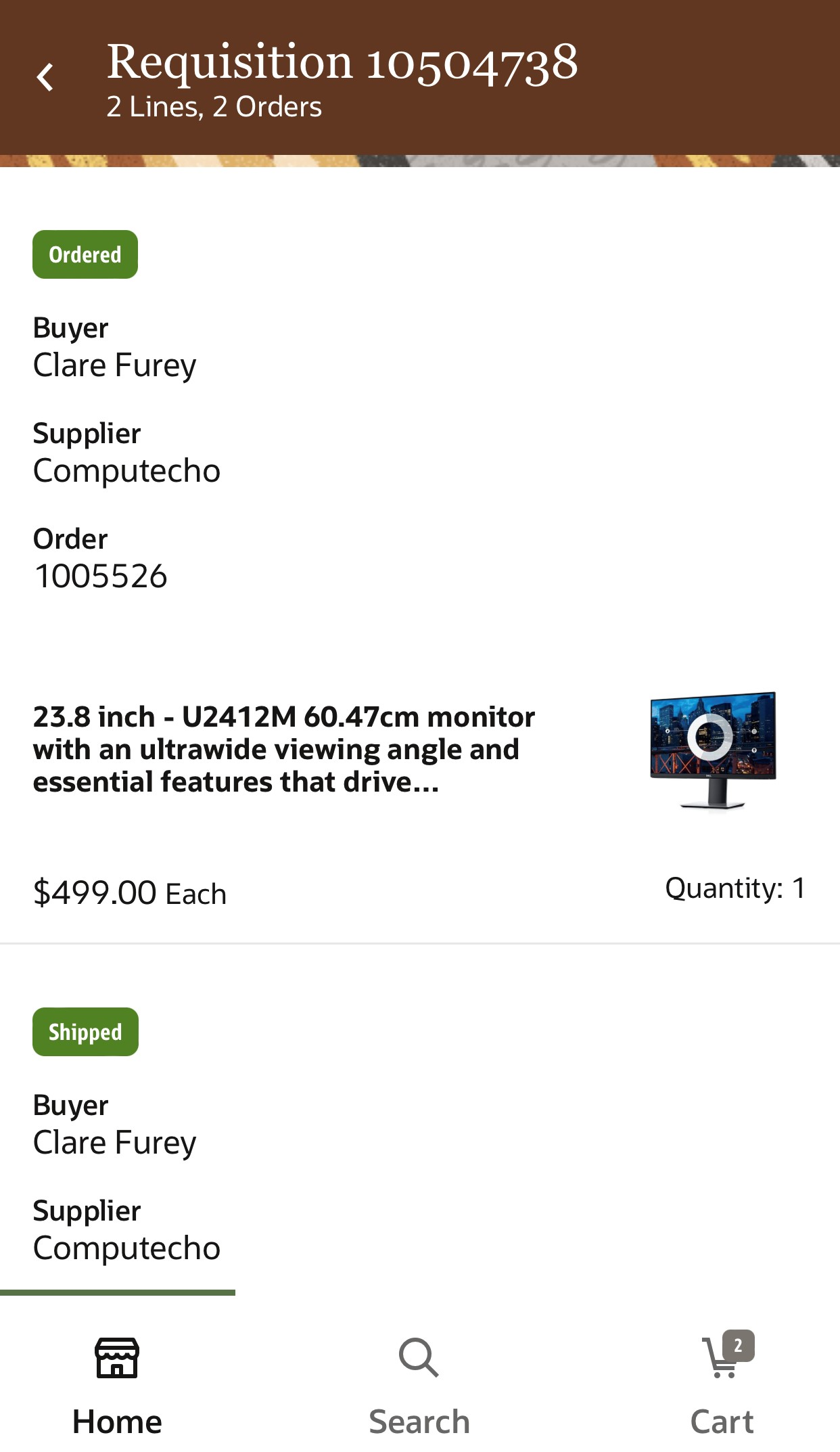
Requisition Details
Watch a Demo.
-
Featured Categories
Use categories for easy access to items and services featured by your organization, including quick access to punchout sites if they are in a featured category.
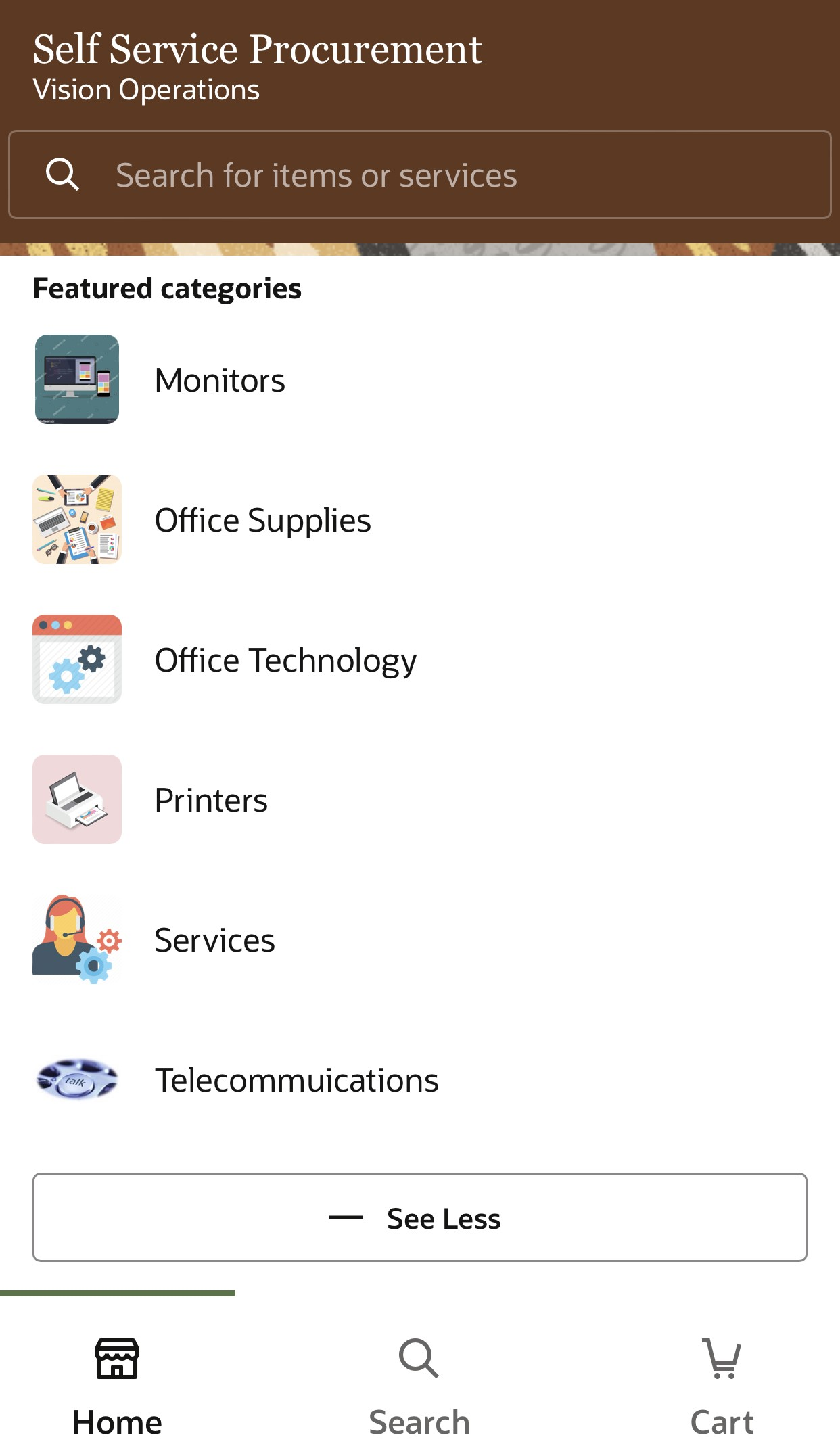
Featured Categories
Watch a Demo.
-
Search
Use the new Elastic-based smart search that supports additional searchable attributes, built-in fuzzy matching, and enhanced relevance ranking of search results. This provides a more powerful search experience with more potential matches compared to the web-based application. You can successively narrow down search results by adding more than one keyword. The application shows you automatic search suggestions based on your recent search history and accessible catalog content. A single search will search across both local content (includes master items and agreement lines), smart forms, punchout catalogs, and punchout search items uploaded via a punchout catalog index file. You can search and shop for items in any of the languages installed in your Oracle Cloud Applications implementation provided that you’ve loaded catalog content in those languages.

Search with Keyword Chips

Product Details
Watch a Demo.
-
Punchout
Punchout to supplier websites to shop externally hosted catalog and bring back items to complete your requisition. If the item-level punchout is enabled for the catalog, you can directly access the search result item on the supplier site (punchout site).
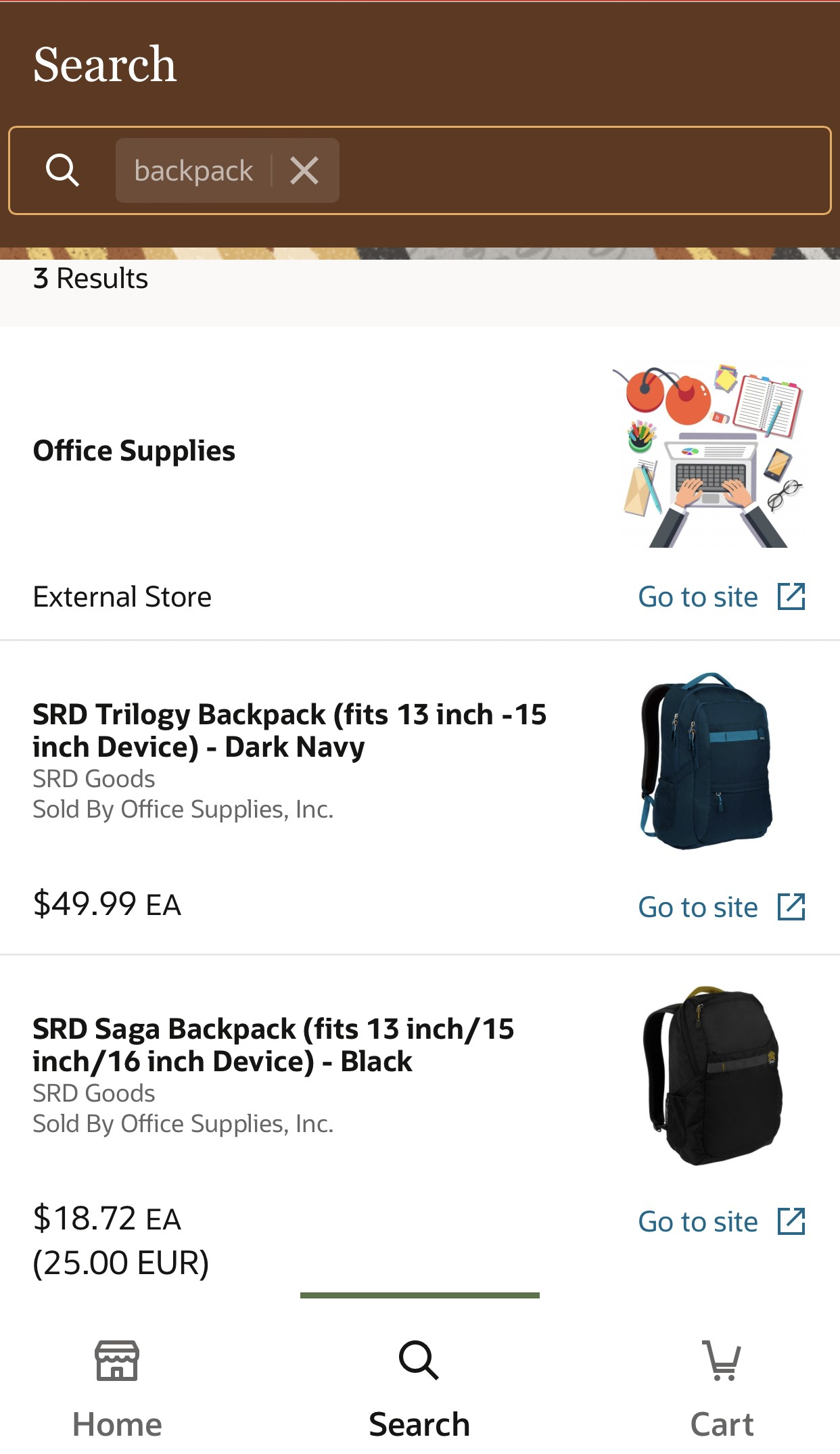
Punchout Catalog and Items
-
Smart Form Request
Request goods and services using smart forms. You can provide the required additional information configured by means of associated information templates.

Create Smart Form-Based Request

Information Templates for Smart Forms

Attachments for Smart Forms
Watch a Demo.
-
Create Noncatalog Request
Request goods and services that aren’t available in the catalog.
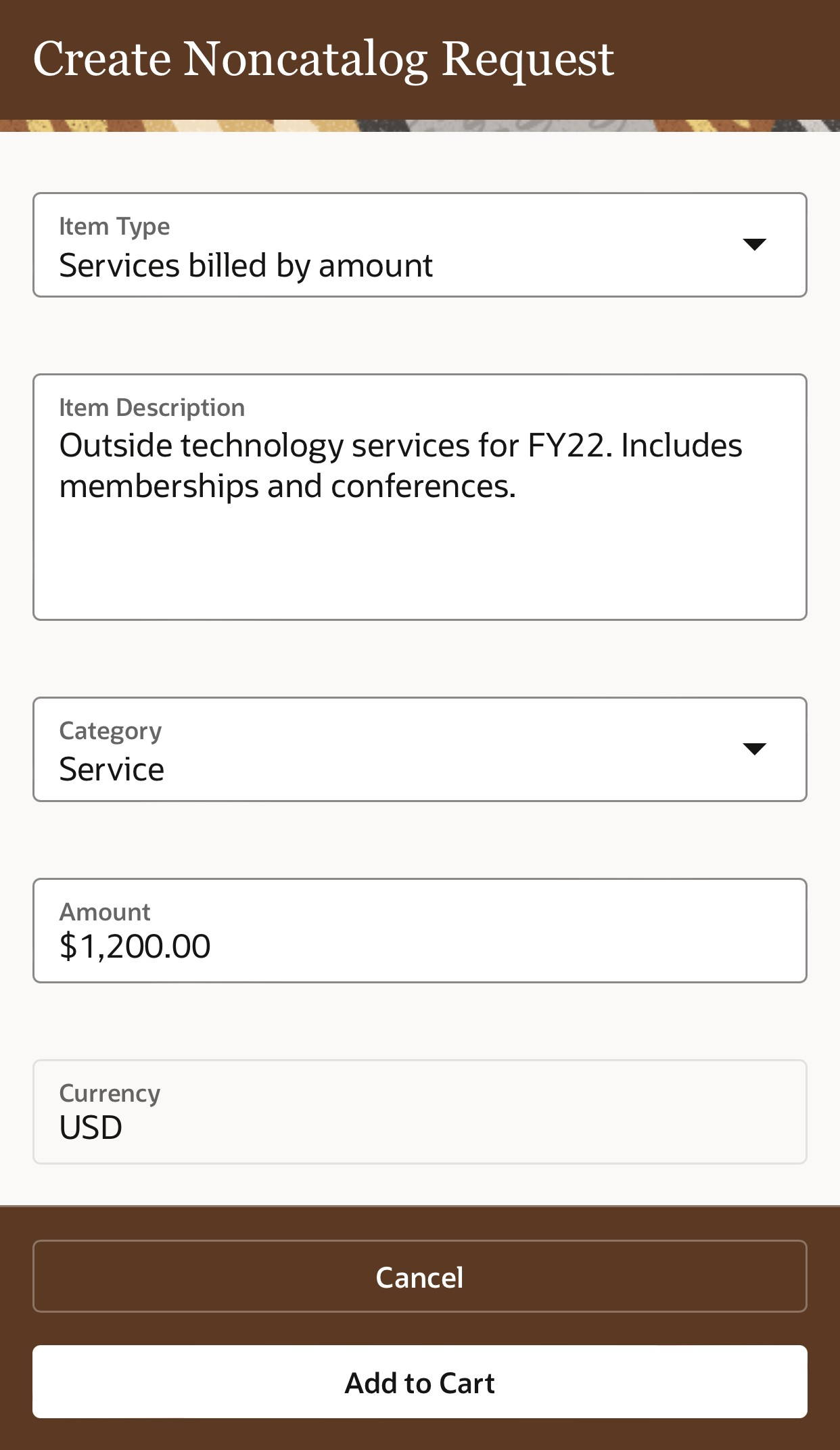
Create Noncatalog Request
- Cart
Review and update information such as requisition description, delivery location (internal or one-time location), requested delivery date, line quantities or amounts, charge account, and projects at requisition summary and line level. The updates you made at the summary level will be applied to all the lines.
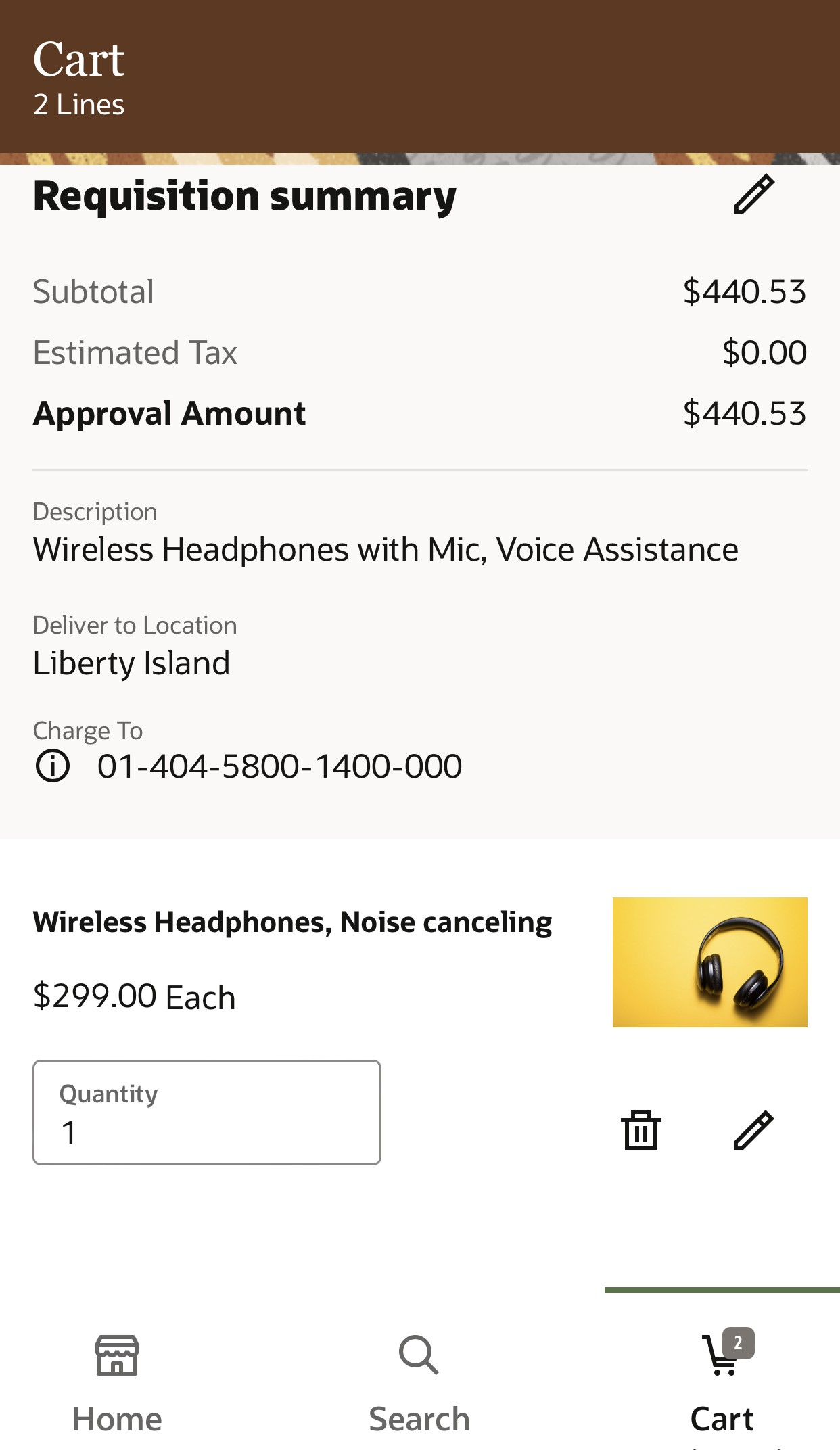
Shopping Cart

Update Delivery, Projects, and Accounting Information
Watch a Demo.
- Costing to a Project
To cost your requisition to a project, update the project costing details in the update Requisition and update Requisition Line pages. You can review the project and task information entered from the Cart page. Use the Manage Descriptive Flexfields task to deploy Project Costing(Code: PROJECTS_STD_COST_COLLECTION) before using the projects feature in this application.
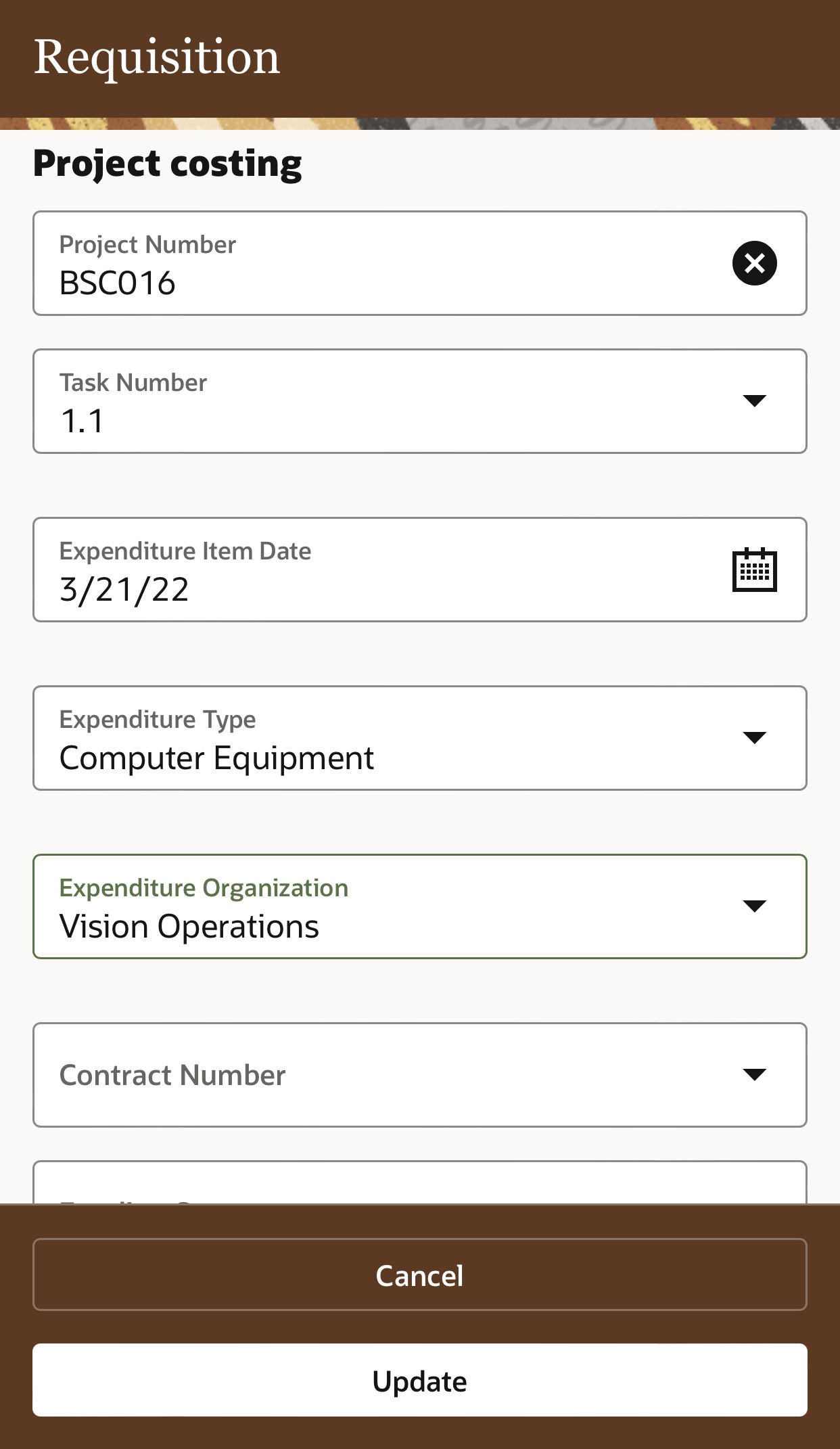
Enter Project Costing Details on Edit Screen
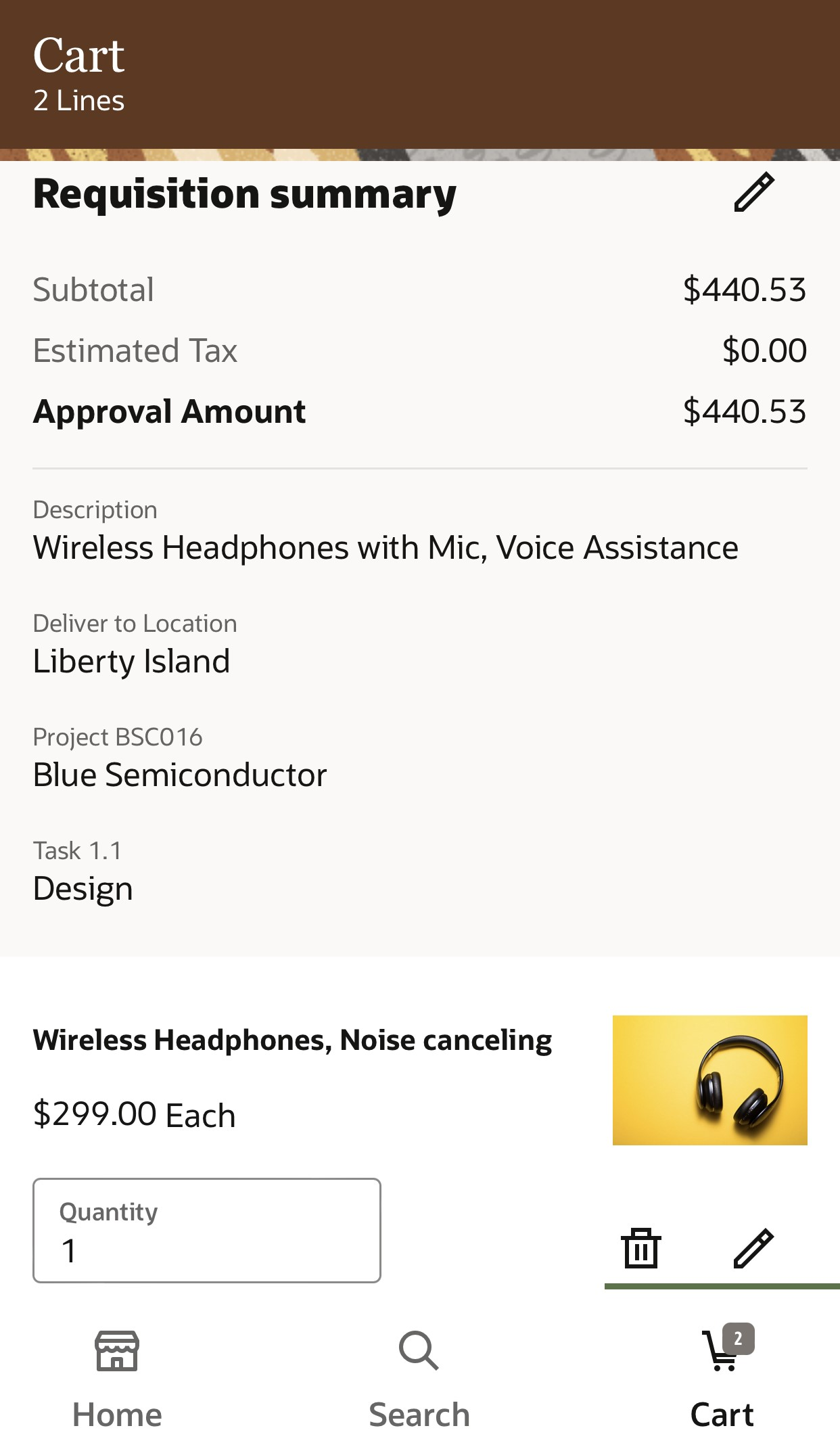
View Projects and Task Information on Cart
- Descriptive Flexfields
Enter requisition header and line-level descriptive flexfields on Update Requisition and Update Requisition Line pages. You can review the entered flexfield values from the Cart page. Based on your flexfield setup, global, context, and context-sensitive segments can be exposed at each level.
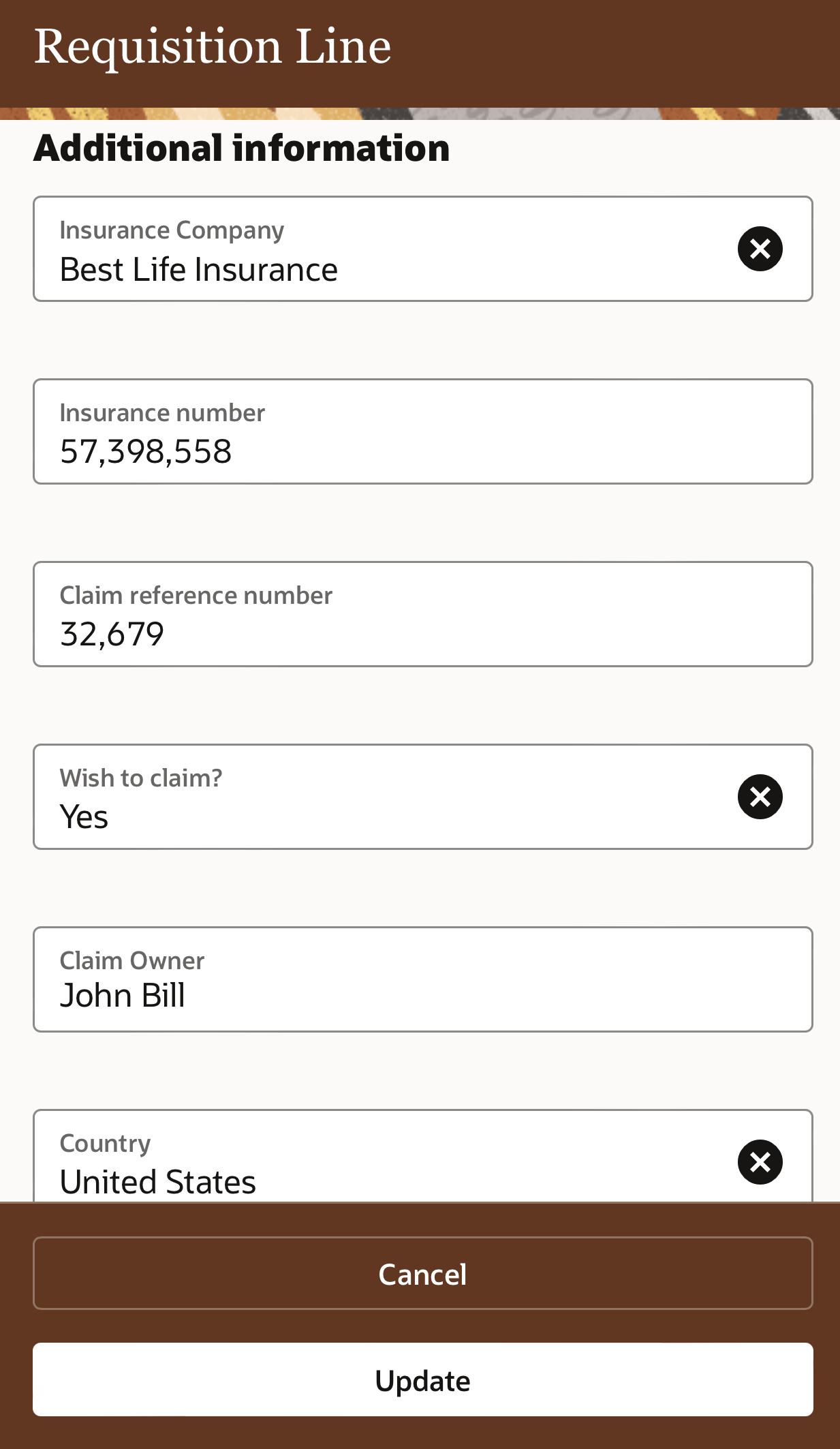
Update Descriptive Flexfields on Edit Screen
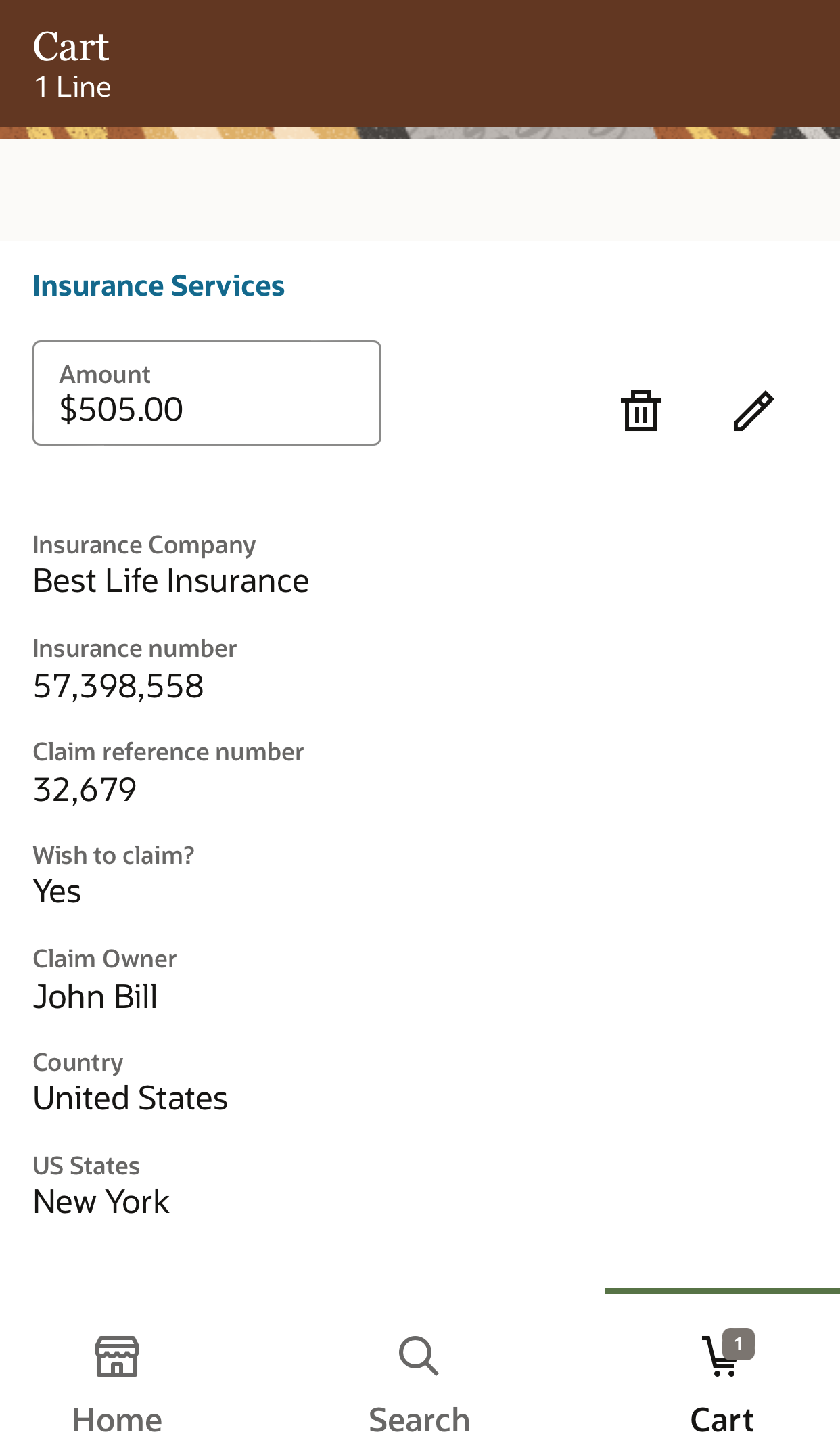
View Descriptive Flexfields on Cart
Watch a Demo.
- Attachments
Add requisition header and line-level attachments. You can navigate to the attachments section with a tap on the view attachments link on the cart.
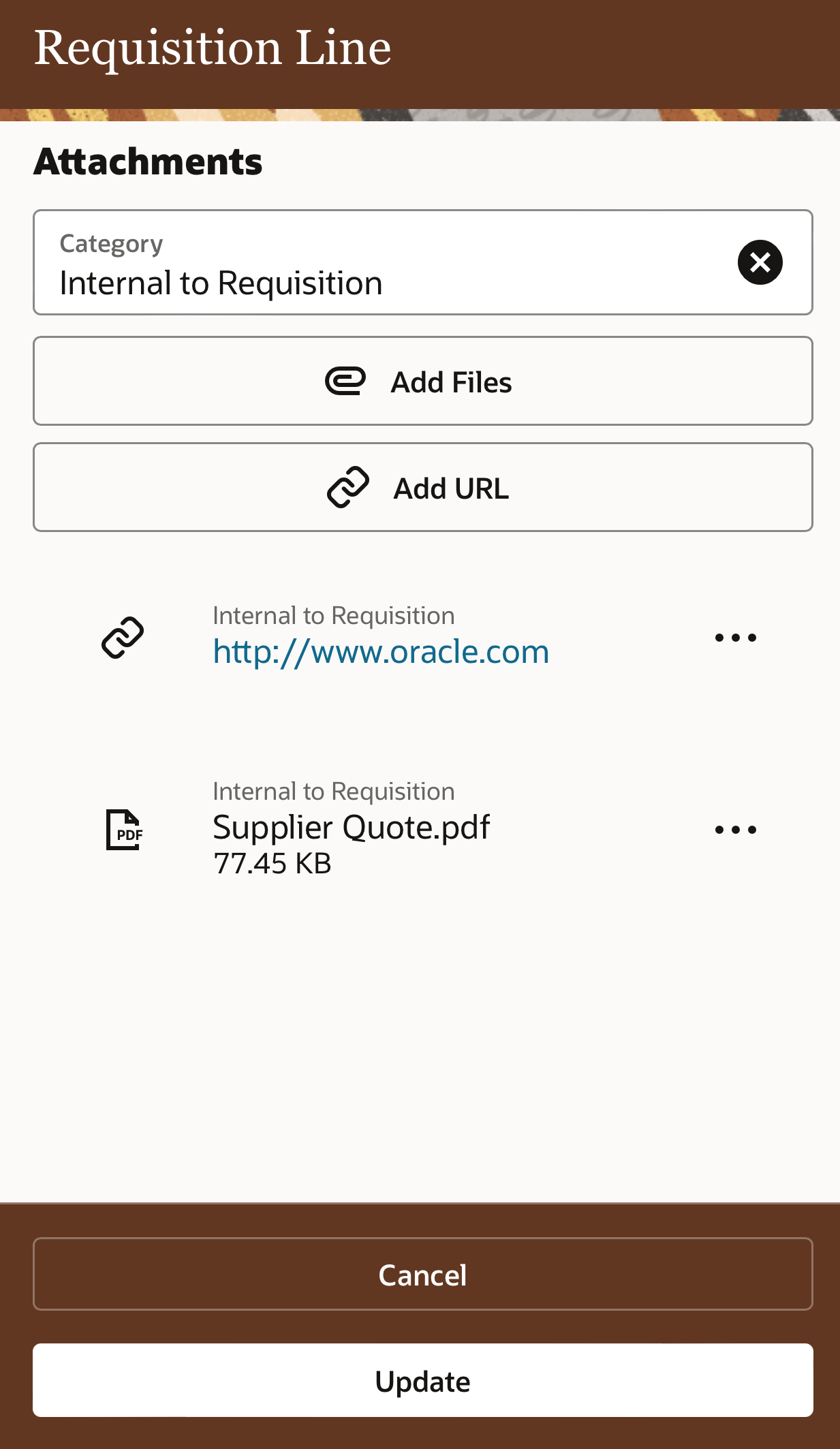
Add Attachments to a Requisition Line
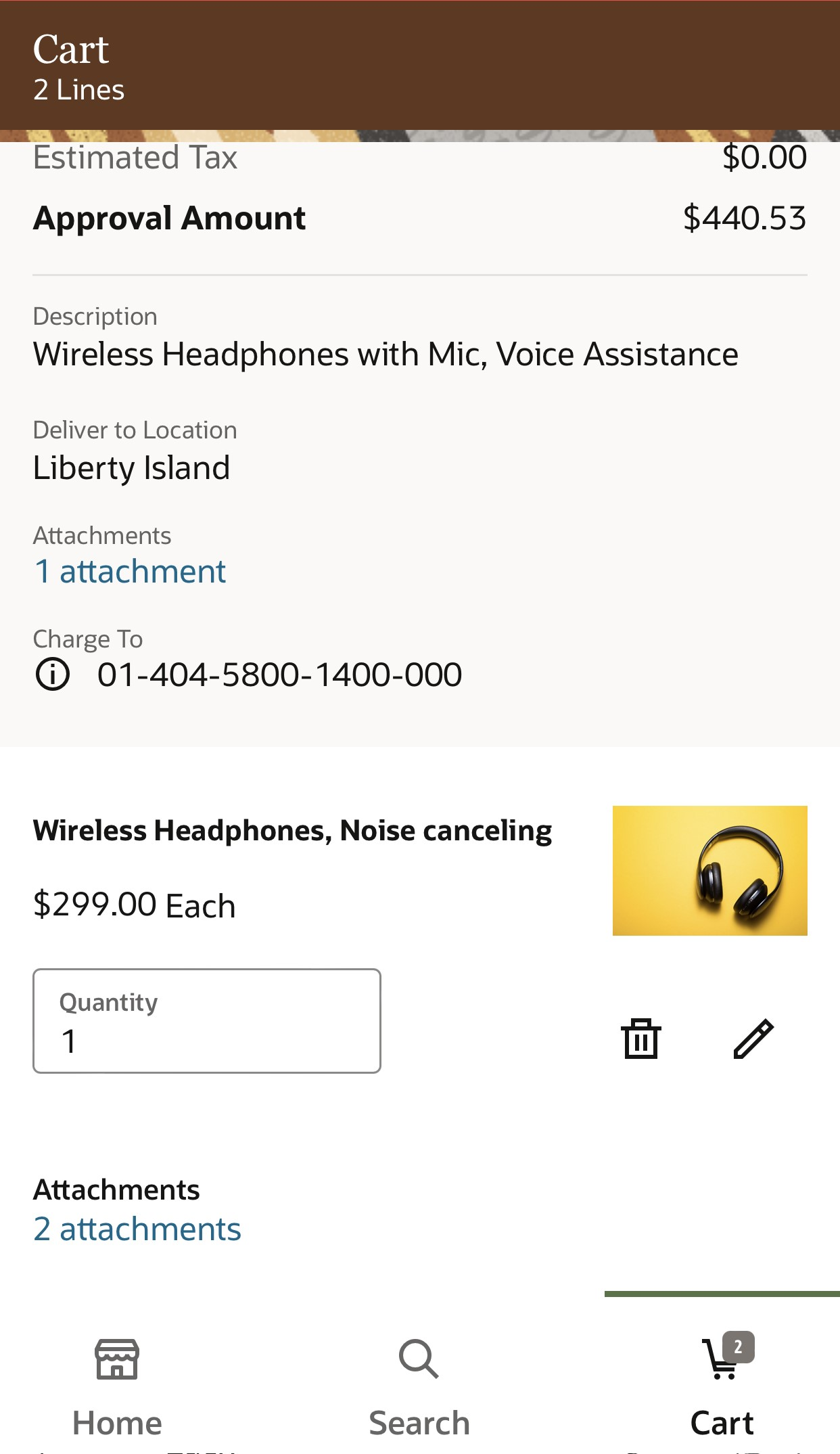
View Attachments Links on Cart
The application's intuitive design makes the shopping experience easy, quick, and delightful for the enterprise mobile workforce. If procuring items or services are common and critical to run business affairs in your organization, the new mobile experience has these benefits:
- Facilitate quick requisitioning of goods and services while you are on the move, thereby completing your tasks efficiently and helping you focus on your core responsibilities.
- Find what you are looking for quickly by suggesting matching recent searches and catalog content to your search keywords. Effective fuzzy matching and relevance scoring ranks the closest match on top of your search results.
Steps to Enable
Use the Opt In UI to enable this feature. For instructions, refer to the Optional Uptake of New Features section of this document.
Offering: Procurement
After you opt-in, ensure you have the Procurement Catalog Administrator role before performing these steps to complete the initial ingestion of existing catalog items to the index and enable catalog search. New items created after these steps will be automatically inserted into the search index.
- In the Manage Administrator Profile Values task, set the values for these profile options:
- Enable/Disable Search Ext Framework profile (Code: ORA_FND_SEARCH_EXT_ENABLED) to Yes.
- Row fetch count for initial ingest process (Code: ORA_FND_SEARCH_FETCH_COUNT) to 100.
- To perform this specific step login with a user that has Procurement Catalog Administrator role. Navigate to Tools > Scheduled Processes and then click Schedule New Process.
- Search and select process name: Transform Data Post Upgrade
- Parameter Value for Feature Name: POPULATE_ELASTIC_INTERMEDIATE_TABLE.
- Monitor the Transform Data Post Upgrade process. After the process is complete, wait for at least 2 hours to ensure that updated database statistics are available for the next process to run efficiently.
- Login again as the implementation user, navigate to Tools > Scheduled Processes and then click Schedule New Process.
- Search and Select process name: ESS job to create index definition and perform Initial Ingest to OSCS
- Parameter Value for Index Name to Reingest: fa-prc-shoppingcatalog.
Tips And Considerations
While we have taken every measure so that you can install and run this application as seamlessly as possible, consider these points to use the application to its full potential.
- Requisition Preferences:
- New Fusion Application users must access the Oracle Self Service Procurement Cloud web-based application at least once to set up their requisition preferences.
- The value for Requisitioning BU, Requester, Deliver-to Location, Destination Type, and Projects defaults from the Oracle Self Service Procurement Cloud web-based application requisition preferences.
- The primary charge account set in requisition preferences will be applied based on the Transaction Account Builder setup.
- Requisition Descriptive Flexfields:
- To disable descriptive flexfields, use the Manage Administrator Profile Values task to set the Descriptive Flexfields Displayed by Default in the Responsive Self Service Procurement Application (Code:ORA_POR_SHOW_DFF_BY_DEFAULT_IN_PWA) profile to No.
- Significant features not available in this release:
- Requisition creation for other requesters
- Inventory and Work order destination types
- Modify user requisition preferences
- Budgetary-controlled requisitions with funds reservation point as Submit
- Internal material transfer
- Supported Browsers and Devices
- Chrome on Android OS mobile phone
- Safari on iOS mobile phone
- Device Orientation
- Use the application only in portrait mode.
- Installation
- After logging in, you can install the application using these browser options:
- Install App menu option in Chrome
- Add to Home Screen option in Safari
- After logging in, you can install the application using these browser options:
Key Resources
Role Information
You have a couple of options for giving people access to set up and use this feature, depending on whether you're assigning them predefined job roles or your own configured job roles.
- To give people access to this feature, you need to configure roles that contain the duty role listed below and assign them to users:
- Requisition Self Service Responsive Application User Duty (ORA_POR_REQUISITION_SELF_SERVICE_PWA_USER_DUTY)
- To setup this feature, here’s what you need:
- Procurement Catalog Administrator (ORA_POR_PROCUREMENT_CATALOG_ADMINISTRATOR_ABSTRACT)