
This document will continue to evolve as existing sections change and new information is added. All updates appear in the following table:
| Date | Product | Feature | Notes |
|---|---|---|---|
| 20 JUN 2023 | Responsive Self Service Procurement Application | Procure Goods and Services on Your Desktop or Other Devices Using the Responsive Self Service Procurement Application | Updated document. Revised Steps to Enable. |
| 20 JUN 2023 | Responsive Self Service Procurement Application |
Review Requisition Lines with Invoice Holds in the Responsive Self Service Procurement Application | Updated document. Revised Steps to Enable. |
| 15 JUL 2022 | Self Service Procurement | Default an Item Category for Punchout Requisition Lines | Updated document. Delivered new feature that is from a customer submitted idea. |
| 15 JUL 2022 | Common Procurement | Integrate and Extend Procurement Using REST Services | Updated document. Revised feature description. |
| 22 JUN 2022 | Self Service Procurement | Use the Deliver-to Inventory Organization Time Zone When Fulfilling Supply Chain Demand | Updated document. Revised feature description. |
| 17 JUN 2022 | Created initial document. |
 HAVE AN IDEA?
We’re here and we’re listening. If you have a suggestion on how to make our cloud services even better then go ahead and tell us. There are several ways to submit your ideas, for example, through the Ideas Lab on Oracle Customer Connect. Wherever you see this icon after the feature name it means we delivered one of your ideas.
GIVE US FEEDBACK
We welcome your comments and suggestions to improve the content. Please send us your feedback at oracle_fusion_applications_help_ww_grp@oracle.com.
DISCLAIMER
The information contained in this document may include statements about Oracle’s product development plans. Many factors can materially affect Oracle’s product development plans and the nature and timing of future product releases. Accordingly, this Information is provided to you solely for information only, is not a commitment to deliver any material, code, or functionality, and should not be relied upon in making purchasing decisions. The development, release, and timing of any features or functionality described remains at the sole discretion of Oracle.
This information may not be incorporated into any contractual agreement with Oracle or its subsidiaries or affiliates. Oracle specifically disclaims any liability with respect to this information. Refer to the Legal Notices and Terms of Use for further information.
Optional Uptake of New Features (Opt In)
Oracle Cloud Applications delivers new updates every quarter. This means every three months you'll receive new functionality to help you efficiently and effectively manage your business. Some features are delivered Enabled meaning they are immediately available to end users. Other features are delivered Disabled meaning you have to take action to make available. Features delivered Disabled can be activated for end users by stepping through the following instructions using the following privileges:
- Review Applications Offering (ASM_REVIEW_APPLICATIONS_OFFERINGS_PRIV)
- Configure Oracle Fusion Applications Offering (ASM_CONFIGURE_OFFERING_PRIV)
Here’s how you opt in to new features:
- Click Navigator > My Enterprise > New Features.
- On the Features Overview page, select your offering to review new features specific to it. Or, you can leave the default selection All Enabled Offerings to review new features for all offerings.
- On the New Features tab, review the new features and check the opt-in status of the feature in the Enabled column. If a feature has already been enabled, you will see a check mark. Otherwise, you will see an icon to enable the feature.
- Click the icon in the Enabled column and complete the steps to enable the feature.
In some cases, you might want to opt in to a feature that's not listed in the New Features work area. Here's how to opt in:
- Click Navigator > My Enterprise > Offerings.
- On the Offerings page, select your offering, and then click Opt In Features.
- On the Opt In page, click the Edit Features (pencil) icon for the offering, or for the functional area that includes your feature.
- On the Edit Features page, complete the steps to enable the feature.
For more information and detailed instructions on opting in to new features for your offering, see Offering Configuration.
Opt In Expiration
Occasionally, features delivered Disabled via Opt In may be enabled automatically in a future update. This is known as an Opt In Expiration. If your cloud service has any Opt In Expirations you will see a related tab in this document. Click on that tab to see when the feature was originally delivered Disabled, and when the Opt In will expire, potentially automatically enabling the feature. You can also click here to see features with Opt In Expirations across all Oracle Cloud Applications.
Column Definitions:
Report = New or modified, Oracle-delivered, ready to run reports.
UI or Process-Based: Small Scale = These UI or process-based features are typically comprised of minor field, validation, or program changes. Therefore, the potential impact to users is minimal.
UI or Process-Based: Larger Scale* = These UI or process-based features have more complex designs. Therefore, the potential impact to users is higher.
Features Delivered Disabled = Action is needed BEFORE these features can be used by END USERS. These features are delivered disabled and you choose if and when to enable them. For example, a) new or expanded BI subject areas need to first be incorporated into reports, b) Integration is required to utilize new web services, or c) features must be assigned to user roles before they can be accessed.
| Ready for Use by End Users Reports plus Small Scale UI or Process-Based new features will have minimal user impact after an update. Therefore, customer acceptance testing should focus on the Larger Scale UI or Process-Based* new features. |
Customer Must Take Action before Use by End Users Not disruptive as action is required to make these features ready to use. As you selectively choose to leverage, you set your test and roll out timing. |
|||||
|---|---|---|---|---|---|---|
| Feature |
Report |
UI or |
UI or |
|
||
Use the Deliver-to Inventory Organization Time Zone When Fulfilling Supply Chain Demand |
||||||
Review Requisition Lines with Invoice Holds in the Responsive Self Service Procurement Application |
||||||
Integrate and Extend Procurement Using REST Services
In this update, Oracle Fusion Cloud Procurement and Oracle Fusion Cloud Self Service Procurement deliver new and modified REST APIs to enable and simplify integration with external systems.
The new REST API introduced in this update is:
- Browsing Categories
The following REST APIs are enhanced:
- Purchase Requisitions
- GET is supported for Action Required and Action Required Code for requisition lines.
- GET is supported for the flag, Has Action Required Lines, for requisition headers.
- POST and PATCH are enhanced to accept the Requested Delivery Date in the local time zone of the inventory organization.
- POST and PATCH are supported for Justification at the header level and Note to Buyer, Note to Supplier and Note to Receiver at the line level.
- Requisitioning Processing Requests
- POST is enhanced to support adding back-to-back requisition lines to open purchase orders.
- Purchase Orders
- GET is supported for U.S. Federal attributes.
You can use these modified REST services to simplify integrations and support standards-based interoperability with your other applications and external systems.
Steps to Enable
Review the REST service definition in the REST API guides to leverage (available from the Oracle Help Center > your apps service area of interest > APIs & Schema). If you are new to Oracle's REST services you may want to begin with the Quick Start section.
Key Resources
- Refer to the REST API for Oracle Procurement Cloud documentation available on the Oracle Help Center.
Access Requirements
- Refer to the Job Roles and Privileges section in the REST API for Oracle Procurement Cloud documentation, available on the Oracle Help Center.
Default an Item Category for Punchout Requisition Lines
As a Procurement catalog administrator, you can now configure a default item category in your Punchout Catalog definition. This is available for all punchout definition sources: cXML, Oracle native XML, and Oracle Business Network.

Default Item Category on Punchout Catalog
With this feature, the requester can now continue to submit a requisition even when a valid category mapping doesn't exist between the supplier and the internal definitions. This used to result in an error previously.
Here's the difference in behavior before and after this feature is introduced, from a requester's perspective:
Before:
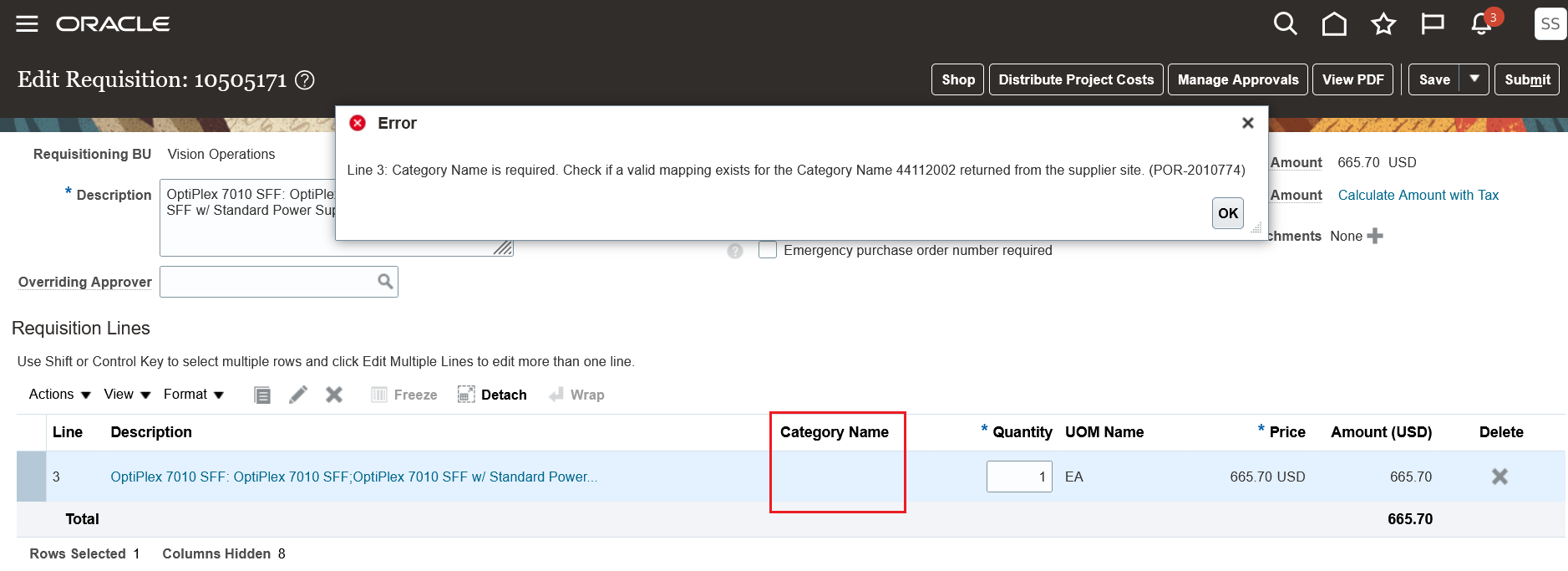
Error Upon Submit with no Category Defaulted on the Line
After:
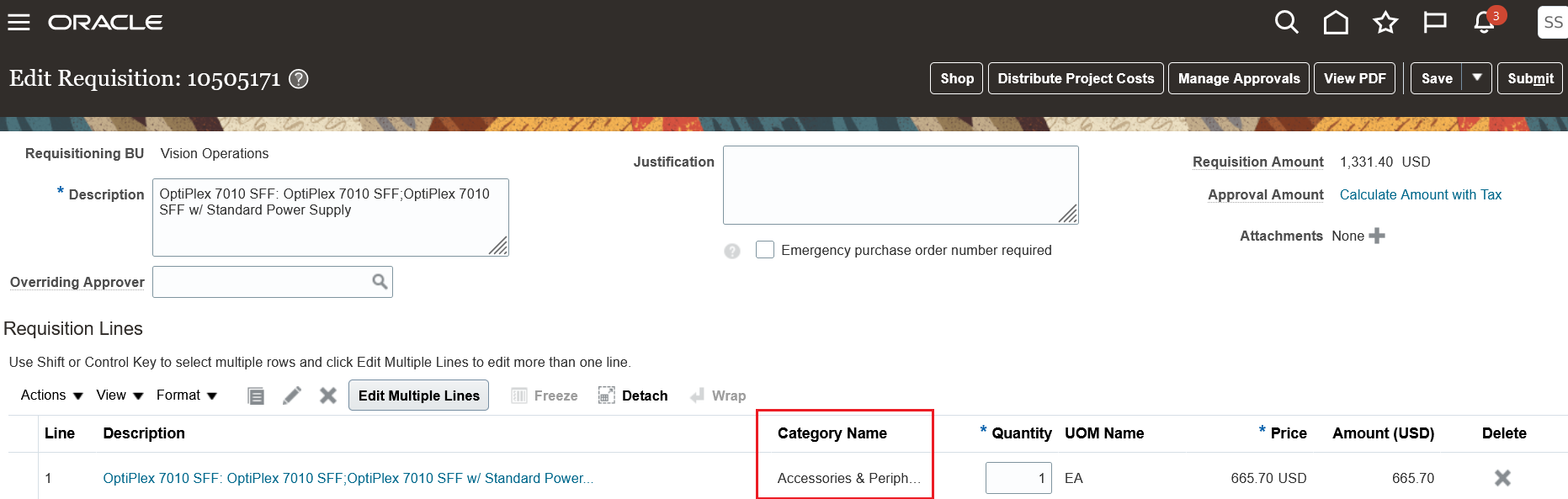
After Using this feature
NOTE:
- This feature is also available in the responsive version of Oracle Self Service Procurement, which is available if your enterprise has opted into the feature named Procure Goods and Services Using the Responsive Self Service Procurement Application.
- The hierarchy used in determining the category to populate on a requisition line is in descending order of:
- Supplier Content Map Set on the Catalog
- Supplier Content Map Set of the Procurement BU associated with the Punchout Catalog
- The item definition to get the category associated with the item
- The default item category set up on the Punchout Catalog
- The default item category will also be used in cases where no supplier content map set is defined or set up at any level, and the value returned by the supplier doesn't map to a valid internal item category.
- There's no change to the existing marketplace-based punchout process. The current behavior will continue:
If the Catalog definition has Process master items and agreement lines = Y, and
- If the supplier site returns a master item (BuyerPartId), then Category will be derived from the item definition.
- If the supplier site returns the BPA line, then Category will be derived from the BPA line.
This feature allows requesters to continue the requisitioning process and not be stalled due to failures outside their purview or control. This is particularly helpful when dealing with suppliers that have dynamic changes to their category definitions or switching between similar items with short notice to buying organizations on such changes.
Steps to Enable
You need to set up the Default Item Category in your Punchout Catalog definition to enable this feature.
Tips And Considerations
Here are some of the implementation tips and considerations that may be relevant before you decide to use this feature
- As the default category is punchout catalog specific, you need to decide which specific item category would be the best to use for each punchout catalog because this will also reflect in your spend analysis and reporting. If you require to track these categories specifically, then remember to create a category that will stand out when reviewed.
- Review any approval configurations that you currently have to consider this new feature and determine if specific approvals are required for such default scenarios.
- If the default item category you have configured on your punchout catalog definition becomes invalid later, the system will then throw the error as it does currently. Your Procurement catalog administrator will need to search for all catalog definitions that use the said category and make the necessary updates. This is a manual process, and there are no recommended shortcuts or workarounds at this time.
- If you wish to continue existing behavior, don't set up a default item category in your Punchout Catalog definition.
- The existing error (captured in the Before screenshot) will continue in each of these cases:
- No default category is set up, and no valid mapping exists for the supplier returned category.
- The default category is set up but is invalid.
- In case the supplier returned punchout doesn't even carry a category, the system still throws an error even if the default is set up. We believe this is a process issue that should be brought to the buying organization's attention and should be resolved rather than allowing the default category to be used.
Access Requirements
You don't need any additional roles to use this feature.
Use the Deliver-to Inventory Organization Time Zone When Fulfilling Supply Chain Demand
Use the time zone specified on the inventory organization definition for deriving the local time zone for delivery and shipping locations. With this feature, Oracle Order Management back-to-back sales orders, Oracle Supply Planning, and Oracle Manufacturing can communicate the requested delivery or shipping dates to Procurement in the time zone of the deliver-to and ship-to organizations. In addition, requisitions sourced from min-max planning and PAR replenishment are now created in the time zone associated with the inventory organization. This ensures that the requested dates on purchase requisitions aren’t past dates as per the time zone specified in the deliver-to organization in the upstream applications.
Using this feature, the requested dates on purchase requests from external applications and those entered manually in UIs will be validated to ensure that they aren't past dates as per the current date in the time zone of the deliver-to organization. Also, the delivery and ship dates on related purchase orders will reflect the ship-to location local time zone.
These screen captures illustrates the feature for a back-to-back requisition and purchase order line:
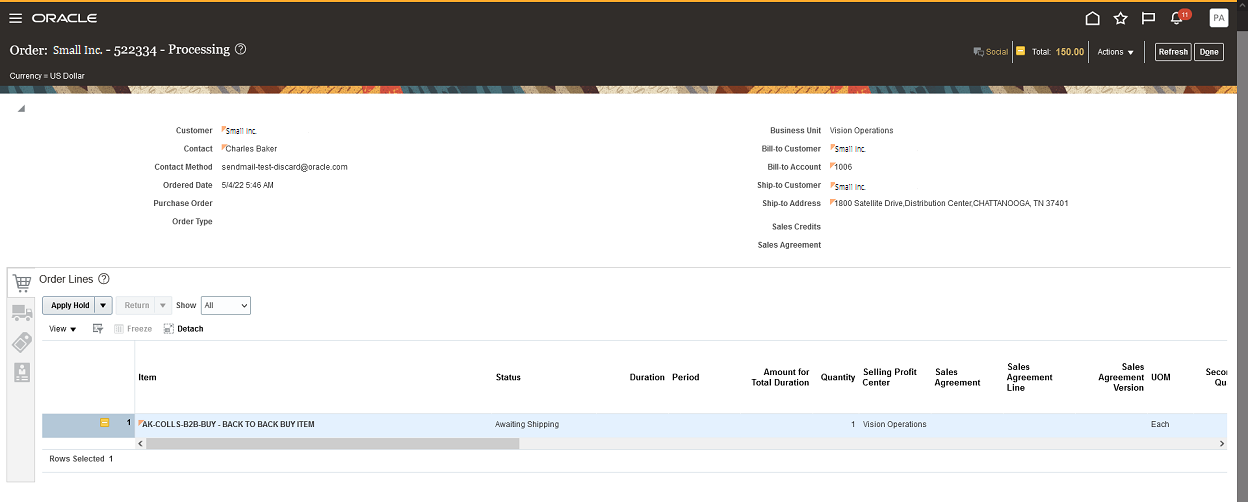
Back-to-Back Sales Order Entered on Same Time Zone as Supply Warehouse
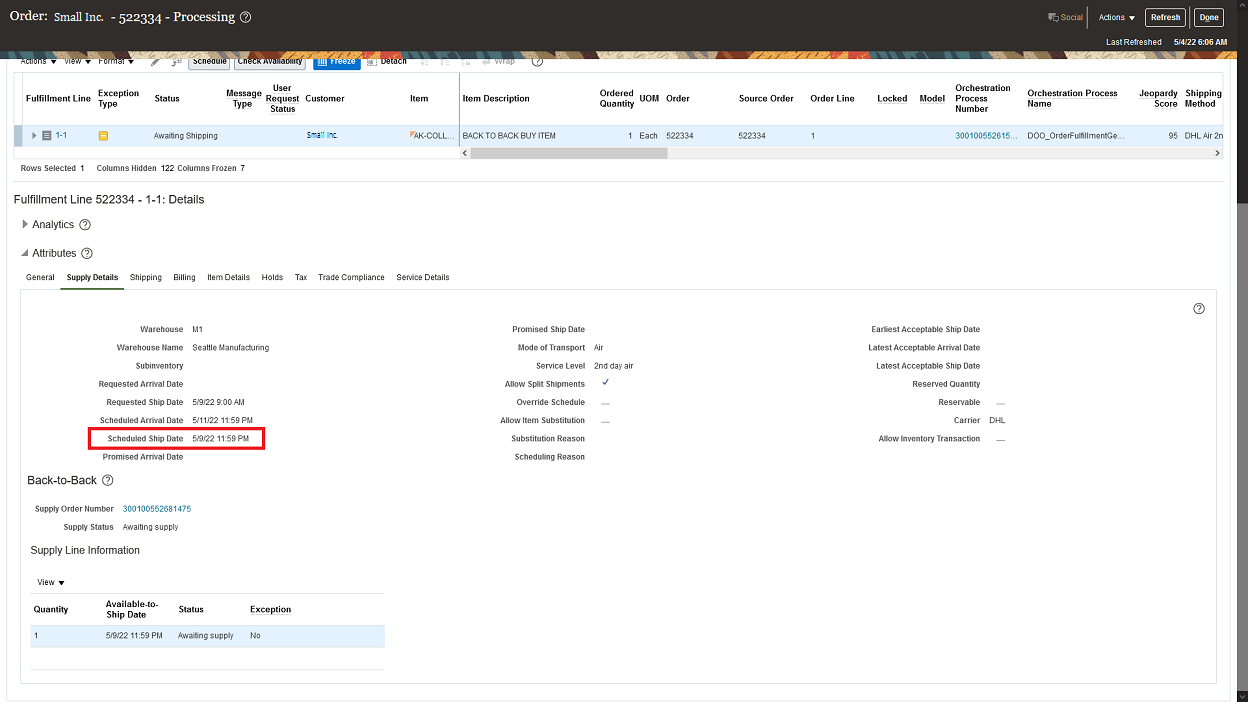
Supply Details on the Sales Order Fulfillment View Show the Schedule Ship Date on Warehouse Time Zone

Back-to-Back Requisition Line Shows the Requested Delivery Date on the Delivery-to Location Local Time Zone

Purchase Order for Back-to-Back Requisition Line Shows the Requested Delivery Date and Promised Delivery Date on the Ship-to Location Local Time Zone
Steps to Enable
Use the Opt In UI to enable this feature. For instructions, refer to the Optional Uptake of New Features section of this document.
Offering: Procurement
Define a Time Zone for the Inventory Organization in Setup and Maintenance > Manage Inventory Organizations > Manage Inventory Organization Parameters:
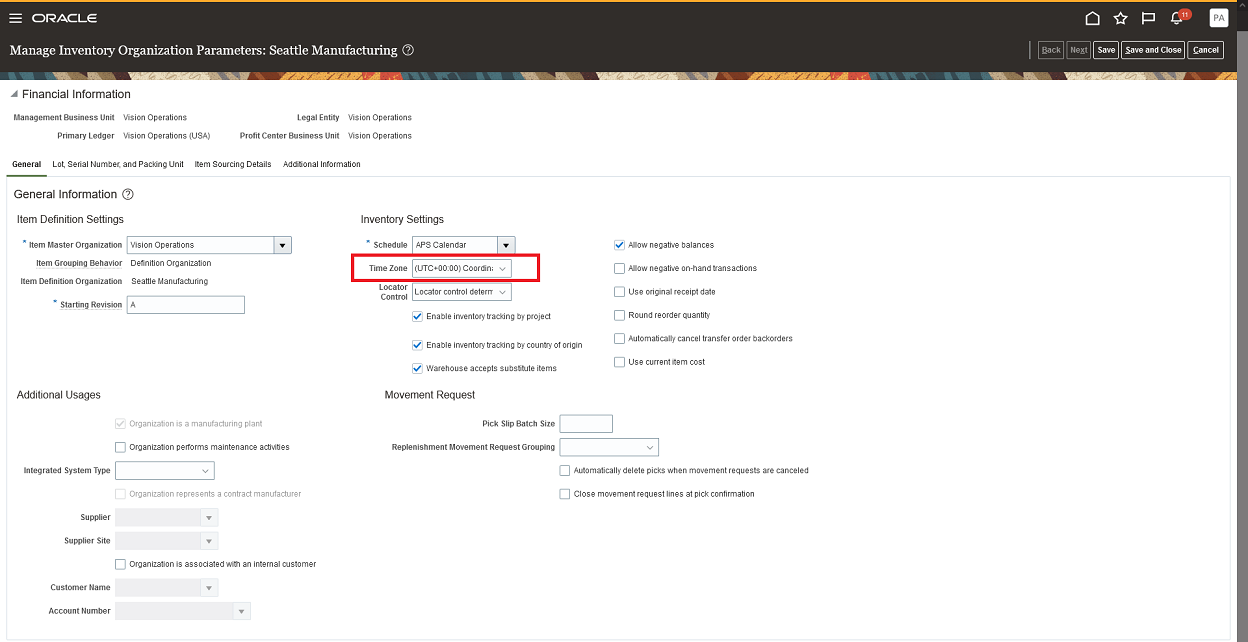
Manage Organization Parameters
Tips And Considerations
- In the requisition import program (FBDI or Purchase Request Web Service), the requested delivery date and requested ship date are validated according to the local time zone of the destination inventory organization. If the inventory organization time zone isn't defined, the program assumes the UTC zone. In REST APIs and UIs, only the requested delivery date is supported and is validated in the same manner.
- The requested delivery date also defaults for requisitions created using the requisition import program or manually entered in UIs. The default date is the current date in the destination inventory organization time zone plus the number of days in the offset profile: POR: Requested Delivery Date Offset.
- For requisitions for one-time locations, the requested delivery date is according to the time zone of the default deliver-to organization in the Requisitioning BU.
- You can't use this feature for purchase requests for drop ship sales orders. For drop ship sales orders, the requested delivery and ship dates are currently validated according to the time zone of the legal entity of the inventory organization. If the legal entity time zone isn't enabled, the date validation is based on the UTC.
- For internal material transfers, the requested delivery date of the requisition line is converted from the inventory organization's local time zone to the UTC zone for transfer order creation.
Access Requirements
You have a couple of options for giving people access to this feature, depending on whether you're assigning them predefined job roles or your own configured job roles.
- Users who are assigned any of these predefined job roles can access this feature:
- For creating requisitions using the UI:
- Procurement Requester (ORA_POR_PROCUREMENT_REQUESTER_ABSTRACT) or
- Procurement Preparer (ORA_POR_PROCUREMENT_PREPARER_ABSTRACT)
- For creating requisitions using the requisition import process (FBDI or Purchase Request Web Service):
- Procurement Integration Specialist (ORA_PO_PROCUREMENT_INTEGRATION_SPECIALIST_JOB)
- Buyer (ORA_PO_BUYER_JOB)
- Procurement Manager (ORA_PO_PROCUREMENT_MANAGER_JOB)
- For creating requisitions using the REST API:
- Refer to the Job Roles and Privileges section in the REST API for Oracle Procurement Cloud documentation, available on the Oracle Help Center.
- For creating purchase orders from requisitions:
- Buyer (ORA_PO_BUYER_JOB)
- For creating requisitions using the UI:
If you're maintaining your own configured job roles: no new privileges were introduced to support this feature.
Selected Bug Fixes in This Update
This update includes some bug fixes that can change the way Oracle Fusion Cloud Self Service Procurement works. This isn't a full list of all the bug fixes in this update. This list includes the bug fixes that can cause a noticeable change in application behavior.
Request Items That Are Priced in Their Secondary UOM
Before update 22C, you couldn't shop for dual UOM master items from a punchout site and have these items priced in their secondary UOM using a BPA. After you update to 22C, you can shop for dual UOM master items from a punchout site, and the secondary UOM quantity gets automatically calculated. If there is a matching BPA, the price in the requisition is calculated accurately when the BPA is priced in the secondary UOM of the item. The same change is implemented on the Enter Requisition Line page when you order by a supplier item that matches a BPA line with a dual UOM-controlled master item. When the BPA is automatically sourced and if it has a dual UOM-controlled master item, then the secondary UOM quantity and price are calculated accurately.
Oracle reference: 33952146
Steps to Enable
You don't need to do anything to enable this feature.
Responsive Self Service Procurement Application
Procure Goods and Services on Your Desktop or Other Devices Using the Responsive Self Service Procurement Application
Procure goods and services using the Responsive Self Service Procurement application on your mobile, desktop, or other devices. In update 22B, the application was more suited for use on mobile devices. The application is now fully responsive and works seamlessly across mobile, tablet, laptop, and desktop devices. This enables the layouts to adjust to the available screen space regardless of the device you have opened the application in. During this resizing process, UI elements change position, resize, or become hidden across varying screen resolutions while maintaining the same or similar functionality.
These screen captures illustrates how the Home and the Product Details pages are rendered in a mobile, tablet, and laptop devices:
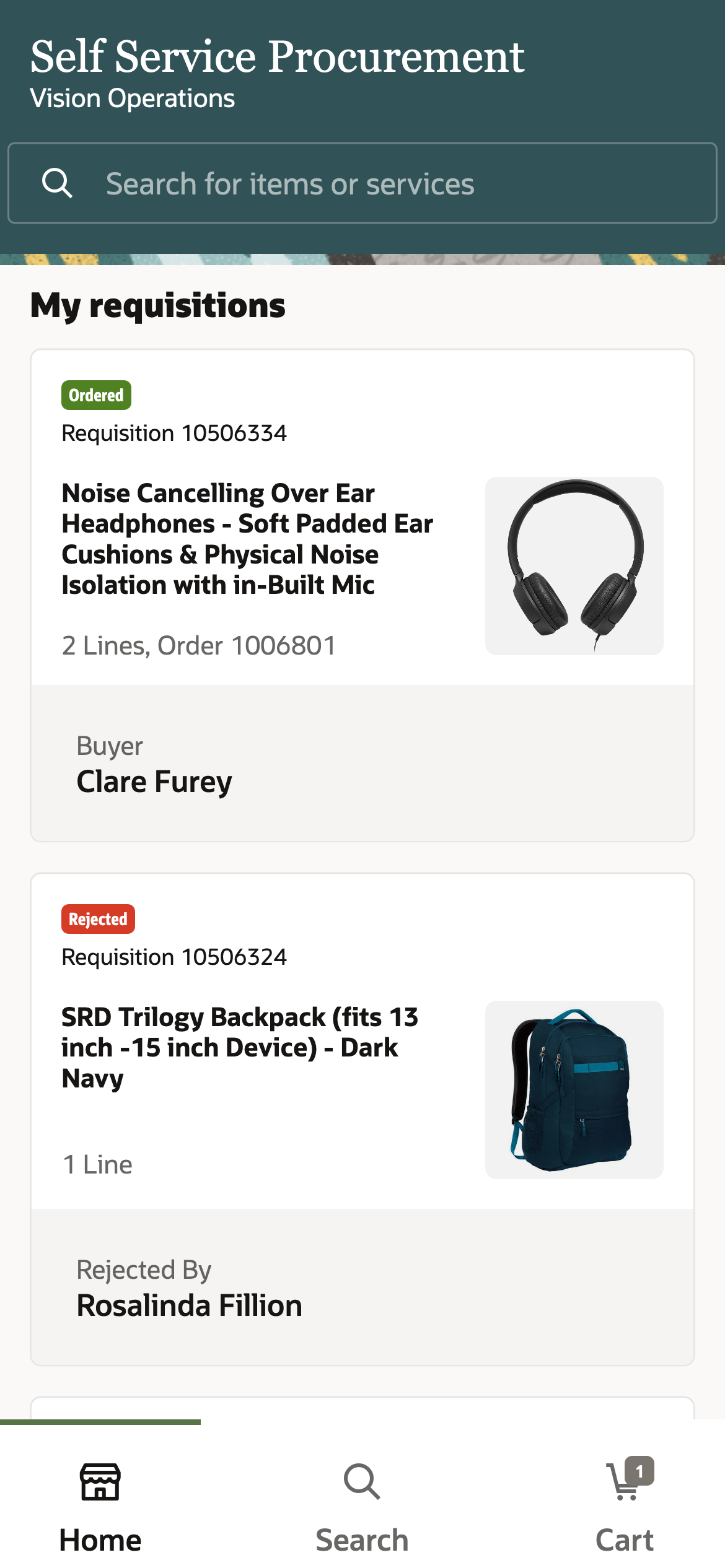
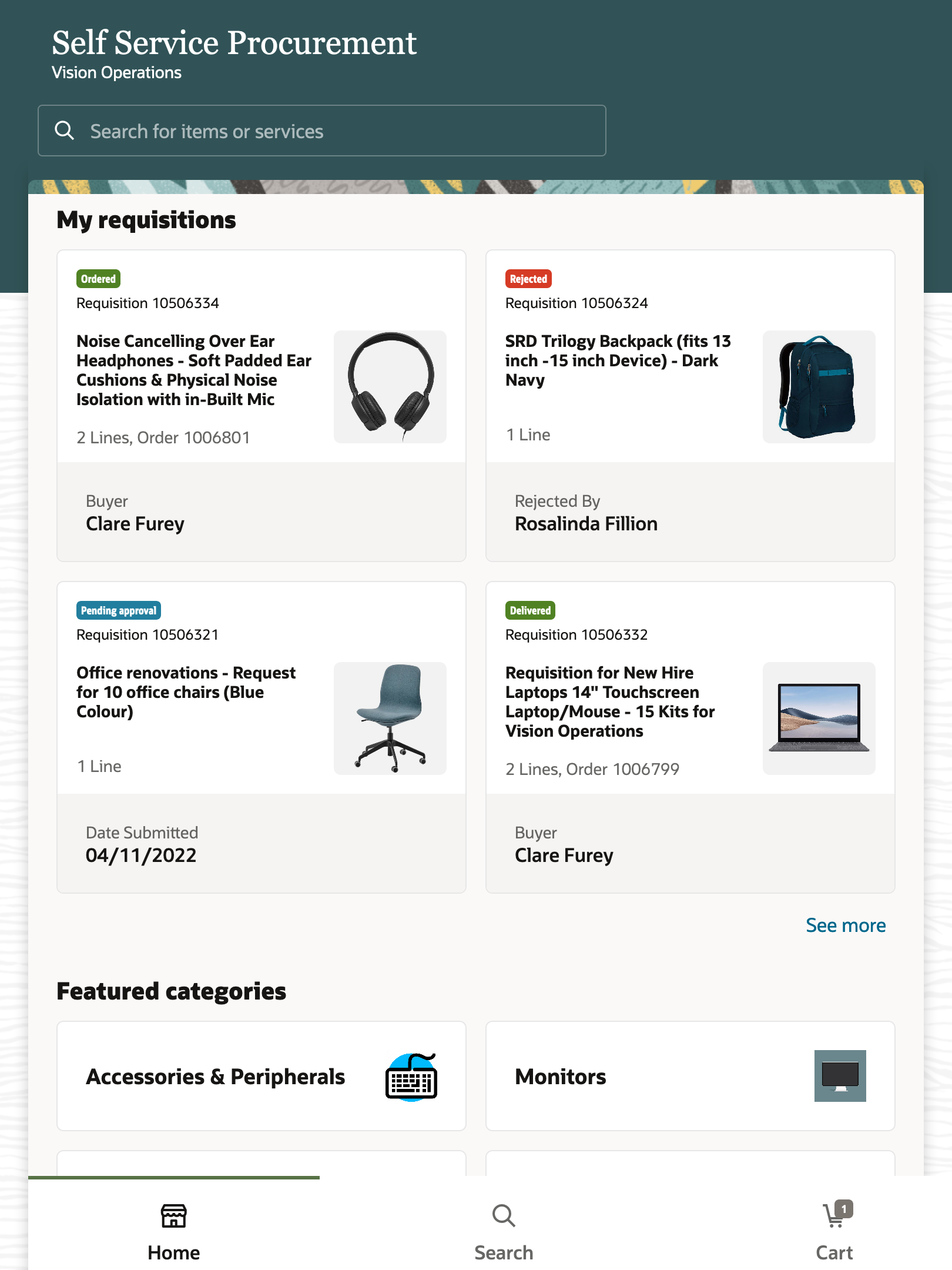

Home Page in a Mobile, Tablet, and Laptop Devices

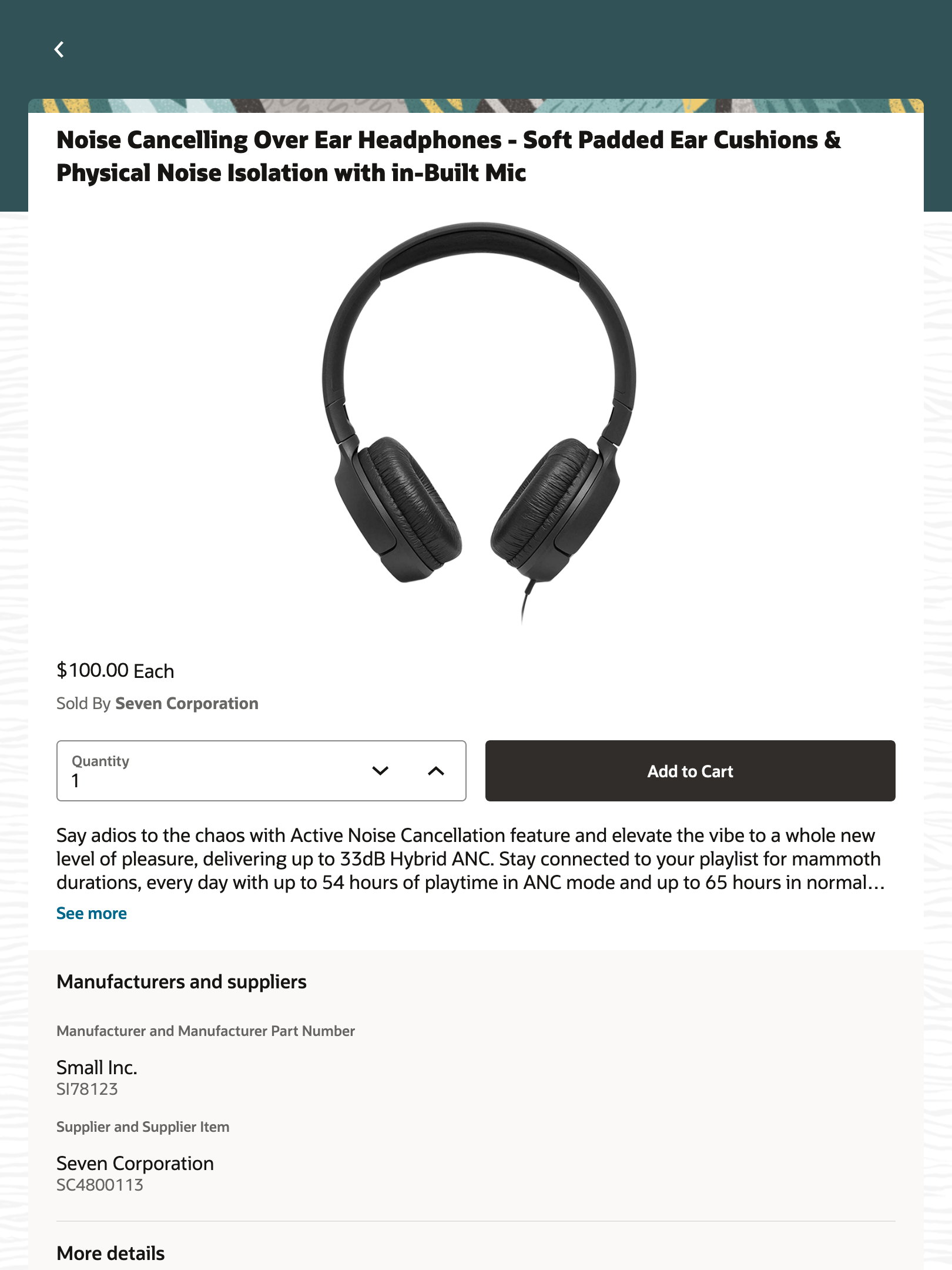

Product Details Page in a Mobile, Tablet, and Laptop Devices
Using the application, requesters can procure goods and services seamlessly across different devices.
Steps to Enable
Use the Opt In UI to enable this feature. For instructions, refer to the Optional Uptake of New Features section of this document.
Offering: Procurement
If you want to use the Procure Goods and Services on Your Desktop or Other Devices Using the Responsive Self Service Procurement Application feature, then you must opt in to its parent feature: Procure Goods and Services Using the Responsive Self Service Procurement Application. If you’ve already opted in to this parent feature, then you don’t have to opt in again.
Tips And Considerations
- To use this feature, you must opt in to the Procure Goods and Services Using the Responsive Self Service Procurement Application feature. If you previously opted in, then this feature is automatically available to you.
- Supported Browsers
- Chrome on Android OS, Mac OS X, and Windows OS
- Safari on iOS and Mac OS X
- Firefox on Mac OS X and Windows OS
- Device Orientation
- You can use the application in both portrait and landscape modes.
- Installation
- After logging in, you can install the application using these browser options:
- Install App menu option in Chrome for Android OS, Mac OS X, and Windows OS
- Add to Home Screen option in Safari for iOS
- After logging in, you can install the application using these browser options:
Key Resources
To know more about how to use and implement the Responsive Self Service Procurement Application, refer to these topics:
- Get Started with the Responsive Self Service Procurement Application available on the Oracle Procurement Cloud Using Procurement guide.
- Set up Elastic Search for the Responsive Self Service Procurement Application available on the Oracle Procurement Cloud Implementing Procurement guide.
Access Requirements
- Users who are assigned to this duty role can access the Responsive Self Service Procurement application:
- Requisition Self Service Responsive Application User Duty (ORA_POR_REQUISITION_SELF_SERVICE_PWA_USER_DUTY)
- If you use your own configured role instead of the Requisition Self Service User role, refer to this topic to provide the required privileges to your requesters:
- How You Configure Roles for the Responsive Self Service Procurement Application available on the Oracle Procurement Cloud Implementing Procurement guide.
Review Requisition Lines with Invoice Holds in the Responsive Self Service Procurement Application
Make requesters aware of pending actions for requisition lines whose corresponding invoices are on hold due to an overbill or pending receipts.
To resolve issues of overbilling or pending receipts, your requesters can perform these actions:
- Create a purchase order change order for an overbillde invoice.
- Create a receipt for a receipt shortfall.
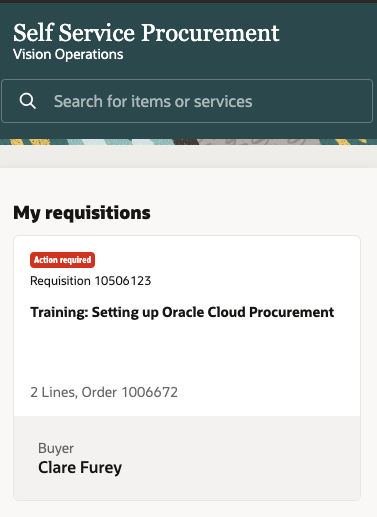
Action Required at Header Level
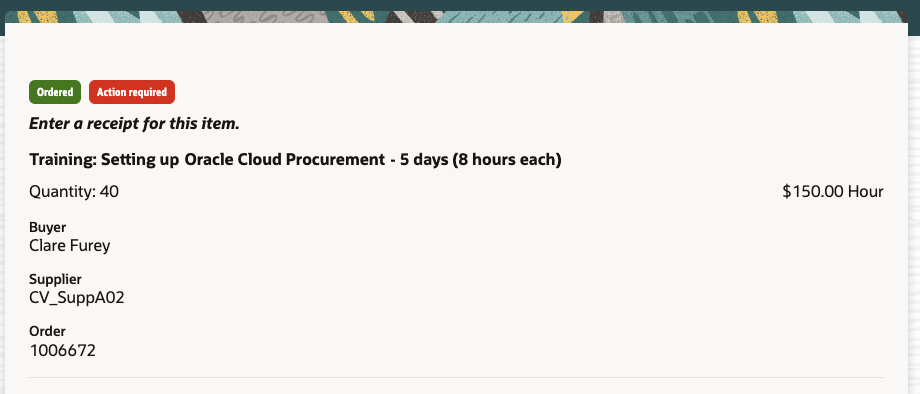
Action Required at Line Level - Requester needs to create a receipt
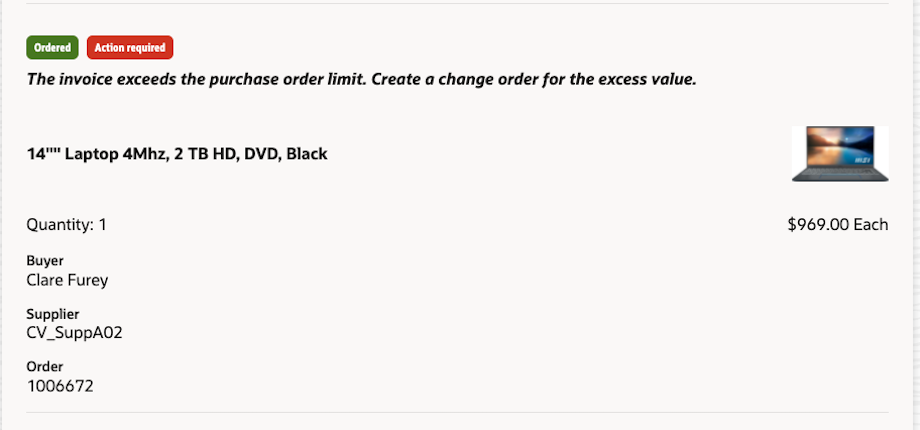
Action Required at Line Level - Requester needs to create a change order.
Your organization can quickly resolve invoice holds and pay suppliers on time using this feature.
Steps to Enable
Use the Opt In UI to enable this feature. For instructions, refer to the Optional Uptake of New Features section of this document.
Offering: Procurement
If you want to use the Review Requisition Lines with Invoice Holds in the Responsive Self Service Procurement Application feature, then you must opt in to its parent feature: Procure Goods and Services Using the Responsive Self Service Procurement Application. If you’ve already opted in to this parent feature, then you don’t have to opt in again.
Tips And Considerations
-
This feature is only available in the Responsive Self Service Procurement Application.
-
You can't use the Responsive Self Service Procurement Application for corrective actions such as creating a purchase order change order or a receipt.
-
The Update Requisition Line Action Required Code scheduled job runs once daily. It flags all requisition lines whose corresponding invoices are on hold due to any of these hold codes - QTY ORD, QTY REC, AMT ORD, AMT REC. Your Procurement Application Administrator can change the frequency and schedule of the scheduled job or initiate the job on-demand.
-
To ensure that users are no longer notified about pending actions after taking the necessary action, you must run and complete the Validate Invoice scheduled job before initiating the Update Requisition Line Action Required Code scheduled job.
Access Requirements
Users who are assigned a configured job role that contains both of these privileges can access this feature:
- Manage Requisition (POR_MANAGE_REQUISITION_PRIV)
-
Manage Requisition With the Responsive Self Service Procurement Application (POR_MANAGE_REQ_WITH_PWA_PRIV)
To manage the schedule for the ESS Job - Updated Requisition Line Action Required Code, you'll need this predefined job role or a configured job role that contains this privilege:
- Predefined job role name and code:
- Procurement Application Administrator (ORA_PO_PROCUREMENT_APPLICATION_ADMIN_JOB)
- Privilege name and code for configured job role:
- Update Requisition Line Action Required Code (POR_UPDATE_REQUISITION_LINE_ACTION_REQUIRED_CODE)