
- Revision History
- Overview
- Optional Uptake of New Features (Opt In)
- Feature Summary
- Procurement Common
- Self Service Procurement
-
- Self Service Procurement
-
- Configure Shopping Lists with 0 Specified as the Quantity for the Shopping List Items
- Capture Additional Information Sent from Punchout Into Line Descriptive Flexfields
- Use Additional Attributes to Configure and Use for Requisition Approvals
- Selected Self Service Procurement Bug Fixes in This Update
-
- Responsive Self Service Procurement Application
-
- View Current Approvers of a Requisition in the Responsive Self Service Procurement Application
- Provide Justification for Your Requisitions from the Responsive Self Service Procurement Application
- Create Smart Form and Noncatalog Request-Based Requisitions in Foreign Currency in the Responsive Self Service Procurement Application
- View the Latest Item Description for Agreement Lines During Shopping in the Responsive Self Service Procurement Application
- Access the Responsive Self Service Procurement Application from the Navigator or Springboard
- Selected Bug Fixes in This Update for the Responsive Self Service Application
-
- Self Service Procurement
This document will continue to evolve as existing sections change and new information is added. All updates appear in the following table:
| Date | Module | Feature | Notes |
|---|---|---|---|
| 06 MAR 2023 | Self Service Procurement | Selected Self Service Procurement Bug Fixes in This Update | Updated document. Added an additional bug fix. |
| 17 FEB 2023 | Common Procurement | Integrate and Extend Procurement Using REST Services | Updated document. Updated feature description with two new, backported resources. |
| 20 SEP 2022 | Responsive Self Service Procurement Application | View Current Approvers of a Requisition in the Responsive Self Service Procurement Application | Updated document. Changed the feature from automatically enabled to opt in required. |
| 20 SEP 2022 | Responsive Self Service Procurement Application |
Provide Justification for Your Requisitions from the Responsive Self Service Procurement Application | Updated document. Changed the feature from automatically enabled to opt in required. |
| 20 SEP 2022 | Responsive Self Service Procurement Application |
Create Smart Form and Noncatalog Request-Based Requisitions in Foreign Currency in the Responsive Self Service Procurement Application | Updated document. Changed the feature from automatically enabled to opt in required. |
| 20 SEP 2022 | Responsive Self Service Procurement Application |
View the Latest Item Description for Agreement Lines During Shopping in the Responsive Self Service Procurement Application | Updated document. Changed the feature from automatically enabled to opt in required. |
| 20 SEP 2022 | Responsive Self Service Procurement Application |
Access the Responsive Self Service Procurement Application from the Navigator or Springboard | Updated document. Changed the feature from automatically enabled to opt in required. |
| 16 SEP 2022 | Created initial document. |
 HAVE AN IDEA?
We’re here and we’re listening. If you have a suggestion on how to make our cloud services even better then go ahead and tell us. There are several ways to submit your ideas, for example, through the Ideas Lab on Oracle Customer Connect. Wherever you see this icon after the feature name it means we delivered one of your ideas.
GIVE US FEEDBACK
We welcome your comments and suggestions to improve the content. Please send us your feedback at oracle_fusion_applications_help_ww_grp@oracle.com.
DISCLAIMER
The information contained in this document may include statements about Oracle’s product development plans. Many factors can materially affect Oracle’s product development plans and the nature and timing of future product releases. Accordingly, this Information is provided to you solely for information only, is not a commitment to deliver any material, code, or functionality, and should not be relied upon in making purchasing decisions. The development, release, and timing of any features or functionality described remains at the sole discretion of Oracle.
This information may not be incorporated into any contractual agreement with Oracle or its subsidiaries or affiliates. Oracle specifically disclaims any liability with respect to this information. Refer to the Legal Notices and Terms of Use for further information.
Optional Uptake of New Features (Opt In)
Oracle Cloud Applications delivers new updates every quarter. This means every three months you'll receive new functionality to help you efficiently and effectively manage your business. Some features are delivered Enabled meaning they are immediately available to end users. Other features are delivered Disabled meaning you have to take action to make available. Features delivered Disabled can be activated for end users by stepping through the following instructions using the following privileges:
- Review Applications Offering (ASM_REVIEW_APPLICATIONS_OFFERINGS_PRIV)
- Configure Oracle Fusion Applications Offering (ASM_CONFIGURE_OFFERING_PRIV)
Here’s how you opt in to new features:
- Click Navigator > My Enterprise > New Features.
- On the Features Overview page, select your offering to review new features specific to it. Or, you can leave the default selection All Enabled Offerings to review new features for all offerings.
- On the New Features tab, review the new features and check the opt-in status of the feature in the Enabled column. If a feature has already been enabled, you will see a check mark. Otherwise, you will see an icon to enable the feature.
- Click the icon in the Enabled column and complete the steps to enable the feature.
In some cases, you might want to opt in to a feature that's not listed in the New Features work area. Here's how to opt in:
- Click Navigator > My Enterprise > Offerings.
- On the Offerings page, select your offering, and then click Opt In Features.
- On the Opt In page, click the Edit Features (pencil) icon for the offering, or for the functional area that includes your feature.
- On the Edit Features page, complete the steps to enable the feature.
For more information and detailed instructions on opting in to new features for your offering, see Offering Configuration.
Opt In Expiration
Occasionally, features delivered Disabled via Opt In may be enabled automatically in a future update. This is known as an Opt In Expiration. If your cloud service has any Opt In Expirations you will see a related tab in this document. Click on that tab to see when the feature was originally delivered Disabled, and when the Opt In will expire, potentially automatically enabling the feature. You can also click here to see features with Opt In Expirations across all Oracle Cloud Applications.
Column Definitions:
Report = New or modified, Oracle-delivered, ready to run reports.
UI or Process-Based: Small Scale = These UI or process-based features are typically comprised of minor field, validation, or program changes. Therefore, the potential impact to users is minimal.
UI or Process-Based: Larger Scale* = These UI or process-based features have more complex designs. Therefore, the potential impact to users is higher.
Features Delivered Disabled = Action is needed BEFORE these features can be used by END USERS. These features are delivered disabled and you choose if and when to enable them. For example, a) new or expanded BI subject areas need to first be incorporated into reports, b) Integration is required to utilize new web services, or c) features must be assigned to user roles before they can be accessed.
Integrate and Extend Procurement Using REST Services
In this update, Oracle Fusion Cloud Procurement and Oracle Fusion Cloud Self Service Procurement deliver new and modified REST APIs to enable and simplify integration with external systems.
The new REST APIs introduced in this update are:
-
Public Shopping Lists
-
Procurement Approved Supplier List Entries (available in the November monthly update of 22D)
-
Approved Supplier List Source Documents (available in the November monthly update of 22D)
The following REST APIs are enhanced:
- Purchase Requisitions
- GET is supported for Purchase Order Cancel Reason and Purchase Order Hold Reason for requisition lines.
- POST and PATCH are enhanced to allow requisitions to be created in a foreign currency (a currency that is different from the requisitioning business unit’s functional currency) for description-based lines.
- GET, POST, and PATCH are enhanced to support internal material transfers. Use the REST API to create requisitions for internal material transfers and provide the source organization and optionally the source subinventory that can supply the item to the destination organization. The operations calculateTaxAndAccounting and submitRequisition were also enhanced to support internal material transfer requisitions.
- A new operation, retrieveTransferPriceAndTax, is now available for you to quickly calculate the transfer price and taxes for internal material transfer requisition lines. The transfer price is either at cost or as per the financial orchestration flow definition when the transfer is across profit centers. The transaction will be subject to taxes when intercompany invoicing is used. Similarly, the operation calculateTaxAndAccounting was enhanced to handle taxes for internal material transfer requisitions.
- A new action, retrieveCurrentApproversList, is available to retrieve the list of current approvers for a requisition that's pending approval.
- Public Shopping List Lines
- POST and PATCH are supported for internally orderable items.
- Draft Purchase Orders
- GET, POST, and PATCH are supported for overriding approvers.
- GET, POST, and PATCH are supported for U.S. Federal attributes.
- Purchase Orders
- GET is supported for overriding approvers.
- Supplier Negotiations
- GET, POST, and PATCH are supported to notify all contacts when inviting suppliers in a draft negotiation.
- POST and the createNegotiationFromTemplate action can be used to create large draft negotiations.
- GET is supported to identify a large negotiation.
You can use these new and modified REST services to simplify integrations and support standards-based interoperability with your other applications and external systems.
Steps to Enable
Review the REST service definition in the REST API guides, available from the Oracle Help Center > your apps service area of interest > REST API. If you're new to Oracle's REST services you may want to begin with the Quick Start section.
Key Resources
- Refer to the REST API for Oracle Procurement Cloud documentation available on the Oracle Help Center.
Role And Privileges
- Refer to the Job Roles and Privileges section in the REST API for Oracle Procurement Cloud documentation, available on the Oracle Help Center.
Configure Shopping Lists with 0 Specified as the Quantity for the Shopping List Items
A catalog administrator when creating Public Shopping Lists can now add an item with a suggested quantity of 0. Prior to this update, the catalog administrator could only add an item and leave the suggested quantity blank.
In order to facilitate a seamless shopping flow, when items contain 0 quantity as part of several items that are added to a shopping cart from a shopping list, the system will remove the 0 quantity items automatically and the requester can continue the shopping process.
Note that if the shopping list was configured with no Suggested Quantity, the system will continue as before, and throw an error if the requester adds such an item during shopping. The requesters must either choose 0 or a positive quantity in such cases to continue the shopping process.
These screenshots illustrate the feature:
This screenshot depicts the ability to create and manage a public shopping list with 0 suggested quantity on 1 or more lines. Notice that the 2nd line is configured with 0 as the suggested quantity. Also, the existing support for leaving the suggested quantity blank is also continued.
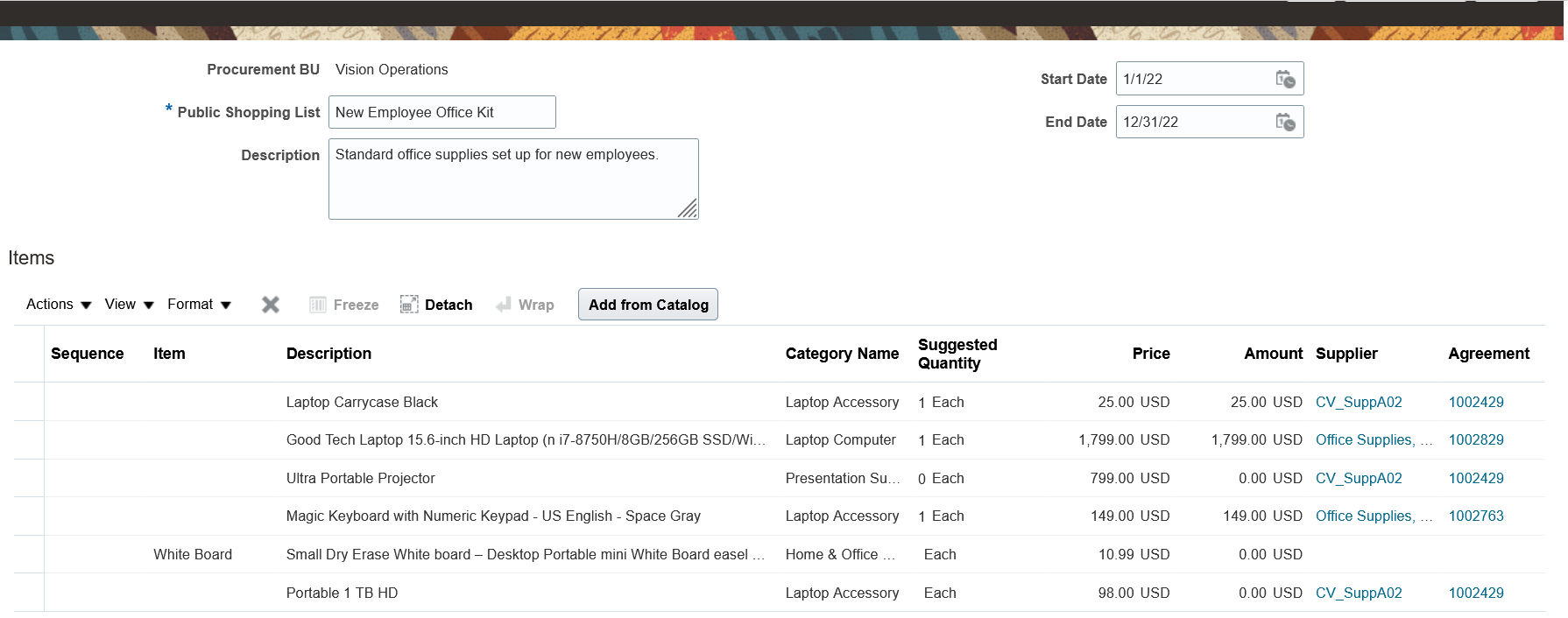
Configure Public Shopping List with Suggested Quantity 0
This screenshot depicts the shopping flow where out of the 6 items, 3 are added to the shopping cart because the other 3 items contain 0 quantity.
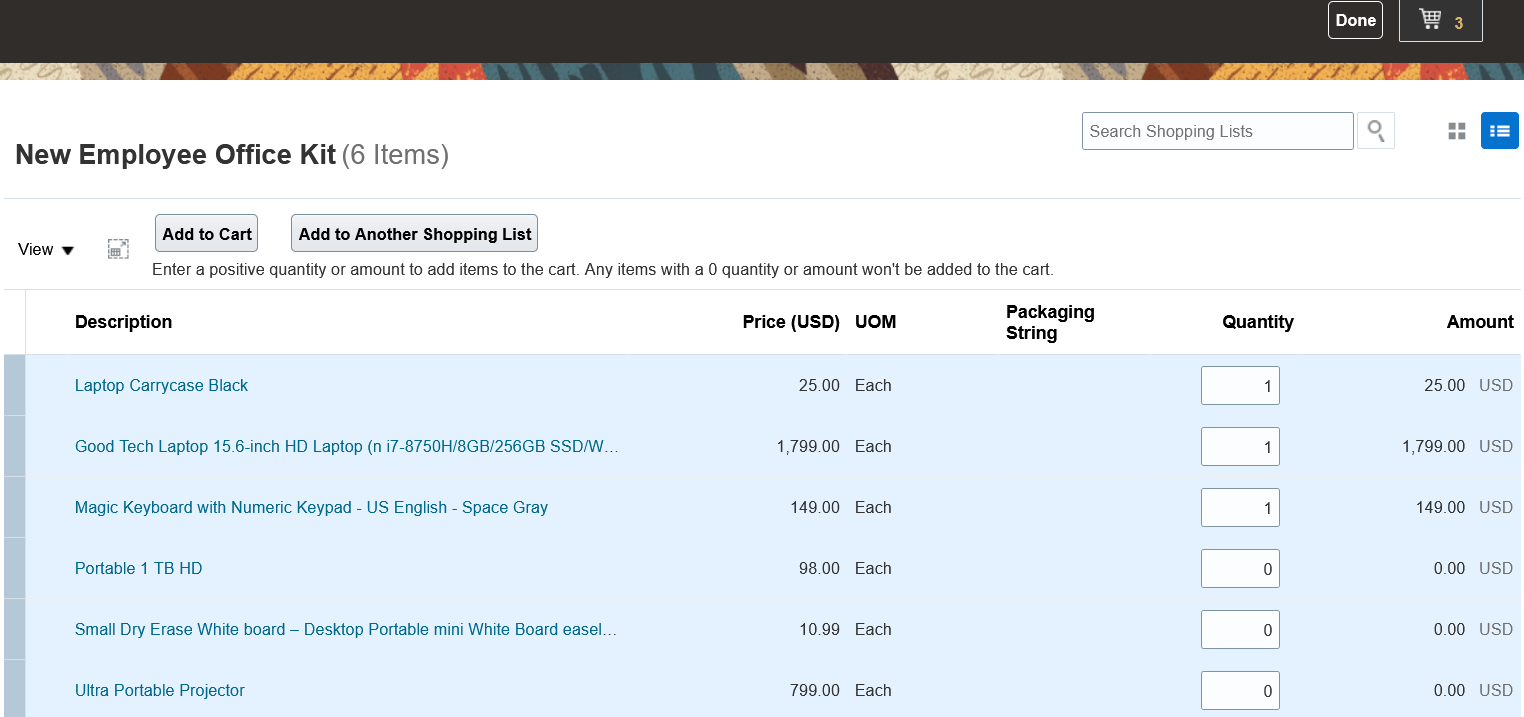
Drop 0 Quantity Item when Adding to Cart
Here are some considerations for using the feature:
- It's available both in the Cards View and the List View.
- It's also available on personal shopping lists.
- An instruction text informs requesters of the new behavior when the 0 quantity items are added to the shopping cart.
- When creating or updating public shopping list lines, you can configure the suggested quantity of 0 via REST resources.
- If all items added to the cart contain 0 quantity, you get an error message.
Using the feature, requesters don't have to remove individual items containing 0 quantity when shopping using lists containing a large volume of items. This saves both effort and time in the shopping process.
Steps to Enable
You don't need to do anything to enable this feature.
Tips And Considerations
- It's only available to a requester user and an approver editing a requisition. When adding items from a shopping list, other users such as buyers working on Demand Workbench, Agreement, or Purchase Order flows continue to see the current behavior.
- Navigating between the Cards view and List view, if there are blank quantity items, the application continues to throw an error as before.
- It only impacts master items, agreement line items, and internally transferable items that are quantity-based and not applicable to amount-based lines.
- When adding an item to a shopping list, the item always gets added with a default quantity of 1. There is no change to this behavior.
- If items fail functional validations during the add-to-cart process, those errors continue to be displayed as before.
- After you update to 22D, the application won't automatically update any blank values to 0.
- Use REST resources to update shopping list lines to 0. If you still wish to do this on the UI, consider sorting the suggested quantity in ascending order.
Key Resources
To know about how to create or update public shopping list lines using REST resources, refer to these topics:
- Public Shopping List Lines REST Endpoints
- Use Visual Builder Add-in for Excel to Manage Web Applications Data
Role And Privileges
Users that are assigned these predefined roles can use this feature without any additional setup or modification:
- Users that are assigned the predefined role of Procurement Catalog Administrator can manage (create or update) Public Shopping List Lines with the suggested quantity of 0.
- Users that are assigned any of the predefined roles of Procurement Requester, Advanced Procurement Requester, or Procurement Preparer can use this feature when shopping using both personal and public shopping lists.
- Users with REST resources access can manage (POST and PATCH) public shopping list lines with the suggested quantity of 0, including using the Oracle Visual Builder Add-in for Excel feature.
Capture Additional Information Sent from Punchout Into Line Descriptive Flexfields
Capture the additional information for the items you procure from external suppliers using the cXML based punchout process into the requisition line descriptive flexfields. You can use extrinsic attributes in the punchout order message to capture this additional information needed for reporting and downstream order processing.
The requisition line level descriptive flexfield text attributes 1 to 15 can be mapped to extrinsic attributes as seen in this illustration:
<Extrinsic name="Attribute1">Value from the Supplier Punchout</Extrinsic>. The Extrinsic tag must be a child tag of the ItemIn tag of the payload as shown here:
<ItemIn>
...
<Extrinsic name="Attribute5">10BPAD</Extrinsic>
</ItemIn>
Using this feature, a buying organization can bring in additional information from external marketplaces that can be used in procurement processing, such as approvals and spend performance management.
Steps to Enable
You don't need to do anything to enable this feature.
Tips And Considerations
- These are some of the additional details you can capture using extrinsic attributes from the Supplier Punchout payload:
- If items requisitioned are hazardous
- Serial and Lot Data from Bill Only orders
- Supplier Comments
- Special ordering details such as CAS Number for hazardous materials
- If the item is a restricted item
- If a value returned in the payload isn't valid, then that requisition line won't be processed (added to the cart), and you get an error. If there are multiple attributes with errors, they are displayed iteratively and not at the same time.
- Any charge account derivations using these attributes get processed.
- Extrinsic attributes mapped to inactive descriptive flexfields also get processed without error.
- It isn't currently available through the Responsive Self Service Procurement application.
Role And Privileges
You don't need any additional roles to use this feature.
Use Additional Attributes to Configure and Use for Requisition Approvals
Use attributes such as Supplier Organization, Requisitioning BU Name, Project BU Name, and Requisition Description to configure and use for requisition approvals.
You can use these attributes to configure and route your requisitions for approval.
| Attribute | Level | Comments |
|---|---|---|
| Requisition Description | Header | Displays Free Form Text to enter a value. |
| Requisitioning BU Name | Header | Displays Free Form Text to enter a value. |
| Category Name | Line | Displays Free Form Text to enter a value. |
| Supplier Organization Type | Line | Displays a Choice list from which to select a specific value. |
| Negotiated by Preparer | Line | Displays a Choice list with values: Yes and No. |
| Available Blanket Amount | Line | Displays a Free Form Text to enter a numeric value. |
| Deliver-to Location Code | Line | Displays a Free Form Text to enter a value. |
| Project Owning BU Name | Distribution | Displays Free Form Text to enter a value. |
| Project Type Name | Distribution | Displays Free Form Text to enter a value. |
Steps to Enable
You don't need to do anything to enable this feature.
Tips And Considerations
To know about the details on how to use these attributes, refer to the Requisition Attributes topic.
Key Resources
- You must configure your approval rules to use the enhanced approval attributes if you want to take advantage of this feature.
- You can configure attributes for approval rules in a variety of ways. For details, refer to the Requisition Attributes topic.
Role And Privileges
Use your existing roles to configure approval rules.
Selected Self Service Procurement Bug Fixes in This Update
This update includes some bug fixes that can change the way Oracle Self Service Procurement works. This isn't a full list of all the bug fixes in this update. This list includes the bug fixes that can cause a noticeable change in application behavior.
Reinstate Requisition Lines That Include Descriptive Flexfields
Before update 22D, reinstating unfulfilled demand from a requisition line triggered revalidation of descriptive flexfields. This sometimes led to errors if the descriptive flexfield setup had changed since the requisition line was created. With update 22D, descriptive flexfields won't be validated while reinstating unfulfilled demand from a requisition line.
Oracle reference: 34065108
Order Imported Requisition Lines
Before update 22D, imported requisition lines had a random sequence. With update 22D, you can use Interface Line Key to indicate in which sequence the imported lines should be ordered.
Oracle reference: 34164965
Limit Access to View Change Order Details
Before update 22D, with the privilege to view all requisitions, you could also view change order information related to a requisition. With this update, you can view change order details only if you initiated the change request.
Oracle reference: 33395185
Steps to Enable
You don't need to do anything to enable this feature.
Responsive Self Service Procurement Application
After you opt in to the to the Procure Goods and Services Using the Responsive Self Service Procurement Application feature, you can use the features described in this section. If you previously opted in to Procure Goods and Services Using the Responsive Self Service Procurement Application, you don't have to opt in again.
View Current Approvers of a Requisition in the Responsive Self Service Procurement Application
View the list of current approvers of a requisition pending approval in the Responsive Self Service Procurement application.
You can define approval rules depending on your business processes and decisions and route to supervisory hierarchy, position or job level hierarchy, single or list of approvers, application role, or approval groups for approval.
When you submit a requisition for approval, at any instance it may be assigned to an approver or a set of approvers as stated above. This information can be viewed on the requisition details page of the Responsive Self Service Procurement Application.


Single Approver, and Mixed Approver Scenarios on a Mobile Form Factor
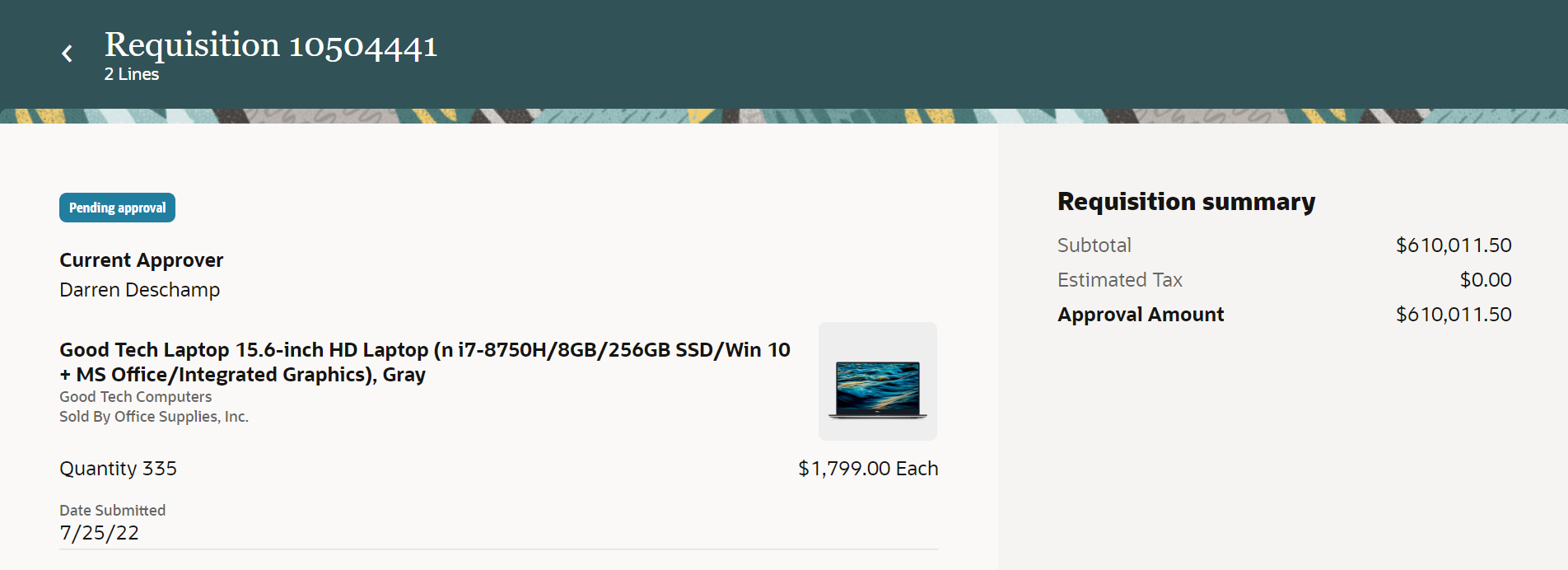
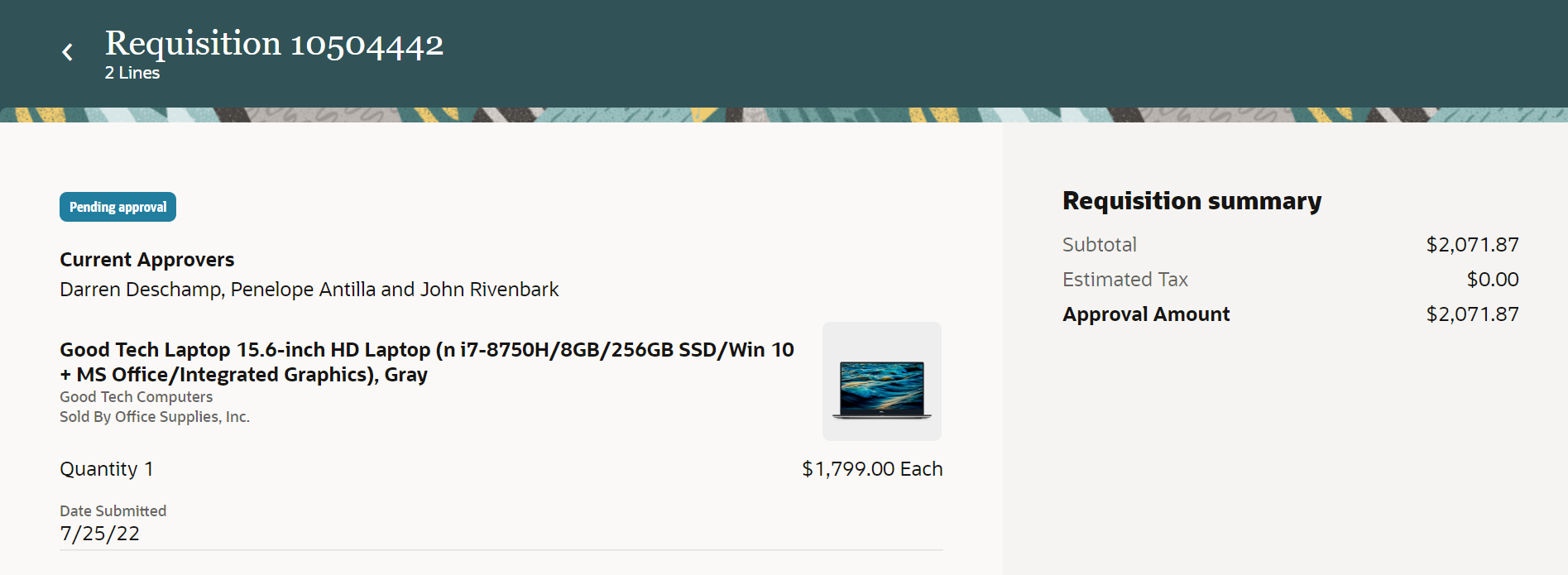

Single Approver, Multiple Approvers, and Mixed Approvers Scenarios on a Desktop Form Factor
With this feature, you can quickly find the approvers with whom your requisition is pending approval and follow up with them as needed.
Steps to Enable
Use the Opt In UI to enable this feature. For instructions, refer to the Optional Uptake of New Features section of this document.
Offering: Procurement
Tips And Considerations
- If you want to use the View Current Approvers of a Requisition in the Responsive Self Service Procurement Application feature, then you must opt in to its parent feature: Procure Goods and Services Using the Responsive Self Service Procurement Application. If you’ve already opted in to this parent feature, then you don’t have to opt in again.
- The current approver details are displayed on the page and applies to all the lines.
- The Current Approver details are displayed for requisitions pending approvals except when:
- the requisition is currently under edit by an approver
- the approvals task flow isn’t yet started
- there are errors in retrieving approval details or any other infrastructure issues.
- If there is a mix of individual users, positions, roles, and jobs with whom a requisition is pending approval, you will see the individual user approver details first followed by the others.
- To retrieve a list of current approvers for any integration requirements, you can use the retrieveCurrentApprovers REST action.
Key Resources
- To know more about how to use the Responsive Self Service Procurement application, refer to the Procure Goods and Services Using the Responsive Self Service Procurement Application readiness training.
- To know how to provide the required privileges to your requesters to use your own configured role instead of the Requisition Self Service User role, refer to the How You Configure Roles for the Responsive Self Service Procurement Application topic.
Role And Privileges
- Users who are assigned to this duty role can access the Responsive Self Service Procurement application:
- Requisition Self Service Responsive Application User Duty (ORA_POR_REQUISITION_SELF_SERVICE_PWA_USER_DUTY)
Provide Justification for Your Requisitions from the Responsive Self Service Procurement Application
As a requester, you can now provide justification details on why the requisition is needed. This justification appears in the approval notification for the approvers to review and helps in the approval decision-making process.
Justification details are provided at a header level in the Responsive Self Service Procurement application. You can create and edit these details while creating and submitting the requisition. Before this update, you couldn't enter the justification details directly on a requisition.
This screenshot captures how you can provide a justification on a requisition from the shopping cart.
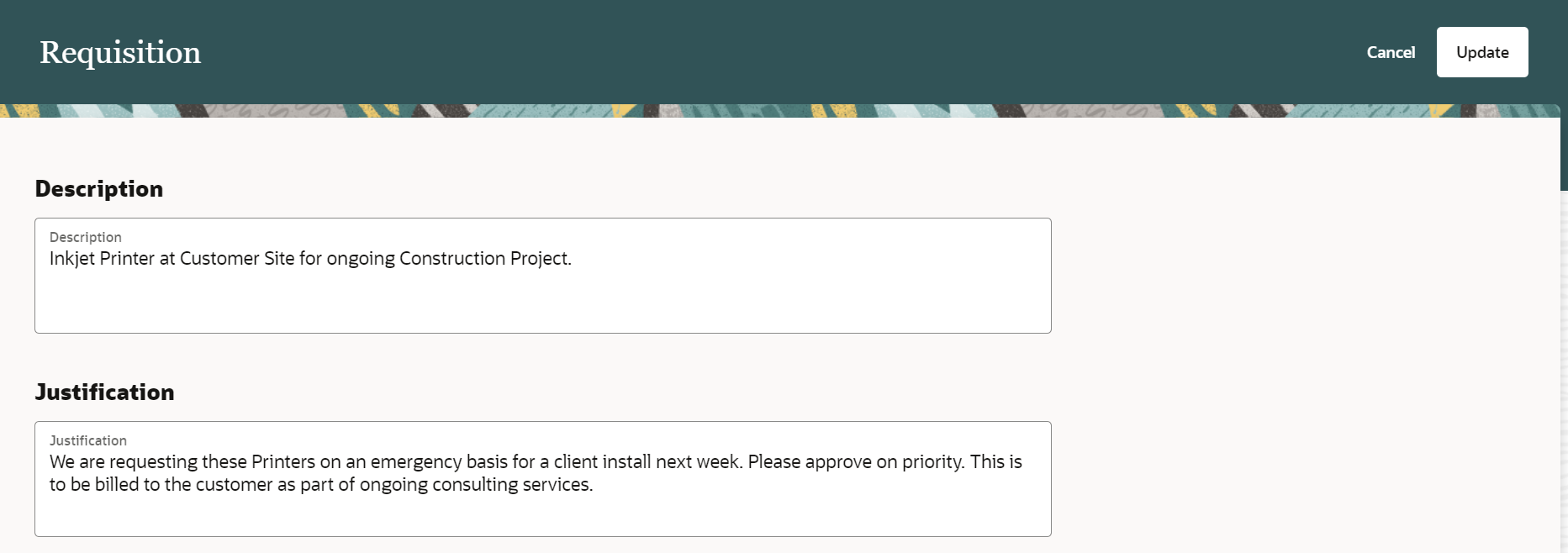
Enter Justification on the Requisition Header
This screenshot depicts how the justification is displayed in the shopping cart.
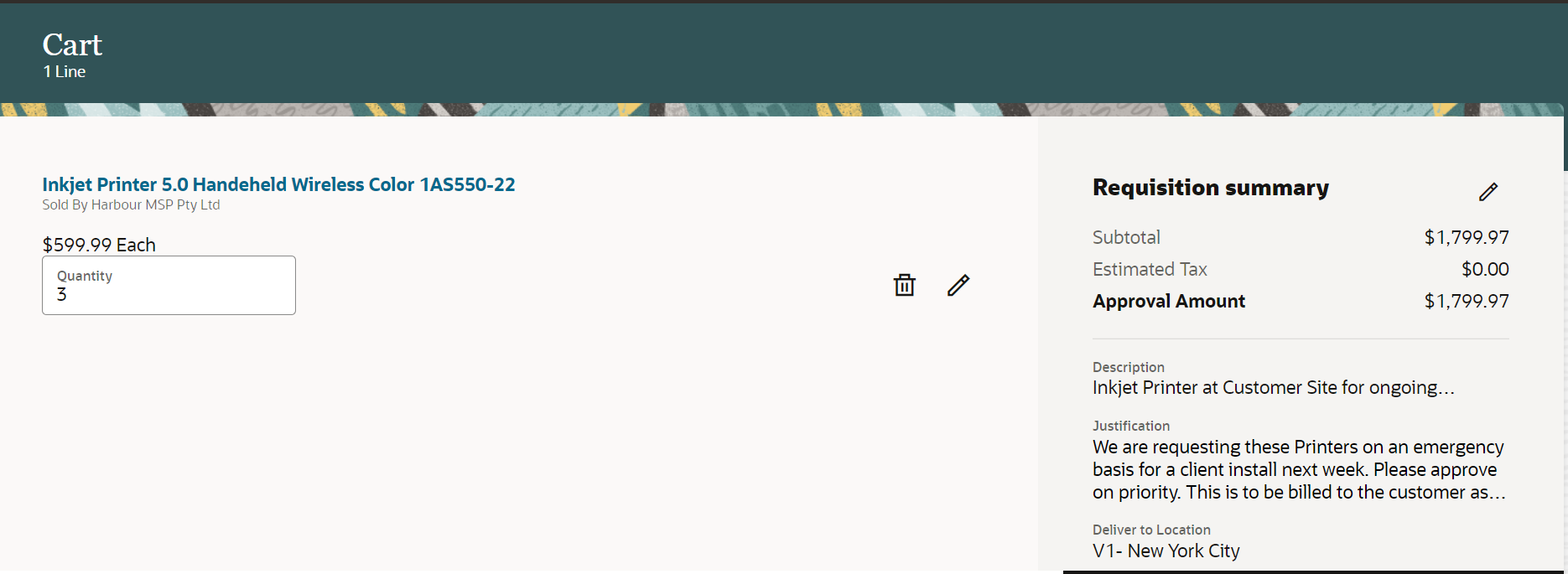
View Justification in the Shopping Cart
Using this feature, you can provide additional details on why the requisition is needed to give approvers the information required to make an informed approval decision.
Steps to Enable
Use the Opt In UI to enable this feature. For instructions, refer to the Optional Uptake of New Features section of this document.
Offering: Procurement
Tips And Considerations
- If you want to use the Provide Justification for Your Requisitions from the Responsive Self Service Procurement Application feature, then you must opt in to its parent feature: Procure Goods and Services Using the Responsive Self Service Procurement Application. If you’ve already opted in to this parent feature, then you don’t have to opt in again.
- Justification is linked in the Shopping Cart summary, clicking which navigates you to the edit header flow to edit justification or other details.
- In form factors other than the mobile application, you can hover over Justification in the Shopping Cart to view the entire text
Key Resources
- To know more about how to use the Responsive Self Service Procurement application, refer to the Procure Goods and Services Using the Responsive Self Service Procurement Application readiness training.
- To know how to provide the required privileges to your requesters to use your own configured role instead of the Requisition Self Service User role, refer to the How You Configure Roles for the Responsive Self Service Procurement Application topic.
Role And Privileges
- Users who are assigned to this duty role can access the Responsive Self Service Procurement application:
- Requisition Self Service Responsive Application User Duty (ORA_POR_REQUISITION_SELF_SERVICE_PWA_USER_DUTY)
Create Smart Form and Noncatalog Request-Based Requisitions in Foreign Currency in the Responsive Self Service Procurement Application
You can create or update your smart form and noncatalog request-based requisitions in a foreign currency in the Responsive Self Service Procurement Application. A smart form configured in a foreign currency is now available for you to search for and process into a requisition. When creating a noncatalog request, you can accept the default values or provide your rate type and rate date values. You can submit the requisition for processing if a conversion rate exists between the currency selected and the functional currency for the given conversion type.
These screenshots illustrate how you can for a smart form, update its details, and view it in the shopping cart. You can use the link of the smart form name in the cart to edit the smart form.
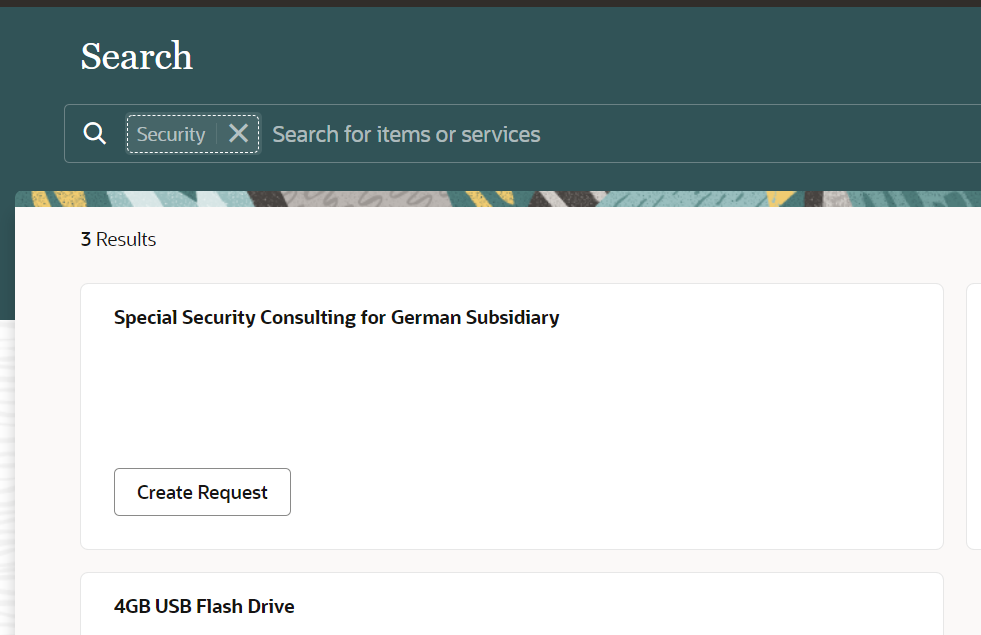
Search for a Smart Form

Edit the Foreign Currency Smart Form

Shopping Cart View of the Smart Form
These screenshots illustrate how you can create a noncatalog request in a foreign currency and view the details in the shopping cart. In the cart, you can see the amounts both in the transaction currency you provided and the functional currency.

Create a Noncatalog Request in a Foreign Currency
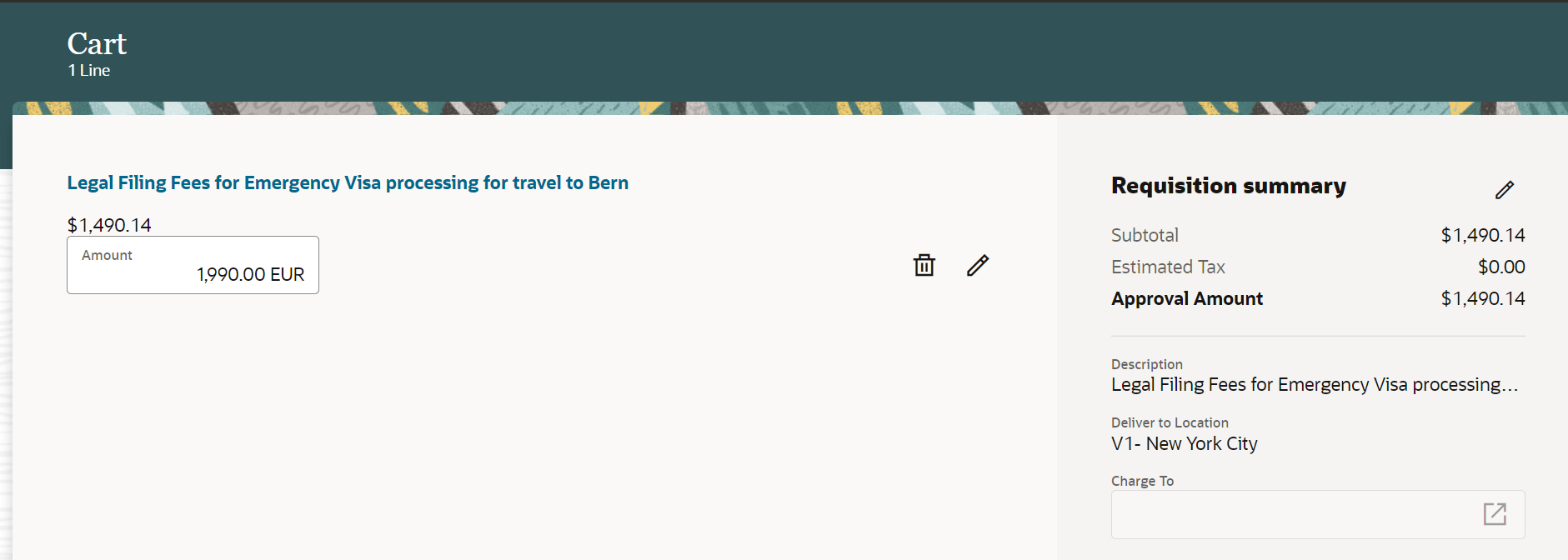
Shopping Cart View of Noncatalog Request
Using the feature, as a requester, you can request products or services in any currency based on your requirements and choice of available suppliers.
Steps to Enable
Use the Opt In UI to enable this feature. For instructions, refer to the Optional Uptake of New Features section of this document.
Offering: Procurement
Tips And Considerations
- If you want to use the Create Smart Form and Noncatalog Request-Based Requisitions in Foreign Currency in the Responsive Self Service Procurement Application feature, then you must opt in to its parent feature: Procure Goods and Services Using the Responsive Self Service Procurement Application. If you’ve already opted in to this parent feature, then you don’t have to opt in again.
- For currencies within the European Monetary Union (EMU), you must select the conversion type as Fixed. You can’t create a smart form or noncatalog request with any other conversion rate type.
- You can only edit the conversion rate for a User rate type. For the Fixed rate type, both conversion rate and date only use application-derived values.
- You can continue to use the existing feature that allows you to source a smart form or noncatalog request to a contract purchase agreement that’s in a different currency than the document's currency.
Key Resources
-
To know more about how to use the Responsive Self Service Procurement application, refer to the Procure Goods and Services Using the Responsive Self Service Procurement Application readiness training.
- To know how to provide the required privileges to your requesters to use your own configured role instead of the Requisition Self Service User role, refer to the How You Configure Roles for the Responsive Self Service Procurement Application topic.
Role And Privileges
- Users who are assigned to this duty role can access the Responsive Self Service Procurement application:
- Requisition Self Service Responsive Application User Duty (ORA_POR_REQUISITION_SELF_SERVICE_PWA_USER_DUTY)
View the Latest Item Description for Agreement Lines During Shopping in the Responsive Self Service Procurement Application
As a requester, you can now view the latest description for an agreement item when shopping in the Responsive Self Service Procurement application. Before this, the system always displayed the description from the blanket agreement line even if the item had an updated description in the item setup.
With this enhancement, if the value of the Allow Purchasing Document Description Update attribute is set to No, then the item's description is displayed from the item's setup, not the agreement line. If, however, the value is set to Yes, it continues to display the blanket line description since it's expected that for such items, the item master carries only a generic description meant to be supplemented by more supplier or manufacturer-specific descriptions on blanket agreement lines.
NOTE: The item description will be displayed from item setup of the inventory organization for the procurement business unit (BU) in which the blanket agreement was created. This table is a sample illustration of the new behavior with this enhancement.
| Description in the Item Master (Inventory Organization of the Procurement BU in Which the Blanket is Created) |
Value for Attribute: Allow Purchasing Document Description Update |
Blanket Agreement Line Description |
Description Displayed to the Requester |
|---|---|---|---|
| ABC | Yes | Blanket Description ABC | Blanket Description ABC |
| ABC | No | Blanket Description ABC | ABC |
| ABC | Yes | Changed to: New Blanket Description ABC | New Blanket Description ABC |
| ABC | No | Changed to Blanket Description ABC123 | ABC |
| Changed to: ABC123 | Yes | Blanket Description ABC | Blanket Description ABC |
| Changed to: ABC123 | No | Blanket Description ABC | ABC123 |
Additional information:
- The latest description is displayed during the entire shopping process in the Responsive Self Service Procurement application and includes:
- Shopping Search Results
- Item Details
- Add to Cart confirmation
- View Shopping Cart
- The enhancement described here is also available via REST.
- This enhancement doesn't extend to the existing Self Service Procurement Cloud application.
- The Elastic Search index has been enhanced to display the appropriate item description in the search results. After you update to 22D, you don't need to perform any additional actions to have these changes take effect.
Viewing the latest and most relevant description for an item helps you as a requester in making an informed procurement decision.
Steps to Enable
Use the Opt In UI to enable this feature. For instructions, refer to the Optional Uptake of New Features section of this document.
Offering: Procurement
Tips And Considerations
- If you want to use the View the Latest Item Description for Agreement Lines during Shopping in the Responsive Self Service Procurement Application feature, then you must opt in to its parent feature: Procure Goods and Services Using the Responsive Self Service Procurement Application. If you’ve already opted in to this parent feature, then you don’t have to opt in again.
- The item description will be displayed from the item setup in the inventory organization of the Procurement BU in which the blanket agreement was created.
- The inventory organization used to display the item description is the default inventory organization defined in the setup task entitled: Configure Procurement Business Function for the blanket agreement's Procurement BU.
- The above description is displayed even if the item is not purchasable in that inventory organization.
- If the blanket agreement becomes invalid during the shopping process, the item description will revert to the current behavior of showing the description for pure master items as described in the following bullet.
- For pure master items, the item description will still be displayed from the item setup. But the item master in question is the inventory organization of the Deliver-to Location from your user preferences.
- The header level description is always copied from the first line of the requisition. The enhancement doesn't alter the existing behavior of how the header description is displayed.
Role And Privileges
There are no changes to the existing roles to access this feature. The same predefined roles (or configured roles that you may have created for these roles) of Procurement Requester, Advanced Procurement Requester, or Procurement Preparer will be the beneficiaries of this feature.
Access the Responsive Self Service Procurement Application from the Navigator or Springboard
You can now access the Responsive Self Service Procurement application from the navigator or the springboard on all form factors such as mobile phones, tablets, and laptop devices. The new menu entry will be available to you if these conditions are true:
- You have opted in to the Procure Goods and Services Using the Responsive Self Service Procurement Application feature.
- You have the Manage Requisition with the Responsive Self Service Procurement Application privilege.
These screenshots illustrate the feature.

Purchase Requisitions (New) Entry in the Springboard

Purchase Requisitions (New) Entry in the Navigator
You can use the feature to quickly and easily access the Responsive Self Service Procurement application.
Steps to Enable
Use the Opt In UI to enable this feature. For instructions, refer to the Optional Uptake of New Features section of this document.
Offering: Procurement
Tips And Considerations
If you want to use the Access the Responsive Self Service Procurement Application from the Navigator or Springboard feature, then you must opt in to its parent feature: Procure Goods and Services Using the Responsive Self Service Procurement Application. If you’ve already opted in to this parent feature, then you don’t have to opt in again.
Role And Privileges
There are no changes to the existing roles to access this feature. The same predefined roles (or configured roles that you may have created for these roles) of Procurement Requester, Advanced Procurement Requester, or Procurement Preparer can use this feature. For details of the privileges assigned to these roles, see Oracle Fusion Cloud Procurement: Security Reference for Procurement.
Selected Bug Fixes in This Update for the Responsive Self Service Application
This update includes some bug fixes that can change the way the Oracle Responsive Self Service Procurement Application works. This isn't a full list of all the bug fixes in this update. This list includes the bug fixes that can cause a noticeable change in application behavior.
Review Requisition Lines with Invoice Holds in the Responsive Self Service Application
Here's the list of changes included with update 22D:
- You must explicitly opt-in to use the feature. Before update 22D, it was automatically turned on.
- You must schedule the Update Requisition Line Action Required Code job for the application to mark requisition lines whose invoices are on hold and require a review. Before update 22D, this job was scheduled to run out of the box.
- A requisition line will only be flagged as needing a user to create a receipt if these conditions are true:
- The purchase order line has an expense destination.
- Match Approval Level is 3-way.
- Receipt Routing is set to Direct Delivery.
- The invoice is placed on hold and the hold code is QTY REC or AMT REC.
Oracle reference: 340915133, 34207416
Steps to Enable
You don't need to do anything to enable this feature.