
This document will continue to evolve as existing sections change and new information is added. All updates appear in the following table:
| Date | Product | Feature | Notes |
|---|---|---|---|
| 19 JUN 2020 | Created initial document. |
This guide outlines the information you need to know about new or improved functionality in this update.
GIVE US FEEDBACK
We welcome your comments and suggestions to improve the content. Please send us your feedback at oracle_fusion_applications_help_ww_grp@oracle.com.
Column Definitions:
Features Delivered Enabled
Report = New or modified, Oracle-delivered, ready to run reports.
UI or Process-Based: Small Scale = These UI or process-based features are typically comprised of minor field, validation, or program changes. Therefore, the potential impact to users is minimal.
UI or Process-Based: Larger Scale* = These UI or process-based features have more complex designs. Therefore, the potential impact to users is higher.
Features Delivered Disabled = Action is needed BEFORE these features can be used by END USERS. These features are delivered disabled and you choose if and when to enable them. For example, a) new or expanded BI subject areas need to first be incorporated into reports, b) Integration is required to utilize new web services, or c) features must be assigned to user roles before they can be accessed.
| Ready for Use by End Users Reports plus Small Scale UI or Process-Based new features will have minimal user impact after an update. Therefore, customer acceptance testing should focus on the Larger Scale UI or Process-Based* new features. |
Action is Needed BEFORE Use by End Users Not disruptive as action is required to make these features ready to use. As you selectively choose to leverage, you set your test and roll out timing. |
|||||
|---|---|---|---|---|---|---|
| Feature |
Report |
UI or |
UI or |
|
||
Calculate Early Termination Fee and Credit Amount using REST APIs |
||||||
Automate Subscription Line Numbering
You can configure the application to automatically generate line numbers for subscription products.

Subscription Profile
You can also use Application Composer to enable the Display Sequence field to sort the subscription products based on your preference. By default, when the display sequence field is disabled, subscription products are sorted in the descending order based on the creation date. When you enable display sequence, you can position the subscription as per your defined order.
Steps to Enable
Here are the steps to enable the automatic subscription line numbering:
- Sign in as a setup user.
- Go to the Subscription Management work area.
- On the Subscriptions landing page, click the Subscription Configuration tab.
- Click Manage Subscription Rules.
- Click the Subscription Profiles subtab.
- Select a subscription profile you want to update.
- On the Edit Subscription Profile page, click Automate subscription line numbering.
Here are the steps to enable the display sequence field:
- Sign in to the application as a setup user.
- Ensure you're working in an active sandbox with the Application Composer enabled.
- Click Navigator > Configuration > Application Composer.
- On the Application Composer page, select Objects > Standard Objects > Subscription Product > Pages.
- In the Details Page Layouts section, click Actions > Duplicate or edit your existing custom layout.
- In the Subtabs Region section, click the Edit icon for Edit Subtab: Summary.
- In the Configure Detail Form section, move the Display Sequence field from the Available Fields section to the Selected Fields section.
- Click Save And Close.
- Click Done.
Similarly, you can add the Display Sequence field to the Products Region and Add Product page so that subscription specialist can also access this field from these pages. Once you have enabled this field, you can simply assign the display sequence for an individual subscription product using the Add Product or Edit product page.

Subscription Products UI Region
Key Resources
See the Configure Subscriptions chapter in the Implementing Subscription Management guide.
Calculate Early Termination Fee and Credit Amount using REST APIs
Use Subscription REST APIs to calculate early termination fees and termination credit amounts based on the close date. This feature lets your sales representative calculate the early termination fee and termination credit amount without actually terminating the subscription product.
Steps to Enable
Review the REST service definition in the REST API guides, available from the Oracle Help Center > your apps service area of interest > REST API. If you're new to Oracle's REST services you may want to begin with the Quick Start section.
Key Resources
See the chapters related to subscriptions in the REST API for CX Sales and B2B Service guide.
Bill for Usage Based on Estimates
You have the option to bill based on estimated usage, instead of waiting to capture actual amounts. You can bill for usage in advance, and then true up billed amounts once the actual readings and the priced amount are available.
You can also define a minimum committed usage threshold per charge period, either in conjunction with or independent of defining an estimate. If the actual usage amount for the billing period falls below the defined minimum threshold, the application uses the minimum usage value to calculate the invoice.
You set up minimum thresholds and estimates for the subscription product from the Pricing tab.
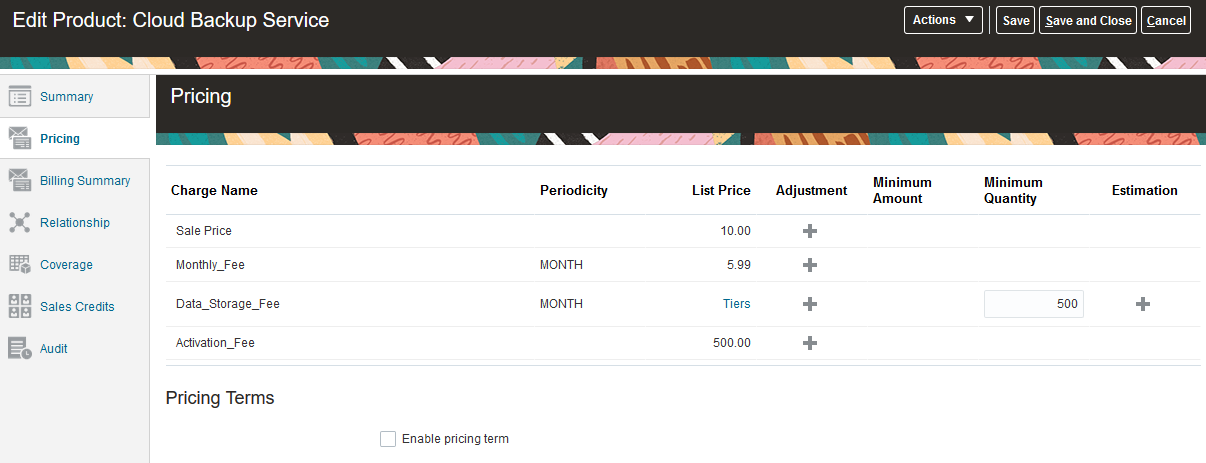
Defining Minimum Usage
When setting up the minimum usage threshold, you can either define it based on a minimum amount or a minimum quantity.
From the Estimation column, open the Usage Estimation window to estimate usage. You can base your estimate on a specified quantity or amount per billing period.
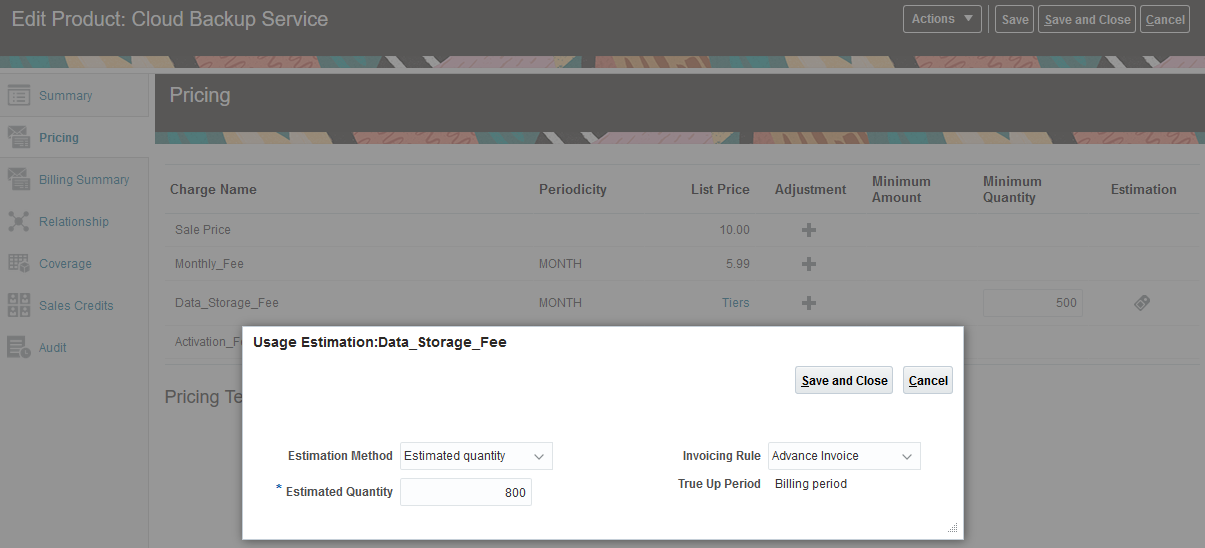
Defining Usage Estimation
You can set up the minimum or estimated usage for draft subscriptions. Once a subscription is activated, these fields become read-only, but you can amend the subscription to change them.
If you set up both the minimum and estimated usage, the estimated usage value must be higher than the minimum usage value.
You can preview the estimated quantity or amount for each billing period when you generate the billing schedule.
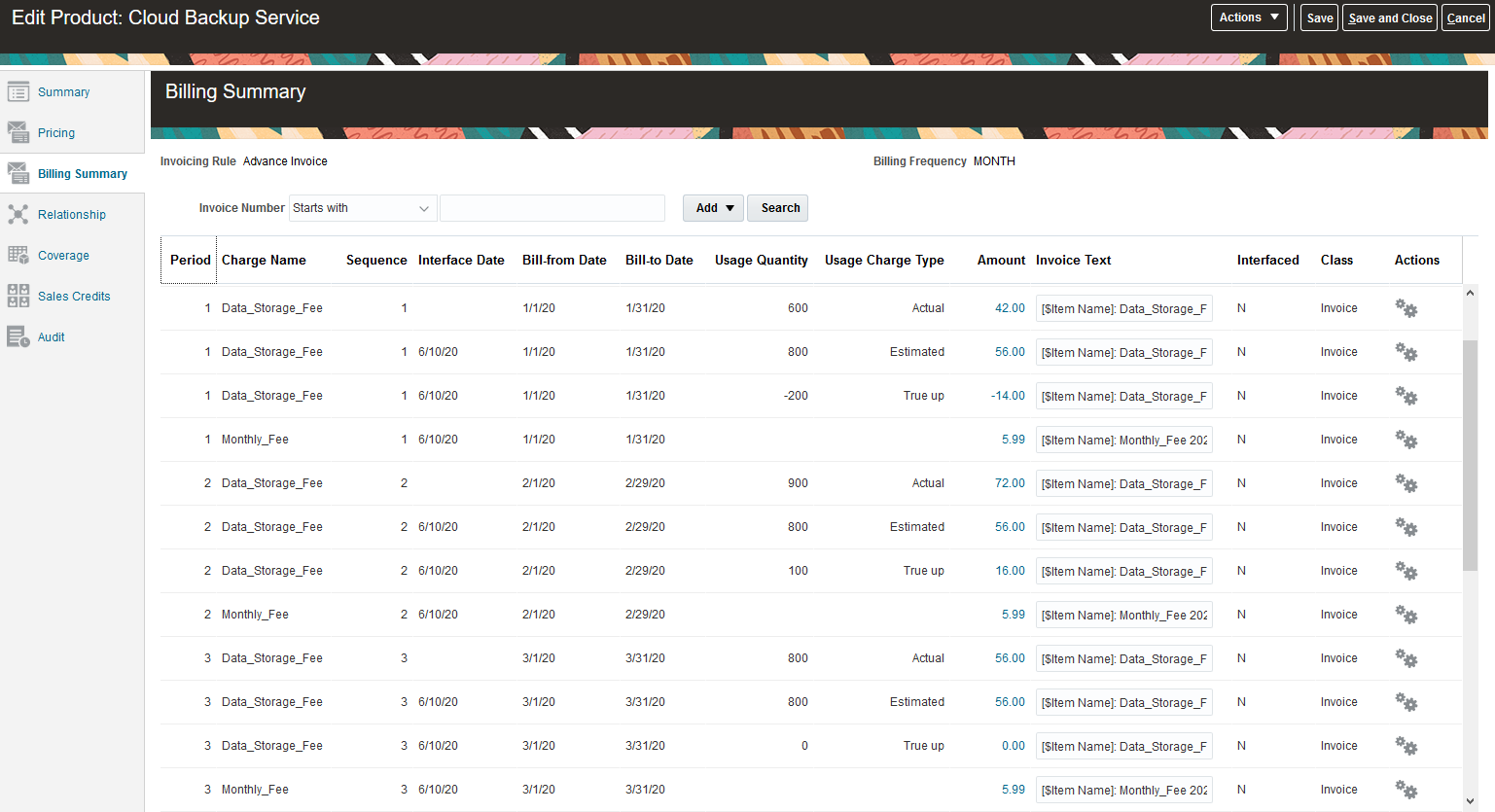
Billing Summary
The estimates are used for the billing process, but once the actual usage is obtained, you can run the True Up Usage Bill Lines scheduled process to adjust or true up the billed amount. This process compares the billed estimate against the actual usage. If your customer hasn't consumed the minimum amount or quantity, they are charged for that minimum value instead of the actual usage. The process checks all usage lines previously rated and billed and adjusts for the difference in the next billing period.
If billing occurs more frequently than the charge period or if there is a partial period billing, the estimate and minimum usage value is prorated for that bill line accordingly.
From the Billing Summary, you can see the Usage Charge Type that was used for billing, which could be Actual, Estimated, or based on a True Up value generated from the settlement process. You can filter based on the Usage Charge Type by adding it to the criteria in the Billing Summary.
Actual usage charges that have already been billed based on estimated usage will show as Interfaced = N in the Billing Summary tab. They can't be interfaced to Accounts Receivable and will not show any invoice details (Interface Date, Invoice Text, Class, Invoice Date, Invoice Number).
When you terminate the subscription before the actual usage values are obtained and the true up process completes, a credit is generated based on the amount that was billed, and prorated based on the closed or suspended date. Once the actual usage is available, the true up process makes necessary adjustments based on the billed amounts.
When amending a subscription, the application copies estimation attributes to the new draft subscription line. But, when duplicating a subscription, the charges are not copied. Therefore, no estimation attributes are copied from the original to the new subscription.
Steps to Enable
You don't need to do anything to enable this feature.
Key Resources
See the Create and Update Subscriptions chapter in the Using Subscription Management guide.