
- Revision History
- Overview
- Feature Summary
-
- Subscription Management
-
- Close, Cancel, Suspend, or Resume Multiple Subscriptions
- Update Start Date, Transaction Type, and Term for Multiple Subscriptions
- Align Calendar Billing for Evergreen Subscriptions
- Align Billing Dates
- Send Service Duration and UOM to Revenue Management
- Configure Subscription Numbering
- Renew Included Warranty
- Enable Descriptive Flexfields in Subscriptions
- Reprice Subscriptions Using REST APIs
- Manage Credit Memo and Bill Adjustment Reason
- Import Subscription Contracts and Supporting Documents
- Import Included Warranty Subscription
- Use Subscription Objects in Business Intelligence Cloud Connector
-
- Subscription Management
This document will continue to evolve as existing sections change and new information is added. All updates appear in the following table:
| Date | Feature | Notes |
|---|---|---|
| 30 JULY 2021 | Align Billing Dates | Revised feature information. |
| 30 APRIL 2021 | Renew Included Warranty | Revised feature information. |
| 19 MARCH 2021 | Created initial document. |
This guide outlines the information you need to know about new or improved functionality in this update.
GIVE US FEEDBACK
We welcome your comments and suggestions to improve the content. Please send us your feedback at oracle_fusion_applications_help_ww_grp@oracle.com.
Column Definitions:
Report = New or modified, Oracle-delivered, ready to run reports.
UI or Process-Based: Small Scale = These UI or process-based features are typically comprised of minor field, validation, or program changes. Therefore, the potential impact to users is minimal.
UI or Process-Based: Larger Scale* = These UI or process-based features have more complex designs. Therefore, the potential impact to users is higher.
Features Delivered Disabled = Action is needed BEFORE these features can be used by END USERS. These features are delivered disabled and you choose if and when to enable them. For example, a) new or expanded BI subject areas need to first be incorporated into reports, b) Integration is required to utilize new web services, or c) features must be assigned to user roles before they can be accessed.
| Ready for Use by End Users Reports plus Small Scale UI or Process-Based new features will have minimal user impact after an update. Therefore, customer acceptance testing should focus on the Larger Scale UI or Process-Based* new features. |
Customer Must Take Action before Use by End Users Not disruptive as action is required to make these features ready to use. As you selectively choose to leverage, you set your test and roll out timing. |
|||||
|---|---|---|---|---|---|---|
| Feature |
Report |
UI or |
UI or |
|
||
Update Start Date, Transaction Type, and Term for Multiple Subscriptions |
||||||
Use Subscription Objects in Business Intelligence Cloud Connector |
||||||
Close, Cancel, Suspend, or Resume Multiple Subscriptions
On the Subscriptions landing page, you can click Actions and perform these operations on multiple subscriptions at once:
- Cancel
- Close
- Suspend
- Resume

Close, Cancel, Suspend, or Resume Multiple Subscriptions
The header and line statuses are updated based on the business rules and the actions performed.
With this feature, instead of performing these actions on each subscription, you can modify multiple subscriptions at once from the subscription landing page.
Steps to Enable
You don't need to do anything to enable this feature.
Tips And Considerations
- It's recommended to update up to 50 Subscriptions at once. However, you can update up to 500 subscriptions using the Maximum Number of Subscriptions to Update profile option.
- You can use the Advanced Search filter to easily and quickly search subscriptions that you want to mass update.
Key Resources
- See the "Manage Subscriptions" chapter in the Using Subscription Management guide.
Update Start Date, Transaction Type, and Term for Multiple Subscriptions
You can update the Start Date, Transaction Type, and Term fields of all product types for multiple subscriptions at once. You can click Update and select subscriptions you want to update.
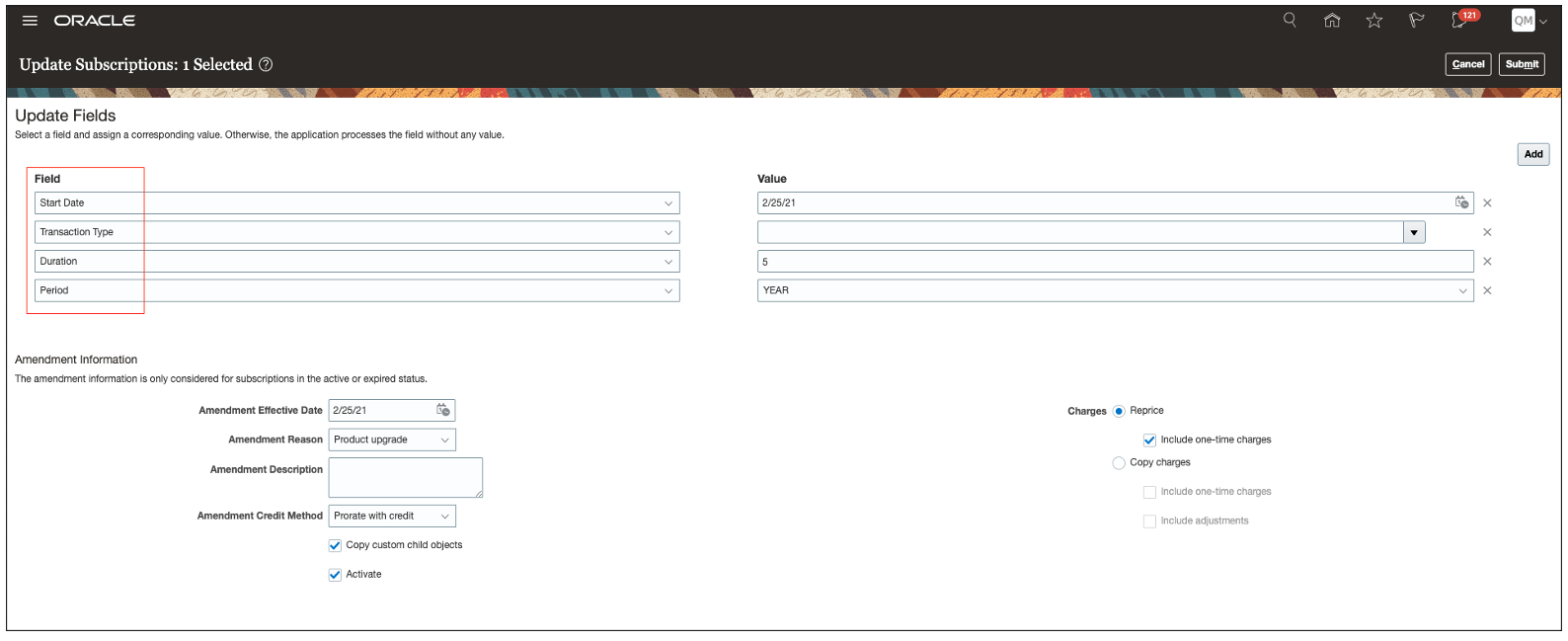
Update Start Date, Transaction Type, and Term for Multiple Subscriptions
The fields at the Subscription and products level are updated based on the business rules.
With this feature, instead of performing these actions on each subscription, you can update the Start Date, Transaction Type, and Term fields for multiple subscriptions at once.
Steps to Enable
You don't need to do anything to enable this feature.
Tips And Considerations
- It's recommended to update up to 50 Subscriptions at once. However, you can update up to 500 subscriptions using the Maximum Number of Subscriptions to Update profile option.
- You can use the Advanced Search filter to easily and quickly search subscriptions that you want to mass update.
Key Resources
- See the "Manage Subscriptions" chapter in the Using Subscription Management guide.
Align Calendar Billing for Evergreen Subscriptions
Evergreen subscriptions with calendar billing can now generate billing summaries that adhere to the calendar month billing with more accuracy.
With this feature, you can generate billing summaries until the billing period that includes the current date for the evergreen and termed subscriptions with applicable pricing terms that are created with a historical start date.
Prior to this feature, if you created an evergreen subscription line with a monthly recurring fee using Calendar Month as the period start and starting on the 15th of a month, then the application generated the billing summary as follows:
| Period | Charge | Sequence | Interface Date | Bill-from Date | Bill-to Date | Amount |
|---|---|---|---|---|---|---|
| 1 | Recurring Fee |
1 | 15-Jan-21 |
15-Jan-21 |
31-Jan-21 |
548.39 |
| 2 | Recurring Fee |
2 | 1-Feb-21 | 1-Feb-21 |
14-Feb-21 |
500 |
With this feature, your billing summary adheres to calendar months more accurately and now the application generates the billing summary as follows:
| Period | Charge | Sequence | Interface Date | Bill-from Date | Bill-to Date | Amount |
|---|---|---|---|---|---|---|
| 1 | Recurring Fee | 1 | 15-Jan-21 |
15-Jan-21 |
31-Jan-21 |
548.39 |
| 2 | Recurring Fee | 2 | 1-Feb-21 |
1-Feb-21 |
28-Feb-21 |
1000 |
The future billing lines of your evergreen subscriptions are generated as described above.
The billing summary for evergreen subscriptions more accurately adheres to calendar months to ensure that billing periods align with your billing configurations.
Steps to Enable
You don't need to do anything to enable this feature.
Key Resources
- See the "Introduction to Subscriptions" chapter in the Using Subscription Management guide.
You can align billing dates using the Align Billing From field. Use the Align Billing From field from the Edit Product page to align the bill-from and bill-to dates. In this field, you must select a date that’s greater than the product start date or less than the product end date. When you select a date in the Align Billing From field, the application creates a partial period ending on the day before the alignment date. The billing summary is also updated with the selected alignment date as the start of the next billing period.

For example, consider the following billing configuration for a 5-year subscription product with a $54,000 annual charge starting on 1 July 2020:
| Product | Qty | Start Date | End Date | Billing Frequency | Invoicing Rule | Billing Date Code |
|---|---|---|---|---|---|---|
| Financial Cloud Subscription |
1 | 1-Jul-20 |
30-Jun-25 |
Year |
Advance |
Period Start |
Here’s the billing summary for the above subscription product line:
| Period | Charge | Sequence | Interface Date | Bill-From Date | Bill-To Date | Amount |
|---|---|---|---|---|---|---|
| 1 | Annual Charge | 1 | 1-Jul-20 | 1-Jul-20 |
30-Jun-21 | 54000 |
| 2 | Annual Charge |
2 | 1-Jul-21 |
1-Jul-21 |
30-Jun-22 |
54000 |
| 3 | Annual Charge |
3 | 1-Jul-22 |
1-Jul-22 |
30-Jun-23 |
54000 |
| 4 | Annual Charge |
4 | 1-Jul-23 |
1-Jul-23 |
30-Jun-24 |
54000 |
| 5 | Annual Charge |
5 | 1-Jul-24 |
1-Jul-24 |
30-Jun-25 |
54000 |
In this scenario, when you select 27 July 2020 as the date in the Align Billing From date field for your subscription product, a partial period is created, which ends on the day before your select align billing from date. Also, billing lines are aligned to your selected date and here’s how the billing summary is generated:
| Period | Charge | Sequence | Interface Date | Bill-From Date | Bill-To Date | Amount |
|---|---|---|---|---|---|---|
| 1 | Annual Charge |
1 | 1-Jul-20 |
1-Jul-20 |
26-Jul-20 |
3774.19 |
| 2 | Annual Charge |
2 | 27-Jul-20 |
27-Jul-20 |
26-Jul-21 |
54000 |
| 3 | Annual Charge |
3 | 27-Jul-21 |
27-Jul-21 |
26-Jul-22 |
54000 |
| 4 | Annual Charge |
4 | 27-Jul-22 |
27-Jul-22 |
26-Jul-23 |
54000 |
| 5 | Annual Charge |
5 | 27-Jul-23 |
27-Jul-23 |
26-Jul-24 |
54000 |
| 6 | Annual Charge |
6 | 27-Jul-24 |
27-Jul-24 |
30-Jun-25 |
50225.81 |
This field is supported only for the subscription type of products.
You can use the Align Billing from Date field to align billing periods of your subscription products' bill lines for various reasons such as:
- To align billing periods across different subscription products
- To align your billing periods from the start of your fiscal quarters.
Steps to Enable
You don't need to do anything to enable this feature.
Key Resources
- See the "Manage Subscriptions" chapter in the Using Subscription Management guide.
Send Service Duration and UOM to Revenue Management
Along with the revenue information that's interfaced to Revenue Management Cloud Service (RMCS), Subscription Management also interfaces the service duration, currency conversion details, and Charge UOM values. You can use the subscription duration and charge UOM values in RMCS to assign standalone selling prices to subscriptions for robust revenue allocation.
FIELDS AND VALUES SENT TO RMCS
This table explains how Subscription Management sends service duration and charge UOM for each of the charge types:
| Charge |
Service Duration | Charge UOM |
|---|---|---|
| One-time Charge | 1 | ORA_PRICE_PERIOD_ONETIME |
| Recurring Charge | Subscription product duration | Charge UOM |
| Usage Charge | Null | Null |
Currency conversion fields sent from a subscription:
- Exchange rate
- Exchange rate date
- Exchange rate type
Subscription Management sends the unit list price as unit standalone selling price (Unit SSP).
With this feature, Subscription Management sends the duration, actual selling price, and unit SSP to RMCS. The RMCS calculates the line amount of a promised service as Quantity * Service Duration * Unit Selling Price.
NOTE: The charge UOM is referred as price periodicity in RMCS.
UPGRADE IMPACT
This section is applicable only if you're upgrading to this release. This section isn't relevant if you're a new Subscription Management customer.
By default, this feature is enabled for all customers. To disable this feature, add the RMCS_DURATION_UOM_OPT_OUT lookup value in the Manage Subscription Management Features lookup. In the lookup codes section, you must select the Enabled checkbox. Enter dates so that the system date is between the start date and end date.
Navigation: Setup and Maintenance > Manage Standard Lookups

Manage Subscription Management Features Lookup
When you disable this feature, Subscription Management shares the information with RMCS in the same way as before this feature was implemented:
- Service Duration and charge UOM aren’t sent.
- Duration is multiplied with the unit selling price.
- Duration is multiplied with Unit SSP.
- Currency conversion details aren't sent.
- Unit list price isn’t sent.
When disabled from Opt In, service duration isn't captured separately, and it's factored into the unit selling price and unit SSP for recurring charges. In RMCS, the line amount of a promised service is calculated as Quantity * Unit Selling Price.
If you have customized the Subscription Management and RMCS Integration algorithm, you must verify and make necessary modifications to your customizations before you opt-in for this feature.
REVISION IMPACT ON EXISTING REVENUE CONTRACTS
When you interface the original subscription line to RMCS before this feature and the revised subscription line is interfaced after enabling this feature, then by default, RMCS performs these transformations:
- The service duration and charge UOM sent in the revision lines are ignored.
- The unit selling price is calculated as Unit Selling Price * Service Duration on the revenue contract.
- The Unit SSP of the base revenue line is copied to the revision line as well.
RMCS calculates the promised service line amount without considering the service duration and price periodicity.
This section is relevant to you only if you have overridden the values of Quantity, Unit SSP, or Unit Selling Price fields by customizing the Subscription Management and RMCS Integration algorithm.
For revenue lines, if you have overridden the values of Quantity, Unit Selling Price, or Unit Standalone Selling Price using Service Mapper, you should populate the SRC_ATTRIBUTE_CHAR30='CUSTOM' in RMCSDocLines attribute in the Subscription RMCS Integration service mapping for the revision lines. In this scenario, the revision line is processed as is by RMCS without performing any transformation.
This section is relevant to you only if you are sending values to the following RMCS table attributes, by customizing the Subscription Management and RMCS Integration algorithm, before this release:
VRM_SOURCE_DOCUMENTS table:
- CURR_CONVERSION_RATE
- CURR_CONVERSION_RATE_DATE
- CURR_CONVERSION_RATE_TYPE
VRM_SOURCE_DOC_LINES table:
- UNIT_LIST_PRICE
After this release, if you’re satisfied with the default application values for RMCS table attributes, you can remove the attribute's customization from the Subscription Management and RMCS Integration algorithm. To verify the default application values, remove or comment on these attributes' customization in the algorithm and publish.
If you want to continue sending customized values to these attributes by overriding the default application values for RMCS table attributes, here's how you must change the syntax which was used before this release:
| Before this release | In this release |
|---|---|
| RMCSInterface.insert([ AttributeName:'exchange_rate’, AttributeValue: {groovy_script}, AttributeContext:'Standard', SourceId:RmcsDoc.DocumentId, TransactionType:'DOCUMENT']) |
RmcsDoc.CurrConversionRate= {groovy_script} |
| RMCSInterface.insert([ AttributeName:'exchange_rate_type’, AttributeValue: {groovy_script}, AttributeContext:'Standard', SourceId:RmcsDoc.DocumentId, TransactionType:'DOCUMENT']) |
RmcsDoc.CurrConversionRateType= {groovy_script} |
| RMCSInterface.insert([ AttributeName:'exchange_date’, AttributeValue: {groovy_script}, AttributeContext:'Standard', SourceId:RmcsDoc.DocumentId, TransactionType:'DOCUMENT']) |
RmcsDoc.CurrConversionRateDate= {groovy_script} |
| Document Line Step Customization: RMCSInterface.insert([ AttributeName:'unit_list_price’, AttributeValue: {groovy_script}, AttributeContext:'Standard', SourceId:RmcsDocLines.DocumentLineId, TransactionType:'DOCUMENT_LINE']) |
RmcsDocLines.UnitListPrice= {groovy_script} |
In the above table replace {groovy_script} with your groovy script.
You can use the native functionality of Revenue Management Cloud Service to upload Unit Standalone Selling Price.
Steps to Enable
You don't need to do anything to enable this feature.
Tips And Considerations
By default, this feature is enabled for all customers. To disable this feature, add the RMCS_DURATION_UOM_OPT_OUT lookup value in the Manage Subscription Management Features lookup.
Key Resources
- See the "Integrate Revenue Management" chapter in the Implementing Subscription Management guide.
Configure Subscription Numbering
You can configure the subscription numbering to assign numbering sequences based on either business unit, ledger, or legal entity.
This feature is disabled by default. When this feature is disabled, the application generates subscription numbering using the public unique ID (PUID) based sequence.
You can enable this feature using the Document Sequence Numbering profile option. When you enable this feature, the Subscription Number field isn’t displayed.
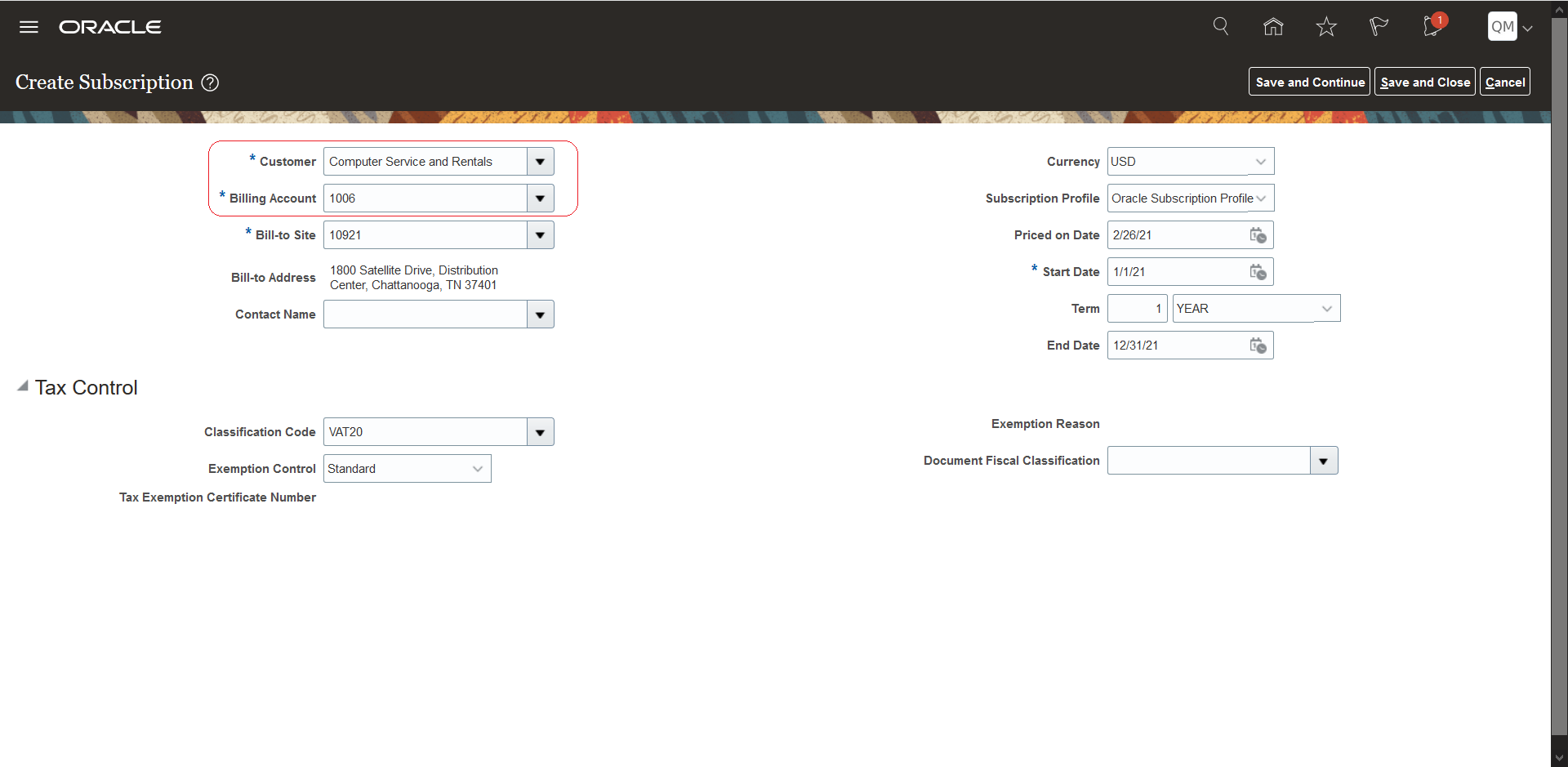
Create Subscription
After entering all the details on the Create Subscription page, once you create the subscription, the application uses your assigned numbering sequences to generate the subscription number on the Subscription Number page.
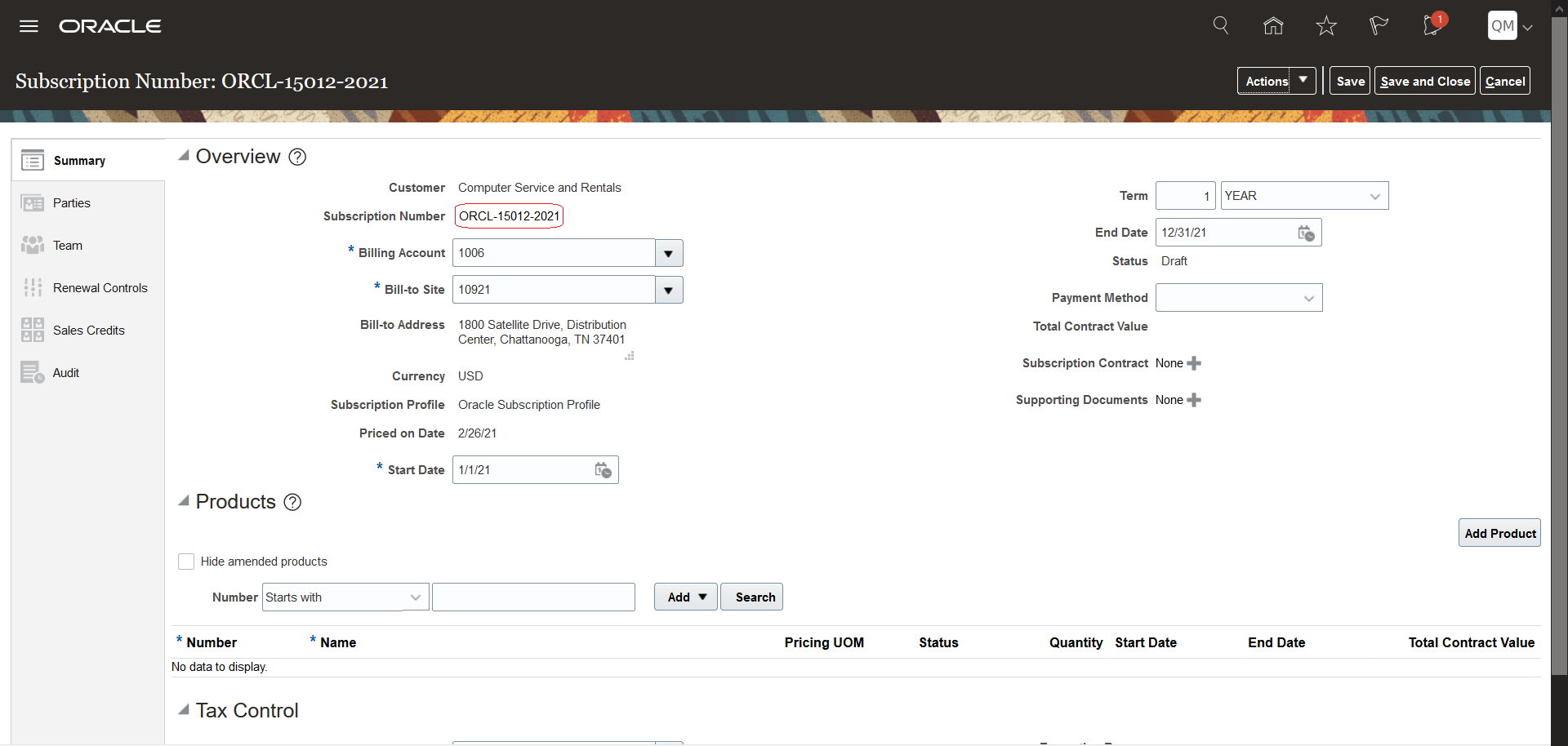
Edit Subscription
Also, when the profile option value is enabled, you can access the Subscription Numbering section on the Edit Subscription Profile page.
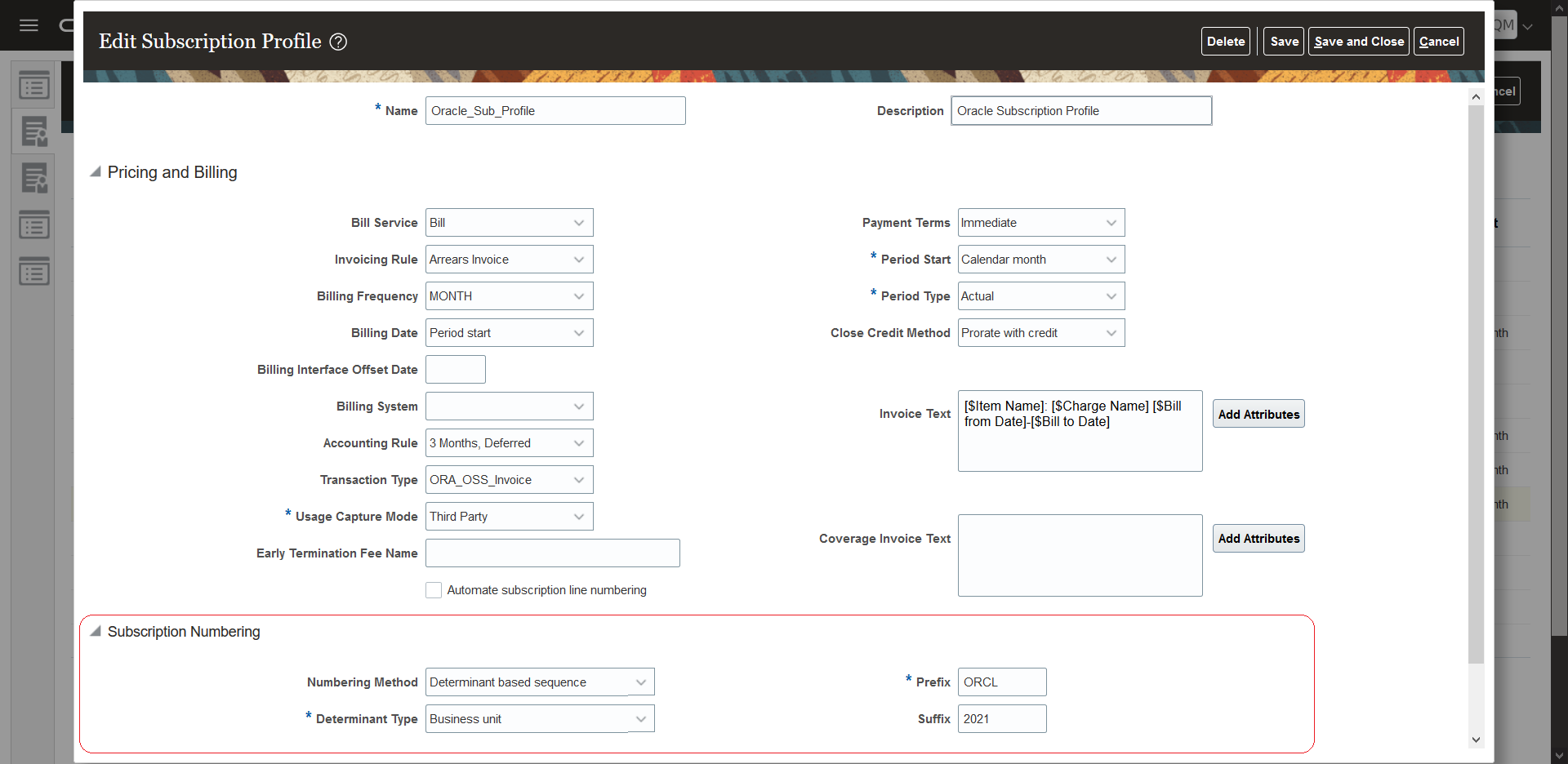
Edit Subscription Profile
To base your numbering sequence based on a business unit, ledger, or legal entity, you must select the Determinant based sequence value in the Numbering Method drop-down list. Select either business unit, ledger, or legal entity in the Determinant Type drop-down list. Optionally, enter a prefix and a suffix.
This feature lets you assign your own numbering sequences and patterns.
Steps to Enable
Here’s how you can enable this feature:
- Sign in as a user with access to the setup areas.
- Navigate to Setup and Maintenance work area.
- Open the Tasks side panel and click Search.
- Search and select the Manage Administrator Profile Values task.
- Search the ORA_OSS_ENABLE_DOC_SEQ_NUM profile option code.
- In the Profile Values section, set the Profile Value as Yes.
Tips And Considerations
-
The application uses automatic numbering based on business unit, ledger, or legal entity while duplicating or manually renewing a subscription.
-
When automatically renewing subscriptions, if the application can't find a proper document sequence setup, the subscription numbers are generated based on the PUID based sequence.
Key Resources
- See the "Configure Subscriptions" chapter in the Implementing Subscription Management guide.
You can renew an included warranty to an extended warranty.
You can use the Renew action available for an included warranty and renew it to an extended warranty.

Renew
This feature lets you easily and quickly renew your included warranty.
Steps to Enable
Here's how you configure the lookup for this feature:
- Sign in as a user with access to the setup areas.
- Navigate to Setup and Maintenance work area.
- Open the Tasks side panel and click Search.
- Search for and select the Manage Standard Lookups task.
- Search for the EGP_RELATIONSHIP_TYPES lookup.
- In the Lookup Codes section, click the Add icon.
- In the Lookup Code field, enter OSS_EXTENDED_WARRANTY.
- Click the Enabled check box.
- In the Meaning field, enter Extended Warranty.
- In the Description field, enter Extended warranty item.
- Click Save and Close.
After configuring the lookup value, you must associate an extended warranty item with an included warranty item to renew it. To associate an extended warranty item with an included warranty, click Product Management > Product Information Management and select Extended Warranty from the Type field in the Relationship tab.
Key Resources
- See the "Configure Subscriptions" chapter in the Implementing Subscription Management guide.
Enable Descriptive Flexfields in Subscriptions
You can enable descriptive flexfields (DFFs) for subscriptions and subscription products using the Manage Descriptive Flexfields task in the Setup and Maintenance work area.
Once you define the descriptive flexfields, you can access these in subscription and subscription products by navigating to Actions > Edit Additional Information.
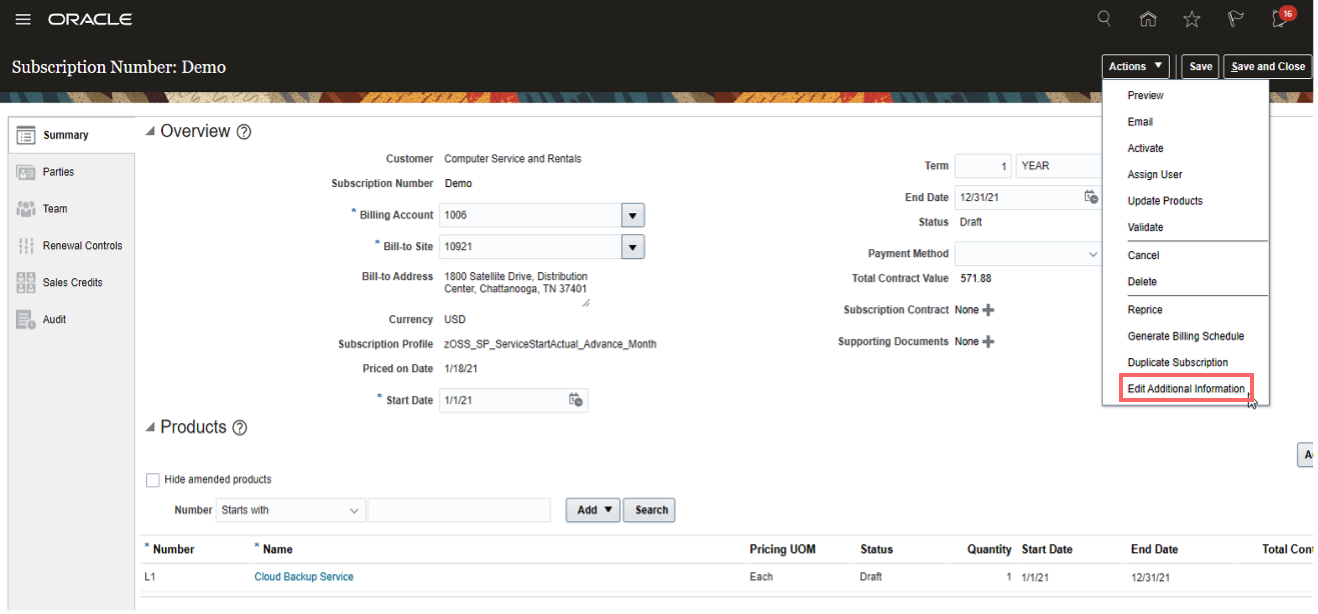
Subscriptions UI
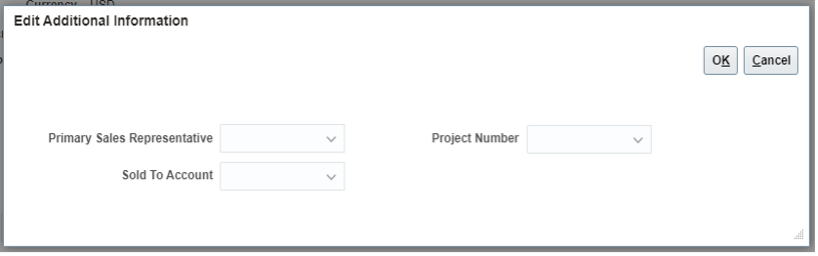
Edit Additional Information
DFFs co-exist with Application Composer custom attributes.
Here are the DFF types you can define at the subscription and subscription product level:
- Character: 30 attributes
- Number: 10 attributes
- Date: 10 attributes
For more information about DFFs, see the Fusion Applications Developer's Guide.
Here are a few limitations of DFFs:
- DFF segments aren't visible in service mappings. You must use algorithm extension to interface DFF values to Accounts Receivable and Revenue Management Cloud.
- Defaulting logic isn't supported in DFF Import.
- Column names in the import csv file will not match the DFF segment names; you must do manual mappings.
- Hierarchical import of Subscription and Subscription Product DFF isn't supported. You must import these independently.
- Search based on DFF segments on the Subscriptions landing page isn't supported.
- DFF segments aren't supported in Oracle Transactional Business Intelligence.
- DFF segments aren't supported in Subscription SOAP services.
You can use descriptive flexfields to create global and context-sensitive segments. This feature lets you write SQL queries to fetch data from other products such as Oracle Order Management and Fusion Accounts Receivable.
Steps to Enable
Here are the steps to create descriptive flexfields:
- Sign in to the application as a setup user.
- Navigate to Setup and Maintenance > Manage Descriptive Flexfields.
- Enter Subscription or Subscription Product in the Name field.
- From search results, navigate to Actions > Edit.
- Create necessary descriptive flexfields.
Tips And Considerations
We recommended using descriptive flexfields only for choice lists that can’t be created using the Application Composer fixed choice list and dynamic choice list.
Key Resources
- See the "Subscription Setup Checklist" chapter in the Implementing Subscription Management guide.
Reprice Subscriptions Using REST APIs
You can use Subscription REST services to reprice a subscription, subscription product, or covered level.
With this feature, you can use the Subscription REST services from any external system to perform the reprice action.
Steps to Enable
Review the REST service definition in the REST API guides, available from the Oracle Help Center > your apps service area of interest > REST API. If you're new to Oracle's REST services you may want to begin with the Quick Start section.
Key Resources
- See the REST API for CX Sales and B2B Service guide.
Manage Credit Memo and Bill Adjustment Reason
You can capture the reason for creating a credit memo and bill adjustment on the Billing Summary tab. You can create and manage the reasons from:
- The ORA_OSS_CREDIT_MEMO_REASON lookup type for the credit memo
- The ORA_OSS_BILL_ADJ_REASON lookup type for the bill adjustment
You can navigate to the Billing Summary tab on the Edit Product page and create a credit memo. The reason for the credit memo is now sourced from a user-defined lookup.
If you select a value in the Reason drop-down list and don’t enter a value in the Reason Details field, the application displays the lookup code description in the Invoice Text column on the Billing Summary tab. If required, you can manually edit this invoice text column.
You can create a credit memo only after the bill line is interfaced to Oracle Accounts Receivable.
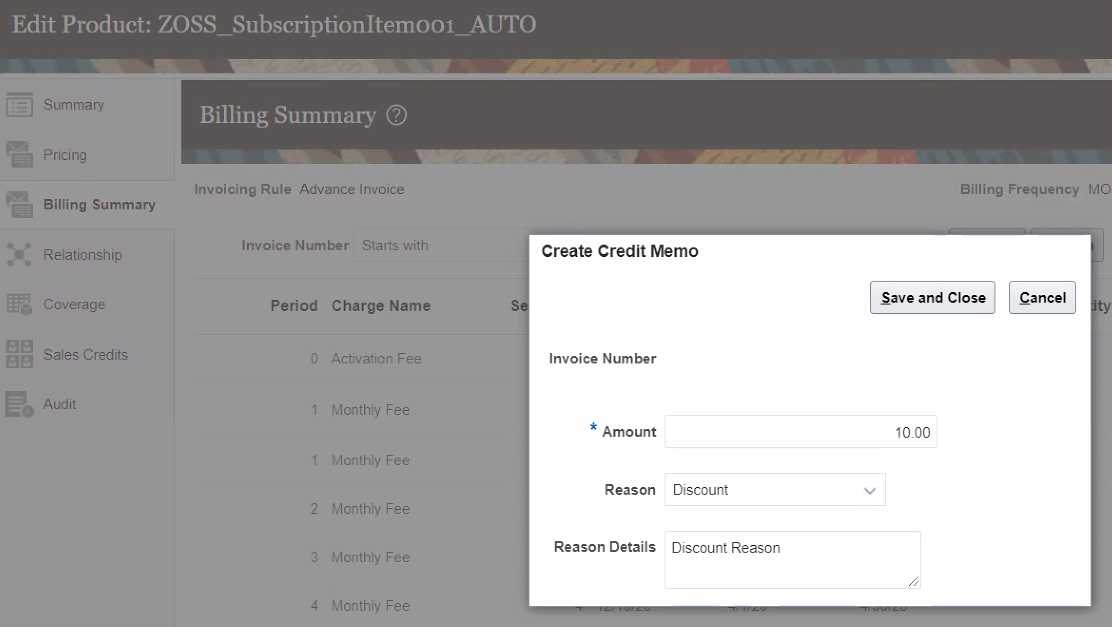
Credit Memo
You can navigate to the Billing Summary tab under a subscription product and create a bill adjustment. The reason for bill adjustment is sourced from a user-defined lookup.
You can create a bill adjustment only before the bill line is interfaced to Oracle Accounts Receivable.
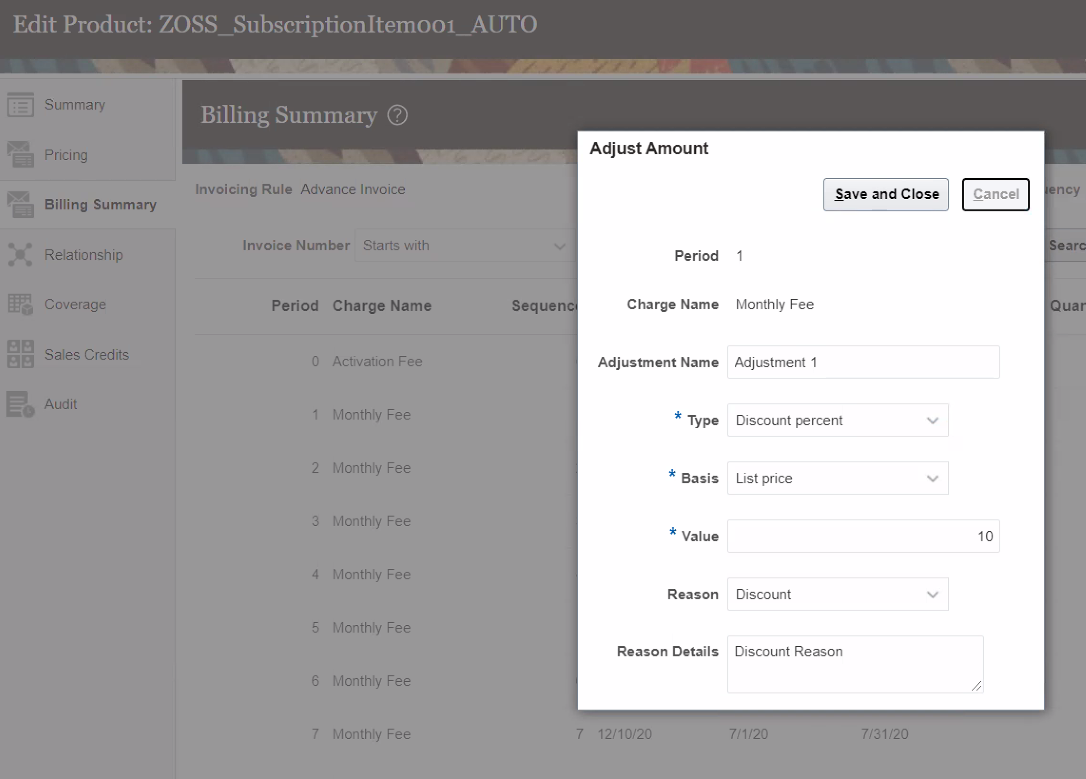
Bill Adjustment
You can easily track the reasons for creating credit memos and bill adjustments under a specific category. With this feature, you can now build more meaningful reports.
Steps to Enable
Here are the steps to create the reasons for ORA_OSS_CREDIT_MEMO_REASON lookup type:
- Sign in to the application as a setup user.
- Navigate to Setup and Maintenance > Manage Standard Lookups.
- In Lookup Type, enter the values as ORA_OSS_CREDIT_MEMO_REASON and click Search.
- Add the required lookup code, display sequence, meaning and description and click Save.
Here are the steps to create the reasons for ORA_OSS_BILL_ADJ_REASON lookup type:
- Sign in to the application as a setup user.
- Navigate to Setup and Maintenance > Manage Standard Lookups.
- In Lookup Type, enter the values as ORA_OSS_BILL_ADJ_REASON and click Search.
- Add the required lookup code, display sequence, meaning and description and click Save.
Key Resources
- See the "Configure Subscriptions" chapter in the Implementing Subscription Management guide.
Import Subscription Contracts and Supporting Documents
You can use Import Management, from the Tools menu, to import subscription contracts and supporting documents.
This feature lets you import subscription attachments from a legacy system.
Steps to Enable
You don't need to do anything to enable this feature.
Key Resources
- See the "Import Your Data" chapter in the Understanding Import and Export Management for CX Sales and B2B Service guide.
Import Included Warranty Subscription
You can use Import Management, from the Tools menu, to import an included warranty subscription.
This feature lets you transfer included warranty subscriptions from a legacy system.
Steps to Enable
You don't need to do anything to enable this feature.
Key Resources
- See the "Import Your Data" chapter in the Understanding Import and Export Management for CX Sales and B2B Service guide.
Use Subscription Objects in Business Intelligence Cloud Connector
You can use Oracle Business Intelligence (BI) Cloud Connector to extract BI data from Subscription Management. Here are the subscription objects you can use in BI Cloud Connector:
- Subscription Header
- Subscription Parties
- Subscription Products
- Subscription Covered Levels
- Subscription Charges
This feature lets you export the subscription data for analysis.
Steps to Enable
You don't need to do anything to enable this feature.