
This document will continue to evolve as existing sections change and new information is added. All updates appear in the following table:
| Date | Feature | Notes |
|---|---|---|
| 21 DEC 2018 | Created initial document. |
This guide outlines the information you need to know about new or improved functionality in this update, and describes any tasks you might need to perform for the update. Each section includes a brief description of the feature, the steps you need to take to enable or begin using the feature, any tips or considerations that you should keep in mind, and the resources available to help you.
Security and New Features
The Role section of each feature identifies the security privilege and job role required to use the feature. If feature setup is required, then the Application Implementation Consultant job role is required to perform the setup, unless otherwise indicated. (If a feature doesn't include a Role section, then no security changes are required to use the feature.)
If you have created job roles, then you can use this information to add new privileges to those roles as needed.
Give Us Feedback
We welcome your comments and suggestions to improve the content. Please send us your feedback at oracle_fusion_applications_help_ww_grp@oracle.com.
Optional Uptake of New Features (Opt-In)
We continue to add many new features to the Oracle Cloud Applications, and for some features, you can take advantage of new functionality at a pace that suits you by “opting in” to the feature when you’re ready. You can opt-in to a feature in two ways: by using the New Features work area, or by using the Setup and Maintenance work area.
To opt-in using the New Features work area:
- Click the Navigator, and then click New Features (under the My Enterprise heading).
- On the New Features page, select the offering that includes new features you’d like to review.
- Click Opt-In for any feature that you want to opt-in to.
- On the Edit Features page, select the Enable option for the feature, and then click Done.
To opt-in using the Setup and Maintenance work area:
- Click the Navigator, and then click Setup and Maintenance.
- On the Setup page, select your offering, and then click Change Feature Opt-In.
- On the Opt-In page, click the Edit Features icon.
- On the Edit Features page, select the Enable option for any feature you want to opt-in to. If the Enable column includes an Edit icon instead of a check box, then click the icon, select your feature options, and click Save and Close.
- Click Done.
Column Definitions:
Report = New or modified, Oracle-delivered, ready to run reports.
UI or Process-Based: Small Scale = These UI or process-based features are typically comprised of minor field, validation, or program changes. Therefore, the potential impact to users is minimal.
UI or Process-Based: Larger Scale* = These UI or process-based features have more complex designs. Therefore, the potential impact to users is higher.
Customer Action Required = You MUST take action before these features can be used. These features are delivered disabled and you choose if and when to enable them. For example, a) new or expanded BI subject areas need to first be incorporated into reports, b) Integration is required to utilize new web services, or c) features must be assigned to user roles before they can be accessed.
| New Features Delivered Ready to Use Reports plus Small Scale UI or Process-Based new features will have minimal user impact after an update. Therefore, customer acceptance testing should focus on the Larger Scale UI or Process-Based* new features. |
New Features That Customer Must Take Action to Use (Delivered Disabled) Not disruptive as action is required to make these features ready to use. As you selectively choose to leverage, you set your test and roll out timing. |
|||||
|---|---|---|---|---|---|---|
| Feature |
Report |
UI or |
UI or |
Customer Action Required |
||
Service Logistics & Billing Cloud
Manage Field Parts Stocking Locations
Field Service Administrators can manage technician stocking locations using new UIs provided with Service Logistics Cloud. They can view stocking level details (on-hand, available, min, max. serial numbers etc.) as well as transfer and receive parts on behalf of technicians.
NEW FEATURES
- Manage Trunk Stock
- Transfer Parts
- Receive Parts
MANAGE TRUNK STOCK
The Manage Trunk Stock UI provides comprehensive information on parts availability and recommended stocking levels in field technician inventory locations. Administrators can view item details in both usable and defective stock locations assigned to a technician. Administrators can also search for excess or shortage quantity items than the recommended levels. Stocking locations are assigned to technicians using the Technician Setup UI which is described later in this document.
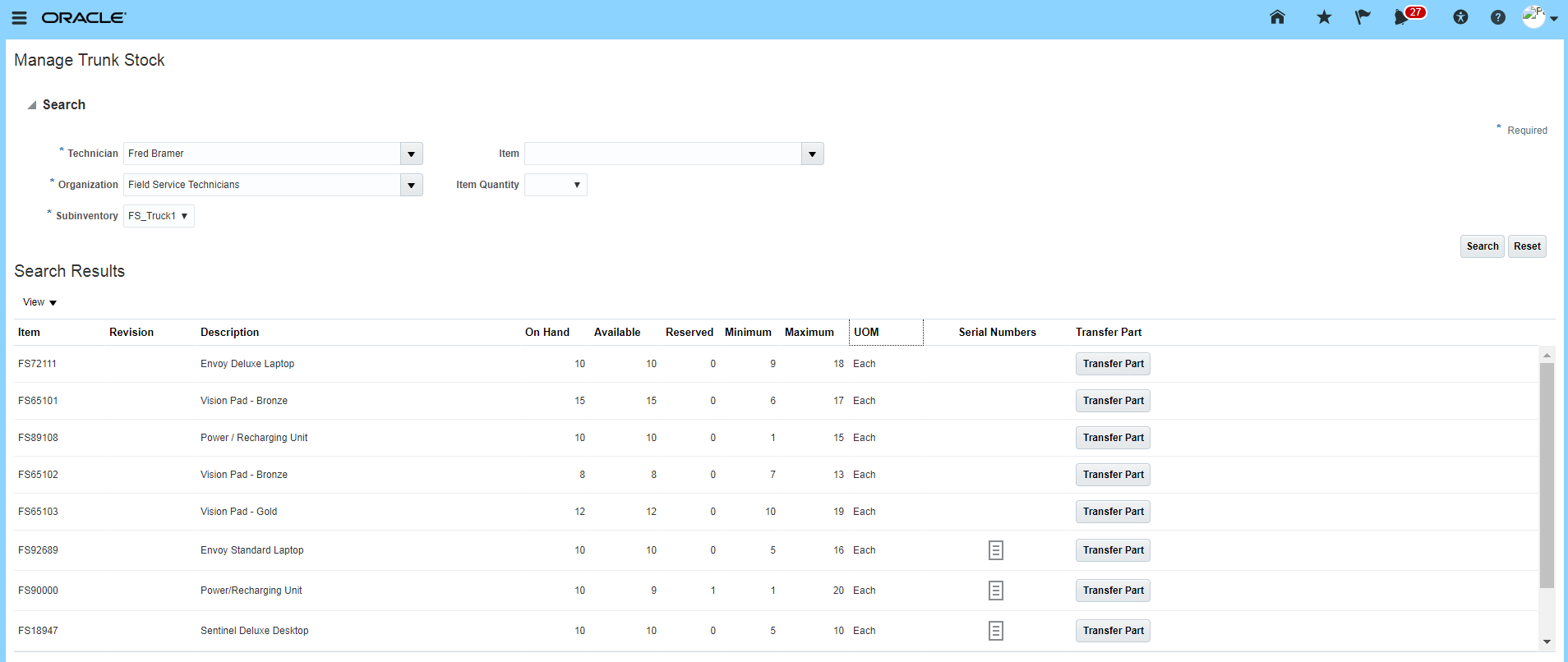
Manage Trunk Stock
Administrators can use the Manage Trunk Stock page to transfer parts to other stocking locations. The Transfer Parts window is displayed when the administrator clicks the Transfer Parts button. He/She can then either transfer the part to another technician stocking location or to a stocking location that is not assigned to a technician (e.g. return defective parts to central warehouse).
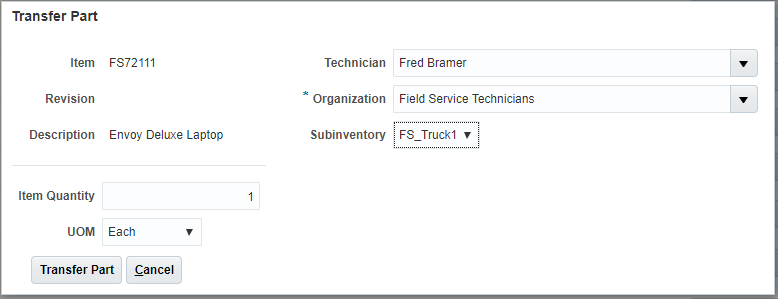
Transfer Part
RECEIVE PARTS
The Receive Parts user interface can be accessed from the Service Logistics dashboard. This user interface is used to receive parts that are shipped to a field technician for a specific work order or replenishment request. You can only receive transfer orders in this user interface.
Administrators can either select a single receipt line or multiple lines to receive parts into the destination subinventory. Administrators can choose the subinventory into which the item is received. This Receive Parts user interface also supports receiving predefined serial controlled items
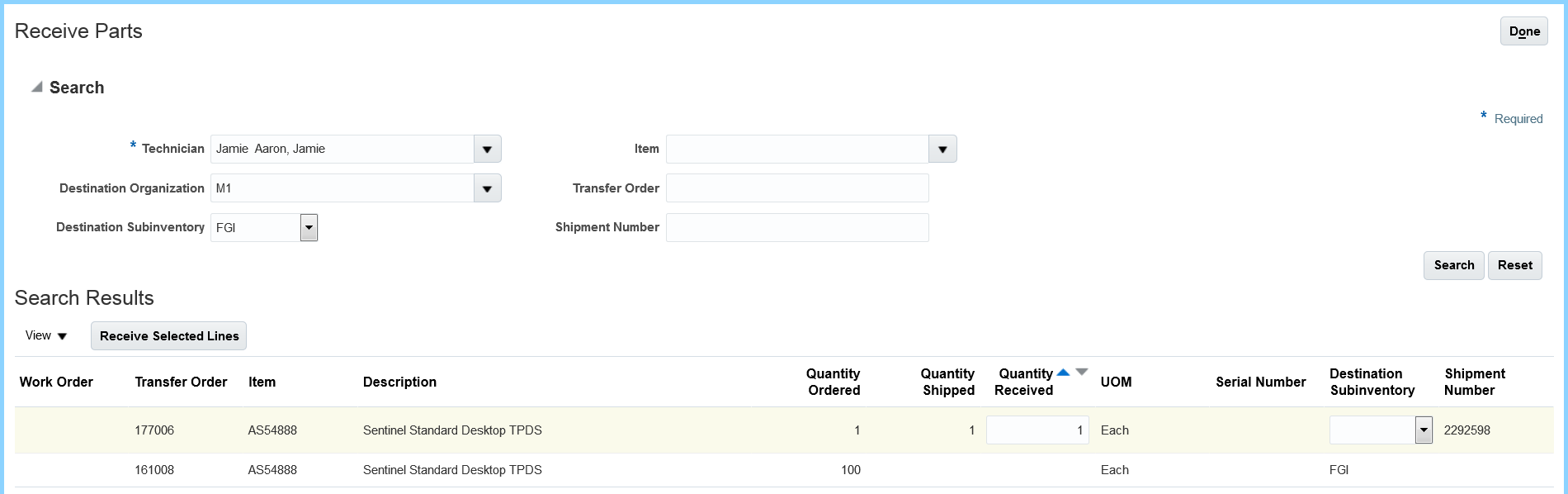
Receive Parts
Watch a Demo
Steps to Enable
In Setup Manager, Service Logistics Cloud is an optional functional area under the Manufacturing and Supply Chain Offering. It can be enabled by navigating to the Change Feature Opt-In page. After it is enabled, the Service Logistics Functional Area will appear in the Offering's Task List . Users can then begin the setup process.
Following setups need to be performed to use this feature.
MANAGE STOCKING LOCATIONS
The Manage Stocking Locations UI is used to select and setup the stocking locations that will be used in Service Logistics. Stocking locations can be tagged as Usable or Defective which allows them to be assigned to field techs in the Technician Setup UI.
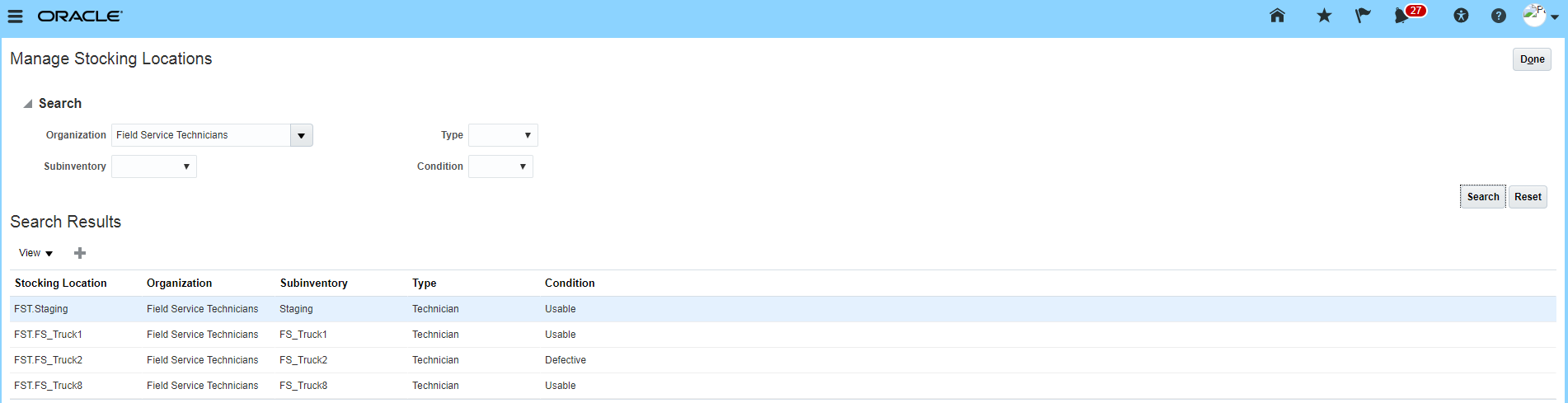
Manage Stocking Locations
TECHNICIAN SETUP
Using the Technician Setup UI, you can assign the stocking locations setup in the Manage Stocking Locations UI to individual technicians (can be shared). Technicians can then receive, transfer and debrief parts from these stocking locations. You can assign multiple stocking locations to each technician. However, technicians can have only one usable and one defective default stocking locations.
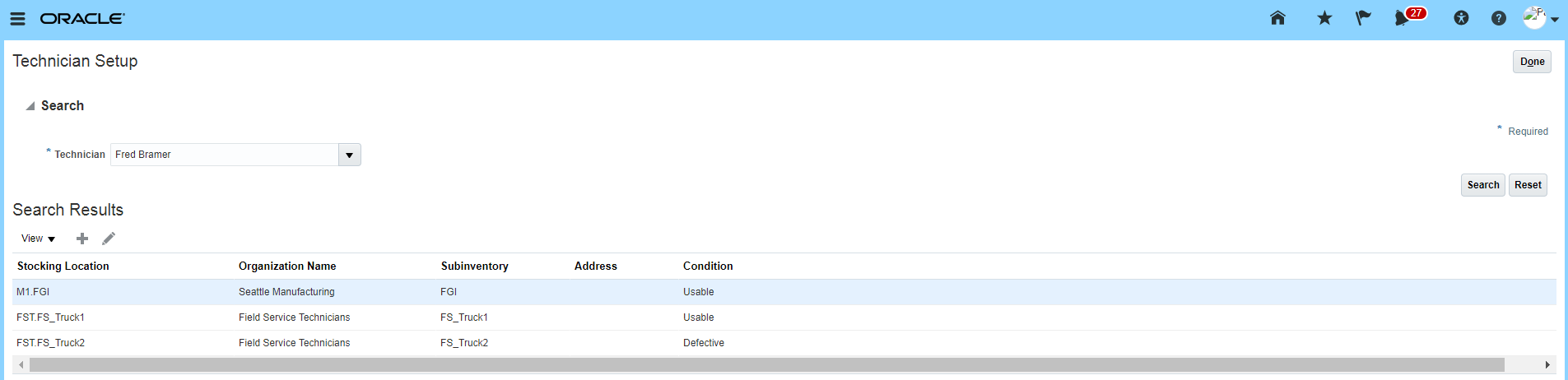
Technician Setup
Watch a Setup Demo
Key Resources
Watch Manage Field Parts Stocking Locations Readiness Training
Role Information
- Job Role Name and Code:
- Field Service Administrator (ORA_RCL_FIELD_SERVICE_ADMINISTRATOR)
- Privilege Name and Code:
- View Trunk Stock (RCL_PORTAL_VIEW_TRUNK_PARTS)
- Receive Parts (RCL_PORTAL_RECEIVE_PARTS)
- Setup Stocking Location (RCL_STOCKING_LOC_SETUP)
- Setup Technician (RCL_TECHNICIAN_SETUP)
Source and Order Service Parts & Initiate Returns
The Source and Order Service Parts feature enables service agents to create parts requirements and then source and order them. This functionality is provided on new parts tabs in the Engagement Cloud Service Request and Work Order user interfaces. Service agents can now order parts for shipment to customers and field technicians.
FEATURES
- Order and Return Customer Replaceable Parts
- Order Technician Replaceable Parts
- Create Backorders
ORDER AND RETURN CUSTOMER REPLACEABLE PARTS
The parts required to fix the customer issue are captured within the Part Details tab of Service Request user interface displayed below.
- Agent enters the required parts in the Add Part window.
- Order line type (Order/Shipment or Return) is determined based on the Service Activity Code selected in the Add Part window.
- Service Activity codes are set up in a separate user interface explained in the Steps to Enable section.
- Service Logistics Cloud integrates with Global Order Processing Cloud to find parts, determine the best shipping method/carrier and calculate arrival date.
- Service Logistics Cloud integrates with Fusion Pricing to calculate part charges (shipments) and credits (returns)
- Service Logistics Cloud integrates with Order Management Cloud to drive parts shipping, receiving, billing and accounting.
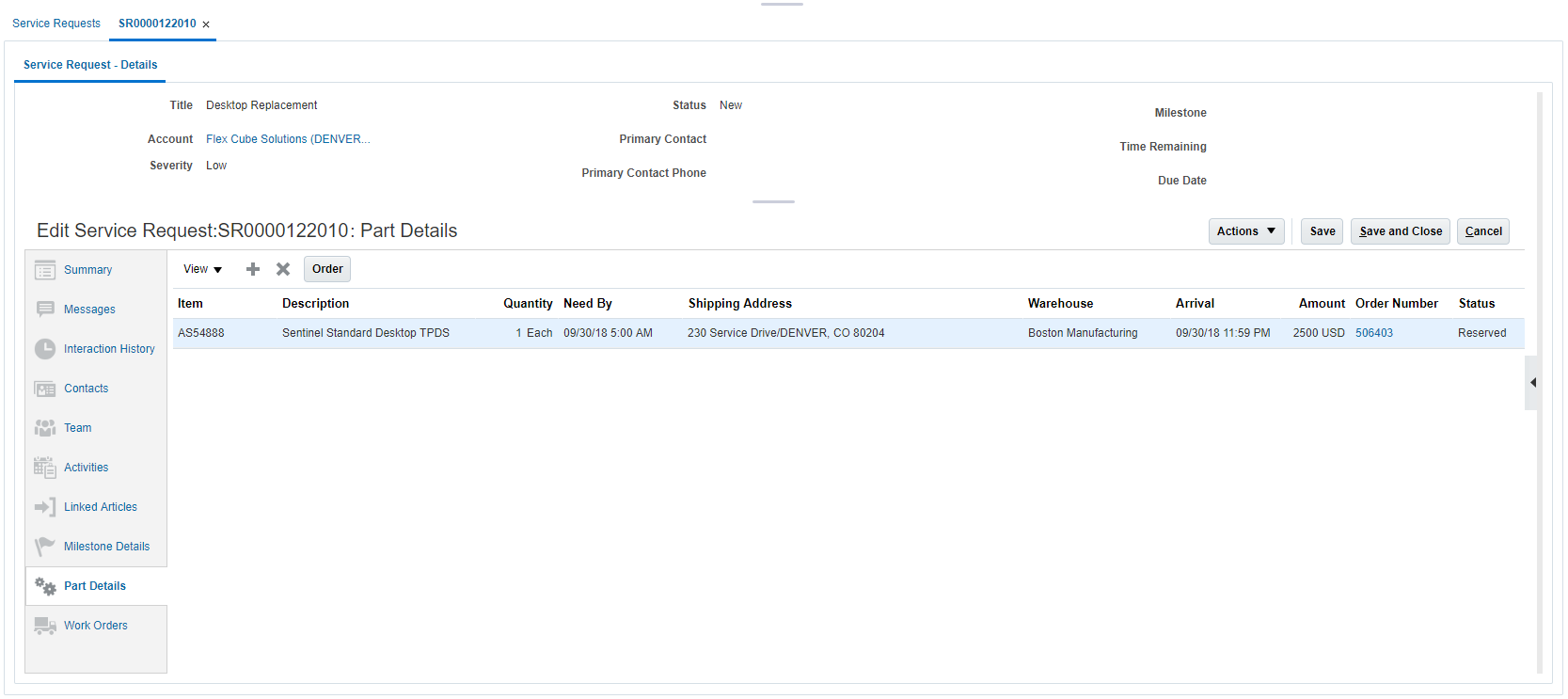
Sales Order - Order Customer Replaceable Parts
Service agents can also capture the parts returned by customers within the Parts region of the Service Request page.
- A Return Order Line is created and track and receive parts being returned.
- The negative value in the Amount column indicates the credit the customer will receive for returning the part.
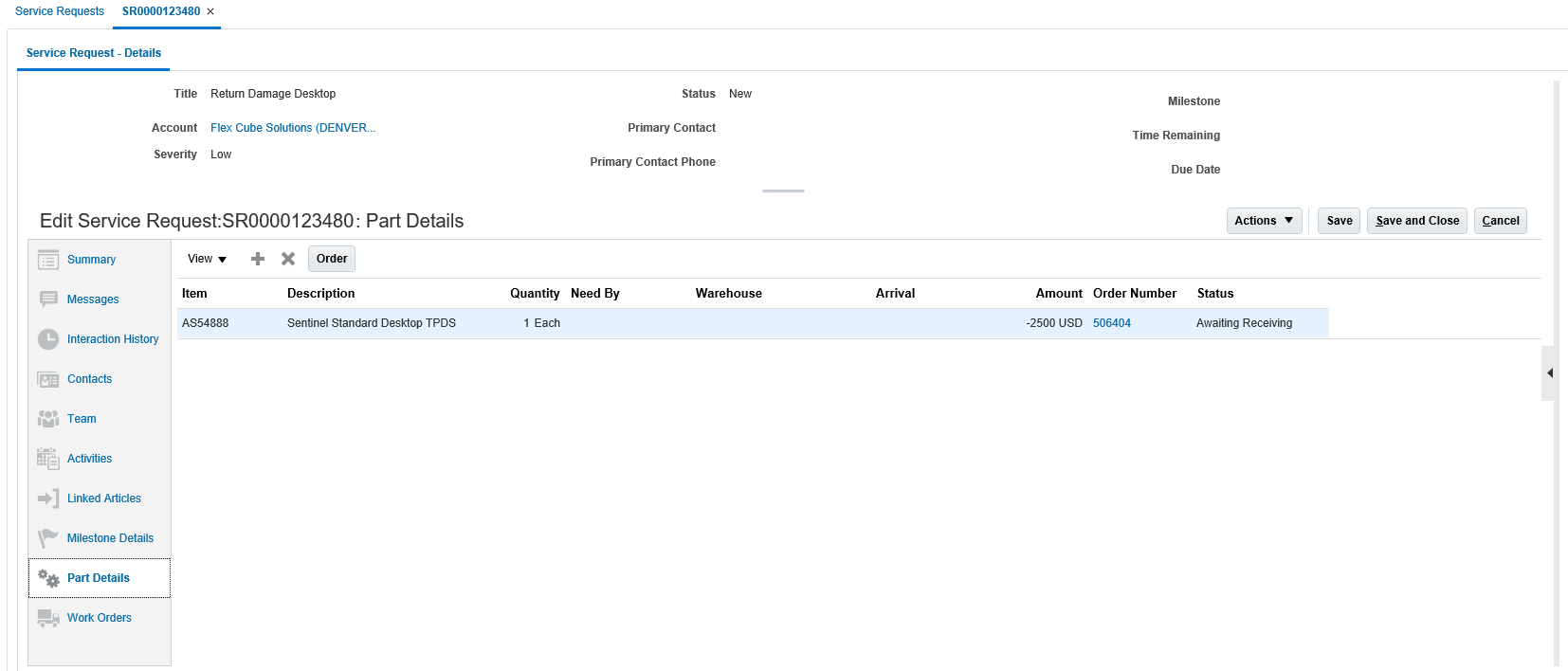
Sales Order - Return Parts
ORDER TECHNICIAN REQUIRED PARTS
Service agents can add parts required to perform a field service within the Parts Details tab of the Work Order user interface.
- A Transfer Order is created to fulfill the request. Parts and can be shipped to a technician or customer address.
- Parts are received by the technician into their trunk stock and later reported using debrief process.

Transfer Order - Order Technician Replaceable Parts
CREATE BACKORDERS
If the required parts needed by the customer or technician are unavailable, the service agent can create a backorder. Sales orders for customer replaceable parts will be created without a source warehouse. Transfer orders for field technician replaceable parts will be created with a default source warehouse as defined in the Inventory Cloud. These backorders then will be used by the your parts planning system to acquired these unavailable parts.
Watch a Demo
Steps to Enable
In the Setup Manager, Service Logistics Cloud is an optional functional area under the Manufacturing and Supply Chain offering. It can be enabled by navigating to the Change Feature Opt-In page. After it is enabled, the Service Logistics functional area will appear in the offering's task list . Users can then begin the setup process.
The following section describes the setups required to create sales orders and transfer orders to ship parts to customers and field technicians, respectively.
MANAGE SERVICE ACTIVITIES
Service Activity Codes are used during field technician debrief (future release) and when creating part requirements for customer replaceable parts. They define the action performed or to be executed. For customer replaceable parts, service providers will setup Service Activity Codes like Ship Replacement Part and Return Defective Part. For field service, service providers will setup codes like Installation, Calibration, Cleaning, Install Part, Remove Part, Travel Expenses, etc.
- Sales Order line type (Order or Return) is determined based on the selected Service Activity.
- Service Activities defined in this setup user interface are displayed in Add Part window.
- It is mandatory to associate a billing type with the Material billing category to the service activities used for customer replaceable part shipments and returns..
- Setting up billing types is explained in the next section.
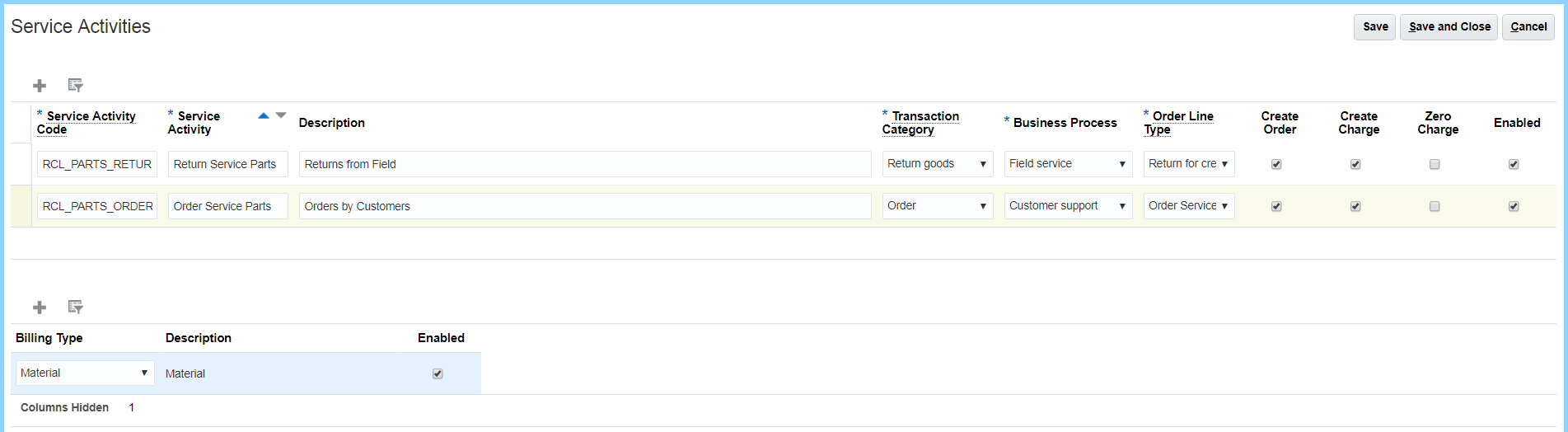
Manage Service Activities
MANAGE BILLING TYPES
Service activities with a billing type of Material will appear in Add Part window.
In this Billing Types page, you can setup billing types only after they have been created in the lookup type EGP_MATERIAL_BILLABLE_TYPE.

Manage Billing Types
MANAGE PROFILE OPTIONS
- To create a transfer order, you must select a destination inventory organization. You can specify a default value by setting the profile option 'Default Destination Organization' which will be used when the Engagement Cloud work order does not have a field technician assigned to it.
- Return to address and warehouse are required to create a Sales Order return line and tell the customer where to ship the broken parts. You can setup a default return to destination organization (warehouse) by setting profile 'Default Return Organization'. This inventory organization address will be used to also default the return to shipping address.
SET UP INTERORGANIZATION PARAMETERS AND TRANSIT TIMES
To determine the eligible sources and calculate lead times, Global Order Promising Cloud requires you connect the source and destination location by setting up interorganization parameters and transit times..
- When sourcing and ordering parts for field technicians, the transfer order requires that the source and destination are internal locations associated to inventory organizations (warehouses).
- For customer replaceable parts, the sales order destination is a customer addresses. These address are grouped into zones or geographies that then must be connect to source locations (warehouses).
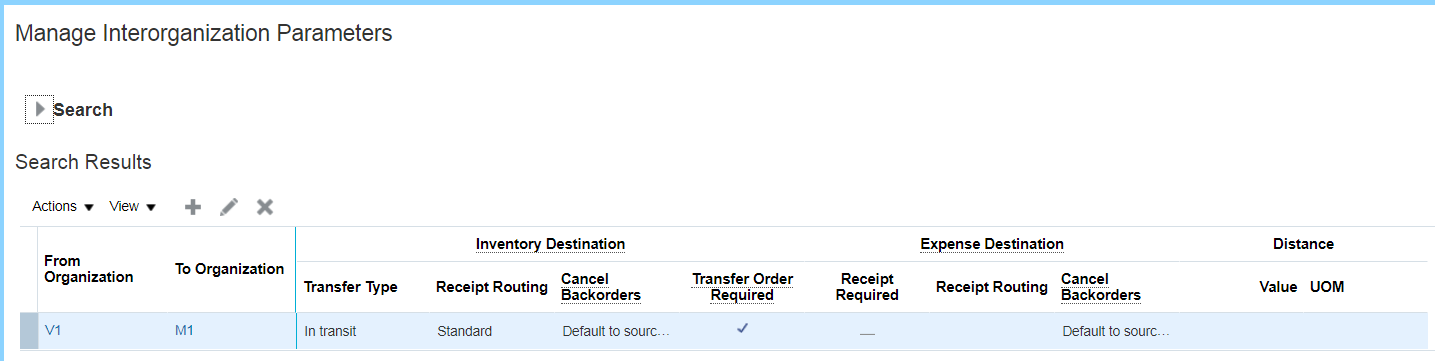
Manage Interorganization Parameters
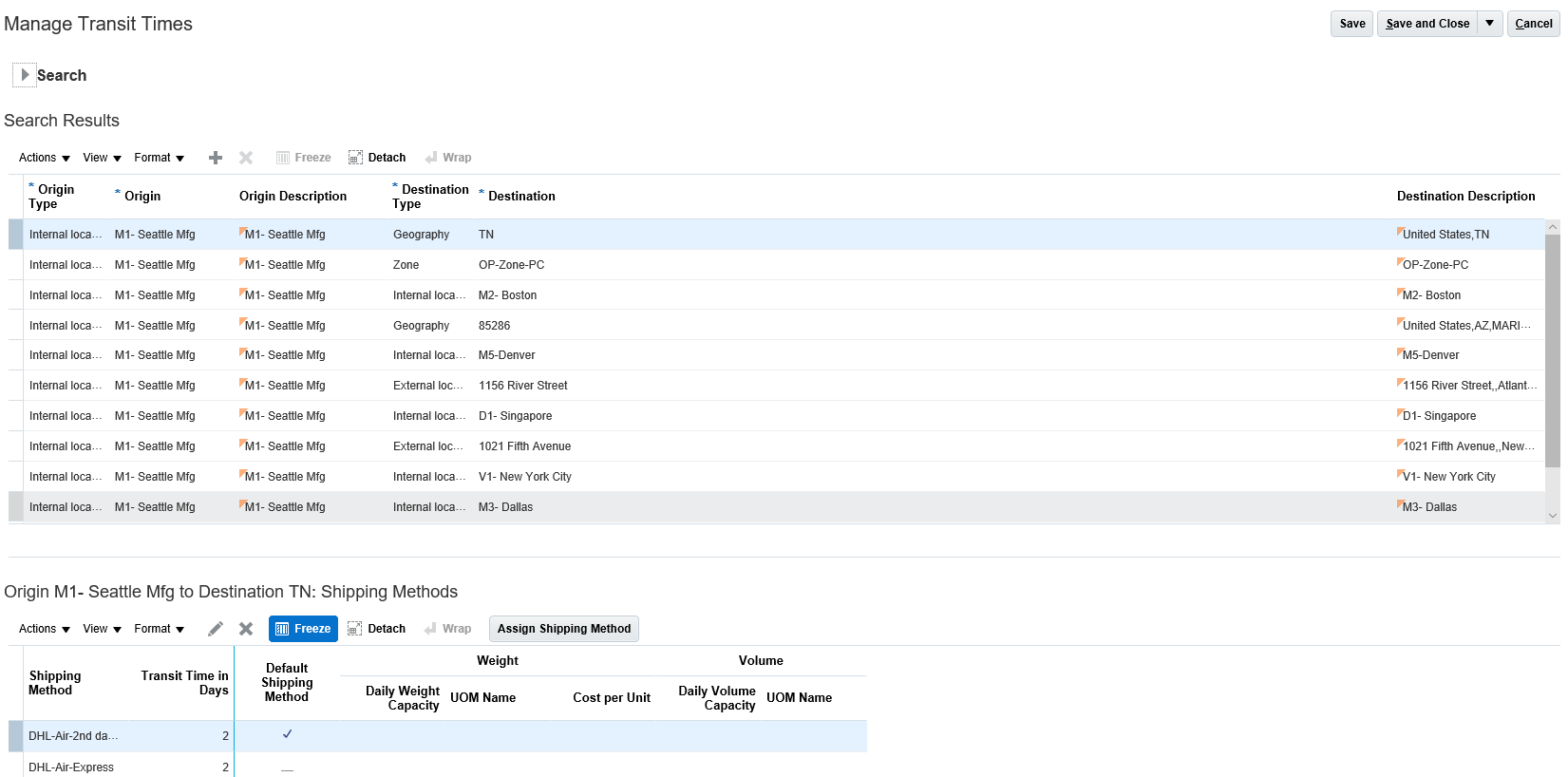
Manage Transit Times
SET UP GLOBAL ORDER PROMISING RULES
Global Order Promising Cloud determines source, ship method, and arrival dates based on the following setups. For more information about setting up these rules, see the Oracle SCM Cloud Using Order Promising guide.
- Setup ATP Rule: Rule to configure various parameters including select supply and demand types
- Assign ATP Rule: Assignment of ATP rule to Item or Organization or Item Organization combination
- Manage Sourcing Rules: Rule to setup Source, Sourcing Type and other attributes
- Manage Assignment Sets: Assign Sourcing Rule to Assignment sets
SET UP PRICING RULES
Set up price lists, pricing strategies, pricing segments, etc. so that parts prices can be calculated and displayed in the Part Details tabs.
SET UP INVENTORY SOURCES
The default sources (inventory organization or subinventory) must be setup at the subinventory and item, subinventory, or item level to create transfer order backorder.
Watch a Setup Demo
Key Resources
Role Information
- Job Role Name and Code:
- Field Service Administrator (ORA_RCL_FIELD_SERVICE_ADMINISTRATOR)
- Privilege Name and Code:
- View Requirement Lines (RCL_PARTS_REQ_VIEW)
- Manage Part Orders (SVC_MANAGE_PART_ORDERS). In CRM you must have this privilege to create a part requirement line and order parts.
Integrate with Oracle Field Service Cloud
OVERVIEW
This feature in Service Logistics Cloud provides integration between Oracle Service Logistics Cloud and Oracle Field Service Cloud so you can leverage the Field Service Cloud's scheduling and mobile field service capabilities to provide world class field service. This integration automatically creates technician information in Field Service Cloud and downloads technician and local storeroom inventory balances. Technician information is used when communicating scheduling results to the Engagement Cloud Field Service Work Order. In addition, technician debrief transactions (labor, parts used, parts recovered, expenses) captured in Field Service Cloud are automatically uploaded to Service Logistics Cloud to drive the review and billing process in Service Logistic's Field Service Portal.
FIELD SERVICE TECHNICIANS
The process begins when you create a person party for the field technician in Oracle Trading Community Cloud. Person parties can be created in a several Oracle Cloud UIs with a variety of usage codes (employee, partner contact, supplier contact, etc.). To kick off integration to Field Service Cloud, these person parties must be set up in the Service Logistics Cloud Technician Setup UI where a new person party usage (Field Service Technician) is added.. An Integration Cloud Service is then executed to automatically create a field technician resource in the Field Service Cloud for each person party with this new usage code.
TRUNK AND LOCAL STOCKROOM INVENTORY LOCATIONS
Before downloading field stocking location inventory balances, inventory location resources must be created in the Field Service Cloud. This integration creates Field Service Cloud Resources for each inventory location (trunk stock and local stockrooms) associated to a field technician in Service Logistics Technician Setup UI.
TRUCK AND LOCAL STOCKROOM INVENTORY BALANCES
On a periodic basis, Field Service Cloud Inventory Balances including Serial Numbers will be refreshed from their corresponding inventory locations in the Fusion Inventory Cloud. In high volume parts environments, this integration should be executed every few minutes.
DEBRIEF TRANSACTIONS (future release)
When Field Service Cloud Activities are completed, the debrief transactions entered by the field technicians (parts, labor, and expenses) will be uploaded to Service Logistics Cloud using the Fusion Service Logistics Debrief WEB Service (see separate feature in Service Logistics Cloud for details)
Steps to Enable
In Setup Manager, Service Logistics Cloud is an optional functional area under the Manufacturing and Supply Chain Offering. It can be enabled by navigating to the Change Feature Opt-In page. After it is enabled, the Service Logistics Functional Area will appear in the Offering's Task List . Users can then begin the setup process.
Oracle Field Service Cloud Integration is enabled in Oracle Integration Cloud
Tips And Considerations
This integration requires a subscription to the Integration Cloud Service as well as Oracle Field Service Cloud. See My Oracle Support document 2247612.1 for instruction on how to download this integration code.
Role Information
- Job Role Name and Code:
- Field Service Administrator (ORA_RCL_FIELD_SERVICE_ADMINISTRATOR)
- Privilege Name and Code:
- View Trunk Stock (RCL_PORTAL_VIEW_TRUNK_PARTS)
- Setup Stocking Location (RCL_STOCKING_LOC_SETUP)
- Setup Technician (RCL_TECHNICIAN_SETUP)
---