
This document will continue to evolve as existing sections change and new information is added. All updates appear in the following table:
| Date | Product | Feature | Notes |
|---|---|---|---|
| 05 JUN 2020 | Created initial document. |
This guide outlines the information you need to know about new or improved functionality in this update, and describes any tasks you might need to perform for the update. Each section includes a brief description of the feature, the steps you need to take to enable or begin using the feature, any tips or considerations that you should keep in mind, and the resources available to help you.
Security and New Features
The Role section of each feature identifies the security privilege and job role required to use the feature. If feature setup is required, then the Application Implementation Consultant job role is required to perform the setup, unless otherwise indicated. (If a feature doesn't include a Role section, then no security changes are required to use the feature.)
If you have created job roles, then you can use this information to add new privileges to those roles as needed.
Give Us Feedback
We welcome your comments and suggestions to improve the content. Please send us your feedback at oracle_fusion_applications_help_ww_grp@oracle.com.
Column Definitions:
Report = New or modified, Oracle-delivered, ready to run reports.
UI or Process-Based: Small Scale = These UI or process-based features are typically comprised of minor field, validation, or program changes. Therefore, the potential impact to users is minimal.
UI or Process-Based: Larger Scale* = These UI or process-based features have more complex designs. Therefore, the potential impact to users is higher.
Features Delivered Disabled = Action is needed BEFORE these features can be used by END USERS. These features are delivered disabled and you choose if and when to enable them. For example, a) new or expanded BI subject areas need to first be incorporated into reports, b) Integration is required to utilize new web services, or c) features must be assigned to user roles before they can be accessed.
| Ready for Use by End Users Reports plus Small Scale UI or Process-Based new features will have minimal user impact after an update. Therefore, customer acceptance testing should focus on the Larger Scale UI or Process-Based* new features. |
Customer Must Take Action before Use by End Users Not disruptive as action is required to make these features ready to use. As you selectively choose to leverage, you set your test and roll out timing. |
|||||
|---|---|---|---|---|---|---|
| Feature |
Report |
UI or |
UI or |
|
||
Generate Preventive Maintenance Service Requests and Work Orders |
||||||
Generate Preventive Maintenance Service Requests and Work Orders
Organizations that manage assets deployed at their customer locations need to perform preventative maintenance on these assets using field service functionality.The Oracle Maintenance Cloud application supports defining and generating preventive maintenance work orders on Oracle Installed Base assets. The B2B Service application provides service request and work order functionality to perform field maintenance activities and to debrief these assets. The Generate Preventive Maintenance Service Requests and Work Orders feature enables the integration between Maintenance Cloud and B2B Service applications. This integration is achieved by the preventive maintenance work orders being converted into B2B service requests and work orders. After this conversion, the converted service requests and work orders can be executed in Oracle Field Service/B2B Service Cloud.
Preventative maintenance programs help to conserve equipment performance while optimizing overall work conditions.
FEATURES
- Setup customer assets
- Define maintenance programs
- Generate forecast and create preventive maintenance work orders
- Generate B2B service requests and work orders for preventive maintenance work orders
- Create part requirements for B2B service work orders
- Execute work orders using Oracle Field Service
- Debrief and post charges for work orders
- Update maintenance work orders
SETUPS AND ACTIONS OF THE PREVENTIVE MAINTENANCE FLOW
Setup Customer Assets
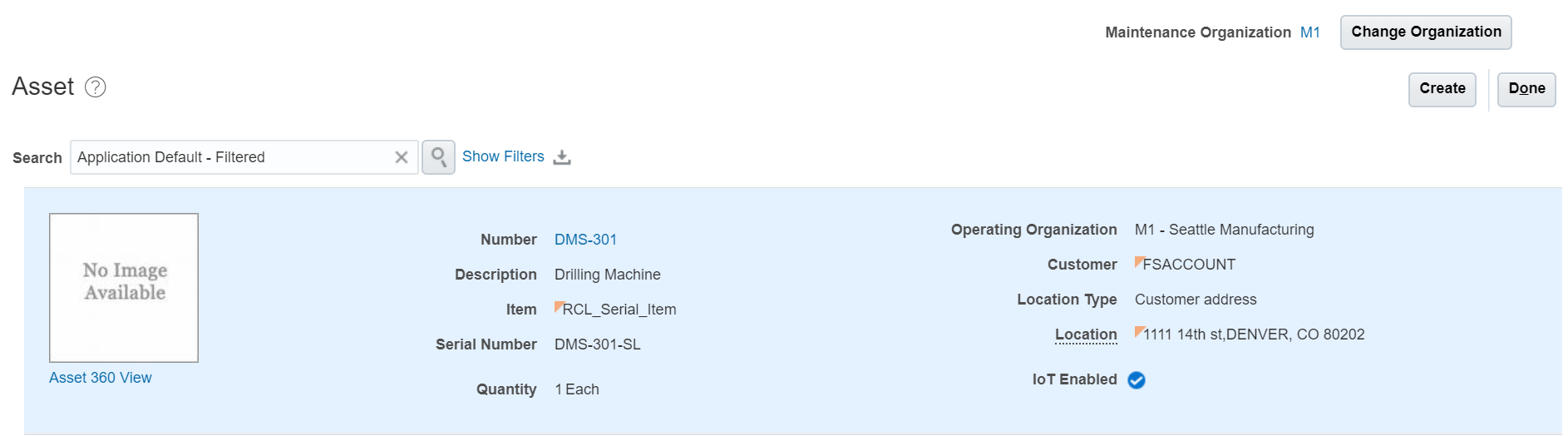
Create an Installed Base asset in Maintenance Cloud with customer association and asset location as the customer address. This address represents, the customer asset installed location being serviced.
Define Maintenance Program
To perform periodic preventive maintenance, you need to define the maintenance program that is set up in Maintenance Cloud. You define the maintenance program for the asset or item with the following details:
- Asset or item covered by the program
- Preventive maintenance forecast details and scheduling pattern
- Work definition consisting of the materials required
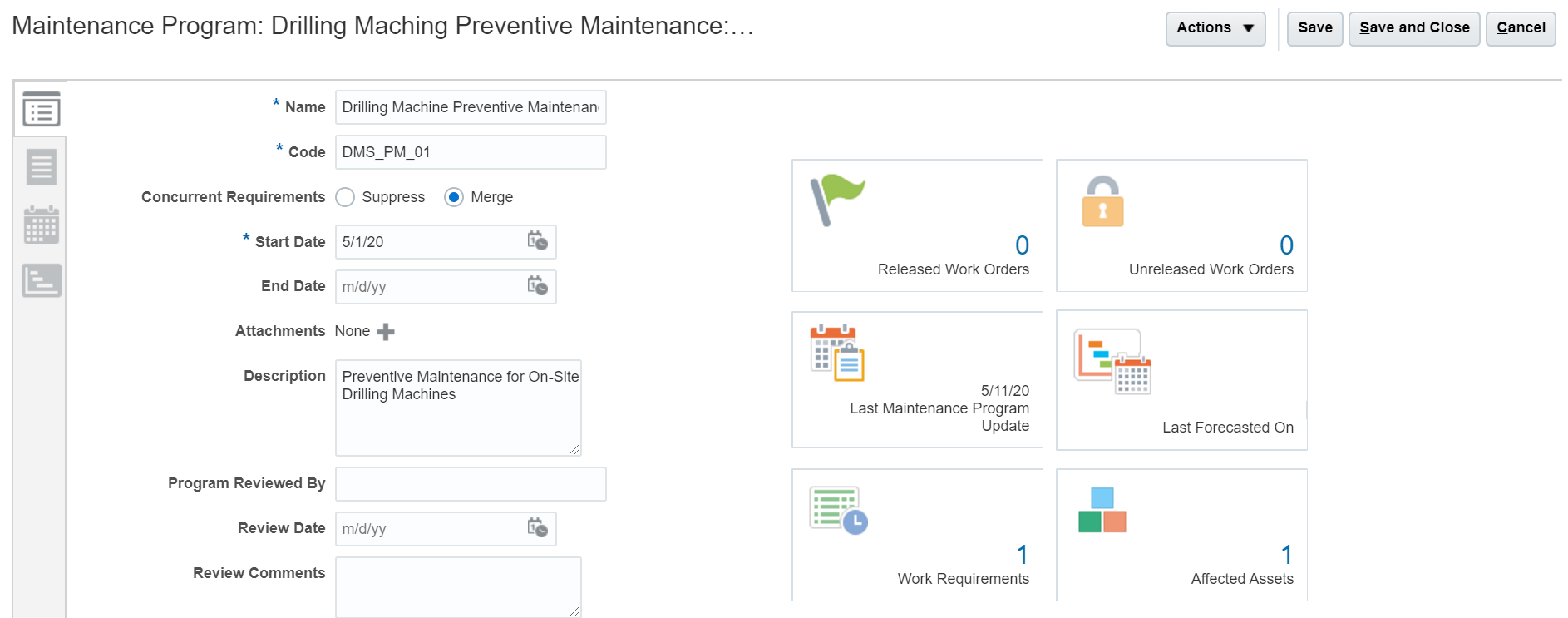
An example of the maintenance program including asset details, forecast criteria, and work definition association is shown below. This maintenance program is created for a specific asset.
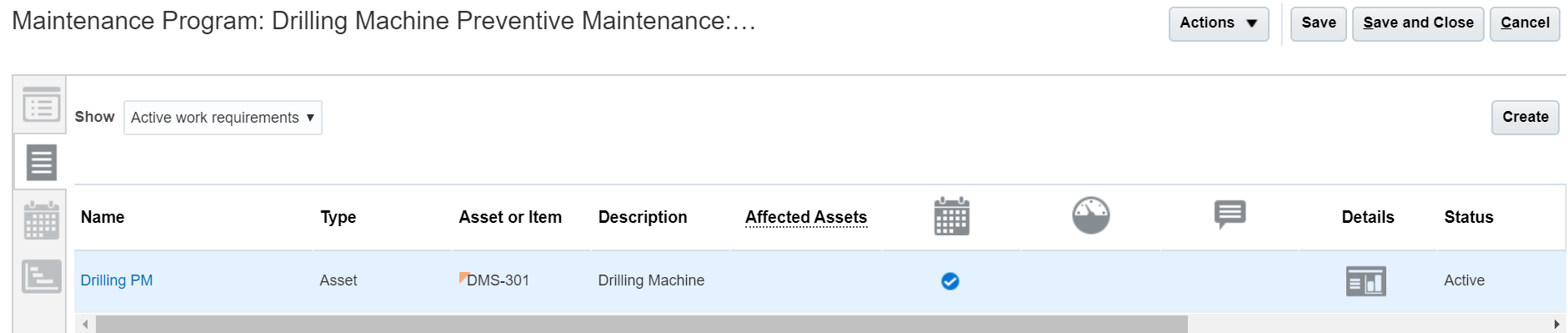
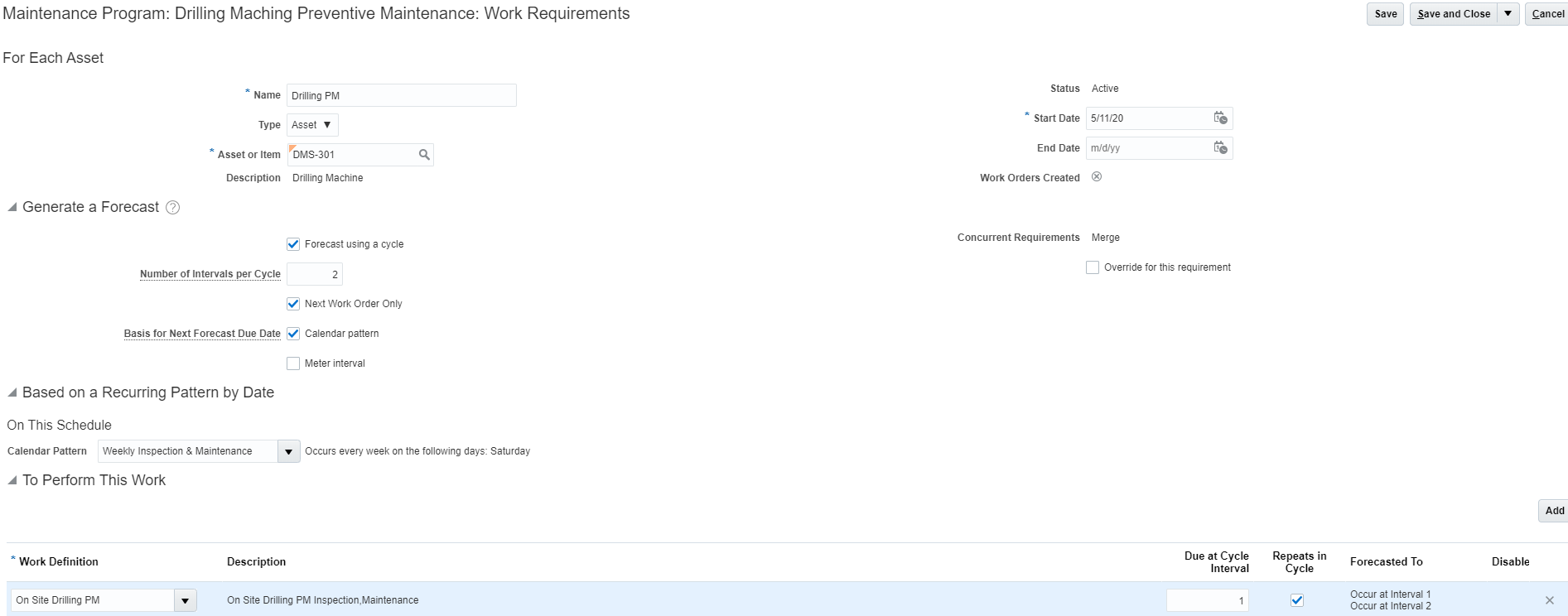
Define the forecast pattern and work definition details for the maintenance program to generate preventive maintenance work orders.
Generate Forecast and Create Preventive Maintenance Work Orders
Maintenance forecasts are generated from the maintenance program that you define, and the forecasted results are implemented to create preventive maintenance work orders.
These actions are performed using Generate Forecast and Create Work Orders actions of the Forecast View shown below.
Instead of these actions from maintenance program page, scheduled processes can also be run for generating forecasts and creating work orders.
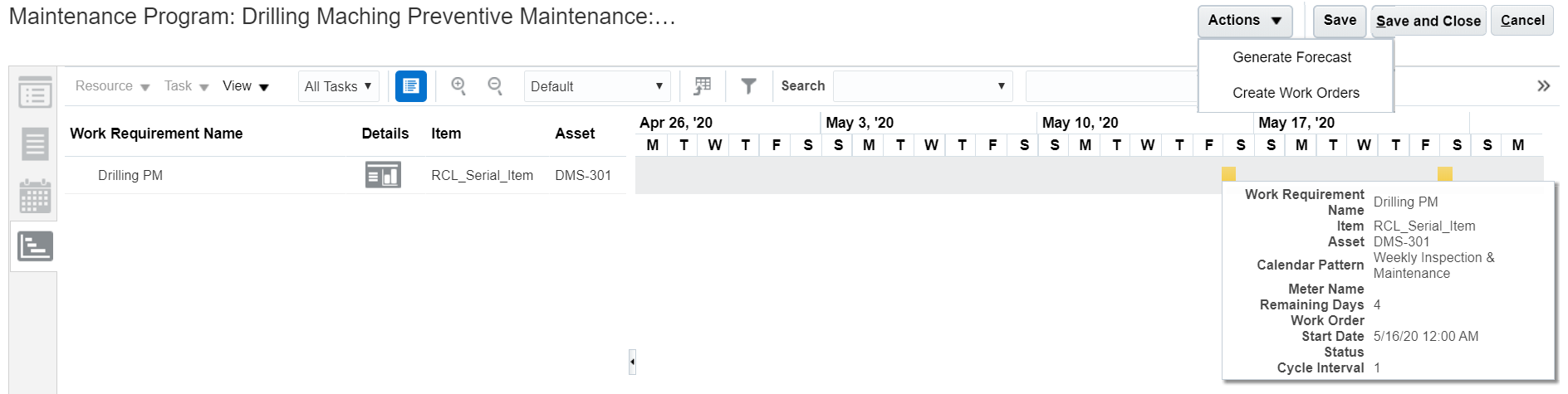
The preventive maintenance work order is initially created with a status of Unreleased.

The work order status is updated to Released and the released work order count for maintenance program is indicated in the metrics,as shown below:
When the work order is updated to Released status, it is ready to be integrated with B2B Service for creating a service request and work order.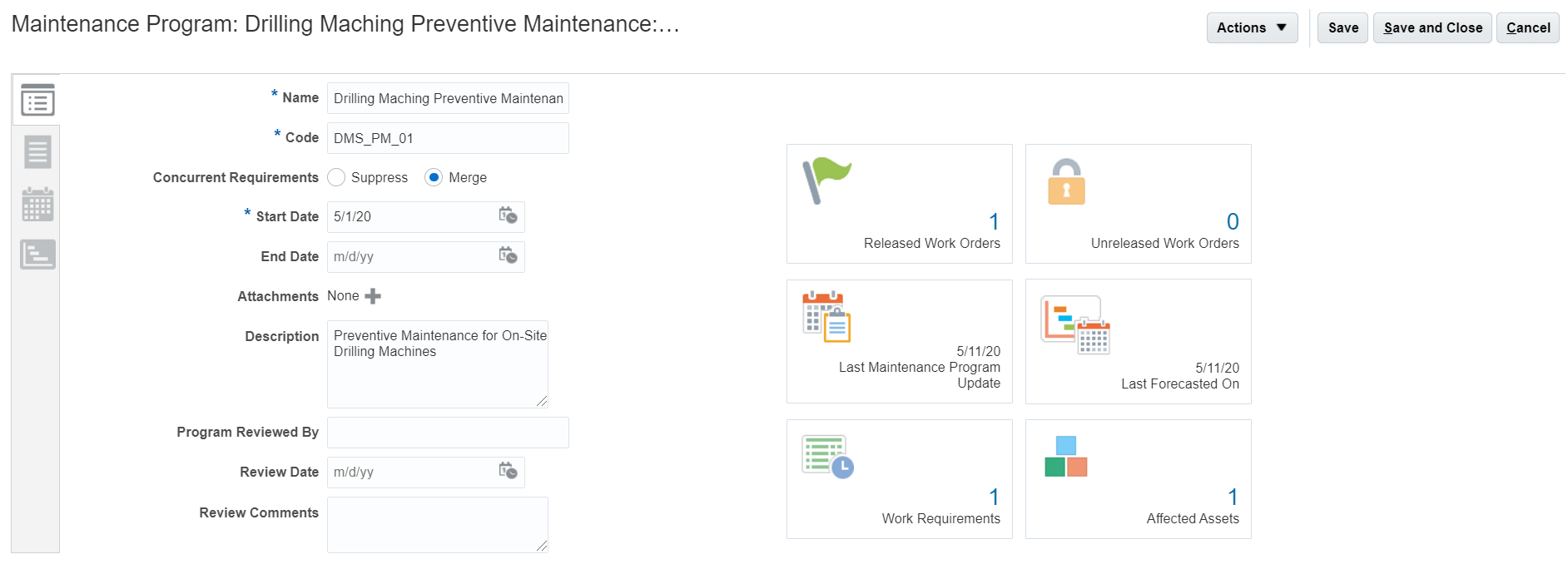
Generate B2B Service Requests and Work Orders for Preventive Maintenance Work Orders
Run the scheduled process: Create Service Work Orders for Preventive Maintenance to convert the preventive maintenance work order details to B2B Service and create the service request and work order.
Select the source organization that includes the maintenance setups and work orders.Provide the following input parameters:
- Maintenance Organization (Organization in which the customer owned assets are defined and preventive maintenance work orders are created)
- Service Request Category (Category code of B2B service request to be generated)
- Create Work Order (Service work order integration code setup in B2B Service,like Generic, Oracle Field Service Cloud,etc.)
- Work Order Type (Service work order type)
- Work Order Status (Status of service work order to be generated)
NOTE: The selection criteria of the scheduled process to pickup the preventive maintenance work orders that you want to integrate B2B Service include:
- Maintenance work orders that are present in forecast table
- Work orders status of Released
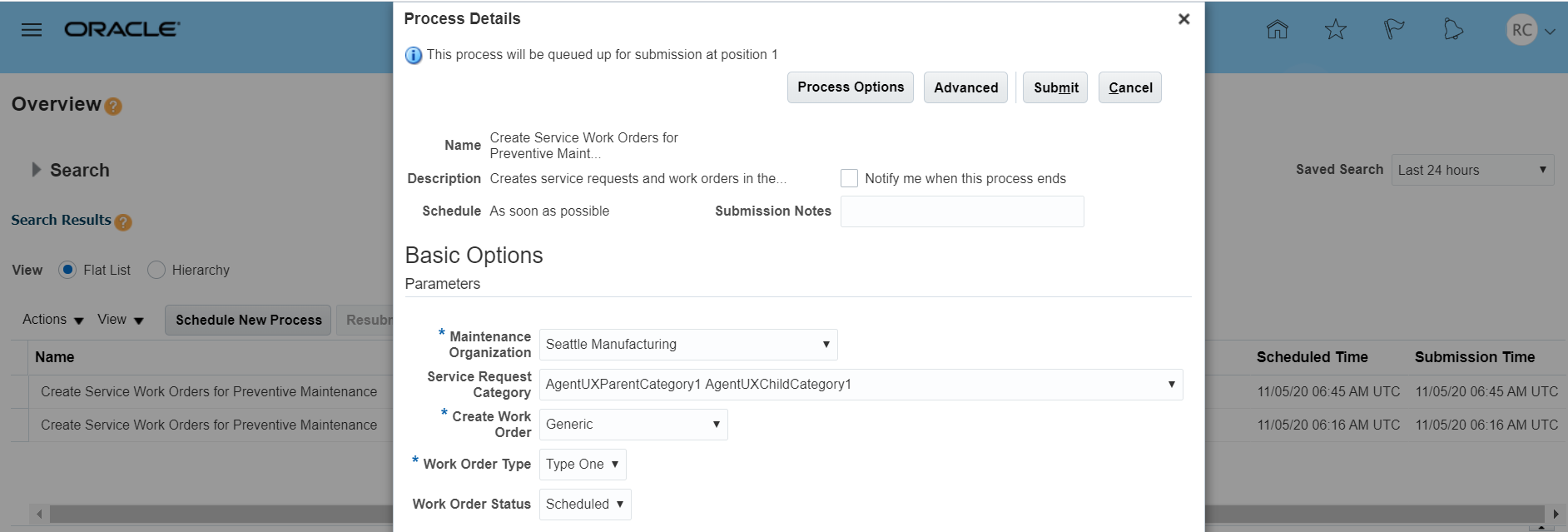
After the successful completion of the process, the scheduled process log provides the details of the service requests and work orders that the program created from the preventive maintenance work orders. Any exceptions that occur during the creation of the service request, work order, or part requirements due to setup issues are logged in the process log.
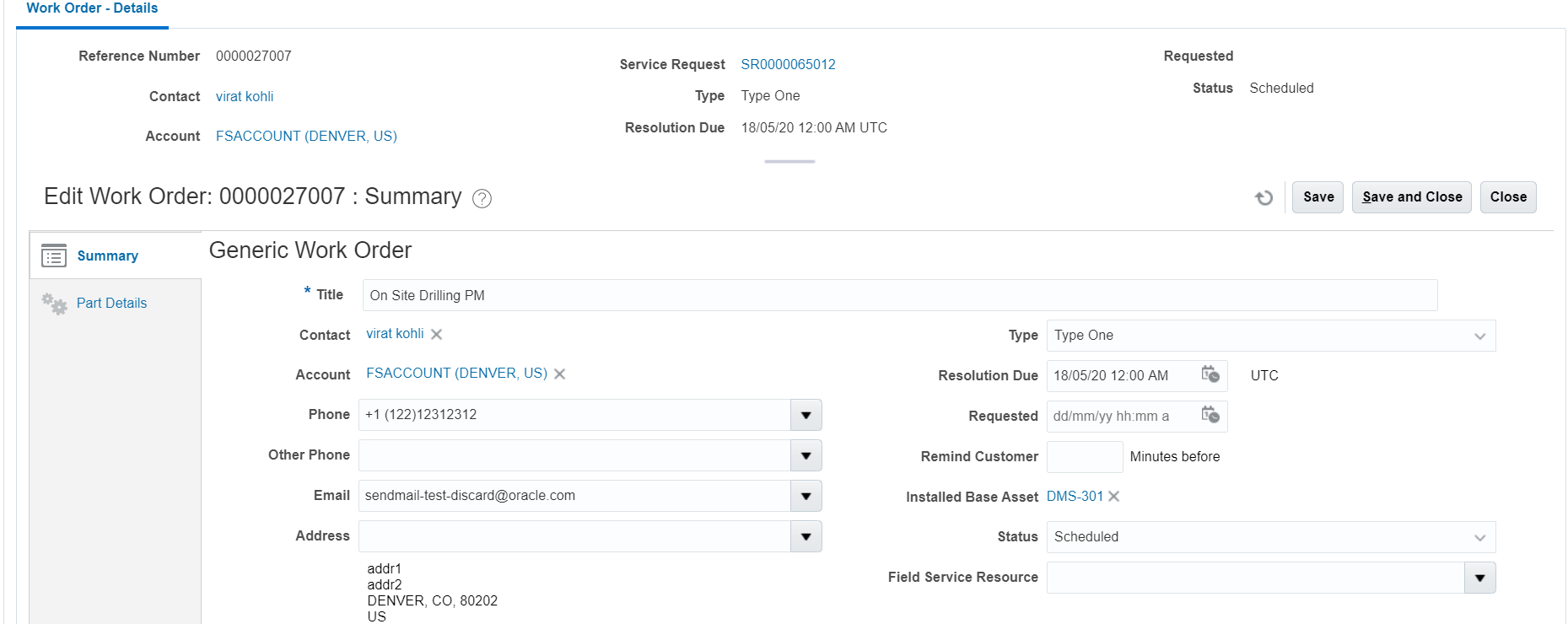
Service Request and Work Order Created in B2B Service for Preventive Maintenance Work Order
Service requests and work orders are created in B2B Service based on the preventive work order details and input parameters that you provide in the scheduled process.
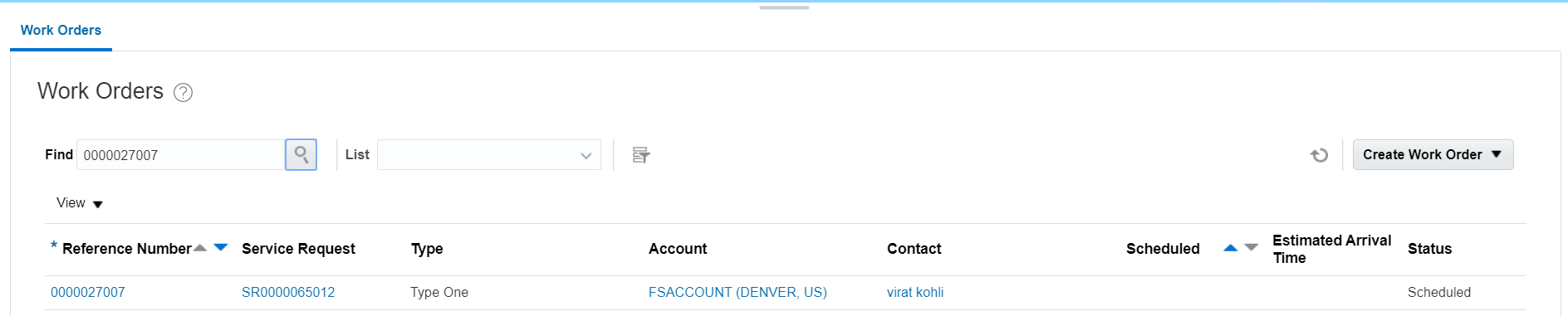
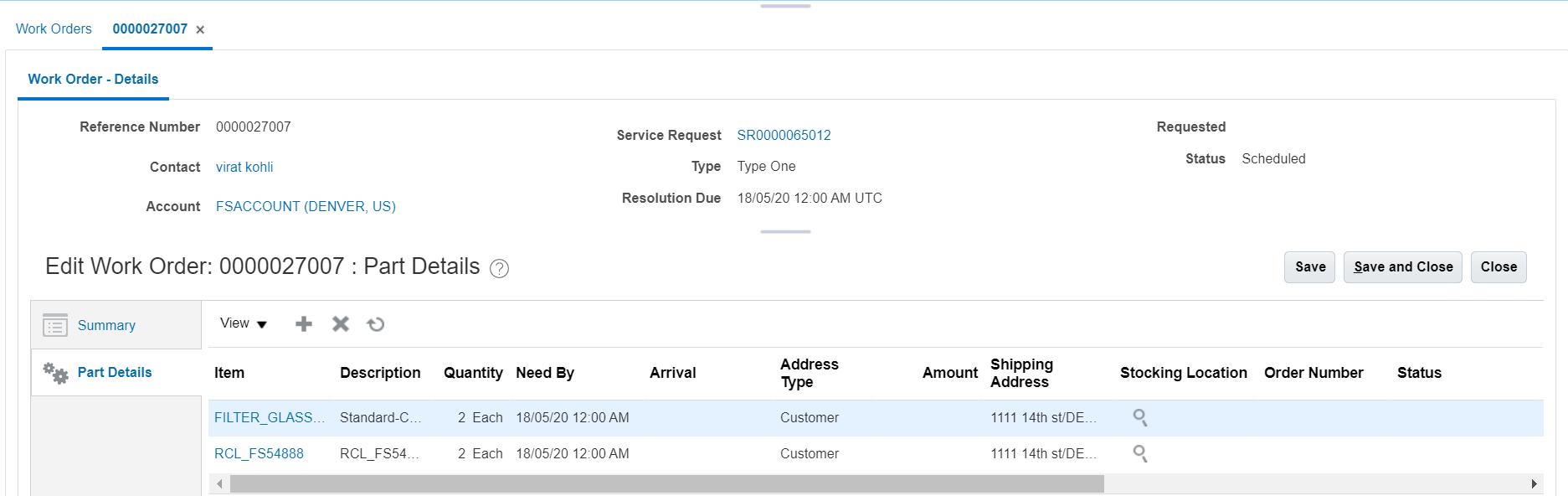
Materials from the maintenance work order appear in the Part Details tab in the Work Order – Details UI.
Steps to Enable
You don't need to do anything to enable this feature.
Tips And Considerations
- As a prerequisite, ensure that customer owned assets have been set up in Installed Base application using Maintenance Cloud pages.
- The installed base asset should be enabled for attributes required for preventive maintenance flow like: Allow maintenance programs, Allow work orders.
- Maintenance programs set up that consists of preventive maintenance frequency and part requirements should be predefined.
- The scheduled process that creates B2B service requests and work orders creates only one work order regardless of how many operations are on the source preventive maintenance work order.
- Resource details from the work definition are not included in B2B Service. So you’ll need to assign and schedule technicians within the B2B Service and in Oracle Field Service applications.
- Only preventive maintenance work orders present in the forecast table are generated as B2B Service requests and work orders.
- The work order asset should be customer owned (identified by the customer association in the asset definition). Assets without a customer association cannot be processed by this flow.
- The preventive maintenance work order cannot have an existing service request association. (The MNT_WO_DOC_REFERENCES – DOC_TYPE_ID & DOC_HEADER_ID should not include the values: <ORA_SERVICE_REQUEST> and <SR_ID> from the SVC_SERVICE_REQUESTS created earlier).
- The status of the maintenance work order must be “Released.”
-
Based on valid integration codes in B2B Service, the Create Work Order option in the scheduled process will display Generic Work Order, Oracle Field Service Work Orders, and any other values.
Role Information
To use this feature, the following privileges or roles are required:
- Job Role Name and Code
- Field Service Administrator (ORA_RCL_FIELD_SERVICE_ADMINISTRATOR)
- Privilege Names and Codes
- Manage Preventive Maintenance of customer owned assets (RCL_PREVENTIVE_MAINTENANCE)
The Edit Charges page enables Field Service Administrators (FS Admins) to make adjustments, corrections, add or remove debrief transactions, and post them. FS Admins now have the ability to change the currency used to bill customers for services rendered using the Manage Charges and Estimates page. After you select a new currency, all existing charge lines will be repriced using the new currency exchange rate.
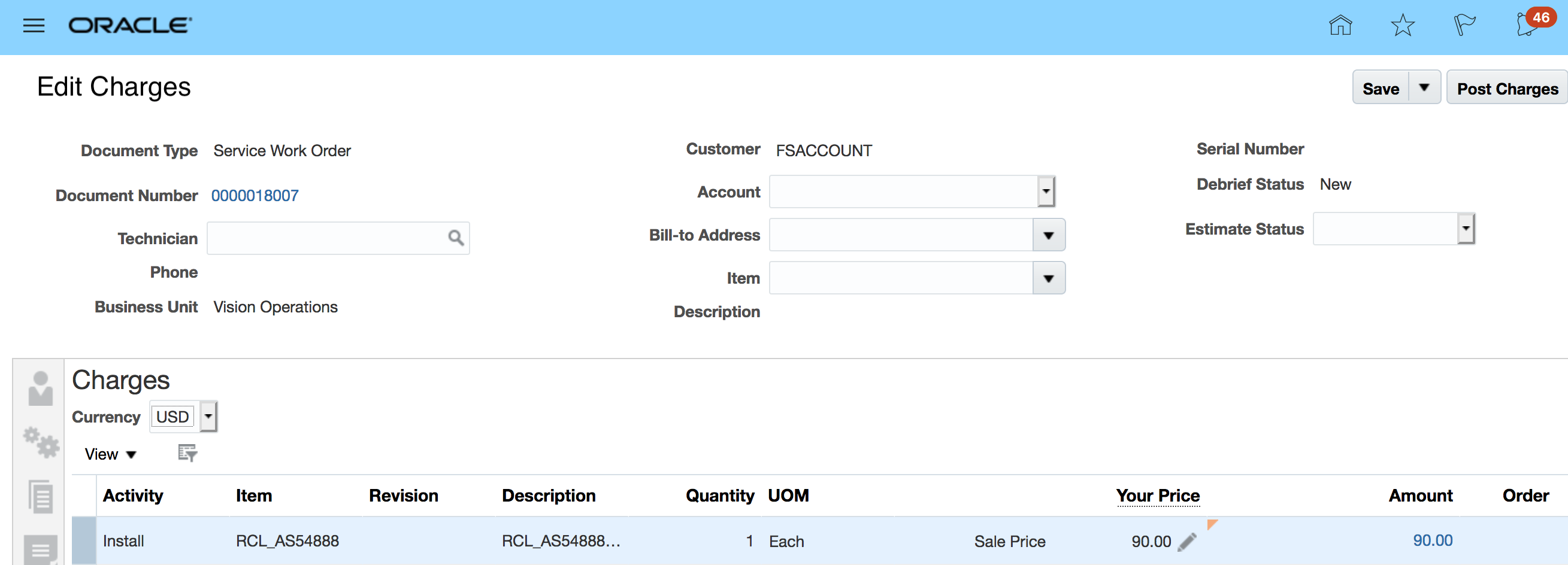
Currency and Charges in USD
From the Edit Charges page, you can view and change the currency if the default returned from the pricing strategy is not correct.
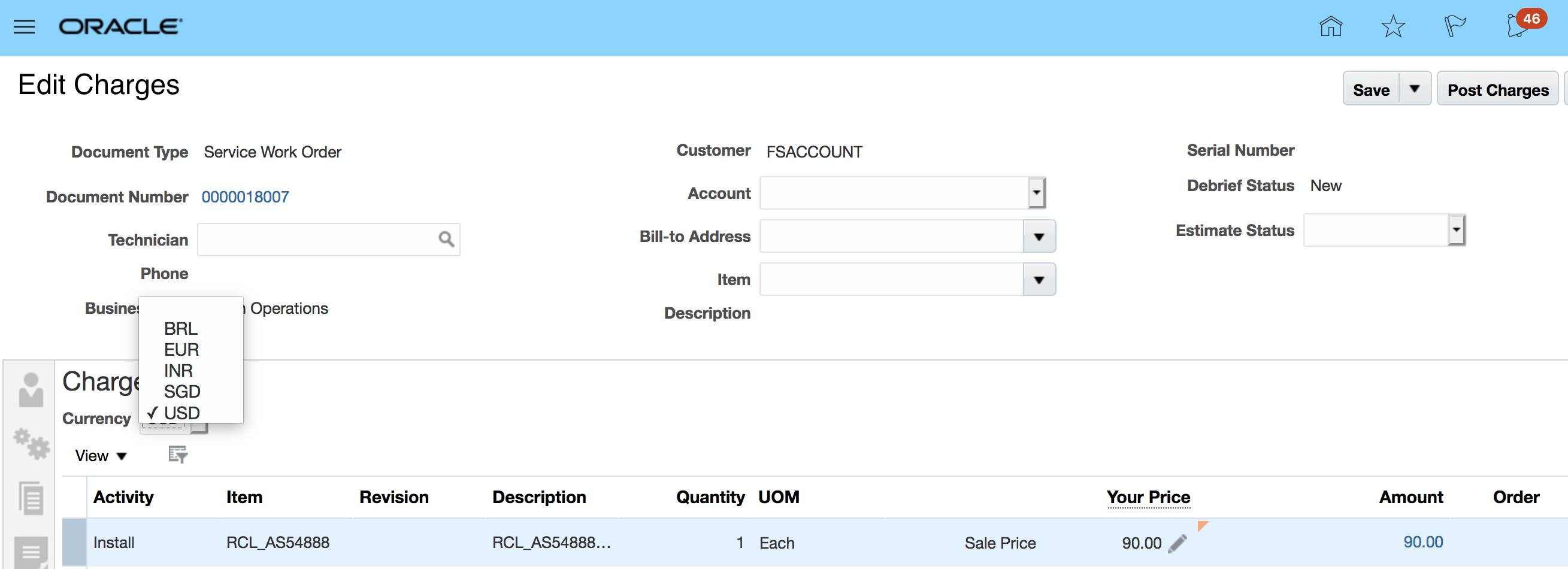
Selecting currency from the list of values
You can change the currency to any currency allowed by the pricing strategy. These currency codes then appear in the Currency List of Values.
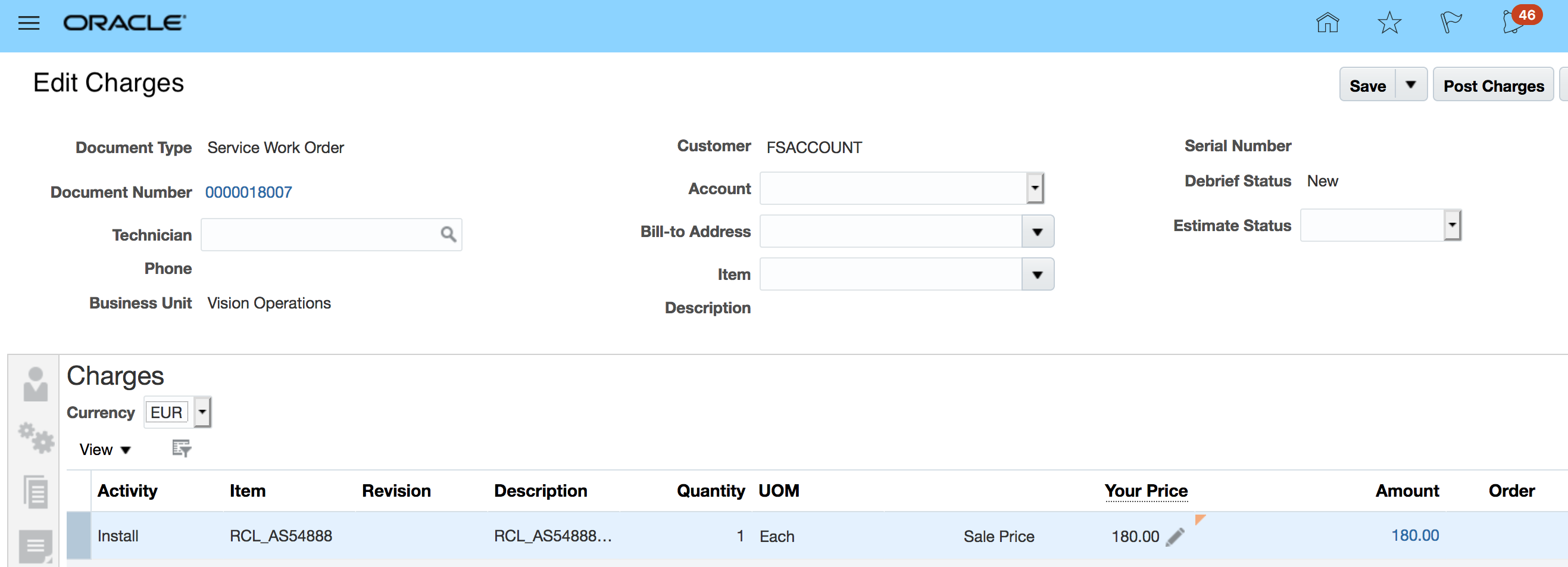
Selecting EUR as the new currency to see updated price
After you select a new currency, all existing charge lines will be repriced.
Steps to Enable
You don't need to do anything to enable this feature.
Key Resources
Role Information
To use this feature, the following privileges or roles are required:
- Job Role Name and Code
- Field Service Administrator (ORA_RCL_FIELD_SERVICE_ADMINISTRATOR)
- Privilege Names and Codes
- Access Service Logistics Landing Page (RCL_PORTAL_ACCESS_LANDING_PAGE_PRIV)
- Access Debrief Page (RCL_PORTAL_VIEW_DEBRIEF)Manage Estimates (RCL_MANAGE_ESTIMATES_PRIV)
Create Part Debrief Reservations
When a Debrief Line is created by a Field Service Administrator in the Manage Estimates UI or by a Field Service Tech in Field Service Cloud, a reservation is created so the parts in the technicians trunk stock subinventory no longer show as available. This reservation ensures that the part needed for this work will be available when required and not allocated to any other requirement. Service Logistics includes a REST service to create part requirements and with this new functionality the application will use an existing Inventory REST service to create reservations. When the debrief line is posted, the reservation is relieved. If the part requirement is modified or deleted, the reservation is also modified or deleted.
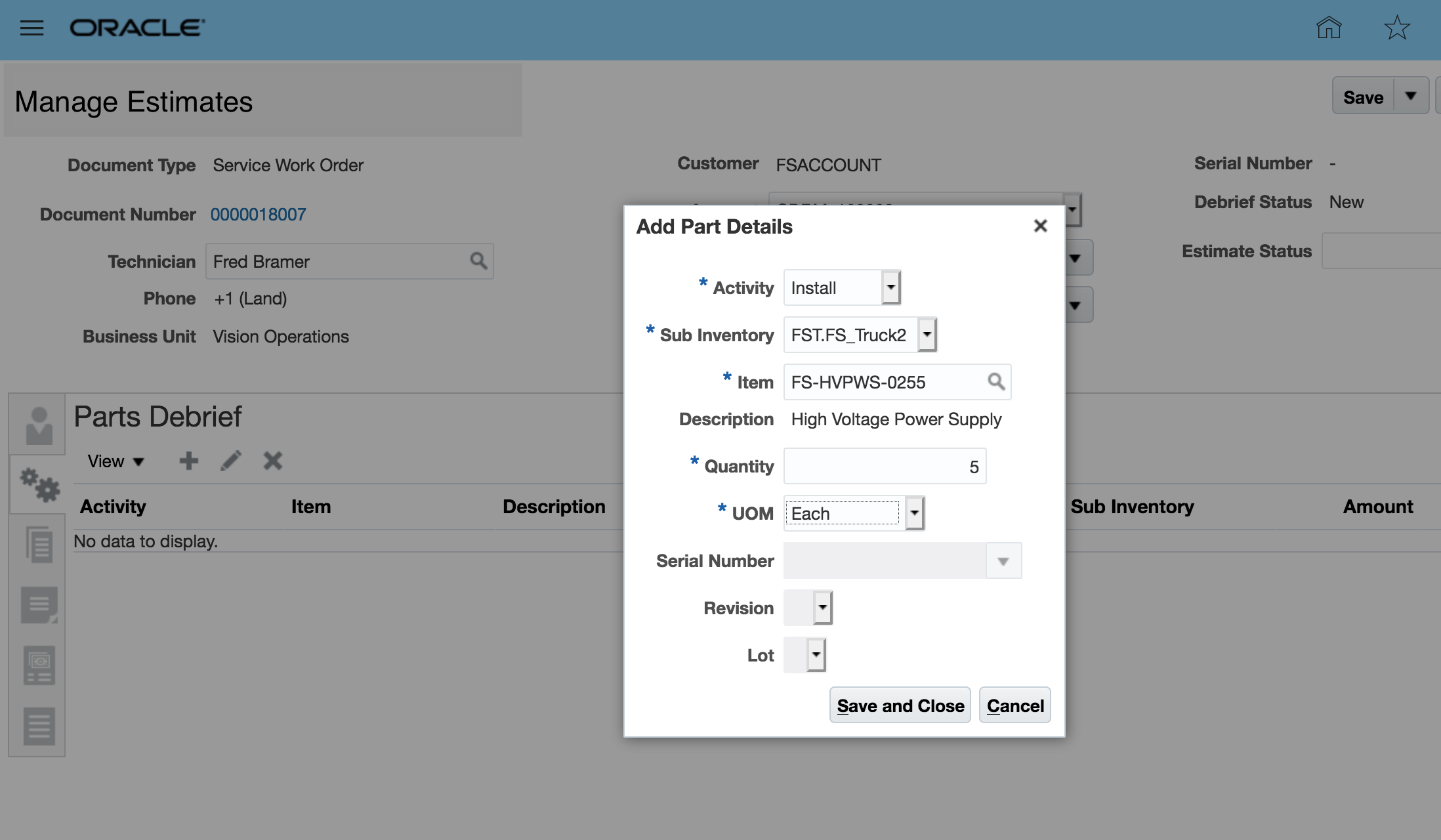
Creating Part Requirement Debrief
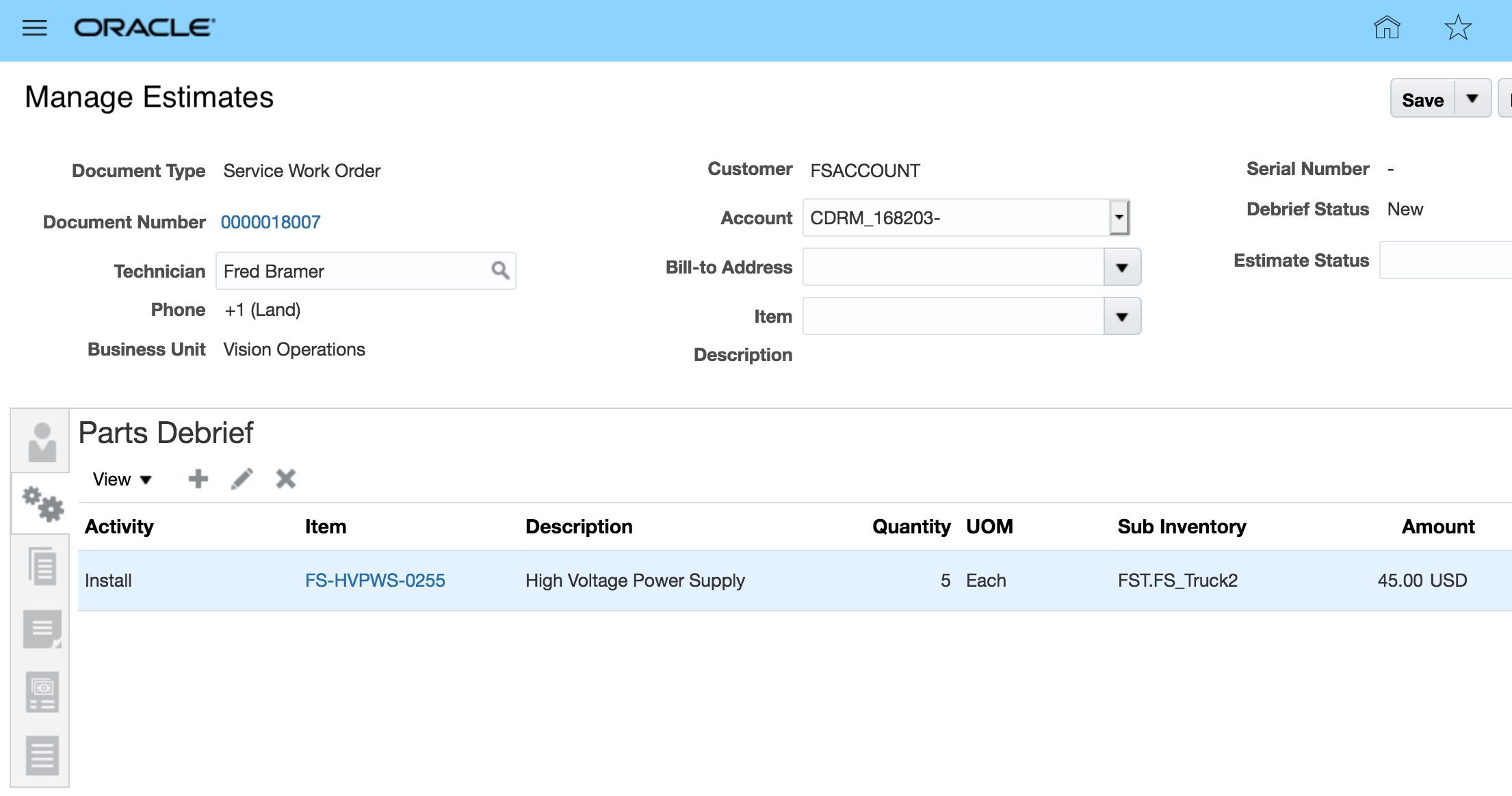
Saving Part Requirement to initiate Reservation Creation REST service
After the transaction is saved, the Inventory Reservation REST service is called to create the reservation. Reservations are only created when the following conditions are met:
- Install debrief line business process: Field Service
- Transaction category: Order
- Billing category: Material
- Debrief line type: M
REST service: POST /fscmRestApi/resources/11.13.18.05/inventoryReservation
Steps to Enable
You don't need to do anything to enable this feature.
Key Resources
Role Information
To use this feature, the following privileges or roles are required:
- Job Role Name and Code:
- Field Service Administrator (ORA_RCL_FIELD_SERVICE_ADMINISTRATOR)
- Privilege Name and Code:
- View Requirement Lines (RCL_PARTS_REQ_VIEW)
- Manage Part Orders (SVC_MANAGE_PART_ORDERS). In CRM you must have this privilege to create a part requirement line and order parts.
Using the Parts Detail tab of the Service Request UI, service agents can adjust the price of the parts required to resolve the service request. The price of a part is initially derived from a price list setup in Oracle Pricing Cloud. If there is a discrepancy between the price that the customer was promised and the price that was setup in Oracle Pricing Cloud, service agents can adjust the price to match the promised price. This feature enables agents to easily adjust the price of spare parts, which ensures that customers are properly billed for the parts used. After the part is priced, subscription adjustments are applied to get the final charge amount.
Clicking the pencil icon next to the Your Price value displays a pop-up window where you can make any adjustments, and also select a reason for the adjustment. After you enter the amount of the price adjustment, you must also select a reason for the adjustment. Seeded reason examples are Price match, Sales negotiation, Error correction or Other. You can add your own adjustment reasons in the lookup table. This functionality is also available in the Standalone Parts Requirement UI in Service Logistics.
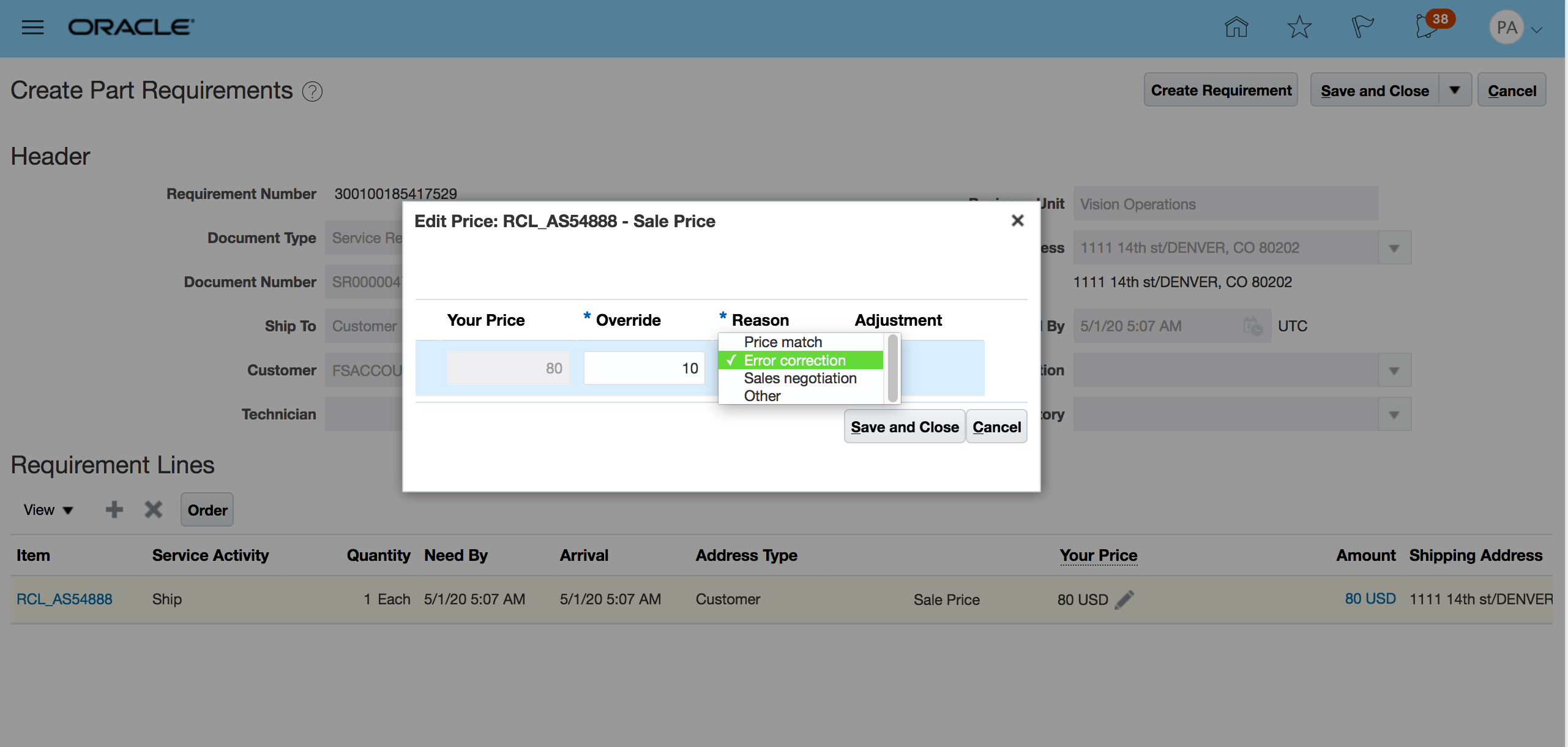
Price Adjustment
To display the adjustment applied to the price, click the highlighted price amount.
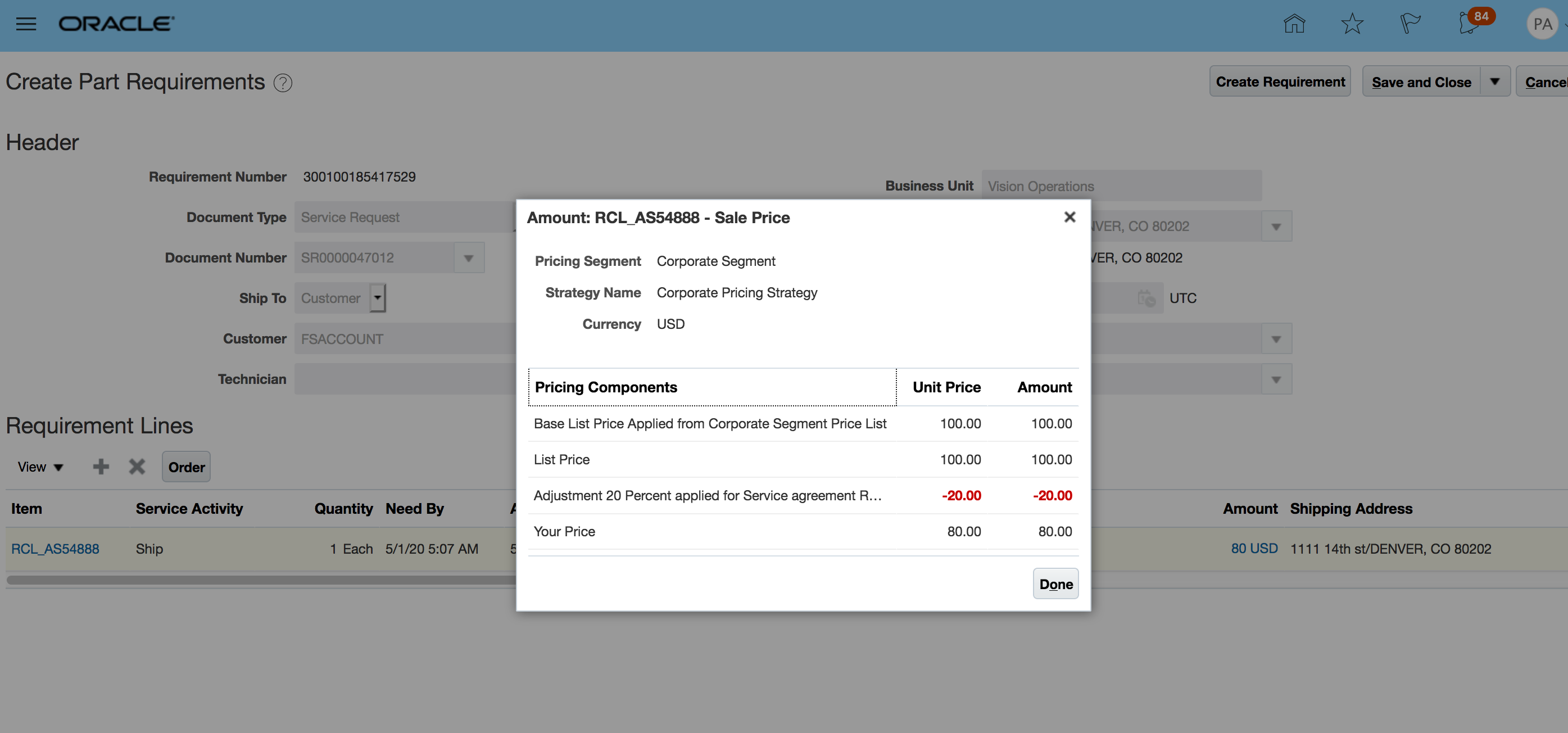
Price Breakdown
Steps to Enable
You don't need to do anything to enable this feature.
Key Resources
Role Information
- Job Role Name and Code
- Field Service Administrator (ORA_RCL_FIELD_SERVICE_ADMINISTRATOR)
- OSS_SUBSCRIPTION_SPECIALIST(To access contracts service
- Privilege Names and Codes
- Access Service Logistics Landing Page (RCL_PORTAL_ACCESS_LANDING_PAGE_PRIV)
- View Requirement Lines (RCL_PARTS_REQ_VIEW)
- Access Debrief Page (RCL_PORTAL_VIEW_DEBRIEF)
- Manage Estimates (RCL_MANAGE_ESTIMATES_PRIV)
You can now manually source parts bypassing Global Order Promising (GOP) and the new Parts Search program (also being released in 20D). To manually source the required parts, you simply select the source inventory organization and subinventory which have been added to the Add Part UI.
The Add Pars UI can be accessed from the B2B Service Parts tab, the Create Work Order page, the Work Order Parts tab, and from the Manage Part Requirements UI. This feature is especially relevant for our Depot Repair solution as depot repair shipments should be sourced from the repair center shipping dock not the parts supply chain. It will also better support field servcie organizations with simple parts supply chains that do not need the sophisticated sourcing provided by GOP and the new Parts Search program.
The screen shots below show this process for a simple part shipment.
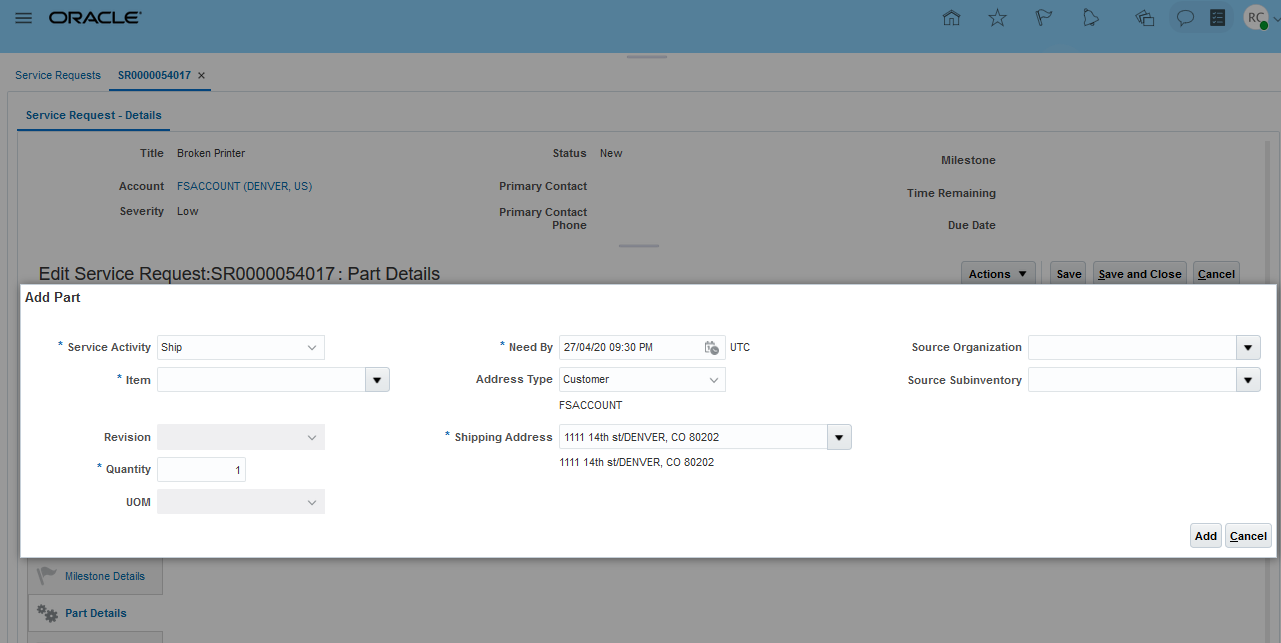
Add Part UI - New Source Org and Subinventory Fields
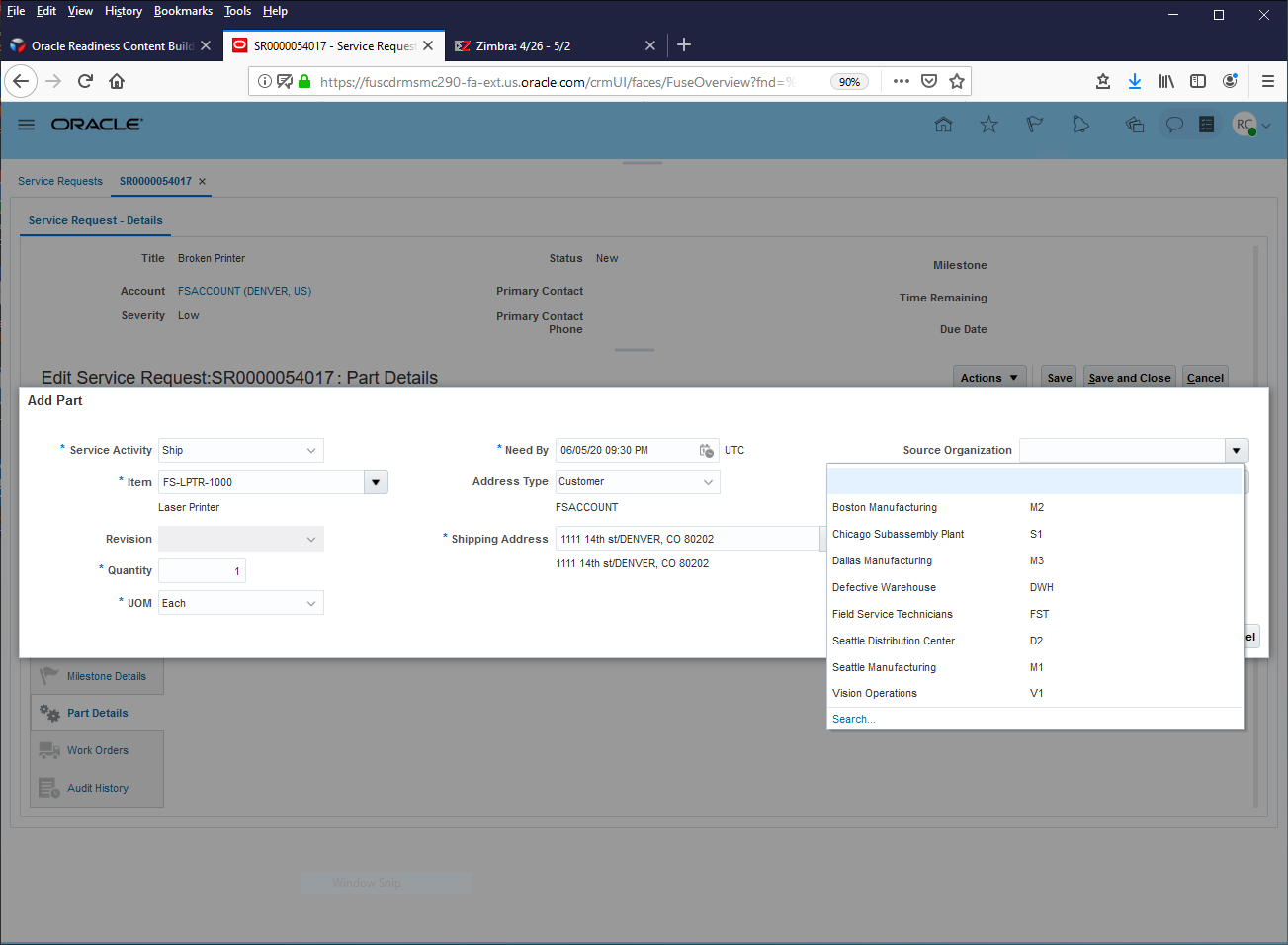
Add Part UI - Select Source Inventory Organization
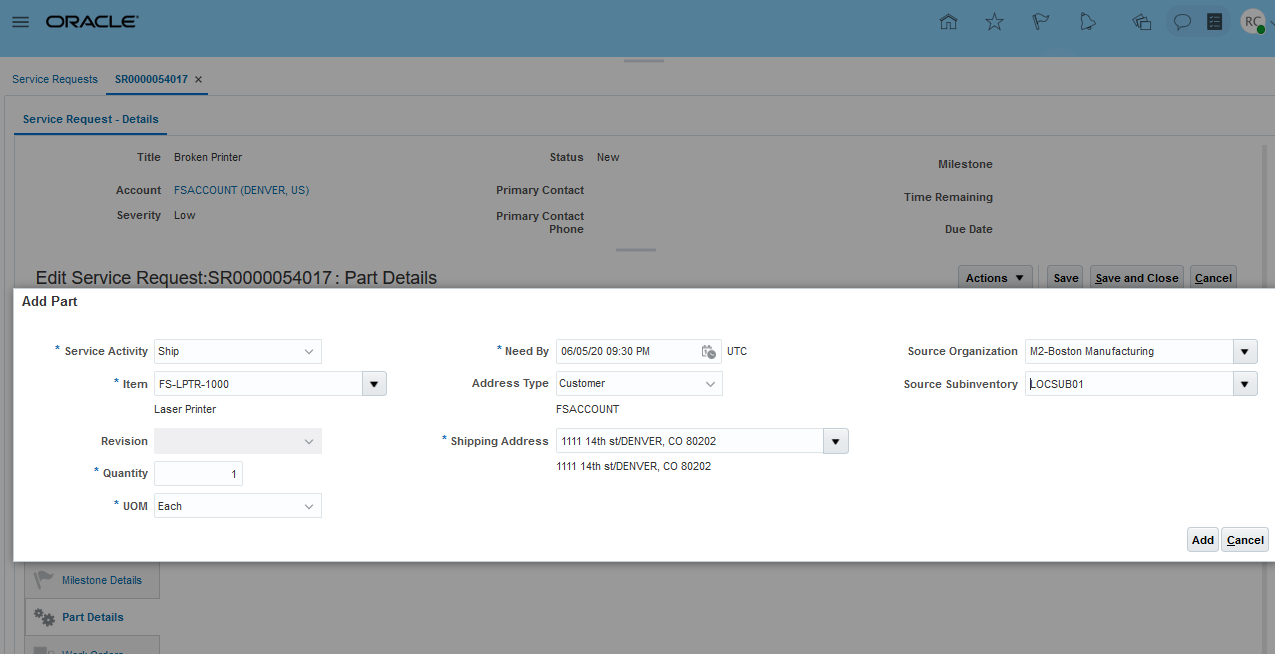
Add Part UI - Select Source Subinventory
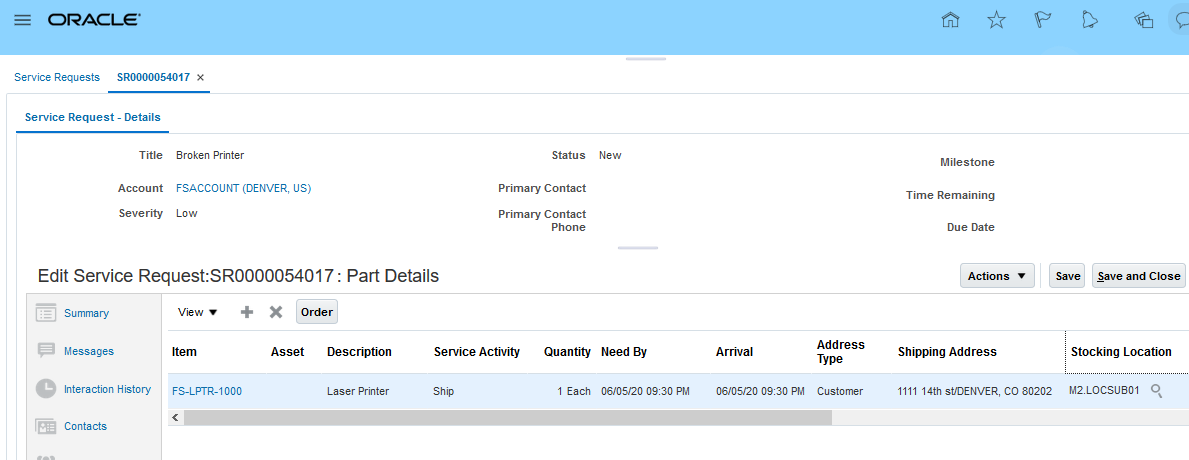
Service Request - Parts Tab with Manually Sourced Part Requirement
Steps to Enable
You don't need to do anything to enable this feature.
Tips And Considerations
The are only two validations for these new fields on the Add Part UI. The selected source inventory organization must be valid for the item being sourced. And, the selected subinventory must belong to the selected inventory organization.
Automatically and Interactively Search for Parts
This feature includes two components: 1) A new interactive Parts Search UI and 2) a new Parts Search program. The new UI enables you to update a part requirement’s source stocking location and ship method when the automatic sourcing process can’t find the parts or finds the parts in a non-optimal stocking location. The new Parts Search program provides functionality that better serves field service operations.
PARTS SEARCH UI
You can access the new Parts Search UI by clicking the Search icon (magnifying glass) located next to the source Stocking Location field on the part requirement line. This search icon is now available on the following pages and tabs:
- Service Request Parts Tab
- B2B Service WO Create UI
- B2B Service WO Parts Tab
- Create Parts Requirements UI
- Edit Parts Requirements UI
To access the new Parts Search UI, click on the icon next to the source Stocking Location.
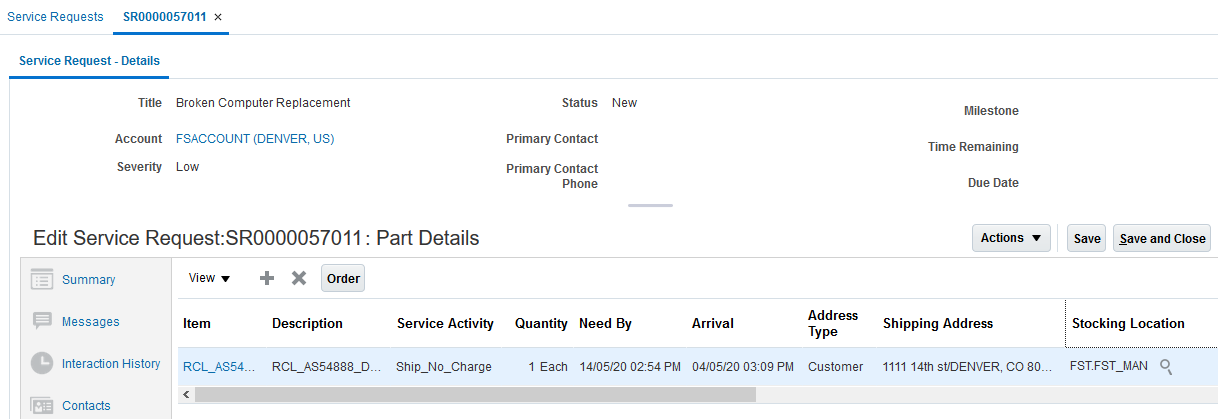
Service Request Parts Detail Tab
The following screenshot shows the new Parts Search UI. The check boxes located at the top of the UI control which searches are executed. The Parts Search UI sorts the sourcing options from the lowest to the highest shipping costs. When you select a row or source and then save your choice (by clicking the Save and Close button), the part requirement is updated with a new source stocking location, ship method, and arrival date.
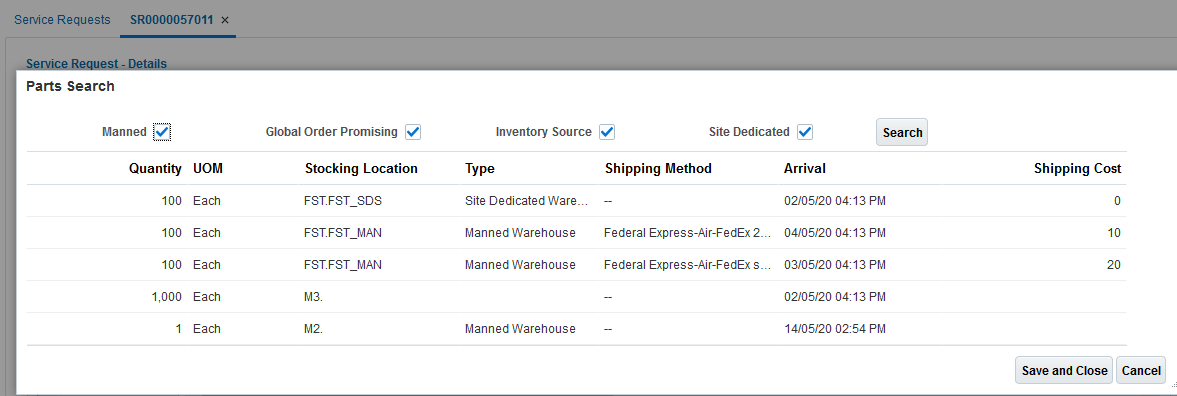
Parts Search UI
INTERACTIVE PARTS SEARCHES IN THE PARTS SEARCH UI
The new Parts Search program is used by the new Parts Search UI, as well as the existing automated sourcing performed by the Add Part UI. This program provides the following sourcing capabilities, which are not available with GOP sourcing. (Note: GOP sourcing will be retained for customers that already use this sourcing method).
- Uses real-time, up-to-the second inventory balances to determine part availability
- Searches for parts in field technician trunk stock subinventories
- Searches for parts in site dedicated, unmanned, and manned parts stocking locations (as set up in the Service Logistics Manage Stocking Location UI)
- Calculates both the arrival time and arrival date
The section describes how the Parts Search Program works with the new Parts Search UI.
- Site Dedicated Stocking Location Subinventories (Site Dedicated Check box)
Looks for the required quantity in the site-dedicated stocking locations (subinventories) associated with the customer ship-to address in the Service Logistics Manage Stocking Locations UI. Therefore, site-dedicated stocking locations (subinventories) do not need to be set up in the Manage Transit Times UI (like all other sources do). When you save a part requirement that is sourced from a site-dedicated stocking location (subinventory), no parts order reservation is created. The assumption is that the part is already available at or near the customer site.
This search is only available when sourcing field service work orders. This search is not available when performing service request parts searches (Customer Support, Sales, Depot Repair Logistics, and Part Exchange business processes) as these parts are shipped directly to customers and should not be sourced from a site-dedicated stocking location.
- Technician Trunk Stock Subinventories (Technician Check box)
Looks for the required quantity in Trunk Stock subinventories that can supply the ship-to address zone as set up in the Manage Transit Times UI.
When the user saves a Part Requirement sourced from a technician trunk stock location (subinventory), no parts order or reservation is created as the field service technician already has the part(s). Ship Method is a required set up in the Manage Transit Times UI but it is not used in this case.
This search is only available when sourcing field service work orders. This search is not available when performing service request parts searches (Customer Support, Sales, Depot Repair Logistics, and Part Exchange business processes) as these parts are shipped directly to customers and should not be sourced from field service trunk stock locations.
- Unmanned Stocking Locations Search (Unmanned Check box)
Looks for the required quantity in unmanned warehouses that can supply the zone of the ship-to address as set up in the Manage Transit Times UI.
When you save a part requirement sourced from an unmanned stock location (subinventory), no parts order or reservation is created as the field service technician needs to pick up the parts. Ship Method is a required set up in the Manage Transit Times UI but it is not used in this case.
This search is only available when sourcing field service work orders and is not available when performing service request parts searches (Customer Support, Sales, Depot Repair Logistics, and Part Exchange business processes) as these parts are shipped directly to customers and should not be sourced from unmanned stocking locations.
- Manned Stocking Location Search (Manned Check box)
Looks for the required quantity in manned warehouses that can supply the zone of the ship to address as setup in the Manage Transit Times UI.
It then calculates the Arrival Date/Time for each ship method using the Transit Times defined in the Manage Transit Time UI and then filters out the Ship Methods that can't meet the Need by Date.
When the user saves the Part Requirement in the Create Work Order Parts Region or in the Work Order Parts Tab, a Transfer Order is created to ship the parts to the technician subinventory.
When the user clicks the Order button in the SR Parts Details tab, a Sales Order is created to ship the parts directly to the customer.
- Global Order Promising (Global Order Promising Check box)
This is existing functionality that has been available in Service Logistics since 19A.
- Inventory Sourcing Rules Search (Inventory Source Check box)
Looks for the required quantity using the inventory sourcing rules to find stocking locations that can resupply a field stocking location--typically the technician's trunk stock. Sources can be defined for combinations of inventory organization, subinventory, and item. Note: This search is not available for sourcing parts for service requests.
Inventory sourcing rules do not include ship methods. Therefore, the transfer order is created without a ship method or arrival date andtime.
Inventory Sourcing rules have been used to create back orders when sourcing parts for field service (transfer orders) since 19A.
- The search results are also filtered by the following:
When you create a transfer order, the source inventory organization must be able to ship parts to the destination inventory organization. Transfer orders are created when sourcing parts for field service (parts being shipped to the field service technician's trunk stock subinventory) for replenishment or to service a customer. This requires setting up these relationships in the Manage Interorganization Parameters UI.
The shipping method must be valid at the source organization as set up in the Manage Carriers UI. This is important because in the Manage Transit Times UI, you associate the shipping method with an origin internal location and not a source inventory organization.
AUTOMATIC PARTS SEARCHES IN THE ADD PARTS UI
This section explains how the Parts Search program automatically searches for required parts when you create parts requirements in the Add Part UI. The Parts Search program looks for parts in the order defined in the Service Logistics Lookups UI. When the Add Part UI is accessed from the Service Request Parts tab, the Customer Support Parts Search lookup is used. When the Add Part UI is accessed from the Work Order, the Field Service Parts Search Lookup is used. The search program looks for parts until it finds a stocking location that has all of the required parts. The search program then selects the lowest cost shipping method and uses it to calculate arrival time and create the transfer or sales order.
Watch a Demo
Steps to Enable
CONFIGURE PARTS SEARCH PROGRAM AND INTERACTIVE PARTS SEARCH UI
You must configure the new Parts Search Program and UI by enabling the search methods you want to deploy in your business. You can set up which search methods are used for field service (service work orders) and customer service (service requests parts sales and exchanges) business processes. Manual sourcing is always enabled and is the only sourcing method enabled for Depot Repair logistics shipments. These setups are performed in the Manage Service Logistics Lookups UIs as displayed below. You can control which search methods are used in automated and interactive parts searches by selecting or clearing the Enabled check box. You can also control the search sequence used by automated sourcing by entering values in the Display Sequence fields. The lookup code REPLENISH is used to turn on the inventory replenishment search.
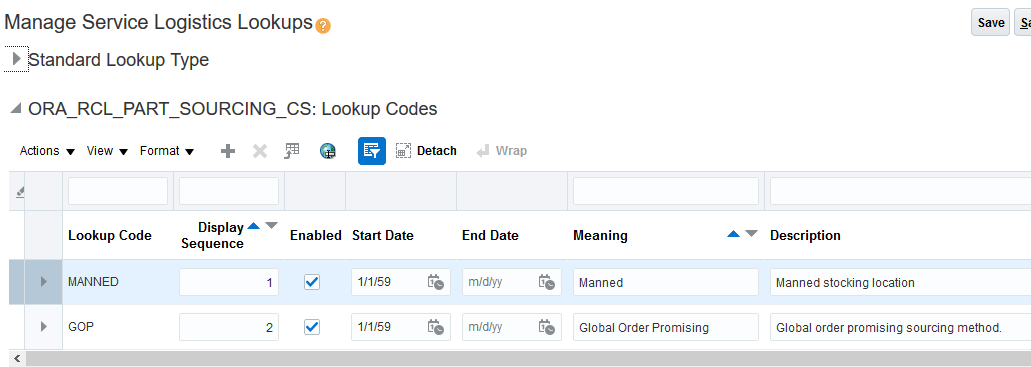
Service Request (Parts Sales and Exhanges) Search Setup
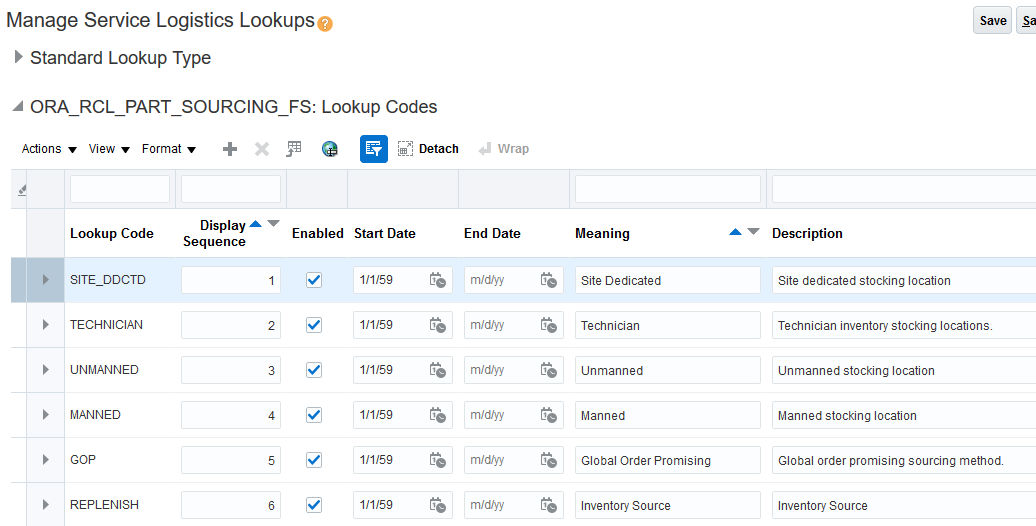
Work Order (Field Service) Search Setup
SETS REQUIRED BY PARTS SEARCH PROGRAM
The new Parts Search Program requires the following setups:
-
Setup geographies - Manage Geographies UI
-
Create zones using geographies - Manage Shipping Zones UI (Manage Zone Types)
-
Create internal locations (addresses) - Manage Locations UI
-
Assign internal locations to source inventory organizations and subinventories - Manage Subinventories UI
-
Add stocking locations (subinventories) to parts supply chain by assigning Stocking Location Type (Technician, Site Dedicated, Manned, Unmanned) and Condition (Usable or Defective) - Manage Stocking Locations UI
-
Create carriers and their ship methods and then assign the ship methods to the inventory organizations where they can be used - Manage Carriers UI
-
Setup transit times by mapping origin internal locations to destination zones along with the available ship methods and their transit times (Days) - Manage Transit Times UI
-
Setup inventory replenishment rules. These are used to create field service transfer order back-orders as well as being a search option in the new Parts Search Program - Manage Subinventories UI, Manage Item Subinventories UI, Manage Items UI, Manage Inventory Organizations UI
-
Setup shipping setwork between stocking locations - Manage Interorganization Parameters
MANAGE TRANSIT TIMES UI
The Manage Transit Times UI is where you define your parts supply chain network. The new Parts Search Program looks for parts at internal locations mapped to ship to address destination zones. Internal locations are internal addresses (HR_Location) assigned to inventory stocking locations (inventory organizations or subinventories). You must define which zones each of your manned, unmanned and technician stocking location can supply. Note: This UI supports many other types of origins and destinations that are not supported by the new Parts Search program.
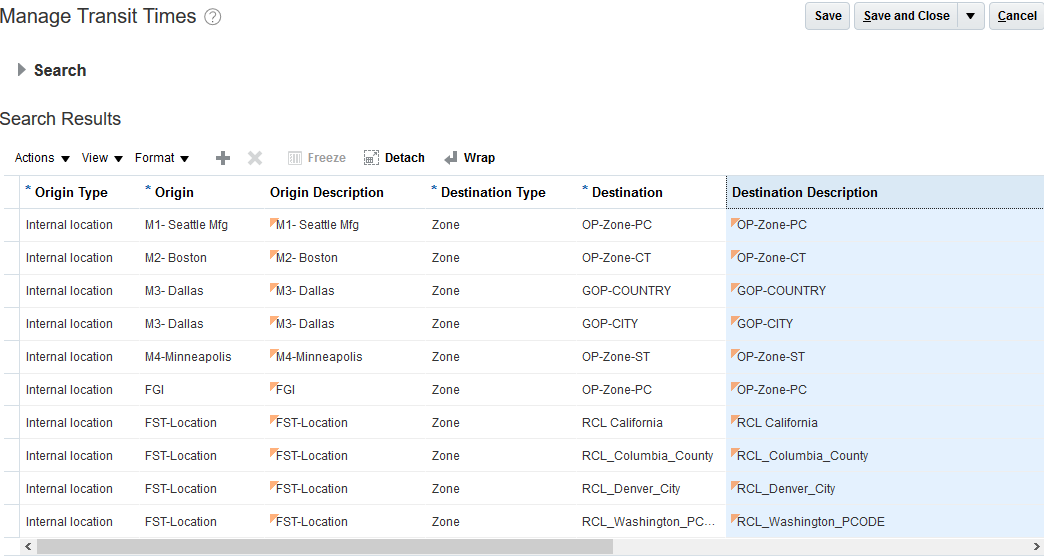
Manage Transit Times UI - Shipping Network
For each source or origin location that can supply a destination zone, you need to set up at least one shipping method in the lower section of the Manage Transit Times UI. In this example, there are two shipping methods defined between the Seattle warehouse and the OP Zone. Note: Transit Times can be defined as a fraction of a day for shipping methods like courier and pickup that are time based (less than a day).

Manage Transit Times UI - Ship Methods
Watch a Setup Demo
Key Resources