
- Revision History
- Overview
- Optional Uptake of New Features (Opt In)
- Feature Summary
-
- Service Logistics Cloud
-
- Easily Access Estimates, Service History and Asset Details in Manage Work Orders and Charges UI
- Include Supersessions and Substitutes in Parts Search
- Expand Use of Service Logistics for Field Service Technicians
- Capture Parent Asset During Debrief
- Merge Trading Community Architecture Party
- Order Parts from Oracle Field Service Cloud
-
- Service Logistics Cloud
This document will continue to evolve as existing sections change and new information is added. All updates appear in the following table:
| Date | Product | Feature | Notes |
|---|---|---|---|
| 18 SEP 2020 | Created initial document. |
This guide outlines the information you need to know about new or improved functionality in this update, and describes any tasks you might need to perform for the update. Each section includes a brief description of the feature, the steps you need to take to enable or begin using the feature, any tips or considerations that you should keep in mind, and the resources available to help you.
Security and New Features
The Role section of each feature identifies the security privilege and job role required to use the feature. If feature setup is required, then the Application Implementation Consultant job role is required to perform the setup, unless otherwise indicated. (If a feature doesn't include a Role section, then no security changes are required to use the feature.)
If you have created job roles, then you can use this information to add new privileges to those roles as needed.
Give Us Feedback
We welcome your comments and suggestions to improve the content. Please send us your feedback at oracle_fusion_applications_help_ww_grp@oracle.com.
Optional Uptake of New Features (Opt In)
Oracle Cloud Applications delivers new updates every quarter. This means every three months you'll receive new functionality to help you efficiently and effectively manage your business. Some features are delivered Enabled meaning they are immediately available to end users. Other features are delivered Disabled meaning you have to take action to make available. Features delivered Disabled can be activated for end users by stepping through the following instructions using the following privileges:
- Review Applications Offering (ASM_REVIEW_APPLICATIONS_OFFERINGS_PRIV)
- Configure Oracle Fusion Applications Offering (ASM_CONFIGURE_OFFERING_PRIV)
Here’s how you opt in to new features:
- Click Navigator > My Enterprise > New Features.
- On the Features Overview page, select your offering to review new features specific to it. Or, you can leave the default selection All Enabled Offerings to review new features for all offerings.
- On the New Features tab, review the new features and check the opt-in status of the feature in the Enabled column. If a feature has already been enabled, you will see a check mark. Otherwise, you will see an icon to enable the feature.
- Click the icon in the Enabled column and complete the steps to enable the feature.
In some cases, you might want to opt in to a feature that's not listed in the New Features work area. Here's how to opt in:
- Click Navigator > My Enterprise > Offerings.
- On the Offerings page, select your offering, and then click Opt In Features.
- On the Opt In page, click the Edit Features (pencil) icon for the offering, or for the functional area that includes your feature.
- On the Edit Features page, complete the steps to enable the feature.
For more information and detailed instructions on opting in to new features for your offering, see Offering Configuration.
Opt In Expiration
Occasionally, features delivered Disabled via Opt In may be enabled automatically in a future update. This is known as an Opt In Expiration. If your cloud service has any Opt In Expirations you will see a related tab in this document. Click on that tab to see when the feature was originally delivered Disabled, and when the Opt In will expire, potentially automatically enabling the feature. You can also click here to see features with Opt In Expirations across all Oracle Cloud Applications.
Column Definitions:
Features Delivered Enabled
Report = New or modified, Oracle-delivered, ready to run reports.
UI or Process-Based: Small Scale = These UI or process-based features are typically comprised of minor field, validation, or program changes. Therefore, the potential impact to users is minimal.
UI or Process-Based: Larger Scale* = These UI or process-based features have more complex designs. Therefore, the potential impact to users is higher.
Features Delivered Disabled = Action is needed BEFORE these features can be used by END USERS. These features are delivered disabled and you choose if and when to enable them. For example, a) new or expanded BI subject areas need to first be incorporated into reports, b) Integration is required to utilize new web services, or c) features must be assigned to user roles before they can be accessed.
| Ready for Use by End Users Reports plus Small Scale UI or Process-Based new features will have minimal user impact after an update. Therefore, customer acceptance testing should focus on the Larger Scale UI or Process-Based* new features. |
Action is Needed BEFORE Use by End Users Not disruptive as action is required to make these features ready to use. As you selectively choose to leverage, you set your test and roll out timing. |
|||||
|---|---|---|---|---|---|---|
| Feature |
Report |
UI or |
UI or |
|
||
Easily Access Estimates, Service History and Asset Details in Manage Work Orders and Charges UI |
||||||
Expand Use of Service Logistics for Field Service Technicians |
||||||
Easily Access Estimates, Service History and Asset Details in Manage Work Orders and Charges UI
MANAGE WORK ORDERS AND CHARGES PAGE
The Manage Work Orders and Charges page provides field service administrators (FS Admins) an overview of the work orders that have or will be debriefed. FS Admins can access this page from the Service Logistics landing page from the Manage Work Orders and Charges option slide out menu panel or by clicking one of the values in the Charges metric box from the Service Logistics landing page. FS Admins can now easily access estimates, service history, and work order details directly from the enhanced Manage Work Orders and Charges UI.
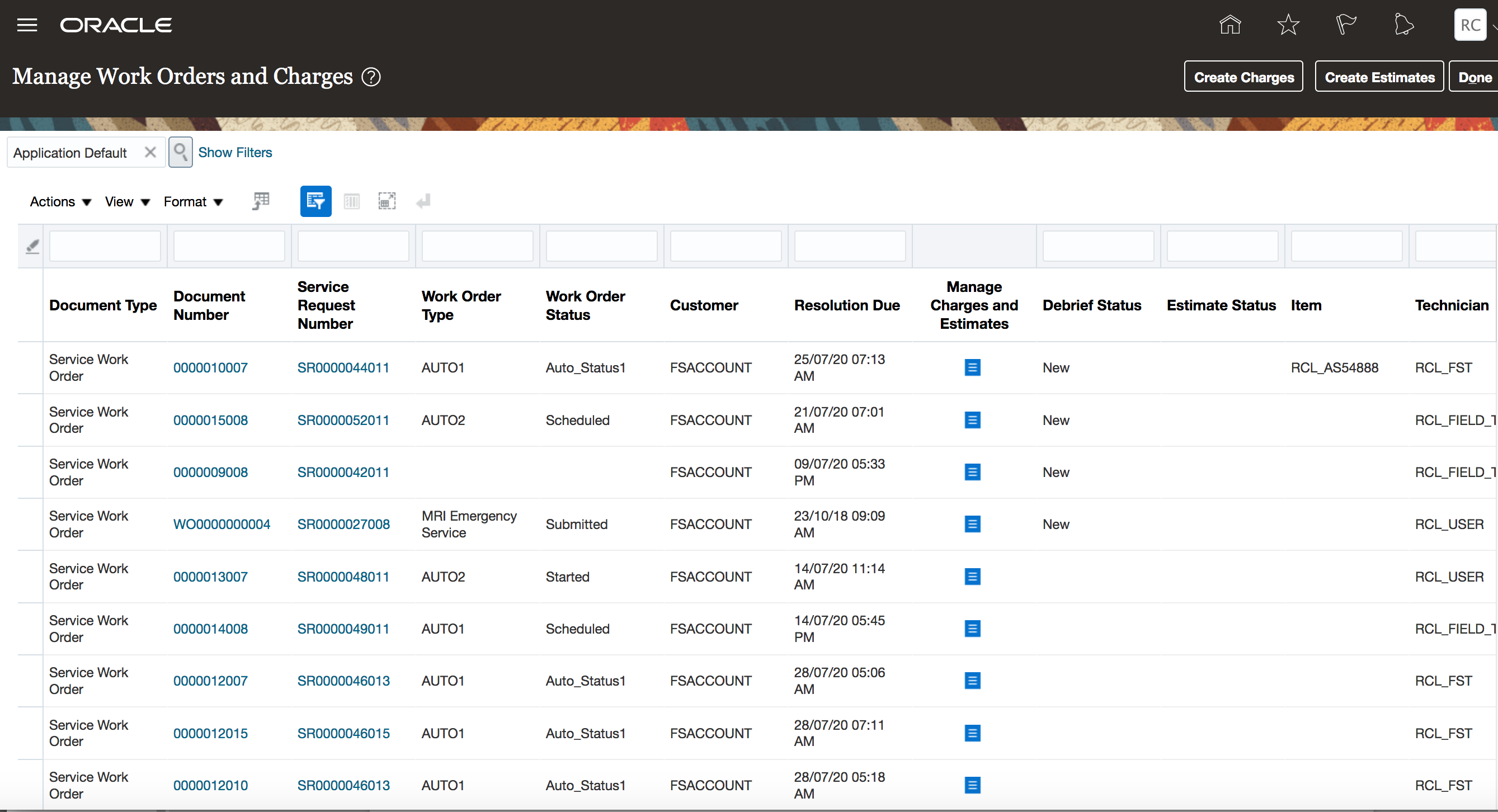
Manage Work Orders and Charges
The Manage Work Orders and Charges page has been enhanced with these new capabilities:
- New layout of the Manage Work Orders and Charges UI allows users to add, hide and sort information according to your business needs
- Quick drill-down to work order details along with quick actions to make updates
- Easy one-click navigation to Edit Work Order, Edit Service Requests and Manage Charges and Estimates pages
In addition, RMA Document numbers that were previously included on service work orders and third party work orders have been removed from the Manage Work Orders and Charges UI. This means that you can now manage RMA documents from the Depot Repair Workbench exclusively.
MANAGE CHARGES AND ESTIMATES PAGE
The new Manage Charges and Estimates page combines the previous Edit Charges and Manage Estimate pages into one consolidated UI.
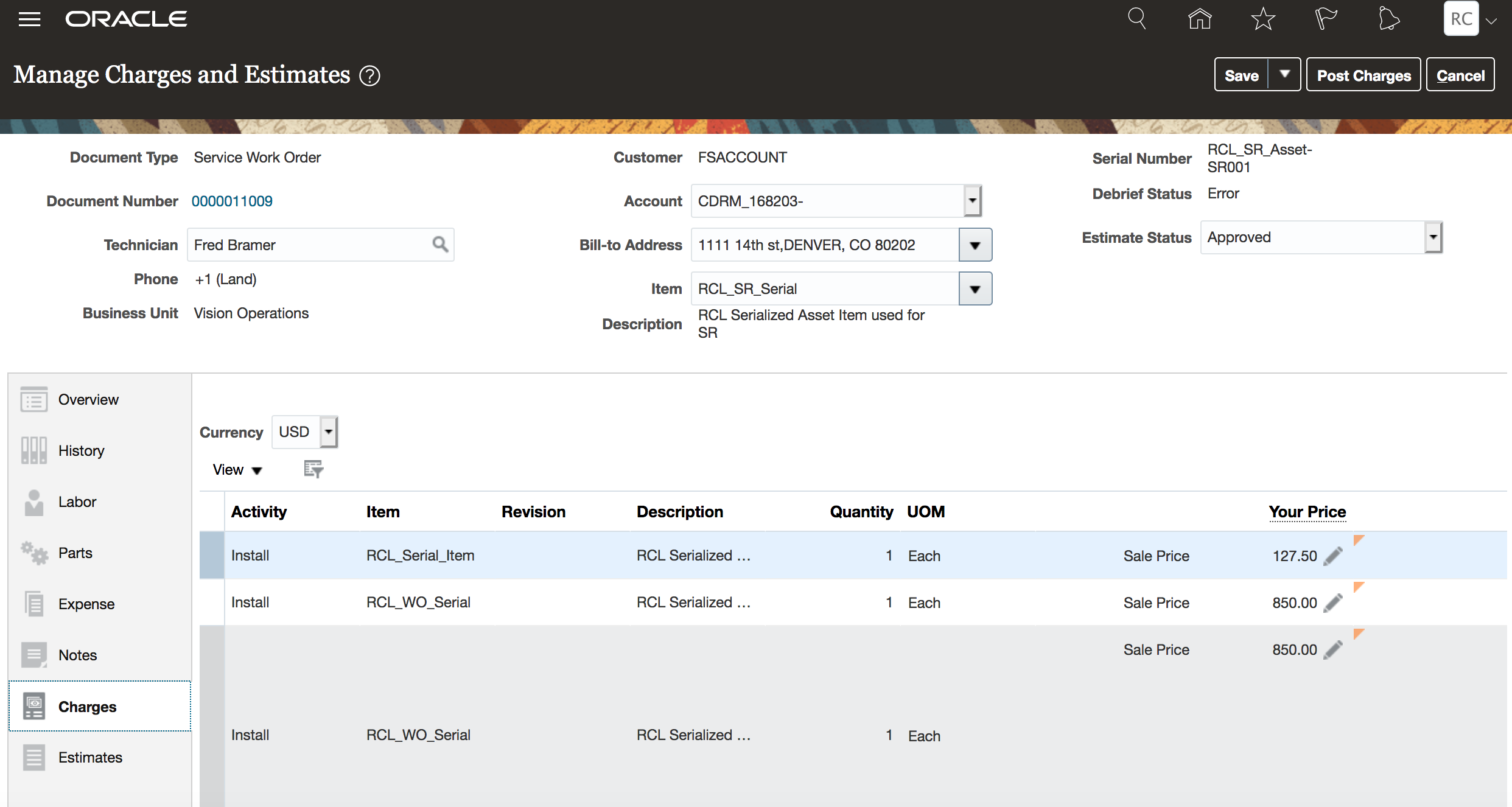
Manage Charges
The Charges page allows FS Admins to review part, labor, and expense debrief transactions that were entered into the system by field service technicians.
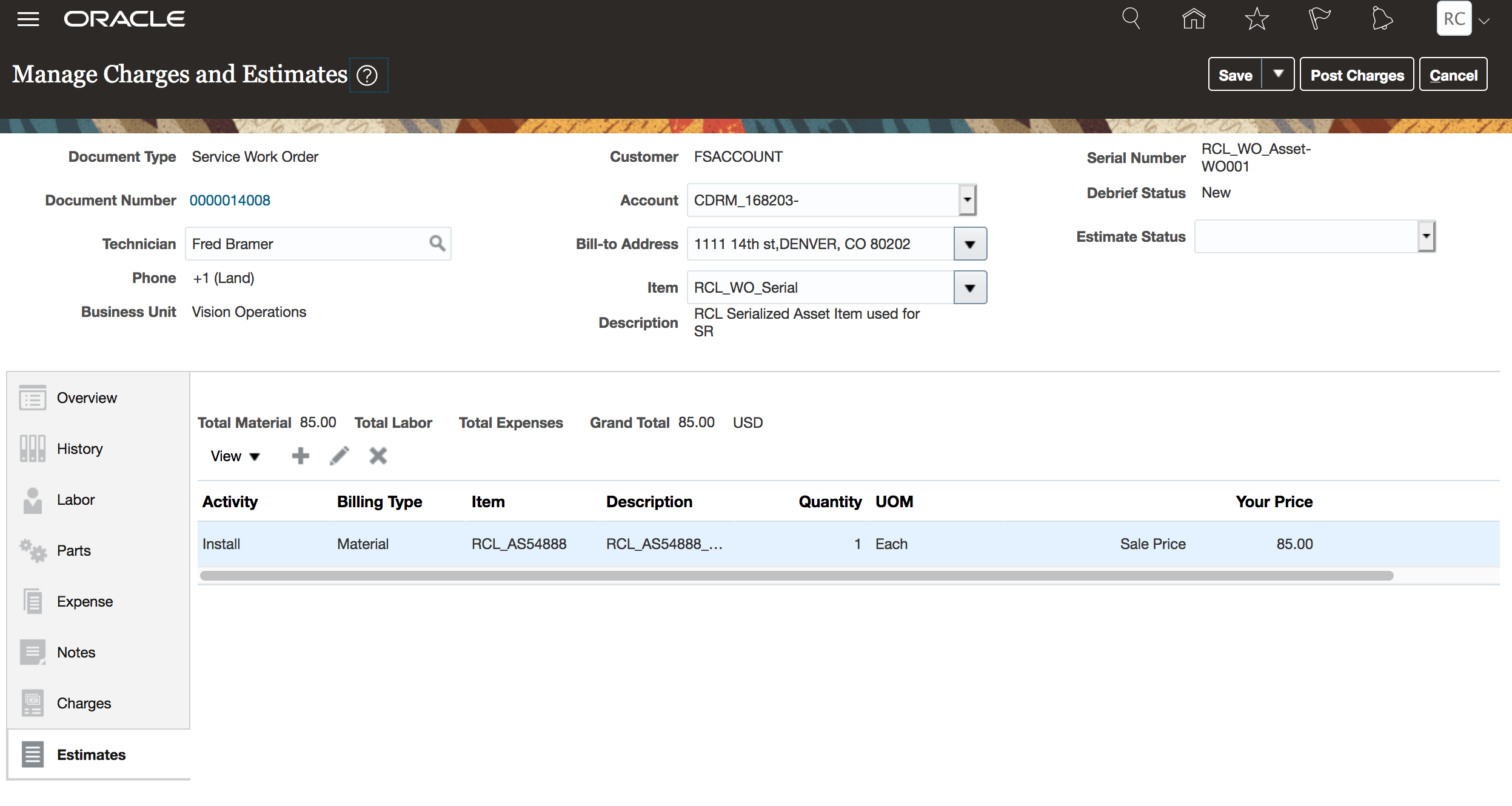
Manage Estimates
The Estimates page allows FS Admins to create estimates for variable and fixed charges (labor, parts and expenses); calculate prices for variable charges from estimated work (debrief transactions) and manage estimate process and approvals.
Watch a Demo
Use the enhanced Manage Work Order and Charges page to quickly access information and make necessary adjustments. The new table layout provides advanced sorting and viewing capabilities to help identify work that needs action.
Steps to Enable
You don't need to do anything to enable this feature.
Key Resources
- Watch Manage Work Orders and Charges UI Enhancements Demo
- Watch Review Service Charges and Initiate Billing (update 19D) Readiness Training
- Watch Service Logistics Estimate Charges (update 19D) Readiness Training
Role Information
To set up this feature, here's what you need:
- Job Role Name and Code:
- Field Service Administrator (ORA_RCL_FIELD_SERVICE_ADMINISTRATOR)
- Privilege Names and Codes:
- Access Service Logistics Landing Page (RCL_PORTAL_ACCESS_LANDING_PAGE_PRIV)
- Access Debrief Page (RCL_PORTAL_VIEW_DEBRIEF)
- Manage Estimates (RCL_MANAGE_ESTIMATES_PRIV)
Include Supersessions and Substitutes in Parts Search
When searching for service parts, this feature provides the option to search for substitute and superseded parts as defined in Product Information Management (PIM) Item Relationships. The option to search for alternate parts has been added to the Parts Search UI. If the Automated Parts Search program does not find the requested parts or finds them in an non-optimal location, you can now search for alternate parts to fulfill the part requirement.
When searching for superseded parts, the Automated Parts Search program will traverse the entire link of superseded relationships. For example, if the part requirement is for part A and it is superseded by part B, which in turn is superseded by part C, then the search program will search first for part A, then part B, and finally part C. The search logic always assumes that the superseded part should be used to completion before using supersession parts. So using the example above, if part B is available, the system will use part B to fulfill the part requirement before it uses part C.
For substitutes, the Automated Parts Search program looks only for direct substitutes as defined in Item Relationships.
NOTE: The Automated Parts Search program (which is triggered when saving a part requirements) will not search for alternate parts.
The Manage Item Relationships UI below depicts how alternate part relationships for superseded items and substitutes are set up.
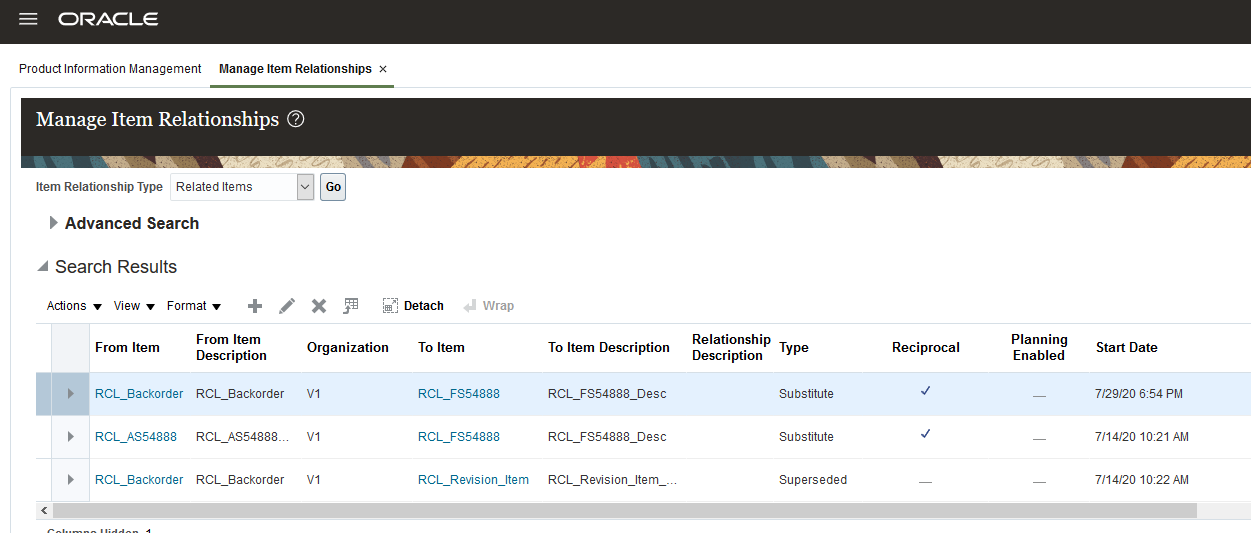
Item Relationships
The screenshots below show a part requirement (part item RCL_Backorder) for which no parts could be found using all of the parts search options.
Create part requirement and initiate automated parts search.
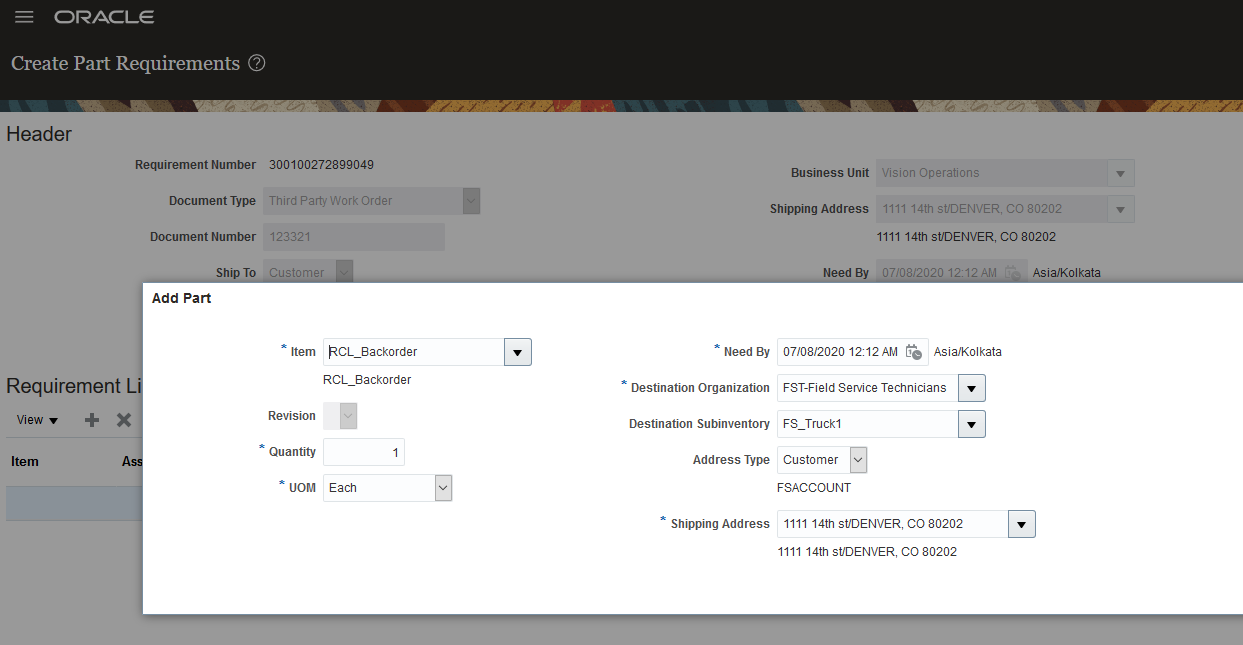
Add Part Requirement
Automated parts search does not find the part.
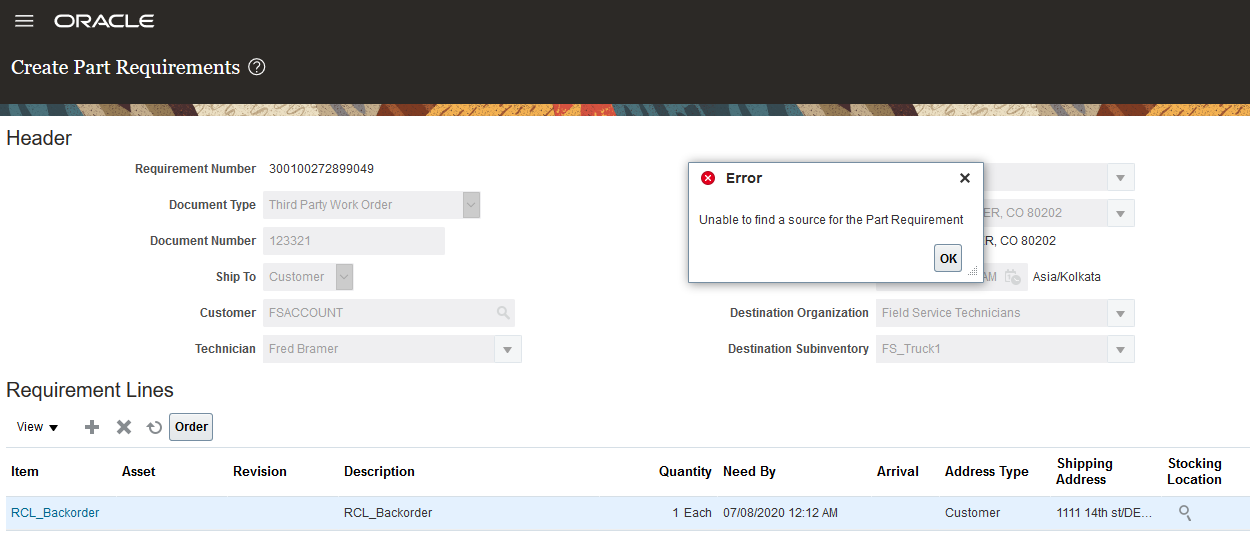
No Parts Found Message
Opening the Parts Search UI shows all of the search criteria used by the automated parts search and that it did not find any parts.
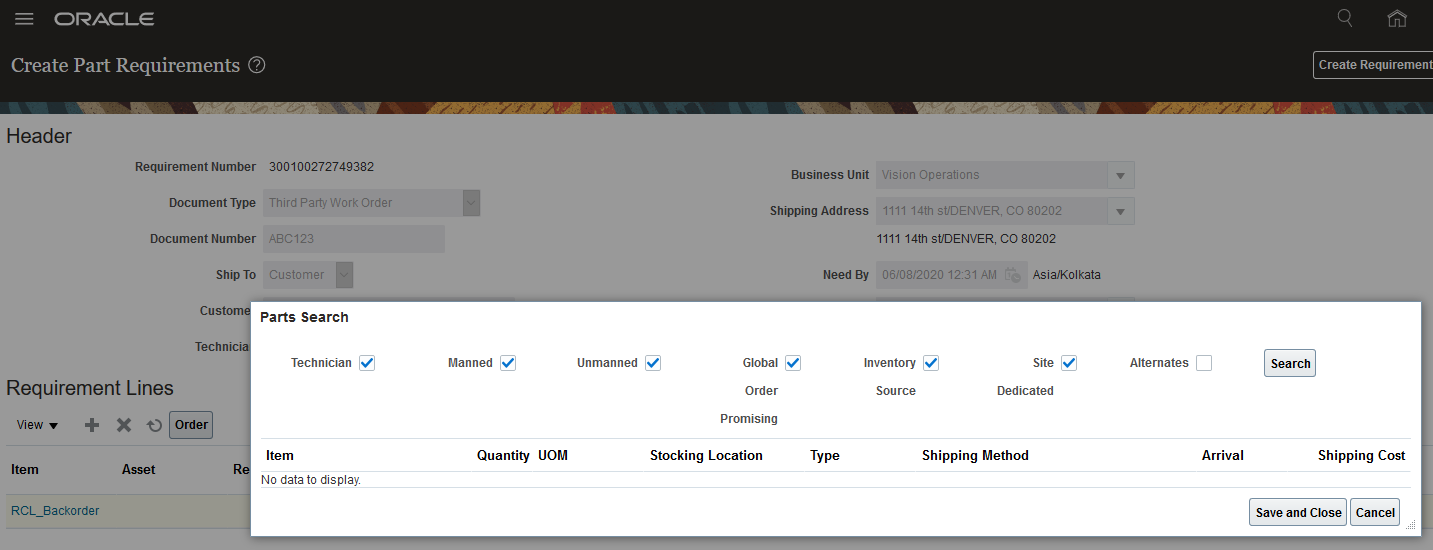
Parts Search UI with No Parts Found
The screenshot below shows that the user has found alternate parts by searching using the Alternates checkbox. In this example, the system found both substitute and superseded parts that can be used to fulfill the part requirement. The icons next to each item indicate whether the found part is a suppression or a substitute.
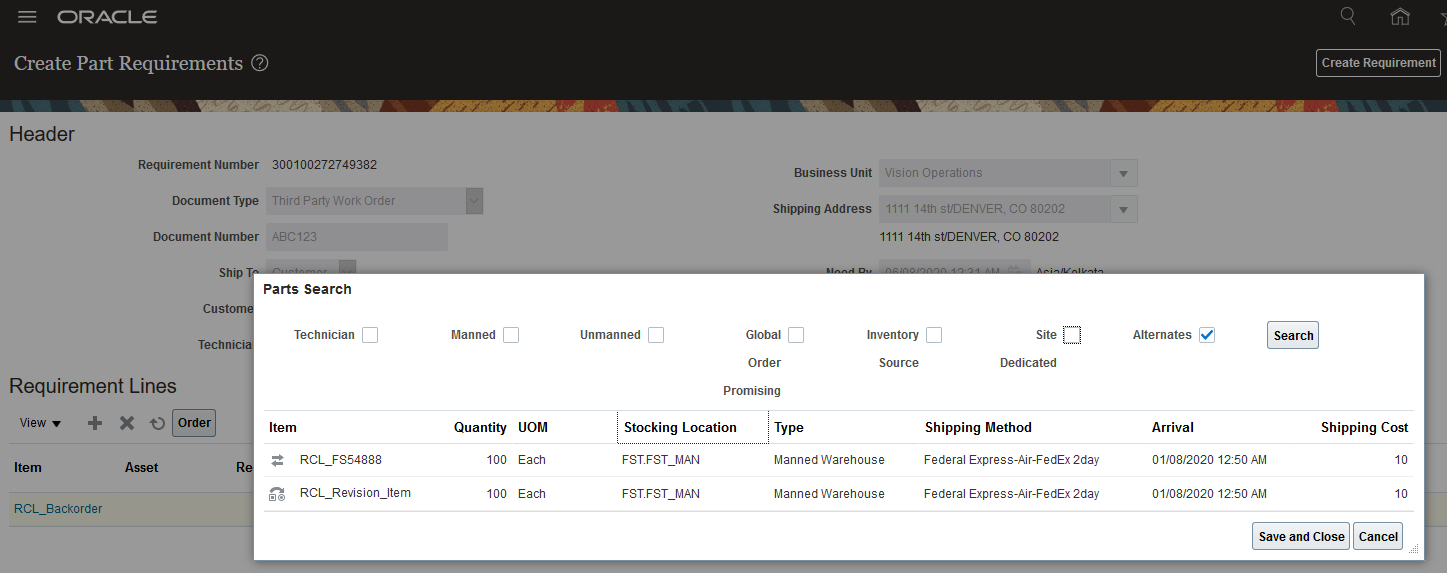
Parts Search with Alternate Parts Found
Increases customer service by quickly finding alternate parts, which speeds fulfillment and reduces backorders
Increases inventory efficiency because using substitutes avoids overstocking
Steps to Enable
Product Management and Engineering must create and maintain substitute and supersession relationships between items. There are no other setups required.
Role Information
You have a couple of options for giving people access to this feature, depending on whether you're assigning them predefineded job roles or you own configured job roles.
- Job Role Name and Code:
- Field Service Administrator (ORA_RCL_FIELD_SERVICE_ADMINISTRATOR)
- Privilege Names and Codes:
- View Requirement Lines (RCL_PARTS_REQ_VIEW)
- Manage Part Orders (SVC_MANAGE_PART_ORDERS). In CRM you must have this privilege to create a part requirement line and order parts.
Expand Use of Service Logistics for Field Service Technicians
Field Service Technicians (FS Techs) can now access the Service Logistics landing page and menu. From this page, FS Techs can order parts, manage parts inventory, debrief and invoice customers for tasks that have been assigned to them.
A new FS Tech job role has been added to the data security policy to enable this new role. When a user signs on with a FS Tech job role, a unique landing page specific to the FS Tech role and login id is displayed that shows:
- A list of the current day's work orders (Today's Work Orders)
- Number of pending charges
- Graphical view of the current day’s progress
- View of upcoming work orders by work order type
- View of incoming transfer orders by status
A new FS Tech job role has been added to the data security policy to enable this new role. When a user signs on with the FS Tech job role, a unique landing page specific to this role appears and includes the following information: (no changes to the bullet list). The landing page infolets enable the FS Tech to quickly view work orders and tasks assigned so that they can take quick action.
I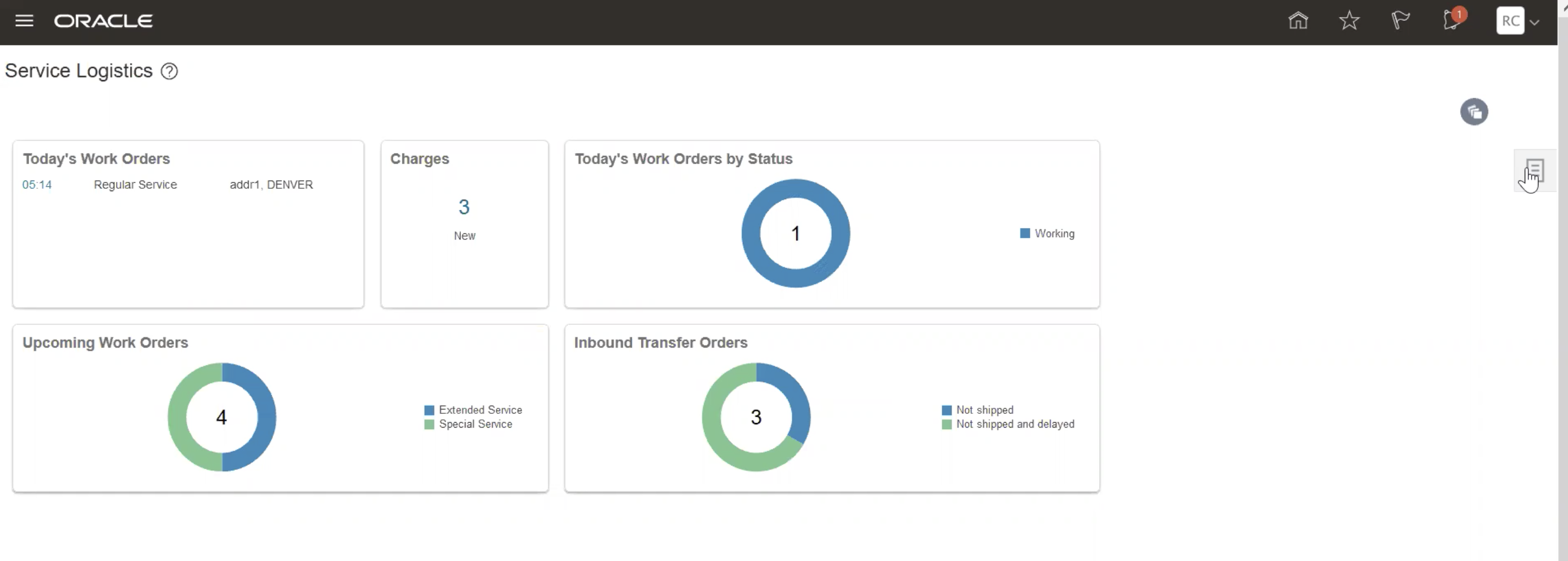
Field Service Technician Home Page
Watch a Demo
FS Techs now have access to perform Service Logistics transactions and record their work without the field service administrator's assistance.
Steps to Enable
Make the feature accessible by assigning or updating privileges and/or job roles. Details are provided in the Role section below.
Key Resources
Role Information
To set up this feature, here's what you need:
- Job Role Name and Code:
- Field Service Technician Duty (ORA_RCL_FIELD_SERVICE_TECHNICIAN_DUTY)
- Privilege Names and Codes:
- Access Service Logistics Landing Page (RCL_PORTAL_ACCESS_LANDING_PAGE_PRIV)
- Access Field Service Technician Infolets (RCL_TECHNICIAN_INFOLETS)
- Access Field Service Administrator Infolets (RCL_FSADMIN_INFOLETS)
- Access Depot Repair Manager Infolets (RCL_DEPOTMGR_INFOLETS)
- Access Debrief Page (RCL_PORTAL_VIEW_DEBRIEF)
- Manage Estimates (RCL_MANAGE_ESTIMATES_PRIV)
Capture Parent Asset During Debrief
Field service administrators (FS admins) can now debrief parts for service work orders while adding parts to the configuration. This enhances the parts debrief Install activity to support asset configuration details by capturing the parent part and serial number for the issued part. This new flow updates the asset hierarchy along with the part issue in one transaction. Note: this action is only available for serialized parts; for non-serialized items, the asset number and serial number fields will not be available. The parent asset information collected during the debrief process will be used to update the Installed Base (IB) configuration for the debrief asset and IB hierarchy.
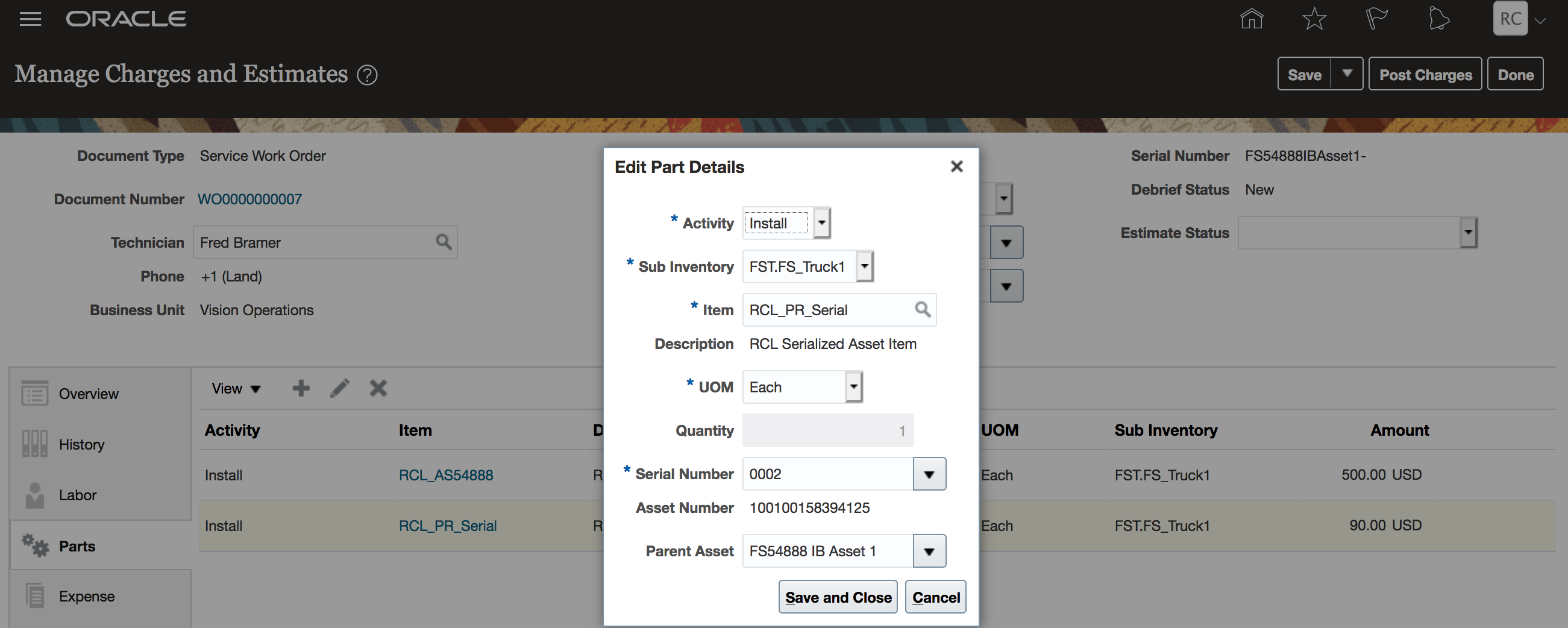
Capture Parent Asset and Serial Number
Watch a Demo
Capturing the parent asset along with the issued serial part number during the debrief process updates the asset hierarchy in Install Base. With this update, you can now choose any asset from the debrief header hierarchy as the parent asset. This selection ensures that the issued part is installed correctly in the asset hierarchy.
Steps to Enable
You don't need to do anything to enable this feature.
Key Resources
- Watch Capture Parent Asset During Debrief Demo
- Watch Part Requirements and Ordering UI (update 19B) Readiness Training
Role Information
To set up this feature, here's what you need:
- Job Role Name and Code:
- Field Service Administrator (ORA_RCL_FIELD_SERVICE_ADMINISTRATOR)
- Privilege Names and Codes:
- Manage Part Requirements using Web Service (RCL_MANAGE_PART_REQUIREMENTS_BY_SERVICE_PRIV)
- Create Debrief Transactions using Web Service (RCL_PORTAL_CREATE_DEBRIEF_TRANSACTIONS_BY_SERVICE_PRIV)
Merge Trading Community Architecture Party
Service Logistics now supports the full Trading Community Architecture (TCA) Party Merge functionality. The following Service Logistics tables are updated when merging TCA objects such as parties, accounts, and addresses.
| Table | Column | Referenced Table | Referenced Column |
|---|---|---|---|
| RCL_DEBRIEF_HEADERS | BILL_TO_PARTY_SITE_ID | HZ_PARTY_SITES | PARTY_SITE_ID |
| RCL_DEBRIEF_HEADERS | SHIP_TO_PARTY_SITE_ID | HZ_PARTY_SITES | PARTY_SITE_ID |
| RCL_DEBRIEF_HEADERS | TECHNICIAN_PARTY_ID | HZ_PARTIES | PARTY_ID |
| RCL_DEBRIEF_HEADERS | PARTY_ID | HZ_PARTIES | PARTY_ID |
| RCL_DEBRIEF_HEADERS | CUST_ACCOUNT_ID | HZ_CUST_ACCOUNTS | ACCOUNT_ID |
| RCL_DEBRIEF_LINES | BILL_TO_PARTY_ID | HZ_PARTIES | PARTY_ID |
| RCL_PARTS_REQ_HEADERS | SHIP_TO_PARTY_ID | HZ_PARTIES | PARTY_ID |
| RCL_PARTS_REQ_HEADERS | TECHNICIAN_PARTY_ID | HZ_PARTIES | PARTY_ID |
| RCL_PARTS_REQ_HEADERS | SHIP_TO_PARTY_SITE_ID | HZ_PARTY_SITES | PARTY_SITE_ID |
| RCL_PRICING_HEADERS | SOLD_TO_PARTY_ID | HZ_PARTIES | PARTY_ID |
| RCL_SITE_DEDICATED_LOCATIONS | PARTY_SITE_ID | HZ_PARTY_SITES | PARTY_SITE_ID |
| RCL_TECH_SUBINVENTORIES | PARTY_ID | HZ_PARTIES | PARTY_ID |
| RCL_PARTS_REQ_LINES | SHIP_TO_LOCATION_ID | HZ_PARTY_SITES | PARTY_SITE_ID |
You can now easily update historical and open transactions when working with TCA master data. This has many benefits including better reporting and less processing errors.
Steps to Enable
You don't need to do anything to enable this feature.
Order Parts from Oracle Field Service Cloud
Field Service Technicians (FSTechs) can now source and order parts from Supply Chain Cloud using Service Logistics to quickly get parts delivered to perform field service activities. After Service Logistics creates the transfer order, the parts are shipped to the technician or to the customer site. The parts ordered by the technician for the work order will appear in the B2B Field Service work order along with other parts ordered by the agent through the B2B Field Service application.
This feature allows FS Techs to order parts directly from Oracle Field Service Cloud (OFSC), which makes the field service supply chain process more efficient. This new collaboration between OFSC and Service Logistics ensures that work is accurately billed while updating the customer asset information and spare parts inventory accordingly.
Steps to Enable
- Create order for an activity.
- Enter ship-to as technician or customer.
- Add parts for the activity.
- Submit order for the activity.
- Get ship-to location id.
- Get source warehouse using part search.
- Create part requirements.
- Create supply request.
- Wait for transfer order to be created.
- Update parts order status.
Tips And Considerations
This integration requires a subscription to the Oracle Integration Cloud as well as Oracle Field ServiceCloud. See My Oracle Support document 2247612.1 for instruction on how to download this integration code.
Role Information
To use this feature, the following role is required:
- Job Role Name and Code:
- Field Service Administrator (ORA_RCL_FIELD_SERVICE_ADMINISTRATOR)