
- Revision History
- Overview
- Optional Uptake of New Features (Opt In)
- Feature Summary
-
- Service Logistics Cloud
-
- Automatically Post Charges
- Receive Parts from Oracle Field Service Cloud
- More Detailed and Complete Costs and Charges for Field Service and Depot Repair
- Use Transfer Orders to Support Complex Depot Repair Logistics
- Access Service Logistics Depot Repair Workbench from B2B Service Requests
- Capture Debrief and Part Requirement Information Using Flexfields
-
- Service Logistics Cloud
This document will continue to evolve as existing sections change and new information is added. All updates appear in the following table:
| Date | Product | Feature | Notes |
|---|---|---|---|
| 18 DEC 2020 | Created initial document. |
This guide outlines the information you need to know about new or improved functionality in this update, and describes any tasks you might need to perform for the update. Each section includes a brief description of the feature, the steps you need to take to enable or begin using the feature, any tips or considerations that you should keep in mind, and the resources available to help you.
Security and New Features
The Role section of each feature identifies the security privilege and job role required to use the feature. If feature setup is required, then the Application Implementation Consultant job role is required to perform the setup, unless otherwise indicated. (If a feature doesn't include a Role section, then no security changes are required to use the feature.)
If you have created job roles, then you can use this information to add new privileges to those roles as needed. For details about how to compare your configured job roles to predefined job roles and add security artifacts to your configured job roles, see the Security Console and Roles and Role Assignments chapters in the Oracle SCM Cloud: Securing SCM guide on the Oracle Help Center.
Give Us Feedback
We welcome your comments and suggestions to improve the content. Please send us your feedback at oracle_fusion_applications_help_ww_grp@oracle.com.
Optional Uptake of New Features (Opt In)
Oracle Cloud Applications delivers new updates every quarter. This means every three months you'll receive new functionality to help you efficiently and effectively manage your business. Some features are delivered Enabled meaning they are immediately available to end users. Other features are delivered Disabled meaning you have to take action to make available. Features delivered Disabled can be activated for end users by stepping through the following instructions using the following privileges:
- Review Applications Offering (ASM_REVIEW_APPLICATIONS_OFFERINGS_PRIV)
- Configure Oracle Fusion Applications Offering (ASM_CONFIGURE_OFFERING_PRIV)
Here’s how you opt in to new features:
- Click Navigator > My Enterprise > New Features.
- On the Features Overview page, select your offering to review new features specific to it. Or, you can leave the default selection All Enabled Offerings to review new features for all offerings.
- On the New Features tab, review the new features and check the opt-in status of the feature in the Enabled column. If a feature has already been enabled, you will see a check mark. Otherwise, you will see an icon to enable the feature.
- Click the icon in the Enabled column and complete the steps to enable the feature.
In some cases, you might want to opt in to a feature that's not listed in the New Features work area. Here's how to opt in:
- Click Navigator > My Enterprise > Offerings.
- On the Offerings page, select your offering, and then click Opt In Features.
- On the Opt In page, click the Edit Features (pencil) icon for the offering, or for the functional area that includes your feature.
- On the Edit Features page, complete the steps to enable the feature.
For more information and detailed instructions on opting in to new features for your offering, see Offering Configuration.
Opt In Expiration
Occasionally, features delivered Disabled via Opt In may be enabled automatically in a future update. This is known as an Opt In Expiration. If your cloud service has any Opt In Expirations you will see a related tab in this document. Click on that tab to see when the feature was originally delivered Disabled, and when the Opt In will expire, potentially automatically enabling the feature. You can also click here to see features with Opt In Expirations across all Oracle Cloud Applications.
Column Definitions:
Features Delivered Enabled
Report = New or modified, Oracle-delivered, ready to run reports.
UI or Process-Based: Small Scale = These UI or process-based features are typically comprised of minor field, validation, or program changes. Therefore, the potential impact to users is minimal.
UI or Process-Based: Larger Scale* = These UI or process-based features have more complex designs. Therefore, the potential impact to users is higher.
Features Delivered Disabled = Action is needed BEFORE these features can be used by END USERS. These features are delivered disabled and you choose if and when to enable them. For example, a) new or expanded BI subject areas need to first be incorporated into reports, b) Integration is required to utilize new web services, or c) features must be assigned to user roles before they can be accessed.
| Ready for Use by End Users Reports plus Small Scale UI or Process-Based new features will have minimal user impact after an update. Therefore, customer acceptance testing should focus on the Larger Scale UI or Process-Based* new features. |
Action is Needed BEFORE Use by End Users Not disruptive as action is required to make these features ready to use. As you selectively choose to leverage, you set your test and roll out timing. |
|||||
|---|---|---|---|---|---|---|
| Feature |
Report |
UI or |
UI or |
|
||
More Detailed and Complete Costs and Charges for Field Service and Depot Repair |
||||||
Use Transfer Orders to Support Complex Depot Repair Logistics |
||||||
Access Service Logistics Depot Repair Workbench from B2B Service Requests |
||||||
Capture Debrief and Part Requirement Information Using Flexfields |
||||||
This new feature enables automatic posting of debrief charge lines by providing field service administrators the ability to define rules around the posting process. Currently, you must manually review and post all charge lines created from field service debrief transactions. This new process provides the option to either automate or manually post charges. The Automatically Post Charges feature applies to field service debrief charges of Generic, OFSC and Third Party Work Orders.
Field Service Administrators can create and edit automated processing rules. Here's an example of a rule:
- Find debrief charges for the business unit: Vision Canada
- Identify debrief charge line amounts less than $2500
- Automatically post debrief charge lines that belong to Vision Canada with amounts less than $2500
- Manually review debrief charges that are greater than $2500
There are seeded qualifiers and conditions that you can use:
- Qualifiers : Customer, Business Unit, Technician, Document Type, Work Order Type, Service Request Category
- Conditions: Labor Hours, Expense Amount, Charge Line Amount, Total Charge Amount, Actual Over Estimates %
A new privilege Post Charges has been created and can be assigned to the field service administrator and field service technician role.
The Manage Charges and Estimates UI has been enhanced to display:
- Complete Debrief button for users with a Technician role, but without Post Charges privilege. When the technician who does not have the Post Charges privilege clicks on the Complete Debrief button, the debrief header status will be updated to Needs Review.
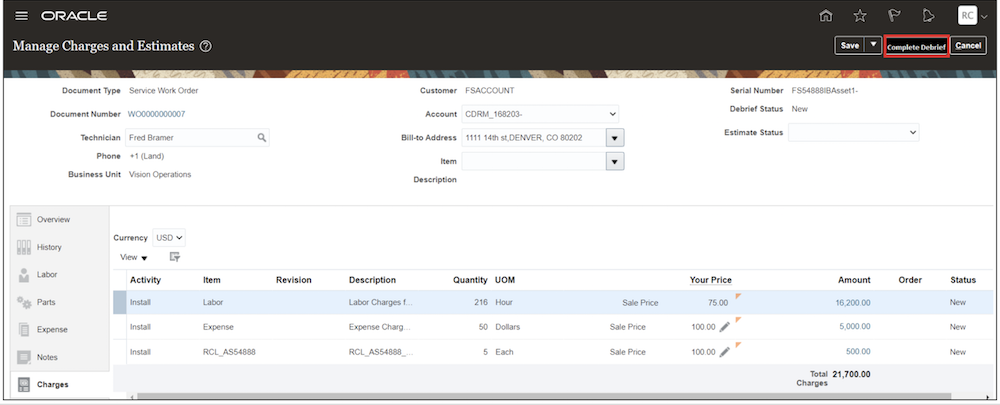
Complete Debrief button
If there are debrief lines in Needs Review status, field service administrator can view the reason.
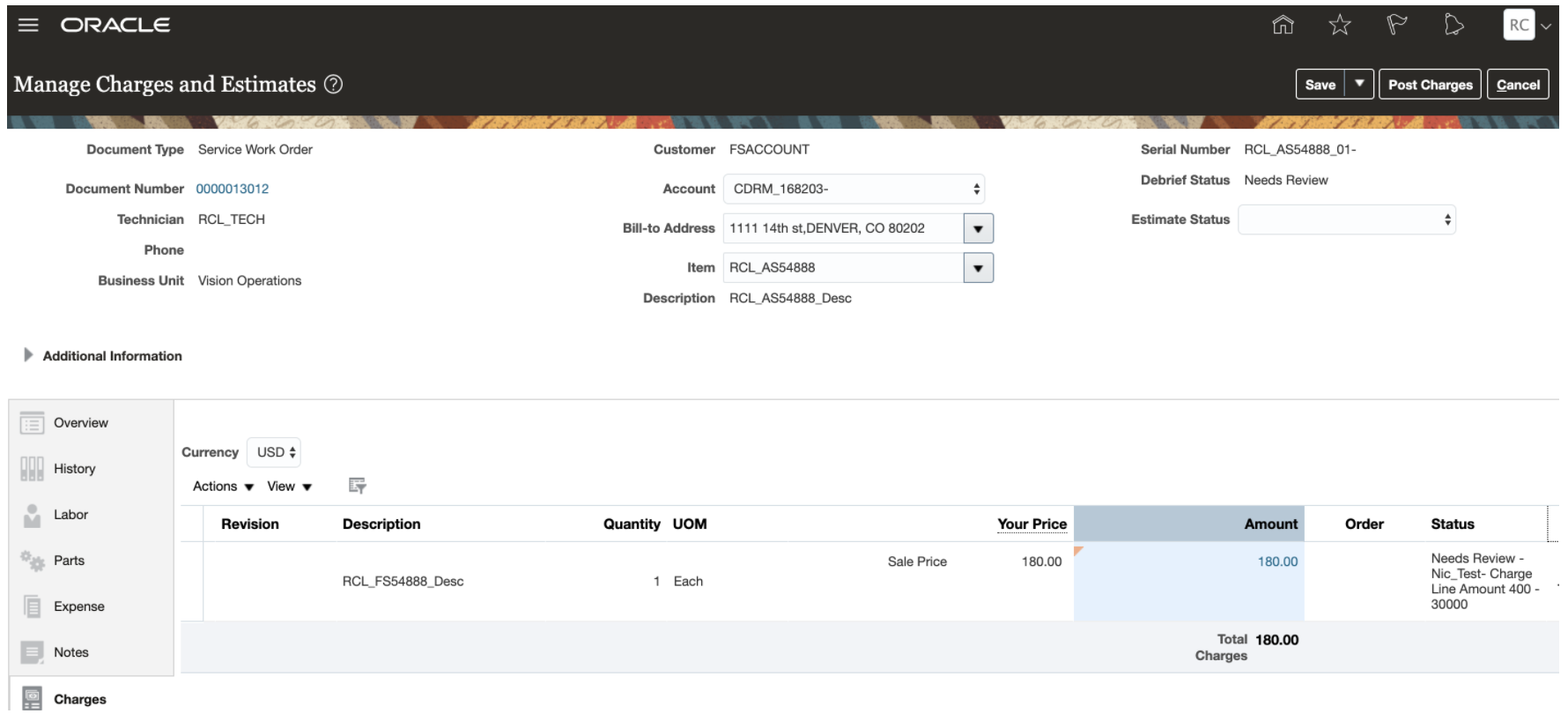
Needs Review Status in Manage Charges and Estimates UI
- The Service Logistics landing page has been enhanced to display a new infolet: Needs Review. When the field service administrators review debrief lines that are in the Needs Review status, the corresponding charge lines display the reason a charge line was not automatically posted along with the conditions that failed the rule check.
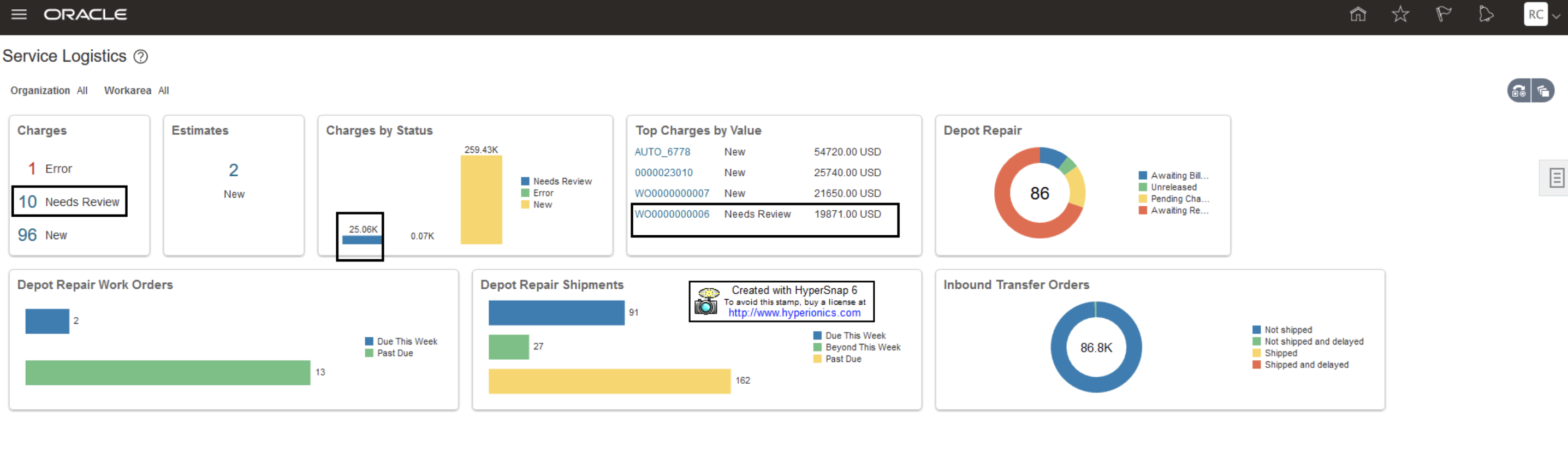
Infolet - Needs Review for Charges is displayed in Service Logistics Landing Page
- In the OFSC flow, the creation process of Debrief and Charges is modified so that the Enterprise Scheduling Service (ESS) job does the autoprocessing of charges. Once debrief charges are created, the ESS Job automatically starts and does the rule(s) check. If all the rules are satisfied, it automatically post charges.
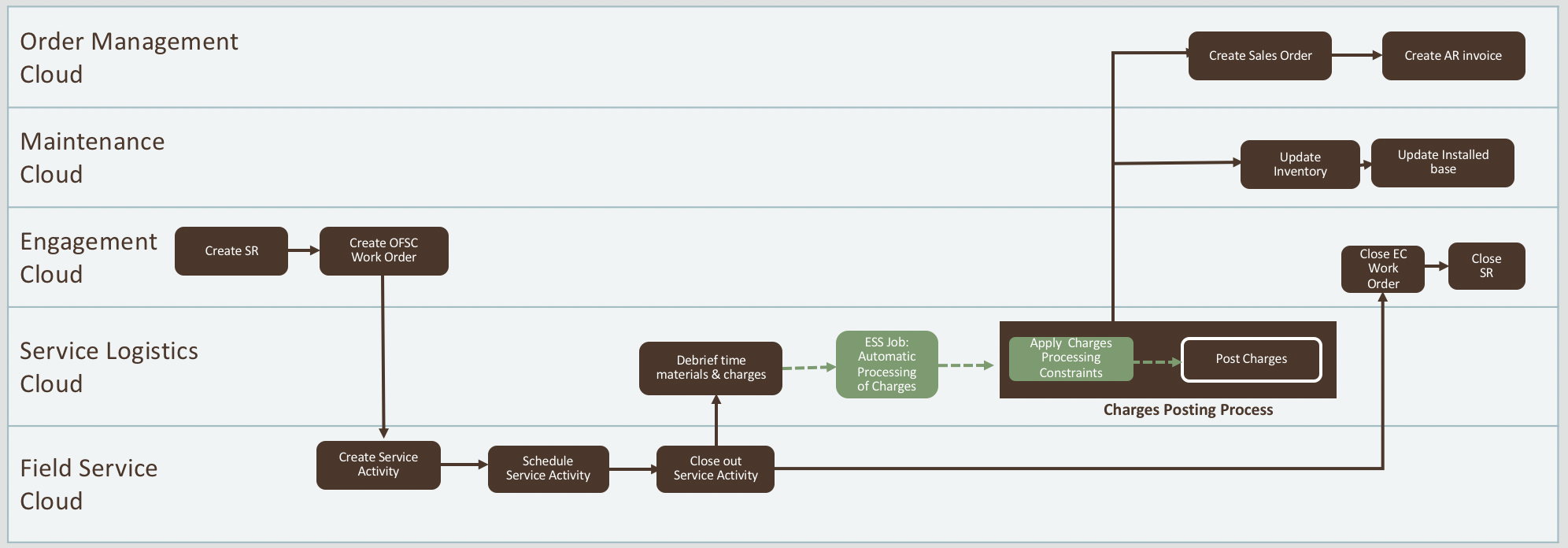
OFSC Flow
The Automatically Post Charges feature improves user productivity by minimizing the need for manual review of debrief charges.
Steps to Enable
Manage Auto Processing Rules for Charges page can be accessed from the menu:
- Setup and Maintenance > Manufacturing and Supply Chain Materials Management > Service Logistics > Manage Auto Processing Rules for Charges
Any debrief line that goes through the Post Charge action is validated by the Auto Processing rule if you selected the Opt-In option for the Automatically Post Charges feature. Service Logistics administrators can manage automatic processing rules that are based on different qualifiers such as business unit and customer and are based on conditions, such as labor hours and expense amount.
The Manage Rules page includes the following regions:
- Rules Search Criteria
- Rule Names Results table
- Qualifiers
- Conditions
For creating a new rule: Navigate to Manage Auto Processing Rules for Charges page > Search Results for Rule table > Click on the Add rule + icon
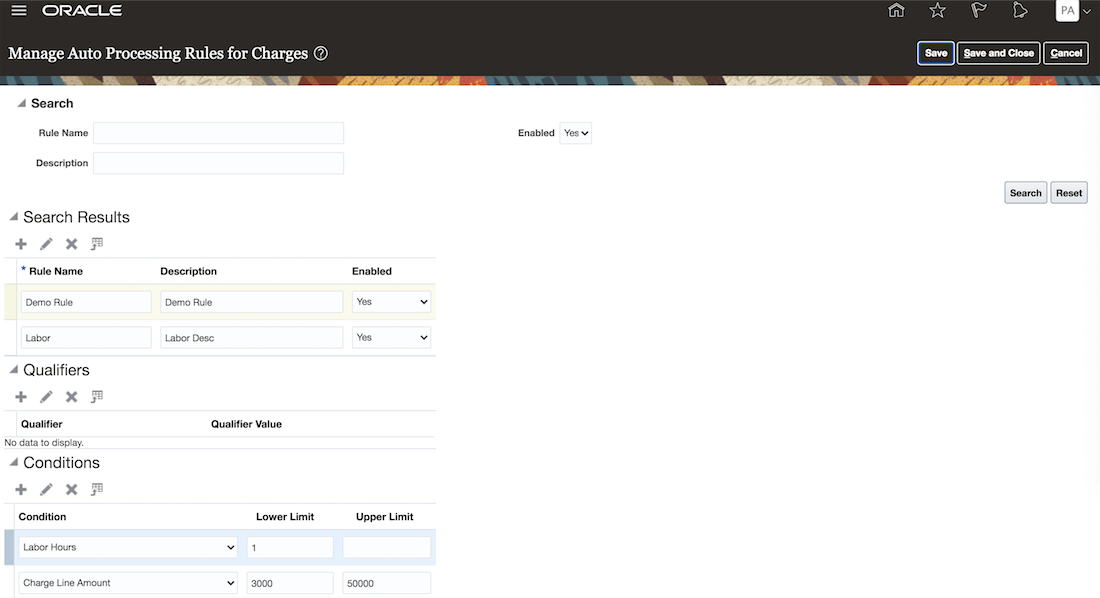
You can search or filter rules that have already been created, After you apply your search of filter, the Search Results region will display the rule name, its description and whether it is enabled based on the criteria you entered.
- Rule Name
- Description
- Enabled
The lower regions display the respective qualifiers and conditions that were added to the rules.
Key Resources
- Watch Automatically Post Charges Readiness Training
- Watch Review Service Charges and Initiate Billing (update 19D) Readiness Training
- Watch Service Logistics Estimate Charges (update 19D) Readiness Training
Role Information
To set up this feature, here's what you need:Post Charges with Rule Check privilege
- Job Role Name and Code:
- Field Service Technician Duty (ORA_RCL_FIELD_SERVICE_TECHNICIAN_DUTY)
- Field Service Administrator (ORA_RCL_FIELD_SERVICE_ADMINISTRATOR)
- Depot Repair Manager (ORA_RCL_DEPOT_REPAIR_MANAGER_JOB)
- Privilege Names and Codes:
- Post Charges privilege: This privilege enables you to post charges without the processing rule check.
- Post Charges with Rule Check: This privilege enables you to post charges, but the process will check to confirm that all of the debrief and charge lines meet all processing rules.
Receive Parts from Oracle Field Service Cloud
Field Service Technicians (FS Techs) can use Oracle Field Service Cloud (OFSC) to receive part orders into their trunk stock inventory. These parts orders can be for replenishment or a specific work order/activity as long as they were created in OFSC.
This feature enables FS Techs to receive parts directly from Oracle Field Service Cloud (OFSC), which makes the field service supply chain process more efficient as the technician can do it from a mobile device instead of having to do it from a desktop PC.
Steps to Enable
Service Logistics Receive Parts integration in Oracle Integration Cloud should be enabled. Refer to instructions on Integrating Oracle Service Logistics Cloud with Oracle Field Service Cloud: Integrating Service Logistics with Field Service.
Tips And Considerations
This integration requires subscriptions to the Oracle Integration Cloud and the Oracle Field Service Cloud.
Key Resources
- For more detailed technical information on integrating Oracle Service Logistics Cloud with Oracle Field Service Cloud see Doc ID 2481359.1.
Role Information
To use this feature, the following role is required:
- Job Role Name and Code:
- Field Service Administrator (ORA_RCL_FIELD_SERVICE_ADMINISTRATOR)
More Detailed and Complete Costs and Charges for Field Service and Depot Repair
In Field Service, you can now capture the costs of the various types of labor and expenses that are used to perform the service. For example, you can now capture the difference between overtime and regular labor.
In Depot Repair, you can now charge customers different prices for different types of labor and non-labor resources used during the repair. For example, high skilled labor can have a higher price than low skilled labor. Non-labor resources can include charges for miscellaneous expenses and equipment usage/rental. You can now also create service charges for any outside processing performed during the repair. For example, you may need to send the item being repaired to a supplier for painting.
To support the new functionality listed below, two new setups have been created to map the Maintenance Work Order setups to and from the Service Logistics setups. Specifically, we have added the maintenance work order resource activity to the Manage Service Activities UI and created a new setup UI to map maintenance work order resources to items.
The following enhancements have been made to capture more detailed field service cost information in the maintenance work order created when posting field service charges. These maintenance work orders are used to update Inventory, Installed Base, and Costing and are also used for OTBI profitability reports.
- The new item to resource mapping is used to capture specific labor (and expense) costs on the work order resource transactions by allowing each debrief item to have its own work order resource. For example, you can now capture different costs for an hour of diagnostic labor versus an hour of inspection labor.
- The new service activity code to resource activity mapping is used to capture more detail for reporting and accounting on the work order resource transaction. For example, you can now distinguish between no charge and customer billed travel time.
- The field service technician (TCA party) is now captured on work order resource transactions. This supports reporting costs and profitability for individual field service technicians.
- Debriefed field service expense costs are now captured in maintenance work order. Prior to this release, only parts and labor costs were captured in the maintenance work orders.
The following enhancements enable more flexibility when creating service charges from depot repair maintenance work orders.
- The new resource to item mapping is used to create service charges so you can charge different prices for different types of labor. For example, repair labor may have a different price than cleaning or calibration labor.
- The new resource activity to service activity code mapping is used to create service charges so that you have more control over how labor is billed. For example, you can create a "No Charge" resource activity and corresponding service activity to allow the depot repair technician to capture costs but not bill the customer.
- We now allow service activity codes to be updated on parts service charges created from Depot Repair. The “resource activity to service activity” enhancement allow different service activity codes for labor and expense charges but not for parts as maintenance work order parts transactions do not capture an activity code. To allow customers to change the billing behavior for parts used during the repair, the Service Logistics Debrief and Charges UI now enables you to update the service activity code before posting the service charges for billing. For example, you may want to change the service activity code from "install part" to "no charge install part".
- These new setups are also used to create service charges for non-labor resource transactions, such as rental equipment usage.
- You can now create service charges from maintenance work order outside operation and its associated purchase order receipt. These charges will be created as material debrief charges, which is consistent with how outside processing items are set up in the Item Master.
The ability to capture, report, cost, and account for all of the various types of field service labor and expenses allows management to accurately measure profitability, and make better decisions.
Being able to charge different prices for different types of depot repair labor enables you to price labor based on the actual costs incurred and skills required instead of having one price for all types of labor.
Steps to Enable
SETUP RESOURCE ITEM MAPPING
The Item to Resource mappings must be defined for every field service inventory organization (typically the organization where the technician’s trunk stock resides). In the example Manage Resource to Item Mapping UI below, mappings are set up for the FST Field Service Technicians inventory organization. When posting field service charges, Service Logistics uses this mapping to create Maintenance Work Order Resource Transactions. In the example below, if the item debriefed is Regular Labor, then the resource included on the word order transaction will be FST_RSC1_REG.
Map the items you use for field service labor and expense debrief to maintenance work order resources. If these mappings are not set up, the current functionality will be used to derive the work order resource.
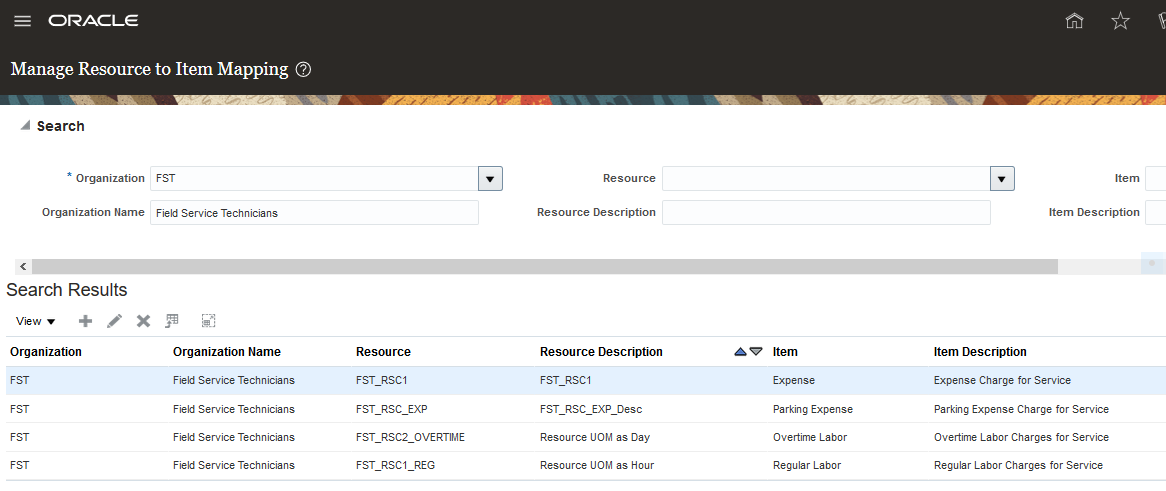
Item - Resource Mapping for posting Field Service Charges
The Resource to Item Mapping must defined for every depot repair inventory organization. The resources and items in the Manage Resource to Item Mapping UI below are set up for the RCL_M1 depot repair inventory organization. When creating depot repair charges, Service Logistics uses this mapping to create labor, expense, and equipment usage charges. For example, based on the information shown in the Manage Resource to Item Mapping UI below, the resource: Depot_Mechanic is used to retrieve the Item: Depot_Labor_Mechanic, which is required to create the associated charges.
Map the resources you use for depot repair transactions (labor, expense, equipment, and so on) to items. If you do not map depot repair resources, the current functionality will be used to create service charges.
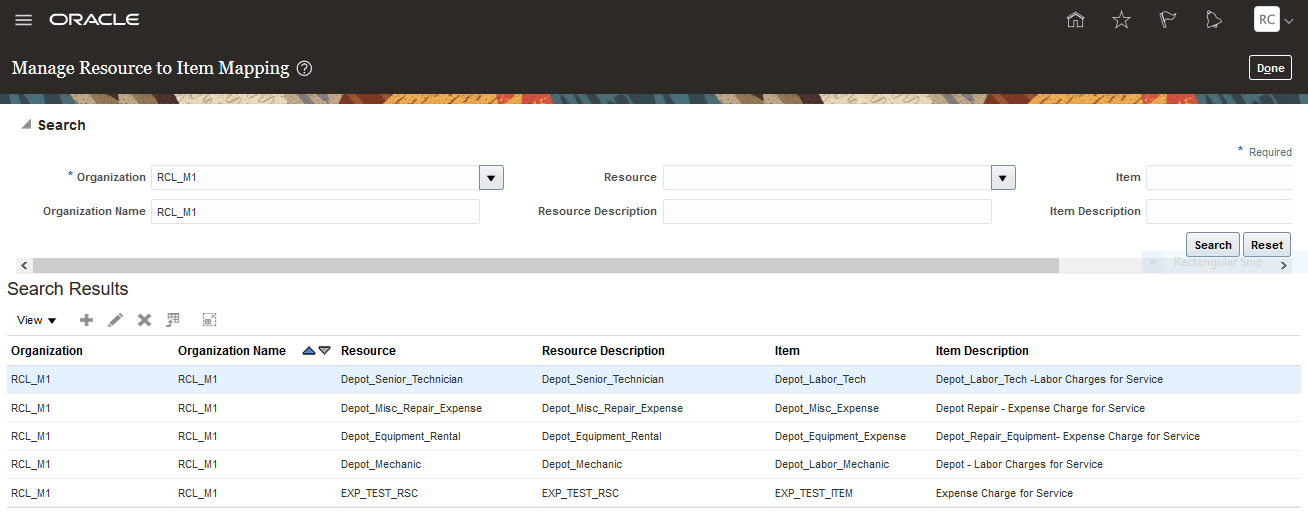
Resource - Item Mapping for Creating Depot Repair Charges
ADD RESOURCE ACTIVITIES TO SERVICE LOGISTICS SERVICE ACTIVITY CODES
When posting field service charges, Service Logistics uses the mapping set up in the Manage Service Activities UI to create maintenance work order resource transactions. The system uses the debriefed service activity code (for example, Install Part) to retrieve the resource activity code (for example, Run) that it stamps on the transaction. The Resource Activity code is not a required field for maintenance work order resource transactions. So if you don’t set up a resource activity code, the resource transaction will be created without a resource activity.
Add resource activities to your field service service activity codes. If this is not set up, work order resource transactions will be created without an activity.
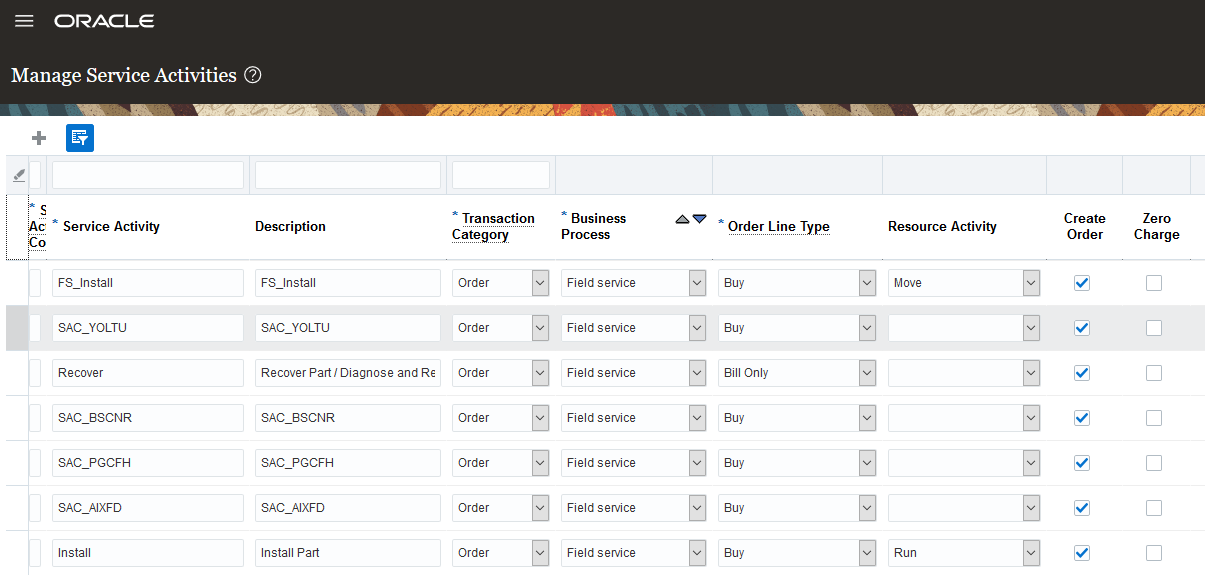
Service Activity Code - Resource Activity Mapping for Posting Field Service Charges
When creating depot repair charges, Service Logistics uses the mapping shown in the Manage Service Activities UI to create labor, expense, and equipment usage charges. It uses the resource activity captured in the work order resource transaction (for example, Depot Repair) to retrieve the required service activity code (for example, Depot_Labor_SAC).
Add resource activities to your depot repair service activity codes. If you do not set up resource activities for depot repair, the current functionality will be used to retrieve the labor service activity code. In addition, no service charges will be created for non-labor work order resource transactions.
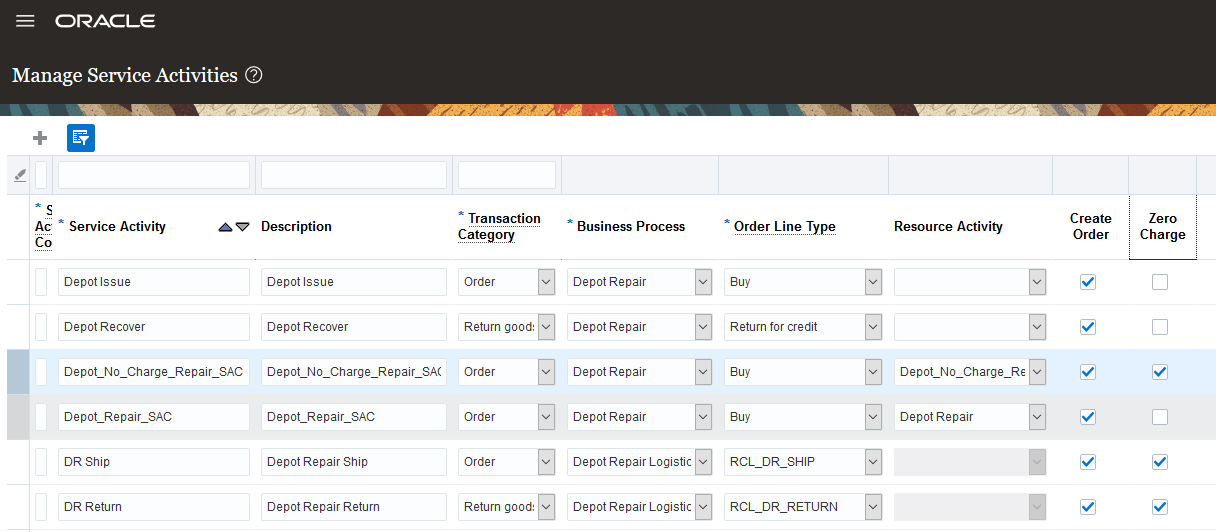
Service Activity Code - Resource Activity Mapping for Creating Depot Repair Charges
Role Information
To use this feature, the following privileges or roles are required:
- Job Role Name and Code:
- Depot Repair Manager (ORA_RCL_DEPOT_REPAIR_MANAGER_JOB) - - This role gives the user access to the Manage Depot Repair UI and the Depot Repair Workbench UI
- Privilege Names and Code:
- Manage Depot Repair ()
Use Transfer Orders to Support Complex Depot Repair Logistics
This new feature enables complex depot repair and return logistics where the customer asset is transferred between several locations before being sent back to the customer. For example, a customer might return a broken asset to a local warehouse. Then the local warehouse might ship the asset to a distribution center before it is sent to the actual repair depot. After the asset is repaired, it may be shipped back to the local warehouse or directly to the customer.
This feature uses inventory transfer orders to manage moving the customer's asset through the repair logistics flow. A new Create Transfer Order UI has been added to the Depot Repair Workbench so that transfer orders can be created and linked to the RMA sales order line that initiated and drives the process.
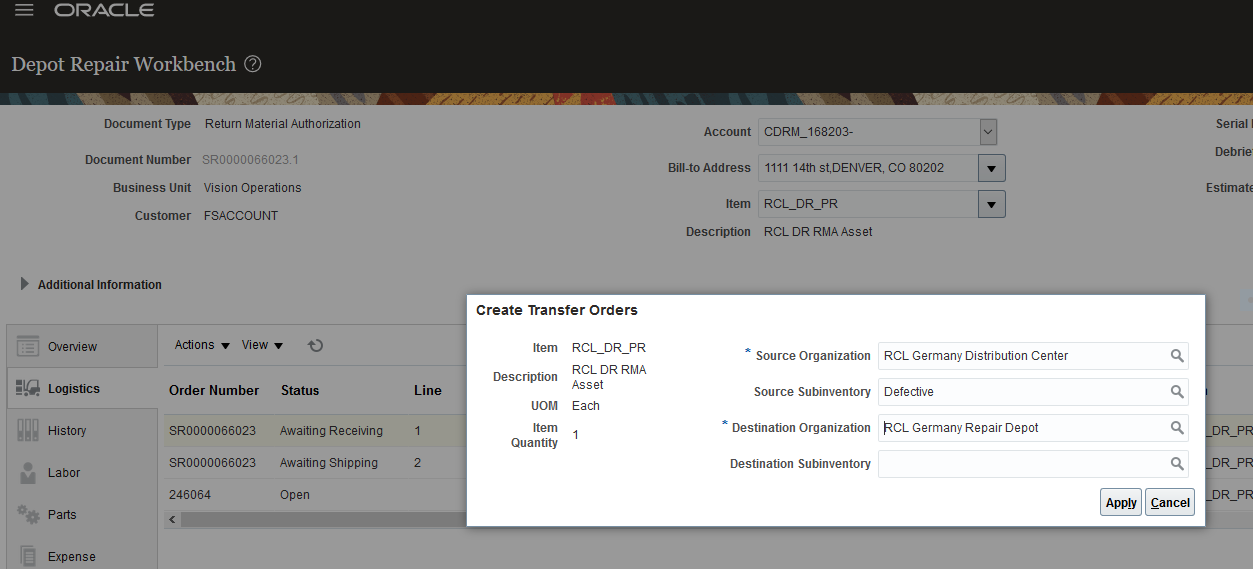
Create Transfer Orders UI
As shown in this Depot Repair data model, Service Logistics links these transfer orders to the Depot Repair RMA (return sales order line) to tie together the entire complex depot repair and return supply chain.
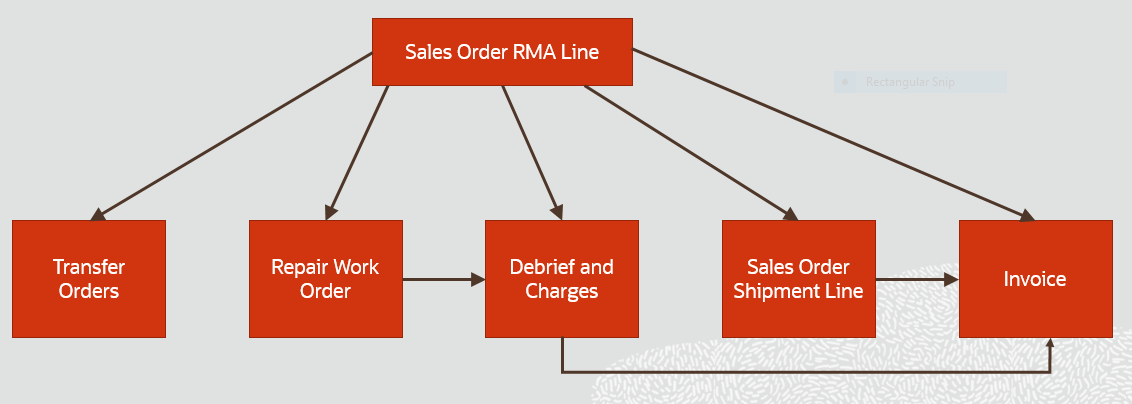
Depot Repair Data Model
A new Logistics tab has been added to the Depot Repair Workbench to track the customer asset through the entire repair and return logistics flow. This new tab displays the transfer orders, as well as the sales order RMA and shipment lines.
In the example below, the first two rows show the depot repair RMA and shipment order lines used to manage the return of the broken product from the customer and the shipment of the repaired product back to the customer. The next three rows display the transfer orders created to move the broken product from the local warehouse to the distribution center, from the distribution center to the repair depot, and finally, from the repair depot back to the local warehouse.
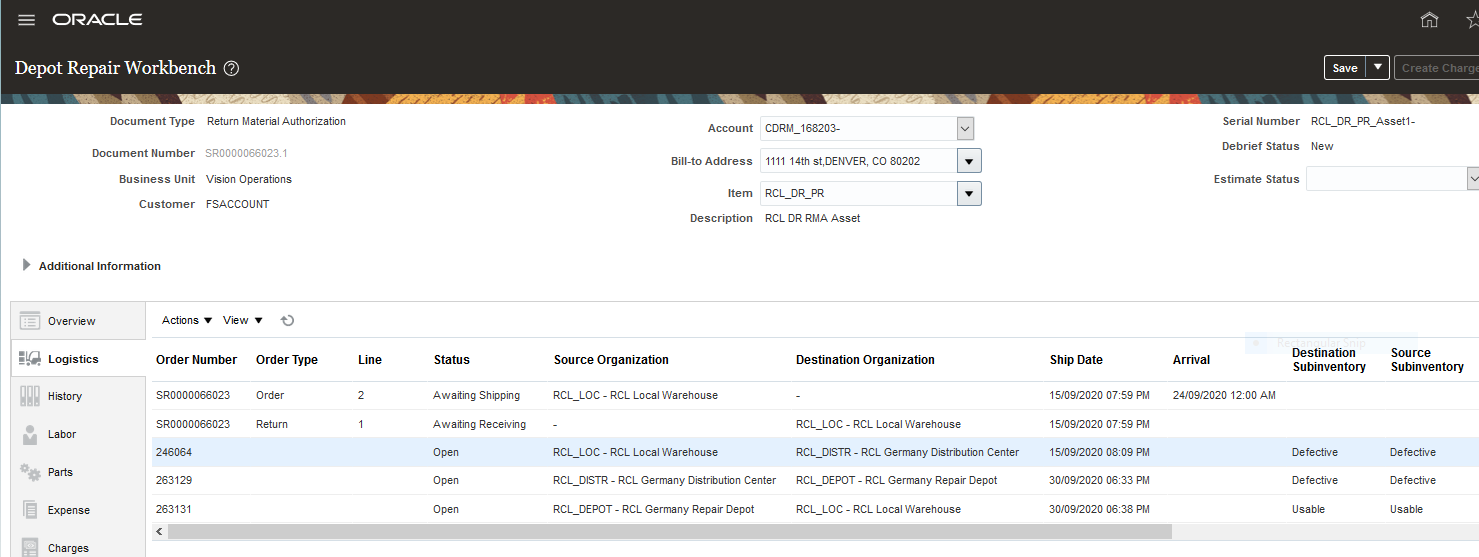
Depot Repair Workbench Logistics Tab
The inventory organization search on the Manage Depot Repair UI has been enhanced to display depot repair RMAs for assets that have passed or will pass through the selected inventory organization. The search now considers the transfer orders associated with the depot repair RMAs, as well as the RMAs themselves.
Watch a Demo
This feature enables you to efficiently manage complex, multi-step depot repair logistics by leveraging inventory transfer orders and linking them directly your repair RMAs. It also provides complete end-to-end visibility of your entire repair logistics flow, which enables you to optimize your repair business, and provide better customer service. This feature uses the Oracle Inventory Cloud Inter-company Accounting and Invoicing feature to fully automate the financials side of your complex depot repair supply chain.
Steps to Enable
There are no Service Logistics setups required to enable this functionality. However, you will need to set up your depot repair supply chain in the Inventory Cloud (inventory organizations, subinventories, inter-organization parameters, ship methods, and so on).
Key Resources
Role Information
You have a couple of options for giving people access to this feature, depending on whether you're assigning them predefined job roles or your own configured job roles.
- Job Role Name and Code:
- Depot Repair Manager (ORA_RCL_DEPOT_REPAIR_MANAGER_JOB) - - This role gives the user access to the Manage Depot Repair UI and the Depot Repair Workbench UI
- Privilege Names and Codes:
- Manage Depot Repair (RCL_DEPOT_REPAIR)
Access Service Logistics Depot Repair Workbench from B2B Service Requests
Users can now access the Depot Repair Workbench from the Service Request-Details page to see the status of the repair including logistics, asset details, estimates, and charges. This improves the integration between B2B Service and Service Logistics.
A customer service representative or support engineer can access the Depot Repair Workbench from the RMA Return Line on the SR Parts Tab.
Click on the Part Details Tab in the Service Request-Details page.
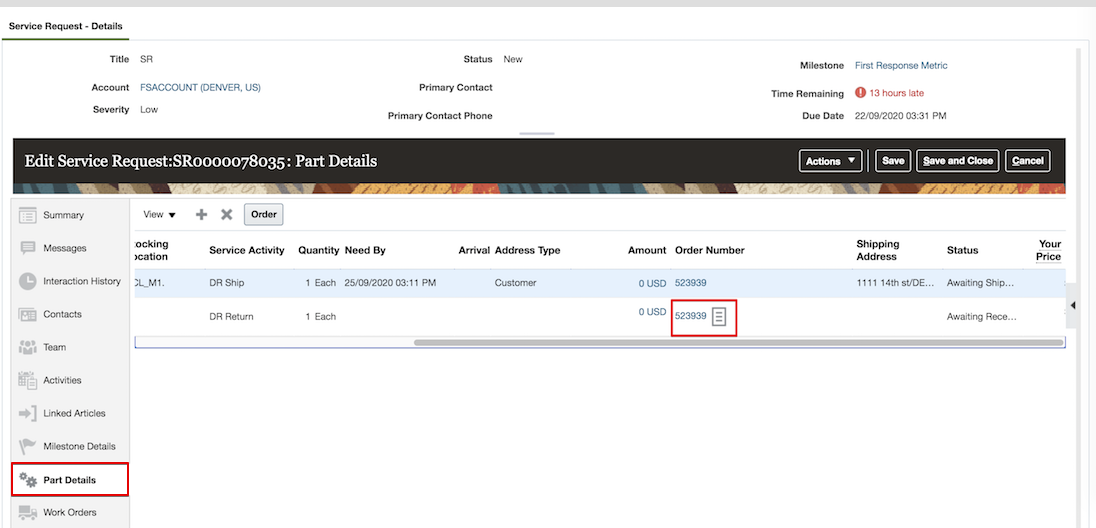
Click on the highlighted icon next to the Order Number to open the Depot Repair Workbench.
Here the user can quickly get asset and repair work order status as well as access all of the features of the Depot Repair Workbench.
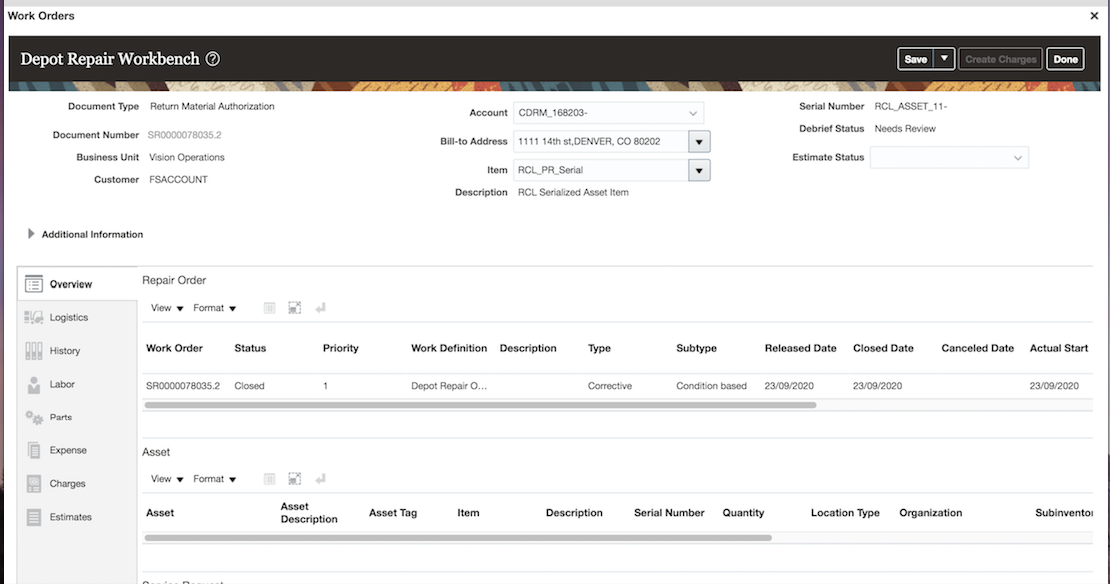
Improves integration between B2B Service and Service Logistics.
Steps to Enable
Key Resources
- Watch Access Depot Repair Workbench from B2B Service Requests Readiness Training
- Watch Manage Depot Repair Readiness Training
Role Information
To use this feature, the following privileges or roles are required:
- Job Role Name and Code:
- Depot Repair Manager (ORA_RCL_DEPOT_REPAIR_MANAGER_JOB) - - This role gives the user access to the Manage Depot Repair UI and the Depot Repair Workbench UI
- Privilege Names and Code: Manage Depot Repair ()
Capture Debrief and Part Requirement Information Using Flexfields
You can now add descriptive flexfields to the Manage Charges and Estimates page to accommodate additional information that is unique to your Service Logistics business. Descriptive flexfields (DFFs) can be used to provide additional debrief header and debrief line details for labor, parts, expenses and related estimates.
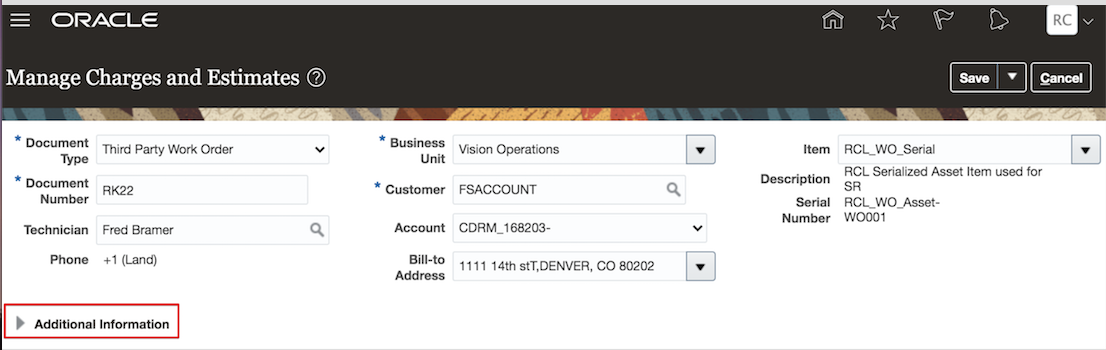
Click on Additional Information region to view and enter values for Descriptive Flexfields, if available.
Once the Additional Information region is expanded, available descriptive flexfields will appear. In this example, descriptive flexfields have been created for Landmark and Distance. These DFFs have been set up as Global Context attributes, which means they are always displayed.
The set of fields shown in the Context Segment drop-down list are context-sensitive attributes. The flexfields displayed for context-sensitive attributes depend on the context segment you select. For example, if you select the context segment, Customer Info, then Customer Name and Phone Number will be displayed. If you select the context segment Alternate Contacts, then Name and Phone Number will be displayed.
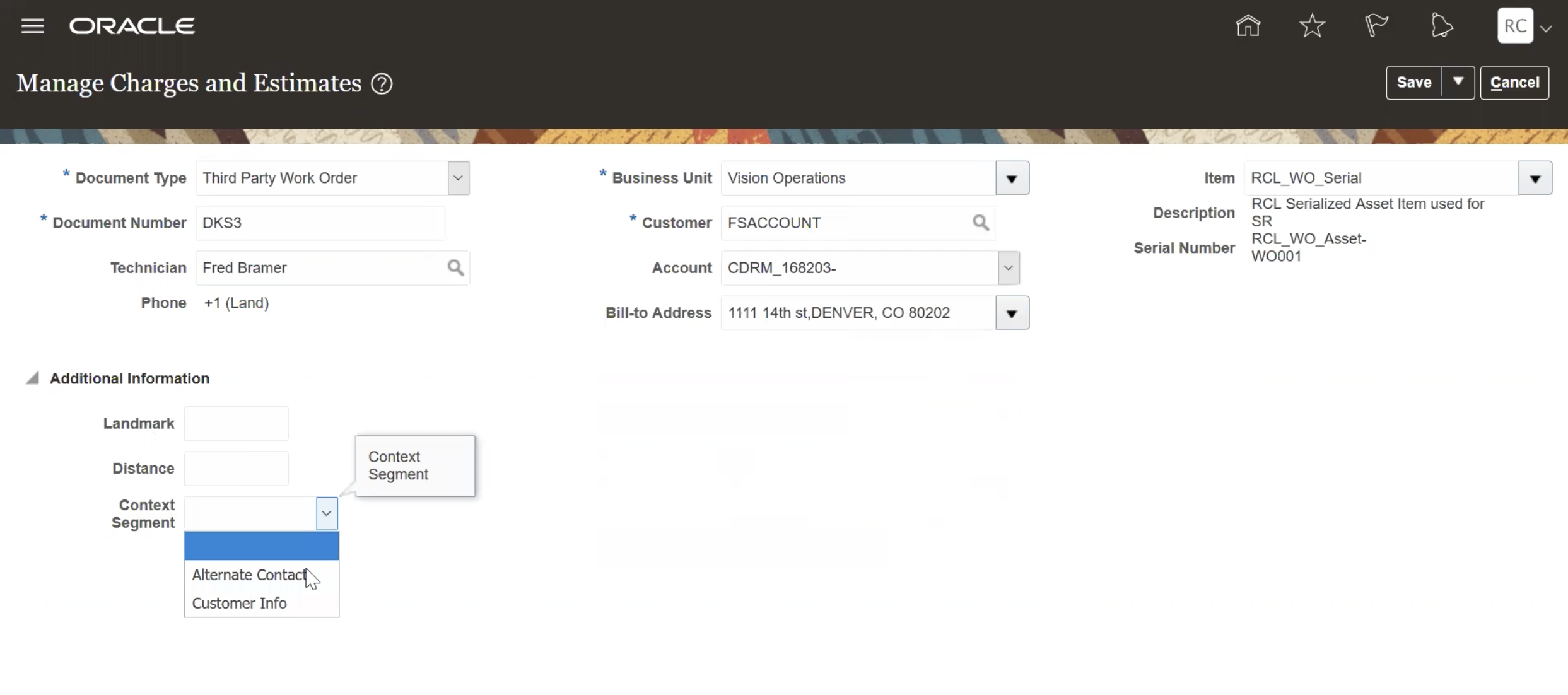
Example of Global Context Attributes and Context-Sensitive Attributes
You can set up descriptive flexfields in each of the regions on the Manage Charges and Estimates page including the debrief header and for each of the debrief line detail tabs for labor, parts, expense, and related estimates. In this example, the DFFs Customer Name, Phone Number, Repair Type, and Distance have been set up for labor details.
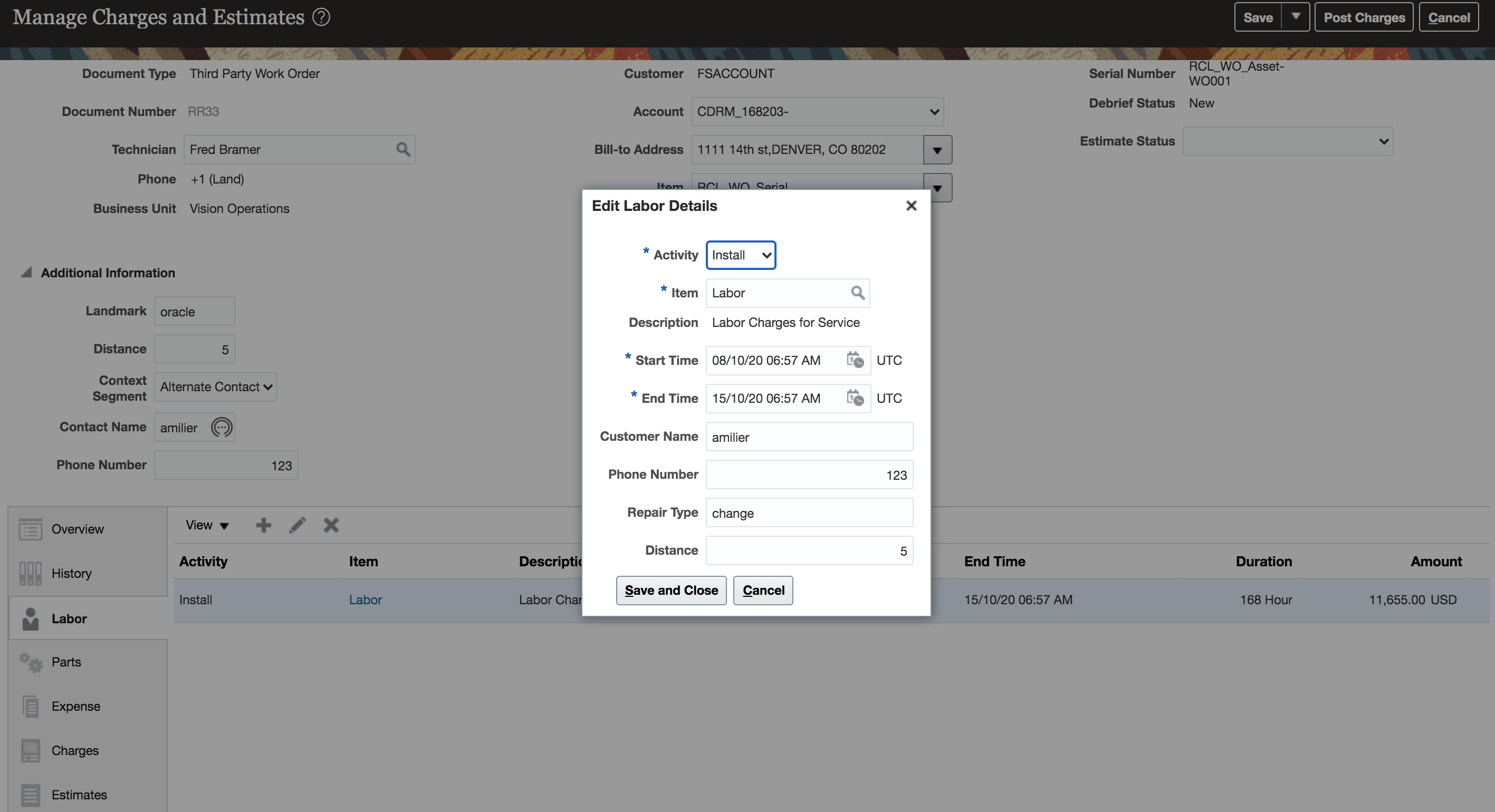
Descriptive Flexfields can be setup for the header and line details.
Descriptive flexfields are also available on the Manage Part Requirements UI in the Additional Information Region. Click on Additional Information to view and enter values for Descriptive Flexfield.
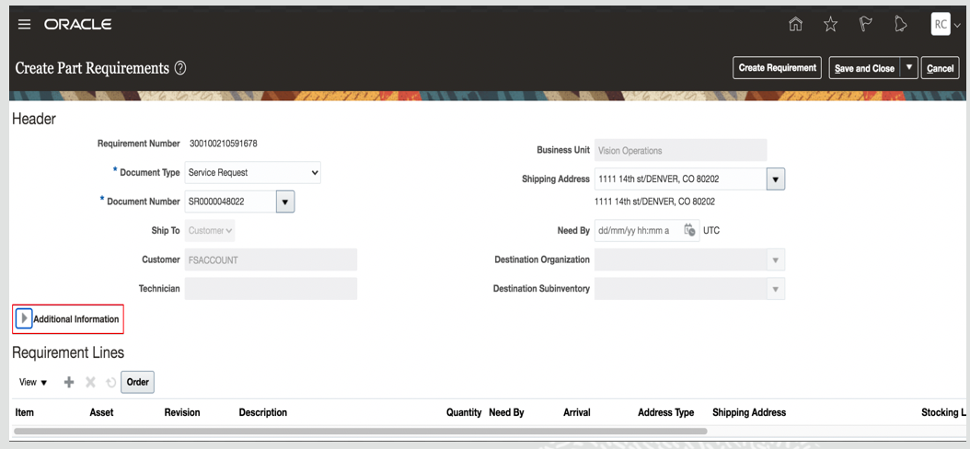
Part Requirements Descriptive Flexfields
Descriptive flexfields in the Manage Part Requirements UI have Global Context attributes which are always displayed. In this example, Technician Shift is global context attributes and Context sensitive attributes, Technician Contact is an example.
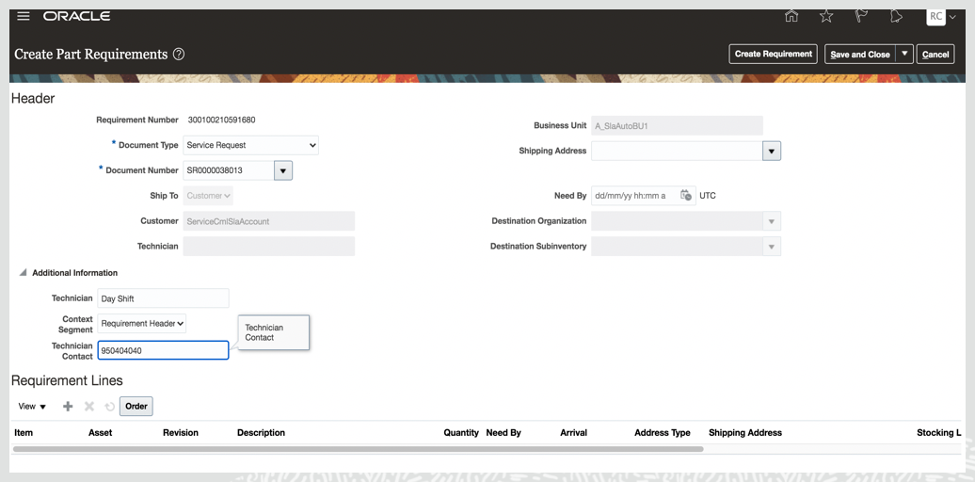
Descriptive Flexfields Examples for Part Requirements Header Region
You can specify part requirements DFFs at the line level by expanding Additional Information for each line.
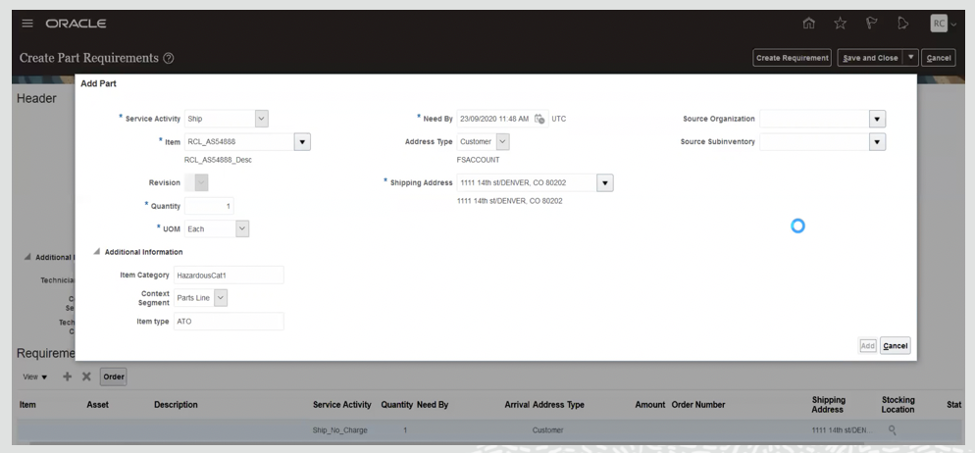
Descriptive Flexfields Can Be Used for Each of the Part Requirements Lines
User-defined flexfields enable you to configure additional attributes to support your organization's requirements. Descriptive flexfields appear in the UI as additional information and can also appear in search results. Descriptive flexfields provide a way for system implementers to add custom attributes and to define validation and to display properties for these attributes.
Steps to Enable
Use the Debrief Header and Debrief Line descriptive flexfields in the Setup and Maintenance work area to define segments for the DFFs for Service Logistics. To enable the descriptive flexfields, click Setup and Maintenance and search for Manage Descriptive Flexfields. There are two seeded flexfields for Service Logistics debrief:
- RCL_DEBRIEF_HEADER_DFF
- RCL_DEBRIEF_LINE_DFF
Query on RCL_DEBRIEF% to find the header and line descriptive flexfields. You can then add global segments that include both context sensitive attributes and context-sensitive segments.
For the Manage Charges and Estimates Debrief Lines UI, context-sensitive segments are already seeded. These attributes can be added to the corresponding flexfields for labor, material, expense, labor estimate, material estimate and expense estimate.
Key Resources
- Watch Capture Debrief and Part Requirements Using Flexfields Readiness Training
- Configuring and Extending Applications
- Overview of Using Extensible Flexfields in Order Management
Role Information
To set up this feature, here's what you need:
- Job Role Name and Code:
- Field Service Administrator (ORA_RCL_FIELD_SERVICE_ADMINISTRATOR)
- Privilege Names and Codes:
- Access Service Logistics Landing Page (RCL_PORTAL_ACCESS_LANDING_PAGE_PRIV)
- Access Debrief Page (RCL_PORTAL_VIEW_DEBRIEF)
- Manage Estimates (RCL_MANAGE_ESTIMATES_PRIV)