
This document will continue to evolve as existing sections change and new information is added. All updates appear in the following table:
| Date | Module | Feature | Notes |
|---|---|---|---|
| 29 SEP 2023 | Time & Labor |
Geolocation Address for Events with Geolocation Coordinates | Updated document. Revised feature information. |
| 29 SEP 2023 |
Time & Labor |
Time and Labor and Absence Management Integration Enhancements | Updated document. Revised feature information. |
| 28 JUL 2023 | Time & Labor / Redwood Redesign |
Enhanced Time Card | Updated document. Revised feature information. |
| 30 JUN 2023 | Time & Labor / Redwood Redesign | Enhanced Time Card | Updated document. Revised feature information. |
| 30 JUN 2023 | Time & Labor | Enhanced Time Card Search | Updated document. Revised feature information. |
| 26 MAY 2023 | Time & Labor / Redwood Redesigns | Enhanced Time Card | Updated document. Revised feature information. |
| 28 APR 2023 | Time & Labor |
Enhanced Time Card Search | Updated document. Revised feature information. |
| 28 APR 2023 | Time & Labor |
Time and Labor and Absence Management Integration Enhancements | Updated document. Revised feature information. |
| 31 MAR 2023 | Time & Labor | Time and Labor and Absence Management Integration Enhancements | Updated document. Revised feature information. |
| 03 MAR 2023 | Created initial document. |
HCM Cloud applications have two types of patches you can receive that are documented in this What's New:
- Release Updates (23A, 23B, 23C, and 23D)
- Optional Monthly Maintenance Packs to each update
It is important for you to know what Release Update your environment is on. You can find this in your Cloud Portal.
____________________
 HAVE AN IDEA?
We’re here and we’re listening. If you have a suggestion on how to make our cloud services even better then go ahead and tell us. There are several ways to submit your ideas, for example, through the Ideas Lab on Oracle Customer Connect. Wherever you see this icon after the feature name it means we delivered one of your ideas.
We’re here and we’re listening. If you have a suggestion on how to make our products better, please let us know. To enter an idea go to the Ideas Lab on Oracle Customer Connect. In this document wherever you see the light bulb icon after the feature name it means we delivered one of your ideas.
____________________
SUGGESTED READING FOR ALL HCM PRODUCTS
- HCM Common What's New - In this What's New you will find feature that are used across applications.
- Human Resources What’s New – In the Global Human Resources section you will find features on the base application in which other application are built upon.
NOTE: Not all Global Human Resource features are available for Talent and Compensation products.
- Oracle Human Capital Management Cloud Functional Known Issues and Maintenance Packs (Document ID 1554838.1). These documents identify bug fixes and possible known issues. You will also need to review these documents based in the release update version you are currently on or will be moving to.
- Oracle Help Center – Here you will find guides, videos and searchable help.
- Release Readiness – New Feature Summary, What’s New, Feature Listing Spreadsheet, Spotlights and Release Training.
GIVE US FEEDBACK
We welcome your comments and suggestions to improve the content. Please send us your feedback at oracle_fusion_applications_help_ww_grp@oracle.com. Indicate you are inquiring or providing feedback regarding the HCM Cloud What’s New in the body or title of the email.
Column Definitions:
Report = New or modified, Oracle-delivered, ready to run reports.
UI or Process-Based: Small Scale = These UI or process-based features are typically comprised of minor field, validation, or program changes. Therefore, the potential impact to users is minimal.
UI or Process-Based: Larger Scale* = These UI or process-based features have more complex designs. Therefore, the potential impact to users is higher.
Features Delivered Disabled = Action is needed BEFORE these features can be used by END USERS. These features are delivered disabled and you choose if and when to enable them. For example, a) new or expanded BI subject areas need to first be incorporated into reports, b) Integration is required to utilize new web services, or c) features must be assigned to user roles before they can be accessed.
| Ready for Use by End Users Reports plus Small Scale UI or Process-Based new features will have minimal user impact after an update. Therefore, customer acceptance testing should focus on the Larger Scale UI or Process-Based* new features. |
Customer Must Take Action before Use by End Users Not disruptive as action is required to make these features ready to use. As you selectively choose to leverage, you set your test and roll out timing. |
|||||
|---|---|---|---|---|---|---|
| Feature |
Report |
UI or |
UI or |
|
||
Time and Labor and Absence Management Integration Enhancements |
||||||
Oracle Time and Labor is a comprehensive, easy to use, rule-based time recording and management application. The calendar-based time entry interface and fully configurable time card layout easily address simple and complex time recording needs. Rule templates and the real-time rules engine provide an extensible and robust method to validate time entries and automatically apply pay rules, such as overtime calculations. Time and Labor now integrates completely with the following Oracle Cloud Human Capital Management applications: Global Human Resources, Absence Management, Global Payroll, and Project Costing. This integration insures accurate and consistent data for payroll processing and costing as well as project management billing.
Compensatory Absence Plan After Time Card Approval
Previously, compensatory absence plan balances were increased as soon as time was reported on time cards and the time card was saved or submitted. If time cards were rejected, the earned time that was added to balances didn’t get deducted. Now, compensatory absence plan balances are increased only after time cards are approved.
This enhancement ensures that compensatory absence plan balances aren’t increased before approval.
Steps to Enable
If you're already using Time and Labor and Absence Management, you need to upgrade to the new integration architecture. If you're just implementing the applications, the new integration is turned on by default, so you don't need to do anything.
- Create the ANC_TM_NEW_INTG_ENABLE lookup type, as shown here:
Field
Value
Lookup Type Name
ANC_TM_NEW_INTG_ENABLE
Lookup Type Meaning
Upgrade Absence Management and Time and Labor Integration
Lookup Type Description
Upgrade to the new integration architecture for Absence Management and Time and Labor
Module
Global Absences
REST Access Secured
Secure
Lookup Code
ANC_YES
Enabled
Select the check box
Meaning
ANC_YES
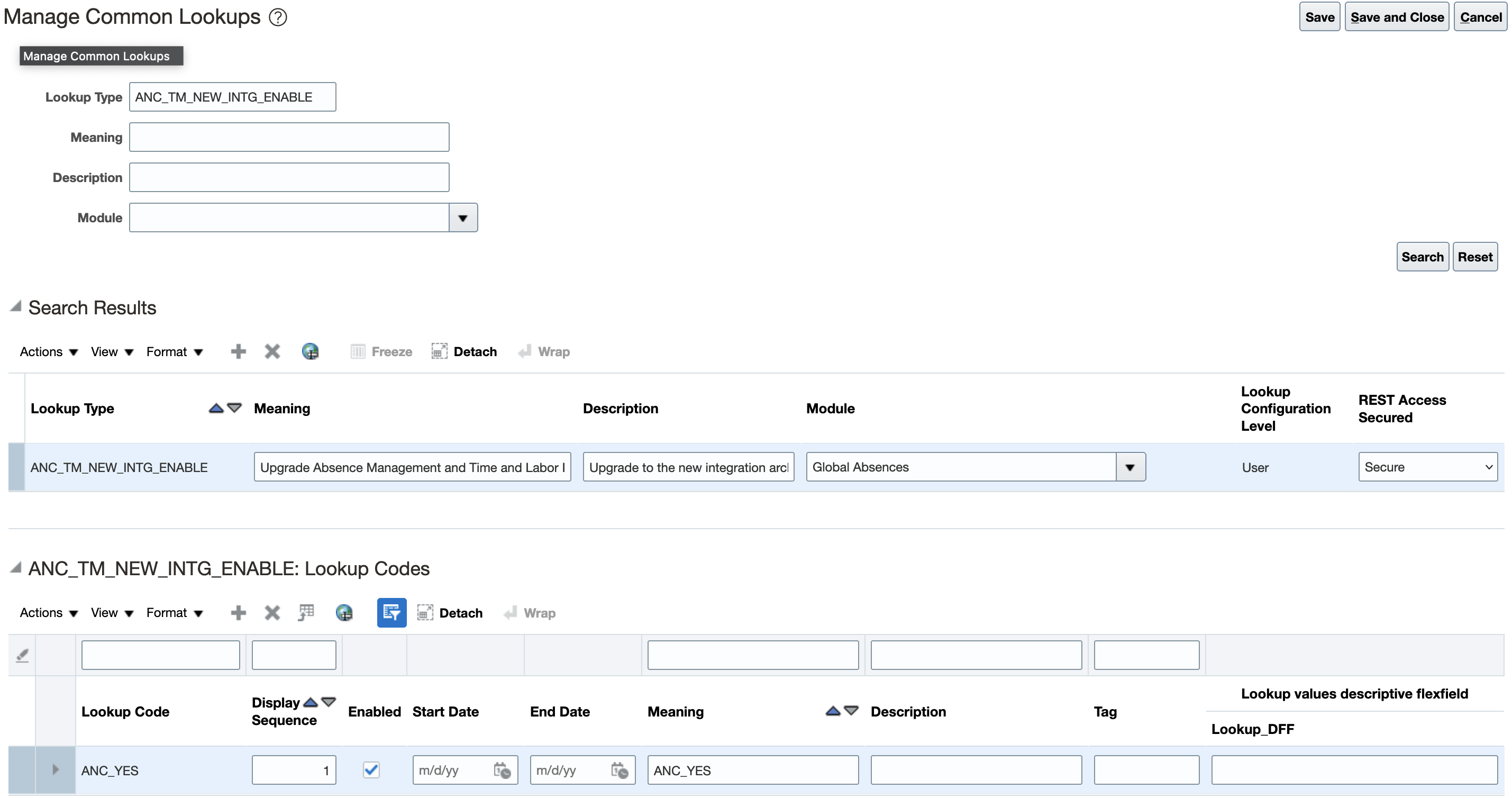
ANC_TM_NEW_INTG_ENABLE lookup code configuration
-
Migrate your existing absence data to the new data model. Here's how you do it:
IMPORTANT: After the migration process runs in your production environment, you can't revert the absence data to the old data model. It's vitally important that you test the upgrade in your preproduction environments before running the upgrade on your production environment.
-
-
In the Setup and Maintenance work area, on the Tasks panel, click Search.
-
On the Search page, search for and click Feature Upgrades.
-
On the Process Flow page, click Schedule.
-
On the Schedule page, click Run Feature Upgrade.
-
On the Schedule: Run Feature Upgrade page, complete the fields as shown here:
Field
Value
Process Flow
Enter a name, such as Migrate absence data to new data model.
Feature
Upgrade Time Repository for Absences
Process Configuration Group
Select a group to control error logging and multi-threading of the process
Additional Information
Enter the migration cut-off date in the dd/mm/yyyy format. This date is used by the migration process to decide which existing absences to upgrade to the new architecture. All absences on time cards that exist from 31 days before the date that you enter are considered for upgrade.
-
-
- Click Submit. These are the processes that run:
- Calculate Eligible Objects for Upgrade: This process calculates all of the eligible employee records that the Upgrade Eligible Objects process will upgrade.
- Upgrade Eligible Objects: This process does the actual data upgrade task.
- Click Submit. These are the processes that run:
You can review the output and log files for processing details and any errors or warnings.
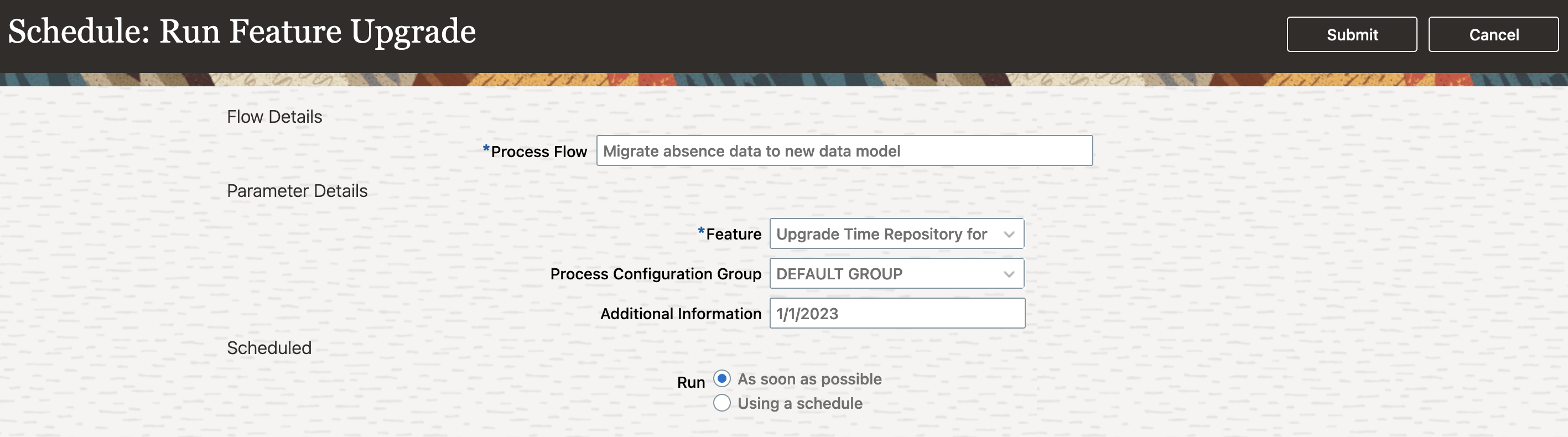
Schedule: Run Feature Upgrade page
Key Resources
- For more information about process configuration groups, see the Payroll Process Configuration Groups topic in the Implementing Global Payroll guide.
Web Clock Missing In Enhancement
You can now let individuals optionally add comments when they're submitting missing clock in events. These comments can help expedite approver review and approval of the submissions.
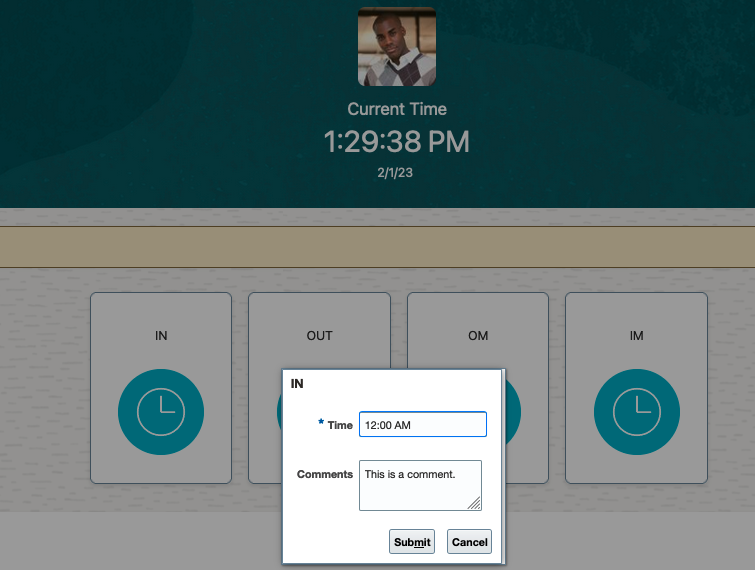
Dialog Box Where the Individual Enters the Missing Clock In Time and Optionally Adds Comments
This enhancement expedites the review and approval of missing clock in submissions.
Steps to Enable
You don't need to do anything to enable this feature.
Time Change for Events Enhancement
You can now let individuals optionally add comments when they're requesting changes to web clock events. These comments help expedite approver review and approval of the requests. They aren't transferred to the corresponding time card.
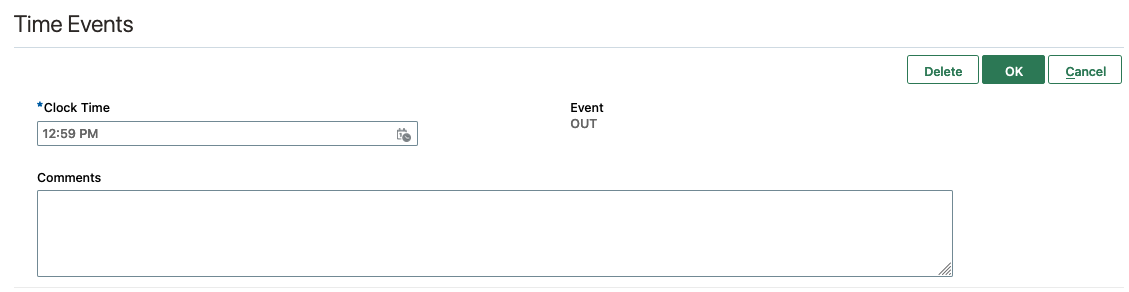
Inline Time Events Edit on the Redwood Request Time Changes page, Showing the New Comments Field
This enhancement expedites the review and approval of change request for web clock events.
Steps to Enable
You don't need to do anything to enable this feature.
Geolocation Address for Events with Geolocation Coordinates
To determine the physical addresses for selected time events that have geolocation information, you can use the Generate Geolocation Address action. It's on the Time Events page in the Time Management work area. To see the generated addresses, add the Geolocation Address column to the search results table. Time events that don't have geolocation information won't have geolocation addresses.

Available Columns for the Time Events Page, Including Geolocation Address
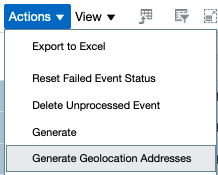
Actions Menu on the Time Events Page, Showing the Generate Geolocation Addresses Option
You can optionally export the time events and the corresponding geolocation addresses to Microsoft Excel.
This enhancement makes it easy to determine the physical location for each time event.
Steps to Enable
You don't need to do anything to enable this feature.
Tips And Considerations
You can record geolocation information and generate geolocation addresses for most, but not all countries. We recommend that you verify the countries where you want to work with geolocation information to make sure they’re supported.
Absences Measured in Days Included on Time Cards
You can now report on and view any absences measured in days on your time cards, as well as view the corresponding time total.
This enhancement improves productivity because people can report absences measured in hours or days on their time cards.
Steps to Enable
- Turn on the new Time and Labor and Absence Management integration.
- To enable the display and edit of absences with days UOM on time cards, correct or update the appropriate absence type configurations. In the Enable for time card entry field, select appropriate action for display or edit on time card. Use the Absence Types task in the Absence Management work area.

-
Create the appropriate single-attribute time card field or update the appropriate multiple-attribute time card fields to include the Absence Management Type time attribute. Use the Time Entry Layout Components task.
-
Optionally create a time category to identify absence entries measured in days if you would like Time Totals views to include these absences. Use the Time Categories task.
-
Update the appropriate time layout sets to include the appropriate time card field. Also add the absences measured in days time category to the appropriate Time Totals views. Use the Time Layout Sets task.
Key Resources
For more information about configuring time cards, see these topics in the Implementing Time and Labor guide:
- Overview of the Time Entry Layout Component Configuration Process
- Time Categories
- How Time Categories Work in Time Layouts
- Configure Time Layout Sets
- Time Layouts
Time and Labor and Absence Management Integration Enhancements
You can now view open-ended absences and edit open-ended absences after they're end dated on time cards. You can also manage absences for nonwork days on time cards. And when the absence start or end date changes for an absence that spans time cards, only the time card with the absence date change gets reprocessed. All of these benefits come with the new integration architecture between Oracle Fusion Cloud Time and Labor and Oracle Fusion Cloud Absence Management.
Upgrading to the new integration architecture for Time and Labor and Absence Management improves how people report on and view absences on time cards, and time card reprocessing.
Steps to Enable
If you're already using Time and Labor and Absence Management, you need to upgrade to the new integration architecture. Running the migration process in step 2 isn't required for new implementations that don't have any absence data to migrate.
After the migration completes in your production environment, you can’t restore data and return to the old architecture. It’s vitally important that you thoroughly test the upgrade in your development, UAT, and preproduction environments before upgrading your production environment.
- On the My Client Groups > Payroll Flow page, click Submit a Flow.


- On the Flow Submission page, search for and click Run Feature Upgrade.

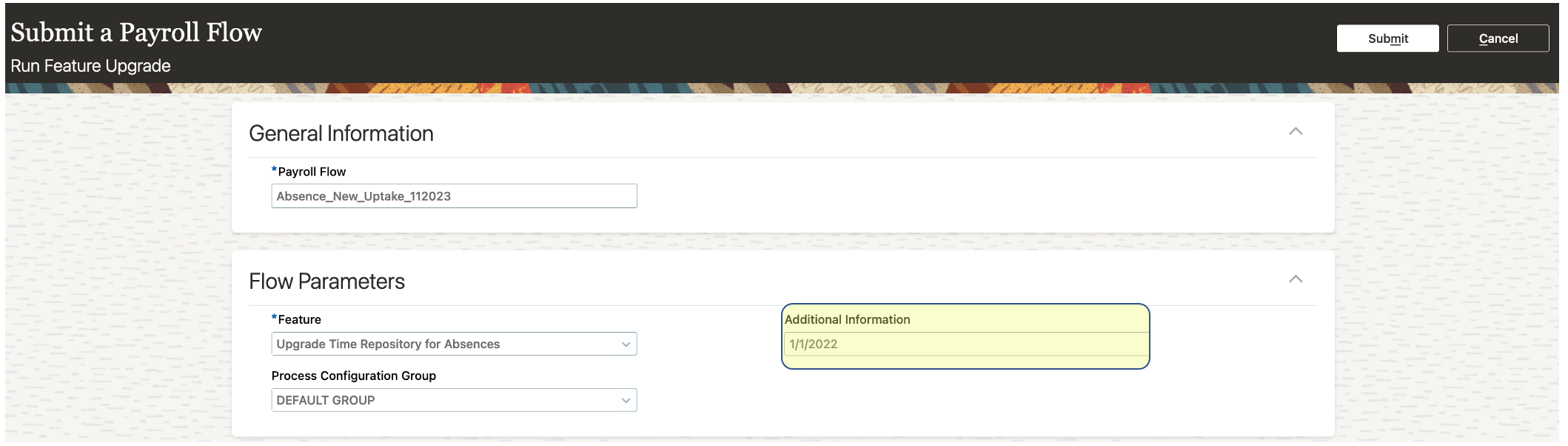
- On the Submit a Payroll Flow page, complete the fields as shown here:
| Field | Value |
|---|---|
| Payroll Flow | Enter a name, such as Migrate absence data to a new data model. |
| Feature | Upgrade Time Repository for Absences |
| Process Configuration Group | Select a group to control error logging and multithreading of the process. For more information on the Process Configuration Group, see the Payroll Process Configuration Groups section of the Payroll Processing Rules chapter of the Implementing Global Payroll guide. |
| Additional Information | Enter the migration cut-off date in the dd/mm/yyyy format. The migration process uses this date to identify the existing absences that it would upgrade to the new architecture. All the future absences and absences that overlap the start of the time card period containing the migration cut-off date will be migrated. If you leave the migration cut-off date blank, the migration process will migrate all absences with dates from the submission date back 3 months. If anyone tries to change absence entries before the migration cut-off date, they get a validation error like this: The time card or absences can't be submitted. (HXT-1665190) While the enhanced Absence Management and Time and Labor integration is enabled, absence data hasn't been migrated. Here are the specific errors and relevant absence details: TrgId: 300100563343280, StartTime: 2023-02-16 00:00:00.0, StopTime: 2023-02-16 23:59:59.999, AbsenceEntryId: 300100563343275, AbsenceTypeId: 300100031787011. |
- Click Submit. These are the processes that run:
- Calculate Eligible Objects for Upgrade: This process calculates all of the eligible employee records that the Upgrade Eligible Objects process will upgrade.
- Upgrade Eligible Objects: This process does the actual data upgrade task.
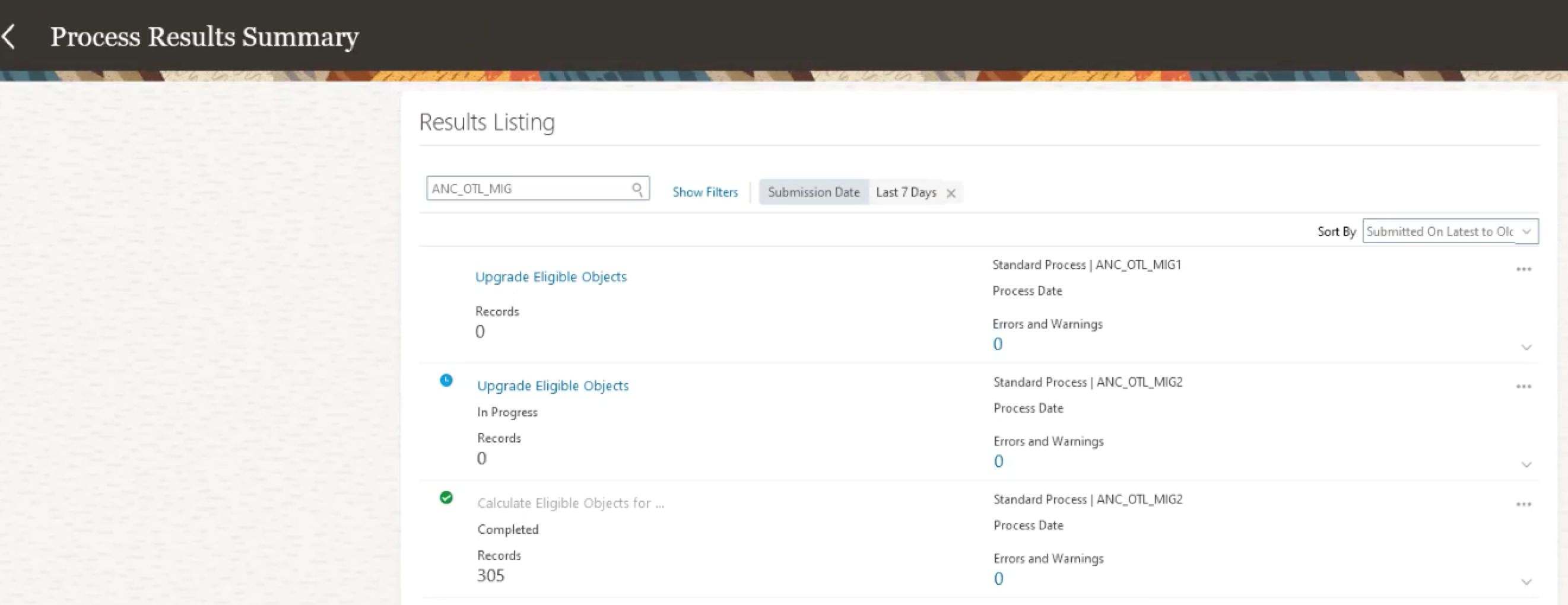
After the processes complete, you can click the process name to view a summary of the changes. To view the logs and debugging messages, expand the Output and Log Files section.
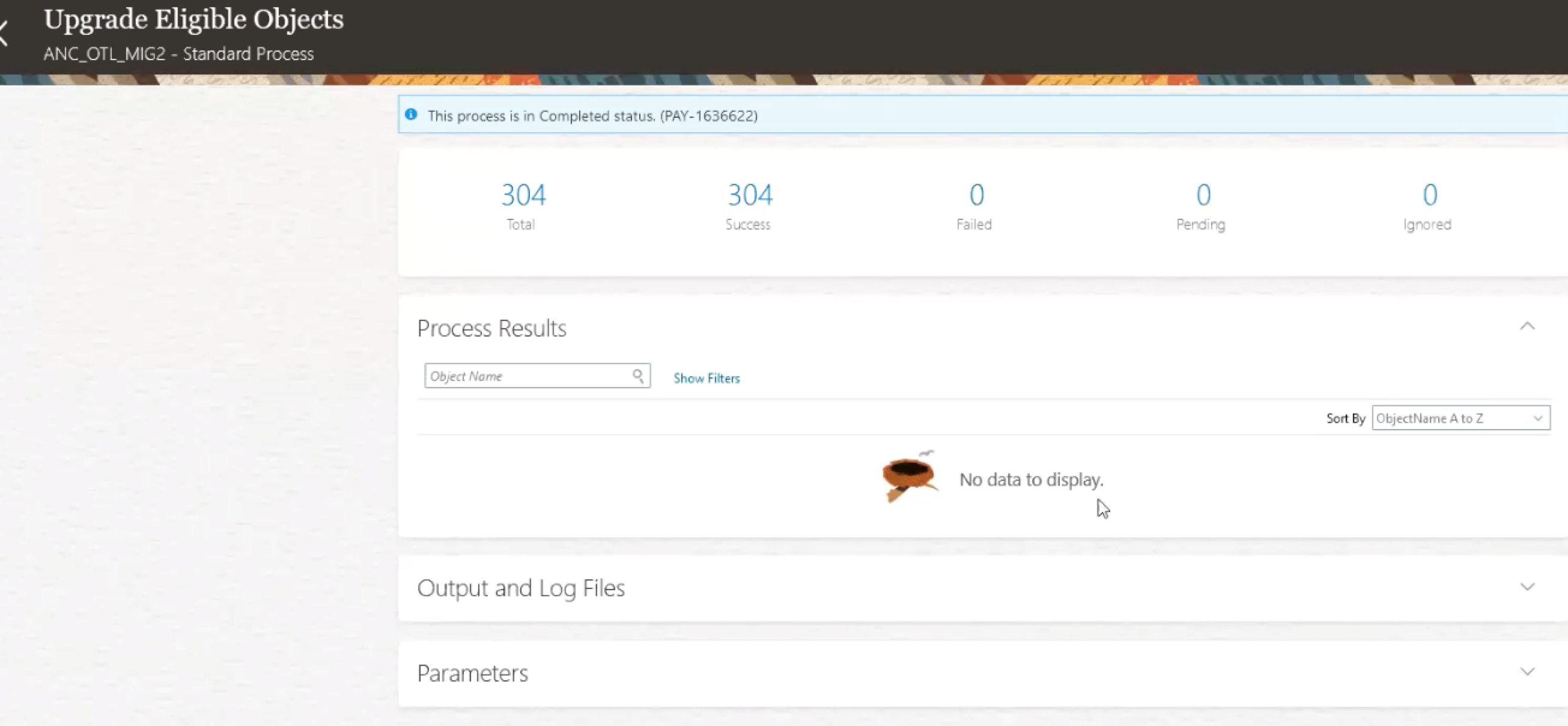
Upgrade Eligible Objects Page
You can now report on and view any absences measured in days on your time cards, and view the corresponding time total. These enablement steps are a general outline because they’re typical absence and time configurations.
- Complete the earlier steps to enable the new integration architecture.
- Go to the Absence Types page in the Absence Administration work area.
- Search for the absence type configuration to correct or update.
Go to Type attributes > Absence Record Maintenance and select one of these options.
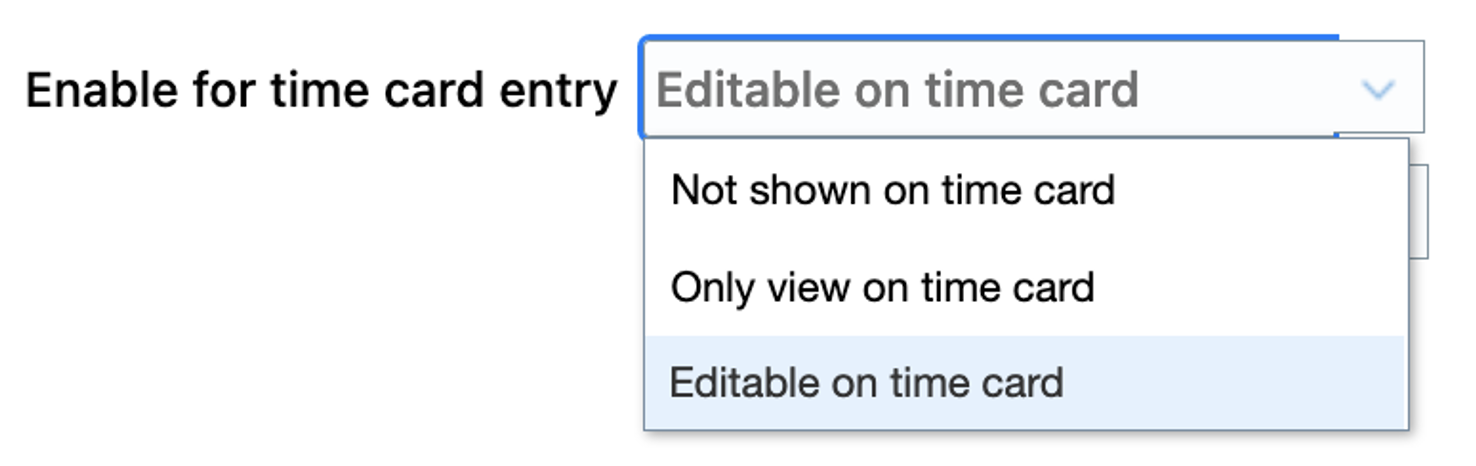
Enable for Time Card Entry Choice List
- To display the absences on the time cards, create the appropriate single-attribute time card field or update the appropriate multiple-attribute time card fields to include the Absence Type time attribute. Use the Time Entry Layout Components task.
- To display totals in days on the time card, create a time category to identify absence entries measured in days. Use the Time Categories task.
- Update the appropriate time layout sets to include the appropriate time card field. Also add the time category that identifies absences measured in days to the appropriate Time Totals views. Use the Time Layout Sets task.
Tips And Considerations
To test that the migration was successful:
-
Before you migrate your data, create and save, but don't submit time cards with absences for periods during that 31-day window leading up to the migration cut-off date, in your test environments.
-
After the migration in your test environments, make sure that you can do combinations of edit, save, and submit on these time cards without getting any errors.
-
After you complete steps 1 and 2 successfully, migrate the data in your production environment.
Key Resources
For more information about configuring time cards, see these topics in the Implementing Time and Labor guide:
- Overview of the Time Entry Layout Component Configuration Process
- Time Categories
- How Time Categories Work in Time Layouts
- Configure Time Layout Sets
- Time Layouts
Improve the time card management experience with the enhanced Team Time Cards search page redesigned with the Redwood tool set Visual Builder Studio. Here's how time and labor managers and line managers can use this enhanced page.
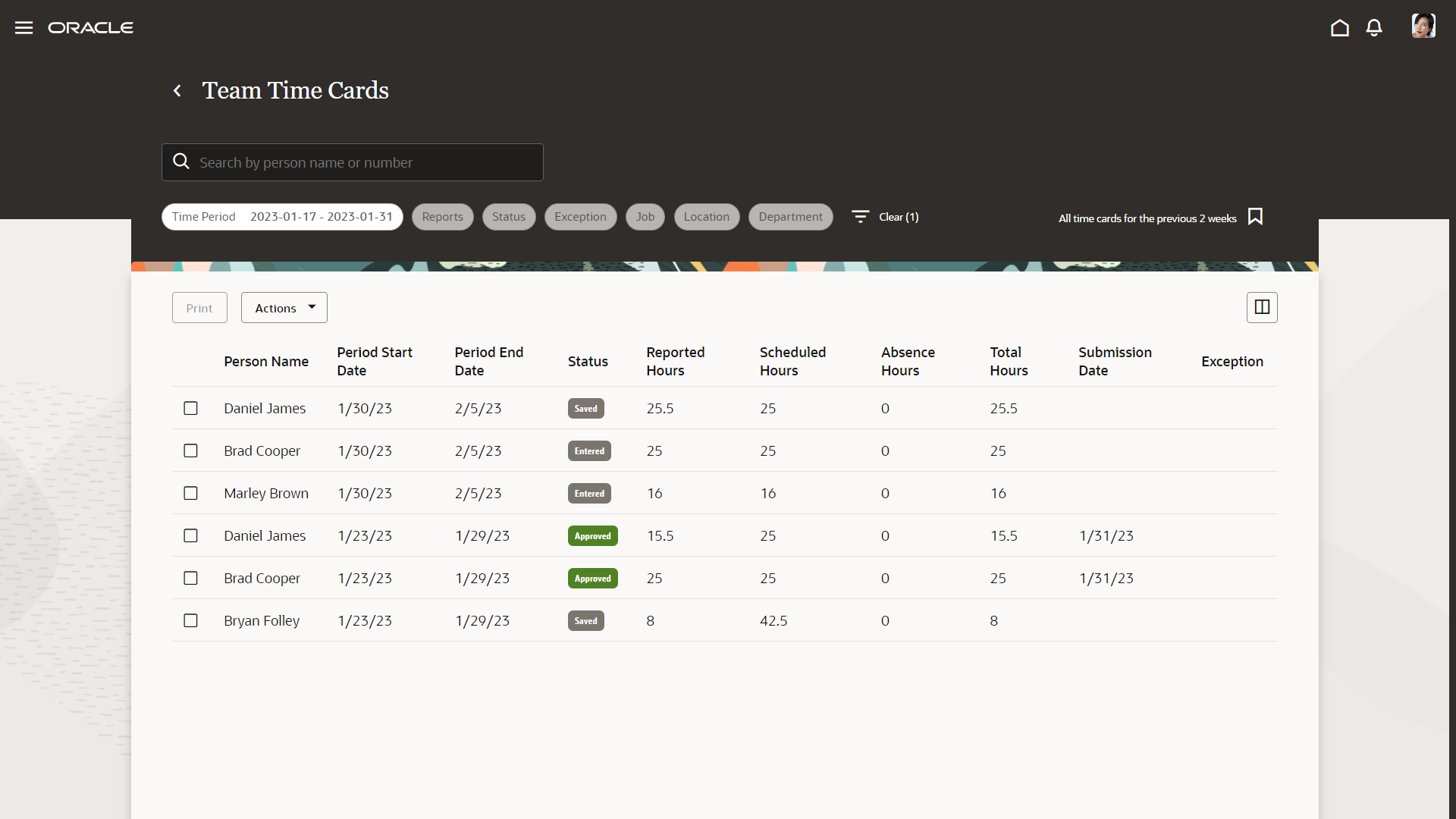
My Team > Team Time Cards
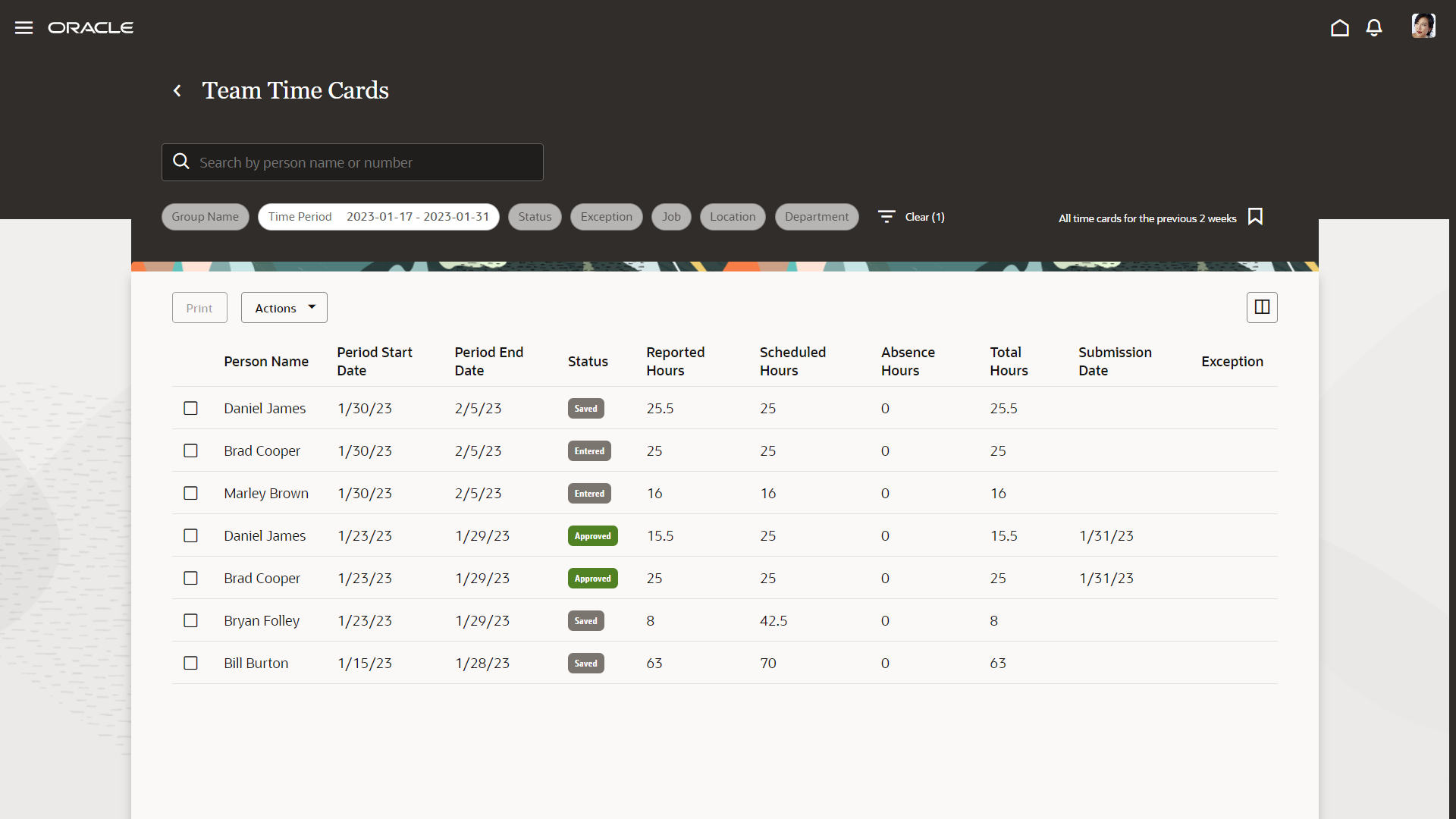
My Client Groups > Team Time Cards
Filters
Managers can filter the time card results using people's names and person numbers in the search field. They can also use the options on the provided filter chips. For example use the Time Period filter chip to find all of the time cards for a specific period or date range. Use time card, resubmission and transfer status filter chips to find time cards with specific statuses, such as Incomplete, In Error, Resubmit, or Transferred. Each filter chip shows the count of how many time cards match that criteria. Use the Reports filter chip to specify whether to show all of the time cards line managers have access to, only those for their direct reports, or only those for their organization. Or show other time cards that they have access to outside of their organization or that were delegated to them.
The time card search results are generated based on each manager's security and data privileges and permissions.
To specify how to sort the results, and use additional filters, click the Filters ( ) icon.
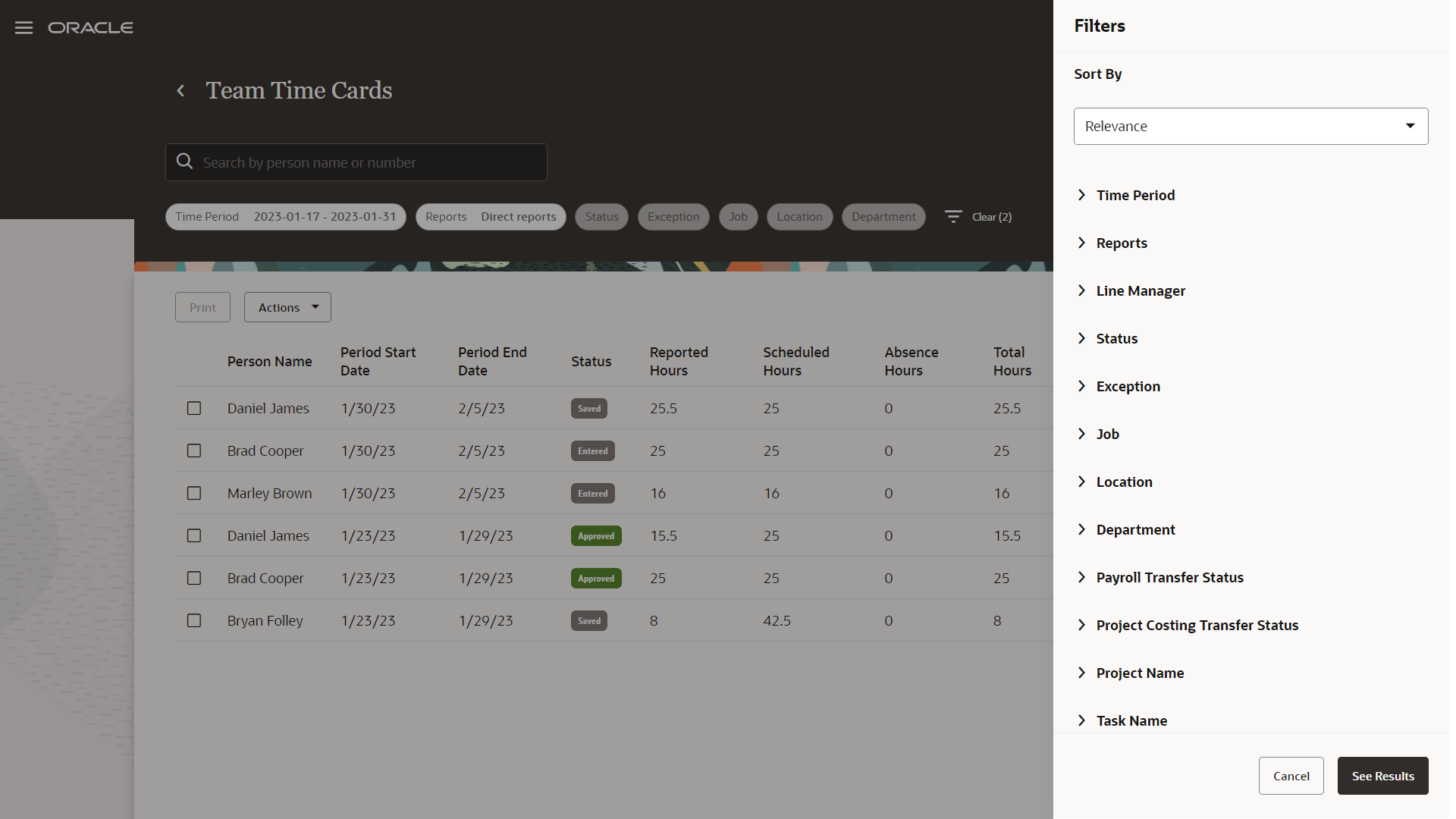
Team Time Card Filters for Line Managers

Team Time Card Filters for Time and Labor Managers
Search Results Columns
These are the default columns shown on the Team Time Cards page:
- Person Name
- Period Start Date
- Period End Date
- Status
- Reported Hours
- Scheduled Hours
- Absence Hours
- Total Hours
- Submission Date
- Exception
These columns are hidden by default:
- Person Number
- Line Manager (available for line managers)
- Location
- Department
- Payroll Transfer Status
- Project Costing Transfer Status
- Resubmission Status (available for time and labor managers)
Managers can determine which columns they want to show and hide using the Columns ( ) icon.
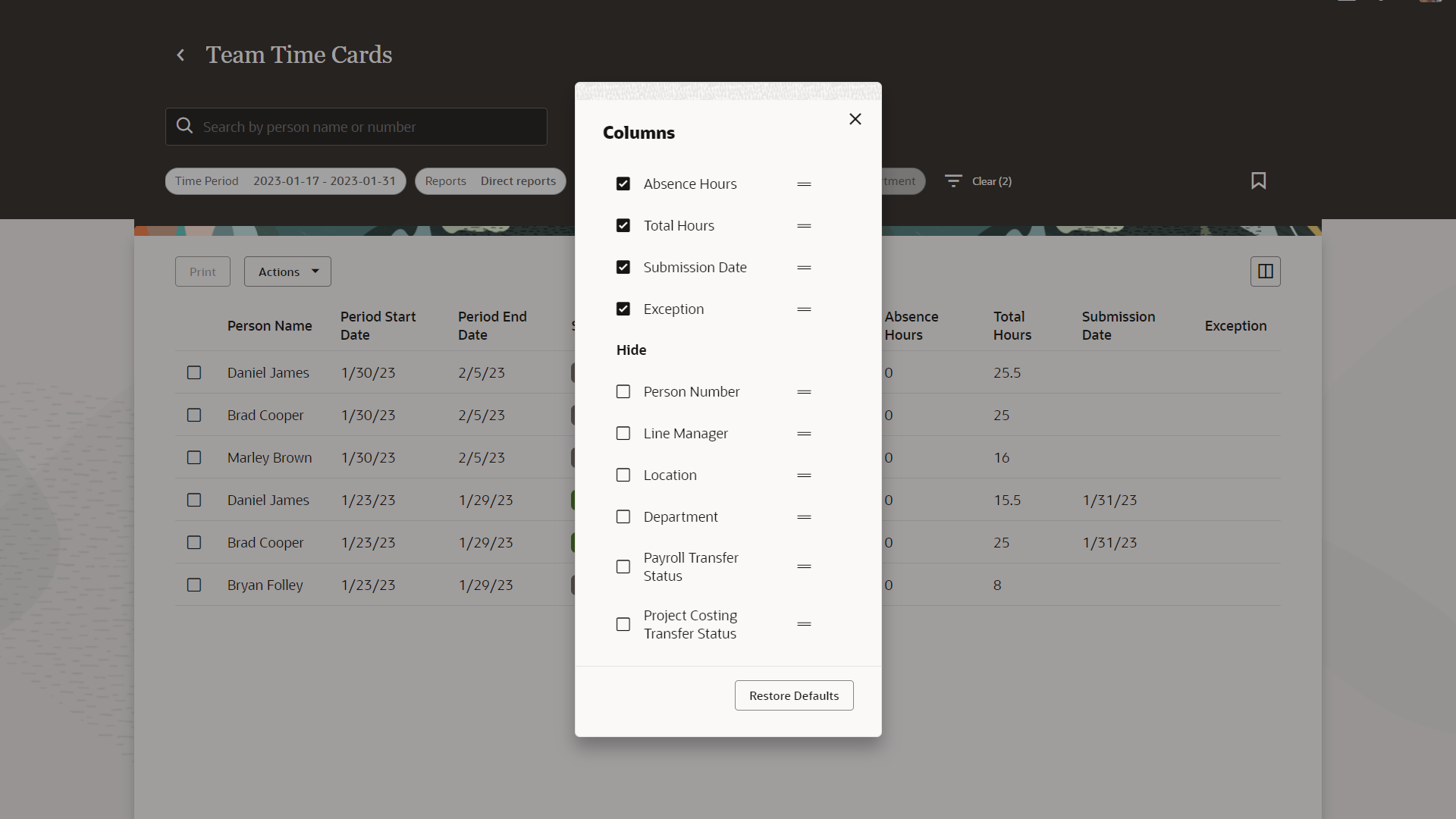
Team Time Card Columns for Line Managers
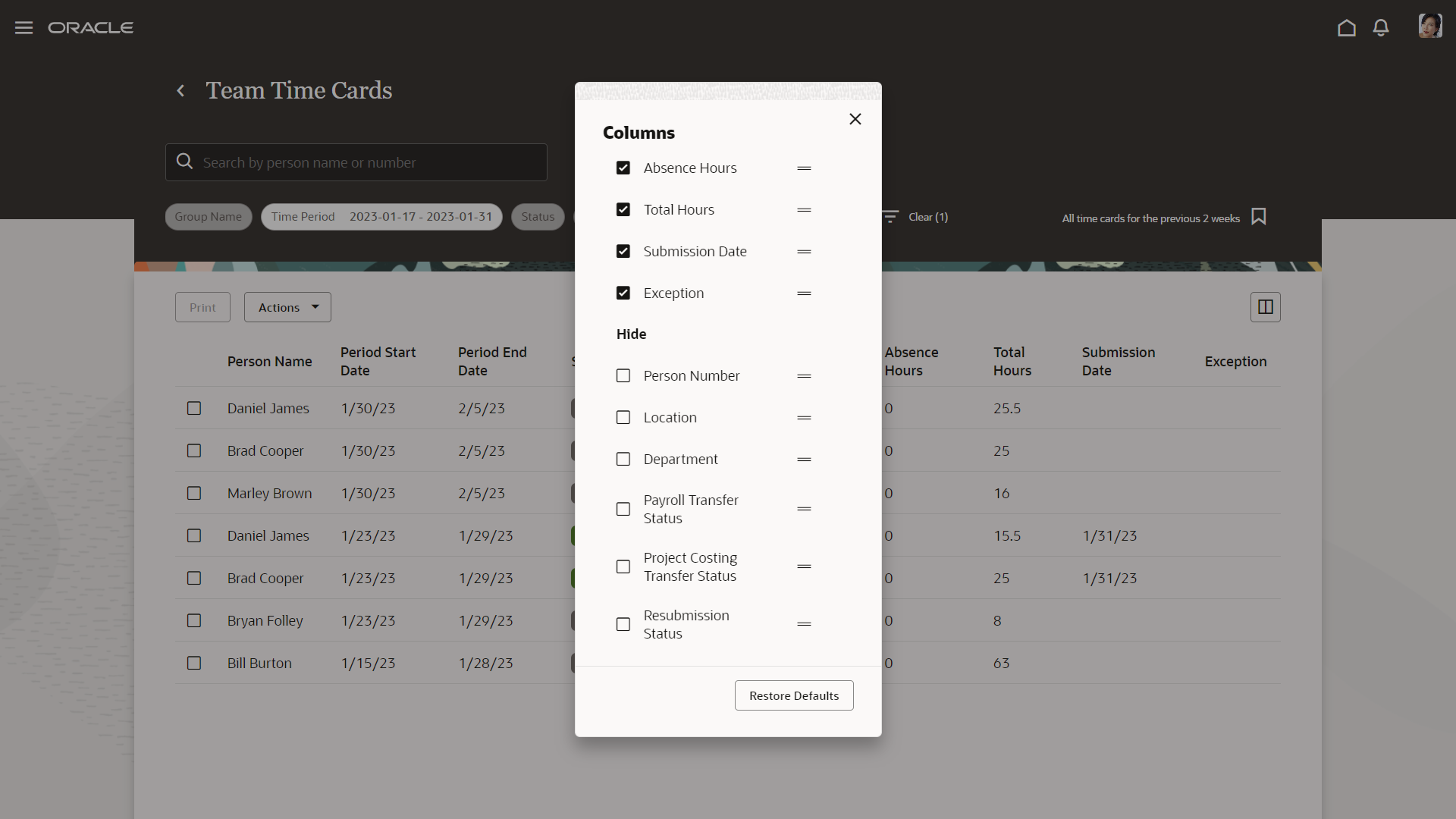
Team Time Card Columns for Time and Labor Managers
Time Card Actions
Here are the actions that managers can do on the enhanced Team Time Cards page after they select at least one time card:
- View
- Edit
- Submit
- Approve
- Reject (available for line managers)
- Delete
- Clear Resubmission Status (available for time and labor managers)
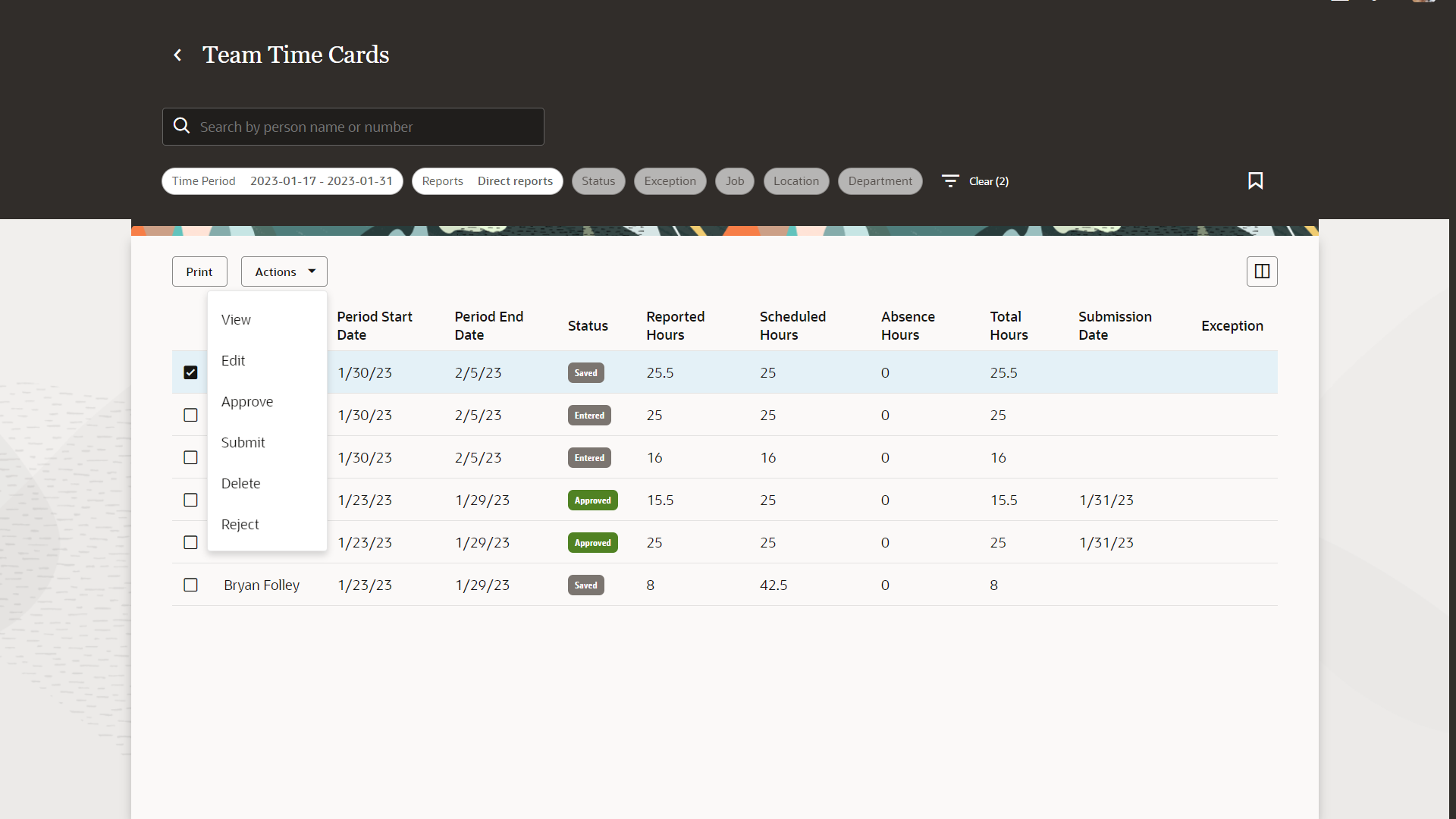
Team Time Card Actions for Line Managers
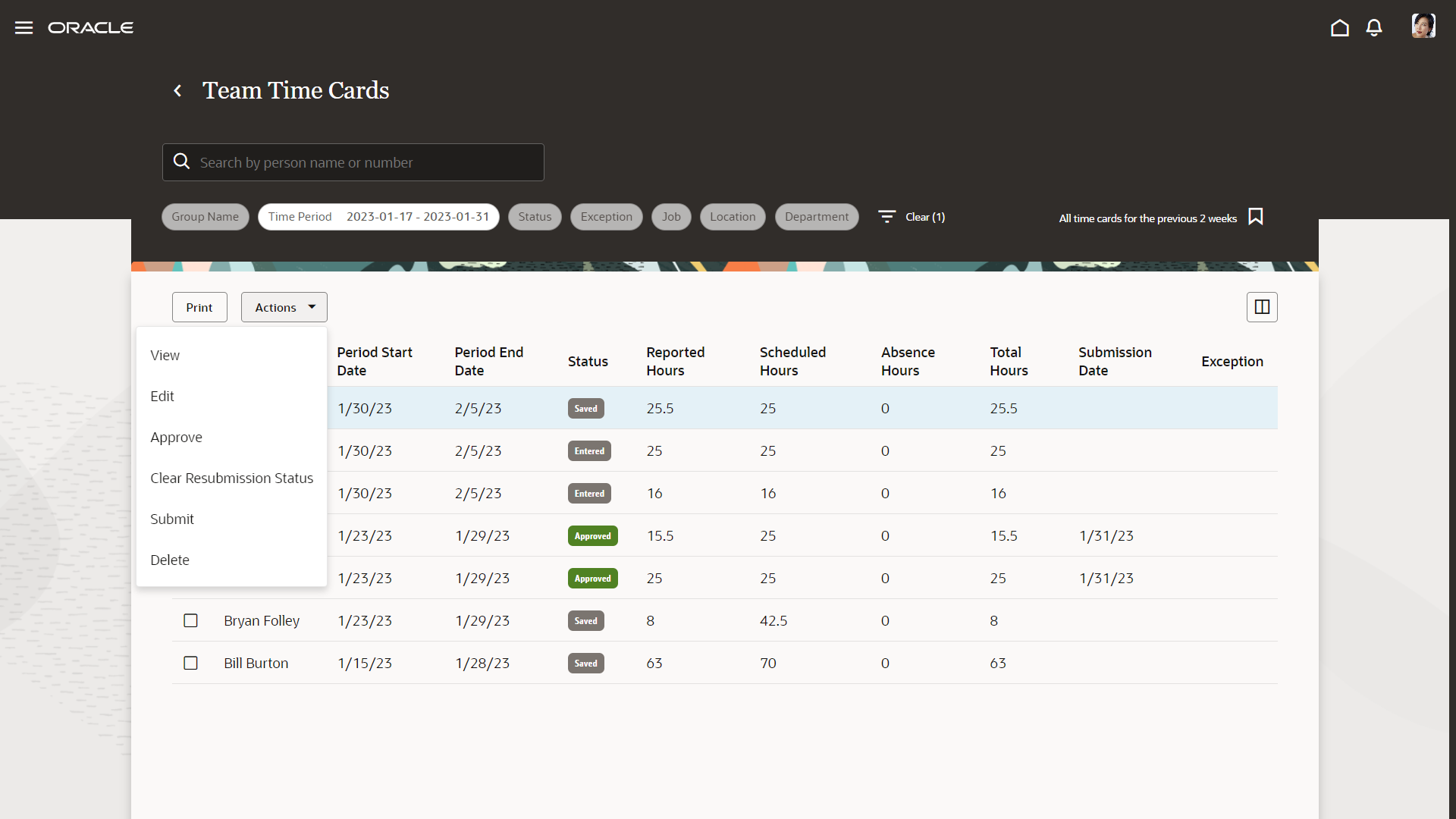
Team Time Card Actions for Time and Labor Managers
The view and edit actions apply to only one time card at a time. Managers can apply the other actions to one or multiple time cards at a time. The view and edit time card pages are either classic, responsive, or enhanced depending on the environment's profile option settings. The Quick Actions and Access section further on has more details about how the settings apply.
Submit, approve, reject, delete, and clear resubmission status actions are done inline for one selected time card and asynchronously when several time cards are selected.
Saved Searches
The default saved search is All time cards for the previous 2 weeks so that when managers open the Team Time Cards page, they see the time cards for the 2 previous weeks. Managers can define their own saved searches and mark one of them, or other delivered search, as default. They can also edit and delete saved searches.
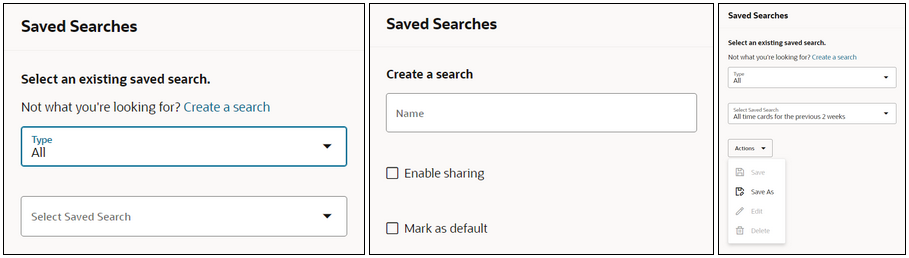
Team Time Card Saved Searches
Related Time Card Quick Actions
Additional quick actions let managers add time cards. To create classic or responsive time cards, managers use the Add Time Card quick action.

Classic Add Time Card Page Where the Manager Selects the Person and Date to Identify the Time Card Period
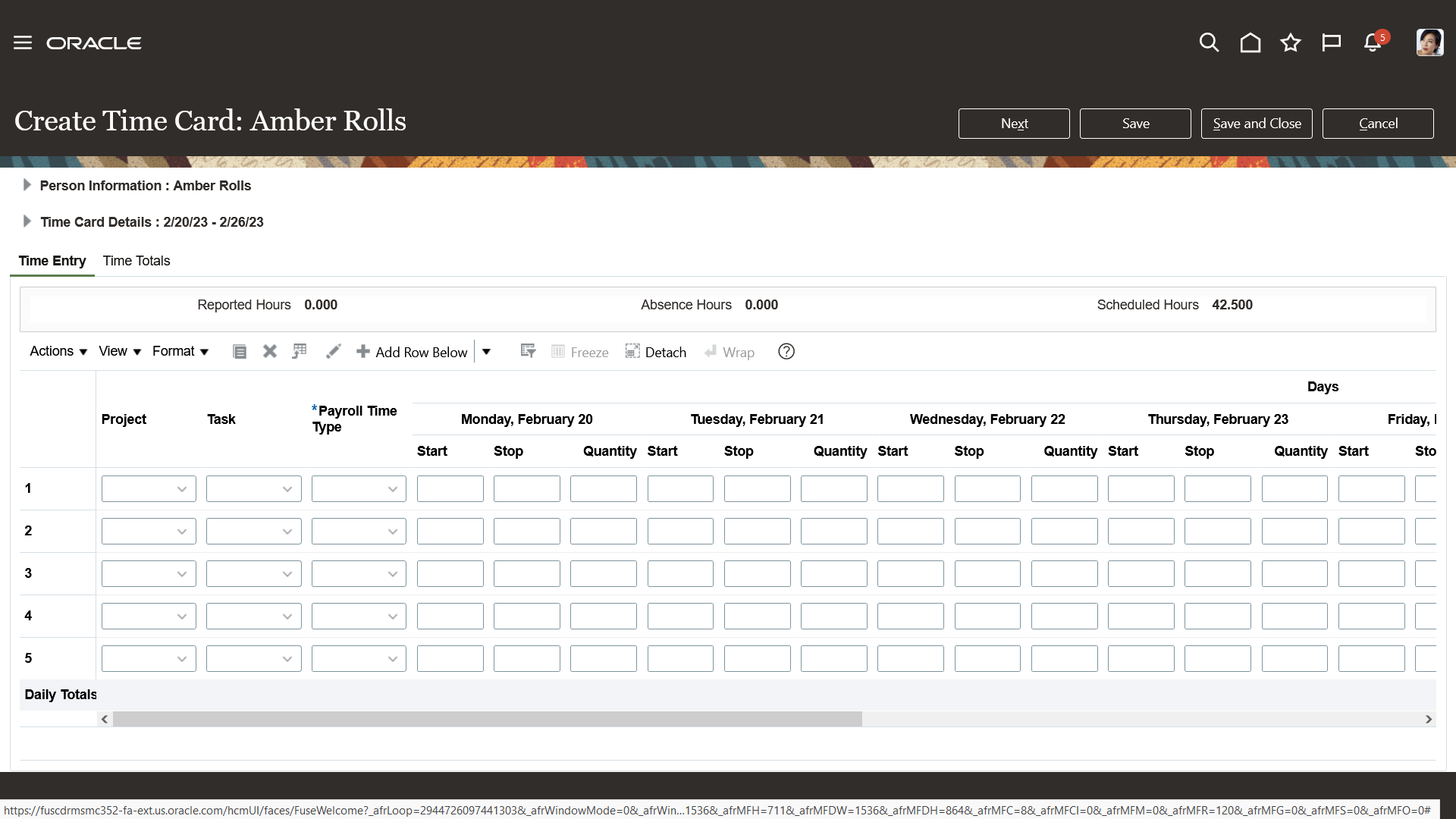
Classic Create Time Card Page for the Specified Person and Time Card Period
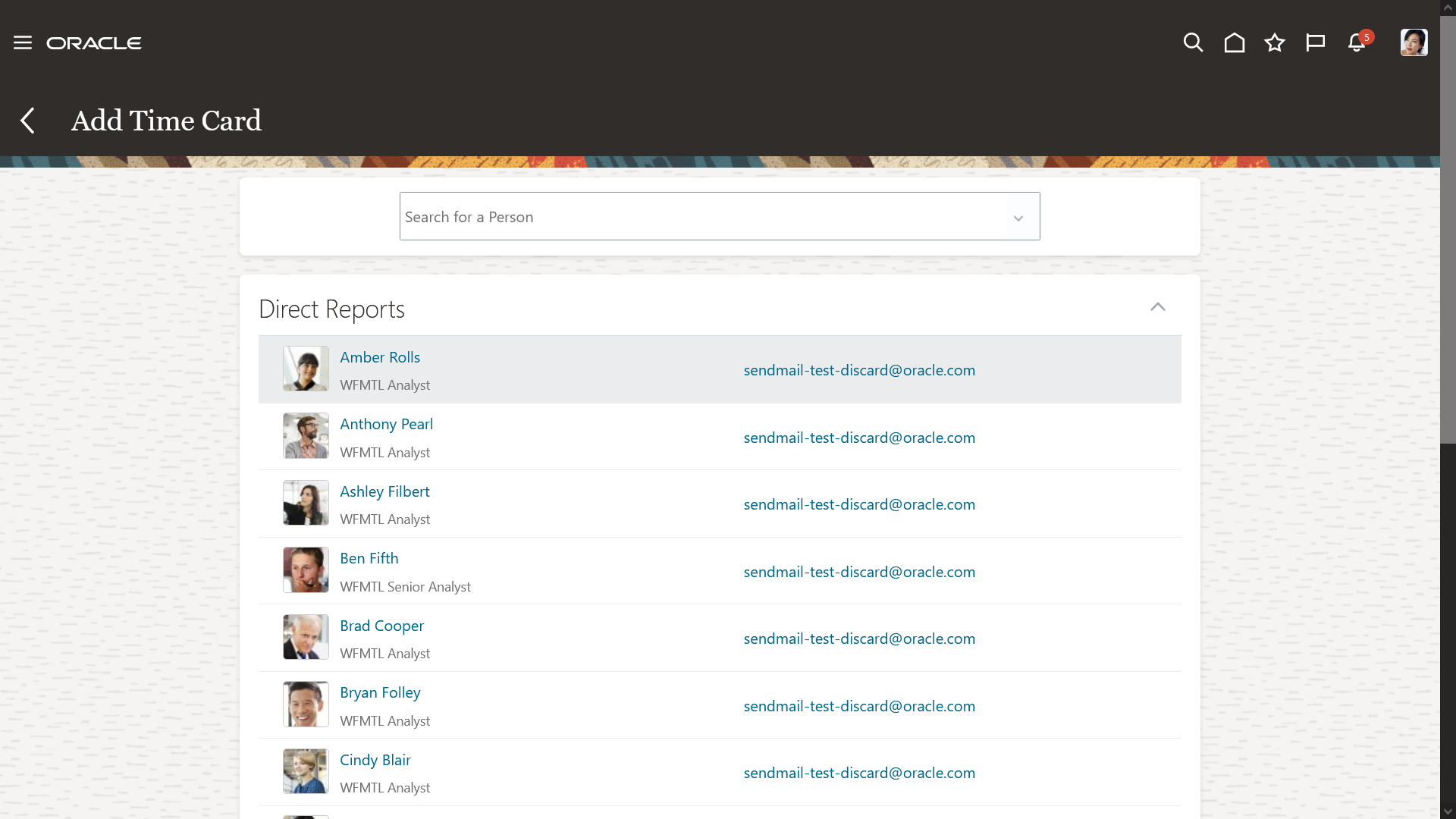
Responsive Add Time Card Page Where the Manager Selects the Person That the Time Card Is For

Responsive Add Time Card Page for the Specified Person and the Date Field That Lets You Change the Time Card Period
To create enhanced time cards for the current time card period, use the Add Current Time Card. To create them for other time card periods, use the Add Other Time Card quick action.
Add Current Time Card flow
The profile options and settings that enable these enhanced time card flows are explained and diagrammed later, in the Quick Actions and Access section of this feature.

Enhanced Add Time Card Page Where the Manager Selects the Person That the Time Card Is For
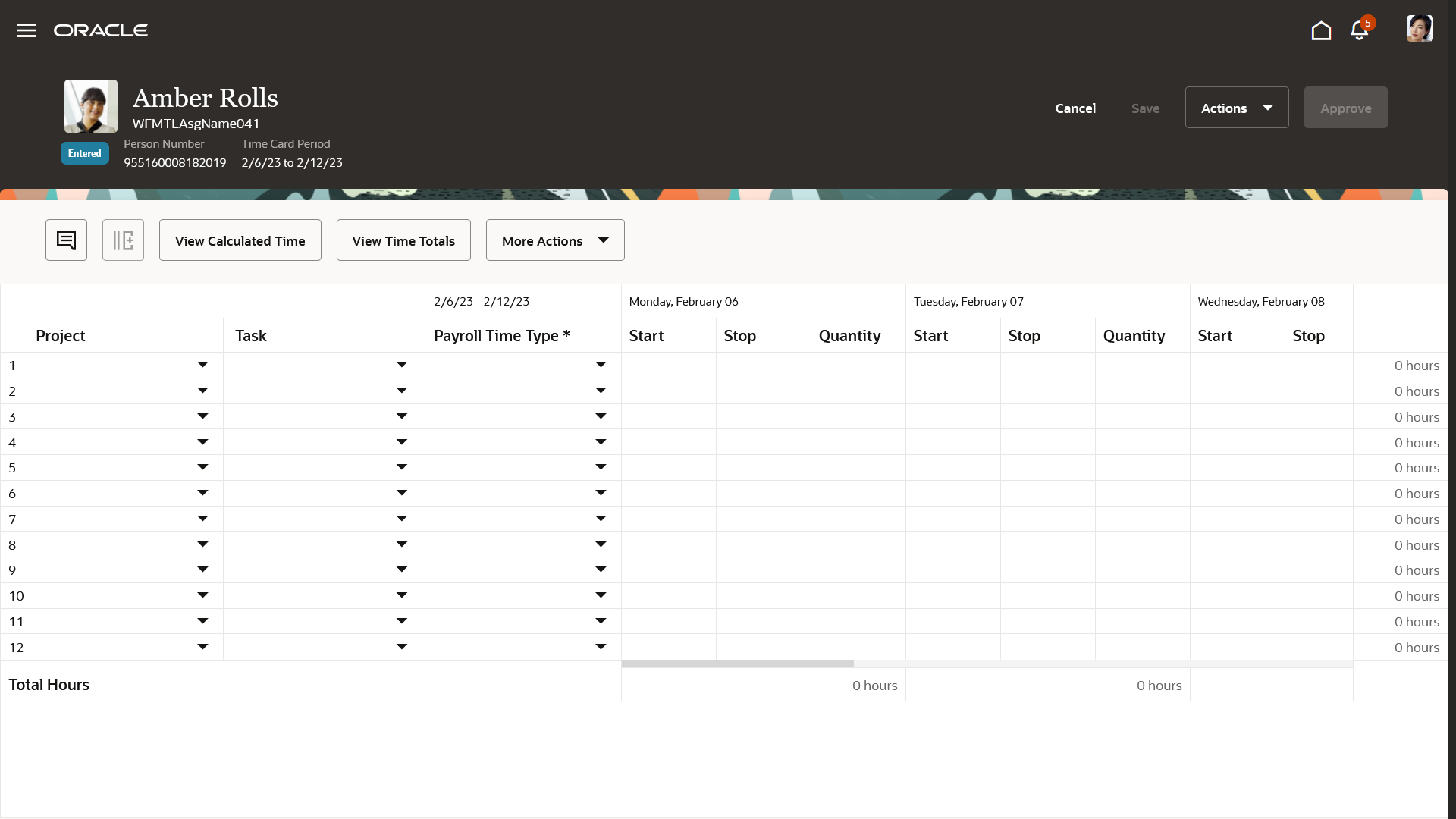
Enhanced Time Card Page for the Specified Person and Current Time Card Period in Edit Mode
Add Other Time Card flow
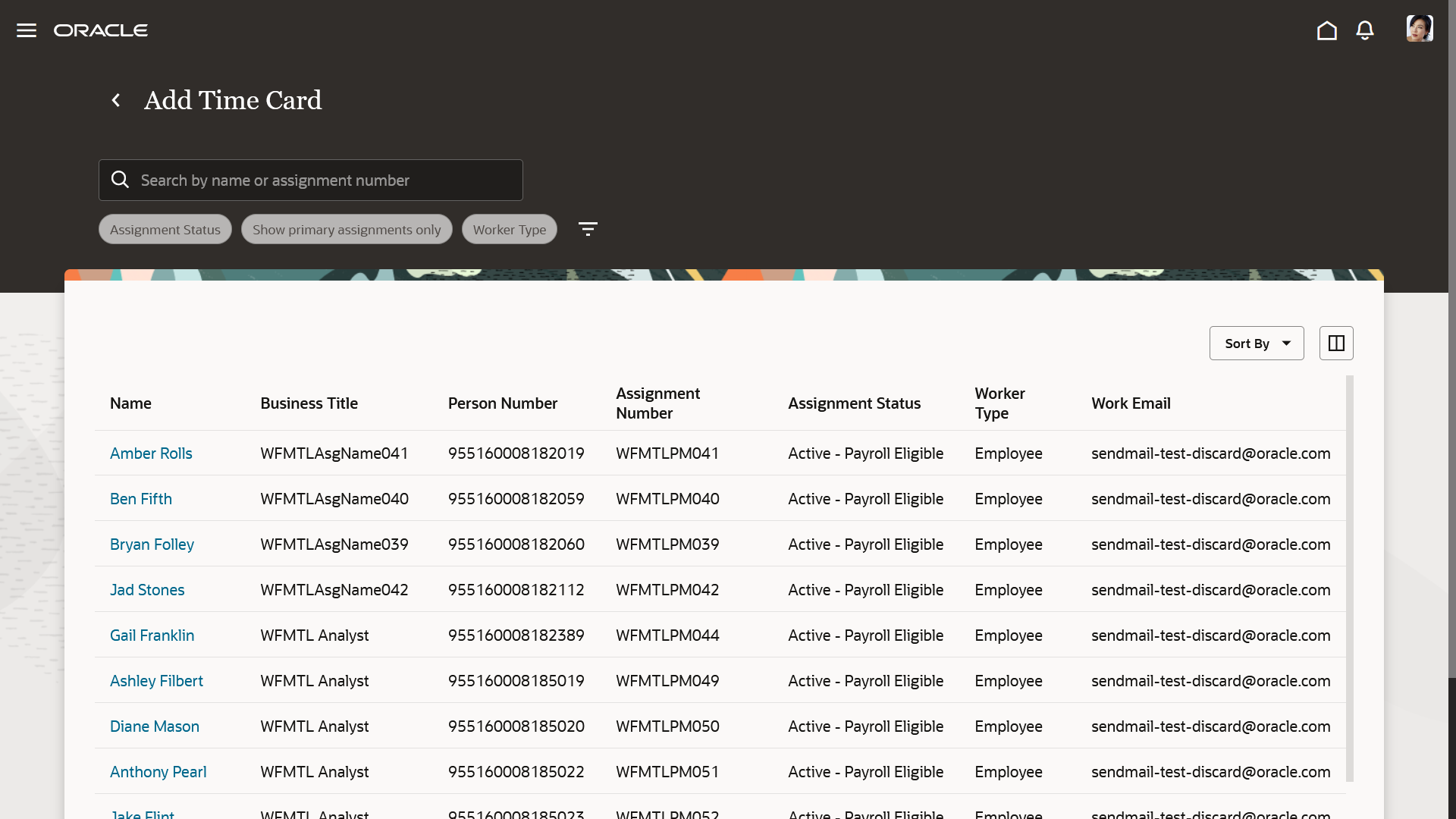
Enhanced Add Time Card Page Where the Manager Selects the Person That the Time Card Is For
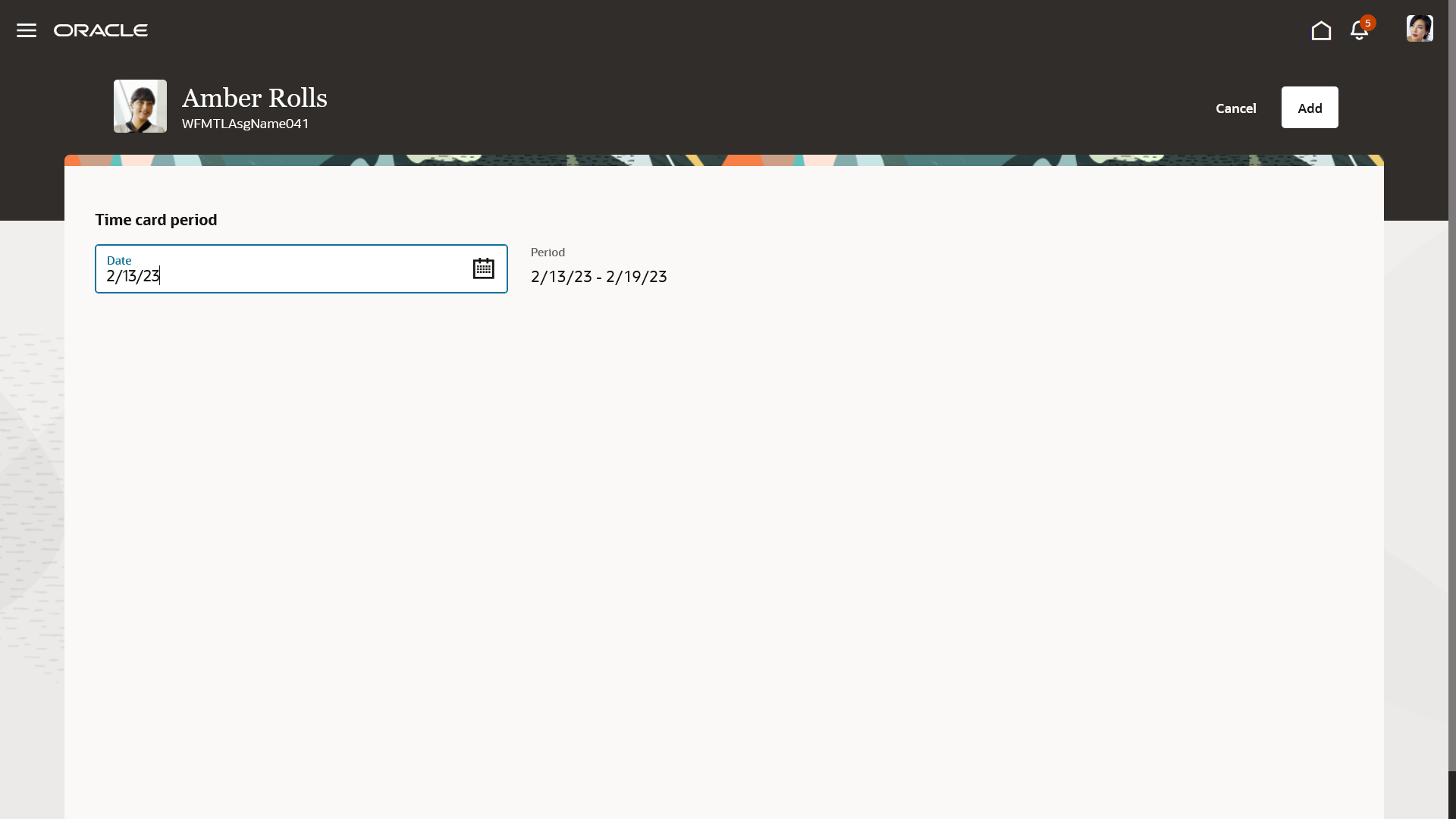
Enhanced Page Where the Manager Selects the Date to Identify the Appropriate Time Card Period
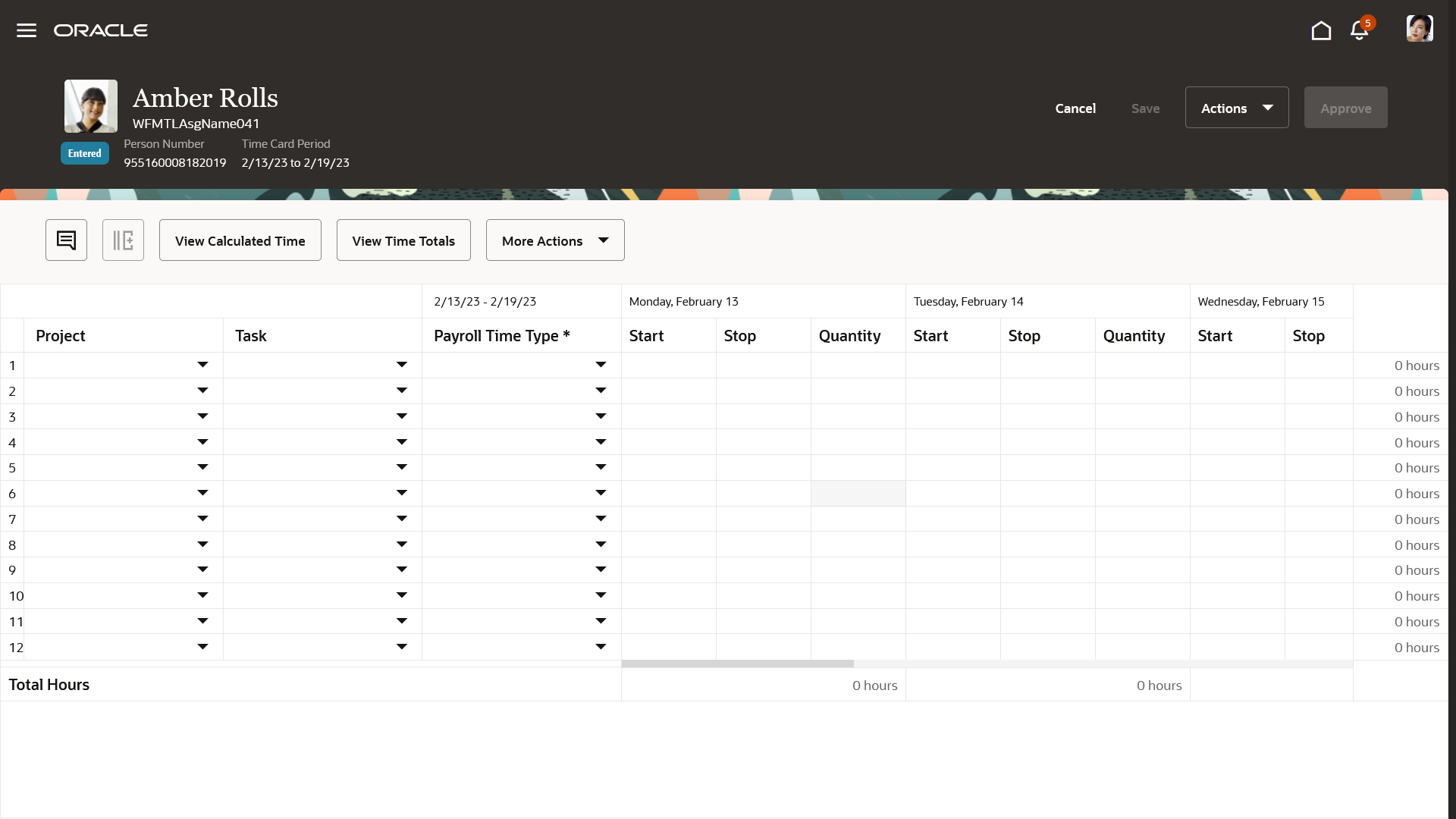
Enhanced Time Card Page for the Specified Person and Time Card Period in Edit Mode
Quick Actions and Access
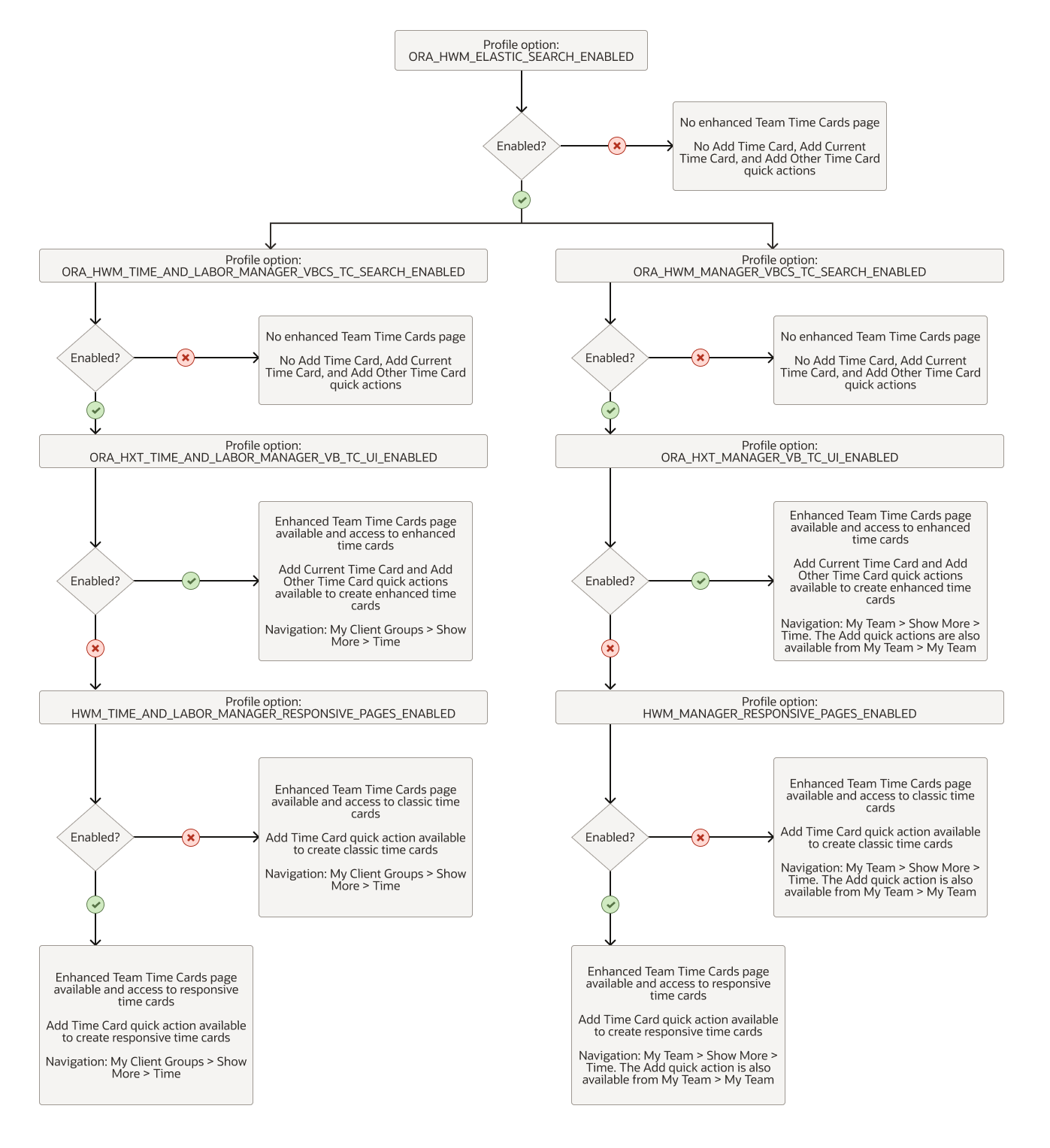
This diagram shows that line managers access the enhanced Team Time Cards page from My Team > Show More > Time when the profile option ORA_HWM_MANAGER_VBCS_TC_SEARCH_ENABLED is enabled. And they can create enhanced time cards using the My Team > Add Current Time Card and Add Other Time Card quick actions when the profile option ORA_HXT_MANAGER_VB_TC_UI_ENABLED is enabled.
Line managers can create responsive time cards using the My Team > Add Time Card quick action when the profile option ORA_HXT_MANAGER_VB_TC_UI_ENABLED is disabled and the profile option HWM_MANAGER_RESPONSIVE_PAGES_ENABLED is enabled. If none of these profile options are enabled, they create classic time cards using My Team > Add Time Card.
Time and labor managers access the enhanced Team Time Cards page from My Client Groups > Show More > Time when the profile option ORA_HWM_TIME_AND_LABOR_MANAGER_VBCS_TC_SEARCH_ENABLED is enabled. And they can create enhanced time cards using the Add Current Time Card and Add Other Time Card quick actions when the profile option ORA_HXT_TIME_AND_LABOR_MANAGER_VB_TC_UI_ENABLED is enabled.
Time and labor managers can create responsive time cards using the My Client Groups > Add Time Card quick action when the profile option ORA_HXT_TIME_AND_LABOR_MANAGER_VB_TC_UI_ENABLED is disabled and the profile option HWM_TIME_AND_LABOR_MANAGER_RESPONSIVE_PAGES_ENABLED is enabled. If none of these profile options are enabled, they create classic time cards using My Client Groups > Add Time Card or My Client Groups > Time Management > Team Time Cards.
This enhanced page lets people who use time cards benefit from the new Redwood experience.
Steps to Enable
- Enable these profile options using the Manage Administrator Profile Values task in the Setup and Management work area:
| PROFILE OPTION CODE |
PROFILE DISPLAY NAME |
APPLICATION |
MODULE |
REQUIRED PROFILE LEVEL |
REQUIRED PROFILE VALUE |
|---|---|---|---|---|---|
| ORA_FND_SEARCH_EXT_ENABLED |
Enable/Disable Search Ext Framework |
Oracle Middleware Extensions for Applications |
Oracle Middleware Extensions for Applications |
Site |
Yes |
| HRC_ELASTIC_SEARCH_ENABLED |
HRC: Enable Elastic Search |
HCM Common Architecture |
Search Framework |
Site |
Y |
| PER_SEARCH_LOGIN_EVENT_PUB |
PER: User Login Event Publication for Search |
Global Human Resources |
Security |
Site |
ATOM |
| ORA_HWM_ELASTIC_SEARCH_ENABLED |
HWM Enable Oracle Search |
Workforce Management |
Workforce Management |
Site |
Yes |
| ORA_HWM_TIME_AND_LABOR_MANAGER_VBCS_TC_SEARCH_ENABLED |
HWM Enable VBCS Time Card Search for Time and Labor Managers |
Workforce Management |
Workforce Management |
Site |
Yes |
| ORA_HWM_MANAGER_VBCS_TC_SEARCH_ENABLED |
HWM Enable VBCS Time Card Search for Line Managers |
Workforce Management |
Workforce Management |
Site |
Yes |
| ORA_FND_SEARCH_INITIAL_INGEST_THREAD_COUNT |
Number of threads used for initial ingest process |
Oracle Middleware Extensions for Applications |
Oracle Middleware Extensions for Applications |
Site |
If recommended by Oracle |
| ORA_FND_SEARCH_FETCH_COUNT |
Row fetch count for initial ingest process |
Oracle Middleware Extensions for Applications |
Oracle Middleware Extensions for Applications |
Site |
If recommended by Oracle |
-
Run the ESS job to create index definition and perform initial ingest to OSCS process using the Tools > Scheduled Processes task and this parameter.
| Parameter Name |
Value |
|---|---|
| Index Name to Reingest |
fa-hcm-timecard |
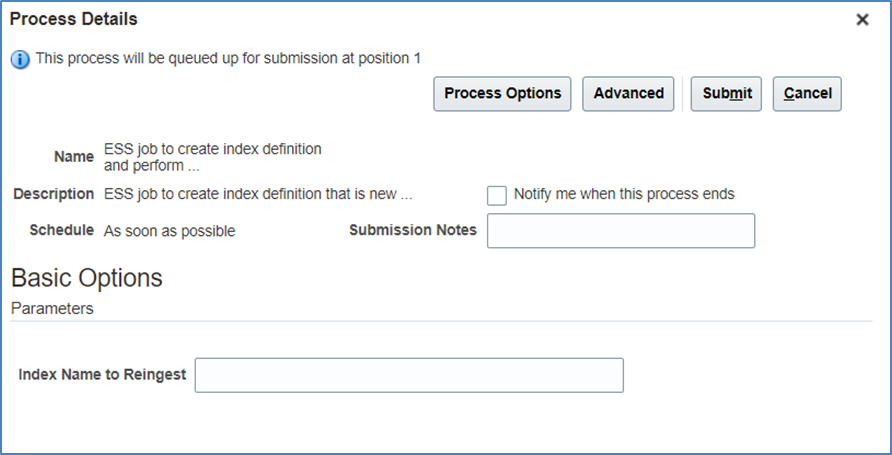
Tip: You need to run this process after every release upgrade and production-to-test process.
- To ensure that the saved search index definitions are set up for use, run the ESS job to create index definition and perform initial ingest to OSCS process again using the Tools > Scheduled Processes task and this parameter:
| Parameter Name |
Value |
|---|---|
| Index Name to Reingest |
fa-hcm-savedsearch |
- Set up the data security for Oracle Search. Oracle Search data security relies on dynamically computed access control lists that reflect Oracle HCM Cloud data security setup. You should run the access control list processes with certain minimal logging features turned on. Use the Manage Administrator Profile Values task in the Setup and Maintenance work area to set up these profile options:
| PROFILE OPTION CODE |
PROFILE DISPLAY NAME |
APPLICATION |
MODULE |
REQUIRED PROFILE LEVEL |
REQUIRED PROFILE VALUE |
|---|---|---|---|---|---|
| AFLOG_ENABLED | FND: Log Enabled | Oracle Middleware Extensions for Applications |
Application Logging | Site or user level for the user running ACL processes |
Yes |
| AFLOG_LEVEL | FND: Log Level | Oracle Middleware Extensions for Applications |
Application Logging | Site or user level for the user running ACL processes |
Severe |
| AFLOG_MODULE | FND: Log Module Filter | Oracle Middleware Extensions for Applications |
Application Logging | Site or user level for the user running ACL processes |
% |
- Create the ACL Index using the Tools > Scheduled Processes task.
- Process name: ESS job to create index definition and perform initial ingest to OSCS
- Parameter name: Index Name to Reingest
- Parameter value: fa-hcm-acl
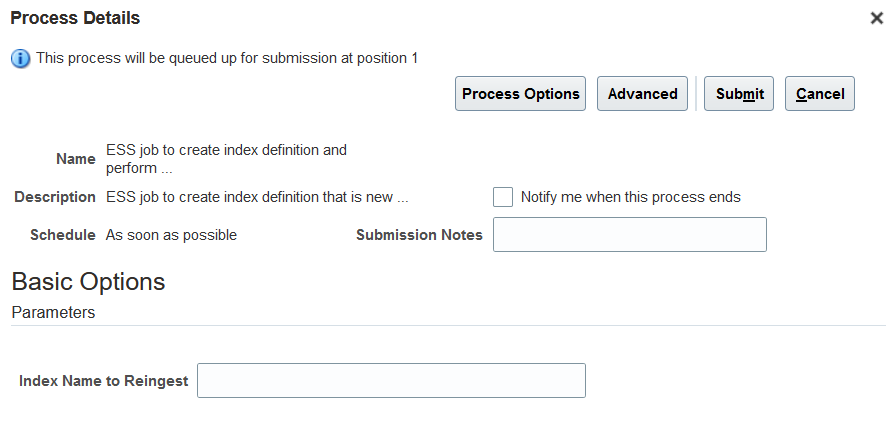
Then run this process once:
-
- Process name: Compute Users ACL
- Parameter name: User Population
- Parameter value: All Users
Schedule the Compute Users ACL by Event process to run every 15 minutes and schedule this process to run every 30 minutes:
-
- Process Name: Compute Users ACL
- Parameter name: User Population
- Parameter value: Logged in users
After these access control list processes complete, the related lists are generated, including the list of excluded users to be resolved.
- Make sure that data security is correctly defined so that time and labor managers and line managers access time cards for only the workers they're responsible for.
Tips And Considerations
- Managers can search for time cards created during the 12 months before from the index creation or refresh date, and for time cards created after that date.
- Search results are limited to 250.
- Managers can't export time cards.
- Managers can't search by favorite time cards and costing time attributes.
-
To ensure managers access the same set of workers they're responsible of on all time card search pages, enable the ORA_HXT_TM_DSP profile option. Otherwise, a time and labor manager who is also an HR manager might access more workers on the classic time card search page than on the enhanced time card search one.
Access Requirements
To access the enhanced time card, any custom roles that you created for workers need to inherit this new aggregate privilege:
| Aggregate Privilege Name | Code |
|---|---|
| Use REST Service - Time Cards by Worker |
ORA_HXT_REST_SERVICE_ACCESS_TIME_CARDS_BY_WORKER |
Improve people's time card experience with the enhanced time card, redesigned with the Redwood tool set Visual Builder Studio. The page header provides important context, such as who the time card is for, the status of the time card, and the time card period. It also contains primary actions, such as Save, Submit, and Approve, and additional page-level actions, such as Print and Reject. The available actions depend who's accessing the time card, their time entry profile settings and the time card status. For example, line managers who access the time cards from My Teams have the Approve action available for submitted time cards.
Similar to classic time cards, enhanced time cards have a horizontal layout. People select the appropriate time attributes, such as Job and Payroll Time Type, and enter start and stop times or quantities for the appropriate dates. The actual columns that people see depend on the time entry layout in their time entry profiles.

Enhanced Time Card
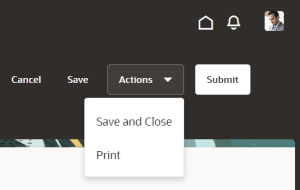
Page-Level Actions on an Enhanced Time Card
People use the More Actions menu for time-card-level actions, such as Copy Previous Time Card or Clear Time Card. And individuals can also use the More Actions to request time card changes. Anyone working on the time card can also right-click on the data grid to copy, paste, insert a row above or below, duplicate a row, or delete a row.
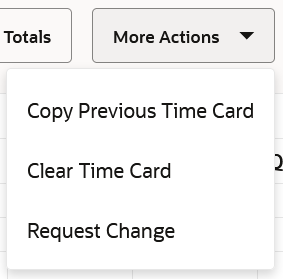
More Actions on an Enhanced Time Card
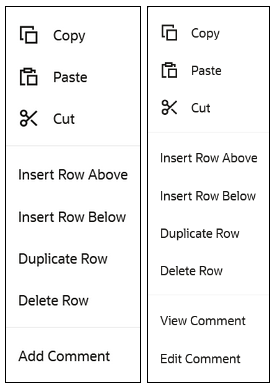
Right-Click Actions for an Enhanced Time Card Field
Exceptions Generated from Validations and Processing Rules
Validation and processing rule exceptions, such as warning or errors that apply across the time card appear in a banner just below the page header. Exceptions for a specific field appear over the field.
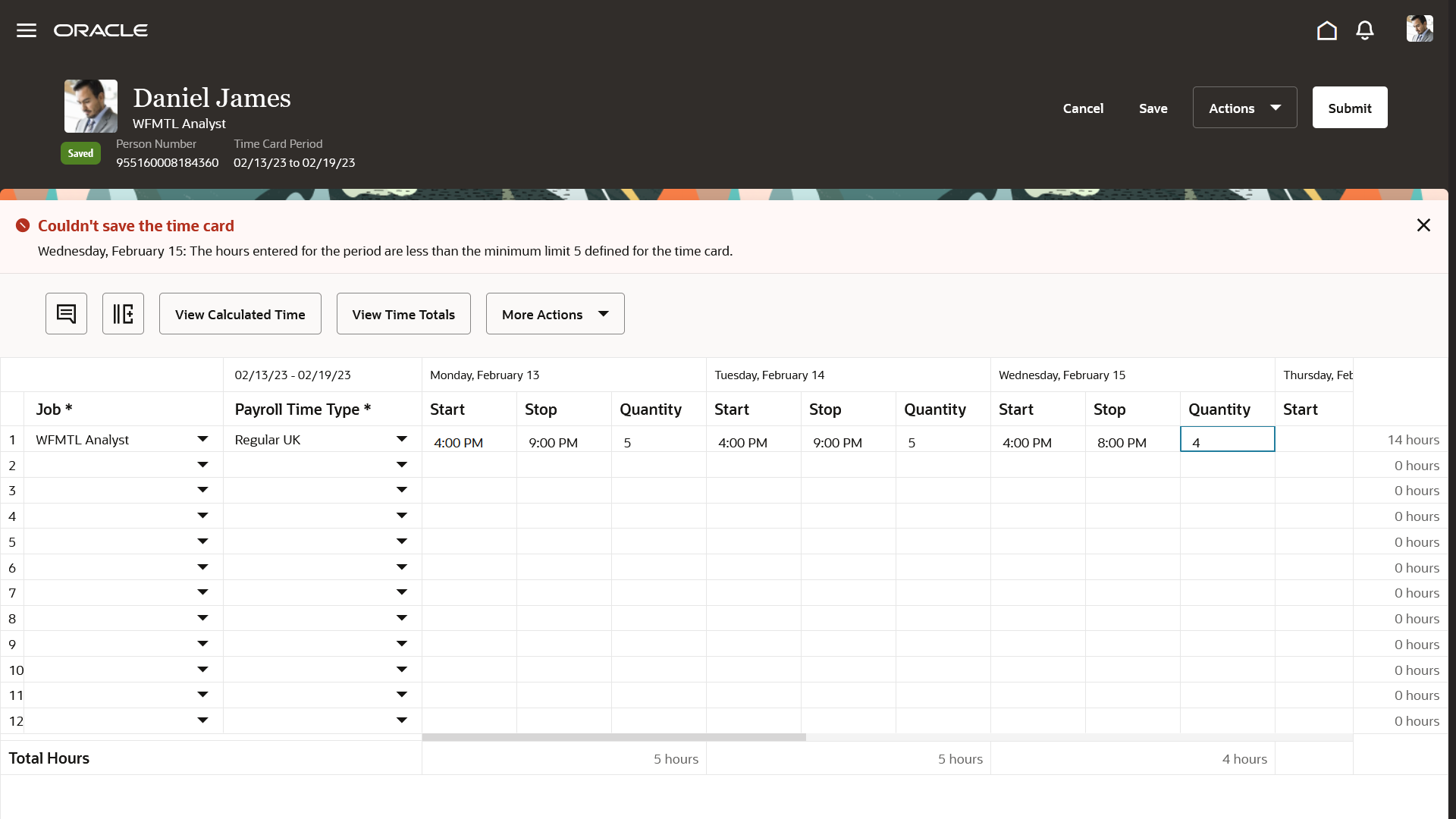
Time Entry Rule Exception
Reported Time Totals
People can view reported time totals, such as reported, scheduled, and absence hours, by the time card period and by day. They can also see any schedule deviation. To open the Time Totals drawer, click View Time Totals. The actual totals that appear depend on the time entry layout in their time entry profiles.

Enhanced Time Card Showing the Time Totals Drawer for the Reported Time View
Reported Time Comments
People can enter, view, and edit time-card-level and entry-level comments using the Comments icon or right-click actions.
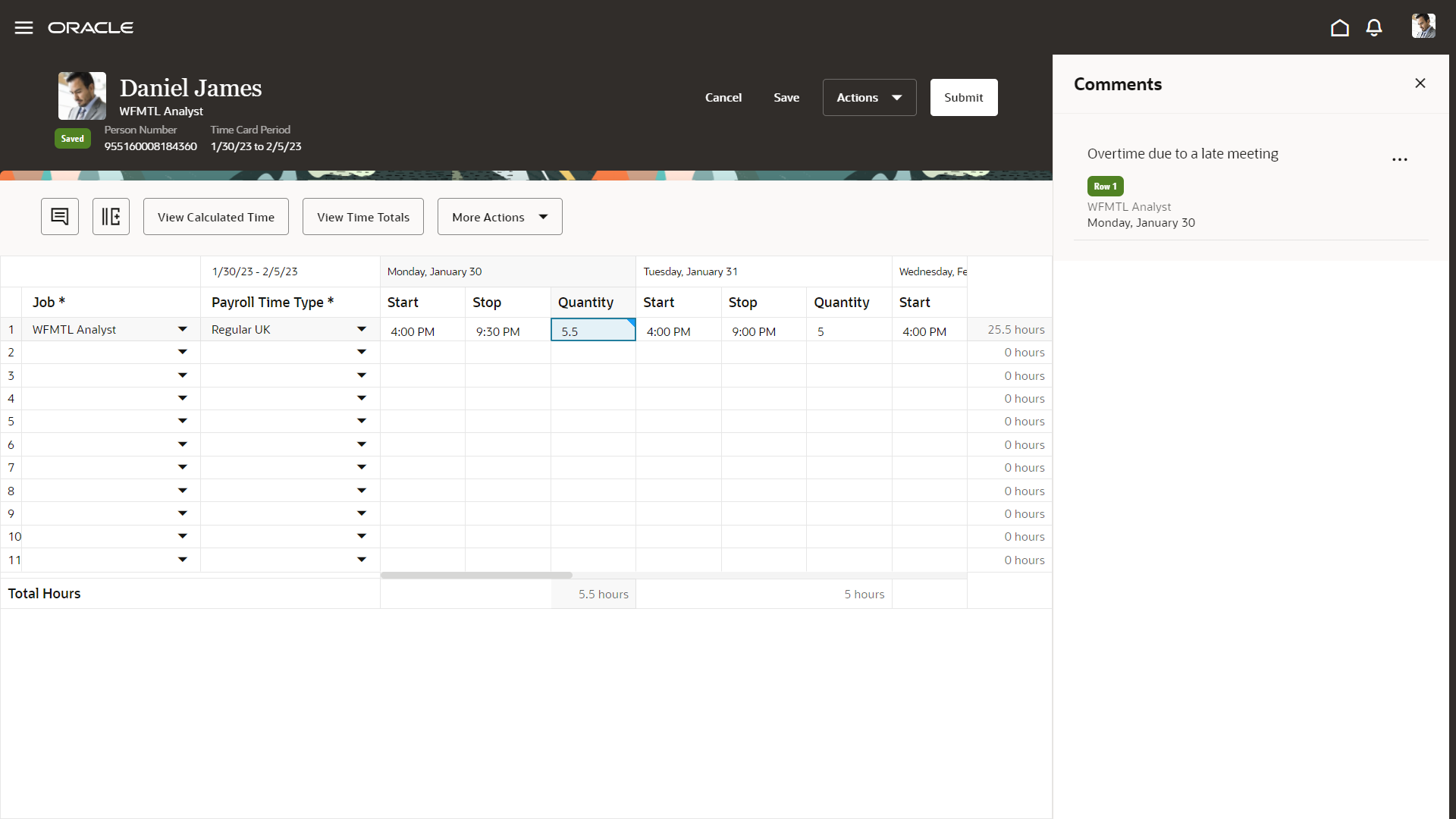
Enhanced Time Card Showing the Comments Drawer
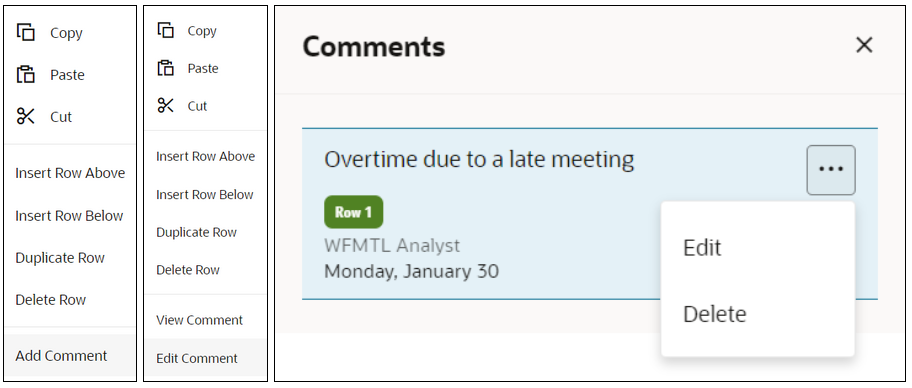
Enhanced Time Card Right-Click Actions and the Actions Menu Options for a Comment in the Comments Drawer
Additional Attributes
By default the enhanced time card shows the time attributes configured in the table of the time entry layout. But people might occasionally need to include additional attributes and daily details on the time card. They can do this using the Show Additional Attributes icon next to View Calculated time. These additional attributes appear after the fixed or frozen attributes on the left and before the first date start, stop, and quantity columns. The additional attributes appear and disappear with horizontal scrolling, just like the date columns. To remove the additional attributes, use the Hide Additional Attributes icon in the same location. If there aren't any additional attributes configured on the person's layout, the icons are disabled.

Enhanced Time Card with Show Additional Attributes Icon
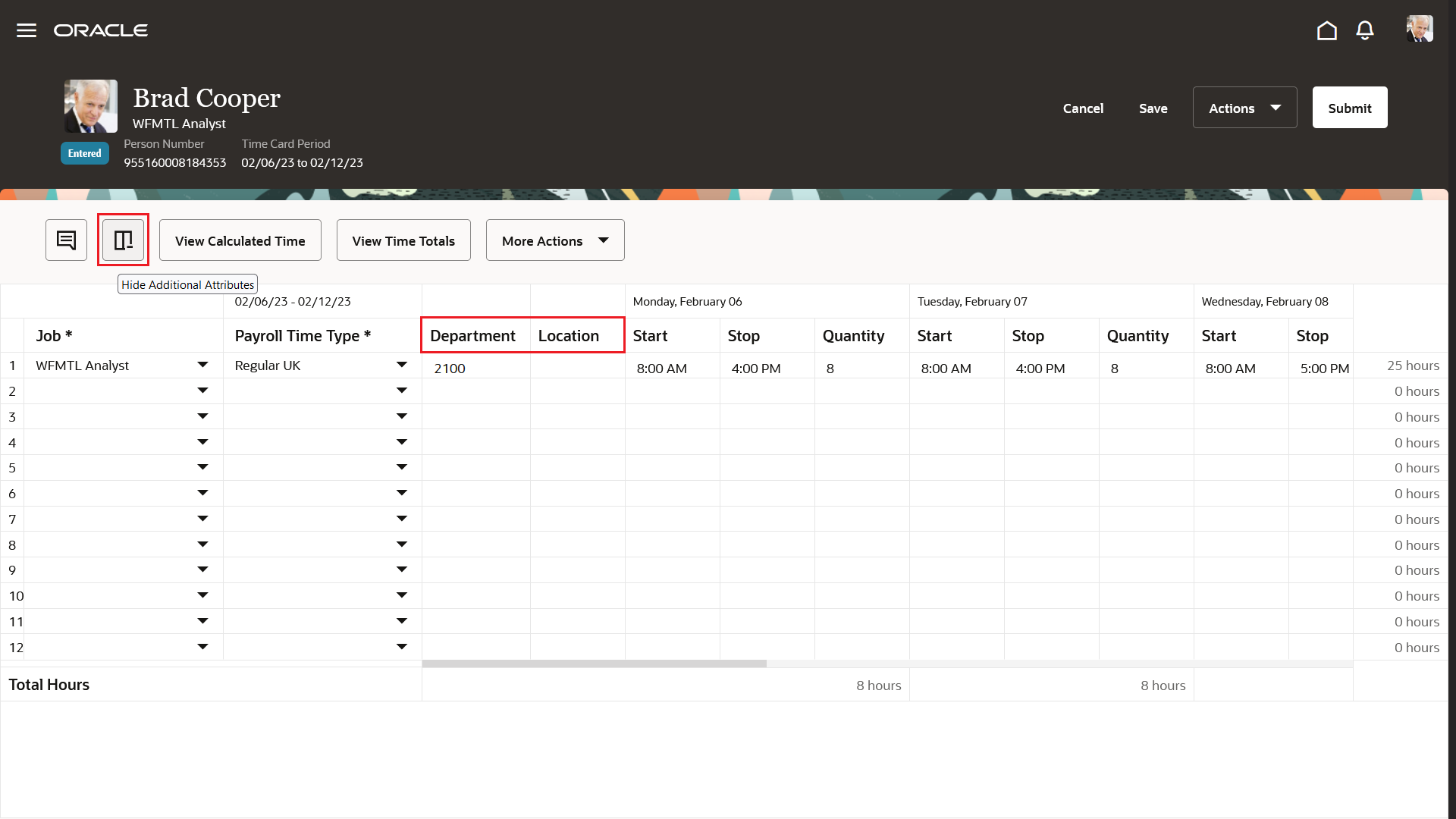
Enhanced Time Card with Hide Additional Attributes Icon
Change Requests
Individuals can request time changes from their enhanced time cards using More Actions > Request Change. This action opens the responsive Request Change page, which they can complete and submit. Time cards with submitted change requests have an information banner just below the page header that includes the details for any entry-level changes. The information banner that managers see includes a link that opens the responsive Team Change Requests page. Here they can review all change request details, and approve or reject the request.
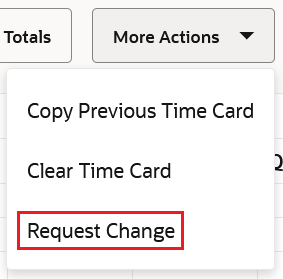
Request Change Action from the Enhanced Time Card
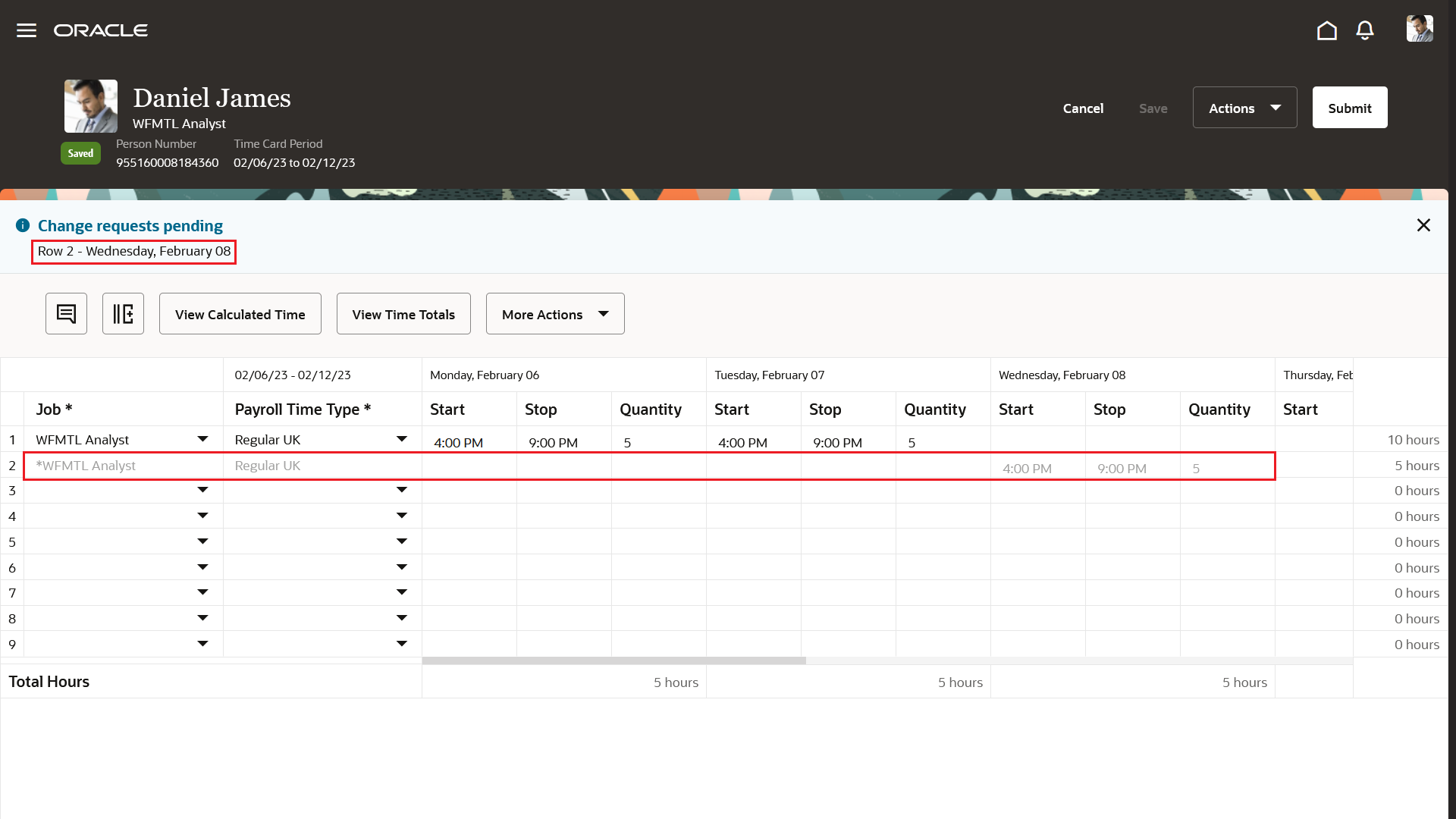
Entry Read-Only Display When There's a Related Pending Change Request, Information Banner with Details for the Worker
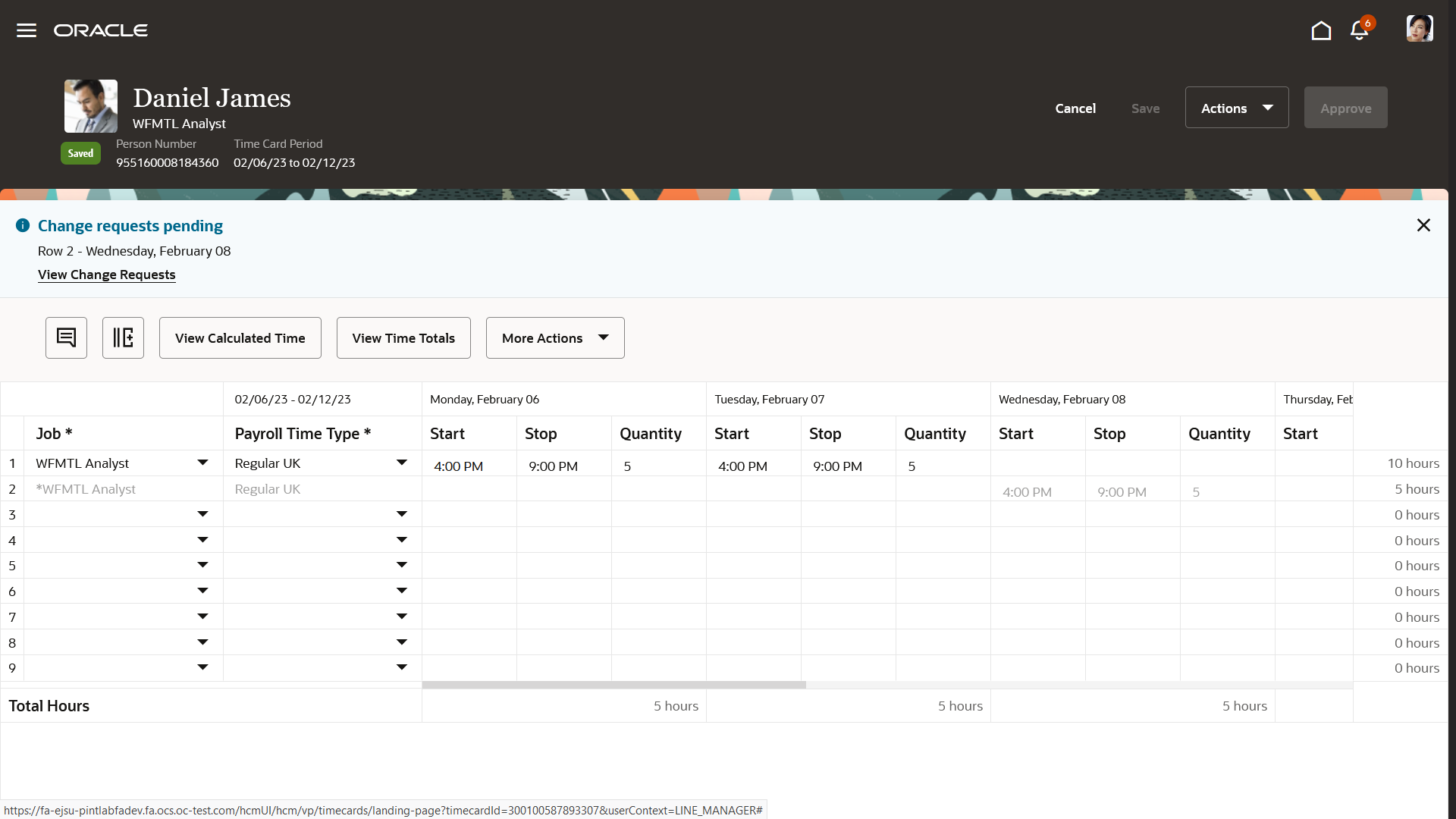
Information Banner Including the View Change Requests Link for the Manager
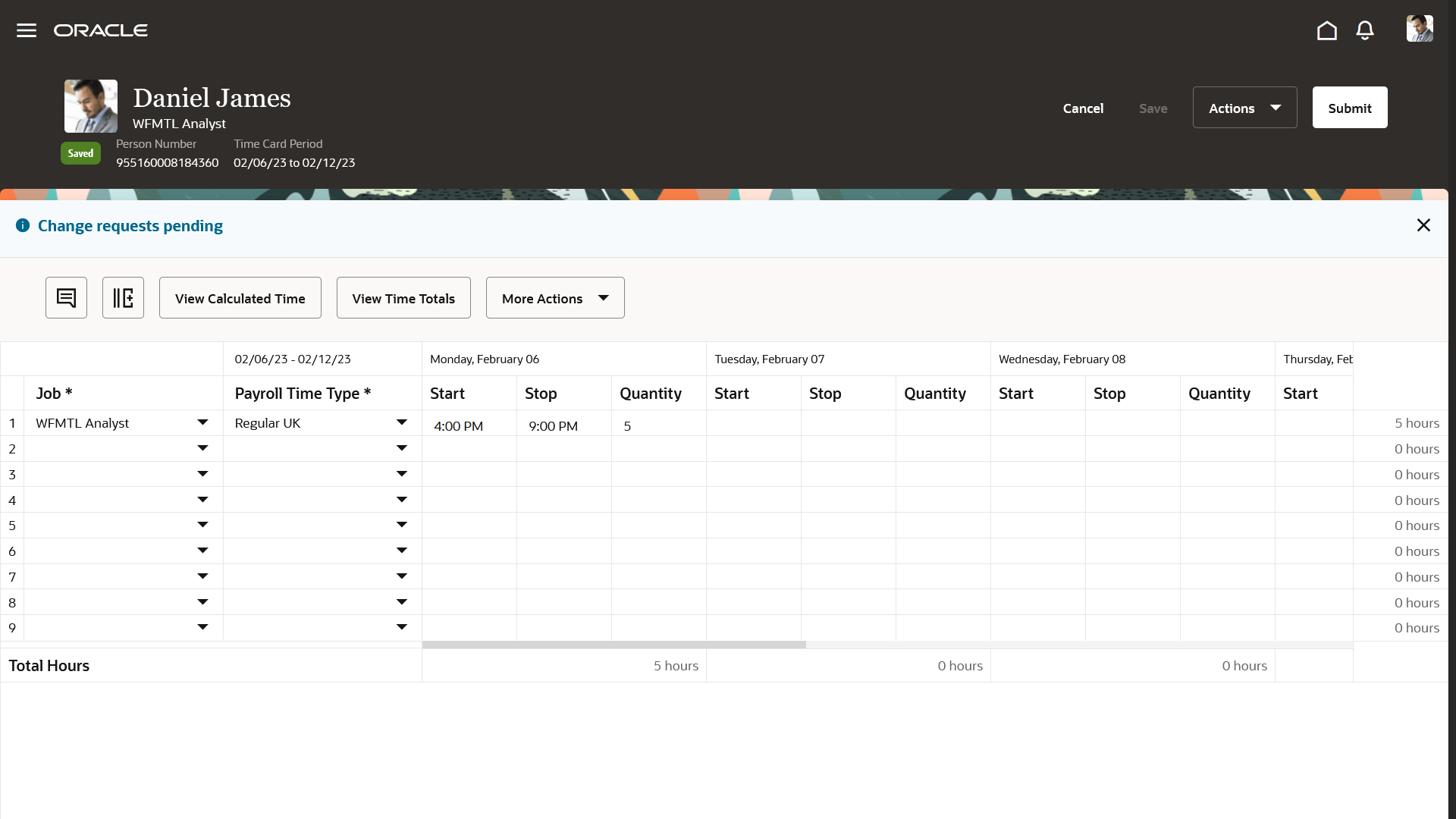
Info Banner for a Pending Change Request at the Time Card Level, No Detail Information
Units of Measure
People can report time attributes measure in hours, units, and days. The totals in the right-most column include the applicable unit of measure. The totals at the bottom of the time card are only for entries measured in hours. The Time Totals drawer can include custom hour, unit, and day totals, depending on the time entry layout configuration.

Enhanced Time Card with Unit and Hour Values in the Final Column and Hourly Totals at the Bottom

Enhanced Time Card with Day and Hour Values in the Final Column and Hourly Totals at the Bottom
Calculated Time View
To view calculated time, click View Calculated Time. The calculated entries appear under each related reported entry. People can submit the time card from this view or close it to return to the reported time view.
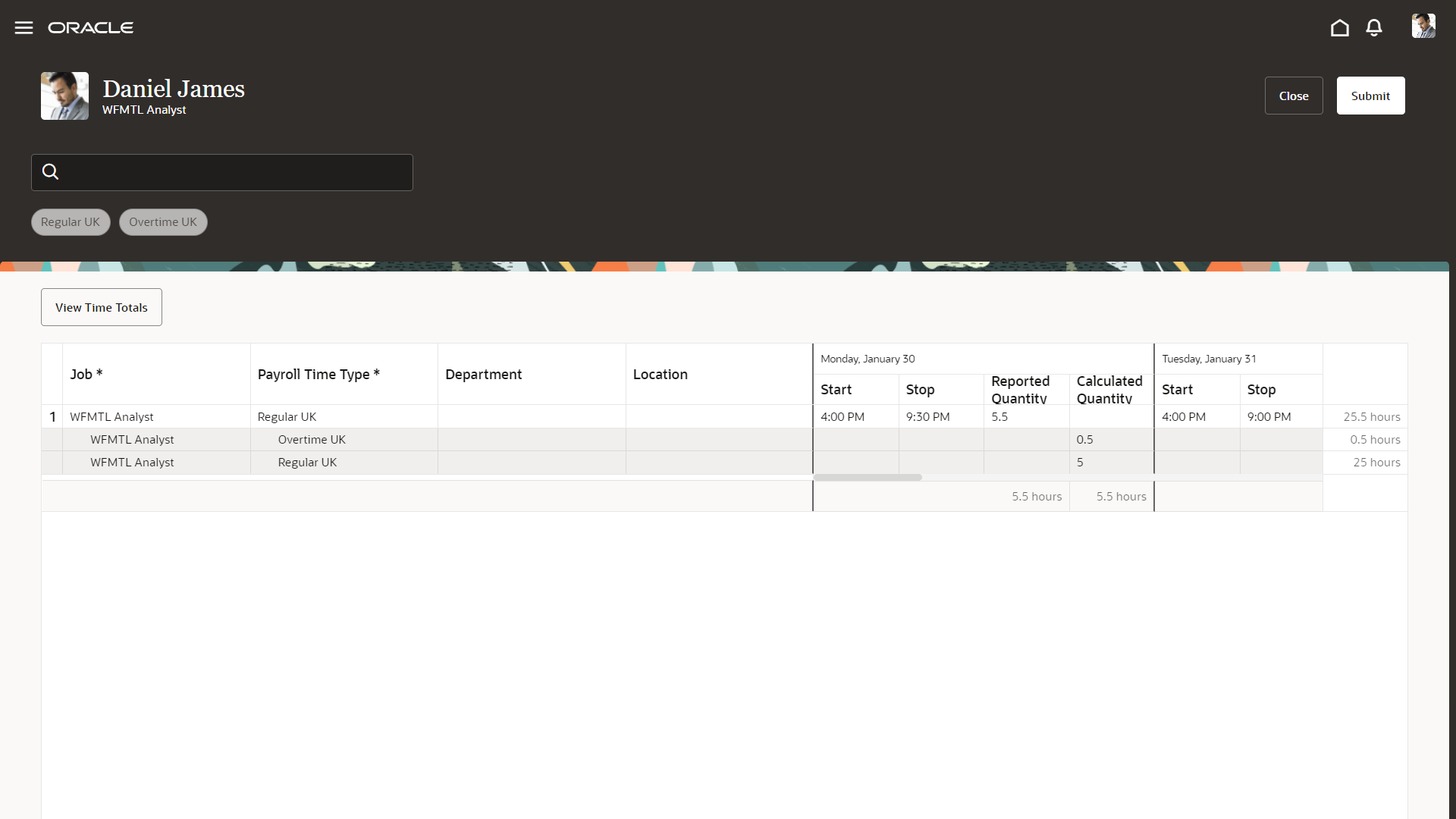
Calculated Time View for an Enhanced Time Card
Calculated Time Totals
People can view calculated time totals, such as reported, scheduled, and absence hours, by the time card period and by day. They can also see any schedule deviation. To open the Time Totals drawer, on the calculated time view, click View Time Totals. The actual totals that appear depend on the time entry layout in their time entry profiles.

Enhanced Time Card Showing the Time Totals Drawer for the Calculated Time View
Filters from the Calculated Time View
People can filter the calculated time results using keywords in the search field and the available filter chips. If the view has only one attribute value, search isn't available.

Unfiltered Calculated Time View with Dynamically Generated Filter Chips Based on the Reported Payroll Time Type Attributes
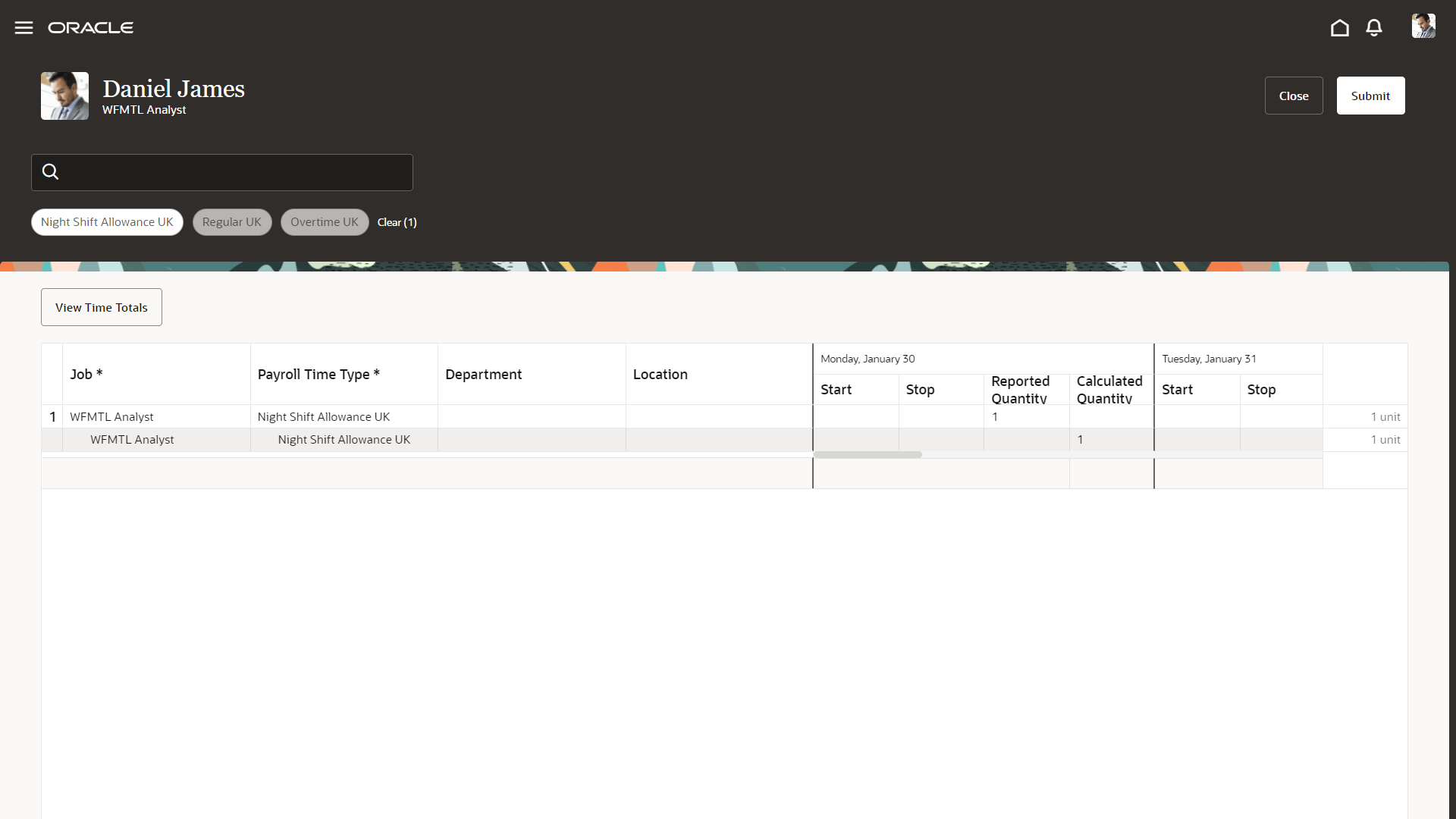
Calculated Time View Filter by the Night Shift Allowance UK Reported Payroll Time Type Attribute
This enhanced page lets people who use time cards benefit from the new Redwood experience.
Steps to Enable
- Enable these profile options using the Manage Administrator Profile Values task in the Setup and Management work area:
| PROFILE OPTION CODE |
PROFILE DISPLAY NAME |
APPLICATION |
MODULE |
REQUIRED PROFILE LEVEL |
REQUIRED PROFILE VALUE |
|---|---|---|---|---|---|
| ORA_HXT_WORKER_VBCS_TC_UI_ENABLED |
HWM Enable VBCS Time Card Grid for Individuals |
Workforce Management |
Workforce Management |
Site |
Yes |
| ORA_HXT_MANAGER_VB_TC_UI_ENABLED |
HWM Enable VBCS Time Card Grid for Line Managers |
Workforce Management |
Workforce Management |
Site |
Yes |
| ORA_HXT_TIME_AND_LABOR_MANAGER_VB_TC_UI_ENABLED |
HWM Enable VBCS Time Card Grid for Time and Labor Managers |
Workforce Management |
Workforce Management |
Site |
Yes |
- Enable the enhanced time card search for managers to access enhanced time cards. Workers access the enhanced time card using the Current Time Card task on the Me > Time and Absences page.
- Configure the time entry layout of the time layout set.
Tips And Considerations
Due to the underlying Redwood technology, when the Current Time Card quick action opens a new enhanced time card for the current period, it also automatically saves the time card with a status of Entered. It does this save even before the person adds any entries or takes any action. Classic and responsive time cards created with the quick action have a different underlying technology and aren't automatically saved. They have a New status until the person saves the time card.
Features coming in future releases:
- Creation of time cards by workers on any period other than the current period
- Change request support from the time card
- Entries crossing midnight
- Work day definition
- Change audit
- Attestations
Key Resources
For more information about enabling the enhanced time card search, see Steps to Enable in the 23B What's New, Enhanced Time Card Search.
For more information about configuring time layouts, see the time layouts chapters in the Implementing Time and Labor guide.
Access Requirements
To access the enhanced time card, any custom roles that you created that don't have the delivered Time and Labor Worker duty role need these aggregate and function security privileges. If your custom roles do include the delivered duty role, you don't need to do anything.
| Name | Code | Type |
|---|---|---|
| Use REST Service - Time Cards by Worker |
ORA_HXT_REST_SERVICE_ACCESS_TIME_CARDS_BY_WORKER |
Aggregate privilege |
| Use REST Service - Time Card Entry Details Read Only |
ORA_HXT_REST_SERVICE_ACCESS_TIME_CARD_ENTRY_DETAILS_RO |
Aggregate privilege |
| Use REST Service - Time Card Field Values Read Only |
HXT_REST_SERVICE_ACCESS_TIME_CARD_FIELD_VALUES_RO_PRIV |
Function security privilege |
To access the request change page from the enhanced time card, any custom roles that you created that don't have the delivered Time and Labor Worker duty role need this aggregate privilege. If your custom roles do include the delivered duty role, you don't need to do anything.
| Name | Code | Type |
|---|---|---|
| Request Time Change |
ORA_HXT_REQUEST_TIME_CHANGE | Aggregate privilege |
Starting with release 23B, this aggregate privilege is used instead of the standalone function security privilege to access the page from responsive time cards and Web Clock, or using the quick action.
IMPORTANT Actions and Considerations for Time and Labor
REPLACED OR REMOVED FEATURES
From time to time, Oracle replaces existing Cloud service features with new features or removes existing features. When a feature is replaced the older version may be removed immediately or at a future time. As a best practice, you should use the newer version of a replaced feature as soon as the newer version is available.
| Product |
Removed Feature |
Target Removal |
Replacement Feature |
Replaced In |
Additional Information |
|---|---|---|---|---|---|
| None at this time. |
_________________________
KNOWN ISSUES / MAINTENANCE PACK SPREADSHEETS
Oracle publishes a Known Issues document for every Update to make customers are aware of potential problems they could run into and the document provides workarounds if they are available.
Oracle also publishes Maintenance Pack and Statutory Maintenance Pack documentation of bugs that are fixed in the monthly or statutory patching.
To review these documents you must have access to My Oracle Support:
Oracle Human Capital Management Cloud Functional Known Issues and Maintenance Packs (Document ID 1554838.1)