
- Revision History
- Overview
- Feature Summary
- Payroll
-
- Payroll for the United Kingdom
-
- Real Time Information Tax Year 2019-2020 (FPS/EPS/EYU)
- P60 Enhancements for Tax Year 2018-2019
- Budget and Legislative Compliance for Tax Year 2019-2020
- Processing Benefits in Kind in Payroll: 2019-2020 Legislative Changes
- P11D for Tax Year 2018-2019
- Display or Hide Hours on Payslips
- Retry Full Payment Submission
- Automatic Associations Created for Global Transfers
- Pensions Automatic Enrolment: Align Pay Reference Period with Earnings Period
- Postgraduate Loan Deductions
- Errors and Warnings Report XML File
- HMRC Data Retrieval and Load XML Data Process Includes Postgraduate Loans
-
- Payroll for the United Kingdom
- Revision History
- Overview
- Feature Summary
- Benefits
- Compensation and Total Compensation Statement
-
- Compensation
-
- Process Suspended Assignments in Grade Step Progression
- Prorate Progression Grade Ladder Rates by Assignment FTE
- Round Annual Values
- Round Annual Amounts in Grade Step Progression
- Support Export and Import of Manage Salary Differentials
- Warn or Error When Over Budget
- Group Budget Amounts for Reporting or Enforcing
- Review Batch Processing Information
- Use User-Defined Lookups in List Columns
- Total Compensation Statement Ability to Reuse Embedded Fields
- Total Compensation Statement - Migration
- Transfer Data Back Into HR More Efficiently
- Compensation Redesigned User Experience
-
- Compensation
- Payroll
-
- Global Payroll
-
- Absence Entitlement Payments After Termination
- Enhanced Security for Quick Actions
- Enable Contexts for Costing Key Flexfield Segments
- Rate Definition Support for Live and Generated Rates
- Rate Definition Support for Values-by-Criteria with Multiple Values
- Generate HCM Rates Scope Expanded
- Element Upgrade Process
- Roll Back Multiple Tasks Within a Flow
- Process After Error - Report Restriction Removed
- Retroactive Entries Report
- Gross-to-Net Report in Summary Mode
- Bank Account Number and Bank, Branch Update on External Bank Accounts
- Control Transient Data Retention in Payroll Extracts
- Global Payroll Redesigned User Experience
-
- Payroll for Canada
- Payroll for China
-
- Use the Generate Payslips Process to Produce Printed Payslips
- Support Monthly Fixed Tax Reduction Amount for Qualified Persons
- Show Tax Reporting Units Relevant to the Hiring Legal Employer in the Hiring Flow
- Modified the 'NET' Balance
- Use the Overriding Payslip Availability Date Parameter for the Generate Payslips Process
-
- Payroll for Mexico
- Payroll for Qatar
- Payroll for the United Kingdom
- Payroll for the United States
-
- Support for 403 (b) and 457 (b) Deferred Compensation Plans
- W-2C Register Support
- Form W-2PR Control Number Support
- California VPDI Support
- New York City Part-Year Resident Support
- 401(K) Employer Match Support for Catch-Up Deductions
- Run US Tax Balance Adjustment Process Enhancement
- Overtime Calculation Support for Common Paymasters
- Restricting TRUs by Person Type
- HCM Spreadsheet Data Loader for Organization Calculation Card
- Midday Period Support for Time Cards and Absences
-
- Global Payroll
- HR Optimization
-
- Workforce Rewards Transactional Business Intelligence
- Benefits
- Compensation
-
- New Attribute to Determine Compensation Plan Eligibility Status
- New Metric Added to Compensation - Stock Details Real Time
- New Performance Rating Attributes to Compensation Subject Areas
- New Dashboard - Compensation Business Process Dashboard for Worksheet Manager
- OTBI Segments 46-50 in Compensation and Compensation Budget Subject Areas
- Payroll
- Workforce Rewards Transactional Business Intelligence
| Date | Feature | Notes |
|---|---|---|
| 26 APR 2019 | Created initial document. |
HCM Cloud applications have two types of patches you can receive that are documented in this What’s New:
- Release Updates (19A, 19B, 19C, and 19D)
- Optional Monthly Maintenance Packs to each update
It is important for you to know what Release Update your environment is on. You can find this in your Cloud Portal.
This document outlines the information you need to know about new or improved functionality in Oracle HCM Cloud. Each section includes a brief description of the feature, the steps you need to take to enable or begin using the feature, any tips or considerations that you should keep in mind, and the resources available to help you.
In addition to this document you will also want to review the Oracle Human Capital Management Cloud Functional Known Issues and Maintenance Packs (Document ID 1554838.1). These documents identify bug fixes and possible known issues. You will also need to review these documents based in the release update version you are currently on or will be moving to.
Oracle HCM Cloud release documents are delivered in five functional groupings:
Suggested Reading for all HCM Products:
- HCM Cloud Common Features (This document pertains to all HCM applications. It is the base human resource information for all products and HCM Tools.)
- Global Human Resources Cloud (Global Human Resources contains the base application in which other application use for common data such as workforce structures and person information. Regardless of what products you have implemented you may want to see the new features for Global Human Resources that could impact your products.)
NOTE: Not all Global Human Resource features are available for Talent and Compensation products.
Optional Reading for HCM Products (Depending on what products are in your cloud service):
- Talent Management Cloud (All Talent applications)
- Workforce Rewards Cloud (Compensation, Benefits, Payroll and Global Payroll Interface)
- Workforce Management Cloud (Absence Management and Time and Labor)
Additional Optional Reading:
- Common Technologies and User Experience (This documents the common features across all Cloud applications and is not specific to HCM)
NOTE: All of these documents can be found on the Oracle Help Center at: https://cloud.oracle.com/saasreadiness/hcm under Human Capital Management Release Readiness.
Give Us Feedback
We welcome your comments and suggestions to improve the content. Please send us your feedback at oracle_fusion_applications_help_ww_grp@oracle.com. Indicate you are inquiring or providing feedback regarding the HCM Cloud What’s New for Release 13 in the body or title of the email.
Column Definitions:
Report = New or modified, Oracle-delivered, ready to run reports.
UI or Process-Based: Small Scale = These UI or process-based features are typically comprised of minor field, validation, or program changes. Therefore, the potential impact to users is minimal.
UI or Process-Based: Larger Scale* = These UI or process-based features have more complex designs. Therefore, the potential impact to users is higher.
Features Delivered Disabled = Action is needed BEFORE these features can be used by END USERS. These features are delivered disabled and you choose if and when to enable them. For example, a) new or expanded BI subject areas need to first be incorporated into reports, b) Integration is required to utilize new web services, or c) features must be assigned to user roles before they can be accessed.
| Ready for Use by End Users Reports plus Small Scale UI or Process-Based new features will have minimal user impact after an update. Therefore, customer acceptance testing should focus on the Larger Scale UI or Process-Based* new features. |
Customer Must Take Action before Use by End Users Not disruptive as action is required to make these features ready to use. As you selectively choose to leverage, you set your test and roll out timing. |
|||||
|---|---|---|---|---|---|---|
| Feature |
Report |
UI or |
UI or |
|
||
Payroll for the United Kingdom
Payroll for Oracle Human Capital Management for the United Kingdom supports country specific features and functions for the United Kingdom. It enables users to follow the United Kingdom's business practices and comply with its statutory requirements.
New Starter Declaration Enhancement
The New Starter Declaration is enhanced to include postgraduate loans to comply with the changes published by HMRC. Your employees can enter postgraduate loan information on the New starter Declaration Form using the employee self-service application. These are the changes in the form:
- Changes to student loan questions order sequence
- Text changes to reflect the revised version of the New Starter Declaration published by HMRC
- Validation of Student Loan plan type, which is based on the new sequence and order of the questions presented
- Addition of postgraduate loan information to the form with the required validation
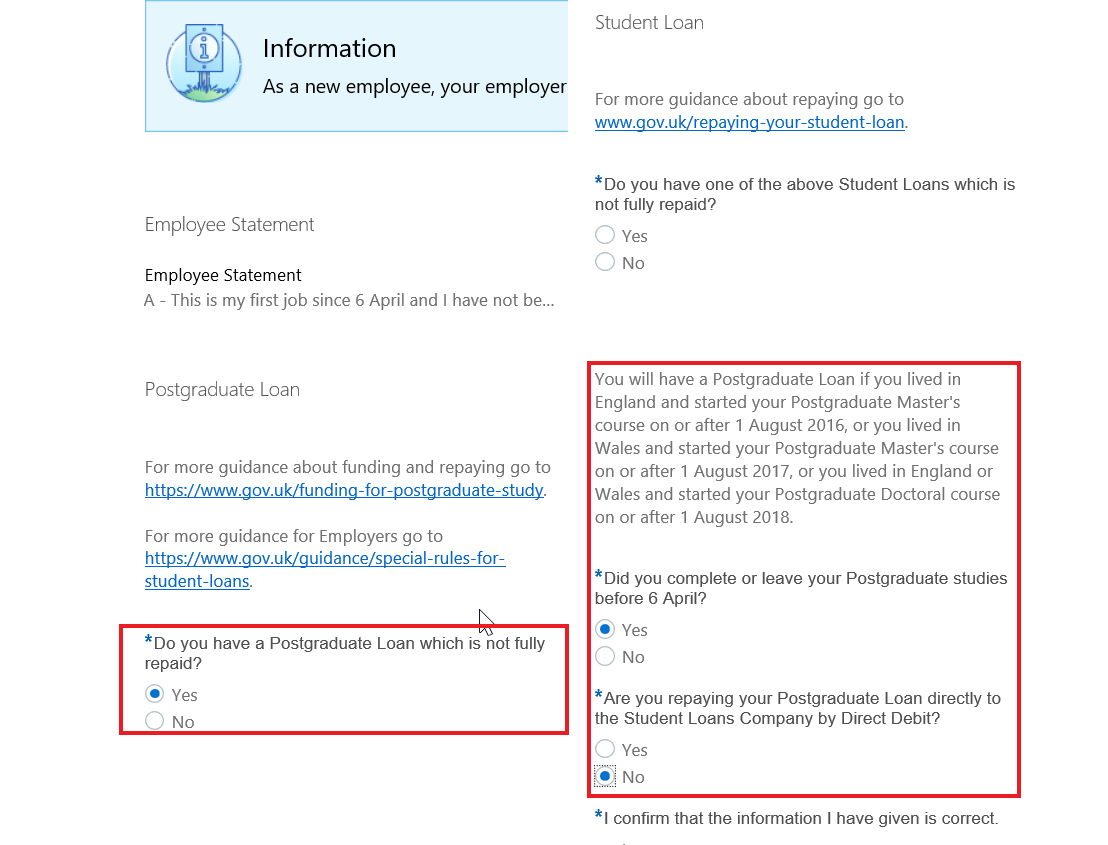
When your employees enter and submit this information, the application automatically creates the court order and student loans calculation card with the relevant information. You don't need to manually create the calculation card.
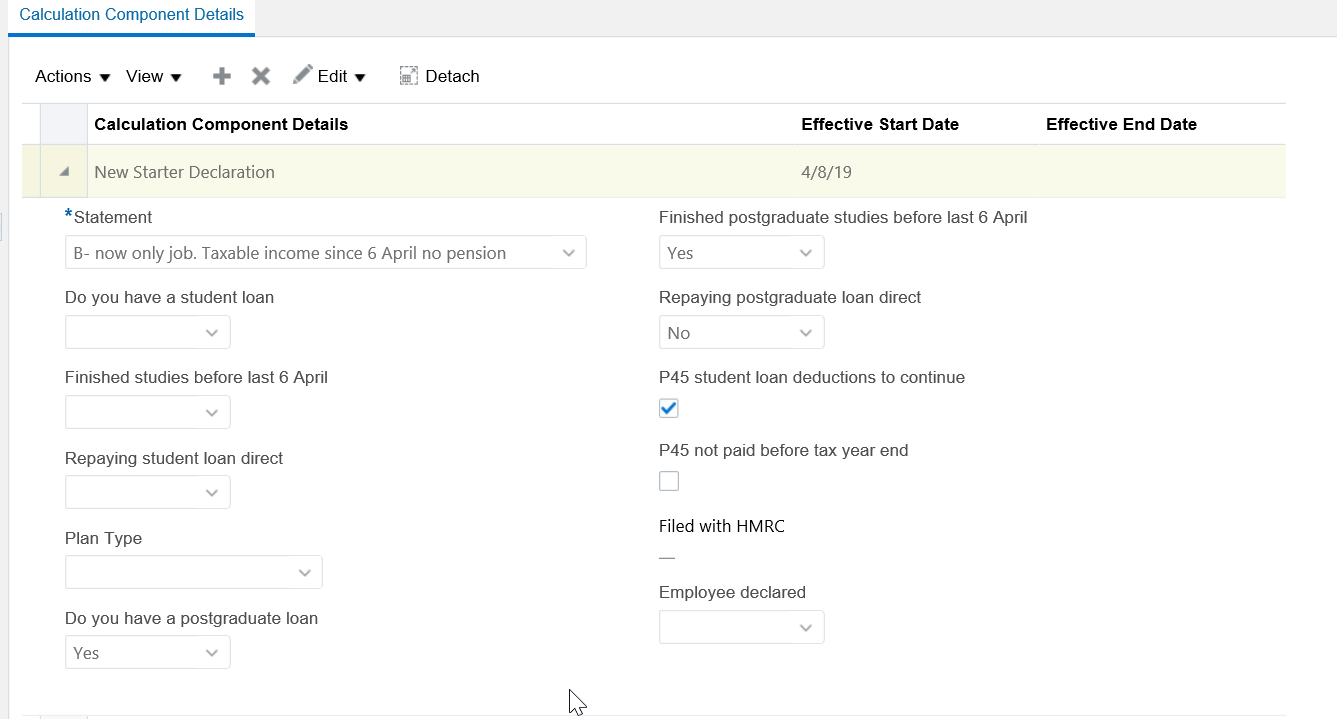
NOTE: If the component for New Starter Declaration exists for the employee in the calculation card, the application updates the component with this information. If the component does not exist for current employees, you must manually create this component.
Steps to Enable
For new hires, the New Starter Declaration component is automatically created only if you have enabled this option at the payroll statutory unit (PSU) or tax reporting unit (TRU) level. Here’s how you can set this in the organization-level Statutory Deductions calculation card:
- Use the Manage Legal Reporting Unit Calculation Cards task and select Organization Statutory Deductions calculation card
- Add or update the PAYE Default Values component and Pay As You Earn Default calculation component details
- Select the Enable automatic new starter creation check box
- Select the Enable automatic Student Loan updates check box. This enables automatic creation of the Court Orders and Student Loan calculation card and a Student Loan component, when the employee completes the relevant section and submits the New Starter Declaration.
- Select Enable automatic Post Graduate Loan check box. This enables automatic creation of the Court Orders and Student Loan calculation card and a Post Graduate Loan component, when the employee completes the relevant section and submits the New Starter Declaration.

April Maintenance Pack for 19A
| Date | Feature | Notes |
|---|---|---|
| 29 MAR 2019 | Created initial document. |
HCM Cloud applications have two types of patches you can receive that are documented in this What’s New:
- Release Updates (19A, 19B, 19C, and 19D)
- Optional Monthly Maintenance Packs to each update
It is important for you to know what Release Update your environment is on. You can find this in your Cloud Portal.
This document outlines the information you need to know about new or improved functionality in Oracle HCM Cloud. Each section includes a brief description of the feature, the steps you need to take to enable or begin using the feature, any tips or considerations that you should keep in mind, and the resources available to help you.
In addition to this document you will also want to review the Oracle Human Capital Management Cloud Functional Known Issues and Maintenance Packs (Document ID 1554838.1). These documents identify bug fixes and possible known issues. You will also need to review these documents based in the release update version you are currently on or will be moving to.
Oracle HCM Cloud release documents are delivered in five functional groupings:
Suggested Reading for all HCM Products:
- HCM Cloud Common Features (This document pertains to all HCM applications. It is the base human resource information for all products and HCM Tools.)
- Global Human Resources Cloud (Global Human Resources contains the base application in which other application use for common data such as workforce structures and person information. Regardless of what products you have implemented you may want to see the new features for Global Human Resources that could impact your products.)
NOTE: Not all Global Human Resource features are available for Talent and Compensation products.
Optional Reading for HCM Products (Depending on what products are in your cloud service):
- Talent Management Cloud (All Talent applications)
- Workforce Rewards Cloud (Compensation, Benefits, Payroll and Global Payroll Interface)
- Workforce Management Cloud (Absence Management and Time and Labor)
Additional Optional Reading:
- Common Technologies and User Experience (This documents the common features across all Cloud applications and is not specific to HCM)
NOTE: All of these documents can be found on the Oracle Help Center at: https://cloud.oracle.com/saasreadiness/hcm under Human Capital Management Release Readiness.
Give Us Feedback
We welcome your comments and suggestions to improve the content. Please send us your feedback at oracle_fusion_applications_help_ww_grp@oracle.com. Indicate you are inquiring or providing feedback regarding the HCM Cloud What’s New for Release 13 in the body or title of the email.
Column Definitions:
Report = New or modified, Oracle-delivered, ready to run reports.
UI or Process-Based: Small Scale = These UI or process-based features are typically comprised of minor field, validation, or program changes. Therefore, the potential impact to users is minimal.
UI or Process-Based: Larger Scale* = These UI or process-based features have more complex designs. Therefore, the potential impact to users is higher.
Features Delivered Disabled = Action is needed BEFORE these features can be used by END USERS. These features are delivered disabled and you choose if and when to enable them. For example, a) new or expanded BI subject areas need to first be incorporated into reports, b) Integration is required to utilize new web services, or c) features must be assigned to user roles before they can be accessed.
| New Features Delivered Ready to Use Reports plus Small Scale UI or Process-Based new features will have minimal user impact after an update. Therefore, customer acceptance testing should focus on the Larger Scale UI or Process-Based* new features. |
New Features That Customer Must Take Action to Use (Delivered Disabled) Not disruptive as action is required to make these features ready to use. As you selectively choose to leverage, you set your test and roll out timing. |
|||||
|---|---|---|---|---|---|---|
| Feature |
Report |
UI or |
UI or |
|
||
Payroll for the United Kingdom
Payroll for Oracle Human Capital Management for the United Kingdom supports country specific features and functions for the United Kingdom. It enables users to follow the United Kingdom's business practices and comply with its statutory requirements.
Improved Performance for Payroll Validation Report
You can use the improved process to run the Payroll Validation Report. Use the Submit a Process or Report task, and select Run Payroll Validation Archive Process.
After you have run the process successfully, to view the results:
- Click Go to Task and Actions.
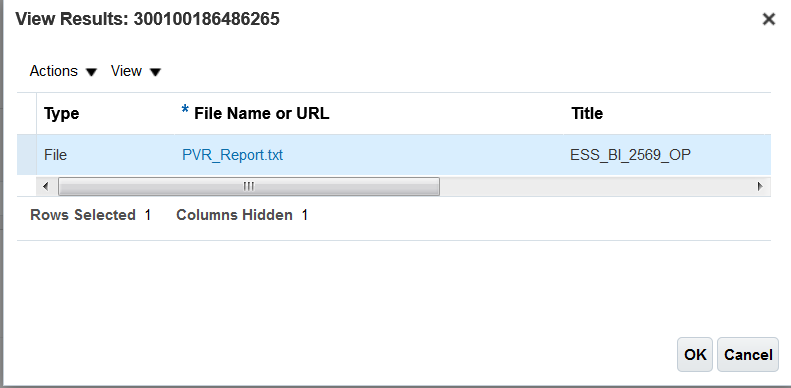
- Select View Results to access the output file created by the process.
Here, you can access the CSV file to view and download the output:

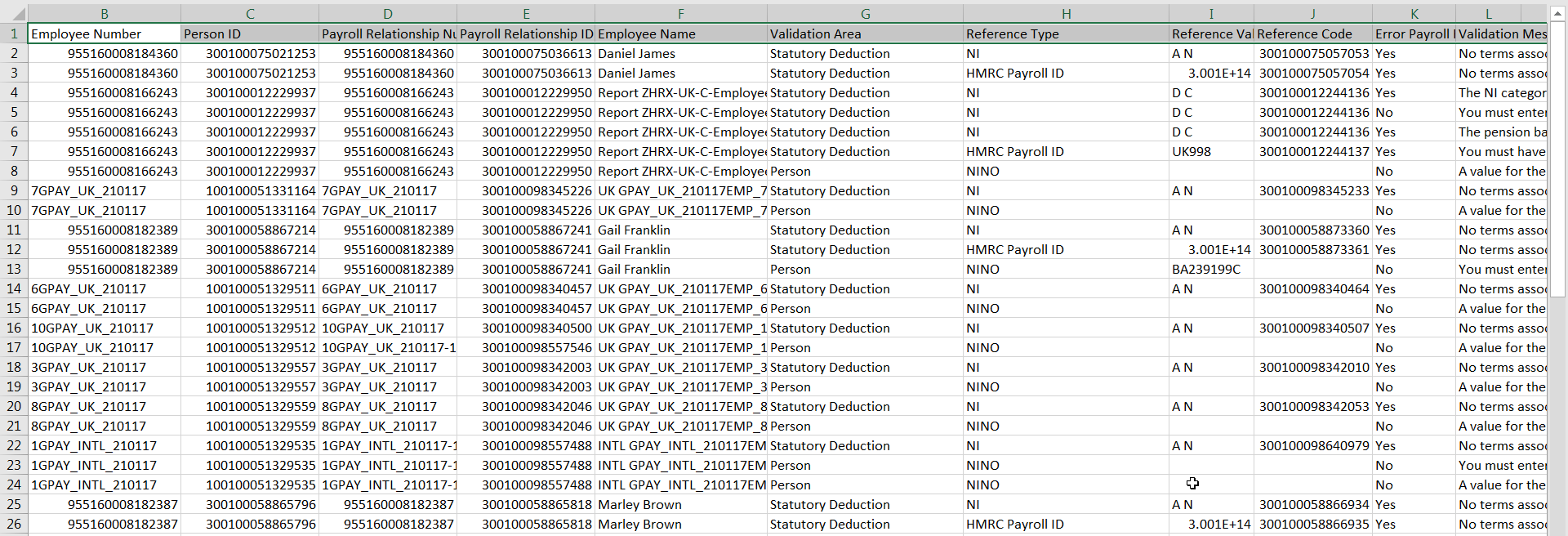
This output file is in text format. You can download and save it as a CSV file and open it in Microsoft Excel, or other compatible applications that support CSV format:
Steps to Enable
You don't need to do anything to enable this feature.
February Maintenance Pack for 19A
This document will continue to evolve as existing sections change and new information is added. All updates appear in the following table:
| Date | Feature | Notes |
|---|---|---|
| 25 JAN 2019 | Created initial document. |
HCM Cloud applications have two types of patches you can receive that are documented in this What’s New:
- Release Updates (19A, 19B, 19C, and 19D)
- Optional Monthly Maintenance Packs to each update
It is important for you to know what Release Update your environment is on. You can find this in your Cloud Portal.
This document outlines the information you need to know about new or improved functionality in Oracle HCM Cloud. Each section includes a brief description of the feature, the steps you need to take to enable or begin using the feature, any tips or considerations that you should keep in mind, and the resources available to help you.
In addition to this document you will also want to review the Oracle Human Capital Management Cloud Functional Known Issues and Maintenance Packs (Document ID 1554838.1). These documents identify bug fixes and possible known issues. You will also need to review these documents based in the release update version you are currently on or will be moving to.
Oracle HCM Cloud release documents are delivered in five functional groupings:
Suggested Reading for all HCM Products:
- HCM Cloud Common Features (This document pertains to all HCM applications. It is the base human resource information for all products and HCM Tools.)
- Global Human Resources Cloud (Global Human Resources contains the base application in which other application use for common data such as workforce structures and person information. Regardless of what products you have implemented you may want to see the new features for Global Human Resources that could impact your products.)
NOTE: Not all Global Human Resource features are available for Talent and Compensation products.
Optional Reading for HCM Products (Depending on what products are in your cloud service):
- Talent Management Cloud (All Talent applications)
- Workforce Rewards Cloud (Compensation, Benefits, Payroll and Global Payroll Interface)
- Workforce Management Cloud (Absence Management and Time and Labor)
Additional Optional Reading:
- Common Technologies and User Experience (This documents the common features across all Cloud applications and is not specific to HCM)
NOTE: All of these documents can be found on the Oracle Help Center at: https://cloud.oracle.com/saasreadiness/hcm under Human Capital Management Release Readiness.
Give Us Feedback
We welcome your comments and suggestions to improve the content. Please send us your feedback at oracle_fusion_applications_help_ww_grp@oracle.com. Indicate you are inquiring or providing feedback regarding the HCM Cloud What’s New for Release 13 in the body or title of the email.
Column Definitions:
Report = New or modified, Oracle-delivered, ready to run reports.
UI or Process-Based: Small Scale = These UI or process-based features are typically comprised of minor field, validation, or program changes. Therefore, the potential impact to users is minimal.
UI or Process-Based: Larger Scale* = These UI or process-based features have more complex designs. Therefore, the potential impact to users is higher.
Features Delivered Disabled = Action is needed BEFORE these features can be used by END USERS. These features are delivered disabled and you choose if and when to enable them. For example, a) new or expanded BI subject areas need to first be incorporated into reports, b) Integration is required to utilize new web services, or c) features must be assigned to user roles before they can be accessed.
| New Features Delivered Ready to Use Reports plus Small Scale UI or Process-Based new features will have minimal user impact after an update. Therefore, customer acceptance testing should focus on the Larger Scale UI or Process-Based* new features. |
New Features That Customer Must Take Action to Use (Delivered Disabled) Not disruptive as action is required to make these features ready to use. As you selectively choose to leverage, you set your test and roll out timing. |
|||||
|---|---|---|---|---|---|---|
| Feature |
Report |
UI or |
UI or |
|
||
Processing Benefits in Kind in Payroll: 2019-2020 Legislative Changes |
||||||
Pensions Automatic Enrolment: Align Pay Reference Period with Earnings Period |
||||||
HMRC Data Retrieval and Load XML Data Process Includes Postgraduate Loans |
||||||
Payroll for the United Kingdom
Payroll for Oracle Human Capital Management for the United Kingdom supports country specific features and functions for the United Kingdom. It enables users to follow the United Kingdom's business practices and comply with its statutory requirements.
Real Time Information Tax Year 2019-2020 (FPS/EPS/EYU)
Full Payment Submission and Employer Payment Summary
You can create and send Real Time Information (RTI) data to HMRC for the tax year 2019-2020 using the new processes for Full Payment Submission (FPS) and Employer Payment Summary (EPS):
- Run Employer Payment Summary for Tax Year Ending April 2020
- Run Full Payment Submission for Tax Year Ending April 2020
The FPS includes the Postgraduate Loan data effecting from April 2019:

FPS and EPS
Earlier Year Update
Use the Run Earlier Year Update for Tax Year Ending (EYU) process to submit changes for previous tax years including 2018-19. You can run this process for any updates to be sent only after 19 April 2019. Until then, you can use the FPS to submit the data for 2018-2019.
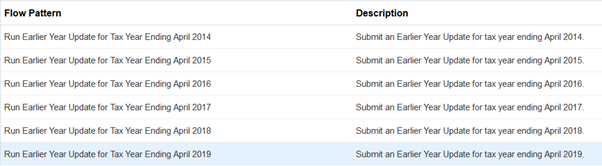
Earlier Year Update
The previous tax years' processes are also available, if you require updates to be sent for those years.
Year to Date Reconciliation Report
Postgraduate loan deductions are included in this report for the relevant employees.
Steps to Enable
You don't need to do anything to enable this feature.
P60 Enhancements for Tax Year 2018-2019
You can deliver P60 End of Year Certificate to your employee using the new templates for the tax year 2018-2019.
To generate P60 for your employees, use the Submit a Payroll flow task for your legislative data group. Select either Run End of Year P60 flow pattern or Run End of Year P60 Selective Print flow pattern, as required.
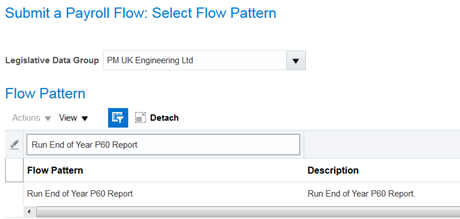
Run End of Year P60 Report
The tax reporting unit (TRU) is a required parameter when generating or reprinting the P60.
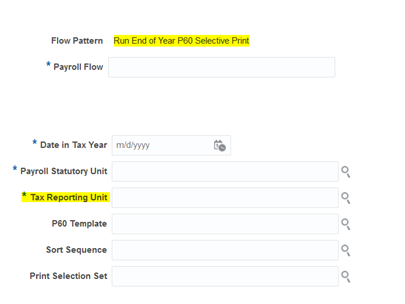
TRU and Required Parameters
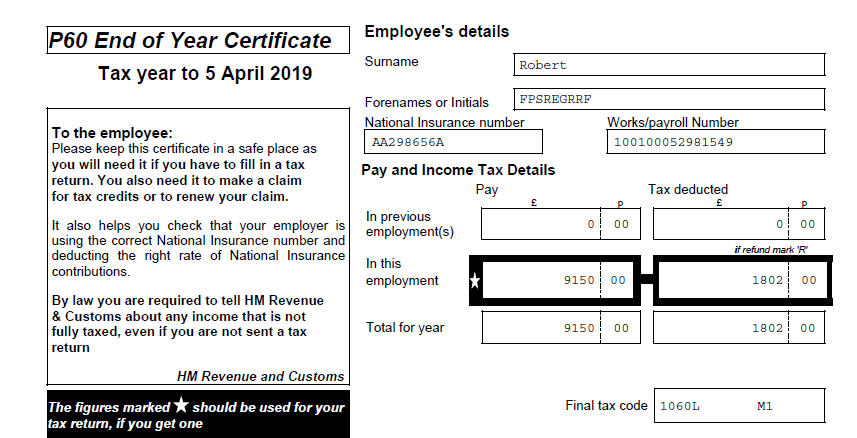
P60 End of Year Certificate
Steps to Enable
You don't need to do anything to enable this feature.
Budget and Legislative Compliance for Tax Year 2019-2020
Budget changes for the new tax year are:
- National Insurance Thresholds and Rates to be applied from April 2019
- NI Thresholds are as follows:
| Threshold/Limit | Weekly (£) | 2 Weekly (£) | 4 Weekly (£) | Monthly (£) | Annual (£) |
|---|---|---|---|---|---|
| Lower Earnings Limit (LEL) | 118 | 236 | 472 | 512 | 6,136 |
| Primary Threshold (PT) | 166 | 332 | 664 | 719 | 8,632 |
| Secondary Threshold (ST) | 166 | 332 | 664 | 719 | 8,632 |
| Upper Secondary Threshold (UST) | 962 | 1,924 | 3,847 | 4,167 | 50,000 |
| Apprentice Upper Secondary Threshold (AUST) | 962 | 1,924 | 3,847 | 4,167 | 50,000 |
| Upper Earnings Limit (UEL) | 962 | 1,924 | 3,847 | 4,167 | 50,000 |
- NI Rates applicable:
The percentages used to calculate employee and employer contributions are unchanged from 2018/2019.The rates which apply to each earnings band for 2019-2020 are as follows:
Employee Rate by NI Category
- Earnings < LEL band for Categories A, H, M, B, J, Z and C remain Nil;
- Earnings from LEL <= PT remain as
- Categories A, H, M, B, J and Z at 0%
- Category C as Nil
-
Earnings > PT <= UEL remain as:
- Categories A, H and M, at 12%
- Categories B at 5.85%
- Categories J and Z at 2%
- Category C as Nil
-
Earnings > UEL remain as:
- Categories A, H, M, B, J and Z at 2%
- Category C as Nil
Employer Rate by NI Category
- Earnings < LEL band for Categories A, H, M, B, J, Z and C remain Nil;;
- Earnings from LEL <= ST remain as
-
Categories A, H, M, B, J, Z and C remain at 0%
-
-
Earnings > ST <= UST/AUST remain as:
- Categories A, B and J, and C at 13.8%
- Categories H, M and Z at 0%
-
Earnings > UST/AUST <= UEL remain as:
-
Categories A, H, M, B, J, Z and C remain at 13.8%
-
-
Earnings > UEL remain as
-
Categories A, H, M, B, J, Z and C remain at 13.8%
-
- NIC Compensation Rate
The NICs Compensation Rate used for calculating NI compensation relating to the processing and payment of statutory payments is unchanged at 3%.
- PAYE for rUK
- PAYE Thresholds
The 2019-2020 income tax bandwidths and percentages effective from 6th April 2019 for the (excluding Wales and Scotland) are as follows:
| Rate |
Taxable Pay |
|---|---|
| Basic Rate at 20% | £0 - £37,499 |
| Higher Rate at 40% | £3500 - £149,999 |
| Additional Higher rate at 45% | Over £150,000 |
- Basic Personal Allowance
The basic personal allowance for tax year 2019-2020 has increased to £12,500.
- Emergency Tax Code for PAYE
The emergency tax code for the new tax year is set to 1250L.
- Statutory Pay Rates
The Statutory payment rates for the tax year 2019/2020 are set as follows:
| Rate | Weekly Rate | Effective Date |
|---|---|---|
| Statutory Sick Pay (SSP) |
£94.25 |
For absences on or after 6th April 2019 |
| Statutory Maternity Pay (SMP) |
£148.68 |
For payment weeks starting on or after 7th April 2019 |
| Statutory Adoption Pay (SAP) |
£148.68 |
For payment weeks starting on or after 7th April 2019 |
| Statutory Paternity Pay (SPP) |
£148.68 |
For payment weeks starting on or after 7th April 2019 |
| Shared Parental Pay (ShPP) |
£148.68 |
For payment weeks starting on or after 7th April 2019 |
- Other Statutory Rates (unchanged for tax year 2019-2020)
The Small Employers Relief threshold remains at £45,000
The NIC compensation rate remains at 3%
The standard recovery rate remains at 92%
- Student Loan Threshold
The thresholds used in the calculation for Student Loans have changed for tax year 2019/2020 as follows:
| Student Loan | Annual Threshold |
|---|---|
| Plan Type 1 | £18,935 |
| Plan Type 2 | £25,725 |
These thresholds are effective from 6th April 2019.
There is no change to the calculation method.
- Postgraduate Loan Thresholds and Rate
The new Postgraduate Loan deduction that comes into effect from 6th April 2019 has its own rates and threshold and are set as follows:
Annual Threshold = £21,000
Deduction Rate = 6%
- Pension Automatic Enrolment Thresholds
The thresholds set in the assessment of earnings to determine if an employee should be automatically enrolled and for calculating qualifying earnings for pensions purposes are set for the tax year 2019/2020 as follows:
| Period Type | Qualifying Earnings Lower Threshold (For Assessment of Jobholder Status) | Qualifying Earnings Upper Threshold | Earnings Trigger Threshold (Remains Unchanged) |
|---|---|---|---|
| Annual |
£6,136 | £50,000 | £10,000 |
| Weekly | £118 | £962 | £192 |
| Fortnightly (2 weeks) | £236 | £1924 | £384 |
| Lunar Month (4 weeks) | £472 | £3847 | £768 |
| Calendar Monthly | £512 | £4167 | £833 |
| Quarterly | £1,534 | £12,500 | £2,499 |
| Biannual (6 calendar monthly) | £3,016 | £25,000 | £4,998 |
Steps to Enable
You don't need to do anything to enable this feature.
Processing Benefits in Kind in Payroll: 2019-2020 Legislative Changes
You can comply with legislative changes for the tax year 2019-2020 to process your employees' benefits in kind through payroll.
The updates include:
- New Fuel Type F is introduced to identify diesel cars meeting Euro standard 6d.
- The following new set of values apply for cars registered on or after 1 January 1998 with approved CO2:
CO2
Fuel A/F
Fuel D
CO2
Fuel A/F
Fuel D
0 – 50
0.16
0.20
125
0.29
0.33
51 – 75
0.19
0.23 130 0.30 0.34 76 – 94
0.22 0.26 135 .031 0.35 95
0.23 0.27 140 0.32 0.36 100 0.24 0.28 145 0.33 0.37 105 0.25 0.29 150 0.34 0.37
110 0.26 0.30 155 0.35 0.37
115 0.27 0.31 160 0.36 0.37
120 0.28 0.32 165+ 0.37 0.37
- The following rates apply to cars registered on or after 1 January without approved CO2:
Engine Size
Fuel A/F
Fuel D
0 to 1400
0.23
0.27
1401 to 2000
0.34
0.37
Over 2000
0.37
0.37
All rotary engines
0.37
0.37
- The following rates apply to cars registered on or after 1 January without approved CO2:
Engine Size
Fuel A/F
Fuel D
0 to 1400
0.23
0.27
1401 to 2000
0.34
0.37
Over 2000
0.37
0.37
All rotary engines
0.37
0.37
- The following charges apply to car and car fuel, and van and van fuel benefits:
Benefit Charge
Value
Fuel Benefit Charge for Car
24100.00
Fuel Benefit Charge for Van
655.00
Van Benefit Standard Charge
3430.00
Van Benefit for zero-emission vans amount
3430.00
Steps to Enable
You don't need to do anything to enable this feature.
You can provide read-only access of end-of-year expenses and benefits statements to your employees for the tax year 2018-2019.
All the rates, CO2 emissions and charges applicable for the reporting of P11D for the tax year ending April 2019 have been applied.
Use the streamlined P11D process that combines tasks to archive data, generate Errors and Warnings report, apply the P11D(b) changes, and create the online P11D statement.
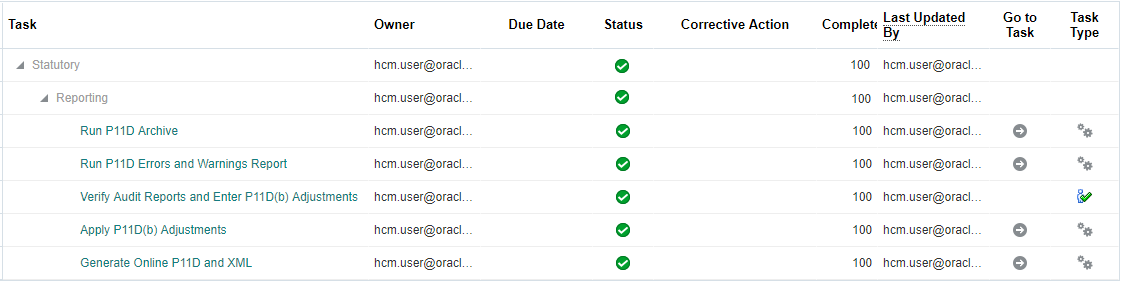
P11D Process
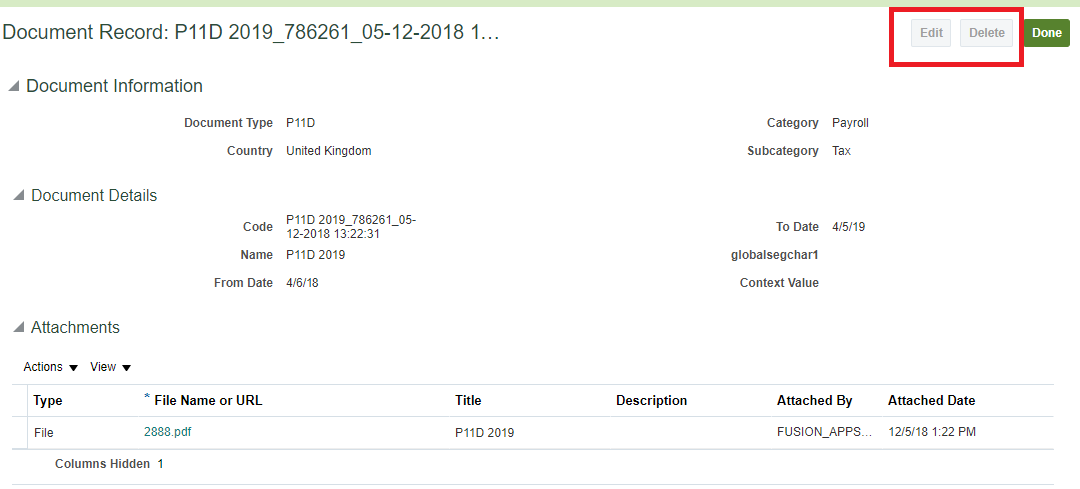
P11D PDF File
Access to employees is restricted to view only. Printing using normal PDF functionality also available.
Steps to Enable
You don't need to do anything to enable this feature.
Display or Hide Hours on Payslips
You can set up the payslip template to show or hide hours, as required. Your employees can view the hours related to their earnings. You can override the default calculations provided for the number of hours used by the Earnings formula, or even set up your own calculation to display the hours on the payslip.
Steps to Enable
Use the balance category Hours to display hours on the payslip. Automatic balance feeds ensure the number of hours feed into the balance created. This balance is available in the payslip template under the Hours region.
You can do this in the Manage Elements task by creating the element using the Earnings element template:
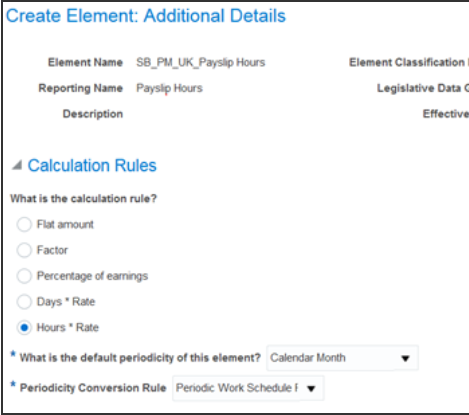
Create Element Using the Manage Element Task
Use the element classification Regular Earnings and select the Hours*Rate option under calculation rules.
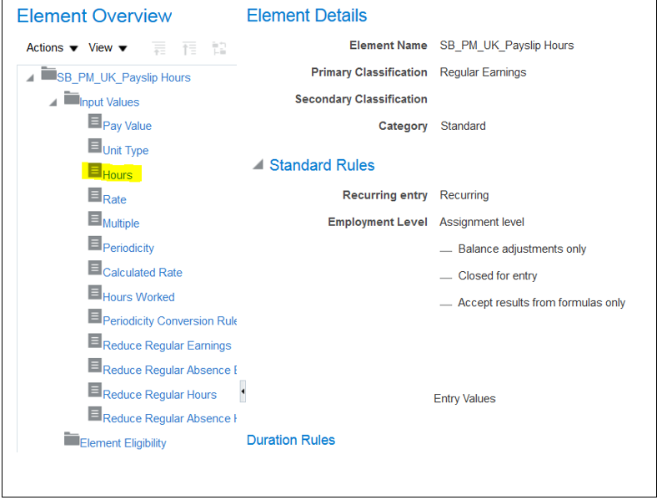
Element Overview
When using the earnings element template, the balance category of hours is automatically created for that element, if one of the inputs is Hours.
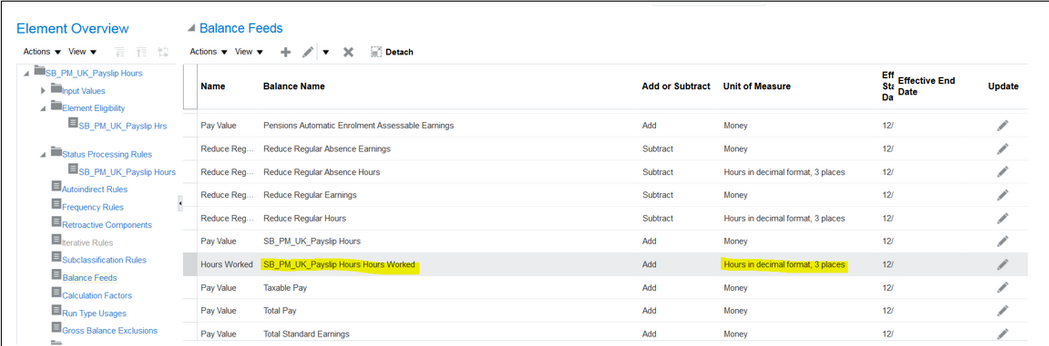
You can create your own calculations for the number of hours to display on the payslip or other archive based reports, for example, the Payroll Register report. To do this:
- Create your balance with the balance category Hours
- In the Manage Balance Definitions, use the balance category Hours
- Create a balance feed for the result of the calculation
- You can enter the element name as input value Hours
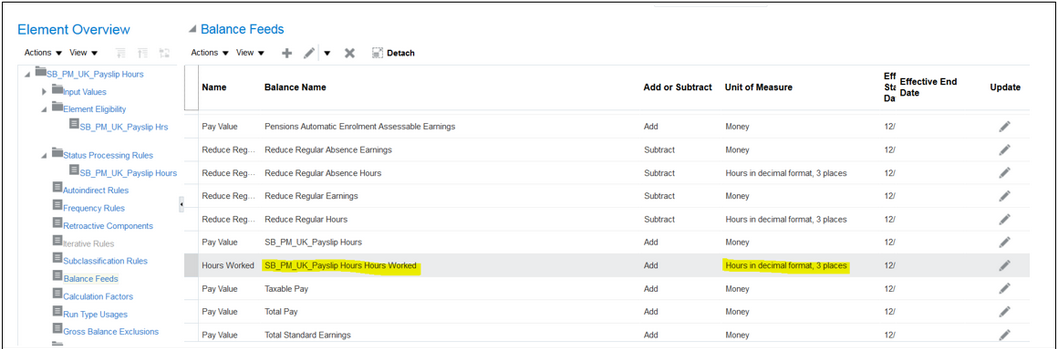
Element Overview: Balance Feeds
- Attach following dimensions to the balance:
- Relationship Tax Unit Tax Year to Date
- Payroll Relationship, Tax Reporting Unit, Payslip
- Relationship Tax Unit Run
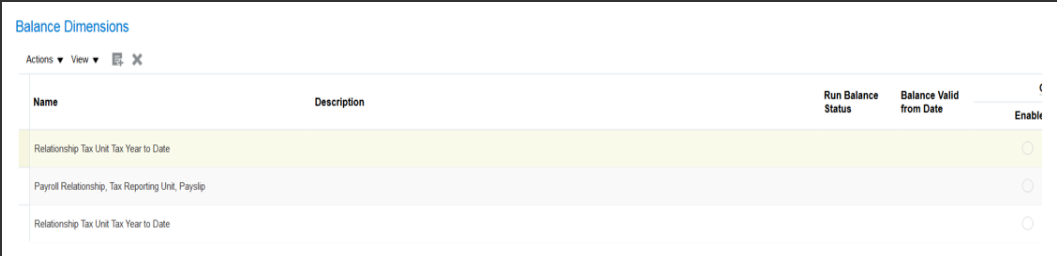
Create Balance Definition
You can set up the payslip template to display or hide the hours balances in the Hours region as required.
| Description | Current | Year to Date |
|---|---|---|
| Payslip Hours | 180.00 | 569.00 |
| Total Hours Worked | 200.00 | 769.00 |
You can use the option Mark for Retry for employees who were successfully included in the original Full Payment Submission (FPS) process.
- The retry run only reprocesses employee records that are Marked for Retry or in Error status
- Successful records are not reprocessed resulting in significant time saving compared to rolling back and rerunning FPS
- You don't need to rollback and rerun a whole FPS batch due to only a few data validation errors
- Retried employee records are included in the FPS XML output file together with the original successful records.
In the process results, you can select the Mark for Retry option for the employee as shown below:
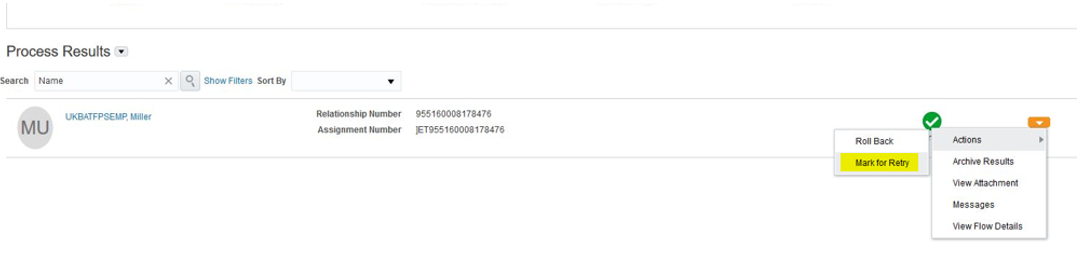
Mark for Retry Option
The employee status is updated.
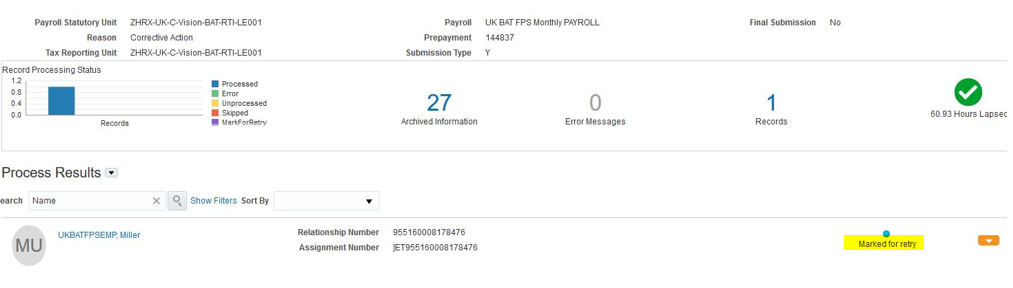
Employee Status for Retry
The FPS is marked as On Hold.
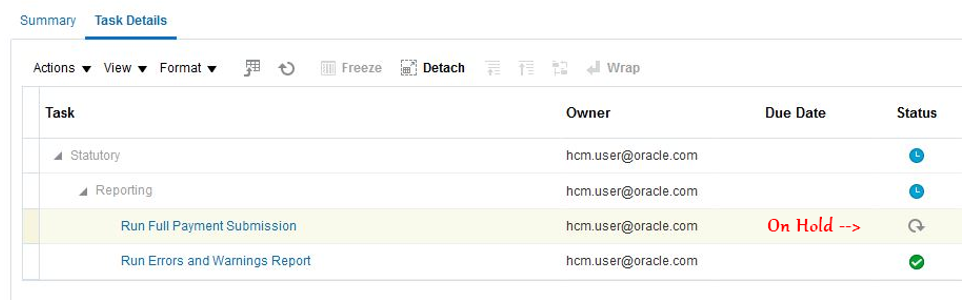
FPS Task On Hold
You will then need to select the action ‘Mark as Complete’ on this FPS Task. A warning message is generated. Select Continue to run the process.
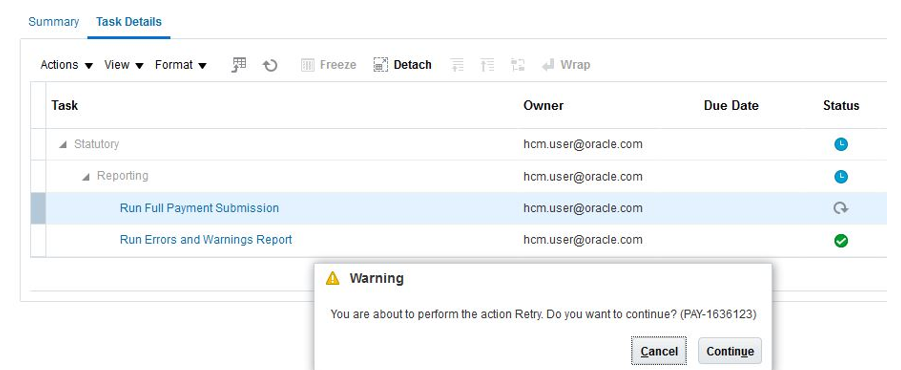
FPS Retry
After correcting the data errors raised by the FPS process, to perform the retry after you have fixed errors:
- Select Mark as Incomplete for the the Errors and Warnings task
- Select Mark as Complete for this FPS task.
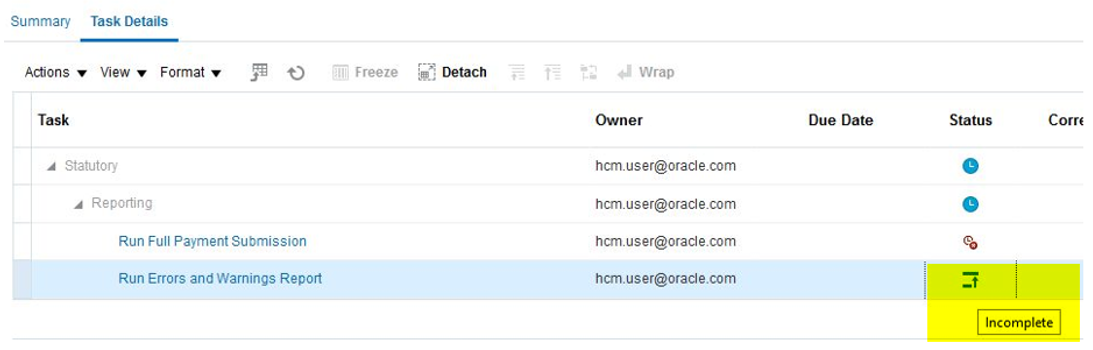
Mark as Incomplete Errors and Warnings Task
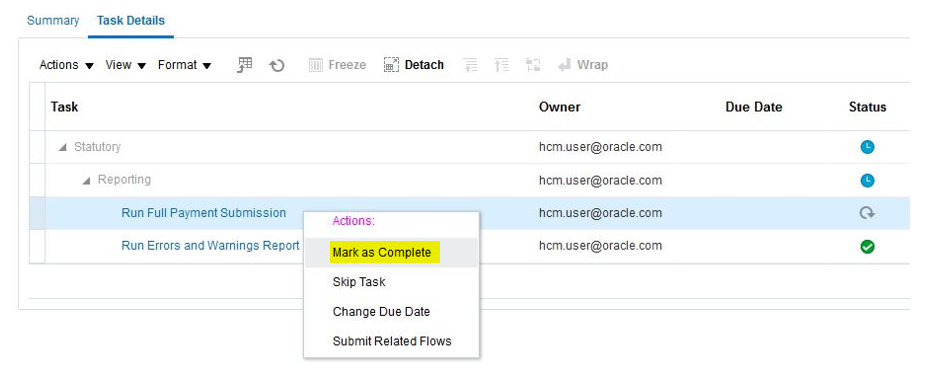
FPS Process Mark as Complete
The Retried employee records are included in the new FPS XML output file that is produced by the Mark as Complete option along with the original successful records.
Steps to Enable
You don't need to do anything to enable this feature.
Automatic Associations Created for Global Transfers
When you initiate a global transfer for an employee and select the tax reporting unit, the process automatically creates the associations for PAYE and NI with the assignment.
For the process to create the associations automatically, there must only be one PAYE and one NI component. If either NI or PAYE, or both NI and PAYE have multiple components, no associations are created.
Steps to Enable
You don't need to do anything to enable this feature.
Pensions Automatic Enrolment: Align Pay Reference Period with Earnings Period
You can align your Pay Reference Period with pay periods for assessing employees using the Pensions Automatic Enrolment assessment process. The process supports both tax periods and earnings period.
Steps to Enable
You can set the values in the Organization Pensions Automatic Enrolment calculation card:
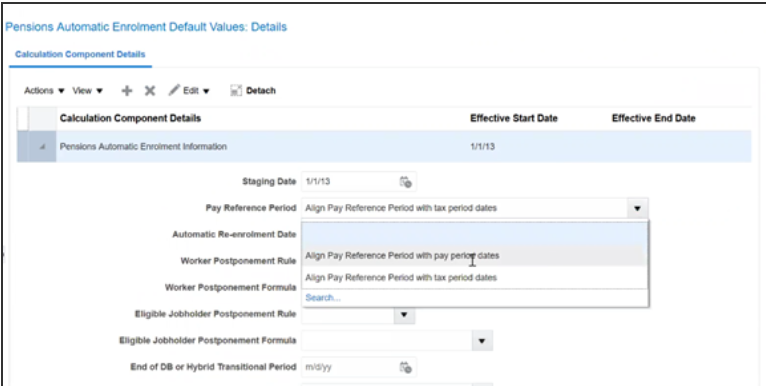
Pay Reference Period in Pensions Automatic Enrolment Default Values
- Align Pay Reference Period with tax period dates: Selecting this option aligns your pay reference period to the current tax periods, and is used for employee assessment.
- Align Pay Reference Period with pay period dates: Selecting this option aligns the pay reference period to the period when the employee is paid or the earnings period, and is used for employee assessment.
You can create and maintain postgraduate loan deductions for your employees using the Postgraduate Loan Start Notice (PGL1) or Postgraduate Loan Stop Notice (PGL2) notifications from HMRC. You can either manually enter the data, or run the HMRC Data Retrieval and Load HMRC XML File Processes to load PGL1 and PGL2. Postgraduate loan information will be reported to HMRC by the Full Payment Submission process, effective April 2019.
Steps to Enable
You can use the new element template to create postgraduate loan element. Use the element template for court orders and student loans to set up the Postgraduate Loan (PGL) element. This creates all the necessary calculation and results elements and the required balances. The element also automatically creates the calculation card component details for Post Graduate Loan.
Use the Manage Elements task to create the Postgraduate Loan element with the following attributes:
- Primary Classification Involuntary Deductions
- Secondary Classification Postgraduate Loan
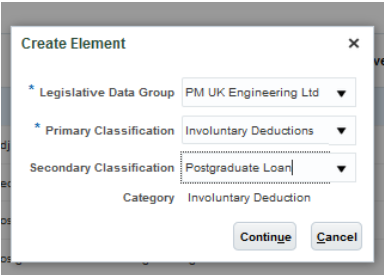
Create Element Postgraduate Loan
The template creates the following elements:
- <Element Name>_Adjustment
- <Element Name>_Deductions_Results
- <Element Name>_Loan_Arrears
- <Element Name>_Loan_Arrears_Repayment
- <Element Name>_ Loan_Arrears_Repayment_Balance_Feed
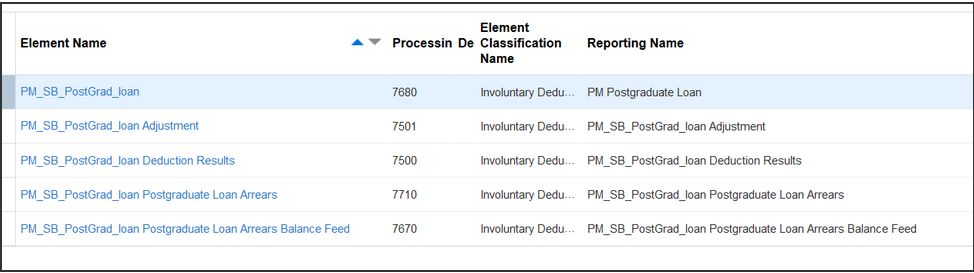
Automatically Created Elements
You must now create the postgraduate loan calculation card component for the employee in the Court Orders and Student Loans calculation card. If the employee does not have the calculation card automatically created, you can create the calculation card or use the automatically created calculation card.
In the calculation card, create the calculation component Postgraduate Loan and enter the unique reference.
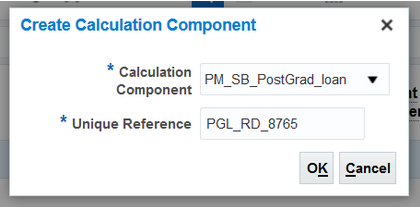
Create Calculation Component for Postgraduate Loan
This creates the postgraduate loan calculation component and component details. Enter all the required data in the component details section.
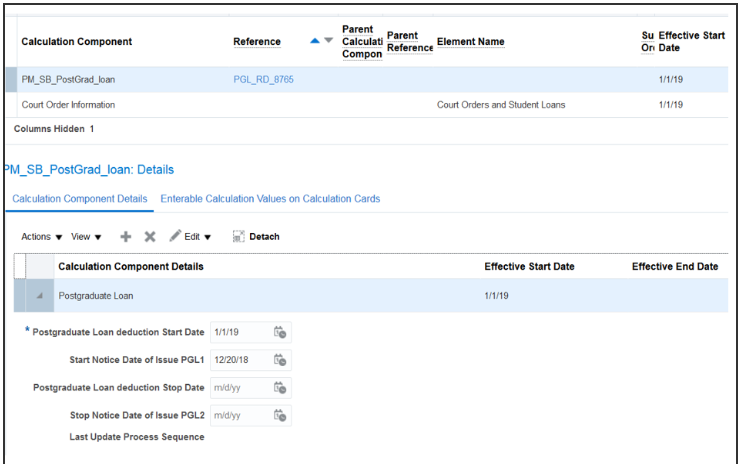
Postgraduate Loan Calculation Component Details
Create the required associations between the postgraduate loan calculation component and the tax reporting unit.
When you run the payroll, the postgraduate loan calculations are performed according to the statutory rules prescribed by HMRC. The deductions are processed for the employee in the effective period. Any amount not processed in the payroll will be added to the arrears balance and processed in subsequent payroll runs.
Postgraduate Loans deduction process is similar to processing Student Loans. If you do not use the HMRC Data Retrieval and Load HMRC XML File Processes for postgraduate loans, you must manually enter the dates required to start the postgraduate loan deductions for the employee.
Errors and Warnings Report XML File
You can download the XML file created as part of processes that include a task for error and warnings report. Once you have run the process, you can view the file output from the task Run Errors and Warnings Report.
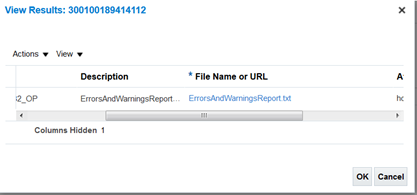
Save the file in CSV format and open it using the appropriate application.

Steps to Enable
You don't need to do anything to enable this feature.
HMRC Data Retrieval and Load XML Data Process Includes Postgraduate Loans
You can retrieve and upload postgraduate loan deduction notification records sent from HMRC for your employees, using the HMRC Data Retrieval process and the Load XML Data process.
Steps to Enable
Prerequisites
- You must create an element for the Postgraduate Loan for your legislative data group retrieve and load from HMRC for Postgraduate Loan Start Notice (PGL1) and Postgraduate Loan Stop Notice (PGL2) received.
- The employee must have a Statutory Deduction card with the correct associations. This is required to match the employee with the PGL1 or PGL2 record to upload.
To retrieve the postgraduate loan records from HMRC, select the required Postgraduate Loan Start Notice or Stop Notice option in the File Type parameter for HMRC Data Retrieval Process.
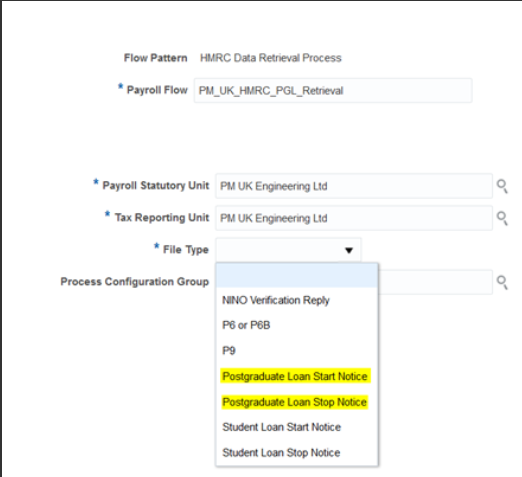
HMRC Data Retrieval Process
This data is stored in the UCM and ready to be processed by the HMRC XML File process.
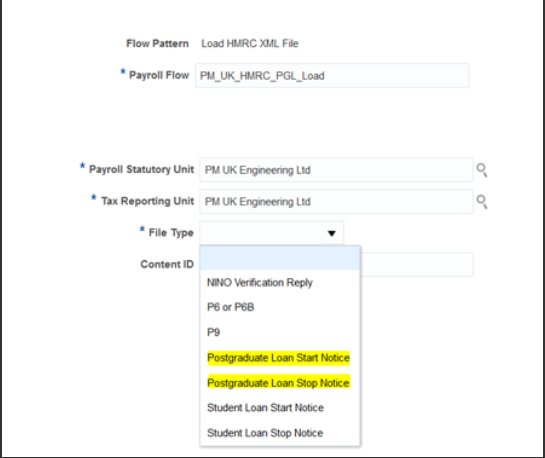
Load HMRC XML File Process
The data is uploaded from the UCM and updates the component for Postgraduate Loan for the relevant employees. The Last Update Process Sequence field in the postgraduate loan component is used for audit.
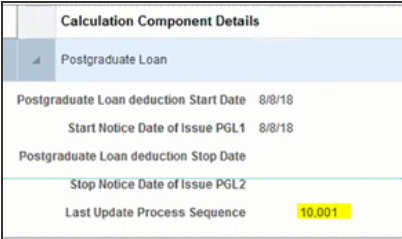
Last Update Process Sequence Field
In the organization-level calculation card, there are two new fields in the Organization Information EFF for the UK TRU RTI Information:
- PGL1 Highest Index Retrieved
- PGL2 Highest Index Retrieved
You can set the number for the Highest Index Retrieved, as required.
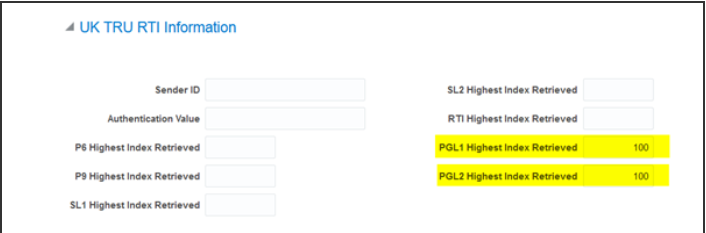
UK TRU RTI Information
The previously set Sender ID and Authentication Value for your organization also applies to retrieving the postgraduate loans.
You can use the action parameters to set the maximum file size and number of retrievals to complete in a single run. To do this, create a configuration group and add the parameters values as required.
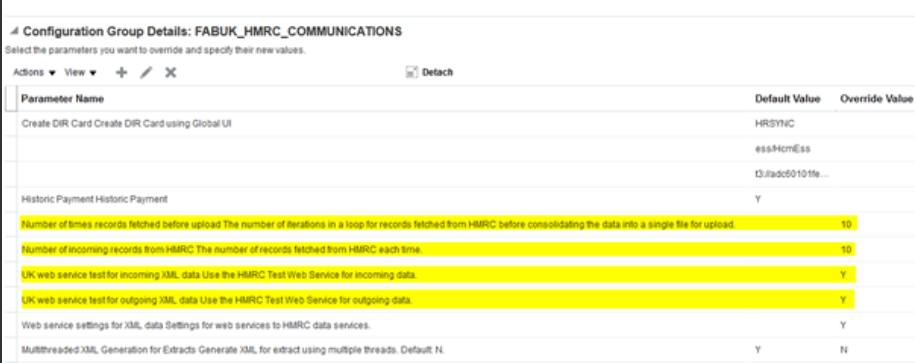
Configuration Group Details
This document will continue to evolve as existing sections change and new information is added. All updates appear in the following table:
| Date | Feature | Notes |
|---|---|---|
| 28 FEB 2020 | Payroll for the UK: Multiple Periods of NI for Late Hires |
Updated document. Revised feature information. |
| 25 OCT 2019 | Business Intelligence/Payroll: Active Processes Dashboard |
Updated document. Delivered feature in update 19A. |
| 26 APR 2019 | Payroll for the US: Support for 403 (b) and 457 (b) Deferred Compensation Plans |
Updated document. Revised feature information. |
| 29 MAR 2019 | Compensation: Transfer Data Back Into HR More Efficiently |
Updated document. Revised feature information. |
| 29 MAR 2019 |
Global Payroll: Enhanced Security for Quick Actions |
Updated document. Revised feature information. |
| 22 FEB 2019 |
Business Intelligence/Compensation: OTBI Segments 46-50 in Compensation and Compensation Budget Subject Areas |
Updated document. Delivered feature in update 19A. |
| 22 FEB 2019 | Global Payroll: Element Upgrade Process | Updated document. Revised feature information. |
| 25 JAN 2019 | Compensation: Transfer Data Back Into HR More Efficiently | Updated document. Delivered feature in update 19A. |
| 25 JAN 2019 |
Compensation: Total Compensation Statement - Migration |
Updated document. Delivered feature in update 19A. |
| 25 JAN 2019 |
Global Payroll: Control Transient Data Retention in Payroll Extracts | Updated document. Delivered feature in update 19A. |
| 25 JAN 2019 |
Payroll for the US: Midday Period Support for Time Cards and Absences | Updated document. Delivered feature in update 19A. |
| 21 DEC 2018 | Payroll for Mexico: Income Tax Update | Updated document. Delivered feature in update 19A. |
| 21 DEC 2018 |
Payroll for Mexico: Payroll State Tax |
Updated document. Delivered feature in update 19A. |
| 21 DEC 2018 |
Payroll for Mexico: Support for INFONAVIT |
Updated document. Delivered feature in update 19A. |
| 21 DEC 2018 |
Payroll for Mexico: Support for Internet Digital Fiscal Certificate (CFDI) |
Updated document. Delivered feature in update 19A. |
| 21 DEC 2018 |
Payroll for Mexico: Unit of Measure and Update (UMA) Support |
Updated document. Delivered feature in update 19A. |
| 07 DEC 2018 | Created initial document. |
HCM Cloud applications have two types of patches you can receive that are documented in this What’s New:
- Release Updates (19A, 19B, 19C, and 19D)
- Optional Monthly Maintenance Packs to each update
It is important for you to know what Release Update your environment is on. You can find this in your Cloud Portal.
This document outlines the information you need to know about new or improved functionality in Oracle HCM Cloud. Each section includes a brief description of the feature, the steps you need to take to enable or begin using the feature, any tips or considerations that you should keep in mind, and the resources available to help you.
In addition to this document you will also want to review the Oracle Human Capital Management Cloud Functional Known Issues and Maintenance Packs (Document ID 1554838.1). These documents identify bug fixes and possible known issues. You will also need to review these documents based in the release update version you are currently on or will be moving to.
Oracle HCM Cloud release documents are delivered in five functional groupings:
Suggested Reading for all HCM Products:
- HCM Cloud Common Features (This document pertains to all HCM applications. It is the base human resource information for all products and HCM Tools.)
- Global Human Resources Cloud (Global Human Resources contains the base application in which other application use for common data such as workforce structures and person information. Regardless of what products you have implemented you may want to see the new features for Global Human Resources that could impact your products.)
NOTE: Not all Global Human Resource features are available for Talent and Compensation products.
Optional Reading for HCM Products (Depending on what products are in your cloud service):
- Talent Management Cloud (All Talent applications)
- Workforce Rewards Cloud (Compensation, Benefits, Payroll and Global Payroll Interface)
- Workforce Management Cloud (Absence Management and Time and Labor)
Additional Optional Reading:
- Common Technologies and User Experience (This documents the common features across all Cloud applications and is not specific to HCM)
NOTE: All of these documents can be found on the Oracle Help Center at: https://cloud.oracle.com/saasreadiness/hcm under Human Capital Management Release Readiness.
Give Us Feedback
We welcome your comments and suggestions to improve the content. Please send us your feedback at oracle_fusion_applications_help_ww_grp@oracle.com. Indicate you are inquiring or providing feedback regarding the HCM Cloud What’s New for Release 13 in the body or title of the email.
Column Definitions:
Report = New or modified, Oracle-delivered, ready to run reports.
UI or Process-Based: Small Scale = These UI or process-based features are typically comprised of minor field, validation, or program changes. Therefore, the potential impact to users is minimal.
UI or Process-Based: Larger Scale* = These UI or process-based features have more complex designs. Therefore, the potential impact to users is higher.
Features Delivered Disabled = Action is needed BEFORE these features can be used by END USERS. These features are delivered disabled and you choose if and when to enable them. For example, a) new or expanded BI subject areas need to first be incorporated into reports, b) Integration is required to utilize new web services, or c) features must be assigned to user roles before they can be accessed.
Oracle Benefits is a complete, configurable and flexible global solution that enables organizations to successfully evolve and adapt to the unique needs of their workforce. The solution enables setup of traditional 'one-size fits all' plans to highly complex plans that selectively target different workforce segments with different benefit packages. Self-service capabilities present the user with an out of the box intuitive guided enrollment process with contextual information and embedded analytics.
Benefits for the United States
The features below are Benefit features for the United States.
ACA 1095-C Report Enhancements
We have provided new review options for your ACA Form 1095-C reports. The Run US 1095-C Employee Report extract now includes a Reporting Mode parameter. This parameter allows you to select between Draft and Final versions of the report. Review your Form 1095-C in Draft mode before generating and submitting the final document. Generate it in Final mode to automatically post the report to the employee Document Records.
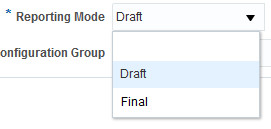
Reporting Mode Parameter
Steps to Enable
You don't need to do anything to enable this feature.
Compensation and Total Compensation Statement
Oracle Compensation enables your organization to plan, allocate, and communicate compensation using the most complete solution in the market. Make better business decisions using embedded analytics and a total compensation view of workers, regardless of geographic location or pay package components.
Process Suspended Assignments in Grade Step Progression
You can now include suspended assignments when submitting Run Grade Step Progression and Synchronize Grade Step Rates batch processes. Previously, only active assignments were included and you had to wait until an assignment returned to active status before processing progressions or synchronizing rates. Now, you can keep the assignments and salary records up-to-date with any changes, even while the assignment is suspended.
Both processes include a new Assignment Status parameter. This parameter enables you to include suspended assignments at any point during your processing cycle.
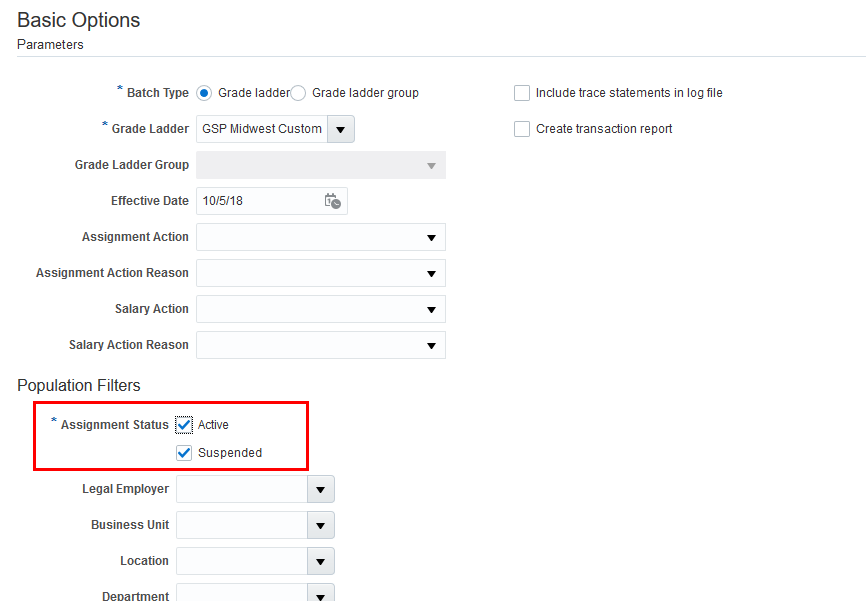
Assignment Status Parameter
Watch a Demo
Steps to Enable
In order to use this feature you need to update the Assignment Status to include suspended assignments when submitting your batch processes.
Tips And Considerations
- At least one Assignment Status value is required when submitting a process. The page defaults to 'Active'. If you want to include suspended assignments you must update the page to include the 'Suspended' value. Alternatively you can choose to run only suspended assignments by selecting only the 'Suspended' value.
- For troubleshooting purposes, the Assignment Status value will be captured in the batch summary log file
Key Resources
Watch Grade Step Progression Enhancements Readiness Training
Prorate Progression Grade Ladder Rates by Assignment FTE
We added a new salary adjustment type attribute to the progression grade ladder definition. With this attribute you can specify whether the rates from the grade ladder are prorated based on the value of the FTE on the worker's assignment. You can adjust the salary for all values of FTE or only adjust salary if FTE is less than 1.
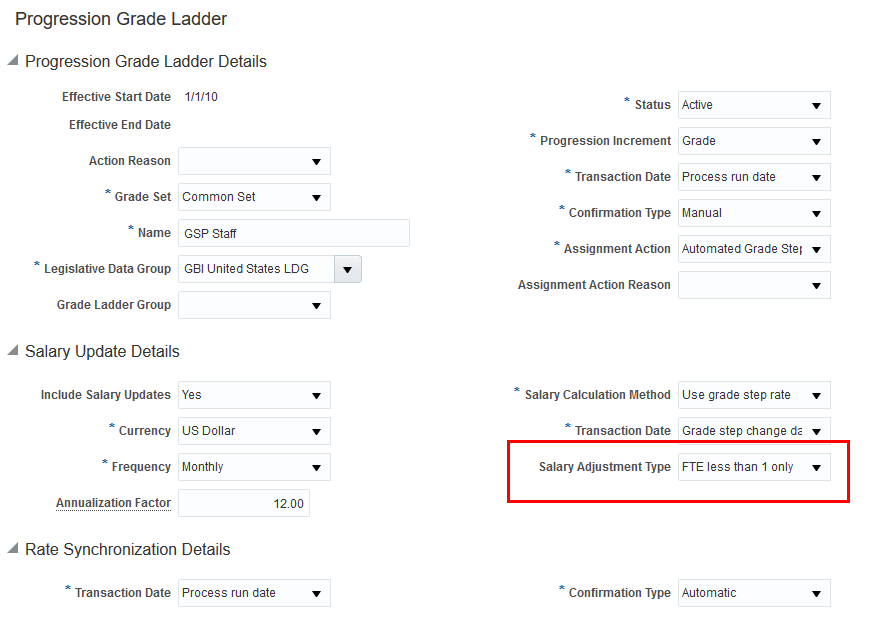
Salary Adjustment Type Attribute on Manage Progression Grade Ladders Page
The salary adjustment type you select affects salary amounts calculated during Run Grade Step Progression and Synchronize Grade Step Rates batch processes. It also affects salaries populated in online transactions, such as new hire, promotion, and transfer.
The Review Proposed Progressions and Salary updates page includes new fields that display the full-time salary amounts in current and proposed value columns. These fields are only displayed on the page if the salary is adjusted for FTE.
- The current full-time salary is calculated for comparison with the grade ladder rates to determine if a progression or salary update is warranted. This value may correspond to the grade ladder rate for the current step, it may be different if the salary record was overridden
- The proposed full-time salary is the grade ladder rate for the proposed step, before being pro-rated for FTE value.
The existing salary fields continue to represent the actual values stored on the salary record
- The current salary is the actual salary amount that is stored on the salary record.
- The proposed salary is the new salary to be written to the salary record. This amount includes proration by FTE and rounding if applicable.
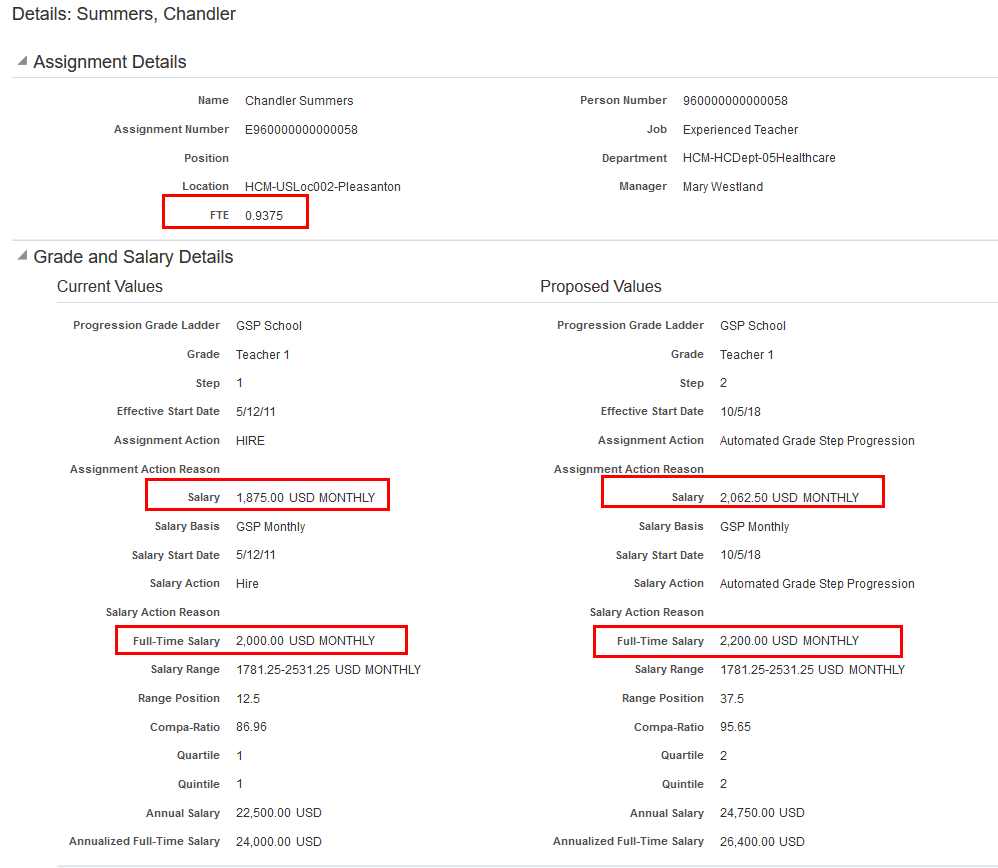
Current and Proposed Salary Amounts Displayed in Review Proposed Progressions and Salary Updates Page
To help review and troubleshoot batch processes, we added the FTE attribute to the Results page. You may find it useful when verifying calculations to filter the results to only display FTE less than 1.
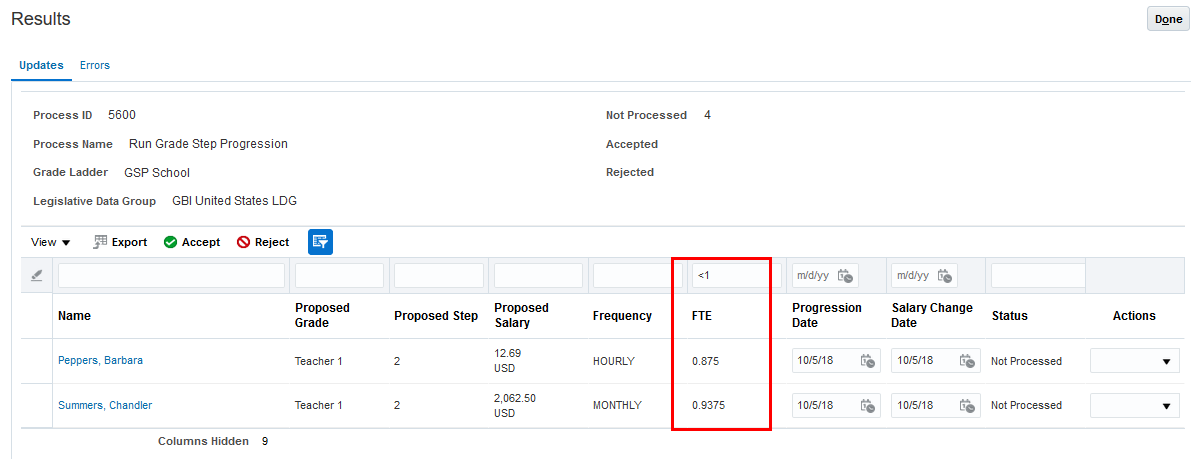
New FTE Column on Results Page
We also added the FTE attribute to the log file. This addition makes it easier to understand and confirm differences in proposed salaries for assignments that are on the same grade step.
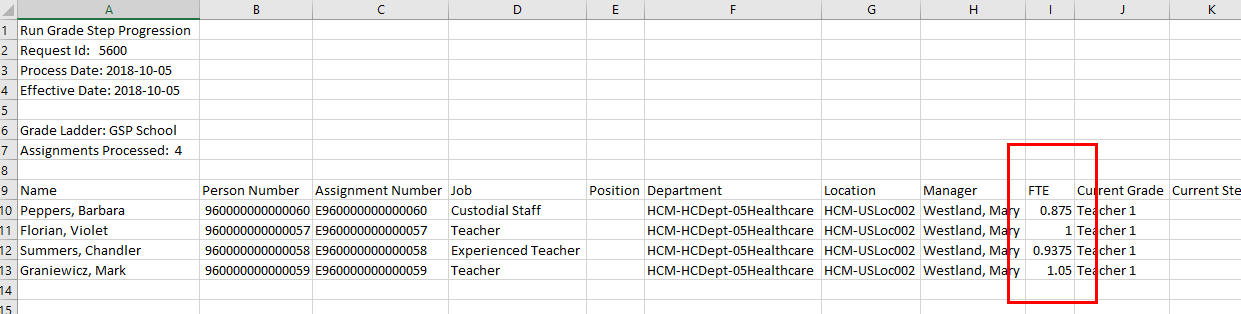
New FTE Column on Log File
Watch a Demo
Steps to Enable
To use this feature you need to choose a salary adjustment type in your progression grade ladder definition. You can do this manually on the Manage Progression Grade Ladders page, or via HDL with the Progression Grade Ladder object.
Tips And Considerations
- There are some exceptions for hourly rates
- Salary rates are not adjusted for FTE when the worker's salary basis is hourly.
- Salary rates are adjusted for FTE if the worker's salary basis is not hourly (e.g. monthly or annual) and the frequency of the progression grade ladder is hourly. In this scenario, the hourly rate from the ladder is converted to the salary basis frequency and then adjusted according to the FTE value.
- Take care when updating working hours or FTE value in the same transaction where grade or grade step are updated. It is best to perform FTE/working hours updates in a separate transaction. Or if you do complete them in the same transaction, you should update the working hours/FTE first, prior to updating the grade or grade step.
- Since we are now capturing full-time salary amounts during batch processing, we have changed the way we calculate the annualized full-time salary amount when the salary is adjusted for FTE.
- If the salary is adjusted for FTE, then the Annualized Full-Time Salary is calculated by multiplying the Full-Time Salary amount by the annualization factor of the salary basis.
- If the salary is not adjusted for FTE, then the Annualized Full-Time Salary is calculated by dividing the Annual Salary by the FTE value. This approach is consistent with how the amount is calculated and displayed in the salary pages.
Key Resources
Watch Grade Step Progression Enhancements Readiness Training
We enhanced the salary basis to give you the flexibility to define separate rounding rules for annual values.
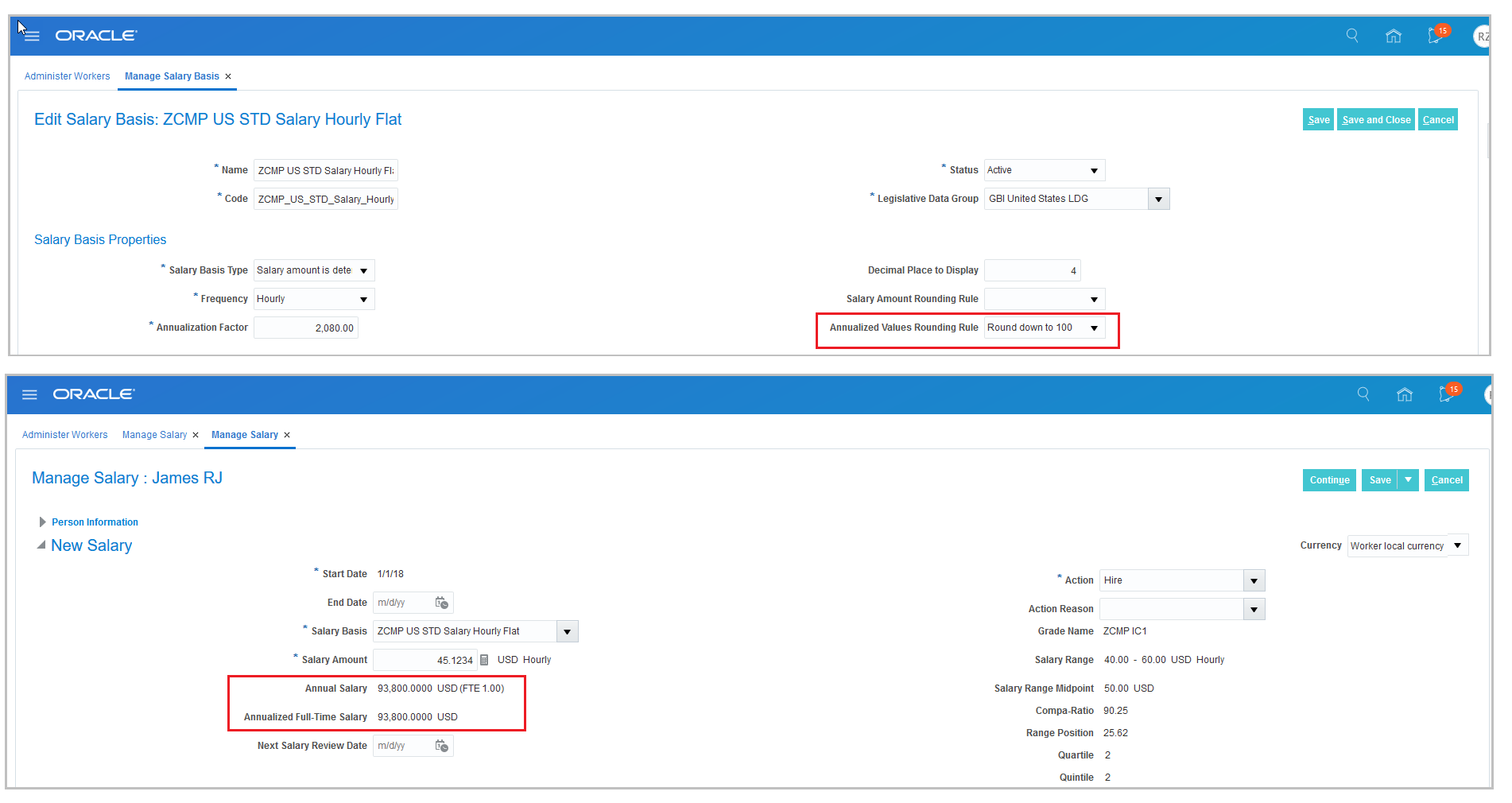
$45.1234 * 2080 = 93856.672, but rounded down to nearest hundred 93,800
Steps to Enable
You don't need to do anything to enable this feature.
Key Resources
For more information, see the following topic in Applications Help:
- Creating Salary Bases: Points to Consider
Round Annual Amounts in Grade Step Progression
The annual salary and annualized full-time salary are rounded according to the value of the annualized values rounding rule defined on the salary basis.
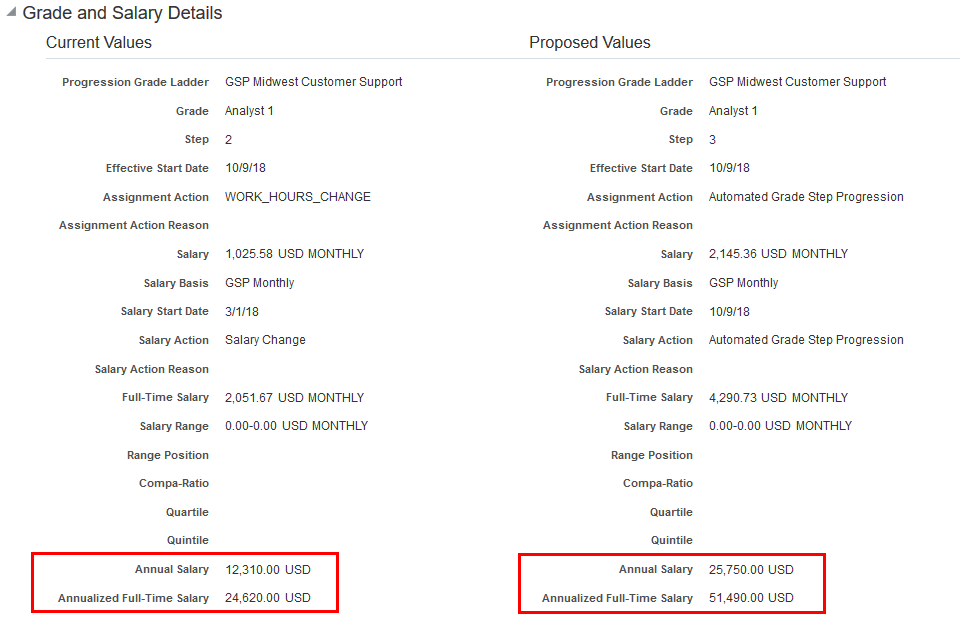
Annual Salary Amounts Displayed in Review Page When Annualized Values Rounding Rule Is 'Up to 10'
Watch a Demo
Steps to Enable
In order to use this feature you need to select a value for the annualized values rounding rule on the salary basis definition for each salary basis associated with the employees in your grade ladder.
Tips And Considerations
The annual amounts are calculated and stored during the batch run. These annual amounts are displayed here for reference only and are not included in the salary transaction. The annual amounts displayed in the salary record are calculated dynamically on that page, so in some cases you may see some differences in annual values. For example the annual amounts will be different on the salary page if the rounding rules are changed after the grade step progression process is run.
Key Resources
Watch Grade Step Progression Enhancements Readiness Training
Support Export and Import of Manage Salary Differentials
Export and import new or changed salary range differential values using a newly delivered service in Setup and Maintenance.
Steps to Enable
You don't need to do anything to enable this feature.
Warn or Error When Over Budget
You can now configure the over budget message to send either a warning or an error. Previously, you could only send an error message.
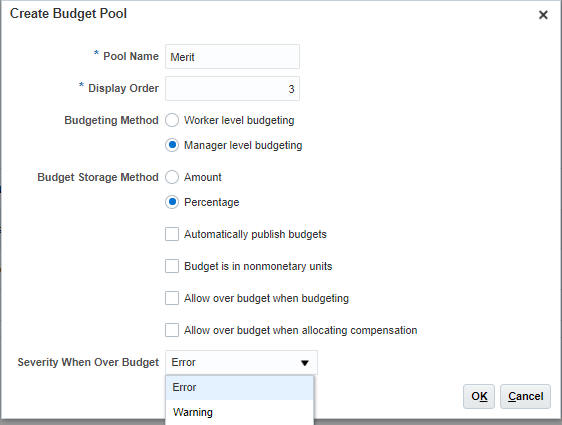
New Option in Severity When Over Budget
Steps to Enable
You don't need to do anything to enable this feature.
Group Budget Amounts for Reporting or Enforcing
You can now use groups to track and monitor worker-level budgets. Previously, you had to use a report. In the screenshot below, the grouping is based on a user-defined text column. The values within the column are based on Country plus Grade, using a dynamic column calculation.
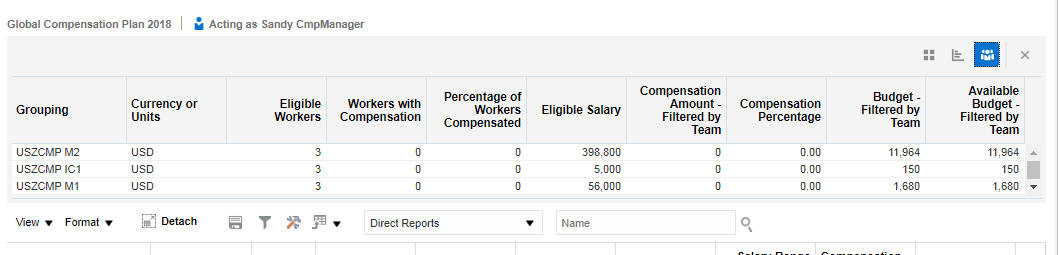
New Group View in the Worksheet Summary
We also added a Group view within the Analytic Summary view.
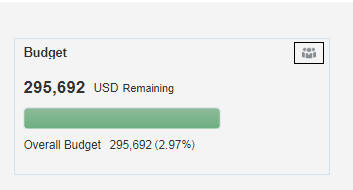
Analytic Showing the Group View Icon
When you click the icon, the analytic is broken out into the groups.
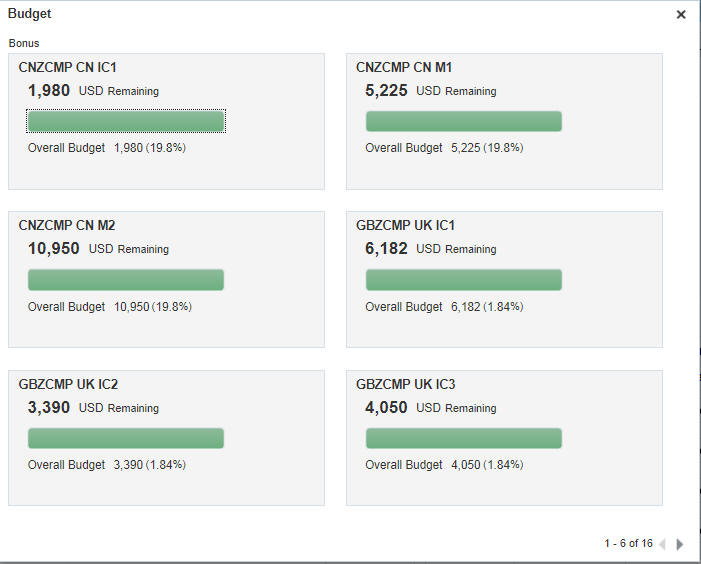
Expanded Analytic Group View
When you configure the budget pool to enforce by group and to send an error, you see the following message in the worksheet when a manager goes over budget:
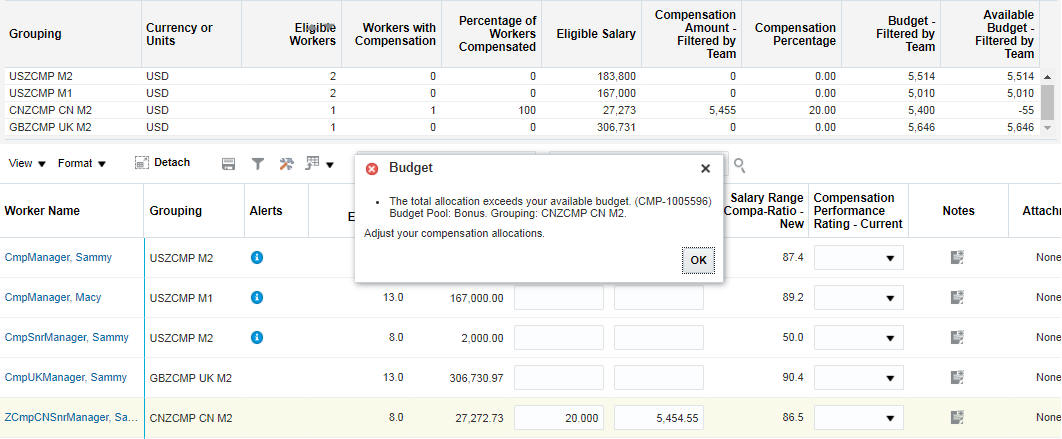
Grouping Error When Over Budget
Steps to Enable
The Compensation Administrator must:
- Either choose or configure a column to use for Grouping:
- A stand-alone column, such as Country
- A user-defined text column that appends values from other worksheet columns (ex: Country + Grade)
- A text value from a fast formula or from External Data
- Configure the Budget Pool to use the column
The following are optional, but as a best practice you should enable at least one for managers:
- Enable Summary views in the Worksheet:
- Configure Worksheet Display> Compensation Task Type> Summary> Group View> Enable group view
- Configure Worksheet Display> Compensation Task Type> Analytic View > Enable group view
- Configure Worksheet Display>Approval Task Type>Columns> Compensation Overview
- Enable Group view for Manage Budgets:
- Configure Budget Display>Configure Budget Page Layout>Summary>Table View> Group View> Enable Group View
Tips And Considerations
- You must use worker level budgets for this feature.
- You can't use the following types of columns for grouping:
- Numeric columns
- Person Number
- Worker Number
- Worker Name
- Date columns
- Updated by columns
- Performance Management Rating columns
- Columns that contain a large amount of text only display the first 150 characters.
Review Batch Processing Information
We made it easier to understand the performance of our Start Compensation Cycle and Refresh Workforce Compensation Data batch processes with two new reports in View Administration Reports. The reports provide information such as number of workers processed, time taken, number of dynamic calculations evaluated, and the number of fast formula evaluated.

New Reports in View Administration Reports
Steps to Enable
You don't need to do anything to enable this feature.
Use User-Defined Lookups in List Columns
We enhanced the user-defined list columns so you can now use user-defined lookups. Previously, you could use only the seeded lookup associated with the column.
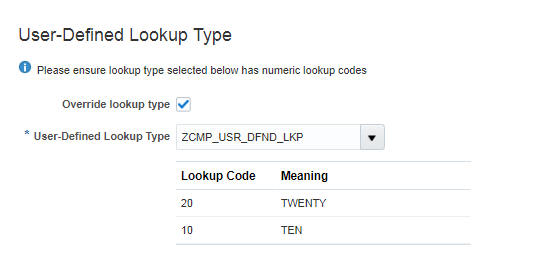
List Column Configuration Using User-Defined Lookup
Steps to Enable
The Compensation Administrator must:
- Configure a lookup using numeric lookup codes
- Enable the "Override lookup type" option on the list column
- Choose the created lookup
- Save
Tips And Considerations
The user-defined lookup must use numeric lookup codes. Also, the plan must either be closed or not processed through the Start Compensation Cycle batch process to enable the configuration and attach the user-defined lookup.
Total Compensation Statement Ability to Reuse Embedded Fields
Now you can reuse the compensation item fields and conditional text fields that you define in the Rich Text Editor. Previously, compensation item fields and conditional text fields embedded in rich text could not be reused outside of the particular Welcome, Summary section, or category in which you defined the fields. You can copy and paste from one category to another, or from one statement period’s Welcome to another.
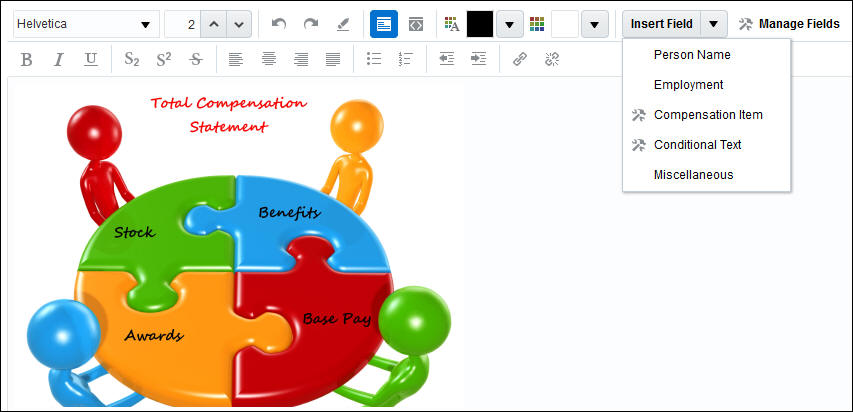
Rich Text Editor Insert Field and Manage Fields Buttons
Steps to Enable
Use the new Manage Fields button available within the Rich Text Editor, to search, edit, create, duplicate, and delete fields. This makes it easy to find and manage all of your embedded fields.
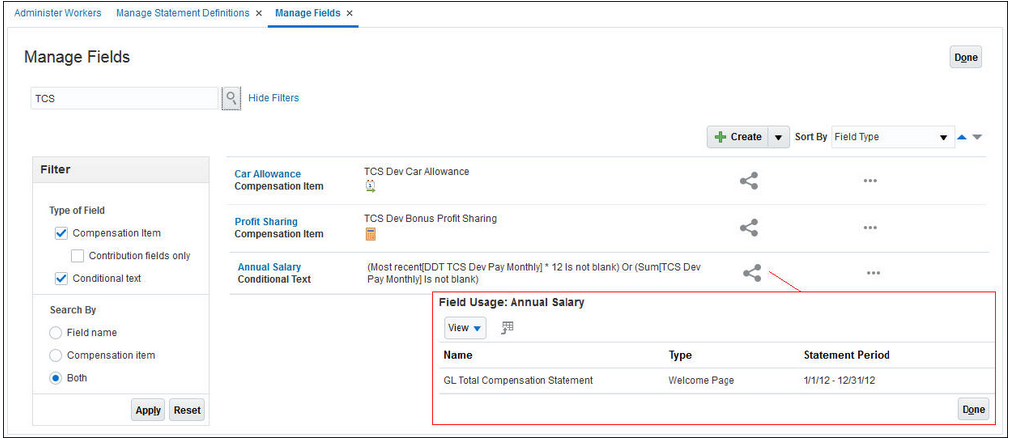
Manage Fields and Field Usage
Manage Fields enables you to create, edit, and delete embedded fields. The Share icon allows you to see Field Usage for each of your fields so that you can easily determine where else the field is used.
Total Compensation Statement - Migration
You can now use the Export to CSV File action within Functional Setup Manager (FSM) to migrate total compensation statement definitions. Previously, you could only migrate total compensation statement definitions via the configuration package method within FSM. In addition, we enabled scope to allow you to select the total compensation statement definitions to migrate. Previously you could only migrate all of the definitions.
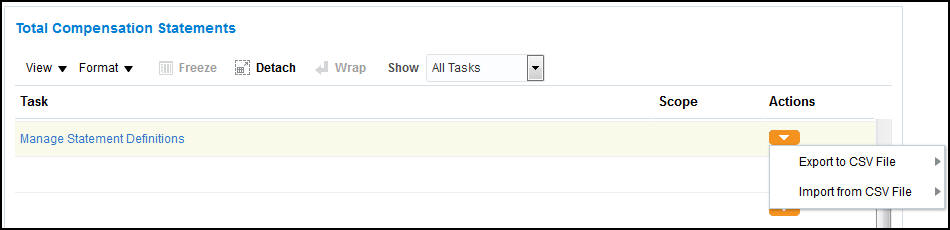
CSV File Actions Enabled
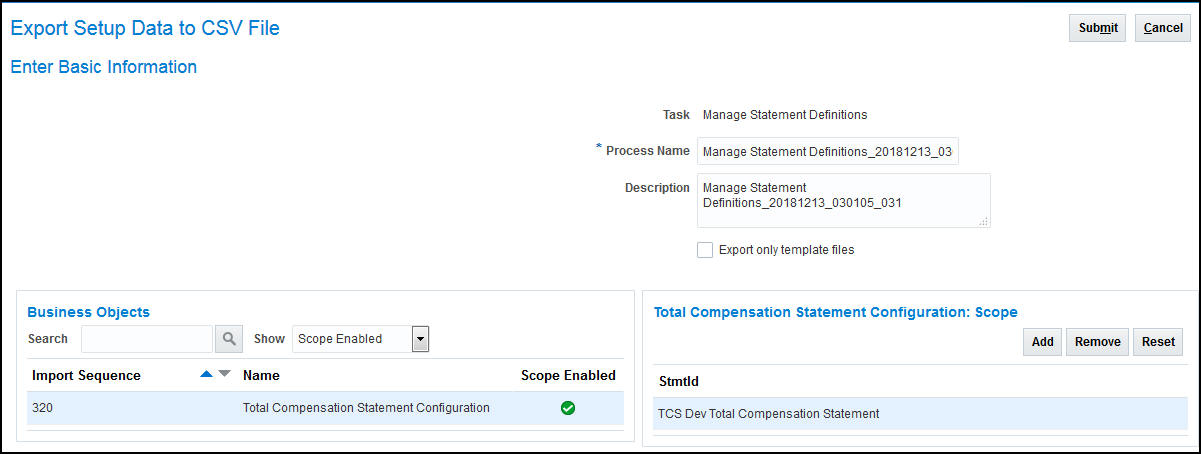
Scope Enabled
Steps to Enable
You don't need to do anything to enable this feature.
Transfer Data Back Into HR More Efficiently
Transfer data back into HR more efficiently with multi-threading. The Transfer Workforce Compensation Data to HR process now updates HR data simultaneously, or in parallel, through multiple threads.
Steps to Enable
You don't need to do anything to enable this feature.
Tips And Considerations
To take advantage of multi-threading, configure threads for multi-threading as per your need.
Compensation Redesigned User Experience
Increase user satisfaction with the redesigned pages that now have the same look and feel on desktop and mobile devices. These redesigned pages are both responsive and easy to use on any device, with a modern look and conversational language. Clutter-free pages, with clean lines and just the essential fields, can be personalized to suit.
Enhanced Compensation Spotlight with Recurring and One-Time Payments
Line managers viewing compensation for employees can now easily review recurring and one-time payments, because they are grouped in their own section. This section displays the employee's entries for elements configured to display on the Manage Compensation History page. Managers can click a payment name to view the employee's element entry values.
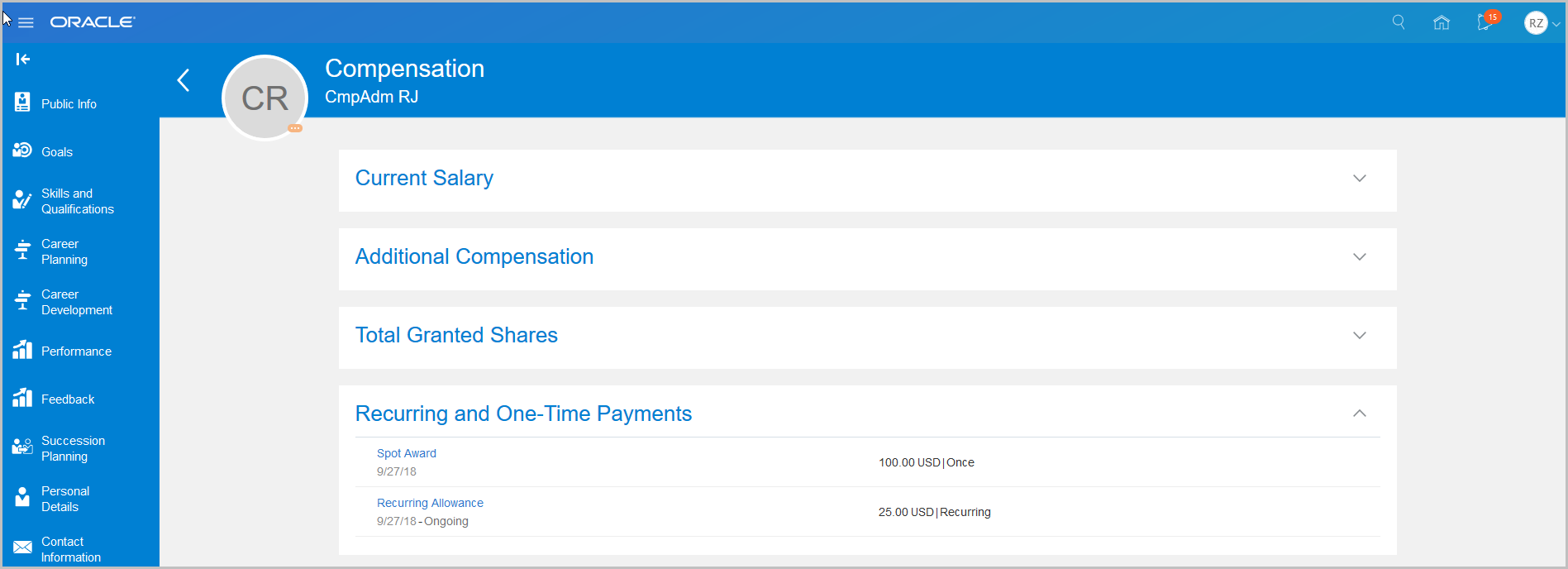

Drill Down Details
Steps to Enable
- If you have not already enabled Compensation Spotlight, you will need to follow the Steps to Enable section on the Person Spotlight - Compensation Details - Worker View feature that is in 18C in the HCM Common What's New.
- The section is hidden by default and needs to be enabled or made visible using the HCM Experience Design Studio configuration or Page Composer.
Simplify the approval process on responsive salary pages by preventing new salary proposals when:
- A salary change is pending approval
- A line manager transaction that includes salary changes (such as promote) is pending approval
Steps to Enable
The Compensation Redesigned User Experience profile option CMP_COMPENSATION_RESPONSIVE_ENABLED must be enabled through the Profile Options, in order for this feature to work. If the profile option is enabled, then this feature will be available immediately.
Oracle Global Payroll is a high-performance, graphical, rules-based payroll management application. It’s designed to keep pace with the changing needs of your enterprise and workforce in order to reduce setup costs, administration, and processing time. It operates globally and consistently in every country supported by Oracle. It uses a highly scalable processing engine that takes advantage of the features of the Oracle database for parallel processing, resulting in optimal performance. In countries with payroll extensions delivered and supported by Oracle, the application delivers the calculations, tax reporting, and regulatory rules required to accurately process payroll and remain in compliance.
Absence Entitlement Payments After Termination
You can now ensure that absence entitlement payments are made to employees after terminations. Use the Does this plan enable entitlement payments after termination? question on the absence element template to set the entitlement element to Final Close.
Example: Amelia is due to be paid maternity payments after her termination. Select Yes to this newly-added question to set the latest entry date of the entitlement elements to final close. This ensures that the absence entitlement payments are made to Amelia after her termination.

Absence Entitlement
In addition to this, you will need to do the following:
- When Amelia is terminated, change her employment assignment status to Process When Earning.
- Set the TERM_INCLUDE_PR_LEVEL action parameter to Y so that payroll relationship level entries are considered for processing.
Steps to Enable
You don't need to do anything to enable this feature.
Key Resources
For more information about absence element template, go to Applications Help for the following topics:
- Setting End Dates for Terminations: Examples
- Using Time Definitions for Severance Pay: Example
Enhanced Security for Quick Actions
The privileges that secure tasks on Quick Actions have changed. The following tasks are affected:
- Adjust Individual Balances
- Manage Costing for Persons
- Manage Element Entries
- Manage Calculation Cards
- Manage Payroll Relationships
- View Process Results
- Calculate QuickPay
- View Payment Results
Steps to Enable
Make the feature accessible by assigning or updating privileges and/or job roles. Details are provided in the Role Information section below.
Tips And Considerations
NOTE: If you are using the predefined Payroll Administrator and Payroll Manager job roles and are not seeing the tasks within Quick Actions, regenerate the data roles for these job roles.
Key Resources
For more information on roles or privileges refer to the following document on My Oracle Support:
- Upgrade Guide for Oracle HCM Cloud Applications Security (Document ID 2023523.1)
Role Information
The following table shows the aggregate privileges that secure the payroll tasks within Quick Actions, and the predefined roles that inherit them.
| Quick Actions Task |
Aggregate Privilege |
Job Role |
|---|---|---|
| Adjust Individual Balances |
Adjust Individual Payroll Balance ORA_PAY_PAYROLL_PERSON_LEVEL_ADMINISTRATION_DUTY |
Payroll Administrator Payroll Manager |
| Manage Costing for Persons |
Manage Costing for a Person ORA_PAY_PERSON_COSTING_MANAGEMENT_DUTY |
Payroll Administrator Payroll Manager |
| Manage Element Entries |
Manage Payroll Element Entry ORA_PAY_ELEMENT_ENTRY_MANAGEMENT_DUTY |
Payroll Administrator Payroll Manager |
| Manage Calculation Cards |
Manage Payroll Calculation Cards ORA_PAY_PERSONAL_DEDUCTION_MANAGEMENT_DUTY |
Payroll Administrator Payroll Manager |
| Manage Payroll Relationships |
Manage Payroll Relationship ORA_PAY_PERSONAL_PAYROLL_RELATIONSHIP_MANAGEMENT_DUTY |
Payroll Administrator Payroll Manager |
| View Process Results |
View Person Process Results ORA_PAY_VIEW_PERSON_PROCESS_RESULTS_DUTY |
Payroll Administrator Payroll Manager |
| Calculate QuickPay |
Calculate QuickPay ORA_PAY_CALCULATE_QUICKPAY_DUTY |
Payroll Administrator Payroll Manager |
| View Payment Results |
Manage Payroll Payment Results ORA_PAY_MANAGE_PAYROLL_PAYMENTS_RESULTS_DUTY |
Payroll Administrator Payroll Manager |
NOTE: The aggregate privileges that secure these tasks were first delivered in 18C. If you are using the predefined roles, no action is necessary. However, if you are using custom versions of these roles, you must ensure that your custom job roles have the aggregate privileges that secure the tasks that your custom roles need to access within Quick Actions.
Enable Contexts for Costing Key Flexfield Segments
You can now enable contexts on costing key flexfield segments by running the Run Feature Upgrade flow with the feature name Enable Context for Costing Key Flexfield Segments.
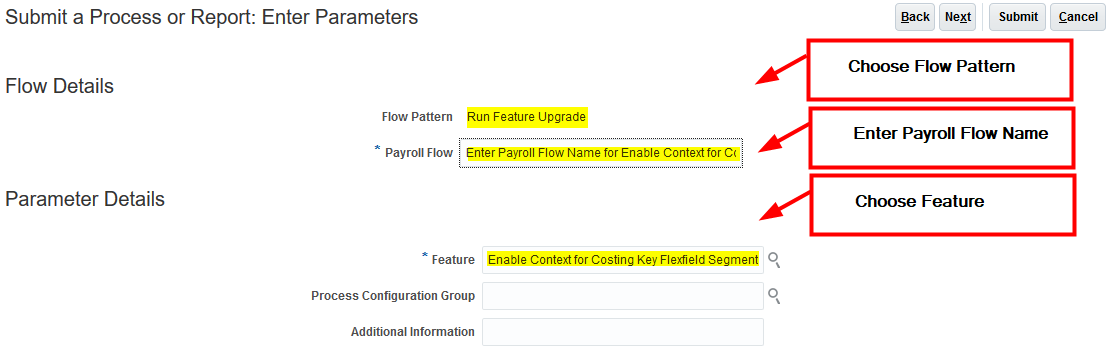
Once you enable the context feature for a specific costing segment, you can write a fast formula to derive the costing segment value.
For example, your costing key flexfield includes two segments for which costing information is defined at the element eligibility level: Object and Natural Account. You have an employer liability element that uses distributed costing. The distribution set includes earnings elements that receive entry level costing overrides, which are entered on a timecard. Since element entry costing information is the highest level of the costing hierarchy, the costing process uses this information to populate the Object and Natural Account costing details for the set members. And, you have a costing distribution requirement for an employer liability element to use element entry overrides for the Object segment from set members but always use element eligibility costing details for the Natural Account segment from employer liability element.
You can meet this requirement by enabling the context feature for the Natural Account segment. You can then define a new input value on your employer liability element to capture the Natural Account costing information. Associate this new input value to the Natural Account segment context using the reference field feature. You can define rules to ensure the run result created for this new input value, as part of payroll processing, has the desired Natural Account value. The costing process will now consider this run result value for the Natural Account costing segment for employer liability element.
NOTE: You cannot create a new costing rule using this process for the existing elements, as you cannot add a new input value if the element is already used.
Steps to Enable
Enable contexts on costing key flexfield segments by running the Run Feature Upgrade flow using the feature name “Enable Context for Costing Key Flexfield Segments.
NOTE: You can remove the unused contexts with the same flow by selecting the feature name as Delete Context for Costing Key Flexfield Segments.
Rate Definition Support for Live and Generated Rates
You can now control if rate values are calculated live or retrieved based on the results of the generate HCM rates process.
For example, a payroll customer might use the generate HCM rates process to calculate compensation rates for reporting purposes. However, when using the rate definitions for payroll purposes the compensation rates should be re-calculated in the payroll run to ensure they are accurate when the payroll is processed.
Steps to Enable
You don't need to do anything to enable this feature.
Rate Definition Support for Values-by-Criteria with Multiple Values
You can now calculate rates based on a specific value-by-criteria value. Define a rate definition to retrieve car allowance values for employees based on their job, a second rate definition to retrieve the housing allowance values for employees based on their job, and a third rate definition to retrieve the car allowance values for employees based on their job. All rate definitions will be associated with the same value-by-criteria.
For example, define a value-by-criteria to capture car allowance, housing allowance and market supplement values based on an employee's job:
Criteria: Job A
- Car Allowance - $1,000
- Housing Allowance - $2,500
- Market Supplement - $300
Criteria: Assignment Job B
- Car Allowance - $2,000
- Housing Allowance -$3,500
- Market Supplement - $375
All rate definitions will refer to the same value-by-criteria.
Steps to Enable
You don't need to do anything to enable this feature.
Generate HCM Rates Scope Expanded
The original scope of the generate HCM rates process was limited to the calculation of salary rates. You can now use the generate HCM rates feature to calculate and store most types of rate definitions. The stored rate values can be used for reporting or retrieving for payroll calculation purposes. In addition to overall salary rates, this feature now supports:
- Rates that have a direct association to an element. For example, a salary rate definition is associated with a salary element. The generate rates process will calculate a salary rate value for all workers with a salary element entry.
- Rates associated with a value definition. Certain types of elements, such as time elements, use payroll calculation information rules and definitions. For example, a value definition is generated for an overtime element and this is associated with an overtime rate definition. The generate rates process will calculate an overtime rate value for all workers with an overtime element entry.
- Rates based on a value-by-criteria defined for an assignment level criteria such as a worker’s grade or location.
- Most formula-based rates can now be calculated by the Generate HCM Rates process. However, rates that include complex payroll formula contexts may need to be calculated in a payroll run.
- Rates that are derived. For example, a rate that is derived based on the sum car allowance and housing allowance rates. In this instance, the Generate HCM rates process will calculate; the car allowance rate, the housing allowance rate and the derived rate.
NOTE: If customers have a requirement to include non-recurring elements, such as time, in the rates calculated by the process they should run it in full mode so rates are recalculated on a daily basis.
Steps to Enable
You don't need to do anything to enable this feature.
This feature describes how an existing element can be upgraded to accommodate changes and enhancements. When we deliver changes to objects, such as input values, formulas, and balances as part of the bug fixes or enhancements to the existing functionality, the changes will be reflected only in the new elements that are created after the patches are applied. The new changes will not be available in the existing elements hence if the user would like to apply these changes in the existing elements, the below program/flow can be applied.
Note: Refer to the Element Upgrade Process White Paper for further information. You should run this process only after consultation/advice of the Oracle team through Service Request.
This flow upgrades the below objects with conditions as mentioned:
| Objects |
Conditions |
|---|---|
| Defined Balances |
No specific conditions are applied |
| Fast Formulas |
Based on the value selected for the Formula Upgrade Option parameter. |
| Formula Results |
No specific conditions unless the dependent object already exists |
| Status Processing Rules |
No specific conditions unless the dependent object already exists |
| Input Values |
There is a number of validations as mentioned below:
Note: The Retro condition check, mandatory flag check, default value check and default at run-time check are exempted for Pretax elements as they are required to enable the iteration functionality on Pretax Deduction elements. These conditions remain valid for all other element classifications. |
| Element Eligibility Input Values |
The input values should have been created before the element eligibility input values are added. |
| Balance Types |
No specific conditions unless the dependent object already exists. |
| Balance Feeds |
The input values should have been created before the balance feeds are created. |
| Element Entries |
The element entries get created for the new input values as applicable. It means, it creates the entry for all date effective records. |
| Calculation Unit |
No specific conditions are applied. |
| CIR Override Usages |
No specific conditions are applied. |
| CIR Comp Flex, CIR Comp Flex Usages, and CIR Comp Flex Relationships |
The upgrade of these 3 objects is to link the component details flex field with calculation components. |
All the changes to the existing objects will be done in correction mode, except the Iteration indicator in element object navigator that gets updated in update mode with effective date set in process configuration parameter as mentioned above. It means, whenever a formula is upgraded, it will be done in correction mode.
The seeded flow pattern name is “Run Element Upgrade” and shown below:
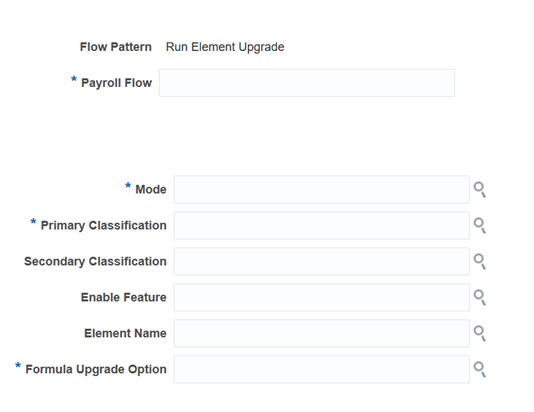
The parameters can be divided into a mandatory parameter and an optional parameter.
The descriptions for mandatory parameter include:
- The mode with two values, draft mode, and final mode. The draft mode allows you to evaluate the changes available and run the flow in a final mode that makes the actual changes.
- The primary classification of elements.
- The formula upgrade option should have the values as mentioned below:
- Display all formulas: This value is applicable in Draft mode only. When the user selects “Draft”, the user needs to select this value (this is the only value available in the list) to see all the impacted formulas.
- Override the existing formula: This option is available in Final mode only. This option will replace the existing formula with the new version of the formula and keeps the old formula as a backup.
- Do not make changes to the existing formula: This option will leave the existing formula as it is. The new formula will not be created in the system.
- If the value “Iteration on Pretax Element” is selected in Enable Feature parameter to enable the pretax iteration, the Formula Upgrade Option would show only one value “Override the existing formula”. Because the formulas of pretax elements have to be overridden to take effect of the latest changes for iteration functionality.
The descriptions for optional parameter include:
The secondary classification of elements.
Enable Feature: This will have one value – “Iteration on Pretax Element”.
This needs to be used if iteration has to be enabled on the Pretax element. This value will be displayed for Pretax Deductions primary classification only.
Element Name: List of elements.
Steps to Enable
Refer to the Element Upgrade Process White Paper for further information. You should run this process only after consultation/advice of the Oracle team through Service Request.
Roll Back Multiple Tasks Within a Flow
Use the Actions Menu and perform a Bulk Rollback action on a flow to roll back all tasks within the flow. You can then reprocess the tasks within the checklist. You cannot roll back tasks if:
- You do not have access to the tasks within the flow.
- Any of the flow task instance has an 'IN_PROGRESS' status.
- A bulk rollback is in progress for the current flow instance.
In all of the above cases, the Actions Menu does not display the Bulk Rollback action.
If the checklist has a large number of tasks and a bulk rollback action is in progress, only the activity that has tasks that are being rolled back are open, so that you know that a rollback action is in progress.
The Last Updated field reflects the person who took the bulk rollback action for each of the tasks.
Steps to Enable
You don't need to do anything to enable this feature.
Tips And Considerations
You can only roll back tasks within a flow that you have access to.
Process After Error - Report Restriction Removed
Use the Allow Processing column on the Tasks tab in the Manage Flow Patterns page to allow reports as well as other processes to run even if a previous task has run into errors or has partially completed with errors.
Set the value of the Allow Processing column as Yes for each task in the flow that you want to run, irrespective of the status of a prior task, in the same flow or a cross flow. The tasks in the flow continue to process until it encounters a manual task or a task on the checklist that does not have the Allow Processing value set to Yes.
For example, you can run the Calculate Payroll flow and complete it successfully or partially with a few records in error, and run a report to review the results of the Calculate Payroll flow.
Steps to Enable
You don't need to do anything to enable this feature.
Run the Retroactive Entries Report after running the Recalculate Payroll for Retroactive Changes process to view the element entries created by the Recalculate Payroll for Retroactive Changes process, what was calculated originally, and the retroactive entries generated by comparing the original result to the recalculated result.

The report has the following sections:
- Element Classifications Summary section that displays the number of payroll relationships and total retroactive result value by each element classification.

- Elements Summary section that displays the number of payroll relationships and total retroactive result value by each element.

- Elements by Original Process Summary that displays the number of payroll relationships and total retroactive result value by the original process that the recalculated results were compared with.
The example below shows two QuickPay processes for Jan 15, 2018 that were recalculated and both resulted in an increase of absence earnings by 92.31 and a corresponding decrease in standard earnings.

- Element Details for a Person that displays the retroactive entries for each person and original process. For each entry, the original calculation result, if available, is shown and the corresponding retroactive entries that are created after comparing with that original result.
The example below shows two employees whose QuickPay for Jan 15, 2018 was recalculated with a net zero impact. In each case, a previously unprocessed absence entry was retroactively calculated as 92.31 and an existing standard earnings result was recalculated and reduced by the same amount.
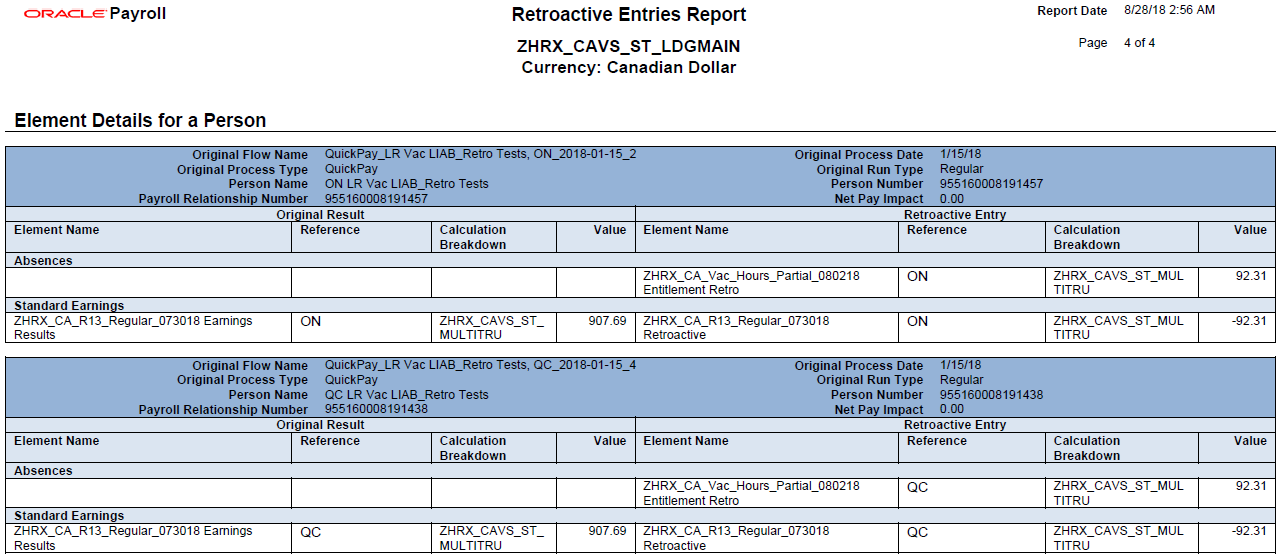
Use the delivered Retroactive Payroll flow to automatically run the Retroactive Notification report, Recalculate Payroll for Retroactive Changes process, and the Retroactive Entries Report in that order.
Steps to Enable
You don't need to do anything to enable this feature.
Tips And Considerations
Run this report after successful completion of the Recalculate Payroll for Retroactive Changes process.
Key Resources
For more information go to Applications Help, and refer to the following topic:
- Retroactive Entries Report
Gross-to-Net Report in Summary Mode
You can run the Gross-to-Net Report in both the Detail and Summary mode. Use the new parameter "Scope" to specify the mode in which the report must run.
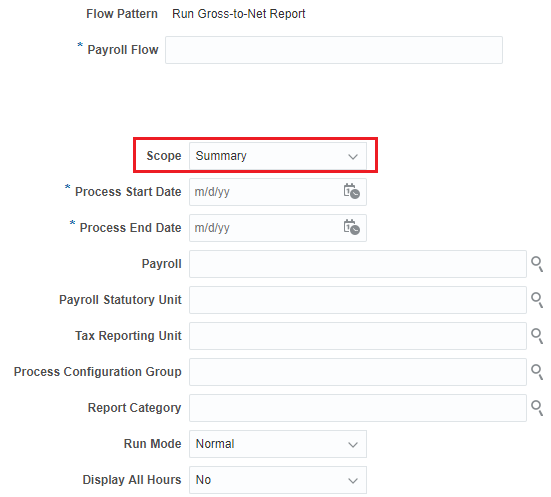
The new Summary mode displays gross-to-net balances for each payroll. It does not display the breakdown of the balances by the process date.
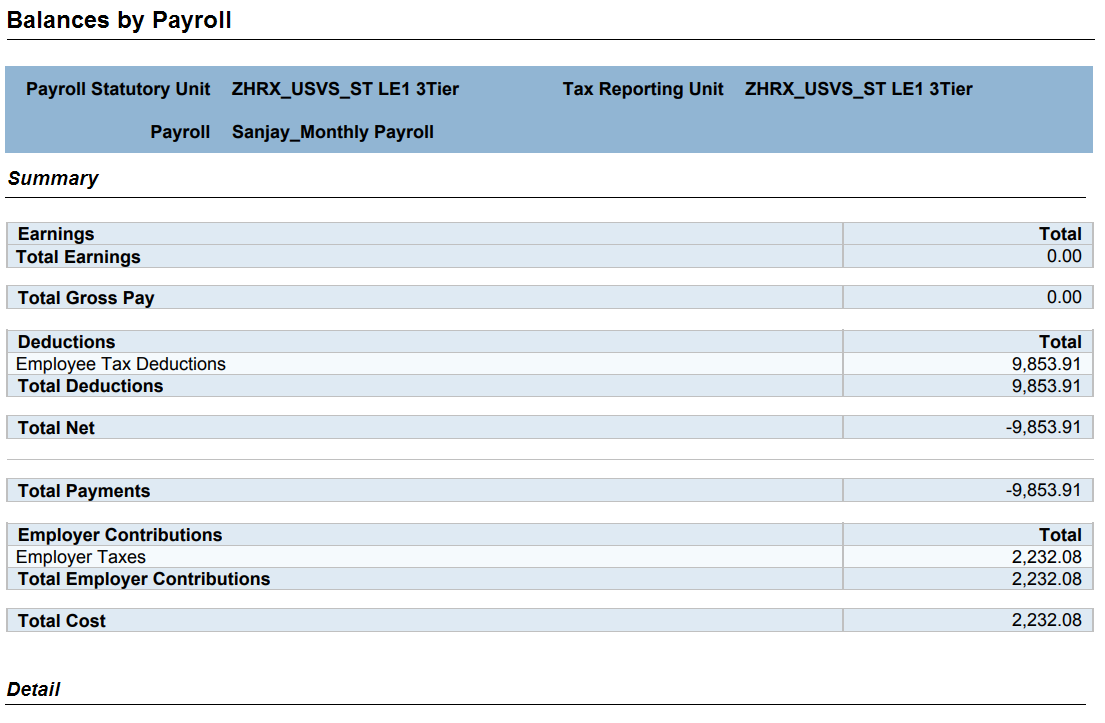
Run the report in the Detail mode for a more detailed breakdown of the balances by the process date range. This breakdown is required only if you notice a discrepancy in the Gross-to-Net balances for the overall date range.
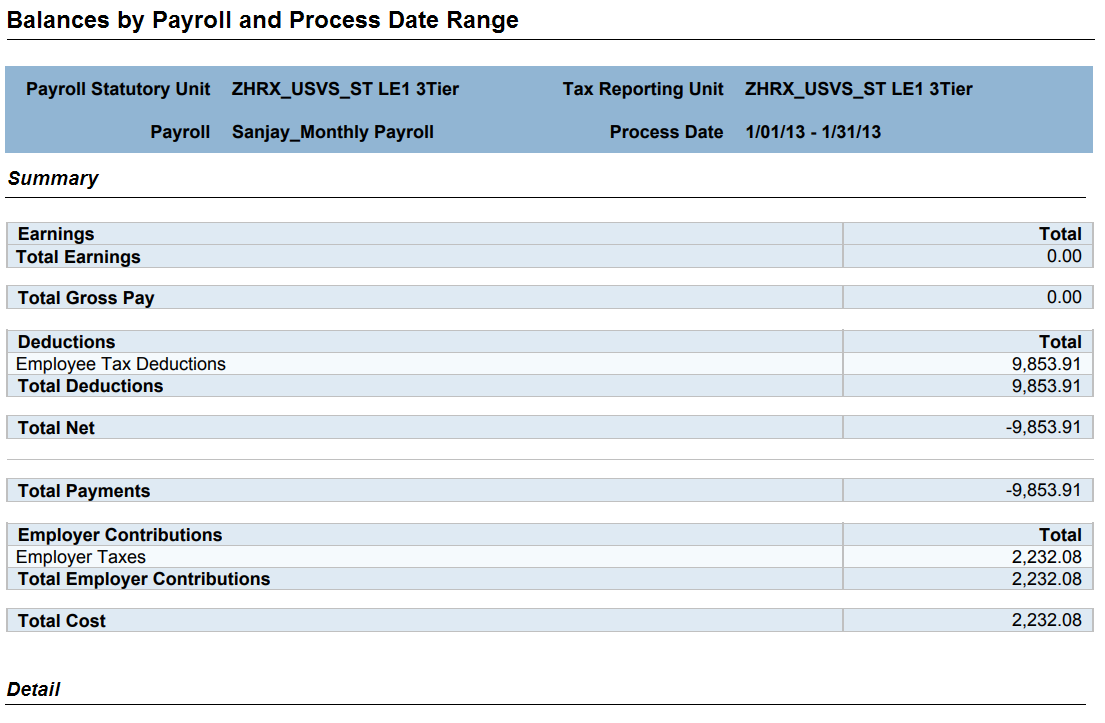
For example, if you run the Gross-to-Net report for the period 01, January 2018 to 31, March 2018 for a monthly payroll. The summary version of the report displays the overall gross-to-net balances for all the processes within the three month period. The detail version of the report displays three different sections - each showing the gross to net balances for all payroll processes for that month.
Steps to Enable
You don't need to do anything to enable this feature.
Key Resources
For more information go to Applications Help, and refer to the following topic:
- Gross-to-Net Report
Bank Account Number and Bank, Branch Update on External Bank Accounts
You can now edit the bank account number field of external bank accounts in these pages:
- Suppliers
- Customers
- Expenses
- Payroll
- Bill management
- Higher Education and
- Human Capital Management
In the simplified bank account page, you can also update the bank and branch details.
Steps to Enable
You don't need to do anything to enable this feature.
Tips And Considerations
You can update the bank and branch of an external bank account in the simplified bank account page if you created the bank account using the Oracle Cash Management profile option named Use Existing Banks and Branches and set it to Yes. When you update the bank and branch, you must select the same profile option.
Beginning with 19C, customers using the Approve Internal Changes on Supplier Bank Accounts feature in Procurement can edit the bank account number.
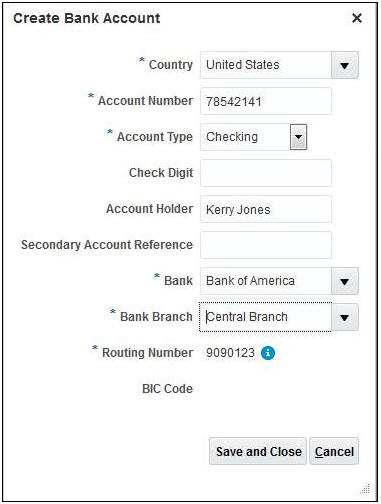
Simplified Bank Account Page
Control Transient Data Retention in Payroll Extracts
Use the new Run Mode parameter to control whether the HCM Extract based report must retain or discard the transient data that was created during the report execution to produce the output file. The options of this parameter are as follows:
- Debug – Select only when it is necessary to investigate an issue with the report output or when instructed by Oracle Support to do so.
- Normal – Select to discard the temporary data produced during report execution and thereby optimize storage and performance of the Cloud applications. This is the default value.
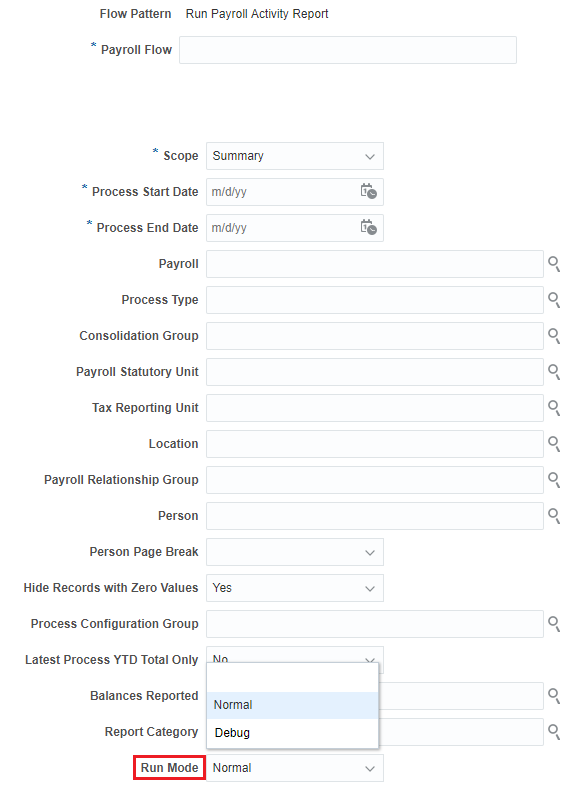
This setting only impacts the temporary data produced during the report execution and does not affect any transaction or setup data that the report displays or otherwise.
Steps to Enable
You don't need to do anything to enable this feature.
Global Payroll Redesigned User Experience
Increase user satisfaction with the redesigned pages that now have the same look and feel on desktop and mobile devices. These redesigned pages are both responsive and easy to use on any device, with a modern look and conversational language. Clutter-free pages, with clean lines and just the essential fields, can be personalized to suit.
Redesigned User Experience for Payslip Page
We have made it easier to use the Payslips page by designing a single page for all users. As part of the mobile responsive design, we consolidated the self-service and the professional Payslip pages so all users access the same page.
As a professional user, you can now view payslips as soon as they are generated. As for employees, viewing payslips are dependent on the payslip availability date.
Steps to Enable
In order to enable the new Payslip page, you must enable the following profile option and have enabled the HCM_RESPONSIVE_PAGES_ENABLED profile option. If you have not enabled the HCM_RESPONSIVE_PAGES_ENABLED profile option, please see the Redesigned Cloud User Experience feature in 18A for the Steps to Enable, Tips and Considerations, and Key Resources.
| Field | Value |
|---|---|
| Profile Option Code | PAY_PAYROLL_RESPONSIVE_ENABLED |
To enable the profile option, navigate to the Setup and Maintenance work area:
- Search for and click the Manage Administrator Profile Values task.
- Search for and select the profile option.
- Click to add a new Profile Value.
- Select the Level as Site.
- Enter a Y in the Profile Value field.
- Click Save and Close.
Once the profile options are enabled, the navigator menu option of the Payroll pages will take the user to the new Payroll pages and the old pages will no longer be available.
Tips And Considerations
If the option is enabled, all payroll self-service pages (payslip etc) will be responsive PLUS the payslip page will be responsive for the professional user.
If the option is not enabled, all payroll self-service pages (payslip etc) will be classic PLUS the payslip page will be classic for the professional user.
Key Resources
For more information on creating and enabling the profile options, refer to the following document on My Oracle Support:
- HCM Responsive User Experience Setup Information- Profile Options and Displayed Fields (Document ID 2399671.1)
For information about displayed and hidden fields, refer to the following document on My Oracle Support:
- HCM Responsive User Experience Setup Information- Profile Options and Displayed Fields (Document ID 2399671.1)
For more information on personalizing pages, refer to the following:
- Chapter 3, Page Modification in the Oracle Applications Cloud: Configuring and Extending Applications guide.
- The Developer Relations Page Composer Oracle YouTube channel.
New Security for Year-End Documents
You can now secure access to all year-end documents. The new global aggregate privilege provides access to the global year-end documents.
Steps to Enable
Make the feature accessible by assigning or updating privileges and/or job roles. Details are provided in the Role section below.
Tips And Considerations
If you have configure a new custom employee role, you will need to add the 'View Year-End Documents' aggregate privilege to it in order to enable.
Role Information
The new global aggregate privilege provides access to the global year-end documents.
| Task |
Aggregate Privilege |
|---|---|
| View Year-End Documents |
View Year-End Documents (ORA_PAY_VIEW_YEAR_END_DOCUMENTS) |
Payroll for Oracle Human Capital Management for Canada supports country specific features and functions for Canada. It enables users to follow Canada's business practices and comply with its statutory requirements.
Record of Employment (ROE) Amendments
Generate an amended Record of Employment (ROE) when you need to change, correct, or update the information you entered on an ROE you previously issued. When amending an ROE, the amended ROE must include the original data, the updated data, and the serial number of the originally issued ROE. Service Canada ROE Web assigns the serial numbers, and they must be imported into Oracle Cloud Payroll in order to report them on the amended ROEs. The ROE Web provides an interface to extract the serial numbers in XML format. The XML file also contains information to identify the employee.
Two new processes are introduced to provide the ability for customers to create the amended ROE:
- Import Record of Employment Data
- Run Record of Employment Amendment Archive
The chart below illustrates the ROE amendment process.
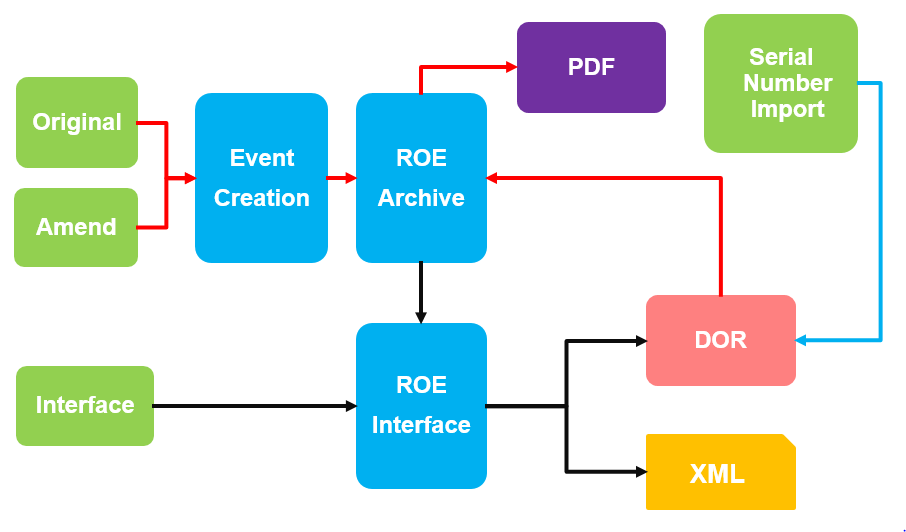
ROE Amendment Process
Import Record of Employment Data
The “Import Record of Employment Data” process imports data, including the serial numbers, from the ROE Web. The serial numbers for each ROE is contained within the XML file. The import process uses this as input to capture the assigned serial numbers for each employee’s ROE. This is used to generate the amended ROE.
Access the import process in the Data Exchange work area, by using the following navigation, as illustrated in the images below:
- Data Exchange > Payroll > Batch Loader > Schedule
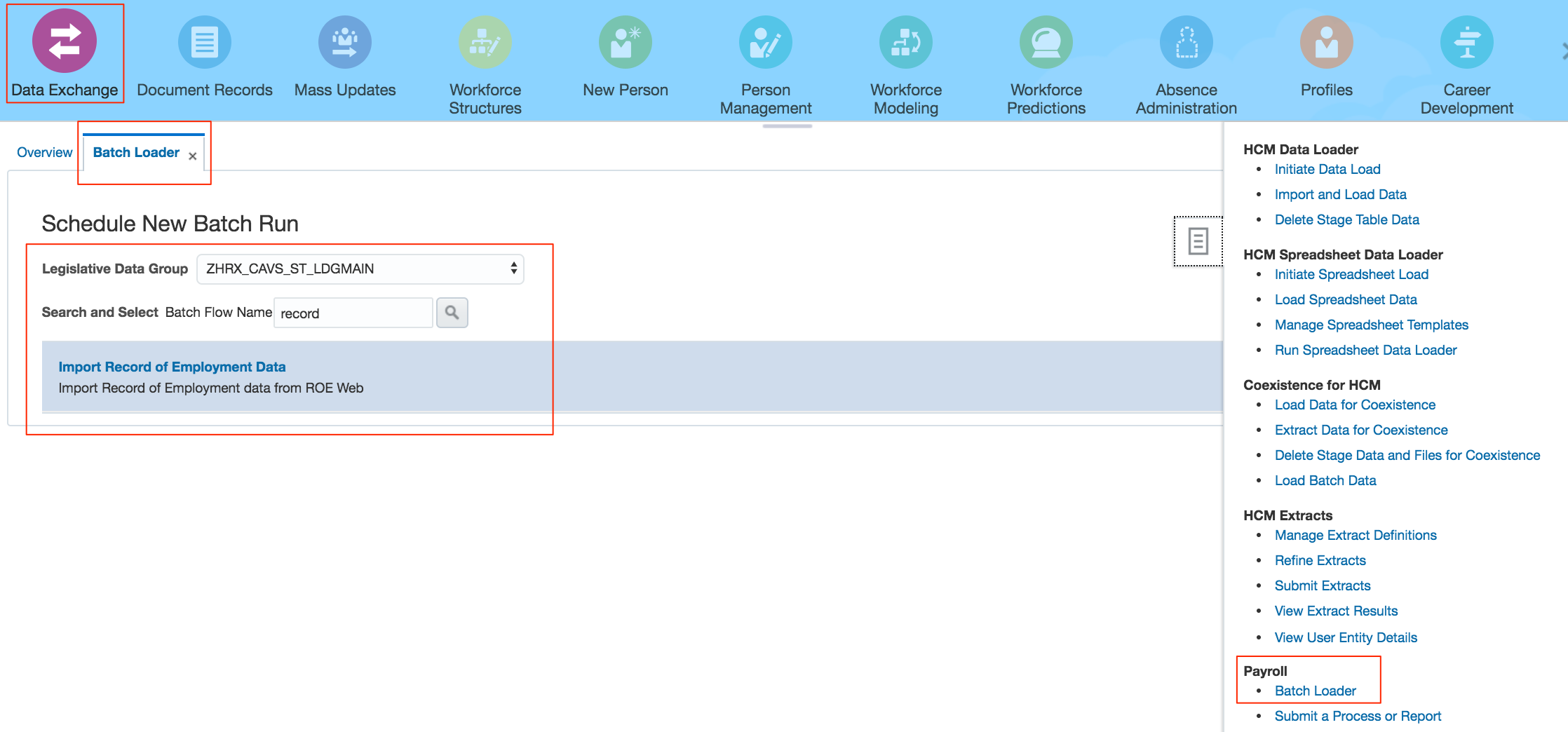
Accessing the Import Record of Employment Process
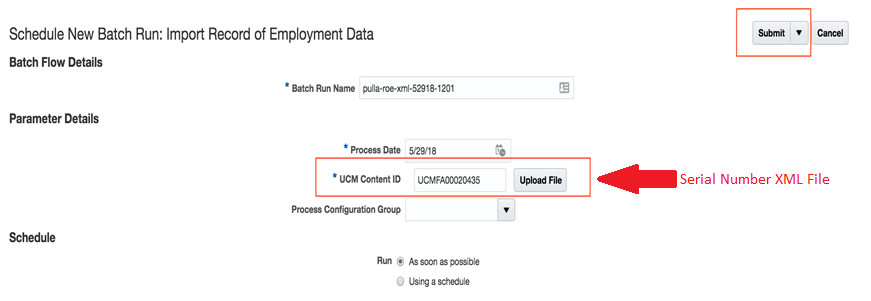
Import Record of Employment Data Process
Once this process completes, you can generate the amended ROE by running the Record of Employment Amendment Archive.
Run Record of Employment Amendment Archive
The “Run Record of Employment Amendment Archive” is a process that archives the amended ROE data for a person or a Payroll Relationship Group. You can only run the process for those employees for whom the ROE interface was processed and a serial number was updated in the application. Those employees are included in the Person list of values for the Record of Employment Amendment Archive process. The parameters of the process are illustrated in the image below.

Record of Employment Amendment Archive Process
Once the Record of Employment Amendment Archive is complete, you can process the ROE interface to generate the new files with the corrected data, as well as the serial number.
Repeat the amendment process as many times as required.
You can access the Run Record of Employment Amendment Archive task within the Regulatory and Tax Reporting work area.
Below is a sample amended ROE, with the serial number in block 2.

Amended ROE Sample
Steps to Enable
You don't need to do anything to enable this feature.
Key Resources
Refer to the documents below on the Canada Information Center for additional information.
Canada Information Center
https://support.oracle.com/rs?type=doc&id=2102586.2
CA - Payroll tab > Product Documentation > White Papers > Record of Employment Processing
Hot Topics Email (To Receive Critical Statutory Legislative Product News)
To receive important Fusion Canada Legislative Product News, you must subscribe to the Hot Topics Email feature available in My Oracle Support.
See My Oracle Support Document ID 2102586.2 (Information Center: Fusion Human Capital Management - Canada) for further details, and access the content at the location below.
CA – Welcome tab > Other Documents > How To Use My Oracle Support Hot Topics Email Subscription Feature
Record of Employment Reason Mapping
Define ROE Reason defaults at the Payroll Statutory Unit (PSU) level. This alleviates the need to create the Reporting Information card for the ROE, unless overrides are required.
You can configure defaults for the following events:
- Terminations
- Absences
Steps to Enable
Access the Payroll Statutory Unit Details region using the Manage Legal Entity HCM Information task located in the Setup and Maintenance work area. Create the following default mappings under the “Record of Employment Mappings” sections:
- Termination actions -> Record of Employment Reason
- Absence secondary classifications -> Record of Employment Reason
Once these mappings are configured, they are used by the ROE archive process to derive the Record of Employment Reason.
If required, you can create a Reporting Information calculation card to override the default ROE Reason configured for the PSU. If no calculation card is created with an override, the ROE Reason from the PSU is reported on the ROE.
See the image below for sample mappings for terminations and absences.
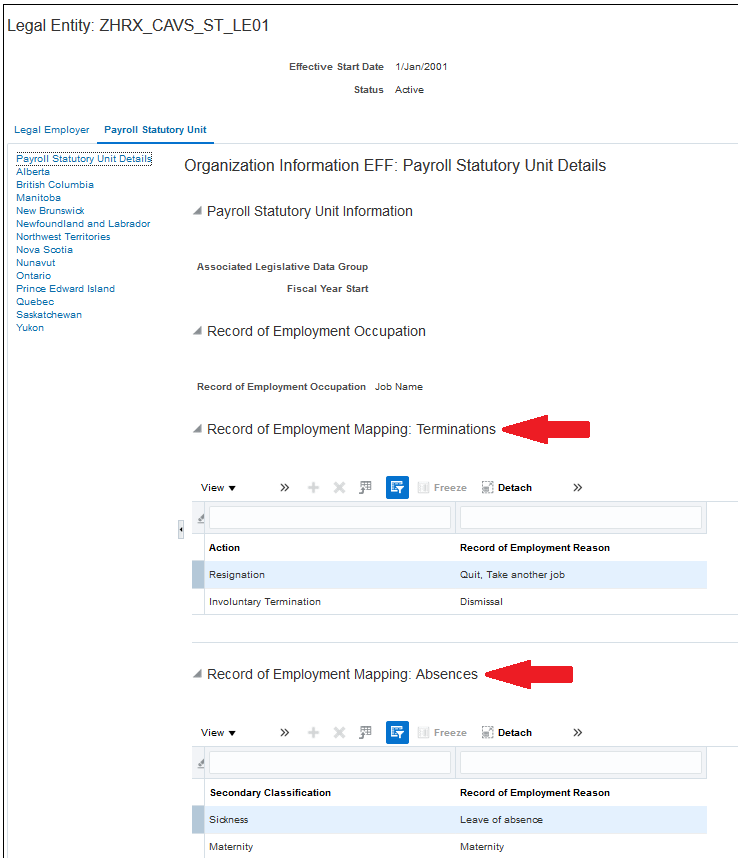
Sample Mappings
Key Resources
Refer to the documents below on the Canada Information Center for additional information.
Canada Information Center
https://support.oracle.com/rs?type=doc&id=2102586.2
CA - Payroll tab > Product Documentation > White Papers > Record of Employment Processing
Hot Topics Email (To Receive Critical Statutory Legislative Product News)
To receive important Fusion Canada Legislative Product News, you must subscribe to the Hot Topics Email feature available in My Oracle Support.
See My Oracle Support Document ID 2102586.2 (Information Center: Fusion Human Capital Management - Canada) for further details, and access the content at the location below.
CA – Welcome tab > Other Documents > How To Use My Oracle Support Hot Topics Email Subscription Feature
Use the Expedited Payroll Processing feature to make immediate payments for absences that are submitted late on a time card. This feature is only available for absence and time entries that are retroactively modified on a time card and marked for expedited processing. There are three new fields on previously processed timecards. These fields will also appear as input values on your retroactive element entries.
In the Details section of the time card, you will see the following fields:
Expedited Payment Attributes
| Field |
Description |
|---|---|
| Expedite Payroll |
Select Yes to include absence changes in the expedited payroll processing. |
| Override Payment Method |
Select a payment method to override the default payment method only for this time card. Only payment methods of type Cheque are allowed. Note: This field will display only if the Expedite Payroll option is set to Yes. |
| Override Cheque Printer |
Use this attribute to determine if the cheque for this time card must be printed at a different location. You must configure your cheque printing process to use this override. For example, if you need to make a payment to the employee today, and the employee happens to be working in a different location, you can direct the cheque print to that alternate work location. You must configure the list of printers within the HCM Common Lookup ORA_EXPEDITE_CHECK_PRINTER. Note: This field will display only if the Expedite Payroll option is set to Yes. |
Expedited Payroll Flow
Run the Expedited Payroll Flow to process only those employees that have previously adjusted absence and time entries. Upon completion of the Load Timecard Batches process, the application transfers the expedited components into the time and absence calculation cards.
The new flow will fast-track the payroll process for immediate payment to the employee.
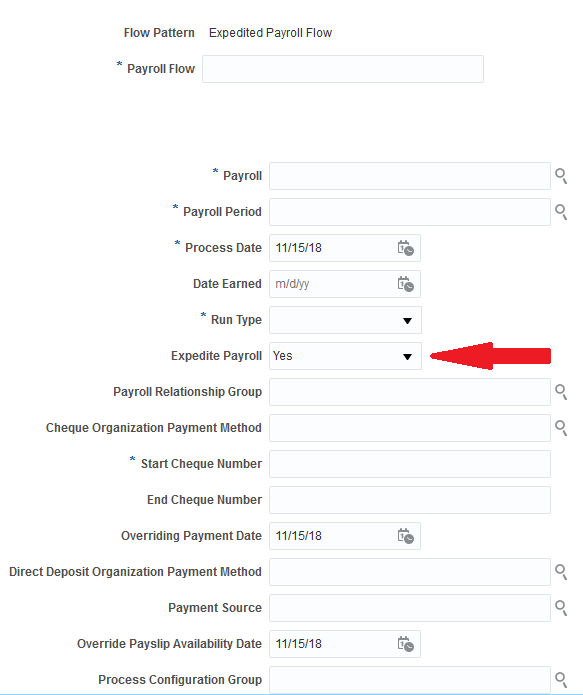
Expedited Payroll Flow
The flow consists of the following tasks that will complete the expedited pay run:
- Recalculate Payroll for Retroactive Changes. This task generates retroactive element entries for the prior pay period adjustments pertaining to time cards marked for expedited processing. The retroactive element entries retain the expedited payroll attributes from the time and absence calculation cards.
- Calculate Payroll. Only includes employees with at least one expedited retro entry. Note: The application skips the entries for elements with a Do not include in expedited payroll runs rule.
- Calculate Prepayments. The application automatically uses the Override Payment Method calculation result from the expedited pay run.
- Archive Periodic Payroll Results. This task archives the expedited payroll results for further processing.
- Generate Cheque Payments. This task picks up all the prepayments marked for Cheques. Configure the Payments XML to include the override cheque printer.
- Make EFT payments.
- Generate payslips. This task overrides the payslip availability date (if provided) to a different date than what is on the payroll calendar.
Steps to Enable
You don't need to do anything to enable this feature.
Tips And Considerations
- Prior period adjustments to time cards that result in a recovery of overpayments must not be marked for expedited processing. This is because such adjustments result in a payroll calculation with a negative net pay.
- This feature is automatically enabled for all newly created absence elements.
Key Resources
For more information about payroll flows, go to Applications Help for the following topics:
- Expedited Processing: How It Works
- Expedited Processing Rules: Explained
- Expedited Payroll Flow: Explained
Updated the default behavior of the location synchronization process to automatically update the Province of Employment on the employee’s tax card when the employee’s location changes. By default, this will now occur without any manual intervention, although customers have the option to turn off automatic synchronization.
To disable location synchronization:
- From the Home page, select Quick Actions.
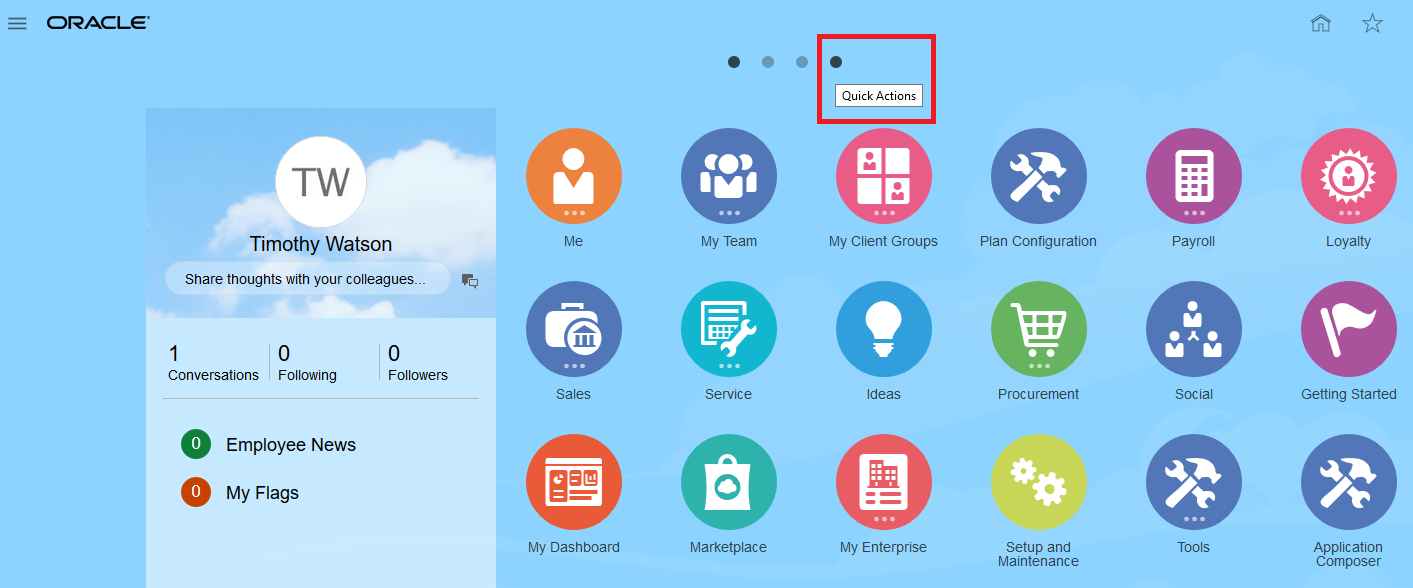
- Select the Manage Payroll Process Configuration task.
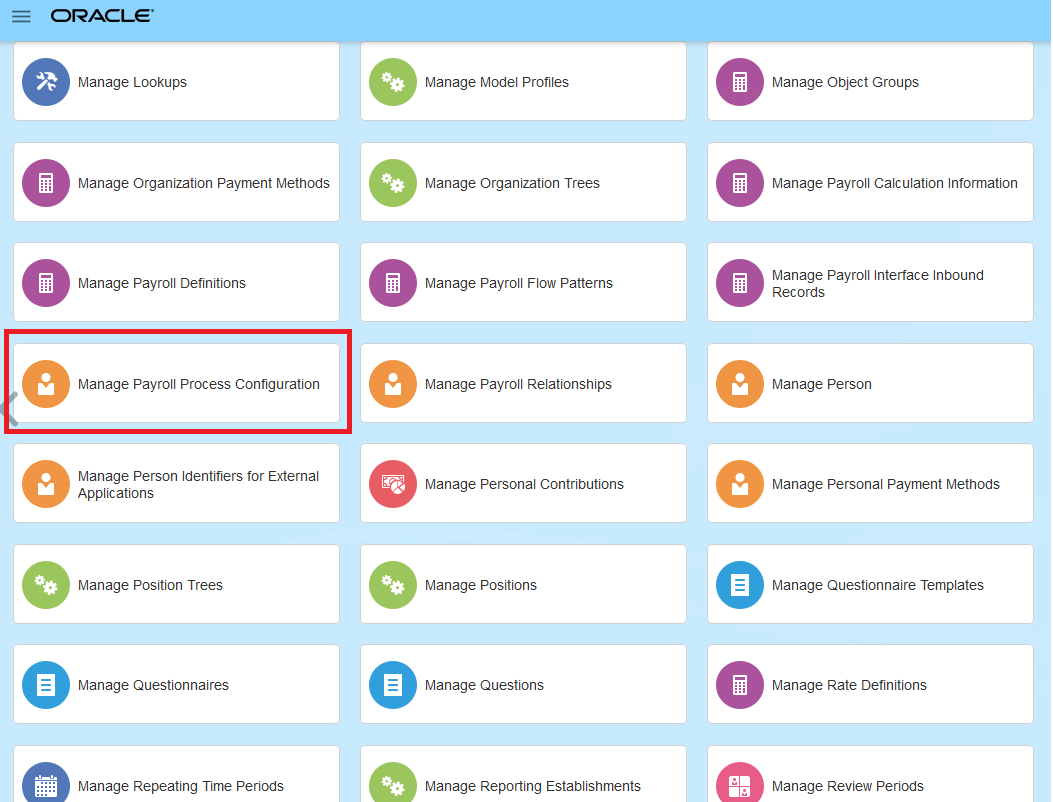
- Select the Default Group tab.
- Select the Create DIR Card Create DIR Card using Global UI parameter.
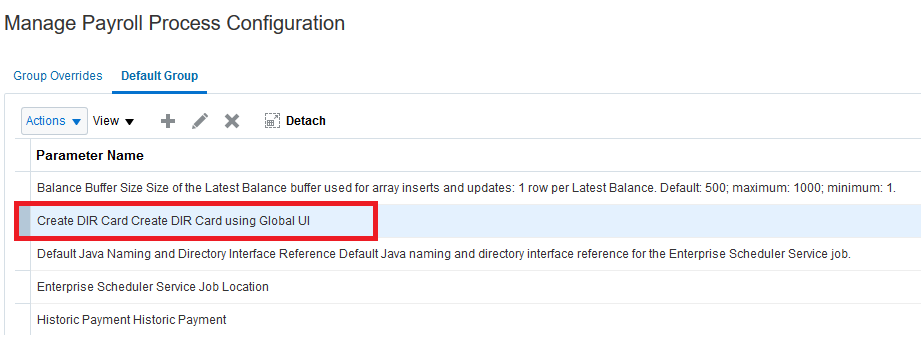
NOTE: If the “Create DIR Card Create DIR Card using Global UI” parameter is not available, click Create, add the parameter and its default value.
- Select Actions>Edit and enter “CA_HRSYNC_OFF” in Default Value.
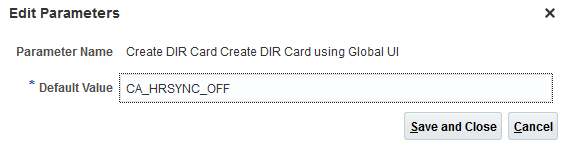
NOTE: Other values may exist for other processes, but ensure the value “CA_HRSYNC_OFF” exists. If you need to enter other values here, enter them with a blank value to separate each value. An absence of the CA_HRSYNC_OFF entry means the default behavior is to synchronize.
- Click Save and Close, and then click Done.
For additional information, refer to the Implementation and Use Guide on the Canada Information Center.
Steps to Enable
You don't need to do anything to enable this feature.
Key Resources
Refer to the documents below on the Canada Information Center for additional information.
Canada Information Center
https://support.oracle.com/rs?type=doc&id=2102586.2
Welcome tab > Product Documentation > White Papers > Implementation and Use
Hot Topics Email (To Receive Critical Statutory Legislative Product News)
To receive important Fusion Canada Legislative Product News, you must subscribe to the Hot Topics Email feature available in My Oracle Support.
See My Oracle Support Document ID 2102586.2 (Information Center: Fusion Human Capital Management - Canada) for further details, and access the content at the location below.
CA – Welcome tab > Other Documents > How To Use My Oracle Support Hot Topics Email Subscription Feature
Provincial Medical Report: Detail Mode
Process the Provincial Medical Report in detail mode to generate a spreadsheet reporting employee-level provincial medical wages.
Use the new Report Type parameter to specify the level of detail you wish to display for the existing Provincial Medical Report.
- Detail
- Summary
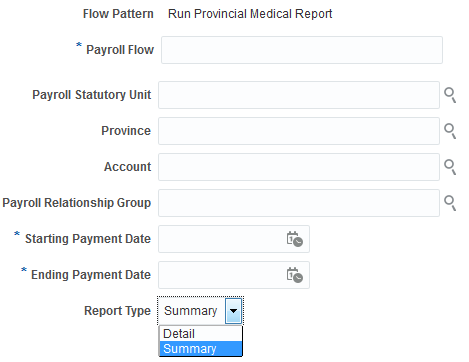
When you select Summary mode, the existing Provincial Medical report is generated. Summary mode is the default. The report headings now display Subject Wages instead of Gross Wages, for both the period specified as well as the year-to-date balances. The balances reported remain unchanged.
When you select Detail mode, a spreadsheet is generated that displays employee-level subject wages for the period specified, as well as the year-to-date balance. This facilitates easier balance reconciliation of the summary-level report and provides the ability to analyze data in greater detail.
Steps to Enable
You don't need to do anything to enable this feature.
Key Resources
Refer to the documents below on the Canada Information Center for additional information.
Canada Information Center
https://support.oracle.com/rs?type=doc&id=2102586.2
Welcome tab > Product Documentation > White Papers > Implementation and Use
Hot Topics Email (To Receive Critical Statutory Legislative Product News)
To receive important Fusion Canada Legislative Product News, you must subscribe to the Hot Topics Email feature available in My Oracle Support.
See My Oracle Support Document ID 2102586.2 (Information Center: Fusion Human Capital Management - Canada) for further details, and access the content at the location below.
CA – Welcome tab > Other Documents > How To Use My Oracle Support Hot Topics Email Subscription Feature
Canada Payroll Redesigned User Experience
Increase user satisfaction with the redesigned pages that now have the same look and feel on desktop and mobile devices. These redesigned pages are both responsive and easy to use on any device, with a modern look and conversational language. Clutter-free pages, with clean lines and just the essential fields, can be personalized to suit.
Tax Credit Information in Employee Self-Service
Provide employees direct access to their tax cards, where employees can view and update their tax credit information using the new responsive pages. Using this new page, employees can do the following actions with their personal tax credit information:
- Update current forms
- Add new provincial forms
- Add future-dated forms
- View prior forms
- Delete provincial forms
- Download and save the populated federal and provincial personal tax credit return PDFs
The landing page of the Tax Credit Information page is displayed below. If the Tax Reporting Unit is selected at the time of new hire, the default tax card is created automatically
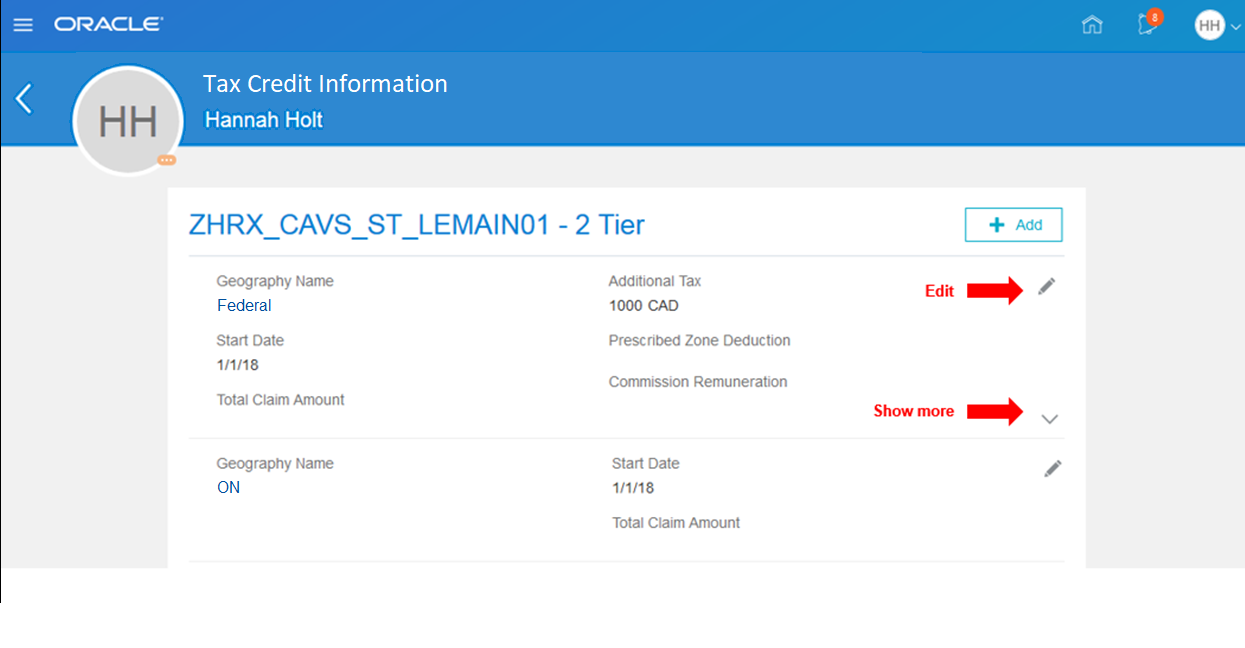
Tax Credit Information
The landing page displays the forms in the following order:
- Federal form
- Provincial forms, in alphabetical order
- Future-dated forms, if any, in lighter font
The landing page shows the first 6 fields by default. If there are more than 6 fields, click the down arrow to show the remaining fields.
Employees can edit their personal tax credit information, if required. The form used to edit the information is displayed below. Employees can make changes to their information as of the current date or they can make future-dated changes, back-dated changes are not allowed. When making changes, the “I Agree” statement is mandatory. An error message is displayed if the employee tries to save the changes without selecting the “I Agree” check box.
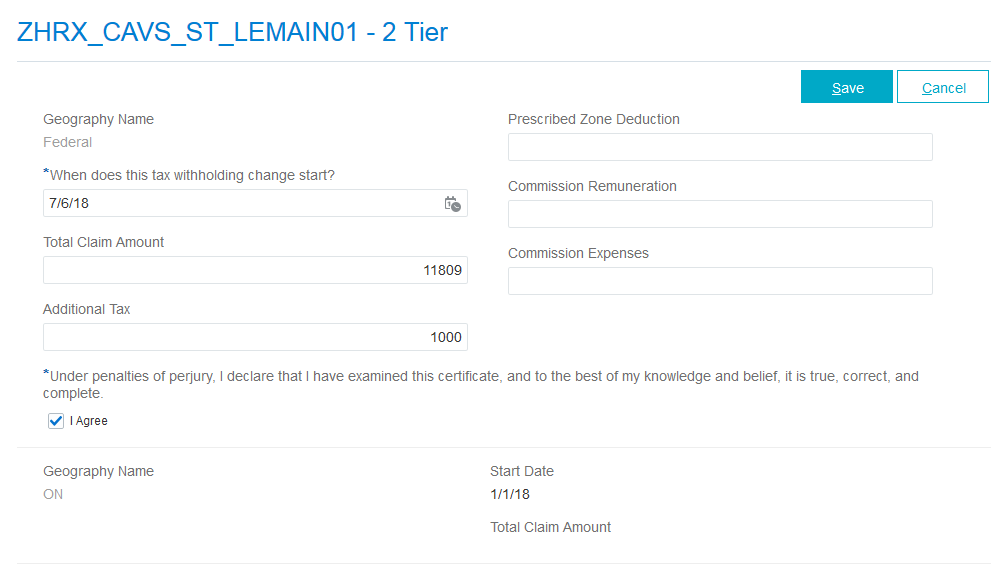
Editing Tax Credit Information
If required, an employee can add a new provincial form. Use the Add button to open a new form and select the date and province to add. Please note that the province selected here has no impact on the Province of Employment on the calculation card.
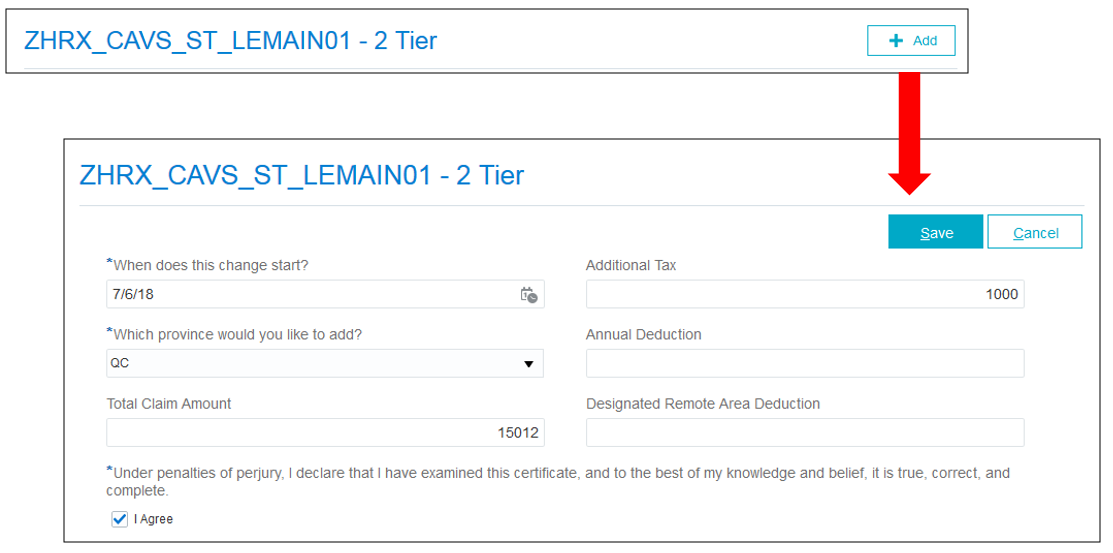
Adding Tax Credit Information
Employees can also add future-dated forms. They are displayed on the landing page after the current forms. Once a future-dated form is entered, the current form is end-dated 1 day prior to the start of the future form. Future-dated forms can be deleted. To delete a future-dated form, enter the form in the update mode and use the Delete button.
The employee can access the Tax Credit Information page using two ways:
- From the employee dashboard, you can use the Quick Action links on the side or the icons under the Apps section, where tasks are grouped using the functional area groupings.
- Employees can access the UI using either navigation below (as displayed in the capture below):
- Employee Dashboard (Me) > Quick Actions > Pay > Tax Credit Information
- Click Show More to access more links if it is not in the initial list
- Employee Dashboard (Me) > Apps > Pay > Tax Credit Information
- Employee Dashboard (Me) > Quick Actions > Pay > Tax Credit Information
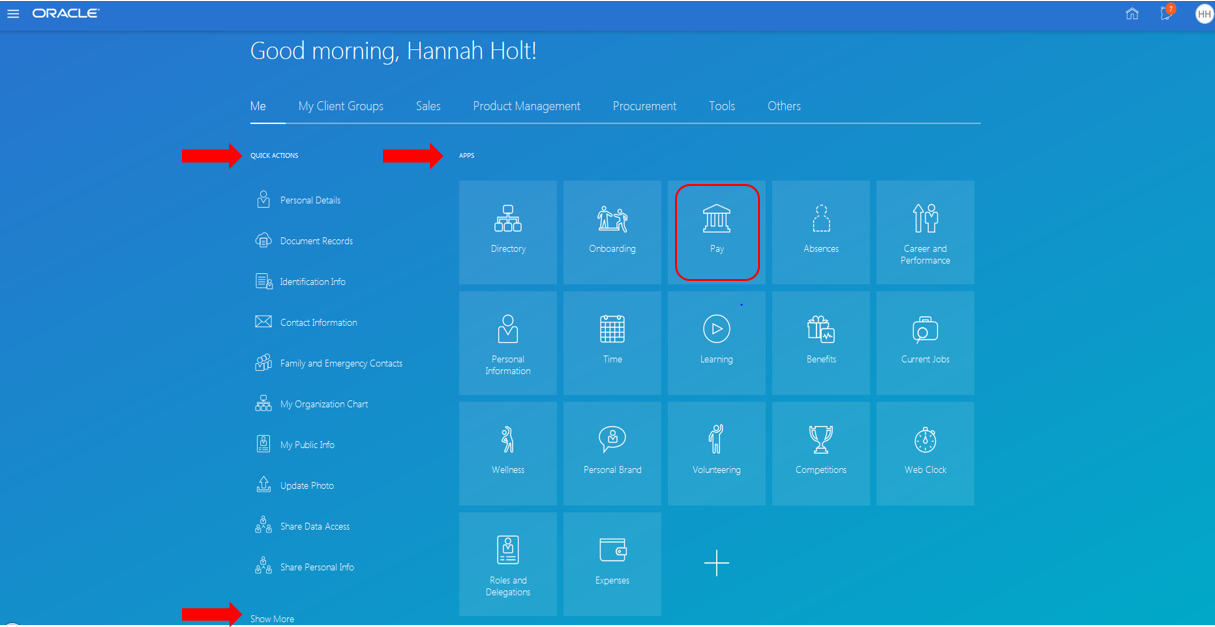
Employee Dashboard
Steps to Enable
In order to enable the Tax Credit Information page, you must first enable the following Profile Option and then enable the HCM_RESPONSIVE_PAGES_ENABLED profile option. If you have not enabled HCM_RESPONSIVE_PAGES_ENABLED profile option, please see the Redesigned Cloud User Experience feature in 18A for the Steps to Enable, Tips and Considerations, and Key Resources.
| Field | Value |
|---|---|
| Profile Option Code | PAY_PAYROLL_RESPONSIVE_ENABLED |
To enable the profile option:
- Navigate to the Setup and Maintenance work area.
- Search for and click the Manage Administrator Profile Values task.
- Search for and select the profile option code “.
- Click to add a new Profile Value.
- Select the Level as Site.
- Enter a Y in the Profile Value field.
- Click Save and Close.
Tips And Considerations
By enabling this profile option, you will be enabling all Payroll responsive pages that are available.
If the Pay action is not available in the initial Quick Action list, click Show More to access all the available actions.
Key Resources
For more information on creating and enabling the profile options, refer to the following document on My Oracle Support:
- HCM Responsive User Experience Setup Information- Profile Options and Displayed Fields (Document 2399671.1)
For information about displayed and hidden fields, refer to the following document on My Oracle Support:
-
HCM Responsive User Experience Setup Information- Profile Options and Displayed Fields (Document 2399671.1)
For more information on personalizing pages, refer to the following:
- Chapter 3, Page Modification in the Oracle Applications Cloud: Configuring and Extending Applications guide.
- The Developer Relations Page Composer Oracle YouTube channel.
Also, refer to the document below on the Canada Information Center for additional information.
Canada Information Center
https://support.oracle.com/rs?type=doc&id=2102586.2
Hot Topics Email (To Receive Critical Statutory Legislative Product News)
To receive important Fusion Canada Legislative Product News, you must subscribe to the Hot Topics Email feature available in My Oracle Support.
See My Oracle Support Document ID 2102586.2 (Information Center: Fusion Human Capital Management - Canada) for further details, and access the content at the location below.
CA – Welcome tab > Other Documents > How To Use My Oracle Support Hot Topics Email Subscription Feature
Payroll for Oracle Human Capital Management for China supports country specific features and functions for China. It enables users to follow China's business practices and comply with its statutory requirements.
Use the Generate Payslips Process to Produce Printed Payslips
Use the Generate Payslips process to generate payslips in a single pdf file. You can print the pdf with all payslips and then distribute the payslips to those employees that have opted to receive printed payslips.
Let's assume that some employees in your company do not have access to the employee self-service application and they need to receive a printed payslip for every pay period. You can use the Generate Payslips process to generate a pdf file for such employees.
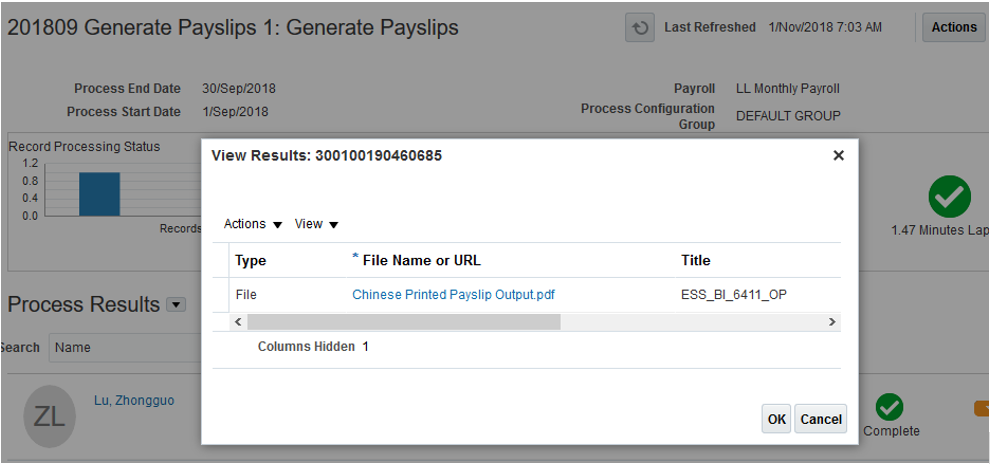
Generate Payslips
Watch a Demo
Steps to Enable
- In the Navigator, click My Client Groups and select Person Management.
- On the Person Management: Search page, search for the employee.
- In the Search Results section, select the employee.
- On the Person Management page, click the Tasks pane.
- In the Personal and Employment section, select Manage Person.
- Click the Documents tab.
- In the Document Delivery Preferences section, select the Payslip row and click Edit.

- In the Edit Document Delivery Preferences: Payslip dialog box, Paper option, select Yes.
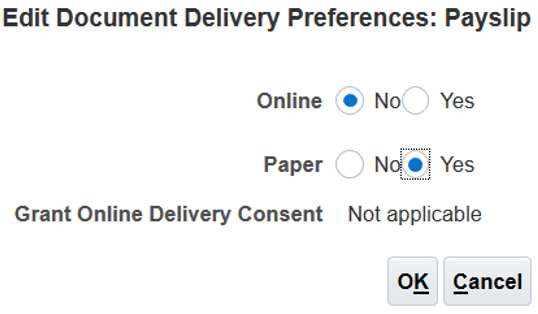
Edit Document Delivery Preferences
- Click OK.
- On the Manage Persons page, click Save and Close.
If most of your employees receive printed payslips, set the default delivery method to Paper. To do this, use the Manage Document Types task in the Setup and Maintenance work area.
- Navigate to the Setup and Maintenance work area.
- Search for and select Manage Document Types.
- On the Manage Document Types page, Type field, enter Payslip.
- Click Search.
- In the Search Results section, select and click Payslip.
- On the Edit Document Type Payslip page, Document Delivery Preferences section, in the Delivery Method option, select Paper.
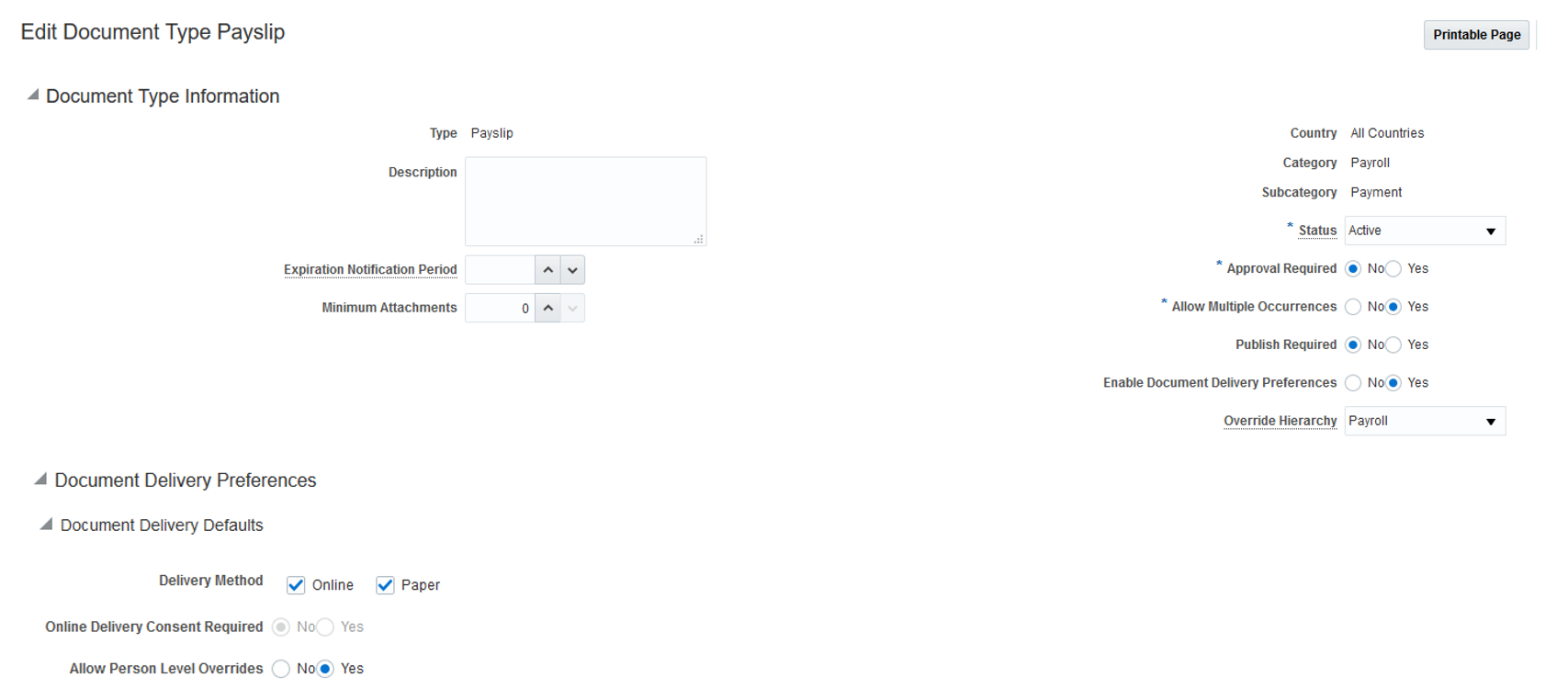
Edit Document Type Payslip
- Click Submit.
You can then override the delivery preferences for payslips for employees who would like to review online payslips. To do this, navigate to the Manage Persons page and in the Document Delivery Preferences section, select Online.
The delivery preferences that you specify at the person level override other delivery preferences for the document type.
Key Resources
Watch China Localization Readiness Training
Support Monthly Fixed Tax Reduction Amount for Qualified Persons
In territories where qualified persons are entitled to a fixed monthly tax reduction amount, first set up the amount at the personal deduction card level for them. The application uses the amount in their monthly tax calculation and reduces the tax payable by that amount to get the final tax payment amount to be withheld from the employees.
In this example, the calculated tax payable for the employee is 1,287.40, given the tax reduction amount is 470, and the actual tax withheld for the employee is 817.40.
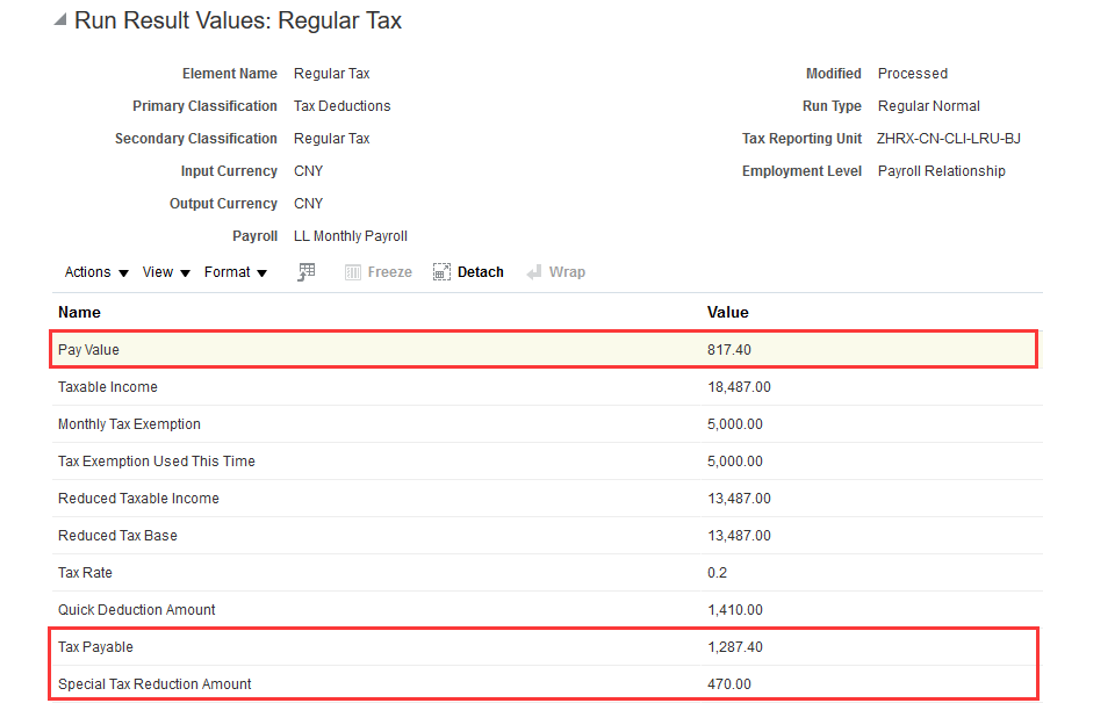
Monthly Fixed Tax Reduction Amount for Qualified Persons
Steps to Enable
- From the Navigator, select Person Management from My Client Groups.
- On the Person Management page, search for the employee.
- Click the Actions button and select the Manage Calculation Cards task under Payroll.
- On the Person Management page, search for and select the personal deduction information card.
- On the Deduction Information page, click Taxes in the Component Groups section.
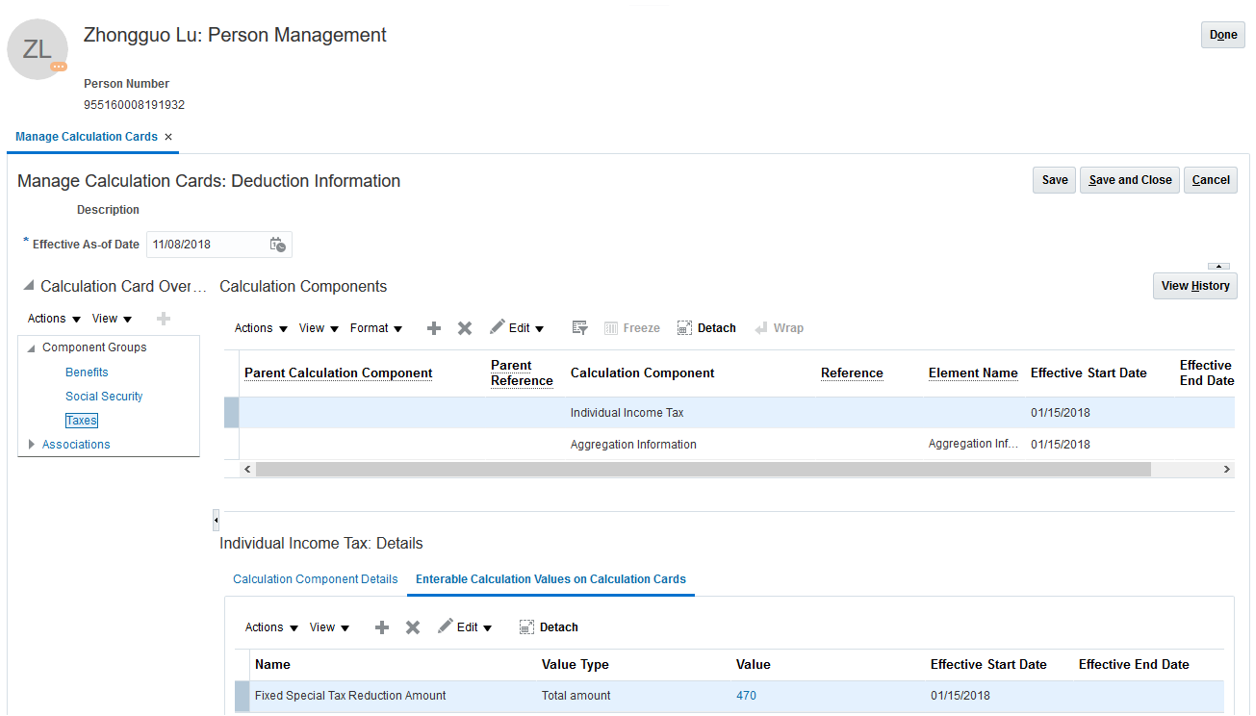
Deduction Information
- In the component details region, click the Enterable Calculation Values on Calculation Cards tab.
- Check the Effective As-of Date. If it is not the start date you would like your record to take effective, change the date.
- Click Create to open the Edit Calculation Values dialog box.
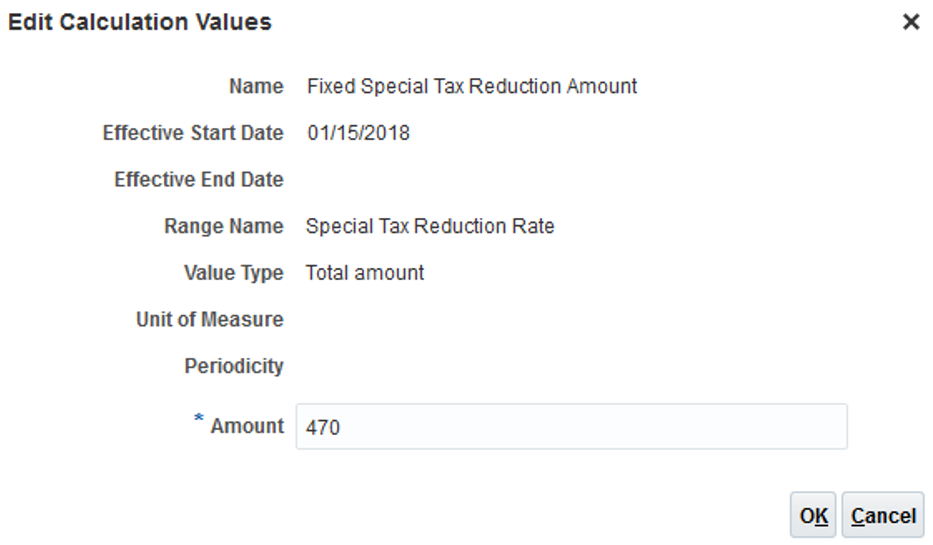
Edit Calculation Values
- In the Edit Calculation Values dialog box, search for the calculation value Fixed Special Tax Reduction Amount.
- In the Amount field, specify the required amount.
Key Resources
Watch China Localization Readiness Training
Show Tax Reporting Units Relevant to the Hiring Legal Employer in the Hiring Flow
When you are hiring an employee, on the Employment Information page, Tax Reporting Unit list box displays only those tax reporting units that are relevant to that employer. Now, you will have a reasonably short list of meaningful values to choose from.
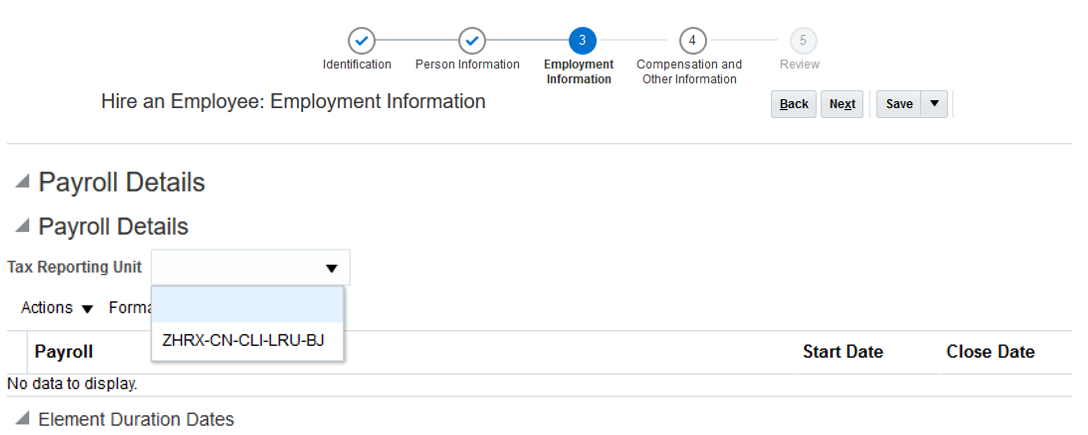
Tax Reporting Units
Steps to Enable
- In the Setup and Maintenance work area, search for and select an implementation project.
- Search for and select the Define Common Applications Configuration for Human Capital Management task list. Expand the task list.
- Select the Define Enterprise Structures for Human Capital Management task list and expand it.
- Select the Define Legal Entities for Human Capital Management task list and expand it.
- Select the Define Legal Reporting Units for Human Capital Management task list and expand it.
- Search for your tax reporting unit in the Selected Scope column and click Go to Task in the Manage Legal Reporting Unit HCM Information task.
- In the Associated Legal Employer section, add associated legal employers.
Key Resources
Watch China Localization Readiness Training
On the Balances page, the name of the balance is simplified to Net Payment. Also, in the Balance Feeds by Classification section, the Direct Payments classification is removed.
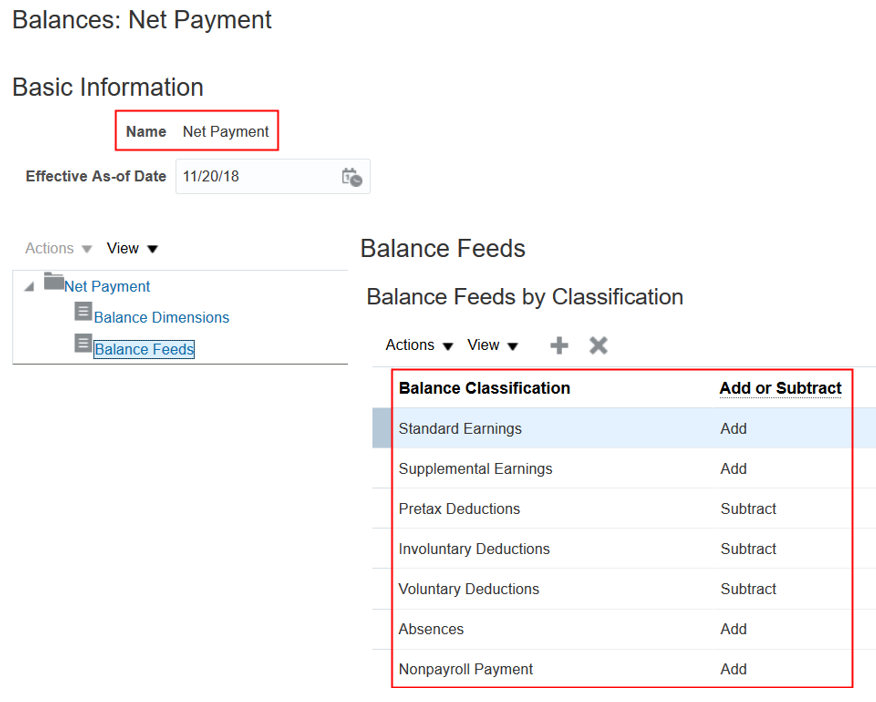
Balances: Net Payment
Steps to Enable
You don't need to do anything to enable this feature.
Key Resources
Watch China Localization Readiness Training
Use the Overriding Payslip Availability Date Parameter for the Generate Payslips Process
Use the Generate Payslips process to specify an overriding payslip availability date to make online payslips available for employees to review on and after the date. This date takes precedence over the payslip availability date defined on the Manage Payroll Definitions page.
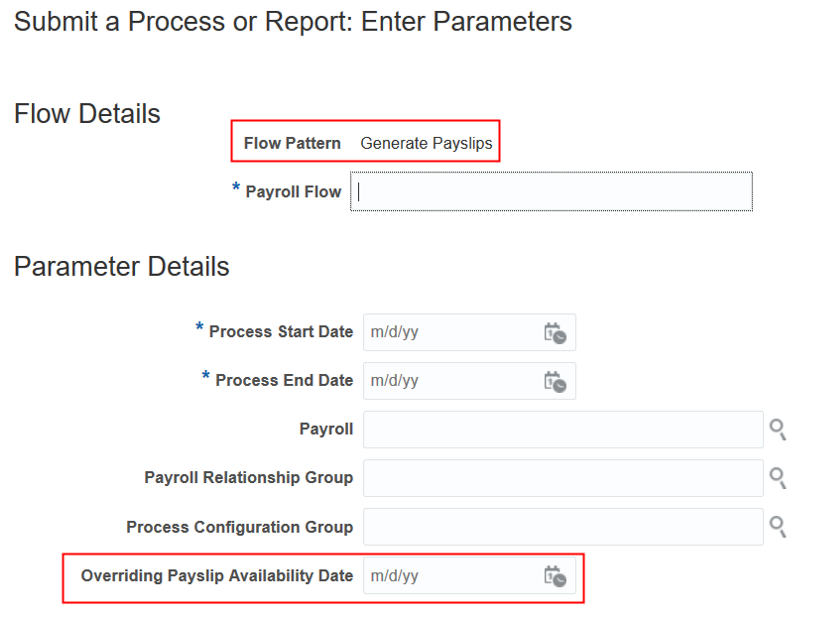
Submit a Process or Report
Steps to Enable
You don't need to do anything to enable this feature.
Key Resources
Watch China Localization Readiness Training
Payroll for Oracle Human Capital Management for Mexico supports country specific features and functions for Mexico. It enables users to follow Mexico's business practices and comply with its statutory requirements.
In preparation for the capability to process payrolls for Mexico, we are beginning to deliver a number of payroll features in this release. While these features are available and Oracle Payroll Cloud for Mexico license is available today; go-live for production instances should be targeted no earlier than January 2020.
Comply with legislative updates by the Mexican Government for the 2018 tax year to calculate employee taxation accurately according to the latest changes. Monthly and annual ISR tax rates have been updated for the seeded value definitions.
Steps to Enable
You don't need to do anything to enable this feature.
Payroll State Tax is an employer obligation and its calculation is based on employee earnings. Mexico’s 32 states, including Distrito Federal, each has its own fiscal laws that establish the taxable and exempt earnings and the specific rules to calculate the Payroll State Tax.
This tax update includes new date effective range items for the new rates. The taxability rule update includes new date effective calculation units, value definitions and range items.
Steps to Enable
You don't need to do anything to enable this feature.
The National Housing Fund Institute for Workers (INFONAVIT) is the Mexican federal government agency that provides housing credit to private sector employees.
To facilitate the deduction of INFONAVIT, the Employee INFONAVIT calculation component is available to be added to the Employee Tax Card in the Loans component group.
Steps to Enable
You don't need to do anything to enable this feature.
Support for Internet Digital Fiscal Certificate (CFDI)
Comply with the legislative requirements of Comprobante Fiscal Digital por Internet (CFDI) reporting. For legal employers, capture the following information to be included in CFDI reporting:
- CFDI Authorized Provider for Certification (PAC) confirmation Key
- CFDI Fiscal Regime
- Social Security Work Risk Classification
For workers, capture the following information that will be used for CFDI reporting:
- CFDI Contract Type
- CFDI Work Schedule Type
- CFDI Outsourcing Employer Information
For compensation and deduction element types you will be able to select the associated CFDI code when you create elements using the Manage Elements task. The CFDI will be able to be selected from a list of values for the questions:
- What is the CFDI Code when this element result is positive?
- What is the CFDI Code when this element result is negative?
Steps to Enable
You don't need to do anything to enable this feature.
Unit of Measure and Update (UMA) Support
Mexican constitutional reform has created the Unidad de Medida y Actualización / Unit of Measure and Update (UMA). It replaces the minimum wage as the index to calculate taxes in Mexico.
ISR tax, employer state tax and social security quota components have been updated to use the UMA as the calculation index instead of the Minimum Wage.
Steps to Enable
You don't need to do anything to enable this feature.
Payroll for Oracle Human Capital Management for Qatar supports country specific features and functions for Qatar. It enables users to follow Qatar's business practices and comply with its statutory requirements.
Qatar Social Insurance Report: Hire, Termination and Adjustments
The Employee Hire, Termination and Data Adjustment Report is a statutory report that an employer submits to General Retirement and Social Insurance Authority (GRSIA) on a monthly basis. It details information about new hires, terminations, and adjustments in a calendar month, for Qatar citizens.
The Payroll Run, Pre-Payments, and Payroll Archive processes must be run before generating this report.
To generate the report, submit the Run Employee Hire, Termination and Data Adjustment Report process, and enter the following parameters:
- Payroll Statutory Unit
- Month
- Year
The report contains the following sections:
- Parameter section:
- Purpose of Report
- Employer Details
- Employee Details
- New Hire Details
- Unpaid Leave Details
- Salary Adjustment Details
- Transfer/Secondment Details
- Termination Details
- Footer section: Contains the signatory details.
The following employees must be reported for the current period:
- New hires
- Those with unpaid leave absence
- Those with changes in either basic salary, or social allowance, or both
- Those transferred or seconded
- Terminations
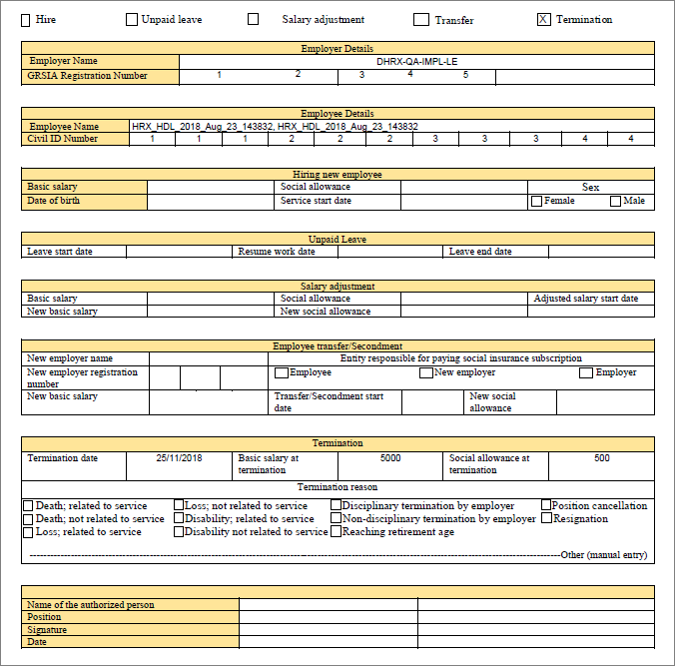
Sample Report Output
Steps to Enable
You don't need to do anything to enable this feature.
Payroll for the United Kingdom
Payroll for Oracle Human Capital Management for the United Kingdom supports country specific features and functions for the United Kingdom. It enables users to follow the United Kingdom's business practices and comply with its statutory requirements.
Multiple Periods of NI for Late Hires
The NI deductions are calculated based on multiple period’s thresholds (for a total of two periods processed in a single calculation, current and prior period only), if you are not able to pay the new starters in the period when they were hired.
The following new balances are delivered:
- NIable Previous Period Earnings
- NIable Previous Period Earnings by Category
In the element Late Starter Information, a new input value Feed NIable Late Starter is available and feeds the balance NIable Previous Period Earnings:
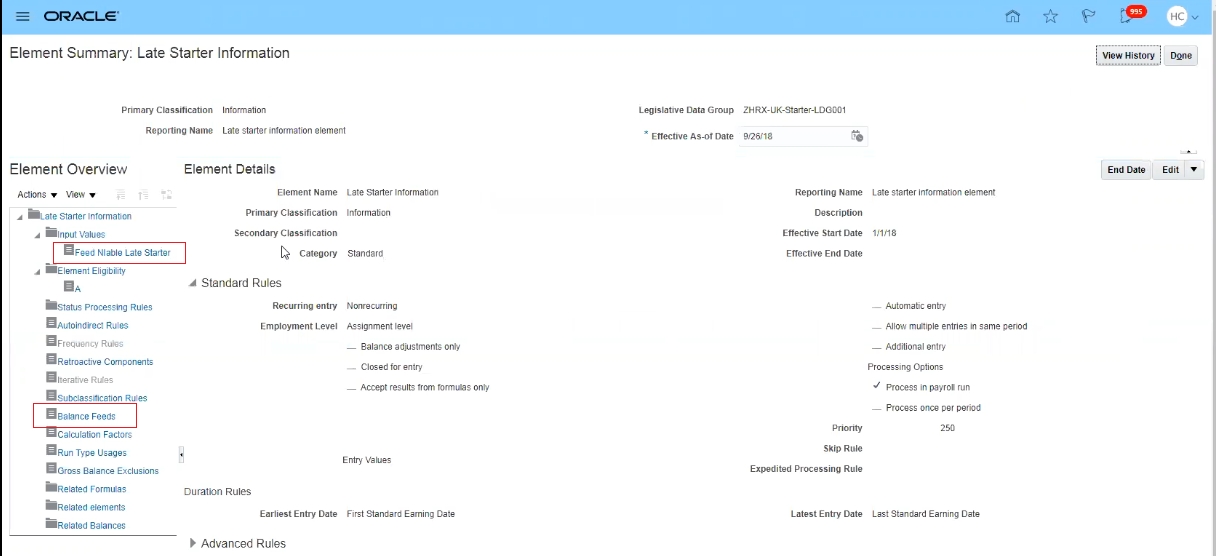
Ensure that you have set up the Late Starter Information element for the relevant employee. You can enter the value in the Feed NIable Late Starter field, in the Manage Element Entries page:
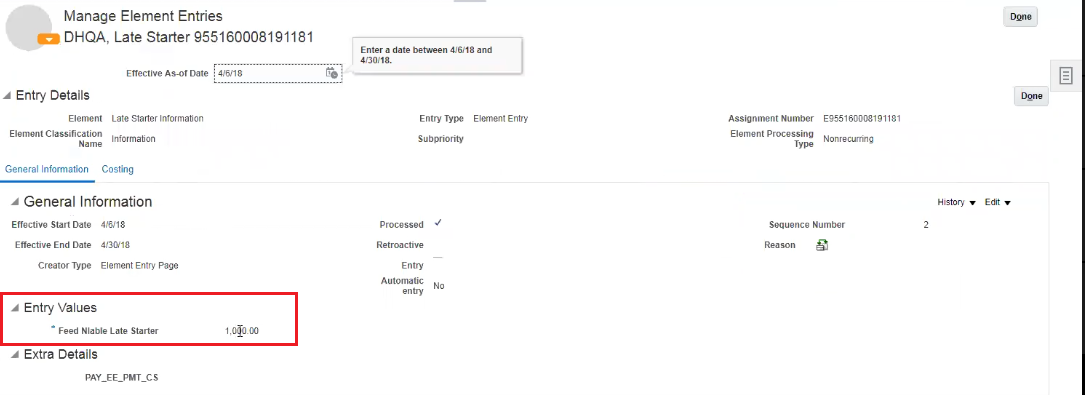
Feed NIAble Late Starter
You can verify the changes for the employee in the Run Results after you have successfully run the payroll process:
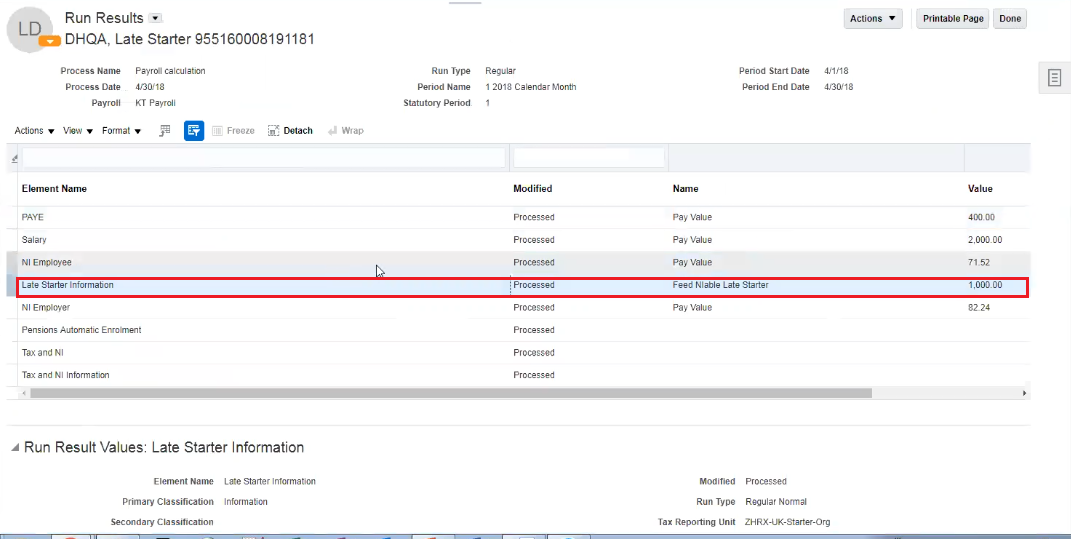
Run Results with Late Starter Information
This calculation only applies where the first payment due to a new starter is not paid at the correct time. The calculation uses the current rates and thresholds at the time of payment, even if the earnings were due to be paid in different tax years.
Steps to Enable
You don't need to do anything to enable this feature.
New Welsh Rates for Income Tax
You can allocate the correct tax code to your Welsh employees to calculate and deduct tax using the rates introduced for Wales in the latest legislative updates.
The Tax Code Uplift Archive process identifies a Welsh tax code and performs the uplift. The prefix C identifies the Welsh tax code.
The Load HMRC XML File process interprets the C in the Tax Regime Attribute for Tax Code node, and prefixes the tax code with C before posting it to the Statutory Deductions calculation card.
The Welsh rate of income tax is effective from 6 April 2019. You can't enter a tax code with the prefix C before this date in the Statutory Deductions calculation card:
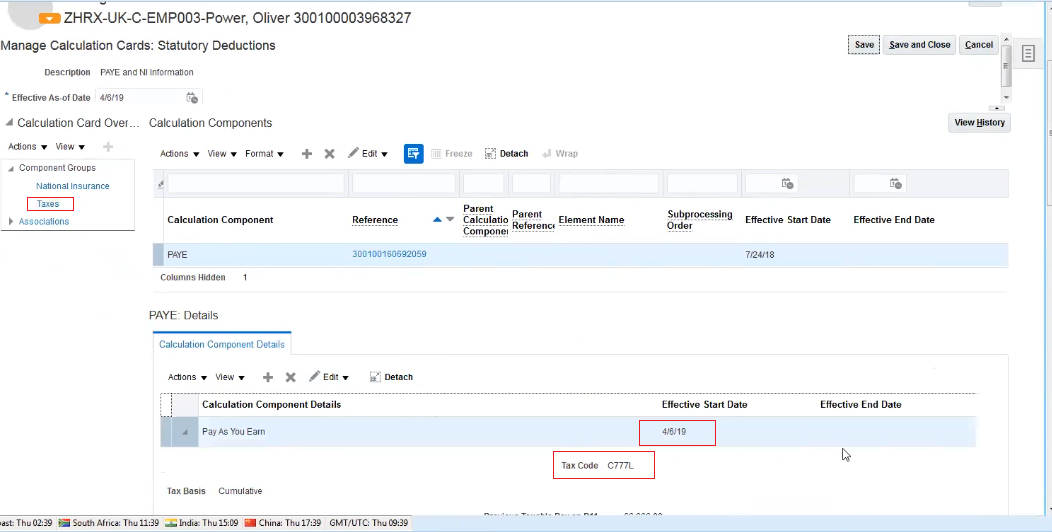
The Payroll Data Validation Report is updated to include validations for the Welsh tax code.
Steps to Enable
You don't need to do anything to enable this feature.
You can use the audit report that is generated as part of the Make EFT Payments process to verify the payments generated on the BACS file.
To view this report, run the Make EFT Payments process successfully and select the BACS audit report under Output and Delivery from the relevant report job. The report is delivered in CSV format:

BACS Audit Report
Steps to Enable
You don't need to do anything to enable this feature.
You can use the option on the enhanced absence template to indicate whether an absence payment must continue for an employee even after termination in the enhanced absence element template.
This absence payment will continue until the plan eligibility expires.
To use this option, you must create a new absence element. When you create the absence element, enter the value as Yes for the following question:
-
Does this plan enable entitlement payments after termination?
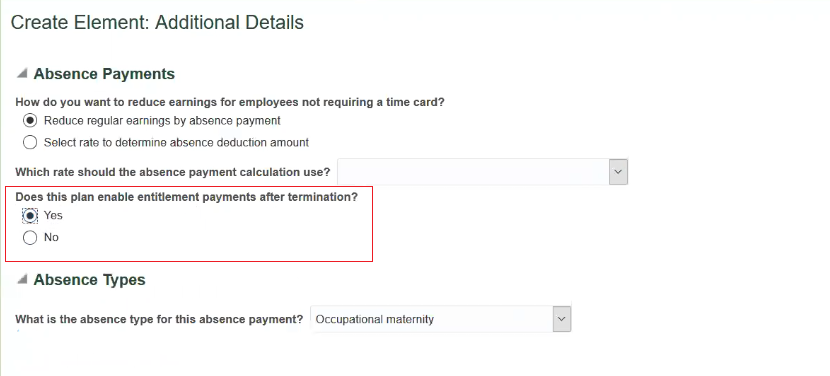
Enhanced Absence Template
If you have set up the absences as not payable after termination:
- Create a new absence plan and attach the newly created absence element. Ensure that you set the Entitlement End Rule to After Termination.
- Create a new absence type and attach it to the absence plan.
- Create new absence entries using the new absence type
To use this for absences that were created before this setup, you can withdraw the old absence and reenter the absence using the new absence type.
Steps to Enable
You don't need to do anything to enable this feature.
Pensions Automatic Enrolment Audit Report Output Available in CSV Format
You can use the new audit report that is generated as part of the Pensions Automatic Enrolment Assessment Multiple Update process to verify the report results.
To view this report, run the process successfully and select the audit report under Output and Delivery from the relevant report job. The report is delivered in CSV format:

You can use applications that support CSV format files to sort and filter data.
Steps to Enable
You don't need to do anything to enable this feature.
Payroll for Oracle Human Capital Management for the United States supports country specific features and functions for the United States. It enables users to follow the United States business practices and comply with its statutory requirements.
Support for 403 (b) and 457 (b) Deferred Compensation Plans
You can now process employee deferred compensation contributions for 403 (b) and 457 (b) plans. Define Pretax Deductions and Voluntary Deductions elements with new 403 (b) and 457 (b) secondary classifications, and you can capture that deduction information on the person's Benefits and Pensions calculation card.
Use the Manage Elements task to define elements using the following new secondary classifications:
| Primary Classification | Secondary Classifications |
|---|---|
| Pretax Deductions | Deferred Compensation 403b Deferred Compensation 457 |
| Voluntary Deductions | Deferred Compensation 403b Roth Deferred Compensation 457 Roth Pension Plan After Tax 403b Pension Plan After Tax 457 |
Steps to Enable
Once you have defined the elements, to enroll an eligible employee:
- Use the Manage Calculation Cards task to create a Benefits and Pensions card for the person.
- In the Calculation Card Overview section, select Benefits.
- In the Calculation Components section, click Create and select the appropriate element. Specify a subprocessing order if necessary. Click OK.
- In the Details section, select Enterable Calculation Values on Calculation Cards.
- Click Create.
- Specify the employee as contributing either a flat amount or percentage and any other appropriate contribution values and amounts.
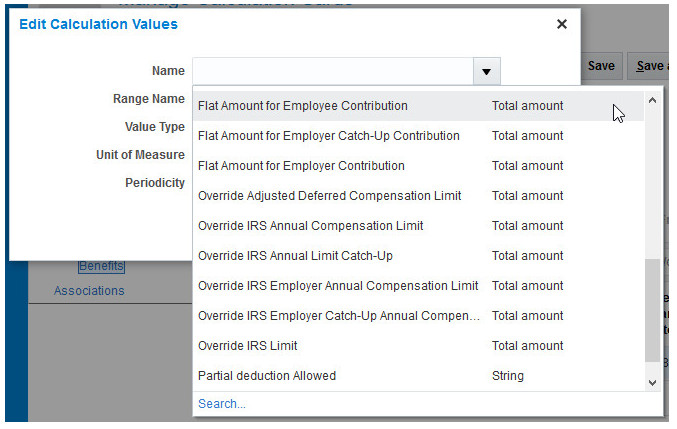
Edit Calculation Values
Tips And Considerations
-
Do not use the Catch-Up secondary classifications to define catch-up deductions for your employees. The element template uses these secondary classifications to create results elements based on the deferred compensation elements you define.
To configure catch-up deductions, use the appropriate calculation values on the person’s Benefits and Pensions card.
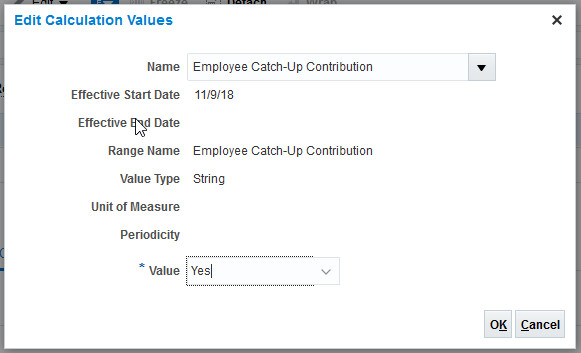
Catch-Up Calculation Value
-
When you opt for percentage deductions for deferred compensation calculations, the payroll process uses the following balances:
-
Deferred Compensation 401K Eligible Earnings
-
Deferred Compensation 403b Eligible Earnings
-
Deferred Compensation 457 Eligible Earnings
-
When you create a 401 (k), 403 (b), or 457 (b) deduction element, the payroll process doesn't take the deduction until you feed the eligible balance. The Manage Elements task does not automatically establish this feed for tracking eligible earnings. You must feed these balances for your eligible earnings results element.
- On the Benefits and Pensions card, use the Associations link for employees with multiple assignments.
- For the Benefits and Pensions card calculation values, enter percentages as whole numbers. For example, enter 50% as 50.
- The Federal component group now includes the appropriate Pretax wage basis rules:
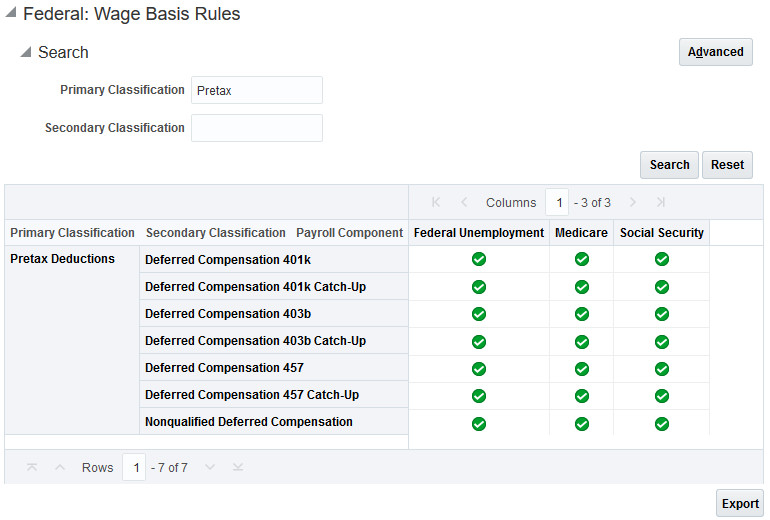
New Pretax Wage Basis Rules
Key Resources
To learn more you can watch USA Localization Readiness Training
We have improved your end-of-year processing through the new W-2c Register report. This report provides you with the ability to preview data reported on the W-2cs before you print them. Access the Run W-2c Register process from the Regulatory and Tax Reporting work area.

Run W-2c Register Report
Steps to Enable
You don't need to do anything to enable this feature.
Form W-2PR Control Number Support
You will find it easier to process your Puerto Rico year-end reporting. You can now specify the Hacienda-issued Control Number on your Forms W-2PR. Use the new W-2 Control Number or W-2c Control Number calculation values on the employee’s Reporting Information card to specify the numbers.
To add the Puerto Rico Control Number:
- Use the Manage Calculation Cards task to open an employee’s Reporting Information card for editing.
- Under Component Groups, select Regional.
- In the Calculation Components region, click Create.
- Select the Regional Tax Information calculation component, select PR as the state, and select your tax reporting unit.
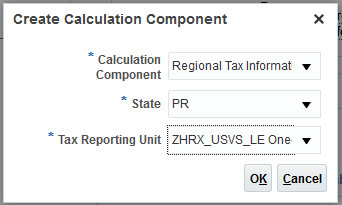
Create Calculation Component
- Click OK.
- In the Details region, select Enterable Calculation Values on Calculation Cards.
- Select the appropriate calculation value, and specify the Control Number as the value.
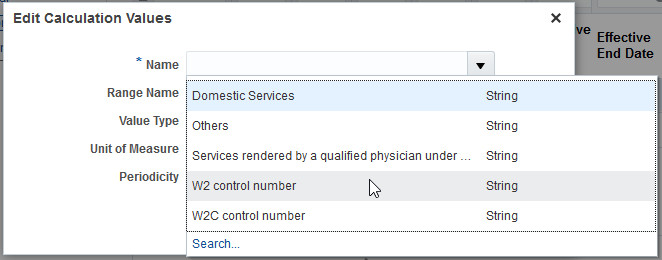
Edit Calculation Values
-
Click OK.
Steps to Enable
You don't need to do anything to enable this feature.
This feature helps you include California Voluntary Plan for Disability Insurance (VPDI) plans in your payroll processing. You can now provide a voluntary disability plan to your California employees if you are not already using the state disability plan. You configure these plans at the payroll statutory unit (PSU) or tax reporting unit (TRU) levels. For employees who choose not to participate in the VPDI plan, you can enter an override on their tax card so that they use the state plan instead.
To set up a VPDI plan:
- Open either the PSU or TRU organization calculation card for editing. Any edits you make on the TRU card override those on the PSU card.
- For the California regional node, select CA State Disability.
- Select the Enterable Calculation Values on Calculation Cards tab.
- Click Create, and select Default Disability Plan.
- In the Value field, enter VP_PRM_SP_SEC.
- Click Save.
- Click Create, and select VPDI Employee Rate.
- In the Rate field, enter your employee rate.
- Click Save.
- Repeat these steps if you have a VPDI Employer Rate component.
Steps to Enable
You don't need to do anything to enable this feature.
Tips And Considerations
- VPDI plans use the same taxability rules, wage limits, and self-adjustment method as California’s State Disability Insurance plan. For further information, see Oracle Cloud Human Capital Management for United States: Implementation and Use (1676530.1) on My Oracle Support.
- You can switch disability plans only at the beginning of the calendar year. If you change the plan after running the first payroll of the year, you must perform the appropriate balance adjustments to move the wages and taxes from the SDI balances to the VPDI balance.
- You must specify the wage plan code on the California regional node of your organization’s HCM Information. For employees who have selected a different plan than what you set up for your organization, you must enter an override on the California regional node of their Reporting Card.
- If you have made the VPDI plan your default plan, and you have employees who opt to use the state plan, you must:
- On their Tax Withholding card, mark the Exempt from Voluntary Plan Disability field as Yes.
- On the California regional node of their Reporting Card, select the appropriate SDI code in the Wage Plan Code.
Key Resources
For more information go to My Oracle Support for the following document:
- Oracle Cloud Human Capital Management for United States: Implementation and Use (Document ID 1676530.1)
Watch USA Localization Readiness Training
New York City Part-Year Resident Support
We have made it easier to accurately process payroll for employees who are New York City residents. Use the new Part-Year Resident calculation value on the employee’s Reporting Information card to identify these people:
- Use the Manage Calculations Card task to open the person’s Reporting Information card for editing.
- Under Component Groups, select Regional.
- In the Calculation Components region, click Create.
- Select the Regional Tax Information calculation component, select NY as the state, and select your tax reporting unit.
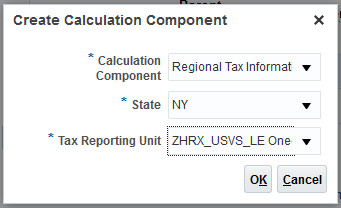
Create Calculation Component
- Click OK.
- In the Details region, select Enterable Calculation Values on Calculation Cards.
- Select the Part Year Resident calculation value, and select Yes as the value.
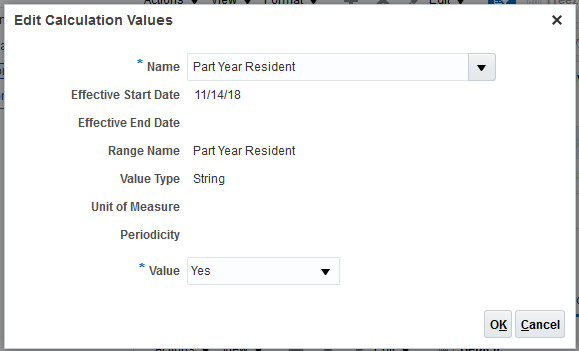
Edit Calculation Values
-
Click OK.
Steps to Enable
You don't need to do anything to enable this feature.
401(K) Employer Match Support for Catch-Up Deductions
We have made it easier for you to process your employee deferred compensation deductions through the definition of separate employer-match elements for catch-up and Roth catch-up.
When defining Deferred Compensation 401k Catch-Up pretax and Deferred Compensation 401k Roth Catch-Up voluntary deductions, the element template now includes prompts for defining these deduction elements.
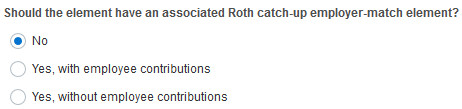
Deferred Compensation 401 (k) Roth Catch-Up
Steps to Enable
You don't need to do anything to enable this feature.
Run US Tax Balance Adjustment Process Enhancement
You can now augment your tax balance adjustments through the execution of user-defined tax balance adjustment formulas. Previously, only FUTA adjustments were enabled using this process. Now, the Run US Tax Balance Adjustment process supports user-defined balance adjustments at the federal, state, local, and Pennsylvania local levels.
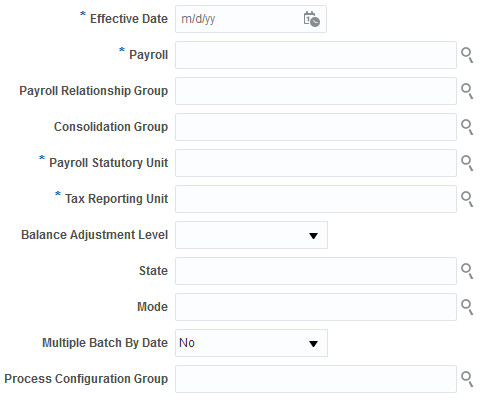
Run US Tax Balance Adjustment Process Fields
The new parameters are:
| Parameter |
Description |
|---|---|
| Balance Adjustment Level |
Identifies the tax adjustment level: federal, state, local, or Pennsylvania local. |
| State |
For nonfederal tax adjustments, select the state. |
| Mode |
Search for the user-defined formula you want to use. If you leave this blank, the process runs the default FUTA formula. For information on how to make user-defined formulas available for selection, see Tips and Considerations. |
| Multiple Batch by Date |
Select Yes to create separate batches by date. The process automatically populates the effective date for all lines in the batch with the effective date you provided for the process. When adjusting balances for terminated employees, the process may use the final close date instead of the effective date to create the separate batches. It does so when the final close date is earlier than the effective date. |
Steps to Enable
You don't need to do anything to enable this feature.
Tips And Considerations
- After running this process, use the balance adjustment batch output to review the information for accuracy before transferring and processing it.
- To make a user-defined formula available for use with this process:
- Start the Manage Calculations Value Definitions task.
- Click Create.
- Enter a meaningful name, and select your US legislative data group.
- Select Use existing value definition group.
- Select the US Tax Balance Adjustment value definition group.
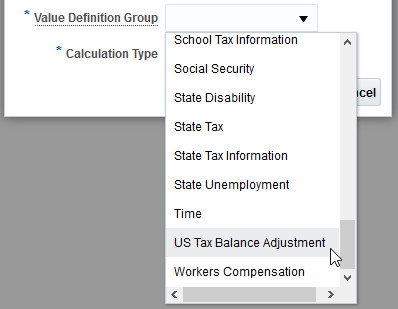
Value Definition Group
- Select the Text calculation type.
- In the Calculation Values section, click Add Row and attach the desired formula as text:
- From Value: 0
- To Value: 99999
- Text Value: Your formula name
We have provided sample balance adjustment formulas on Customer Connect and My Oracle Support Document ID 2470020.1.
Key Resources
Watch USA Localization Readiness Training
Overtime Calculation Support for Common Paymasters
We have improved the accuracy of your premium overtime rate calculations. You can now include the earnings and hours of employees subject to a common paymaster within the same overtime period. In Oracle Fusion Global Payroll, a common paymaster is a payroll statutory unit (PSU) that represents its child tax reporting units for the purposes of payroll calculations.
To aggregate hours and earning across TRUs under a PSU for overtime premium calculation:
- Use the Manage Legal Entity Calculation Cards task to open the payroll statutory unit calculation card for editing.
- Under Component Groups, select Federal.
- Under Calculation Components, click Create.
- Select the Overtime Rules calculation component, and click OK.
- In the Overtime Rules: Details section, select the Enterable Calculation Values on Calculation Cards tab.
- Click Add.
- In the Edit Calculation Values window, select Aggregate Overtime Premium Rate for all TRUs within the PSU.
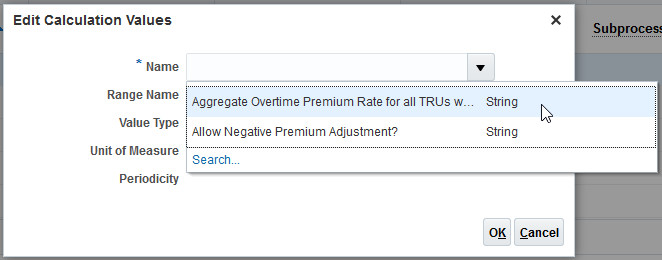
Aggregate Overtime Premium Rate for All TRUs
- Select Yes as the value, and click OK.
- Click Save.
- Repeat these steps to allow negative premium adjustments.
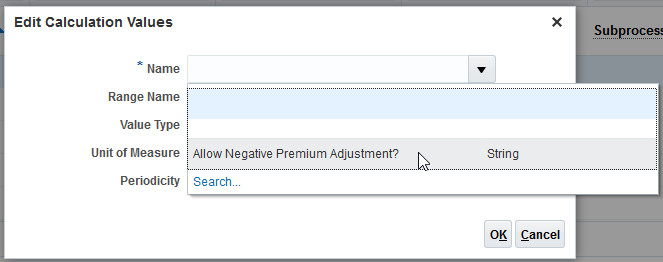
Allow Negative Premium Adjustments
Steps to Enable
You don't need to do anything to enable this feature.
Tips And Considerations
Once you have configured the PSU calculation card, any earnings element you define with the Premium secondary classification will now aggregate hours and earnings across the common paymaster.
This does not apply to existing elements. Existing elements would continue to run according to their original configurations.
Key Resources
Watch USA Localization Readiness Training
Restricting TRUs by Person Type
We have made it easier for you to enforce organizational on-boarding restrictions at the tax reporting unit (TRU) level. Because you cannot assign a mix of employee and retiree person types to the same TRU, use the new Person Type for Payroll Process field to identify your TRUs as being reserved for either employees or retirees. Access this field through the Manage Legal Reporting Unit HCM Information task.
Steps to Enable
To select the person type for your TRU:
- Start the Manage Legal Reporting Unit HCM Information task.
- Select the Tax Reporting Unit tab.
- Select Federal.
- Select either Employee or Retiree in the Person Type for Payroll Process field.
Person Type for Payroll Process Field
Tips And Considerations
If you select Employee, when you hire an employee, only employee-type TRUs will be available for selection.
If you select Retiree, when you on-board a retiree, only retiree-type TRUs will be available for selection.
Key Resources
Watch USA Localization Readiness Training
HCM Spreadsheet Data Loader for Organization Calculation Card
You will find it quicker to create and update your organization calculation card information using new HCM Spreadsheet Data Loader (HSDL) templates.
Use the Run Spreadsheet Data Loader process from the Data Exchange work area to access the following templates:
| Template | Description |
|---|---|
| US Federal Calculation Rules for Tax Reporting and Payroll Statutory Unit |
Loads federal calculation rules for tax reporting and payroll statutory units. |
| US State Calculation Rules for Tax Reporting and Payroll Statutory Unit |
Loads common state calculation rules for tax reporting and payroll statutory units. |
| US State AK Calculation Rules for Tax Reporting and Payroll Statutory Unit |
Loads Alaska state calculation rules for tax reporting and payroll statutory units. |
| US State CA Calculation Rules for Tax Reporting and Payroll Statutory Unit |
Loads California state calculation rules for tax reporting and payroll statutory units. |
| US State HI Calculation Rules for Tax Reporting and Payroll Statutory Unit |
Loads Hawaii state calculation rules for tax reporting and payroll statutory units. |
| US State NJ Calculation Rules for Tax Reporting and Payroll Statutory Unit |
Loads New Jersey state calculation rules for tax reporting and payroll statutory units. |
| US State NY Calculation Rules for Tax Reporting and Payroll Statutory Unit |
Loads New York state calculation rules for tax reporting and payroll statutory units. |
| US State PA Calculation Rules for Tax Reporting and Payroll Statutory Unit |
Loads Pennsylvania state calculation rules for tax reporting and payroll statutory units. |
| US State RI Calculation Rules for Tax Reporting and Payroll Statutory Unit |
Loads Rhode Island state calculation rules for tax reporting and payroll statutory units. |
| US County Calculation Rules for Tax Reporting and Payroll Statutory Unit |
Loads county calculation rules for tax reporting and payroll statutory units. |
| US City Calculation Rules for Tax Reporting and Payroll Statutory Unit |
Loads city calculation rules for tax reporting and payroll statutory units. |
Steps to Enable
Create your files for HCM Data Loader or HCM Spreadsheet Loader to load Organization Calculation Cards.
Midday Period Support for Time Cards and Absences
You can now split time entry based on work day definitions. Use the Manage Work Day Definition task to allocate time and absences by midday periods. The entries on the person’s time card are allocated based on work day definition.
Steps to Enable
To divide an employee’s time card by midday periods:
- Define an element of Time Card or Absence type.
- Create the element eligibility link for the new element's "FLSA Only" indirect element. This sets element entry based on the overtime date passed by Oracle Fusion Time and Labor. Absences and hours are used for calculating overtime premium.
- Use the Manage Work Day Definition task to create a work day definition, and define the Overtime Day Definition rules to split a day start time.
- Assign the work day definition to the eligible employee.
Key Resources
Watch USA Localization Readiness Training
Workforce Rewards Transactional Business Intelligence
Oracle Transactional Business Intelligence is a real time, self-service reporting solution offered to all Oracle Cloud application users to create ad hoc reports and analyze them for daily decision-making. Oracle Transactional Business Intelligence provides human resources managers and specialists, business executives, and line managers the critical workforce information to analyze workforce costs, staffing, compensation, performance management, talent management, succession planning, and employee benefits.
Don’t want to start from scratch building a report or analytics? Check out the library of sample reports for all products on Customer Connect on the Report Sharing Center.
New Benefits Business Process Dashboard
Augment your reporting on benefits with the new dashboard that covers the benefits business process coverage in OTBI.
The dashboard has performance tiles that displays important metrics like:
- Employee costs
- Employer costs
- # Court orders
- # Open action items
The other important analyses on the dashboard displays the following information:
- # Enrollments and the # Dependents enrolled by program, plan and option names
- Enrollment costs by program, plan and option names
- Count of action items by action name
- # Bills, total billing amount and average billing by months.
- # Legal disclaimers by each life event
- # Life events by occurred date.
The data on the dashboard can be filtered by the multiple dashboard prompts on the following attributes:
- Year
- Quarter
- Month
- Program Name
- Plan Type Name
- Plan Name
- Option Name
- Legal Employer Name
- Business Unit Name
- Location Name
- Collective Agreement Name
Steps to Enable
You don't need to do anything to enable this feature.
New Attribute to Determine Compensation Plan Eligibility Status
Improve your reporting on compensation plans with the addition of the new attribute that determines the eligibility status of the worker for the respective compensation plans. Compensation - Workforce Compensation Real Time has been enhanced with a new attribute in multiple folders to report on the eligibility status of the worker for the corresponding compensation plan. With this enhancement you can report if the employee is eligible or not for a specific compensation plan. Previously you could only report on eligibility by component. (Eligibility Status has been renamed to Component Eligibility Status.)
The attribute named 'Plan Eligibility Status' is added to the following folders in the subject areas:
Compensation Worksheet Manager - Compensation Person Assignment Details for Worksheet Manager
Compensation Manager - Compensation Person Assignment Details
Steps to Enable
You don't need to do anything to enable this feature.
New Metric Added to Compensation - Stock Details Real Time
Enhance your reporting on employee stocks with the addition of a new metric Estimated Stock Price in the Compensation - Stock Details Real Time subject area. This metric is the basis for the metric named Estimated Walkaway Value which already exists in the subject area.
The metric Estimated Stock Price is added under the fact folder Stock.
Steps to Enable
You don't need to do anything to enable this feature.
New Performance Rating Attributes to Compensation Subject Areas
Improve your reporting on compensation subject areas with the inclusion of performance management related metrics. These measures are related to the worker ratings in performance management and talent review meetings.
The following metrics are added to the fact folder Compensation Components and Rewards under Compensation - Workforce Compensation Real Time subject area.
- Average Calculated Manager Overall Rating
- Average Calculated Manager Section Rating
- Potential Score
Steps to Enable
You don't need to do anything to enable this feature.
New Dashboard - Compensation Business Process Dashboard for Worksheet Manager
Improve your reporting on compensation business process with a new dashboard that aids compensation worksheet managers and analysts. Compensation Business Process Dashboard for Worksheet Manager, first provides an Overview tab of worker salary statistics by compa ratio, quartile, quintile, ethnicity; and shares granted. The details of the dashboard displays across four tabs, called Workforce Compensation, Workforce Compensation Budgets, Salary and Stocks.
This dashboard aids compensation worksheet managers and analysts in reviewing details related to compensation plans, eligibility, allocations, monetary and non-monetary compensation; overall budgets, used budgets and budgets by compensation manager; total salary, average salary, salary by age or gender, and salary adjustment components like; final stock grants overview, distribution, stocks by manager, unvested stocks, and estimated walkaway value.
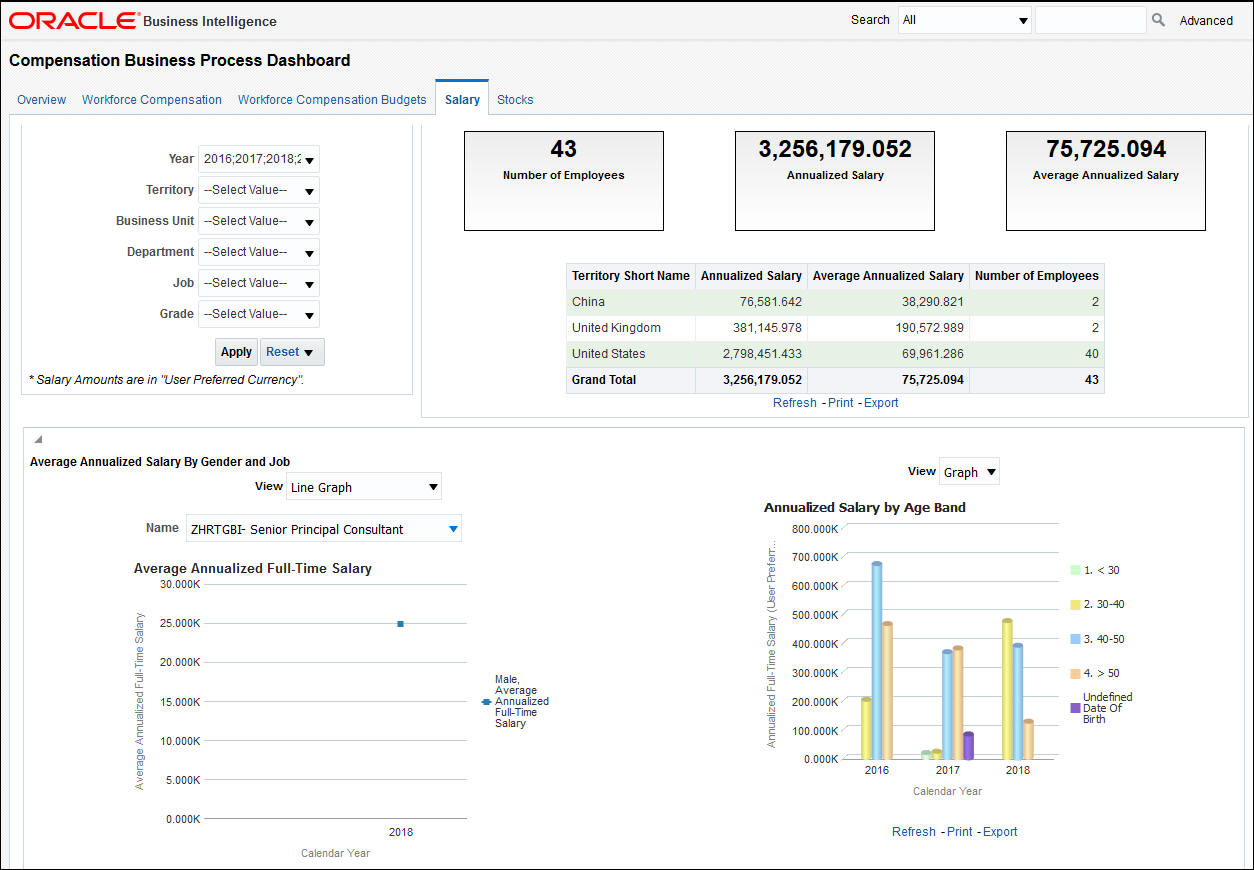
Salary Tab Example
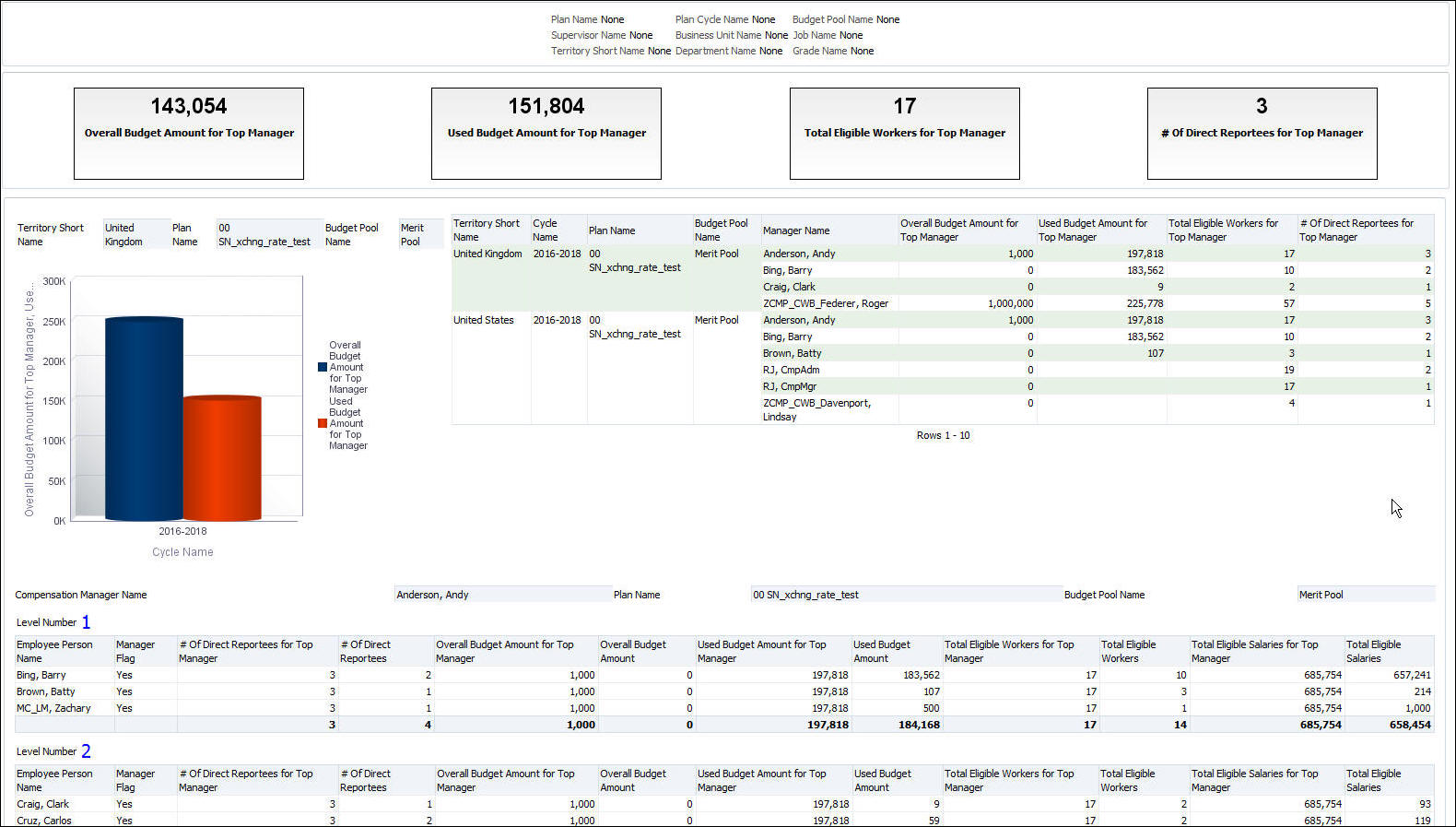
Workforce Compensation Budget Tab Example
Steps to Enable
You don't need to do anything to enable this feature.
OTBI Segments 46-50 in Compensation and Compensation Budget Subject Areas
We have aligned reporting in the subject areas, along with application changes that allow you to configure the lookups for segments 46-50. Previously in the application, users were limited to using specific seeded lookups for segments 46-50. Now users can specify any lookup for segments 46-50. The subject areas have been modified to account for this change in the application. The subject areas will reflect the new lookup configuration.
Steps to Enable
If you want to expand the values for segments 46 -50, add any additional lookups for these segments.
The Active Processes dashboard displays the list of all processes running or waiting in the queue. It provides the details of a process, such as submission date, submitted by, threads, logging enabled, etc. It helps you see whether any process is consuming more resources of the ESS Scheduler. You can view the details by threads or by logging enabled.
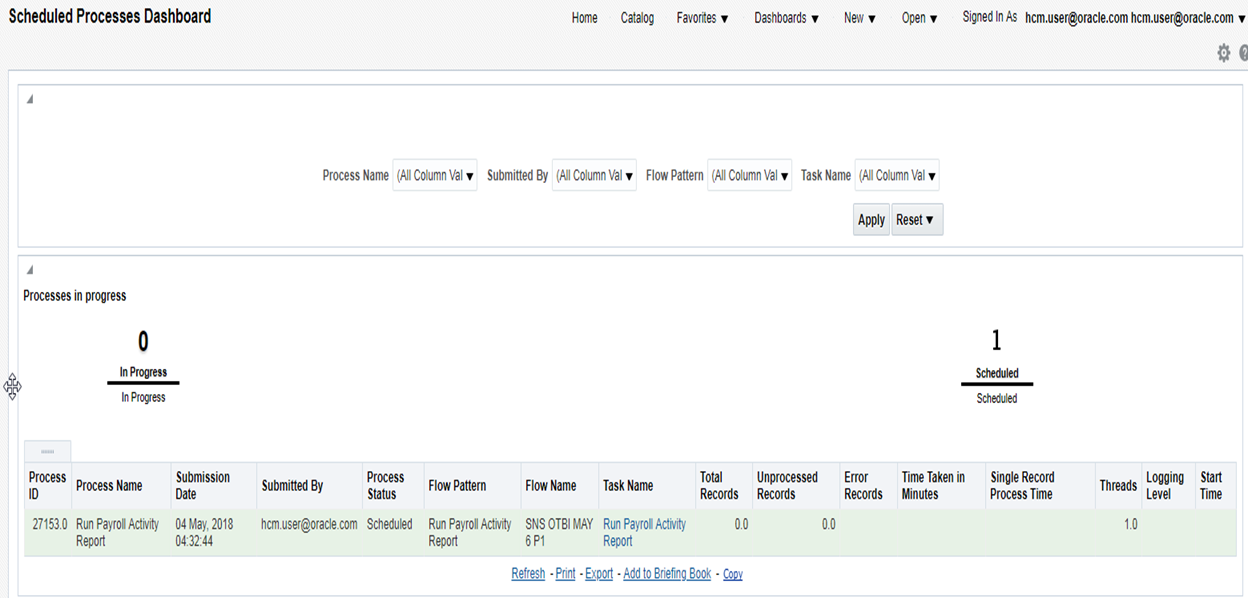
When you click a specific process, it opens a separate tab that shows the statistics of latest three completions of the same job so that you can identify whether the current running job (shown above) is slow, performing correctly, or has issues by looking at “Single Record Process Time”.
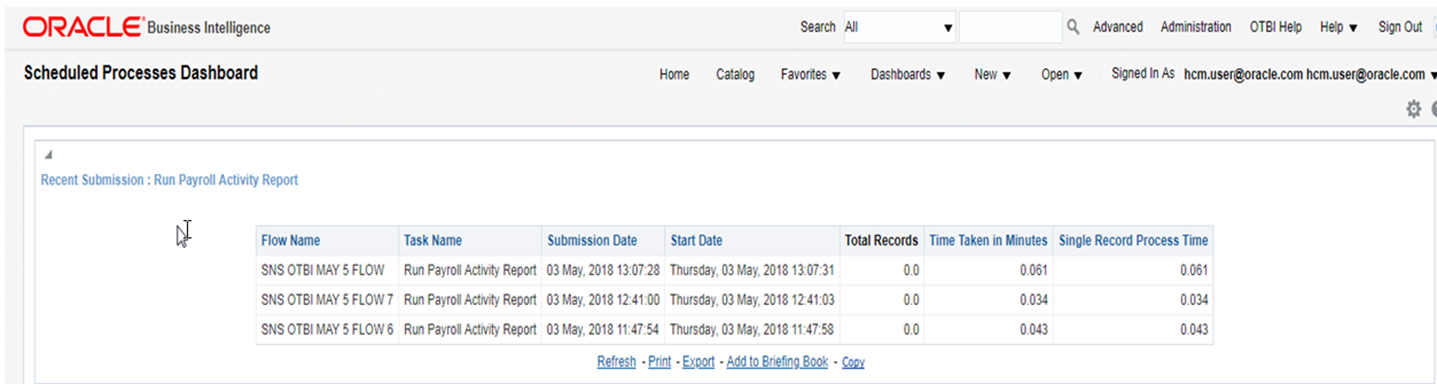
Steps to Enable
You don't need to do anything to enable this feature.