
This document will continue to evolve as existing sections change and new information is added. All updates appear in the following table:
| Date | Product | Feature | Notes |
|---|---|---|---|
| 25 FEB 2022 | Assets | Asset Enhancements | Updated document. Feature delivered in update 22A. |
| 25 FEB 2022 |
Campaigns | Campaign Progress Reporting | Updated document. Feature delivered in update 22A. |
| 25 FEB 2022 |
Campaigns |
Drag-and-drop Connections between Stages | Updated document. Feature delivered in update 22A. |
| 25 FEB 2022 |
Campaigns |
New Stages in Campaign Designer | Updated document. Feature delivered in update 22A. |
| 25 FEB 2022 |
Campaigns |
Send Time Optimization | Updated document. Feature delivered in update 22A. |
| 25 FEB 2022 |
Connect | New Events in Export Event Feed Data | Updated document. Feature delivered in update 22A. |
| 25 FEB 2022 |
Data Management | Data Explorer Renamed to Data Viewer | Updated document. Feature delivered in update 22A. |
| 25 FEB 2022 |
Data Management |
Data Viewer Enhancements | Updated document. Feature delivered in update 22A. |
| 25 FEB 2022 |
Integrations | Deliverability Plus | Updated document. Feature delivered in update 22A. |
| 25 FEB 2022 |
Messages | Blind Carbon Copy | Updated document. Feature delivered in update 22A. |
| 25 FEB 2022 |
Messages |
Message Samples | Updated document. Feature delivered in update 22A. |
| 25 FEB 2022 |
Segments | Segments Enhancements | Updated document. Feature delivered in update 22A. |
| 25 FEB 2022 |
User Experience | Object List Filters | Updated document. Feature delivered in update 22A. |
| 10 DEC 2021 | Created initial document. |
 HAVE AN IDEA?
We’re here and we’re listening. If you have a suggestion on how to make our cloud services even better then go ahead and tell us. There are several ways to submit your ideas, for example, through the Ideas Lab on Oracle Customer Connect. Wherever you see this icon after the feature name it means we delivered one of your ideas.
GIVE US FEEDBACK
We welcome your comments and suggestions to improve the content. Please send us your feedback at omcdocumentation_ca@oracle.com.
DISCLAIMER
The information contained in this document may include statements about Oracle’s product development plans. Many factors can materially affect Oracle’s product development plans and the nature and timing of future product releases. Accordingly, this Information is provided to you solely for information only, is not a commitment to deliver any material, code, or functionality, and should not be relied upon in making purchasing decisions. The development, release, and timing of any features or functionality described remains at the sole discretion of Oracle.
This information may not be incorporated into any contractual agreement with Oracle or its subsidiaries or affiliates. Oracle specifically disclaims any liability with respect to this information. Refer to the Legal Notices and Terms of Use for further information.
Column Definitions:
Report = New or modified, Oracle-delivered, ready to run reports.
UI or Process-Based: Small Scale = These UI or process-based features are typically comprised of minor field, validation, or program changes. Therefore, the potential impact to users is minimal.
UI or Process-Based: Larger Scale* = These UI or process-based features have more complex designs. Therefore, the potential impact to users is higher.
Features Delivered Disabled = Action is needed BEFORE these features can be used by END USERS. These features are delivered disabled and you choose if and when to enable them. For example, a) new or expanded BI subject areas need to first be incorporated into reports, b) Integration is required to utilize new web services, or c) features must be assigned to user roles before they can be accessed.
| Ready for Use by End Users Reports plus Small Scale UI or Process-Based new features will have minimal user impact after an update. Therefore, customer acceptance testing should focus on the Larger Scale UI or Process-Based* new features. |
Customer Must Take Action before Use by End Users Not disruptive as action is required to make these features ready to use. As you selectively choose to leverage, you set your test and roll out timing. |
|||||
|---|---|---|---|---|---|---|
| Feature |
Report |
UI or |
UI or |
|
||
Administration comprises all features accessible through Settings. All users can access Settings to administer their own user profiles. Instance Administrators can use Settings to view and manage their organization's configurations.
You can now add and manage secure shell (SSH2) keys for your organization's instance. This is needed for file transfers through Connect.
This enables you to perform file transfers using secure FTP between your organization's systems and Responsys Express.
Steps to Enable
You don't need to do anything to enable this feature.
Tips And Considerations
-
From the Ask Oracle menu page, click Settings. From the Settings page, choose Configurations, and then choose SSH2 Keys to add and manage your SSH2 keys.
- Your public SSH2 key must be:
- SSH2 compliant
- RSA or DSA compatible
- At least 1024 bit strong
We recommend that you generate the key pair without a passphrase.
Key Resources
Role Information
This feature is intended for Instance Administrators who will be setting up Responsys Express for their organization.
Assets are the image content that you use to create more compelling marketing messages for your customers.
You can now access the following options for your assets:
- From the image's sidebar with Renditions selected, you can copy an image's URL to use in the Message Designer code editor.
- You can view and use renditions options for images.
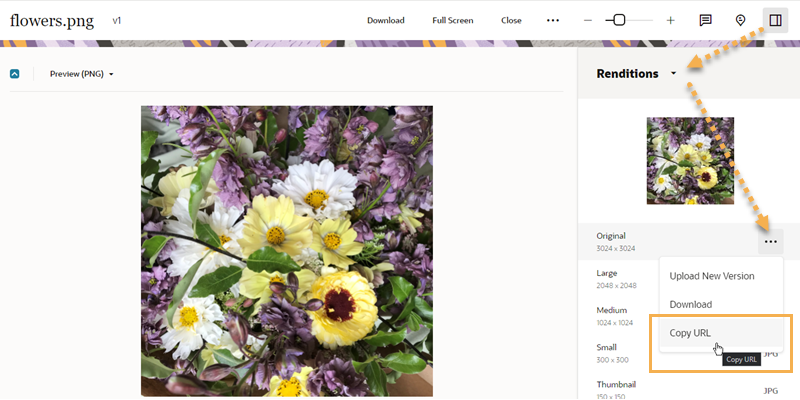
Asset Enhancements: Sidebar, Renditions, and Copy URL Available
This enables you to obtain the image URL more easily for assets. Having access to renditions of your images enables you to use images that suit the device they will be viewed on (mobile, tablet, web, and the like).
Steps to Enable
You don't need to do anything to enable this feature.
Tips And Considerations
This option is enabled for images in both the Assets library and in the Message Designer.
- To access Renditions: Select the image and open it, click the Toggle Sidebar button, and then select Renditions from the sidebar drop-down list. The panel shows a list of the image's renditions.
- To copy an image URL: From the Renditions panel, locate the image for which you want to copy the URL. Move your mouse cursor over the file type (for example, PNG). This displays the rendition's Actions menu button (...). Click the button, and then choose Copy URL.
Key Resources
You can now multi-select assets for publishing instead of having to publish them individually.
This feature saves you time when publishing assets, providing a better user experience.
Steps to Enable
You don't need to do anything to enable this feature.
Key Resources
Campaigns enable you to create orchestrated, end-to-end workflows for your contacts. They include all the essential elements you need to bring targeted contacts into a campaign, send messages, and pause or route contacts through the best paths.
Campaign Designer Enhancements
Campaign Designer has the following enhancements:
- From the Campaigns page, you can now click a campaign's card to open the campaign for editing.
- You can now find the Timer stage on the Action tab of the stage menu.
- You can search for segments and email messages when setting up stages.
- You can sort campaign cards in ascending or descending order by Last Modified date, Created date, and Name.
These enhancements make it easier for you to find, open, and edit campaigns and stage properties in Campaign Designer.
Steps to Enable
You don't need to do anything to enable this feature.
Key Resources
There are two new Campaign statuses: "Running with Errors" and "Ended". You can see a campaign's status on the Campaigns page. When you open a campaign that has a status of "Running with Errors", Campaign Monitoring shows you which stages have errors.
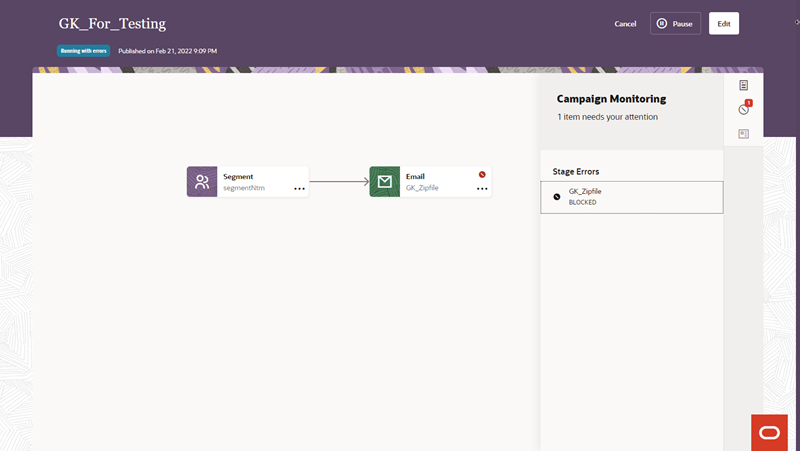
Campaign Monitoring
This helps you more easily find and solve problems with your running campaigns.
Steps to Enable
You don't need to do anything to enable this feature.
Key Resources
Tactics are pre-built campaign journeys designed to help you achieve specific marketing goals. You can select a tactic as a campaign starting point.
The following tactics are available:
- Simple Email
- General Promotion
- Welcome
- Post-purchase
- Cross-sell or Upsell
- Winback and Reactivation
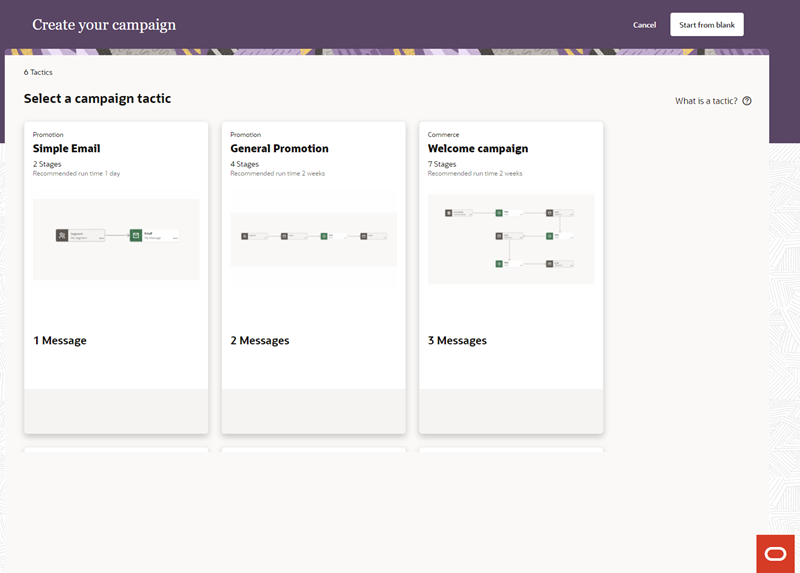
Campaign Tactics
Tactics provide a starting point that help you create campaigns more quickly and confidently.
Steps to Enable
You don't need to do anything to enable this feature.
Tips And Considerations
- From the Ask Oracle menu page, click Campaigns, and then click Create. Select a campaign tactic that corresponds with your marketing goal.
Key Resources
Drag-and-drop Connections between Stages
You can now connect stages on the Campaign Designer canvas by dragging and dropping a connection from one stage to another.
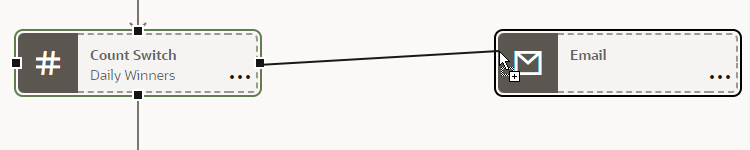
Adding a Connection Using Drag-and-drop Method
This enables you to connect stages more quickly and easily.
Steps to Enable
You don't need to do anything to enable this feature.
Key Resources
You can now use a form submission as an entry to a campaign. For example, when a new customer subscribes to receive email messages, your campaign can detect this and send a welcome email message.
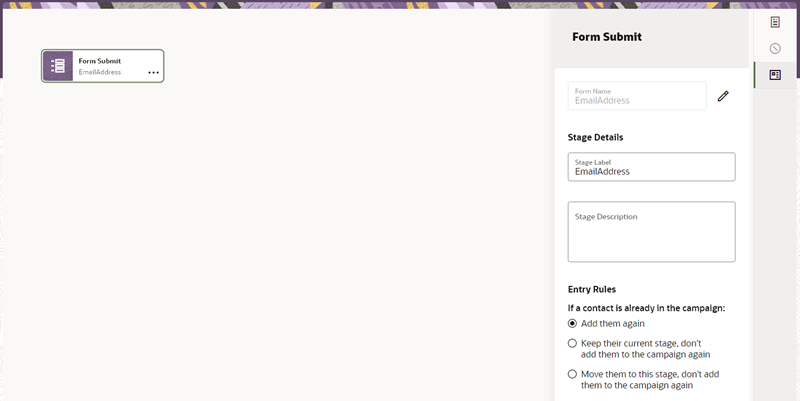
Form Submit Stage in Campaign Designer
This feature enables you to automate sending email responses to form submissions.
Steps to Enable
You don't need to do anything to enable this feature.
Tips And Considerations
- Before you can use the Form Submit stage, you must have implemented at least one form.
- Right-click the Campaign Designer canvas, and then click Add Stage. From the Event stages, click Form Submit.
Key Resources
New Stages in Campaign Designer
You can now use the following new stages in Campaign Designer:
- Event switch: You can use this switch to route contacts based on events (email clicks and email opens). It also provides a timeout path for contacts who don't perform the behavior.
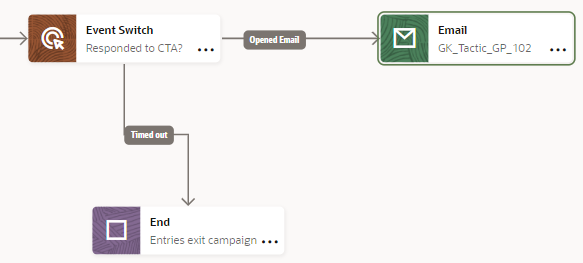
Campaign Designer - Event Switch and End Stage
- Count switch: You can use this switch to route contacts by quantity and duration. For example, 10 daily winners of a drawing can be routed down a different path than the rest of the contacts.
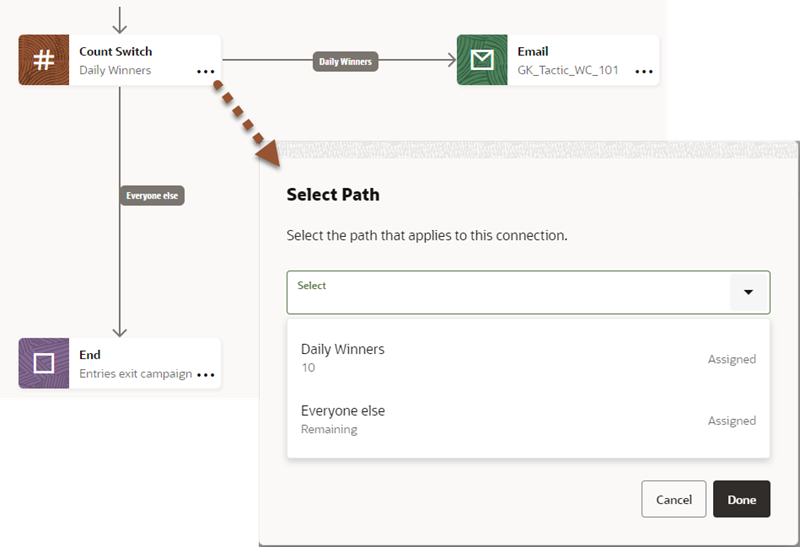
Campaign Designer - Count Switch and End Stage
-
End stage: You can use this stage to have contacts exit a campaign flow. For example, you can use an End stage as the timeout path on an Event switch.
These enhancements expand how you can use campaigns to meet your marketing goals.
Steps to Enable
You don't need to do anything to enable this feature.
Key Resources
Send Time Optimization (STO) is an add-on feature that allows you to send emails at the most optimal send time to each recipient.
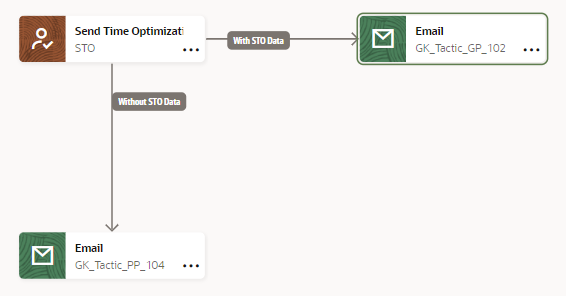
Send Time Optimization in Campaigns
This feature can help improve engagement with your marketing messages.
Steps to Enable
This feature is available as an add-on that you can order for your instance. Please contact your account representative or Oracle sales.
After ordering, the Instance Administrator must enable it as an add-on feature using the Oracle Cloud portal.
Tips And Considerations
After you enable this add-on for your instance, you will see an STO attribute group in Data Management. This stores the send time data. You will also see a Send Time Optimization stage available in Campaign Designer.
Role Information
This feature must be configured by the Instance Administrator. After configuration, it is available to all Campaign Designer users.
Connect allows you to set up jobs that automate data transfers to and from attribute groups, segments, and event data feeds. You can run jobs one at a time or collect them into groups and run them sequentially. Connect uses Secure File Transfer Protocol (SFTP) to safely transfer the data.
New Events in Export Event Feed Data
You can now export Launch State, Campaign State, and Campaign Entered/Exited events in the Export Event Feed Data job.
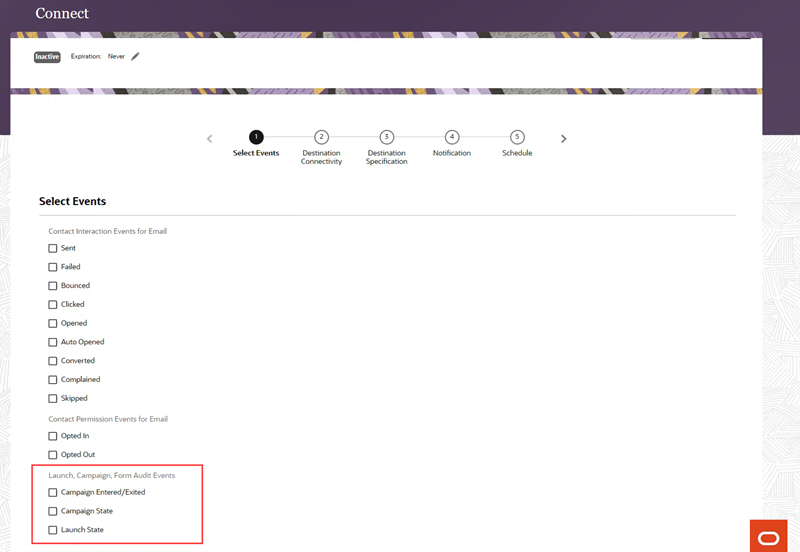
New Events Available to Select in the Export Event Feed Data Job
This provides a richer set of contact event data to export using Connect.
Steps to Enable
You don't need to do anything to enable this feature.
Key Resources
With Data Management, you can review, manage, and update your data model as needed. Use the Data Viewer to upload customer contacts and view customer contact data.
Data Explorer Renamed to Data Viewer
Data Explorer is now renamed to Data Viewer.
The new name is more descriptive of this feature.
Steps to Enable
You don't need to do anything to enable this feature.
Data Viewer has the following enhancements:
- You can now see the total number of contacts in the search results. You can also view the total number of contacts you have selected in the results list.
- The column containing the action menu for each row is always visible when you scroll through the columns in the Data Viewer.
- When you enter data manually, assistive text guides you on the correct format for attributes.
- You can move columns, and Data Viewer will show the new placement when you return to the page if you are using the same web browser.
- You can use the search bar to search contacts by email address, mobile number or customer ID.
- When selecting attributes to view, you can select attributes from Basic Profile and up to four other attribute groups.
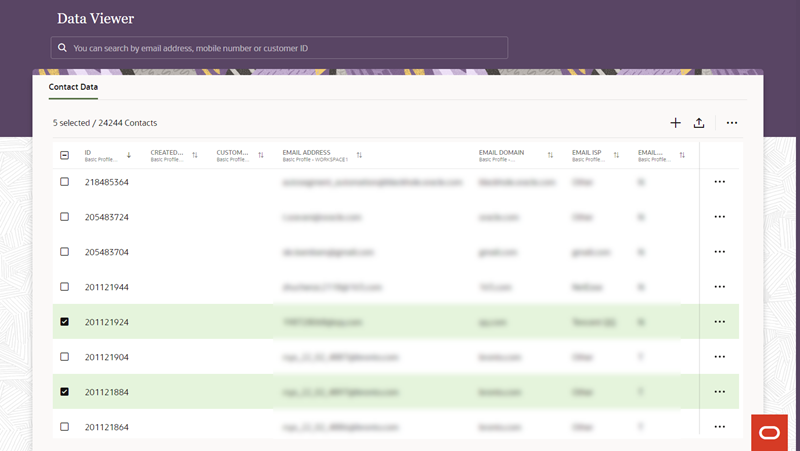
Data Viewer
These enhancements provide improved usability when viewing data.
Steps to Enable
You don't need to do anything to enable this feature.
Key Resources
Integrations provide connections between Oracle Responsys Express and other software, such as Oracle products or third-party systems. Use Applications to install, configure, and manage recommended apps. Use Settings to configure and manage other supported integrations.
The Deliverability Plus service provides you with access to deliverability and competitive analytics solutions provided by eDataSource.
This feature helps you understand the actual success of your campaigns and how to make those campaigns perform better.
Steps to Enable
This feature is available as an add-on that you can order for your instance. Please contact your account representative or Oracle sales.
After ordering, the Instance Administrator must enable it as an add-on feature using the Oracle Cloud portal.
Tips And Considerations
- When Deliverability Plus is enabled for your instance, you will see it as an option on the Ask Oracle menu.
- Sending to Deliverability Plus is segment based.
Messages are the promotional and transactional content that you create to communicate with your customers.
IMPORTANT: Transactional messaging is available as an add-on that you can order for your instance. Please contact your account representative or Oracle Sales.
Blind Carbon Copy (BCC) allows you to send a blind carbon copy email for every individual email sent during a campaign's launch.
The BCC email received will give you a copy of the individual recipient’s email, with the proper FROM address, the recipient’s address in the To field, and the actual message.
Steps to Enable
This feature is now available as an add-on that you can order for your instance. Please contact your account representative or Oracle sales.
After ordering, the Instance Administrator must enable it as an add-on feature using the Oracle Cloud portal.
Tips And Considerations
When this add-on is enabled for your instance, you will see BCC options in Message Designer and in Settings > Channels > Email.
Key Resources
Role Information
This feature must be configured by the Instance Administrator. After configuration, it is available to all Message Designer users.
You can use Message Samples as a starting point when creating new messages.
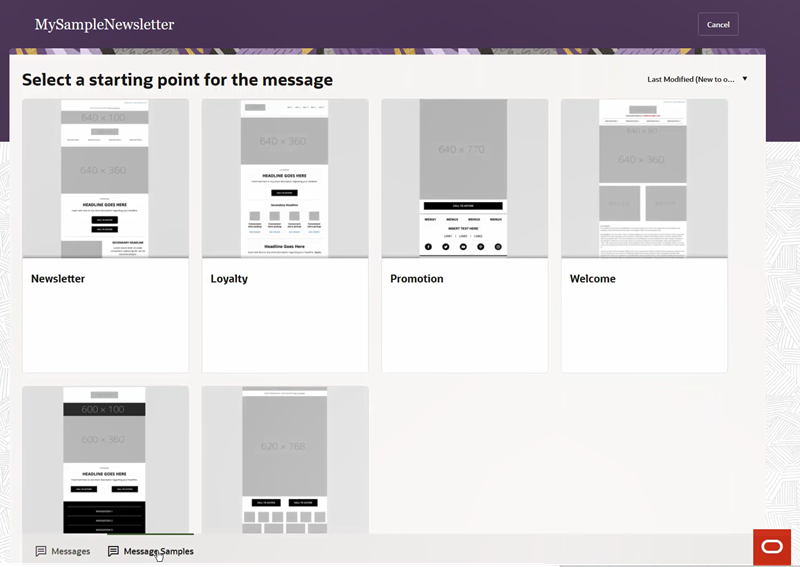
Creating a New Message Using Message Samples
Message Samples enable you to create standard marketing messages more quickly and easily.
Steps to Enable
You don't need to do anything to enable this feature.
Tips And Considerations
To use Message Samples:
- From the Ask Oracle menu, choose Messages, and then click Create.
- Enter your message name and click Continue.
- Click the Message Samples tab shown at the bottom of the Select a starting point for the message page.
- Click the sample that best fits your message purpose.
- Continue customizing your new message using the Message Designer.
Key Resources
Segments are targeted groups of contacts to whom you send marketing messages. You can segment using contact attributes or behavioral data. Contact attributes are attributes specific to each contact, such as city and gender, whereas email behavioral data include events or actions taken by your contacts, such as clicks and opens.
Segments has the following enhancements:
- When you are actively editing a group in a segment, other groups are shown in "preview" mode, so that the page is easier to read.
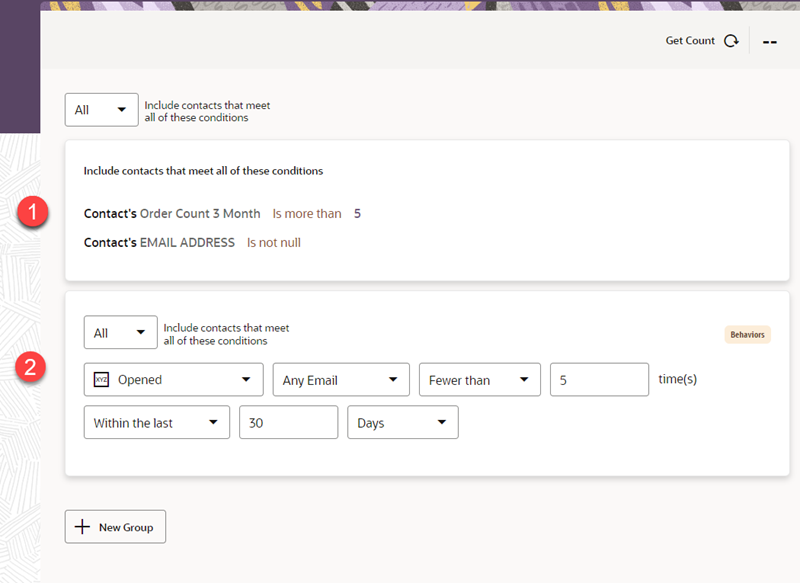
Segment Designer with Groups in Preview Mode (1) and Editing Mode (2)
- You can create up to 10 conditions per condition group, and up to 25 condition groups per segment.
These enhancements provide ease of use and help overall system performance.
Steps to Enable
You don't need to do anything to enable this feature.
Key Resources
All interfaces in Oracle Responsys Express feature the latest in Oracle user experience design.
You can now search for campaigns, segments, messages, and forms by name using the search bar at the top of their respective pages.
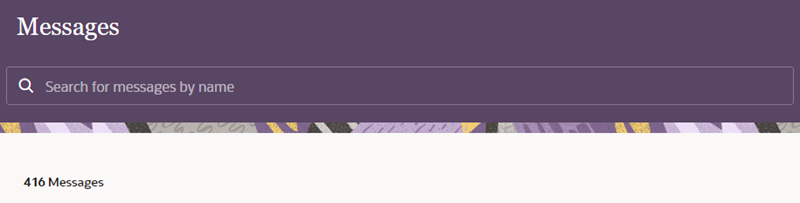
Use the Search Bar to Filter by Object Name
This enhancement enables you to find objects in Responsys Express more quickly.
Steps to Enable
You don't need to do anything to enable this feature.