
This document will continue to evolve as existing sections change and new information is added. All updates appear in the following table:
| Date | Product | Feature | Notes |
|---|---|---|---|
| 05 MAY 2022 | Created initial document. |
 HAVE AN IDEA?
We’re here and we’re listening. If you have a suggestion on how to make our cloud services even better then go ahead and tell us. There are several ways to submit your ideas, for example, through the Ideas Lab on Oracle Customer Connect. Wherever you see this icon after the feature name it means we delivered one of your ideas.
GIVE US FEEDBACK
We welcome your comments and suggestions to improve the content. Please send us your feedback at omcdocumentation_ca@oracle.com.
DISCLAIMER
The information contained in this document may include statements about Oracle’s product development plans. Many factors can materially affect Oracle’s product development plans and the nature and timing of future product releases. Accordingly, this Information is provided to you solely for information only, is not a commitment to deliver any material, code, or functionality, and should not be relied upon in making purchasing decisions. The development, release, and timing of any features or functionality described remains at the sole discretion of Oracle.
This information may not be incorporated into any contractual agreement with Oracle or its subsidiaries or affiliates. Oracle specifically disclaims any liability with respect to this information. Refer to the Legal Notices and Terms of Use for further information.
Column Definitions:
Report = New or modified, Oracle-delivered, ready to run reports.
UI or Process-Based: Small Scale = These UI or process-based features are typically comprised of minor field, validation, or program changes. Therefore, the potential impact to users is minimal.
UI or Process-Based: Larger Scale* = These UI or process-based features have more complex designs. Therefore, the potential impact to users is higher.
Features Delivered Disabled = Action is needed BEFORE these features can be used by END USERS. These features are delivered disabled and you choose if and when to enable them. For example, a) new or expanded BI subject areas need to first be incorporated into reports, b) Integration is required to utilize new web services, or c) features must be assigned to user roles before they can be accessed.
| Ready for Use by End Users Reports plus Small Scale UI or Process-Based new features will have minimal user impact after an update. Therefore, customer acceptance testing should focus on the Larger Scale UI or Process-Based* new features. |
Customer Must Take Action before Use by End Users Not disruptive as action is required to make these features ready to use. As you selectively choose to leverage, you set your test and roll out timing. |
|||||
|---|---|---|---|---|---|---|
| Feature |
Report |
UI or |
UI or |
|
||
Combined Profile and Behavioral Attributes in Segment Designer Groups |
||||||
Campaigns enable you to create orchestrated, end-to-end workflows for your contacts. They include all the essential elements you need to bring targeted contacts into a campaign, send messages, and pause or route contacts through the best paths.
Campaign Designer Enhancements
When you use Campaign Designer, you will now experience the following enhancements:
- You can duplicate a campaign. This action makes an identical copy of a campaign in any state to a new campaign in the Draft state. You can perform this action from a tile on the Campaigns page or from a campaign's Actions menu. This helps you create new campaigns more quickly and easily.

Duplicate Campaign from Campaigns Page
- You can select a message to use as a thumbnail image for a campaign. The thumbnail image is used on the Campaigns page, which helps you identify your campaigns more easily.

Campaign Thumbnails
- For campaigns that are running, the campaign properties and stage properties are view only. This provides a more streamlined view of the properties.

View-only Stage in a Running Campaign
- The "Segment Membership" stage is renamed to "Condition Switch". This change more accurately reflects the purpose of this stage.

Segment Membership Renamed to Condition Switch
These enhancements help you create and manage campaigns more easily.
Steps to Enable
You don't need to do anything to enable this feature.
Key Resources
Using Forms, you can add fields from Oracle Responsys Express to a form on your web site, which will then automatically send new contact data and updated subscription data to Responsys Express.
The visual form designer enables you to create forms using drag-and-drop components.

Visual Form Designer
This feature makes it easier for you to create forms - no coding required.
Steps to Enable
You don't need to do anything to enable this feature.
Tips And Considerations
To get started: Design your form by dragging and dropping form elements and attributes on to the canvas. Select the form element or attribute to edit its properties.
Use form elements such as check boxes, radio buttons, and drop-down menus to map options to valid field values. This helps people fill out your forms correctly.

Setting Field Properties for a Form Element
Key Resources
Messages are the promotional and transactional content that you create to communicate with your customers.
IMPORTANT: Transactional messaging is available as an add-on that you can order for your instance. Please contact your account representative or Oracle Sales.
Using message variants, you can design messages that display content to your subscribers dynamically. For example, a sporting goods retailer could use message variants to display different content depending on the preferred sports of a recipient. Or a retailer could create variants for subscribers whose first name is known or not known.

Message Variants
New for 22B:
- You can now create variants for subject lines.

Subject Line Variants
- Attributes used in "Who will see this" conditions are automatically added to data sources. You no longer need to add attributes manually.
You can design a single message that is tailored to each recipient’s unique profile and related data, improving personalization and efficiency.
Steps to Enable
You don't need to do anything to enable this feature.
Tips And Considerations
When defining a variant, you select a region in your message or select your subject line. Next, you use contact attributes and conditions to select who will see the variant. Finally, you define the content they will see. The result is a single message with content personalized for different groups of subscribers.

Defining Who Will See a Variant
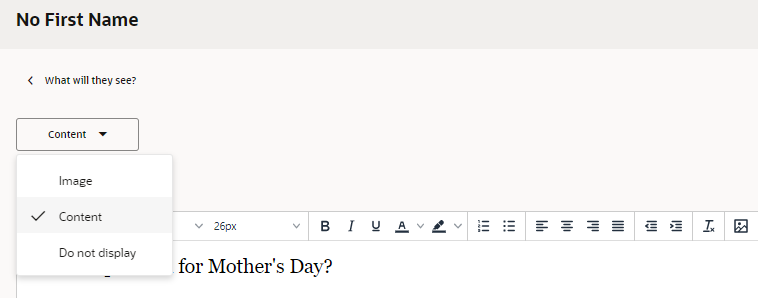
Defining What They Will See
Key Resources
The visual editor enables you to create email messages using drag-and-drop components.

Visual Editor
This feature makes it easier for you to create appealing messages, whether displayed on desktop, mobile, or tablet - no coding required.
Steps to Enable
You don't need to do anything to enable this feature.
Tips And Considerations
- To get started: Create a new message. Select the Start from blank option, and then choose Visual editor.

Select Visual Editor When Creating New Messages
- To customize a component: Select the component on the canvas, and then edit its properties.

Customizing Components
- You can easily move a message created with the visual editor to the HTML editor. Note that after you move the message to the HTML editor, it can't be moved back to the visual editor. To move it, choose Actions > Move to HTML editor, and then confirm your choice in the dialog.
Key Resources
Segments are targeted groups of contacts to whom you send marketing messages. You can segment using contact attributes and behavioral data. Contact attributes are attributes specific to each contact, such as city and gender. Email behavioral data include events or actions taken by your contacts, such as clicks and opens.
Combined Profile and Behavioral Attributes in Segment Designer Groups
When you create a segment, you can now combine profile and behavioral attributes in the same condition groups.

Segment Condition Group with Profile and Behavioral Attributes
This simplifies the condition logic in segments, which makes it easier to create and maintain segments.
Steps to Enable
You don't need to do anything to enable this feature.
Key Resources