
This document will continue to evolve as existing sections change and new information is added. All updates are logged below, with the most recent updates at the top.
| Date |
What's Changed |
Notes |
|---|---|---|
| 08 SEP 2016 |
Removed from Mobile: Program-Independent Push Campaigns |
Feature moved to 6.30 (October 2016) release. |
| 01 SEP 2016 |
Campaigns: Launch Start and Empty Launch Notifications for Email Campaigns |
New feature available in September. |
| 01 SEP 2016 |
Account Administration: Provide Omniture Genesis Integration Parameters |
New feature available in September. |
| 01 SEP 2016 |
Account Administration: Convert to Branded Domain |
New feature available in September. |
| 01 SEP 2016 |
Account Administration: Convert to Branded Domain and Manage SSL Certificates |
New feature available in September. |
| 01 SEP 2016 |
Account Administration: Manage SSH2 Keys |
New feature available in September. |
| 01 SEP 2016 |
Account Administration: Configure Notifications for Undelivered Transactional Messages |
New feature available in September. |
| 01 SEP 2016 |
Account Administration: Configure the AFTM (Oracle Responsys Automatic Failover for Transactional Messages Cloud Service) Secondary Account |
New feature available in September. |
| 01 SEP 2016 |
Account Administration: Configure Rapid Retargeter |
New feature available in September. |
| 12 AUG 2016 |
Removed features that will now be available in a future release. |
|
| 05 AUG 2016 |
Initial Document Creation |
This guide outlines the information you need to know about new or improved functionality in Oracle Responsys’ 6.29 August 2016 Release and describes any tasks you might need to perform for the update. Each section includes a brief description of the feature, the steps you need to take to enable or begin using the feature, any tips or considerations that you should keep in mind, and the resources available to help you.
This section gives you information to help you plan and use the features included in this release. We frequently update this document so don’t forget to check back and get the latest information.
- 6.29 August 2016 Release Training Videos
- Oracle Responsys 6.29 August 2016 Release Fixes and Known Issues
- Responsys Insiders (Customer Community)
Some of the new features are automatically available to users after the upgrade and some require action from the user, the company administrator, or Oracle.
The table below offers a quick view of the actions required to enable each of the features.
| Action Required to Enable Feature |
||||
|---|---|---|---|---|
| Feature |
Automatically Available |
End User Action Required |
Administrator Action Required |
Oracle Service Request Required |
| Audience Designer |
||||
|
|
||||
| Mobile *All Mobile features will be released only |
||||
|
|
||||
|
|
||||
|
|
||||
|
|
||||
|
|
||||
|
|
||||
|
|
||||
|
|
||||
| Interactive Dashboards |
||||
|
|
||||
|
|
||||
|
|
||||
|
|
||||
|
|
||||
|
|
||||
|
|
||||
|
|
||||
|
|
||||
| Campaigns |
||||
|
|
||||
| Launch Start and Empty Launch Notifications for Email Campaigns |
|
|||
| API |
||||
| Automatic Notification for Failed Delivery of API-Triggered Transactional Emails |
|
|||
| User Interface |
||||
|
|
||||
|
|
||||
|
|
||||
|
|
||||
| Program |
||||
|
|
||||
| Organizational Access Controls |
||||
| Support for Live Report, Overlay Report, and Campaign Monitoring |
|
|||
|
|
||||
|
|
||||
| Connect |
||||
|
|
||||
|
|
||||
|
|
||||
|
|
||||
|
|
||||
| Filters |
||||
|
|
||||
| Account Administration |
||||
| Provide Omniture Integration Parameters Configure Notifications for Undelivered Transactional Emails |
|
|||
| Rapid Retargeter |
||||
|
|
||||
|
|
||||
|
|
||||
|
|
||||

Audience Designer Now Available For Existing Customers
Audience Designer is now available to all Oracle Responsys customers that would like to enable it for their account. Before enablement can occur, account users must review the Audience Designer FAQ and try the feature within a sandbox account. For more information, contact your Customer Success Manager.
Audience Designer is a graphical audience segmentation feature that uses filters for defining audiences. Audience Designer enhances usability and encourages simple, modular logic for defining audiences.
IMPORTANT: This feature is available only to new Push customers.
To use the App Developer Console, a user must be assigned a Mobile App Developer or Mobile App Admin role.
You can now use Oracle Responsys directly to coordinate all your marketing and app development activities.
Using the new Mobile App Developer Console, app developers can define and maintain their app and platform configuration directly in Oracle Responsys without using the PushIO Manager Console. App Developers can also test app setup, platform configuration and SDK integration.
Existing customers for whom this feature is enabled will be able to manage existing Apps and Platforms through the Mobile App Developer Console. All existing campaigns will continue to function as is.
New Roles for the App Developer Console
To be able to use the App Developer Console, a user must have one of the following new roles:
- Mobile App Developer: has full access to the Mobile App Developer console, except the ability to delete Apps and Platforms.
- Mobile App Admin: has full access to the Mobile App Developer console, including the ability to delete Apps and Platforms.
When the user with one of these roles (and no other roles) logs into Oracle Responsys, the Mobile App Developer Console opens automatically.

Mobile App Developer Console
You can add the following platforms and configure platform details:
- iOS Distribution and iOS Development
- PEM file
- Android
- Google Project Number
- Google API Key
- Windows
- Package Security Identifier (SID)
- Client Secret
Adding a platform generates a configuration json file that app developers must use in their apps.
App developers can test their app setup, platform configuration, and SDK integration by sending a test notification to a test device. The device must be addressed by the "Device Id", which is an Identifier that can be viewed in the SDK logs. The following four tests are performed:
- App Setup: tests whether the App Channel List has been defined for this app.
- Device Registration: tests whether a Device Registration has been received for the test device.
- Platform Configuration: tests whether the correct platform credentials have been configured.
- Receiving Notifications: tests whether the test device can receive a basic push notification.

Example of Device Registration Error
Steps to Enable
- Invoke a test for the platform that you would like to test.
- Check the Device ID in your App SDK logs and click Send test message.

Platform Test Selection Icon

Platform Test Menu

Example of Successful Test Result
Additional Mobile Attributes for Targeting
You can now create Simple and Classic Filters based on the following Recency and Interaction attributes for Push events:
- Push Recency Attributes
- Last Push sent date
- Last Push opened date
- Last Push conversion date
- Push Interaction Attributes
- Push Sent
- Push Opened
- Push Converted
NOTE: With Classic Filters, you cannot combine these attributes with attributes from other channels.
Near Real-Time Device Registration
IMPORTANT: All new Mobile features are available only to new Push customers.
When your customers install your company’s app on their mobile device, the device record will be available in the Oracle Responsys database in near real time. You will no longer have to schedule a Connect job to store user and device information for apps.
Additional AppChannel Attributes for Targeting
IMPORTANT: All new Mobile features are available only to new Push customers.
You can now use the following App Channel attributes for building filters:
- APP_ID_: the App Id/Mobile App Identifier of the app installed on the device.
- CHANNEL_DELIVERABILITY_STATUS_: indicates whether an app is currently installed or has been uninstalled on a device.
- MANUFACTURER_: the device manufacturer.
- OS_VERSION_: the OS version of the device.
- SCREEN_HEIGHT_: The screen height of the device, in pixels.
- SCREEN_WIDTH_: the screen width of the device, in pixels.
Targeting on Last Known Location of the Device
IMPORTANT: All new Mobile features are available only to new Push customers.
You can now build filters using the following new location attributes in the App Channel List to target your campaigns based on the last known device location:
- ADMIN_AREA1_: the last known geographical classification of the device, such as State, Province, and Region.
- ADMIN_AREA2_: the last known sub-geographical classification of the device, such as County, or District.
- DEVICE_CITY_: the last known city of the device.
- DEVICE_COUNTRY_CODE_: the last known country code of the device.
- DEVICE_POSTAL_CODE_: the last known postal or zip code of the device.
IMPORTANT: Mobile apps should get explicit consent from their users in order to log these location attributes.
Steps to Enable
- Create a Profile Data App Channel List filter and select the attributes you want.
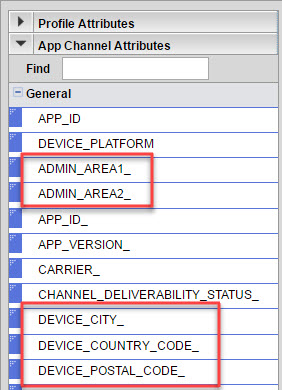
New Geo-Targeting Attributes Available in Filter Designer
IMPORTANT: This dashboard is available only to users with the Email Analytics Manager role.
The Org Performance dashboard allows you to analyze the performance of your campaigns, broken down by the organization unit of the recipients that respond to your campaigns. The recipients’ Organization Unit can be identified only if Organizational Access Control and Targeting by Organizations are enabled for your account. Otherwise, you will see 'Unspecified' as the Org Unit.
Steps to Enable
- Click
 and select View Interactive Dashboards from the Insight menu.
 - On the Email tab, expand Performance and select Org Performance.
This chart trends performance metrics of the top-performing Organization Units. Click the Org Unit on any chart to see a detailed analysis of that Organization Unit.

Top Performing Org Units Chart
This chart trends performance metrics for Organization Units over the sent date of the campaign. Click the Org Unit on any chart to see a detailed analysis of that Organization Unit.

Org Unit Performance Trend Chart
This report provides granular analysis of campaigns for each Organization Unit.
IMPORTANT: This dashboard is available to users with the Email Analytics Manager, SMS Analytics Manager, or Mobile Apps Analytics Manager role.
The Multi-Channel dashboard provides an overview of the performance of the Email, SMS, and Mobile Apps campaigns, and helps you compare performance of the channels against each other. You can also use this dashboard to analyze performance of programs that are use multiple channels.
Steps to Enable
- Click and select View Interactive Dashboards from the Insight menu.
- Select the Multi-Channel tab.
This chart trends the Sent and Conversion Rate for each channel. Click a channel on the chart to see the summary dashboards of the respective channel.

Performance Trend by Channel Chart
This chart shows the Sent and Conversion Rate for each channel. Click a channel on the chart to see the summary dashboards of the respective channel.

Performance by Channel Chart
This report provides granular analysis of sent campaigns for each channel.
Mobile Apps Dashboard Enhancements
We made the following updates to the Mobile Apps Dashboard:
- A new Push Performance dashboard helps analyze the performance of Push notifications by notification action, such as Launch App, Open Rich Message, and Open URL.
- The prompts on the Mobile Apps dashboard now include Mobile App, Platform Type, and Sent Date Range.
- The Campaign prompt now shows only Mobile Apps campaigns.
- The key performance metrics now show rates, including the Response Rate.
- The Performance Trend chart now plots Active, a new metric that indicates the number of times the mobile app is running in the foreground or background when the Push notification is sent.
- The Notification Split by Operating System chart is renamed to "Performance by Platform Type" and is updated from a pie chart to a bar chart.
- The Hourly Summary dashboard is renamed to "Last 48 Hours" and now includes a table with the performance metrics broken down by the hour.
- You can now track Push notifications that bounce as a result of various message payload issues. The following new reporting metrics depend directly or indirectly upon this new capability:
- Bounced
- Delivered
- Delivered Rate
- Open Rate
- Conversion Rate
- Response Rate
This capability is available only on the new mobile apps infrastructure. Before these metrics account for the messages that were bounced, you need to upgrade your account to the new infrastructure. Until you upgrade, the metric will assume no value for bounces. For more information about the upgrade, please contact Oracle Support.
Generate Campaign Content and Settings in Web Format
You can now create a web report of an email campaign from the Campaign Workbook.
The report includes the campaign content and all configuration settings, providing a single view of the campaign. You can print the web report or save it as PDF.
Steps to Enable
- Validate the campaign. The campaign must be valid and error-free.
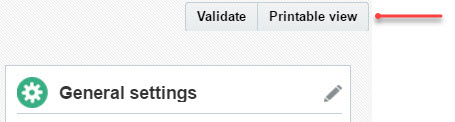
- In the Campaign Workbook, click the new Printable view button to generate the report and open it in a new tab.
Launch Start and Empty Launch Notifications for Email Campaigns
You can now receive email notifications about launch starts and/or empty launches. These options are available only for live launches.
Steps to Enable
- In the Notifications section of the Launch options dialog, select the new When the launch starts and/or When there is an empty launch check box and specify the email addresses in the Send progress notifications to field.
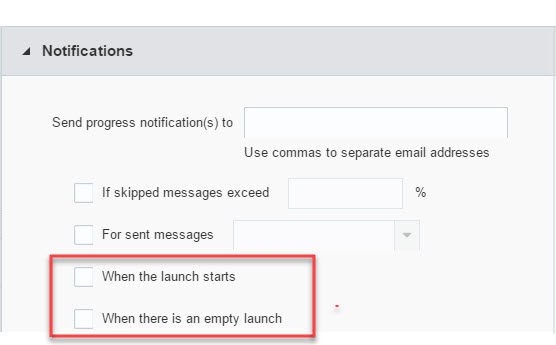
Launch Notification Menu Options
Automatic Notification for Failed Delivery of API-Triggered Transactional Emails
IMPORTANT: This is a controlled feature with an added cost.
You can select to be notified about recipients who did not receive important transactional emails, such as flight delays or cancellations.
This service is currently limited to API-triggered transactional email messages. A unique transaction ID can also be passed in through the Responsys WS API as an optional data parameter for each triggered email message. Subsequently, the transaction ID will be part of the API payload that contains the failed delivery information. You must provide a REST API endpoint to which Oracle Responsys posts the failed delivery payload on a recurring basis (15 minutes by default).
This release introduces significant changes and new components to the Oracle Responsys user interface.
In addition to a lighter design and modular layout, the Home Page now shows information that gives you immediate insight into what has just happened, what is happening, or what is about to happen in your account to help you identify anything that needs immediate attention, or to verify that everything is working as expected.

New Home Page View
The new navigation bar gives you access to common features from any Oracle Responsys page.

New Navigation Bar Options
The updated login screen is more visually compelling with a contemporary look and feel, including the ability to save your user name.
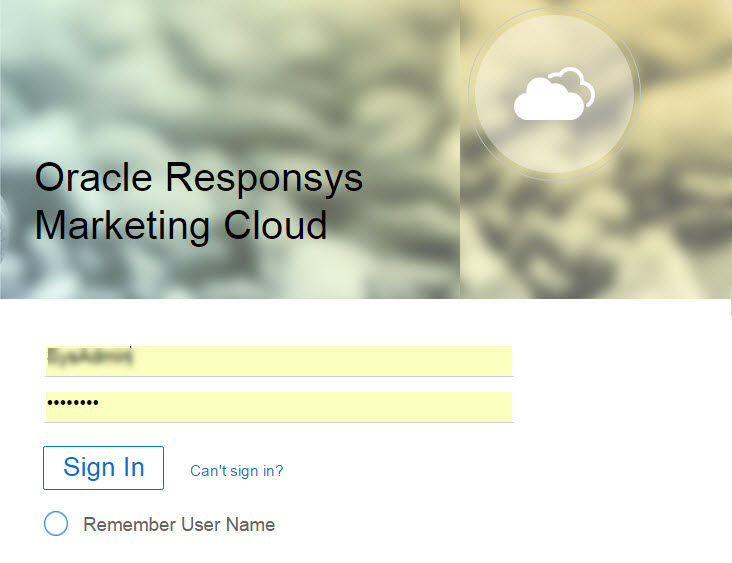
New Login Screen View
We have updated the following pages to follow the new Oracle Marketing Cloud User Interface standard that unifies the look and feel of all OMC platforms:
- Main menu and menu options
- Manage Campaigns
- Manage Programs
- Message Designers
- Campaign Workbook
- Program, Audience, and Collaboration Designer
- Campaign Monitor
- Folders
Event Switch - Additional Events
Event switches now support Opens, Clicks, and Conversions events that pertain to email campaigns.
Steps to Enable
- Select Properties of an Event Switch in a program, and select the event you want from the Events list.
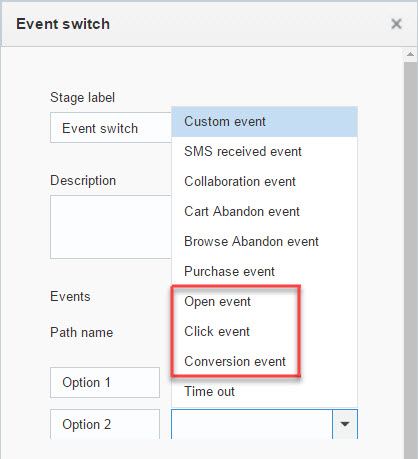
New Event Switch Event Options
Organizational Access Controls
Support for Live Report, Overlay Report, and Campaign Monitoring
In this release, users with Email Campaign Manager role can view live and overlay reports for the e-mail campaigns to which they have access. Note: because an Email Campaign Manager cannot launch campaigns, users with this role will not be able to edit active links for the launch in the Live Report.
The user’s role and organizational assignment control which campaigns he can see in the Campaign Monitor. For example, the SMS Campaign Manager belonging to the California organization unit can monitor only SMS campaigns that belong to California or its sub-organizational units.
Support for Data Switches in Programs
In Data Switches, the user can now select only filters that belong to his organization unit and its sub-organizations.
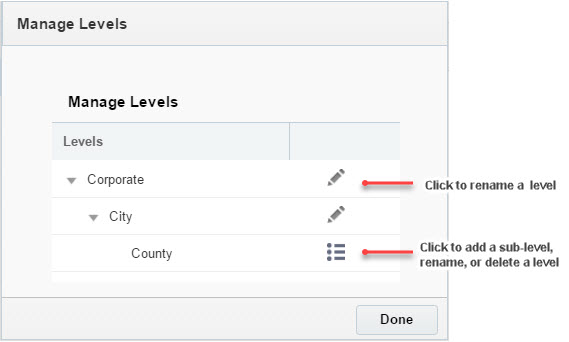
You can now add and edit organization levels from the Organization Management page.
Steps to Enable
- In the Authorization Management section of the Account Management page, click Organization Management.
- On the Organization Management page, click the new Manage Levels button.
- Make changes on the Manage Levels page.
You can now run a Connect job to import additional data about devices into an App
Channel list PET. For example, you can load device analytics data into a PET and use it for audience segmentation and targeting.
You match new to existing records on one or two fields. If you match on one field, you can match on one of the following:
- RIID_: the App Channel List RIID
- ADVERTISER_ID_: the platform-specific Advertising Id, such as IDFA, Google Advertising Id., or Windows Advertising Id.
- EXTERNAL_DEVICE_TRACKING_ID_: the analytics provider-specific Device Identifier. Please note that App Developers must set this field for all Registration events raised by the PushIO/Responsys mobile SDK.
If you match on two fields, the match fields are:
- DEVICE_ID_: device ID, GUID/UUID style, as generated by the OS during first run of the app.
- API_KEY_: the app GUID, platform type, and platform identifier.
Steps to Enable
- In the Target Profile Extension step of the Import Profile Extension Data Connect job, select the list and select the new Use the App Channel List check box.
- Select the PET from the Select an existing target profile extension list.

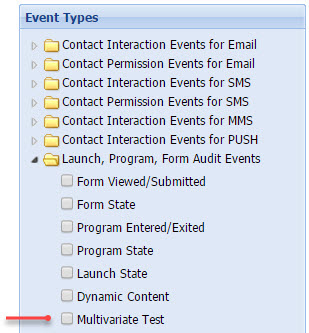
The new Multivariate Test CED feed records data that helps identify winning versions of a specific test run.
Steps to Enable
- In the Source step of an Export Event Data Feed job, select the new Multivariate Test check box.
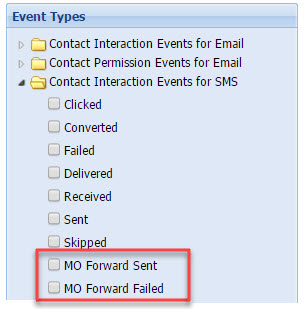
MO Forward Sent/Failed CED Feeds
The new MO Forward Sent CED feed provides data about messages that were successfully forwarded to an external end point.
The new MO Forward Failed CED feed provides data about messages forwarded to an external end point that resulted in an error.
Steps to Enable
- In the Source step of an Export Event Data Feed job, select the new MO Forward Sent and/or MO Forward Failed check box.
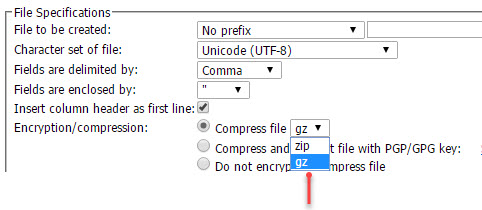
You can now encrypt data in .gz format in Export Data jobs.
Steps to Enable
- In the Target File step of the Export Data job, select Compress file, then select .gz.
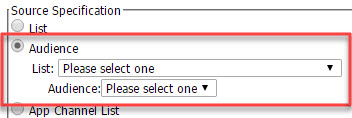
You can now export an Audience to a text file so that it can be imported into third-party systems.
Steps to Enable
- In the Source step of an Export Data job, select Audience, then select your audience.
To make filters easier to identify in the future, a Filter Description is now required for new filters. Existing filters will continue to function as is.
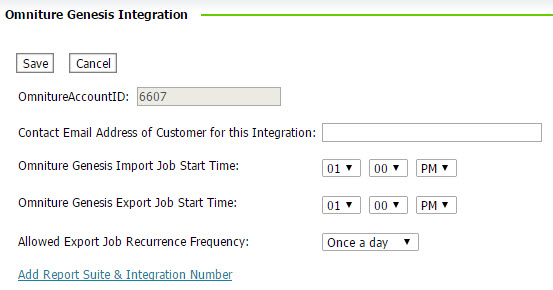
Provide Omniture Genesis Integration Parameters
IMPORTANT: Omniture Genesis Integration is an add-on service.
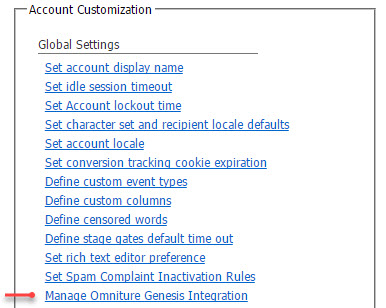
The Account Administrator can now provide configuration parameters for the Omniture Genesis integration, eliminating the need to rely on Oracle Responsys to enable it.
Steps to Enable
- In the Account Customization section of the Account Management page, select the new Manage Omniture Genesis Integration link to open the Omniture Genesis Integration page.
- On the Omniture Genesis Integration page, provide the start time and frequency of Omniture Genesis Import and Export jobs for the account.
IMPORTANT: This feature is available only for accounts created in the 6.29 Release.
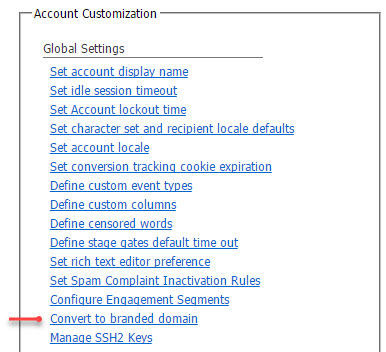
The Account Administrator can now convert to a branded domain from non-branded domain for single domain that has been delegated.
steps to enable
- In the Account Customization section of the Account Management page, select the new Convert to branded domain link to open the Convert to branded domain page.
- On the Convert to branded domain page, specify the branded domain name, user name to use as the default 'from' user, and the email address to receive a notification when the conversion is complete, then click Submit.
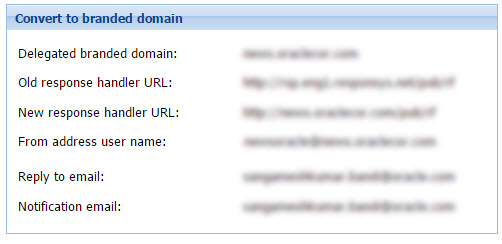
The account administrator and notification email address will receive a notification when branded domain delegation is complete.
IMPORTANT: This feature is available only for accounts created in the 6.29 Release.
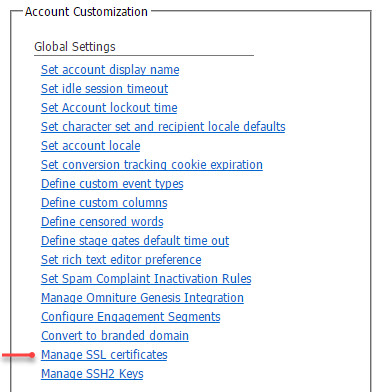
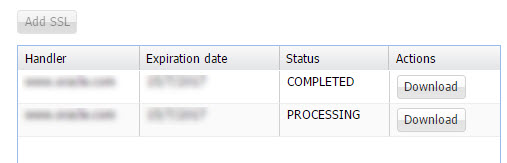
After the conversion to a branded domain is complete, the Account Administrator can add and manage SSL certificates.
steps to enable
- In the Account Customization section of the Account Management page, select the new Manage SSL certificates link to open the Manage SSL certificates page.
- Use the Manage SSL certificates page to add and download SSL certificates, and to generate SCRs.
IMPORTANT: This feature is available only for accounts created in the 6.29 Release.
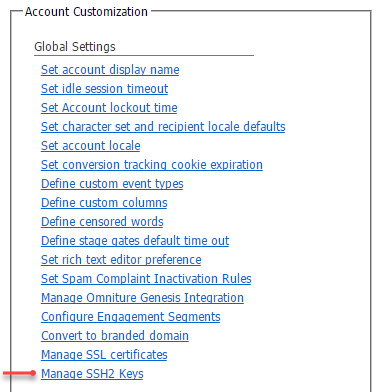
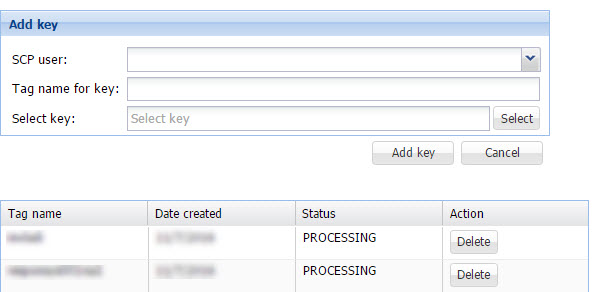
The Account Administrator can now install and delete SSH2 keys.
SSH2 keys are required for accessing your SCP user account on the Oracle Responsys file server.
steps to enable
- In the Account Customization section of the Account Management page, select the new Manage SSH2 Keys link to open the Manage SSH2 Keys page.
- Use the Manage SSH2 Keys page to add and delete SSH2 keys.
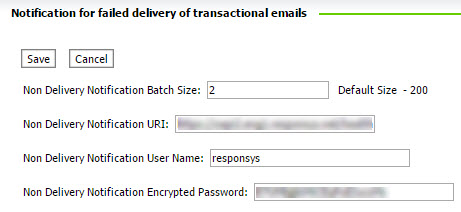
Configure Notifications for Undelivered Transactional Emails
IMPORTANT: Notifications for Undelivered Transactional Emails is an add-on service.
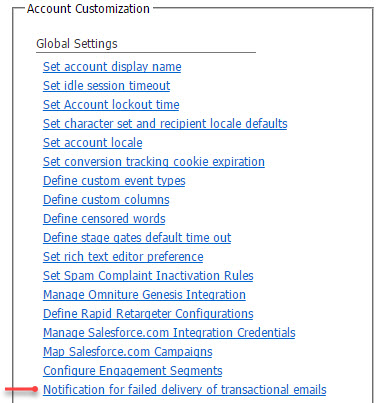
The Account Administrator can now set up and configure notifications for undelivered transactional emails.
steps to enable
- In the Account Customization section of the Account Management page, select the new Notification for failed delivery of transactional emails link to open the Notification for failed delivery of transactional emails page.
- Use the Notification for failed delivery of transactional emails page to configure the notification settings.
Configure the AFTM Secondary Account
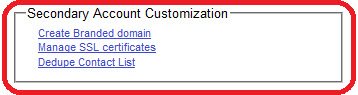
IMPORTANT: AFTM (Oracle Responsys Automatic Failover for Transactional Messages Cloud Service) is an add-on service.
After the secondary account is created, the Account Administrator can now:
- Create a branded domain and manage SSL certificates for the secondary account
- Dedupe the profile list based on a specified field
steps to enable
- In the new Secondary Account Customization section of the Account Management page, select the link you want.
IMPORTANT: Rapid Retargeter is an add-on service.
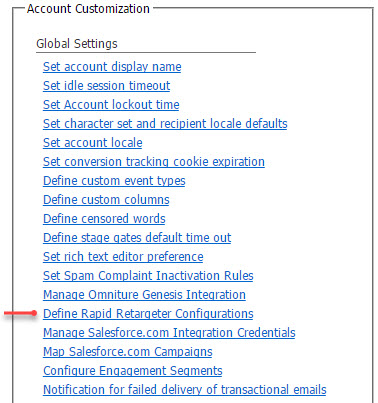
The Account Administrator can now configure the information required to set up Rapid Retargeter.
steps to enable
- In the Account Customization section of the Account Management page, select the new Define Rapid Retargeter Configuration link to open the Rapid Retargeter Configuration page.
- Use the Rapid Retargeter Configuration page to provide the retargeting settings.

IMPORTANT: Rapid Retargeter is an add-on service.
A Program entry stage that enters visitors who have conducted website searches but have not initiated any additional web events for a certain period of time.
We added parameters for capturing additional data when the tags are fired.
You can now associate the Rapid Retargeter feature to multiple profile lists within your account.
We added Manage the profile list(s), browse timeout, and cart timeout in the Account Administration section.
---

Copyright © 2016, Oracle and/or its affiliates. All rights reserved.
This document is provided for information purposes only, and the contents hereof are subject to change without notice.This document is not warranted to be error-free, nor subject to any other warranties or conditions, whether expressed orally or implied in law, including implied warranties and conditions of merchantability or fitness for a particular purpose. We specifically disclaim any liability with respect to this document, and no contractual obligations are formed either directly or indirectly by this document. This document may not be reproduced ortransmitted in any form or by any means, electronic or mechanical, for any purpose, without our prior written permission.
Oracle and Java are registered trademarks of Oracle and/or its affiliates. Other names may be trademarks of their respective owners.
Intel and Intel Xeon are trademarks or registered trademarks of Intel Corporation.All SPARC trademarks are used under license and are trademarks or registered trademarks of SPARC International, Inc. AMD, Opteron, the AMD logo, and the AMD Opteron logo are trademarks or registered trademarks of Advanced Micro Devices. UNIX is a registered trademark of The Open Group.

090816 Update