
This document will continue to evolve as existing sections change and new information is added. All updates appear in the following table:
| Date | Product | Feature | Notes |
|---|---|---|---|
| 20 SEP 2021 | Created initial document. |
 HAVE AN IDEA?
We’re here and we’re listening. If you have a suggestion on how to make our cloud services even better then go ahead and tell us. There are several ways to submit your ideas, for example, through the Ideas Lab on Oracle Customer Connect. Wherever you see this icon after the feature name it means we delivered one of your ideas.
GIVE US FEEDBACK
We welcome your comments and suggestions to improve the content. Please send us your feedback at omcdocumentation_ca@oracle.com.
DISCLAIMER
The information contained in this document may include statements about Oracle’s product development plans. Many factors can materially affect Oracle’s product development plans and the nature and timing of future product releases. Accordingly, this Information is provided to you solely for information only, is not a commitment to deliver any material, code, or functionality, and should not be relied upon in making purchasing decisions. The development, release, and timing of any features or functionality described remains at the sole discretion of Oracle.
This information may not be incorporated into any contractual agreement with Oracle or its subsidiaries or affiliates. Oracle specifically disclaims any liability with respect to this information. Refer to the Legal Notices and Terms of Use for further information.
Column Definitions:
Report = New or modified, Oracle-delivered, ready to run reports.
UI or Process-Based: Small Scale = These UI or process-based features are typically comprised of minor field, validation, or program changes. Therefore, the potential impact to users is minimal.
UI or Process-Based: Larger Scale* = These UI or process-based features have more complex designs. Therefore, the potential impact to users is higher.
Features Delivered Disabled = Action is needed BEFORE these features can be used by END USERS. These features are delivered disabled and you choose if and when to enable them. For example, a) new or expanded BI subject areas need to first be incorporated into reports, b) Integration is required to utilize new web services, or c) features must be assigned to user roles before they can be accessed.
| Ready for Use by End Users Reports plus Small Scale UI or Process-Based new features will have minimal user impact after an update. Therefore, customer acceptance testing should focus on the Larger Scale UI or Process-Based* new features. |
Customer Must Take Action before Use by End Users Not disruptive as action is required to make these features ready to use. As you selectively choose to leverage, you set your test and roll out timing. |
|||||
|---|---|---|---|---|---|---|
| Feature |
Report |
UI or |
UI or |
|
||
New Campaign Creation Experience for Email Marketing Producers |
||||||
Change for Custom Event Definitions in Multichannel Program Accounts |
||||||
New Campaign Creation Experience for Email Marketing Producers
If you are a Responsys user with the Email Marketing Producer functional role, you will only be able to pick from an email template when creating an email campaign. Email Marketing Producers can't select a document directly from the Responsys Content Library.
If an email campaign's main document was selected from the Content Library, changes by users with the Email Marketing Producer role were saved back to the Content Library. Using email templates to create campaigns prevents unexpected changes to campaign documents in the Content Library.
Steps to Enable
You don't need to do anything to enable this feature.
Key Resources
Role Information
This change affects users with the Email Marketing Producer role.
Oracle Responsys 21D Update has a new integration with Adobe Analytics that is compatible with the new Adobe APIs. If you choose to continue integrating with Adobe Analytics, you must migrate to the new integration before December 1, 2021.
Adobe Inc. has announced on their website that they intend to discontinue Data Connectors integrations effective August 1, 2021. However, for the Responsys Data Connector (Omniture Genesis Integration), Adobe Inc. has extended the end-of-life date to December 1, 2021.
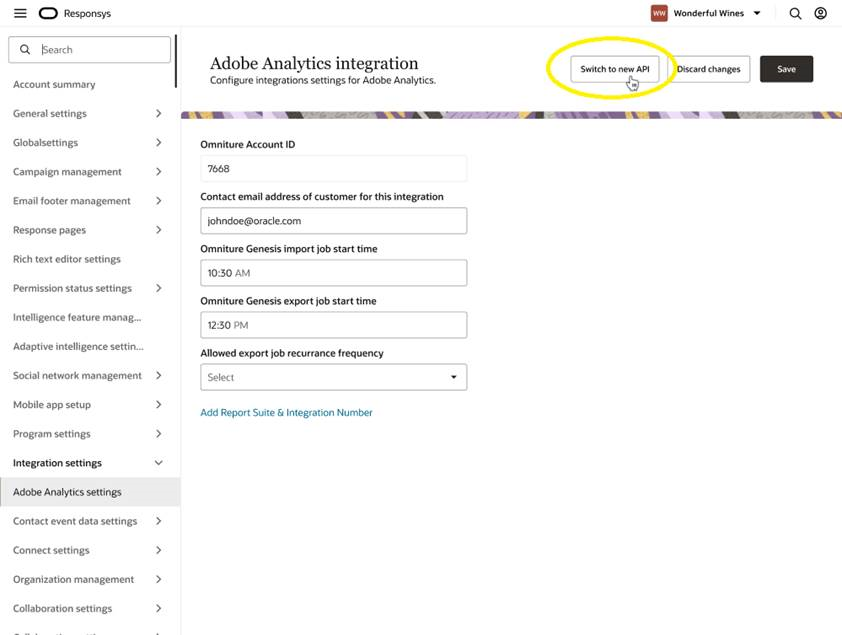
Adobe Analytics Integration Page
If your account is set up to use the current Responsys Data Connector (Omniture Genesis) integration, you can use the migration user interface in Responsys to quickly switch to using the new Adobe APIs before the deadline.
Steps to Enable
The new integration is enabled for all accounts with the Adobe Analytics integration. Perform the following steps to complete your migration to the Adobe Analytics integration.
Important: If you have the old Omniture Genesis integration configured, you will see a "Switch to new API" button on the integration page. However, if your account is newly enabled for Adobe Analytics and you access the Adobe Analytics settings, you will go directly to the new integration settings page.
- First, you'll need to create the new API integration in Adobe. Create a project in the Adobe developer console. Add “Adobe Analytics” API to the project with “Service Account (JWT)” authentication and grant access to the project. Once the project is created successfully, you can get the credentials required for Responsys from the “Credentials” section in the project.
- In Responsys, deactivate any active Connect jobs that import or export Adobe Analytics (Omniture) data.
- Access Account > Integration settings > Adobe Analytics settings. To access the migration page, click Switch to new API.
- Add the new credentials from the Adobe Analytics project and upload the private key generated by Adobe Analytics.
- Click Test Connection. If the test connection is successful, click Save.
- For each Report Suite, configure the Import Settings and Export Settings, as applicable, per the instructions that follow. Click Save after adding each mapping.
- After all mappings are saved, re-activate Connect jobs that import or export Adobe Analytics data.
Import Settings: In Adobe Analytics, go to Report Suite Manager.
- To get a segment value, edit the segment and copy the Adobe Segment ID from the URL shown in the web address. You can also obtain these values from the API response if you are using the API.
- To get breakdown names, select the report suite ID, click the drop-down menu for Editing Settings, and then choose Conversion > Conversion Variables. Get the evar value and add it to the field in Responsys. For example, if you have a Responsys Visitor ID that is defined as Evar #13 in Adobe Analytics, type evar13 into the Value for Recipient ID in the Responsys Import Settings. If you are using Adobe system variables, you can use those for the values where applicable.
Export Settings:
- To get the Data Source ID value: In Adobe Analytics, go to Admin > All Admin > Data sources and choose your reporting suite. Locate the data source, and click Configure. From the URL shown in the web address, copy the ds_id value and paste it into the field.
- To get the event mapping values, select the report suite, then click the drop-down menu for Editing Settings and choose Conversion > Success Events. Locate the event names for the metrics and add them to the corresponding fields (for example, if you defined Responsys Email Sent events as event11 in Adobe, use "event11" for Sent in Responsys).
Tips And Considerations
- Connect jobs that import or export Adobe Analytics data (Omniture jobs) will convert to using the Adobe Analytics integration immediately after you switch to the new API (that is, after you test the connection and save). If you have not deactivated these jobs before performing the migration, they will fail if they run before the report suite settings are entered in Responsys.
- If you have migrated your existing configurations, you will not need to modify existing Connect jobs that import or export Adobe Analytics data.
- If you create a new Connect job to import data from Adobe Analytics, there will be no "Last Requested Date" from Adobe. Because of this, the first job will fail, but subsequent jobs will succeed.
Key Resources
Change for Custom Event Definitions in Multichannel Program Accounts
If your account has the Multichannel Program feature enabled, you will notice the following changes when defining custom events in Oracle Responsys:
- When defining new custom events, you won't see the "Include Mobile APP Channel RIIDs" option.
- For existing custom events, we recommend that you disable the "Include Mobile APP Channel RIIDs" option where selected. This option is no longer applicable for accounts with Multichannel Program enabled. Disabling the option can help overall system performance.
This change simplifies creating custom events for Multichannel Program accounts. Multichannel handles context-switching between channels, such that the recipients aren't over messaged.
Steps to Enable
You don't need to do anything to enable this feature.
Tips And Considerations
- Only applicable for accounts with Multichannel Program and Mobile Apps features enabled.
Key Resources
Role Information
This feature is available to users with the Account Administrator role.
CX Apps Usage Dashboard Enhancements
You can now see the following enhancements when you view the CX Apps Usage Dashboard in Oracle Responsys:
- You can choose "(All Column Values)" to see a bar chart comparing usage for all apps installed for your account.
- You can view usage for each service in an app.
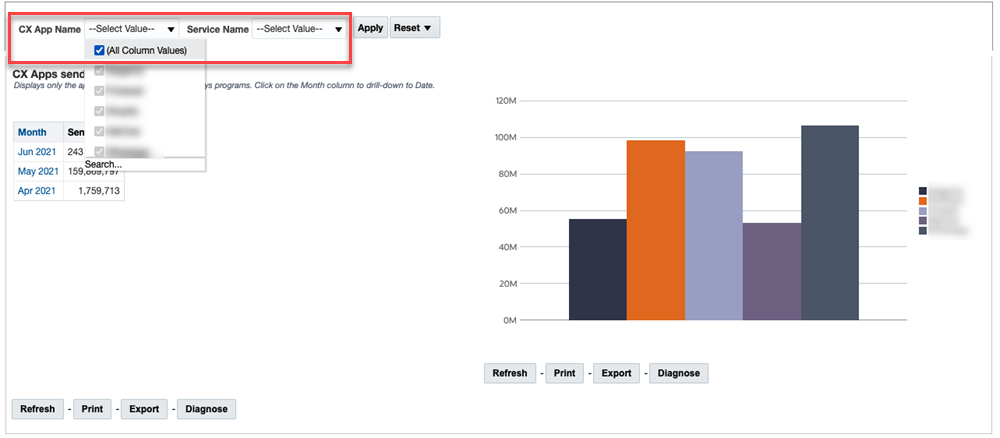
CX Apps Usage Dashboard Enhancements
This feature enables you to get a more accurate view of your organization's app usage in Responsys. This helps you see where your Responsys interactions are being used.
Steps to Enable
You don't need to do anything to enable this feature.
Tips And Considerations
- Only applies to accounts with CX Apps enabled.
-
The CX Apps Usage Dashboard and its enhancements are currently under measured deployment and will be rolled out over time.
Role Information
This feature is available to users with an Account Administrator role.
Oracle Responsys Insight Interactive Dashboards has a new Email performance dashboard called "Auto Opens". You can use this dashboard to view the number of Auto Open events by campaign.

"Auto Opens" Dashboard
Auto Opens are a type of Open event that Responsys attributes to privacy protection-enabled mail applications, such as iOS 15 native mail clients. Responsys uses this new metric to calculate email Opens more accurately by excluding emails that are opened automatically by the mail application. This helps you make decisions based on Open behaviors where the individual opened an email.
Steps to Enable
You don't need to do anything to enable this feature.
Tips And Considerations
-
Responsys classifies all Open events with only "Mozilla/5.0" in the user-agent string as Auto Open events.
- The new report can be accessed from the Email tab of Insight Interactive Dashboards by expanding the Performance area and clicking Auto Opens.
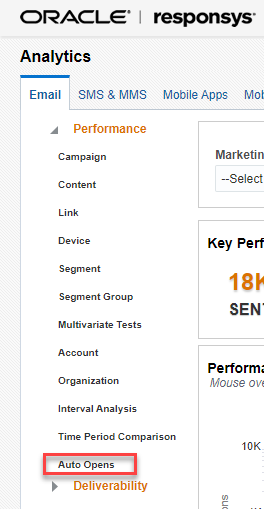
Accessing the "Auto Opens" Dashboard
Key Resources
-
Topliners article: Impacts of Apple Mail Privacy Changes on Oracle Responsys (requires access to the Responsys Insiders customer group - log in or register before clicking the article link)
Role Information
This feature is available to the following roles:
-
Email Analytics Manager
-
Email Analytics Author
Email Reporting - Changes to Measures
As of 21D, you will see the following changes to Email reporting measures for Oracle Responsys Insight Interactive Dashboards:
- A new measure, Auto Opens, will capture the number of opens that Responsys attributes to privacy protection-enabled mail applications, such as iOS 15 native mail clients.
- The email Opens measure will be the total number of Opens minus the Auto Opens. This change will calculate email Opens more accurately by excluding emails that are opened automatically by the mail application.
Excluding emails that are automatically opened from the total email Opens count will provide you with a more accurate count of emails opened by individuals. This enables you to make decisions based on more reliable data.
Steps to Enable
You don't need to do anything to enable this feature.
Tips And Considerations
-
Responsys classifies all Open events with only "Mozilla/5.0" in the user-agent string as Auto Open events.
Key Resources
- Measures for Email
-
Topliners article: Impacts of Apple Mail Privacy Changes on Oracle Responsys (requires access to the Responsys Insiders customer group - log in or register before clicking the article link)
Role Information
This feature is available to the following roles:
- Email Analytics Manager
- Email Analytics Author