
Revision History
This document will continue to evolve as existing sections change and new information is added. All updates are logged below, with the most recent updates at the top.
| Date |
What’s Changed |
Notes |
|---|---|---|
| 01 APR 2016 |
|
Initial Document Creation |
This guide outlines the information you need to know about new or improved functionality in Oracle Transportation & Global Trade Management Cloud Release 6.4.1. Each section includes a brief description of the feature, the steps you need to take to enable or begin using the feature, any tips or considerations that you should keep in mind, and the resources available to help you.
We welcome your comments and suggestions to improve the content. Please send us your feedback at otm-doc_us@oracle.com. Please indicate you are inquiring or providing feedback regarding the Oracle Transportation & Global Trade Management What’s New for Release 6.4.1.
Some of the new Release 6.4.1 features are automatically available to users after the upgrade and some require action from the user, the company administrator, or Oracle.
The table below offers a quick view of the actions required to enable each of the Release 6.4.1 features.

Oracle Transportation Management
Oracle Transportation Management (OTM) delivers robust transportation planning and execution capabilities to shippers and third party logistics providers. It integrates and streamlines transportation planning, execution, freight payment, and business process automation on a single application across all modes of transportation, from full truckload to complex multi-leg air, ocean, and rail shipments.
Oracle Transportation Management lowers transportation costs, improves customer service and asset utilization, and provides flexible, global fulfillment options.
Oracle Transportation Management (Base Product)
Order Management UIs and APIs to enter & manage orders in OTM Rate Management Rating engine Shipment Management Shipment creation (manual and agent based shipment creation) Booking & tendering (includes spot bids & broadcast tenders) Carrier communications Supply Chain Event Management Order & shipment events & visibility Business Process Automation Workflow agents & monitor profiles Document management Operational reporting.
Flex Fields Added for Service Provider
This feature provides you with Flex Fields (20 VARCHAR2 columns, 10 date columns and 10 number columns) that you can use to further define your service providers. You can use Flex Fields to configure the user interface and business logic to extend OTM’s core functionality. Flex Fields also enable faster query performance when compared to qualified ref num and remark fields and should be used for fields that you will query often.
Steps to Enable
Flex Fields are not on the screen by default, however, you can add them via the Finder Set and/or Manager Layout.
This feature provides you with additional auto assignment types for the Customer Bill and Invoice objects.
The auto assignment types allow you to:
- Perform auto assignment based on a Customer Bill Line Item Reference Number
- Perform auto assignment based on a Invoice Line Item Reference Number
Steps to Enable
Within the Auto Assignment Rule, the Auto Assign Type determines the business object and the data that you want to assign. The newly added Auto Assignment Types for Customer Bills and Invoices are in the list of Auto Assignment Types available when you define an Auto Assignment Rule.
Export >1000 Booking and Tendering Results
This feature allows you to export more than 1,000 booking and tendering results in one step.
Steps to Enable
- Click Export to display the results of your query in a Microsoft Excel spreadsheet.
- The total number of records appears first as a result of the search criteria entered. Click Ok to display those records in spreadsheet format within the browser frame.
- The column headings will be the same as those that would appear on the Results page (as defined in the active Screen Set) if you performed a standard search.
- Select the File, Save As browser option to save the data in Excel format.
RIQ Network Rate and Route – Generate Results for All Legs
This feature enhances the RIQ “Network Rate and Route” logic so that results can be generated for all legs in the network.
Steps to Enable
- Enter your RIQ “Network Rate and Route” request
- Clear the "Primary Option Centric" option
- Execute the request
Simplified Rule 11 Route Code Combination Setup
This feature provides you with a simplified process for setting up route code combinations by including the rail Junction Code in the Rule 11 rule definition.
Steps to Enable
- Previously, the Rule 11 rules specified which route code could be followed by which route code. This framework for defining the Rule 11 rules made the setup cumbersome since many different route codes needed to be created and maintained to support the different "link up" rules at the different rail hubs.
- To simplify the setup and maintenance of the route codes, the rail Junction Code has been added to the Rule 11 rules. Now the Rule 11 rule allows you to indicate that a specified route code coming into a defined rail junction code can be followed by a specified route code. For example, route code AAAA coming into Junction Code CHICAGO can be followed by route code BBBB. This change requires fewer route codes since the different rules for different rail junctions just requires you to specify the different junction codes involved. The same route codes can be used for both rules.
- To help simplify route code setup, two check boxes have been added to the rate record: “For Beyond” and “From Beyond”. These are used to indicate if the rate can be used going into, or coming out of, a rail hub.
This feature provides improvements in the setup process for external reporting systems.
The capabilities provided include the following:
- You can now define a report system that holds the communication information needed to communicate with an external report.
- For BI Publisher reports, this includes a BI Publisher host, port, user, password, and report path prefix that are common to all reports sent to that host.
- For other external report generators, it includes a URL to trigger reports and a report path prefix.
- The report definition no longer requires any system information. It contains a report path to uniquely identify the report to the external system.
Steps to Enable
There are no steps necessary to enable this feature.
Database User with Minimum Privileges to Perform Direct XML Integrations
This feature provides a new database user that has been pre-configured with minimum privileges for performing direct XML integrations. The pre-configured user will reduce the effort required for database user management.
Capabilities provided:
- This feature provides a new database user “DIR_XML_USER”. The intended use for this new user is for Direct XML integration.
- This new user has been configured with minimum privileges to successfully insert XML transmissions into database objects when using Direct XML integration feature.
Steps to Enable
There are no steps necessary to enable this feature.
UI Provided for UOMs, Valid Value Type and Process Actions
This feature provides supported access to UOMs, Valid Value Types and Process Actions via the user interface. Previously, the access to UOMs, Valid Value Types, and Process Actions was only available via the database. The new interfaces provide access to this configuration data without requiring direct database access.
Steps to Enable
There are no steps necessary to enable this feature.
Tips and Considerations
Note: These screens are only available when you are logged in as DBA.ADMIN
List of Available Transfer of Information Sessions Added to Help
This feature provides a list of all Transfer of Information sessions in help. In addition, where relevant, links have been added from related topics to the list of TOIs that are available.
- The list of available Transfer of Information sessions can be found under the "OTM/GTM TOIs and Training" heading in help.
- This topic now contains a complete list of all OTM/GTM TOIs ever released. The list of TOIs is organized by OTM/GTM product option.
- In addition, links to this topic have been added to the Related Topics sections of applicable help topics.
- For example, the About Flex Fields and Load Configuration help topics now link to this topic.
- The Transfer of Information topic contains a link to the MyOracleSupport (MOS) note from which the sessions can be accessed.
Steps to Enable
There are no steps necessary to enable this feature.
Fall Back Rate Service for Rate Inquiry
This feature provides you with a Fallback Rate Service option that allows you to successfully use Rate Inquiry to drive and rate “Vessel” Rate Offering Type shipments that need to be rated further out into the future than your currently available voyage schedule data would support.
Steps to Enable
To enable this feature follow the steps outlined below:
- The “Fallback Rate Service ID” attribute is configured - by default - to be available on rate offerings with a Rate Offering Type of “VESSEL”.
- You can add the “Fallback Rate Service ID” attribute to other Rate Offering Types.
- When enabled the “Fallback Rate Service ID” will appear on the Rate Offering Attributes tab.
- The “Fallback Rate Service ID” will be considered by OTM during a rate inquiry when the start date for the rate inquiry occurs on a date/number of days in the future that is greater than or equal to the number of days specified by the "FALLBACK RS NUM OF DAYS” parameter.
- The default value for the "FALLBACK RS NUM OF DAYS” parameter is 90 days.
Rate Sell Side Shipment Based on Buy Side Allocated Cost
This feature provides a new web action and agent action that allows you to generate a separate sell side shipment based on the buy side order allocated cost associated with each buy side shipment. This feature supports the scenario where an order is shipped on two or more parallel buy side shipments and on the sell side you are required to generate a separate sell side shipment for each of the buy side shipments involved in moving the order.
Steps to Enable
To enable this feature, follow the steps outlined below.
- Previously – generating multiple sell side shipments (instead of generating just one sell side shipment to capture all the allocated cost for an order) would lead to duplicate allocated costs being transferred to the multiple sell side shipments.
- This feature provides you with a buy side shipment action (and agent action) that allows you to generate multiple sell side shipments directly from the buy side shipments with the sell side shipments only considering the allocated cost for the individual buy side shipment vs all of the buy side shipments involved in moving the order. The actions available are:
- A new web action (under Utilities) – “Build Sell Shipment From Buy Shipment” that generates a sell shipment considering just the selected buy shipment
- A new agent action – “Build Sell Shipment Based On Buy” that generates a sell shipment based on the shipment that triggered the agent action.
Ability to Set Rate Geo Corporate Profile
This feature enables you to specify the Corporation Profile at the Rate Geo level and have the Corporation Profile involved in the rate selection process.
Steps to Enable
To enable this feature, follow the steps outlined below.
- The corporation related to a shipment for rating purposes is the corporation that is assigned to the location assigned to the involved party where the Involved Party Qualifier ID is ORDEROWNER.
- You can control this new capability using the glog.order.rule.pass_corp_profile property.
- When you turn this property on, OTM will look at the Corporation Profile on both the rate offering and the rate record level.
- If the Corporation Profile is blank at both levels, then rates are considered to be available for all corporations.
- If both Corporation Profiles are populated, OTM will look at the lowest level to determine applicability.
- If the rate offering is populated but the rate record is not, OTM will still constrain to the corporation in the rate offering.
- If the rate offering is blank but the rate record is populated, OTM will constrain to the corporation in the rate record.
New Shipment Stop Reference Number Rate Basis Item Added for Rating
This feature provides the ability to rate shipments using rates based on a set of shipment stop reference numbers.
- Shipment Stop Refnums
- Shipment Stop Refnum Value as Currency
- Shipment Stop Refnum Value as Distance
- Shipment Stop Refnum Value as Duration
- Shipment Stop Refnum Value as a Number
- Shipment Stop Refnum Qualifier
- Shipment Stop Refnum Value
- Shipment Stop Refnum Value as Volume
- Shipment Stop Refnum Value as Weight
- Shipment Count of Stop Refnums
Steps to Enable
To use this feature, select the appropriate stop reference number rate basis item and use it as part of your rate definition.
PC*MILER Web Services Configurations
This feature provides pre-seeded configurations options for using PC*MILER’s Web Service offering.
The pre-seeded configurations options provided are:
- PCMILER_DEFAULT_POSTAL_TO_POSTAL_WS - Distance based on postal codes using PC*MILER/DEFAULT
- PCMILER_DEFAULT_CITY_TO_CITY_WS - Distance from city to city using PC*MILER /DEFAULT
- PCMILER_PRACTICAL_CITY_TO_CITY_WS - Distance from city to city using PC*MILER/PRACTICAL
- PCMILER_PRACTICAL_ADDRESS_TO_ADDRESS_WS - Distance from street address to street address using PC*MILER/PRACTICAL
- PCMILER_PRACTICAL_POSTAL_TO_POSTAL_WS Distance based on postal codes using PC*MILER /PRACTICAL
- PCMILER_PRACTICAL_LATLONG_TO_LATLONG_WS Distance from LAT/LONG TO LAT/LONG using PC*MILER/PRACTICAL
- PCMILER_SHORTEST_POSTAL_TO_POSTAL_WS - Distance based on postal codes using PC*MILER /SHORTEST
- PCMILER_SHORTEST_CITY_TO_CITY_WS - Distance from city to city using PC*MILER /SHORTEST
Steps to Enable
To use this feature, select the desired PC*MILER configuration when defining your Rate Distance.
Rate Inquiry Web Services Enhanced
This feature provides an enhanced rate inquiry web service that now includes remark details for the rate record as well as the description fields for both accessorials and rate records.
The Rate Inquiry XML has been enhanced to include the following:
- Remark and Description details have been added for the rate record
- Description details have been added for accessorials
Steps to Enable
There are no specific steps to enable this feature.
Add Remarks to the Result Screen Set for Shipment Groups
This feature provides the ability to add remarks to the result screen set for shipment groups. The additional information provided by the remarks information will allow you to quickly identify the shipment group or groups of interest.
Steps to Enable
To take advantage of this new feature, you can use the Remark Text (P) and Refnum Value (P) psuedo fields that have been added to the SHIP_GROUP screen set to add remarks to the result screen set for shipment groups.
Parameter to Minimize OMD Related Ship Unit Rebuilding
This feature provides the ability to limit the rebuilding of ship units and shipment ship units when order changes are processed. This feature provides the ability to improve order interface runtime by minimizing the processing time spent rebuilding ship units. Previously, order release line modifications – Edit Shipment and OMD – would rebuild all the ship units for the related order release and all the related shipment ship units. With this feature, you now have a parameter to limit the impact of ship unit rebuilding so that the rebuilding is limited to just the impacted lines (directly impacted and indirectly impacted lines) and the related ship units.
Steps to Enable
To enable this feature, follow the steps outlined below:
- This feature is controlled by a new SHIP UNIT BUILDING parameter:
- SHIP UNIT MIN IMPACT
- For backward compatibility, the default value is “FALSE”
- When this parameter is set to “TRUE”
- OTM will identify the directly impacted and indirectly impacted lines.
- OTM will only remove the impacted and indirectly impacted ship units - the rest of the ship units will remain unchanged.
Limit Special Services Rate Offering to Compatible Mode
This feature provides the ability to check that the mode of the rate offering used for rating a special service is compatible with the modes listed in the mode profile attached to the special service. The check for compatibility simplifies the effort required for setting up special services.
- The mode of the rate offering is now checked for compatibility against the mode profile on the special service – all rate offerings that are compatible with the modes defined as compatible on the special service mode profile are considered for rating.
- If the mode profile is not entered on the special service, then all modes are considered as compatible with this special service and all rate offerings are evaluated regardless of mode.
Steps to Enable
There are no specific steps to enable this feature.
Generic External Rating Engine as Web Service
This feature provides the ability to establish integration to external rating engines using web services. The new web services option is in addition to the previously available Java interface REXPublicExternalInterface option.
Steps to Enable
To enable this feature, follow the steps outlined below:
- Build a web service per WSDL definition and expose it using WSDL link
- Configure the exposed web service by creating a Document definition
- Create a new web service definition from Document definition
- Create a new external system from the created web service definition
- Create a new External Rating Engine Field Set from External System created
- Define a new rate offering type
- Create a new rate offering
Generic External Distance Engine as Web Service
This feature provides the ability to establish integration to external distance engines using web services. The new web services option is in addition to the previously available Java interface REXPublicExternalInterface option.
Steps to Enable
To establish integration with an external distance engine, follow the steps below:
- Build a web service per WSDL definition and expose it using WSDL link.
- Configure the exposed web service by creating a Document definition.
- Create a new web service definition from Document definition.
- Create a new External System from the created web service definition.
- Create a new External Distance Engine.
- Create a new Rate Distance referencing the new External Distance Engine ID.
HERE.COM External Distance Engine Web Service Option
This feature provides the option to use HERE.COM’s HERE LOCATION PLATFORM hosted web services (license is required) for your external distance engine, service time and address validation needs.
The new External Service Engines and the services provided are:
- External Service Engine ID - HERE_LATLONG_TO_LATLONG
- Provides the distance from a defined longitude and latitude point to another.
- External Service Engine ID - HERE_ADDRESS
- Provides possible address corrections given an address.
- External Service Engine ID - HERE_LATLONG_TO_LATLONG
- Provides the service time from a defined longitude latitude point to another longitude latitude point.
Key Resources
- For additional information https://developer.here.com/oracle
Support for PC*MILER Borders Open Option
This feature provides the option of using PC*MILER’s Borders Open routing option when requesting mileages from PC*MILER. The Borders Open option refers to Intra-US, Intra-Canada, and Intra-Mexico routing. If Borders Open is on, the route generated will ignore international boundaries when necessary to come up with the best route. If this option is off, then borders will not be crossed. For example, if all your stops are in the United States, the resulting route will stay in the United States even though the most practical or shortest route would normally involve some Canadian mileage.
Steps to Enable
To take advantage of this feature, follow the instructions below:
- For on-premise socket based PC*MILER setups the BORDERS_OPEN options are “1” and “0”.
- When set to “1”, shipments can cross the border as many times as PC*MILER calculates will create the best trip.
- When set to “0” PC*MILER will try to find a route within the country.
- For the PC*MILER Webservices option the valid values for BORDERS_OPEN are “Y” and “N”.
- When set to “Y”, shipments can cross the border as many times as PC*MILER calculates will create the best trip.
- When set to “N”, PC*MILER will try to find a route within the country.
Kewill Charge Token to Accessorial Code Mapping
This feature provides the ability to map additional Kewill Charge Tokens to your OTM accessorial codes.
This feature provides the following improvements:
- The ability to create a new Kewill Charge Token Set.
- Access to additional Kewill Charge Tokens that you can use to map to your accessorial codes.
- A migration from the previous parameter based mapping to the new Kewill Charge Token Set and Kewill Charge Tokens setup.
- The migration will, for any of the Kewill parameters with a mapped accessorial code value, create a new Kewill Charge Token Set and map the newly created Kewill Charge Token Set to the parameter Kewill Charge Token Set in the same parameter set.
- If there are no mapped parameters to migrate, then no new Kewill Charge Token Set will be created and the default value for the parameter Kewill Charge Token Set (Default_Kctset) will be used.
Steps to Enable
There are no specific steps to enable this feature.
This feature enhances conditional booking to allow you to more effectively capture and process information provided to you by your ocean carriers and freight forwarders as part of a conditional booking process. With this feature, conditional booking has been expanded to capture and manage more information related to shipment stops, cutoff and recovery times, inland/arbitrary service levels, port of load (POL) and port of discharge (POD), intermediate/trans-load points and equipment details. This feature also provides you with additional capabilities for applying approved and accepted conditional booking information directly to the related operational fields on the shipment.
Some of the new capabilities provided include:
- New data capture fields:
- Shipment Stop Fields:
- Pickup Stop Appointment Start and End
- Pickup Stop Estimated Arrival and Departure
- Delivery Stop Appointment Start and End
- Delivery Stop Estimated Arrival and Departure
- POL Stop Estimated Arrival and Departure
- POD Stop Estimated Arriva and Departure
- Transload Stop Estimated Arrival and Departure
- Non-Shipment Stop Fields:
- SI cutoff (date)
- CFS Cutoff (date)
- CFS Location GID
- Source Arbitrary Level of Service
- Destination Arbitrary Level of Service
- Shipment Mode
- Shipment Equipment Fields:
- Check Digit - With the option to validate the entered equipment initial and number using the ISO 6346 international standard of intermodal (shipping) containers check digit logic.
- License Plate
- Location Alias functionality: The Location Alias field provides the service provider with a way to reference shipment locations using the service provider’s reference number. The Location Alias functionality enables you to link the service provider’s location reference to an existing OTM location record.
- New Shipment Conditional Booking Rerate and Re-drive actions: These new actions allow you to rerate and/or re-drive the shipment and conditionally re-drive both downstream shipments and upstream shipments depending. Available options include:
- Rerate Current Shipment: this option finds and assigns the best rate to the shipment. Existing rate record and rate offering of the shipment can be changed but the service provider, mode, equipment group, level of service - if provided, and stop structure will remain the same.
- Re-drive Current Shipment: this option re-drives the current shipment.
- Re-drive Downstream Shipments.
- Re-drive Upstream Shipments.
Steps to Enable
There are no specific steps to enable this feature.
Key Resources
- See the 6.3.7 Transfer of Information session: OTM Conditional Booking Functional Overview for more information about this feature
This feature provides a glimpse into what the future holds for OTM’s new, modernized user interfaces (UI). The goal for the enhanced user experience is to provide you with screens that provide a more modern look and feel, are more task-oriented, are tablet enabled and utilize Oracle’s standards-based ADF technology.
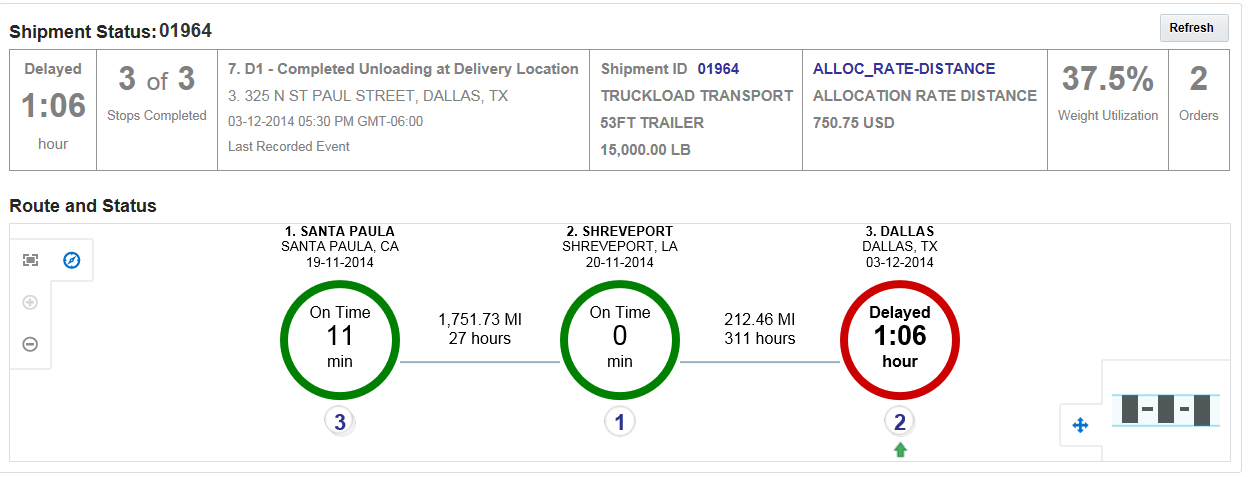
Shipment Visibility
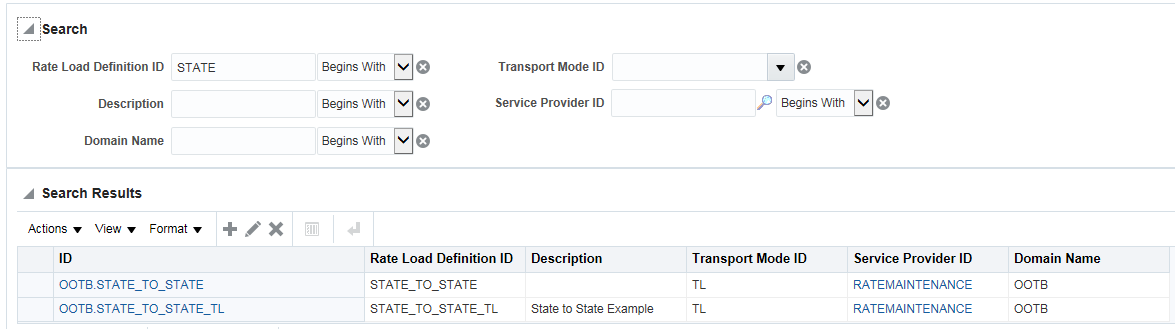
Rate Maintenance – New Search
Workbench Designer
Steps to Enable
There are no specific steps to enable this feature.
This feature provides you with a new Shipment Visibility experience that allows you to quickly ascertain the current state and status of your shipments. The new Shipment Visibility UI was engineered from the ground up to provide you with shipment status information in an efficient, clear and concise fashion. The information provided in the new Shipment Visibility UI includes summary statistics, on-time status information and an attractive visual format that provides you stop level information related to stop timing and stop status.
Shipment Visibility Screen
The information available to you in the new Shipment Visibility UI includes:
- Overview Shipment Status:
- Status - Basic en-route status of the overall shipment - whether delayed, on time, or early. The amount of time deviated from the planned date and time is also shown in this cell.
- Stops Completed -The number of stops completed out of the total number of stops on the shipment.
- Last Event - The latest tracking event that is recorded for the shipment.
- Shipment Details - Shipment details like the shipment ID, transport mode, first equipment group, and the total gross weight of the shipment.
- Additional Shipment Details available include:
- Start Time
- End Time
- Shipment Name
- Shipment Type
- Feasibility Code
- Is Primary
- Hazardous
- Total Declared Value: the declared value of the shipment
- Equipment Group
- Equipment Count: the number of pieces of equipment assigned to the shipment
- Total Ship Unit Count
- Total Package Count
- Total Gross Weight
- Total Gross Volume
- Logistics Contact ID
- Logistics Contact Name: the complete name of the service provider
- Logistics Contact Phone: the contact number of the service provider
- Additional Involved Parties
- Reference Numbers
- Remarks
- Special Services
- User Defined Image 1, 2, 3, 4, and 5
- Service Provider – Critical information about the service provider used for the shipment, including the ID and name of the service provider, and the total actual cost of the shipment.
- Weight Utilization – Shows you – as a percentage - how much capacity is utilized by this shipment – a key measure of your transportation plans efficiency.
- Order Releases - Number of order releases included in the shipment.
- Route and Status - This section illustrates the shipment's stop details and associated events in an attractive visual format.
- Stops - Each shipment stop is represented by a circle of a particular color. The colors represent the current status of the stop based on actual vs. planned arrival times.
- Stop details including stop number, location ID and name, city, state, country, and arrival date are displayed above the circle.
- Progress information for the stop is displayed within the stop’s circle, including whether the shipment arrived at a stop on time or it was late and by how many minutes/hours/days.
- Additional information about a stop is provided by clicking on a stop's circle.
- Stop location details (location ID/name/address/role/stop activity):
- Planned, estimated, actual dates and times
- Appointments
- Number of order releases
- Number of ship units
- Total gross weight and volume
- Link between Stops - The line between two circles indicates the route link between two consecutive stops. The associated text indicates the calculated distance and actual time taken for the shipment to cover that distance.
- Events - An event is represented by a small circle placed either under a stop or under the line linking two stops, depending on whether the event is recorded at a specific shipment stop or during transit between the stops. The number of events recorded for a location is indicated inside the circle. When more than one event is recorded at a location or between two stops, the events will be represented in the form of stacked circles with the number of events within. The last recorded event is indicated with a green up arrow placed below the associated event circle.
- Click an event circle to view the complete list of events recorded. Information provided includes:
- Event Description
- Status Code
- Event Location
- Event Date
- Reason Description
- Reporting User
- Contact
- Control Panel - The control panel provides you with intuitive controls that allow you to adjust the graphical display to your liking.
- Refresh – Click “Refresh” to view updates and the latest information available about a shipment.
Steps to Enable
There are no specific steps to enable this feature.
Key Resources
- See the 6.4 TOI: OTM Shipment Visibility Functional Overview for more information about this feature
- There is a demonstration in the online help, “Shipment Visibility Demonstration”.
Workbench Designer and Workbenches
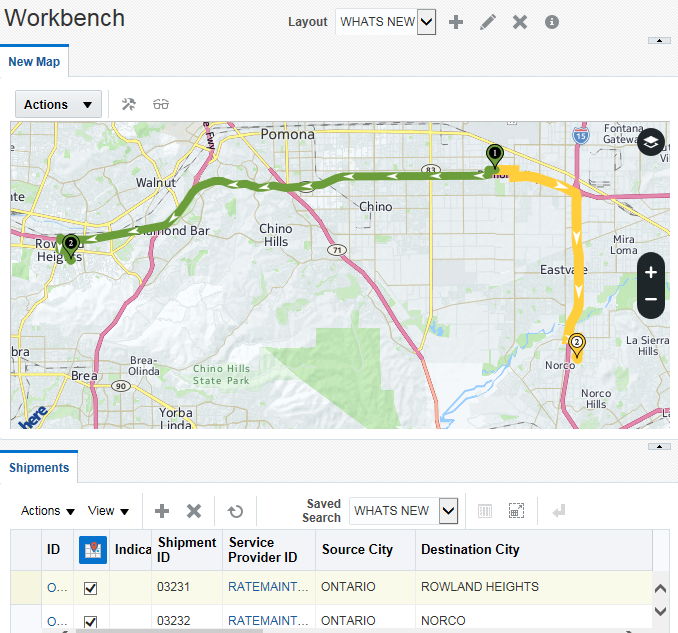
The Workbench Designer provides you with an all new WYSIWYG (what you see is what you get) workspace design environment that allows you to easily configure your operational working environment(s) for improved usability, information access, and productivity. With the new Workbench Designer, you can quickly set up a workbench that allows you to pull together and relate all the information you need to perform your job. See Workbench - Dispatch Board for more details of setting up a fleet dispatch board.
Steps to Enable
- Select the objects you want to work with including:
- Shipments
- Order Releases
- Order Movements
- Drivers
- Shipment Stops
- Establish relationships between the objects selected:
- Shipments and their related Order Releases
- Order Releases and their related Shipments
- Shipments and their related Shipment Stops
- Drivers and their related shipments
- Etc
- Add component types:
- Tables
- Map
- Driver Gantt
- Configure and preview (in real-time) where you want the different elements of your workbench to be positioned on the screen and the desired layout.
- Tables
- Select objects of interest
- Select desired screen set/layout
- Select desired starting saved search
- Select and configure columns to display
- Map
- Map vendor ALK Maps or Here.com (subscription required)
- Line Style – straight line, street level
- Line Type – solid, dashed
- Line Width
- Show Arrows - for shipment direction
- Stop Marker - display for stop number
- Stop Marker Size
- Position Marker
- Position Marker Size
- Last Position Marker
- Last Position Marker Size
- Driver-Gantt
- Select the Driver and Shipment Screen set you would like to use
- Take advantage of newly designed and highly useable drag-drop actions available in the Grids, Map, and Driver-Gantt.
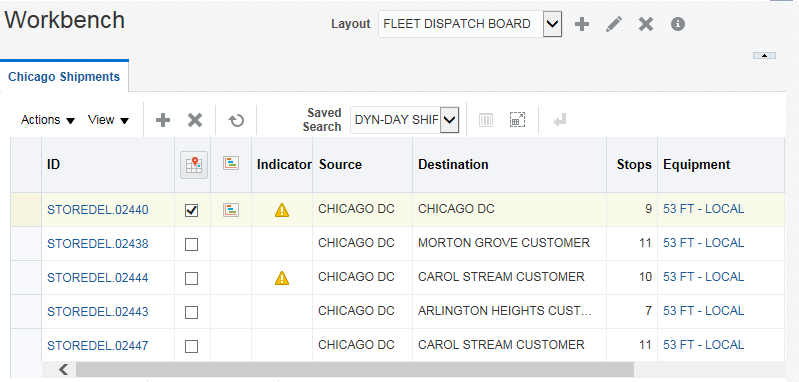
Shipment Table
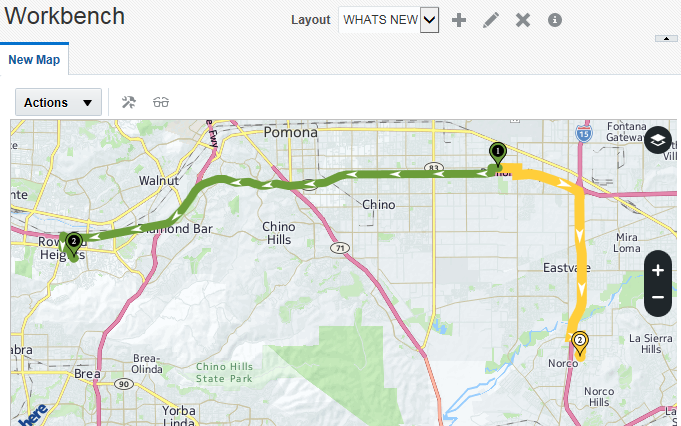
Map
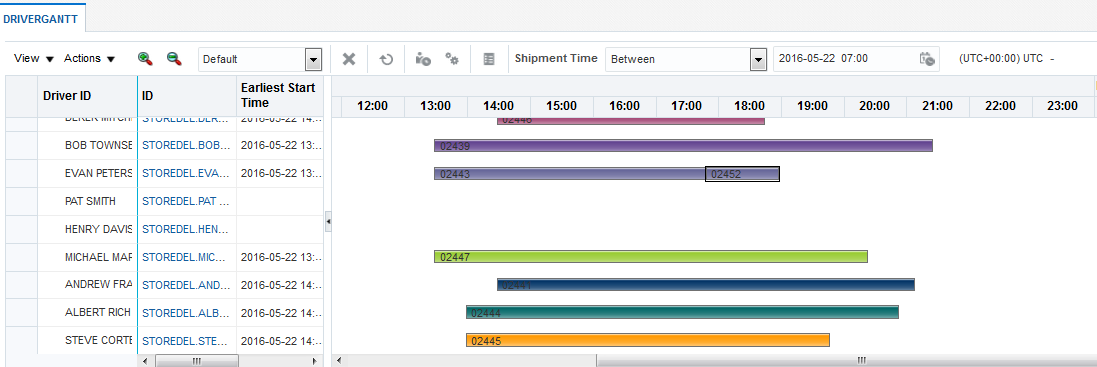
Driver Gantt
The following screen capture demonstrates this feature and its benefits.
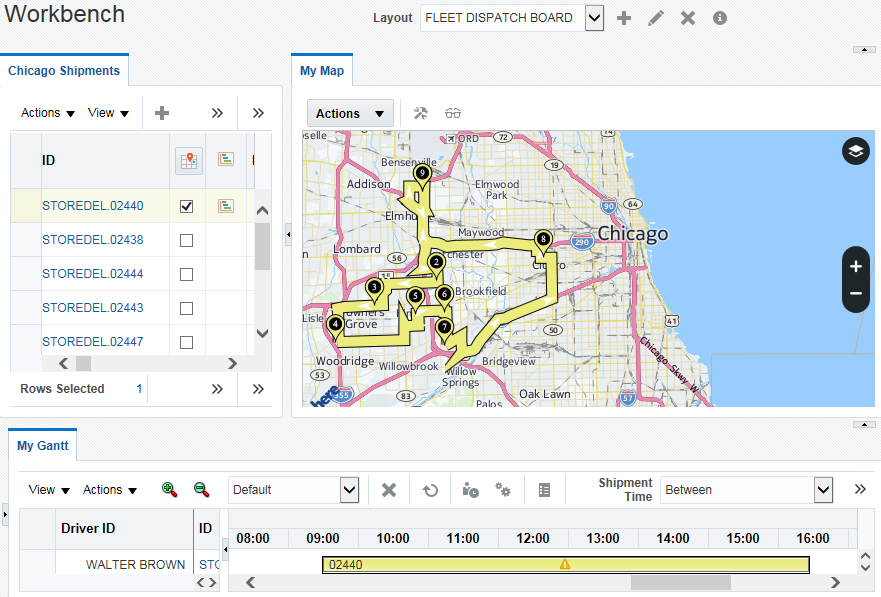
Completed Workbench
Key Resources
- See the 6.4 and 6.4.1 TOI: OTM Workbench Functional Overview for more information about this feature
- The following demonstrations are available in the online help:
- Create Shipment, Shipment Stops and Map Layout
- Create a New Workbench Layout
- Use the Shipment, Shipment Stops and Map Layout part 1
- Use the Shipment, Shipment Stops and Map Layout part 2
Show Last and Show All Tracking Event Positions on Map
This feature provides you with the ability to map - using the new workbench mapping features - either the last tracking event position received for a shipment or all of the tracking event positions received for a shipment. With this feature, you can now quickly identify the current location of your shipment and/or track the entire journey of the shipment as it unfolds allowing you to easily compare the actual route taken versus the originally planned route.
This feature provides the following capabilities:
- The new action (and map parameter) Show Last Position allows you to display the last shipment tracking event entered for the shipments displayed on the workbench map.
- The new action (and map parameter) Show Positions allows you to display all of the reported shipment tracking events for a shipment. This new capability provides a visual method for comparing the planned route for the shipment against the actual shipment route taken as reported by the tracking events received.
- The location of the tracking event is determined either by geo-coding address information provided in the tracking event message (city/state/country) or directly from the latitude/longitude reported on the shipment tracking events.
Steps to Enable
Assuming that your shipment tracking events include the necessary information (address or latitude/longitude) there are no specific steps required to enable this feature. To make events appear on the map, the event attribute associated with the event's group USE_IN_MAP must be set to "Y".
Updated Workbench Maps to Use Latest HERE.com API
This feature provides users of HERE Maps with access to the latest HERE.COM API. The new API provides you with improved processing speed and faster load times.
Steps to Enable
Assuming that you have HERE maps enabled, there are no specific steps required to enable this feature.
Key Resources
Workbench Usage Demonstrations Added to Help
This feature provides you with a series of very useful Workbench usage/configuration help topics that will help you to get up and running with the Workbench functionality. The demonstration help topics take you step-by-step through the process of setting up and using the new Workbench functionality.
The help topics and demonstrations provided cover the following areas:
- Create New Workbench Layout – this demonstration walks you through the creation and basic editing of a workbench.
- Create Shipment, Shipment Stops, and Map Layout - this more advanced demonstration shows how to create a workbench layout which contains a shipment grid and a related shipment stops grid as well as a map.
- Use the Shipment, Shipment Stops, and Map Layout part 1 - this demonstration shows how to use the basic functionality enabled by the workbench as it relates to display configuration, information displayed and basic actions available to you for the shipment, shipment stops, and map within the workbench.
- Use the Shipment, Shipment Stops, and Map Layout part 2 - this demonstration expands on part one and investigates the more advanced mapping functionality available to you in the workbench.
Steps to Enable
There are no specific steps required to enable this feature.
This feature provides a full set of representational state transfer (REST) APIs that can be used for mobile application development. REST APIs are available for all major OTM and GTM entities.
Resources supported by the REST APIs include:
- View Data Content
- Retrieve data for a single entity instance identified by primary key.
- Create Data Content
- Insert a new single entity instance into the database.
- Modify Data Content
- Modify one or more attributes or child objects for a new single entity which already exists in the database.
- Remove Data Content
- Remove a single entity instance from the database.
- View Metadata
- Retrieve XML Schema Definition describing the JSON content for a named entity.
Steps to Enable
There are no specific steps to enable this feature.
Key Resources
- See the “REST API Reference” section of the Integration Guide for more information.
Tips and Considerations
The REST API is a direct mapping to OTM’s data structures. From 6.4.0 on - any custom user interfaces that you develop using the REST APIs will need to be reviewed as part of your release upgrade planning to determine the adjustments, if any, that the OTM data structure changes will require you to make to your custom UIs.
Ability to Create Custom Action with Additional Argument Job Type
This feature provides you with the ability to create custom actions related to a job that can be differentiated by job type. This addition provides you with addition flexibility in defining how transactions are processed.
The new auto assignment type allows you to:
- Configure different actions for a job by job type. For example, for the event JOB – CREATED, you can now specify a different action to take based on the job types that you have defined.
Steps to Enable
There are no specific steps to enable this feature.
User Exit Package Called When Removing Lines From Ship Group
This feature provides the ability to differentiate between Adding and Removing lines from a partial shipment group. This added differentiation allows you to invoke different workflows in response to specific actions.
The following events were added as a part of this enhancement:
- For the action, Add Partial Shipments to Shipment Group, the following events are now published:
- Shipment topic related events -
- 1) SELL SIDE SHIPMENT - PARTIALLY ADDED TO SG
OR
SHIPMENT - PARTIALLY ADDED TO SG (for Buy shipment case) - ShipmentGroupModTopic related events -
- 2) SHIPMENT GROUP - PARTIAL SHIPMENT ADDED
- For action, Remove Partial Shipments from Shipment Group, following events are published:
- Shipment topic related events -
- 1) SELL SIDE SHIPMENT - PARTIALLY REMOVED FROM SG
OR
SHIPMENT - PARTIALLY REMOVED FROM SG (for Buy shipment case) - ShipmentGroupModTopic related events -
- 2) SHIPMENT GROUP - PARTIAL SHIPMENT REMOVED
You can setup agents listening to these events and perform specific validations for add/remove partial shipments to/from shipment group.
Steps to Enable
There are no specific steps required to enable this feature, the new events are available for you to use when you configure your agents.
Shipment Group Order Release Details Added to Glog XML
This feature provides you with an enhanced Shipment Group Glog XML that now contains all of your partial shipment group information.
This feature provides the following changes:
- The Ship_Group_D_OR details are now included in the Shipment Group Glog XML.
- A new element was added to the Ship Group XML to cover the information stored in Partial Shipment section of Shipment Group. The information included is the information stored in the Ship_Group_D_OR table and includes information about the order release, order release line and involved party.
Steps to Enable
There are no specific steps required to enable this feature.
Commodity Description Field Changes
This feature provides you with visibility to the Commodity Description in two additional UIs as well as increasing the size of Commodity Description field so that your commodity descriptions can now be more complete.
This feature provides the following changes:
- The Commodity Description field is now available for edit and view modes in the Commodity Manager (Order Management > Material Management > Commodity)
- The Commodity Description field is now available for edit and view modes in the User Defined Commodity power data (Order Management > Power Data > Item Classifications > User-defined Commodity).
- The Commodity Description can field now store commodity descriptions that are up to 1,000 characters in length.
Steps to Enable
There are no specific steps required to enable this feature.
Step Tendering Across Different Equipment Groups
This feature provides you with the enhanced ability to have OTM handle step tendering to service providers with different equipment groups. This enhancement increases the number of possible service providers you can include in your step tenders which should provide you with both cost reduction and service time improvements.
This feature provides the following changes:
- The step tendering process can now step tender to service providers with different equipment groups. With this change, if the service provider to whom the tender has been sent has a different equipment group from the previous service provider, the new service provider can now participate in the step tender by either accepting or declining the tender.
Steps to Enable
There are no specific steps required to enable this feature.
OTM’s mobile solution has been completely re-architected using Oracle’s Mobile Application Framework (MAF) technology. The new app takes full advantage of the mobile experience including swiping, scrolling, rotating, et cetera as well as providing you with a clean modern look and feel.
The app is available as a free download from the following sources:
- Android app via Google Play
- iOS app via Apple’s App Store
The redesigned application supports the following functionality:
- View, accept, and decline shipment tenders
- Provide current shipment status information, including GPS position
- Upload photos
- Collect signatures for proof of delivery
- Mark shipments as favorites for easy look-up
- View rich detail of shipment, stop, and order detail
- View shipments on a map
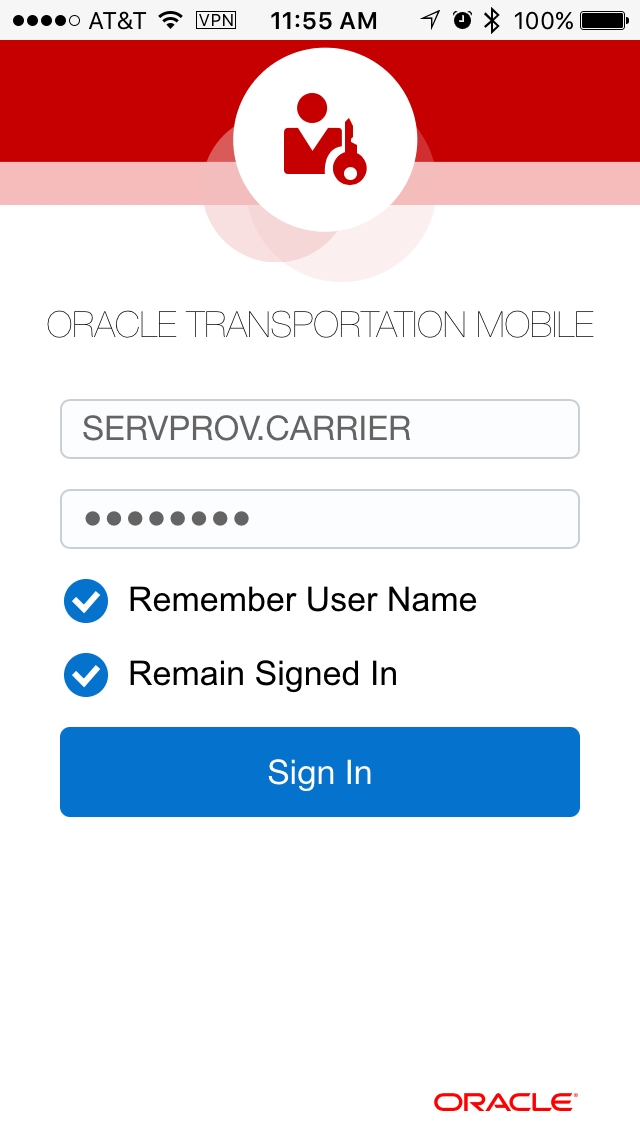
Sign In
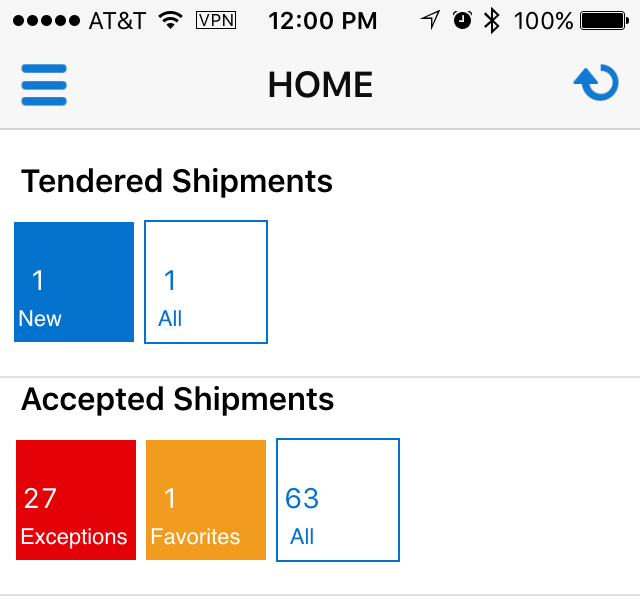
Springboard
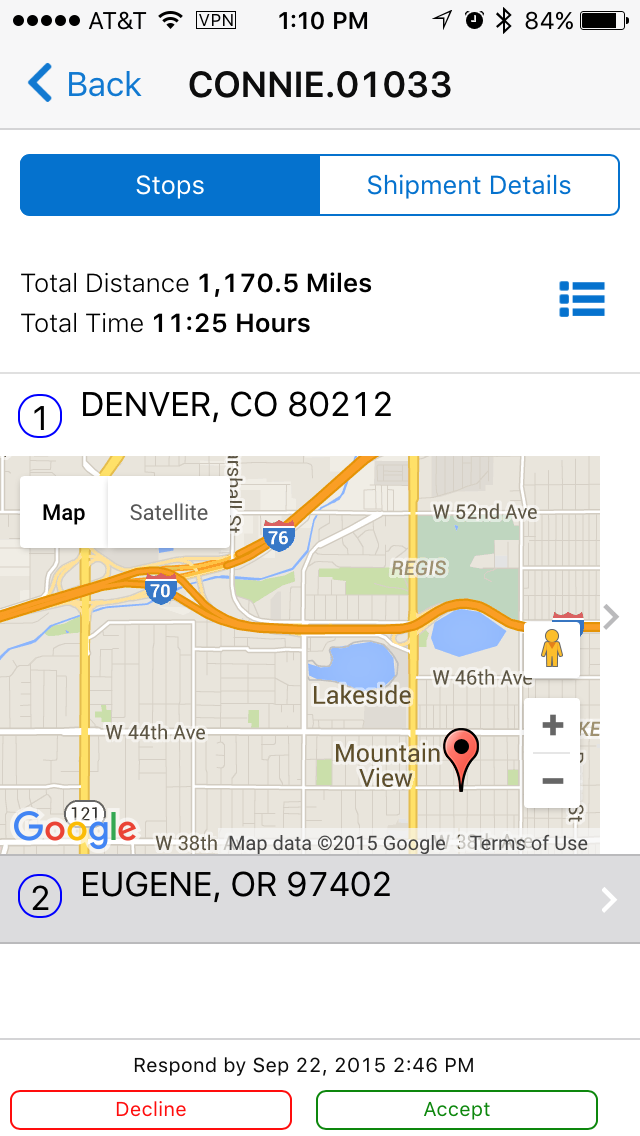
Map display
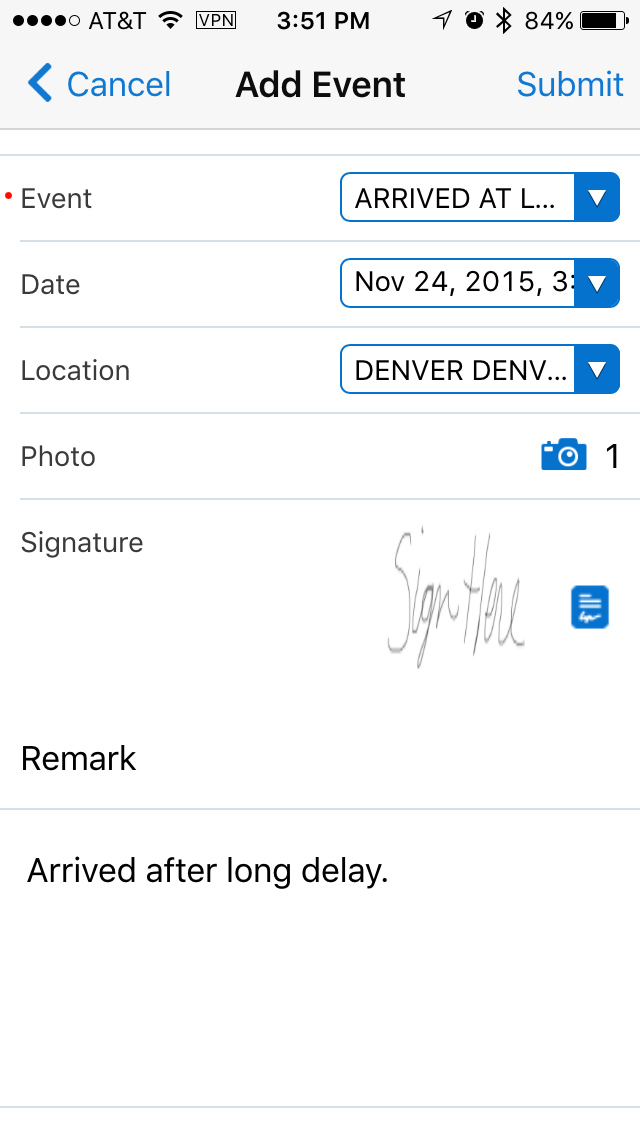
Signature capture
Steps to Enable
- Download the app to your device:
- Android app via Google Play
- iOS app via Apple’s App Store
- Enter the URL for the OTM instance to which you want to connect.
- The login screen will prompt you for a username and password.
- Once you have logged into the app, you will see the Springboard. The Springboard provides a dashboard-like view of the shipments which have been tendered to and accepted.
Key Resources
- See the 1.0 TOI: OTM Mobile Application Functional Overview for more information about this feature.
Tips and Considerations
- Aliases are not currently supported, so the user must enter full domain.user name and a corresponding password.
- The app is supported on all devices and versions certified by MAF 2.2. See Oracle Mobile Application Framework documentation for support details
- The app has been optimized for smart phones but it is also compatible with tablets
This enhancement provides the ability to easily copy an invoice using the new Copy Invoice action. This new action is extremely helpful in situations where a single/original invoice needs to be split into multiple invoices to separate out different charges for a customer.
This feature provides the following capabilities:
- The Copy Invoice action generates a copy of the selected invoice. The copied invoice will have a new ID and the copied Invoice Date and Date Received will display the date the Copy Invoice action was run to generate the copied invoice.
- The copied invoice contains all the details of the original invoice including routes and ports, invoice summary, stops, line items, and VAT. You can edit the copied invoice as needed to include the information desired. For example, you can separate charges related to taxes from the charges related to moving freight.
- If the original invoice was matched to a shipment, then as part of the Copy Invoice action, you can decide if you want the copied invoice to automatically match to the same shipment by selecting the Auto Match Invoice check box when running the Copy Invoice action. Copied invoices that are matched to the same shipment as the original invoice will have a MATCH NON ORIGINAL INVOICE status.
Steps to Enable
There are no specific steps to enable this feature.
New Agent Events for Invoice and Bill Objects
This enhancement providesa set of new agent events that you can use in defining your bill and invoice workflows.
The specific events added include the following:
- Invoice Line Item Created – raises an event when a new invoice line is created.
- Invoice Line Item Removed – raises an event when a new invoice line is created.
- Bill Line Item Created – raises an event when a new bill line is created.
- Bill Line Item Modified – raises an event when one of the attributes of a bill line – such as Description, Accessorial, Payment Amount, etc. is modified.
- Bill Line Item Removed – raises an event when a bill line is removed.
Steps to Enable
Other then configuring your agents to take advantage of these new events, there are no specific steps to enable this feature.
Flex Fields Added for Invoice Line Table
This feature provides you with an Invoice Line Table that has been enhanced to include a set of Flex Fields. The additional Flex Fields extend your ability to map operationally important data into OTM for information and data query purposes.
The following Flex Fields have been added to the Invoice Line Table:
- 20 Varchar2 fields
- 10 Date fields
- 10 Number fields
- 3 Currency fields
Steps to Enable
Other then configuring your screen set to make the fields visible, there are no specific steps required to enable this feature.
Multiple Secondary Charge Shipments Generated By One Secondary Charge Rule
This feature provides the ability to easily create multiple secondary charge shipments for one freight shipment using a single Secondary Charge rule. This feature greatly reduces the overhead required to create and multiple secondary charge rules.
The specific capabilities added for this feature include the following:
- The New/Edit Create Secondary Charge rule and View Secondary Charge rule screens have been modified to support the creation of multiple secondary charge shipments from a single secondary charge rule.
- A new grid allows you to specify the “Rate Offering ID”, “Rate Record ID” and “Service Provider ID” to use when generating multiple secondary charge shipments from a single secondary charge rule.
- The Build Secondary Charge Shipment screen and the related logic have been modified to create multiple secondary shipments based on a single secondary charge rule.
Steps to Enable
To take advantage of this feature, you will need to configure your Secondary Charge Rules to generate multiple secondary charge shipments.
Billing XML to Contain Cost Description and Accessorial Code
This feature enhances the Billing XML so that it now includes Cost Description and Accessorial Code information.
The following new elements have been added to the outbound XML for billing.
- Added to Release/ReleaseAllocationInfo:
- Cost Description
- Allocation Code
Steps to Enable
There are no specific steps required to enable this feature.
Allocate Order Release Specific Cross Dock Dwell Time Cost
This feature provides you with the ability to allocate the order specific dwell time charges that are totaled on the outbound cross dock secondary charge shipment related to the outbound cross dock shipment. The order specific cross dock dwell time cost allocation allows you to more accurately report the specific costs accrued by each order moving through a cross dock.
Steps to Enable
- Setup a rate to calculate the dwell time related charges at the cross dock.
- Set the Cost Multiplier Option set to “Collect All Cost” for the cross dock related rate.
- Plan a cross dock shipment with the related secondary charge shipment to calculate the dwell time charges for all the orders moving outbound from the cross dock.
- Allocate the secondary charge shipment and the calculated dwell time cost from the secondary charge shipment will be calculated and allocated by order.
Invoice Screen Set Changes - Pseudo fields
This feature provides additional screen set options that provide ore flexibility when configuring your Invoice UI.
Specifically, you can:
- Display statuses as a (P)/pseudo field in the results columns for the Invoice screen sets.
- Display Involved Party as a (P) pseudo field in results columns for Invoice screen sets.
Steps to Enable
There are no specific steps required to enable this feature.
Convert Shipment Costs Currency to Match the Invoice Currency on Invoice Approval Screen
This feature provides a new property that allows you to convert the currency amount fields on the invoice approval screen to the invoice currency.
This feature provides the following capabilities:
- You can control this feature by setting the property “glog.invoice.manualApprove.convertAmountFieldsToInvoiceCurrency”
- When the property is true, the amount fields on the approval screen will be converted to invoice currency.
- If the invoice currency is not provided, OTM will take the currency from the first invoice line of that invoice.
- For a consolidated invoice, OTM will take the currency from one of the invoices.
- When this property is false – the default setting - then no currency conversion will be done – which is the current behavior.
Steps to Enable
Other than setting the property file to enable the new capability, there are no specific steps required to enable this feature.
Split Rule - Invoice and Bill Splitting
This feature provides you with the ability to easily split your invoices and bills based on criteria that you define using a split rule. You will find this feature particularly useful if you are using OTM to generate customer bills and you are required to split out different charges (e.g., freight charges versus accessorial charges) based on your customer’s billing requirements and preferences.
The Split Rule processes your invoices and bills following he steps below:
- Before an invoice or bill is created, OTM determines if a split rule has been specified for the process being run.
- Process Management
- Generate All Auto-Pay Invoices
- Generate Bills for Sell-side Shipments
- Shipment Action
- Create Invoice
- Agents
- Shipment – Create Bill
- Shipment – Generate Invoice
- Parameter
- Bill Split Rule
- Invoice Split Rule
- If a Split Rule has been defined, OTM uses the defined Split Rule Criteria to determine the number of invoices/bills to generate.
- The available Split Rule Criteria is:
- Per Cost Line:
- Per Cost Line will generate a separate child invoice/bill for each shipment cost line.
- Per Cost Type:
- Per Cost Type will generate a separate child invoice/bill for each cost types defined for the shipment.
- Valid cost types: Accessorial, Base Cost, Circuitry, Delta, Discount, Stop-off, Other.
- Per Cost Accessorial:
- Per Cost Accessorial will generate a separate child invoice/bill for each of the accessorial codes on the shipment, an additional bill/invoice will also be created for the other non- accessorial costs.
Steps to Enable
There are no steps necessary to enable this feature.
Tips and Considerations
- The Split Rule functionality focuses on splitting invoices and bills by the defined criteria – the intended implementation of this functionality is that the split charges would - in most cases - then be grouped together using OTM’s consolidated invoice or consolidated bill functionality.
- For example, if you used the Split Rule functionality to generate a set of individual bills for a variety of different base charges and also used a Split Rule to generate a separate set of bills for your accessorial charges then after you have split out these charges you can then group the two types of bills (base and accessorial) into two separate consolidated bills: one with all the base charges and one with all the accessorial charges.
Parent Invoice/Bill ID Added to the Invoice/Bill Line Item Finders
This feature provides you with the ability to query for your invoice line items or bill line items using the parent invoice/bill ID.
With this feature you can:
- Search for all your invoice line items or bill line items related to a parent invoice/bill ID.
There are no steps necessary to enable this feature.
Transportation Operational Planning
This feature provides you with additional shipment group rule criteria to help with shipment level groupings. This feature also extends the shipment grouping concept and criteria so that you can now generate partial shipment groups. A partial shipment group is a shipment group where the relationship of the shipments in the group is based on criteria that are related to an order release, or an order release line or equipment. The flexibility provided by the new partial shipment group capabilities allows you to generate shipment groups that group information for specific documentation purposes or to support external business processes.
Specifically this feature provides the following capabilities:
- New Full Shipment matching rules – the Shipment Group Rules apply to the entire shipment
- Match Service Provider: If selected, all shipments in the group must have the same service provider.
- Match Service Schedule: If selected, all shipments in the group must have the same schedule instance.
- Match Port of Loading: If selected, all shipments in the group must have the same port of loading.
- Match Port of Discharge: If selected, all shipments in the group must have the same port of discharge.
- Match Reference Qualifier: If populated, then the value for all the shipments for this reference number must match. If this field is null, then the match rule is not in effect. This is the default. The reference table is SHIPMENT_REFNUM_QUAL.
- Match Involved Party Qualifier: If populated, then the value for all the shipments for this qualifier must match. If this field is null, then the match rule is not in effect. This is the default. The reference table is SHIPMENT_INVOLVED_PARTY. You can now group shipments by service provider.
- Partial Shipments matching rules and capabilities – the Shipment Group Rules apply, but not to the entire shipment only part of the shipment matches the defined rule.
- Same Equipment: Only order releases packed in the same equipment will be grouped together.
- Same Order Source: Only order releases with the same source location will be grouped together.
- Same Order Destination: Only order releases with the same destination location will be grouped together.
- Match Order Release Reference Qual: Only order releases with the same release reference number of this qualifier will be grouped together. The reference table is ORDER_RELEASE_REFNUM_QUAL.
- Match Order Release Line Reference Qual: Only order releases with the same release reference number of this qualifier will be grouped together. The reference table is ORDER_RELEASE_LINE_REFNUM_QUAL.
- Match Order Release Involved Party: Only order releases with the same involved party of this qualifier will be grouped together. The reference table is INVOLVED_PARTY_QUAL.
- The SHIP_GROUP_D_OR will be populated with matching order release and equipment information
- Other improvements
- Flex fields have been added to the Ship_group_rule table. You can use these new flex fields to store additional fields that should be copied over to all shipment groups that will be generated using this rule.
- A Create Shipment Groups process has been added to the Shipment Management list of processes.
There are no steps necessary to enable this feature.
Equipment Capacity Override Enhancement
This feature provides you with the ability to specify Equipment Capacity Overrides on legs (itinerary or network) by equipment group, service provider, and transportation mode. This feature also provides new planning logic to recognize capacity overrides on shared equipment legs.
These additional capabilities allow you to model some common scenarios:
- You can now model the scenario where your service providers purchase the same size trailers, but some service providers opt to purchase trailers made from different materials either heavier or lighter. The opportunity for you is to take advantage of the service providers with the lighter material trailers since this allows you to increase the net weight of the goods shipped when considering the gross weight, net weight, tare weight combination. By using the Equipment Capacity Override by service provider capabilities provided by this feature, you can increase the capacity (net weight capacity) of the equipment for those services providers that employ lighter material trailers versus service providers with the heavier trailers.
- You can now model the re-use equipment scenario where the equipment assigned for re-use across legs needs to be constrained by the most constraint capacity requirements based on the legs and locations involved in the route. For example a multi-leg scenario originating in a country that allows up to 45,000 pounds of freight to be loaded into a piece of equipment trailer that terminates in a country that only allows 43,000 pounds to be carried in the same piece of equipment can now be constrained to the most constrained capacity – in this case 43,000 pounds.
Specific capabilities provide by this feature include the following:
- In addition to Equipment Group and Mode, you can now specify capacity overrides on a leg (itinerary or network) by service provider.
- You can now specify capacity overrides considering any combination of Equipment Group, Service Provider and Transport Mode
- Supported combinations include:
- Capacity override for shipment
- Capacity override for service provider
- Capacity override for equipment group regardless of service provider or mode
- Capacity override for equipment group for particular service provider, regardless of mode
- Capacity override for mode
- Capacity override for service provider and mode
- Capacity override for equipment group and mode regardless of service provider
- Capacity override for equipment group and mode for particular service provider
- The planning logic has been enhanced to use capacity override line data when creating or modifying shipments.
- Capacity Overrides Considered on Shared Equipment Legs. When an order is being planned along legs that share equipment (reuse equipment), the choice of the equipment group will take into account the capacity override constraints on every leg that will share that equipment.
There are no steps necessary to enable this feature.
Show Network Routing Options for Order Movements
This feature provides two new order movement planning actions: “Show Network Routing Options” (SNRO) and “Show Network Routing Options – Ocean”. The “Show Network Routing Options” action generates a list of possible routing options for routing scenarios where there may or may not be a primary leg involved. The “Show Network Routing Options – Ocean” action generates a list of possible routing options and is similar to the “Show Network Routing Options” action but this action requires that there be a primary leg (typically the ocean leg) involved.
Steps to Enable
There are no steps necessary to enable this feature.
Tips and Considerations
- These new actions work with multiple order movements as long as they can be built in one order movement bundle.
- When performing full planning the order/order movement constraints can be applied to either the primary leg (if any) or the first leg in the route.
- When partial planning ("Build Shipment for First Leg Only" is true), the order/order movement constraints will be applied to the first leg.
- These actions reuse the same Java and XSL code as the Order SNRO action.
- The Logic Configuration - Network Routing parameter ALLOW MIXED EQUIPMENT GROUP ROUTING OPTIONS affects the “Show Network Routing Options” action.
Allocation Group ID Added to Itinerary Leg and Network Leg
This feature enables you to specify directly on the Itinerary leg or network leg the commitment allocation strategy that should be evaluated during planning. To establish the direct link between the itinerary or network leg and the commitment allocation record to be evaluated, specify on the leg, the Allocation Group ID to be evaluated in planning.
Steps to Enable
- Add the appropriate Allocation Group ID to your itinerary leg or network leg.
- Set the parameter Allocation Group Strategy to '1. Use Allocation Group on Leg' so that the allocation group specified on the itinerary leg or network leg is used to match the allocation group on the commitment allocation record.
Fast and Slow Arbitrary Stop Service Time
This feature provides the ability to have OTM select either the faster more expensive option (typically a truck service option) or the slower less expensive option (typically a rail service option) for the arbitrary stop portion of a shipment. When you enable this new feature, OTM will consider the different service levels and cost options on the arbitrary stop portion of your shipment and will select the overall low cost feasible option considering the multiple services options for the arbitrary stop portion of the shipment.
Steps to Enable
- Set up the different levels of service and rates.
- To enable this feature, set the parameter “USE LEVEL OF SERVICE FOR ARBITRARIES” to true. This parameter is in the “Rates" section of Parameter Sets. When set to “TRUE”, the level of service functionality for slow/fast arbitraries will be enabled.
- For backward compatibility, this parameter is set to “FALSE” by default. To enable the use of the new logic, this parameter must be set to “TRUE”.
Change Schedule Find Voyage Enhancement
This feature allows you to extend your search for alternate voyage schedule options allowing you to look for alternate voyages that involve different service providers, ports of load or ports of discharge, or different departure and arrival dates. Previously, the action “Change Schedule” limited you to considering only voyage options constrained to the same service provider and port of load and port of discharge – the enhanced capabilities greatly expand the options for identifying and assigning a new voyage to your shipment.
This feature allows you to search for alternative voyages by:
- Directly specifying a new Voyage ID.
- Entering a Service Provider Profile to show all the voyages associated with all the service providers in the profile. You can click the Exclude check box and enter a Service Provider Profile to show voyages for all service providers except for those specified in the excluded profile.
- Specifying the desired Port of Load and Port of Discharge. Port options can come from the source and destination via points on the shipment leg. If these are not defined, then the options can come from the port of load and port of discharge on the shipment itself. You have the ability to specify any number of ports. If none are selected, it is as if all valid ports are selected.
- Entering the desired Earliest Departure Time for the voyage - which will be the earliest date the new voyage can depart from the port of load.
- Entering the desired Latest Arrival Time for the voyage - which will be the latest date the new voyage can arrive at the port of discharge.
Steps to Enable
There are no steps necessary to enable this feature.
Add and Remove Partial Shipment Group Actions
This feature provides two new partial shipment group actions that allow you to add or remove partial shipments from a shipment group. This additional flexibility allows you to fine tune what partial shipment elements are included in a shipment group.
Specifically this feature provides the following:
The Shipment and Shipment Group Managers now provide two UI actions that allow you to add and remove partial shipments from a shipment group. The new actions are "Add Partial Shipments to Group" which allows you to add items to an existing partial shipment group and “Remove Partial Shipments from Group” which allows you to remove items from an existing partial shipment group.
There are no steps necessary to enable this feature.
This feature provides the ability to specify commitment allocation by service provider and by service provider and rate offering – previously the commitment allocation selection was lane based. This additional criteria allows you to further segment the lane based commitment allocation by considering the additional criteria of service provider and service provider and rate offering.
With this new capability, you can specify Commitment Allocations that:
- Are based on the different service providers on the lane (or lane and allocation group) - previous behavior.
- Are based on specifying the same service provider, but with different rate offerings.
- Are a mix of some service providers with the rate offerings specified and some without any rate offerings specified.
Steps to Enable
Beyond adding the optional criteria of either service provider or service provider and rate offering to your commitment allocation records, there are no additional setup steps required to enable this feature.
Tips and Considerations
- When entering a combination of both service provider and rate offering the rate offering specified should be one of the service provider’s rate offerings.
- The service provider and rate offering need to be unique among allocation details for a specific commitment allocation. For a service provider, either create detail records that do not specify any of the service provider’s rate offerings, or create detail records that specify one or more of the service provider’s different rate offerings.
- Note: Allocation by rate offering is supported for setup, tracking, and service provider. Allocation by rate offering is not supported for route selection or container optimization.
Shipment Ship Unit Height Estimate
This feature provides a way to have OTM make improved mode decisions in repack scenarios where the shipment ship units are comprised of items packaged in packaging of various sizes and the modal decision is dependent on rates related to dimensions e.g., air freight.
Specifically, this feature handles the situation where your ship unit spec is defined as an “on” shipment ship unit spec and OTM’s repack logic is repacking the ship unit in a mixed freight situation where the height cannot be accurately calculated due to the variety of package sizes loaded on the shipment ship unit.
Steps to Enable
- The new ship unit height estimate is controlled by a property:
- glog.business.order.estimateShipUnitHeight.
- The default value = “FALSE”.
- To use the height estimate functionality, set the property to “TRUE”.
- The calculation – when the property is set to “TRUE” and the scenario involves a mixed freight, non-TiHi scenario is as follows:
- The height is initially estimated by dividing the net volume of all the lines on ship unit by the area of the transport handling unit (length x width).
- The initial estimate can/will be adjusted by an adjustment factor property:
- The adjustment property is glog.business.order.shipUnitHeightAdjPercentage.
- The default value is 20 meaning 20%.
- If the estimated height equals H, OTM will adjust H to H * (1 + 20%).
- If Max On Height of the transport handling unit is defined and the estimated height is higher than this value, then the Max On height of the transport handling unit will be set as the ship unit height.
- If the estimated height is smaller than the largest height of all the lines, then the largest height of all the lines will be used.
- The estimated height will be calculated even in situations where there are a mix of full TiHi shipment ship units and partial shipment ship units. In this scenario, the full TiHi shipment ship units will be calculated without invoking the estimation logic. The partial shipment ship unit will use the estimation logic to calculate the height of the partial shipment ship unit.
Tips and Considerations
OTM is able to calculate the height in a (TiHi) situation where the tiers are comprised of the same item. This feature is specifically meant to address situations where the tiers are comprised of a mix of items with different package sizes.
Multi-stop Shipment Conopt Merge Algorithm
This feature provides a new multi-stop planning feature that allows OTM to split shipments to create full capacity multi-stop shipments. For example, given two orders of 60 units each coming from the same source location and going to two different destination locations – with an assumed equipment capacity of 100 units. This feature will provide a solution that will allow for the splitting of the shipments to create a single (fully utilized) multi-stop shipment at 100 units and another shipment with the remaining 20 units.
Some additional examples where the new Conopt Merge algorithm provides benefits:
- Where you have orders sourced from a single location going to multiple destinations.
- Consider 5 direct shipments from source A to destinations B, C, D, E, and F.
- Each of these shipments requires 60 units of capacity on a piece of equipment with a capacity of 100.
- OTM will intelligently split the 5 direct shipments to create 3 fully utilized multi-stop shipments.
- Where you have multiple sources all shipping to a single destination location.
- Consider 5 direct shipments from source locations B, C, D, E, all going to one destination location A.
- Each of these shipments requires 60 units of capacity from a piece of equipment with a capacity of 100.
- OTM will intelligently split these 5 direct shipments to create 3 fully utilized multi-stop shipments.
Steps to Enable
- Go to the LOGIC CONFIGURATION - MULTISTOP parameter set.
- In the MULTISTOP CONSOLIDATION section, set the MULTI-STOP CONSOLIDATION ALGORITHM TYPE to 'Conopt Merge'.
Via Location Routing Constraint From Itinerary
This feature provides enhanced Network Routing and Shipment Building logic that allows you to use Routing Constraints to specify the number of allowable ports of load (POLs) and ports of discharge (PODs) for routing an order release.
Steps to Enable
- You can enable this feature via the parameter "USE ROUTING CONSTRAINT FOR PORT SELECTION".
- Allowable ports of load and ports of discharge are then defined on the Routing Constraint manager. This allows you to specify ports of load and/or ports of discharge to be used as routing constraints. Port of load and port of discharge refer to the ports that are used for the ocean shipment, whether or not they are source/destination locations on the shipment, or just via points on a shipment with arbitraries.
Tips and Considerations
- This functionality is available for building a shipment from one or more order releases with Network Routing enabled, such as bulk plan, Show Network Routing Option, Show Network Routing Option-Ocean, and Build Shipment - Direct.
- It is not available for order movement planning. Nor is it available for any rate inquiry since there is no routing constraint input for rate inquiry.
- On the Routing Constraint manager, the Routing Constraint Type must be set to All.
- Define the ports of load and ports of discharge by setting the Sequence Number on the Routing Constraint manager: Set to "1" to specify a port of load and "2" to specify a port of discharge.
- The routing constraints provided will constrain the selection of ports for routing.
Fusion Transportation Intelligence (FTI)
This feature provides a new way to create and upload (mass upload) target data using a comma separated values (CSV) file.
Steps to Enable
- Upload Targets
- Upload Target CSV has been added as an option to upload the KPI targets using a (CSV) file. This option is available under Transportation Intelligence > Power Data > Transportation Intelligence
- Run Targets
- A separate ETL process which runs independently of the ETL process for data is available to load these uploaded targets into HDOWNER.
- This separate ETL process allows for the faster execution and loading of target data into HDOWNER.
- The separate ETL process is available under Transportation Intelligence > Process Management > Run Targets.
Key Resources
- For details on adding custom KPIs, see the FTI Reference Guide.
This feature provides you with a set of pre-defined FTI dashboards that provide you with a clean modern design and are easier to understand and use.
Design improvements include:
- The prompts/filters have been moved from the top of each dashboard tab to the left side.
- Similar filters are now grouped together into two groups: Time Period filters and Region filters.
- All week and quarter filters have been removed from the period filters.
- The Apply button was removed from the prompts/filters.
- KPI Watchlists have been added to the following dashboards:
- ServProv Main Dashboard
- CPG Main Dashboard
- LSP Host Dashboard
- LSP Customer Dashboard
- Main Dashboard
- Targets are now shown using the KPI Watchlist .
- KPI and KPI Watchlists replace the old Power Data feature for creating targets. The new KPI and KPI Watchlists feature simplifies the creation, maintenance and usage of KPIs.
- Target values can now be created, edited and deleted from the analytics UI using the write back feature making it more user-friendly.
Steps to Enable
There are no steps necessary to enable this feature.
This feature provides you with access to the latest features available in Oracle’s flagship ETL/ELT high-performance bulk data movement and data transformation tool.
This upgrade provides access to the following improvements:
- An upgrade to the ODI master and work repositories from ODI 11g to ODI 12c.
- Increased availability as an agent running on admin server can be deployed on the whole cluster.
- Oracle Enterprise Manager (OEM) can be used to manage the ODI JEE agents (agent discovery and health monitoring).
- Reusable mapping logic making ETL more efficient.
- Support for multiple targets.
- A step by step debugger.
- Unique Repository IDs.
Steps to Enable
Once the upgrade is complete, there are no additional steps required to take advantage of this feature.
Rate Analytics – Shipment Cost By Rate Dimensions
This feature provides the ability to slice all shipment facts like shipment cost, etc. with rate offering and rate record dimensions. These additional dimensions will help you with your rate offering and rate record usage analysis.
This feature provides the following changes:
- Added Rate Offering and Rate Record Dimension folders into Shipment Analysis folder.
- New Rate analysis folder which is similar to Shipment Line analysis including Rate Offering and Rate Record Dimension folders.
Steps to Enable
There are no specific required to enable this feature.
Tips and Considerations
Rate Service GID in the Shipment dimensions has been deprecated. You should use the Rate Service GID available in the Rate Offering Dimensions folder.
Equipment Group Dimension Added to the Shipment Analysis Folder
This feature provides you with the ability to, within the Shipment Analysis folder, perform your shipment analysis dicing the data by equipment group.
The Equipment Group dimension folder has been added to the following analysis folders:
- Shipment Order Release Analysis
- Shipment Order Release Line Analysis
- Shipment Analysis
- Shipment Line Analysis
- Shipment Stop Pickup Analysis
- Shipment Stop Delivery Analysis
- Shipment Stop Analysis
Steps to Enable
There are no specific required to enable this feature.
Order Release Dimensions and Shipment Dimensions Added to the Shipment Order Release Folder
This feature provides you with the ability to combine your shipment dimensions with your order release dimensions in one report. Using this feature, you can generate on-time reports that allow you to incorporate both your order release pickup and delivery dates with your shipment pickup and delivery date information.
Changes made for this enhancement include the following:
- Dimensions specific to shipment analysis and relevant in the context of order releases are now added to the Shipment Order Release folder.
- Additional shipment dimensions have also been added to the Shipment Order Release folder.
Steps to Enable
There are no specific required to enable this feature.
FTI time duration columns were updated
This feature provides you with a series of improvements to an assortment of time and duration columns.
Improvements made for this enhancement include the following:
- F_BULK_PLAN_DETAIL.TOTAL_SHIPMENT_TIME_SECS: Applied the Absolute function.
- F_CARRIER_TENDER_PERFORMANCE.DECLINE_TO_PICKUP_TIME_DIFF: Updated the tooltip to include UOM as Hours.
- F_ORDER_RELEASE_DETAIL.ACTUAL_TRANSIT_TIME_HOURS: Applied the Absolute function.
- F_SHIPMENT_DETAIL.PLANNED_TRANSIT_TIME_HOURS: Changed the calculation to hours to match name of column. Also, applied the Absolute function and updated the tooltip.
- F_SHIPMENT_STOP_ACTIVITY_D.TOTAL_DIFF_HOURS: For ‘Planned to Actual Arrival Time Diff Hours’ removed the Absolute function and for ‘Average Hours Outside Delivery Time’ applied the Absolute function.
- F_SHIPMENT_STOP_ACTIVITY_D.TOTAL_DIFF_HOURS: For ‘Planned to Actual Arrival Time Diff Hours’ removed the Absolute function and for ‘Average Hours Outside Delivery Time’ applied the Absolute function.
Steps to Enable
There are no steps necessary to enable this feature.
This feature enables you to define the availability of resources (drivers) and then have the defined resource availability information considered in your overall transportation plan.
With this feature, you can easily define the number of available resources, the start and end location for the available resources and the time those resources will be available. For example, using this feature, you can specify the availability of your driver resources by shifts where 10 drivers arrive at 8:00 am with an additional set of 6 drivers starting at noon. The resource schedule information you provide will then be used by bulk planning to create plans that incorporate your defined resource and their availability.
This feature provides the following new capabilities:
- Resource Schedule
- A new “template” that holds information about your anticipated reoccurring resource availability. In situations where the availability of your resources is predictable and repetitive, the resource schedule allows you to define that availability profile once. Then OTM will automatically generate the day to day resource availability information – or Resource Schedule Instances.
- Resource Schedule Instance
- Is where you define the availability of your available resources for a specific location and time. The Resource Schedule Instance allows you to fine tune the resources to be considered in your day to day planning activities. The resource instance can be automatically created by a Resource Schedule (as mentioned above), or it can be created or modified as needed before you run your daily plans.
- Resource Schedule Profile
- Allows you to identify the set of Resource Schedules that should be considered when running a bulk plan.
- Work Assignment
- A work assignment represents the unit of work (set of shipments) that consumes the available resources defined by the Resource Count field on the Resource Schedule Instance.
- Work assignments can be created by the Create Work Assignment action on a shipment, or by the Create Work Assignment action on a resource schedule instance.
- Work assignments are also the output of the Fleet Aware Bulk Planning process.
Steps to Enable
To enable the Fleet Aware Bulk Planning process (and the automatic generation of work assignments):
- Network Routing logics must be turned on
- The FLEET AWARE BULK PLAN parameter must be set to true.
Key Resources
See the 6.4 TOI: OTM Fleet Aware Planning Functional Overview for more information about this feature.
This feature provides you with a completely new way to define your Fleet Dispatch Board workspaces. The new Workbench Designer provides a WYSIWYG-like environment that allows you to easily configure your interactive fleet workspaces. With the Workbench Designer, you can quickly setup a Workbench that pulls together and relates all the information you will need to perform your specific Fleet tasks – including visualizing the Fleet assignments geographically on a map (Here.com or ALK Maps), or overtime on a Driver-Gantt chart or in a traditional tabular view. The Workbench Designer allows you to easily create and relate driver, shipment and order information in a dynamic interactive environment. See Workbench Designer and Workbenches for more details.
The list of Workbench features:
- Objects supported by the Workbench Designer include
- Shipment
- Order Release
- Order Movement
- Driver
- New and improved capabilities
- Driver Gantt-chart
- Map based Drag-drop interaction on Grids, Map and Gantt-chart
- Direct connectivity to ALK Maps and Here.com
- Master Table Template/Detail Table Template
- Drag and drop between tables
- Totaling
Steps to Enable
There are no steps necessary to enable this feature.
Key Resources
- Help topic - Create New Workbench Layout – this demonstration walks you through the creation and basic editing of a workbench.
- Help topic - Create Shipment, Shipment Stops, and Map Layout - this more advanced demonstration shows how to create a workbench layout which contains a shipment grid and a related shipment stops grid as well as a map.
- Help topic - Use the Shipment, Shipment Stops, and Map Layout part 1 - this demonstration shows how to use the basic functionality enabled by the workbench as it relates to display configuration, information displayed and basic actions available to you for the shipment, shipment stops, and map within the workbench.
- Help topic - Use the Shipment, Shipment Stops, and Map Layout part 2 - this demonstration expands on part one and investigates the more advanced mapping functionality available to you in the workbench.
Work Assignments - Managing Shipments on the Route
This feature provides the ability to manipulate work assignments by adding shipments to or removing shipments from work assignments.
New actions:
- Add Shipment To Work Assignment: Run this action to add a shipment to a work assignment. Select a shipment. Then place it into a specific sequence within the string of existing shipments already associated with the work assignment. After selecting the shipments, you can specify the order of shipments.
- Remove Shipment From Work Assignment: Run this action to remove a shipment from a work assignment. Select shipments on a work assignment and after they are removed, you can reorder the remaining shipments on the work assignment.
Steps to Enable
There are no steps necessary to enable this feature.
New Hover Pop-ups for Map and Gantt Chart Views
This feature provides you with additional information in the hover text provided for the Task Level (Continuous Move) and the Shipment Level.
Steps to Enable
- New properties have been added that allow you to choose up to 4 shipment flex fields that you can use to populate and display information on the Gantt and Map UI.
- You can set any or all of the following properties:
- glog.timechart.tooltip.task.flexfield1
- glog.timechart.tooltip.task.flexfield2
- glog.timechart.tooltip.shipment.flexfield1
- glog.timechart.tooltip.shipment.flexfield2
- The property values can be any of the columns between ATTRIBUTE1 and ATTRIBUTE20.
- One or more flex fields can be used to populate the task information, and the others may contain shipment information that you want to display.
Oracle Transportation Sourcing
This feature provides you with the tools you need to do mass data loading of new rate offering and rate record data. The new Rate Maintenance feature allows you to easily populate spreadsheets with your rate offering and rate record using a rate load definition template. Once the template has been populated with your rate data, it can then be loaded into OTM, where it will be verified, reviewed, and then approved for use in OTM for planning and payment purposes.
Rate Maintenance provides the following major capabilities:
- Manage Rate Load Definition
- Enables you to define the template structure to be used to either load new rates or download and update existing rates. The rate load definition provides lots of control when defining the rate offering and rate record attributes you want to include in your rate load definition template spreadsheet.
- Download Rates
- Enables you to download your rate load definition spreadsheet with or without the rates associated with the rate offering associated to the template.
- Upload Rates
- Enables you to upload and validate the rate load definition spreadsheets that have been populated with rate data.
- Approval Summary
- Enables you to review and approve your rate offering and rate record information before the information is made available to OTM for operational usage.
Steps to Enable
- Create and manage your rate load definitions.
- Download your rate load definition.
- Populate and/or modify the rate load definition with your rate information.
- Upload your rate load definition.
- Validate and approve your new/changed rates.
Oracle Forwarding and Brokerage Operations
Itinerary Profile, Port of Load and Port of Discharge Added to Quote
This feature provides additional criteria to use in rate lookup during the quote process.
The following optional pick list fields have been added to the Quote Request tab in the Quote screen:
- Port of Load, (added in Origin & Destination section)
- Port of Discharge (added in Origin & Destination section)
- Itinerary Profile (added to the Rates section).
Steps to Enable
By entering values for the newly added fields (Port Of Load, Port Of Discharge, and Itinerary Profile) you can filter the shipping option results.
Tips and Considerations
There is no change in existing functionality. The new fields are optional. The data in these fields is not persisted to the database. They are used only in the context of filtering the shipping options provided in the Quote screen.
Oracle Global Trade Management
Global Trade Management (Base)
This feature provides a powerful decision support tool that will help you to dramatically improve your global sourcing decision making processes. With the landed cost simulator, you can simultaneously model and compare different sourcing options considering key sourcing factors like product price, international freight charges, insurance, duties and taxes, as well as, different countries of origin, INCO terms and modes of transportation. The Landed Cost Simulator lets you easily model and compare (graphically) your different sourcing options.
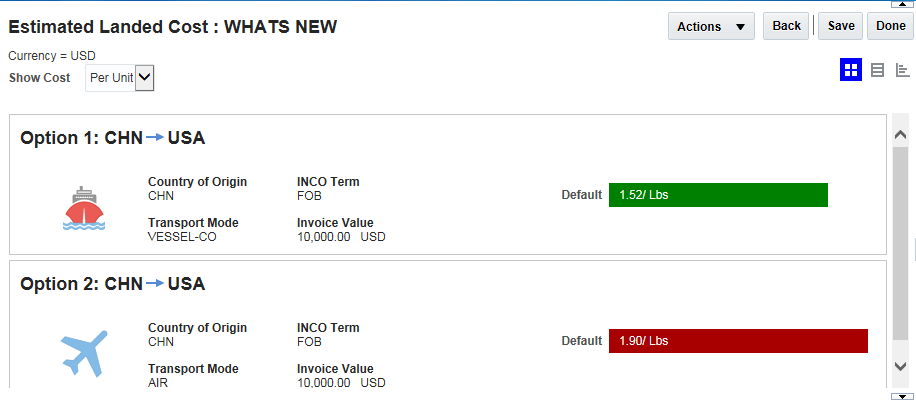
Estimated Landed Cost – scenario option review
The new Estimated Landed Cost (ELC) Simulator provides the following capabilities:
- Allows you to easily create multiple ELC formulas for different criteria such as Country of Import, Country of Export, INCO Terms
- Automatically estimate the costs included in each of the defined ELC formulas
- Provides you with Customs Valuation
- Incorporates an estimate of the Duty & Taxes associated with each option considered
- Greatly simplifies your decision making by providing a graphical illustration of the results
- Provides opportunistic visibility into the financial benefits of available Trade Agreements
The steps involved in running a landed cost simulation are straight forward:
- Define information about the product to be imported including the classification and value.
- Define the country of import.
- Identify the various sourcing options and attributes that will be considered in your simulation. Key attributes like sourcing county, mode of transport, INCO Terms, invoice value, freight cost, insurance cost handling cost, assorted fees etc. can all be considered in the different sourcing options you want to evaluate.
- Run the landed cost simulator. When you run the landed cost simulator, GTM will call out to an external tax engine to get the duty and taxes associated with each of the sourcing options you have specified and will incorporate this information into the calculated landed cost for each of the sourcing options entered.
- Review the results of the simulation run. The landed cost simulator provides a summarized graphical display of sourcing options with detailed drill down capabilities into the assorted costs that have been incorporated in the various sourcing options being modeled.
Steps to Enable
- Setup your Cost Model. A Cost Model is a conceptual grouping of the various GTM objects and capabilities enhanced and configured to produce the charges and costs involved in an international trade transaction The GTM Cost Model Objects include:
- Value Qualifier – Type of cost
- For example - FOB Value, Int Freight, Insurance, Tax, Duty, Totals
- Value Set – Collection of -costs
- For example - Base Value Set, USA ELC Value Set, Mex ELC Value Set
- Formula Expression – Defines how costs are calculated
- Brokerage Fee = 2% of FOB Value, Storage Fee = $10 Per Unit
- Compliance Rules – Conditions for when and what will apply
- If [ =Country of Import = GBR] then Apply Brokerage Fee = Brokerage Fee Formula
- If [Country of Import= USA] then Apply = Mex ELC Value Set
- Establish connectivity to Descartes for your Duty and Tax calculations.
- The Duty and tax calculation is supported via a standard integration to Descartes a subscription to Descartes is required for this service.
- Descartes provides duties, taxes, vat, excise, other taxes (MPF, HMF) etc.
- Use GTM’s enhanced Business Rule Framework (Logic Configuration and Compliance Rules) to define the Landed Cost Model Configurations you want to consider and the Value Set Assignment and Formula Assignment to use.
- You will use the Logic Configuration to define your Landed Cost Model Configurations. GTM will assign costs (and any other related values) to the landed cost simulation shipment based on business rules specified in the Logic Configuration.
- GTM ships with a default Logic Configuration "GTM LANDED COST SIMULATOR DEFAULT”.
- You will use the enhanced Compliance Rules to for Value Set and Formulas Assignment.
- You will use the new Utility Framework to configure your required Estimated Landed Cost mathematical expressions.
- Formula expression – use the new formula engine to create mathematical expressions like (+, -, *, / etc).
- Used to model different charge definitions
- For example define the cost as (Bank Fee = 20 % of FOB Value)
- Used to define expressions
- For example define the expression (FOB Value + Insurance + 30% of Freight) A+B+C
- Used to define formulas
- For example define the formula (Insurance = 5% of FOB Value) D=E+F
- GTM’s Allocation and Rollup capabilities are used to share cost across the model or sum up cost in the model.
Key Resources
- A Landed Cost section has been added to the How To topics in Help. Topics covered include:
- Landed Cost Simulator
- Process Management: Landed Cost
- GTM Power Data
- See the 6.4 and 6.4.1 TOI: GTM Landed Cost Simulator Functional Overview for more information about this feature.
Estimate Landed Cost Calculation
This feature provides you with the ability to estimate the landed cost for your customs shipments. The enabled process will assign all the applicable charges and their related formulas, as well as invoke a call to an external tax engine (Descartes) to get an estimate of the related duties and taxes.
With Estimated Landed Cost Calculation feature under Customs Management you will be able to:
- Create multiple ELC formulas for different criteria like Country of Import, Country of Export, INCO Term etc.
- Estimate the costs included in the ELC formula
- Carry out Customs Valuation
- Estimate Duty & Taxes
- Calculate the ELC value for their customs declaration
Using the Estimated Landed Cost Calculation feature you can:
- Enter values on your Customs Shipment for Invoice Value, Int’l Freight, and Insurance
- Assign a Base Value Set (Applicable Value Qualifiers)
- FOB Value, Bank Fee, Brokerage Fee, Storage Fee, Assist etc
- Assign a Base Formula (Calculate Charges/Cost Per Value Qualifier)
- FOB Value, Assist Freight etc
- Allocate FOB Value, Insurance and Int’l Freight to lines based on gross weight
- Use the Convert UOMs action to Calculate Duty and Tax UOM’s
- Run the Estimate Duty and Taxes action
- Customs Shipment and Shipment Lines Level Duties and Taxes
- Sum up Duties to Customs Shipment using Sum Up Action
- Calculate Estimate Landed Cost on Customs Shipment
Steps to Enable
The Estimated Landed Cost Calculation feature and the Land Cost Simulator share the same underlying setup capabilities and steps.
- Setup your Cost Model. A Cost Model is a conceptual grouping of the various GTM objects and capabilities enhanced and configured to produce the charges and costs involved in an international trade transaction The GTM Cost Model Objects include:
- Value Qualifier – Type of cost
- For example - FOB Value, Int’l Freight, Insurance, Tax, Duty, Totals
- Value Set – Collection of costs
- For example - Base Value Set, USA ELC Value Set, Mex ELC Value Set
- Formula Expression – Defines how costs are calculated
- Brokerage Fee = 2% of FOB Value, Storage Fee = $10 Per Unit
- Compliance Rules – Conditions for when and what will apply
- If [ =Country of Import = GBR] then Apply Brokerage Fee = Brokerage Fee Formula
- If [Country of Import= USA] then Apply = Mex ELC Value Set
- Establish connectivity to Descartes for your Duty and Tax calculations.
- The Duty and tax calculation is supported via a standard integration to Descartes. A subscription to Descartes is required for this service.
- Descartes provides duties, taxes, VAT, excise, other taxes (MPF, HMF) etc.
- Use GTM’s enhanced Business Rule Framework (Logic Configuration and Compliance Rules) to define the Landed Cost Model Configurations you want to consider and the Value Set Assignment and Formula Assignment to use.
- Use the Logic Configuration to define your Landed Cost Model Configurations. GTM will assign costs (and any other related values) to the landed cost simulation shipment based on business rules specified in the Logic Configuration.
- Use the enhanced Compliance Rules for Value Set and Formulas Assignment.
- Use the new Utility Framework to configure your required Estimated Landed Cost mathematical expressions.
- Formula expression – use the new formula engine to create mathematical expressions like (+, -, *, / etc).
- Used to model different charge definitions
- For example define the cost as (Bank Fee = 20 % of FOB Value)
- Used to define expressions
- For example define the expression (FOB Value + Insurance + 30% of Freight) A+B+C
- Used to define formulas
- For example define the formula (Insurance = 5% of FOB Value) D=E+F
- GTM’s Allocation and Rollup capabilities should be used to share costs across the model or sum up costs in the model.
Key Resources
A new section has been added to the How To topics in Help “Landed Cost Calculation on a Trade Transaction”. Topics covered include:
- Assign Costs to Calculate Duty and Tax Base Amounts.
- Calculate Costs and Other Values.
- Prepare Duty and Tax UOMs.
- Estimate Duty and Taxes for Trade Transaction.
- Assign Costs to Calculate Landed Cost.
- Calculate Costs and Landed Cost.
Global Trade Intelligence (GTI)
Involved Party Location Dimensions Added
This feature provides the additional involved party location dimensions required to perform involved party analysis by city, province, province code, postal code, and country name.
- GTI involved party location dimensions added:
- City
- Province
- Province code
- Postal code
- Country name
- GTI involved party location dimensions added to the following analysis folders:
- Trade Transaction
- Trade Transaction Line
- Custom Shipment
- Custom Shipment Line
There are no specific steps required to enable this new functionality.
Product Classification Code Added to Product Classification Analysis Folder
This feature allows you to display the Product Classification Code instead of the Product Classification Code GID in the Product Classification Analysis folder.
Steps to Enable
There are no specific steps required to enable this new functionality.
Additional Dimensions Added to the Trade Transaction Line and Customs Shipment Line Folders
The following dimensions have been added to the Trade Transaction Line Analysis and Customs Shipment Line Analysis folders.
- Authorization
- Country of Origin
- Country of Manufacture
Steps to Enable
There are no specific steps required to enable this new functionality.
Item Analysis Folder Additions
This feature adds the Item XID to the Item Analysis folder under Item Dimensions and also adds the Supplier location columns to the Item Analysis folder under Item Supplier Dimensions.
Steps to Enable
There are no specific steps required to enable this new functionality.
Links Provided from GTI to GTM
This feature provides the ability to link between the data in GTI to the corresponding data in GTM.
Linked data objects include:
- Trade Transaction
- Trade Transaction Line
- Customs Shipments
- Customs Shipment Line
- Item
- Parties
Steps to Enable
There are no specific steps required to enable this new functionality.
This feature provides you with statuses for the Trade Transaction Analysis, Trade Transaction Line Analysis, Customs Shipment Analysis, and Customs Shipment Line Analysis folders:
- Control Screening
- Product Classification
- Restricted Party List Screening
- Sanction Country Screening
Steps to Enable
There are no specific steps required to enable this new functionality.
---

Copyright © 2016, Oracle and/or its affiliates. All rights reserved.
This document is provided for information purposes only, and the contents hereof are subject to change without notice.This document is not warranted to be error-free, nor subject to any other warranties or conditions, whether expressed orally or implied in law, including implied warranties and conditions of merchantability or fitness for a particular purpose. We specifically disclaim any liability with respect to this document, and no contractual obligations are formed either directly or indirectly by this document. This document may not be reproduced ortransmitted in any form or by any means, electronic or mechanical, for any purpose, without our prior written permission.
Oracle and Java are registered trademarks of Oracle and/or its affiliates. Other names may be trademarks of their respective owners.
Intel and Intel Xeon are trademarks or registered trademarks of Intel Corporation.All SPARC trademarks are used under license and are trademarks or registered trademarks of SPARC International, Inc. AMD, Opteron, the AMD logo, and the AMD Opteron logo are trademarks or registered trademarks of Advanced Micro Devices. UNIX is a registered trademark of The Open Group.
