

This document will continue to evolve as existing sections change and new information is added. All updates appear in the following table:
| Date | Feature | Notes |
|---|---|---|
| 09 APR 2018 | Updated document. Revised feature description. |
|
| 13 MAR 2018 | Updated document. Revised feature description. |
|
| 13 MAR 2018 | Mobile for iOS | Updated document. Revised feature description. |
| 20 FEB 2018 | Support of Contingent Workers |
Removed feature from Release 18A. |
| 20 FEB 2018 | Video Chat | Removed feature from Release 18A. |
| 19 JAN 2018 | Created initial document. |
This guide outlines the information you need to know about new or improved functionality in Oracle Field Service Cloud, 18A Release. Each section includes a brief description of the feature, the steps you need to take to enable or begin using the feature, any tips or considerations that you should keep in mind, and the resources available to help you. For a listing of browsers supported by Oracle Field Service Cloud, log in to our support site and access Answer ID 8215.
Give Us Feedback
We welcome your comments and suggestions to improve the content. Please send us your feedback at http://documentation.custhelp.com/ci/documents/detail/5/4/12.
| Action Required to Enable Feature |
||||
|---|---|---|---|---|
| Feature |
Automatically Available |
End User Action Required |
Administrator Action Required |
Oracle Service Request Required |
 |
||||
|
||||
|
||||
|
||||
|
||||
View Activities and Resources Used for Calculations of Available Capacity |
|
|||
|
||||
Broadcasting for Supervisor Group and Helpdesk via Collaboration |
|
|||
|
||||
|
||||
|
||||
|
||||
|
||||
|
||||
|
||||
|
||||
|
||||
|
||||
|
||||
|
||||
Assign Activities to Temporary Resources via Urgent and Immediate Routing |
|
|||
|
||||
|
||||
|
||||
Trigger Immediate and Urgent Routing Upon Changing Activity Property |
|
|||
|
||||
|
||||
|
||||
|
||||
|
||||
|
||||
The table in the Feature Summary section above offers a quick view of the actions required to enable each of the February 2018 (18A) features for customers upgrading from the August 2017 (17.8) release. If you are upgrading from a prior release, additional actions may be required in order to enable the new features or functionality. For more information about the feature upgrade or the actions required, see the section of the document as indicated in the Feature column.
Some of the new February 2018 Release features are automatically available to users after the upgrade and some require action from the user, the company administrator, or Oracle.
NOTE: The 18A update is only available to customers hosted in an Oracle Data Center.
With the February 2018 (18A) release, a new report Configuration History is now available. This report provides the ability to view the list of changes made in the Configuration settings in an instance.
This feature includes the following functionality:
- The report will display the list of changes made to the Configuration settings within the application.
- The changes will include additions, deletions, and modifications of Configuration settings.
- The user will have the ability to search and filter the log based on multiple criteria.
Here is an example:

Configuration History Report Example
Known Behavior:
- The 'Find' option within 'View' is applicable only for the Old value and New value columns, it is not available for the Identifier column.
- When searching:
- The Old value and New value columns can only be searched using the value of the field and not the field name. For example, for the entry 'Activity Type: Install', users can search on the word 'Install', but not on 'Activity Type'.
- Users can be searched using the User ID and not the User Name.
- Some fields may display the IDs of the values instead of the actual values. For example, Design Theme: 2 or Time Slots can have values such as 2, 3.
- The Identifier column, in some cases may display IDs instead of or in addition to values. For example, 'Display Profile: UT16_DISPLAY_PROFILE/26' instead of 'Display Profile: UT16_DISPLAY_PROFILE' ID: 15497.
- The Identifier may display just the Company name when the Business Rules screen is modified.
- For entries related to the Statistics page, the value of the Type displays the label instead of the text. For example, 'Type: appt_duration' instead of 'Type: Activity duration stats fields'.
- The Context Layout displayed within the Identifier column shows the label instead of the text. For example 'Display Context Layout: web_menu manage/540'.
- In some cases, the number of rows displayed on the screen may be less than the configured number of rows. For example, the page may display only 18 rows on the screen, even though the user has set 20 as the number of rows.
- Sorting is only available using the Action Time and Operation columns.
- Values of sensitive information like passwords, client secrets, and certificates will be masked using * characters.
- Collaboration and Helpdesk groups will not appear in Configuration History.
- Changes done to the SAML login policy using "Upload Metadata XML" will not be logged.
Steps to Enable
To add the Configuration History Report:
- Select the Navigation button.
- Select Configuration from the navigation pane.
- Select User Types
- Choose the User Type that will be configured with access to the report
- From Main Menu items from the Manage section of the Screen Configuration
- Locate and add the Configuration History report using Add Menu item
- Configure the visibility using Add new visibility
- Select X in the upper right hand corner to exit the screen
To view the Configuration History Report:
- Select the Navigation button.
- Select Configuration History from the navigation pane. The Configuration History report is displayed.

Configuration History Report
- Review the following information in the report:
- Action Time—Specifies the date and time in the time zone and desired format of the user viewing the page when the change in Configuration was made.
- Action— Can either be Insert, Update or Delete based on the operation selected by the user.
- Old value—Displays the previous value of the fields related to the element during a Delete or an Update operation.
- New value—Displays the modified value of fields related to the element during a Delete or an Update operation. In case of an Insert operation, it displays the set value of the fields.
- Element—Displays the element or object that has been added, deleted or modified.
- User - Displays the user name of the user who made the modification. On mouse hover, the Username and the User ID will be displayed.
- To filter the report, click View.
- Find — used to search a string within the Old value and New value columns in the report
- From and To dates — Displays the data from within the selected date ranges
- User ID — used to search for entries modified by a particular User
- Action— used to filter the report based on the Operation
- Rows — used to specify the number of rows to be displayed on each page of the report
- Changes made to the following screens in the application will be included in the Configuration History report:
- Business Rules
- Link Templates
- Work Schedules
- Work Zones
- Work Skills
- Properties
- Capacity Categories
- Time Slots
- Resource Types
- Activity Types
- Inventory Types
- Glossary
- Action Management
- Display
- Filters
- Organizations
- Login Policies
- User Types
- Oracle Knowledge
- Statistics
- Outbound Integration
- Message Scenarios
- Holidays
- Resource Info
- Resource Calendars
- Locations
- Resource Work Zones
- Users (Except for Collaboration and Helpdesk groups)
- Daily
- Routing
- My Display
- Themes (only when default Theme is changed)
- Applications (limited to changes to context of APIs)
Key Resources
Work Zone Layer Creation and Configuration
The ability to add map layers is improved with the February 2018 (18A) release. You can create and upload the Work Zone layer using the Map Layer functionality found on the Business Rules screen. You can upload a shape file, select a Shape Identifier on the Edit Map Layer screen, and delete the Work Zone layer and its associated shape file. Be sure to check out the Work Zone Layers Release Training video to find out more about this feature. Once the video loads click the section on the navigation menu to jump to that section.
Some properties of work zone layers are:
- The Work Zone layer is always placed on the first row in the Map Layers section on the Business Rules screen.
- The Work Zone Layer name (that is, Work Zone Layer) and label (that is, wz_layer) are automatically created when you create a Work Zone Layer and cannot be edited.
- Each Work Zone can have only one map layer, and if it does not exist, the message, No configured layers appears.
- After you create a Work Zone layer, the Create Work Zone layer option is grayed on the Add map layer screen. The message, "Only one layer for work zone shapes can be created" is displayed.
- The Work Zone layer is visible to all user types, so the Permissions column will be empty.
- Work Zone layers are not displayed on the Map view in Mobility.
- A map with all shapes is displayed on the Edit Map Layer screen.
- When you delete a Work Zone layer through the metadata API, only the layer is deleted. The shape files are not deleted from the database. However, when you delete a Work Zone layer from Manage, by selecting the Delete associated shapes option, the layer and its associated shapes are deleted.
- If the layer is not created or the shape file with the Work Zone shapes is not uploaded, a message will be displayed on the Map on Work Zones, Quota, and Resource Work Zones screens in Manage and Mobility.
Custom Map Layers and their associated shape files created before release 18A are automatically migrated and displayed in the Map Layers section on the Business Rules screen. New Work Zone Layers are created automatically if Work Zone shapes were uploaded prior to the 18A release.
Steps to Enable
You can create a Work Zone Layer in three ways: by uploading a shape file through the Manage interface, using an existing shape file, and by uploading a shape file through API. This procedure describes uploading a shape file through the Manage interface and using an existing shape file methods.
UPLOAD A SHAPE FILE THROUGH THE MANAGE INTERFACE
- Log in to Core Manage and click Configuration.
- Click Business Rules. The Business Rules screen appears.
- In the Custom Map Layers section, click Add New. The Add Map Layer screen appears.
- Select Create work zone layer.
- Under Select shape file location, select Upload shape file now.
- Enter the URL to access the shape file. Use only an HTTPS URL.
- If the server requires user authentication to download file, enter the username and password.
- Enter the shape identifier that was generated in the application in which the shape was created, in the SRID field.
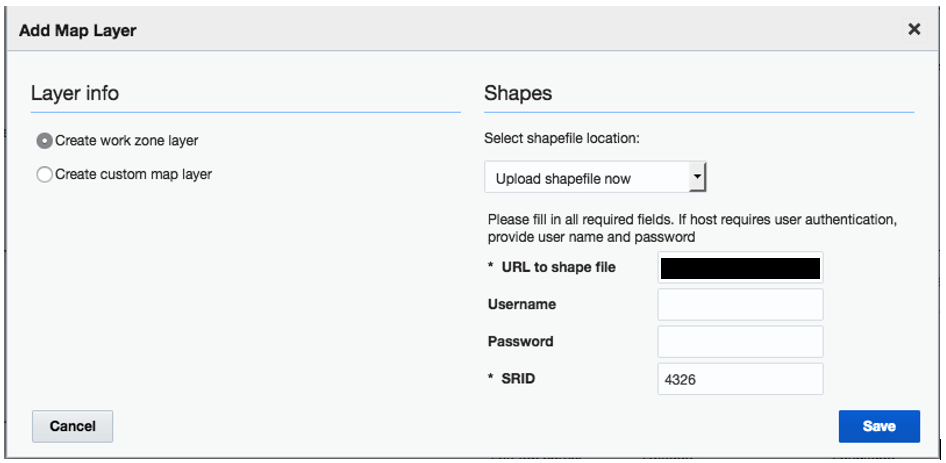
Add Map Layer Screen
- Click Save on the Add Map Layer screen.
- Click Save on the Business Rules screen. The application creates a layer with the name "Work Zone Layer" and initiates the population of the shape file.
You can see the statuses on the table of Map Layers in the Map Layers section under the layer name.
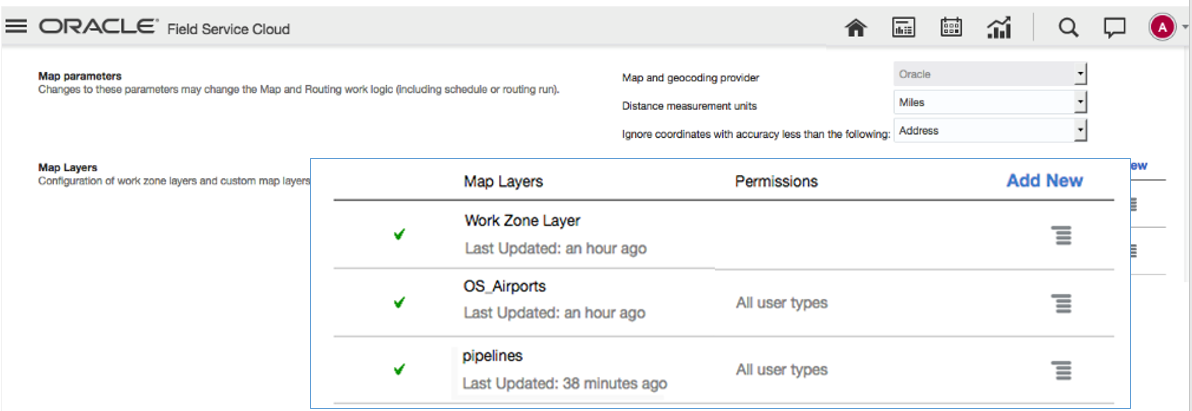
Map Layers Section in Configuration Screen
When the shape file is uploaded, you can select the Shape Identifier on the Edit Map Layer screen.
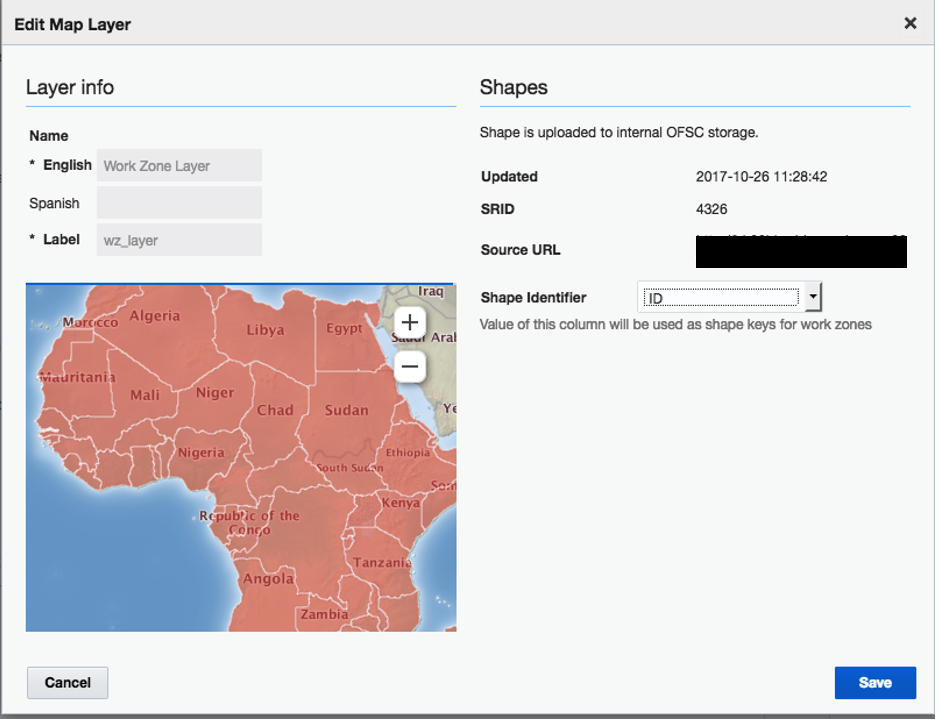
Edit Map Layer Screen
Use an existing shape file.
- Send a request to populate a shape file through the Metadata API (see request) for your instance.
- Wait for the successful execution of the operation. See request.
- Log in to Core Manage and click Configuration.
- Click Business Rules. The Business Rules screen appears.
- In the Custom Map Layers section, click Add New.
- Select Create work zone layer.
- Select Use already uploaded shape file. A shape file with 'wz_layer' is displayed in the list.
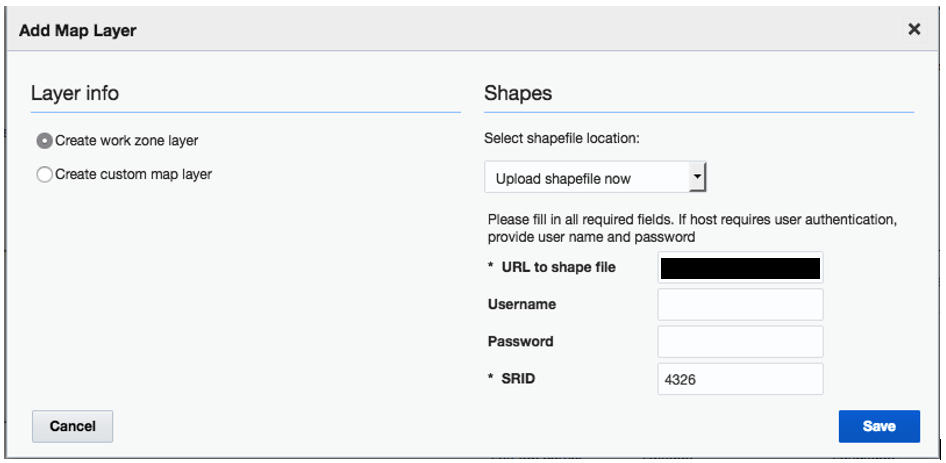
Add Map Layer Showing Upload Shapefile Now Option
- Select the shape file.
- Click Save on the Add Map Layer screen.
- Click Save on the Business Rules screen. The application creates a layer with the name, "Work Zone Layer". Information about when the shape file was last updated is displayed under the layer name. Now you can select the Shape Identifier for this layer on the Edit Map Layer screen.
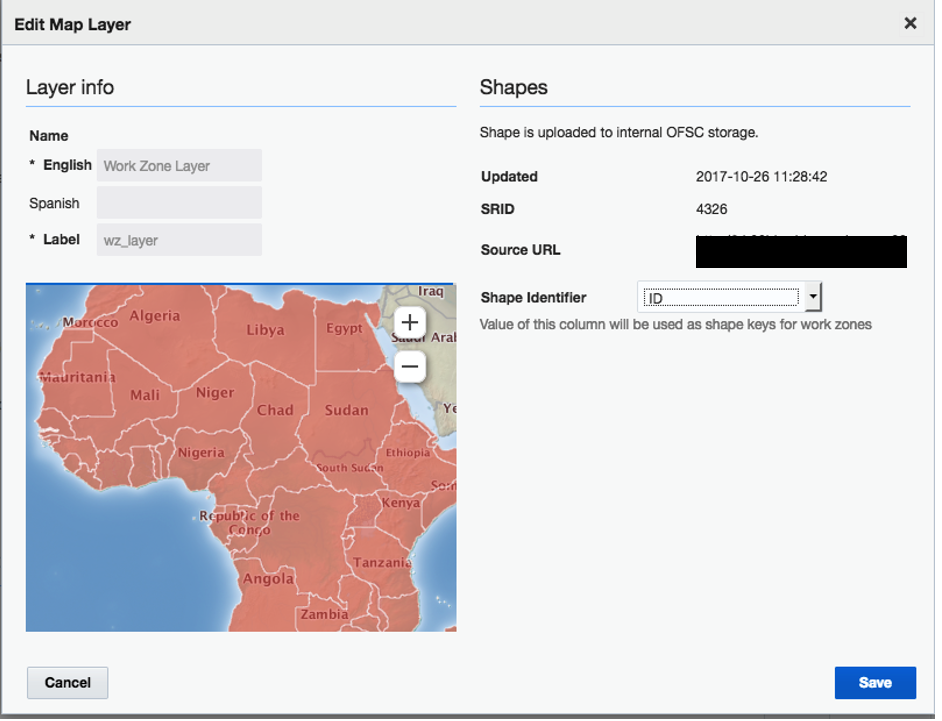
Edit Map Layer Screen
EDIT WORK ZONE LAYER
- Log in to Core Manage and click Configuration.
- Click Business Rules. The Business Rules screen appears.
- Go to the Map Layers section and click the menu near the Work Zone Layer.
- Click Modify. The Edit Map Layer Screen appears displaying all the shapes from the shape file on the Map. Information about the shape file is displayed on the screen as well.
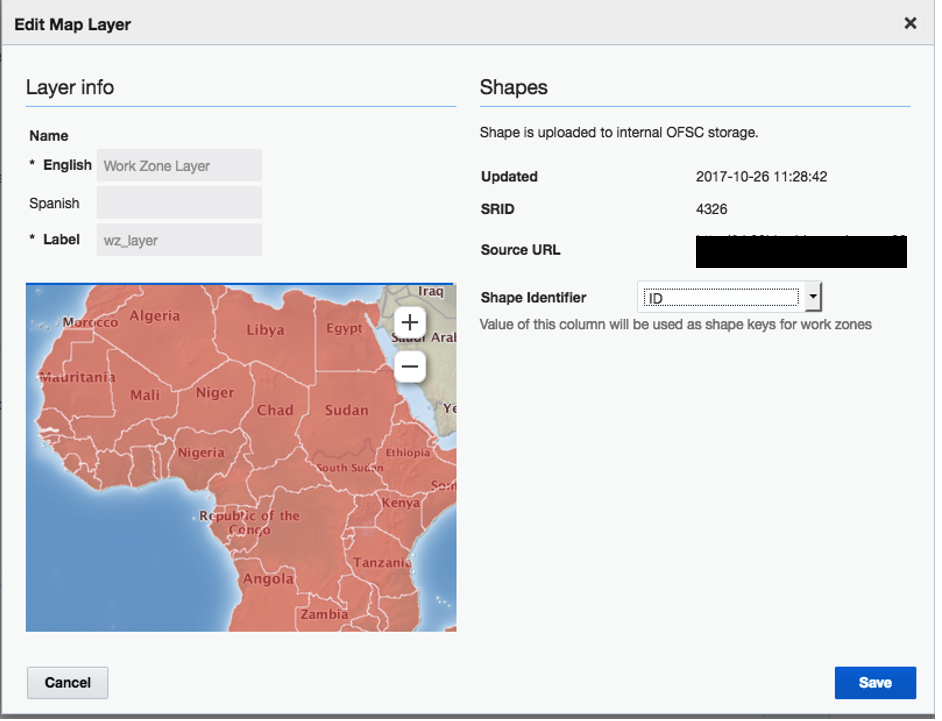
Edit Map Layer Screen Showing Shape File
- Select a value in the Shape Identifier field. For example, select ZIP Code to identify the shapes on the Map by their zip code.
- Click Save.
- Click Save on the Business Rules screen.
- Go to Configuration, Work Zones.
- Select an existing work zone or create a new one.
The Add work zone or Edit work zone screen displays accordingly:
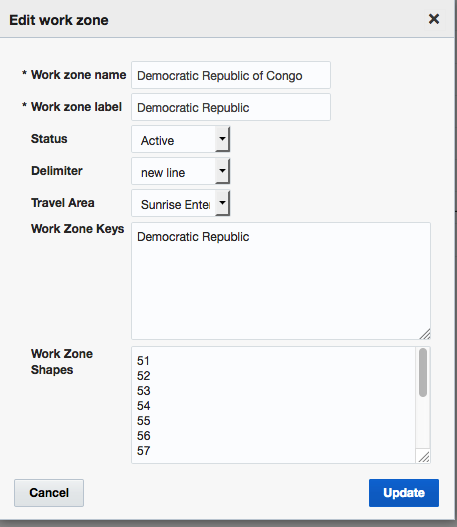
Edit Work Zone Screen
- In the Work Zone Shapes field, provide the values of the column selected as Shape Identifier.
- Click Update or Add. The shape of the selected identifier is displayed.
- Click the 'Shape' link Screen with shapes displayed on the Map is opened.
DELETE ONLY THE WORK ZONE LAYER
- Log into Core Manage and click Configuration.
- Click Business Rules. The Business Rules screen appears.
- Go to the Map Layers section and click the menu.
- Click Delete. The message "Layer will be deleted." appears with the "Delete associated shapes" check box.
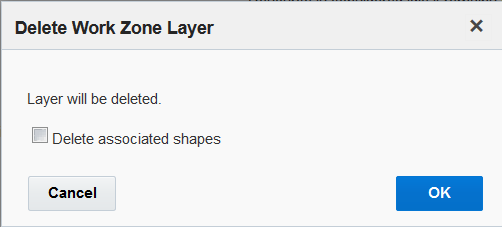
Delete Work Zone Layer Dialog
- Click OK without selecting the check box. The layer is removed from the table.
- Click Save on the Business Rules screen.
- Go back to Map Layers section.
- Click Add new.
- Select Create work zone layer.
- Select Use already uploaded shape file. The shape file that was related to the deleted layer is displayed in the list.
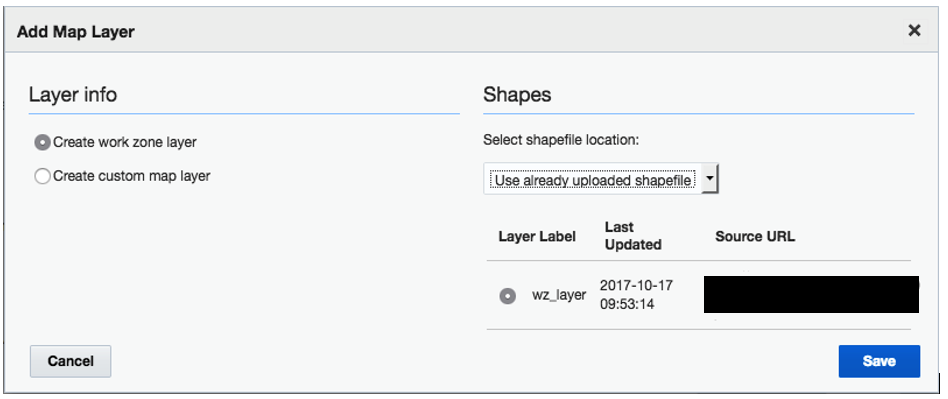
Add Map Layer Screen
DELETE A WORK ZONE LAYER WITH ASSOCIATED SHAPES
- Log into Core Manage and click Configuration.
- Click Business Rules. The Business Rules screen appears.
- Go to the Map Layers section.
- Click the menu and select Delete. The message, "Layer will be deleted. Are you sure?" appears with the "Delete associated shapes?" check box.
-
Select the check box and click OK.
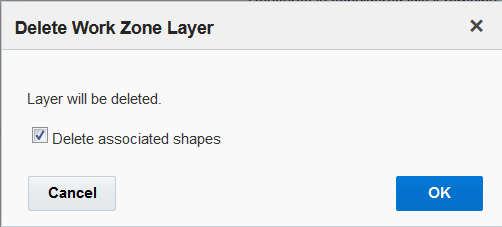
Delete Work Zone Layer Dialog Showing Delete Associated Shapes Check Box Enabled
The layer is removed from the table.
- Click Save on the Business Rules screen.
- Go back to the Map Layers section and click Add new.
- Select Create work zone layer.
- Open the Select shapefile location drop-down menu:
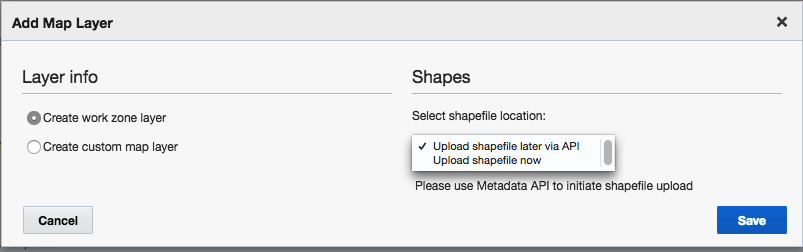
Add Map Layer Screen with Shapefile Options
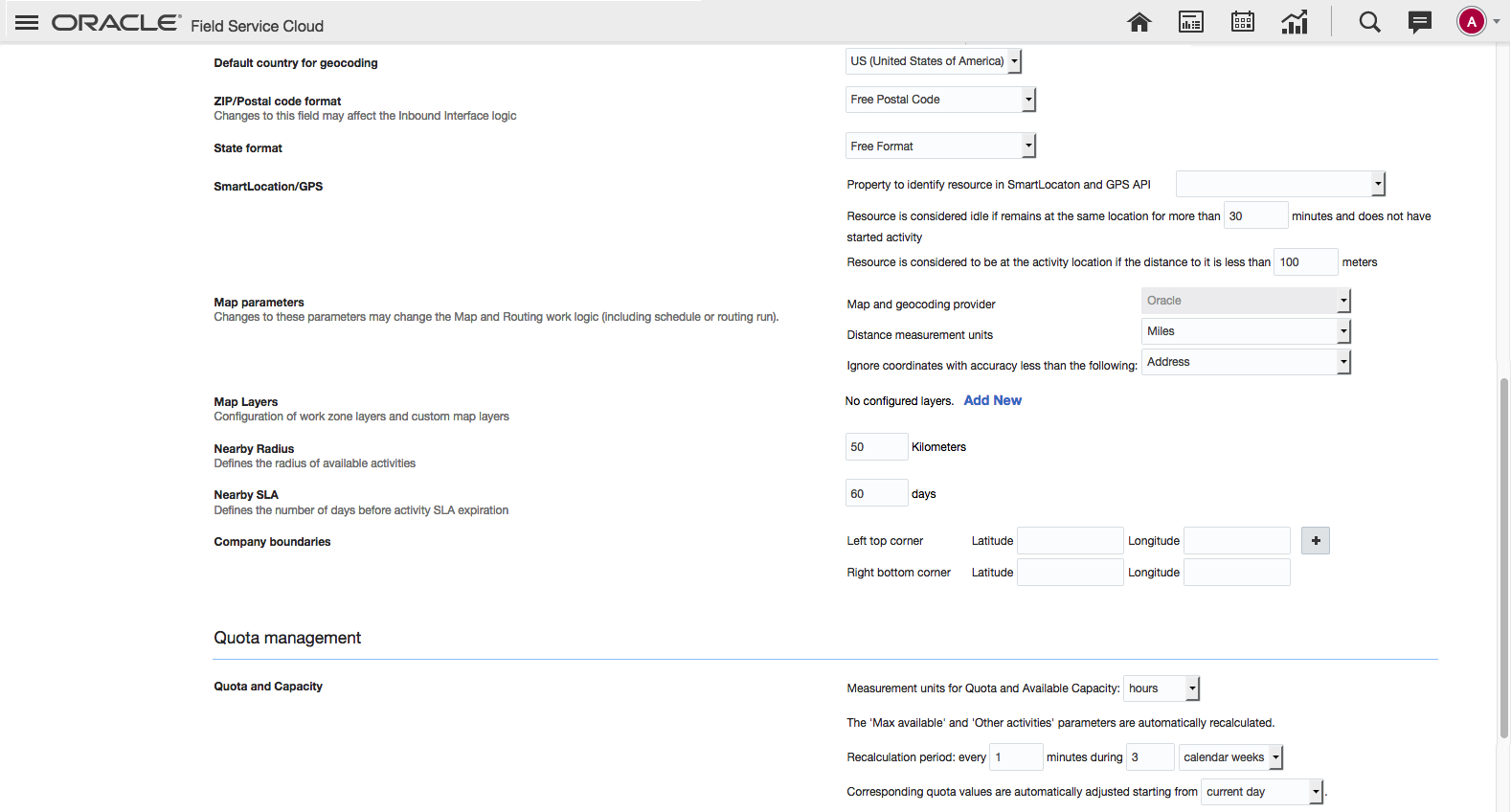
Configuration Page Showing Map Layers Section
The 'Use already uploaded shape file' option is not available in the Add Map Layer screen. This is because, the shape file that was associated with deleted layer was removed from the Geospatial Database.
NOTE: Deleting shapes associated with the layer is possible only through the Core Manage interface. The metadata API DELETE method removes only the layers from database.
Key Resources
Multiple Activity Duration Keys
The major highlights of this feature are as follows:
- The Administrator can configure multiple sets of 'Activity durations stats fields' (key) in the Configuration page and choose any one of them to be 'Active' at any point of time.
- The quality of the key will be displayed beside each of the configured keys, based on how accurate the estimation of Activity duration is, using each of the configured keys.
- The 'Work Statistics' report will display all configured keys and the user can select any particular key, based on which the report will be displayed.
Be sure to check out the Multiple Activity Duration Keys Release Training video to find out more about this feature. Once the video loads click the section on the navigation menu to jump to that section.
CONFIGURE MORE THAN ONE 'ACTIVITY DURATIONS STATS FIELDS'
Administrators can configure up to five (5) keys using the 'Activity durations stats fields' on the Statistics screen as shown in the image below. Only one of these keys can be 'Active' at any point of time. This 'Active' key will be used for all Activity duration estimation purposes. The keys that are not 'Active' will not affect the estimated duration calculations:

Configuring Activity Duration Keys Section
The advantage of such a feature is that before making a new key 'Active', the administrator can get an idea of how good the performance of the new key would be in comparison to the existing one. This can be done without impacting the current calculations.
The quality of the key will be displayed next of each of the keys. More number of stars indicate better quality of estimation (For more details refer the section "Calculation of Key Quality"). Based on the quality of keys, the administrator, at any point of time, may choose to 'Activate' any of the currently inactive keys. When an inactive key is Activated, the currently active key becomes inactive.
The 'Active' key cannot be deleted. In order to delete it, another key needs to be 'Activated'. Inactive keys will have the option to Edit, Deleted and Activate. The Active key can only be Edited.
In case, there is a key that has a better calculated quality than the currently Active key, the 'Activate' button will be displayed upfront beside the key. For all other inactive keys, the Activate option will be available within the options menu.
NEW OR MODIFIED KEYS
- Whenever a new key is added or an existing key is modified, both cases are considered as a new key in the system.
- In such cases, the Activity duration estimation algorithm is run on the next day (or the next time the re-calculation process is run), which will give the estimated durations of all key values based on the new key.
- The quality of the new key is then calculated based on the past reported durations and the calculated estimated durations.
- In case there is more than one new key added in the system on the same day, the system will calculate the durations and the quality of only one key per day. If there are 5 new keys, the system will calculate the quality of the fifth key on the fifth day. This is done so that the performance of the system is not hampered. If any of the new keys is active, the active key will take higher priority and will be processed the next day so that the duration calculations can take effect based on the new active key from the next day onwards.
EXISTING KEYS
- The estimated durations for all key values and the quality of each existing key (Active and Inactive) are calculated each day.
- The Activity durations that will actually be used in the application are calculated based only on the Active key.
- Hence, at any point of time if the administrator changes the status of a key from Inactive to Active or vice versa, the quality of the keys are not impacted.
- Similarly, since the estimated duration calculations are also done for Inactive keys, the learning that has been applied since the key was created, will still be in effect when an Inactive key is Activated.
Similar to the other keys, any change made to the existing key or activation of a new key, will come into effect only when the re-calculation process is run the next time (typically by the next day). Similarly, the quality of a new or modified key will be displayed only from the next day onward.
CALCULATION OF KEY QUALITY
For each configured key, the system calculates the quality of the key based on how accurate the estimation of Activity durations have been or would have been, if the respective key was used for calculations. This is done based on the following steps:
- The estimated duration is calculated for each kind of Activity (Activity key value) using the key for which the quality has to be found.
- Durations reported by field resources, for completed past Activities, are compared with the estimated duration for that activity using the said key.
- If the difference between the estimated and reported duration is less, the estimation is considered good. The quality is considered to deteriorate as the difference between the estimated and reported duration increases.
- The final quality of the key is calculated based on the number of Activities that showed good, satisfactory and bad estimations, for that key.
Consider the following examples.
- Key 1 = Activity Type (2, case insensitive)
- Key 2 = Plant Code (2, case insensitive), Problem Code (2, case insensitive)
| Activity ID |
Activity Duration Key based on Key 1 |
Activity Duration Key based on Key 2 |
Estimated Duration based on Key 1 |
Estimated Duration based on Key 2 |
Reported Duration |
Quality of Estimation based on Key 1 |
Quality of Estimation based on Key 2 |
|---|---|---|---|---|---|---|---|
| 1 |
AA |
PP11 |
50 |
90 |
52 |
Good |
Poor |
| 2 |
BB |
PP22 |
75 |
70 |
68 |
Good |
Good |
| 3 |
BB |
QQ22 |
75 |
95 |
100 |
Satisfactory |
Good |
| 4 |
CC |
QQ22 |
100 |
95 |
125 |
Satisfactory |
Satisfactory |
| 5 |
AA |
RR11 |
50 |
35 |
45 |
Good |
Satisfactory |
| 6 |
DD |
PP11 |
150 |
90 |
135 |
Good |
Poor |
| 7 |
BB |
RR22 |
75 |
45 |
30 |
Poor |
Satisfactory |
| 8 |
DD |
PP11 |
150 |
90 |
140 |
Good |
Poor |
| 9 |
AA |
RR22 |
50 |
30 |
20 |
Poor |
Satisfactory |
| 10 |
CC |
QQ11 |
100 |
140 |
110 |
Good |
Satisfactory |
The Quality of a Key is calculated based on the following formula:
Quality of Key = (0.06 * % of Good Estimations) + (0.04 * % of Satisfactory Estimations)
Hence, based on the above data,
- Quality of Key 1 = 4.4
- Quality of Key 2 = 3.2
ALL KEYS IN WORK STATISTICS REPORT
Since the administrator has the option to create more than one set of 'Activity duration stats fields', each of the configured keys will appear on the Work Statistics Report. The user will have the option to select any of the keys and the report will update to reflect the values based on the selected key. The selected key need not be 'Active' to view the report.
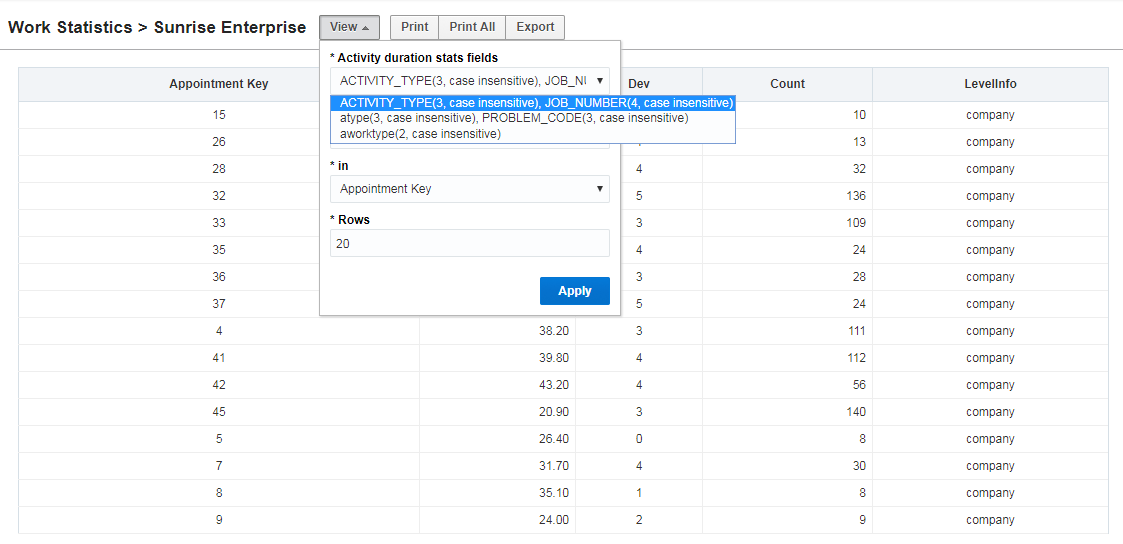
Work Statistics Report Showing 'Activity durations stats fields' Values
DISPLAY CURRENTLY USED KEY
When any of the stats fields (keys) in the Statistics screen within Configuration is modified, the changes take effect only the next time the calculation process is run. A message is displayed saying that the "Changes have not been applied yet". In addition to this message, the key that is currently in effect (previously Active key) will also be displayed until the new key takes effect.
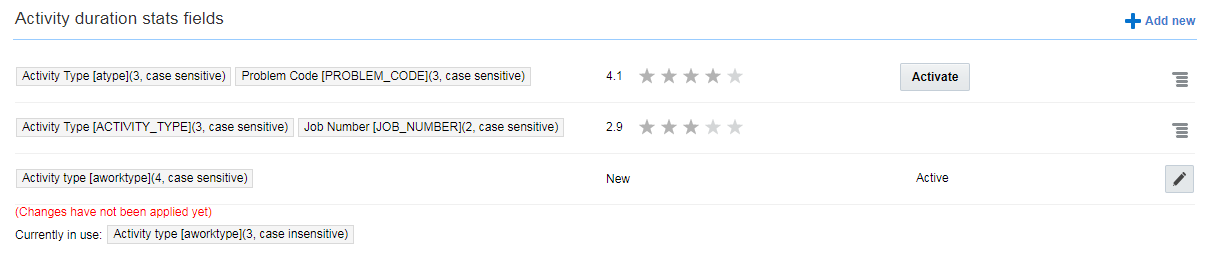 Statistics Screen Showing Error Message
Steps to Enable
Steps to configure multiple activity duration keys:
- Login to Core manage.
- Proceed to the Configuration Screen
- Click Statistics.
- In the Statistics screen, go to Activity durations stats fields section and make changes as necessary.
- Click Save.
Key Resources
Duration for Suspend, Pre-Work, and Reopen Activities
Currently, Oracle Field Service Cloud retains the original activity duration for suspended, reopened, and pre-work activities. From this release onward, users in Core Manage and Mobility can set the duration for suspended, reopened, and pre-work activities manually. This helps while estimating the remaining duration—it shows the additional work that is needed to complete the activity.
The Administrator must add the Duration field for the Suspend activity, Reopen activity, and Start Prework, context layout screens with a Read-Write or Mandatory visibility. When the user opens these screens, the application populates the Duration field with the activity’s initial value. Users can manually modify this value where the duration of:
- The new pending activity is populated with the value submitted on the 'Suspend activity' screen.
- Prework is populated with the value submitted on the 'Start prework' screen.
- The reopened activity is populated with the value submitted on the 'Reopen activity' screen.
When using Oracle Field Service Cloud Mobility, 'Prework' and 'Suspend' are available Online and Offline.
Steps to Enable
The Administrator must add the Duration field for the Suspend activity, Reopen activity, and Start Pre-work, context layout screens with a Read-Write or Mandatory visibility.
Key Resources
Glossary: All Languages in Individual Pages
Earlier, to add glossary definitions in different languages, administrators had to first select the language and then edit the fields for that language. Now, administrators can configure the names of elements in all configured languages while adding or modifying an element. The fields for all the active languages are displayed upfront.
If there is only one active language configured in the application, the field does not show the name of the language separately. It just displays the field name with a single text box for the active language. The following elements are included this feature:
- Properties—Property name, Property hint, and enumeration values fields
- Activity Types—Name field
- Activity Type Group—Name field
- Filters—Filter field
- Login Policies—Policy name field
Steps to Enable
No steps are needed to enable this feature.
Key Resources
View Activities and Resources Used for Calculations of Available Capacity
You can download a list of resources and activities from the Available Capacity screen to analyze the resources and activities that are used to calculate available capacity per capacity area, per category, and per day.
This feature provides the following functionality:
- The Capacity categories field is populated only when the list is downloaded from Capacity Area or Group level.
- Both resources and activities may be counted in more than one capacity category, if one of the following conditions occur:
- Work skills of activities and/or resources corresponds to more than one capacity category.
- When an activity is assigned to a resource whose work skills match to more than one capacity category.
- The number of rows that can be downloaded is limited to 10,000 rows and the data over this limit is truncated.
Steps to Enable
To view resources and activities used for calculations of available capacity:
- Select the required capacity bucket from the left-hand pane.
- Click View and select Available Capacity from the View drop-down list.
- Click Apply.
- In the Available Capacity page, click the used capacity number in the All Day column for the required capacity category and then click Download activities list.
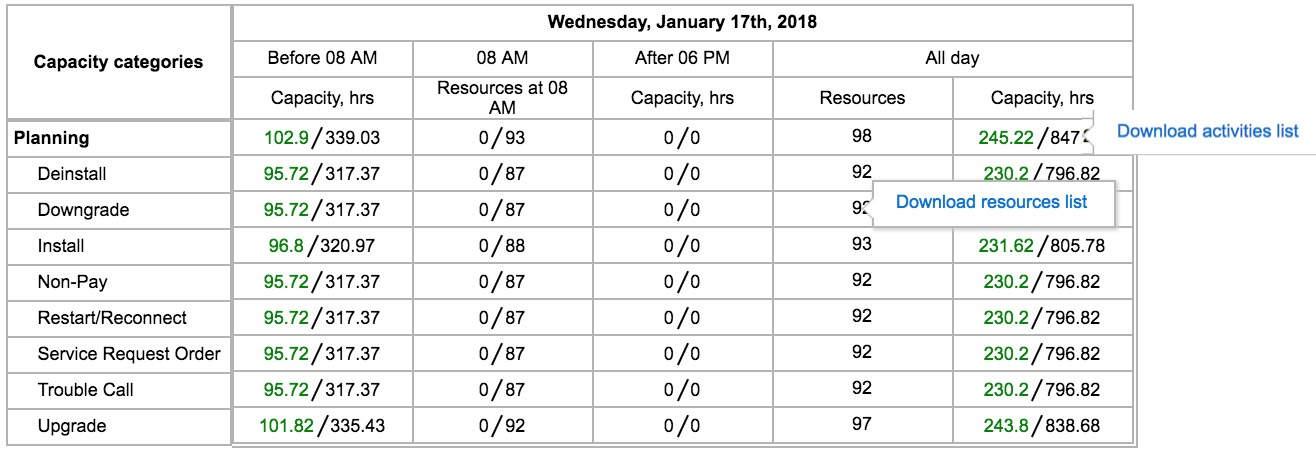
Capacity Download: Resource and Activities
NOTE: Lists downloaded from aggregated screens may have many rows and hence, take longer time to download.
- Save the file, open it with a text editor or a table processor, and review the following fields:
- Activity ID
- Activity type label
- Activity type name
- Activity status
- Activity number
- Activity identifier
- ETA
- Activity duration
- Travel duration
- Service window start
- Service window end
- SLA window start
- SLA window end
- Time of assignment
- Access Hours
- Time zone
- Capacity categories
- To configure the download file format, select the required option from the Default Export Format drop-down list in the My Display page.
- To configure the date or time format, select the required options from the Time Format and Date Format drop-down lists in the My Display page.
- Click the resources number in the All Day column for the required capacity category and click Download resources list.
- Save the file, open it with a text editor or a table processor, and review the following fields:
- External ID
- Resource name
- Working time
- Duration of working time
- Org unit
- Organization
- Capacity categories
Key Resources
Prolong Quota and Capacity Calculation Period
In the February 2018 (18A) release, the maximum quota recalculation period is longer than it was in release the 17.8. In that release, the maximum recalculation period measured in days was 99, or 15 if the measurement units were weeks. These values, set on the Business Rules screen, still work the same way in the 18A release, but now, any activities booked after that period up to a total of 1,098 days will also be used in quota calculations. This feature offers the benefit of being able to recalculate quota based on activities that are booked up to three years in advance. This lets businesses that require long-range booking take advantage of the application's quota recalculation ability to provide accurate quota information.
Steps to Enable
No steps are needed to enable this feature.
Key Resources
Broadcasting for Supervisor Group and Helpdesk via Collaboration
Using the Group Message option, a supervisor or a helpdesk operator can perform the following actions:
- Select supervisor groups from Collaboration and broadcast a message or initiate a conference with the team members.
- Select helpdesk groups from Collaboration and broadcast a message or initiate a conference with the team members.
Important information related to the feature:
- Broadcasting messages to the Helpdesk group is only available in the Manage interface.
- A supervisor can broadcast messages to all the members in a supervisor group, even if the visibility between the supervisor and members of that group is not configured. However, the user and the supervisor cannot have a one-to-one chat, if the visibility (user and supervisor belongs to different collaboration user groups) is not configured between the groups.
- A supervisor can initiate a conference to all the members in a supervisor group, even if the visibility between the supervisor and members of that group is not configured. However, the user and the supervisor cannot have a one-to-one chat, if the visibility is not configured between the groups.
Steps to Enable
Use these steps:
- Log in to the Mobility interface as a supervisor user.
- From the Collaboration window, click the Menu icon.
- Select the Group Message, User Groups option. The supervisor groups that the user monitors along with the collaboration user groups to which the user has visibility are displayed.
- Select the required user groups and click Next.
- Select the Broadcast or Conference option from the Message Type window and click Start Broadcast or Start Conference. The Broadcast or Conference window displays.
- Enter the message in the Broadcast or Conference window and click Send. The message is sent to the users in the selected user groups.
- Click Recipients to view the broadcast attributes such as acknowledged, read, successfully delivered, and not delivered counts.
Similarly, if you are a helpdesk operator, you can broadcast a message or initiate a conference with the team members as follows:
- Log in to the Core Manage interface as a helpdesk operator.
- Repeat steps 2 through 7.
Key Resources
The February 2018 (18A) release provides standardized Daily extract as public API in terms of documentation and functionality. What's changed:
- Names for some fields were changed as described below. There are only changes for field names, not labels.
- Customers using those fields in configuration of the Daily extract will have to adjust integration. If customers use custom field names those names won't be changed and there will be no need to tune integration.
- BICS integrations will continue since labels are not changed.
ACTIVITY FIELDS
List of fields which can be configured in 17.8:
List of Activity fields
| Field |
Label |
Description |
|---|---|---|
| Access Hours | appt.access_hours | Formatted string. Contains set of hours the activity is accessible at the day it is scheduled for (including overnight) |
| Access Schedule | appt.access_schedule | Formatted string. Contains schedule of access hours for the place where activity should be done. |
| Account Number | appt.customer_number | String with name of customer account in external system |
| Activity Features | appt.afeatures | Bitmask field that defines active features for this activity. This value is copied from selected activity type |
| Activity ID | appt.aid | Unique numerical identifier of the activity |
| Activity Location ID | appt.a_locationid | Activity location ID |
| Activity Number | appt.number | Identifier of the activity (string, value of DB field "number") |
| Activity Properties | appt.properties | List of all custom activity properties with their values |
| Activity Time of Assignment | appt.atime_of_assignment | Date/Time when the last move/reschedule/assign to resource operation was performed for the activity. |
| Activity Time of Booking | appt.atime_of_booking | Date/time when the activity was booked. |
| Activity Traveling Time | appt.continuous_traveling_time | Travel time between activities/locations with addresses/coordinates |
| Activity Type | appt.atype | Primary type of the activity (prework, reopened, regular...) |
| Activity Update Flag | appt.aupdate_flags | Bitmask field. Displays bit flags after updating the activity. |
| Activity Work Type | appt.aworktype | Business type of activity, (like "Lunch" etc.) |
| Activity Work Zone | appt.aworkzone | Work zone which is defined for the activity |
| Activity status | appt.astatus | Status of the activity |
| Auto-routed to Date | appt.auto_routed_to_date | The date the activity was scheduled for during the latest Routing run. |
| Auto-routed to Resource | appt.auto_routed_to_provider_id | ID of resource the activity was assigned to during the latest Routing run. |
| Auto-routed to Resource (Name) | appt.auto_routed_to_provider_name | Name of resource the activity was assigned to during the latest Routing run. |
| Capacity Bucket | provider.pcapacity_bucket | ID of capacity bucket for the resource for whom the activity is provided. |
| City | appt.ccity | City name, part of Customer address |
| Coordinate X | appt.acoord_x | X coordinate received from geocoding module for the activity |
| Coordinate Y |
appt.acoord_y | Y coordinate received from geocoding module for the activity |
| Coordinate accuracy | appt.acoord_accuracy | Accuracy level of coordinates for the activity |
| Coordinate status | appt.acoord_status | Coordinate status for the activity |
| Country | appt.country_code | Country code for the activity |
| Customer Email | appt.cemail | Email of the customer for whom the activity is provided. |
| Customer Language | appt.clanguage | Message language of the customer for whom the activity is provided. |
| Customer Name | appt.cname | Name of the customer for whom the activity is provided. |
| Customer Phone | appt.cphone | Phone number of the customer for whom the activity is provided. |
| Customer Time Zone | appt.c_zid | Time Zone ID of the customer for whom the activity is provided. |
| Date format (Resource) | provider.pdate_fid | ID of date format for the resource for whom the activity is provided. |
| Day before | appt.cdaybefore_flag | Value of custom property "Day before". Present in the Initial DB, but may be removed. Flag indicates if 'Day Before' Notification should be used. |
| Delivery Window End | appt.delivery_window_end | End time for activity Delivery Window |
| Delivery Window start | appt.delivery_window_start | Start time for activity Delivery Window |
| Delivery address | appt.caddress | Customer address (except City, Zip/Postal code, State) |
| Duration | appt.length | Activity length in minutes. Filled when activity is finished. Value = end time - start time. |
| Email address | provider.email | Email address for the resource for whom the activity is provided. |
| Estimated time of arrival | appt.ETA | ETA date/time. Can be empty for Regular and Reopen activities if status is Pending or Suspended. For Started and Ended - time when activity is started. For Canceled can be empty or set, if set - it is time when provider started an activity before it was Canceled |
| First Manual Operation | appt.first_manual_operation | The name of the first manual reschedule/move/reorder operation performed after an automatic one. |
| First Manual Operation (Interface) | appt.first_manual_operation_interface | The interface the first manual reschedule/move/reorder operation was performed from after an automatic one. |
| First Manual Operation (User ID) | appt.first_manual_operation_user_id | ID of the user who performed the first manual reschedule/move/reorder operation after an automatic one. |
| Initial Ratio for Activity Duration | provider.pinitial_ratio | Initial ratio for activity duration for the resource the activity belongs to. |
| Master Activity ID | appt.amaster_aid | ID of main activity for prework, reassigned and reopened activities |
| Message Language | provider.planguage | Language for resource the activity is assigned to. |
| Mobile Phone | appt.ccell | Mobile phone number of the customer for whom the activity is provided. |
| Organization | provider.organization_id | ID of organization for the resource the activity is assigned to. |
| Points | appt.apoints | Number of points that represent efforts required to perform the activity. |
| Position in Route | appt.position_in_route | Calculated field. Contains position of activity in the route. |
| Postal Code | appt.czip | ZIP/Postal code of customer for whom the activity is provided. |
| Reminder | appt.cmessagetime | Number of minutes before Delivery Window/ETA when reminder notification is sent. |
| Reported End Time of Activity Delivery | appt.ctime_delivered_end | End date/time of activity which is delivered to the customer. |
| Reported Start Time of Activity Delivery | appt.ctime_delivered_start | Start date/time of activity which is delivered to the customer. |
| Resource External ID | provider.external_id | External system identifier for the resource the activity is assigned to. |
| Resource ID | provider.pid | ID of resource the activity is assigned to. |
| Resource Name | provider.pname | Name (text identifier) of resource for whom the activity is provided.. |
| Resource Parent | provider.parent | ID of parent resource for the resource the activity is assigned to. |
| Resource Phone | provider.pphone |
Phone number of the resource for whom the activity is provided. |
| Resource Time Zone | time_zone.name |
Standard Oracle Time zone name |
| Resource Time Zone Name | time_zone.zoneinfo_name | Standard IANA Time zone name |
| Resource status | provider.pactive | Resource status (active or inactive) for whom the activity is provided. |
| Resource type | provider.ptype | Resource type ID for the resource for whom the activity is provided. |
| Route Activation Time | queue.activated | Date and time of route activation for resource for whom the activity is provided. |
| Route Date | queue.date | Date of the route the activity is assigned to. |
| Route Deactivation Time | queue.deactivated | Date and time of route deactivation (for already activated route) for resource for whom the activity is provided. |
| Route ID | queue.qid | Unique internal identifier of the route the activity is assigned to. |
| Route Reactivation Time | queue.reactivated | Date and time of route reactivation (for already deactivated route) for resource for whom the activity is provided. |
| Routing profile | provider.p_rprid | ID of routing plan assigned to the resource for whom the activity is provided. |
| SLA End | appt.sla_window_end | End date and time of Service Level Agreement |
| SLA Start | appt.sla_window_start | Start date and time of Service Level Agreement |
| Service Window End | appt.service_window_end | End time of Service Window |
| Service Window Start | appt.service_window_start | Start time of Service Window |
| State | appt.cstate | State (Geographic area) of the customer for whom the activity is provided. |
| Teamwork ID | appt.a_teamid | ID of team for teamwork activities |
| Template ID | appt.a_templateid | ID of activity template for mass/repeating activities |
| Time Slot ID | appt.a_tsid | ID of Time Slot assigned to the activity |
| Time Zone (Resource) | provider.time_zone | ID of time zone assigned to the resource for whom the activity is provided. |
| Time format (Resource) | provider.ptime_fid | ID of time format for the resource for whom the activity is provided. |
| Travel Area | appt.atravelarea | ID of travel area the activity is belongs to. |
| Travel estimation method | appt.travel_estimation_method | Method that was used to make current traveling time estimation.Applicable for the activity. |
| Travel estimation method (final location) | queue.final_travel_estimation_method | Method that was used to make current traveling time estimation. Applicable for the final location. |
| Travel time adjustment: ID of previous activity | appt.travel_from_aid | ID of previous activity adjustment is entered for. Applicable for the activity. |
| Travel time adjustment: ID of previous activity (final location) | queue.final_travel_from_aid | ID of previous activity adjustment is entered for. Applicable for the final location. |
| Traveling Time | appt.travel | Time of travel from a previous activity/location. |
| Traveling time (final location) | queue.final_travel | Travel to the final location of resource for whom the activity is provided. |
| Visit ID | appt.a_visitid | ID of Visit for the activity. |
| Work Order | appt.appt_number | Identifier of the activity (string, value of field "Work Order") |
| Working Day End | queue.calendar_time_to | End of working day (Date and time) for the resource for whom the activity is provided. |
| Working Day Start | queue.calendar_time_from | Start of working day (Date and time) for the resource for whom the activity is provided. |
Changes
| ID |
Action |
Old value |
New value |
Description |
|---|---|---|---|---|
| appt.first_manual_operation_user_name | New field added | - | First Manual Operation (User name) | Name of the user performing the first manual reschedule/move/reorder operation after an automatic one. |
| appt.first_manual_operation_user_login | New field added | - | First Manual Operation (User login) | Login of the user performing the first manual reschedule/move/reorder operation after an automatic one. |
| appt.eta_end_time | New field added | - | Start - End | Real start time - end time for the activity |
| end_time | New field added | - | End | Estimated or real end time of activity. Calculated as ETA (Start time)+activity duration. |
| activity_workskills | New field added | - | Activity Work Skills | List of ID for Work Skills and Work Skill Groups for the activity |
| activity_capacity_categories | New field added | - | Capacity Categories | List of ID for Capacity Categories for the activity |
| position_in_route | New field added | - | Activity order | Order (sequence number) of the activity in the route for specified date |
Custom properties
Custom activity and resource properties (except file properties) can be configured and extracted for the "Activity Fields" data set. File properties are extracted according to configuration defined in the "Property File Fields" data set.
Custom properties of the following types can be configured:
| Type |
Configurable |
|---|---|
| String | Yes |
| Integer | Yes |
| Enumeration | Yes |
| File | No |
ACTIVITY LINK FIELDS
List of fields which can be configured in 17.8
List of Activity Link fields
| Field |
Label |
Description |
|---|---|---|
| Capacity Bucket | provider.pcapacity_bucket | ID of capacity bucket for the resource. |
| Date format (Resource) | provider.pdate_fid | ID of date format for the resource |
| Email address | provider.email | Email address for the resource |
| First Activity: Date | from_queue.date | Date of the route for which the first linked activity is assigned to. |
| First Activity: ID | from_appt.aid | ID of the first linked activity. |
| First Activity: Route ID | from_queue.qid | ID of the route for which the first linked activity is assigned to. |
| Initial Ratio for Activity Duration | provider.pinitial_ratio | Initial ratio for activity duration for the resource the activity belongs to. |
| Message Language | provider.planguage | Language for the resource. |
| Organization | provider.organization_id | ID of organization for the resource |
| Resource External ID | provider.external_id | External system identifier for the resource |
| Resource ID | provider.pid | Unique internal identifier of the resource. |
| Resource Name | provider.pname | Name (text identifier) of the resource |
| Resource Parent | provider.parent | ID of parent resource for the resource |
| Resource Phone | provider.pphone | Phone number of the resource |
| Resource status | provider.pactive | Resource status (active or inactive). |
| Resource type | provider.ptype | Resource type ID for the resource |
| Routing profile | provider.p_rprid | ID of routing plan assigned to the resource |
| Time Zone (Resource) | provider.time_zone | ID of time zone assigned to the resource |
| Time format (Resource) | provider.ptime_fid | ID of time format for the resource |
| Second Activity: Date | to_queue.date | Date of the route for which the second linked activity is assigned to. |
| Second Activity: ID | to_appt.aid | ID of the second linked activity. |
| Second Activity: Link label | appt_link_type.regular_label | Label for the activity link related to the 1st activity |
| Second Activity: Route ID | to_queue.qid | ID of the route for which the second linked activity is assigned to. |
| Working days to start impacting duration estimations | provider.skip_days_for_stats | Integer number of days which must be skipped for natural learning statistics |
Changes
| ID |
Action |
Old value |
New value |
Description |
|---|---|---|---|---|
| appt_link_type.sequence | Name changed | Sequence | Link Type | Type of activity linking: "finish-to-start","start-to-start","simultaneous" or not specified relation |
| appt_link_type.type_id | Name changed | Link ID | Link ID | ID of activity link type |
| appt_link_type.reverse_label | New field added | - | First Activity: Link label | Label for the activity link related to the 2d activity |
| appt_link_type.min_interval_value | Name changed | Min | Min interval: Value | Minimum interval, value in minutes |
| appt_link_type.min_interval | New field added | - | Min interval: Type | Type of minimum interval: "adjustable", "non-adjustable" or not specified (unlimited) |
| appt_link_type.max_interval_value | Name changed | Max | Max interval: Value | Maximum interval, value in minutes |
| appt_link_type.max_interval | New field added | - | Max interval: Type | Type of maximum interval: "adjustable", "non-adjustable" or not specified (unlimited) |
| appt_link_type.scheduling | Name changed | Sequencing | Scheduling | Scheduling constraints for the activity link: "the same day", "different days" or not specified |
| appt_link_type.assignment | Name changed | Assignment | Assignment | Resource assigning constraints for the activity link: "the same resource", "different resources" or not specified |
Custom properties
Are not supported for this data set.
ACTIVITY WORK SKILL FIELDS
List of fields which can be configured in 17.8
List of Activity Work Skill fields
| Field |
Label |
Description |
|---|---|---|
| Activity ID | appt_work_skill.aid | Unique internal identifier of the activity to which the work skill was assigned |
| Activity Work Skill ID | appt_work_skill.work_skill_id | Identifier of the work skill defined for the activity |
| Work Skill Preferable Level | appt_work_skill.preferable_level | Preferable level of the skill for the activity |
| Work Skill Required Level | appt_work_skill.required_level | Required level of the skill for the activity |
Changes
No changes.
Custom properties
Are not supported for this data set.
GPS TRACK FIELDS
NOTE: The functionality was changed in 17.8
List of fields which can be configured in 17.8
List of GPS Track fields
| Field |
Label |
Description |
|---|---|---|
| Activity ID | gps_tracks.aid | The ID of the activity started at the moment of the data collection or if there were no started activities at the moment of the next activity in the resource' route |
| Distance | gps_tracks.distance | Distance from the resource's location to the activity |
| Idle Time | gps_tracks.idle | Number of seconds the resource spent in the point. |
| Latitude | gps_tracks.latitude | The Y coordinate of the position. |
| Longitude | gps_tracks.longitude | The X coordinate of the position. |
| Resource External ID | provider.external_id | External identifier for the resource |
| Status | gps_tracks.status | Location status. |
| Time | gps_tracks.time | Timestamp received along with the GPS data. |
| Track Route ID | gps_tracks.queue_id | The ID of the route for which the geolocation data has been received. |
Changes
No changes.
Custom properties
Are not supported for this data set.
INVENTORY FIELDS
List of fields which can be configured in 17.8
List of Inventory Fields
| Field |
Label |
Description |
|---|---|---|
| Activity ID | inventory.inv_aid | Unique internal identifier of the activity, to which the inventory item is assigned. |
| Changed Inventory ID | inventory.inv_change_invid | Unique internal identifier of the inventory, to which the current inventory exchanged with. |
| Inventory ID | inventory.invid | Unique internal identifier of the inventory item. |
| Inventory Pool | inventory.invpool | Pool to which the inventory item belongs. |
| Inventory Properties | inventory.properties | List of all custom inventory properties with values |
| Inventory Type | inventory.invtype | Type of the inventory item; one of customer specific values. |
| Quantity | inventory.quantity | Quantity of non-serialized inventory |
| Resource ID | inventory.inv_pid | Unique internal identifier of the resource, to which the inventory item is assigned. |
| Serial Number | inventory.invsn | Serial number of the inventory item. |
Changes
No changes for this data set.
Custom properties
Inventory custom properties (except file properties) can be configured and extracted for the "Inventory Fields" data set. File properties are extracted according to configuration defined in the "Property File Fields" data set.
Custom properties of the following types can be configured:
| Type |
Configurable |
|---|---|
| String | Yes |
| Integer | Yes |
| Enumeration | Yes |
| File | No |
MESSAGE FIELDS
List of fields which can be configured in 17.8
List of Message Fields
| Field |
Label |
Description |
|---|---|---|
| Access Schedule | appt.access_schedule | Formatted string. Contains schedule of access hours for the place where activity should be done. |
| Account Number | appt.customer_number | String with name of customer account in external system |
| Activity Features | appt.afeatures | Bitmask field that defines active features for this activity. This value is copied from selected activity type |
| Message Activity ID | message_log.mq_aid | Unique internal identifier of the activity for which the message was created. |
| Activity ID | appt.aid | Unique numerical identifier of the activity |
| Activity Location ID | appt.a_locationid | Activity location ID |
| Activity Properties | appt.properties | List of all custom activity properties with their values |
| Activity Time of Assignment | appt.atime_of_assignment | Date/Time when the last move/reschedule/assign to resource operation was performed for the activity. |
| Activity Time of Booking | appt.atime_of_booking | Date/time when the activity was booked. |
| Activity Traveling Time | appt.continuous_traveling_time | Travel time between activities/locations with addresses/coordinates |
| Activity Type | appt.atype | Primary type of the activity (prework, reopened, regular...) |
| Activity Update Flag | appt.aupdate_flags | Bitmask field. Displays bit flags after updating the activity. |
| Activity Work Type | appt.aworktype | Business type of activity, (like "Lunch" etc.) |
| Activity Work Zone | appt.aworkzone | Work zone which is defined for the activity |
| Activity status | appt.astatus | Status of the activity |
| Auto-routed to Date | appt.auto_routed_to_date | The date the activity was scheduled for during the latest Routing run. |
| Auto-routed to Resource | appt.auto_routed_to_provider_id | ID of resource the activity was assigned to during the latest Routing run. |
| Auto-routed to Resource (Name) | appt.auto_routed_to_provider_name | Name of resource the activity was assigned to during the latest Routing run. |
| City | appt.ccity | City name, part of Customer address |
| Coordinate X | appt.acoord_x | X coordinate received from geocoding module for the activity |
| Coordinate Y |
appt.acoord_y | Y coordinate received from geocoding module for the activity |
| Coordinate accuracy | appt.acoord_accuracy | Accuracy level of coordinates for the activity |
| Coordinate status | appt.acoord_status | Coordinate status for the activity |
| Customer Email | appt.cemail | Email of the customer for whom the activity is provided. |
| Customer Language | appt.clanguage | Message language of the customer for whom the activity is provided. |
| Customer Name | appt.cname | Name of the customer for whom the activity is provided. |
| Customer Phone | appt.cphone | Phone number of the customer for whom the activity is provided. |
| Customer Time Zone | appt.c_zid | Time Zone ID of the customer for whom the activity is provided. |
| Delivery Window End | appt.delivery_window_end | End time for activity Delivery Window |
| Delivery Window start | appt.delivery_window_start | Start time for activity Delivery Window |
| Delivery address | appt.caddress | Customer address (except City, Zip/Postal code, State) |
| Duration | appt.length | Activity length in minutes. Filled when activity is finished. Value = end time - start time. |
| Estimated time of arrival | appt.ETA | ETA date/time. Can be empty for Regular and Reopen activities if status is Pending or Suspended. For Started and Ended - time when activity is started. For Canceled can be empty or set, if set - it is time when provider started an activity before it was Canceled |
| First Manual Operation | appt.first_manual_operation | The name of the first manual reschedule/move/reorder operation performed after an automatic one. |
| First Manual Operation (Interface) | appt.first_manual_operation_interface | The interface the first manual reschedule/move/reorder operation was performed from after an automatic one. |
| First Manual Operation (User ID) | appt.first_manual_operation_user_id | ID of the user who performed the first manual reschedule/move/reorder operation after an automatic one. |
| Free-Format Message Notes | message_log.mqdata | Notes for the message (for example filled by the external message system) |
| Local Time of Message Sending | message_log.mqsent_local | Date/time when the message was sent to customer (Local time zone) |
| Master Activity ID | appt.amaster_aid | ID of main activity for prework, reassigned and reopened activities |
| Message Address | message_log.mqaddress | Message notification address. |
| Message External ID | message_log.mqexternalid | Identifier of the message in the external system |
| Message ID | message_log.mqid | Internal unique identifier of the message, |
| Message Route ID | message_log.mq_qid | Internal unique identifier of the route for which the message was created. |
| Message Recipient | message_step.msrecipient | Recipient of the message. |
| Message Scenario ID | message_flow.mfid | Unique internal identifier of the message scenario |
| Message Scenario Name | message_flow.mfname | Name of the message scenario. |
| Message Scenario Step: Duration | message_log.mqduration | Time spent on message sending until receiving the final message status for the message scenario step. |
| Message Scenario Step: ID | message_log.mq_msid | Internal unique identifier of the message scenario. |
| Message Scenario Step: Name | message_step.msname | Name of the scenario step |
| Message Scenario Step: Type | message_step.mstype | Type of the message scenario step ("start" or "inner") |
| Message Sending Method | message_log.mqmethod | Method of notification |
| Start of Message Sending Interval | message_log.mqsendfrom | Planned start date/time of message sending range (UTC) |
| End of Message Sending Interval | message_log.mqsendto | Planned end date/time of message sending range (UTC) |
| Message Sending Result | message_log.mqstatus | Final status of the message |
| Description of Message Sending Result | message_log.mqdesc | Description, complementing the message final status |
| Message Step Purpose | message_step.msfunction | Message step type: "PAS" (survey message) or "regular" (regular message) |
| Mobile Phone | appt.ccell | Mobile phone number of the customer for whom the activity is provided. |
| Launch Condition Name | message_log.mqtrigger | Message launch condition |
| Points | appt.apoints | Number of points that represent efforts required to perform the activity. |
| Postal Code | appt.czip | ZIP/Postal code of customer for whom the activity is provided. |
| Reminder | appt.cmessagetime | Number of minutes before Delivery Window/ETA when reminder notification is sent. |
| Reported End Time of Activity Delivery | appt.ctime_delivered_end | End date/time of activity which is delivered to the customer. |
| Start Time of Activity Reported in Message | message_log.mqtime_delivered_start | Start date/time of activity which is delivered to the customer with the message. |
| Reported Start Time of Activity Delivery | appt.ctime_delivered_start | Start date/time of activity which is delivered to the customer. |
| SLA End | appt.sla_window_end | End date and time of Service Level Agreement |
| SLA Start | appt.sla_window_start | Start date and time of Service Level Agreement |
| Service Window End | appt.service_window_end | End time of Service Window |
| Service Window Start | appt.service_window_start | Start time of Service Window |
| State | appt.cstate | State (Geographic area) of the customer for whom the activity is provided. |
| Teamwork ID | appt.a_teamid | ID of team for teamwork activities |
| Template ID | appt.a_templateid | ID of activity template for mass/repeating activities |
| Time Slot ID | appt.a_tsid | ID of Time Slot assigned to the activity |
| Time of Message Sending | message_log.mqsent | Date/time when the message was sent to recipient (UTC) |
| Travel estimation method | appt.travel_estimation_method | Method that was used to make current traveling time estimation.Applicable for the activity. |
| Travel time adjustment: ID of previous activity | appt.travel_from_aid | ID of previous activity adjustment is entered for. Applicable for the activity. |
| Traveling Time | appt.travel | Time of travel from a previous activity/location. |
| Visit ID | appt.a_visitid | ID of Visit for the activity. |
| Work Order | appt.appt_number | Identifier of the activity (string, value of field "Work Order") |
Changes
| ID |
Action |
Old value |
New value |
Description |
|---|---|---|---|---|
| message_log.mq_uid | New field added | - | Message User ID | Internal unique identifier of the user who sent the message. |
| appt.access_hours | New field added | - | Access Hours | Formatted string. Contains set of hours the activity is accessible at the day it is scheduled for (including overnight) |
| appt.country_code | New field added | - | Country | Country code for the activity |
| appt.cdaybefore_flag | New field added | - | Day before | Value of custom property "Day before". Present in the Initial DB, but may be removed. Flag indicates if 'Day Before' Notification should be used. |
| provider.planguage | New field added | - | Message Language | Language of the resource. |
| appt.first_manual_operation_user_name | New field added | - | FirstManual Operation (User name) | Name of the user performing the first manual reschedule/move/reorder operation after an automatic one. |
| appt.first_manual_operation_user_login | New field added | - | FirstManual Operation (User login) | Login of the user performing the first manual reschedule/move/reorder operation after an automatic one. |
| appt.eta_end_time | New field added | - | Start - End | Real start time - end time for the activity |
| appt.end_time | New field added | - | End | Estimated or real end time of activity. Calculated as ETA (Start time)+activity duration. |
| appt.activity_workskills | New field added | - | Activity Work Skills | List of ID for Work Skills and Work Skill Groups for the activity |
| appt.activity_capacity_categories | New field added | - | Capacity Categories | List of ID for Capacity Categories for the activity |
| message_log.mq_pid | New field added | - | Resource ID | Unique internal identifier of the resource for which the message was created. |
| message_log.mq_srid | New field added | - | Service Request ID | Unique internal identifier of the service request for which the message was created. |
Custom properties
Custom activity properties (except file properties) can be configured and extracted for the "Message Fields" data set. File properties are extracted according to configuration defined in the "Property File Fields" data set.
Custom properties of the following types can be configured:
| Type |
Configurable |
|---|---|
| String | Yes |
| Integer | Yes |
| Enumeration | Yes |
| File | No |
MESSAGE TEXT FIELDS
List of fields which can be configured in 17.8
List of Message Text fields
| Field |
Label |
Description |
|---|---|---|
| Message Body | message_content.mcbody | Body (content) of the message |
| Message ID | message_content.mc_mqid | Unique internal identifier of the message. |
| Message Subject | message_content.mcsubject | Subject of the message. |
Changes
No changes.
Custom properties
Are not supported for this data set.
PAS ANSWER FIELDS
List of fields which can be configured in 17.8
List of PAS Answer fields
| Field |
Label |
Description |
|---|---|---|
| Message ID | survey_take.mqid | Identifier of the message with which the question is asked. |
| PAS Question ID | survey_result.question_id | Identifier of the question, to which the answer is given. |
| ID | translation.tid | Identifier of the answer which is selected for the question |
| PAS Question Language | translation.t_lid | Identifier of language for the PAS question. |
| PAS Question Number | survey_question.qorder | Number of the question, to which the answer is given |
| Text | translation.ttext | PAS answer name. |
| PAS-Related Activity Date | survey_result.date | Date and time of the activity on which the questions were asked. |
| PAS-Related Activity ID | survey_take.aid | Identifier of the activity at which the answer is given. |
Changes
No changes.
Custom properties
Are not supported for this data set.
PAS QUESTION FIELDS
List of fields which can be configured in 17.8
List of PAS Question Fields
| Field |
Label |
Description |
|---|---|---|
| ID | translation.tid | Identifier of the question |
| PAS Question Language | translation.t_lid | Identifier of language for the PAS question. |
| Text | translation.ttext | Text of the question |
Changes
No changes.
Custom properties
Are not supported for this data set.
PROPERTY FIELDS
List of fields which can be configured in 17.8
List of Property fields
| Field |
Label |
Description |
|---|---|---|
| Entity Type to Which Property Refers | property_desc.pdentity | Integer value that corresponds to the type of entity to which the property belongs to. |
| ID | property_desc.propertyid | Unique internal identifier of the property in the system |
| Property ID | property_name.pn_propertyid | Unique internal identifier that corresponds to the property identifier |
| Property Label | property_desc.pdlabel | Unique external identifier of the property |
| Property Language | property_name.pn_lid | Integer that corresponds to the language defined for the property name. |
| Property Name | property_name.pntext | Name of the property |
| Text Entry Identifier | property_name.pnindex | Internal property name identifier (0-property name, -1 = property hint, other integer of string value - identifier of enumeration value) |
Changes
No changes for this data set.
Custom properties
Custom activity, inventory, resource, user and service request properties (except file properties) can be configured and extracted for the "Property fields" data set. File properties are extracted according to configuration defined in the "Property File Fields" data set.
Custom properties of the following types can be configured:
| Type | Configurable |
|---|---|
| String |
Yes |
| Integer |
Yes |
| Enumeration |
Yes |
| File | No |
PROPERTY FILE FIELDS
List of fields which can be configured in 17.8
List of Property File fields
| Field |
Label |
Description |
|---|---|---|
| File Property | property_file.property_file | If configured - file properties available in the system by the end of the extraction period can be stored. |
Changes
From now it's possible to configure specific set of file properties for the "Property File Fields" data set. Only those properties that are configured on the "Daily extract" screen in Manage will be extracted by the end of extraction period.
If the "File property" field is configured on the screen all product file fields and custom file properties available in the system will be automatically added to the daily extraction regardless of what's else is configured for the "Property File Fields" data set.
Custom properties
Any custom file property (except inventory file properties) can be configured and extracted for the "Property File Fields" data set.
PROPERTY LOOKUP FIELDS
List of fields which can be configured in 17.8
List of Property Lookup fields
| Field |
Label |
Description |
|---|---|---|
| Property ID | property_name.pn_propertyid | Unique internal identifier of the property in the system |
| Property Language | property_name.pn_lid | Integer that corresponds to the language defined for the property name. |
| Property Name | property_name.pntext | Name of the property |
| Text Entry Identifier | property_name.pnindex | Internal property name identifier (0-property name, -1 = property hint, other integer of string value - identifier of enumeration value) |
Changes
No changes.
Custom properties
Custom activity, inventory, resource, user and service request lookup properties (except file properties) which is available by the end of the extraction period can be processed. File properties are extracted according to configuration defined in the "Property File Fields" data set.
Custom properties of the following types can be configured:
| Type |
Configurable |
|---|---|
| String | Yes |
| Integer | Yes |
| Enumeration | Yes |
| File | No |
RESOURCE FIELDS
List of fields which can be configured in 17.8
List of resource fields
| Field |
Label |
Description |
|---|---|---|
| Capacity Bucket | provider.pcapacity_bucket | ID of capacity bucket for the resource. |
| Child Resource ID | provider_children.child_id | ID of subordinated (child) resource (from resource tree) |
| Date format (Resource) | provider.pdate_fid | ID of date format for the resource |
| Email address | provider.email | Email address for the resource |
| Initial Ratio for Activity Duration | provider.pinitial_ratio | Initial ratio for activity duration for the resource the activity belongs to. |
| Message Language | provider.planguage | Language for the resource. |
| Organization | provider.organization_id | ID of organization for the resource |
| Parent Resource ID | provider_children.parent_id | ID of parent resource for the resource (from resource tree) |
| Resource External ID | provider.external_id | External system identifier for the resource |
| Resource ID | provider.pid | Unique internal identifier of the resource. |
| Resource Name | provider.pname | Name (text identifier) of the resource |
| Resource Owner Name | provider_owner.pname | Parent resource name for the resource |
| Resource Parent | provider.parent | ID of parent resource for the resource |
| Resource Phone | provider.pphone | Phone number of the resource |
| Resource status | provider.pactive | Resource status (active or inactive). |
| Resource type | provider.ptype | Resource type ID for the resource |
| Routing profile | provider.p_rprid | ID of routing plan assigned to the resource |
| Subordination Level | provider_children.distance | Depth of parent-child resource relations (from resource tree) |
| Time Zone (Resource) | provider.time_zone | ID of time zone assigned to the resource |
| Time format (Resource) | provider.ptime_fid | ID of time format for the resource |
| Working days to start impacting duration estimations | provider.skip_days_for_stats | Integer number of days which must be skipped for natural learning statistics |
Changes
No changes.
CUSTOM PROPERTIES
Resource custom properties (except file properties) can be configured and extracted fo the "Property fields" data set. File properties are extracted according to configuration defined in the "Property File Fields" data set.
Custom properties of the following types can be configured:
| Type |
Configurable |
|---|---|
| String | Yes |
| Integer | Yes |
| Enumeration | Yes |
| File | No |
RESOURCE LOCATION FIELDS
List of fields which can be configured 17.8
List of resource Location fields
| Field |
Label |
Description |
|---|---|---|
| Latitude | location.lcoord_y | Geographic coordinate Y resolved for the location |
| Location Address | location.laddress | Address resolved for the location |
| Location City | location.lcity | City resolved for the location |
| Location Label | location.llabel | Label of the location which is assigned to the resource |
| Location Postal Code | location.lzip | ZIP/Postal code resolved for the location |
| Location State | location.lstate | State/Area resolved for the location |
| Location Type | provider_location.pltype | Type of the location which is assigned to the resource |
| Location by days | provider_location.plweekdays | Days of the week on which the location is assigned to the resource |
| Longitude | location.lcoord_x | Geographic coordinate X resolved for the location |
| Resource ID | provider_location.pl_pid | Identifier of the resource to which the location is assigned, |
Changes
| ID |
Action |
Old value |
New value |
Description |
|---|---|---|---|---|
| location.lid | New field added | - | Location ID | Internal identifier for the location |
| provider.external_id | New field added | - | Resource External ID | External identifier for resource with the location |
Custom properties
Are not supported for this data set.
RESOURCE PROPERTY FIELDS
List of fields which can be configured in 17.8
List of Resource Property fields
| Field |
Label |
Description |
|---|---|---|
| Capacity Bucket | provider.pcapacity_bucket | ID of capacity bucket for the resource. |
| Date format (Resource) | provider.pdate_fid | ID of date format for the resource |
| Email address | provider.email | Email address for the resource |
| Initial Ratio for Activity Duration | provider.pinitial_ratio | Initial ratio for activity duration for the resource the activity belongs to. |
| Message Language | provider.planguage | Language for the resource. |
| Organization | provider.organization_id | ID of organization for the resource |
| Resource External ID | provider.external_id | External system identifier for the resource |
| Resource ID | provider.pid | Unique internal identifier of the resource. |
| Resource Name | provider.pname | Name (text identifier) of the resource |
| Resource Parent | provider.parent | ID of parent resource for the resource |
| Resource Phone | provider.pphone | Phone number of the resource |
| Resource status | provider.pactive | Resource status (active or inactive). |
| Resource type | provider.ptype | Resource type ID for the resource |
| Routing profile | provider.p_rprid | ID of routing plan assigned to the resource |
| Time Zone (Resource) | provider.time_zone | ID of time zone assigned to the resource |
| Time format (Resource) | provider.ptime_fid | ID of time format for the resource |
| Working days to start impacting duration estimations | provider.skip_days_for_stats | Integer number of days which must be skipped for natural learning statistics |
Changes
No changes.
Custom properties
Resource custom properties (except file properties) can be configured and extracted fo the "Property fields" data set. File properties are extracted according to configuration defined in the "Property File Fields" data set.
Custom properties of the following types can be configured:
| Type |
Configurable |
|---|---|
| String | Yes |
| Integer | Yes |
| Enumeration | Yes |
| File | No |
RESOURCE WORK SKILL FIELDS
List of fields which can be configured in 17.8
List of Resource Work Skill fields
| Field |
Label |
Description |
|---|---|---|
| Resource ID | provider_work_skill.provider_id | Unique internal identifier of the resource to which the work skill was assigned |
| Resource Work Skill: Start Date | provider_work_skill.start_date | Work skill for resource is active starting from this date. |
| Resource Work Skill: ID | provider_work_skill.work_skill_id | Identifier of the work skill defined for the activity |
| Resource Work Skill: Level | provider_work_skill.ratio | The level of resource experience for the Work Skill |
| Resource Work Skill: End Date | provider_work_skill.end_date | Work skill for resource is expired after this date. |
Changes
No changes for this data set.
Custom properties
Are not supported for this data set.
ROUTE FIELDS
List of fields which can be configured in 17.8
List of route (queue) fields
| Field |
Label |
Description |
|---|---|---|
| Capacity Bucket | provider.pcapacity_bucket | ID of capacity bucket for the resource for whom the route is assigned. |
| Date format (Resource) | provider.pdate_fid | ID of date format for the resource for whom the route is assigned. |
| Email address | provider.email | Email address for the resource for whom the route is assigned. |
| Initial Ratio for Activity Duration | provider.pinitial_ratio | Initial ratio for activity duration for the resource the route is assigned to. |
| Message Language | provider.planguage | Language for the resource for whom the route is assigned. |
| Organization | provider.organization_id | ID of organization for the resource for whom the route is assigned. |
| Resource External ID | provider.external_id | External system identifier for the resource for whom the route is assigned. |
| Resource ID | provider.pid | Unique internal identifier of the resource for whom the route is assigned. |
| Resource Name | provider.pname | Name (text identifier) of the resource for whom the route is assigned. |
| Resource Parent | provider.parent | ID of parent resource for the resource for whom the route is assigned. |
| Resource Phone | provider.pphone | Phone number of the resource for whom the route is assigned. |
| Resource Properties | provider.properties | List of all custom resource properties with their values |
| Resource Time Zone | time_zone.name |
Standard Oracle Time zone name |
| Resource Time Zone Name | time_zone.zoneinfo_name | Standard IANA Time zone name |
| Resource status | provider.pactive | Resource status (active or inactive) for whom the route is assigned. |
| Resource type | provider.ptype | Resource type ID for the resource for whom the route is assigned. |
| Route Activation Time | queue.activated | Date and time of route activation |
| Route Date | queue.date | Date of the route |
| Route Deactivation Time | queue.deactivated | Date and time of route deactivation. |
| Route ID | queue.qid | Unique internal identifier of the route. |
| Route Reactivation Time | queue.reactivated | Date and time of route reactivation. |
| Routing profile | provider.p_rprid | ID of routing plan assigned to the resource for whom the route is assigned. |
| Time Zone (Resource) | provider.time_zone | ID of time zone assigned to the resource for whom the route is assigned. |
| Time format (Resource) | provider.ptime_fid | ID of time format for the resource for whom the route is assigned. |
| Travel estimation method (final location) | queue.final_travel_estimation_method | Method that was used to make current traveling time estimation. Applicable for the final location. |
| Travel time adjustment: ID of previous activity (final location) | queue.final_travel_from_aid | ID of previous activity adjustment is entered for. Applicable for the final location. |
| Traveling time (final location) | queue.final_travel | Travel to the final location of resource for whom the route is assigned. |
| Working Day End | queue.calendar_time_to | End of working day (Date and time) for the resource for whom the route is assigned. |
| Working Day Start | queue.calendar_time_from | Start of working day (Date and time) for the resource for whom the route is assigned. |
| Working days to start impacting duration estimations | provider.skip_days_for_stats | Integer number of days which must be skipped for natural learning statistics |
Changes
No changes for this data set.
Custom properties
Are not supported for this data set.
SERVICE REQUEST FIELDS
List of fields which can be configured in 17.8
List of Service request fields
| Field |
Label |
Description |
|---|---|---|
| Activity ID | support_request.sr_aid | Unique internal identifier of the activity to which the service request was assigned |
| Created | support_request.srcreated | Date and time when the service request was created. |
| Inventory ID | support_request.sr_invid | Unique internal identifier of the inventory to which the service request was assigned |
| Resource ID | support_request.sr_pid | Unique internal identifier of the resource to which the service request was assigned |
| Service Request Date | support_request.srdate | Date of the service request. |
| Service Request ID | support_request.srid | Unique internal identifier of the service request |
| Service Request Properties | support_request.properties | List of custom service request properties with values. |
| Service Request Type | support_request.srtype | Type of service request |
| User ID | support_request.sr_uid | Unique internal identifier of the user who initiated the service request |
Changes
No changes for this data set.
Custom properties
Service request custom properties (except file properties) can be configured and extracted fo the "Property fields" data set. File properties are extracted according to configuration defined in the "Property File Fields" data set.
Custom properties of the following types can be configured:
| Type |
Configurable |
|---|---|
| String | Yes |
| Integer | Yes |
| Enumeration | Yes |
| File | No |
TIME SLOT FIELDS
List of fields which can be configured in 17.8
List of Time Slot fields
| Field |
Label |
Description |
|---|---|---|
| Time Slot End | time_slot.tstime_to | Time, at which the times slot ends |
| Time Slot ID | time_slot.tsid | Unique internal identifier of the time slot |
| Time Slot Label | time_slot.tslabel | Unique label of the time slot |
| Time Slot Name | time_slot.tsname | Name of the time slot |
| Time Slot Start | time_slot.tstime_from | Time, at which the times slot starts |
| Time Slot Status | time_slot.tsstatus | Time slot status |
Changes
No changes.
Custom properties
Are not supported for this data set.
TYPE LIST FIELDS
List of fields which can be configured in 17.8
List of Type Fields
| Field |
Label |
Description |
|---|---|---|
| Activity Type Group ID | activity_type.group_id | Unique internal identifier of Activity Group |
| Lookup Type | lookup.llookup_type | Internal name of the lookup type |
| Text | translation.ttext | Name of the type |
| Type ID | lookup.lid | Unique internal identifier of the type |
| Type Label | lookup.llabel | Unique label of the type |
| Type Language | language.lcode | 2-letter language code of the type |
Changes
| ID |
Action |
Old value |
New value |
Description |
|---|---|---|---|---|
| - | Add new type | - | type= user | Company User Types - added and can be processed as all other types |
Custom properties
Are not supported for this data set
USER LIST FIELDS
List of fields which can be configured in 17.8
List of User fields
| Field |
Label |
Description |
|---|---|---|
| End of blocking | security_user.login_blocked_to | User login is blocked until the specified date and time. |
| Capacity Bucket | provider.pcapacity_bucket | ID of capacity bucket for the resource for which the user is assigned to. |
| Date format (Resource) | provider.pdate_fid | ID of date format for the resource for which the user is assigned to. |
| Date format (User) | security_user.sudate_fid | ID of date format for the user. |
| Email address | provider.email | Email address for the resource for which the user is assigned to. |
| Failed login attempts | security_user.login_attempts | Number of consecutive login attempts for the user. |
| Initial Ratio for Activity Duration | provider.pinitial_ratio | Initial ratio for activity duration for the resource for which the user is assigned to. |
| Last login | security_user.last_login | Date and time when the user last logged in. |
| Last password change | security_user.last_password_change | Date and time when the user has changed the password last time |
| Long Date Format | security_user.sulong_date_fid | ID of full date format (with weekday) for the resource for which the user is assigned to. |
| Message Language | provider.planguage | Language for the resource for which the user is assigned to. |
| Name | security_user.uname | Name of the user. |
| Registered | security_user.sucreated | Date and time when the user was created. |
| Resource External ID | provider.external_id | External system identifier for the resource for which the user is assigned to. |
| Resource ID | provider.pid | Unique internal identifier of the resource for which the user is assigned to. |
| Resource Name | provider.pname | Name (text identifier) of the resource for which the user is assigned to. |
| Resource Parent | provider.parent | ID of parent resource for the resource for which the user is assigned to. |
| Resource Phone | provider.pphone | Phone number of the resource for which the user is assigned to. |
| Resource Start Time | provider.time_from | Working time start for the resource for which the user is assigned to. |
| Resource End Time | provider.time_to | Working time end for the resource for which the user is assigned to. |
| Resource Time Zone | time_zone.name | Standard Oracle Time zone name |
| Resource Time Zone Name | time_zone.zoneinfo_name | Standard IANA Time zone name |
| Resource status | provider.pactive | Status of the resource for which the user is assigned to. |
| Resource type | provider.ptype | Type of the resource for which the user is assigned to. |
| Routing profile | provider.p_rprid | ID of routing plan assigned to the resource for which the user is assigned to. |
| Status | security_user.sustatus | Status of the user (active, inactive or deleted) |
| Time Zone (Resource) | provider.time_zone | ID of time zone assigned to the resource for which the user is assigned to. |
| Time Zone (User) | security_user.su_zid | ID of time zone assigned to the user. |
| Time format (Resource) | provider.ptime_fid | ID of time format for the resource for which the user is assigned to. |
| Time format (User) | security_user.sutime_fid | ID of time format for the user. |
| Updated | security_user.suupdated | Date and time when the user was updated last time. |
| User ID | security_user.uid | Unique user ID |
| User Language | security_user.ulanguage | User's language |
| User Login | security_user.ulogin | User's login |
| User Type Comment | user_type.comment | Description of User Type for which the user is assigned to. |
| User Type ID | user_type.type_id | ID of User Type for which the user is assigned to. |
| User Type Label | user_type.label | Label of User Type for which the user is assigned to. |
| User Type Status | user_type.status | Status of User Type for which the user is assigned to |
| Week Start | security_user.suweek_start | Starting day of the week for the user |
| Working days to start impacting duration estimations | provider.skip_days_for_stats | Integer number of days which must be skipped for natural learning statistics |
Custom properties
User custom properties (except file properties) can be configured and extracted fo the "Property fields" data set. File properties are extracted according to configuration defined in the "Property File Fields" data set.
Custom properties of the following types can be configured:
| Type |
Configurable |
|---|---|
| String | Yes |
| Integer | Yes |
| Enumeration | Yes |
| File | No |
Changes
| ID |
Action |
Old value |
New value |
Description |
|---|---|---|---|---|
| main_resource_id | New field added | - | Main Resource | ID of Main resource assigned to the user |
USER-RESOURCE RELATION FIELDS
List of fields which can be configured in 17.8
List of User-Resource Relations
| Field |
Label |
Description |
|---|---|---|
| Blocked To | security_user.login_blocked_to | User login is blocked until the specified date and time. |
| Capacity Bucket | provider.pcapacity_bucket | ID of capacity bucket for the resource for which the user is assigned to. |
| Date format (Resource) | provider.pdate_fid | ID of date format for the resource for which the user is assigned to. |
| Date format (User) | security_user.sudate_fid | ID of date format for the user. |
| Email address | provider.email | Email address for the resource for which the user is assigned to. |
| Failed login attempts | security_user.login_attempts | Number of consecutive login attempts for the user. |
| Initial Ratio for Activity Duration | provider.pinitial_ratio | Initial ratio for activity duration for the resource for which the user is assigned to. |
| Last login | security_user.last_login | Date and time when the user last logged in. |
| Last password change | security_user.last_password_change | Date and time when the user has changed the password last time |
| Long Date Format | security_user.sulong_date_fid | ID of full date format (with weekday) for the resource for which the user is assigned to. |
| Message Language | provider.planguage | Language for the resource for which the user is assigned to. |
| Name | security_user.uname | Name of the user. |
| Registered | security_user.sucreated | Date and time when the user was created. |
| Resource External ID | provider.external_id | External system identifier for the resource for which the user is assigned to. |
| Resource ID | provider.pid | Unique internal identifier of the resource for which the user is assigned to. |
| Resource Name | provider.pname | Name (text identifier) of the resource for which the user is assigned to. |
| Resource Parent | provider.parent | ID of parent resource for the resource for which the user is assigned to. |
| Resource Phone | provider.pphone | Phone number of the resource for which the user is assigned to. |
| Resource status | provider.pactive | Status of the resource for which the user is assigned to. |
| Resource type | provider.ptype | Type of the resource for which the user is assigned to. |
| Routing profile | provider.p_rprid | ID of routing plan assigned to the resource for which the user is assigned to. |
| Status | security_user.sustatus | Status of the user (active, inactive or deleted) |
| Time Zone (Resource) | provider.time_zone | ID of time zone assigned to the resource for which the user is assigned to. |
| Time Zone (User) | security_user.su_zid | ID of time zone assigned to the user. |
| Time format (Resource) | provider.ptime_fid | ID of time format for the resource for which the user is assigned to. |
| Time format (User) | security_user.sutime_fid | ID of time format for the user. |
| Updated | security_user.suupdated | Date and time when the user was updated last time. |
| User ID | security_user.uid | Unique user ID |
| User Language | security_user.ulanguage | User's language |
| User Login | security_user.ulogin | User's login |
| Week Start | security_user.suweek_start | Starting day of the week for the user |
| Working days to start impacting duration estimations | provider.skip_days_for_stats | Integer number of days which must be skipped for natural learning statistics |
Changes
| ID |
Action |
Old value |
New value |
Description |
|---|---|---|---|---|
| main_resource_id | New field added | - | Main Resource | ID of Main resource assigned to the user |
Custom properties
Custom user properties (except file properties) can be configured and extracted fo the "Property fields" data set. File properties are extracted according to configuration defined in the "Property File Fields" data set.
Custom properties of the following types can be configured:
| Type |
Configurable |
|---|---|
| File | No |
| String | Yes |
| Integer | Yes |
| Enumeration | Yes |
Steps to Enable
Users should validate their Daily extract integration against their updates to fields and make any necessary adjustments.
Key Resources
Real-Time Data Integration with BICS & DBaaS
With the February 2018 (18A) release you can create new channels for Oracle Business Intelligence Cloud Services (BICS) and Oracle Database as a Service (DBaaS) that allow data transfer in real time. The feature is available on the Configuration page and it also introduces a new Outbound integration menu on the Configuration page. Be sure to check out the Real Time Data Integration Release Training video to find out more about this feature. Once the video loads click the section on the navigation menu to jump to that section.
The Outbound integration channels is a new configuration page that will act as a single page to configure and view all outbound delivery channels in Oracle Field Service Cloud. This page contains a summary view of outbound delivery channels such as Daily extract, BICS, and DBaaS. User can create new channels for BICS and DBaaS from the UI. The Daily extract option will be available by default on this page.
NOTE: The daily extract option will not be available on the Configuration page. Users have to navigate inside Outbound integration to access daily extraction configurations.
After you add a new outbound channel, you can:
- Define the fields associated with an entity for integration with BICS.
- Configure field entities and attributes to Oracle Database as a Service.
Data will be transferred to BICS/ DBaaS when events corresponding to that entity is triggered in the system. Here are the configurations statutes:
| Configuration Status |
User Interface Mockup |
UI Behavior |
User Action |
|---|---|---|---|
| User created a new channel |
User created a new channel icon |
|
User required to configure entity/Tables |
| Entities/ Tables Configured, But Daily Job/ Real Time is not started |
Entities/ Tables Configured icon |
|
N/A Real-time data transfer will be initiated when the user-configured event is triggered in OFSC. Daily data transfer will be initiated when the daily job is triggered in OFSC. |
| Data Migration via Daily or Real-time completed for the selected channel |
Data Migration via Daily or Real-time icon |
|
N/A |
| Real Time communication Error with the Endpoint |
Real-time communication error with the Endpoint icon |
|
User required to do update the channel credentials based on the error message. |
| Daily Extract Configurations. This will be available by default to the user. |
Daily Extract configurations |
|
N/A |
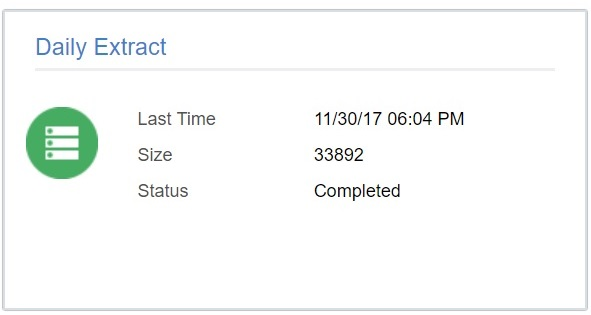
Field level information
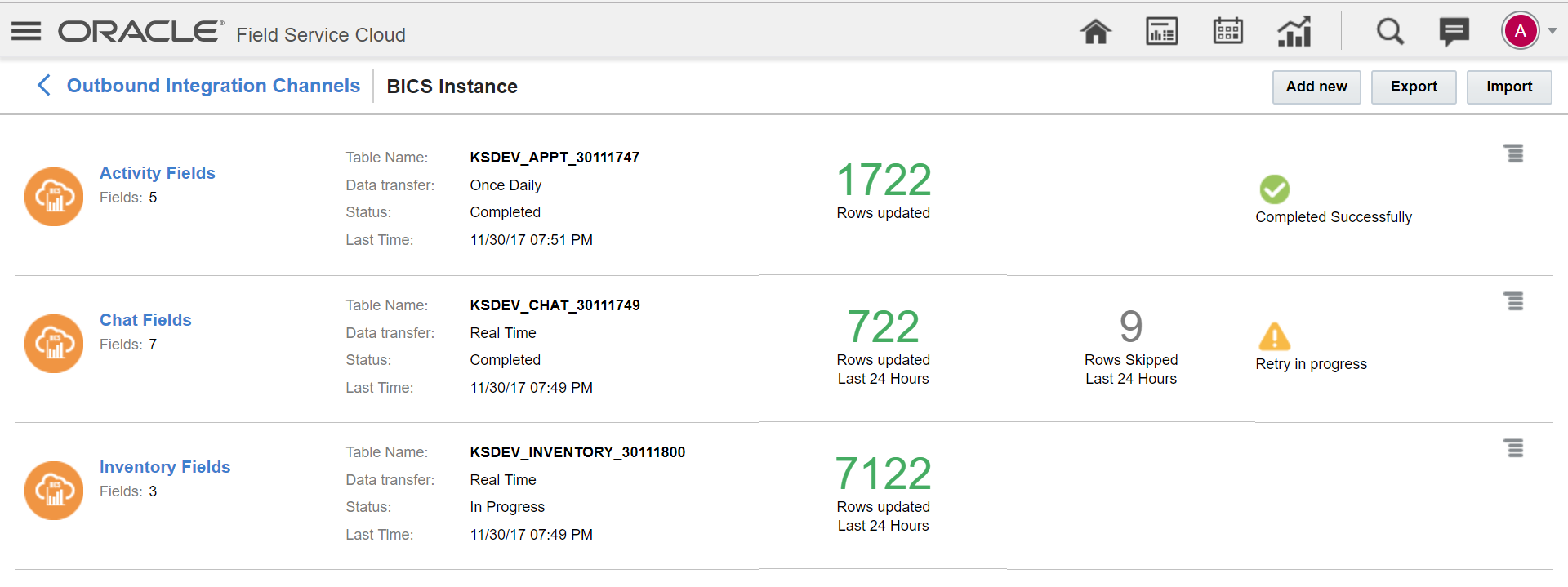
The fields and their descriptions are as follows:
| Item | Details |
|---|---|
| Table Name |
Name of the table created in BICS. |
| Data Transfer |
Mode of transfer selected between OFSC - BICS/ DBaaS. |
| Status |
Status of the data transfer Values- New /Completed / In Progress / Failed. |
| Last time |
Last updated time |
| Rows Updated |
No of rows updated in last 24 hours |
| Rows Skipped |
No of rows failed to transfer. |
| Indicating data transfer completed successfully. |
|
| Data transfer completed. But failed to transfer complete data. The system will retry the transfer of missed data. |
All the Monitoring data/information shown in this UI will be reset every 24 hours.
DATA TRANSMISSION TO BICS/ DBAAS
- Users can select the data transmission as real time or once daily against an entity in the system.
- Real-time data transmission will be initiated when an event corresponding to that entity is triggered in the system.
NOTE: Near real time data transmission. Processing and transmission of data depends on the volume of data. We can expect a delay in transferring big volume of data. The data transfer, in this case, will be in near real-time in lieu of real-time.
- The daily transmission will be initiated as per the daily extraction period.
NOTE: Real-time transfer of Activity, inventory, Activity Link, Resources, Users, and Route entities will be initiated after the daily extraction process. Real-time data transfer of these entities will be initiated only from the next day.
DATA TRANSMISSION - SUPPORTED FIELDS
The following list describes the entities and data transmission methods supported:
| Fields |
Daily Once Data Transfer |
Real Time Synchronization |
|---|---|---|
| Activity Fields |  |
 |
| Activity Link Fields |  |
 |
| Activity Work Skill Fields |  |
|
| Chat |  |
|
| Chat Broadcast Delivery Status |  |
|
| Chat Message |  |
|
| Chat Participant |  |
|
| GPS Track Fields |  |
|
| Inventory Fields |  |
 |
| Message Fields |  |
|
| Message Text Fields |  |
|
| PAS Answer Fields |  |
|
| PAS Question Fields |  |
|
| Property Fields |  |
|
| Property Lookup Fields |  |
|
| Required Inventory |  |
|
| Resource Fields |  |
 |
| Resource Location Fields |  |
|
| Resource Preference |  |
|
| Resource Property Fields |  |
|
| Resource Work Skill Fields |  |
|
| Route Fields |  |
 |
| Service Request Fields |  |
 |
| Time Slot Fields |  |
|
| Type List Fields |  |
|
| User List Fields |  |
 |
| User-Resource Relation Fields |  |
CHANGES IN DATA TYPE
The following 18A fields have been converted from IDs to label to unify the real time and daily transfer strategy. As a result, data type of 18A fields have changed. If you have created data models or reports in Oracle Business Intelligence using these fields, you must change the data types in your BICS instance as follows:
| Fields |
Data Type in release 17.8 |
Data Type in 18A |
Comments |
|---|---|---|---|
| appt.a_tsid |
INTEGER |
VARCHAR |
Time slot internal ID is converted to label |
| appt.aworktype |
INTEGER |
VARCHAR |
Activity Type internal ID is converted to label |
| appt.aworkzone |
INTEGER |
VARCHAR |
Activity Work Zone internal ID is converted to label |
| appt.c_zid |
INTEGER |
VARCHAR |
Activity Time Zone internal ID is converted to label |
| appt.clanguage |
INTEGER |
VARCHAR |
Customer Language internal ID is converted to label |
| appt.first_manual_operation |
INTEGER |
VARCHAR |
First Manual Operation (old value - new value) 0 - UNDEFINED 1 - ASSIGN 2 - BUCKET_CHANGE 3 - REORDER, 4 - UNSCHEDULE 5 - UNASSIGN 6 - RESCHEDULE 7 - REASSIGN 8 - TECHNICIAN_ASSIGN 9 - TECHNICIAN_BUCKET_CHANGE 10 - TECHNICIAN_UNSCHEDULE 11 - TECHNICIAN_UNASSIGN 12 - TECHNICIAN_RESCHEDULE 13 - TECHNICIAN_REASSIGN |
| provider.ptype |
INTEGER |
VARCHAR |
Resource Type internal ID is converted to label |
| provider.time_zone |
INTEGER |
VARCHAR |
Resource Time Zone internal ID is converted to label |
| inventory.invtype |
INTEGER |
VARCHAR |
Inventory Type internal ID is converted to label |
| provider.pactive |
INTEGER |
VARCHAR |
Resource Status (Old value ? new Value) 0/null -> inactive, 1 -> active |
| security_user.suweek_start |
INTEGER |
VARCHAR |
When the week starts for this user account: Old Value ? New value 0/null -> sunday 1 -> monday 2 -> tuesday 3 -> wednesday, 4 -> thursday 5 -> friday 6 -> saturday -1 -> default |
| provider.planguage |
INTEGER |
VARCHAR |
Provider Language Internal ID is converted to Label |
| support_request.srtype |
INTEGER |
VARCHAR |
Support Request Type internal ID is converted to Label |
| appt.delivery_window_start |
VARCHAR |
DATE |
|
| appt.service_window_start |
VARCHAR |
DATE |
|
| appt.delivery_window_end |
VARCHAR |
DATE |
|
| appt.service_window_end |
VARCHAR |
DATE |
|
| queue.calendar_time_from |
VARCHAR |
DATE |
|
| queue.calendar_time_to |
VARCHAR |
DATE |
DATE FORMAT
Oracle Field Service Cloud will only support UTC time format from 18A versions for date/ time fields.
Date Time format
If you have configured date and time with resource time zone, you will have to convert the dates to your required time zones in the report.
FIELDS NOT SUPPORTED FOR OFSC/ BICS DATA TRANSMISSION
NOTE: If you continue to use daily updates the existing fields will remain. If you are switching to real-time updates, the Fields Removed defined in the tables below will not be available.
The following fields will not be available for BICS/ DBaaS transmission:
- Activity Fields ( appt ):
| Fields |
Type |
|---|---|
| appt.travel_estimation_method | INTEGER |
| appt.a_locationid | INTEGER |
| appt.aupdate_flags | INTEGER |
| appt.auto_routed_to_date | DATE |
| appt.auto_routed_to_provider_id | INTEGER |
| appt.auto_routed_to_provider_name | STRING |
| appt.continuous_traveling_time | INTEGER |
| appt.number | STRING |
| appt.first_manual_operation_interface | INTEGER |
| appt.a_visitid | INTEGER |
| appt.access_schedule | STRING |
| appt.acoord_accuracy | INTEGER |
| appt.acoord_status | STRING |
| appt.afeatures | INTEGER |
| appt.a_templateid | INTEGER |
| provider.pcapacity_bucket | INTEGER |
| provider.pdate_fid | INTEGER |
| provider.pinitial_ratio | FLOAT |
| provider.p_rprid | INTEGER |
| provider.ptime_fid | INTEGER |
| provider.skip_days_for_stats | INTEGER |
| queue.final_travel_estimation_method | INTEGER |
| queue.final_travel_from_aid | INTEGER |
| queue.qid | INTEGER |
| time_zone.zoneinfo_name | STRING |
| appt.travel_from_aid | INTEGER |
- Activity Fields ( appt ) - Fields Removed from Activity but available via other Entities:
| Fields |
Type |
Resource/Route Fields (provider) |
|---|---|---|
| provider.email | VARCHAR | Resource Fields ( provider ) |
| provider.pactive | NUMBER | Resource Fields ( provider ) |
| provider.parent | VARCHAR | Resource Fields ( provider ) |
| provider.planguage | VARCHAR | Resource Fields ( provider ) |
| provider.pname | VARCHAR | Resource Fields ( provider ) |
| provider.pphone | VARCHAR | Resource Fields ( provider ) |
| provider.ptype | VARCHAR | Resource Fields ( provider ) |
| provider.time_zone | NUMBER | Resource Fields ( provider ) |
| queue.activated | DATETIME | Route Fields ( queue ) |
| queue.calendar_time_from | VARCHAR | Route Fields ( queue ) |
| queue.calendar_time_to | VARCHAR | Route Fields ( queue ) |
| queue.deactivated | DATETIME | Route Fields ( queue ) |
| queue.final_travel | NUMBER | Route Fields ( queue ) |
| queue.reactivated | DATETIME | Route Fields ( queue ) |
- Resource Fields (provider):
| Fields |
Type |
|---|---|
| provider.skip_days_for_stats | INTEGER |
| provider.pcapacity_bucket | INTEGER |
| provider_children.child_id | INTEGER |
| provider_children.distance | INTEGER |
| provider_children.parent_id | INTEGER |
| provider.pdate_fid | INTEGER |
| provider.pinitial_ratio | FLOAT |
| provider.ptime_fid | INTEGER |
| provider.p_rprid | INTEGER |
| provider_owner.pname | STRING |
- Route Fields (queue):
| Fields |
Type |
|---|---|
| queue.final_travel_estimation_method | INTEGER |
| queue.final_travel_from_aid | INTEGER |
| queue.qid | INTEGER |
| time_zone.zoneinfo_name | STRING |
| provider.p_rprid | INTEGER |
| provider.pdate_fid | INTEGER |
| provider.pinitial_ratio | FLOAT |
| provider.ptime_fid | INTEGER |
| provider.skip_days_for_stats | INTEGER |
| provider.pcapacity_bucket | INTEGER |
- Route Fields (queue) - Fields removed from Route but available via other entities:
| Fields |
Type |
Resource/Route Fields (provider) |
|---|---|---|
| provider.email | VARCHAR | Resource Fields ( provider ) |
| provider.external_id | VARCHAR | Resource Fields ( provider ) |
| provider.pactive | NUMBER | Resource Fields ( provider ) |
| provider.parent | VARCHAR | Resource Fields ( provider ) |
| provider.pid | NUMBER | Resource Fields ( provider ) |
| provider.planguage | VARCHAR | Resource Fields ( provider ) |
| provider.pname | VARCHAR | Resource Fields ( provider ) |
| provider.pphone | VARCHAR | Resource Fields ( provider ) |
| provider.ptype | VARCHAR | Resource Fields ( provider ) |
| provider.time_zone | VARCHAR | Resource Fields ( provider ) |
- User FIelds (user):
| Fields | Type |
|---|---|
| provider.p_rprid | INTEGER |
| provider.ptime_fid | INTEGER |
| provider.pcapacity_bucket | INTEGER |
| provider.pdate_fid | INTEGER |
| provider.pinitial_ratio | FLOAT |
| provider.skip_days_for_stats | INTEGER |
| provider.time_from | STRING |
| provider.time_to | STRING |
| security_user.su_zid | INTEGER |
| security_user.sudate_fid | INTEGER |
| security_user.sulong_date_fid | INTEGER |
| security_user.sutime_fid | INTEGER |
| security_user.uid | INTEGER |
| user_type.type_id | INTEGER |
| time_zone.zoneinfo_name | STRING |
| user_type.comment | STRING |
| user_type.status | STRING |
- User Fields (user) - Fields removed from user but available via other entities:
| Fields | Type | Resource/Route Fields (provider) |
|---|---|---|
| provider.email | VARCHAR | Resource Fields ( provider ) |
| provider.external_id | VARCHAR | Resource Fields ( provider ) |
| provider.pactive | NUMBER | Resource Fields ( provider ) |
| provider.parent | VARCHAR | Resource Fields ( provider ) |
| provider.planguage | VARCHAR | Resource Fields ( provider ) |
| provider.pname | VARCHAR | Resource Fields ( provider ) |
| provider.pphone | VARCHAR | Resource Fields ( provider ) |
| provider.ptype | VARCHAR | Resource Fields ( provider ) |
- Activity Link Fields (appt_link):
| Fields | Type |
|---|---|
| from_queue.qid | INTEGER |
| provider.pinitial_ratio | FLOAT |
| to_queue.qid | INTEGER |
| provider.pcapacity_bucket | INTEGER |
| provider.pdate_fid | INTEGER |
| provider.ptime_fid | INTEGER |
| provider.skip_days_for_stats | INTEGER |
| provider.p_rprid | INTEGER |
Activity Link Fields (appt_link) - Fields removed in Activity Link but available via other entity:
| Fields | Type | Resource/Route Fields (provider) |
|---|---|---|
| provider.pactive | NUMBER | Resource Fields ( provider ) |
| provider.parent | VARCHAR | Resource Fields ( provider ) |
| provider.pid | NUMBER | Resource Fields ( provider ) |
| provider.planguage | VARCHAR | Resource Fields ( provider ) |
| provider.pname | VARCHAR | Resource Fields ( provider ) |
| provider.pphone | VARCHAR | Resource Fields ( provider ) |
| provider.ptype | VARCHAR | Resource Fields ( provider ) |
| provider.time_zone | VARCHAR | Resource Fields ( provider ) |
| provider.email | VARCHAR | Resource Fields ( provider ) |
| provider.external_id | VARCHAR | Resource Fields ( provider ) |
IMPORT/EXPORT FUNCTION
The import / export functionality has been improvised in 18A. This function will now perform field level validations and shows errors and warnings while importing file configurations.
- Click Import from BICS/ DBaaS/ DailyExtract configurations
- Validation while importing files - with errors
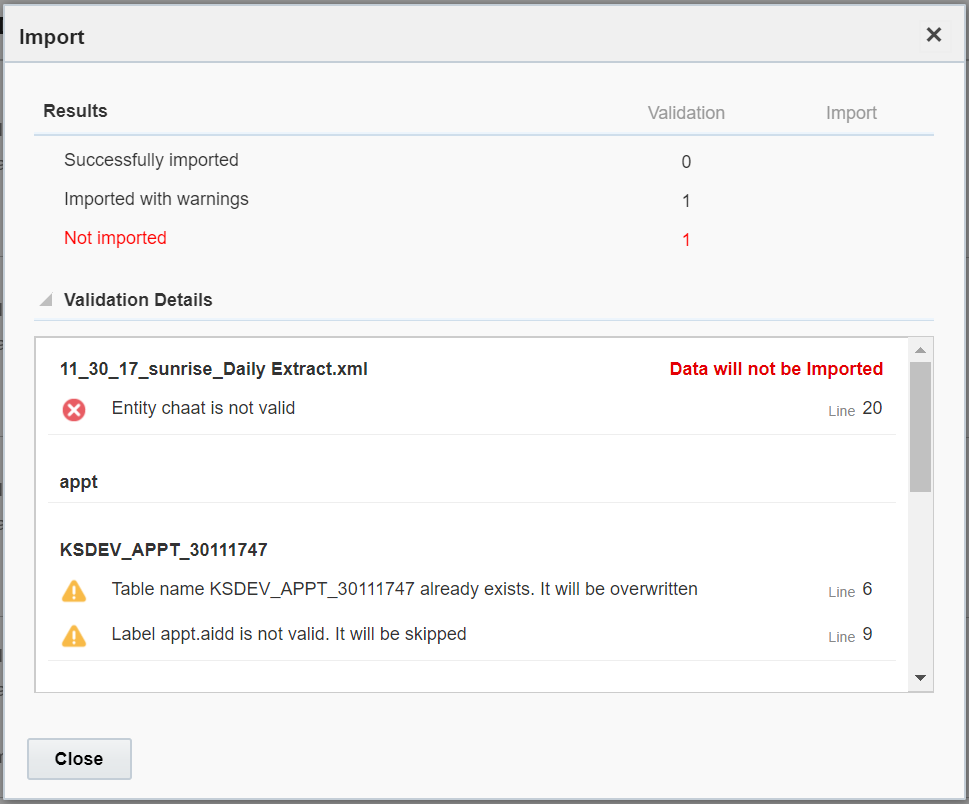
- Validation while importing files - with no errors
- Import completed successfully
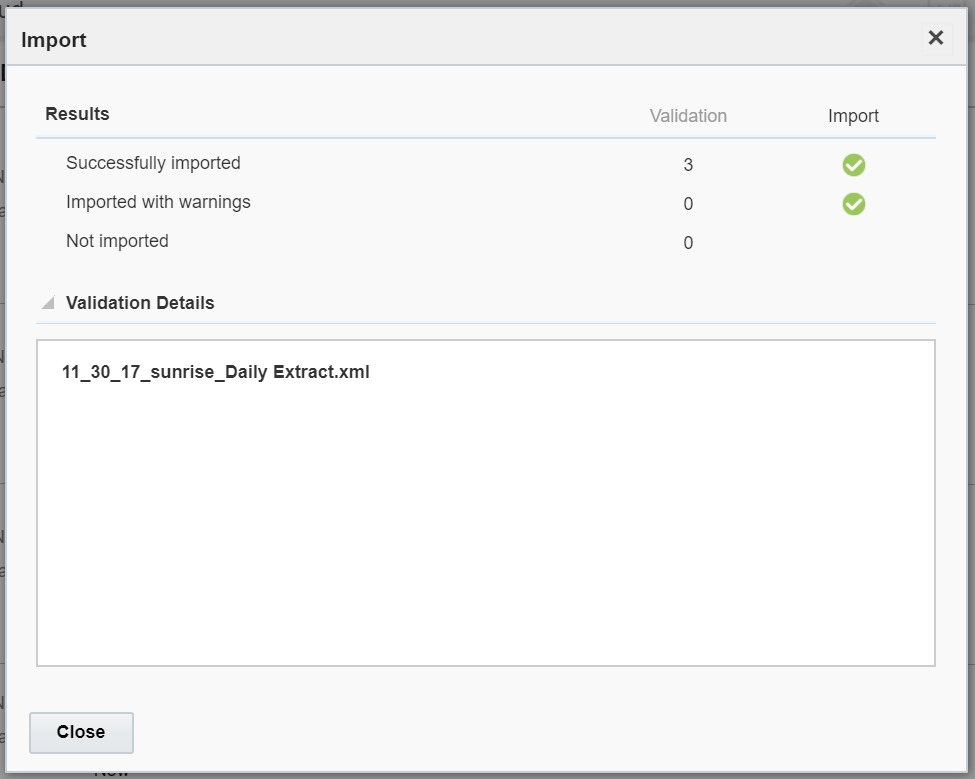
Steps to Enable
To create a new outbound channel:
- Click Configuration and select Outbound Integration.
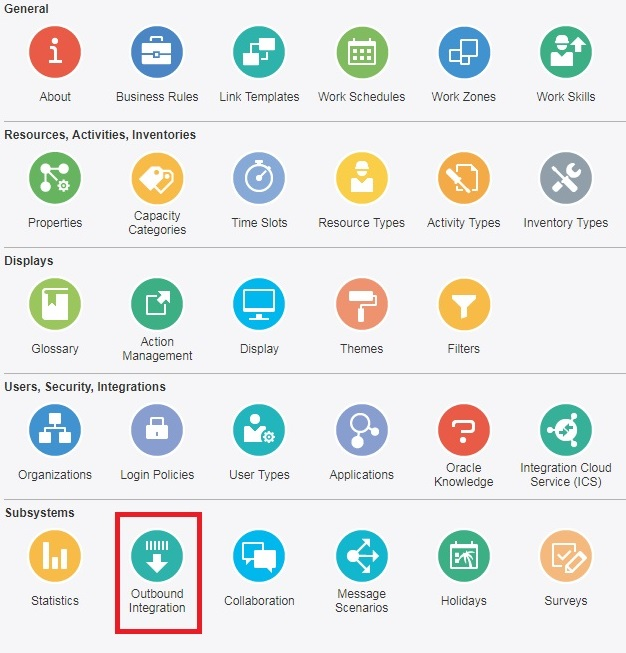
Outbound Integration Icon
The Outbound Integration Channels configuration window opens:

Outbound Configuration Page
-
To create a new channel, click Add.
- In the Add Channel dialog, select the Channel Type from the drop-down list.
- Business Intelligence Cloud Service - the Add Channel dialog displays the Name, URL, and Identity Domain fields.
- Database as a Service - the Add Channel dialog displays the Name, Host, Port, Connect with SID, and Connect with Service Name fields.
-
Add a New entity.
Users can select a new entity in the configuration - this will create a new table in BICS / DBaaS.
| Configuration |
Details |
|---|---|
| Table Name | Table name to be created in BICS side. |
| Entity | OFSC fields .List of values, user can select the OFSC fields to be pushed to BICS/ DBaaS . |
| Data Transfer | List of Values. Once Daily- Data will be transferred to BICS/ DBaaS once in a day. As per daily extraction period configured in the system. Real-time - Data transfer from OFSC to BICS / DBaaS will be in near real time. |
- Add fields to the entity
Users can select fields to be transferred to BICS/ DBaaS by adding fields into selected BICS / DBaaS entities.
- Complete the fields and click OK to add the channel. The newly added outbound channel will now be available in the Outbound Integration page.
After you add a new outbound channel:
- The Outbound Integration Channels configuration window displays the updated list of channels.
- Data transmission to Oracle Business Intelligence Cloud Services or Oracle Database as a Service displayed in this page will be reset every day (24 hours).
- The data processing and transmission depends on the volume of data stored. You may expect a delay in transferring big volumes of data. Also, the daily transmission will be initiated as per the daily extraction period.
- Real-time data transfer of the following entities will be initiated only from next day: Activity, inventory, ActivityLink, Resources, Users and Route entities.
Key Resources
The following objects are exposed in the Oracle Field Service Cloud Adapter for Oracle Integration Cloud Service:
- Update Activity
- Update Inventory
- Event API Filter Feature Support including:
- Fields to monitor for changes
- Fields to return in each of the published events
- Activity inventories:
- Create customer inventory
- Get customer inventory
- Get deinstalled inventory
- Get installed inventory
- Create Resources
- Update Resource
Steps to Enable
Open the Oracle Field Service Cloud ICS Adapter and configure objects you want to use.
Key Resources
Support of Favorites in Resource Tree
With the 18A release, Core Manage and Mobility users can setup and utilize Favorites in the resource tree. This feature enables quick access to frequently used resources including Buckets, Field Resources, Organization units, Tools, or Vehicles.
Both Core Manage and Mobility interfaces support the Favorite resources option. The favorite resources that a user marks in Core Manage are displayed automatically in Mobility in the Supervisor view. When a user marks a resource as favorite, a star appears next to it. In Core Manage, Favorites is shown as a separate group located at the top of the resource tree. Whereas in Mobility, Favorites is represented as a Group. Further, favorites are saved for a specific user (not a company level configuration). Here are some example screenshots:
Core Manage:
Favorites in Core Manage
Mobility:
Favorites in Mobility
The Favorite resources and the Favorites group have the following characteristics:
- You can create Favorites only in the Core Manage interface.
- You can collapse the root element in the resource tree to view only the Favorites group.
- Favorite resources in the group are displayed regardless of the selected resource filters.
- All warnings shown on the resource icon and resource hint in the resource tree are supported for Favorite resources.
- Actions available in the main resource tree such as drag and drop and filter are supported for the Favorites group as well.
- When searched for a resource, Favorites and the main resource tree resources are searched.
- When searched by activity, the main resource tree resource is considered, and the Favorites group is avoided.
- The Favorites group is shown on the following screens in the Core Manage interface:
- Activities
- Daily
- Dashboard
- Reports
- Resource info
- Resource calendars
- Inventories
- Locations
- Resource work zones
- Users
- Favorites are not available on the following screens in the Core Manage interface:
- Quota
- Forecasting
- Routing
- If you add a new resource or remove a resource from Favorites in Mobility, it will appear or be removed from Core Manage. The reverse is also true.
FAVORITES IN MOBILITY
When you create the Favorites group in the Core Manage interface, it is automatically created and displayed in Mobility under the Supervisor view. The Favorites group:
- Has a star next to it
- Is part of other managed groups
- Has the same characteristics as a managed group
- Can be renamed in Mobility but will still display the star and behaves as a Favorites group
- Contains the same resources that are setup in Core Manage
Steps to Enable
The Administrator must configure the "Resource hint" screen context in Core Manage for the required User Type with the "Set as favorite" and "Remove from favorites" actions.
To mark a resource as favorite:
- In Core Manage, click the resource in the resource tree.
- Click Set as favorite in the resource hint. A star appears next to the resource in the resource tree. A group by name Favorites is created at the top of the resource tree, and the favorite resource is added to it.
- To remove a favorite resource, click the resource and click Remove from favorites in the resource hint.
Key Resources
Pre-Calculated Travel Statistics
Travel statistics are based on the actual durations reported by field resources. As such, new and existing users expanding into new operating areas will not have actual durations in the application. With this release, the application will use pending activities to derive estimated durations. Using this method improves travel durations at the time of optimizing routes and moving activities.
Oracle Field Service Cloud performs this process once a day:
-
Get the list of activities and their locations.
- Estimate the probability of travel in future between each pair of ’Activity travel stats fields' (Travel Keys). The travel probability is calculated for all Travel Key pairs within the same travel area.
- Calculate travel durations. The travel durations are calculated only between keys that share a common travel area.
- Sort Travel Key pairs in descending order.
NOTE: Travel Keys that have existing learned travel are excluded from the estimation process.
- Estimate a maximum of 5,000 pairs based on the sorted list.
After performing the process, the application has additional travel duration data. The next time Routing runs or a user moves an activity, the application uses the pre-calculated travel values.
Calculating probability and sorting Travel Key combinations:
- Only activities that have the address resolution to the level of 'Address' are considered for calculations.
- Travel Keys that have at least (4) four activities are considered for estimation.
- All activities belonging to the same Travel Key are considered to be in similar locations.
- In the first cycle, the average travel duration within each Travel Key is calculated. This is done by selecting the corner most activities (based on x and y co-ordinates) within the Travel Key and the average distance between the locations. The Travel Keys are sorted in descending order of the number of activities, while sending the coordinates for calculation.
- In subsequent cycles, the average travel time between different Travel Keys is calculated. Here, the sorting of Travel Key pairs is based on the number of activities present in both the Travel Keys involved.
EXAMPLE OF SORTING TRAVEL KEYS:
Consider the following Travel Keys with the corresponding number of activities and travel areas:
| Travel Key |
Travel area |
Number of activities |
| TK1 |
TA1 |
100 |
| TK2 |
TA1 |
150 |
| TK3 |
TA1 |
200 |
| TK4 |
TA2 |
50 |
In this scenario, the Travel Keys are sorted as follows before being sent to the Location Service:
- TK3-TK3 (within the same Travel Key)
- TK2-TK2 (within the same Travel Key)
- TK1-TK1 (within the same Travel Key)
- TK4-TK4 (within the same Travel Key)
- TK2-TK3 (between Travel Keys that share the same Travel Area)
- TK1-TK3 (between Travel Keys that share the same Travel Area)
- TK1-TK2 (between Travel Keys that share the same Travel Area)
Steps to Enable
No steps are needed to enable this feature.
Key Resources
- Administering Oracle Field Service Cloud
Travel Calculation for Non-Travel Activities
Currently, when an activity does not require travel (Activity Type does not have the Calculate travel checkbox selected), the idle time before that activity is considered as travel to the next activity, and requires traveling in the route. This can lead to inaccurate estimation and reporting of travel time. To improve the accuracy of travel time calculation, the way travel time is calculated when a route contains non-travel activities is updated.
The travel between activities can be split into two (or more) pieces by inserting non-travel activities in between. As a result, in Time View, non-travel activities are placed over the travel time for activities that require travel.
Regardless of whether you move an activity manually, assign it directly through API and/or routing, the new way of placing non-travel activities is used. This means that non-travel activities are shown over the travel time on the resource timeline in both Core Manage and Mobility Time views.
Example
When an activity ends at 9:00 and a phone call follows at 9:30 (with a service window at 9:30 that does not require travel is required), if the travel to the next activity needs 1 hour, the behavior will be as follows:

Current behavior
The updated travel behavior with non-travel related activities in 18A will be as follows:

Updated behavior
With release 18A, routing adapts to the ideal scenario where the technician does not wait for 30 minutes for a phone call, instead the technician will start traveling, and when it is time, stop to make a call and continue to travel.
CHANGES IN MANAGE AND MOBILITY
Manage:
- The "Working time includes travel to first activity" check box on the Edit resource type screen is renamed as "Working time includes first travel to activity".
- Using the Time View, Non-travel activities can be placed within the travel time between activities requiring travel calculations.
Mobility:
- Using the Time View in Mobility, non-travel activities can be placed within the travel time between activities requiring travel calculations.
- A hint is shown for travel providing information on which activity it belongs to.
Mobility Hint
Steps to Enable
This behavior is available automatically after upgrade for all new activities movement. Existing routes will not be automatically recalculated.
Key Resources
Transfer of Non-Serialized Inventory with Quantity
With the February 2018 (18A) release, you can transfer non-serialized inventory between resources using the Oracle Field Service Collaboration Cloud Service in Oracle Field Service Cloud Manage.
You can perform the following actions:
- View the total number of available inventories and required number of inventories for a future activity.
- Define the required number of inventories that you want to transfer in the Collaboration window.
NOTE: The maximum quantity that can be transferred or received by a user is 2,147,483,647 units.
In case you transfer more inventory than the available quantity, the system is updated with a negative value of available quantity.
Steps to Enable
To transfer non-serialized inventory with quantity:
- Log in to the Oracle Field Service Cloud Manage interface.
- Navigate to Inventories for a specific resource. The Inventories page of the user displays.
- From the Collaboration window, click the Menu icon.
- Click Search Contact to locate a user. For example, assume that you want to transfer the inventories to the technician, William. Therefore, locate William in the Search Contact list and select William to open the chat window.
- Select the non-serailized inventory that you wish to transfer and drag and drop it to the chat window.
- Select the Transfer option in the chat window.
- In the Quantity field, enter the quantity to transfer.
- Click Send.
- The recipient should accept the inventory transfer to complete the process.
- To view the updated inventory in the Manage interface, select View from the Actions column.
- To view the updated inventory in the Mobility interface, select Inventory in the Oracle Field Service Cloud Mobility interface and view the updated inventory in the Inventory list.
Key Resources
Timeout Message in Reports and Removal of SOAP Reports
With the February 2018 (18A) release, notifications are sent when loading reports containing huge volumes of data. Earlier, reports loaded quickly for child resources with the big amount of records, however, they did not load if the respective parent resource is selected in the resource tree with 'Apply hierarchically' check-box checked. As part of this enhancement, a timeout message is displayed whenever a report takes more than 30 seconds to load. This helps in taking the next steps to proceed.
Following messages are displayed:
- Unable to load data. Change parameters and press apply to view report Message will be displayed for reports with huge volumes of data if they takes more than 30 seconds to load data. You can change the current filter to load the data.
- A notification message is displayed when SQL execution limit (http://mysqlserverteam.com/server-side-select-statement-timeouts/) reaches the maximum and the filter should be restricted.
With the February 2018 (18A) release, SOAP reports will be removed in order to reduce data volumes and improve system performance.
Steps to Enable
No steps are needed to enable this feature.
Key Resources
The Oracle Field Service Cloud Mobility landing page has been enhanced with the February 2018 (18A) release. The update provides mobile users with a Dashboard view showing information related to a resource's day and route. Once configured, users logging into Mobility will have a Dashboard showing the following information:
- Resource Info
- Current / Next Activity
- Route
- Team
- Activities
- Assign to Team
- Inventory
- Add Activity
- Options
All the above options appear as tiles in the home screen, from where you can navigate to the relative screens. For example, if you click the Activities tile, the Activities page appears on the screen.
Here is a screenshot showing the Dashboard landing page in wide and narrow screen (based on the device):

Mobility Landing Page
When the user is offline, the tiles in the Mobility landing page and links in the Navigation menu that are dependent on connectivity become inactive. The navigation symbol (>) present near the Team holder’s name becomes invisible. ‘Offline’ message appears in the header.
This feature requires a configuration change to enable the Dashboard view and ensure backward compatibility. New customers subscribing to Oracle Field Service Cloud after 18A is released in Production will have the Dashboard as the default setting.
DASHBOARD TILES AND DESCRIPTIONS
| Title | Description |
|---|---|
| Resource info |
This tile contains base information about the technician:
If the resource's photo is not available (that is, it hasn't been uploaded or when offline), resource initials are displayed instead. Clicking on this tile opens 'Resource Info' screen, if 'Resource Info' action link is added to Activity list screen in Mobility. If the action link is not added, the tile is not clickable.
Resource Info Icon |
| Activate Route / Deactivate Route / Reactivate Route |
'Activate Route', 'Deactivate route', 'Reactivate route' tiles are displayed if the corresponding action link is configured for the Activity List screen in Mobility. Only one of these tiles can be displayed at a time in accordance with the following rules:
Reactivate Route is displayed if a route has been deactivated. The tile is the link to the Reactivate Route screen. Once the route reactivation time is submitted, the tile is replaced with Deactivate Route.
Activate Route Button
Deactivate Route Button
Reactivate Route Button |
| Current / Next Activity |
This tile represents information about the actual state of a technician's route. It may contain the following elements:
By default, all properties are displayed in a single line. To display each property in separate rows, "End of line" markers can be used when configuring Identify activity by screen.
Current and Next Activity |
| My Route (wide and narrow screens) |
Tile for wide screen contains Workload bar with percent of resource work time load for the selected day. Workload bar is grouped by activity statuses:
The tile for the narrow screen reflects the total number of activities in the resource route for the selected day. The tile redirects to the Route Map screen, if the Map action link is configured for the Activity List screen in Mobility. The tile is always displayed even if there are no activities in the route. If an activity's route is in jeopardy (for example, Missing SLA window), the tile turns orange.
My Route Wide and Narrow Screens |
| My Team (wide and narrow screens) |
The tile for a wide screen represents information about all Teams that a resource contributes to, for the selected day. It is displayed only if the current resource assists to or is assisted by other resource for the selected day. Team-holder's name is displayed first in the list and is marked in bold. The arrow links to the Dashboard of the team-holder. If the current resource is the team-holder, the arrow won't show. Team members are listed further. Different teams are separated with horizontal dividers. The following notification may be displayed under the resource name:
Only one item can be displayed, according to their order ('Non-working day' is the highest). The tile for a narrow screen shows the total number of resources in all resource teams. A click/tap on this tile opens a separate window with the details of the team. In case of any warnings (when any team member has 'Non-working day' or 'Route is not activated'), the tile turns orange and the number of warnings is displayed for a small tile.
My Team Wide and Narrow Screens |
| Activities | This tile displays the number of non-scheduled activities for the selected resource. It leads to the Activity List screen.
Activities Tile |
| Assign to team | This tile is displayed if the create_teamwork action link is configured for the Activity List screen in Mobility.
Assign to Team Tile |
| Inventory | Inventory tile is displayed if the list_queue_inventories action link is configured for the Activity List screen in Mobility. It navigates to the Inventory screen. The tile color turns orange, if there are any Started or Pending activities with missing required inventories. In this case, it shows the quantity of such inventory.
Inventory Tile |
| Add activity | This tile is displayed, if the add_activity action link is configured for the Activity List screen in Mobility.
Add Activity Tile |
| Options | This tile is displayed if the Options action link is configured for the Activity List screen in Mobility. Navigates to the Options screen.
Options Tile |
| Plug-in | A separate tile is displayed for each plug-in configured as action link for the Activity List screen in Mobility. Each tile contains only the plug-in name.
Plug-in Tile |




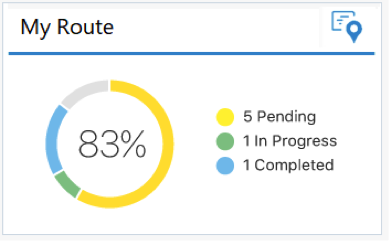
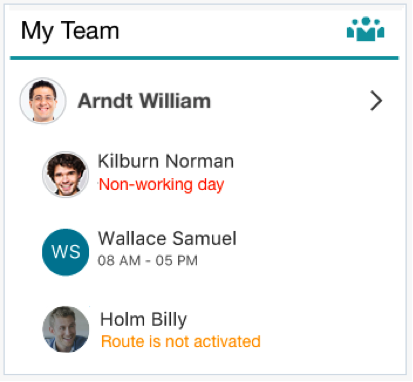







Steps to Enable
You can configure the Mobility base screen for a resource using the ‘Field Resource Landing Page’ parameter. This is a system configuration that is applied to all Mobility users.
The following options are available:
- Dashboard - This view provides a summary Dashboard of information available to the resource.
- Activity list - This view provides information in a list view..
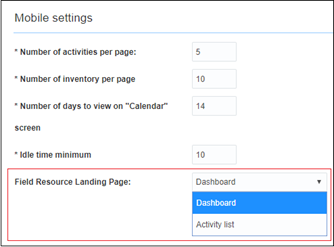
Mobility Base screen
To configure the Mobility base screen for a resource:
- Login to Core manage.
- Navigate to the Configuration screen.
- Click Display.
- Go to the Mobile Settings section and change the value of the Field Resource Landing Page.
- Click Save.
Key Resources
Main Menu Layout in Supervisor Screen
There is a new feature for users with the Supervisor view. With the February 2018 (18A) release, users with Supervisor view can configure the Main Menu layout. The following menu items are pre-configured for this layout and are available by default:
- Manage
- Maps
- Calendars
- Resources
This feature allows the following changes in the Mobility main menu header:
- Add menu items
- Delete menu items
- Change order of menu items
- Modify visibility of the screens
- Include plug-ins in the Main menu
New layout items will be available only in 'ReadOnly' mode.
Layout items created from Plugins will be displayed with a default icon:

Layout Items Icon
When a user logs into the Oracle Field Service Cloud Mobility, the Manage item is seen first even if:
- There are no action links in Main menu configuration.
- Another action link is listed first in the main menu including a plug-in.
Steps to Enable
To configure the main menu layout:
- Log in to Core Manage and click Configuration.
- Click User Types.
- In the User Types screen, click Mobility > Main menu items.
- Make the changes as needed and click Save.
Key Resources
Barcode Scanner Method in Plug-In API
With the 18A release, Barcode support has been added to Oracle Field Service Cloud with two enhancements:
- The native barcode button is available in Oracle Field Service Cloud Mobile.
- A new barcode method is added to the Mobile Plugin Framework.
Be sure to check out the Plug-in Enhancements Release Training video to find out more about this feature. Once the video loads click the section on the navigation menu to jump to that section.
NATIVE BARCODE BUTTON AVAILABLE IN ORACLE FIELD SERVICE CLOUD MOBILE
Users of the Oracle Field Service Cloud Mobile for Android or iOS will have a new Barcode Scanner button available when searching for inventory. A new Barcode Scanner button is available on the Search field. It uses the device’s camera. This functionality helps streamline the inventory process by utilizing the barcodes printed on devices or packages.
NOTE: The Barcode Scanner is available only in Oracle Field Service Cloud Mobile (Android or iOS app). It is not available in Oracle Field Service Cloud Mobility, the browser based mobility app.
- Log in using Oracle Field Service Mobile for iOS and Android.
- From the Resource Info screen, click any activity. The Activity details screen appears.
- Click the Search button present on the screen. The Search by keyword text box with the barcode scanner appears on the screen.
- Click the Barcode scanner button and place the mobile in front of the printed barcode on any of the packages. The Barcode scanner captures the barcode information and performs a search.
Inventory items will appear on the screen allowing you to select the equipment and continue with your activity.
The supported barcode types are as follows:
| Barcode Type |
Android |
iOS |
|---|---|---|
| QR_CODE |
+ |
+ |
| DATA_MATRIX |
+ |
+ |
| UPC_A |
+ |
+ |
| UPC_E |
+ |
+ |
| EAN_8 |
+ |
+ |
| EAN_13 |
+ |
+ |
| CODE_39 |
+ |
+ |
| CODE_93 |
+ |
|
| CODE_128 |
+ |
+ |
| CODABAR |
+ |
|
| ITF |
+ |
+ |
| RSS14 |
+ |
|
| PDF417 |
+ |
|
| RSS_EXPANDED |
+ |
NEW BARCODE METHOD ADDED TO THE MOBILE PLUGIN FRAMEWORK
The Mobile Plugin Framework is enhanced to include barcode support. The enhancement is a new method named ofscBarcodeScanner.
NOTE: The plugin framework in release 18A is backward compatible with the version introduced in 17.8.
List of callProcedure method parameters
| Param name |
Mandatory |
Type |
Description |
|---|---|---|---|
| apiVersion |
Yes |
integer |
API version. |
| method |
Yes |
string |
Must equal "callProcedure" |
| procedure |
Yes |
string |
Procedure name |
| callId |
Yes |
string |
Unique string identifier which is used to apply procedure response within plugin |
NOTE: The current version supports scanBarcode and openLink values for procedure parameter.
SUPPORTED PROCEDURES
- scanBarcode
Parts and equipment usually have barcodes printed on their package or on the device. This procedure provides barcode and 2D (for example, QR, DATAMATRIX) code scanner functionality to make the search easier for needed items in the inventory pools.
When this procedure is called, the scanner window is opened, which shows the live camera picture. When the barcode is recognized, the scanner windows are closed, and the resulting values are sent to the Plugin through the callProcedureResult method.
If the barcode scanner is unavailable or Mobility is not run inside the Mobile app, the corresponding error code is returned to the plugin through an error message.
Having Oracle Field Service Cloud Mobile (for Android or iOS) is a prerequisite to use the Barcode Scanner Mobile Plugin Framework to search by barcode.
Supported barcode and 2D code types
| Barcode Type |
Android |
iOS |
|---|---|---|
| QR_CODE |
+ |
+ |
| DATA_MATRIX |
+ |
+ |
| UPC_A |
+ |
+ |
| UPC_E |
+ |
+ |
| EAN_8 |
+ |
+ |
| EAN_13 |
+ |
+ |
| CODE_39 |
+ |
+ |
| CODE_93 |
+ |
|
| CODE_128 |
+ |
+ |
| CODABAR |
+ |
|
| ITF |
+ |
+ |
| RSS14 |
+ |
|
| PDF417 |
+ |
|
| RSS_EXPANDED |
+ |
- openLink This procedure provides a common way to open external URL links either with Mobility run in the web browser or in Mobile app. When Oracle Field Service Cloud Mobile is used, the given URL opens externally in a web browser. If not, it opens as a new browser tab.
- Examples of the "callProcedure" messages
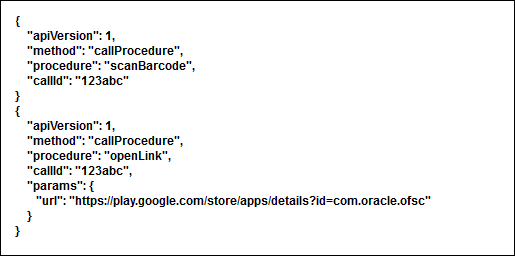
callProcedure messages example
- Example of the callId generation

callid generation messages example
- Error handling
- Example of the error message
callProcedure error message example
- Errors types that are related to 'callProcedure'
The "error" message contains only errors of these types.
| Type |
When occurs |
Available message fields |
|---|---|---|
| TYPE_PROCEDURE_ERROR |
Procedure call not valid due to missed params, and procedure executed with error. |
· procedure · callId (if available) |
| TYPE_PROCEDURE_PARAM |
Procedure params not valid or missed. |
· procedure · callId |
Available message fields
-
procedure - name of procedure on which error occured
-
callId - id of procedure call, caused the error. Equals to received callId param of callProcedure method
-
Error codes for TYPE_PROCEDURE_ERROR
| Code |
Caused by procedure |
Error Type |
Cause |
|---|---|---|---|
| CODE_CALL_ID_EMPTY |
scanBarcode |
Validation error |
Empty callId param. |
| CODE_CALL_ID_INVALID |
- |
Validation error |
Invalid callId param. |
| CODE_CALL_ID_DUPLICATE |
- |
Validation error |
Duplicate callId param. |
| CODE_PROCEDURE_FAILED |
- |
Execution error |
Procedure execution failed to various reasons. |
| CODE_PROCEDURE_UNKNOWN |
- |
Execution error |
Procedure was called with unknown procedure name. |
| CODE_PROCEDURE_UNAVAILABLE |
- |
Internal error |
OFSC Mobility service related to procedure is not available. |
| CODE_PROCEDURE_ACCEPTS_NO_PARAMS |
- |
Validation error |
Procedure was called with params. |
- Error codes for TYPE_PROCEDURE_PARAM
| Code |
Caused by procedure |
Error Type |
Cause |
|---|---|---|---|
| CODE_PROCEDURE_MANDATORY_PARAM_EMPTY |
openLink |
Validation error |
Mandatory param is missed. |
| CODE_PROCEDURE_PARAM_VALUE_INVALID |
- | Validation error |
Param value is not valid. |
NOTE: In current version of Plugin API there are two procedures - "scanBarcode" and "openLink".
- callProcedureResult method Mobility sends the message with this method to the plug-in after the execution of a procedure initiated by the callProcedure method. If the procedure fails, the error message is sent instead.
List of callProcedure method parameters:
| Param name |
Mandatory |
Type |
Description |
|---|---|---|---|
| apiVersion |
Yes |
integer | Plugin API version |
| Method |
Yes |
string | Equals callProcedureResult |
| Procedure |
Yes |
string |
Procedure name |
| resultData |
No |
string |
Result of execution of procedure |
- scanBarcode procedure For this procedure, the resultData param of callProcedureResult message is an object, which contains the following fields:
| Key |
Type |
Description |
|---|---|---|
| apiVersion |
string |
Plugin API version |
| Format |
string | Type of recognized barcode. See Supported barcode and 2D code types |
| Cancelled |
string |
Equals trueif user closed the scanner window before the code's recognized |
Example of the callProcedureResult messages:
- User successfully scanned barcode:
callProcedureResult successfully scanned message
- User pressed 'Cancel' button on Barcode Scanner:
callProcedureResult cancelled error message
- openLink procedure For this procedure, the callProcedureResult message is sent just to indicate that the procedure is executed successfully. The resultData parameter does not contain any data.
Steps to Enable
No steps are needed to enable this feature but it requires the use of Oracle Field Service Cloud Mobile for Android or iOS.
Key Resources
Improved Style for Activity List
The Activity list, Inventory list, and Service list screens have an improved look and feel, and user experience.
- Borders have been removed from the the lists.
- Activity list on the Nearby Activities map view has the "More" link placed in the middle.
EXAMPLES
Here are some before and after examples:
Activity list Before / After (width 320 pixels):
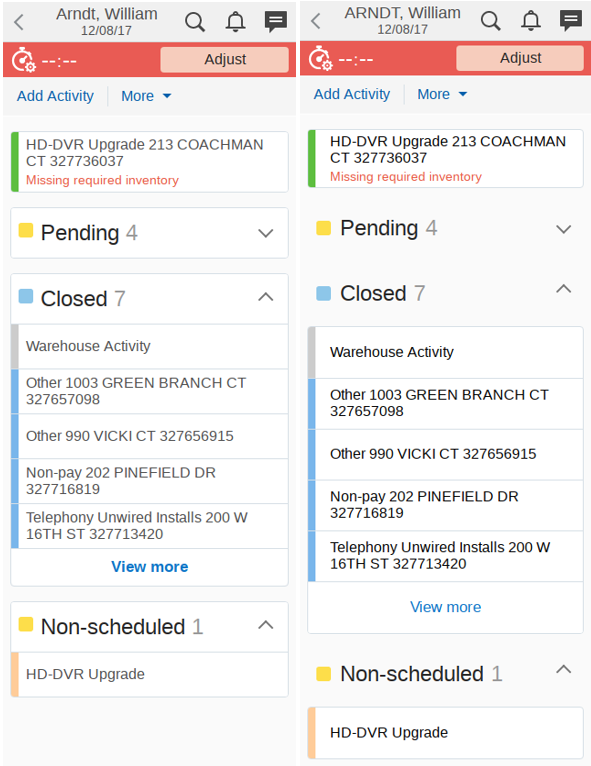
Activity List Before and After
Inventory list Before / After (width 320 pixels):
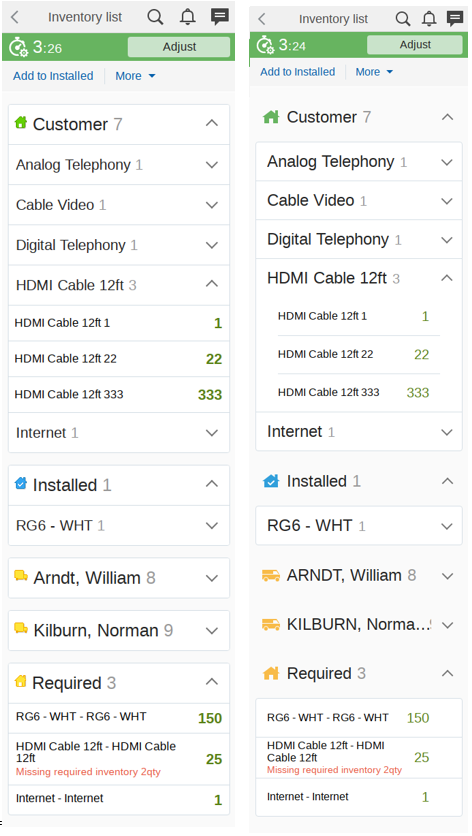
Inventory List Before and After
Steps to Enable
No steps are required to enable this feature.
Key Resources
Assign Activities to Temporary Resources via Urgent and Immediate Routing
Temporarily assigned resources can get activities through urgent and immediate routing. This improves routing activities to resources that are outside the current bucket.
This is enabled by checking the "Use resources outside the routing bucket" checkbox under the Filters section. By default, the "Use resources outside the routing bucket" checkbox is not checked for newly created and migrated routing plans.
Steps to Enable
To route activities by immediate/urgent routing plans outside of the current routing bucket:
- Create an Immediate routing plan on the Bucket.
- For this routing plan, click the Use resources outside the routing bucket check box.
- Save the plan to the current routing bucket.
- You can now add activities to the routing bucket. Add an activity that matches the filters of the routing plan and will have the same work zone of the resource that is outside of the bucket.
The activity should be routed by the immediate/urgent routing plan to the resource outside of the routing bucket.
Key Resources
Multi-Day Routing Optimization
This release includes the following multi-day routing enhancements:
- Access hours and service window
The rules for treating access hours, service windows and SLA have been updated:
- In case both Access Hours and Service Window/Time-slot are set, the Service Window/Time-slot will take unconditional priority over Access Hours
- If an activity is manually (or by means of API) scheduled to a day when Access Hours are undefined or such a day is directly prohibited by Access Hours, the scheduling takes priority so we assume that this date is fully accessible for activity assignment. To prevent misrouting, it is suggested either to initially schedule the activity according to the defined access hours or create the activity as unscheduled.
NOTE: Service Window and Time-slots work only for the day activity is scheduled. If you need to set up a multi-day schedule, please use Access Hours functionality. The only exception for this rule is non-scheduled activities having Service Window. In this case Service Window consider valid for all the days.
- Links
To clarify the existing functionality - links between activities (namely: "same day", "different day", "same provider" and "different provider") are mandatory, so if routing cannot route all the activities corresponding to those links, it may leave at least one activity non-routed.
NOTE: Routing assigns the maximum number of activities it can assign without violating the defined links.
- Preferred providers
The rules for treating Preferred providers in case of multi-day routing are the following:
- if the activity could be assigned to one of the Preferred providers during the multi-day routing run period without breaking the SLA or other important restrictions, it is assigned to the Preferred provider
- otherwise the activity is assigned to a resource which provides the best route optimization according to optimization goals.
In all cases, as soon as the SLA is expired, routing assigns the activity to the resource providing the minimal ETA independent of the resource being preferred.
- Overnight shifts treating
With this release routing runs (including single day runs) include resources with overnight shifts (a time period that starts before midnight of previous day and continues into the next day) assuming the routing plan run period includes their working time.
- Optimization
Forward-bundling optimization now available (e.g. the low-priority work with a SLA starting today and ends in a month after could be bundled with the work scheduled for day after tomorrow on the same address).
- Multi-day sequential plans
Sequential routing plans can be configured as multi-day.
Steps to Enable
No steps are needed to enable this feature.
Key Resources
Resource Filters in Immediate and Urgent Routing
Previously, immediate or urgent routing plans could not be prevented from assigning activities to particular field resources who were already loaded with some activities or who should have been free for high priority work.
With 18A, urgent and immediate routing plans contain resource filters similar to Bulk Routing plans.
To ensure backward compatibility, the existing immediate plans are migrated with the following filters:
- "Bucket" filter set to "Do not assign", which prevents assignment to buckets
- "Other" filter set to "Normal', which means "no filtering - all the resources are used"
Bucket to bucket routing:
It is possible to set up Bucket to Bucket routing using Immediate routing, the same way it is set up for Bulk routing. Old routing plans are migrated with filters preventing Bucket to Bucket routing to remain backward compatible, but new plans are created with Bucket to Bucket routing turned on.
As immediate routing does not allow routing activities causing overtime, make sure that:
- target bucket is empty or
- assigning the activity to the bucket will not produce overtime according to the assigned work schedule before using this bucket to bucket routing using immediate routing feature.
NOTE: It is not possible to run Bucket to Bucket routing using Urgent Routing plans.
The newly created immediate plans and urgent plans have only "Other" filter set to "Normal', which means "no filtering - all the resources are used". In order to prevent Bucket to Bucket routing using Immediate routing, set "Bucket" filter to "Do not assign", and in order to allow it set the "Bucket" filter back to "Normal".
Steps to Enable
To use resource filters in immediate or urgent routing plan:
- Navigate to the Routing screen.
- In the row for the Immediate or urgent routing plan, click the Properties icon and select Modify.
- In the Edit Routing Plan screen for Urgent and Immediate routing plan, expand the Filters section.
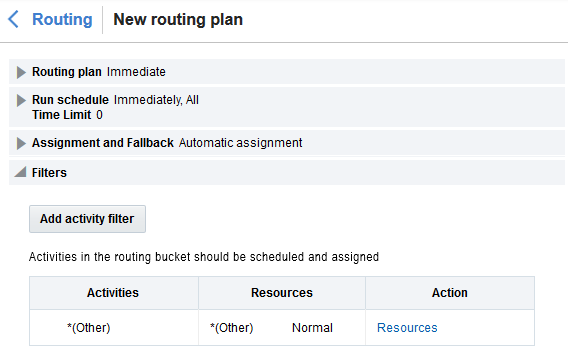
Immediate Routing Plan
- The Filters section is similar to the Bulk Routing with the following exceptions:
- Only one predefined filter is available for non-scheduled activities in the routing bucket
- You cannot add other filters or delete existing filters
- You cannot add/modify/delete activity filters
- Click Modify to set the filters as needed. The Add filter dialog for the immediate routing plan shows the filters set:
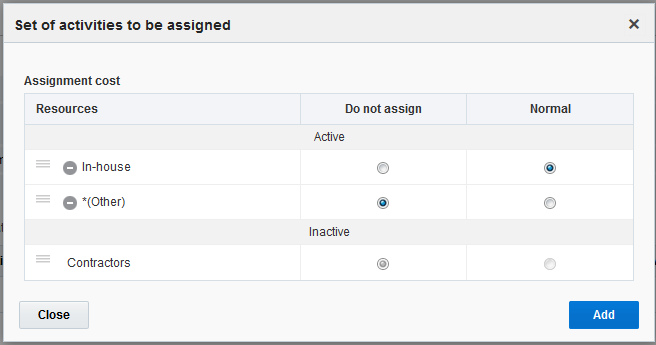
Add filter dialog showing immediate filters set
Key Resources
Re-Optimization Without Moving Activities to Bucket
Thess release introduces a new re-optimization routing configuration that will prevent activities from being moved back to the bucket. The new destination for unassigned activities = "Resources' routes". When configured, activities that match the filter can be reassigned to another resource but they will not returned back to the bucket or unscheduled.
Steps to Enable
To add re-optimization filter without moving activities to a bucket:
- Locate the Routing plan you want to update
- Click Modify.
- Under Reoptimization, select the Filter you want to update or click Add reoptimization filter to add a new filter
- Select 'Resources' routes from the Destination for unassigned activities list
Key Resources
Trigger Immediate and Urgent Routing Upon Changing Activity Property
This enhancement provides improvements to how activity property changes are used with Immediate and Urgent routing. The following will trigger Immediate or Urgent routing when the activity is in a bucket:
- Change of activity priority property from non-urgent to urgent will trigger urgent routing if an Urgent routing plan is defined for given bucket
- Change of any property of the activity mentioned in the activity filters of the Immediate routing plan from the value not fitting the filters to the value that fit the filters will trigger the Immediate routing if all other properties are compatible with the filters.
- Changing of activity properties from the value compatible with the filters to another value compatible with the filters should not re-trigger neither Urgent nor Immediate routing.
Steps to Enable
No steps are needed to enable this feature.
Key Resources
With the February 2018 (18A) release, a number of Core API improvements have been made to improve and simplify integration:
- GET Activities operation is added enabling activity search for multiple days using a wide range of parameters
- Resource operations including Get resource, Get resources, Get resources children, and Get Resources descendants operations:
- New optional "expand" and "fields" parameters
- Return the 'avatar' picture of a user
- GET Work Schedules is updated to return work shift labels and non-working reasons
- Bulk Activity Upload is enhanced to include the use of the internal activity Id
- Where is my technician API that provides a simple mechanism to track work order status and information about a resource (technician) in a single request.
Be sure to check out the API Enhancements Release Training video to find out more about this feature. Once the video loads click the section on the navigation menu to jump to that section.
GET ACTIVITIES OPERATION
A new operation GetActivities allows you to search for activities.
EXAMPLE
GET v1/activities?q=status == 'pending' and slaWindowEnd < '2016-10-23'
This operation allows using the following parameters:
- dateFrom - required. date from which to start returning activities. May be in the past (activities up to Data Retention policy cutoff can be returned with this operation). Format: YYYY-MM-DD
- dateTo - required. date until which to return activities. Format: YYYY-MM-DD
- resources - required. comma-separated list of resources for which to return activities.
- includeNonScheduled - optional. enum (same values as this parameter has for "Seach Activities" API)
- includeChildren - optional, enum ("none", "immediate", "all"). Default: "none" which means only the ones in "resources" list are included in the filter.
- limit - number of items to return in response. Maximum value of this parameter is 100,000. Default value is 10,000.
- offset - number of items to skip from the beginning of the response. Default value is 0.
- q - complex query statement, which can include one or more fields or custom properties. See description below. Parameter name "q" is recommended by Oracle REST Standard.
-
Example: GET v1/activities?q=status == 'pending' and slaWindowEnd < '2016-10-23'
-
- fields - optional. list of activity fields and custom properties, to return in response, separated by comma. Default: "activityId,resourceId,date,status"
-
Example: GET v1/activities?fields=activityId,status,apptNumber,XA_PROPERTY_X
-
q PARAMETER
The 'q' parameter is used to specify the filter expression and the value should be an expression with the following syntax:
- Filter expression is specified as a single string.
- It should evaluate to a boolean expression.
- It should contain one or more comparison statements.
- Comparison statements have form: <field> <operator> <value>. For example, activityDetails.activityType == 'Install'.
- This order cannot be changed, therefore ('Install' == activityDetails.activityType) is not valid.
- Comparing field to field (A== B) or value-to-value (1 == 1) is also not valid.
- Field has to be an alphanumeric identifier with no spaces or special characters except underscore. Subfields are separated by dot (.).Following are some examples:
- activityDetails.activityType
- activityDetails.X_MYPROP_10
- field.subField
- Comparison operators are: <, >, <=, >=, ==, !=, in
- Value can be either a string literal, an integer literal, or an array literal of strings and integers.
- String literals are delimited by single quotes, with escape character ~, for example:
- str == 'My String'
- str =='My string with ~' a quote inside'
- Integer literals are without quotes, may not contain dot or leading zeroes. For example:
- num ==0
- num ==12345
- num ==-67
- Array literals have to only contain strings or only integers, and are in square brackets. Empty arrays are not allowed. Arrays are only allowed following the "in" operator. For example:
- enum in [1,2,3]
- enum in ['Abc','Def','Ghi']
- String literals are delimited by single quotes, with escape character ~, for example:
- String comparisons are valid. For example:
- date > '2015-06-02'
- String comparisons are case-insensitive. For example: name == 'john.smith' is the same as name == 'JOHN.SMITH'
- String-integer coercion occurs. For example: num== -123 is the same as num== '-123'
- Multiple comparison statements have to be separated by logical operators (and, or). For example:
- A == 1 and B == 2 or C == 3
- A == 'xx' or A == 'yy'
- Operator precedence:
- comparison operators: ==,!=, <, >, <=, >=, in
- 'not'
- 'and', 'or'. Logical operators ('and' / 'or') have the same precedence, so parentheses can be used to achieve precedence. For example: A == 1 and (B == 2 or C == 3)
- Operators are also case-insensitive:
- (num IN[1,2,3]) OR (num < 0)
- Any statement can be preceded by "not" operator to negate it.
- not (activityType in ['IN','TC','BR'])
- A == 1 and not ( B == 2 or B == 3 )
- Whitespace outside strings is ignored.
- When the field being compared does not exist in the event, or is null, then it evaluates to an empty string. For example, expressions (non_existent_field == ''), (null_field == '') are both true.
Successful response contains:
- expression - value of 'q' as parsed.
- items - an array of activity elements, with the same structure as return by "GET activities/{activityId}"
- offset - integer, the offset that was passed as query parameter, or 0 if it was not passed.
- limit - integer, the actual limit that was applied by server. Usually equal to the "limit" parameter in request, but may be less.
- hasMore - boolean.
- true - indicates that there are more results that can be retrieved with successive paging requests.
- false - indicates there are no results or this is the final page.
- links - contains links to:
- current page,
- next page (unless this is a final page),
CONDITIONS OR RESTRICTIONS
The Core API - Get Activities is subject to the following conditions:
- Number of Requests –Following indicate the request number restriction:
- It is possible to run three 'get_activities' requests simultaneously. If more than 3 requests are sent, the additional requests are queued.
- Up to 10 requests can be queued. If 10 requests are queued and additional requests are sent, they are immediately rejected with an error message.
- Maximum time of a request waiting for execution in the queue is 30 seconds. When the waiting time is exceeded an error message is returned.
- Number of Activities Returned – up to 100,000 activities can be returned in a single response. If the 'select_count' parameter in the request is set to a value greater than 100 000, the response will contain an error message with the explanation of the error.
- Date Range – No more than 31 days can be searched in a single request. If the date range ('date_to' – 'date_from') is longer than 31 days, the response will contain an error message with the explanation of the error.
- Response Size – A single response size is limited to 20 MB. If the response size is close to 20 MB, the method returns fewer activities than requested and the response contains the 'have_more_results' parameter set to 'true'. This parameter indicates that there are more activities to be returned. In this case, a new request with 'select_from' value set to (last returned count + 1) is sent.
- Operation Run Time – A single operation can run no longer than 30 seconds. When the 30-second time limit has been reached, the method returns fewer activities than requested and the response contains the 'have_more_results' parameter set to 'true'. This parameter indicates that there are more activities to be returned. In this case, a new request with 'select_from' value set to (last returned count + 1) is sent. If the time limit has been exceeded before any activities are included in the response (for example, due to slow database response) an error is returned.
- Custom Properties Quantity – The maximum number of custom properties used in the request and/or returned in the response is 50. If more than 50 properties are included in the request, the response will contain an error message with the explanation of the error. The 50-property restriction includes both the custom properties used in the 'required_properties' list and in the filter expressions.
EXAMPLE
Following is an example request and response:
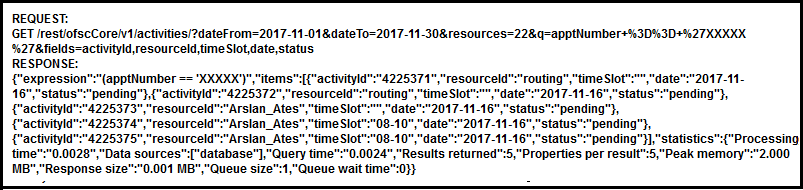
Example Request and Response
Same response has been presented in another format as follows:
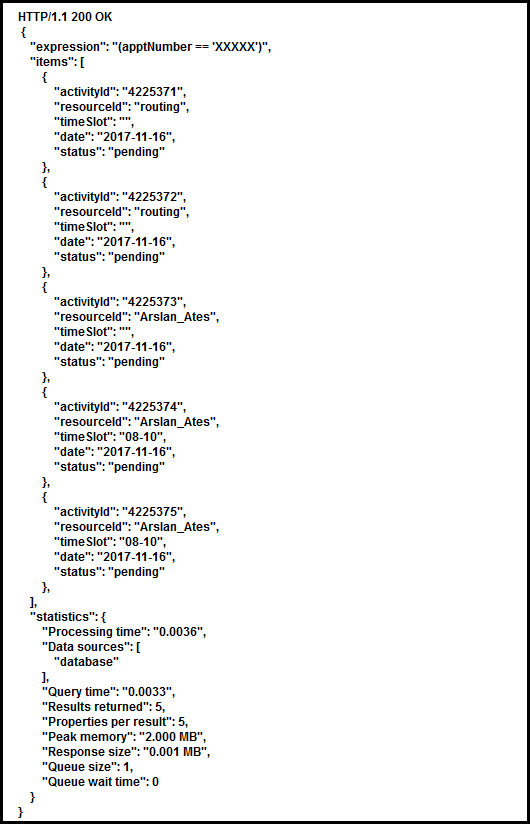
Example Response
GET RESOURCES OPERATIONS
The following parameters has been added to the Get Resource, Get Resources, Get resources children, and Get resources descendants operations:
- expand: Using this parameter, you can embed any one of the sub-entity (that is, workzones, workskills, inventories, workschedules) into each returned resource item. For example, the following query will return the workzones linked to the specified resource: https://api.etadirect.com/rest/ofscCore/v1/resources/{resourceId}?expand=workzones
NOTE: To avoid huge responses, any sub-entity that contains more than 500 items will not be expanded (for this particular item only) and will be returned as a usual link. The link can be used to retrieve the sub-entity in a separate call using limit and offset parameters to control the response size.
- fields: Specifies comma-separated names of resource fields that are to be returned in the response. Using the new parameter, it is possible to specify the list of fields that are needed for the integration flow and therefore reduce the traffic. The ‘avatar’ picture of the user will be returned in the response in addition to the resource information for the Get Resource, Get Resources, Get resources children, and Get resources descendants operations. If a user has an 'avatar' picture uploaded and is specified as a 'main resource' in the user configuration, then the avatar picture can be obtained directly from the resource. This improvement allows integrations that need the user's picture to avoid many unnecessary API calls.
- If a user has the 'avatar' picture uploaded and that user has 'main resource' specified then that avatar image can be obtain directly from the resource. It is supported by all resource operations (Get resource, Get resources, Get resource children, Get resource descendants)
GET WORK SCHEDULES OPERATION
The Get work schedules operation returns a list of work schedules assigned to the specified resource. New information has been added to the response and contains work shift labels and non-working reasons.
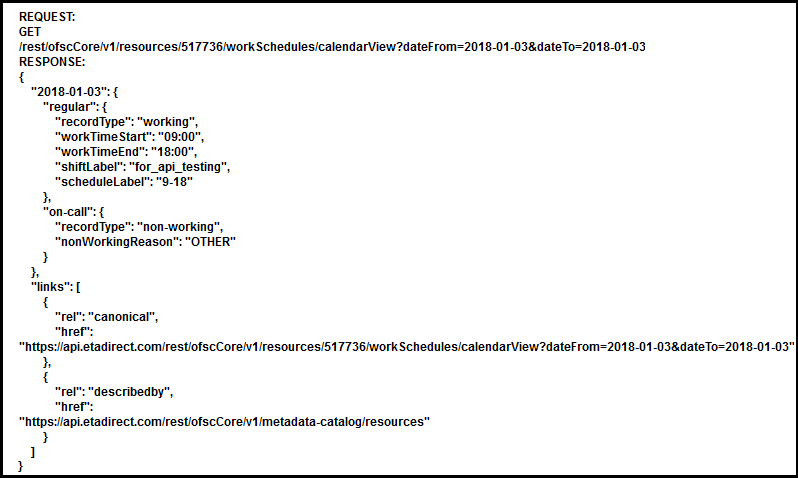
Request and Response Example
BULK UPLOAD ACTIVITY OPERATION
The ‘identifyActivityBy’ parameter for the Bulk upload activity operation has been extended to accept the activity internal key and now supports the following values:
- apptNumber
- apptNumber and customerNumber combination
- activityId value (new)
Implementing new integration flows are now based on the internal key usage with bulk upload function. If this option is used then each activity item must contain the field "activityId". if the activityId field is sent but not found in Oracle Field Service Cloud then the not found message is returned for particular activity item.
Note that it is not possible to create new activity by specifying the internal activity Id as the internal Id is generated by Oracle Field Service Cloud. To create a new activity with such request the special value activityId = null should be sent.
Note that the parameter "ifInFinalStatusThen" with the value "CreateNew" cannot be used if the identifyActivityBy = activityId.
WHERE IS MY TECHNICIAN
In Core API, the new operation whereIsMyTech provides integrators with a convenient mechanism to track the work orders status and information about a technician. It returns job's status, estimated or actual start time, technician’s name, technician’s coordinates, and technician user's picture. The picture is obtained from the ‘avatar’ field of the user if he is linked to the resource as the ‘Main Resource’.
The operation takes an activity ID as the parameter. In case of mass or repeating activities, each activity should be instantiated; otherwise, it does not have an ID. The function is not designed for multiday activities, however, it can work with multiday segments as with simple activities. Multiday master activity should not be used with the function as their statuses have different flows and the result of the functions can be different from the described.
The API requires the following conditions are met:
- Oracle Field Service Cloud Customer Communication Cloud is enabled and part of the subscription
- Permission Core API for Activity is granted in the "Applications" configuration screen (API permissions)
The function will return error "403 Forbidden" for requests if either of the conditions above is not met.
Sequence is as follows:
The implementation details of the operation are as follows:
HTTP Method: GET
URL: /rest/ofscCore/v1/whereIsMyTech/?activityId={activityId}&includeAvatarImageData=true
Query parameters include:
- activityId - The unique identifier of the activity in Oracle Field Service Cloud. It is a required parameter.
- includeAvatarImageData - Indicates whether the Base64 encoded image data source is included or not. The default value is false. If the value is true, then the response will contain the image binary data in Base64 encoded format. It is an optional parameter.
- activityFields - The comma-separated names of activity fields that you want returned in the response. The available fields are same as that present in the ‘get activity’ function except for file properties. The activityId field is always returned. This parameter is optional.
- resourceFields - The comma-separated names of resource fields that you want returned in the response. The available fields are same as those present in the ‘get resource’ function except for file fields. The resource 'name' field is returned when it is applicable to ignore this parameter. This parameter is optional.
Response structure - Response contains the following fields:
- status – Status of the activity, can contain one of the values following value: notAssigned, assigned, onTheWay, started, notDone, complete, and cancelled
Fields in the Core API Response structure
| Status value |
On condition |
Resource information |
Activity information |
| notAssigned |
Activity not yet assigned to technician, activity status is 'pending' |
Technician details information is NOT returned, technician coordinates are NOT returned |
‘activityDetails’ contains 'activityId’ and the fields requested in the ‘activityFields’ parameter. Start time information and time zone information is not returned. |
| Assigned |
Activity has been assigned to a technician, but the technician may have other work to finish first. |
Technician details information is returned, technician coordinates are NOT returned |
‘activityDetails’ contains ‘activityId’ and fields requested in the ‘activityFields’ parameter. Start time information is returned. |
| onTheWay |
Activity is the next in technician's route, previous activity (if exists) is in final status |
Technician details information is returned, technician coordinates are returned |
‘activityDetails’ contains ‘activityId’ and fields requested in the ‘activityFields’ parameter. Start time information is returned. |
| Started |
Technician has arrived and started the activity |
Technician details information is returned, technician coordinates are returned |
‘activityDetails’ contains ‘activityId’ and fields requested in the ‘activityFields’ parameter. Start time information is returned. |
| notDone |
activity status = notdone |
Technician details information is returned, technician coordinates are NOT returned |
‘activityDetails’ contains ‘activityId’ and fields requested in the ‘activityFields’ parameter. Start time information is returned. |
| complete |
activity status = complete |
Technician info is returned, technician coordinates are NOT returned |
‘activityDetails’ contains ‘activityId’ and fields requested in the ‘activityFields’ parameter. Start time information is returned. |
| cancelled |
activity status = cancelled |
Technician info is returned, technician coordinates are NOT returned |
‘activityDetails’ contains ‘activityId’ and fields requested in the ‘activityFields’ parameter. Start time information is not returned. |
- activityDetails – This object contains the following information:
- activityId - The unique identifier of the activity in Oracle Field Service Cloud.
- startTime – The estimated start time for activities in 'pending' status or the actual start time for activities in 'started', 'completed', 'notDone' status. This field contains UTC time in "YYYY-MM-DD HH:MM:SS" format.
- timeZoneDiff - The difference in minutes between UTC and the customer's local time. For example, -180 means that customer's time is 3 hours behind UTC.
- timeZoneIANA – The IANA name of the customer time zone. For example, 'America/New_York'.
- coordinates – The object contains the coordinates of the technician, if they are known and the status is appropriate. The values are provided as floating point numbers with five digits after decimal point at maximum.
- latitude – The latitude (in degrees) value of technician’s coordinates.
- longitude – The longitude (in degrees) value of the technician’s coordinates.
- time – The time (ISO 8601 compatible) when the coordinates were set.
- resourceDetails – This object contains the following information:
- name – The technician's name taken from the resource name field
- avatar – The object contains the following information:
- filename – The filename of picture
- imageData - Base64 encoded image data (optional, if requested)
- mediaType – The format of image file (jpeg, png)
- rel – The field contains the constant value "picture".
- href – The URL of the technician's picture.
Steps to Enable
No steps are required to enable this change.
Key Resources
Event API Enhancement for Resource and User Events
The Events API, part of Oracle Field Service Cloud’s Core API, allows customers to subscribe to events and receive notifications in near real-time. This feature introduces new subscription events for Resources and Users. This addition also supports:
- List of fields to monitor for changes - so that the event is published only if one or more of the fields in the list are updated.
- Filter expression - events that do not match the expression are not published.
- Fields to return in each of the published events.
One example of how this can be used is to monitor when a resource changes position in the resource tree from one bucket to another.
Be sure to check out the API Enhancements Release Training video to find out more about this feature. Once the video loads click the section on the navigation menu to jump to that section.
CREATE SUBSCRIPTION EXTENDED FUNCTIONALITY
This feature extends the abilities for a new set of event types related to Resource and User objects:
- resourceCreated
- resourceUpdated
- userCreated
- userUpdated
- userDeleted
It is now possible to specify the following fields for these event types:
- List of fields to monitor for changes–the event is published only if one or more of the fields in the list are updated.
- Filter expression–the events that do not match the expression will not be published.
- Fields to return in each of the published events.
The syntax of the request to create subscription remains fully backward compatible. The changes in the request are as follows:
- The parameter events of the root object is now optional, as long as new parameter subscriptionConfig is specified.
- The parameter 'subscriptionConfig' can now be used with resource and user events as well as for activity and inventory in the earlier version. It is optional array of objects. Each object consists of the following fields:
- events - a list of event types that a subscriber would like to receive. If one of the following parameters is used (filterExpression, monitorChanges or fields) this list has to contain events of a single object type (for example only events related to activities etc.). Otherwise, event types can be mixed in one subscription.
- Required parameter.
- filterExpression - Filter expression to apply. Only events matching this filter will get added to this subscription.
- Optional. Default: all pass
- monitorChanges - List of fields to track changes for. The event will only get published if any of these fields change (so this is an additional filter).
- Optional. Default: change in any field will lead to event being published.
- The field names for resource events are the same names as you see in e.g. 'get resource' operation.
- The field names for user events are the same names as you see in e.g. 'get user' operation.
- Custom property labels can also be specified in this list. (note that custom properties of file type cannot be used)
- fields - list of fields and custom properties to additionally include in the event. These fields will be added to "activityDetails" element for activity events, "inventoryDetails" for inventory events.
- The field names for resource events are the same names as you see in e.g. 'get resources' operation.
- The field names for user events are the same names as you see in e.g. 'get user' operation.
- Custom property labels can also be specified in this list.
- Optional. Default: only the changed fields and the key fields are published.
- if the 'subscriptionConfig' array contains more than one element, then the events matching any of the elements will be published.
- events - a list of event types that a subscriber would like to receive. If one of the following parameters is used (filterExpression, monitorChanges or fields) this list has to contain events of a single object type (for example only events related to activities etc.). Otherwise, event types can be mixed in one subscription.
Order of 'subscriptionConfig' items is important because each event is tested to check if it matches the conditions of these items one by one, starting with the first item. If an event matches one of the 'subscriptionConfig' items, the items that follow the event are not checked.
Monitoring changes feature is meaningless for the deletion operation so it has no effect on the 'userDeleted' event type. However, it will not cause error if specified.
Example of subscription capturing resource moves:
The following subscription will help to monitor the cases when a resource change its position in the resource tree hierarchy. The parameter "monitorChanges" specifies that only such resource updates are needed. The parameter "fields" helps tp obtain all necessary additional information about the changed object.
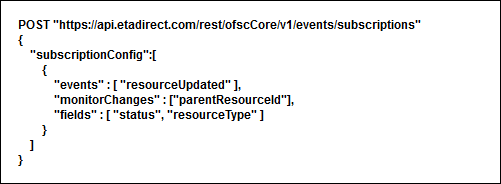
Example of subscription capturing resource moves
'FILTEREXPRESSION' FIELD SYNTAX
The syntax for the expressions used in the ‘filterExpression’ is generally the same as that used for the activity and inventory related events. The fields of the resource and user objects can now be part of the expressions.
- Filter expression is specified as a single string
- It should evaluate to a Boolean expression
- It should contain 1 or more comparison statements
- Comparison statements have the form: <field> <operator> <value>, for example: activityDetails.activityType == 'Install'
- The form cannot be changed so ('Install' == activityDetails.activityType) is not valid.
- Comparing field to field (A == B) or value to value (1 == 1) is also not valid.
- Field has to be an alphanumeric identifier with no spaces or special characters except underscore. Entity fields can be found in the documentation for get operation for appropriate entity, for example, ‘get activity’. Custom properties are identified by their labels. Subfields of an event can be specified by dot (.) separator. Examples:
- activityDetails.activityType
- activityDetails.X_MYPROP_10
- activityChanges.firstManualOperationUser
- Comparison operators are: <, >, <=, >=, ==, !=, in
- Value can be either a string literal, an integer literal, or an array literal of strings and integers.
- String literals are delimited by single quotes, with escape character ~. Examples:
- str == 'My String'
- str == 'My string with ~' a quote inside'
- Integer literals are without quotes, may not contain dot, or leading zeroes. Examples:
- num == 0
- num == -67
- num == 12345
- Array literals have to only contain strings, or only integers, and are in square brackets. Empty arrays are not allowed. Arrays are only allowed following the ‘in’ operator. Examples:
- enum in [1,2,3]
- enum in ['Abc','Def','Ghi']
- String comparisons are valid, for example:
- date > '2015-06-02'
- String comparisons all case-insensitive, for example:
- name == 'john.smith' is the same as name == 'JOHN.SMITH'
- String-integer coercion occurs, for example:
- num == -123 is the same as num == '-123'
- String literals are delimited by single quotes, with escape character ~. Examples:
- Multiple comparison statements have to be separated by logical operator and/or. Examples:
- A == 1 and B == 2 or C == 3
- A == 'xx' or A == 'yy'
- Operator precedence in the following order:
- Comparison operators: ==, !=, <, >, <=, >=, in
- not'
- 'and', 'or'. Logical operators ('and' / 'or') have the same precedence, so parentheses can be used to achieve precedence, for example: A == 1 and (B == 2 or C == 3)
- Operators are also case-insensitive, for example:
- (num IN [1,2,3]) OR (num < 0)
- Any statement can be preceded by ‘not’ operator to negate it. Examples:
- not (activityType in ['IN','TC','BR'])
- A == 1 and not ( B == 2 or B == 3 )
- Whitespace outside strings is ignored
- When the field being compared does not exist in the event, or is null, then it evaluates to empty string. For example, expressions (non_existent_field == '') and (null_field == '') are both true.
'GET_EVENTS' CHANGES TO SUPPORT A DISASTER RECOVERY FLOW
Normally, each call to the 'get_events' function returns the attribute 'nextPage=value' containing the next page identifier. The system may pass it to the next request as 'page' parameter to continue getting events.
The enhancement helps to implement the flow to restore the process after abnormal termination. In such cases, the system can pass the special identifier 'page=lastRequested' with the next call of 'get_events' function. When Oracle Field Service Cloud receives that special value it will use the previous identifier value that was sent for this subscription.
Each time Oracle Field Service Cloud receives a call to the 'get_events' function with the parameter 'page' specified, it stores that value along with the subscription, so that whenever the special 'lastRequested' value is received, Oracle Field Service Cloud will use the stored value from the previous request for this subscription. If the 'lastRequested' value is used with the very first get_events request, Oracle Field Service Cloud will use the initial page value, the same which was returned by create subscription operation, so that the response will contains initial set of the events from the moment of subscription.
The flow is as follows:
- An external system creates a subscription and obtains the Subscription ID
- The external system makes a call to 'get_events' passing the Subscription ID and successfully retrieves the events related to the subscription
- The external system makes a subsequent call passing the Subscription ID and the page identifier obtained in the previous successful 'get_events' call
- The external gets a failure during the processing of the resultsThe external system calls the 'get_events' function passing the Subscription ID and the special page identifier 'lastRequested'. Oracle Field Service Cloud uses the value of the page parameter received in the previous call so that the external system receives events starting from the point just before the failure.
- This flow allows the external system restore the flow without losing the events due to the failure. In addition, it does not allow reprocessing of all the previous events that were already successfully processed.
Steps to Enable
No steps are required to enable this change.
Key Resources
If a plug-in consists of HTML, CSS, and JavaScript files and doesn't contain server-side files, then it can be uploaded in Oracle Field Service Cloud starting with the February 2018 (18A) release. Up to ten (10) mobile plugins can be hosted, eliminating the need for an external hosting service. Once uploaded and configured, the plug-in framework handles the communication between the hosted plug-in and Oracle Field Service Cloud.
HOSTING A PLUG-IN
Steps to host a plug-in are as follows:
- Prepare the plug-in for upload.
- Upload the plug-in.
After hosting a plug-in, you can:
- Use it in an action link
- Move between instances
- Modify
- Rollback to a previous version
- Delete
A hosted plug-in works only with Oracle Field Service Mobility Cloud Service.
PREPARING A PLUG-IN FOR UPLOAD
The plug-in must be in a specific format to be uploaded. If not, you cannot upload it, you must host it elsewhere. The plug-in files must meet the following requirements:
- You must upload a ZIP archive of the plug-in files.
- You can upload only the files of following types:
- .html
- .css
- .js
- .jpg
- .jpeg
- .png
- .gif
- .svg
- appcache
- You can organize files in sub-directories, but you must have the "index.html" file in the root folder.
- Each file can be a maximum of 1 MB and the total size of the compressed archive must be less than 500 KB.
- You can have a maximum of 10 files or directories in the archive.
NOTE: The plug-in files uploaded in Oracle Field Service Cloud are available by unique URLs on the Internet. The URLs are generated automatically and contain a long string. There is no authentication to access these files, so anyone who has the direct link to the file can download the file. Therefore, do not store any sensitive information such as passwords or login names in the plug-in archive. If you do not want your code to be available without authentication, we recommend that you do not use the hosted plug-in functionality. Be aware that the communication between the plug-in and Oracle Field Service Cloud starts only when a user successfully logs in to Oracle Field Service Cloud.
CREATING A PLUG-IN TO WORK OFFLINE
You can create the plug-in to work offline using the Application Cache functionality, which is specified in HTML5 specification (section "5.7 Offline Web Applications").
You can include the manifest file in the archive and associate your index.html file with it. For example, if the name of the manifest file is "manifest.appcache" then include the following code in the html file:
<html manifest="manifest.appcache">
Do not add this line if your plug-in is intended to work only online. Each version of the uploaded plug-in is hosted in a separate directory. If you use the application cache functionality, the browser considers each new version of the plug-in as a separate offline application. Further, by default the browser doesn't clean up the application cache of the previous versions of the plug-in. So, do not create too many versions of the plug-ins on the production instance.
NOTE: If you experience an overflow of the application cache in the browser, clean up the offline cache of the browser.
UPLOADING A PLUG-IN
You must upload the plug-in archive to use it as a hosted plug-in. This includes creating the name of the plug-in and uploading the plug-in archive.
- To create the name of the plug-in:
- Click Configuration > Action Management > Hosted Plug-ins. The Hosted Plug-ins screen appears, with the list of existing hosted plug-ins.
- Click the plus icon. The Add Hosted Plug-in dialog appears.
- Enter the name of the plug-in and click Add. This name is displayed when you link the plug-in on the Action management screen. End-users do not see the plug-in name.
- To upload the archive, click Browse on the Hosted Plug-ins screen and select the ZIP archive that is ready for upload. The Version history section is populated with:
- The user name of the user that uploaded the files.
- The date on which the archive is uploaded.
- A link to download the archive. To be able to use the plug-in, you must add it to an action link. See the Use a hosted plug-in in action link topic.
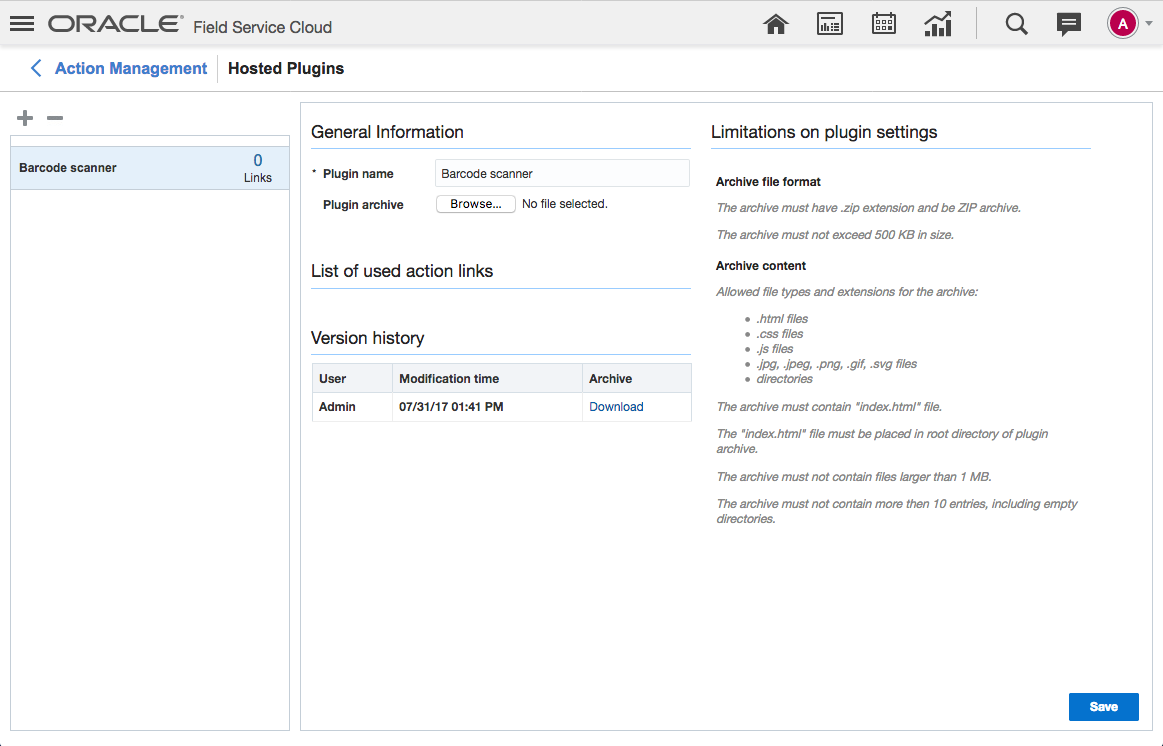
Hosted Plugin
MANAGING UPLOADED ARCHIVES
After uploading a plug-in archive, you might want to modify it, download it, or delete it.
- To modify a hosted plug-in, you upload a newer version. To upload a newer version of the archive, click Browse on the Hosted Plug-ins screen and upload it again. Whenever you upload a newer version of a plug-in, the following happens:
- The current version becomes a historical one.
- The previous version is removed from Oracle Field Service Cloud.
- The newly uploaded version becomes the current one.
- To delete a plug-in, you should first unassign it from all the action links it is added to. Then, click the minus icon on the Hosted Plug-ins page. The plug-in is deleted with all its historical versions.
- To download a plug-in, determine the version that you want to download in the Version history section. Click Download. At any given time, one previous version is available for download.
- To rollback to a previous version, download the version that you want to rollback to. Click Browse and upload it again.
- To move all the uploaded plug-ins between instances, export from the required instance using the Export function on the Action Management screen. Import the exported files using the Import function in the target instance.
- To move a single plug-in between instances, download it from the required instance. Upload it in the target instance.
USING A HOSTED PLUG-IN IN AN ACTION LINK
To use a hosted plug-in, you must first add it to an action link and then add the action link to a screen using the Visual form editor.
NOTE: The name of the plug-in created in the Hosted plug-ins screen is added to an action link in the Add action link screen.
- Click Configuration.
- Click Action Management in the Displays section.
- Click Add action link. The Add action link window opens.
- Complete the following fields on the General tab:
| Field |
Description |
|---|---|
| Action name (English) |
A mandatory field defining the action or plug-in name in the English language. The action or plug-in appears under this name in the actual context. |
| Action name (other languages) |
Action or plug-in name translations to other languages, if used. |
| Action label |
A mandatory field defining a unique action or plug-in label. |
| Entity |
Entity (activity, inventory, required inventory, resource, service request, user) to which the action or plug-in is to be related. For example, if you select Inventory, the action will appear only in the contexts related to inventory. Leave the field blank for the action to be available in all contexts of all the entities. |
| Interface |
The application interface (Manage or Mobility) in which the action is to be used. Hosted plug-ins work only in the Mobility interface. |
| Base action |
Base actions to be performed as a result of the custom action. The list of available base actions is filtered according to the Entity you have selected. For example, if you select required inventory for Entity, then Base action lists only the actions related to required inventory. The base action from which the plug-in is to be derived, if needed. When a base action is selected, the resulting plug-in functions per the same rules as the base action. It appears only in the contexts in which the base action appears and is shown or hidden according to the same visibility conditions. For example, if start_activity is selected as the base action for a plug-in, the plug-in is only shown in the context of a pending activity when there is no started activity in the same route, similar to the Start action. |
| Is Plug-in |
Whether the custom action is a plug-in. Select this check box. The Plug-in details tab is added to the Add/Edit action link window and the Custom params tab is no longer shown. |
- Complete the following fields in the Plug-in detail tab:
| Field |
Description |
|---|---|
| Type |
The plug-in type. Select HTML5 application. This means, the plug-in uses an external application to extend the functionality. An HTML5 application plug-in can be used in one of the following Mobility contexts - Activity List, Edit., View Activity, Inventory Grid or Add/Details Inventory. |
| Use Plug-in API |
Determines if the plug-in works through a third-party Plug-in API or as a regular external plug-in. Select this check box. |
| Use hosted plug-in |
Defines whether you want to use a hosted plug-in. Select this check box. |
| Hosted plug-in |
The hosted plug-in that you want to use. Select the name from the drop-down menu. This field displays the names that you have created in the first step of the Upload a plug-in procedure. |
| Disable Action Link in Offline |
Defines whether the plug-in is disabled in offline mode. Clear this check box if you want the plug-in to work in offline mode with Oracle Field Service Mobility Cloud Service. |
| Secure parameters |
The secure information such as user name and password used to access a third-party service through HTTP. This data is encrypted and stored. Use the plus icon to add a new key-value pair. You can add a maximum of 20 key-value pairs, after which the icon is hidden. The maximum size of the parameters allowed is 5 KB. This size includes the data structure overhead and doesn't correspond to the length of keys and values of strings. Changes to the secure data are sent to Oracle Field Service Mobility Cloud Service during the next synchronization. The data is sent to the plug-in when the next message is sent. |
- Click OK on the Add action link window.
- To add the action link to a screen using Visual Form Editor:
- Click Configuration > User Types.
- Select the user type for which you want to add the action link and then click Screen configuration.
- Expand Mobility and click the screen to which you want to add the action link.The Visual Form Editor for that screen appears.
- Click Actions. Drag and drop the newly created action link to the required area of the screen.
- Click Save. The action link is displayed on the selected screen, the next time you log in to Oracle Field Service Mobility Cloud Service.
Steps to Enable
No steps are needed to enable this feature.
Key Resources
Find Matching Resources API Improved
The findMatchingResources API has been improved allowing searches to get matching resources without the need to create an activity. Be sure to check out the API Enhancements Release Training video to find out more about this feature. Once the video loads click the section on the navigation menu to jump to that section.
This enhancement save steps and integrations will not longer have to:
- temporarily create an activity
- perform the search
- remove the activity after the search
While the findMatchingResources function remains fully backward compatible. All necessary activity information can be sent to the function directly.
In order to perform the search without having to create activity first, all necessary activity information needs to be sent along with the request. A new request field ‘activity’ was added to the function. It will allow to specify the activity information, for example:
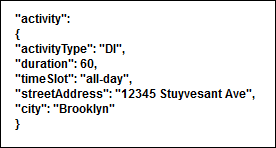
activity function
Some of the important implementation details of the function are as follows:
- Only one of the parameters (activity, activityId, or activitySearchFields) can be sent in each request. If more than one of the parameters is sent together then 400 error is returned.
- The ‘activityType’ field must be present as it specifies the activity features in Oracle Field Service Cloud.
- Depending on the configuration some other activity fields may be required:
| Activity type feature |
Mandatory fields in the request |
Oracle Field Service Cloud configuration |
|---|---|---|
| Activity type supports work zones |
All fields that are part of the work zone key |
Activity type Work zone key configuration |
| Activity type supports work skills |
All fields that are used in work skill conditions |
Activity type Work skill conditions |
| Activity type feature ‘Calculate travel’ is on |
All fields that are used in the activity travel key |
Activity type Statistic parameters - Activity travel key |
| Activity type feature ‘Calculate duration’ is on |
All fields that are used in the activity duration key |
Activity type Statistic parameters - Activity duration key |
If the specified set of fields are not enough to perform the search as described in the table above, the function returns error ‘bad request’.
Steps to Enable
No steps are required to enable this change.
Key Resources
Store and Pass Sensitive Data Into Plug-ins
There are many cases when plug-ins use external applications that require sensitive data such as login credentials. Previously, sensitive data such as user’s credentials were included in the plug-in code. The February 2018 (18A) release includes a safer and more secure way to store and edit sensitive data.
The new section "Secure parameters" is added to the Action Management > Add/Edit action link.
The "Secure parameters" section includes a Parameter name and a Parameter value. Once configured, this data is encrypted and stored in the database. A maximum of 20 key-value textbox pairs of values can be added, after which the button to add the parameters is hidden. The maximum size of the parameters allowed is 5 KB. This size includes the data structure overhead and doesn't correspond to the length of keys and values of strings. Changes to the secure data are sent to Mobility during the next synchronization. The data is sent to the plug-in when the next message is sent.
The legends for the screenshot below are:
- + Button for adding new key-value textbox pairs. After adding 20 key-value pairs the button will be hidden.
- Fields - 'Parameter name' and 'Parameter Value' for filling in sensitive data.
- Help text.
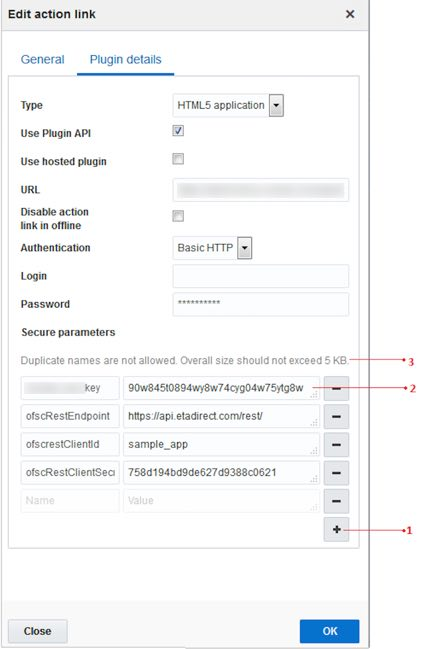
Edit Action Link Dialog
NOTE: The size of secure data displayed on the Add/Edit action links screen includes data structure overhead and doesn't equal length of the keys and values strings. Length limit validation also counts this overhead as part of secure parameters' length.
MOBILE PLUGIN API UPDATES
Each message, sent by Mobility to Plug-in, where the method is supported, contains the new field 'securedData'. Format of messages for other methods, for example, 'error' is not changed.
The message contains 'securedData' only if at least one key-value pair is configured for whatever plug-in on Action Management > Add/Edit action link screen in Manage.
Every time secure data is changed, Mobility receives it on the next successful sync. After the update is received, the plug-in receives the up-to-date data with every message.
Supported methods:
- init
- open
- wakeup
Format of 'securedData' field:
securedData field is an object, where:
- Each key is a String, which equals to the contents of "key" text input on the Add/Edit action link screen in Manage.
- Each value is a String, which equals to the contents of "value" text input for corresponding key on the Add/Edit action link screen in Manage.
- Order of entries is not guaranteed to be identical to order of key-value pairs on the Add/Edit action link screen in Manage.
Example of 'open' method data for Supervisor Plugin
For the following configuration:
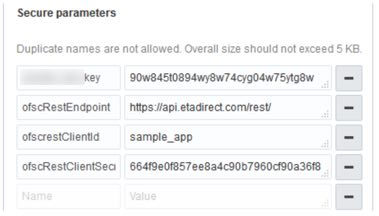
Secure Parameters
Plugin will receive the following message on open:
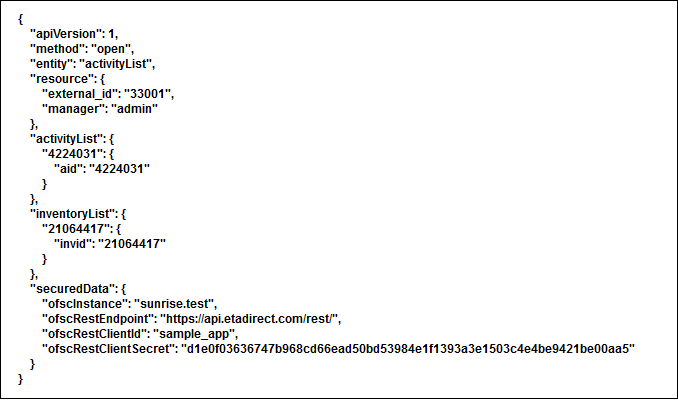
Open Method Data for Supervisor Plugin
Following are the steps to configure the plugin:
- Click Configuration > Action management > Add action link.
- On the General tab, make sure the is plugin check box is enabled.
- On the Plugin details tab, make sure the Use Plugin API check box is enabled.
- Add the sensitive data in the 'Parameter name' and 'Parameter Value' fields.
- Click the 'Plus' icon to add more than one pair or 'Minus' to remove a pair.
- Click 'OK'.
Steps to Enable
No steps are needed to enable this feature.
Key Resources
In the February 2018 (18A) release, Oracle Field Service Cloud Mobile has been expanded to include an installable iOS application. The application provides improved gathering of coordinates of the mobile resource when using Oracle Field Service Cloud Smart Location. It also works with the existing mobility screen configuration providing a seamless configuration experience.
Coordinates are only gathered when the user is logged into Oracle Field Service Cloud Mobile and the resource route is activated.
The application can be installed and run under the following requirements:
- iOS 10 or later
- Location Services are available and enabled
End-User Flow Notes:
- Once the user specifies the Instance and is taken to the Login screen, it is possible to change the instance only by restarting the application manually.
- Oracle Field Service Cloud Mobile expects that the iOS Location Services are enabled. Disabling the Location on device prevents the application from gathering coordinates. Users (or used MDM software) should set the following device settings:
- Location: Enabled
- Mode: High Accuracy (use GPS, WLAN and mobile network to determine location)
- Oracle Field Service Cloud Mobile requires internet connection available (WLAN or Mobile networks).
- Gathered coordinates are available on a server in near-real-time mode. Only the following prevent Oracle Field Service Cloud Mobile from providing an accurate mobile resource location:
- There is no available Internet connection on the device.
- iOS Location Services are disabled on the device.
Security Notes:
- Authentication
- The feature does not require any additional user authentication.
- Communication
- The application uses https protocol for any communication out of the device.
- The application does not support self-signed certificates.
- Device security.
- The application does not manage or control any security related device options.
- It is the client's responsibility to set reasonable secure options for the device: set password for unlock device, encrypt device, disable any developer mode options, and so on.
- It is the client's responsibility to verify any security tools for compatibility with the application:
- The application mustn't be prevented from starting or launching of web applications.
- The following iOS permissions MUST NOT be blocked:
- Location Services (precise location: GPS and network based))
- Cellular Data
- In order for camera and file upload/download functionality to work, the following permissions must be enabled:
- Camera
- Photo Library
- iCloud
When using Mobile Device Management (MDM) Software:
- Access must not prevent a user from tarting or launching of web application.
- The following iOS permissions must be enabled:
- Location Services (precise location: GPS and network based))
- Cellular Data
- Camera
- Photo Library
- iCloud
Steps to Enable
To download and install the Oracle Field Service Cloud Mobile iOS app:
- Open the Apple App Store on the mobile device.
- Find the application 'Oracle Field Service Cloud Mobile’ and select it.
- Select Install. The Oracle Field Service Cloud Mobile iOS application is downloaded and installed in the mobile device.
- Read and accept the End User License Agreement.
- Specify the Oracle Field Service Cloud instance.
- In the Instance specification screen, accept the following:
- Instance Name in domain "etadirect.com"
- Fully classified URL of Oracle Field Service Cloud Mobile instance.
User needs to specify Instance Name or URL on first run of the application. Next run utilizes previously populated Oracle Field Service Cloud Instance Name.
Once the instance is specified, Oracle Field Service Cloud Mobile application runs the Oracle Field Service Cloud Mobility instance.
- Enter the username and password to log in.
Key Resources
---

Copyright © 2018, Oracle and/or its affiliates. All rights reserved.
This document is provided for information purposes only, and the contents hereof are subject to change without notice.This document is not warranted to be error-free, nor subject to any other warranties or conditions, whether expressed orally or implied in law, including implied warranties and conditions of merchantability or fitness for a particular purpose. We specifically disclaim any liability with respect to this document, and no contractual obligations are formed either directly or indirectly by this document. This document may not be reproduced or transmitted in any form or by any means, electronic or mechanical, for any purpose, without our prior written permission.
Oracle and Java are registered trademarks of Oracle and/or its affiliates. Other names may be trademarks of their respective owners.
Intel and Intel Xeon are trademarks or registered trademarks of Intel Corporation.All SPARC trademarks are used under license and are trademarks or registered trademarks of SPARC International, Inc. AMD, Opteron, the AMD logo, and the AMD Opteron logo are trademarks or registered trademarks of Advanced Micro Devices. UNIX is a registered trademark of The Open Group.
