

This document will continue to evolve as existing sections change and new information is added. All updates appear in the following table:
| Date | Feature | Notes |
|---|---|---|
| 22 APR 2019 | Interface Deletion - Leverage Bulk Delete Framework | Updated document. Added link to answer in Steps to Enable. |
| 12 APR 2019 | Knowledge Panel is Always Available | Updated document. Revised feature information. |
| 04 DEC 2018 | Subscription and Email Notification Enhancements | Updated document. Revised feature information. |
| 27 AUG 2018 | Created initial document. |
This guide outlines the information you need to know about new or improved functionality in Oracle Service Cloud 18C and describes any tasks you might need to perform for the update. Each section includes a brief description of the feature, the steps you need to take to enable to begin using the feature, any tips or considerations that you should keep in mind, and the resources available to help you.
For a listing of hardware and software requirements for Oracle products, log in to our support site and access Answer ID 31.
Security & New Features
We would like to remind you if your system has modified security structures you may need to advise your security administrator of new features.
Give Us Feedback
We welcome your comments and suggestions to improve the content. Please send us your feedback.
| Action Required to Enable Feature |
||||
|---|---|---|---|---|
| Feature |
Automatically Available |
End User Action Required |
Administrator Action Required |
Oracle Service Request Required |
 |
||||
|
||||
The Validation Option on the Workspace Element Workflow Connector |
|
|||
|
||||
|
||||
|
||||
|
||||
|
||||
|
||||
|
||||
|
||||
|
||||
|
||||
|
||||
|
||||
|
||||
|
||||
Comparison Columns and Comparison Percent Columns Supported in Agent Browser UI Reporting |
|
|||
Exception Formatting Displayed in Charts Within Agent Browser UI Reporting |
|
|||
Refresh All Split Levels Simultaneously in Agent Browser UI Reporting |
|
|||
|
||||
|
||||
|
||||
|
||||
|
||||
|
||||
|
||||
|
||||
|
||||
|
||||
|
||||
Agent Browser Desktop Automation
Workflow Enable Save Option for Workflow Elements
This option allows the workflow designer to determine if the agent can save any information at this stage of the workflow.
In the Workflow Designer, there is an Options menu in the ribbon for the in-focus workspace. This menu contains one option: Enable Save.
The Enable Save Option can be useful if you have required fields on a subsequent workspace or script. If you have Save/Save & Close buttons in the ribbon, but you have disabled save, then the buttons will be disabled.
This is already available in the Workflow Designer in the Service Console and will now be supported in the Agent Browser UI runtime console.

Enable Save Option in Workspace Designer
Steps to Enable
This is already available in the Workflow Designer in the Service Console.
Key Resources
The Load Element in Workflow allows a specific record to be loaded in the workflow at a defined stage. It is a constant record that is added to the workflow definition.
In the Workflow Designer in .NET the admin can add a Load Element from the Ribbon. When the Load is selected a drop down is given to select the constant record type.
This is already available in the Workflow Designer in .NET and will now be supported in Agent Browser UI.

Workflow Load Element in Workflow Designer
Steps to Enable
The load element can be included in a workflow via the Workflow Designer.
Key Resources
The Validation Option on the Workspace Element Workflow Connector
The Validation Connector Options in Workflows is Supported. This is used to make sure that a workspace element has been validated prior to following a Connector Element out of the Workspace Element in a workflow. If all data has been validated then the workflow will continue. If the record does not pass the validation criteria configured for the workspace such as required field, then the workflow will not continue.
In the image below, the Causes Validation configuration option will ensure that the values of the current incident record are valid according to the Incident Workspace that is associated with the Workspace Initial Incident Element on the Workflow.
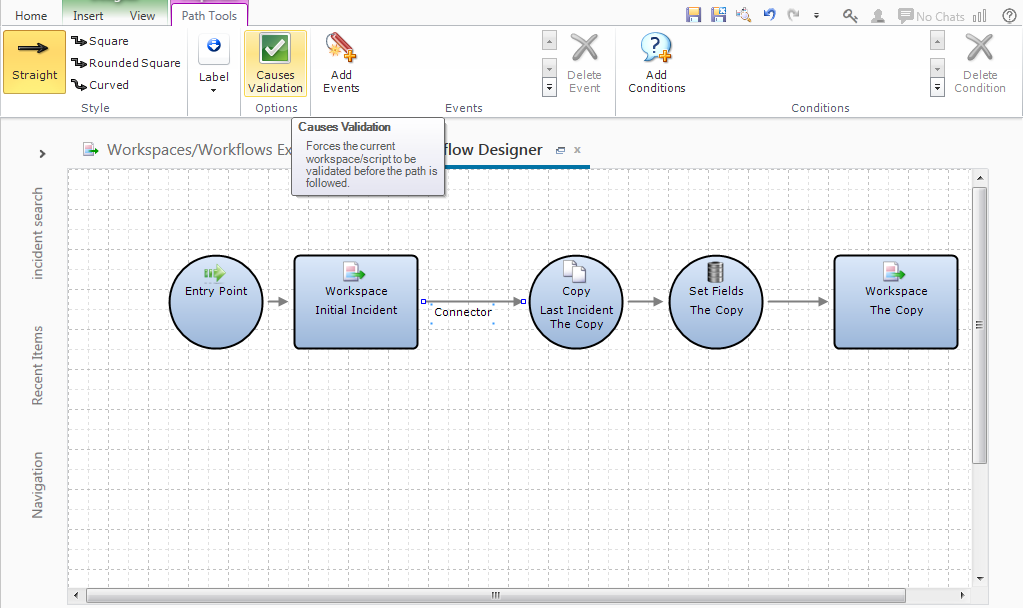
Causes Validation Configuration Option in Workflow Designer
Steps to Enable
The Validation Option is available in the Service Console Workflow Designer and can be configured on a Connector Element that is departing a Workspace Element.
Key Resources
The OE_SVC_SENDMAIL_SINGLE_ADDRESS configuration option is used to specify whether a response is sent to all email addresses that have been captured for a particular contact, or allows the agent to choose a single email address for the list on email addresses that have been captured. If the OE_SVC_SENDMAIL_SINGLE_ADDRESS configuration option is set to No, then the response is sent to all email addresses for the primary contact. If OE_SVC_SENDMAIL_SINGLE_ADDRESS configuration option is set to Yes, then the response editor User Interface is changed to allow the agent to select from the available email addresses. Please see the figure below for the user interface that is rendered in the case that the configuration option is set to true.

Steps to Enable
- Open the Configuration Options Editor
- Search for the OE_SVC_SENDMAIL_SINGLE_ADDRESS configuration option
- Change the value to Yes
Workspace Field Label Font Properties
The service console workspace designer provide the ability to configure the following font properties for field labels:
- Font Family
- Font Size
- Bold
- Underline
- Italicize
- Strikethru
Previous to this release, the Agent Browser User Interface ignored these font attributes and would render the label with the default font properties. Below is a image of a contact workspace loaded into the Service Console workspace designer with the First Name field label configured with alternate values for each of these configuration options.
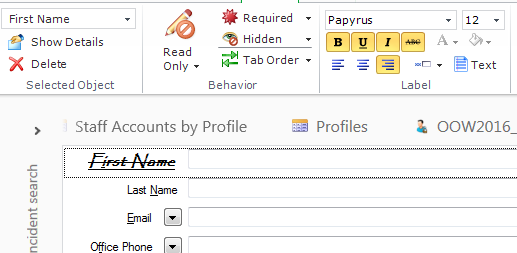
Configure Label Font Attributes in Workspace Designer
The figure below shows the workspace at runtime in the Agent Browser User Interface.
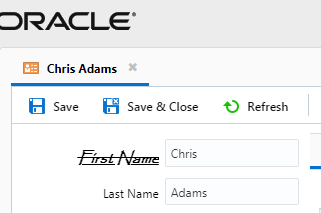
The workspace designer does not provide the means of configuring the font color for the label.
Steps to Enable
No steps are required to enable this feature.
Multi-editing allows you to update more than one record in a single operation instead of performing the same action on each individual record. This feature saves time when you need to make the same change to several records. We now support multi-edit workspaces for the Task object on the Agent Browser UI. This includes runtime support for Task fields, controls and options configured using the Service Console Workspace Designer.

Initiating Multi-Edit of Tasks from Report
Simply select multiple contacts in a report and use the right click menu to Open them.
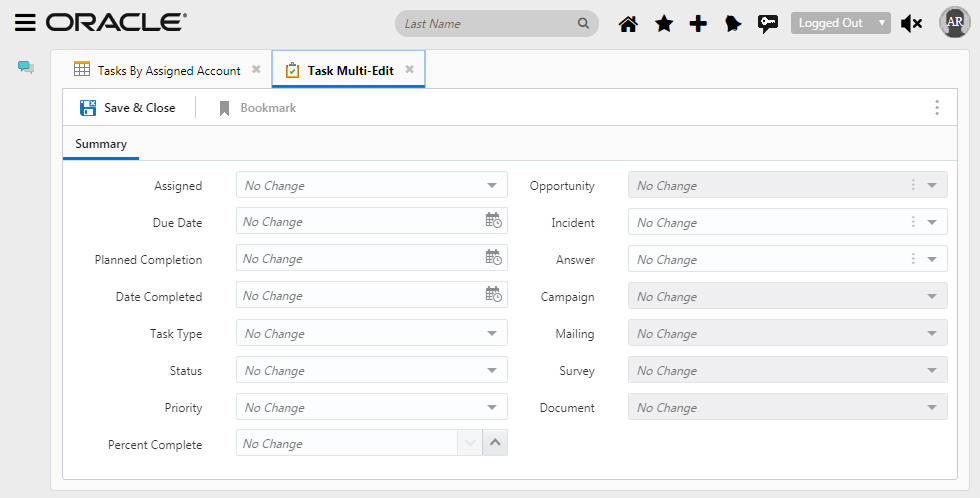
Task Multi-Edit Workspace
Steps to Enable
No steps are required to enable this feature.
Workspace Rules Action to Execute Editor Command: Propose
The Workspace rule to execute the command to Propose an Answer is now supported.
To enable; in the Workspace Designer the admin can create a Rule using the Rules Designer. First set a Trigger and then select the action to “Execute editor command”. Select the link provided in the Rules editor and chose Propose.
This is already available in the Workflow Designer in .NET and will now be supported in Agent Browser UI.

Propose Action in Rules Wizard
Steps to Enable
To enable; in the Workspace Designer the admin can create a Rule using the Rules Designer. First set a Trigger and then select the action to “Execute editor command”. Select the link provided in the Rules editor and chose Propose.
The Multi-Edit Workspace functionality that is available in the Service Console is now supported in the Agent Browser User Interface.
Multi-editing allows you to update more than one record in a single operation instead of performing the same action on each individual record. This feature saves time when you need to make the same change to several records. We now support multi-edit workspaces for the Asset object on the Agent Browser UI. This includes runtime support for Asset fields, controls and options configured using the Service Console Workspace Designer.
Steps to Enable
The Asset Multi-Edit Workspace is configurable using the Service Console Workspace Designer.
You can assign Multi-Edit workspaces to use for assets using the Profile Editor. If one isn't selected specifically for the Agent Browser User Interface, then the one that was configured for the Service Console Asset object for the specific profile will also be leveraged by the Agent Browser User Interface.
To disable the email icon in the Service Console open the Contact Workspace in the Workspace Designer. Highlight the email field and select the Design Tab from the Ribbon. In the Options Ribbon Group there is a checkbox option to ‘Disable Email Icon’.
This option is available on any workspace that the Contact Email Address field can be added to.

Disable Email Icon - Workspace Designer
When the Contact Workspace is opened in the Agent Browser UI and the Disable Email Icon is selected, the Email icon on the right side of the field is disabled.
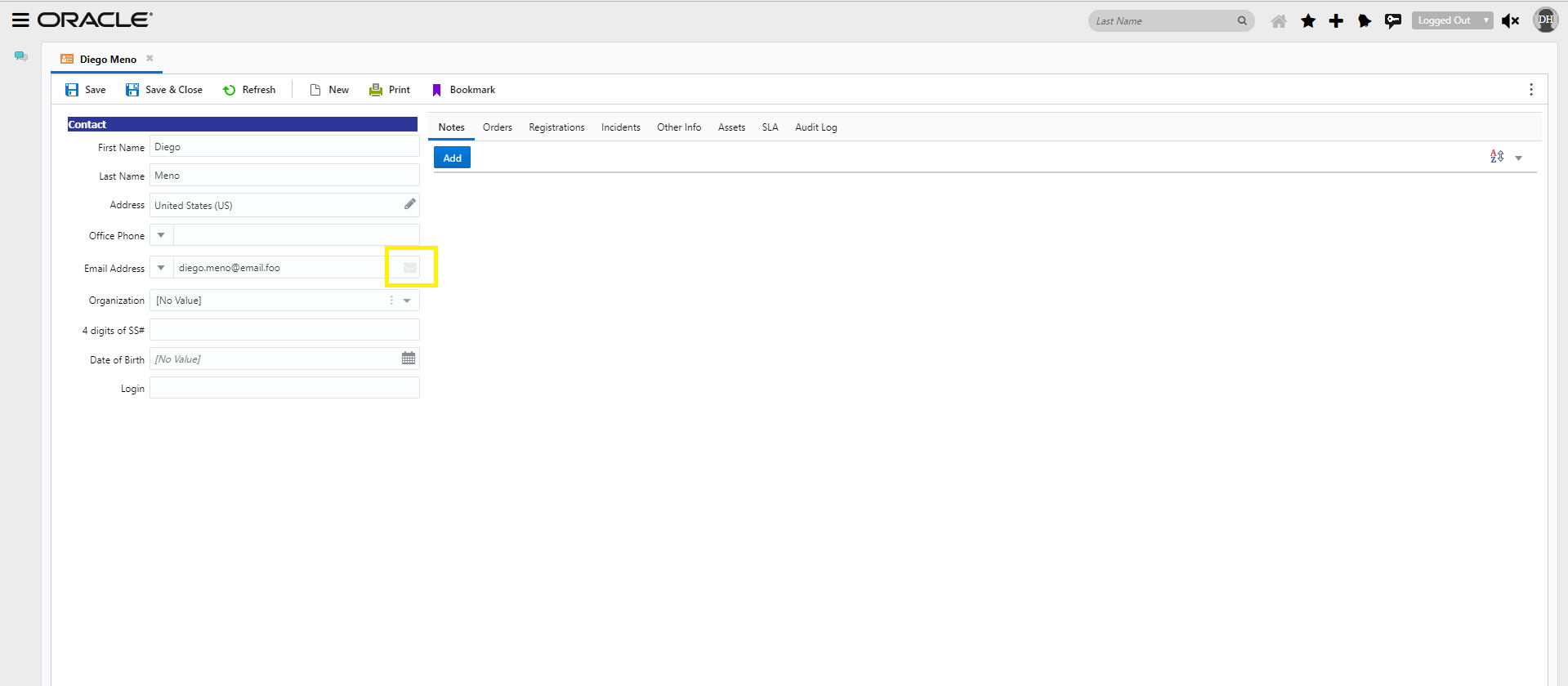
Disable Email Icon - Agent Browser UI
Steps to Enable
To disable the email icon in the Service Console:
- Open the Contact Workspace in the Workspace Designer
- Highlight the email field and select the Design Tab from the Ribbon
- In the Options Ribbon Group there is a checkbox option to ‘Disable Email Icon’.
Role Information
- The Admin can select this option in the Workspace Designer.
- The Agent will see the email icon in the Agent Browser but it will be disabled.
Interaction Workspace for Chat
Interaction Workspace in Agent Browser UI is supported
- New Interaction Chat Workspace Set up in .NET Designer
- Chat, Contact, Incident, Custom Objects and Interaction fields can be added to the Interaction Chat WS
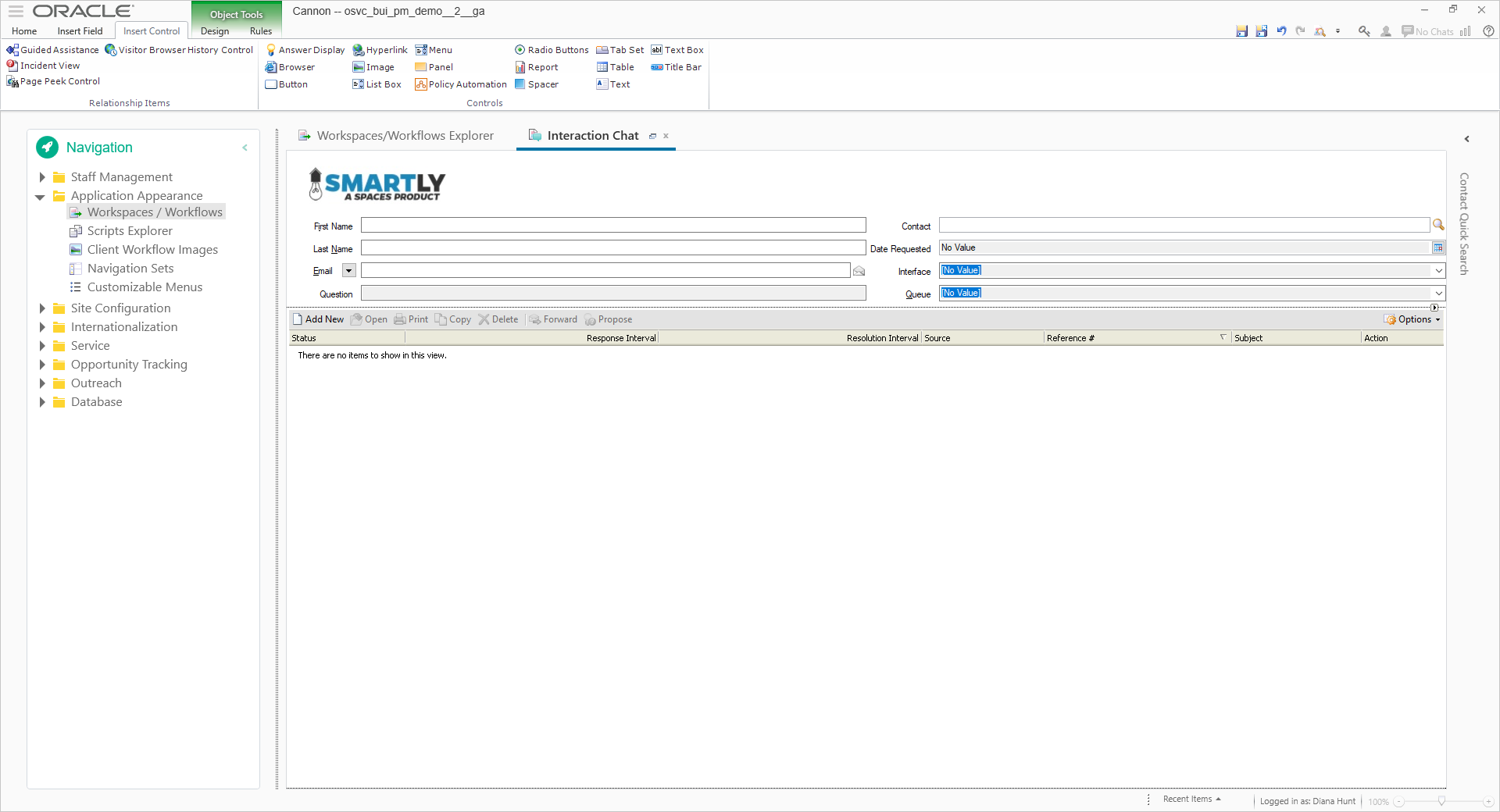
- Add Interaction Chat WS definition to Profile definition

- The interaction Chat WS updates the Chat, Contact, Incident, Custom Objects and Interaction data in real time as the agent interacts with the customer
- In Agent Browser UI, when the chat load an Incident will also load and become primary Incident.
- The Incident View control is a list of all Incidents and/or past chats associated with the Contact of the chat.
- The Incident View control is an interaction report, an incident can be added, deleted and set to primary.

Steps to Enable
- There is a new Interaction Chat Workspace Set up in .NET Designer
- Chat, Contact, Incident, Custom Objects and Interaction fields can be added to the Interaction Chat WS
- Once the new Interaction Chat Workspace is set up, add the Interaction Chat WS definition to the Profile definition
Tips And Considerations
The interaction workspace has been created to replace the Chat Workspace in the Agent Browser User Interface. Although this release of the Interaction Workspace does provide a substantial amount of functionality with regards to customizing the workspace, there remains gaps between what is available on the Chat workspace that is used as part of the Service Console and what is available for this release of the Interaction Workspace. The following items are the current gaps that will be supported at a later date.
- Workspace Rules
- Ability to include an extension on the workspace
- Support for the Guided Assistant Control
- Support for the Co-browse Control
- Support for the Visitor Browser History Control
- Support for the Page Peek Control
- Support for the Chat Workspace Options including:
- Create/associate related incident at the beginning of a chat (if one does not exist)
- Open related incident for editing at the beginning of a chat (if one exists)
- Create/associate related incident at the end of a chat (if one does exist)
- Open related Incident for editing at the end of a chat (if one exists)
- Discard previous related incident if it is uncommitted when another incident is associated to chat
- Set status to solved for incidents created automatically
- Wrap Up Behavior Options
Role Information
- Administrators will access the Workspace Designer & make Profile updates
- Chat Agents will interact with the new Interaction Workspace within the Browser User Interface
Custom Object Multi-Edit Workspaces
Multi-editing allows you to update more than one record in a single operation instead of performing the same action on each individual record. This feature saves time when you need to make the same change to several records. We now support multi-edit workspaces for the Custom Objects on the Agent Browser UI. This includes runtime support for Custom Object fields, controls and options configured using the Service Console Workspace Designer.

Select Multiple Custom Object Records in Report
Simply select multiple custom object records in a report and use the right click menu to Open them.
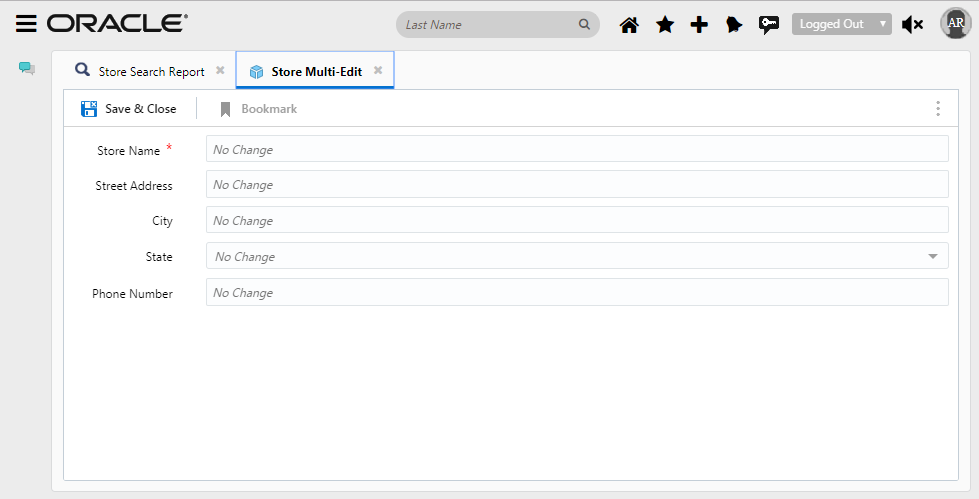
Custom Object Multi-Edit Workspace
Steps to Enable
No steps are required to enable this feature.
Automatic Spell Check for Chat
A new feature has been added to the Agent's Chat experience within the Browser User Interface, where misspelled words are indicated within the compose control of the Chat session. Agents can easily see when misspellings occur from within the Chat compose control with this new integrated spell check.
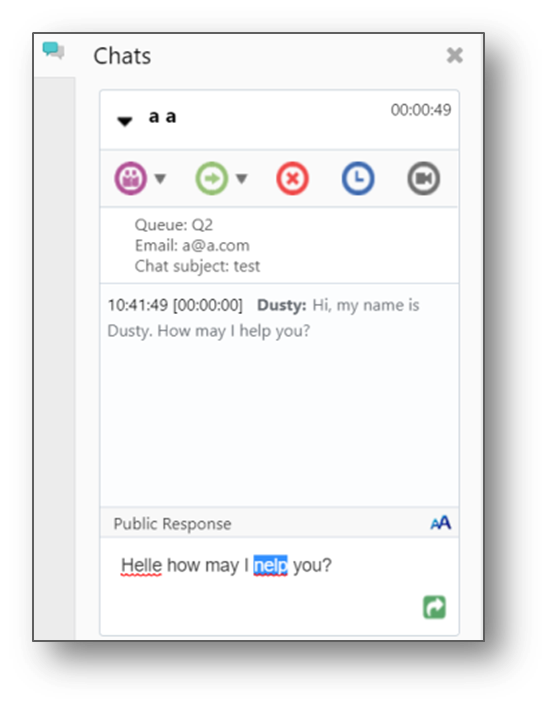
Example of Spelling Error Within Chat Compose Control
This feature also applies to Supervisors who join a chat or are private messaging during a chat session. This feature allows agents to quickly identify when a spelling mistake occurs and easily fix the problem.
Steps to Enable
No set up is required, this feature is automatically available for all Chat agents using the Browser User Interface.
Role Information
Roles that will use this feature:
- Chat Agent
- Supervisor Agent
The Supervisor Monitoring feature allows a Supervisor Agent the ability to monitor a live chat session within the Browser User Interface. Also included:
- The ability for the Supervisor Agent to Join and Leave the session
- The ability for the Supervisor Agent to Private Message with the lead agent while monitoring
Below is a list of Chat reports that support the monitoring actions on the Agent Browser User Interface.
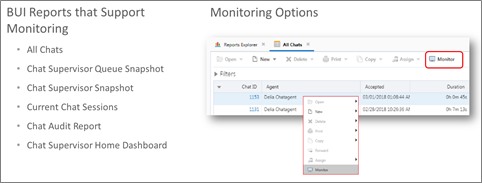
Agent Browser User Interface Reports That Support Monitoring
The user interface that is used by the supervisor to monitor chats is shown in the figure below.
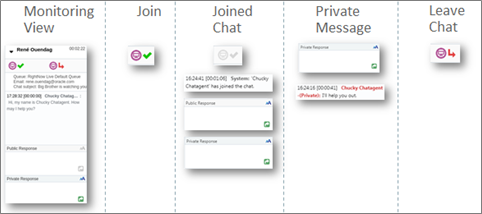
Chat Supervisor User Interfaces
Steps to Enable
No steps are required to enable this feature.
Chat Knowledge Foundation Integration
The Knowledge Foundation Integration for Chat in the Browser user Interface is a feature that:
- Allows agents to send Knowledgebase Answers into chat session from within the Agent Browser User Interface
- Text, Website Links and URLs are supported
- Agent can Preview and Print answers
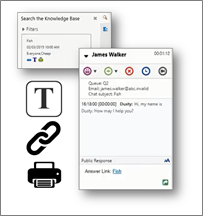
Steps to Enable
No steps are required to enable this feature.
With this feature agents can draft new content and submit to Knowledge Manager for review.
Agents can also track latest status of their recommendations under ‘My recommendations’.
Steps to Enable
No steps are required to enable this feature.
Knowledge Panel is Always Available
When Knowledge Advanced is enabled, the Knowledge Panel is available as a component within the BUI without being tied to an incident. This allows agents to access knowledge even when they are not working on a service request.
In previous releases, the knowledge panel was only available in the context of the incident workspace.
Steps to Enable
No steps are required to enable this feature.
HTML Format Type Support for Workspace Answer Control
Previous to this release, if an Answer Control was placed on a workspace and configured to render an answer that has been created as one of type HTML, then the Agent Browser User Interface would render a link that the agent would then click to bring up a separate browser window to view the loaded answer. With this release, that has been rectified so that the HTML answer is now rendered in the Agent Browser User Interface itself, not requiring the additional click by the agent or the additional browser window to view the contents of the Answer.
Answer of Type HTML Rendered in Agent BUI
Steps to Enable
No steps are required to enable this feature.
Comparison Columns and Comparison Percent Columns Supported in Agent Browser UI Reporting
Support for comparison columns within Agent Browser UI has been added.
Comparison columns allow users to view the same data for two different time periods side-by-side in a report by adding a comparison value computed field. Users can specify the time periods used, and change them while running the report to view the data for different time periods. For example, you could have a report that shows the number of incidents created in the current week and the number of incidents created in the previous week. You could then run the report again to compare numbers of incidents created in the current month and previous month.
Comparison percent columns show the percentage increase or decrease (including configurable colored up/down arrows) between the two time periods shown in the report.
The screen shot below displays both comparison values and comparison percent change columns within an Agent Browser UI report.

Configuration of comparison columns within the Service Console (.NET Console) Report Designer is documented in the following OSvC documentation page:
- Comparison columns: https://docs.oracle.com/en/cloud/saas/service/18b/famug/analytics.html#t_Add_a_comparison_value_column_to_a_report_ah1134670
- Comparison percentage columns: https://docs.oracle.com/en/cloud/saas/service/18b/famug/analytics.html#t_Add_a_comparison_percentage_column_to_a_report_ah1134726
Steps to Enable
No steps are required to enable this feature.
Exception Formatting Displayed in Charts Within Agent Browser UI Reporting
Graphical display of report exception allows users to see a visual representations of exception thresholds directly within charts configured in the report. This allows users to easily find data that has surpassed specified exceptions. Support has been added within OSvC Agent Browser UI to show the graphical display of exceptions within reports containing charts.
The screen shot below shows a graphical exception of incident counts greater than 5. Anything above this line exceeds the exception threshold.

Configuration of reports, charts, and exceptions therein still need to be done in the OSvC Service Console. Documentation for creating exceptions in reports and adding them as graphical display exceptions in a chart can be found via the following link:
Steps to Enable
No steps are required to enable this feature.
Refresh All Split Levels Simultaneously in Agent Browser UI Reporting
Selecting the "Refresh all split levels simultaneously" check box within a report configuration to automatically refresh all report levels shown in split windows when data in one of the report levels is refreshed. When this option is disabled, only the data shown in the window selected when the refresh occurs is updated.
Support for this option has been added to Agent Browser UI reporting.
Steps to Enable
No steps are required to enable this feature.
Key Resources
Oracle Service Cloud Cross Channel Customer Service empowers organizations to provide quick, consistent, proactive and reactive assisted service across multiple channels. Oracle Service Cloud Cross Channel Contact Center helps organizations increase efficiency and reduce operational costs by enabling customers to resolve simple issues using self-service, while directing the more complex issues to contact center agents.
Knowledge Management is essential for delivering exceptional customer experiences and increasing customer loyalty. In the contact center, empowered, efficient agents must have access to timely information when they need it. Customers expect to find answers to their questions quickly and easily, when and where they ask them. Oracle Service Cloud Knowledge Management provides a fully integrated knowledge management solution that delivers a seamless, consistent experience across all channels, from self-service and contact centers to communities and social sites.
Subscription and Email Notification Enhancements
Administrators can now edit the templates that the application uses to generate the emails that notify interested users about recent article updates or pending tasks. References to articles within notification emails are rendered as clickable links.
Steps to Enable
There are no required steps to enable this feature. Administrators can locate, edit, and save new versions of the templates.
Tips And Considerations
Only the default template and the latest edited version are stored. You can restore the default template at any time.
Key Resources
- See Editing Email Notification Templates in the Managing Content section of the Knowledge Advanced Administration Guide guide.
Role Information
- Administrator
Knowledge Advanced now provides suggested searches to enable users to quickly locate the most relevant articles. When users begin typing a phrase or question in the search area, the application presents them with the article titles that best match the typed content. Users can then select the suggestion to display the desired article.
Steps to Enable
The suggested searches feature is available by default for new customers. Upgrading customers must enable suggested searches using the OKCS_SUGGESTED_SEARCHES setting. New and upgrading customers must update their content type configurations to set the title field as the master identifier and enable attribute-level search for the title field for each content type.
Key Resources
- See Adding Suggested Searches in the Enabling Knowledge Advanced on Customer Portal section of the Knowledge Advanced Implementation guide.
Role Information
- Administrator
A new report enables analysts to better understand how user groups consume knowledge base content. The Knowledge Consumption by User Group report shows the number of articles available to each user group, the number of those articles that were viewed, the number of clickthroughs and browses, and the percentage of total knowledge base views that were performed by each group.
Steps to Enable
The new user group report is available as a standard report. There are no enablement steps required.
Key Resources
- See Knowledge Consumption by User Group in the Analyzing Knowledge Advanced section of the Knowledge Advanced Administration Guide.
Role Information
- Administrator
Knowledge Analytics Segmentation by Products and Categories
The Knowledge Advanced data schema now enables analytics users to break down article usage and status information in reports by product and category. Customers can create new reports based on the provided reports, and include Product Name and Category Name columns to gain additional insight.
Steps to Enable
This feature is automatically enabled as the result of changes to the underlying database. Analytics administrators will need to edit their reports to add product and category information.
Role Information
- Administrators
Policy Automation enables the automation of an organization’s business rules, processes, policies, or regulations. With Policy Automation, organizations can ensure polices and regulations are being met, leverage intelligent decisioning, capture the right customer information in interviews, assist the resolution of complex service requests, and help determine product or service eligibility.
Automate Connections to Other Applications
There are three new REST services that can be used by system integrators to completely automate the process of moving projects through the policy deployment lifecycle. These Hub REST APIs are:
- Connections REST API - automates the creation and management of connections for any Policy Automation Hub environment to any application’s OPA web service connector endpoint. The connection settings configure properties such as service versions, URLs and authentication settings.
- CORS Whitelist REST API - automates the creation, management, and deletion of Cross-Origin Resource Sharing (CORS) whitelists, and integrating those steps with other authorization actions, if needed
- SSL Certificates REST API - automates the management of any custom root certificates that are needed to ensure secure connections are recognized for OPA web service connections
Steps to Enable
No steps are required to enable this feature.
Key Resources
For more information on the OPA HUB REST API, see:
Role Information
Roles that will use this feature:
- System integrators
The Hub Action Audit Log allows organizations to comply with strict audit requirements. This feature will automatically audit every OPA Hub operation performed by every user, on every object. Audit information can be retrieved with a REST API that returns the most recent information first.
Steps to Enable
No steps are required to enable this feature.
Personalize the Interview for the End User's Language
A new locale function has been added which allows policy modelers to write rules and change interview behavior based on the user’s locale. This enables intuitive experiences in every language by providing images, policy material and site redirection that can be different per language. It also simplifies maintenance by having conditional logic that knows the interaction language for the user experience. In addition, language aware list sorting is now available which insures that translated lists of values appear in alphabetical order in the end user's language.
Steps to Enable
No steps are required to enable this feature.
Key Resources
For more information on these locale awareness enhancements, see:
Role Information
Roles that will use this feature:
- Policy modelers
The Oracle Service Cloud Platform includes App Builder products, the Experience Platform and the Virtual Configuration Interface Object (CIO) Cloud Service.
Incident Thread Redaction provides ability for privileged users to redact previously entered data in incident threads. This feature is exposed via the Incident Thread Correction element in the Service Console that allows users with special privileges to convert a response thread entry into a private note as well as to edit or remove text and images from the threads. This feature helps organizations meet compliance policies and also respond to requests for data correction or request for erasure.
Steps to Enable
To access the Incident Thread Correction element, you must have Administration permissions set in your profile. Additionally, you must have the Edit/Delete Committed Thread Content permission set in your profile to edit incident thread content and delete images.
Key Resources
Interface Deletion - Leverage Bulk Delete Framework
For the interface deletion process, we are leveraging the staggered deletion mechanism available in the bulk delete framework. This makes the interface deletion process faster and more efficient, with higher throughput and a lower failure rate.
Steps to Enable
To delete an interface, you need to reach out to Oracle Consulting. See Answer ID 6505 for more information.
Data Lifecycle Enhancements - Support for Custom Policies
This feature provides the ability to create new custom policies on custom objects and certain canned objects based on your business case. For example, instead of manually calling the bulk delete process based on a schedule, you can create a custom policy to purge custom object records automatically based on a configured ability.
Steps to Enable
No steps are required to enable this feature.
A reputation for excellent customer service can differentiate the brand and drive revenue. Oracle Web Customer Service helps organizations earn that reputation by transforming online web service into a highly interactive customer experience.
The Oracle Virtual Assistant Cloud Service leverages sophisticated Natural Language Processing to offer personalized responses to your customers’ queries in a conversational format. Oracle Virtual Assistant comes bundled with a number of tightly coupled components to ensure a consistent and seamless service experience, including; A Conversational Experience, Built-in Domain Dictionaries, Live Chat Escalation, Analytics and Reporting.
Steps to Enable
No steps are required to enable this feature.
---

Copyright © 2018, 2019, Oracle and/or its affiliates. All rights reserved.
This document is provided for information purposes only, and the contents hereof are subject to change without notice.This document is not warranted to be error-free, nor subject to any other warranties or conditions, whether expressed orally or implied in law, including implied warranties and conditions of merchantability or fitness for a particular purpose. We specifically disclaim any liability with respect to this document, and no contractual obligations are formed either directly or indirectly by this document. This document may not be reproduced or transmitted in any form or by any means, electronic or mechanical, for any purpose, without our prior written permission.
Oracle and Java are registered trademarks of Oracle and/or its affiliates. Other names may be trademarks of their respective owners.
Intel and Intel Xeon are trademarks or registered trademarks of Intel Corporation.All SPARC trademarks are used under license and are trademarks or registered trademarks of SPARC International, Inc. AMD, Opteron, the AMD logo, and the AMD Opteron logo are trademarks or registered trademarks of Advanced Micro Devices. UNIX is a registered trademark of The Open Group.
