

This document will continue to evolve as existing sections change and new information is added. All updates appear in the following table:
| Date | Feature | Notes |
|---|---|---|
| 24 MAY 2018 | Created initial document. |
This guide outlines the information you need to know about new or improved functionality in Oracle Service Cloud Agent Browser UI April 2018 and describes any tasks you might need to perform for the update. Each section includes a brief description of the feature, the steps you need to take to enable to begin using the feature, any tips or considerations that you should keep in mind, and the resources available to help you.
For a listing of hardware and software requirements for Oracle products, log in to our support site and access Answer ID 31.
Give Us Feedback
We welcome your comments and suggestions to improve the content. Please send us your feedback.
| Action Required to Enable Feature |
||||
|---|---|---|---|---|
| Feature |
Automatically Available |
End User Action Required |
Administrator Action Required |
Oracle Service Request Required |
 |
||||
|
||||
|
||||
|
||||
|
||||
Desktop Workflow Embedded Workflow and Return from Embedded Workflow Elements |
|
|||
Product linking is now supported on the Agent Browser User Interface. If your organization has large numbers of categories or dispositions, staff members and customers must review long lists of menu items to find appropriate options. You can simplify their choices with product linking.
When products are linked to categories, only the linked categories are displayed when customers select products on the customer portal or when staff members select products while working on incidents. When products are linked to dispositions, only the linked dispositions are displayed when agents select products for incidents. Product linking is a powerful tool for enhancing efficiency for both staff members and customers.
Steps to Enable
No steps are required to enable this feature.
Multi-editing allows you to update more than one record in a single operation instead of performing the same action on each individual record. This feature saves time when you need to make the same change to several records. We now support multi-edit workspaces for the Contact object on the Agent Browser UI. This includes runtime support for Contact fields, controls and options configured using the Service Console Workspace Designer.
Simply select multiple contacts in a report and use the right click menu to Open them.
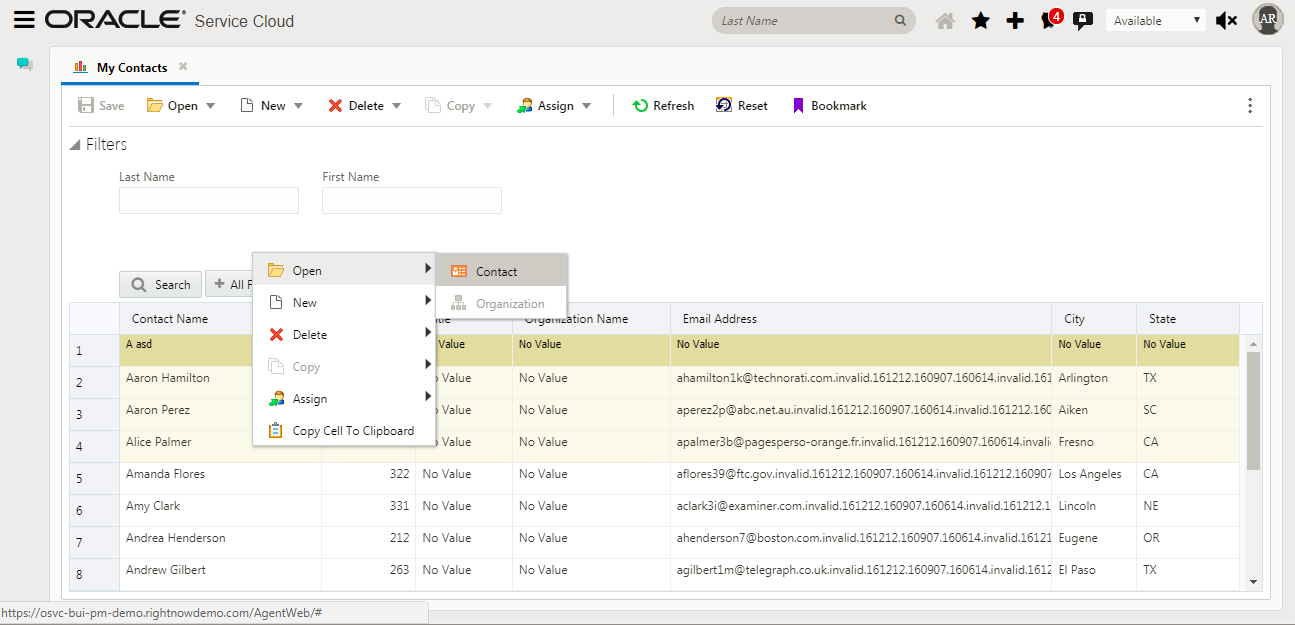
Select Multiple Contacts and Initiate Open
Then update the values of more than one contact using the multi-edit workspace.
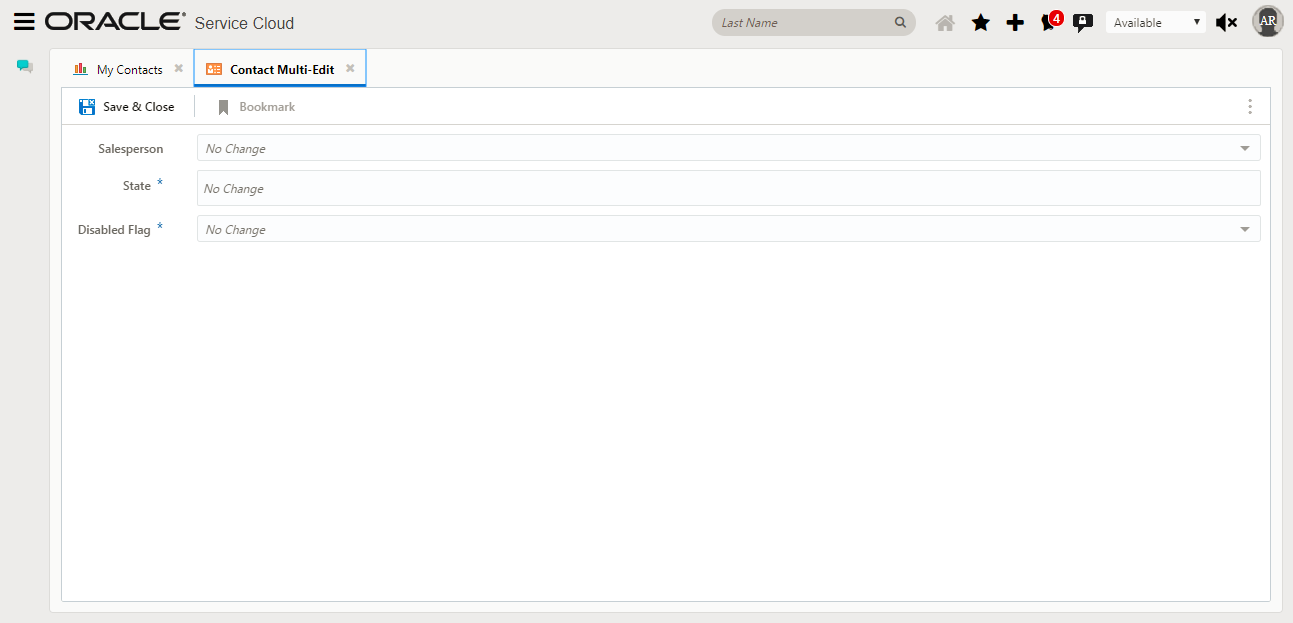
Contact Multi-Edit Workspace
Steps to Enable
No steps are required to enable this feature.
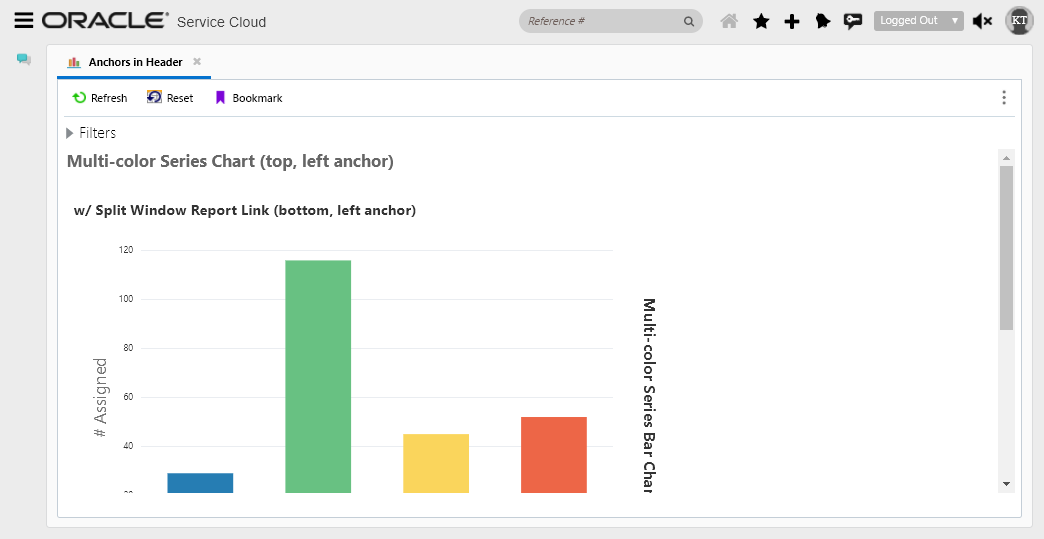
Reports can be configured with text fields (e.g. Title, subtitle, etc.) and images within the header and footers to make reports a bit more intuitive at runtime. Previously we added formatting to the text fields. In this release we added support for anchor configurations. This allows a report creator to set the text or image as top, bottom, left, right (or any combination of these) within the report header. This is different than text justification as the anchor specifies where the board of the text field and/or image will be aligned. The text within the field can still be left and right justified. The anchor makes for easier alignment of the field and/or image within the header and footer areas. The following report has 2 text fields, title (top, left anchor) and sub-title (bottom, left anchor).
Steps to Enable
No steps are required to enable this feature.
Organization Multi-Edit Workspaces
Multi-editing allows you to update more than one record in a single operation instead of performing the same action on each individual record. This feature saves time when you need to make the same change to several records. We now support multi-edit workspaces for the Organization object on the Agent Browser UI. This includes runtime support for Organization fields, controls and options configured using the Service Console Workspace Designer.
Simply select multiple organizations in a report and use the right click menu to Open the selected records into an Organization Multi-Edit Workspace.
Steps to Enable
No steps are required to enable this feature.
Summary Panel Alignment Workspace Designer Tabset Option
An Incident Workspace design option was created specifically for Agent Browser User Interface rendering behavior of workspaces that maintain the standard workspace layout. The standard layout is defined by having the top container control of a workspace to be a tabset. If you create a new workspace or copy a standard workspace, then the top container control will be a tabset. The other option is for the top container control of the workspace to be a table. The following steps can be used to determine what the top container control is for a workspace:
- Load the workspace in the workspace designer
- Select any control on the workspace
- Click on the Design ribbon tab
- Expand the drop down in the top left corner which shows all of the controls in the workspace
When rendering a workspace with the Standard layout, the Agent Browser User Interface can either render all panels as tabs in the tabset or it can choose to render the Summary panel as a persistent panel located above the tabset as is the default rendering strategy for the Service Console. In order to allow the administrator to choose the desired option, the Summary Panel Alignment configuration option was introduced.
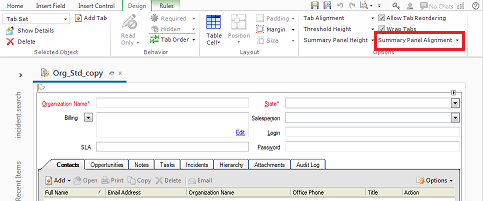
The choices are First Tab and Top. The default option is First Tab and the above workspace in Agent Browser UI would render as the tabset having a summary panel that would include all of the fields located above the tabset in the image above (See image below).
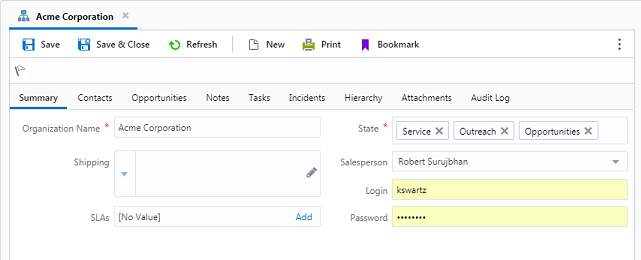
The Top option would render as shown in the workspace designer with a persistent summary panel above the tabset (See image below).
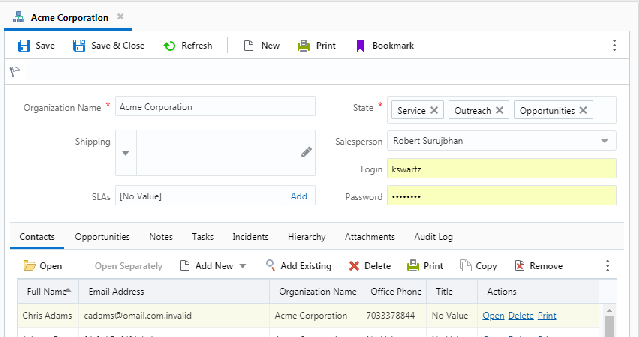
Steps to Enable
No steps are required to enable this feature.
Desktop Workflow Embedded Workflow and Return from Embedded Workflow Elements
When following elaborate business processes, staff members often evaluate critical information and perform a variety of actions across multiple records. To promote efficiency and reduce the chances for human error, Oracle Service Cloud lets you create highly customized desktop workflows that guide agents through complex customer interactions and data updates.
A desktop workflow is a sequence of workspaces, scripts, decisions, and actions—even other embedded workflows—that supports a business process. Using an intuitive design interface, you define a workflow by assembling a set of elements into a logical order to form a flow diagram, then adding decision logic to advance the flow.
At times these workflows can grow to be rather large and complex. Sites often have multiple workflows that are tailored for particular user roles in their service organization. Oracle Service Cloud provides the ability to embed sub-workflows inside of other workflows to assist with complexity and encapsulation. The Workflow Element is used to embed another workflow into the workflow that is currently loaded into the workspace designer (see diagram below). Once this element is encountered in the workflow, the control is passed onto the embedded workflow for processing. The Return element is added to a workflow that will be embedded into another workflow to pass the control back.

Desktop Workflow Ribbon
Steps to Enable
No steps are required to enable this feature.
---

Copyright © 2018, Oracle and/or its affiliates. All rights reserved.
This document is provided for information purposes only, and the contents hereof are subject to change without notice.This document is not warranted to be error-free, nor subject to any other warranties or conditions, whether expressed orally or implied in law, including implied warranties and conditions of merchantability or fitness for a particular purpose. We specifically disclaim any liability with respect to this document, and no contractual obligations are formed either directly or indirectly by this document. This document may not be reproduced or transmitted in any form or by any means, electronic or mechanical, for any purpose, without our prior written permission.
Oracle and Java are registered trademarks of Oracle and/or its affiliates. Other names may be trademarks of their respective owners.
Intel and Intel Xeon are trademarks or registered trademarks of Intel Corporation.All SPARC trademarks are used under license and are trademarks or registered trademarks of SPARC International, Inc. AMD, Opteron, the AMD logo, and the AMD Opteron logo are trademarks or registered trademarks of Advanced Micro Devices. UNIX is a registered trademark of The Open Group.
