

This document will continue to evolve as existing sections change and new information is added. All updates appear in the following table:
| Date | Feature | Notes |
|---|---|---|
| 07 MAR 2018 | Created initial document. |
This guide outlines the information you need to know about new or improved functionality in Oracle Service Cloud Agent Browser UI January 2018 and describes any tasks you might need to perform for the update. Each section includes a brief description of the feature, the steps you need to take to enable to begin using the feature, any tips or considerations that you should keep in mind, and the resources available to help you.
For a listing of hardware and software requirements for Oracle products, log in to our support site and access Answer ID 31.
Give Us Feedback
We welcome your comments and suggestions to improve the content. Please send us your feedback at http://documentation.custhelp.com/ci/documents/detail/5/4/12.
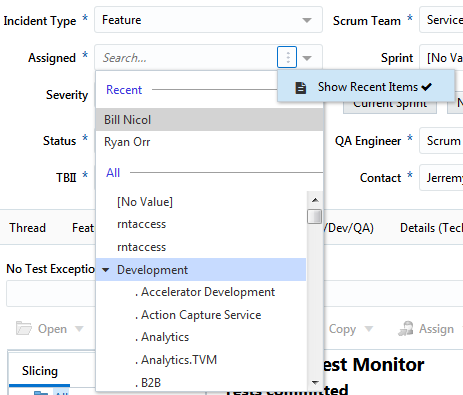
Recent Items Support on Menu Control
This feature allows users to enable or disable recent menu items view, this option is available to menu items that are based on Optlists. Examples include Assigned, Status and TBII in the QA site.
- Click in the field
- Click the vertical ellipsis
- Select the Show recent items to toggle enabled/disable
Steps to Enable
No steps are required to enable this feature.
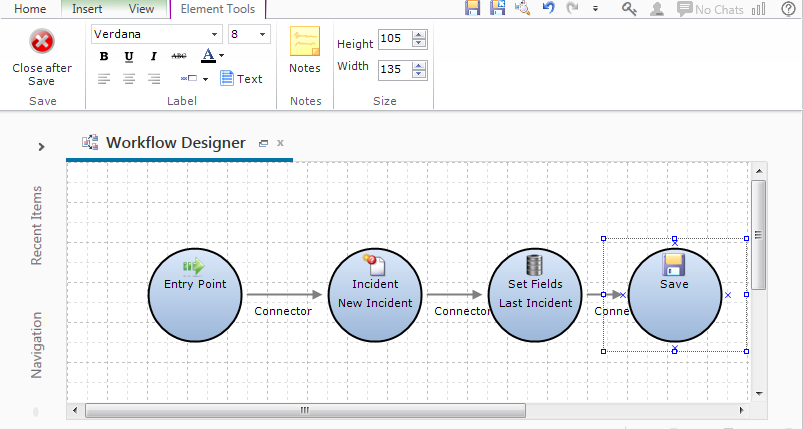
The Agent Browser User Interface now includes support for the Save workflow element. The Save element is used to save all records that are open in the workflow record pool. To close the records after saving, click to highlight the Close After Save button on the ribbon.
Steps to Enable
No steps are required to enable this feature.
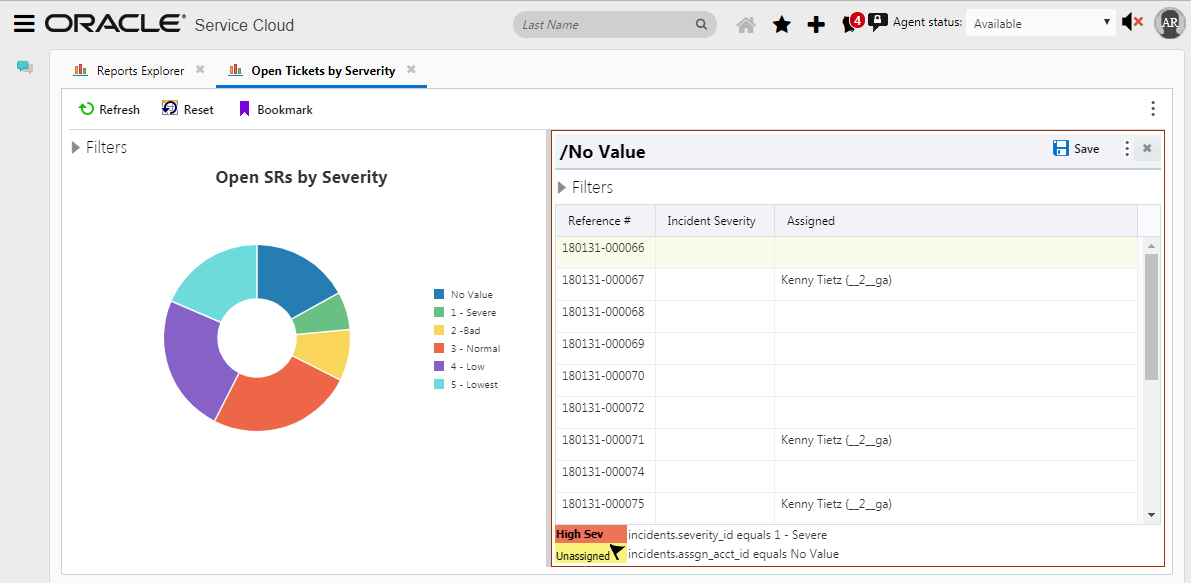
Split Window Support for Linking/Drilldown
The Agent Browser UI now supports the ability to view a report linked or drill down level in a split window. The configuration option to set this attribute is located in the third panel of the Report Linking Wizard or in the Open in Window menu item on the Level ribbon tab for a drilldown report.
Steps to Enable
No steps are required to enable this feature.
Support for Ordering Report Dialog Filters
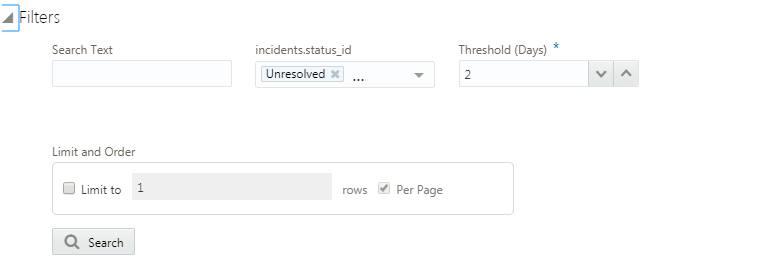
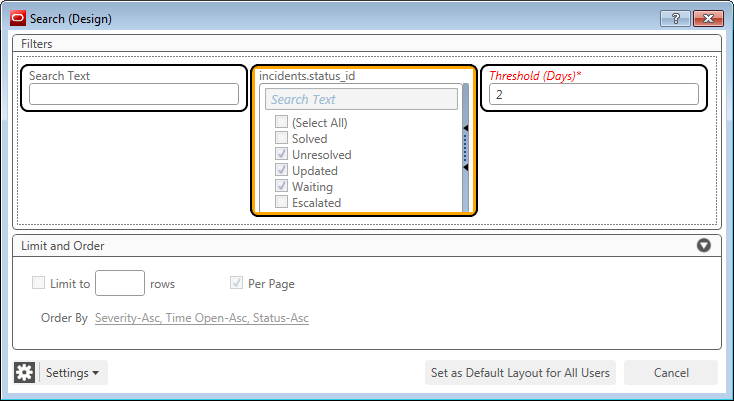
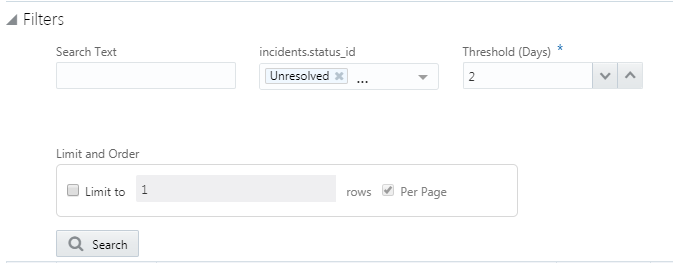
With this feature the Agent Browser User Interface now supports the ability to configure the order in which filters are rendered in the filter area. Configuration is still limited to filter order in the BUI view, however custom sizes can be configured using the Search Designer in the Service Console.
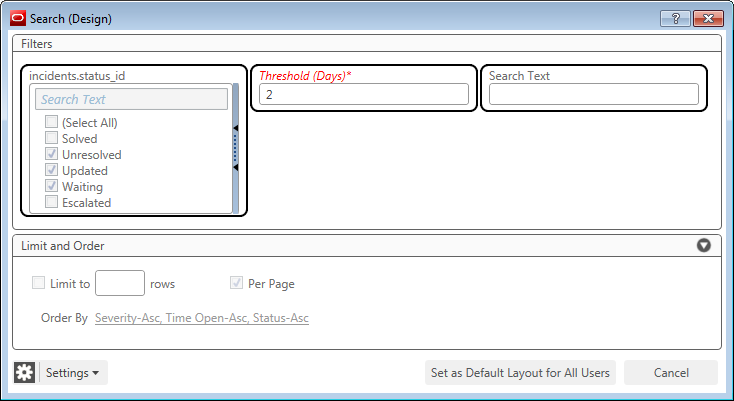
For example, the filter area for the report as configured in the Search Designer above would render as below.
If the Search Designer is used to move the Search Text filter in Front of the Status filter as shown below then the Search Text filter will be the initial filter in the Agent Browser User Interface filter area for the report.
See resulting Agent Browser User Interface filter area for the report below.
Steps to Enable
No steps are required to enable this feature.
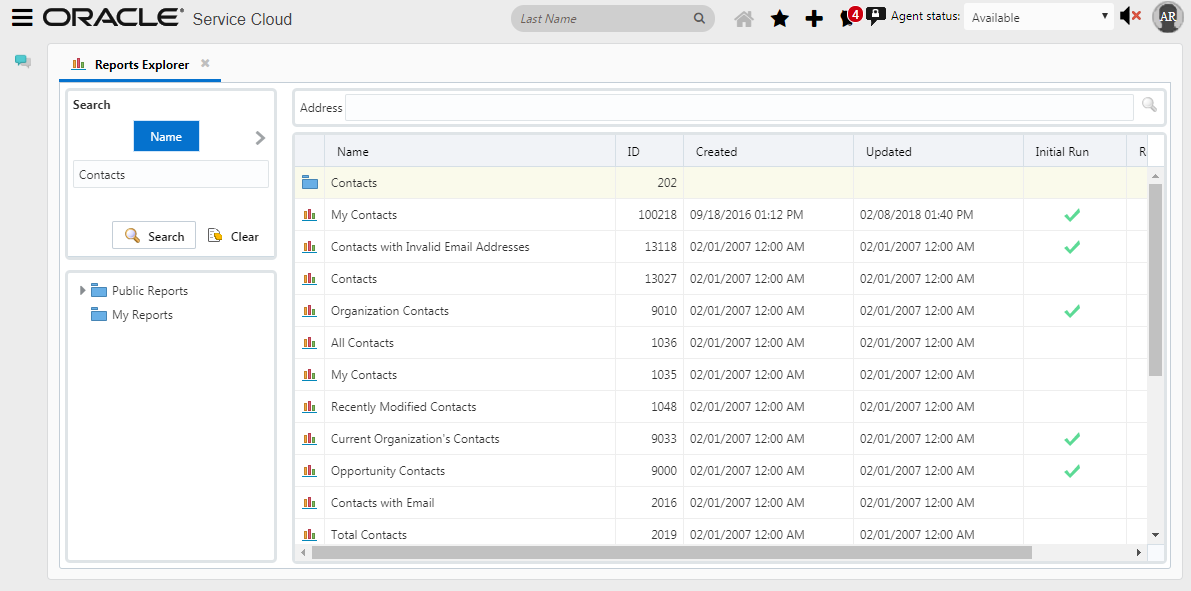
The Reports Explorer provides a single location to view and open reports and dashboards.
Reports are located in folders within the Reports Explorer. Folders are displayed in a tree structure which can be expanded or collapsed to hide or display their contents. Reports that are accessible by multiple staff members are contained in the Public Reports folder, while private reports are stored in the My Reports folder. Private reports can only be viewed by those that created them.
Clicking a folder in the Reports explorer’s tree displays the folder’s contents in a list. A folder’s contents can include reports, dashboards, and subfolders.
Right-click a folder or report to display a list of actions that can be taken on the item, Currently actions are limited to Open and Open containing folder.
Steps to Enable
The report explorer is available in the Navigation region of the Report Explorer has been included in the navigation set that has been associated to the user indirectly via the Profile.
---

Copyright © 2018, Oracle and/or its affiliates. All rights reserved.
This document is provided for information purposes only, and the contents hereof are subject to change without notice.This document is not warranted to be error-free, nor subject to any other warranties or conditions, whether expressed orally or implied in law, including implied warranties and conditions of merchantability or fitness for a particular purpose. We specifically disclaim any liability with respect to this document, and no contractual obligations are formed either directly or indirectly by this document. This document may not be reproduced or transmitted in any form or by any means, electronic or mechanical, for any purpose, without our prior written permission.
Oracle and Java are registered trademarks of Oracle and/or its affiliates. Other names may be trademarks of their respective owners.
Intel and Intel Xeon are trademarks or registered trademarks of Intel Corporation.All SPARC trademarks are used under license and are trademarks or registered trademarks of SPARC International, Inc. AMD, Opteron, the AMD logo, and the AMD Opteron logo are trademarks or registered trademarks of Advanced Micro Devices. UNIX is a registered trademark of The Open Group.
