

This document will continue to evolve as existing sections change and new information is added. All updates appear in the following table:
| Date | Feature | Notes |
|---|---|---|
| 12 APR 2019 | Knowledge Panel is Always Available | Updated document. Revised feature information. |
| 30 JUL 2018 | Created initial document. |
This guide outlines the information you need to know about new or improved functionality in Oracle Service Cloud Agent Browser UI July 2018 and describes any tasks you might need to perform for the update. Each section includes a brief description of the feature, the steps you need to take to enable to begin using the feature, any tips or considerations that you should keep in mind, and the resources available to help you.
For a listing of hardware and software requirements for Oracle products, log in to our support site and access Answer ID 31.
Give Us Feedback
We welcome your comments and suggestions to improve the content. Please send us your feedback.
| Action Required to Enable Feature |
||||
|---|---|---|---|---|
| Feature |
Automatically Available |
End User Action Required |
Administrator Action Required |
Oracle Service Request Required |
Comparison Columns and Comparison Percent Columns Supported in Agent Browser UI Reporting |
 |
|||
Exception Formatting Displayed in Charts Within Agent Browser UI Reporting |
|
|||
Refresh All Split Levels Simultaneously in Agent Browser UI Reporting |
|
|||
|
||||
|
||||
|
||||
|
||||
Comparison Columns and Comparison Percent Columns Supported in Agent Browser UI Reporting
Support for comparison columns within Agent Browser UI has been added.
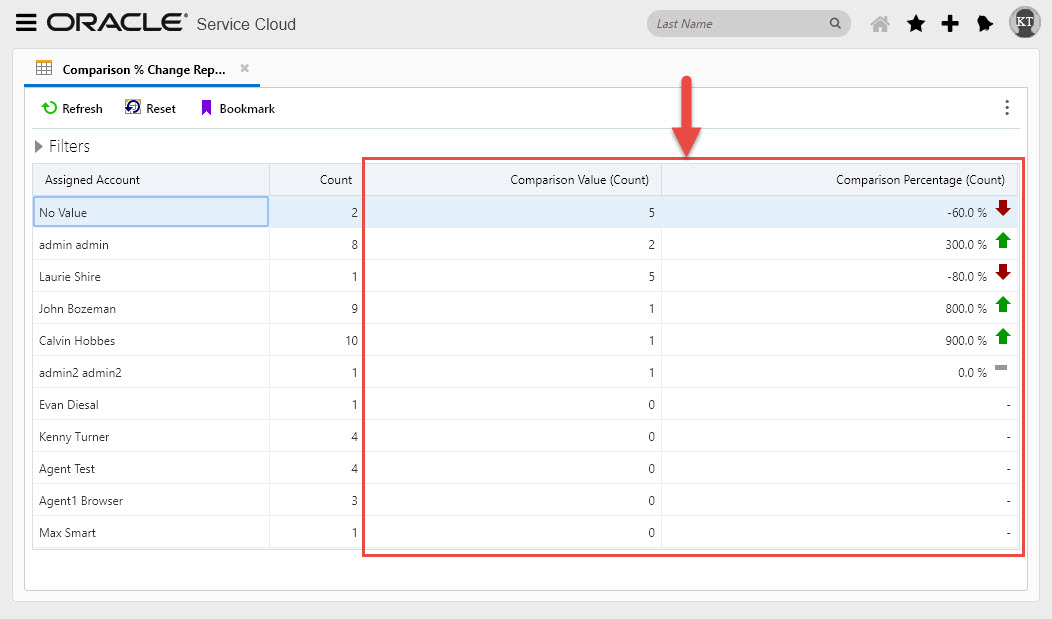
Comparison columns allow users to view the same data for two different time periods side-by-side in a report by adding a comparison value computed field. Users can specify the time periods used, and change them while running the report to view the data for different time periods. For example, you could have a report that shows the number of incidents created in the current week and the number of incidents created in the previous week. You could then run the report again to compare numbers of incidents created in the current month and previous month.
Comparison percent columns show the percentage increase or decrease (including configurable colored up/down arrows) between the two time periods shown in the report.
The screen shot below displays both comparison values and comparison percent change columns within an Agent Browser UI report.
Configuration of comparison columns within the Service Console (.NET Console) Report Designer is documented in the following OSvC documentation page:
- Comparison columns: https://docs.oracle.com/en/cloud/saas/service/18b/famug/analytics.html#t_Add_a_comparison_value_column_to_a_report_ah1134670
- Comparison percentage columns: https://docs.oracle.com/en/cloud/saas/service/18b/famug/analytics.html#t_Add_a_comparison_percentage_column_to_a_report_ah1134726
Steps to Enable
No steps are required to enable this feature.
Exception Formatting Displayed in Charts Within Agent Browser UI Reporting
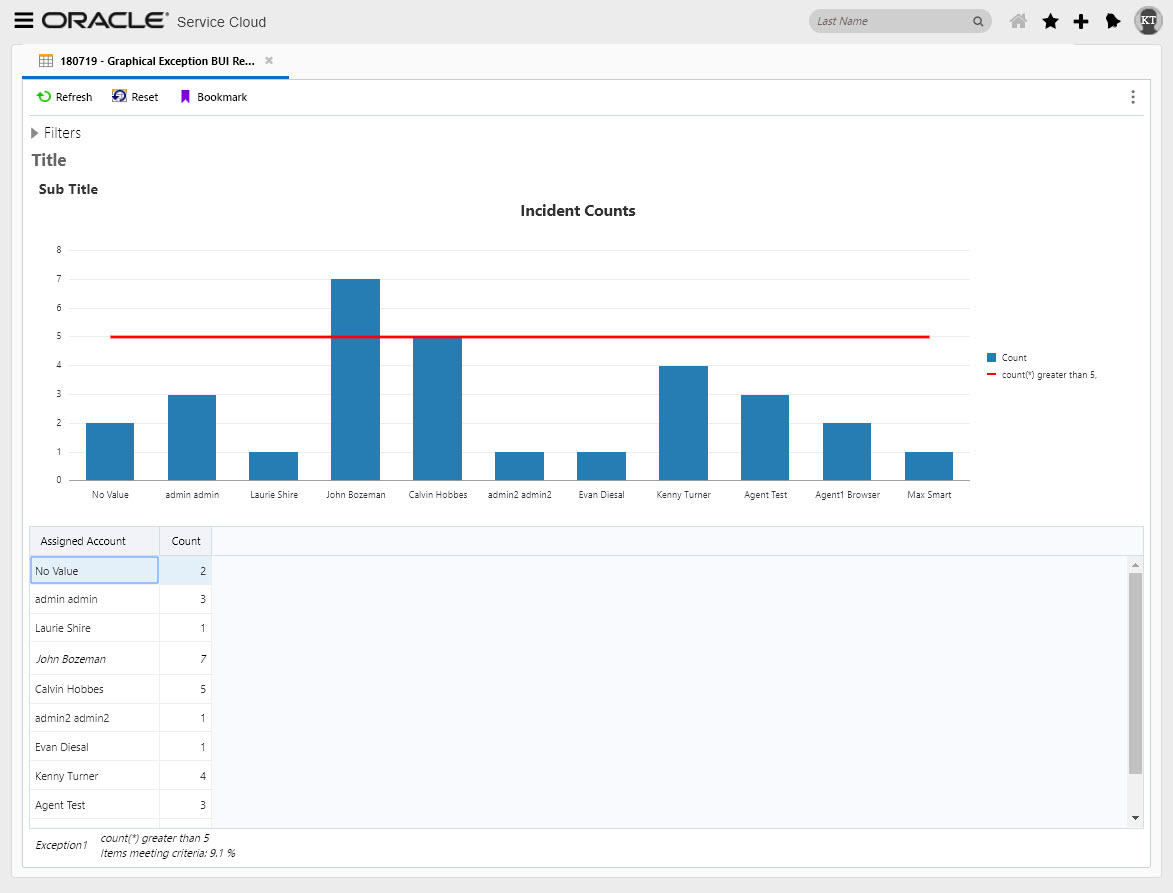
Graphical display of report exception allows users to see a visual representations of exception thresholds directly within charts configured in the report. This allows users to easily find data that has surpassed specified exceptions. Support has been added within OSvC Agent Browser UI to show the graphical display of exceptions within reports containing charts.
The screen shot below shows a graphical exception of incident counts greater than 5. Anything above this line exceeds the exception threshold.
Configuration of reports, charts, and exceptions therein still need to be done in the OSvC Service Console. Documentation for creating exceptions in reports and adding them as graphical display exceptions in a chart can be found via the following link:
Steps to Enable
No steps are required to enable this feature.
Refresh All Split Levels Simultaneously in Agent Browser UI Reporting
Selecting the "Refresh all split levels simultaneously" check box within a report configuration to automatically refresh all report levels shown in split windows when data in one of the report levels is refreshed. When this option is disabled, only the data shown in the window selected when the refresh occurs is updated.
Support for this option has been added to Agent Browser UI reporting.
Steps to Enable
No steps are required to enable this feature.
Key Resources
To disable the email icon in the Service Console open the Contact Workspace in the Workspace Designer. Highlight the email field and select the Design Tab from the Ribbon. In the Options Ribbon Group there is a checkbox option to ‘Disable Email Icon’.
This option is available on any workspace that the Contact Email Address field can be added to.
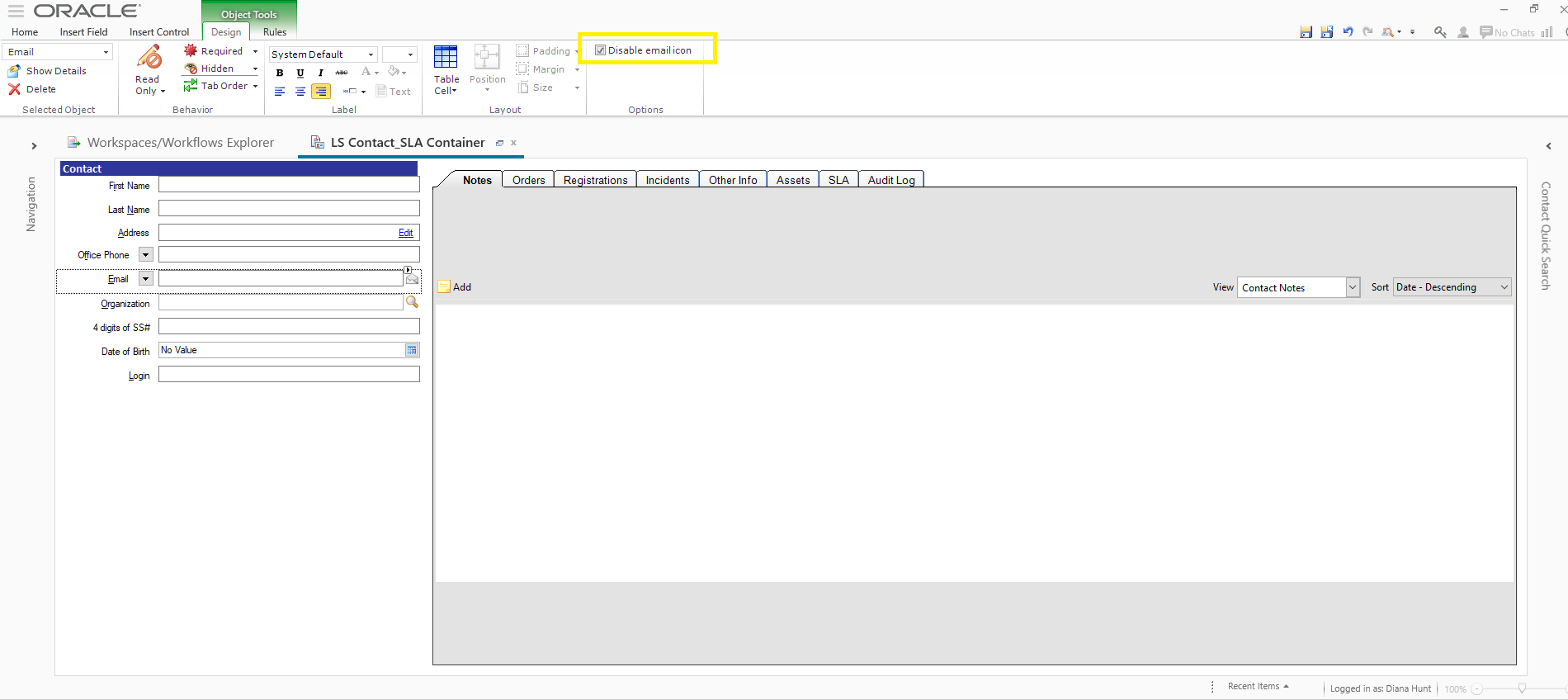
Disable Email Icon - Workspace Designer
When the Contact Workspace is opened in the Agent Browser UI and the Disable Email Icon is selected, the Email icon on the right side of the field is disabled.

Disable Email Icon - Agent Browser UI
Steps to Enable
To disable the email icon in the Service Console:
- Open the Contact Workspace in the Workspace Designer
- Highlight the email field and select the Design Tab from the Ribbon
- In the Options Ribbon Group there is a checkbox option to ‘Disable Email Icon’.
Role Information
- The Admin can select this option in the Workspace Designer.
- The Agent will see the email icon in the Agent Browser but it will be disabled.
Interaction Workspace for Chat
Interaction Workspace in Agent Browser UI is supported
- New Interaction Chat Workspace Set up in .NET Designer
- Chat, Contact, Incident, Custom Objects and Interaction fields can be added to the Interaction Chat WS
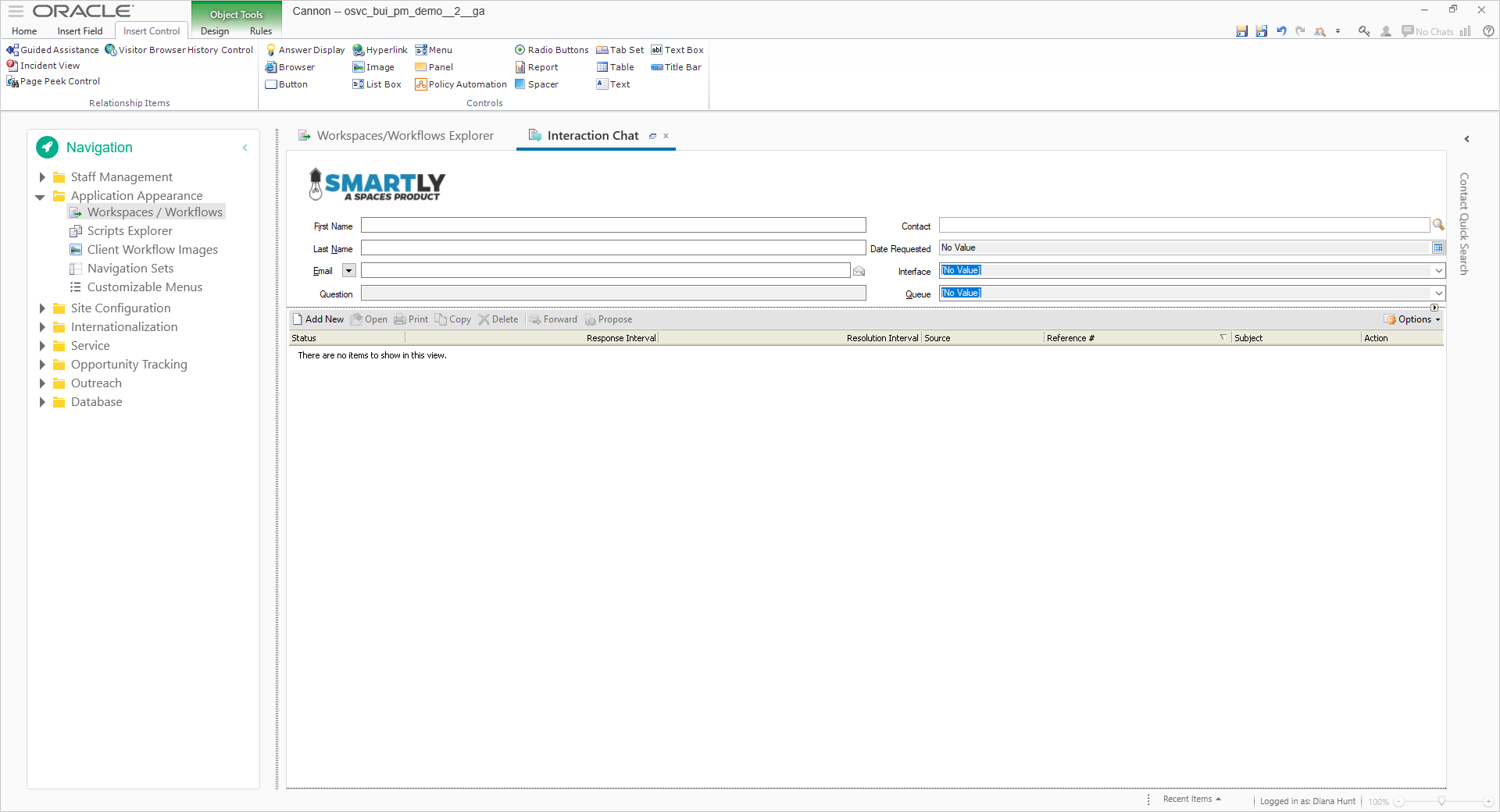
- Add Interaction Chat WS definition to Profile definition
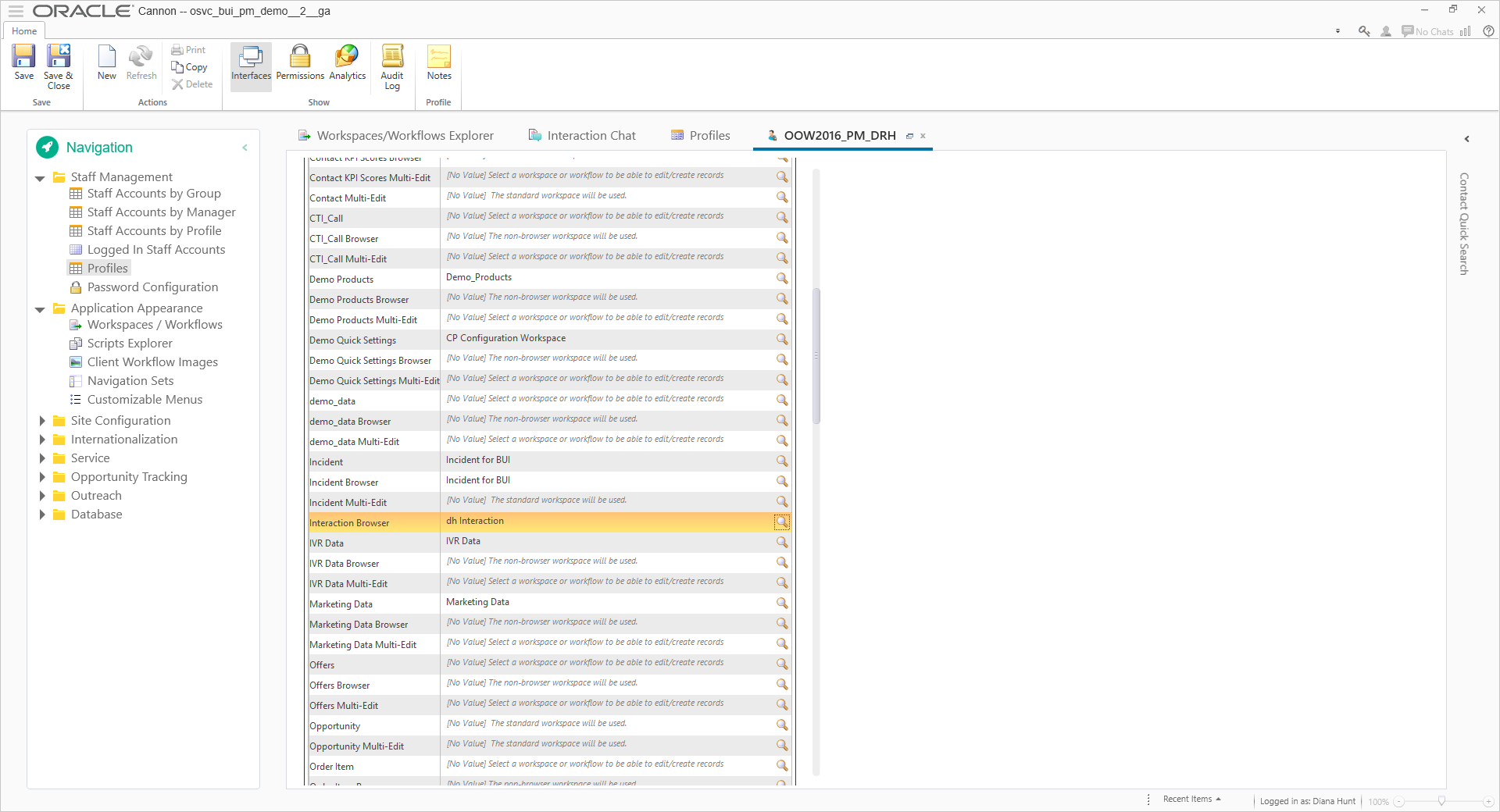
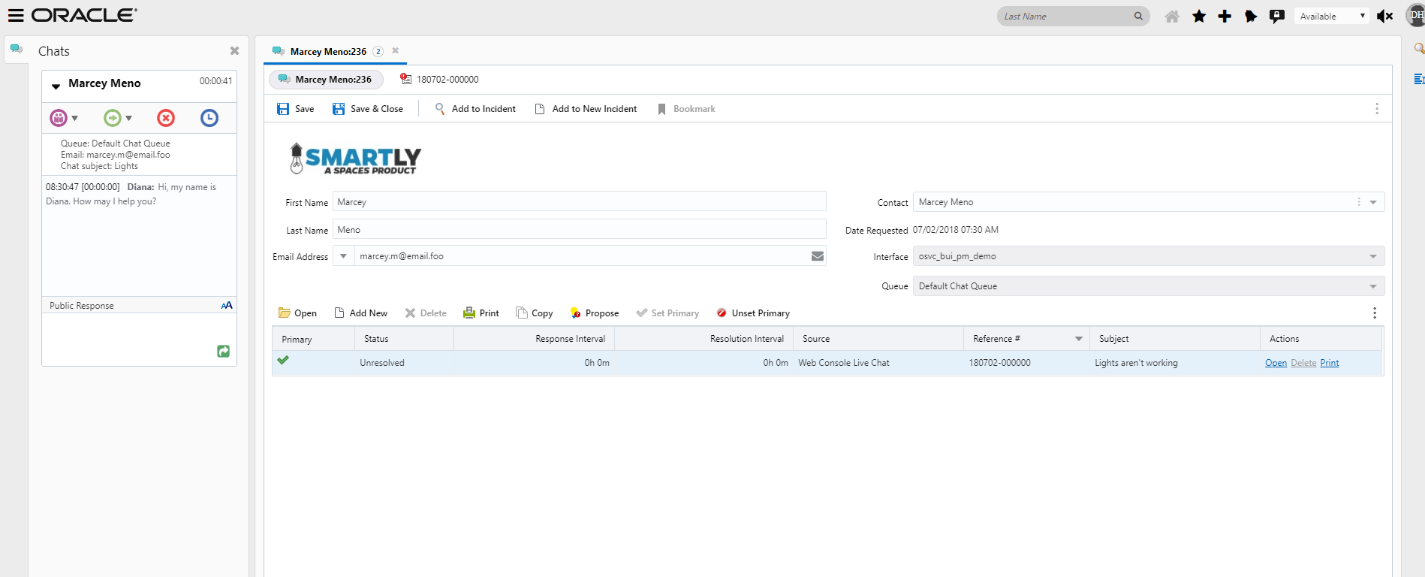
- The interaction Chat WS updates the Chat, Contact, Incident, Custom Objects and Interaction data in real time as the agent interacts with the customer
- In Agent Browser UI, when the chat load an Incident will also load and become primary Incident.
- The Incident View control is a list of all Incidents and/or past chats associated with the Contact of the chat.
- The Incident View control is an interaction report, an incident can be added, deleted and set to primary.
Steps to Enable
- There is a new Interaction Chat Workspace Set up in .NET Designer
- Chat, Contact, Incident, Custom Objects and Interaction fields can be added to the Interaction Chat WS
- Once the new Interaction Chat Workspace is set up, add the Interaction Chat WS definition to the Profile definition
Tips And Considerations
The interaction workspace has been created to replace the Chat Workspace in the Agent Browser User Interface. Although this release of the Interaction Workspace does provide a substantial amount of functionality with regards to customizing the workspace, there remains gaps between what is available on the Chat workspace that is used as part of the Service Console and what is available for this release of the Interaction Workspace. The following items are the current gaps that will be supported at a later date.
- Workspace Rules
- Ability to include an extension on the workspace
- Support for the Guided Assistant Control
- Support for the Co-browse Control
- Support for the Visitor Browser History Control
- Support for the Page Peek Control
- Support for the Chat Workspace Options including:
- Create/associate related incident at the beginning of a chat (if one does not exist)
- Open related incident for editing at the beginning of a chat (if one exists)
- Create/associate related incident at the end of a chat (if one does exist)
- Open related Incident for editing at the end of a chat (if one exists)
- Discard previous related incident if it is uncommitted when another incident is associated to chat
- Set status to solved for incidents created automatically
- Wrap Up Behavior Options
Role Information
- Administrators will access the Workspace Designer & make Profile updates
- Chat Agents will interact with the new Interaction Workspace within the Browser User Interface
With this feature agents can draft new content and submit to Knowledge Manager for review.
Agents can also track latest status of their recommendations under ‘My recommendations’.
Steps to Enable
No steps are required to enable this feature.
Knowledge Panel is Always Available
When Knowledge Advanced is enabled, the Knowledge Panel is available as a component within the BUI without being tied to an incident. This allows agents to access knowledge even when they are not working on a service request.
In previous releases, the knowledge panel was only available in the context of the incident workspace.
Steps to Enable
No steps are required to enable this feature.
---

Copyright © 2018, 2019, Oracle and/or its affiliates. All rights reserved.
This document is provided for information purposes only, and the contents hereof are subject to change without notice.This document is not warranted to be error-free, nor subject to any other warranties or conditions, whether expressed orally or implied in law, including implied warranties and conditions of merchantability or fitness for a particular purpose. We specifically disclaim any liability with respect to this document, and no contractual obligations are formed either directly or indirectly by this document. This document may not be reproduced or transmitted in any form or by any means, electronic or mechanical, for any purpose, without our prior written permission.
Oracle and Java are registered trademarks of Oracle and/or its affiliates. Other names may be trademarks of their respective owners.
Intel and Intel Xeon are trademarks or registered trademarks of Intel Corporation.All SPARC trademarks are used under license and are trademarks or registered trademarks of SPARC International, Inc. AMD, Opteron, the AMD logo, and the AMD Opteron logo are trademarks or registered trademarks of Advanced Micro Devices. UNIX is a registered trademark of The Open Group.
