

| Date | Feature | Notes |
|---|---|---|
| 29 JUN 2018 | Created initial document. |
This guide outlines the information you need to know about new or improved functionality in Oracle Service Cloud Agent Browser UI June 2018 and describes any tasks you might need to perform for the update. Each section includes a brief description of the feature, the steps you need to take to enable to begin using the feature, any tips or considerations that you should keep in mind, and the resources available to help you.
For a listing of hardware and software requirements for Oracle products, log in to our support site and access Answer ID 31.
Give Us Feedback
We welcome your comments and suggestions to improve the content. Please send us your feedback.
| Action Required to Enable Feature |
||||
|---|---|---|---|---|
| Feature |
Automatically Available |
End User Action Required |
Administrator Action Required |
Oracle Service Request Required |
 |
||||
|
||||
The Validation Option on the Workspace Element Workflow Connector |
|
|||
|
||||
|
||||
|
||||
|
||||
|
||||
Workflow Enable Save Option for Workflow Elements
This option allows the workflow designer to determine if the agent can save any information at this stage of the workflow.
In the Workflow Designer, there is an Options menu in the ribbon for the in-focus workspace. This menu contains one option: Enable Save.
The Enable Save Option can be useful if you have required fields on a subsequent workspace or script. If you have Save/Save & Close buttons in the ribbon, but you have disabled save, then the buttons will be disabled.
This is already available in the Workflow Designer in the Service Console and will now be supported in the Agent Browser UI runtime console.
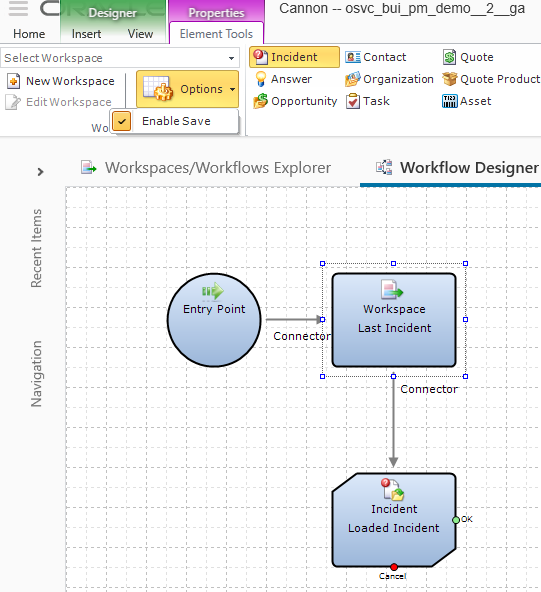
Enable Save Option in Workspace Designer
Steps to Enable
This is already available in the Workflow Designer in the Service Console.
Key Resources
The Load Element in Workflow allows a specific record to be loaded in the workflow at a defined stage. It is a constant record that is added to the workflow definition.
In the Workflow Designer in .NET the admin can add a Load Element from the Ribbon. When the Load is selected a drop down is given to select the constant record type.
This is already available in the Workflow Designer in .NET and will now be supported in Agent Browser UI.
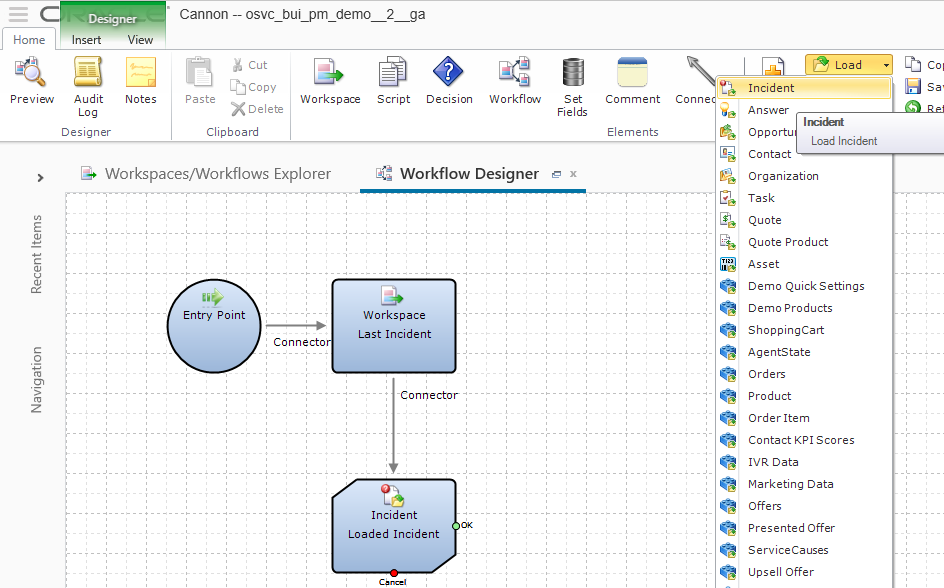
Workflow Load Element in Workflow Designer
Steps to Enable
The load element can be included in a workflow via the Workflow Designer.
Key Resources
The Validation Option on the Workspace Element Workflow Connector
The Validation Connector Options in Workflows is Supported. This is used to make sure that a workspace element has been validated prior to following a Connector Element out of the Workspace Element in a workflow. If all data has been validated then the workflow will continue. If the record does not pass the validation criteria configured for the workspace such as required field, then the workflow will not continue.
In the image below, the Causes Validation configuration option will ensure that the values of the current incident record are valid according to the Incident Workspace that is associated with the Workspace Initial Incident Element on the Workflow.
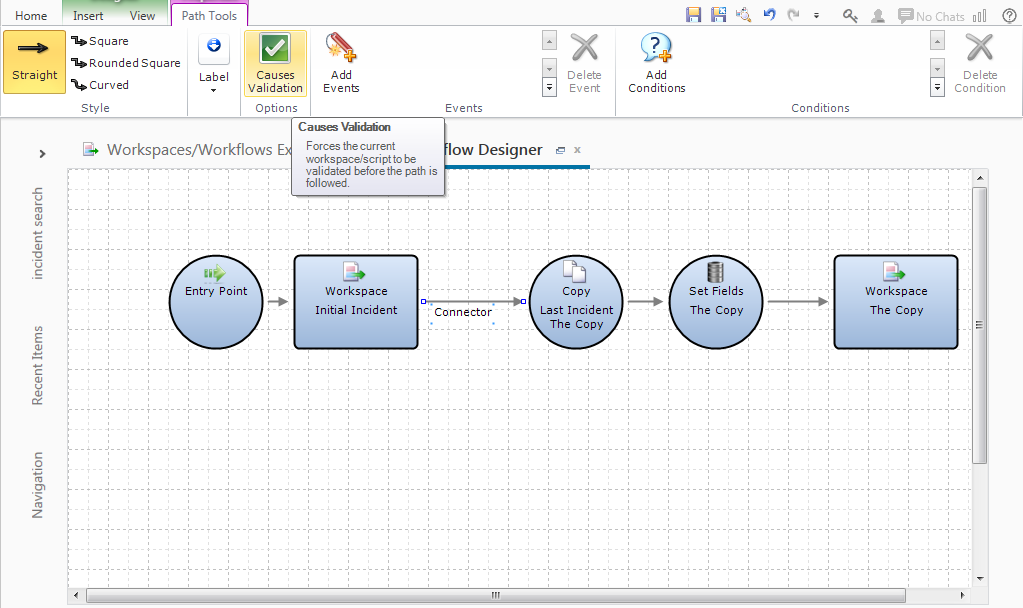
Causes Validation Configuration Option in Workflow Designer
Steps to Enable
The Validation Option is available in the Service Console Workflow Designer and can be configured on a Connector Element that is departing a Workspace Element.
Key Resources
Automatic Spell Check for Chat
A new feature has been added to the Agent's Chat experience within the Browser User Interface, where misspelled words are indicated within the compose control of the Chat session. Agents can easily see when misspellings occur from within the Chat compose control with this new integrated spell check.
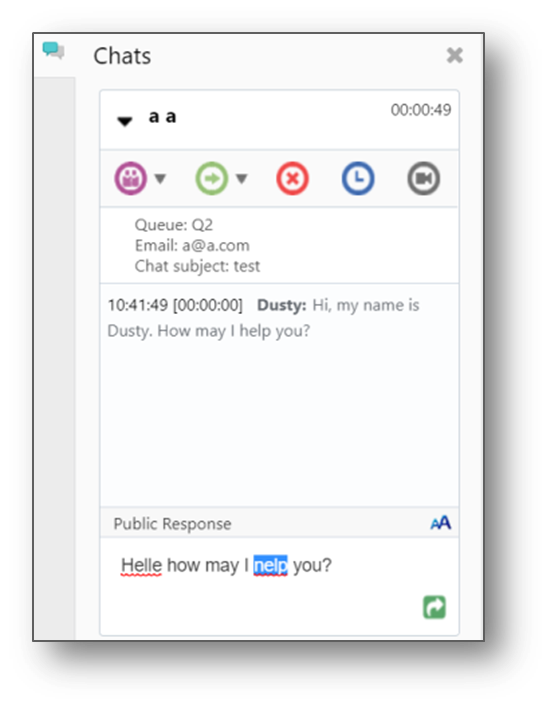
Example of Spelling Error Within Chat Compose Control
This feature also applies to Supervisors who join a chat or are private messaging during a chat session. This feature allows agents to quickly identify when a spelling mistake occurs and easily fix the problem.
Steps to Enable
No set-up is required, this feature is automatically available for all Chat agents using the Browser User Interface.
Role Information
Roles that will use this feature:
- Chat Agent
- Supervisor Agent
Multi-editing allows you to update more than one record in a single operation instead of performing the same action on each individual record. This feature saves time when you need to make the same change to several records. We now support multi-edit workspaces for the Task object on the Agent Browser UI. This includes runtime support for Task fields, controls and options configured using the Service Console Workspace Designer.
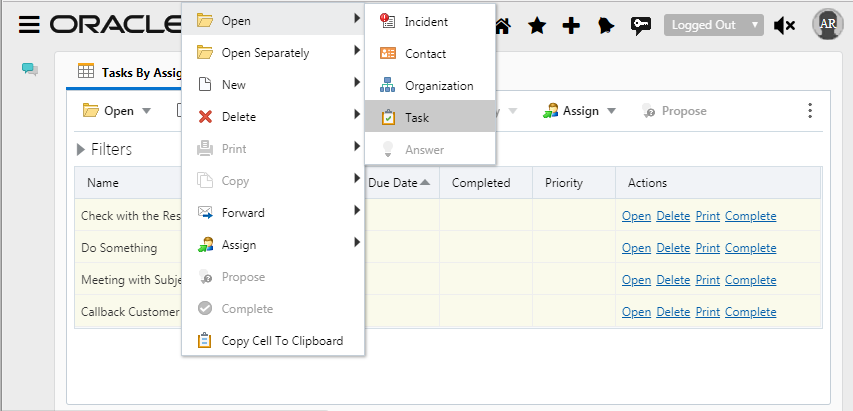
Initiating Multi-Edit of Tasks from Report
Simply select multiple contacts in a report and use the right click menu to Open them.
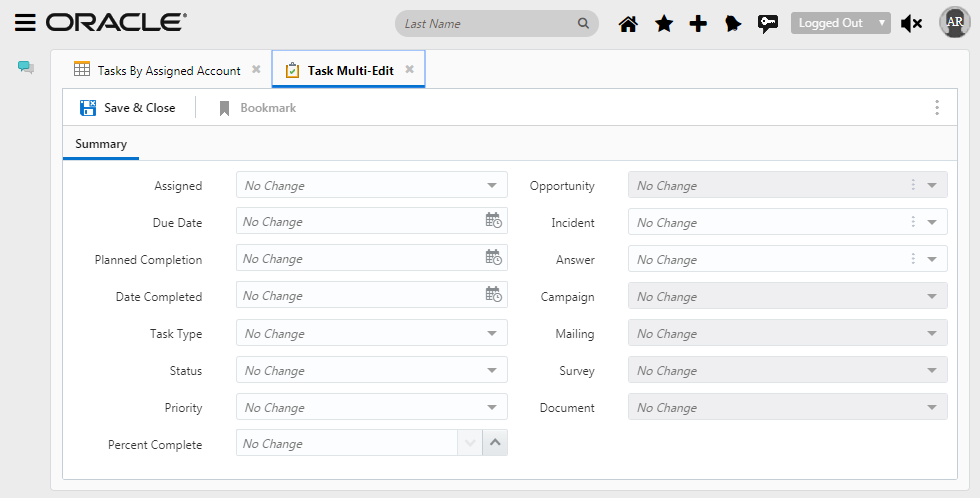
Task Multi-Edit Workspace
Steps to Enable
No steps are required to enable this feature.
Workspace Rules Action to Execute Editor Command: Propose
The Workspace rule to execute the command to Propose an Answer is now supported.
To enable; in the Workspace Designer the admin can create a Rule using the Rules Designer. First set a Trigger and then select the action to “Execute editor command”. Select the link provided in the Rules editor and chose Propose.
This is already available in the Workflow Designer in .NET and will now be supported in Agent Browser UI.
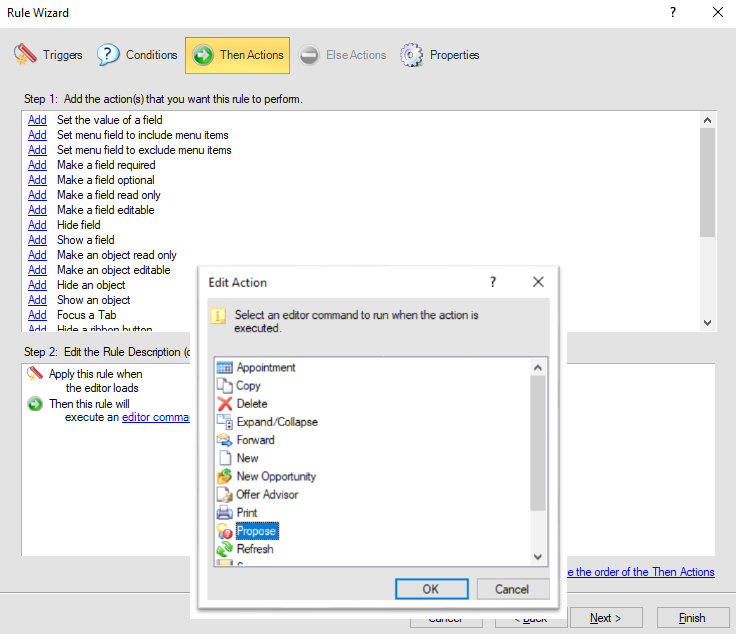
Propose Action in Rules Wizard
Steps to Enable
To enable; in the Workspace Designer the admin can create a Rule using the Rules Designer. First set a Trigger and then select the action to “Execute editor command”. Select the link provided in the Rules editor and chose Propose.
Custom Object Multi-Edit Workspaces
Multi-editing allows you to update more than one record in a single operation instead of performing the same action on each individual record. This feature saves time when you need to make the same change to several records. We now support multi-edit workspaces for the Custom Objects on the Agent Browser UI. This includes runtime support for Custom Object fields, controls and options configured using the Service Console Workspace Designer.
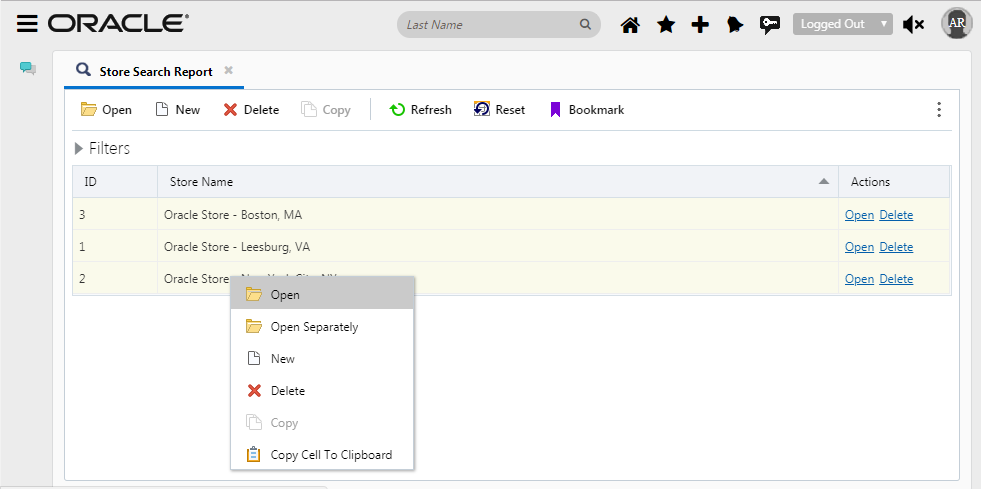
Select Multiple Custom Object Records in Report
Simply select multiple custom object records in a report and use the right click menu to Open them.
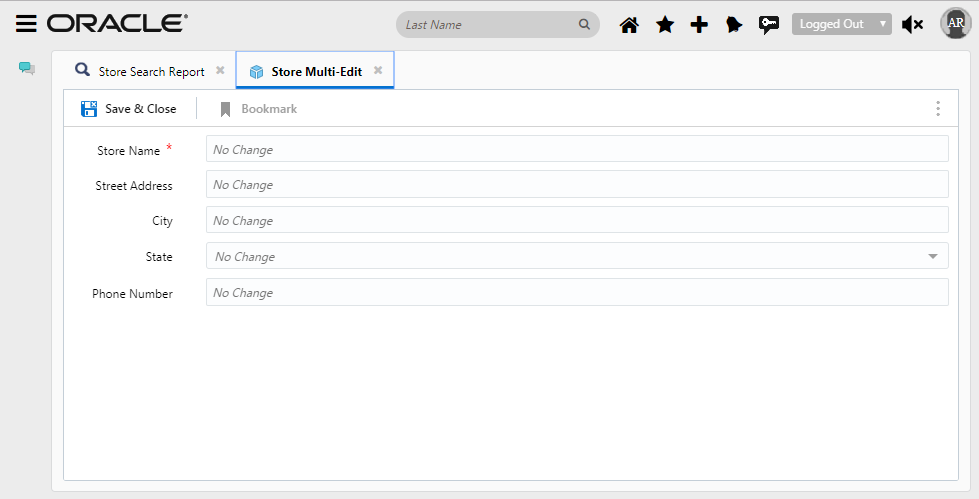
Custom Object Multi-Edit Workspace
Steps to Enable
No steps are required to enable this feature.
The Multi-Edit Workspace functionality that is available in the Service Console is now supported in the Agent Browser User Interface.
Multi-editing allows you to update more than one record in a single operation instead of performing the same action on each individual record. This feature saves time when you need to make the same change to several records. We now support multi-edit workspaces for the Asset object on the Agent Browser UI. This includes runtime support for Asset fields, controls and options configured using the Service Console Workspace Designer.
Steps to Enable
The Asset Multi-Edit Workspace is configurable using the Service Console Workspace Designer.
You can assign Multi-Edit workspaces to use for assets using the Profile Editor. If one isn't selected specifically for the Agent Browser User Interface, then the one that was configured for the Service Console Asset object for the specific profile will also be leveraged by the Agent Browser User Interface.
---

Copyright © 2018, Oracle and/or its affiliates. All rights reserved.
This document is provided for information purposes only, and the contents hereof are subject to change without notice.This document is not warranted to be error-free, nor subject to any other warranties or conditions, whether expressed orally or implied in law, including implied warranties and conditions of merchantability or fitness for a particular purpose. We specifically disclaim any liability with respect to this document, and no contractual obligations are formed either directly or indirectly by this document. This document may not be reproduced or transmitted in any form or by any means, electronic or mechanical, for any purpose, without our prior written permission.
Oracle and Java are registered trademarks of Oracle and/or its affiliates. Other names may be trademarks of their respective owners.
Intel and Intel Xeon are trademarks or registered trademarks of Intel Corporation.All SPARC trademarks are used under license and are trademarks or registered trademarks of SPARC International, Inc. AMD, Opteron, the AMD logo, and the AMD Opteron logo are trademarks or registered trademarks of Advanced Micro Devices. UNIX is a registered trademark of The Open Group.
