
- Revision History
- Overview
- Feature Summary
- Strategic Workforce Planning Cloud
-
- Features
-
- New Videos
- New Tutorials
- New Topics in EPM Cloud Operations Guide
- EPM Automate Updates
- Server-Side Execution of EPM Automate Commands
- Update to REST API Syntax for User Access Report and User Audit Report
- Update to Add Users REST API
- Update to Send Email REST API
- Updates to the Clone Environment Feature
- Activity Report Enhancements
- Redwood Look and Feel Enhancements
- Ability to Change Dynamic User Variables in Dashboard 2.0 POV Bars
- Smart View Ad Hoc Behavior Application Setting Now Defaults to Standard
- Integration with the Oracle Autonomous Database
- Reports System Level Option to Set Default Chart Colors
- Upgraded PDF Viewer for Reports and Books
- Workforce Enhancements for Merit Assumptions
- Custom Dimension Support in Reporting Cube
- New Rules to Calculate Supply for All Data and Calculate Demand for All Data
- Simplified Data Loading for FTE
-
- IMPORTANT Actions and Considerations
This document will continue to evolve as existing sections change and new information is added. All updates appear in the following table:
| Date | Product | Feature | Notes |
|---|---|---|---|
| 24 AUG 2021 | Strategic Workforce Planning | Workforce Enhancements for Merit Assumptions | Updated document. Updated Tips and Considerations. |
| 30 JUL 2021 | Created initial document. |
This document outlines the upcoming Strategic Workforce Planning Cloud update.
Column Definitions:
Report = New or modified, Oracle-delivered, ready to run reports.
UI or Process-Based: Small Scale = These UI or process-based features are typically comprised of minor field, validation, or program changes. Therefore, the potential impact to users is minimal.
UI or Process-Based: Larger Scale* = These UI or process-based features have more complex designs. Therefore, the potential impact to users is higher.
Features Delivered Disabled = Action is needed BEFORE these features can be used by END USERS. These features are delivered disabled and you choose if and when to enable them. For example, a) new or expanded BI subject areas need to first be incorporated into reports, b) Integration is required to utilize new web services, or c) features must be assigned to user roles before they can be accessed.
| Ready for Use by End Users Reports plus Small Scale UI or Process-Based new features will have minimal user impact after an update. Therefore, customer acceptance testing should focus on the Larger Scale UI or Process-Based* new features. |
Customer Must Take Action before Use by End Users Not disruptive as action is required to make these features ready to use. As you selectively choose to leverage, you set your test and roll out timing. |
|||||
|---|---|---|---|---|---|---|
| Feature |
Report |
UI or |
UI or |
|
||
Update to REST API Syntax for User Access Report and User Audit Report |
||||||
Ability to Change Dynamic User Variables in Dashboard 2.0 POV Bars |
||||||
Smart View Ad Hoc Behavior Application Setting Now Defaults to Standard |
||||||
New Rules to Calculate Supply for All Data and Calculate Demand for All Data |
||||||
Strategic Workforce Planning Cloud
Test Environments: Oracle will apply this monthly update during the first daily maintenance that occurs at or after 22:00 UTC on Friday, August 6, 2021.
Production Environments: Oracle will apply this monthly update during the first daily maintenance that occurs at or after 22:00 UTC on Friday, August 20, 2021.
NOTE: Backing up the daily maintenance snapshot and restoring the environment as needed are self-service operations. Oracle strongly recommends that you download the maintenance snapshot every day to a local server.
The Oracle Help Center provides access to updated documentation. The updates will be available in the Help Center on Friday, August 6, 2021.
NOTE: Some of the links to new feature documentation included in this readiness document will not work until after the Oracle Help Center update is complete.
Fixed Issues and Considerations
Software issues addressed each month and considerations will be posted to My Oracle Support.
NOTE: Starting with this update, fixed issues for EPM Cloud Common components (Smart View for Office, EPM Automate, REST API, Migration, Access Control, Data Management/Data Integration, Reports, Financial Reporting, and Calculation Manager) are available in a separate document on the My Oracle Support “Release Highlights” page.
This provides visibility into EPM Cloud release contents.
Please Join Oracle Cloud Customer Connect
Please take a moment to join the Cloud Customer Connect forums for EPM Cloud services. Oracle Cloud Customer Connect is a community gathering place for members to interact and collaborate on common goals and objectives. This is where you will find the latest release information, upcoming events, or answers to use-case questions. Joining takes just a few minutes. Join now!
https://cloud.oracle.com/community
NOTE: The Settings and Actions menu now contains a link to Cloud Customer Connect. To access this link, from the Home page, click the down arrow next to the user name (in the upper right-hand corner of the screen), and select Cloud Customer Connect.
Give Us Documentation Feedback
We welcome your comments and suggestions to improve the content of the What's New document and the product documentation.
Please send us your feedback at EPMdoc_ww@oracle.com. In the body or title of the email, state that you are inquiring or providing feedback, and indicate for which EPM Cloud service and the monthly update cycle.
Follow EPM Cloud on YouTube, Twitter, Facebook, and LinkedIn.
These are great resources for the latest updates and information about EPM Cloud.
A new video tutorial is available.
Designing Forms in EPM Planning
Learn best practices in designing forms. After setting up dimensions, you can start building forms to support data entry, summary reporting, and review.
Business Benefit: Videos provide 3-5 minute overviews and step-by step instructions to perform tasks and achieve an outcome.
Three new hands-on tutorials are available for Workforce. These tutorials provide step-by-step instruction on how to complete a set of tasks, complete with screenshots and a snapshot.
Loading and Calculating Incremental Workforce Data
This 60-minute tutorial shows you how to set up and configure Data Management to load and calculate incremental Workforce data.
Defining New Additional Earnings and Configuring Benefits & Taxes
This 90-minute tutorial shows you how to configure additional earnings, benefits, and taxes in Workforce.
Performing Employee and Job Mass Updates
This 45-minute tutorial shows you how to update and process data on multiple existing employees or jobs and then process the updated data in Workforce using Mass Update forms.
Business Benefit: Tutorials provide instructions with sequenced videos and documentation to help you learn a topic.
New Topics in EPM Cloud Operations Guide
The EPM Cloud Operations Guide has been enhanced with additional sections.
Newly added sections include:
- Resolving Clone Environment Issues
- Fixing Strategic Modeling Issues
- Using Control to-Date Storage with very large applications
- Managing Patching Issues
- Requesting an Increase in Planning Governor Limits
- Requesting Infrastructure Maintenance Delay
- Requesting Additional Environments for Oracle Enterprise Cloud Service Subscriptions
Business Benefit: These new topics help customers fix issues, optimize performance, and make requests to Oracle more efficiently.
Key Resources
A new version of EPM Automate is now available. This version introduces the cloneEnvironment, invalidLoginReport, and roleAssignmentAuditReport commands. Additionally, the addUsers and sendMail commands have been modified.
cloneEnvironment Command
Clones the current environment and, optionally, identity domain artifacts (users and roles). This command is an alternative to using the Clone Environment feature in Migration.
invalidLoginReport Command
In OCI (Gen 2) environments, creates the Invalid Login Report, which lists the failed attempts to sign into the environment over a specified period of time (maximum last 90 days).
roleAssignmentAuditReport Command
In OCI (Gen 2) environments, creates an audit report that lists the changes made to predefined and application role assignments over a period of time (maximum last 90 days). This report lists the user name for which a role change was made, the role that was assigned or unassigned, the user who performed the role change, and the timestamp when the action was completed.
addUsers Command
The addUsers command has been modified to not send out emails to the newly added users if the value of the resetPassword parameter is set to false.
sendMail Command
The sendMail command has been modified to allow you to attach any file up to 10 MB in size, other than snapshots, available in Strategic Workforce Planning Cloud environments.
Business Benefit: The new and updated commands facilitate the remote administration of Strategic Workforce Planning Cloud environments.
Key Resources
- Working with EPM Automate for Oracle Enterprise Performance Management Cloud:
Server-Side Execution of EPM Automate Commands
Some EPM Automate commands can be run directly in Strategic Workforce Planning Cloud using Groovy. You do not need to install EPM Automate client to run commands using Groovy scripts. Note that server-side execution of commands is not the same as running Groovy scripts on a client computer to execute EPM Automate commands.
These commands can be run through server-side Groovy scripts:
- copyFileFromInstance
- copyFromObjectStorage
- copySnapshotFromInstance
- copyToObjectStorage
- encrypt
- feedback
- importSnapshot
- login
- logout
- recreate
- sendMail
Business Benefit: Server-side execution of EPM Automate commands using Groovy scripts enables you to run commands without installing EPM Automate on client computers.
Steps to Enable
Create server-side groovy scripts using Calculation Manager
Key Resources
- Running Commands without Installing EPM Automate in Working with EPM Automate for Oracle Enterprise Performance Management Cloud
- Designing with Calculation Manager for Oracle Enterprise Performance Management Cloud:
Update to REST API Syntax for User Access Report and User Audit Report
The syntax has been updated for the REST APIs for User Access Report and User Audit Report to conform to the JSON standard. This change occurred beginning in June 2021.
For the updated syntax to use, see User Access Report and User Audit Report in REST API for Oracle Enterprise Performance Management Cloud.
Business Benefit: This allows you to conform to the JSON standard.
Key Resources
- User Access Report and User Audit Report in REST API for Oracle Enterprise Performance Management Cloud
Role Information
- Service Administrators
The Add Users REST API has been modified to not send out emails to the newly added users if the value of the resetpassword parameter is set to false.
Business Benefit: This gives you the option to avoid sending email messages when adding users.
Key Resources
- Add Users to an Identity Domain in REST API for Oracle Enterprise Performance Management Cloud
Role Information
- Service Administrators
The Send Email REST API has been modified to allow you to attach any file up to 10 MB in size, other than snapshots, that is available in Strategic Workforce Planning Cloud environments.
Business Benefit: This update gives you more flexibility when sending email.
Key Resources
- Send Email in REST API for Oracle Enterprise Performance Management Cloud
Role Information
- Service Administrators
Updates to the Clone Environment Feature
The Clone Environment feature has been updated so that it does not downgrade the Essbase version in the target environment during the cloning process. For example, if the source environment has non-Hybrid Essbase and the target has Hybrid-enabled Essbase, the clone feature will not downgrade the Essbase in the target environment to non-Hybrid Essbase. Instead, the cloning process will fail.
Business Benefit: This update addresses customer concerns with downgrading the Essbase version during the clone process.
Key Resources
- Cloning EPM Cloud Environments in Administering Migration for Oracle Enterprise Performance Management Cloud
The Activity Report has been enhanced by adding the outline order to the Dimensions table and a new table that shows details of BSO Restructure types.
These updates are available in the Activity Report:
-
Outline order to the Dimensions information.
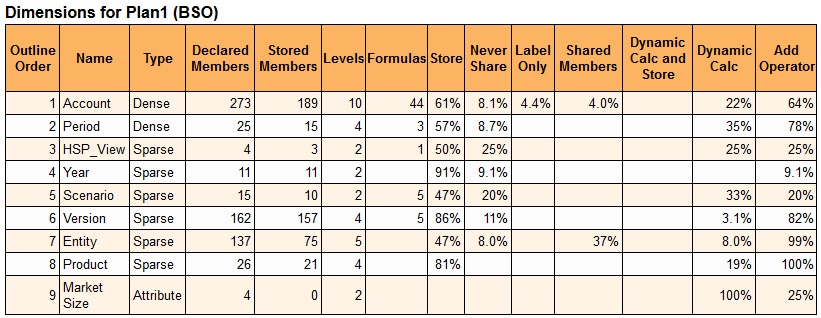
Sample Outline Order Information in the Activity Report
- Details of BSO Restructure.
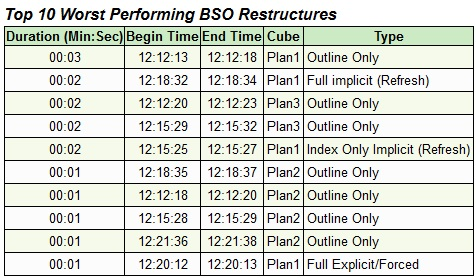
Updated BSO Restructure Information in the Activity Report
Business Benefit: These changes help you identify the order in which dimensions are calculated and the types of restructures that were performed on cubes.
Key Resources
- About the Activity Report in Getting Started with Oracle Enterprise Performance Management Cloud for Administrators
Redwood Look and Feel Enhancements
The Redwood Experience is the default theme for new instances, and Strategic Workforce Planning Cloud has enhanced the look and feel of the user experience with Redwood-style icons, fonts, and colors.
This update includes the following Redwood-style look and feel enhancements:
- Icons and fonts for all pages and themes
- Page title font for all pages and themes
- Navigator Menu icons and colors (Redwood Experience only)
- Horizontal tab icons and colors (Redwood Experience only)
- Data visualization colors (Redwood Experience only)
NOTE: For data visualizations in Dashboard 2.0, the custom color palette now supports only 12 colors instead of 15. If you created a dashboard in 21.07 or earlier and you used 15 colors in your visualization, you will continue to see 15 colors at runtime. However when you try to change the custom colors, the dashboard designer will only display 12 colors from which you can select and save.
To enable Redwood, click Tools, then Appearance, and then select Enable Redwood Experience.
Business Benefit: The Redwood Experience provides an enhanced look and feel and brings consistency across Oracle Cloud.
Key Resources
- Customizing Your Display in Administering Planning
Ability to Change Dynamic User Variables in Dashboard 2.0 POV Bars
In Dashboard 2.0, you now have the ability to change dynamic user variables directly from the POV bar.
User variables are supported in both global and local POVs in dashboards, and you can now change dynamic user variables directly from the POV bar.
Business Benefit: Improved usability for Dashboard 2.0 POVs.
Key Resources
- About Global and Local POVs in 2.0 Dashboards in Administering Planning
Smart View Ad Hoc Behavior Application Setting Now Defaults to Standard
All new applications and all recreated applications now only use the Standard setting for the Smart View Ad Hoc Behavior option.
The Standard setting offers you these enhanced ad hoc features:
-
In-grid POV—POV members are placed on the grid instead of in the POV toolbar.
-
Submit Data—Using the default Submit Data button in the Smart View ribbon, all cells in a grid are submitted, including Smart List values, Text values, and all data cells that have been explicitly modified (made dirty). Once the submit operation is complete, the entire grid will be refreshed.
-
Free-form support—Supports empty columns and rows anywhere in a grid and changing the alias table. Additionally, supports member auto-refresh where deleted members are returned to the grid upon refresh.
-
Saving ad hoc grids—The Save Ad Hoc Grid command is enabled and you can save ad hoc grids; however, the Submit Formatting option is not yet available.
-
Multiple-grid ad hoc—Supports multiple ad hoc grids on the same Excel worksheet. With multiple-grid ad hoc, you can submit data from any grid on the sheet. Grids based on aggregate storage cubes and block storage cubes are supported on the same sheet. Each grid is independent; for example, if required, you can change the alias table for only one grid on the sheet.
-
Additional Zoom In options—These additional commands are available from the drop-down menu on the Zoom In button in the provider ad hoc ribbon: Sibling Level, Same Level, Same Generation (requires Smart View 21.100).
-
Multiple-cell select for ad hoc operations—Select multiple row or column member cells and then perform any of the following actions: Zoom In, including any of the zoom options, such as Bottom Level or Same Generation; Zoom Out; and Keep Only and Remove Only (requires Smart View 21.100).
When the Smart View Ad Hoc Behavior option is set to Standard, the following features and functionality are not supported:
- Create Smart Forms
- Open a native mode grid in standard mode; open a standard mode grid in native mode.
- Zoom In on Formulas
- HSACTIVE is supported on multiple-grid sheets only when using a private connection; HSACTIVE on a multiple-grid sheet using a shared connection is not supported
- Preserve Formula is disabled in multiple-grid sheets
Existing and migrated applications will not experience any change in behavior, and Native will remain as the default Smart View Ad Hoc Behavior option, with Standard being an option.
Note that the Native mode Smart View Ad Hoc Behavior setting will eventually be phased out (timeline is yet to be determined). If you are using the Native mode option, we recommend that you plan on switching your Smart View Ad Hoc Behavior application setting to Standard mode soon.
Business Benefit: With the Smart View Ad Hoc Behavior application setting defaulting to Standard, Smart View users have access to several useful ad hoc features, including in-grid POV; multiple-grid ad hoc, enhanced data submit, ability to save ad hoc grids, enhanced free-form support, additional zoom-in options, and multiple-cell select for Zoom In, Zoom Out, Keep Only, and Remove Only.
Steps to Enable
For all new applications and all recreated application, there are no steps required to set the Smart View Ad Hoc Behavior option to Standard.
If you are working with an existing or migrated application, to set the Smart View Ad Hoc Behavior option to Standard:
- In your web application, click Application, and then click Settings.
- In System Settings, set the Smart View Ad Hoc Behavior option to Standard.
- Click Save.
Key Resources
- Smart View Behavior Options in EPM Cloud in Working with Oracle Smart View for Office
- See the applications settings documentation for your business process; for example, see What Application and System Settings Can I Specify? in Administering Planning
Integration with the Oracle Autonomous Database
Starting in this update, you can use the EPM Integration Agent to integrate data from the Oracle Autonomous Database.
You can use EPM Integration Agent to:
- source data from staging or other source applications running on the Oracle Autonomous Database
-
export data from Strategic Workforce Planning Cloud to selected reporting data warehouses in the Oracle Autonomous Database, such as the Oracle Autonomous Data Warehouse and Oracle Autonomous Transaction Processing
The Oracle Autonomous Database is a comprehensive cloud experience with fully automated data warehousing and transaction processing workloads optimized on high-end Oracle hardware systems. The Oracle Autonomous Database provides an easy-to-use, fully autonomous database that scales elastically and delivers fast query performance.
As a service, the Oracle Autonomous Database does not require database administration. You do not need to configure or manage any hardware or install any software. The Oracle Autonomous Database handles provisioning the database, backing up the database, patching and upgrading the database, and growing or shrinking the database.
When loading or writing back data from and to the Oracle Autonomous Database, the EPM Integration Agent is used to establish the connectivity between the Oracle Autonomous Database and Strategic Workforce Planning Cloud. Customers can either install the agent on a local computer (similar to the way customers currently use the agent to extract data from on-premises data sources) or install the agent in a Oracle Cloud Infrastructure (OCI) compute node and then configure the database connectivity. The compute node provides the processing power and memory capacity for the virtual servers they host. This approach provides customers with scalability and flexibility for their solutions.
Business Benefit: Strategic Workforce Planning Cloud customers now have a set of easy-to-use, no-code tools to load and write-back to data stores on the Oracle Autonomous Database.
Key Resources
- Integrating Oracle Autonomous Database Data in the EPM Cloud in Administering Data Integration for Oracle Enterprise Performance Management Cloud
Reports System Level Option to Set Default Chart Colors
With the introduction of the Redwood Experience as the default theme in Strategic Workforce Planning Cloud, the Redwood theme colors will be the default chart colors in existing reports, unless the colors were modified in the charts during report design via the Series chart property.
In the report designer, while editing a report, you can Set Default Chart Colors in the Actions menu to set the default chart color for the first 12 chart data sets, which are used in all charts.
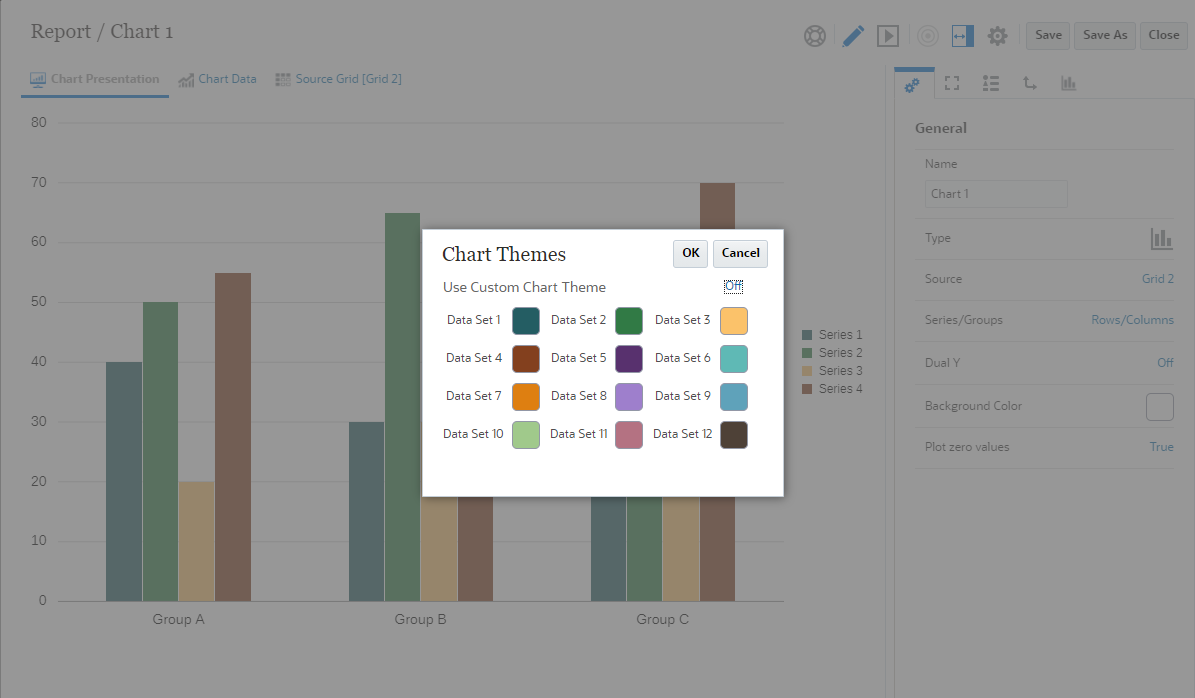
NOTE: Using the Action menu, you can Set Default Chart Colors.
You can also adjust the chart colors for individual charts within a report via the chart’s Series Property, which will override the default values defined in the Action menu.
Business Benefit: This option provides the ability to customize the chart theme outside of the Redwood Experience chart colors and provide default chart colors when creating new charts.Business Benefit: This option provides the ability to customize the chart theme outside of the Redwood Experience chart colors and provide default chart colors when creating new charts.
Key Resources
- About Chart Designer in Designing with Reports for Oracle Enterprise Performance Management Cloud
- Report Designer Toolbar in Designing with Reports for Oracle Enterprise Performance Management Cloud
- Chart Properties in Designing with Reports for Oracle Enterprise Performance Management Cloud
Upgraded PDF Viewer for Reports and Books
An upgraded PDF Viewer, which includes many advanced viewer features, is available for reports and books.
The Viewer provides the following functionality:
- Toggle thumbnail sidebar
- Find text within the document
- Go to the previous/next page
- Go to an entered page number
- Zoom in/out buttons
- Select a zoom level (For example %s, Automatic, Page Width, and so on.)
- Switch to Presentation Mode
- Print the document
- Download the document
- Other Navigation and Viewing Tools
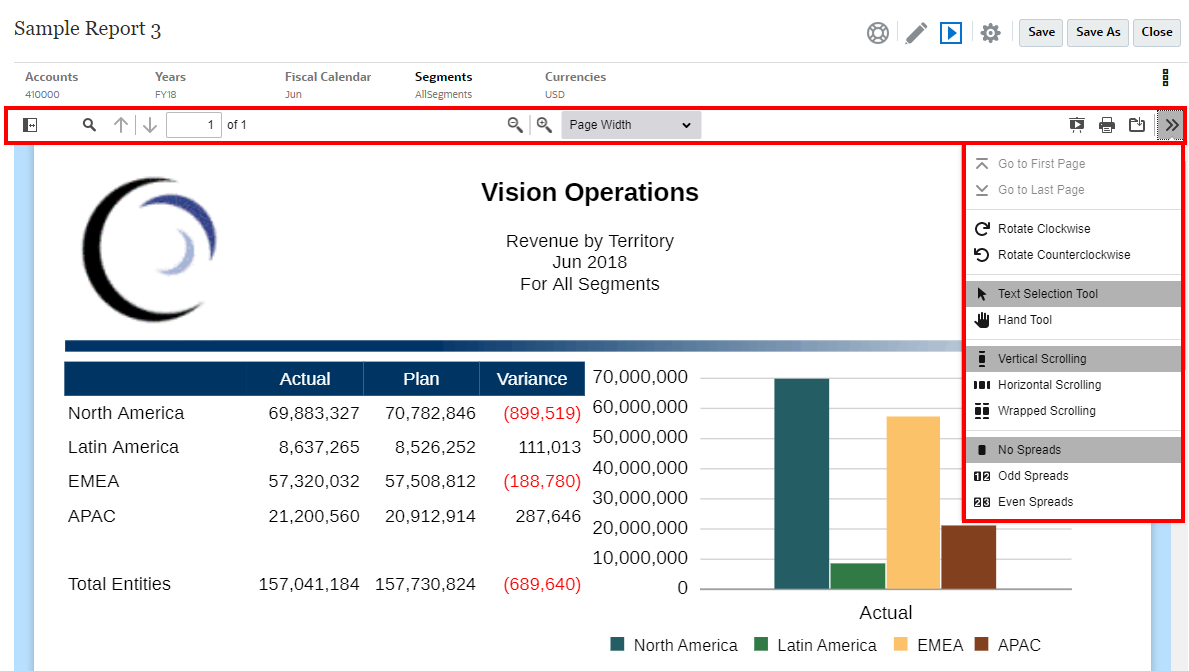
PDF Preview Options
Business Benefit: The upgraded PDF Viewer provides consistent and expanded display features across reports and books.
Key Resources
- Report Designer Toolbar in Designing with Reports for Oracle Enterprise Performance Management Cloud
- About the Book Designer Toolbar in Designing with Reports for Oracle Enterprise Performance Management Cloud
- Viewing Reports in Working with Reports for Oracle Enterprise Performance Management Cloud
Workforce Enhancements for Merit Assumptions
In Workforce, you can enable an option for Merit Assumptions, which allows you to set a date by which existing employees must be hired to be eligible to receive merit, and allows you to specify the month in which merit should start.
Business Benefit: Enabling Merit Assumptions gives planners more flexibility in planning merit.
Steps to Enable
- From the Home page, click Application, and then click Configure.
- From the Configure list, select Workforce, and then click Enable Features.
- Enable Expense Planning and Merit Based Planning if they are not already enabled.
- Select Merit Assumptions, specify at what level to plan: Global or Per Entity, and then click Enable.
- Log out and log in again.
- From the Home page, click Workforce, then click Compensation Planning, and then click Assumptions.
- Click the General tab, if needed, and in the Set Merit Assumptions area, for each year, set merit assumptions for Merit Month and Cut-off Date for existing employees and then click Save.
- Merit Month specifies, for each year, the month in which to give a merit increase.
- For existing employees, the Cut-off Date indicates the date, for each year, by which an employee must be hired to be eligible for a merit increase.
Tips And Considerations
- You can incrementally enable Merit Assumptions.
- If you enable Merit Assumptions, the Global or Per Entity selection applies to all merit-based assumptions, including merit rate, merit month, and cut-off date. Ensure that you load merit rates to the level you select.
- Merit Cut-off Date applies only to existing employees.
- For existing employees, you must run Process Loaded Data to see the impact of Merit Month and Cut-off Date.
-
Whenever you update Merit Month or Cut-off Date in Workforce and Merit Assumptions, you must run Process Loaded Data to synchronize at the employee level.
- You must give users access to access to the new dashboard Workforce and Merit Assumptions.
- For existing customers, if you enable Merit Assumptions, and you specify to plan at the Global level, the Workforce and Merit Assumptions dashboard uses Company Assumptions, and Entity is hidden. If you you specify to plan at the Per Entity level, the Workforce and Merit Assumptions dashboard uses Entity and Company Assumptions is hidden. For existing customers, when you enable Merit Assumptions and choose to plan by Entity, you must enter data for Entity. Then, run Process Loaded Data.
- Updated Employee Details form: There is a new member, Merit Increase, in the Component dimension, which is assigned as a Smart List value for Merit Account. For existing customers, after updating content for 21.08, in the Employee Details form, the row heading for Merit displays 1 instead of the new Smart List value. To update the Employee Details form to display the new member, Merit Increase, run either the Calculate Compensation or Synchronize rule.
Key Resources
- Administering Planning Modules
Custom Dimension Support in Reporting Cube
You can add custom dimensions to the provided ASO reporting cube (OEP_REP) when you first enable a new application. For new applications, you can also disable Employee Demographics dimensions from going into the reporting cube.
For existing applications, you have a one-time option to add custom dimensions to the reporting cube the next time you enable features for either Workforce or Strategic Workforce. Before you enable features, you must clear data in the OEP_REP cube. Note that you can't disable Employee Demographics dimensions for an existing application.
Business Benefit: The ability to add custom dimensions to the reporting cube enhances reporting and analysis capabilities.
Steps to Enable
- From the Home page, click Application, and then click Configure.
- From the Configure list, select Workforce or Strategic Workforce, and then click Enable Features.
- In the Map/Rename Dimensions section, click the Edit icon next to a custom dimension name.
- In the Valid For section, click Workforce Reporting Cube and then click OK. The label in the Selected Features column is updated to WorkforceReportingCube.
- For new applications, to disable Employee Demographics dimensions from going into the reporting cube, click the Edit icon next to an employee demographics dimension name, and in the Valid For section, clear the selection for Workforce Reporting Cube and then click OK.
- Click Enable.
Tips And Considerations
- For new applications, you can perform this task only once, when you first enable features.
- For existing applications, you have a one-time option to perform this task the next time you make a change in Enable Features for either Workforce or Strategic Workforce. Before you enable features, you must first clear the OEP_REP cube of data for the additional dimensions to be added.
-
You can add custom dimensions using Enable Features for either Workforce or Strategic Workforce. Because the cubes are shared between the two modules, you can make the dimension updates in either module; the updates apply to both. Once you've made the change in one of the modules, you can't undo the change for the other module.
Key Resources
- Adding Custom Dimensions to the Reporting Cube in Administering and Working with Oracle Strategic Workforce Planning Cloud
New Rules to Calculate Supply for All Data and Calculate Demand for All Data
Strategic Workforce Planning includes two new rules - Calculate Supply for All Data and Calculate Demand for All Data.
The existing rules required you to run Calculate Supply and Calculate Demand in the context of each form POV.
The new rules allow you to calculate for all data en-masse whenever you update supply and demand assumptions or when you load new data. You can now calculate Supply and Demand for all data in your scope using the run time prompts for these rules.
Business Benefit: The new rules save you time by allowing you to calculate supply or demand for all data at one time.
Tips And Considerations
- The default Fix Parallel dimension is Entity, which is ideal if you're loading the bulk of your data into the Entity dimension.
- However, if you load the bulk of your data into another dimension, you can improve performance by modifying the FIXPARALLEL statement to apply to this dimension instead. Update the FIXPARALLEL statement in the Calculation Manager Template named OWP_FIXPARALLEL_T in the OEP_WFP cube.
- When running these rules across a large set of employees and jobs, to avoid impact on user activity, Oracle recommends that you not run the rules while the system is under heavy usage, nor should you run multiple instances of this rule at the same time.
Key Resources
- Administering and Working with Oracle Strategic Workforce Planning Cloud
Simplified Data Loading for FTE
If you are performing skill set planning, you can now load data only once to the Workforce cube (OEP_WFP), and then use a data map to push the data to the Reporting cube (OEP_REP).
Previously, you were required to load FTE for Supply Planning, Demand Planning, and Workforce Planning to the Workforce cube (OEP_WFP), and for skill set planning you were required to load to the Reporting cube (OEP_REP). This required you to load the same value in two different places.
With this enhancement, you are required to load data only once to the Workforce cube (OEP_WFP). Then, if you are using skill set planning, you can run the provided data map to move data from the Workforce cube to the Reporting cube.
As part of this enhancement, the existing data map, Headcount Data for Reporting, is renamed to Headcount and FTE Data for Reporting, and is updated to include the OWP_FTE account. Therefore you no longer have to load data for OWP_FTE for employees in the Reporting cube (OEP_REP).
Business Benefit: This enhancement simplifies loading data for FTE because you no longer have to load the same value in two different places.
Key Resources
- Importing Strategic Workforce Planning Data in Administering and Working with Oracle Strategic Workforce Planning Cloud
IMPORTANT Actions and Considerations
One-Week Lag Between Readiness Documents Live and Help Center Live
Because Oracle readiness documents (What's New and New Feature Summary) are live one week before the monthly update is applied to Test environments, some links to documentation included in the readiness documents will not work until after the Oracle Help Center update is complete when the monthly update is applied to Test environments.
Secured URLs Only in Logo and Background Images
Starting with the November 2021 update (21.11), only secured URLs will be supported within the Logo Image and Background Image settings in the Appearance page in Strategic Workforce Planning Cloud.
Use the Export URLs Feature to Replace Direct URLs
In the 21.03 update, Oracle released a feature called Export URLs that exports Strategic Workforce Planning Cloud URLs to a CSV file which then provides the unique URLs for each card, tab, or sub-tab within a connected Strategic Workforce Planning Cloud business process. The Export URLs feature should be used in place of any direct URL pointers that customers might be using to link to Strategic Workforce Planning forms, dashboards, or infolets. The direct URL feature to forms, dashboards, or infolets will no longer be supported starting with the 21.11 update. See Using Direct URLs to Integrate Connected Environments in Administering Planning.
Restrictions to Copy Version Functionality
Based on feedback from several customers due to its inherent data corruption risks, we plan to restrict the ‘Copy Version’ functionality to be exposed only to administrators. Starting in October 2021, ‘Copy Version’ functionality will not be available to Power Users and Users.
Support for Composite Forms in Strategic Workforce Planning Cloud
As of the May update (21.05), Oracle Strategic Workforce Planning Cloud no longer officially supports composite forms. As has been announced for several months, customers are required to use Strategic Workforce Planning Cloud dashboards instead. Customers can continue to use their composite forms without support.
Loaner Program for Cloud Infrastructure Generation 2 Testing
Oracle Strategic Workforce Planning Cloud is now live on Oracle Cloud Infrastructure (OCI) Gen 2 environments. If you are interested in testing your application performance on an OCI Gen 2 environment, open a service request following the process at https://docs.oracle.com/en/cloud/saas/enterprise-performance-management-common/tsepm/op_procs_loaner_envs.html and request for a loaner environment in an OCI Gen 2 data center for a duration of 30 days with the business justification as “Want to test application performance in an OCI Gen 2 data center”.
After you have performed the testing, submit Provide Feedback from the loaner environment. Create a service request using the normal support process, if you have any issues or feedback for the OCI Gen 2 environment.
For more information, see What is a Gen 2 Cloud?