
- Revision History
- Overview
- Feature Summary
- Strategic Workforce Planning Cloud
-
- Features
-
- New Tutorials
- New Topics in EPM Cloud Operations Guide
- New Next-Generation Reporting Capabilities
- Dynamic Tabs in Redwood Experience
- REST API Support for Oracle Infrastructure Gen 2 Environments
- New Indentation Option for Standard Mode Ad Hoc Grids in Smart View
- Improved Member Selection for Insert Attributes and Mass Allocation in Smart View (Mac and Browser)
- Simplified Authentication Cache Rebuild Algorithm
- New Source Connections Option in Data Integration
- New Notification Settings for Oracle ERP BI Publisher in Data Integration Application Details
- Support for JDBC Drivers Type 3 and Type 4 Compliant in the EPM Integration Agent
-
- IMPORTANT Actions and Considerations
This document will continue to evolve as existing sections change and new information is added. All updates appear in the following table:
| Date | Product | Feature | Notes |
|---|---|---|---|
| 29 JAN 2021 | Created initial document. |
This document outlines the upcoming Strategic Workforce Planning Cloud update.
Column Definitions:
Report = New or modified, Oracle-delivered, ready to run reports.
UI or Process-Based: Small Scale = These UI or process-based features are typically comprised of minor field, validation, or program changes. Therefore, the potential impact to users is minimal.
UI or Process-Based: Larger Scale* = These UI or process-based features have more complex designs. Therefore, the potential impact to users is higher.
Features Delivered Disabled = Action is needed BEFORE these features can be used by END USERS. These features are delivered disabled and you choose if and when to enable them. For example, a) new or expanded BI subject areas need to first be incorporated into reports, b) Integration is required to utilize new web services, or c) features must be assigned to user roles before they can be accessed.
| Ready for Use by End Users Reports plus Small Scale UI or Process-Based new features will have minimal user impact after an update. Therefore, customer acceptance testing should focus on the Larger Scale UI or Process-Based* new features. |
Customer Must Take Action before Use by End Users Not disruptive as action is required to make these features ready to use. As you selectively choose to leverage, you set your test and roll out timing. |
|||||
|---|---|---|---|---|---|---|
| Feature |
Report |
UI or |
UI or |
|
||
REST API Support for Oracle Infrastructure Gen 2 Environments |
||||||
New Indentation Option for Standard Mode Ad Hoc Grids in Smart View |
||||||
Improved Member Selection for Insert Attributes and Mass Allocation in Smart View (Mac and Browser) |
||||||
New Notification Settings for Oracle ERP BI Publisher in Data Integration Application Details |
||||||
Support for JDBC Drivers Type 3 and Type 4 Compliant in the EPM Integration Agent |
||||||
Strategic Workforce Planning Cloud
Test Environments: Oracle will apply this monthly update during the first daily maintenance that occurs at or after 22:00 UTC on Friday, February 5, 2021.
Production Environments: Oracle will apply this monthly update during the first daily maintenance that occurs at or after 22:00 UTC on Friday, February 19, 2021.
NOTE: Backing up the daily maintenance snapshot and restoring the environment as needed are self-service operations. Oracle strongly recommends that you download the maintenance snapshot every day to a local server.
The Oracle Help Center provides access to updated documentation. The updates will be available in the Help Center on Friday, February 5, 2021.
NOTE: Some of the links to new feature documentation included in this readiness document will not work until after the Oracle Help Center update is complete.
Defects Fixed and Considerations
Software issues addressed each month and considerations will be posted to My Oracle Support.
This provides visibility into EPM Cloud release contents.
Please Join Oracle Cloud Customer Connect
Please take a moment to join the Cloud Customer Connect forums for EPM Cloud services. Oracle Cloud Customer Connect is a community gathering place for members to interact and collaborate on common goals and objectives. This is where you will find the latest release information, upcoming events, or answers to use-case questions. Joining takes just a few minutes. Join now!
https://cloud.oracle.com/community
NOTE: The Settings and Actions menu now contains a link to Cloud Customer Connect. To access this link, from the Home page, click the down arrow next to the user name (in the upper right-hand corner of the screen), and select Cloud Customer Connect.
Give Us Documentation Feedback
We welcome your comments and suggestions to improve the content of the What's New document and the product documentation.
Please send us your feedback at EPMdoc_ww@oracle.com. In the body or title of the email, state that you are inquiring or providing feedback, and indicate for which EPM Cloud service and the monthly update cycle.
Follow EPM Cloud on YouTube, Twitter, Facebook, and LinkedIn.
These are great resources for the latest updates and information about EPM Cloud.
Four new tutorials are available for Reports. Note: These videos will be available on February 5th.
Reporting in the new Cloud EPM Platform
This video shows you how to design reports using the new Reporting Solution. You can design reports with images, textboxes, charts, and grids. Insert formulas to calculate grid values and text functions to dynamically retrieve report and grid metadata. Apply robust reporting features such zooming into levels, conditional formatting, and so on.
This video shows you how to create reports. You can start by creating a folder in the Library, create a report, define the data source, and select members. You can preview your report while you are designing it, format it, make changes to grid properties, and save the report.
This video shows you how add text boxes and images to reports. You start with a report that already has a grid in it. You add a text box and then format the text in that text box. You add images to the report header, and you insert text functions into the report header to display specified information about the report.
Creating Charts in Cloud EPM Reports
In this tutorial you learn how to create charts in reports. You add charts and then set them up to visualize report data. You can base your chart off of an existing or new hidden grid. Then you can select the data to include in the chart. You can select the type of chart such as a pie chart or stacked bar chart, and select how the legend is displayed
Business Benefit: These videos provide step-by-step instructions to help you perform your related business activities.
New Topics in EPM Cloud Operations Guide
The Oracle Enterprise Performance Management Cloud Operations Guide has been enhanced with topics that help you troubleshoot Smart View (Mac and Browser) for Office 365 add-in. Additionally, many topics in the guide have been optimized so that they can be easily found through Google searches.
Newly added topics include:
- Library Folders Do Not Display in Home Panel (Clear Storage Option)
- Disabling the Popup Blocker on Chrome
- Clearing the Chrome Browser Cache
- Clearing the Office Cache on a Mac
- Chrome: Connection Issue After Clearing Cache
- Task List Display Issue
Business Benefit: The Oracle Enterprise Performance Management Cloud Operations Guide helps you self-diagnose and fix Strategic Workforce Planning Cloud issues.
Key Resources
New Next-Generation Reporting Capabilities
Strategic Workforce Planning Cloud now has new next-generation reporting capabilities. The new Reports is now embedded in Strategic Workforce Planning Cloud alongside, and eventually replacing, Financial Reporting. Reports provides a user-friendly, robust report development framework along with an enriched report viewer experience.
Reports also includes books and bursting. Books provide the ability to group together one or more reports, Books, and other documents, to generate a single PDF output. Bursting enables you to run a single report or book for more than one member of a single dimension for one data source, and publish a PDF output for each member. You can schedule a bursting definition as a Scheduled Job.
Reports, books and bursting definitions are stored in the repository, along with Documents used and generated with Books and Bursting. For example, MS Word and PDF documents inserted in Books and CSV files used in a bursting definition, along with PDF files generated by a bursting definition.
You can migrate Financial Reporting reports to Reports either with in-place migration where you can migrate all or individual reports, or by importing Financial Reporting report files that were exported locally from the Explore Repository. Please note when migrating, the system will convert as many elements of the original report into the Reports equivalent as possible. However, there are differences between the two solutions, and not all elements exist in both solutions. You may have to modify certain elements after the report has been migrated in order to produce a report that is equivalent to the original report.
Financial Reporting will eventually be removed at some future undetermined date, after customers have ample time to migrate their content from Financial Reporting to Reports.
Business Benefit: Provides a highly upgraded, user-friendly, robust report development framework along with an enriched report viewer experience.
Key Resources
- Designing with Reports for Enterprise Performance Management Cloud
- Working with Reports for Enterprise Performance Management Cloud
Dynamic Tabs in Redwood Experience
As part of the Redwood theme experience, we are introducing the Dynamic Tabs feature only within the Redwood theme. Dynamic Tabs allow you to open tabs on the fly, both from a list view or from an existing navigation flow tab to perform related actions. Some use case examples: view drill through from a form in a new temporary tab; view a form in design mode; open Web ad hoc from a form or dashboard; open forms from right-click menus; open dimensions on the fly to view how members are calculated.
With the Redwood experience, navigation flows within the Redwood theme will move to the bottom of the page instead of the top of the page where they are currently located. With tabs at the bottom of the page, you will benefit from a clear separation of the Strategic Workforce Planning Cloud horizontal tabs from their browser tabs at the top of the window. Another benefit of this change will be to keep the navigation flow tab names distinct from the names of the artifacts (such as forms and dashboards) rendered within the horizontal tabs. The vertical tabs will stay where they are.
Also within Redwood, action menus in forms are cleaned up to not show items that are already included within the context (right-click) menus in forms.
Business Benefit: Allow users to be able to work on related artifacts within tabs without having to navigate away from a parent artifact.
Key Resources
- Using Dynamic Tabs in Redwood Experience in Working with Planning
REST API Support for Oracle Infrastructure Gen 2 Environments
The Authentication section of the REST API for Oracle Enterprise Performance Management Cloud guide is updated to reflect how the user name needs to be passed in Oracle Cloud Infrastructure Gen 2 environments.
Business Benefit: Enables REST APIs on Oracle Cloud Infrastructure Gen 2 environments.
Key Resources
- Authentication in REST API for Oracle Enterprise Performance Management Cloud
Role Information
- Service Administrators
New Indentation Option for Standard Mode Ad Hoc Grids in Smart View
A new option in Oracle Smart View for Office 20.200 preserves native Excel formatting used for indentation in ad hoc grids. The new option, Use Excel Indentation (Ad-hoc Standard Mode), appears in the Options dialog, Member Options tab.
In Standard mode, when the Indentation option is set to Subitems in Smart View, the blank spaces used for the indentation could create issues for some users. Now, by enabling the Use Excel Indentation option, this indentation is handled correctly when your application is set to Standard mode.
Business Benefit: When working with Standard mode applications, enabling the Use Excel Indentation option in Smart View lets users see the correct member indentation in ad hoc grids.
Steps to Enable
To improve indentation in ad hoc grids:
- Ensure that you have installed Smart View 20.200 and are connected to a Standard-mode application in your Strategic Workforce Planning Cloud source 21.02 or later.
- In the Smart View ribbon, select Options.
- In the Options dialog, Member Options tab:
- Enable the Use Excel Indentation (Ad-hoc Standard Mode) option.
- In the Indentation drop-down list, select Subitems.
- Click OK to save your selections.
- Create a grid layout using ad hoc analysis or open a workbook containing ad hoc grids and click the Refresh button in the Smart View ribbon.
- Observe that indentation is working as expected.
Key Resources
- Member Options in Working with Oracle Smart View for Office:
Improved Member Selection for Insert Attributes and Mass Allocation in Smart View (Mac and Browser)
In Smart View (Mac and Browser), the Member Selector used with the Insert Attributes and the Mass Allocation features includes new visual and ease-of-use improvements.
The Member Selector for Insert Attributes and Mass Allocation is improved in these areas:
- Tree structure. Members are now displayed in a tree structure in the left pane of the dialog. Use the up and down arrows to the left of member names to expand and collapse hierarchies. Click directly to the left of a member name to select the member, and note the check mark. You may select multiple members from multiple levels in the dimension to add or remove.
- Filter. Type text into the Filter field to filter the members that have already been retrieved within the selected dimension in the Member Selector. Further, using the Hierarchy drop-down, you can filter by Children, Sibling, and other hierarchy options.
- Server Search. Click Server Search to search for all members that contain the entered text, including those that have not already been retrieved within the selected dimension in the Member Selector.
- Check button with the Select Dimension command. Allows you to select the dimension level member.
Business Benefit: Improvements to the Member Selector in Mass Allocation and Insert Attributes make it a more robust and easier-to-use tool for Smart View (Mac and Browser) users.
Steps to Enable
To use the improved in Smart View (Mac and Browser) Member Selector in Mass Allocation and Insert Attributes, Service Administrators must create and deploy a new manifest file with the Mass Allocation and Insert Attributes options enabled:
- Create a new manifest file and customize it per your requirements, ensuring that you include the Mass Allocation and Insert Attributes options.
- Deploy the manifest file to Smart View (Mac and Browser) users.
Key Resources
- Deploying and Administering Oracle Smart View for Office (Mac and Browser):
- Working with Oracle Smart View for Office (Mac and Browser):
Simplified Authentication Cache Rebuild Algorithm
Strategic Workforce Planning Cloud uses cached authentication data to authenticate users. Starting with this update, the cache used for authenticating users is rebuilt using a simplified algorithm to enable the predefined role assignments of users to be effective in Strategic Workforce Planning Cloud environments after a wait of four minutes. This results in some changes in behavior.
- Prior to this update, newly added users (through My Services or using EPM Automate) could login to Strategic Workforce Planning Cloud immediately after their role assignment was completed. After this update, newly added users must wait four minutes or more before they can sign into Strategic Workforce Planning Cloud.
- Prior to this update, any changes to predefined role assignments of a user were reflected in Access Control after the user logs in. After this update, changes in predefined role assignments of a user will be reflected when the user logs in again after four minutes.
- Prior to this update, any predefined role assignments that were not yet reflected in Access Control were reflected after the completion of the next daily maintenance of the environment. After this update, predefined role assignments will be reflected in Access Control after any user logs in to the environment.
Business Benefit: The simplified cache rebuild algorithm reduces the wait time to activate new role assignments.
New Source Connections Option in Data Integration
You can now register and manage source systems and connections directly from the Applications page in Data Integration by clicking the Configure Connections button. When the Connections page is launched, customers can add, edit, and delete direct connection information to the following data sources: Oracle ERP Cloud, Oracle HCM Cloud, and NetSuite.
For Oracle ERP Cloud and Oracle HCM Cloud source connections, customers can specify the:
- Name
- Description
- Service URL
- User Name
- Password
Oracle ERP Cloud source connections can be used to register and manage the following data sources:
- Oracle ERP Cloud
- Oracle ERP Cloud (Receivables Transactions)
- Oracle ERP Cloud (Trial Balance Average)
- Oracle ERP Cloud (Custom)
- Oracle ERP Cloud (Payables Transactions)
- Oracle ERP Cloud (Trial Balance)
- Oracle ERP Cloud (Project Management)
- Budgetary Control commitments, obligations, expenditures, and write-back data sources. Budget Review data sources
Oracle HCM Cloud source connections can be used to register and manage Human Resources data from the Oracle Human Capital Management Cloud.
For NetSuite source connections, customers can specify the:
- Name
- Description
- Consumer Key
- Consumer Secret
- Token
- Token Secret
- Account
In this update, the NetSuite policy for accessing integrations has changed and requires token based authorization instead of basic authentication in order to set up the connection to NetSuite from Cloud EPM. Basic authorization credentials will be made read only in a future release..
In addition, the system generates the drill URL automatically. Customers are required to provide only the parameter details on the Map Dimensions page.
Business Benefit: Enables customers to specify the source system and connection information for a direct connection to an Oracle ERP Cloud data source.
Key Resources
- Administering Data Integration for Oracle Enterprise Performance Management Cloud:
New Notification Settings for Oracle ERP BI Publisher in Data Integration Application Details
The new Notification Type and Notification Event settings in Application Details in Data Integration have been added so that customers configure how notifications are sent when Oracle ERP BI Publisher reports are executed in the Oracle ERP Cloud.
For the Notification Type, customers can notify by:
- Email Notification
- Bell Notification
- Email and Bell Notification
For the Notification Event, customers can send the notification based on one of the following events:
- Always
- On Success
- On Failure
Here is an example of a Bell Notification in Oracle ERP BI Publisher:
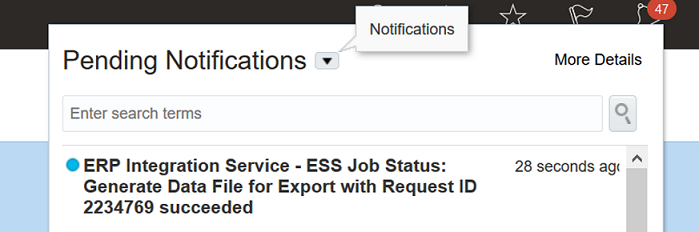
Bell Notification in Oracle ERP BI Publisher
Business Benefit: Enables customers to notify BI Publisher when a job has been processed in Data Integration based on the job status.
Key Resources
- Defining Application Detail Options in Administering Data Integration for Oracle Enterprise Performance Management Cloud
Support for JDBC Drivers Type 3 and Type 4 Compliant in the EPM Integration Agent
When using the EPM Integration Agent, JDBC drivers that are Type 3 and Type 4 compliant can now be used to establish a connection to the data source, execute a query, and then extract the results. The system provides only a framework for using the JDBC driver and does not certify individual drivers. If a driver has special requirements, the customer still needs to write custom scripts.
Business Benefit: Prior to this update the EPM Integration Agent supported only Oracle and MSSQL data sources. For all other data sources, customers had to write custom script to perform the data extraction. This feature enables customers to extract data by simply providing a SQL query without writing a custom script.
Steps to Enable
- In Application Details for the on premise data source application, populate the JDBC driver and URL fields. In the following example for a MYSQL database, you might specify:
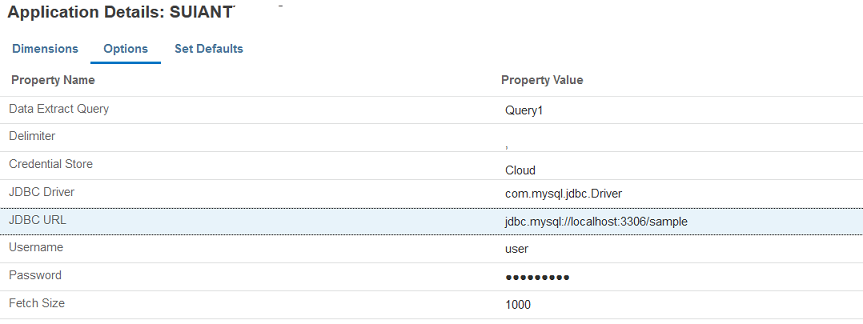
Application Details Page
- Copy and paste the JDBC Driver JAR file to the AGENT_HOME/lib folder. For example, copy and paste: mysql-connector-java-8.0.22.jar
- Reference the jar file name in the CUSTOM_CLASS_PATH= setting of the agentparams.ini file. For example, enter: CUSTOM_CLASS_PATH=../lib/mysql-connector- java-8.0.22.jar
Key Resources
- Configuring a Type 3 or Type 4 JDBC Driver for SQL Server in the EPM Integration Agent in the Administering Data Integration for Oracle Enterprise Performance Management Cloud
IMPORTANT Actions and Considerations
LOANER PROGRAM FOR CLOUD INFRASTRUCTURE GENERATION 2 TESTING
Oracle Strategic Workforce Planning Cloud is now live on Oracle Cloud Infrastructure (OCI) Gen 2 environments. If you are interested in testing your application performance on an OCI Gen 2 environment, open a service request following the process at https://docs.oracle.com/en/cloud/saas/enterprise-performance-management-common/tsepm/op_procs_loaner_envs.html and request for a loaner environment in an OCI Gen 2 data center for a duration of 30 days with the business justification as “Want to test application performance in an OCI Gen 2 data center”.
After you have performed the testing, submit Provide Feedback from the loaner environment. Create a service request using the normal support process, if you have any issues or feedback for the OCI Gen 2 environment.
For more information, see What is a Gen 2 Cloud?
REDWOOD USER EXPERIENCE IN STRATEGIC WORKFORCE PLANNING CLOUD
As part of the new Redwood experience, we are introducing the Dynamic Tabs feature only within the Redwood theme in this update (21.02).
In 21.03, to reflect these new and future Redwood-only experiences, the Redwood theme will be shown as a 'Redwood Experience' toggle switch that application administrators can turn on in the 'Appearance' page. Existing Redwood theme applications will default into the Redwood experience while other theme experiences will stay as is.
NEW WEB AD HOC EXPERIENCE IN STRATEGIC WORKFORCE PLANNING CLOUD
With the 21.03 release, we will introduce the new Web ad hoc experience for all users across all themes. This replaces the existing Web ad hoc with a new user experience when using ad hoc over the Web. This will provide the benefit of fast snappy grids with several Smart View ad hoc capabilities over the Web, all within a newly defined interface for Web ad hoc. Users can start with a cube slice from scratch or traverse from their Web forms or dashboards into these new ad hoc sheets for a whole new ad hoc experience. Users within the Redwood theme can leverage the benefit of the dynamic tabs to work in tandem with form or dashboards or reports alongside these new ad hoc grids. This solves many multi-tasking use cases within Strategic Workforce Planning. Within Smart View ad hoc, with 21.03, we will also support multi-parent zoom in capabilities in ad hoc when used within the 'Standard’ ad hoc mode.
RUNBUSINESSRULE EPM AUTOMATE COMMAND - CHANGE OF BEHAVIOR
Starting with the 21.05 update, the runBusinessRule EPM Automate command will no longer let you run a ruleset against Strategic Workforce Planning applications. Instead, you should use the runRuleSet command to launch business rulesets using EPM Automate.
If you currently use scripts that use the runBusinessRule command to launch rulesets, you must modify them to use the runRuleSet command.
SUPPORT FOR COMPOSITE FORMS
Starting in May 2021, Strategic Workforce Planning plans to stop official support for composite forms. Customers are advised to convert existing composite forms to Strategic Workforce Planning dashboards and log any issues with Support.
NEW “SUPPRESS MISSING NATIVE” OPTION IN FINANCIAL REPORTING WEB STUDIO GRID EDITOR
The new “Suppress Missing Native” option in the “Suppression” panel in the Financial Reporting Web Studio Grid Editor properties is non-functional for 21.02. The desired output of the selection will not be available when the report is executed even if the option is enabled. This will be addressed in an upcoming release.
LIMITATION WHEN USING CHROME 88.0.4324.06 TO DOWNLOAD AND SAVE FINANCIAL REPORTING REPORTS IN A PDF FORMAT
When using Chrome 88.0.4324.06 (Official Build) (64-bit), you cannot use the Download button to download and save Financial Reporting reports in a PDF format. The workaround is to use the Print button to print the reports in a PDF format.