
- Revision History
- Overview
- Feature Summary
- Strategic Workforce Planning Cloud
-
- Features
-
- New Videos
- New Topics in EPM Cloud Operations Guide
- Enabling the Redwood Experience and Uploading Image Files for Custom Logos and Watermarks
- Ability to Hide the Business Process Name in Browser Tabs and on the Global Header
- New Clone Snapshot Feature
- Using Direct URLs to Integrate Connected Environments
- Changes to Reserved Group Names in Access Control
- REST APIs to View and Update Connections
- Support for Cell-Level Security
- Smart View Now Supports Vanity URLs
- New Option for Greater Row Dimension Flexibility in Flex Forms
- Smart View Support for Saving Ad Hoc Grids in Standard Mode
- New Custom Functions in Calculation Manager
- Align Prefix and Suffix Symbols in Reports Cell Number Formatting
- Auto-Complete for Manual Entry of Reports Member Names and Functions in the Formula Bar
- Bursting of Report Output to Excel
- Suppress Missing Reports in a Book
- Dynamic Custom Y-Axis Minimum and Maximum in Reports Charts
- Direct Data Load Using the EPM Integration Agent
- Valid Intersections Updated for Quarterly Planning
- Disallow Deletion of User Variables Used in Forms
- Run Clear Cube Jobs Using Groovy Rules
-
- IMPORTANT Actions and Considerations
This document will continue to evolve as existing sections change and new information is added. All updates appear in the following table:
| Date | Product | Feature | Notes |
|---|---|---|---|
| 01 MAR 2021 | REST API to Import Cell-Level Security REST API to Export Cell-Level Security REST API to Import Valid Intersections REST API to Export Valid Intersections |
Removed features from March 2021. | |
| 26 FEB 2021 | Created initial document. |
This document outlines the upcoming Strategic Workforce Planning Cloud update.
Column Definitions:
Report = New or modified, Oracle-delivered, ready to run reports.
UI or Process-Based: Small Scale = These UI or process-based features are typically comprised of minor field, validation, or program changes. Therefore, the potential impact to users is minimal.
UI or Process-Based: Larger Scale* = These UI or process-based features have more complex designs. Therefore, the potential impact to users is higher.
Features Delivered Disabled = Action is needed BEFORE these features can be used by END USERS. These features are delivered disabled and you choose if and when to enable them. For example, a) new or expanded BI subject areas need to first be incorporated into reports, b) Integration is required to utilize new web services, or c) features must be assigned to user roles before they can be accessed.
| Ready for Use by End Users Reports plus Small Scale UI or Process-Based new features will have minimal user impact after an update. Therefore, customer acceptance testing should focus on the Larger Scale UI or Process-Based* new features. |
Customer Must Take Action before Use by End Users Not disruptive as action is required to make these features ready to use. As you selectively choose to leverage, you set your test and roll out timing. |
|||||
|---|---|---|---|---|---|---|
| Feature |
Report |
UI or |
UI or |
|
||
Enabling the Redwood Experience and Uploading Image Files for Custom Logos and Watermarks |
||||||
Ability to Hide the Business Process Name in Browser Tabs and on the Global Header |
||||||
New Option for Greater Row Dimension Flexibility in Flex Forms |
||||||
Align Prefix and Suffix Symbols in Reports Cell Number Formatting |
||||||
Auto-Complete for Manual Entry of Reports Member Names and Functions in the Formula Bar |
||||||
Strategic Workforce Planning Cloud
Test Environments: Oracle will apply this monthly update during the first daily maintenance that occurs at or after 22:00 UTC on Friday, March 5, 2021.
Production Environments: Oracle will apply this monthly update during the first daily maintenance that occurs at or after 22:00 UTC on Friday, March 19, 2021.
NOTE: Backing up the daily maintenance snapshot and restoring the environment as needed are self-service operations. Oracle strongly recommends that you download the maintenance snapshot every day to a local server.
The Oracle Help Center provides access to updated documentation. The updates will be available in the Help Center on Friday, March 5, 2021.
NOTE: Some of the links to new feature documentation included in this readiness document will not work until after the Oracle Help Center update is complete.
Fixed Issues and Considerations
Software issues addressed each month and considerations will be posted to My Oracle Support.
This provides visibility into EPM Cloud release contents.
Please Join Oracle Cloud Customer Connect
Please take a moment to join the Cloud Customer Connect forums for EPM Cloud services. Oracle Cloud Customer Connect is a community gathering place for members to interact and collaborate on common goals and objectives. This is where you will find the latest release information, upcoming events, or answers to use-case questions. Joining takes just a few minutes. Join now!
https://cloud.oracle.com/community
NOTE: The Settings and Actions menu now contains a link to Cloud Customer Connect. To access this link, from the Home page, click the down arrow next to the user name (in the upper right-hand corner of the screen), and select Cloud Customer Connect.
Give Us Documentation Feedback
We welcome your comments and suggestions to improve the content of the What's New document and the product documentation.
Please send us your feedback at EPMdoc_ww@oracle.com. In the body or title of the email, state that you are inquiring or providing feedback, and indicate for which EPM Cloud service and the monthly update cycle.
Follow EPM Cloud on YouTube, Twitter, Facebook, and LinkedIn.
These are great resources for the latest updates and information about EPM Cloud.
Several existing videos have been updated.
Instantly Pushing Data for Reporting
Learn how to instantly push data for reporting. Data maps and Smart Push allow you to push data, comments, attachments, and supporting detail between cubes.
Learn how to manage cubes. Applications are made up of one or more cubes that store metadata and data.
Designing Navigation Flows in Planning
Learn how to design navigation flows. Navigation Flows are comprised of clusters, cards, and tabs that allow a user to complete planning tasks. Application designers can create navigation flows that control how roles, or groups, interact with the application.
Migrating and Updating Application Artifacts in Planning
Learn how to export and import artifacts. You can migrate an application, a repository, or individual artifacts across product environments, or use the migrated artifacts to update metadata or as a backup.
Business Benefit: Videos provide 3-5 minute overviews and step-by step instructions to perform tasks and achieve an outcome.
New Topics in EPM Cloud Operations Guide
The Oracle Enterprise Performance Management Cloud Operations Guide has been enhanced with topics that help you troubleshoot additional Strategic Workforce Planning Cloud-related issues and make additional requests.
Newly added topics include:
- Resolving the Required Dimensions are Not Present Error When Opening Forms
- Resolving Error: 3335 During Data Management Data Export
- Setting Up Passwords that Do not Expire
- How EPM Cloud Handles My Services Groups
- Requesting the Migration of Environments to Another Data Center
Business Benefit: The Oracle Enterprise Performance Management Cloud Operations Guide helps you self-diagnose and fix Strategic Workforce Planning Cloud issues.
Key Resources
Enabling the Redwood Experience and Uploading Image Files for Custom Logos and Watermarks
You can now enable the Redwood Experience from the Appearance page, as well as upload image files for custom logos and background images.
The Redwood Experience is a new application look and feel that also includes new features, such as Dynamic Tabs, that are not available when using themes. Application Administrators can now choose the Redwood Experience on the Appearance page by selecting the Enable Redwood Experience option. Existing applications using the Redwood theme will default to the Redwood Experience while the other themes will stay as is.
Also on the Appearance page, you can now upload locally stored image files for custom background images and logos in addition to URL images. Supported formats for graphic files are .jpg, .png, or .gif and the file upload is limited to 5MB.
When choosing Redwood Experience, in an upcoming update, the chart colors in reports rendered within the application will follow the Redwood color pallette. This will ensure consistency in colors between dashboards, infolets, and reports. This change may result in subtle shifts in color tones in reports already published when using the Redwood Experience.
Business Benefit: Enabling the Redwood Experience not only provides a new application look and feel, but it also includes certain features that are not available in the other themes. Support for uploading image files means the image no longer needs to be available as a URL.
Key Resources
- See the documentation for customizing your display in your business process administration guide.
Ability to Hide the Business Process Name in Browser Tabs and on the Global Header
You can now hide the business process name that displays in the global header on the Home page and on browser tabs.
There is a new option on the Appearance page, called Display Business Process Name, that enables you to hide the business process name that appears on the Home Page and on browser tabs. By default, the business process name is displayed next to the logo on the Home page and on the tab when a browser tab is opened. If "No" is selected, the business process name is hidden on the Home page and Oracle Applications is displayed on browser tabs.
Business Benefit: The ability to hide the business process name is useful if you have an integrated environment where you are working with multiple business processes.
Key Resources
- See the documentation for customizing your display in your business process administration guide.
The Clone Snapshot feature is now available in Strategic Workforce Planning. This feature provides a screen-based method to migrate application snapshots from a source environment to a target environment. It is an alternative to writing an EPM Automate script to clone an environment. Note that security (users and their predefined role assignments) cannot be cloned using this feature.
Cloning of snapshots is useful in migration scenarios, including the following:
- Production to test cloning where only the application needs to be migrated.
- Test to production cloning where only the application needs to be migrated.
- Primary to secondary cloning for disaster recovery.
When you clone a snapshot, Oracle Strategic Workforce Planning Cloud automatically completes all the actions required to create an exact copy of the current application in the target environment. Because this process recreates the target environment, be sure to backup data and artifacts from the target environment before using this feature.
Business Benefit: Using the Clone Snapshot feature allows you to migrate application snapshots from a source environment to a target environment without writing EPM Automate scripts.
Key Resources
- Cloning Snapshots in Administering Migration for Oracle Enterprise Performance Management Cloud
Using Direct URLs to Integrate Connected Environments
Using the new Export URLs feature, other Fusion application source systems can now seamlessly embed URLs to directly link to artifacts contained within cards, tabs, and sub-tabs within connected Strategic Workforce Planning Cloud environments.
Other Fusion application Cloud environments use direct URL links to open connected Strategic Workforce Planning Cloud content like forms, dashboards, and infolets. To make the integration between Strategic Workforce Planning Cloud and other systems seamless, Service Administrators can use a new export option, called Export URLs, to create a CSV file that provides direct URLs for every card, tab, or sub-tab within a connected Strategic Workforce Planning Cloud business process. URLs are grouped by navigation flow and cluster, so the URLs are easier to find within the CSV file. You can open the CSV file with a text editor or Microsoft Excel and embed the relevant URL within the source system pages to serve as a launch point into Strategic Workforce Planning Cloud.
To export Strategic Workforce Planning Cloud URLs to a CSV file, log in to a Strategic Workforce Planning Cloud environment, open the Settings and Actions menu at the top right corner of the Home page, and then click Export URLs.
Business Benefit: Use direct URLs to seamlessly integrate connected Strategic Workforce Planning Cloud and other Cloud environments. Service Administrators can now use the Export URLs option to easily export the URLs which can be used to directly access Strategic Workforce Planning Cloud artifacts within cards, tabs, and sub-tabs. These can be used for embedding Strategic Workforce Planning within Fusion applications such as Oracle ERP, CX, HCM, NetSuite, or even other third party SaaS Cloud services.
Key Resources
- Using Direct URLs to Integrate Connected Environments in Administering Planning
Changes to Reserved Group Names in Access Control
Starting with this update, the predefined role names that are prevented by Strategic Workforce Planning Cloud as group names are reduced to only Service Administrator, Power User, User, and Viewer. Previously, the list of reserved words encompassed historical role names as well.
Previously, Strategic Workforce Planning Cloud treated deprecated predefined role names such as System Administrator, Application Administrator, Library Administrator, and Reports Administrator as reserved words that could not be used as group names. With this change, except in the case of legacy environments that still use these roles, you are able to create groups with these names in Access Control.
Business Benefit: This change reduces the number of reserved words.
REST APIs to View and Update Connections
You can now use REST APIs to view and update connections. When Service Administrator credentials change for an environment for which a connection is configured, the REST API provides an easy way to update the credentials.
Business Benefit: With multiple environments, using REST APIs saves you time and effort by automating the process of logging in and configuring connections.
Key Resources
- Quick Reference Table - REST API Resource View in REST API for Oracle Enterprise Performance Management Cloud
Role Information
- Service Administrators
Support for Cell-Level Security
Cell-level security enables Service Administrators to restrict who can view data in the application by defining rules that remove read or write access to cells that a user would normally have access to due to their regular security.
Cell-level security is defined as an exception to the existing member security. For example, a Department Manager requires access to all accounts in their own department, but only a certain account in all other departments. With the usual metadata security the Manager would have access to all accounts across all departments; using cell-level security enables the Service Administrator to control the intersection of all accounts with the Manager's department and only the specific account in all other departments.
Cell-level security uses rules, similar to valid intersection rules, to deny read or write access to users viewing certain cell intersections anywhere a cell is shown (for example, forms, runtime prompts, Smart View, reports, dashboards, infolets, and so on). When cell-level security rules are applied, users with read access can see the data value in a cell but the cell is not editable. If users are denied read access to a cell, the value displayed in the cell is #noaccess.
To create a cell-level security definition, click Application, and then click Cell-Level Security.
Business Benefit: Cell-Level Security provides the ability to restrict or remove user security at the lowest level of dimensional granularity, which provides more flexibility and access control than metadata security alone. This feature allows for cross-dimensional security, which means the same dimension member from one dimension may have different access based on combinations of other dimension members.
Key Resources
- Defining Cell-Level Security in Administering Planning
Smart View Now Supports Vanity URLs
Starting with Oracle Smart View for Office version 20.200, you can use custom URLs from Smart View for Office to access Strategic Workforce Planning Cloud environments. You use a third party link shortener to configure custom URLs for each environment, which can then be used in Smart View for Office.
Custom URL support is already available in Strategic Workforce Planning Cloud web interfaces.
Business benefit: Vanity URLs make it easier to remember Strategic Workforce Planning Cloud URLs.
Key Resources
- Resolving Login Issues (Using Vanity URLs to Redirect to EPM Cloud) in Oracle Enterprise Performance Management Cloud Operations Guide
New Option for Greater Row Dimension Flexibility in Flex Forms
A new option for row dimensions in flex forms, “Allow flexible definition,” is now available. During form definition, when the "Allow flexible definition" property is applied to row dimensions in flex forms, Smart View users may enter members outside the form definition.
This new dimension option gives flex form users a quick and easy way to enter data for members that are not displayed on the flex form. Users must have access to the valid members that they enter.
For example, using the Vision application, suppose the Product dimension is placed as a row dimension in a flex form. During form definition, only the Sentinal Standard Notebook and Sentinal Custom Notebook members in the Product dimension have been selected for display on the form. By enabling the “Allow flexible definition” option for the Product dimension, Smart View users may enter other products from the Product dimension, such as Tablet Computer or Keyboard, in the rows in the flex form. As long as they have access to those members, users can either add rows for additional members to the existing flex form or replace existing Product members with the Product members they require.
The “Enable flexible definition” option must be selected on a per-dimension basis. The option applies only to the selected dimension; it does not apply to all row dimensions.
Flex forms are only supported on Oracle Smart View for Office.
Business Benefit: The new dimension option, “Allow flexible definition,” gives users greater flexibility to add valid members to which they have access to the rows in a flex form, enabling them to enter and submit data for those members quickly and efficiently.
Steps to Enable
To enable the “Allow flexible definition” option for flex forms during form definition, the form must be enabled as a flex form and the "Enable flexible definition" option must be applied to each applicable row dimension:
- In the Layout tab of the form designer, in Smart View Options, select Enable flex forms.
- Select a row dimension, and in Dimension Properties, select Enable flexible definition.
- Repeat step 3 for each row dimension that you want to enable for flexible definition.
- Save the form.
Tips And Considerations
- Note that in Dimension Properties, the Enable flexible definition option will only be visible if the Enable flex forms option is selected in Smart View Options.
- When there are multiple dimensions on the form rows, you must be sure to select the Enable flexible definition property for each applicable row dimension individually.
- You may use the Dimension Properties option, Apply to all row dimensions, to apply the Enable flexible definition property to all dimensions. Use with care as all other dimension property selections will also be applied to all other dimensions on the row segment.
Key Resources
- Administering Planning:
- Flex Forms in Working with Oracle Smart View for Office
Smart View Support for Saving Ad Hoc Grids in Standard Mode
In Standard mode applications, you can now save ad hoc grids using the Save Ad Hoc Grid button on the provider ad hoc ribbon in Smart View. With the proper permission, you can then save and store ad hoc grids.
Note that in Standard mode applications, these items are not supported when saving ad hoc grids:
- In the Save Grid As dialog, the Submit Formatting option
- In the ad hoc grid, empty rows and columns, and Excel text comments
These items will be supported in a future update.
In a Standard mode application, the Smart View Ad Hoc Behavior option for the application is set to Standard. Previously, the Save Ad hoc Grid option was not enabled on the ribbon when connected to a Standard mode application.
Use this feature with Oracle Smart View for Office release 20.200 and later.
Business Benefit: Users can now save ad hoc grids in Standard or Native mode.
Key Resources
- Saving Ad Hoc Grids as Forms in Working with Oracle Smart View for Office
New Custom Functions in Calculation Manager
Two new custom functions are available in Calculation Manager.
- @CalcMgrGetCurrentDateTZ - Returns the current date in the time zone provided in YYYYMMDD format (for example: 20140101).
- @CalcMgrGetCurrentDateTimeTZ - Returns the current date and time in the time zone provided in the YYYYMMDDHHMMSS format. For example: 20140101143001 (Year_Month_Day_Hour_Minute_Second).
Business Benefit: Date/Time custom functions enable you to convert dates and times to other formats.
Key Resources
- Designing with Calculation Manager for Oracle Enterprise Performance Management Cloud:
Align Prefix and Suffix Symbols in Reports Cell Number Formatting
In Reports, you can now align Prefix and Suffix symbols in Cell Number Formatting via two new properties, Align Prefix and Align Suffix.
These properties, when selected:
- Align currency prefixes in the left-most side of each data cell.
- Align numeric data values with other cells in the same columns and suffixes in the right-most side of each data cell.
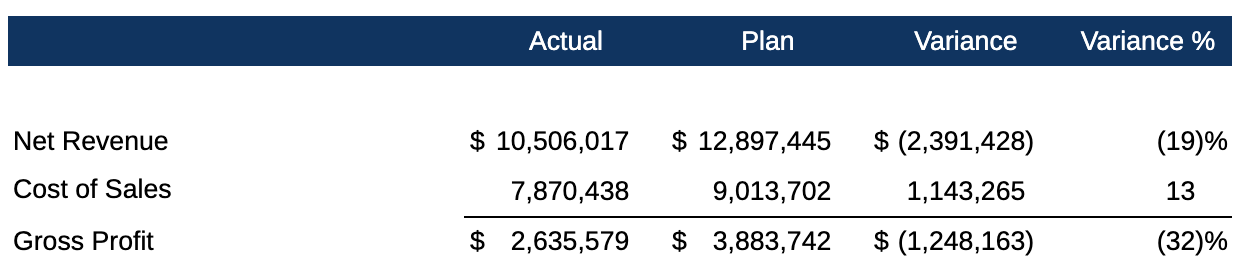
Business Benefit: These new properties enhance report formatting to match financial statement requirements.
Key Resources
- Formatting Grid Cells in Designing with Reports for Oracle Enterprise Performance Management Cloud
Auto-Complete for Manual Entry of Reports Member Names and Functions in the Formula Bar
In Reports, you can now manually enter member names, including Substitution and User Variables, and functions in the grid formula bar; auto-complete will list matches based on your entry.
You can make a selection by clicking on any of the suggestions shown in the drop down.
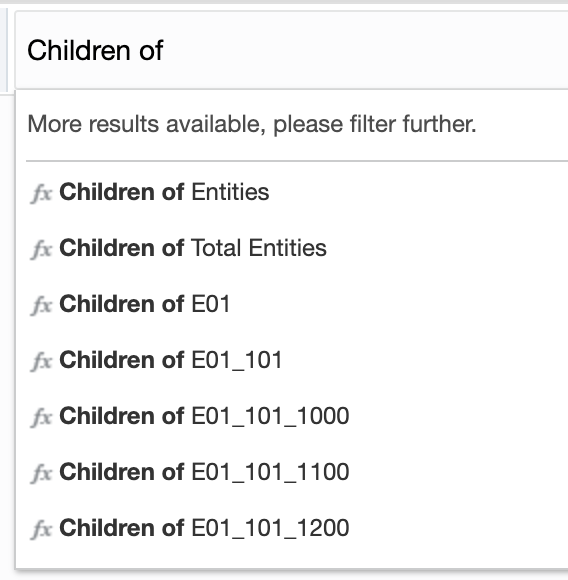
Business Benefit: Auto-complete provides improved ease of use when defining member selections.
Key Resources
- Modifying Member Selection Using the Formula Bar in Designing with Reports for Oracle Enterprise Performance Management Cloud
Bursting of Report Output to Excel
When bursting reports in a bursting definition, you can now output to Excel. As with PDF, you can email the Excel output or publish it to the Library. The resulting Excel output is static and cannot be refreshed in Smart View. Bursting books to Excel is not yet supported.
Business Benefit: Output to Excel provides an additional output option for reports, as many customers prefer the report output in Excel instead of PDF.
Key Resources
- Selecting an Output Format for Reports in Designing with Reports for Oracle Enterprise Performance Management Cloud
Suppress Missing Reports in a Book
Previously if a report had suppression enabled, and the POV selection in a book had #missing data, the report’s results would be included in the book output. Now, any reports with suppressed grids are not included in the book output. There is no special setting required; this is the book behavior going forward.
The report needs to have suppression enabled for the entire grid with no other report objects such as text boxes or images in the body of the report. Please note that the suppression does not affect the cascade definition limits, as the reports and their POV member selections still need to be executed to determine which reports to suppress.
Business Benefit: When previewing a book, users no longer will see blank pages for reports with POV selections that did not contain data.
Key Resources
- About Books in Designing with Reports for Oracle Enterprise Performance Management Cloud
Dynamic Custom Y-Axis Minimum and Maximum in Reports Charts
Currently you can optionally specify a fixed custom minimum and maximum for the Y-Axis. This might not be effective if the range of data values may change based on POV changes (e.g. 7,000 vs. 700,000). You can now specify a custom range to dynamically apply an offset of either a value or a percent, applied to the minimum and maximum plotted data values. This feature applies to all chart types except for pie, donut, radar, and polar charts.
Business Benefit: Specifying a custom range provides expanded flexibility in customizing chart results.
Key Resources
- Chart Properties in Designing with Reports for Oracle Enterprise Performance Management Cloud
Direct Data Load Using the EPM Integration Agent
You can now use a direct data load method to load data from on-premises data sources to Strategic Workforce Planning Cloud using the EPM Integration Agent. When you integrate the on-premises data source with the Strategic Workforce Planning target using the EPM Integration Agent, the system executes a SQL query on the source data in the on-premises relational database, offloads processing, extracts and transforms the data at the source level, and then loads the data loaded directly to Strategic Workforce Planning Cloud. In this way, the Strategic Workforce Planning Cloud database is bypassed for staging and processing, eliminating any performance bottlenecks and improving the performance and scalability of the load process.
Business Benefit: The primary benefit of this method is that it enables you to load large data volumes faster than the non-direct load method.
Key Resources
- Performing a Direct Data Load using the EPM Integration Agent in Administering Data Integration for Oracle Enterprise Performance Management Cloud
Valid Intersections Updated for Quarterly Planning
In the Planning and Forecast Preparation configuration task for Workforce, when you select Quarterly as the planning basis for Forecast for the first year, the provided valid intersections have been updated so that quarterly forecast periods prior to the current month can't be updated in forms. The substitution variable OEP_CurQtr is provided whenever you enable Quarterly planning.
Business Benefit: This feature ensures that forms are intuitive for customers to use and that forecast data entry is allowed only in the appropriate periods.
Tips And Considerations
If you've customized the following Financials rules, see Updating Financials Artifacts for instructions on reversing the customizations, restoring the artifacts to the provided format, and then re-implementing your customizations.
- OFS_Trend Based Calculation
- OFS_Prepare Forecast
Key Resources
- Administering Planning Modules:
Disallow Deletion of User Variables Used in Forms
Because deleting user variables can cause a form to become unusable, deleting user variables that are used in forms is now disallowed.
If you attempt to delete a user variable that is used in a form, you'll now see an error message saying it cannot be deleted. The message will also provide the names of the forms where the user variable is used.
Business Benefit: Disallowing users from deleting user variables that are used by forms prevents forms from becoming unusable.
Key Resources
- Deleting User Variables in Administering Planning
Run Clear Cube Jobs Using Groovy Rules
When working with Groovy business rules, you can use Groovy to call a Clear Cube job that has already been defined for an application. For details, see the description of the Clear Cube REST API.
Business Benefit: Using Groovy business rules gives you flexibility and granularity when clearing the cube.
Steps to Enable
Follow the steps to create a Groovy business rule in Creating a Groovy Business Rule in Designing with Calculation Manager for Oracle Enterprise Performance Management Cloud. For a step-by-step tutorial on creating Groovy business rules, see Introduction to Groovy Business Rules and the other Groovy tutorials. For the technical specification of the new features, see the EPM Cloud Groovy Rules Java API Reference.
Tips And Considerations
If you are new to Groovy business rules, get an introduction by watching the Learning Groovy in EPM Cloud video.
Key Resources
- Learning Groovy in EPM Cloud video
- Creating a Groovy Business Rule in Designing with Calculation Manager for Oracle Enterprise Performance Management Cloud
- Introduction to Groovy Business Rules
- Groovy Tutorials
- EPM Cloud Groovy Rules Java API Reference
Role Information
- Calculation Manager Business Rule Designer
IMPORTANT Actions and Considerations
LOANER PROGRAM FOR CLOUD INFRASTRUCTURE GENERATION 2 TESTING
Oracle Strategic Workforce Planning Cloud is now live on Oracle Cloud Infrastructure (OCI) Gen 2 environments. If you are interested in testing your application performance on an OCI Gen 2 environment, open a service request following the process at https://docs.oracle.com/en/cloud/saas/enterprise-performance-management-common/tsepm/op_procs_loaner_envs.html and request for a loaner environment in an OCI Gen 2 data center for a duration of 30 days with the business justification as “Want to test application performance in an OCI Gen 2 data center”.
After you have performed the testing, submit Provide Feedback from the loaner environment. Create a service request using the normal support process, if you have any issues or feedback for the OCI Gen 2 environment.
For more information, see What is a Gen 2 Cloud?
NEW WEB AD HOC EXPERIENCE IN STRATEGIC WORKFORCE PLANNING CLOUD
In an upcoming update, we will introduce the new Web ad hoc experience for all users across all themes. This replaces the existing Web ad hoc with a new user experience when using ad hoc over the Web. This will provide the benefit of fast snappy grids with several Smart View ad hoc capabilities over the Web, all within a newly defined interface for Web ad hoc. Users can start with a cube slice from scratch or traverse from their Web forms or dashboards into these new ad hoc sheets for a whole new ad hoc experience. Users within the Redwood theme can leverage the benefit of the dynamic tabs to work in tandem with form or dashboards or reports alongside these new ad hoc grids. This solves many multi-tasking use cases within Strategic Workforce Planning Cloud. Within Smart View ad hoc, we will also support multi-parent zoom in capabilities in ad hoc when used within the 'Standard’ ad hoc mode.
RUNBUSINESSRULE EPM AUTOMATE COMMAND - CHANGE OF BEHAVIOR
Starting with the 21.05 update, the runBusinessRule EPM Automate command will no longer let you run a ruleset against Strategic Workforce Planning applications. Instead, you should use the runRuleSet command to launch business rulesets using EPM Automate.
If you currently use scripts that use the runBusinessRule command to launch rulesets, you must modify them to use the runRuleSet command.
REMOVAL OF SOME UNUSED MIGRATION OPTIONS
In an upcoming update, Oracle plans to remove some unused or rarely used options from the Import Options screen in Migration. Because Strategic Workforce Planning Cloud implicitly handles Essbase cube restructure and overwriting of artifacts, the Essbase Application - Overwrite Artifacts and Essbase Application - Restructure Cube options had no effect in Strategic Workforce Planning Cloud. These options will no longer be displayed. The Data Management - Skip Validation option will use the default value of false while the Groups and Membership - Max Error Threshold option will use 100 as the default value.
The removal of these options is not expected to have any impact on customers. Tentative plans call for this change to be introduced with the 21.05 update. If you have any concerns about this change, please contact Oracle Support.
SUPPORT FOR COMPOSITE FORMS
Starting in May 2021, Strategic Workforce Planning plans to stop official support for composite forms. Customers are advised to convert existing composite forms to Strategic Workforce Planning dashboards and log any issues with Support.
NEW “SUPPRESS MISSING NATIVE” OPTION IN FINANCIAL REPORTING WEB STUDIO GRID EDITOR
The new “Suppress Missing Native” option in the “Suppression” panel in the Financial Reporting Web Studio Grid Editor properties is non-functional for 21.03. The desired output of the selection will not be available when the report is executed even if the option is enabled. This will be addressed in an upcoming release.
LIMITATION WHEN USING CHROME 88.0.4324.06 TO DOWNLOAD AND SAVE FINANCIAL REPORTING REPORTS IN A PDF FORMAT
When using Chrome 88.0.4324.06 (Official Build) (64-bit), you cannot use the Download button to download and save Financial Reporting reports in a PDF format. The workaround is to use the Print button to print the reports in a PDF format.