
- Revision History
- Overview
- Feature Summary
- Strategic Workforce Planning Cloud
-
- Features
-
- New Tutorials
- Updates to the Clone Environment Feature
- EPM Automate Updates
- Users Running the Role Assignment REST API Can Include Their Own Roles
- REST API to Set Default Password, Force Password Reset, and Set Temporary Password While Importing Snapshot
- REST API to Disable Emergency Access to Database
- User Management REST APIs Now Show Details on Which Records Failed and Why They Failed
- Assign and Unassign Role: Change of Behavior in Access Control
- Instructions for Configuring Azure AD as Identity Provider for OCI (Gen 2) Environments
- New Topics in EPM Cloud Operations Guide
- Activity Report Now Identifies the Cloud Infrastructure in Use
- Additions and Changes to the Export URLs File
- Function Validation in Smart View (Mac and Browser)
- Filter Business Rules in Smart View (Mac and Browser)
- Improved POV Member Search and Selection in Smart View (Mac and Browser)
- Adding a Custom View to the Drill Through Landing Page in Data Management
- Viewing and Fixing Mapping Validation Errors from the Data Integration Workbench
- Reports Support for Cell-Level Security
- Reports Grid Property for Conditional Formatting/Suppression Data Value Handling
- Ability to Copy Member Selections from One Grid Segment to Another
- Ability to Choose Where to Display Label Values in Financial Reporting Bar Charts
-
- IMPORTANT Actions and Considerations
This document will continue to evolve as existing sections change and new information is added. All updates appear in the following table:
| Date | Product | Feature | Notes |
|---|---|---|---|
| 12 MAY 2021 | Strategic Workforce Planning | Adding a Custom View to the Drill Through Landing Page in Data Management | Updated document. Revised documentation link. |
| 30 APR 2021 | Created initial document. |
This document outlines the upcoming Strategic Workforce Planning Cloud update.
Column Definitions:
Report = New or modified, Oracle-delivered, ready to run reports.
UI or Process-Based: Small Scale = These UI or process-based features are typically comprised of minor field, validation, or program changes. Therefore, the potential impact to users is minimal.
UI or Process-Based: Larger Scale* = These UI or process-based features have more complex designs. Therefore, the potential impact to users is higher.
Features Delivered Disabled = Action is needed BEFORE these features can be used by END USERS. These features are delivered disabled and you choose if and when to enable them. For example, a) new or expanded BI subject areas need to first be incorporated into reports, b) Integration is required to utilize new web services, or c) features must be assigned to user roles before they can be accessed.
Strategic Workforce Planning Cloud
Test Environments: Oracle will apply this monthly update during the first daily maintenance that occurs at or after 22:00 UTC on Friday, May 7, 2021.
Production Environments: Oracle will apply this monthly update during the first daily maintenance that occurs at or after 22:00 UTC on Friday, May 21, 2021.
NOTE: Backing up the daily maintenance snapshot and restoring the environment as needed are self-service operations. Oracle strongly recommends that you download the maintenance snapshot every day to a local server.
The Oracle Help Center provides access to updated documentation. The updates will be available in the Help Center on Friday, May 7, 2021.
NOTE: Some of the links to new feature documentation included in this readiness document will not work until after the Oracle Help Center update is complete.
Fixed Issues and Considerations
Software issues addressed each month and considerations will be posted to My Oracle Support.
This provides visibility into EPM Cloud release contents.
Please Join Oracle Cloud Customer Connect
Please take a moment to join the Cloud Customer Connect forums for EPM Cloud services. Oracle Cloud Customer Connect is a community gathering place for members to interact and collaborate on common goals and objectives. This is where you will find the latest release information, upcoming events, or answers to use-case questions. Joining takes just a few minutes. Join now!
https://cloud.oracle.com/community
NOTE: The Settings and Actions menu now contains a link to Cloud Customer Connect. To access this link, from the Home page, click the down arrow next to the user name (in the upper right-hand corner of the screen), and select Cloud Customer Connect.
Give Us Documentation Feedback
We welcome your comments and suggestions to improve the content of the What's New document and the product documentation.
Please send us your feedback at EPMdoc_ww@oracle.com. In the body or title of the email, state that you are inquiring or providing feedback, and indicate for which EPM Cloud service and the monthly update cycle.
Follow EPM Cloud on YouTube, Twitter, Facebook, and LinkedIn.
These are great resources for the latest updates and information about EPM Cloud.
New tutorials are available.
Performing New Grid Operations
See how to perform grid operations such as entering line item details, comments, attachments, sorting and filtering grid members, adjusting grid data and using shortcut keys. You can use grids, or ad hoc grids, to personalize focused data slices that you frequently use for analysis.
Learn how to navigate with dynamic tabs to multi-task with different artifacts. With dynamic tabs, you can open related artifacts while keeping the original artifacts open.
Designing Ad Hoc Grids in Planning
Learn how to perform ad hoc operations such as selecting members, moving dimensions, and saving grid data and definition. You can use ad hoc grids to personalize focused data slices that you frequently use for analysis.
Creating Ad Hoc Grids in Planning
Learn how to create ad hoc grids in Planning using forms, cubes, and dashboards.
Business Benefit: Tutorials provide instructions with sequenced videos and documentation to help you learn a topic.
Updates to the Clone Environment Feature
This update contains changes to the Clone Environments feature, which will now change the version of Essbase in the target environment to match the Essbase version in the source environment. Starting with this update, this feature retains the contents of the inbox and outbox and existing snapshots in the target environment and, optionally, imports users and their predefined and application roles into the target environment. Previously, this feature was named Clone Snapshot, which has now been changed to Clone Environment.
Handling of Essbase Versions During Cloning
For environments that use Essbase, if the target environment has a different version of Essbase, the Clone Environment feature will change the target Essbase version to match that used in the source environment. Specifically, if the target environment uses an Essbase version that does not support Hybrid cubes and the source environment has hybrid-enabled Essbase, the cloning process will update the target with Hybrid-enabled Essbase. Similarly, if the target environment has Hybrid-enabled Essbase and the source environment has a version that does not support Hybrid Cubes, this feature will update the target environment to use the Essbase version that does not support Hybrid Cubes.
Cloning of Users and Predefined Roles
A user assigned to both the Service Administrator and the Identity Domain Administrator roles can clone application artifacts and, optionally, users and predefined role assignments.
Retaining Snapshots and Files in Inbox and Outbox
Starting with this version, the cloning process does not delete existing snapshots or files in the inbox and outbox of the target environment.
Limitations
Cloning of environments may fail in these scenarios:
- Source is a legacy environment with Non-Hybrid Essbase and the target is a Strategic Workforce Planning Cloud Service in which the Essbase version was downgraded to Non-Hybrid Essbase.
- Source is a Strategic Workforce Planning Cloud Service environment Hybrid-enabled Essbase and the target is a legacy environment in which the Essbase version was upgraded to Hybrid-enabled Essbase.
Business Benefit: These changes facilitate the cloning of snapshots across environments and address customer concerns with this recently introduced feature.
Role Information
- Cloning EPM Cloud Environments in Administering Migration for Oracle Enterprise Performance Management Cloud
A new version of EPM Automate is now available. This version introduces support for using custom URLs with EPM Automate and includes changes to the behavior of addUsers, assignRole, importSnapshot, runBusinessRule, setManualDataAccess, and unassignRole commands. Also, addUsersToGroup, addUserToGroups, assignRole, createGroups, deleteGroups, removeUserFromGroups, removeUsers, removeUsersFromGroup, and unassignRole commands have been enhanced to print information on failed records to the console. Additionally, the exportLibraryArtifact command has been enhanced with a new optional exportFormat=LCM parameter to convert the exported reports to the format used by Migration so that these reports can be imported into Strategic Workforce Planning Cloud.
Support for Custom URLs with the Login Command
Starting with this update, EPM Automate supports the use of vanity URLs created using third party link shorteners such as T.ly, Bitly, Rebrandly, TinyUrl, is.gd and so on.
addUsers Command
The addUsers command has been enhanced to add Strategic Workforce Planning Cloud users to the identity domain using a system generated temporary password. Previously, the only way to add Strategic Workforce Planning Cloud users to the identity domain using this command required you to assign one password to all the users added using this command. Additionally, on running this command, Strategic Workforce Planning Cloud emails new users their temporary passwords.
assignRole and unassignRole Commands
The behavior of these commands has been altered to allow Service Administrators to assign and unassign predefined and application roles to themselves. Previously, these commands did not allow users issuing these commands to assign or unassign roles to themselves.
importSnapshot Command
The importSnapshot command has been enhanced with the ability to specify whether to add users to the identity domain if a user who is not in the identity domain is referenced in the snapshot being imported. For this purpose, a new optional parameter (importUsers) has been added to this command. If the value of importUsers parameter is set to true, EPM Automate creates a user in the identity domain and assigns the default password that you specify in the command or a temporary unique password to each user if you do not specify a password in the command. Only a Service Administrator who also has the Identity Domain Administrator role can successfully import users and their role assignments using this command.
runBusinessRule Command
Starting with this update, the ability to run rule sets has been removed from the runBusinessRule command. Instead, you should use the runRuleSet command to launch rule sets.
setManualDataAccess Command
The setManualDataAccess command has been enhanced to use an optional parameter (disableEmergencyAccess) that can be used to prohibit Oracle from manually accessing the Strategic Workforce Planning Cloud database even if a service request to remedy a database issue is open.
Information on Failed Records for User, Group and Role Management Commands Printed to the Console
The following commands have been enhanced to print information on the records that failed during processing and the reasons why they failed.
- addUsersToGroup
- addUserToGroups
- assignRole
- createGroups
- deleteGroups
- removeUserFromGroups
- removeUsers
- removeUsersFromGroup
- unassignRole
exportLibraryArtifact Command
Starting with this update, this command has been enhanced to use a new optional exportFormat=LCM parameter which converts the exported reports to the format used by Migration so that the exported reports can be imported into Strategic Workforce Planning.
Business Benefit: These changes in behavior make EPM Automate easier to use.
Key Resources
- Working with EPM Automate for Oracle Enterprise Performance Management Cloud:
Users Running the Role Assignment REST API Can Include Their Own Roles
For the User Management REST APIs, you can now assign and unassign a pre-defined or application role to the user who is running the REST APIs. This applies to the following REST APIs:
- Assigning users to a predefined or application role
- Removing users' predefined or application role assignment
Business Benefit: Allows users who makes role assignments to include their own role.
Key Resources
- Managing Users in REST API for Oracle Enterprise Performance Management Cloud
Role Information
- Service Administrators
REST API to Set Default Password, Force Password Reset, and Set Temporary Password While Importing Snapshot
When using the LCM Import REST API to import the contents of a snapshot into the service environment, you can now complete these tasks for imported users:
- Set a specific password for all users in the snapshot
- Set a unique temporary password for each user in the snapshot
- Force password reset at first login
Business Benefit: Using REST APIs allows you to automate the process for managing passwords while cloning an environment.
Key Resources
- LCM Import in REST API for Oracle Enterprise Performance Management Cloud
Role Information
- Service Administrators
REST API to Disable Emergency Access to Database
You can now use a REST API to to prohibit Oracle from manually accessing the Strategic Workforce Planning Cloud database, even if a service request to remedy a database issue is open.
Business Benefit: Allows you to automate disabling emergency access to the database.
Key Resources
- Manage Permission for Manual Access to Database in REST API for Oracle Enterprise Performance Management Cloud
Role Information
- Service Administrators
User Management REST APIs Now Show Details on Which Records Failed and Why They Failed
For the User Management REST APIs, you can now see which records failed and the reason why they failed. Previously, you could only see how many records passed and failed.
This applies to the following REST APIs:
- Removing users from an identity domain
- Assigning users to a predefined or application role
- Removing users' predefined or application role assignment
- Adding users to a group
- Removing users from a group
- Adding a user to a batch of groups
- Removing a user from a batch of groups
- Adding groups
- Removing groups
Business Benefit: This gives you visibility on any records that failed and helps you resolve issues.
Key Resources
-
Managing Users in REST API for Oracle Enterprise Performance Management Cloud
Role Information
- Service Administrators
Assign and Unassign Role: Change of Behavior in Access Control
From Access Control screens, Service Administrators can now assign and unassign application roles to themselves. Previously, Service Administrators were prevented from using Access Control screens to assign or unassign roles to themselves.
Business Benefit: This avoids the extra step of involving another Service Administrator to complete the application role assignment process.
Instructions for Configuring Azure AD as Identity Provider for OCI (Gen 2) Environments
Getting Started with Oracle Enterprise Performance Management Cloud for Administrators now contains instructions on configuring Microsoft Azure AD as a SAML2 identity provider for OCI (Gen 2) Strategic Workforce Planning Cloud environments. This section provides guidelines on the steps to be completed in Oracle Identity Cloud Services and in Azure AD to establish federated single sign-on where by Azure AD authenticated users can seamlessly access Strategic Workforce Planning Cloud environments.
Business Benefit: Establishing single sign-on using Azure AD secures Strategic Workforce Planning Cloud environments using the corporate directory server.
New Topics in EPM Cloud Operations Guide
The EPM Cloud Operations Guide section "Use of Dedicated VPN Connection to Restrict Access" has been enhanced with suggestions for establishing secure connections with OCI (Gen2) Strategic Workforce Planning Cloud. These include the use of Service Gateway as a secure communication channel to avoid traffic going over the internet and the use of Oracle Virtual Cloud Network (VCN) with FastConnect through the Service Gateway.
Business Benefit: This new topic helps customers to create a secure communication channel to Strategic Workforce Planning Cloud.
Key Resources
Activity Report Now Identifies the Cloud Infrastructure in Use
The Activity Report has been enhanced with additional information to identify the type of cloud infrastructure that your environment uses. Additionally, some table titles have been changed to better reflect the contents of the table.

Activity Report Headers Identifying Classic and OCI (Gen2) Cloud Infrastructure
Business Benefit: This information helps you identify the type of cloud of infrastructure that Oracle uses to support the environment.
Key Resources
- Using Activity Reports and Access Logs to Monitor Usage in Getting Started with Oracle Enterprise Performance Management Cloud for Administrators.
Additions and Changes to the Export URLs File
Two new columns have been added to the Export URLs file to help you to more easily locate and filter the URLs used to integrate connected environments. The new columns are Artifact Type and Artifact Name.
Artifact Type provides the type of artifact; for example, Form, Dashboards, Financial Reports, and URL type artifacts. Artifact Name provides the name of the artifact or, in the case of an URL type artifact, the direct URL of the target page.
We've also renamed the Cluster/Card/Tab/Sub-tab column header in the Export URLs file. The new column header is Name and it provides the cluster, card, tab or sub-tab name where the artifact is contained.
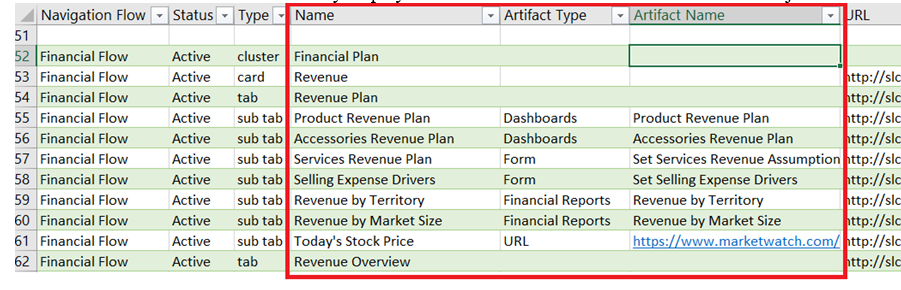
Export URLs File Showing the New and Changed Column Names
Business Benefit: Changes and additions to the Export URLs file enable you to more easily find and filter the URLs used to seamlessly integrate connected with other Cloud environments.
Key Resources
- Using Direct URLs to Integrate Connected Environments in Administering Planning
Function Validation in Smart View (Mac and Browser)
A new Validate button in the Function Builder panel allows you to see and correct errors immediately, before executing a function.
When validating a function, the types of errors that may be noted are:
- Connection offline or invalid
- Invalid selection
- Member name is invalid or not matching selected alias
- Dimension name is invalid or not matching selected alias
- Incomplete Dimension#Member combination
- Generic “Error” in cases of missing quotation marks or other minor syntax errors
Because you can see and correct errors on-the-fly, the validation feature saves you time in troubleshooting any problems in your function.
Business Benefit: The new Validate button in the Function Arguments panel allows you to see and correct errors immediately, before executing a function, saving you time in troubleshooting any problems in your function.
Steps to Enable
To use the new Validation button in the Function Builder in Smart View (Mac and Browser), Service Administrators must create and deploy a new manifest file, with the Function Builder option and Include Functions support check box enabled:
- Create a new manifest file and customize it per your requirements, ensuring that you select the Function Builder option and "Include Functions support" check box.
- Deploy the manifest file to Smart View (Mac and Browser) users.
Key Resources
- Deploying and Administering Oracle Smart View for Office (Mac and Browser):
- Working with Oracle Smart View for Office (Mac and Browser):
Filter Business Rules in Smart View (Mac and Browser)
In Oracle Smart View for Office (Mac and Browser), new options for filtering rules are now available in the Business Rules panel.
Now when you run business rules, a new Filter button appears in the bar at the bottom of the Business Rules panel. When you are presented with a large number of business rules to run, filtering can be a helpful way of locating the rules you require. You may filter rules by any combination of cube and rule type. Simply select the check boxes next to the Plan Types (cubes) and Rule Types on which you wish to filter. Click the Apply button and the business rules displayed are filtered according to your selections. Then select the business rules to run. Alternatively, clear the check boxes to again view the entire list of business rules.
Business Benefit: The new Filter button in the Business Rules panel allows you to quickly filter and locate the business rules to run, which can be especially helpful when you are working with a large number of business rules.
Steps to Enable
To use the new Business Rule filtering options in Smart View (Mac and Browser), Service Administrators must create and deploy a new manifest file, with the Business Rules check box enabled:
- Create a new manifest file and customize it per your requirements, ensuring that you select the Business Rules option.
- Deploy the manifest file to Smart View (Mac and Browser) users.
Key Resources
- Deploying and Administering Oracle Smart View for Office (Mac and Browser):
- Calculating Data in Working with Oracle Smart View for Office (Mac and Browser)
Improved POV Member Search and Selection in Smart View (Mac and Browser)
In Smart View (Mac and Browser), you can now search for members in the POV dimension drop-down list by typing all or part of a member name in the dimension text box in the POV panel. The drop-down list of members is filtered to show only those members that contain the text string that you typed. This is helpful when working with dimensions where many members are available for selection.
In ad hoc grids, you use the Member Selector to select members to add to the dimension drop-down list for the dimensions in the POV panel that you require. In forms, an administrator sets the members for you to choose from in a POV dimension drop-down list. Whether you are working with an ad hoc grid or a form, to change the POV, use the drop-down list for the dimension to select a member. If the list of members is long, you can begin typing the member name or any part of the name that you remember. The member drop-down list is then filtered to show you only those members that contain the text string that you typed. Choose a member and refresh the grid or form, and the POV is changed.
When an alias table is used, the process for searching for and selecting members is the same, with the only difference being that your search strings should be based on the alias names in the drop-down list..
Business Benefit: In Smart View (Mac and Browser), searching and filtering members in the POV dimension drop-down list is helpful when working with dimensions where many members are available for selection.
Steps to Enable
To use the new POV member search and filtering capability in Smart View (Mac and Browser), Service Administrators must create and deploy a new manifest file:
- Create a new manifest file and customize it per your requirements.
- Deploy the manifest file to Smart View (Mac and Browser) users.
Key Resources
- Deploying and Administering Oracle Smart View for Office (Mac and Browser):
- Selecting Members From a Point of View Dimension in Working with Oracle Smart View for Office (Mac and Browser)
Adding a Custom View to the Drill Through Landing Page in Data Management
When drilling through to data on the landing page in the Strategic Workforce Planning Cloud, you can now create or select a previously defined custom view of columns. In addition to selecting the columns to display, you are also able to customize the dimension names on the landing page. When the custom view has been defined, you can click the drill-through cell on the form, select Drill Through to source, and then select the default view or the custom view.
Custom views provide you with different ways to look at the columns in the drill through by allowing you to rearrange the representation of data. If a view is not defined on the Drill Through landing page, the default view is used.
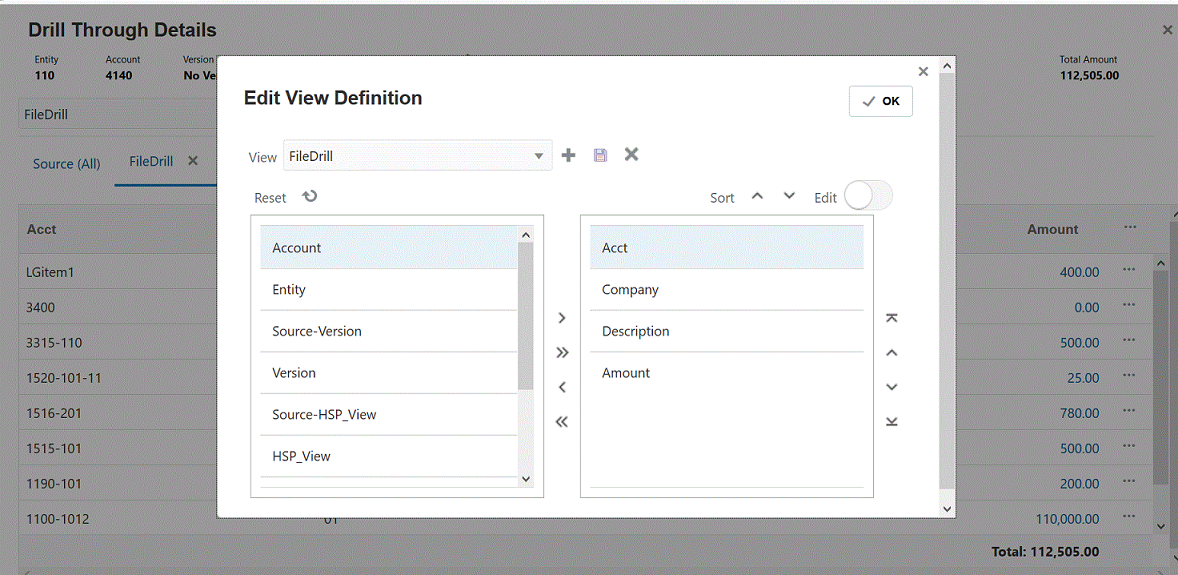
Edit View Definition Page
Business Benefit: Using a customized drill through landing page view allows the user to show the exact columns that they want to see when drilling through from a business process if the default view does not meet their needs. This view can be saved as the default, or can be selected when drilling so that the exact columns are shown when drilling.
Steps to Enable
To enable the custom view feature:
- Launch Data Management.
- On the Setup tab, under Configure, select System Settings.
- On the System Settings page, in Profile Type, select the All or Other profile type.
- For the Drill Type UI setting, select Simplified User Interface.
- Click Save.
Key Resources
- Drilling Through to Source Data in Administering Planning
- Adding a Custom View on the Drill Through Landing Page in Administering Data Integration for Oracle Enterprise Performance Management Cloud
- Setting System-Level Profiles in Administering Data Management for Oracle Enterprise Performance Management Cloud
Viewing and Fixing Mapping Validation Errors from the Data Integration Workbench
In Data Integration, a new validation feature in the Workbench now compares dimension mapping to the source and identifies unmapped dimensions on a Validation Errors page. As part of the validation process, a Fix Mapping feature is available. Users can view and fix mapping errors directly from the Validation Errors page.
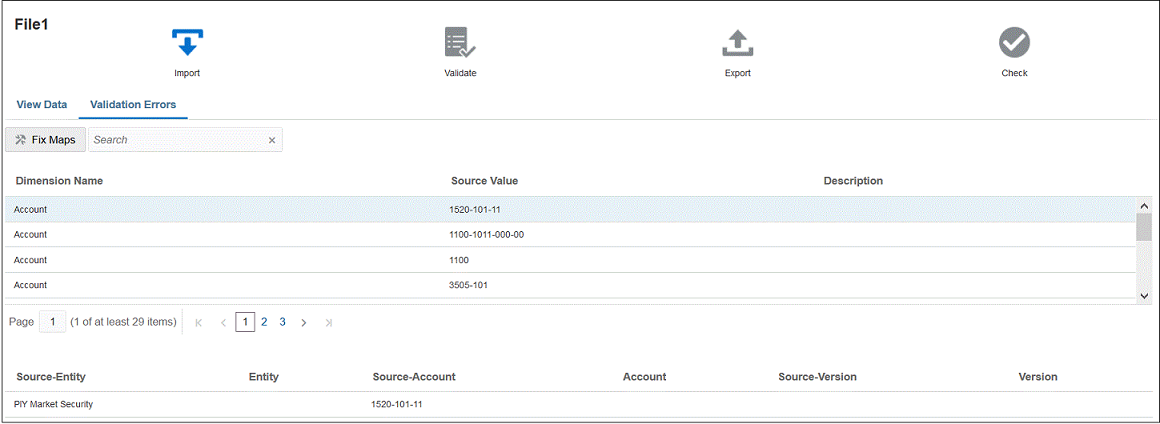
Validation Errors Page
Business Benefit: The Validation Errors feature enables you to confirm that all members are mapped to a target account.
Key Resources
- Validating Source Data in Administering Data Management for Oracle Enterprise Performance Management Cloud
Reports Support for Cell-Level Security
Reports now supports Cell-Level Security with new grid, row, and column suppression properties for No Access and a grid property for text replacement of No Access cells. These properties behave in a similar manner as the existing properties for Zero Values, No Data, and Error data value results.
Cell-level security enables Service Administrators to specify who can view data in the application by defining rules that remove read or write access to cells that a user would normally have access to due to their regular security.
Business Benefit: This feature improves Suppression options for Reports to account for the newly released Cell-Level Security feature. With this feature enabled in Reports, you can suppress cell-level data intersections that a user doesn’t have access to, as well as apply text replacement labels, where applicable.
Key Resources
- Grid Properties in Designing with Reports for Oracle Enterprise Performance Management Cloud
- Defining Cell-Level Security in Administering Planning
Reports Grid Property for Conditional Formatting/Suppression Data Value Handling
You can now use a new grid property, Use scaled/rounded value, to specify whether conditional formatting and suppression use scaled or unscaled data values within a condition.
Business Benefit: The new grid property gives you more flexibility when defining conditions in conditional formatting and suppression against grid data values.
Key Resources
- Grid Properties in Designing with Reports for Oracle Enterprise Performance Management Cloud
- Creating a Condition in Designing with Reports for Oracle Enterprise Performance Management Cloud
Ability to Copy Member Selections from One Grid Segment to Another
In a Reports grid, you can now copy member selections from a row/column segment to another one (same dimension segment). This is exposed via right-clicking on a row/column header segment, selecting Copy Members, selecting another segment, and then right-clicking and selecting Paste Members.
Business Benefit: This feature improves ease of use when defining member selections by greatly reducing the number of steps to define member selections.
Key Resources
- Copying Member Selections from one Grid Segment to Another in Designing with Reports for Oracle Enterprise Performance Management Cloud
Ability to Choose Where to Display Label Values in Financial Reporting Bar Charts
You can now choose where to display label values in Financial Reporting bar charts. The label value can be displayed above or below the bar based on sizing, on the inside edge of the bar, or on the outside edge of the bar.
Business Benefit: Bar chart values are easier to read when the you can choose where the label values in the report are displayed.
Key Resources
- Formatting Bars in Bar and Combo Charts in Designing with Financial Reporting Web Studio for Oracle Enterprise Performance Management Cloud
IMPORTANT Actions and Considerations
Redwood Experience as Default Theme
Within the next few months, the Redwood experience will be the default theme upon creation or recreation of a Strategic Workforce Planning Cloud service, or upon creation or recreation of a business process/application for all POD instances (existing as well as new). Existing active services/business processes/applications will not be impacted. All migrations (i.e., LCM import/reimports of existing cloud applications) will honor the theme from the source/import file. You will be able to switch to an alternate non-Redwood experience theme from the Appearance page in the Tools cluster.
Support for Composite Forms in Strategic Workforce Planning Cloud
Starting in this update (21.05), Oracle Strategic Workforce Planning Cloud no longer officially supports composite forms. As has been announced for several months, customers are required to use Strategic Workforce Planning Cloud dashboards instead. Your existing composite forms will continue to work.
Loaner Program for Cloud Infrastructure Generation 2 Testing
Oracle Strategic Workforce Planning Cloud is now live on Oracle Cloud Infrastructure (OCI) Gen 2 environments. If you are interested in testing your application performance on an OCI Gen 2 environment, open a service request following the process at https://docs.oracle.com/en/cloud/saas/enterprise-performance-management-common/tsepm/op_procs_loaner_envs.html and request for a loaner environment in an OCI Gen 2 data center for a duration of 30 days with the business justification as “Want to test application performance in an OCI Gen 2 data center”.
After you have performed the testing, submit Provide Feedback from the loaner environment. Create a service request using the normal support process, if you have any issues or feedback for the OCI Gen 2 environment.
For more information, see What is a Gen 2 Cloud?
Removal of Some Unused Migration Options
In an upcoming update, Oracle plans to remove some unused or rarely used options from the Import Options screen in Migration. Because Strategic Workforce Planning Cloud implicitly handles Essbase cube restructure and overwriting of artifacts, the Essbase Application - Overwrite Artifacts and Essbase Application - Restructure Cube options had no effect in Strategic Workforce Planning Cloud. These options will no longer be displayed. The Data Management - Skip Validation option will use the default value of false while the Groups and Membership - Max Error Threshold option will use 100 as the default value.
The removal of these options is not expected to have any impact on customers. Tentative plans call for this change to be introduced with the 21.06 update. If you have any concerns about this change, please contact Oracle Support.
Upcoming Change to Smart View Ad Hoc Behavior Setting
Starting with the August update (21.08), all new applications and all recreated applications will use “Standard” as the Smart View Ad Hoc Behavior.
For existing applications and migrated applications, “Native” will remain as the default Smart View Ad Hoc Behavior, with “Standard” being an option.
Skills Assessment FTE Data Load Change in Behavior
In an upcoming release, Oracle will be enhancing the Skills Assessment functionality, which currently requires the FTE data to be manually loaded to the Workforce Reporting (OEP_REP) cube. As part of this proposed change, customers will no longer need to load FTE data separately into the Workforce Reporting cube. The Headcount Data for Reporting data map will be renamed and enhanced to include moving the FTE base data already required to be loaded into the application. After this change is implemented and the update is applied, existing customers should execute the renamed Headcount and FTE Data for Reporting data map to ensure the FTE data required for Skills Assessment calculations is in the correct intersection in the Workforce Reporting cube. Customers who have modified the existing Headcount Data for Reporting data map should consider including FTE in the their modified version to ensure the FTE data is mapped to the new, expected intersection as part of this proposed enhancement.