
- Revision History
- Overview
- Feature Summary
- Strategic Workforce Planning Cloud
-
- Features
-
- New Videos
- New Redwood Theme
- New and Improved Help Center Search
- New Topics in Oracle Enterprise Performance Management Cloud Operations Guide
- EPM Automate Updates
- Updates to the Activity Report
- Enhancements to Search in Access Control
- New Function Builder in Smart View (Mac and Browser)
- Support for HsAlias Function in Smart View (Mac and Browser)
- Fix Links Available for Functions in Smart View (Mac and Browser)
- Improved Member Selection Dialog in Smart View (Mac and Browser)
- New "Drill View to Smart View" Application Option in Data Integration
- New Filter Comparison Operator in Forms - Contains
- Updated Currency Conversion Calculation for Assumptions in Workforce
- Logging of Excluded Members in Job Details for Planning Data Map and Smart Push Operations
-
- IMPORTANT Actions and Considerations
This document will continue to evolve as existing sections change and new information is added. All updates appear in the following table:
| Date | Product | Feature | Notes |
|---|---|---|---|
| 30 OCT 2020 | Created initial document. |
This document outlines the upcoming Strategic Workforce Planning Cloud update.
Column Definitions:
Features Delivered Enabled
Report = New or modified, Oracle-delivered, ready to run reports.
UI or Process-Based: Small Scale = These UI or process-based features are typically comprised of minor field, validation, or program changes. Therefore, the potential impact to users is minimal.
UI or Process-Based: Larger Scale* = These UI or process-based features have more complex designs. Therefore, the potential impact to users is higher.
Features Delivered Disabled = Action is needed BEFORE these features can be used by END USERS. These features are delivered disabled and you choose if and when to enable them. For example, a) new or expanded BI subject areas need to first be incorporated into reports, b) Integration is required to utilize new web services, or c) features must be assigned to user roles before they can be accessed.
| Ready for Use by End Users Reports plus Small Scale UI or Process-Based new features will have minimal user impact after an update. Therefore, customer acceptance testing should focus on the Larger Scale UI or Process-Based* new features. |
Action is Needed BEFORE Use by End Users Not disruptive as action is required to make these features ready to use. As you selectively choose to leverage, you set your test and roll out timing. |
|||||
|---|---|---|---|---|---|---|
| Feature |
Report |
UI or |
UI or |
|
||
New Topics in Oracle Enterprise Performance Management Cloud Operations Guide |
||||||
Support for HsAlias Function in Smart View (Mac and Browser) |
||||||
Fix Links Available for Functions in Smart View (Mac and Browser) |
||||||
Improved Member Selection Dialog in Smart View (Mac and Browser) |
||||||
New "Drill View to Smart View" Application Option in Data Integration |
||||||
Updated Currency Conversion Calculation for Assumptions in Workforce |
||||||
Logging of Excluded Members in Job Details for Planning Data Map and Smart Push Operations |
||||||
Strategic Workforce Planning Cloud
Test Environments: Oracle will apply this monthly update during the first daily maintenance that occurs at or after 22:00 UTC on Friday, November 6, 2020.
Production Environments: Oracle will apply this monthly update during the first daily maintenance that occurs at or after 22:00 UTC on Friday, November 20, 2020.
NOTE: Backing up the daily maintenance snapshot and restoring the environment as needed are self-service operations. Oracle strongly recommends that you download the maintenance snapshot every day to a local server.
The Oracle Help Center provides access to updated documentation. The updates will be available in the Help Center on Friday, November 6, 2020.
NOTE: Some of the links to new feature documentation included in this readiness document will not work until after the Oracle Help Center update is complete.
Please Join Oracle Cloud Customer Connect
Please take a moment to join the Cloud Customer Connect forums for EPM Cloud services. Oracle Cloud Customer Connect is a community gathering place for members to interact and collaborate on common goals and objectives. This is where you will find the latest release information, upcoming events, or answers to use-case questions. Joining takes just a few minutes. Join now!
https://cloud.oracle.com/community
NOTE: The Settings and Actions menu now contains a link to Cloud Customer Connect. To access this link, from the Home page, click the down arrow next to the user name (in the upper right-hand corner of the screen), and select Cloud Customer Connect.
Give Us Documentation Feedback
We welcome your comments and suggestions to improve the content of the What's New document and the product documentation.
Please send us your feedback at EPMdoc_ww@oracle.com. In the body or title of the email, state that you are inquiring or providing feedback, and indicate for which EPM Cloud service and the monthly update cycle.
Follow EPM Cloud on YouTube, Twitter, Facebook, and LinkedIn.
These are great resources for the latest updates and information about EPM Cloud.
Defects Fixed and Considerations
Software issues addressed each month and considerations will be posted to My Oracle Support.
This provides visibility into EPM Cloud release contents.
Several videos are now available.
Overview: Announcing EPM Cloud's new Redwood Theme
Explore the new, sophisticated Redwood theme that provides an attractive, human, look and feel. This beautiful theme is used in all new Strategic Workforce Planning Cloud environments.
Overview: Get Answers, Learn More, and Stay Connected With the Oracle Cloud Applications Help Center
Need help, training or information about new capabilities and changes in a monthly update? The Oracle Cloud Applications Help Center has got you covered! Watch this updated video that captures how to access best practices and get functionally-tailored, situation-specific help with Cloud applications. In addition to using the integrated, context sensitive help embedded in products, visit the Help Center for documentation, videos, tutorials, training, and readiness resources. Explore how the Help Center can be your one-stop-shop for user assistance.
Business Benefit: These videos provide step-by-step instructions to help you perform your related business activities.
Strategic Workforce Planning Cloud now offers a new Redwood appearance theme, in addition to the existing 13 themes available.
Redwood is the default theme for new instances, while existing instances continue to see the current theme by default. You can switch to the Redwood theme from Tools > Appearance.
Business Benefit: The Redwood theme gives an enhanced look and feel in terms of colors and icons and brings consistency across Oracle Cloud.
New and Improved Help Center Search
The Oracle Help Center search has been improved and now includes more robust search technology, enhanced user interface design, a utility bar with integrated search, best match result listings, filtering, videos, PDFs and tutorials included in search, non-English content, and much more.
Check it out at docs.oracle.com.
New Topics in Oracle Enterprise Performance Management Cloud Operations Guide
The Oracle Enterprise Performance Management Cloud Operations Guide has been enhanced with additional topics.
New topics include:
- Resolving Login Failures in EPM Cloud SSO Setup with Fusion Applications
- Fixing Smart View Connection Failure When Signing into SSO-Enabled Environments
- Requesting the Configuration of IP Allowlist
- Updated section: Requesting Merge Back of Environments (added information on how automated merge back to main code line works for environments that requested upgrade delay)
Business Benefit: The Oracle Enterprise Performance Management Cloud Operations Guide helps you self-diagnose and fix EPM Cloud issues.
Key Resources
A new version of EPM Automate is available. This version supports EPM Automate with OpenJDK version 14 or newer on Linux/Unix and MacOS X platforms.
Support for OpenJDK on Linux/Unix and MacOS X
You may now use OpenJDK version 14 or higher on Linux/Unix and MacOS X instead of Java JRE to run EPM Automate. OpenJDK, Oracle's free, GPL-licensed, production-ready JDK, can be downloaded from https://openjdk.java.net.
Business Benefit: You can now use OpenJDK version 14 or higher on Linux/Unix and MacOS X instead of Java JRE to run EPM Automate.
Key Resources
- Working with EPM Automate for Oracle Enterprise Performance Management Cloud
Updates to the Activity Report
The Activity report has been enhanced to display the hierarchy type of each Gen 2 dimension included in Aggregate Storage (ASO) Cubes. Additionally, the Activity Report displays these tables if such operations were performed in the environment: Last 15 Clear Block Commands, Last 15 Clear Data Commands.
Hierarchy Type Display for ASO Cubes
The newly added Hierarchy Type column identifies the hierarchy type of each Gen 2 dimension included in ASO Cubes. Hierarchy type is an important consideration for optimizing ASO retrieval performance
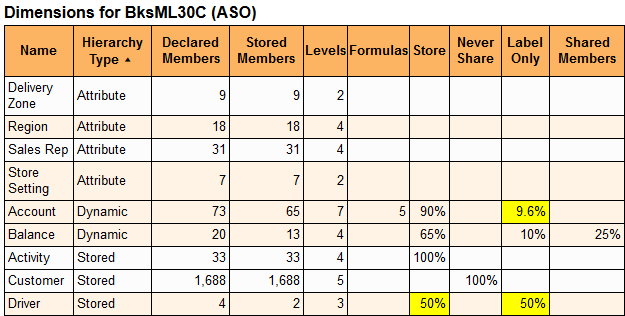
Hierarchy Type Listing in a Sample Activity Report
Last 15 Clear Block Commands
The Activity Report contains this table if Clear Block operations were performed during the report period. This table identifies the user who initiated the operation, the name of the affected cube, the calculation script, and the commands in the calculation script that resulted in clearing of the block..
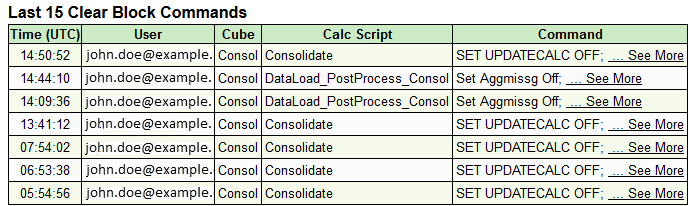
Last 15 Clear Block Commands Table
Last 15 Clear Data Commands
The Activity Report contains this table if Clear Data operations were performed during the report period. This table identifies the user who initiated the operation, the name of the affected cube, the calculation script, and the commands in the calculation script that resulted in clearing of the data..

Last 15 Clear Data Commands Table
Business Benefit: Identifying the hierarchy type of Gen2 members is very useful in optimizing ASO retrieval performance. The tables for Clear Block and Clear Data help you understand why some of the data is cleared from your application.
Enhancements to Search in Access Control
The updated search for users, groups, and roles work in an identical manner across Access Control screens. You use a string from one of the user attributes (user name, first name, last name or email ID), group name or role name to find specific users, groups or roles. Additionally, all available user information is displayed in search results.
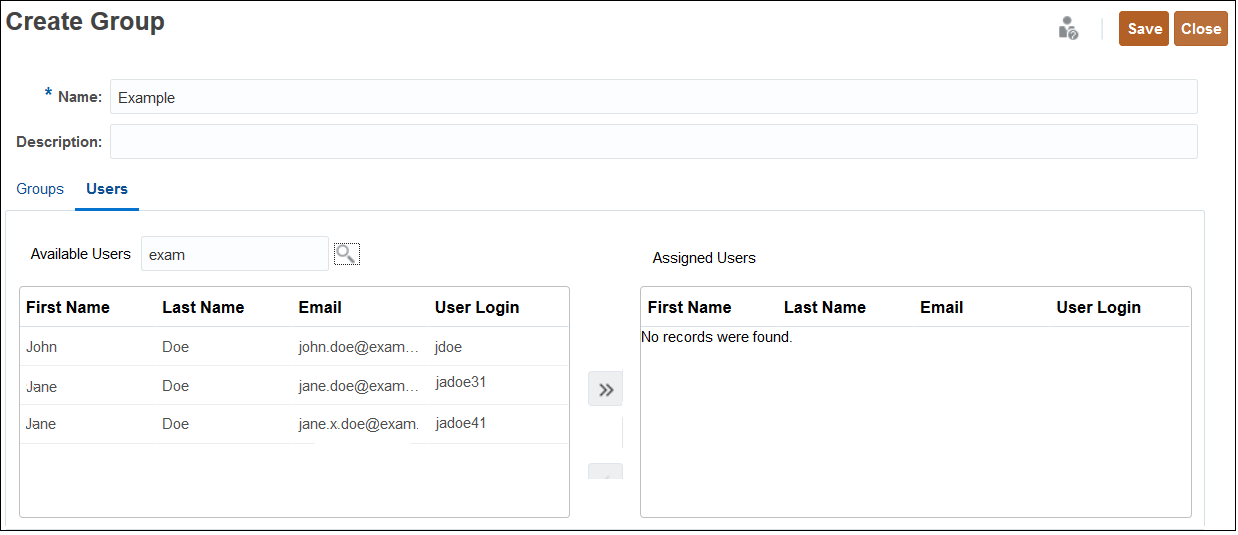
Updated User Search Results in Create Group Access Control Screen
Business Benefit: This enhancement simplifies the search for Access Control artifacts.
New Function Builder in Smart View (Mac and Browser)
To facilitate entering functions into a worksheet, Oracle Smart View for Office (Mac and Browser) now offers a Function Builder. In Function Builder, you select a function to work with, and specify the connection and members that you want the function to use. The Function Builder then creates the function using the proper syntax and enters it into the selected cell. Once entered, you can edit these functions.
Additionally, for each function argument:
- A cell reference can be selected
- Type-in functionality is available
In Smart View (Mac and Browser), these functions are currently supported:
- HsGetValue
- HsSetValue
- HsAlias
Business Benefit: The new Function Builder in Oracle Smart View for Office (Mac and Browser) facilitates entering and using supported functions to retrieve and send data in specific cells in Excel worksheets.
Steps to Enable
To use the Function Builder in Smart View (Mac and Browser), Service Administrators must create and deploy a new manifest file with the "Build Function" option selected and the "Include Function support" check box enabled:
- Create a new manifest file and customize it per your requirements.
- In the "Available menu items" section, select the "Build Function" option in the General group. Note that when you select the Build Function option, the "Include Functions support" option is automatically enabled.
- Deploy the manifest file to Smart View (Mac and Browser) users.
Key Resources
- Deploying and Administering Oracle Smart View for Office (Mac and Browser):
- Working with Oracle Smart View for Office (Mac and Browser)
Support for HsAlias Function in Smart View (Mac and Browser)
You can now use the HsAlias function in Oracle Smart View for Office (Mac and Browser).
The HsAlias function displays the alias of the specified dimension member.
Business Benefit: Using HsAlias in Smart View (Mac and Browser) allows you to display the alias name of a specified dimension or member.
Steps to Enable
To use the HsAlias function in Smart View (Mac and Browser), Service Administrators must create and deploy a new manifest file with the "Include Function support" option enabled.
- Create a new manifest file and customize it per your requirements.
- Ensure that you select the "Include Functions support" option.
- Deploy the manifest file to Smart View (Mac and Browser) users.
Key Resources
- Deploying and Administering Oracle Smart View for Office (Mac and Browser):
Fix Links Available for Functions in Smart View (Mac and Browser)
The Fix Links command for functions is now available in Oracle Smart View for Office (Mac and Browser). Fix Links allows you to fix broken links in functions. Broken links can occur when a workbook containing functions created in Oracle Smart View for Office (Windows) is then opened in Smart View (Mac and Browser).
Currently, the Fix Links command is supported only when using Smart View (Mac and Browser) on a Mac.
Note that once function links are fixed in Smart View (Mac and Browser), the functions will not work again in Smart View for Office (Windows).
Business Benefit: The Fix Links command allows Smart View (Mac and Browser) users to work with Excel workbooks containing functions created in Oracle Smart View for Office (Windows).
Steps to Enable
To use the Fix Links command in Smart View (Mac and Browser), Service Administrators must create and deploy a new manifest file with the "Include Function support" option enabled.
- Create a new manifest file and customize it per your requirements.
- Ensure that you select the "Include Functions support" option. Note that in the "Available menu items" section, the Fix Links option is selected by default.
- Deploy the manifest file to Smart View (Mac and Browser) users.
Key Resources
- Deploying and Administering Oracle Smart View for Office (Mac and Browser):
- Fixing Links in Functions in Working with Oracle Smart View for Office (Mac and Browser)
Improved Member Selection Dialog in Smart View (Mac and Browser)
The Member Selector dialog in Oracle Smart View for Office (Mac and Browser) is improved in these areas:
- Tree structure. Members are now displayed in a tree structure in the left pane of the dialog. Use the up and down arrows to the left of member names to expand and collapse hierarchies. Click directly to the left of a member name to select the member, and note the check mark. You may select multiple members from multiple levels in the dimension to add or remove.
- Filter. Type text into the Filter field to filter the members that have already been retrieved within the selected dimension in the Member Selector.
- Server Search. Click Server Search to search for all members that contain the entered text, including those that have not already been retrieved within the selected dimension in the Member Selector.
- Check Children and Clear Checks option. When selecting a parent member anywhere in the hierarchy, places a check mark next to the applicable child members. To clear all check marks, select Clear Checks.
- Fill Vertically or Fill Horizontally. If this is the first member selection that you make in a blank worksheet, select either Fill Vertically, to display the selected members vertically, in a column; or Fill horizontally, to display the selected members horizontally, in a row.
- Check button. This button provides these functions:
- Select Dimension. Allows you to select the dimension level member. Use the dimension selector at the top left of the dialog to select other dimensions.
- Remove All. Removes all members from the selected members side of the dialog.
- Check All and Clear Checks. Places a check mark next to members on the selected members side of the dialog. To clear all check marks, select Clear Checks.
Business Benefit: Improvements to the Member Selector make it a more robust and easier-to-use tool for Smart View (Mac and Browser) users.
Steps to Enable
To use the improved Member Selector in Smart View (Mac and Browser), Service Administrators must create and deploy a new manifest file with the Member Selection option enabled:
- Create a new manifest file and customize it per your requirements. Note that in the "Available menu items" section, the "Member Selection" option in the Edit group is selected by default.
- Deploy the manifest file to Smart View (Mac and Browser) users.
Key Resources
- Deploying and Administering Oracle Smart View for Office (Mac and Browser):
- Selecting Members from the Member Selector in Working with Oracle Smart View for Office (Mac and Browser)
New "Drill View to Smart View" Application Option in Data Integration
A new Drill View to Smart View application option enables you to select a custom view of columns from the Workbench when displaying customized attribute dimension member names in drill-through reports. When the custom view has been defined, you can click on the drill-through cell in Smart View and select Open as New Sheet, and the drill-through report opens based on the view defined. Note that if no views are defined in the Application Details page, the default view is used, meaning that attribute dimensions do not display customized member names.
Business Benefit: The Drill View to Smart View setting used in conjunction with the Workbench Custom View feature enables you to view data in the drill-though reports in a variety of ways without having to create new reports.
Key Resources
- Defining Target Options in Administering Data Integration for Oracle Enterprise Performance Management Cloud
- Defining a Custom View in the Workbench in Administering Data Integration for Oracle Enterprise Performance Management Cloud
New Filter Comparison Operator in Forms - Contains
The new "contains" comparison operator in forms enables you to filter row and column data containing specific values like text, smart list values, or dates. The results will display (or hide) the rows and columns containing the data specified in the filter.
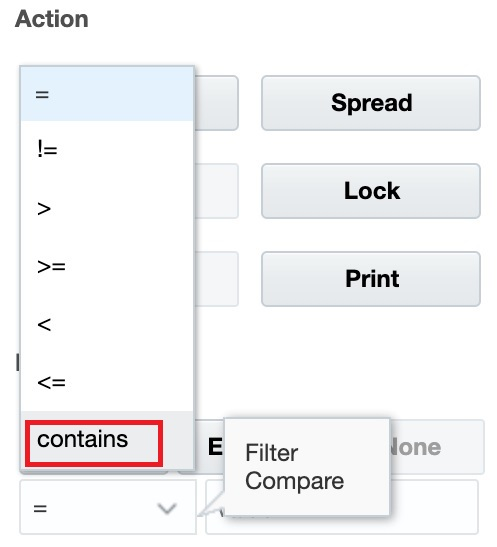
"Contains" Comparison Operator on Forms
To use the "contains" comparison operator to control which rows or columns are displayed (or hidden) in forms, open a form, click the Data tab, and then under Filter, click Keep or Exclude. Click the Filter Compare menu, select "contains," and then enter the values you want displayed (or hidden).
Business Benefit: Using the "contains" comparison operator gives you the ability to display (or hide) row and column data which contains specific text, smart list values, or dates. This simplifies the data presentation in forms making it even more meaningful to the user.
Key Resources
- Making Data Meaningful in Working with Planning
Updated Currency Conversion Calculation for Assumptions in Workforce
As part of Workforce currency conversion calculation for assumptions, a new UDA "HSP_ConvertNonCurrencyValue" is added to all earning, benefits, taxes, and basic salary members in the Accounts dimension and to the No Property member in the Property dimension. The currency conversion batch calculation copies assumptions (smart list values of earnings, benefits, taxes, and basic salary) to the reporting currency. This populates data across the components in the reporting cube after running the Compensation Data for Reporting data map.
Business Benefit: You will now be able to copy assumptions data that should be converted to the reporting currencies as part of the default currency conversion process. Total compensation data from Workforce is populated across the components or by individual component in the reporting cube.
Logging of Excluded Members in Job Details for Planning Data Map and Smart Push Operations
Excluded members in a Data Map or Smart Push operation are now logged in Job Details. Only the member names are logged, not the intersections.
To view the Job Details for a completed job, from the Home page, click Application, and then click Jobs. Under Recent Activity, click the name of the job you want to view.
Business Benefit: Logging excluded members for Data Map and Smart Push operations helps users understand that the data was not moved to target because the members were excluded.
Key Resources
- Excluding Members from a Data Map in Administering Planning
IMPORTANT Actions and Considerations
CHROME 86 AND CHROMIUM EDGE 86 BROWSERS
Due to recent changes in the Chrome 86 and Chromium Edge 86 browsers, you may see buttons that are not aligned on the right hand side. Oracle is aware of this behavior change in these browsers and is working to retrofit our user interface to resolve these issues.
NEW “SUPPRESS MISSING NATIVE” OPTION IN FINANCIAL REPORTING WEB STUDIO GRID EDITOR
The new “Suppress Missing Native” option in the “Suppression” panel in the Financial Reporting Web Studio Grid Editor properties is non-functional for 20.11. The desired output of the selection will not be available when the report is executed even if the option is enabled. This will be addressed in an upcoming release.
USABILITY ENHANCEMENTS FOR HORIZONTAL TABS IN NAVIGATION FLOWS
In an update within the next few months, we are introducing a ‘Dynamic Tabs’ feature to open tabs on the fly both from a list view or from an existing navigation flow tab to perform related actions. Some examples: view drill through from a form in a new temporary tab; view a form in a design mode; open Web ad hoc from a form or dashboard; open forms from right-click menus.
There will be a new application setting that will allow customers to switch on this dynamic tabs setting to solve such use cases. When this dynamic tabs setting is turned on:
-
Existing horizontal tabs in navigation flows will move to the bottom of the page instead of at the top of the page where they are currently located. With tabs at the bottom of the page instead, customers will benefit from a clear separation of the EPM Cloud horizontal tabs from their browser tabs at the top of the window. Another benefit of this change will be to keep the navigation flow tab names distinct from the name of the artifacts (such as forms and dashboards) rendered within the horizontal tabs. The vertical tabs will stay where they are. The effective date of the update will be announced in the month prior to the update. It is expected in the next 2-4 months’ timeframe.
-
Action menus in forms will be cleaned up to not show items that are already included within the right-click menus in forms.
The Redwood theme, which is new in 20.11, will default with dynamic tabs when released. There will be no option to turn off dynamic tabs when using Redwood theme. All other themes will also default to the dynamic tabs setting being turned on in a few months after the initial release of this ‘dynamic tabs’ feature.