
- Revision History
- Overview
- Feature Summary
- Strategic Workforce Planning
-
- Features
-
- EPM Automate Updates
- Updates to Classic to OCI (Gen 2) Migration Assistance Program for Early Adopters
- Updates to Dimension Information in the Activity Report
- Groovy Features
- Import Books in Smart View Using New EPM Books Extension
- New Language Option in Smart View (Mac and Browser) Manifest File to Facilitate Centralized Deployments
- Removing Support for Default Dashboards
- "Planning" Source Type Option Renamed to "Default" in Import Data Interface
- New Warning Displays When the Group Associated with the Navigation Flow Is Deleted
- New Repeat with Row/Column Headings Property to Freeze the Row/Column Headings in Reports
- New Sunburst and Treemap Chart Types in Reports
- New Text Functions to Display AncestorName and AncestorAlias for a Member
- Bring Your Own ML: Machine Learning Model Import
-
- IMPORTANT Actions and Considerations
This document will continue to evolve as existing sections change and new information is added. All updates appear in the following table:
| Date | Product | Feature | Notes |
|---|---|---|---|
| 29 OCT 2021 | Created initial document. |
 HAVE AN IDEA?
We’re here and we’re listening. If you have a suggestion on how to make our cloud services even better then go ahead and tell us. There are several ways to submit your ideas, for example, through the Ideas Lab on Oracle Customer Connect. Wherever you see this icon after the feature name it means we delivered one of your ideas.
GIVE US FEEDBACK
We welcome your comments and suggestions to improve the content. Please send us your feedback at EPMdoc_ww@oracle.com.
DISCLAIMER
The information contained in this document may include statements about Oracle’s product development plans. Many factors can materially affect Oracle’s product development plans and the nature and timing of future product releases. Accordingly, this Information is provided to you solely for information only, is not a commitment to deliver any material, code, or functionality, and should not be relied upon in making purchasing decisions. The development, release, and timing of any features or functionality described remains at the sole discretion of Oracle.
This information may not be incorporated into any contractual agreement with Oracle or its subsidiaries or affiliates. Oracle specifically disclaims any liability with respect to this information. Refer to the Legal Notices and Terms of Use for further information.
Column Definitions:
Report = New or modified, Oracle-delivered, ready to run reports.
UI or Process-Based: Small Scale = These UI or process-based features are typically comprised of minor field, validation, or program changes. Therefore, the potential impact to users is minimal.
UI or Process-Based: Larger Scale* = These UI or process-based features have more complex designs. Therefore, the potential impact to users is higher.
Features Delivered Disabled = Action is needed BEFORE these features can be used by END USERS. These features are delivered disabled and you choose if and when to enable them. For example, a) new or expanded BI subject areas need to first be incorporated into reports, b) Integration is required to utilize new web services, or c) features must be assigned to user roles before they can be accessed.
| Ready for Use by End Users Reports plus Small Scale UI or Process-Based new features will have minimal user impact after an update. Therefore, customer acceptance testing should focus on the Larger Scale UI or Process-Based* new features. |
Customer Must Take Action before Use by End Users Not disruptive as action is required to make these features ready to use. As you selectively choose to leverage, you set your test and roll out timing. |
|||||
|---|---|---|---|---|---|---|
| Feature |
Report |
UI or |
UI or |
|
||
Updates to Classic to OCI (Gen 2) Migration Assistance Program for Early Adopters |
||||||
"Planning" Source Type Option Renamed to "Default" in Import Data Interface |
||||||
New Warning Displays When the Group Associated with the Navigation Flow Is Deleted |
||||||
New Repeat with Row/Column Headings Property to Freeze the Row/Column Headings in Reports |
||||||
New Text Functions to Display AncestorName and AncestorAlias for a Member |
||||||
Test Environments: Oracle will apply this monthly update during the first daily maintenance that occurs at or after 22:00 UTC on Friday, November 5, 2021.
Production Environments: Oracle will apply this monthly update during the first daily maintenance that occurs at or after 22:00 UTC on Friday, November 19, 2021.
NOTE: Backing up the daily maintenance snapshot and restoring the environment as needed are self-service operations. Oracle strongly recommends that you download the maintenance snapshot every day to a local server.
The Oracle Help Center provides access to updated documentation. The updates will be available in the Help Center on Friday, November 5, 2021.
NOTE: Some of the links to new feature documentation included in this readiness document will not work until after the Oracle Help Center update is complete.
Documentation Updates Available One Week After Readiness Documents
Updated documentation is published on the Oracle Help Center on the first Friday of each month, coinciding with the monthly updates to Test environments. Because there is a one week lag between the publishing of the readiness documents (What's New and New Feature Summary) and Oracle Help Center updates, some links included in the readiness documents will not work until the Oracle Help Center update is complete.
https://docs.oracle.com/en/cloud/saas/epm-cloud/index.html
Fixed Issues and Considerations
Software issues addressed each month and considerations will be posted to My Oracle Support.
NOTE: Fixed issues for EPM Cloud Common components (Smart View for Office, EPM Automate, REST API, Migration, Access Control, Data Management/Data Integration, Reports, Financial Reporting, and Calculation Manager) are available in a separate document on the My Oracle Support “Release Highlights” page.
This provides visibility into EPM Cloud release contents.
Please Join Oracle Cloud Customer Connect
Please take a moment to join the Cloud Customer Connect forums for EPM Cloud services. Oracle Cloud Customer Connect is a community gathering place for members to interact and collaborate on common goals and objectives. This is where you will find the latest release information, upcoming events, or answers to use-case questions. Joining takes just a few minutes. Join now!
https://cloud.oracle.com/community
NOTE: The Settings and Actions menu now contains a link to Cloud Customer Connect. To access this link, from the Home page, click the down arrow next to the user name (in the upper right-hand corner of the screen), and select Cloud Customer Connect.
Give Us Documentation Feedback
We welcome your comments and suggestions to improve the content of the What's New document and the product documentation.
Please take our quick survey or send us your feedback at EPMdoc_ww@oracle.com. In the body or title of the email, state that you are inquiring or providing feedback, and indicate for which EPM Cloud service and the monthly update cycle.
Follow EPM Cloud on YouTube, Twitter, Facebook, and LinkedIn.
These are great resources for the latest updates and information about EPM Cloud.
A new version of EPM Automate is now available. This version introduces the exportJobConsole, importAppAudit, and importJobConsole commands. Additionally, this version includes support for the use of reverse proxy servers and API Gateways, and the use of enhanced encryption algorithm with the encrypt command.
exportJobConsole Command
Exports the job console records to a CSV file to create an export ZIP file. This command, in conjunction with the importJobConsole command, helps you clone job console records across environments during migration or cloning for disaster recovery.
importAppAudit Command
Imports data audit records from a ZIP file that you created by exporting audit data from an environment. This command, along with the exportAppAudit command, helps you clone audit records from one environment to another during migration or cloning for disaster recovery.
importJobConsole Command
Imports job console records from a ZIP file containing job console records exported from an environment. This command, which takes a ZIP file created using the exportJobConsole command, helps you clone job console records across environments during migration or cloning for disaster recovery.
Support for API Gateways and Reverse Proxy Servers
EPM Automate can now connect to Strategic Workforce Planning Cloud through API Gateways such as Google APIGEE, IBM Data Power, and other reverse proxy servers. For this integration to work, using the documentation of your gateway or proxy server, configure the gateway or reverse proxy, and then use the appropriate reverse proxy or gateway URL with the login command.
Enhanced Encryption Algorithm for the Encrypt Command
EPM Automate now uses an enhanced encryption algorithm to encrypt passwords. Because passwords files encrypted using this EPM Automate version will not work with older EPM Automate clients, Oracle strongly recommends that you upgrade your EPM Automate client installation and re-encrypt passwords. Password files created using a previous version of EPM Automate will continue to work with the new EPM Automate client.
Business Benefit: The new commands facilitate the remote administration of Strategic Workforce Planning Cloud environments and support the cloning of environments for disaster recovery or Classic to OCI (Gen 2) migration. Use of enhanced encryption algorithm ensures a more securely encrypted password file.
Key Resources
- Working with EPM Automate for Oracle Enterprise Performance Management Cloud:
Updates to Classic to OCI (Gen 2) Migration Assistance Program for Early Adopters
Oracle has developed a streamlined process for early adopters to enroll in the Oracle Cloud Classic to Oracle Cloud Infrastructure (OCI) Migration Assistance Program. This new process, including the steps you must complete and which OCI data centers you can migrate to, is now available in the Oracle Enterprise Performance Management Cloud Operations Guide.
Business benefit: The streamlined enrollment process reduces the time required in enrolling in the program by providing specific instructions on what you must do to enroll.
Key Resources
- Oracle Cloud Classic to Oracle Cloud Infrastructure (OCI) Migration Assistance Program for Early Adopters in Oracle Enterprise Performance Management Cloud Operations Guide.
Updates to Dimension Information in the Activity Report
The Activity Report tables depicting outline dimension order and statistics of each cube in the application have been enhanced to include the total number of dimension members based on various settings such as data storage type (store, never share, label only, shared members, dynamic calc and store, and dynamic calc) and the operators in use. Previously, this information was presented as percentages.
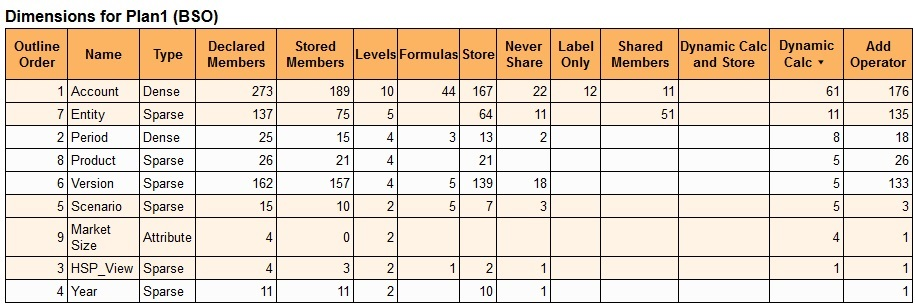
Dimension information in the enhanced table showing actual numbers
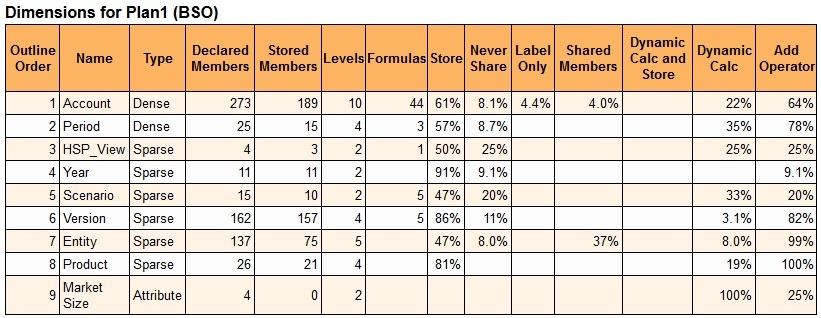
Dimension information in a previous report showing percentages
Business Benefit: Displaying the actual number of dimension members based on settings such as storage and the operators in use provides you a quick glimpse into the design of the application cube.
Key Resources
- Using Activity Reports and Access Logs to Monitor Usage in Getting Started with Oracle Enterprise Performance Management Cloud for Administrators.
You can now use Groovy to save aliases by non-admin users by calling the saveMember() method on Dimension.
This can be used by any application that has access to Groovy.
Business Benefit: Using Groovy business rules allows you to automate these tasks.
Steps to Enable
You don't need to do anything to enable this feature.
Tips And Considerations
To get a quick introduction to Groovy business rules, watch the Learning Groovy in EPM Cloud video.
Key Resources
- Learning Groovy in EPM Cloud video
- Creating a Groovy Business Rule in Designing with Calculation Manager for Oracle Enterprise Performance Management Cloud
- Introduction to Groovy Business Rules
- Groovy Tutorials
- EPM Cloud Groovy Rules Java API Reference
Role Information
- Calculation Manager Business Rule Designer
Import Books in Smart View Using New EPM Books Extension
The new EPM Books extension in Smart View allows you to import Strategic Workforce Planning Cloud Books into Excel in a refreshable format.
Books are a collection of one or more Reports, Books, and other documents. Using the EPM Books extension for Oracle Smart View for Office, you can import Books in to Microsoft Excel and work with them by changing POV values and refreshing. You can also open and work with Books that were downloaded in Excel format from the web application.
After installing the Books extension, launch the EPM Books panel from Smart View using the Launch EPM Books Home link in the Action Panel.
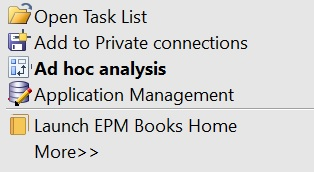
Launch EPM Books Home LInk in Action Panel
The Launch EPM Books Home link is available from any Office application (Excel, Word, or PowerPoint). Clicking the link launches the EPM Books panel.
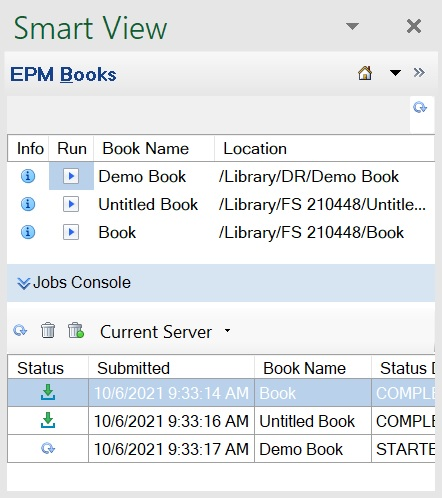
Example EPM Books Panel
In the top portion of the panel, you can view a list of available Books to import, view the properties for each Book, and run Book "jobs." Each Book you run is listed as a job in the Jobs Console portion of the Books panel. In the Jobs Console, you can view the status of jobs and manage jobs. When a job is completed, a download button is displayed, which you click to import the Book to Excel. Note that Books always launch in Excel, even if you launched the Books panel from Word or PowerPoint.
In the imported Book, each report is placed on an individual worksheet. A table of contents sheet is generated with links to the individual report sheets in the workbook, based on the TOC Headings defined in the Book Designer in the web application.
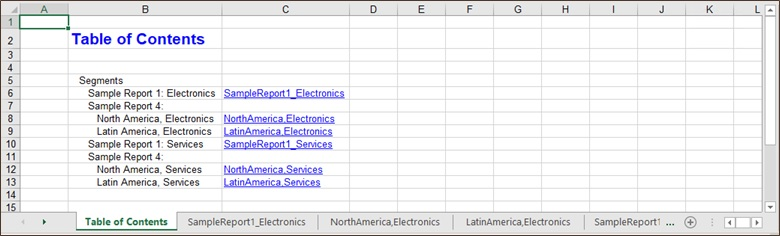
Example Books TOC in Smart View for Excel
After importing a Book into Smart View, the Books ribbon is displayed:

Books Ribbon in Smart View
From the Books ribbon, you can change the POV of the Reports in the Book, and refresh the book content. You can also use the Inspect button to view properties of the Book, including the POV.
Business Benefit: Using the EPM Books extension for Oracle Smart View for Office, you can now import Books in to Microsoft Excel and view the Reports they contain in a refreshable format.
Steps to Enable
To work with EPM Books in Smart View:
- Install the current version of Smart View on your system, according to your organization's installation procedures.
- Set up Smart View data source connections to the business processes that host EPM Books in your organization. Note that you must connect using private connections.
- Install the EPM Books extension using the extension installation feature in Smart View.
See Setting Up Books in Smart View for detailed setup information.
Tips And Considerations
- Changing the POV: Excel currently does not support Member Selection in the Select POV dialog if the Book POV definition is set to "All."
If the Book POV definition is set to "Display Selected Values," the list of available members to choose from is displayed in the drop-down list for each dimension.
-
Only Reports are included in the Book imported into Excel. Inserted books or third-party documents, such as PDFs or Microsoft Word documents, are not included in the Excel Book import.
-
When connected to a non-Narrative Reporting data source, users will not be prompted to enter POV selections before importing the book to Excel, even when the Preview POV preference is enabled.
-
If you need to uninstall the Books extension, you use the "Check for Updates, New Installs, and Uninstalls" link in the Smart View Options dialog, Extensions tab. The extension will be flagged for removal. Select the "Remove" link in the Extensions tab, and restart Office when prompted. The process is described in Uninstalling Extensions in Working with Oracle Smart View for Office.
Key Resources
- Working with Oracle Smart View for Office:
- Books chapter
- Uninstalling Extensions
- Working with Books in Designing with Reports for Oracle Enterprise Performance Management Cloud
- Viewing and Interacting with Books in Working with Reports for Oracle Enterprise Performance Management Cloud
New Language Option in Smart View (Mac and Browser) Manifest File to Facilitate Centralized Deployments
To facilitate centralized deployments of Smart View (Mac and Browser), a new language selection option in the Create Manifest File page allows you to select up to 10 languages for deployment to your users.
There is currently a limit of 10 languages allowed for each centralized deployment. The new language selection feature in the Create Manifest File page allows you to select up to 10 languages for deployment to your users. If your users require more than 10 languages, then create another manifest file with the required languages and perform a second centralized deployment.
In the Create Manifest File page, use the check boxes under "Supported Languages" to select up to 10 languages to include in your deployment. In the following example, French, Italian, and Japanese are selected. In this case, up to seven more languages may be selected for support in a centralized deployment.
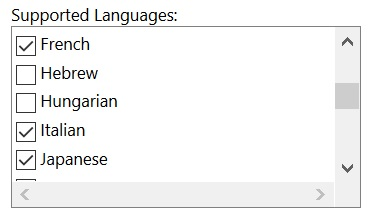
Supported Languages Option, with Languages Selected
Then, still in the Create Manifest File page, continue with your other selections and modifications. Perform your deployment as usual.
Users can change the locale for their Mac system or Chrome browser to one of the supported languages per the usual procedures.
Business Benefit: In the Create Manifest File page, the new language selection option, "Supported Languages," allows you to select up to 10 languages for deployment to your users, ensuring adherence to the current limit of 10 languages per centralized deployment. Users can then change the locale for their Mac system or Chrome browser to one of the supported languages per the usual procedures.
Steps to Enable
Service Administrators:
To deploy Smart View (Mac and Browser) with up to 10 languages selected for localized environments, Service Administrators must create and deploy a new manifest file:
- Create a new manifest file and customize it per your requirements.
- In "Supported Languages," select up to 10 languages.
- Deploy the manifest file to Smart View (Mac and Browser) users.
- Repeat if more than 10 languages are required.
Users:
To use a localized version of Smart View (Mac and Browser):
- On a Mac, change the language version of your Mac system. See Change the language your Mac uses for instructions.
- On Windows 10, change the language display preference in the browser version of Office 365. See Change your display language and time zone in Microsoft 365 for Business for instructions.
Tips And Considerations
- If you are only sideloading a manifest file, you must still select only 10 languages per manifest file.
- English is always selected by default, even in non-English environments and locales.
Key Resources
- Understanding EPM Cloud Localization in Getting Started with Oracle Enterprise Performance Management Cloud for Administrators
- Understanding EPM Cloud Localization in Getting Started with Oracle Enterprise Performance Management Cloud for Users
- Deploying and Administering Oracle Smart View for Office (Mac and Browser):
- Localization in Smart View (Mac and Browser) in Working with Oracle Smart View for Office (Mac and Browser)
Removing Support for Default Dashboards
In the interest of providing an improved and consistent user experience, you can no longer mark a dashboard page as default.
Now when you click the Dashboards icon on the Home page, the dashboard listing is displayed instead of the default dashboard page.
For infolets you can still mark an infolet page as default. Marking an infolet page as default makes it accessible directly from the Home page by clicking the second infolet dot that is displayed beneath the global header on the Home page. Only one infolet page can be marked as default, and a (Default) prefix displays before the name of that infolet in the listing. However when you click the Infolets icon on the Home page, the infolet listing is displayed instead of the default infolet page.
Business Benefit: Eliminating the ability to set a default dashboard page provides an improved and consistent user experience.
Key Resources
-
Using Dashboards to Work with Data in Working with Planning
"Planning" Source Type Option Renamed to "Default" in Import Data Interface
When importing data, the Planning source type option is now renamed to Default.
The application provides source type options that you can select to help you populate the business process with data using a data import file. One of the options you'll need to specify is now called Default where you'll select one of the following import data file formats: Comma delimited, Tab delimited, or Other.
Business Benefit: To keep the terminology consistent across the business processes, one of the data import source type options was renamed from Planning to Default.
Key Resources
-
Importing Data in Administering Planning
New Warning Displays When the Group Associated with the Navigation Flow Is Deleted
The Navigation Flow listing will now display a warning if the group associated with a navigation flow is deleted.
If a group that is associated with a navigation flow is deleted, the navigation flow listing displays a warning icon and the navigation flow becomes inactive. You'll need to edit the navigation flow to associate it with another group or role before you can activate it.
Business Benefit: Displaying a warning on the Navigation Flow listing page lets you more easily identify and resolve navigation flow associations before making them active.
Key Resources
- Resolving Navigation Flows that Display a Warning Icon in Administering Planning
New Repeat with Row/Column Headings Property to Freeze the Row/Column Headings in Reports
A new segment-level Repeat With Row/Column Headings property was added to allow text or separator segments at the top of the grid to repeat with the row or column headings in HTML and PDF preview.
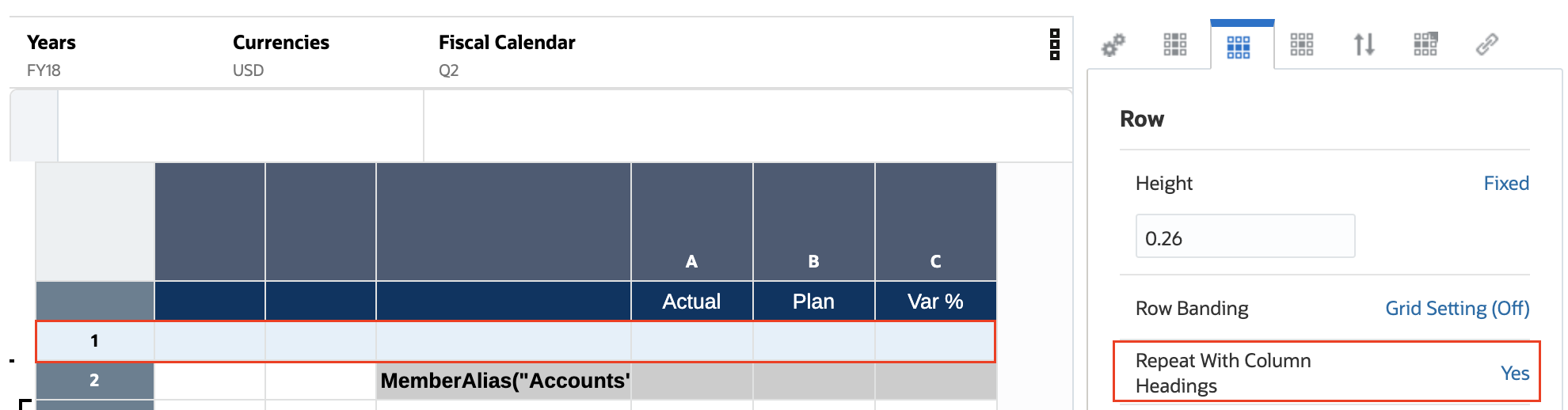
Repeat With Row/Column Headings
NOTE: This property is only applicable for text and separator segments in Row or Column Properties, and only those text and separator segments that occur at the beginning of the given axis. This property will not be applicable for any text or separator segments that occur after one or more data or formula segments.
Business Benefit: Improved report presentation when using text and separator rows or columns as row or column headers.
Key Resources
- Grid Properties in Designing with Reports for Oracle Enterprise Performance Management Cloud
New Sunburst and Treemap Chart Types in Reports
A Sunburst chart is for visualizing hierarchical data structures. A sunburst chart consists of an inner circle surrounded by rings of deeper hierarchy levels. The angle of each segment is either proportional to either a value or divided equally under its inner segment.
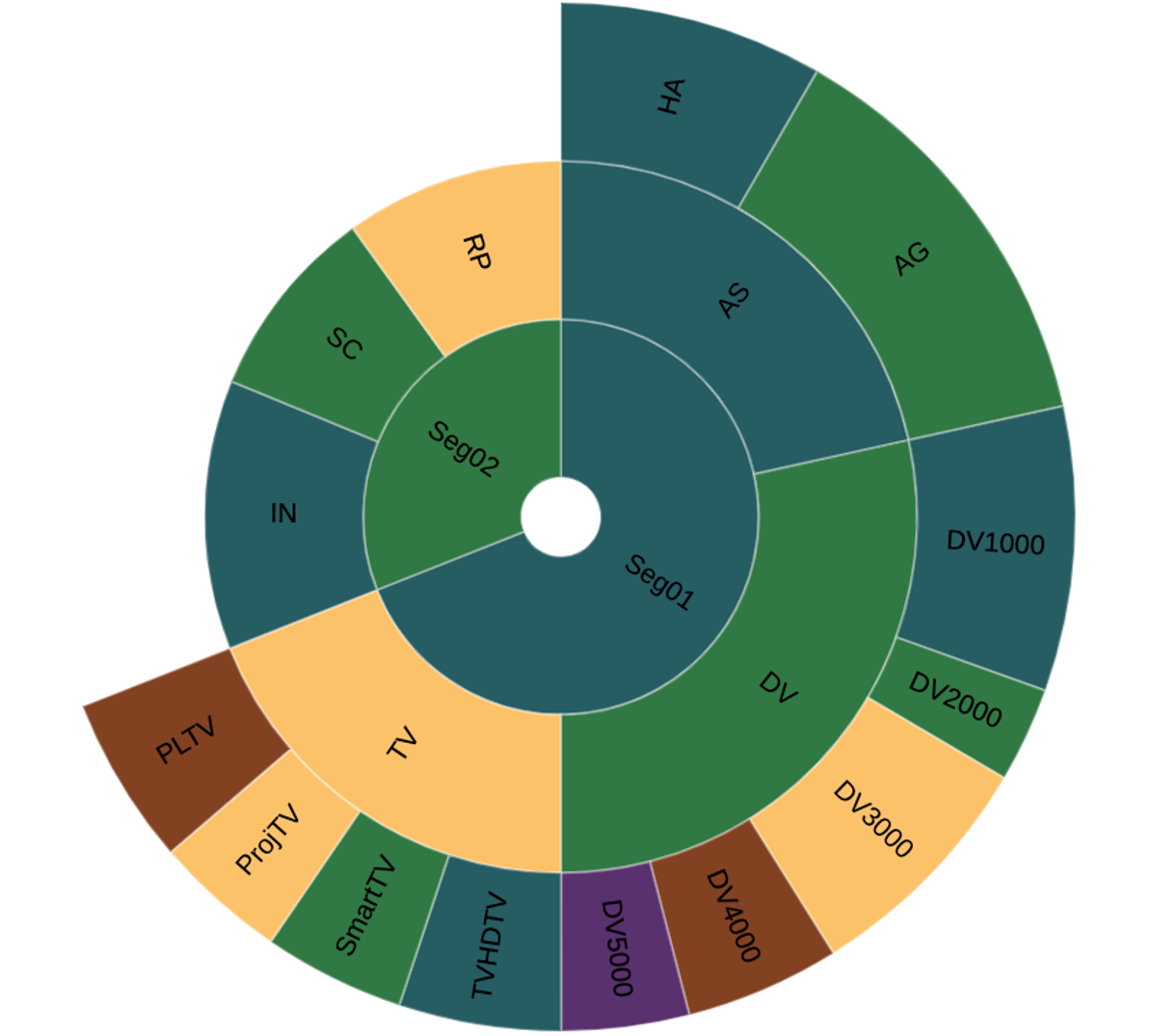
Sunburst Report
A Treemap chart is a data visualization that shows hierarchical data using nested rectangles of varying sizes and colors.
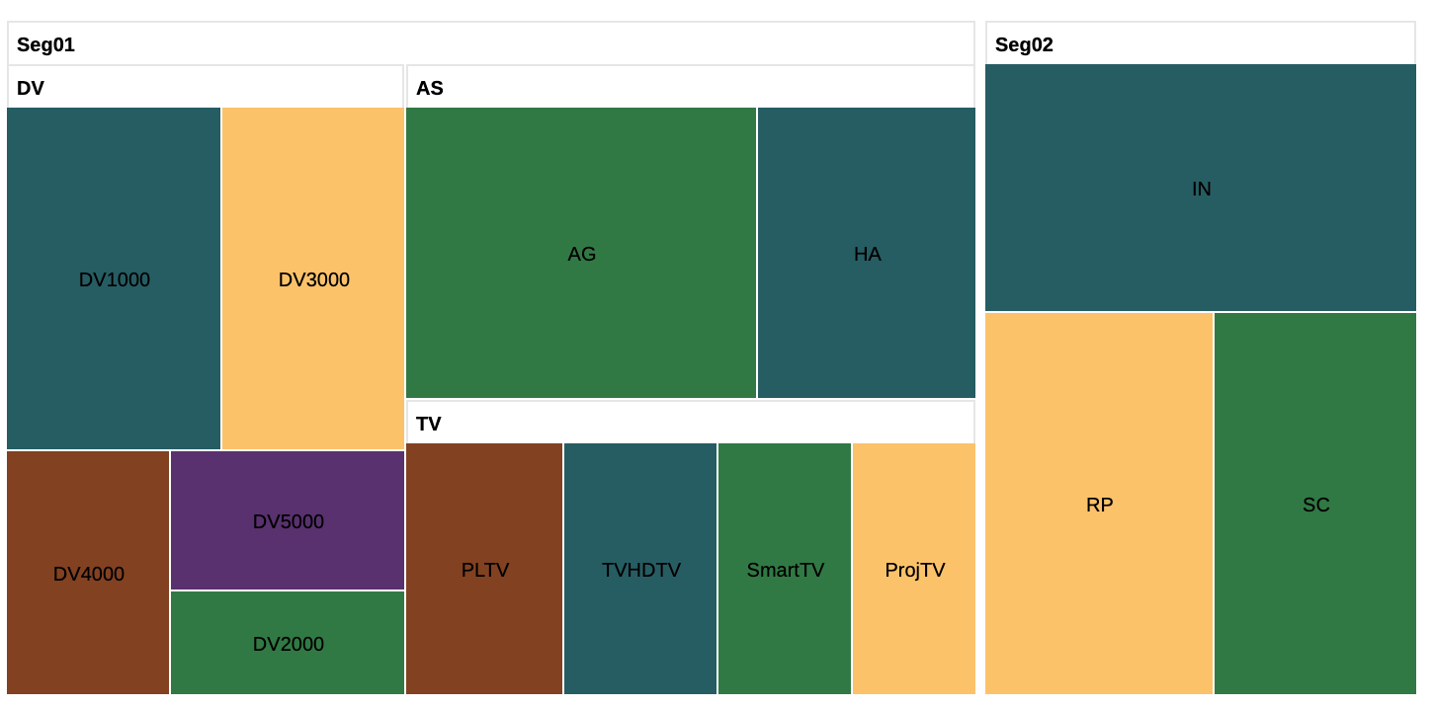
TreeMap Report
In Reports, you select members and functions from a single dimension to visualize the hierarchy in a treemap or sunburst chart. You can also set chart properties and define element colors, as needed.
Business Benefit: These two new chart types make it easy to spot data patterns or to compare data quantities.
Key Resources
- Designing with Reports for Oracle Enterprise Performance Management Cloud
New Text Functions to Display AncestorName and AncestorAlias for a Member
The AncestorName and AncestorAlias text functions return parent and ancestor members for a specified row, column, or POV member.
For example:
- AncestorName ("Grid", "Dimension", Row/Col, (Index))
- AncestorAlias ("Grid", "Dimension", Row/Col, (Index))
- The Index number references how many ancestors level upward in the hierarchy to return, (1) returns the immediate parent.
Business Benefit: This feature provides additional options for displaying member information in a report.
Key Resources
- AncestorName / AncestorAlias in Designing with Management Reporting for Oracle Enterprise Performance Management Cloud
Bring Your Own ML: Machine Learning Model Import
With Bring Your Own ML, EPM administrators can import a fully trained Machine Learning (ML) model in PMML (Predictive Model Markup Language) format and deploy it to a Planning application. Planners can then leverage robust, ML-based forecasting that uses advanced predictive modeling techniques to generate more accurate forecasts.
For example, you can predict product volume for an entity, using key drivers such as average sales price, planned spend on promotions and advertising, historical volumes, and estimated industry volumes.
Overview of Steps
Prerequisite: Data scientists build and train the ML model in a data science tool (any third party tool or Oracle Data Science Cloud) and save it as a PMML file.
Next, EPM administrators put the model to work to get business value from the trained model:
- Administrators import the ML model in PMML format to a Planning application and define how the input variables and target variable maps to dimension members or cell values in the Planning application. This step generates automatic Groovy rules that connect the ML model to the Planning application. Two Groovy rules are generated for each ML model definition: one rule to associate with a form or dashboard, which allows users to make predictions on demand, and another to generate large scale predictions in a scheduled job for bulk processing.
- Administrators deploy the ML model in a Planning application by associating the Groovy rule with relevant action menus, forms, or dashboards. Administrators can also create a job to run the Groovy rule in a batch process.
- Planners leverage ML-powered business rules in forms to generate predicted values, which are saved on the form. Planners can perform what-if analysis using the generated predictions, or modify predicted values on the form. Planners add value with their expertise and judgement, and then finalize the forecast.
- This is an iterative process. As planners make predictions based on the ML model, administrators can measure the performance of the model, and can work with data scientists to update or replace the ML model when needed. Then, administrators re-import and deploy the retrained ML model.
Business Benefits:
Importing an ML model enables data-driven forecasting using robust predictive modeling techniques. This puts the benefits of machine learning and the power of data science into the hands of business users, enhancing the planning and forecasting process and leading to better business decisions.
Data-driven forecasting helps planners to generate more accurate, fact-based forecasts and reduces time spent on forecast generation.
Key Resources
- Bring Your Own ML: About Machine Learning Model Import in Administering Planning
IMPORTANT Actions and Considerations
One-Week Lag Between Readiness Documents Live and Help Center Live
Because Oracle readiness documents (What's New and New Feature Summary) are live one week before the monthly update is applied to Test environments, some links to documentation included in the readiness documents will not work until after the Oracle Help Center update is complete when the monthly update is applied to Test environments.
Only Secured URLs in Logo and Background Images
Starting with this update (November 2021), only secured URLs are supported within the Logo Image and Background Image settings in the Appearance page in Strategic Workforce Planning Cloud.
Use the Export URLs Feature to Replace Direct URLs
In the March 2021 update (21.03), Oracle released a feature called Export URLs that exports Strategic Workforce Planning Cloud URLs to a CSV file which then provides the unique URLs for each card, tab, or sub-tab within a connected Strategic Workforce Planning Cloud business process. These cards, tabs, or subtabs can contain forms, dashboards, or infolets within them. The Export URLs feature should be used in place of any direct URL pointers that customers might be using to link to forms, dashboards, or infolets. The direct URL feature to forms, dashboards, or infolets are no longer supported starting with this update (November 2021). See Using Direct URLs to Integrate Connected Environments in Administering Planning.
Restrictions to Copy Version Functionality
Based on feedback from several customers due to its inherent data corruption risks, we plan to restrict the ‘Copy Version’ functionality to be exposed only to administrators. Starting with the December 2021 update (21.12), ‘Copy Version’ functionality will not be available to Power Users and Users.
"Data Maps" chapter Moves to the Administering Data Integration Guide
Starting with this update (November 21.11), the "Data Maps" chapter in the Administering Planning guide is also included in the Administering Data Integration guide. This chapter describes how to use data maps to move data, comments, attachments, and supporting detail from source cubes and smart lists to reporting cubes to consolidate data. In a future update, the "Data Maps" chapter will only be available in the Administering Data Integration guide.
Loaner Program for Cloud Infrastructure Generation 2 Testing and OCI Migration Assistance Early Adopter Program
Oracle Strategic Workforce Planning Cloud is now live on Oracle Cloud Infrastructure (OCI) Gen 2 environments. If you are interested in testing your application performance on an OCI environment, open a service request following the process at https://docs.oracle.com/en/cloud/saas/enterprise-performance-management-common/tsepm/op_procs_loaner_envs.html and request for a loaner environment in an OCI data center for a duration of 30 days with the business justification as “Want to test application performance in an OCI Gen 2 data center”.
After you have performed the testing, submit Provide Feedback from the loaner environment. Create a service request using the normal support process, if you have any issues or feedback for the OCI environment. For more information, see What is a Gen 2 Cloud?
Additionally, Oracle has instituted a program to assist a limited number of early adopters on Oracle Cloud Classic to migrate to OCI. For more information, see Oracle Cloud Classic to Oracle Cloud Infrastructure (OCI) Migration Assistance Program for Early Adopters.
Workforce and Strategic Workforce Planning Performance Enhancements
In an upcoming release, all Workforce and Strategic Workforce Planning rules and some member formulas will be updated with changes to enhance performance. There are no functional changes but the logic will be updated to leverage performance gains in the underlying technology. Any rule or member that is unmodified will automatically receive these performance enhancements. Any modified rule or member will remain as-is without these performance enhancements. Oracle recommends restoring these artifacts to their current state to uptake these performance enhancements and reapplying your modifications to the updated logic, if necessary. As always, such significant enhancements will be documented in the “Updating Workforce and Strategic Workforce Planning Artifacts” section of Appendix C of the Administering Planning Modules guide.