
- Revision History
- Overview
- Feature Summary
- Strategic Workforce Planning
-
- Strategic Workforce Planning
- Features
-
- New Quick Start Checklists
- EPM Automate Updates
- New Version of Migration REST APIs
- New Version of Oracle Smart View for Office
- Import Books in Oracle Smart View for Office (Mac and Browser) Using New EPM Books Extension
- Updated Create Manifest File Page for Smart View (Mac and Browser)
- Smart View (Mac and Browser) Now Displays Provider-Specific Context Ribbons
- Support for Multiple Identity Providers in OCI (Gen 2) Environments
- DKIM Support for OCI (Gen 2) Environments
- Application Role Assignment Labels Changed to Manage Roles in Access Control
- Default Time Zone for New Users
- Groovy Update for Data Grid Definitions
- Run Groovy Rules in Smart View on Selected Cells in Forms
- New Log Custom Functions in Calculation Manager
- Activity Report Now Includes Manual MaXL Executions and Statistics for BSO and ASO Cubes
- Provisioning of New Orders for Customers Migrating from Legacy Environments to EPM Standard or Enterprise Cloud Service
- Advanced Prediction Options
- Split-Funded FTE in Workforce
- New Hire Enhancements in Workforce
- New and Enhanced Mass Update Forms in Workforce
- New User Variables in Workforce
- Total FTE and Total Headcount Updated in the Workforce Reporting Cube
- Bulk Loading Workforce New Hire Data in Data Integration
-
- IMPORTANT Actions and Considerations
This document will continue to evolve as existing sections change and new information is added. All updates appear in the following table:
| Date | Module | Feature | Notes |
|---|---|---|---|
| 06 OCT 2022 | New Version of Oracle Smart View for Office | Updated document. Revised feature description. | |
| 01 OCT 2022 | Created initial document. |
 HAVE AN IDEA?
We’re here and we’re listening. If you have a suggestion on how to make our cloud services even better then go ahead and tell us. There are several ways to submit your ideas, for example, through the Ideas Lab on Oracle Customer Connect. Wherever you see this icon after the feature name it means we delivered one of your ideas.
GIVE US FEEDBACK
We welcome your comments and suggestions to improve the content. Please send us your feedback at oracle_fusion_applications_help_ww_grp@oracle.com.
DISCLAIMER
The information contained in this document may include statements about Oracle’s product development plans. Many factors can materially affect Oracle’s product development plans and the nature and timing of future product releases. Accordingly, this Information is provided to you solely for information only, is not a commitment to deliver any material, code, or functionality, and should not be relied upon in making purchasing decisions. The development, release, and timing of any features or functionality described remains at the sole discretion of Oracle.
This information may not be incorporated into any contractual agreement with Oracle or its subsidiaries or affiliates. Oracle specifically disclaims any liability with respect to this information. Refer to the Legal Notices and Terms of Use for further information.
Column Definitions:
Report = New or modified, Oracle-delivered, ready to run reports.
UI or Process-Based: Small Scale = These UI or process-based features are typically comprised of minor field, validation, or program changes. Therefore, the potential impact to users is minimal.
UI or Process-Based: Larger Scale* = These UI or process-based features have more complex designs. Therefore, the potential impact to users is higher.
Features Delivered Disabled = Action is needed BEFORE these features can be used by END USERS. These features are delivered disabled and you choose if and when to enable them. For example, a) new or expanded BI subject areas need to first be incorporated into reports, b) Integration is required to utilize new web services, or c) features must be assigned to user roles before they can be accessed.
| Ready for Use by End Users Reports plus Small Scale UI or Process-Based new features will have minimal user impact after an update. Therefore, customer acceptance testing should focus on the Larger Scale UI or Process-Based* new features. |
Customer Must Take Action before Use by End Users Not disruptive as action is required to make these features ready to use. As you selectively choose to leverage, you set your test and roll out timing. |
|||||
|---|---|---|---|---|---|---|
| Feature |
Report |
UI or |
UI or |
|
||
Import Books in Oracle Smart View for Office (Mac and Browser) Using New EPM Books Extension |
||||||
Updated Create Manifest File Page for Smart View (Mac and Browser) |
||||||
Smart View (Mac and Browser) Now Displays Provider-Specific Context Ribbons |
||||||
Support for Multiple Identity Providers in OCI (Gen 2) Environments |
||||||
Application Role Assignment Labels Changed to Manage Roles in Access Control |
||||||
Activity Report Now Includes Manual MaXL Executions and Statistics for BSO and ASO Cubes |
||||||
Total FTE and Total Headcount Updated in the Workforce Reporting Cube |
||||||
Test Environments: Oracle will apply this monthly update during the first daily maintenance that occurs at or after 22:00 UTC on Friday, October 7, 2022.
Production Environments: Oracle will apply this monthly update during the first daily maintenance that occurs at or after 22:00 UTC on Friday, October 21, 2022.
NOTE: The monthly update will not be applied to any environment for which this monthly update is requested to be skipped using the EPM Automate skipUpdate command or service request to Oracle.
NOTE: Backing up the daily maintenance snapshot and restoring the environment as needed are self-service operations. Oracle strongly recommends that you download the maintenance snapshot every day to a local server.
The Oracle Help Center provides access to updated documentation. The updates will be available in the Help Center on Friday, October 7, 2022.
NOTE: Some of the links to new feature documentation included in this readiness document will not work until after the Oracle Help Center update is complete.
Documentation Updates Available One Week After Readiness Documents
Updated documentation is published on the Oracle Help Center on the first Friday of each month, coinciding with the monthly updates to Test environments. Because there is a one week lag between the publishing of the readiness documents (What's New and New Feature Summary) and Oracle Help Center updates, some links included in the readiness documents will not work until the Oracle Help Center update is complete.
https://docs.oracle.com/en/cloud/saas/epm-cloud/index.html
Fixed Issues and Considerations
Software issues addressed each month and considerations will be posted to My Oracle Support.
NOTE: Fixed issues for EPM Cloud Common components (Smart View for Office, EPM Automate, REST API, Migration, Access Control, Data Management/Data Integration, Reports, Financial Reporting, and Calculation Manager) are available in a separate document on the My Oracle Support “Release Highlights” page.
This provides visibility into EPM Cloud release contents.
Give Us Documentation Feedback
We welcome your comments and suggestions to improve the content of the What's New document and the product documentation.
Please send us your feedback at EPMdoc_ww@oracle.com. In the body or title of the email, state that you are inquiring or providing feedback, and indicate for which EPM Cloud service and the monthly update cycle.
Please Join Oracle Cloud Customer Connect
Please take a moment to join the Cloud Customer Connect forums for EPM Cloud services. Oracle Cloud Customer Connect is a community gathering place for members to interact and collaborate on common goals and objectives. This is where you will find the latest release information, upcoming events, or answers to use-case questions. Joining takes just a few minutes. Join now!
https://cloud.oracle.com/community
NOTE: The Settings and Actions menu now contains a link to Cloud Customer Connect. To access this link, from the Home page, click the down arrow next to the user name (in the upper right-hand corner of the screen), and select Cloud Customer Connect.
Follow EPM Cloud on YouTube, Twitter, Facebook, and LinkedIn.
These are great resources for the latest updates and information about EPM Cloud.
Quick Start Checklists are now available to help Account Owners complete initial setup. Follow the steps in the checklists to activate your orders, create Strategic Workforce Planning Cloud instances, and perform the required configuration tasks to activate your environments. These checklists are organized by roles.
Business Benefit: Quick Start Checklists help you get started with Strategic Workforce Planning Cloud on your first day.
Key Resources
- EPM Cloud Quick Start Checklists on the Oracle EPM Cloud library.
A new version of EPM Automate is now available. This version introduces the snapshotCompareReport command and changes to the setManualDataAccess command. It also supports the setDemoDates command. Sample Linux and Windows scripts to automate the process of exporting and downloading application audit data has been added to the Working with EPM Automate for Oracle Enterprise Performance Management Cloud guide. Additionally, EPM Automate now gives an appropriate error message if a command is executed on an environment with a business process that does not support the command.
snapshotCompareReport Command
This command compares two snapshots and creates the Snapshot Compare Report identifying the differences in calculation rules and rulesets and data forms included in the snapshots.
Enhancements to setManualDataAccess Command
This command has been enhanced to allow customers to specify whether Oracle is permitted to access the underlying Essbase database (in addition to the relational database) in case of an emergency to restore access to the service.
setDemoDates Command
The setDemoDates command has been enhanced to update the Oracle internal demo data for Strategic Workforce Planning.
Scripts to Export and Download Application Audit Data
The Working with EPM Automate for Oracle Enterprise Performance Management Cloud guide contains scripts to export and download application audit data belonging to Strategic Workforce Planning applications.
Application audit data is retained for 365 days only. You can customize these scripts and run them every 180 days to create and maintain backup of the application audit data.
Better Error Message for Commands Not Supported by a Business Process
Some EPM Automate commands apply to all business processes while some apply to a group of business processes. Attempts to execute a command against a business process that does not support it now provides an appropriate error message.
Business Benefit: snapshotCompareReport command helps you identify the differences in forms, rules, and rulesets present in two snapshots. You can use the report generated using this command to troubleshoot issues related to recent performance deterioration in an environment. You can also compare the previous snapshot with the current snapshot to check on the differences that may have caused the performance deterioration. Additionally, you can compare the snapshot of two environments to determine why there is a difference in behavior or performance between two environments that you expect to have identical functional behavior or performance. Enhancements to the setManualDataAccess command helps you control Oracle's access to the underlying Essbase database in case of emergencies. Support of setDemoDates command helps manage the Oracle demo data. Scripts to export and download application audit data help you archive application audit data to meet your data retention policies for audit information and to prevent the loss of historical audit data older than 365 days. Updated error handling helps you identify whether you are running an unsupported command in the current environment.
Key Resources
Working with EPM Automate for Oracle Enterprise Performance Management Cloud:
- Installing EPM Automate
- setManualDataAccess
- snapshotCompareReport
- Automate the Archiving of Application Audit Records
New Version of Migration REST APIs
A new, simplified v2 version of several Migration REST APIs has been released. This new version contains all parameters in the payload and does not require URL encoding while calling the REST APIs. The new version is backward compatible, so no changes are needed for existing REST APIs. Previously, the new v2 version applied to these REST APIs: Copy to Object Store (v2), Copy from Object Store(v2), Send Email (v2), Delete File (v2), Run Recreate on a Service (v2), Restart the Service (v2).
Now, the new v2 version applies to these additional REST APIs:
- List Files (v2)
- Copy a File Between Instances (v2)
- Copy Application Snapshot (v2)
- Run Daily Maintenance While Skipping the Scheduled Daily Maintenance (v2)
- Get the Build Version and Daily Maintenance Window Time (v2)
- Set the Daily Maintenance Window Time (v2)
- Manage Permission for Manual Access to Database (v2)
- Skip Updates (v2)
- Set Encryption Key (v2)
Business Benefit: The new version of the REST APIs is easier to use, and does not require URL encoding.
Key Resources
-
Migration REST APIs in REST API for Oracle Enterprise Performance Management Cloud
Role And Privileges
- Service Administrators
New Version of Oracle Smart View for Office
Oracle Smart View for Office version 22.200 is available. This release contains only defect fixes. There are no new features included.
Business Benefit: This Smart View release provides general improvements and defect fixes.
Steps to Enable
Download and install Smart View. See Downloading and Installing Clients in Getting Started with Oracle Enterprise Performance Management Cloud.
Key Resources
- Documentation updates will be available when 22.200 is generally available.
Import Books in Oracle Smart View for Office (Mac and Browser) Using New EPM Books Extension
The new EPM Books extension for Oracle Smart View for Office (Mac and Browser) helps you to import books in to Excel 365 and work on them.
Books are a collection of one or more reports, books, and other documents. Using the new EPM Books extension for Oracle Smart View for Office (Mac and Browser), you can import books and work on them by inspecting their properties, changing POV values, and refreshing them.
Once you connect to a Strategic Workforce Planning Cloud business process that contains books, you can launch the EPM Books panel by clicking EPM Books in the Actions menu of the Smart View Home panel. In the EPM Books panel, you can view a list of available books, inspect their properties, and run jobs to import them in Smart View. Each book you run is listed as a job in the Jobs Console section of the EPM Books panel. You can view the status of jobs and manage them in Jobs Console. When a job is completed, a download button is displayed, which you click to import the book to Excel 365.
In the imported book, each report is placed on an individual worksheet. A table of contents sheet is generated with links to the individual report sheets in the workbook, based on the TOC Headings defined in the Book Designer in the web application.
Using the EPM Books ribbon, you can change the POV of the reports in the book, and refresh the book content. You can also inspect properties of the book, including the POV.
Business Benefit: The new EPM Books extension enables you to import books in to Excel 365 and work on them by inspecting their properties, changing POV values, and refreshing them.
Steps to Enable
To enable the EPM Books extension for users, Service Administrators must create and deploy a new manifest file:
- Create a new manifest file or reuse an existing manifest file.
- In the Create Manifest File page, select the check box for EPM Books in the Available Extensions section.
- Make any other selections and modifications in the Create Manifest File page, as you require.
- Deploy the manifest file to Smart View (Mac and Browser) users.
Tips And Considerations
- Excel 365 currently does not support Member Selection in the Select POV dialog if the Book POV definition is set to All. If the Book POV definition is set to Display Selected Values, the list of available members to choose from is displayed in the drop-down list for each dimension.
- Nested books are not supported in Excel 365. For example, if there is a book contained within a book, the inner book will be suppressed. The resulting Excel workbook will not contain the content related to the nested inner book.
- PDF and Word documents inserted as part of a book are not supported. When a book includes other documents of type PDF or Word, they will be omitted from the Excel workbook.
Key Resources
- Books in Working with Oracle Smart View for Office (Mac and Browser)
Updated Create Manifest File Page for Smart View (Mac and Browser)
The Create Manifest File page for Smart View (Mac and Browser) is updated for provider-specific form and ad hoc ribbons.
Prior to 22.10, the Create Manifest File page allowed you to create a single ribbon containing all available Smart View commands.
The updated Create manifest File page is streamlined and improved as follows:
- By logging in to your business process and accessing the CreateManifest.html file, you are automatically creating the following standard ribbons:
- A default Smart View ribbon containing common Smart View commands
- The ribbon that displays when accessing forms; for example, if you sign in to a Planning business process and open a form, the Planning ribbon is displayed
- The ribbon that displays when accessing an ad hoc grid; for example, if you sign in to a Planning business process and launch an ad hoc grid, the Planning Ad Hoc Ribbon is displayed
- If you enable the EPM Admin Extension option, and launch a dimension for editing, the Admin Extension ribbon is displayed
- If you enable the EPM Books Extension option, and launch a book, then the EPM Books ribbon is displayed
There is no longer one ribbon with all commands on it. Ribbons are now displayed in the context of the tasks you are performing, so there is no option to remove items from any of the standard ribbons.
- Selecting the "Include Functions support" option automatically gives you access to the Function Builder.
- The Context Menu button launches the right-click context menu dialog, where you can select menu options for the right-click context menu. Menu item names are no longer customizable as they are now prefixed with the menu group name in the right-click menu. For example, if you select the Next Level option for both Zoom In and Zoom Out, the right-click menu now automatically displays "Zoom In - Next Level" and "Zoom Out - Next Level."
You must deploy or sideload the manifest in order to take advantage of these features. If you have previously deployed or sideloaded, you must redeploy or resideload the manifest.
Business Benefit: The updated Create Manifest File page gives you access to the latest Smart View (Mac and Browser) features, including context ribbons for forms, ad hoc grids, and the Admin Extension and EPM Books extension, along with other general improvements.
Steps to Enable
To take advantage of the features and improvements included in the 22.10 update of Smart View (Mac and Browser), including working with the updated Create Manifest File page, Service Administrators must create and deploy a new manifest file:
- Create a new manifest file or reuse an existing manifest file.
- In the Create Manifest File page, make any other selections and modifications, as you require.
- Deploy the manifest file to Smart View (Mac and Browser) users.
Tips And Considerations
See "Smart View (Mac and Browser) Now Displays Provider-Specific Context Ribbons" in this What's New document for more information about the ribbon display updates.
Key Resources
- Deploying and Administering Oracle Smart View for Office (Mac and Browser)
Smart View (Mac and Browser) Now Displays Provider-Specific Context Ribbons
When you open a form or ad hoc grid from a business process in Smart View (Mac and Browser), the respective provider and provider ad hoc ribbons now appear with commands applicable to the specific business process.
Previously, the provider-specific commands would appear in the Smart View ribbon once you connected to a business process and opened a form or ad hoc grid. Now, a separate ribbon tab appears next to the Smart View ribbon tab for each provider-specific ribbon. For example, if you are connected to the Planning provider and open a form in Smart View, the Planning ribbon appears. When you perform ad hoc analysis, the Planning Ad Hoc ribbon is displayed with commands for zooming in and out, changing alias, and so on.
Also, based on extensions configured by your administrator, you can also see separate ribbons for Admin Extension and EPM Books.
Business Benefit: With provider-specific ribbons, you can easily focus on applicable commands depending on the business process and the contents of the sheet.
Steps to Enable
To enable the provider ribbons, Service Administrators must create and deploy a new manifest file. No selections are required for the provider ribbons as they appear automatically based on the connected business process. However, for the extension ribbons, the required ones need to be selected in the manifest file.
- Create a new manifest file or reuse an existing manifest file.
- In the Create Manifest File page, select the check boxes for the required extensions in the Available Extensions group.
- Make any other selections and modifications in the Create Manifest File page, as you require.
- Deploy the manifest file to Smart View (Mac and Browser) users.
Key Resources
- Deploying and Administering Oracle Smart View for Office (Mac and Browser)
- Working with Smart View for Office (Mac and Browser)
Support for Multiple Identity Providers in OCI (Gen 2) Environments
You can configure Single Sign-On (SSO) for a domain with multiple SAML 2.0 compliant identity providers (IdPs) in OCI (Gen 2) environments.
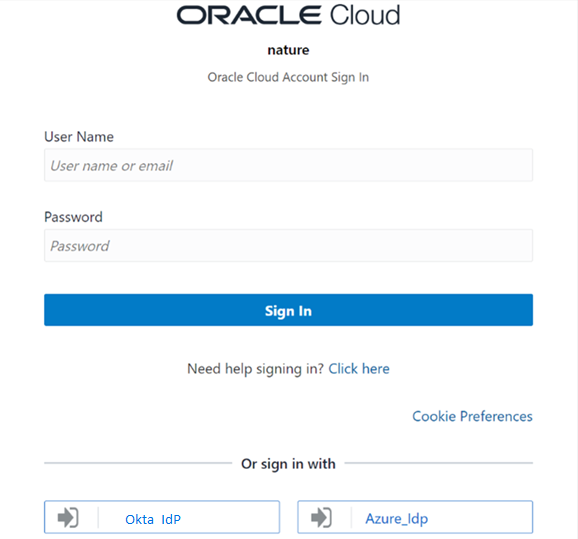
SSO Options with Multiple IdPs
Business Benefit: If multiple IdPs are enabled for an environment, the sign-in page gives Strategic Workforce Planning Cloud users a choice among the IdPs to perform SSO.
Steps to Enable
An Identity Domain Administrator must configure and activate the identity provider using Oracle Identity Cloud Services Console using the instructions available in Configuring Multiple Identity Providers for a Domain in OCI (Gen 2) Environments in Getting Started with Oracle Enterprise Performance Management Cloud for Administrators.
Key Resources
- Getting Started with Oracle Enterprise Performance Management Cloud for Administrators
DKIM Support for OCI (Gen 2) Environments
Strategic Workforce Planning Cloud on OCI (Gen 2) environments supports DKIM (DomainKeys Identified Mail) for outgoing messages.
Strategic Workforce Planning Cloud email servers sign outgoing messages using a private key. Receiving mail servers can then use a public key published on the oraclecloud.com DNS record to verify the signatures on any emails sent out from Strategic Workforce Planning Cloud email servers.
Business Benefit: DKIM support satisfies the security compliance requirements of customers for their mail infrastructure.
Key Resources
- DKIM Support for EPM Cloud OCI (Gen 2) Environments in Getting Started with Oracle Enterprise Performance Management Cloud for Administrators
Application Role Assignment Labels Changed to Manage Roles in Access Control
The Unassign Roles option is removed, and now Manage Roles replaces Assign Roles to assign and unassign application roles to users and groups.
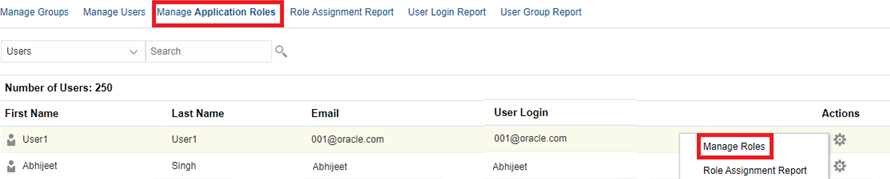
Manage Application Roles
Business Benefit: The change in label name to Manage Roles makes it easier for the user to understand the operations on the Manage Application Roles page.
Key Resources
- Assigning Roles to a Group or a User in Administering Access Control for Oracle Enterprise Performance Management Cloud
Default Time Zone for New Users
The default time zone for new users is now (UTC) Reykjavik - Greenwich Mean Time.
To reset the time zone, click Tools, then User Preferences, and then click General.
Business Benefit: The new default time zone provides a more consistent experience for new users across the entire Strategic Workforce Planning Cloud platform.
Key Resources
- Working with Planning
Groovy Update for Data Grid Definitions
When creating data grid definitions using Groovy, you can now use the new FlexibleDataGridDefinitionBuilder to apply exclusions to the member selections.. To use Groovy business rules, follow the steps to create a Groovy business rule in "Creating a Groovy Business Rule" in Designing with Calculation Manager for Oracle Enterprise Performance Management Cloud.
This feature can be used by any application that has access to Groovy.
Business Benefit: This gives you more options when using Groovy business rules.
Steps to Enable
You don't need to do anything to enable this feature.
Tips And Considerations
To get a quick introduction to Groovy business rules, watch the Learning Groovy in EPM Cloud video.
Key Resources
- Learning Groovy in EPM Cloud video
- Creating a Groovy Business Rule in Designing with Calculation Manager for Oracle Enterprise Performance Management Cloud
- Introduction to Groovy Business Rules
- Groovy Tutorials
- EPM Cloud Groovy Rules Java API Reference
Role And Privileges
- Calculation Manager Business Rule Designer
Run Groovy Rules in Smart View on Selected Cells in Forms
In Oracle Smart View for Office, you can now run Groovy rules from the right-click menu in forms in the context of selected cells.
When running Groovy business rules from the right-click context menu in a form, the selected cells are available in the Groovy rule using isSelected() method on the grid cells.
Previously, information about selected cells for use in a Groovy rule was available in the web interface but not in Smart View. Now, from Smart View, the information about the selected cells is included when the Groovy rule is invoked as part of the right-click menu. This enhancement also helps Groovy rule designers to access and use the information of selected cells in the Groovy logic.
Business Benefit: The ability to select specific cells and run Groovy rules from the right-click context menu in Smart View gives users the option of applying Groovy rules only to the data cells they require.
Steps to Enable
The form must have Groovy rules attached in order receive the information of cells selected in the Smart View.
To enable Smart View users to run Groovy rules on selected cells in a form:
- Create the Groovy business rule.
- In the form definition, in the Business Rules tab, add a Groovy business rule to Selected Business Rules.
To run the Groovy rule in Smart View:
- Open a form.
- Select the cells on which to run the Groovy rule.
- Right-click and, in the context menu, select Smart View, and then select the Groovy rule to run.
- Note the change in the selected cells.
Tips And Considerations
- The ability to select cells and use their information for processing Groovy rules is available forms opened in Smart View.
- This ability is not available when Groovy business rules are launched and run from the Business Rules dialog opened from the Smart View ribbon.
- Any Groovy rule attached to the form can utilize information from the selected cells.
Key Resources
- Administering Planning
- Designing with Calculation Manager for Oracle Enterprise Performance Management Cloud
- Working with Business Rules in Working with Oracle Smart View for Office
New Log Custom Functions in Calculation Manager
Four new log custom functions are now available to help debug any issues encountered when executing rules in Calculation Manager.
- @CalcMgrLogMessageTrace: Adds custom messages to the Log Messages tab after launching a rule in Calculation Manager.
- @CalcMgrIsValidMember: Returns "true" if the input in Member Name is a valid member.
- @CalcMgrIsValidSLMember: Returns "true" if the member associated with the numerical Smart List value is a valid member.
- @CalcMgrSLMember: Returns the member associated with the numerical Smart List value.
Business Benefit: Enforcing errors and warnings for rules in Calculation Manager ensures that rules with errors or warnings are not launched, validated, or deployed.
Key Resources
The following topics in Designing with Calculation Manager for Oracle Enterprise Performance Management Cloud:
Activity Report Now Includes Manual MaXL Executions and Statistics for BSO and ASO Cubes
The Activity Report now includes metrics related to manual MaxL executions against the Essbase database and the statistics for individual Essbase BSO and ASO cubes.
Business Benefit: These changes helps you audit MaxL commands executed by Oracle against the Essbase database, and gather BSO and ASO cubes statistics.
Key Resources
- Getting Started with Oracle Enterprise Performance Management Cloud for Administrators
Provisioning of New Orders for Customers Migrating from Legacy Environments to EPM Standard or Enterprise Cloud Service
All new orders for customers moving from legacy environments to Oracle Enterprise Performance Management Standard Cloud Service or Enterprise Cloud Service environments will be provisioned in OCI (Gen 2) regions.
If you have questions or concerns about this policy, please reach out to your Sales Representative.
Business Benefit: This obviates the need to migrate to OCI environments in the future.
New advanced Prediction options give you more flexibility for defining predictions and improve prediction results in some scenarios.
After you run a prediction, in the results area, click Settings, and then click the Predictive Options tab. You can define advanced options for:
- Data Screening
- Data Attributes
- Methods
Business Benefit: Advanced options for predictions improve the quality of predictions, especially in cases where it is difficult to detect seasonality (predictions tended to go flat in these cases), or where there is not enough historical data compared to the prediction range (predictions tended to be negative in these cases).
Key Resources
- Working with Planning
The new Split-Funded FTE option in Workforce allows an FTE to be split-funded across multiple sparse dimensions such as cost center, entity, project, and so on.
An administrator enables Split-Funded FTE in Enable Features.
When Split-Funded FTE is enabled, the Benefits and Taxes wizard is updated with a new selection, Flat Amount FTE Ratio, for Value Type and Maximum Value Type for Benefits, Taxes, and Additional Earnings. Additionally, for Taxes, there is a new selection, Threshold Amount FTE Ratio, for Maximum Value Type. For each component in the Benefits and Taxes wizard, administrators can choose whether to use the existing Flat Amount calculation or the new Flat Amount FTE Ratio calculation to calculate benefits, taxes, and additional earnings. For example, a fee for medical benefits might be the same amount whether the FTE is 1.0 or .5, so you would choose Flat Amount FTE Ratio. But a tax might be a based on a percentage of the FTE, so you would choose Flat Amount.
Next, administrators enter the Master FTE Value for each employee on the new Employee Master Data form. (From the Home page, click Workforce, then Compensation Planning, then Manage Employees, and then Employee Master Data.) You enter the Master FTE for each fiscal year, at the periodicity defined for that year. Master FTE is required if you are using the Split-Funded FTE feature.
A new member in the Entity dimension, OEP_Home Entity, stores the Master FTE Value. OEP_Home Entity is enabled for the Workforce cube and the Workforce Reporting cube. If someone other than an administrator will be entering or editing Master FTE Values, make sure to give write access to OEP_Home Entity.
NOTE: If an employee’s total assigned FTE value changes over various projects (or other custom dimensions), make sure to update the Master FTE Value so that it matches the total assigned FTE to ensure that calculations are correct.
To help ensure that Master FTE matches the total assigned FTE, administrators can review the FTE Assignment Analysis form to see if an FTE is over- or under- allocated compared to the Master FTE. (From the Home page, click Workforce, then Compensation Planning, then Validate, and then FTE Assignment Analysis.) To retrieve data for this form, run the data map Headcount and FTE Data for Reporting. Positive values mean an FTE is underallocated; negative values mean an FTE is overallocated. You can resolve any over or under allocations by updating the Master FTE or the Assigned FTE.
Notes for new hires:
- FTE Ratio is applicable to new hires.
- You don't need to enter a Master FTE value in OEP_Home Entity for new hires. The Workforce calculations assume that the FTE for new hires is Master FTE.
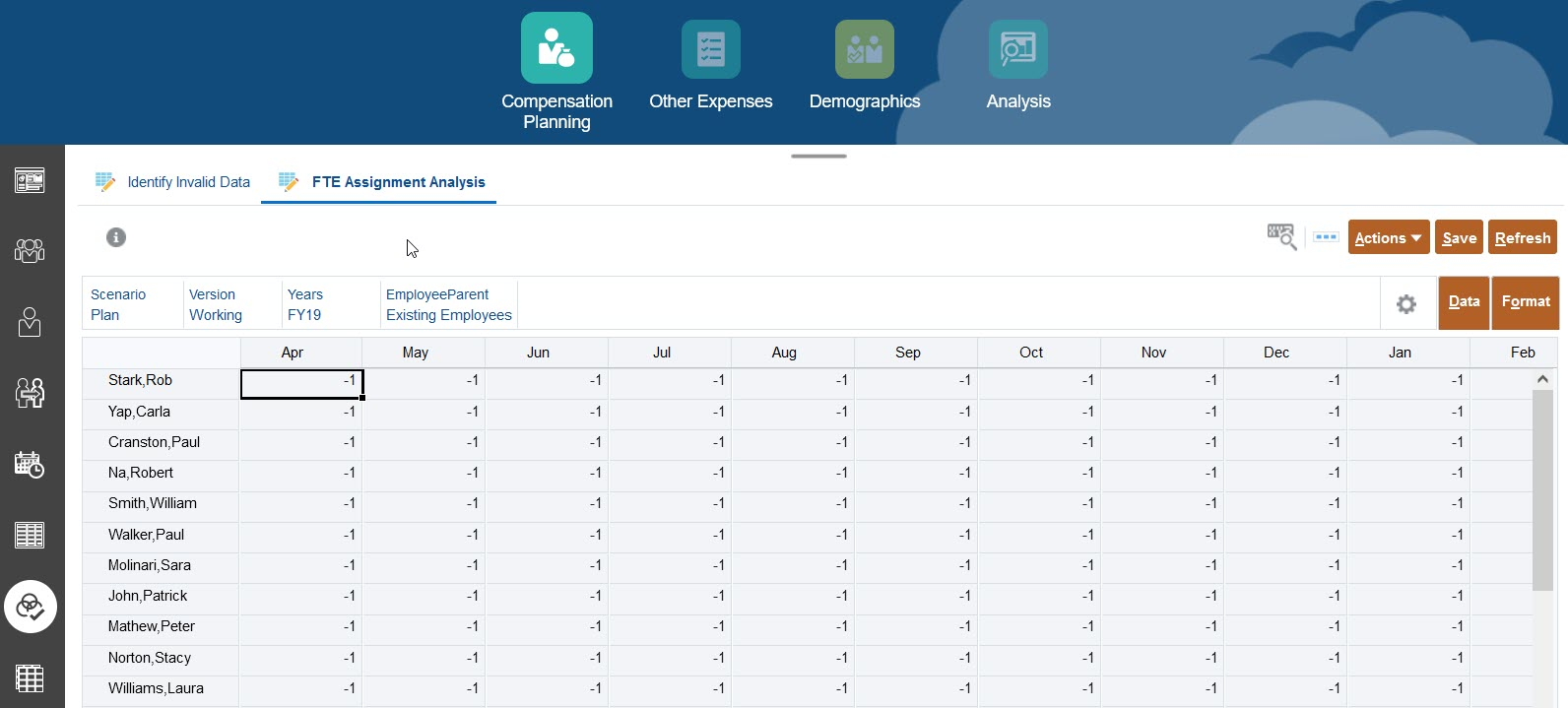
FTE Assignment Analysis Form
Business Benefit: This enhancement meets several business requirements in the public sector. It also ensures that benefits (thresholds and amounts) calculate correctly even when an FTE is part-time, by using an FTE ratio in the calculations rather than a flat amount.
Steps to Enable
- From the Home page, click Application, and then click Configure.
- Select Workforce from the Configure list.
- Click Enable Features.
- For Granularity, select Employee or Employee and Job.
- Select Workforce Management and Split-Funded FTE.
- Select any other options you want, and then click Enable.
Tips And Considerations
- Split-Funded FTE can be incrementally enabled.
- Granularity must be either Employee or Employee and Job to enable Split-Funded FTE.
- Value Type and Max Value Type must match when using FTE Ratio. To ensure that either the FTE Ratio or FTE value is applied consistently, the Benefits and Taxes wizard does not allow a mismatch of methodologies for FTE Ratio.
Key Resources
- Administering and Working with Oracle Strategic Workforce Planning Cloud
New Hire Enhancements in Workforce
Workforce includes several enhancements related to new hires:
- You can now perform merit-based planning for new hires, using Merit Based Planning with Default Merit rates, or using Merit Based Assumptions.
- Hiring Requisitions use Start Date and End Date instead of Start Year, Start Month and End Year, End Month.
- Several forms have been enhanced to show additional information such as Comments, Start Date and End Date, and Total Compensation.
- You can now change the start date of a new hire.
- A new Process New Hires mass update form enables you to quickly add new hires or change new hire reqs (for example, changing the start date or changing the end date) for multiple new hires at once.
- Some rules have been modified to support new hires.
- You can use Data Integration to load large numbers of new hires all at once.
Business Benefit: These enhancements give you more flexibility and more options when planning for new hires, and help you perform your work more quickly.
Steps to Enable
To enable merit-based planning for new hires:
- From the Home page, click Application, and then click Configure.
- Select Workforce from the Configure list.
- Click Enable Features.
- In Expense Planning Additional Options, select Merit Based Planning. Optionally, you can select Merit Assumptions (and then select Global or Per Entity), depending on how you want to perform merit based planning.
- In Workforce Management, select Workforce Management, New Hires, and Merit Based Planning For New Hires. The method of merit planning that you select in Expense Planning Additional Options applies to merit planning for new hires.
- Select any other options you want, and then click Enable.
Tips And Considerations
- Merit Based Planning for New Hires can be incrementally enabled.
- Granularity must be either Employee or Employee and Job to enable Merit Based Planning.
Key Resources
- Administering and Working with Oracle Strategic Workforce Planning Cloud
- Administering Data Integration for Oracle Enterprise Performance Management Cloud
New and Enhanced Mass Update Forms in Workforce
Workforce now includes enhancements to existing Mass Update forms:
- You can now make updates at the quarterly or yearly level for the years set with quarterly and yearly periodicity. Previously you could make updates only at the monthly level.
- Mass Update forms now include Hiring Requisitions. You can select a value for the user variable EmployeeParent to show either hiring requisitions, existing employees, or both.
- Mass Update forms now use Start Date and End Date instead of Start Year, Start Month and End Year, End Month.
- You can now change the Start Date and End Date for employees (new hires and existing employees) on the Mass Update forms. When you save the form, compensation is calculated for the modified rows.
- The Total Compensation column is displayed on Mass Update forms.
- The Headcount Assumption column is displayed on Mass Update forms.
Additionally, a new Mass Update form, Process New Hires, is now available that enables you to quickly add new hires or change new hire requisitions (for example, changing the start date or end date) for multiple new hires at once.
Business Benefit: These enhancements give you more flexibility when updating multiple employees and jobs details and help you more quickly plan for new hires.
Key Resources
- Administering and Working with Oracle Strategic Workforce Planning Cloud
New User Variables in Workforce
All users must set values for two new user variables:
- EmployeeParent
- Period
Business Benefit: EmployeeParent helps make forms more manageable by letting you include or exclude the employees, such as new hires or existing employees, to display on the forms based on the Employee Parent member you select. Period allows Comments for New Hires to be displayed as well as Total Compensation for all Employees on the Mass Update forms.
Tips And Considerations
Many existing forms, including the Mass Update forms, use these user variables, so all users should set values for these variables immediately after applying the 22.10 update.
Key Resources
- Administering and Working with Oracle Strategic Workforce Planning Cloud
Total FTE and Total Headcount Updated in the Workforce Reporting Cube
The Total FTE account hierarchy and the descendants of Total Headcount have now been enabled in the Workforce Reporting (OEP_REP) cube. Previously, the Total FTE account hierarchy did not exist in the Workforce Reporting cube and Total Headcount was a Level 0 member without any of the detailed descendant account information. Now the full details of Total FTE and Total Headcount will be moved to the Workforce Reporting cube when you execute the Headcount and FTE Data for Reporting data map.
Business Benefit: Total FTE and its descendants as well as the descendants of Total Headcount are now enabled in the Workforce Reporting cube, which provides accurate reporting for Total FTE and Total Headcount at the detailed level.
Tips And Considerations
Immediately after updating the Workforce October 2022 content, run the data map Headcount and FTE Data for Reporting to repopulate the data in the Workforce Reporting cube with the new detailed account data.
Key Resources
- Administering and Working with Oracle Strategic Workforce Planning Cloud
Bulk Loading Workforce New Hire Data in Data Integration
In this update you can use Data Integration to integrate new hire bulk data to Workforce. You can load bulk new hires data or change new hire requisition data for multiple new hires at once.
New hire bulk data is loaded using an Incremental File Adapter. This type of integration compares a source data file with a prior version of the source data file and identifies new or changed records and then loads only that data set. Before loading the new hire data, check for empty requisitions available in the system in the Process New Hires mass update form. If you are loading data for a requisition which is already in the system, then the existing requisition data is replaced with a new record loaded through Data Integration.
Business Benefit: Customers can bulk load new hires without having to manually use Add Hiring Requisitions to add requisitions one at a time.
Tips And Considerations
- Bulk Loading Workforce New Hire Data in Administering Data Integration for Oracle Enterprise Performance Management Cloud
IMPORTANT Actions and Considerations
One-Week Lag Between Readiness Documents Live and Help Center Live
Because Oracle readiness documents (What's New and New Feature Summary) are live one week before the monthly update is applied to Test environments, some links to documentation included in the readiness documents will not work until after the Oracle Help Center update is complete when the monthly update is applied to Test environments.
Calculation Manager Errors and Warnings Enforcement
In an upcoming update, Calculation Manager will enforce the execution of the Errors & Warnings diagnostic tool for any rule being launched, validated, or deployed from it. If there are errors that result from this new process, Calculation Manager will not execute, validate, or deploy the rule. This new process will apply to all new applications once released. Existing applications will have a finite period of time to bypass this new process to allow you to modify the rules that violate the new Errors & Warnings diagnostic analysis. In all cases, existing rules that are already deployed will continue to run as-is without any change in behavior.
Valid Intersection and Cell-level Security Import & Export File Format Update
In an upcoming update, both Valid Intersection and Cell-level Security Import and Export files in .XLSX format will include new columns for each dimension in the Sub Rules worksheet. These new columns to support excluding all instances of members by name will apply to each dimension and will be positioned after each dimension’s “Exclusion” column. If you use these exported files for integration with other systems and the order of columns is fixed, you may need to modify your process to account for these new columns in these export files. The release of these new columns will coincide with the planned release of this enhancement for Valid Intersections and Cell-Level Security.
Change in Behavior for Grids Created from Groovy and REST APIs for ASO Cubes
In an upcoming update, the suppression behavior for grids created via Groovy DataGridDefinitionBuilder and the exportdataslice REST API for ASO cubes will be made consistent with that of the run time data grids created using the Form Designer. Previously, if a grid was built for an ASO cube in Groovy or REST API, then the system used the NON EMPTY MDX clause to suppress missing rows when the suppressMissingBlocks flag was true. Now, when a grid is built for an ASO cube, it will use the NON EMPTY MDX clause when suppressMissingRows is true, and suppressMissingBlocks will be ignored. This means that ASO grids with suppressMissingRows true and suppressMissingBlocks false will now start using MDX. Likewise, ASO grids with suppressMissingRows false and suppressMissingBlocks true will no longer use MDX. Grids where the suppressMissingRows and suppressMissingBlocks flags had the same value will not be impacted. These changes may result in a change in behavior or performance for some ASO grids. If this happens and is undesirable, consider toggling the value of suppressMissingRows from the builder or the JSON payload in case of the REST API.
Mandatory Steps Required to Make the Explore Repository Artifacts Accessible to Users
Prior to the 22.07 update, Strategic Workforce Planning used the WORLD pre-seeded group to grant access to Explore Repository artifacts such as reports and folders. Starting with the 22.07 update, the WORLD group was removed. If you previously used the WORLD group to grant access to repository artifacts, complete these steps to ensure that users can access Repository artifacts:
- Create a group in Access Control with all Strategic Workforce Planning Cloud users as its members.
- In Explore Repository, grant access privileges to the group you created in the preceding step.
For detailed steps, see Granting Access Permissions to Document Repository Users in Working with Financial Reporting for Oracle Enterprise Performance Management Cloud.
Rolling Back Changes Made to Page Title Display for Horizontal tabs
Starting in the July (22.07) update, we have rolled back changes made in the April (22.04) update to the page title for horizontal tabs. The change was to not display the page title in horizontal tabs while using the Redwood Theme. From the feedback received on this change, we've decided to roll it back.
Loaner Program for Cloud Infrastructure Generation 2 Testing and OCI Migration Assistance Early Adopter Program
Oracle Strategic Workforce Planning Cloud is now live on Oracle Cloud Infrastructure (OCI) Gen 2 environments. If you are interested in testing your application performance on an OCI environment, open a service request following the process at https://docs.oracle.com/en/cloud/saas/enterprise-performance-management-common/tsepm/op_procs_loaner_envs.html and request for a loaner environment in an OCI data center for a duration of 30 days with the business justification as “Want to test application performance in an OCI Gen 2 data center”.
After you have performed the testing, submit Provide Feedback from the loaner environment. Create a service request using the normal support process, if you have any issues or feedback for the OCI environment. For more information, see What is a Gen 2 Cloud?
Additionally, Oracle has instituted a program to assist a limited number of early adopters on Oracle Cloud Classic to migrate to OCI. For more information, see Oracle Cloud Classic to Oracle Cloud Infrastructure (OCI) Migration Assistance Program for Early Adopters.
Alerts Cannot be Migrated to Prior Version
Due to a major upgrade in Alert functionality, any service that has defined Alert Types will not be able to migrate them or the Alerts that are based on them from the 22.04 update to an earlier update. This normally happens if artifacts are moved from Test to Production during the two week period when Test is upgraded to the 22.04 update while Production is still on the 22.03 update. All other objects in the migration are not affected.
Task Manager Email Notification Settings
Starting in the 22.04 update, the service changed the handling of Task Manager’s Email Notification settings during a migration. The target service’s Task Manager Email Notification settings were updated with the settings from the source service. If a customer wants to retain the target service’s Task Manager Notification settings, they can generate an LCM export with the notification settings from the target service, perform the source migration, then import the LCM file with the notification settings.
See LCM Export and LCM Import in REST API for Oracle Performance Management Cloud.
Date Format when Using the EPM Digital Assistant
When using the EPM Digital Assistant, note that the Date format is not taken from User Preferences, and the assistant does not ask which format to use for the date. The assistant attempts to detect the date format based on the user locale set in the browser and other common formats.
Internet Explorer 11 End of Support and Smart View
Microsoft has announced end of support of Internet Explorer 11 by June 15, 2022.
Do not uninstall Microsoft Internet Explorer, even after the end-of support date of June 15, 2022. Instead, you may securely disable Internet Explorer following Microsoft’s guidelines. In situations where the Internet Explorer browser would be called, the Edge browser will be launched instead.
Oracle Smart View for Office does not require the Internet Explorer browser specifically. However, Smart View depends on Windows components (for example, WinInet APIs) that may have dependencies on Internet Explorer. Microsoft recommends keeping Internet Explorer installed on the machine since uninstalling may cause other applications that are dependent on it to work incorrectly. Microsoft also recommends updating to the latest security patches as they become available.
For more information, Oracle Support Document 2877741.1 (Impact on Smart view with Microsoft decommissioning Internet Explorer 11 on June 15, 2022) can be found at: https://mosemp.us.oracle.com/epmos/faces/DocumentDisplay?id=2877741.1.
Data Maps with Mapping or Cross Applications
Data Maps with mapping or cross applications are not supported in this update. If the Data Map has mapping or is a cross application, it needs to be attached to a form or included in the Groovy rule and run as a Smart Push.
Updated Smart View Browser Extension To Be Required for Chrome and Edge
An updated Smart View browser extension for Google Chrome and Microsoft Edge will be made available in a future update. This extension is required for Smart View to interact with supported browser-based Strategic Workforce Planning Cloud in these ways:
- Starting in a form or ad hoc grid in Smart View, use drill-through to launch an application web page in a browser.
- Starting in a web application, launch a form or ad hoc grid in Smart View for Excel.
- Starting in a Task List in Smart View, opening a task in a browser.
This update is required only if your default browser is Chrome or Edge. If your default browser is Mozilla Firefox, then this update does not affect you.
The extension will be made available in the Chrome Web Store from either the Chrome or Edge browser. In the Chrome Web Store, search for "smart view" to locate the extension update. the version number is 22.200. Then follow the instructions for Google Chrome or Microsoft Edge in Installing Browser Add-ons in the Oracle Smart View for Office Installation and Configuration Guide.
Note that after January 1, 2023, the current browser extension will no longer work with Chrome or Edge. You must update your extension by that date in order to continue interactions between Smart View and Strategic Workforce Planning Cloud.