
- Revision History
- Overview
- Feature Summary
- Strategic Workforce Planning Cloud
-
- Features
-
- Oracle Cloud Classic to Oracle Cloud Infrastructure (OCI) Migration Assistance Program for Early Adopters
- New Topics in EPM Cloud Operations Guide
- Updates to the Clone Environment Documentation
- EPM Automate Updates
- REST APIs to Export and Import Data Management Artifacts
- Localization Support in Smart View (Mac and Browser)
- New Setting for Shared Member Drill Down to All Levels in Base Dimension
- Support for Both Books and Bursting Definition Output to Static Excel from Web
- Reports Member Property Text Function Enhanced to Return a Specified UDA
- Reports Text: Default Font Controls and Reset Format
- New Snapshot Export and Import Features in Data Management
- New Period Mapping Option in Data Integration
- New POV Period Option In Data Integration
- Cleanup Orphan Report Objects
- New Member Selector Functions: Relative and Relative Range
- Use Form Context in URL Type Action Menus
-
- IMPORTANT Actions and Considerations
This document will continue to evolve as existing sections change and new information is added. All updates appear in the following table:
| Date | Product | Feature | Notes |
|---|---|---|---|
| 27 AUG 2021 | Created initial document. |
This document outlines the upcoming Strategic Workforce Planning Cloud update.
Column Definitions:
Report = New or modified, Oracle-delivered, ready to run reports.
UI or Process-Based: Small Scale = These UI or process-based features are typically comprised of minor field, validation, or program changes. Therefore, the potential impact to users is minimal.
UI or Process-Based: Larger Scale* = These UI or process-based features have more complex designs. Therefore, the potential impact to users is higher.
Features Delivered Disabled = Action is needed BEFORE these features can be used by END USERS. These features are delivered disabled and you choose if and when to enable them. For example, a) new or expanded BI subject areas need to first be incorporated into reports, b) Integration is required to utilize new web services, or c) features must be assigned to user roles before they can be accessed.
| Ready for Use by End Users Reports plus Small Scale UI or Process-Based new features will have minimal user impact after an update. Therefore, customer acceptance testing should focus on the Larger Scale UI or Process-Based* new features. |
Customer Must Take Action before Use by End Users Not disruptive as action is required to make these features ready to use. As you selectively choose to leverage, you set your test and roll out timing. |
|||||
|---|---|---|---|---|---|---|
| Feature |
Report |
UI or |
UI or |
|
||
New Setting for Shared Member Drill Down to All Levels in Base Dimension |
||||||
Support for Both Books and Bursting Definition Output to Static Excel from Web |
||||||
Reports Member Property Text Function Enhanced to Return a Specified UDA |
||||||
Strategic Workforce Planning Cloud
Test Environments: Oracle will apply this monthly update during the first daily maintenance that occurs at or after 22:00 UTC on Friday, September 3, 2021.
Production Environments: Oracle will apply this monthly update during the first daily maintenance that occurs at or after 22:00 UTC on Friday, September 17, 2021.
NOTE: Backing up the daily maintenance snapshot and restoring the environment as needed are self-service operations. Oracle strongly recommends that you download the maintenance snapshot every day to a local server.
The Oracle Help Center provides access to updated documentation. The updates will be available in the Help Center on Friday, September 3, 2021.
NOTE: Some of the links to new feature documentation included in this readiness document will not work until after the Oracle Help Center update is complete.
Fixed Issues and Considerations
Software issues addressed each month and considerations will be posted to My Oracle Support.
NOTE: Fixed issues for EPM Cloud Common components (Smart View for Office, EPM Automate, REST API, Migration, Access Control, Data Management/Data Integration, Reports, Financial Reporting, and Calculation Manager) are available in a separate document on the My Oracle Support “Release Highlights” page.
This provides visibility into EPM Cloud release contents.
Please Join Oracle Cloud Customer Connect
Please take a moment to join the Cloud Customer Connect forums for EPM Cloud services. Oracle Cloud Customer Connect is a community gathering place for members to interact and collaborate on common goals and objectives. This is where you will find the latest release information, upcoming events, or answers to use-case questions. Joining takes just a few minutes. Join now!
https://cloud.oracle.com/community
NOTE: The Settings and Actions menu now contains a link to Cloud Customer Connect. To access this link, from the Home page, click the down arrow next to the user name (in the upper right-hand corner of the screen), and select Cloud Customer Connect.
Give Us Documentation Feedback
We welcome your comments and suggestions to improve the content of the What's New document and the product documentation.
Please send us your feedback at EPMdoc_ww@oracle.com. In the body or title of the email, state that you are inquiring or providing feedback, and indicate for which EPM Cloud service and the monthly update cycle.
Follow EPM Cloud on YouTube, Twitter, Facebook, and LinkedIn.
These are great resources for the latest updates and information about EPM Cloud.
Oracle Cloud Classic to Oracle Cloud Infrastructure (OCI) Migration Assistance Program for Early Adopters
Oracle has instituted a program to assist a limited number of early adopters on Oracle Cloud Classic to migrate to Oracle Cloud Infrastructure, also known as OCI (Gen 2). This program is available on a first come, first served basis. OCI delivers highly available computing power and infrastructure to Strategic Workforce Planning Cloud.
Business Benefit: Migrating to OCI enables you to utilize the new generation of Oracle Cloud Infrastructure, which provides highly available computing power and infrastructure to Strategic Workforce Planning Cloud.
Steps to Enable
See Oracle Cloud Classic to Oracle Cloud Infrastructure Migration Assistance Program for Early Adopters in Oracle Enterprise Performance Management Cloud Operations Guide for information on enrolling in this program.
Key Resources
- Oracle Cloud Classic to Oracle Cloud Infrastructure Migration Assistance Program for Early Adopters in Oracle Enterprise Performance Management Cloud Operations Guide.
New Topics in EPM Cloud Operations Guide
The EPM Cloud Operations Guide has been enhanced with additional sections.
Newly added sections include:
- Optimize BSO Cubes
- Resolving HSP_ID_xxxx Errors while Running Rules in Workforce Planning
- Understanding Implicit and Explicit BSO Restructure
- Oracle Cloud Classic to Oracle Cloud Infrastructure Migration Assistance Program for Early Adopters
Business Benefit: These new topics help customers fix issues, optimize performance, and make requests to Oracle more efficiently.
Key Resources
Updates to the Clone Environment Documentation
The Clone Environment documentation in Administering Migration for Oracle Enterprise Performance Management Cloud has been updated with step-by-step instructions for the tasks you need to perform for the cloning process. These steps ensures that your URLs, scripts, and bookmarks work seamlessly for cloned environments.
Business Benefits: These steps provide information on making existing URLs, EPM Automate scripts, and bookmarks work in cloned environments. They also make the migration from Oracle Cloud Classic to Oracle Cloud Infrastructure (OCI) more seamless.
Key Resources
- Cloning EPM Cloud Environments in Administering Migration for Oracle Enterprise Performance Management Cloud
A new version of EPM Automate is now available. This version introduces the exportDataManagement and importDataManagement commands and contains changes to the getDailyMaintenanceStartTime and setDailyMaintenanceStartTime commands. This version also includes some security enhancements that affect the installation and upgrade of EPM Automate and access to the .prefs file. Additionally, the Working with EPM Automate for Oracle Enterprise Performance Management Cloud guide has been enhanced with a sample script to clone Strategic Workforce Planning Cloud environments.
exportDataManagement Command
Exports Data Management records of an environment to a ZIP file. This command exports a complete set of setup and staging tables including the ID columns to CSV files so that the data can be imported into another environment without losing referential integrity.
importDataManagement Command
Imports Data Management records from a ZIP file into an environment.This command imports data into setup and staging tables from a ZIP file created using the exportDataManagement command.
getDailyMaintenanceStartTime Command
The getDailyMaintenanceStartTime command has been enhanced to display an optional timezone parameter to display the daily maintenance time in the time zone that was specified while setting it.
setDailyMaintenanceStartTime Command
The setDailyMaintenanceStartTime command has been enhanced with an optional timezone value to the startTime parameter. This new value allows you to specify the daily maintenance start time in a time zone other than UTC.
Security Enhancement Affecting Installation and Upgrade
On Windows computers, EPM Automate can be upgraded only by Windows Administrators or by the user who installed it. Starting with Windows 10, EPM Automate can be installed only by a Windows Administrator.
Security Enhancement Affecting .prefs File
EPM Automate creates a .prefs file, which contains user information, in the current directory. On Windows computers, the content of the .prefs file is now visible only to the user who created it and to Windows administrators. In Linux, UNIX and macOSX environments, .prefs file is now generated with permission 600, which allows only the owner to read and write to this file.
Sample Scripts to Clone Environments
The Working with EPM Automate for Oracle Enterprise Performance Management Cloud guide now contains a script to clone Strategic Workforce Planning environments.
Business Benefit: The new commands facilitate the remote administration of Strategic Workforce Planning Cloud environments. Changes to the setDailyMaintenanceStartTime and getDailyMaintenanceStartTime commands help you set and view daily maintenance time in a local time zone. Security enhancements ensure that EPM Automate abides by the security policies of the platform that hosts it. The new clone script helps you automate the cloning of Strategic Workforce Planning Cloud environments and migrating from Oracle Cloud Classic to Oracle Cloud Infrastructure (OCI).
Key Resources
- Working with EPM Automate for Oracle Enterprise Performance Management Cloud:
REST APIs to Export and Import Data Management Artifacts
Export Data Management and Import Data Management REST APIs are now available that enable you to back up and restore setup and staging table data in Data Management as a snapshot (a replica of a target table from a single point in time.)
The Export Data Management REST API requires an All, Setup, Incremental, or All Incremental snapshot type value. It also requires a file name. The output is a ZIP file, which is stored in outbox/<filename>.zip. You can download the file using the Download REST API.
The Import Data Management REST API requires the file name (for example: inbox/<filename>.zip, or inbox/mybackup/<filename>.zip). If no path is specified, it is assumed that the file is in the Data Management root folder.
Business Benefit: These REST APIs provide a complete solution for exporting and importing Data Management artifacts as snapshots when backup and restore operations are required.
Key Resources
REST API for Oracle Enterprise Performance Management Cloud:
Localization Support in Smart View (Mac and Browser)
Oracle Smart View for Office (Mac and Browser) now supports localized versions of the user interface.
The manifest file creation page, CreateManifest.html, is also localized and may be used in your browser language, if set to one of the languages supported by Smart View. No additional deployment steps are required. Once deployed, all supported localized languages are available to be selected. On the Mac, users change the locale of their Mac system to use a localized version of Smart View (Mac and Browser). On the Chrome browser, users change the language preference of Office 365. Users can change languages to any supported language at any time. For example, a user may change from English to French, and then later, change from French to Simplified Chinese. There is no limit on changing the interface language.
Once the language change is implemented, the Smart View ribbon, dialog boxes, panels, and messages will display in the newly-selected language.
Supported languages are: Arabic, Czech. Danish, German, Greek, English, Spanish, Finnish, French, French Canadian, Hebrew, Hungarian, Italian, Japanese, Korean, Dutch, Norwegian, Polish, Portuguese, Brazilian Portuguese, Romanian, Russian, Slovak, Swedish, Thai, Turkish, Simplified Chinese, Traditional Chinese.
Business Benefit: The localized versions of Smart View (Mac and Browser) provide users with an improved non-English experience where they can switch to their desired language to work with the Smart View user interface, as required.
Steps to Enable
Service Administrators:
To deploy the localized version of Smart View (Mac and Browser), Service Administrators must create and deploy a new manifest file:
- Create a new manifest file and customize it per your requirements.
- Deploy the manifest file to Smart View (Mac and Browser) users.
Users:
To use a localized version of Smart View (Mac and Browser):
- On a Mac, change the language version of your Mac system. See Change the language your Mac uses for instructions.
- On Windows 10, change the language display preference in the browser version of Office 365. See Change your display language and time zone in Microsoft 365 for Business for instructions.
Tips And Considerations
When you change the language on your Mac system, the change is instant. When you change the language in Office 365 on Windows, allow at least 20 minutes for the change to take effect.
Key Resources
- Understanding EPM Cloud Localization in Getting Started with Oracle Enterprise Performance Management Cloud for Administrators
- Understanding EPM Cloud Localization in Getting Started with Oracle Enterprise Performance Management Cloud for Users
- Deploying and Administering Oracle Smart View for Office (Mac and Browser):
- Localization in Smart View (Mac and Browser) in Working with Oracle Smart View for Office (Mac and Browser)
New Setting for Shared Member Drill Down to All Levels in Base Dimension
The new “Drill to All Levels in Base” option in Application Settings when using ad hoc in Standard mode allows the “drill down on shared members” feature to drill beyond just the shared members, into the base hierarchy for that shared member as well. This feature is only available when the Smart View Ad Hoc Behavior option is set to Standard.
When this check box is enabled, the multi-member zoom feature is not supported.
Business Benefit: With this feature, users can drill from shared members into all levels within the base hierarchy. Often a shared member is a parent member in its base hierarchy. With the new "Drill to All Levels in Base" check box enabled, users can have the drill work from the shared member into all levels of the base hierarchy as well.
Steps to Enable
To enable shared member drill down to all levels in the base dimension:
- In your business process, click Application and then Settings.
- In Allow Drill Down on Shared Members in Ad Hoc, select Yes.
- Select the Drill to All Levels in Base check box.
- Click Save.
Key Resources
-
See the applications settings documentation for your business process; for example, see What Application and System Settings Can I Specify? in Administering Planning
-
Zooming in on Shared Members in EPM Cloud in Working with Oracle Smart View for Office
Support for Both Books and Bursting Definition Output to Static Excel from Web
You can now download Books to static (non-refreshable) Excel spreadsheet, while previewing them on the web or when executing a bursting definition containing a book.
Only Reports are included in the Excel output. If the book contains Word or PDF documents, or inserted Books, they will not be included in the Excel output.
When a book is selected as the bursting artifact in a bursting definition, you can now choose to publish the output to Excel. Similar to PDF output, you can email the Excel output or publish it to the Library. The resulting Excel output is static and cannot be refreshed in Smart View.
A table of contents sheet is generated with links to individual report worksheets, based on the TOC Headings defined in the Properties panel in the Book Designer. As Excel’s maximum number of worksheet characters is 31, the worksheet names will be truncated to fit the 31 character limit, where applicable.
In Strategic Workforce Planning Cloud deployments, you cannot currently open a book in Excel directly from the Reports card. However, after previewing the book in PDF, you need to switch your preview mode to Excel, so that you can select Download as Excel and then select either to Local or Library.

Switch your preview mode to Excel.
NOTE: Import Books into Excel from Smart View is currently not available.
Business Benefit: Support to Excel provides an additional output option for books, as many customers prefer the book output in Excel instead of PDF.
Key Resources
In Designing with Reports for Oracle Enterprise Performance Management Cloud:
In Working with Reports for Oracle Enterprise Performance Management Cloud:
Reports Member Property Text Function Enhanced to Return a Specified UDA
The MemberProperty text function is used to display a specified member’s property, such as associated attributes, UDAs, etc. Previously, the MemberProperty text function displayed all UDAs associated with a member. Now you can index specific UDAs to be displayed via an optional numerical parameter.
Business Benefit: This feature provides more flexibility when displaying a specific member’s UDAs in a text box or text cell.
Key Resources
- MemberProperty in Designing with Reports for Oracle Enterprise Performance Management Cloud
Reports Text: Default Font Controls and Reset Format
For Text boxes, new default font, and font size selection controls have been added to the General properties panel. The default settings are used in the font and font size selector in the toolbar, which overrides the default font for Text or Note boxes with varying fonts.
In addition, a button has been added to reset all font formats to the default (derived from Set Default Font in the report designer Actions menu).
Business Benefit: This feature provides control over the default font for Text boxes when varying fonts and font sizes are used.
Key Resources
- Designing with Reports for Oracle Enterprise Performance Management Cloud:
New Snapshot Export and Import Features in Data Management
Strategic Workforce Planning Cloud customers now have access to new snapshot export and import tools available in Data Management. These tools provide customers with backup and recovery options of their setup and historical data. A snapshot is a replica of a target table from a single point in time.
New snapshot export and import options enable you to:
- Backup historical data for auditing before deletion.
- Recreate an environment without losing the import.
- Provide a snapshot of imported data to test a target instance.
- Include data in a daily snapshot for backing up.
The data export process exports all data from the setup and data tables including the ID columns to .CSV files. Data is exported by POV and retains the ID of the setup tables when data is exported and imported. In this case, a remapping of the IDs is not required. The process supports: All, Setup only, All - incremental, and incremental modes for exporting data. The incremental mode process exports only new or changed data based on the POV since the last snapshot was exported. The output is a ZIP file, which is stored as data in outbox/<filename>.zip.
The data import process is a restore process but does not perform any merge operation. The system clears the existing data in the target system and then imports the data from the backup files. The input requires the filename with the full path of the Data Management root folder (for example: inbox/<filename>.zip, or inbox/mybackup/<filename>.zip). If no path is specified, it is assumed that the file is in the Data Management root folder.
The new snapshot export and import tools are available in System Maintenance Tasks:

System Maintenance Tasks Page
The snapshot process can be invoked using one of the following interfaces:
- REST API
- EPM Automate
- System Maintenance Tasks user interface
Business Benefit: These options provides a complete solution for exporting and importing data when backup and restore operations are required.
Key Resources
- Administering Data Management for Oracle Enterprise Performance Management Cloud
- Commands at a Glance in Working with EPM Automate for Oracle Enterprise Performance Management Cloud
New Period Mapping Option in Data Integration
A Period Mapping option is now available in Data Integration. The Period Mapping option shares the existing functionality of Period Mapping in Data Management and enhances your experience with a more modern look-and-feel and responsive design.
The Period Mapping option is available on the Actions drop-down on the Data Integration home page for administrators only. On the Period Mapping page, customers can create and manage period mappings including:
- Global Mapping
- Application Mapping
- Source Mapping
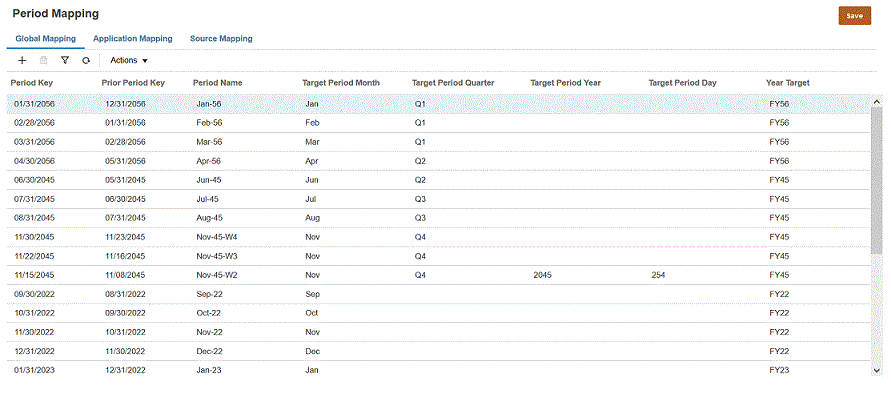
Period Mapping Page
Business Benefit: Customers can define various calendars (for example, monthly, weekly, or daily) based on their business and statutory requirements.
Key Resources
- Defining Period Mapping in Administering Data Integration for Oracle Enterprise Performance Management Cloud
New POV Period Option In Data Integration
A new POV Period option enables you to select and save the POV period used when running an integration. If no POV period is selected, then the system defaults to the last used period based on browser cache. The new option is available on the Home page in Data Integration.

When the Global POV mode is enabled, then the period defaults to the Global POV Period and a customer is not allowed to change the period on the Home page.
Business Benefit: Prior to this update, you were required to select the period every time an integration was run.
Key Resources
- Selecting a POV Period in Administering Data Integration for Oracle Enterprise Performance Management Cloud
A new menu item, "Cleanup Orphan Report Objects," is now available in Financial Reporting Web Studio. When you select this option, any report objects not associated with a data source are deleted from the repository. Note that this action cannot be undone. Once completed, a list of deleted objects is displayed and registered in the Financial Reporting logs.
Business Benefit: Prior to this update, you were unable to delete orphaned objects from the Explore Repository, and the objects remained there regardless of whether or not they were associated with a data source.
Key Resources
- Cleaning Up Orphan Report Objects in Designing with Financial Reporting Web Studio for Oracle Enterprise Performance Management Cloud
New Member Selector Functions: Relative and Relative Range
New Relative and Relative Range functions have been added in the member selector.
Use the Relative function in the member selector to return a member relative to the specified member at the same generation with the specified offset. For example, Relative("Jan", 4) returns May, which is January plus 4 months in a standard monthly Period dimension; Relative("Jan", -2) returns Nov, which is January minus 2 months in a standard monthly Period dimension.
Use the Relative Range function in the member selector to return all of the members from the starting member to the offset member when going forward or from the offset member to the starting member when going backwards. For example, RelativeRange("Jan", 4) returns Jan, Feb, Mar, Apr, May; RelativeRange("Jan", -2) returns Nov, Dec, Jan.
Like the other member relationships, these functions work for any dimension, not just the Period dimension as mentioned in the previous examples. The new Relative and Relative Range functions are viewable when you press the fx icon to the right of the member in the member selector.
Business Benefit: New member selector functions help you to further refine which related members you can select in the member selector.
Key Resources
- Member Relationships in Administering Planning
Use Form Context in URL Type Action Menus
For Strategic Workforce Planning action menus, the URL type options are no longer relevant for Cloud and have been replaced with a new option called Use Form Context.
The Use Form Context option, when enabled, automatically replaces the bracketed dimension name in the URL (for example, <Entity> or <Account>) with the member name of the corresponding dimension from the form's page or POV. URL type action menus automatically launch a new tab.
For example, to return an Entity, Scenario, Version, and Account dimension's members in an URL, enter a URL and enable Use Form Context:
http://yourcompanyurl.com/EntDim=<Entity>&test['VERSION']=<Version>&Acc=<Account>
The URL will open in a new tab as:
http://yourcompanyurl.com/EntDim=<410>&test['VERSION']=<working>&Acc=<1110>
To return the current dimension's member name, enter the dimension name in brackets; for example, if you have a custom dimension called Employee, enter:
http://yourcompanyurl.com/companyEmpllDim=<Employee>
If the Use Form Context option is disabled for URL type action menus, then the URL will be launched in a new tab as is without the context replacements; for example:
http://yourcompanyurl.com/EntDim=<Entity>&test['VERSION']=<Version>&Acc=<Account>
The new Use Form Context option replaces the previous URL type action menu options: Use single sign on, Include context in URL, and Launch in a separate window.
To view the Use Form Context option to enable or disable it, from the Home page, click Navigator, and then under Create and Manage, click Action Menus. Select a menu and then click Edit Menu. Select the menu item, click Edit Menu Item, and then for Type, select URL.
Business Benefit: We've eliminated action menu URL type options that are no longer relevant for Cloud and replaced them with a new option called Use Form Context.
Key Resources
- Defining Action Menu Items in Administering Planning
IMPORTANT Actions and Considerations
One-Week Lag Between Readiness Documents Live and Help Center Live
Because Oracle readiness documents (What's New and New Feature Summary) are live one week before the monthly update is applied to Test environments, some links to documentation included in the readiness documents will not work until after the Oracle Help Center update is complete when the monthly update is applied to Test environments.
Setting Dashboard or Infolet as Default Page
Starting with the November 2021 update (21.11), in the interest of better and consistent user interaction, you will no longer be able to set a dashboard or infolet as the default page within the listing page. When these settings are enabled, the default dashboard or infolet opens in place of the listing page.
Only Secured URLs in Logo and Background Images
Starting with the November 2021 update (21.11), only secured URLs will be supported within the Logo Image and Background Image settings in the Appearance page in Strategic Workforce Planning Cloud.
Use the Export URLs Feature to Replace Direct URLs
In the 21.03 update, Oracle released a feature called Export URLs that exports Strategic Workforce Planning Cloud URLs to a CSV file which then provides the unique URLs for each card, tab, or sub-tab within a connected Strategic Workforce Planning Cloud business process. The Export URLs feature should be used in place of any direct URL pointers that customers might be using to link to Strategic Workforce Planning forms, dashboards, or infolets. The direct URL feature to forms, dashboards, or infolets will no longer be supported starting with the 21.11 update. See Using Direct URLs to Integrate Connected Environments in Administering Planning.
Restrictions to Copy Version Functionality
Based on feedback from several customers due to its inherent data corruption risks, we plan to restrict the ‘Copy Version’ functionality to be exposed only to administrators. Starting in November 2021, ‘Copy Version’ functionality will not be available to Power Users and Users.
Support for Composite Forms in Strategic Workforce Planning Cloud
As of the May update (21.05), Oracle Strategic Workforce Planning Cloud no longer officially supports composite forms. As has been announced for several months, customers are required to use Strategic Workforce Planning Cloud dashboards instead. Customers can continue to use their composite forms without support.
Loaner Program for Cloud Infrastructure Generation 2 Testing
Oracle Strategic Workforce Planning Cloud is now live on Oracle Cloud Infrastructure (OCI) Gen 2 environments. If you are interested in testing your application performance on an OCI Gen 2 environment, open a service request following the process at https://docs.oracle.com/en/cloud/saas/enterprise-performance-management-common/tsepm/op_procs_loaner_envs.html and request for a loaner environment in an OCI Gen 2 data center for a duration of 30 days with the business justification as “Want to test application performance in an OCI Gen 2 data center”.
After you have performed the testing, submit Provide Feedback from the loaner environment. Create a service request using the normal support process, if you have any issues or feedback for the OCI Gen 2 environment.
For more information, see What is a Gen 2 Cloud?