

This document will continue to evolve as existing sections change and new information is added. All updates appear in the following table:
| Date |
Feature |
Notes |
|---|---|---|
| 30 OCT 2017 |
Initial Document Creation. |
This guide outlines the information you need to know about new or improved functionality included in Release 17C for Oracle Taleo Learn Cloud. Each section includes a brief description of the feature, the steps you need to take to enable or begin using the feature, any tips or considerations that you should keep in mind, and the resources available to help you.
Your CSS & New Features
Oracle Taleo Learn Cloud platform and general technology updates can affect complex or custom LearnCenter pages. If you are using a custom CSS file, it is important to verify your site CSS with each product release. Based on changes in the platform, there is a chance that you could see alignment or positioning issues after a release due to the custom CSS used on your site. Often any updates that your CSS requires are minor and easy to make. Contact Customer Support through My Oracle Support for any additional information.
For the latest information on browser support, please refer to the Oracle Taleo Learn Cloud System Requirements document; My Oracle Support DOC ID 1461788.1 .
For additional information about any of the features and enhancements discussed in this document, refer to Oracle Taleo Learn Cloud Online Help.
Give Us Feedback
We welcome your comments and suggestions to improve the content. Please send us your feedback at talent_acquisition_doc_feedback_ww_grp@oracle.com.
We continue to add many new features to Oracle Cloud Applications and we now give you the option to take advantage of new functionality at a pace that suits you. The table below offers a quick view of the actions required to enable each of the new features.
| Action Required to Enable Feature |
||||
|---|---|---|---|---|
| Feature |
Automatically Available |
End User Action Required |
Administrator Action Required |
Oracle Service Request Required |
| Widget Enhancements |
||||
|
|
|
|||
|
|
|
|||
|
|
|
|||
| BI Reporting Enhancement |
||||
|
|
||||
|
|
|
|||
| Bulk Loader Enhancements |
||||
|
|
|
|||
|
|
|
|||

A number of updates have been made to the Widgets for Release 17C for Oracle Taleo Learn Cloud.
- Search Widget Enhancements
- Basic HTML Tags Are Now Supported In Widgets
- External Training Widget Enhancements
Refer to online help for complete instructions on using Widgets (TOC > LearnCenter Designer > Widgets).
Two enhancements have been made to the Search Widget, which is accessible from both the Search and Catalog Widgets. The first is the availability of User Cards. If your LearnCenter is configured to display User Cards, any time you click a User’s name in the Search Widget’s search results, that User’s User Card displays.
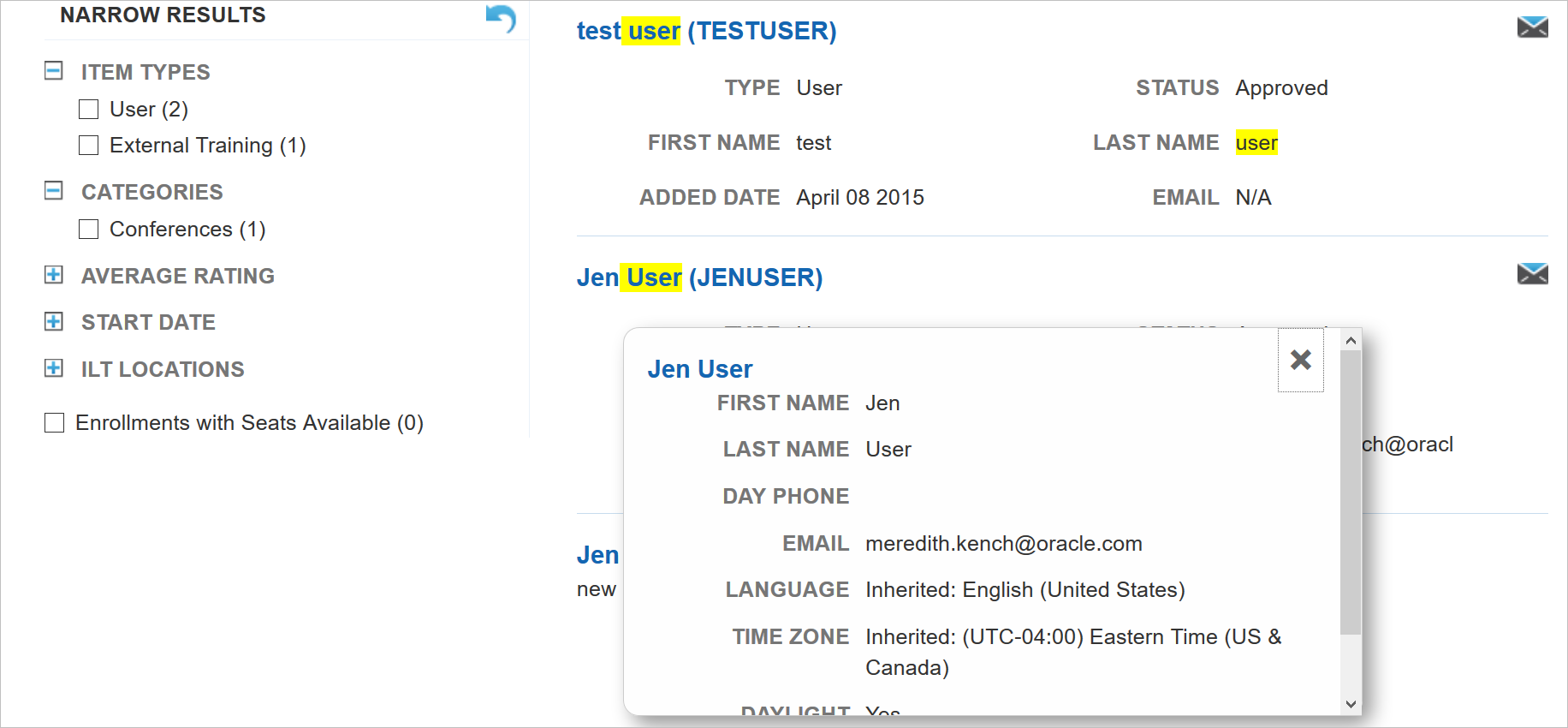
Search Widget Displaying User Card
Click the X to close the Users Card.
Refer to the online help topic called “Customizing User Information Display Settings” (TOC > Options > Configuration Options > Customizing User Information Display Settings) for instructions on configuring the User Cards for display.
The second enhancement involves better validation with regard to Prerequisites. When Supervisors assign Enrollments from the Search results, LearnCenter checks to see whether a User has completed required Prerequisites. If Users have completed an Enrollment’s Prerequisites, they can be assigned to it. A confirmation message displays to let the Supervisor know that they were assigned.

Message Stating that Users Were Enrolled
If Users have not met the Prerequisites, their Supervisors see an error message stating that they were not assigned to the Enrollment.
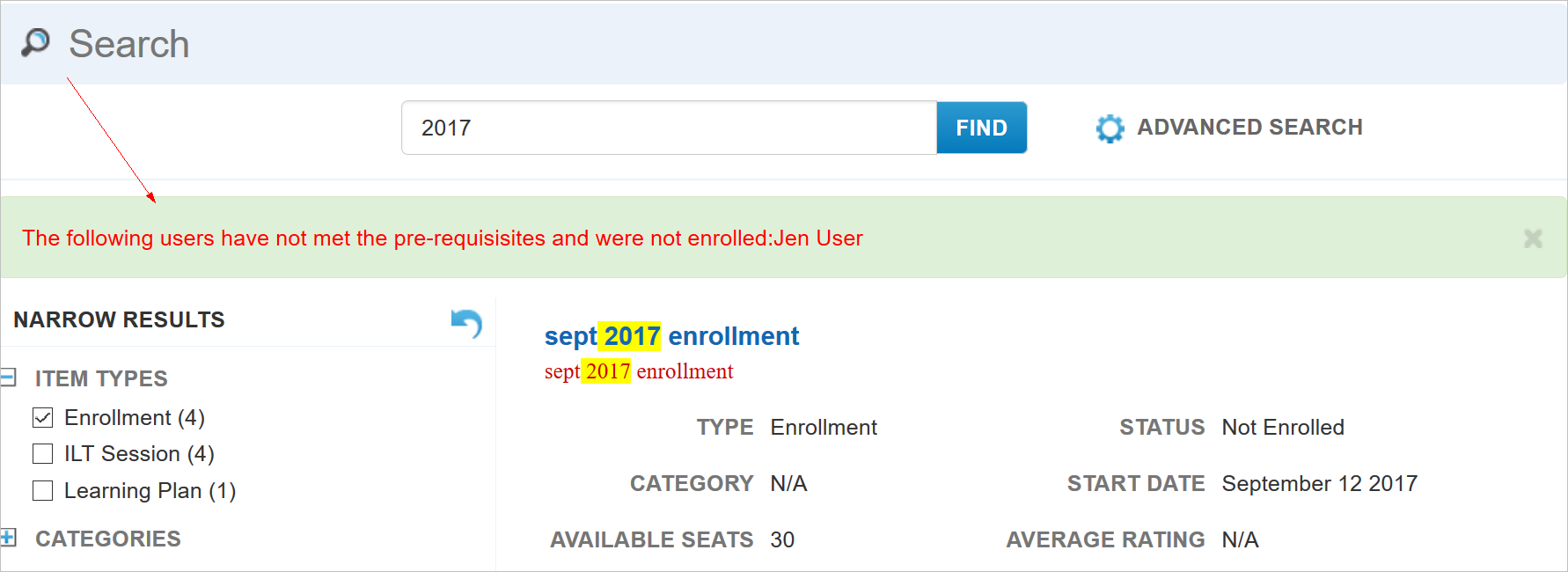
Message Stating that Users Were Not Enrolled
Both messages can be closed by clicking the X.
Refer to the online help topic called “Prerequisites” (TOC > Prerequisites) for complete information regarding LearnCenter Prerequisites.
Basic HTML are now Supported in Widgets
Widgets now support the proper display of HTML tags that you enter in the Description, Objective, and Location fields for learning items.
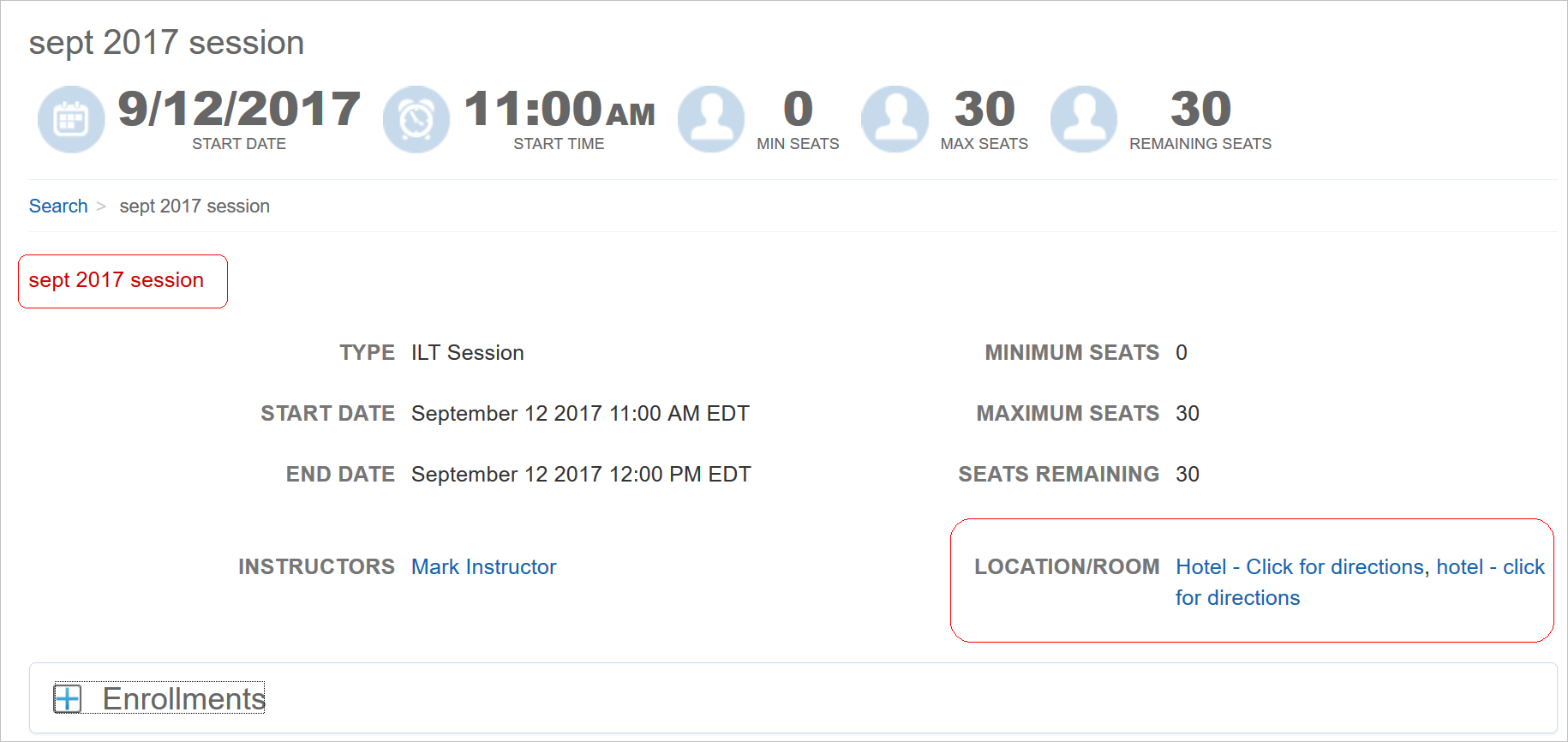
HTML Tags Now Render in Widgets
In the example above, both circled items are rendered HTML tags. For the Location/Room field, the Admin used an URL to include a map to the session location.
The following tags are supported:
- Ordered and unordered lists: ol / ul / li (li tags must be contained with ol or ul tags to work properly)
- Links: a
- Images: img
- Breaks: br
- Containers: p / span / div
- Bold: b/ strong
- Underline: u
- Italic: em/ i
- Small text: small
Things to note about HTML tags used in Widget descriptions for the Card and List views:
- Images may not appear depending on the size of the image. Smaller images will appear, but larger images will not appear until you open the Detail view.
- Avoid enlarging the font size or using padding, margins, or borders in the descriptions. These can adversely affect the layout of the views.
- If HTML tags are used in descriptions (for example: ordered and unordered lists), the ellipses may not always appear before the More link.
- If you copy and paste your HTML code from another source (like Word), be sure there are no double quotes (“”), or the HTML tag will not render properly. It is recommended that you delete the copied quotes, and then type the quotes into the Description text box. This will allow the HTML to be rendered properly.
NOTE: Oracle recommends that you do not display descriptions on the Card/List view if you want to use various attributes (such as margins, padding, and borders) with the HTML tags in the description.
External Training Widget Enhancements
Two enhancements have been made with regard to pending External Training. Admins can now configure the My Tasks Widget to include Pending External Training.
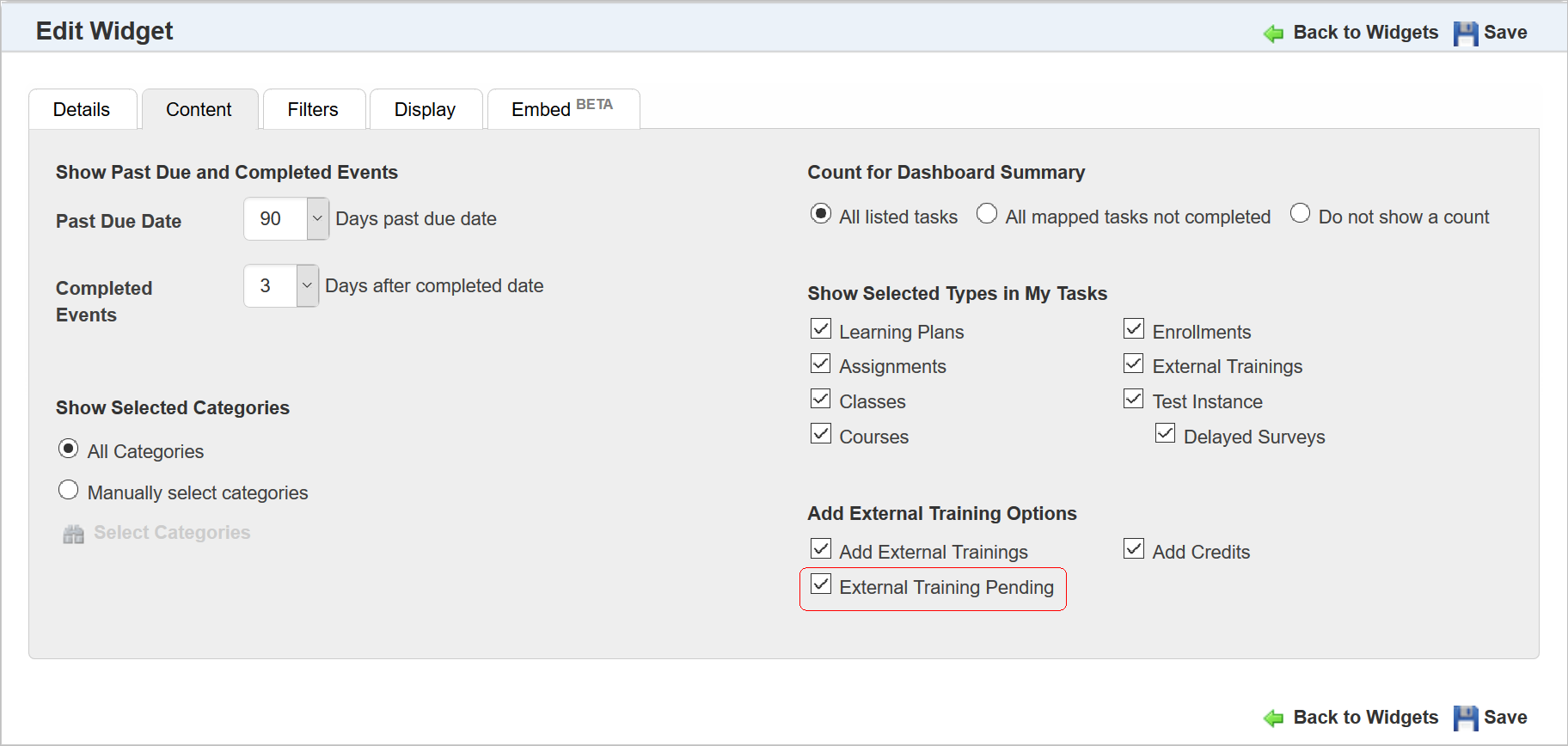
New External Training Option on the Content Tab
Notice the new External Training Pending check box in the Add External Training Options section.
NOTE: This section is only visible if you have selected the External Trainings check box from the Show Selected Types in My Tasks section.
Click the check box to include any pending External Training events to end Users. By default, the new check box is not selected. There is also a new External Training Pending check box in the Mini Dashboard section of the Filters tab.
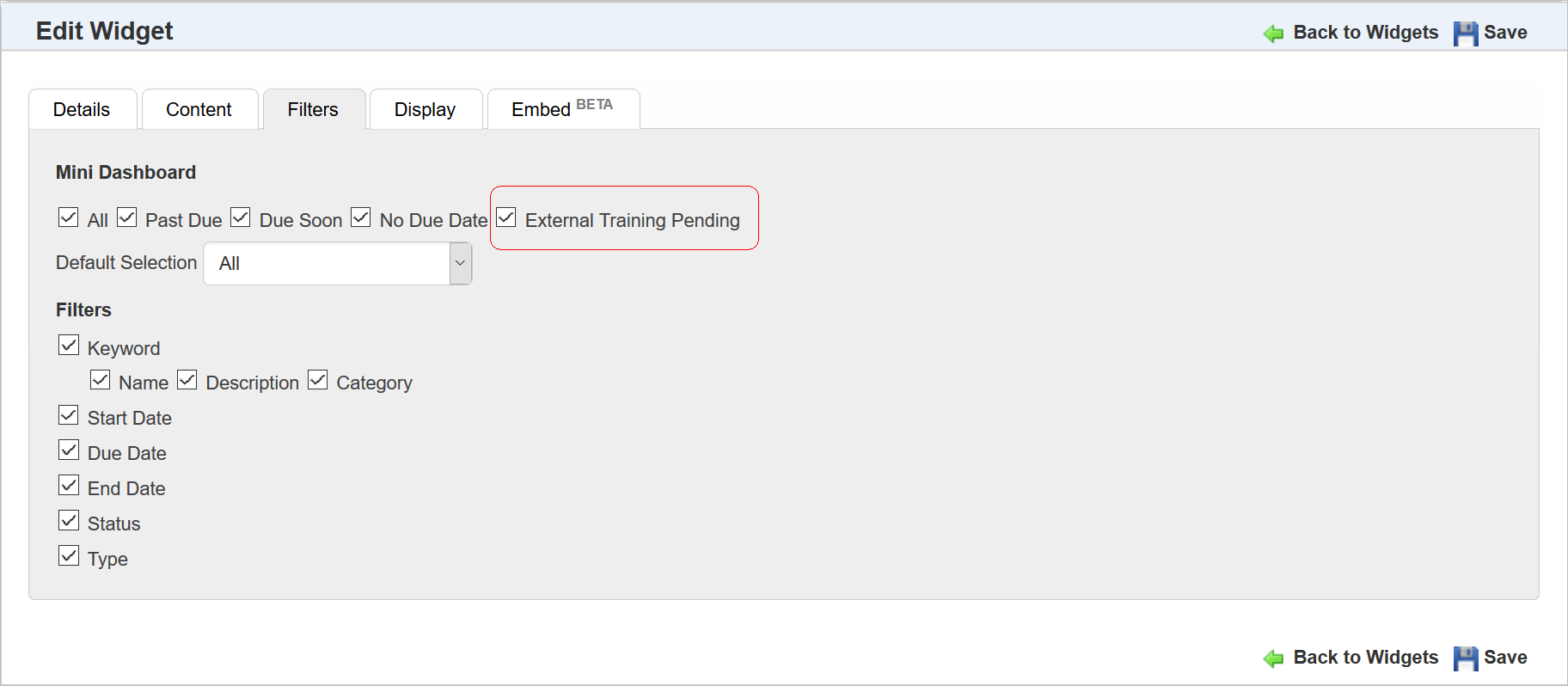
New External Training Option on the Filters Tab
Select this check box if you want pending External Training to display in the list of pending tasks when Users click Pending on the Mini Dashboard.
When both check boxes are selected in the Widget setup, Users will be able to access their pending External Training when they click the Pending button on the mini dashboard.
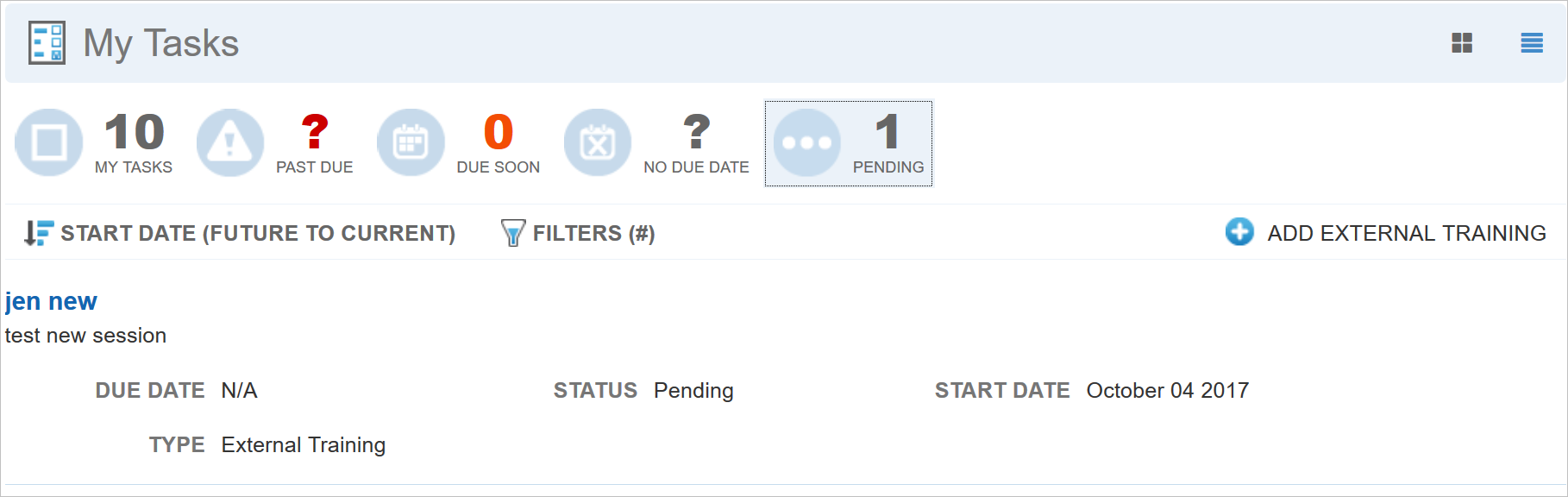
Also new for Release 17C is the ability restrict end User access to the ability to edit External Training and add mapped Categories to External Training.
If Users have not been granted the Add External Training Mapped Categories User Permission (under Manage External Training) they will not see the Categories section when they add or edit their External Training. In the following illustration, the User has been granted this permission.
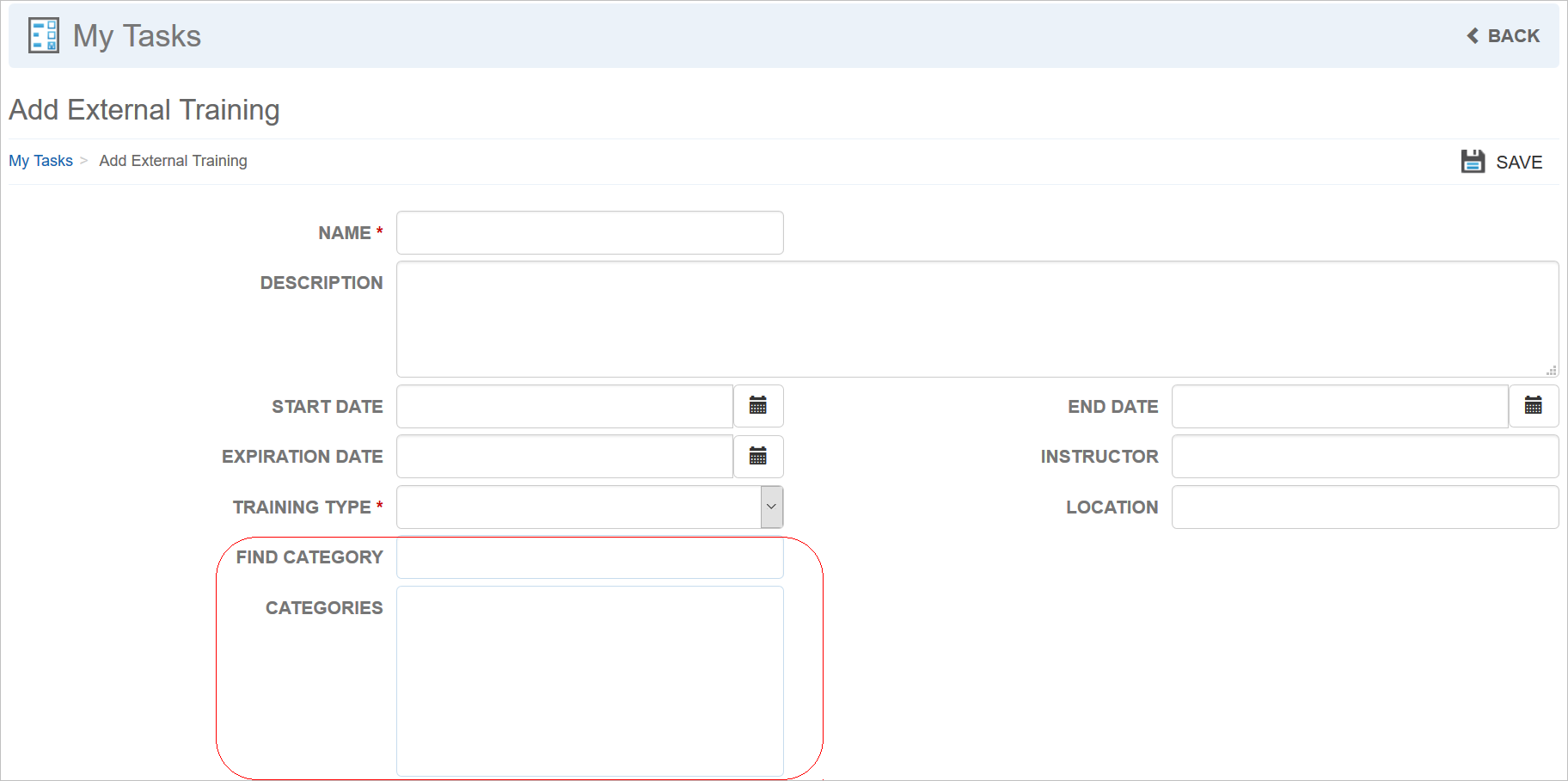
The Category Fields Display When Users Have Permission to Edit Them
In the second illustration, the same User has been denied the permission.
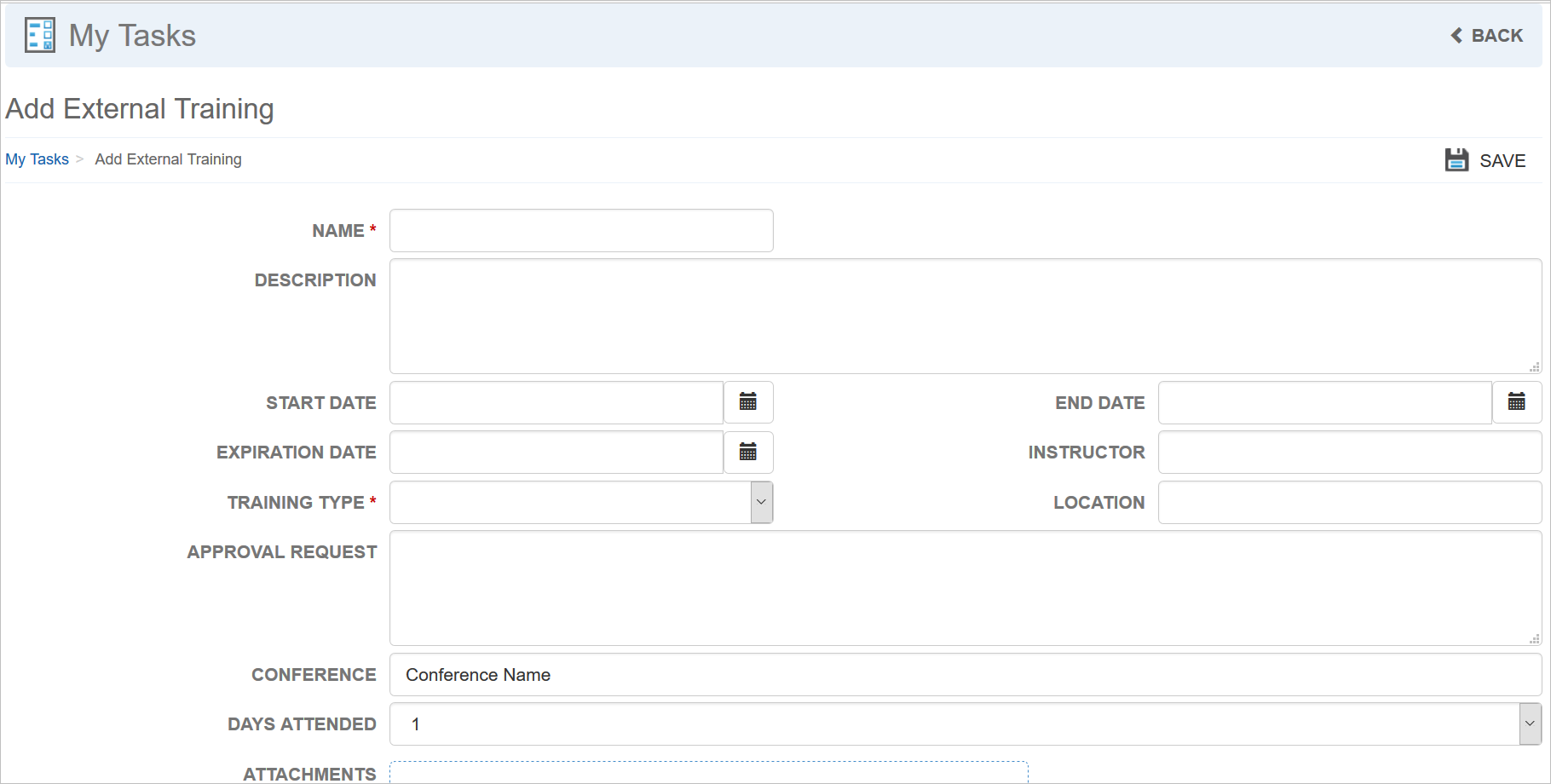
The Category Fields Do Not Display When Users Do Not Have Permission to Edit Them
Notice that the Find Category and Categories fields have been removed from view since the User no longer has permission to edit these fields.
If Users have not been granted the Edit External Training User Permission (under Manage External Training), they will not be able to access the Edit link when they view an assigned External Training.
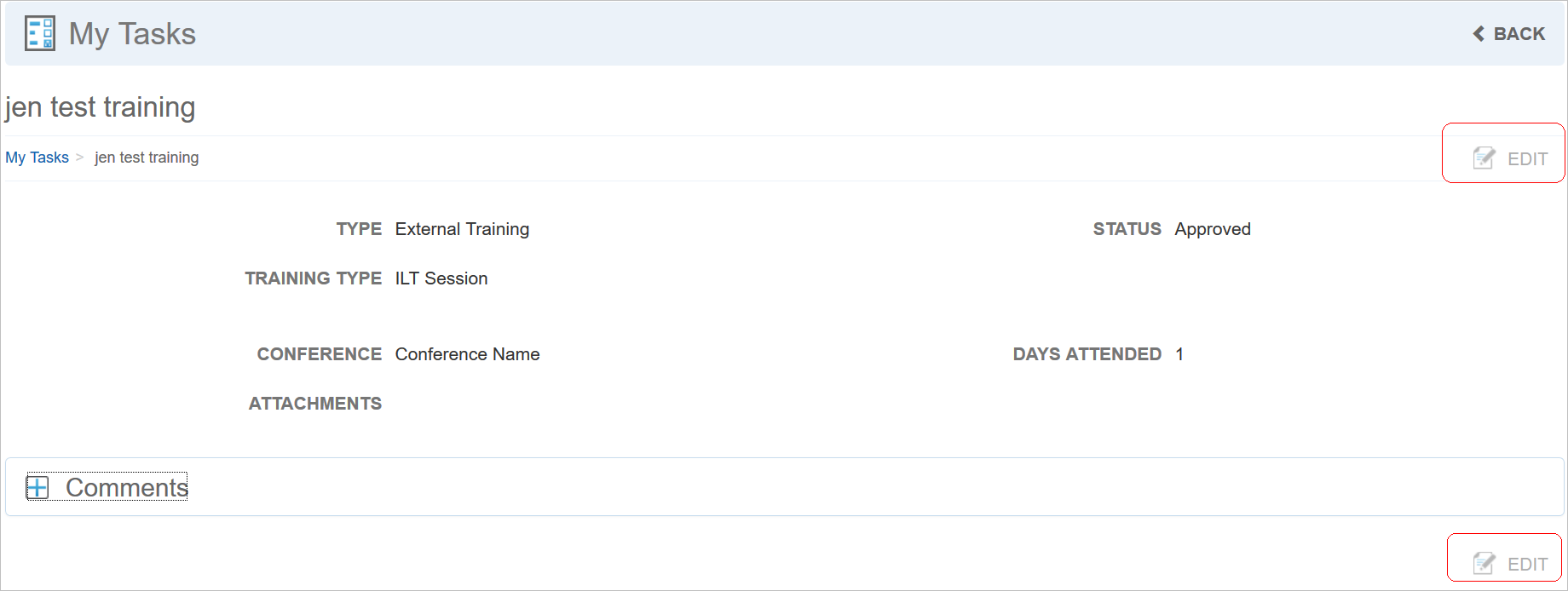
The Edit Link is Disabled When Users Do Not Have Permission to Edit External Training
In the illustration above, notice that the Edit link is still visible but disabled, because the User has not been granted the permission to edit.
NOTE: These are not new User Permissions, but prior to release 17C they were not enforced with Widgets.
There are new BI Reporting enhancements included with Release 17C for Oracle Taleo Learn Cloud.
Refer to online help for complete instructions on using BI Reporting (TOC > Reports > BI Reporting).
Next and Previous Buttons Added to the Top of the Page
The Previous and Next buttons now display at the top of the page when creating or modifying BI Reporting Custom Reports.
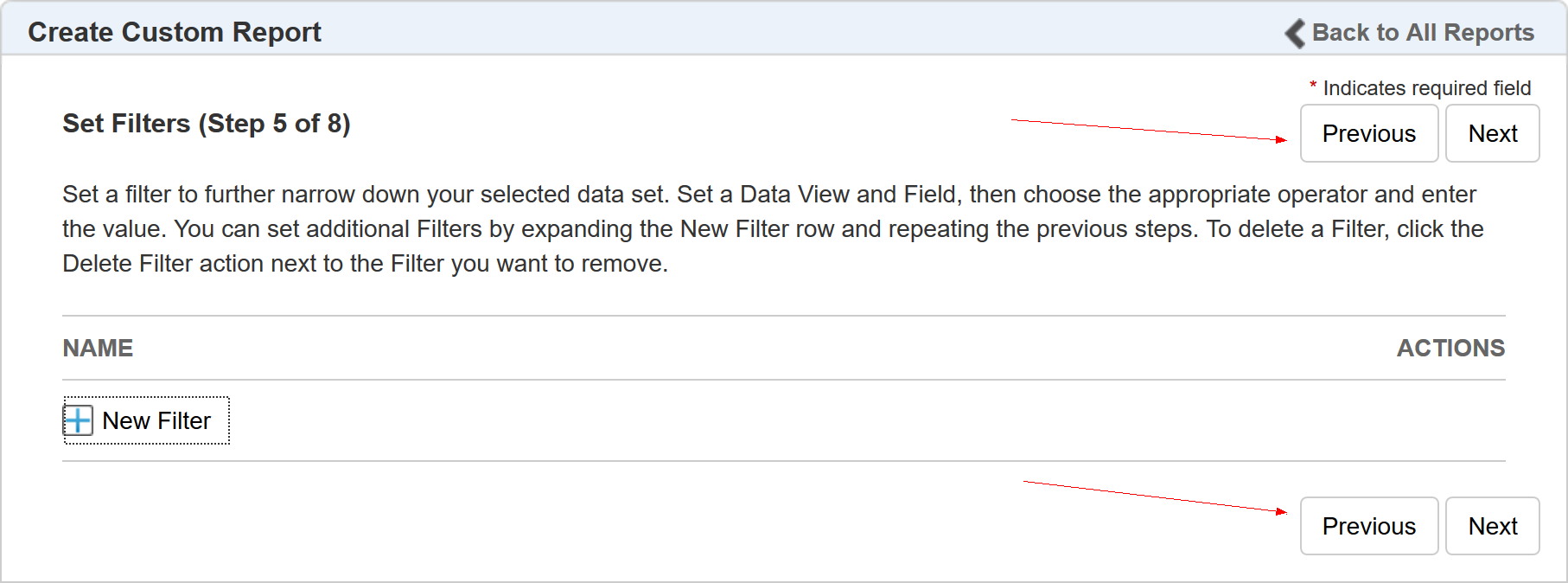
Previous and Next Buttons Now Display at the Top and Bottom of Custom Report Setup
Previously, the buttons only displayed at the bottom of the page. With these buttons at the top of the page, you can now scroll either to the top or the bottom of the page when navigating through report creation or modification.
There are two new Data Views for BI Reporting: Questions and Answers.
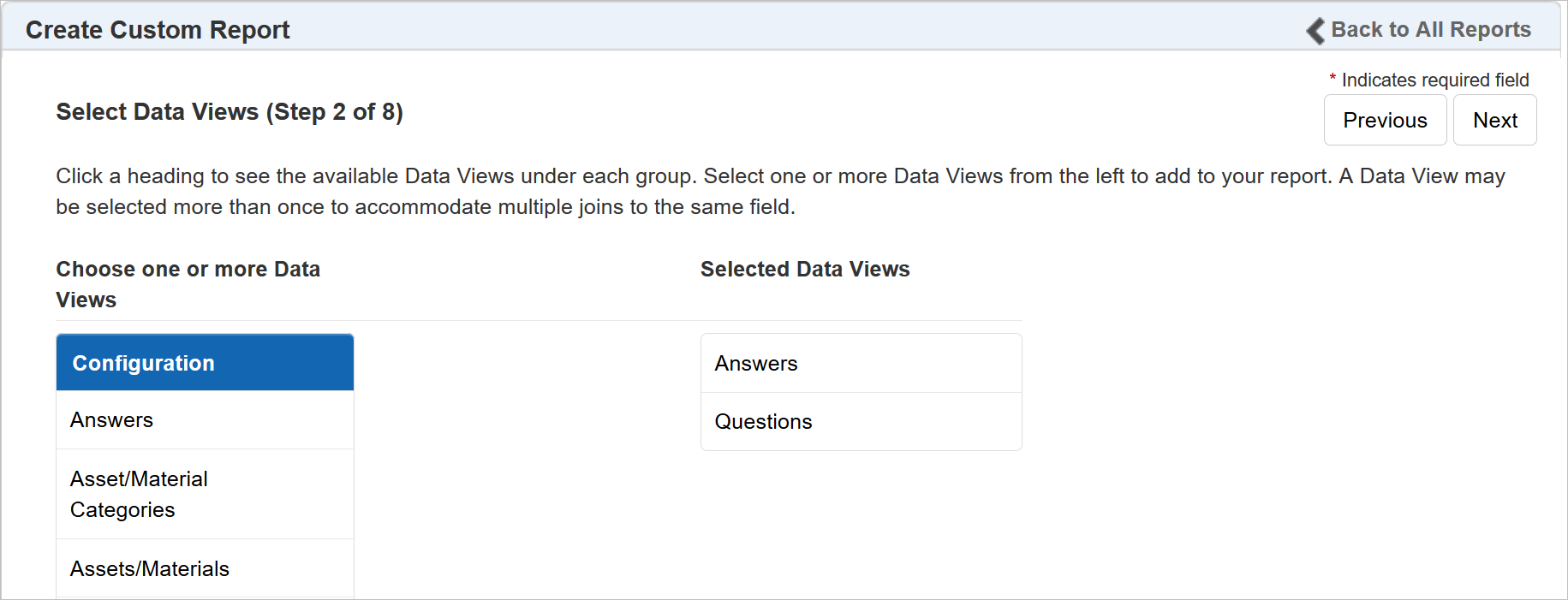
New Answers and Questions Data Views for BI Reporting
- Answers - enables Admins to report on Answers.
- Questions - enables Admins to report on Questions.
There are two new Bulk Loaders included with Oracle Taleo Learn Cloud Release 17C.
The data requirements are included in this What’s New document for your consumption ahead of general availability (GA) for Release 17C. After GA, please refer to their respective topics in online help for the most up-to-date requirements.
Refer to online help for complete details on Assessments/Surveys (TOC > Assessments/Surveys) and Questions (TOC > Assessments/Surveys > Managing Questions; and TOC > Assessments/Surveys > Managing Answers). Refer to online help for complete details on Bulk Loader (TOC > Integrations > Bulk Loader).
Bulk Loader enables you to upload and manage Questions for use with the Assessments/Survey feature.
1. Question ID
| Text Editor Column |
Excel Column |
Required |
Notes |
||||||
| 1 |
A |
Yes If no Question Name is in Column 2. No If there is a Question Name is in Column 2. |
Question ID. |
||||||
| Accepted Values |
The LearnCenter System generated Question ID. |
||||||||
| Example: 6287 |
|||||||||
| Question Types Supported by this Field |
|||||||||
| Fill in the Blank |
Free Response |
Multiple Choice Multi-Select |
Multiple Choice Single Select |
Single Select |
|||||
| Yes |
Yes |
Yes |
Yes |
Yes |
|||||
|
|
The Question ID is the Primary Identifier to find existing Question, if included in the data file the Question Name fields will not be used to find the existing Question. |
||||||||
|
|
The Question ID can be retrieved using BI Reporting by creating a custom report with the Question Data View. |
||||||||
|
|
Use Caution. When using the Question ID as the Unique identifier it is possible to update existing Questions in the current LearnCenter or any Sub-LearnCenter. |
||||||||

2. Question Type
| Text Editor Column |
Excel Column |
Required |
Notes |
||||||
| 2 |
B |
Yes if no Question ID is in Column 1 No If there is a Question ID in Column 1 |
Question Type |
||||||
| Accepted Values |
The Question loader will create new or update existing Question the column supports the following types: Fill in the Blank = Fill in the Blank Free Response = Free Response Question Multiple Choice Multi-Select = Multiple Choice, Single Select Question Multiple Choice Single Select = Multiple Choice, Multiple Select Question Single Select = Single Select Question |
||||||||
| Example: Fill in the Blank Example: Free Response Example: Multiple Choice Multi-Select Example: Multiple Choice Single Select Example: Single Select Question |
|||||||||
| Question Types Supported by this Field |
|||||||||
| Fill in the Blank |
Free Response |
Multiple Choice Multi-Select |
Multiple Choice Single Select |
Single Select |
|||||
| Yes |
Yes |
Yes |
Yes |
Yes |
|||||
|
|
Use Caution. When using the Question ID as the Unique identifier it is possible to update existing Questions in the current LearnCenter or any Sub-LearnCenter. |
||||||||
3. Question Name
| Text Editor Column |
Excel Column |
Required |
Notes |
||||||
| 3 |
C |
Yes if no Question Name is in Column 2. No Yes if there is a Question Name is in Column 2. |
Question Name. The name is the used to find existing Question or create a new Question. |
||||||
| Accepted Values |
Any Value up to 5000 characters in length. |
||||||||
| Example: My Question Name Example: Very long Question name |
|||||||||
| Question Types Supported by this Field |
|||||||||
| Fill in the Blank |
Free Response |
Multiple Choice Multi-Select |
Multiple Choice Single Select |
Single Select |
|||||
| Yes |
Yes |
Yes |
Yes |
Yes |
|||||
|
|
When using the Question ID as the Unique Identifier the Question Name can be updated by the Question Loader. |
||||||||
4. Question Prompt
| Text Editor Column |
Excel Column |
Required |
Notes |
||||
| 4 |
D |
No |
Question Prompt |
||||
| Accepted Values |
Any Value up to 4000 characters in length |
||||||
| Example: This is the Question Prompt |
|||||||
| Question Types Supported by this Field |
|||||||
| Fill in the Blank |
Free Response |
Multiple Choice Multi-Select |
Multiple Choice Single Select |
Single Select |
|||
| Yes |
Yes |
Yes |
Yes |
Yes |
|||
5. Alternative Scoring Type
| Text Editor Column |
Excel Column |
Required |
Notes |
|||||
| 5 |
E |
Yes if Question Type is Fill in the Blank No for all other Question Types |
Alternative Scoring Type |
|||||
| Accepted Values |
Single correct answer single option = Single correct answer single option Single correct answer multiple option = Single correct answer multiple option Score entered by user = Score entered by user No Scoring = No Scoring Blank Value = No Scoring |
|||||||
| Example: Single correct answer single option Example: Single correct answer multiple option Example: Score entered by user Example: No Scoring |
||||||||
| Question Types Supported by this Field |
||||||||
| Fill in the Blank |
Free Response |
Multiple Choice Multi-Select |
Multiple Choice Single Select |
Single Select |
||||
| Yes |
No (Field Skipped) |
No (Field Skipped) |
No (Field Skipped) |
No (Field Skipped) |
||||
6. Validation Type
| Text Editor Column |
Excel Column |
Required |
Notes |
|||||
| 6 |
F |
Yes if Question Type is Fill in the Blank No for all other Question Types |
Validation Type |
|||||
| Accepted Values |
Alphanumeric = Alphanumeric Numeric = Numeric Alpha = Alpha Blank Value = Alphanumeric |
|||||||
| Example: Alphanumeric Example: Numeric Example: Alpha |
||||||||
| Question Types Supported by this Field |
||||||||
| Fill in the Blank |
Free Response |
Multiple Choice Multi-Select |
Multiple Choice Single Select |
Single Select |
||||
| Yes |
No (Field Skipped) |
No (Field Skipped) |
No (Field Skipped) |
No (Field Skipped) |
||||
7. Allow partial credit
| Text Editor Column |
Excel Column |
Required |
Notes |
|||||
| 7 |
G |
Yes if Question Type is Multiple Choice, Multiple Select Only No for all other Question Types |
Allow partial credit. |
|||||
| Accepted Values |
Yes = Sets the Question to Allow partial credit No = Sets the Question to NOT Allow partial credit Blank Column = Sets the Question to NOT Allow partial credit |
|||||||
| Example: Yes Example: No |
||||||||
| Question Types Supported by this Field |
||||||||
| Fill in the Blank |
Free Response |
Multiple Choice Multi-Select |
Multiple Choice Single Select |
Single Select |
||||
| No (Field Skipped) |
No (Field Skipped) |
Yes |
No (Field Skipped) |
No (Field Skipped) |
||||
8. Global Catalog
| Text Editor Column |
Excel Column |
Required |
Notes |
||||
| 8 |
H |
No |
Set the Question to be included in the Global Catalog |
||||
| Accepted Values |
Yes = Sets the Question to be included in Global Catalog No = Sets the Question to NOT be included in Global Catalog Blank Column = Sets the Question to NOT be included in Global Catalog |
||||||
| Example: Yes Example: No |
|||||||
| Question Types Supported by this Field |
|||||||
| Fill in the Blank |
Free Response |
Multiple Choice Multi-Select |
Multiple Choice Single Select |
Single Select |
|||
| Yes |
Yes |
Yes |
Yes |
Yes |
|||
9. Categories
| Text Editor Column |
Excel Column |
Required |
Notes |
||||
| 9 |
I |
No |
Set the Question Categories |
||||
| Accepted Values |
The Application can load data into as many Categories root and sub-categories as exist in the LearnCenter for Question For format if the data in the column: < category name>;< category name> Each Categories mapping is separated by a semicolon ; The Categories must exist in the LearnCenter The Categories names for the Question must be unique. If multiple Categories (For the Question) with the exact same name exist, the application cannot determine which field to map the data to and will skip the field. |
||||||
| Example: Root Categories 01 Example: Root Categories 01;Root Categories 02;Root Categories 03 Example: Root Categories 01;Root Categories 02; Sub Categories 03;Sub Categories 04 |
|||||||
| Question Types Supported by this Field |
|||||||
| Fill in the Blank |
Free Response |
Multiple Choice Multi-Select |
Multiple Choice Single Select |
Single Select |
|||
| Yes |
Yes |
Yes |
Yes |
Yes |
|||
10. Status
| Text Editor Column |
Excel Column |
Required |
Notes |
||||
| 10 |
J |
Yes |
The Question Status |
||||
| Accepted Values |
Active = Sets the Question to Active Inactive = Sets the Question to Inactive Blank Column = Sets the Question to Inactive |
||||||
| Example: Active Example: Inactive |
|||||||
| Question Types Supported by this Field |
|||||||
| Fill in the Blank |
Free Response |
Multiple Choice Multi-Select |
Multiple Choice Single Select |
Single Select |
|||
| Yes |
Yes |
Yes |
Yes |
Yes |
|||
11. Answers
| Text Editor Column |
Excel Column |
Required |
Notes |
|||||
| 11 |
K |
No |
Mapping Answers to Question |
|||||
| Accepted Values |
The Application can load data into as many Answers as required. Answers loaded by this field are inactive in the Question. The field will accept the Answer ID. The Answer IDs can be generated with a Custom BI Report using the Answer Data View. For format if the data in the column: < Answer ID>=<Point Value>;< Answer ID >;< Answer ID>=<Point Value>. Each Answer is separated by a semicolon (;) The Answers must exist in the LearnCenter. |
|||||||
| Example: 50665=10 Example: 50664=0; 50665=10; 50666=0 |
||||||||
| Question Types Supported by this Field |
||||||||
| Fill in the Blank |
Free Response |
Multiple Choice Multi-Select |
Multiple Choice Single Select |
Single Select |
||||
| No (Field Skipped) |
No (Field Skipped) |
Yes |
Yes |
Yes |
||||
|
|
Answers must exist in the LearnCenter to be mapped to a Question. |
|||||||
|
|
Fill in the Blank and Free Response do not require Answers to be mapped to the Question. |
|||||||
|
|
Multiple Choice Multi-Select = Supports Multiple Answers with greater than 0 set as point value. |
|||||||
|
|
Multiple Choice Single Select = Supports only ONE Answers with greater than 0 set as point value. |
|||||||
|
|
Single Select = Supports Multiple Answers with greater than 0 set as point value, Only one Answers can be active in column 12. |
|||||||
12. Active Answers
| Text Editor Column |
Excel Column |
Required |
Notes |
|||||
| 12 |
I |
No |
Setting the Active Answers for the Question |
|||||
| Accepted Values |
Answers loaded by Column 11 are loaded as Inactive in the Question. This Column will set which Answers are Active for the Question. The field will accept the Answer ID. The Answer IDs can be generated with a Custom BI Report using the Answer Data View. For format if the data in the column: < Answer ID>;< Answer ID >;< Answer ID>. Each Active Answer is separated by a semicolon (;). The Answers must exist in the LearnCenter. |
|||||||
| Example: 50665 Example: 50664;50665;50666 |
||||||||
| Question Types Supported by this Field |
||||||||
| Fill in the Blank |
Free Response |
Multiple Choice Multi-Select |
Multiple Choice Single Select |
Single Select |
||||
| No (Field Skipped) |
No (Field Skipped) |
Yes |
Yes |
Yes |
||||
|
|
Answers must exist in the LearnCenter to be mapped to a Question. |
|||||||
|
|
Fill in the Blank and Free Response do not require Answers to be mapped to the Question. |
|||||||
|
|
Multiple Choice Multi-Select = Supports Multiple Active Answers. |
|||||||
|
|
Multiple Choice Single Select = Supports only ONE Active Answers. |
|||||||
|
|
Single Select = Supports only ONE Active Answers. |
|||||||
13. Answer Order
| Text Editor Column |
Excel Column |
Required |
Notes |
|||||
| 13 |
M |
No |
Sets the order for the Answers in the Question. |
|||||
| Accepted Values |
Answers loaded by Column 11 are loaded as Inactive in the Question. This Column will set which Answers are Active for the Question. The field will accept the Answer ID. The Answer IDs can be generated with a Custom BI Report using the Answer Data View. For format if the data in the column: < Answer ID>;< Answer ID >;< Answer ID>. Each Active Answer is separated by a semicolon (;) The Answers must exist in the LearnCenter. |
|||||||
| Example: 50665 Example: 50664;50665;50666 |
||||||||
| Question Types Supported by this Field |
||||||||
| Fill in the Blank |
Free Response |
Multiple Choice Multi-Select |
Multiple Choice Single Select |
Single Select |
||||
| No (Field Skipped) |
No (Field Skipped) |
Yes |
Yes |
Yes |
||||
|
|
Answers must exist in the LearnCenter to be mapped to a Question. |
|||||||
|
|
Fill in the Blank and Free Response do not require Answers to be mapped to the Question. |
|||||||
14. Resources
| Text Editor Column |
Excel Column |
Required |
Notes |
|||||
| 14 |
N |
No |
Attached existing Resources to the Question. |
|||||
| Accepted Values |
The Application can load data into as many Resources as required. For format if the data in the column: < Resources name>;< Resources name>. Each Resources mapping is separated by a semicolon (;). The Resources must exist in the Resource Manager. The Resource names must be unique. |
|||||||
| Example: Resource_01=Add Example: Resource_02=Delete Example: Resource_01=Add;Resource_02=Add;Resource_03=Delete |
||||||||
| Question Types Supported by this Field |
||||||||
| Fill in the Blank |
Free Response |
Multiple Choice Multi-Select |
Multiple Choice Single Select |
Single Select |
||||
| Yes |
Yes |
Yes |
Yes |
Yes |
||||
|
|
Resources must exist in the Resource Manager and have unique names. |
|||||||
15. Active Resource
| Text Editor Column |
Excel Column |
Required |
Notes |
||||||
| 15 |
O |
No |
Sets the active Resource for the Question. |
||||||
| Accepted Values |
Any Value up to 5000 characters in length. |
||||||||
| Example: Resource_01 |
|||||||||
| Question Types Supported by this Field |
|||||||||
| Fill in the Blank |
Free Response |
Multiple Choice Multi-Select |
Multiple Choice Single Select |
Single Select |
|||||
| Yes |
Yes |
Yes |
Yes |
Yes |
|||||
|
|
Questions can have only ONE active Resource at any given time. |
||||||||
Bulk Loader enables you to upload and manage Answers for use with the Assessments/Survey feature.
1. Answer ID
| Text Editor Column |
Excel Column |
Required |
Notes |
|
| 1 |
A |
Yes if no Answer Name is in Column 2. No Yes if there is an Answer Name is in Column 2. |
Answer ID |
|
| Accepted Values |
The LearnCenter System generated Answer ID. |
|||
| Example: 6287 |
||||
|
|
The Answer ID is the Primary Identifier to find existing Answer, if included in the data file the Answer Name fields will not be used to find the existing answer. |
|||
|
|
The Answer ID can be retrieved using BI Reporting by creating a custom report with the Answer Data View. |
|||
|
|
Use Caution. When using the Answer ID as the Unique identifier it is possible to update existing answers in the current LearnCenter or any Sub-LearnCenter. |
|||
2. Answer Name
| Text Editor Column |
Excel Column |
Required |
Notes |
||
| 2 |
B |
Yes if no Answer Name is in Column 2. No Yes if there is an Answer Name is in Column 2. |
Answer Name. The name is the used to find existing answer or create a new answer. |
||
| Accepted Values |
Any Value up to 5000 characters in length. |
||||
| Example: Yes Example: Yes Example: Very long answer name |
|||||
|
|
When using the Answer ID as the Unique Identifier the Answer Name can be updated by the Answer Loader. |
||||
3. Answer Feedback
| Text Editor Column |
Excel Column |
Required |
Notes |
| 3 |
C |
No |
Answer Feedback |
| Accepted Values |
Any Value up to 4000 characters in length. |
||
| Example: This is the Answer Feedback |
|||
4. Global Catalog
| Text Editor Column |
Excel Column |
Required |
Notes |
| 4 |
D |
No |
Set the Answer to be included in the Global Catalog. |
| Accepted Values |
Yes = Sets the Answer to be included in Global Catalog. No = Sets the Answer to NOT be included in Global Catalog. Blank Column = Sets the Answer to NOT be included in Global Catalog. |
||
| Example: Yes Example: No |
|||
5. Categories
| Text Editor Column |
Excel Column |
Required |
Notes |
| 5 |
E |
No |
Set the Answer Categories |
| Accepted Values |
The Application can load data into as many Categories root and sub-categories as exist in the LearnCenter for Answer. For format if the data in the column: < category name>;< category name>. Each Categories mapping is separated by a semicolon (;). The Categories must exist in the LearnCenter. The Categories names for the Answer must be unique. If multiple Categories (For the Answer) with the exact same name exist, the application cannot determine which field to map the data to and will skip the field. |
||
| Example: Root Categories 01 Example: Root Categories 01;Root Categories 02;Root Categories 03 Example: Root Categories 01;Root Categories 02; Sub Categories 03;Sub Categories 04 |
|||
6. Status
| Text Editor Column |
Excel Column |
Required |
Notes |
| 6 |
F |
Yes |
The Answer Status |
| Accepted Values |
Active = Sets the Answer to Active. Inactive = Sets the Answer to Inactive. Blank Column = Sets the Answer to Inactive. |
||
| Example: Active Example: Inactive |
|||
7. Resources
| Text Editor Column |
Excel Column |
Required |
Notes |
|
| 7 |
G |
No |
Attached existing Resources to the Answer |
|
| Accepted Values |
The Application can load data into as many Resources as required. For format if the data in the column: < asset/ material name>;< asset/material name>. Each Resources mapping is separated by a semicolon (;). The Resources must exist in the Resource Manager. The Resource names must be unique. |
|||
| Example: Resource_01=Add Example: Resource_02=Delete Example: Resource_01=Add;Resource_02=Add;Resource_03=Delete |
||||
|
|
Resources must exist in the Resource Manager and have unique names. |
|||
8. Active Resource
| Text Editor Column |
Excel Column |
Required |
Notes |
||
| 8 |
H |
No |
Sets the active Resource for the Answer |
||
| Accepted Values |
Any Value up to 5000 characters in length. |
||||
| Example: Resource_01 |
|||||
|
|
Answers can have only ONE active Recourse at any given time. |
||||
---

Copyright © 2017, Oracle and/or its affiliates. All rights reserved.
This document is provided for information purposes only, and the contents hereof are subject to change without notice. This document is not warranted to be error-free, nor subject to any other warranties or conditions, whether expressed orally or implied in law, including implied warranties and conditions of merchantability or fitness for a particular purpose. We specifically disclaim any liability with respect to this document, and no contractual obligations are formed either directly or indirectly by this document. This document may not be reproduced or transmitted in any form or by any means, electronic or mechanical, for any purpose, without our prior written permission.
Oracle and Java are registered trademarks of Oracle and/or its affiliates. Other names may be trademarks of their respective owners.
Intel and Intel Xeon are trademarks or registered trademarks of Intel Corporation. All SPARC trademarks are used under license and are trademarks or registered trademarks of SPARC International, Inc. AMD, Opteron, the AMD logo, and the AMD Opteron logo are trademarks or registered trademarks of Advanced Micro Devices. UNIX is a registered trademark of The Open Group.
